
FusionDAQ FDQ-99900 MI-8
FusionDAQ FDQ-99900 MI-8
Fusion DAQ
- Platform
- ThingsBoard
- Hardware Type
- Other devices
- Connectivity
- HTTP, MQTT, LTE
- Industry
- Environmental Monitoring, Industrial Manufacturing, Energy Management
- Use Case
- Environment Monitoring, Smart energy, Smart Metering
Introduction
The FDQ-99900 MI-8 is a compact, 24-bit data acquisition system (DAQ) designed to measure up to ten external sensors, then log values locally to an SD card or push data to the cloud over a cellular connection. Advanced triggering functionality allows the MI-8 to conserve storage and network data by transmitting only events of interest.
This guide covers connecting the MI-8 to ThingsBoard using HTTP POST with Access Token authentication.
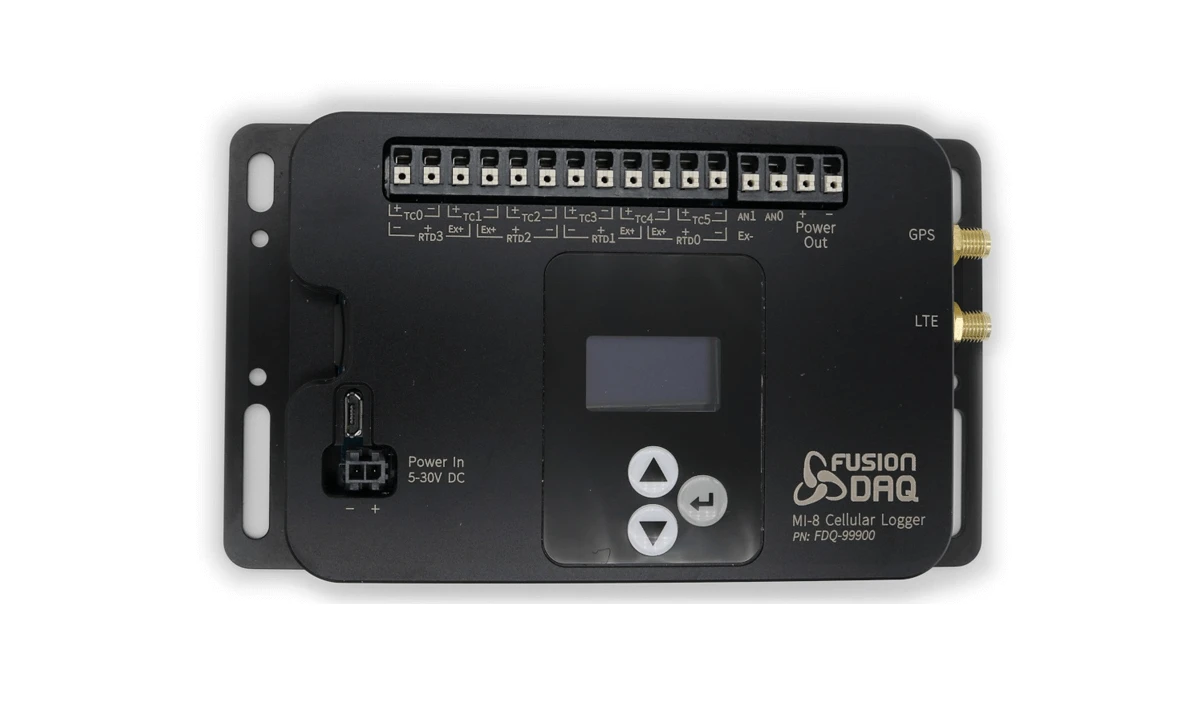
Technical characteristics
- LTE CAT-M1 and CAT-NB cellular bands
- HTTP/MQTT push APIs
- Up to two 0–10 V analog inputs
- Up to four RTD or strain gauge measurements
- Up to six thermocouple inputs (types B, E, J, K, N, R, S, T)
- Negative common-mode range handling for grounded thermocouples (±2.4 V)
- Regulated 14.4 V output to power external sensors
- Wide supply voltage range (4.8–30 V)
- Integrated GPS (GNSS) receiver
- Advanced triggering options
- Local SD card logging
Prerequisites
- FusionDAQ FDQ-99900 MI-8 with active SIM card
- ThingsBoard instance (Cloud or on-premise)
Provisioning the device in ThingsBoard
Create a device
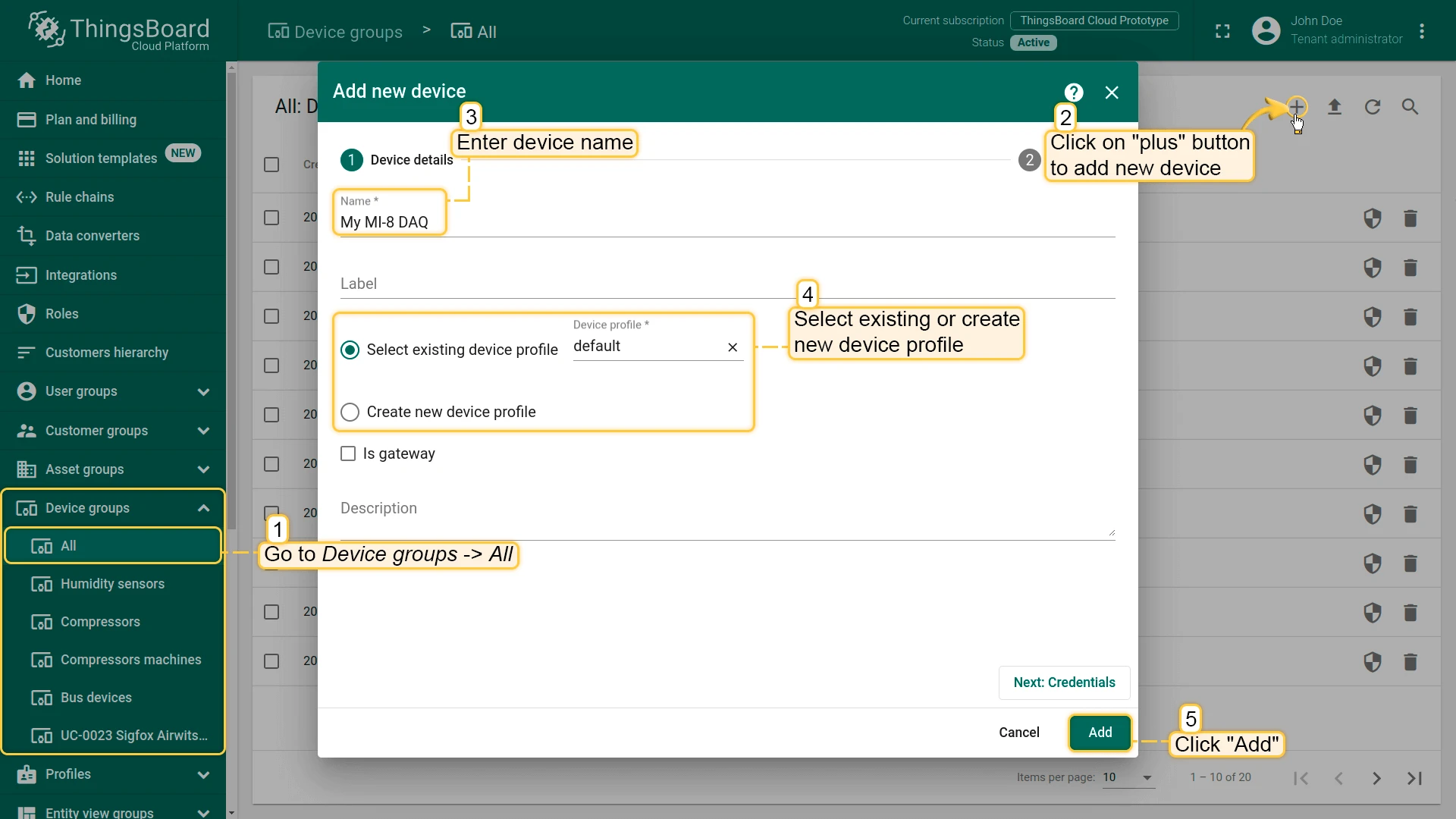
Open your ThingsBoard instance or ThingsBoard Cloud and log in as a tenant administrator.
Go to Devices and click + Add device ⇾ Add new device. Enter a device name, and click Add.
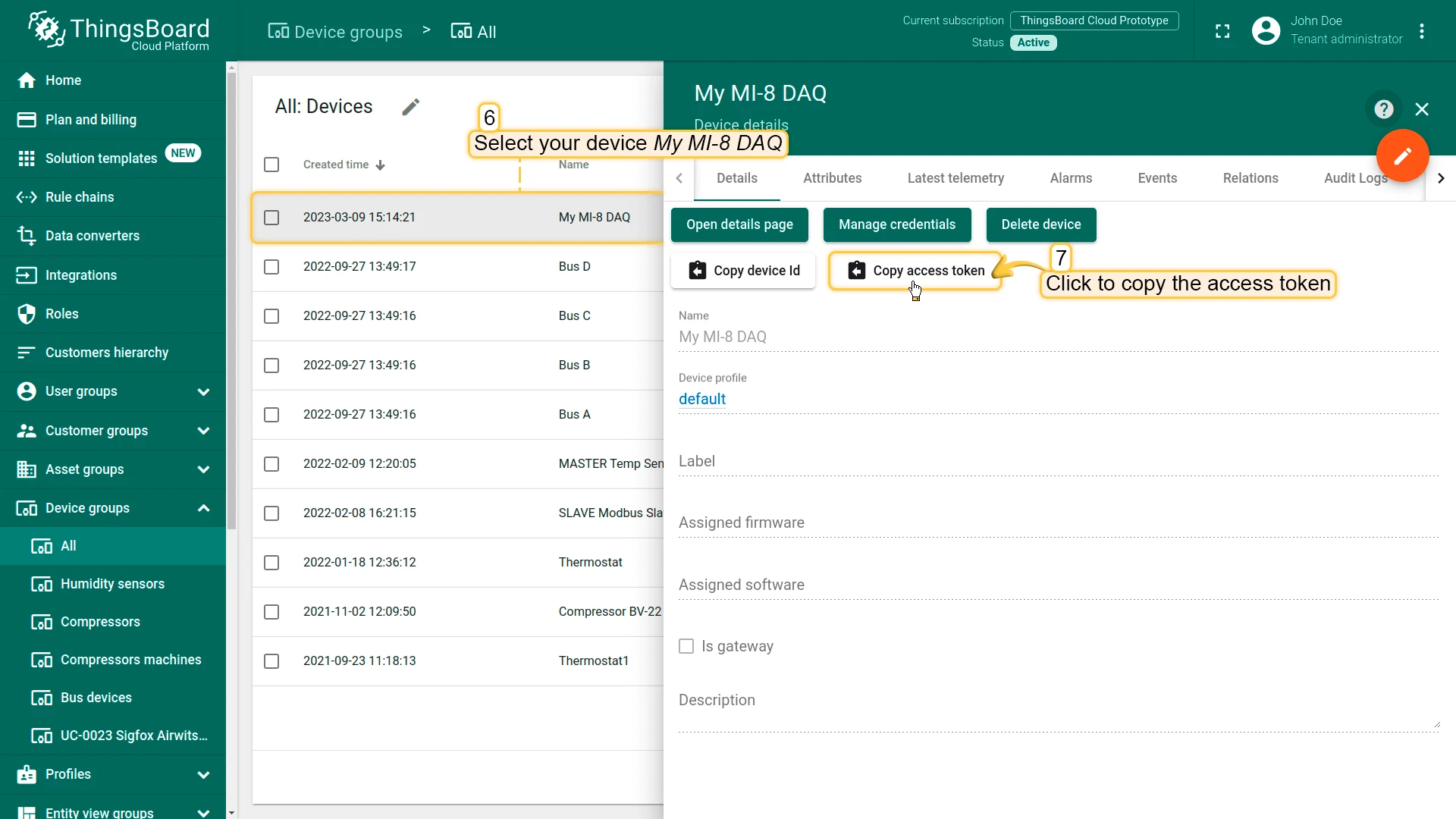
Click on the device to open the device details, and copy the auto-generated access token by clicking Copy access token.
Configure the MI-8
All MI-8 DAQs are configured through a file named config.json in the root directory of their SD card. A working example can be copied or downloaded below — refer to the MI-8 User Manual for the full field reference.
{ "name":"My MI-8 DAQ", "thermo_type":["k","k","k","k","k","k"], "num_thermo":3, "num_rtd":2, "ref_resistance":4000, "rtd_type":["pt100","pt100","pt100","pt100"], "rtd_connection":[4,4,4,4], "dig_in_mode":["pulldown","pulldown","pulldown"], "use_aux_header":false, "debug_level":255, "usb_mass_storage":true, "sleep_voltage":9.9, "wake_voltage":10.5, "display_sleep":10, "gnss_period":60, "flip_display":false, "network": { "apn":"hologram", "username":"", "password":"" }, "push": { "mode":"post", "path":"api/v1/swQYq04wk17QfdQI86Ai/telemetry", "attributes_path":"api/v1/swQYq04wk17QfdQI86Ai/attributes", "server":"thingsboard.cloud", "port":80, "username":"", "password":"", "use_ssl":false, "use_json":true, "push_attributes":true, "include_name":false, "include_imei":false, "include_iccid":false, "track_min_max":false, "use_headers":false }, "trigger":[ { "name":"Default", "channels":"ambient,tc0,tc1,tc2,rtd0,rtd1,an0,lat,lon,alt,vbat,rssi", "log_period":60, "push_period":300, "start_delay":0, "stop_delay":0, "condition":"1", "append_log":true }]}The key fields for ThingsBoard integration are under the push object:
| Field | Value | Notes |
|---|---|---|
mode | "post" | HTTP POST (uses less cellular data than MQTT) |
server | "thingsboard.cloud" | Your ThingsBoard host |
port | 80 / 443 | 80 for HTTP, 443 for HTTPS |
use_ssl | false / true | Match the port |
path | "api/v1/{ACCESS_TOKEN}/telemetry" | Replace with your token |
attributes_path | "api/v1/{ACCESS_TOKEN}/attributes" | Replace with your token |
use_json | true | Required for ThingsBoard |
use_headers | false | Not required by ThingsBoard |
push_attributes | true | Sends IMEI, ICCID, name once per power cycle |
include_name / include_imei / include_iccid | false | Already sent via attributes_path; omit from telemetry to save data |
Replace {ACCESS_TOKEN} in both path fields with the token copied from ThingsBoard. The name field is optional — it appears on the MI-8 OLED screen and is sent as a device attribute, but does not affect how telemetry is associated in ThingsBoard.
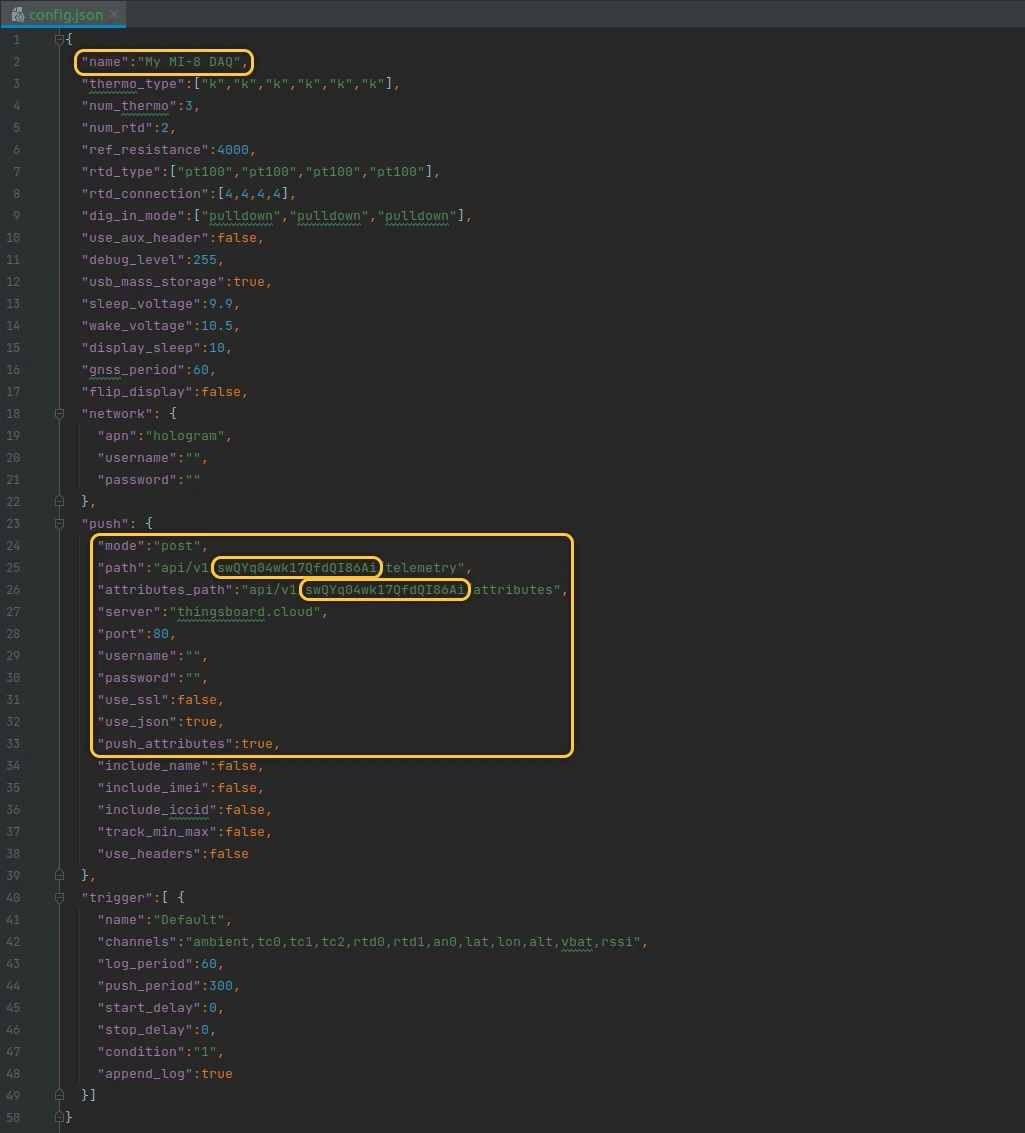
Save config.json to the SD card, disconnect from USB (if mass storage was enabled), and power cycle the MI-8 for the new settings to take effect.
Verify the connection in ThingsBoard
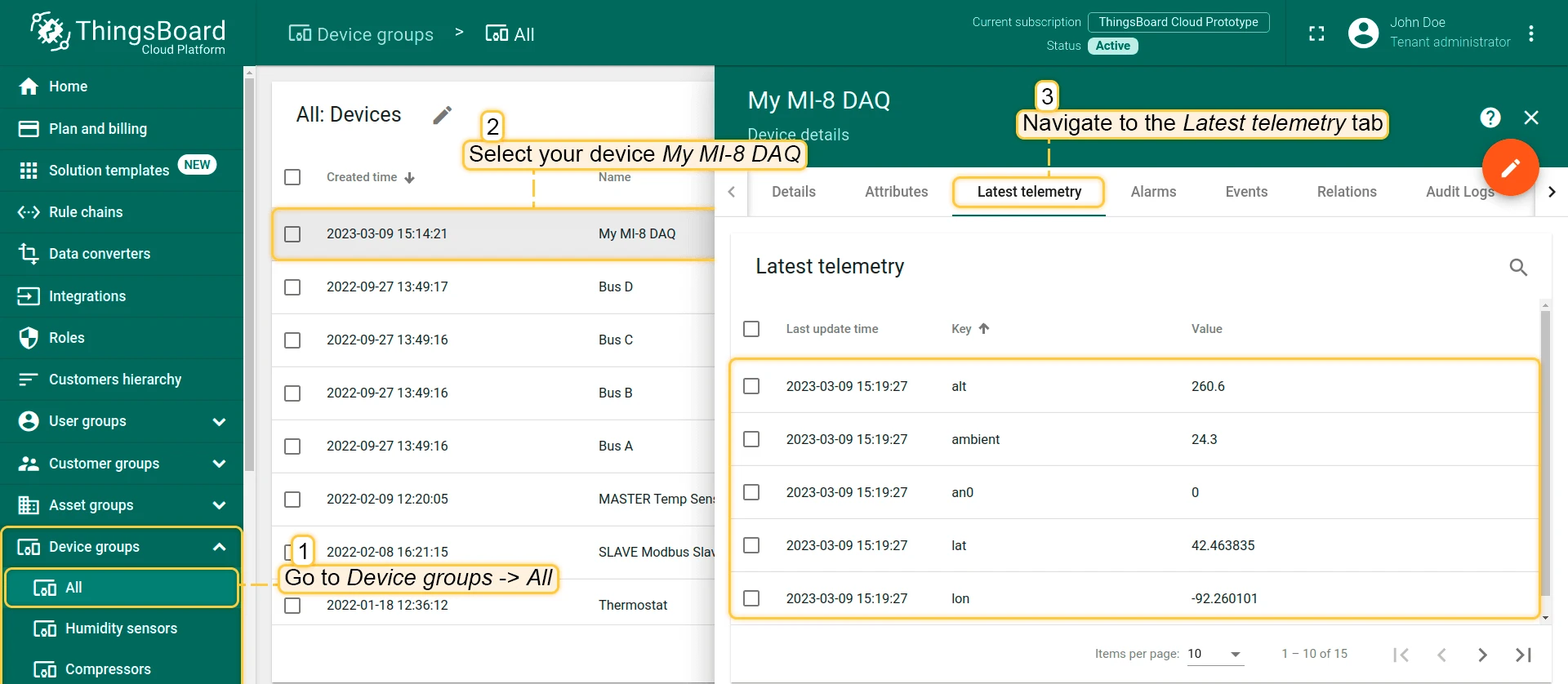
Navigate to Devices, open the device, and select the Latest telemetry tab. Once the MI-8 powers up and establishes a cellular connection, all sensor channels configured in the active trigger will appear here.
GPS values (lat, lon, alt) appear only after the first GPS fix, which may take several minutes on first power-up or after the device has moved.
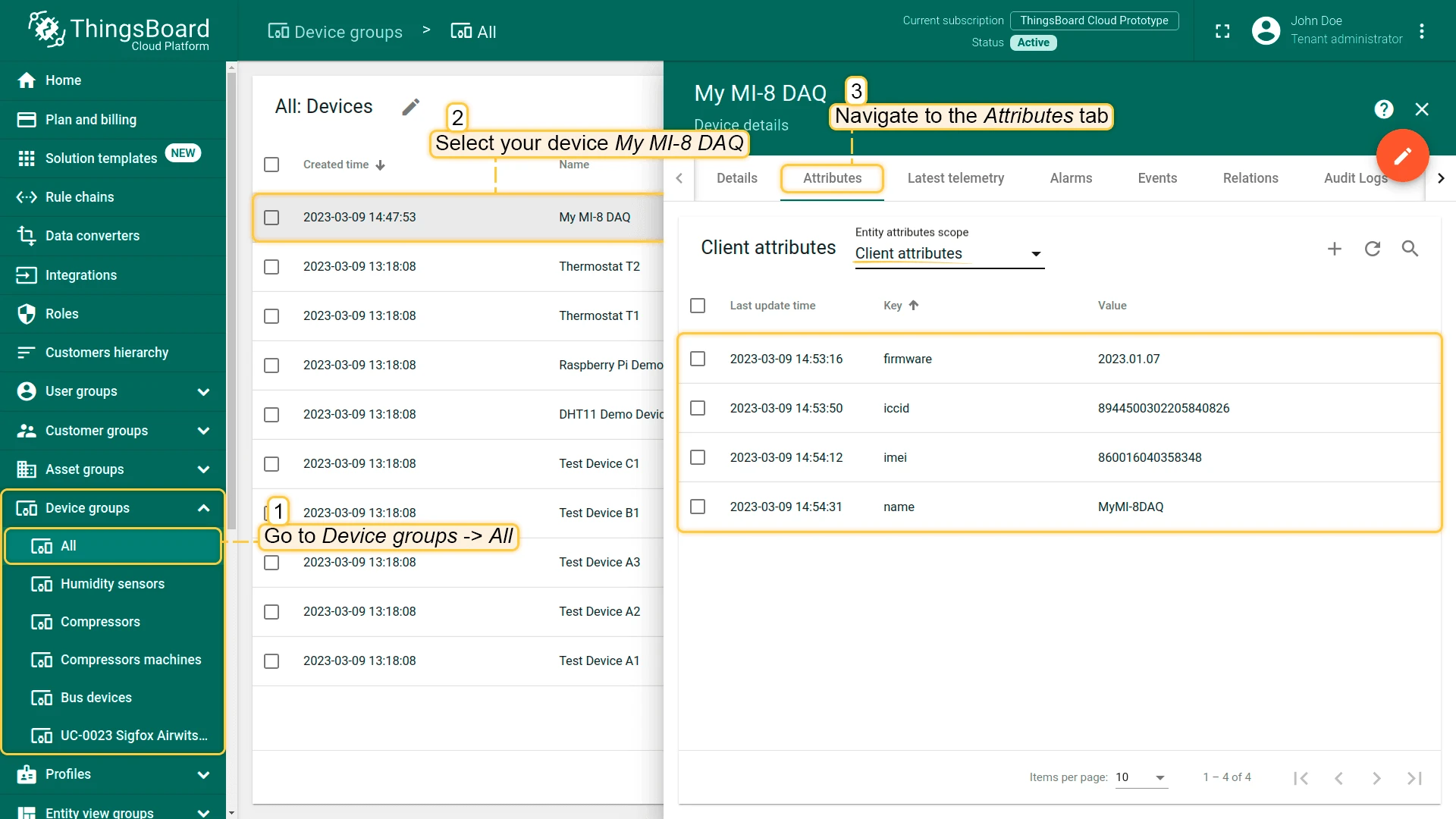
Navigate to the Attributes tab to confirm that device attributes (IMEI, ICCID, firmware version) were received. These are sent once each time the MI-8 powers on.
Contact
For support, visit fusiondaq.com/contact.