
monoZero BG96 V2
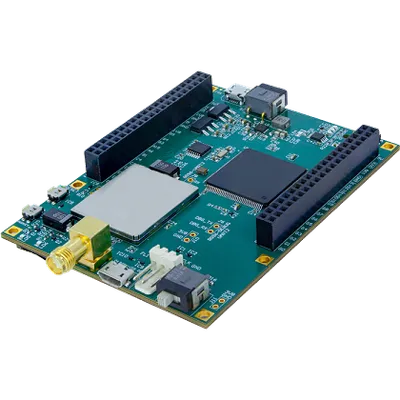
monoZero BG96 V2
monoZ
- Platform
- ThingsBoard
- Hardware Type
- Other devices
- Connectivity
- LTE-M, NB-IoT
- Chip
- STM32L4 + Quectel BG96
- Industry
- Smart Cities, Transportation & Logistics, Industrial Manufacturing
- Use Case
- Fleet Tracking, Environment Monitoring, Smart Farming
Introduction
The monoZero BG96 V2 is a cellular IoT development kit built around an STM32L4 Arm Cortex-M4 MCU and a Quectel BG96 modem that supports LTE-M and NB-IoT. It exposes 23 I/O peripherals (USB, LPUART, 2× UART, 3× I2C, 3× SPI, CAN) and is programmable via SWD. Combined with the monoZero Grove Board, peripheral sensors connect through standard QWIIC/Grove ports.
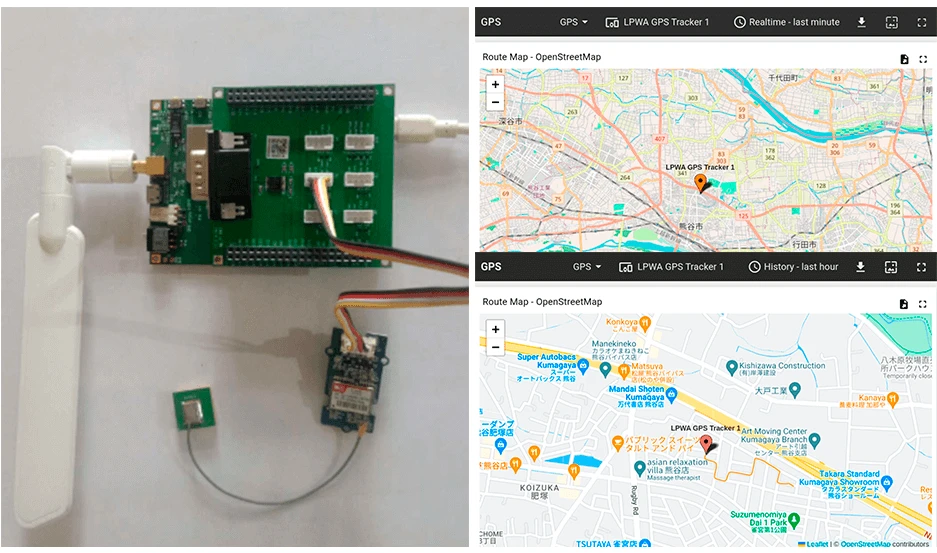
This guide walks through building an LPWA GPS tracker: assemble the hardware, flash firmware using the monoZ SDK, and display live GPS location data on a ThingsBoard dashboard.
For the full hardware reference, see the official monoZero BG96 V2 documentation.
Prerequisites
Hardware:
- monoZero BG96 V2 — 1×
- monoZero Grove Board — 1×
- NEO-6M GPS module — 1×
- LTE-M or NB-IoT nano SIM — 1×
- RP-SMA antenna (2.4–2.6 GHz) — 1×
- STLink V2 debugger (for SWD flashing) — 1×
- USB-B cable — 1×
Software:
Hardware setup
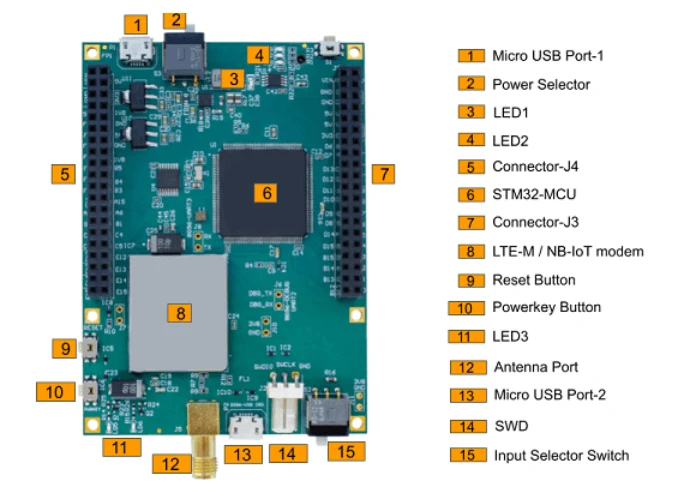
monoZero BG96 board
The monoZero BG96 V2 hosts a Quectel BG96 modem with global LTE-M and NB-IoT coverage alongside an STM32L4 MCU. Firmware is loaded via the SWD interface using an STLink V2 debugger.
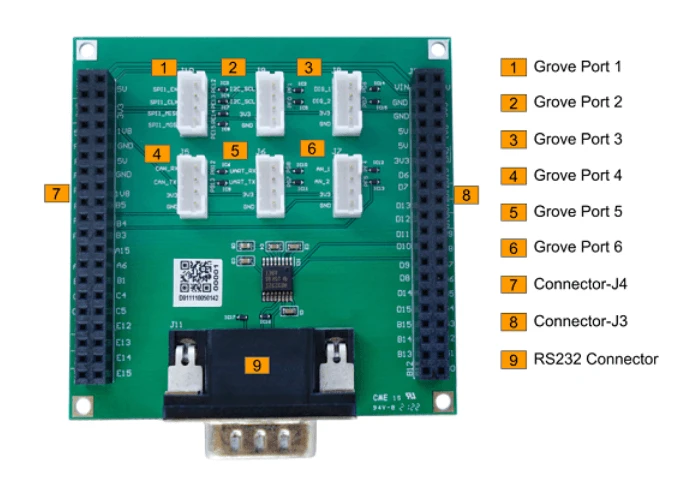
monoZero Grove Board
The Grove Board exposes pin-based peripherals through QWIIC/Grove ports, simplifying sensor wiring. When stacked on the BG96 V2, Grove port 3 maps to the LPUART peripheral used by the GPS module.
Assembly
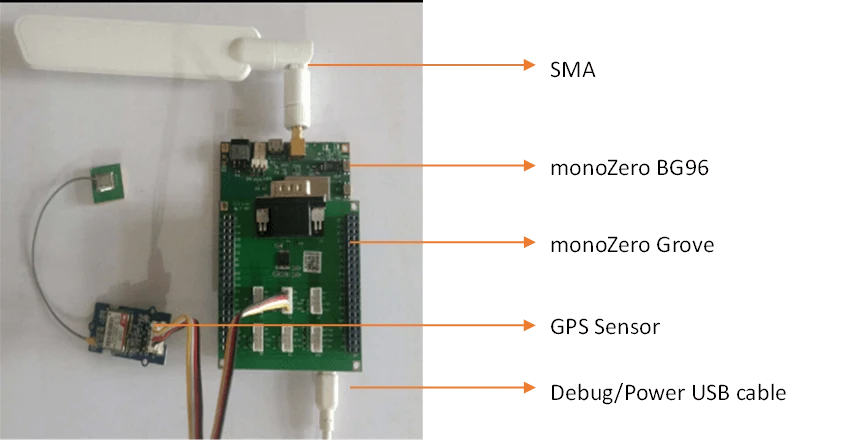
Connect the NEO-6M GPS module to Grove port 3 on the Grove Board, then stack the Grove Board on the monoZero BG96 V2. Attach the SMA antenna and power the board via USB-B.
Configure firmware
Download the GPS tracker project from the Meritech-monoZ/GPS_NEO6M repository and open it in STM32CubeIDE.
-
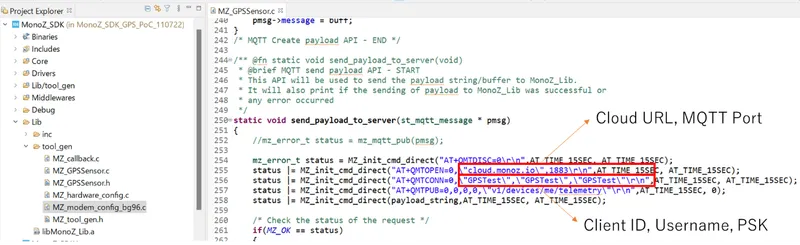
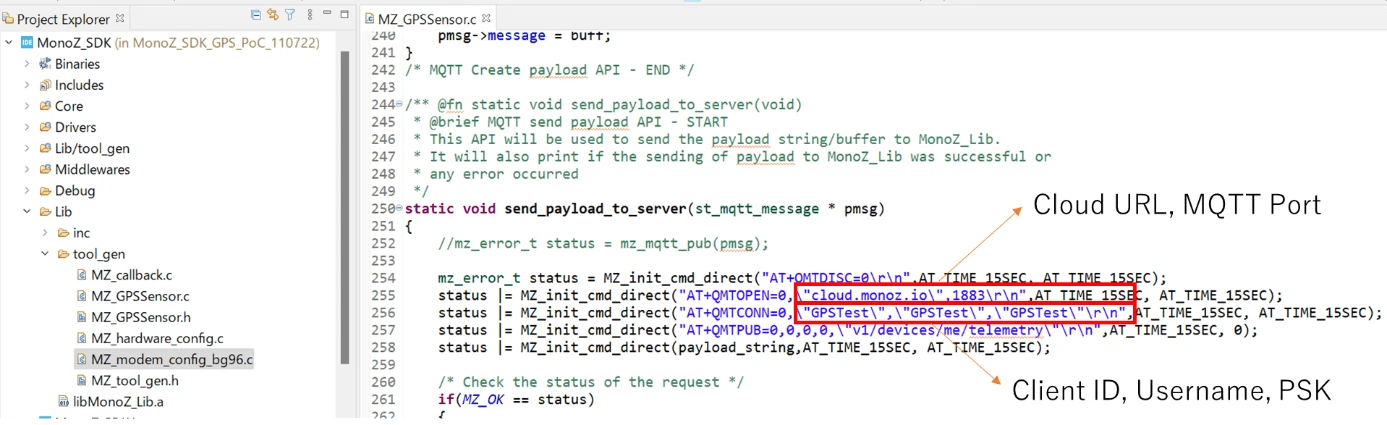
Open Lib > tool_gen > MZ_GPSSensor and update the MQTT client configuration to match the ThingsBoard device credentials you will create in the next section.
-
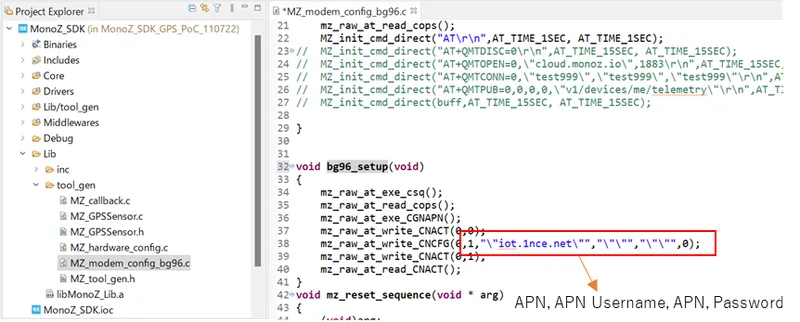
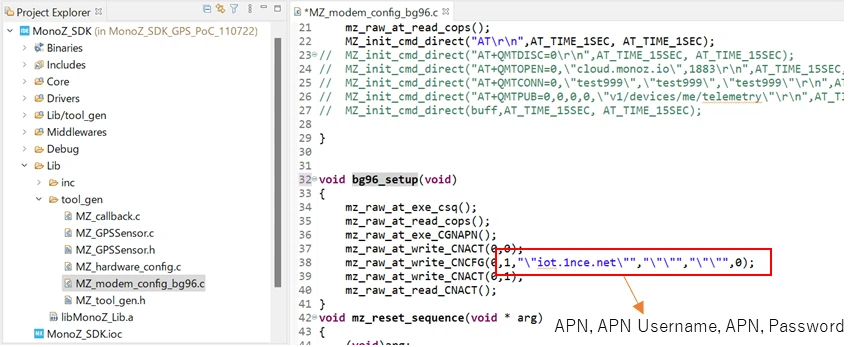
Open Lib > tool_gen > MZ_modemconfig and update the APN for your SIM provider.
-
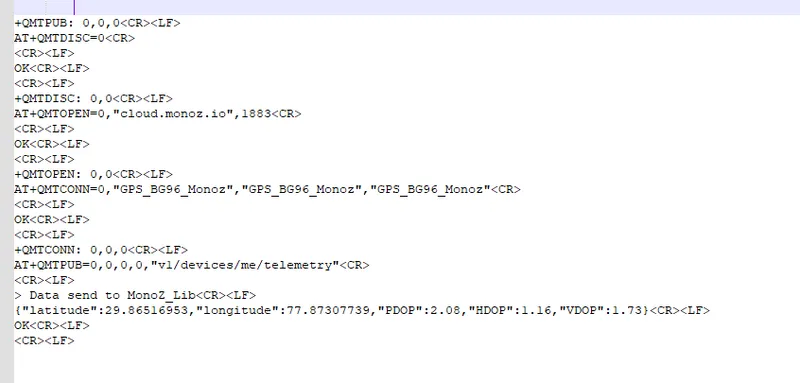
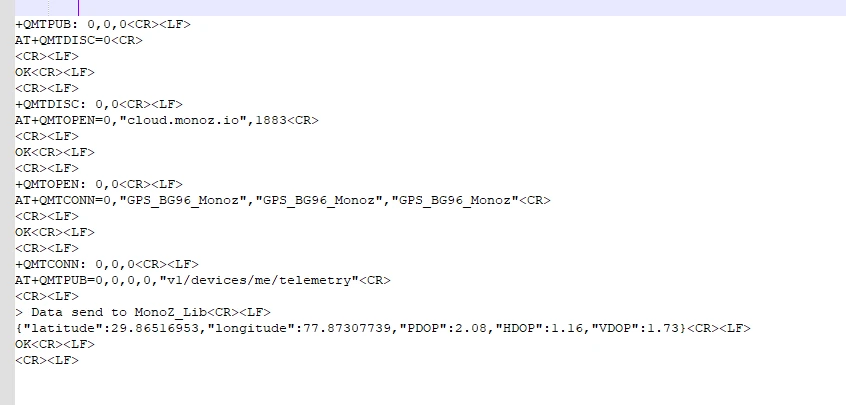
Build the project and flash it to the board via SWD. A successful flash produces the following CLI output.
Configure ThingsBoard
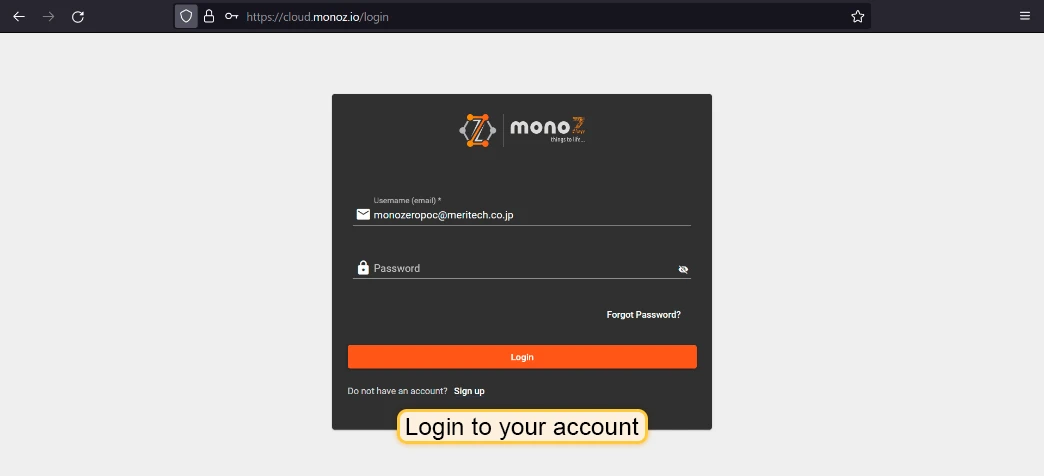
Log in
Log in to your ThingsBoard instance.
Create a device
-
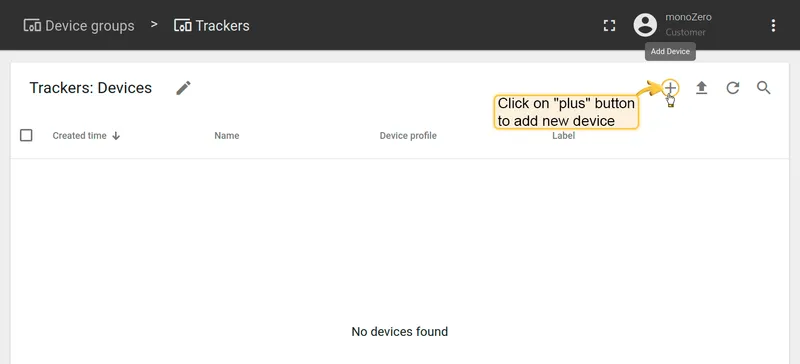
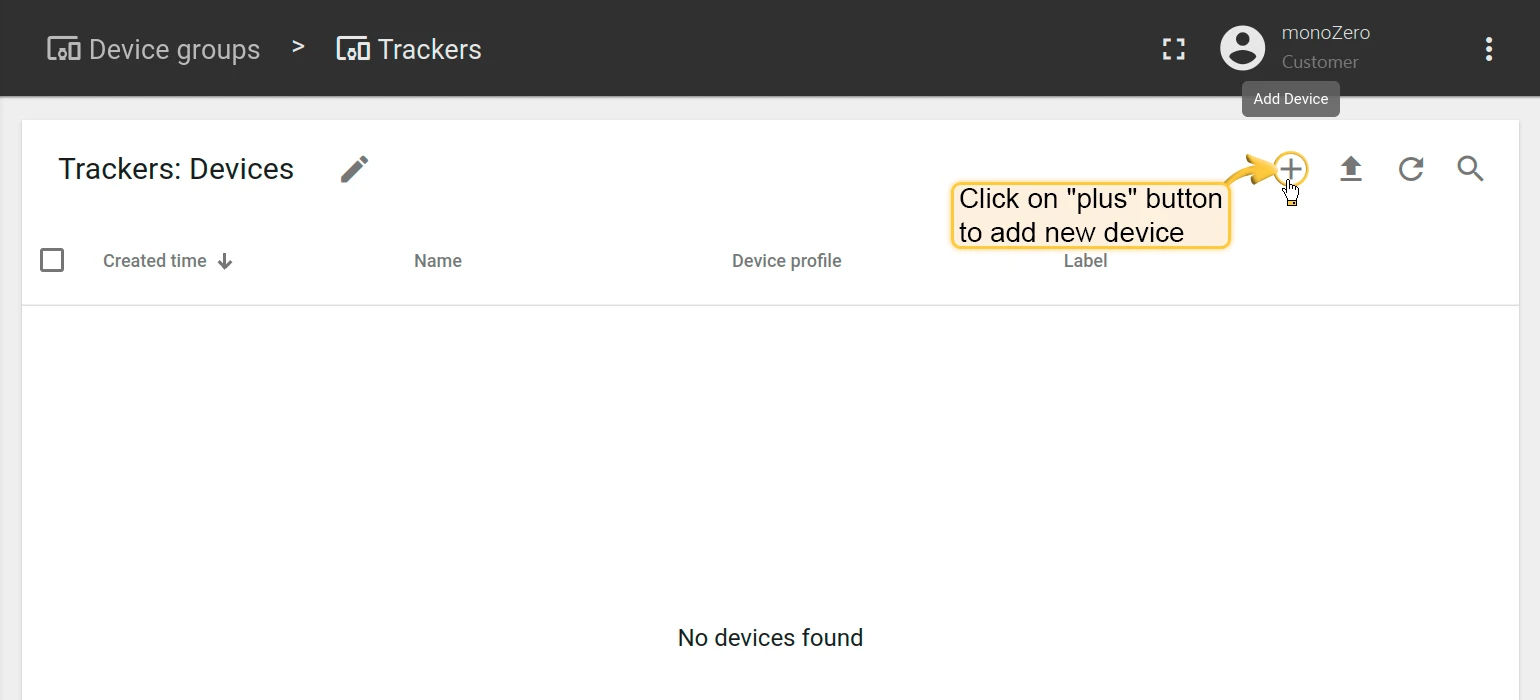
Go to Entities > Devices and click + to add a new device.
-
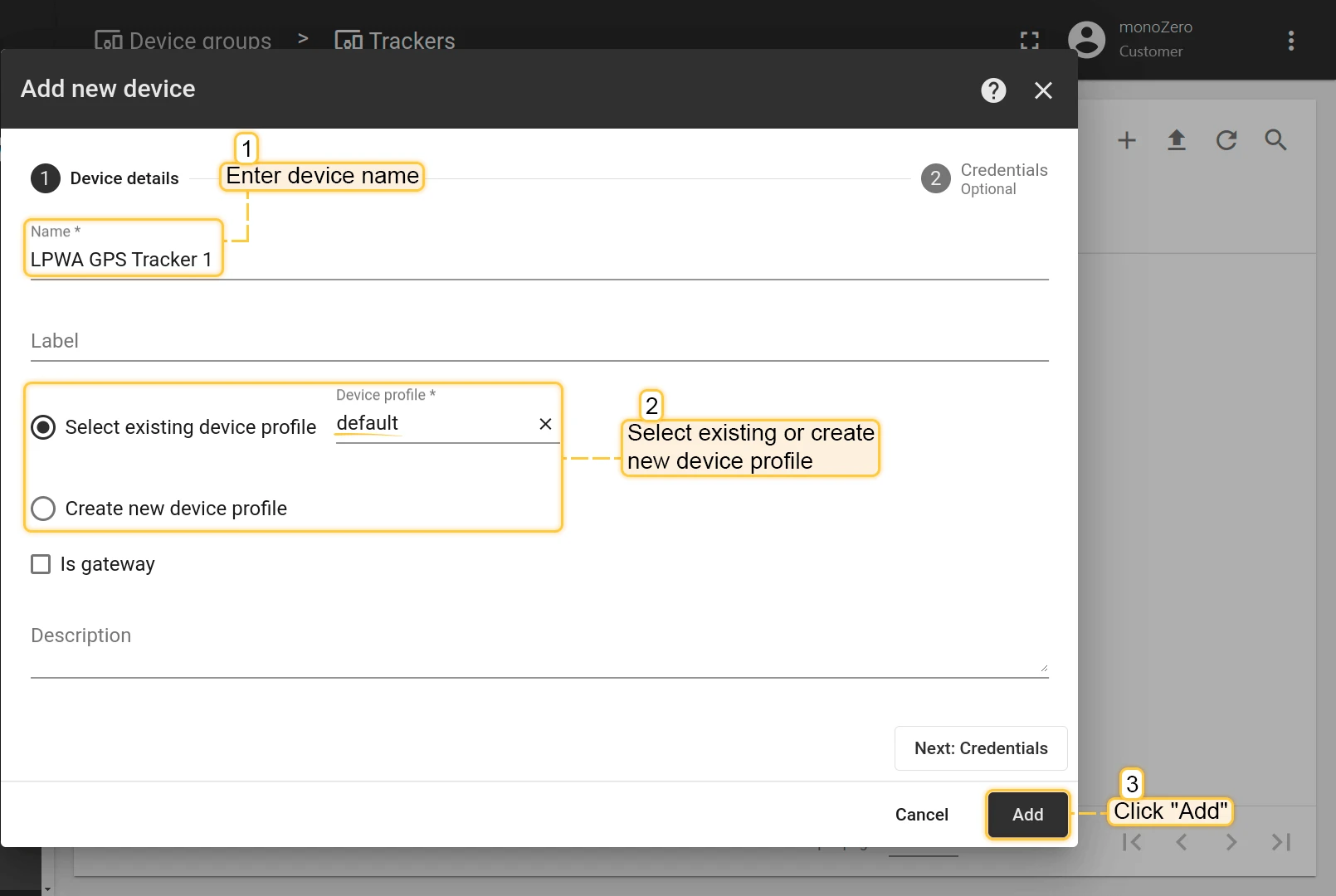
Enter a device name, for example
R40, and click Add.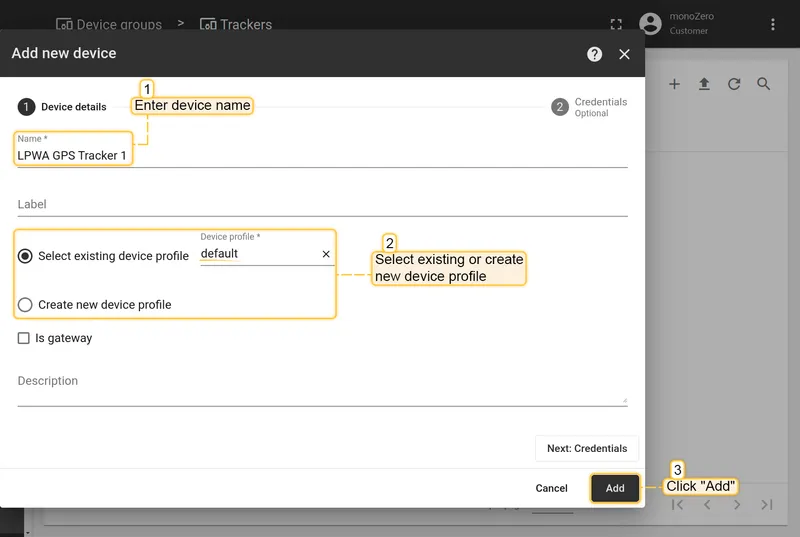
-
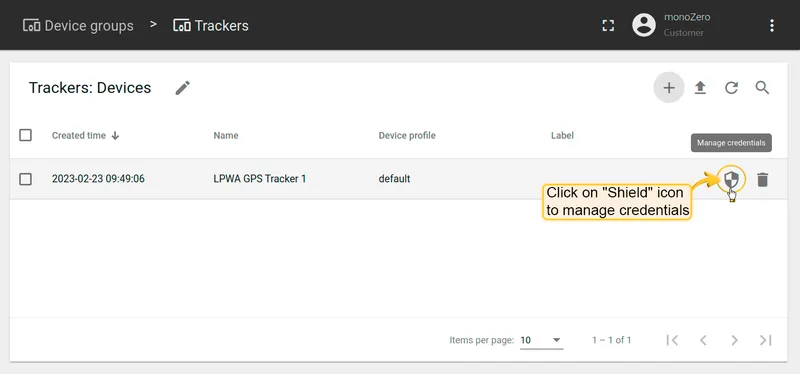
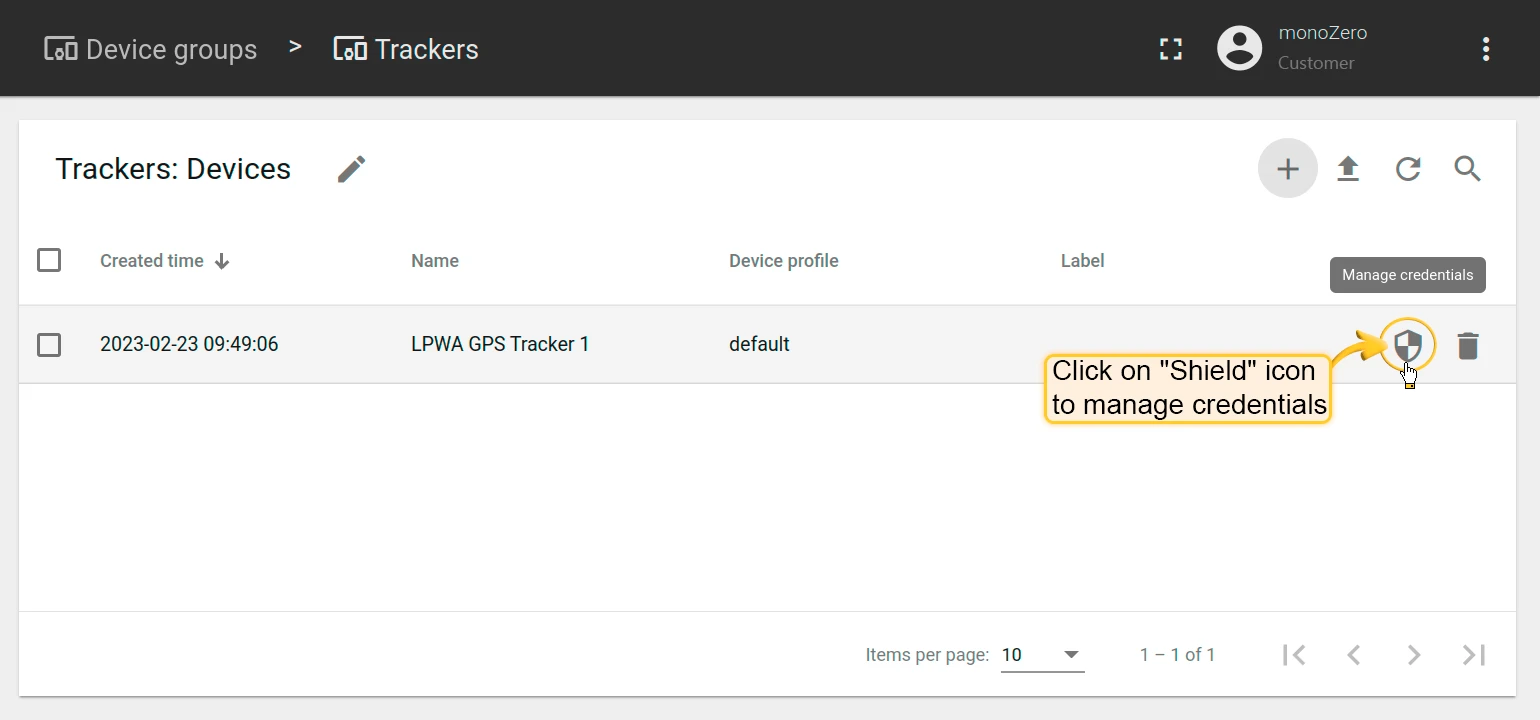
Click the Manage credentials (shield) icon on the newly created device.
-
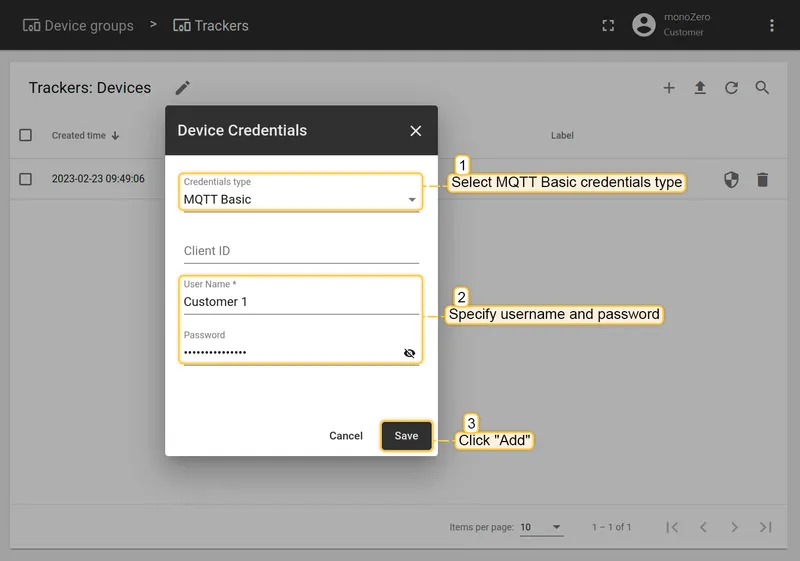
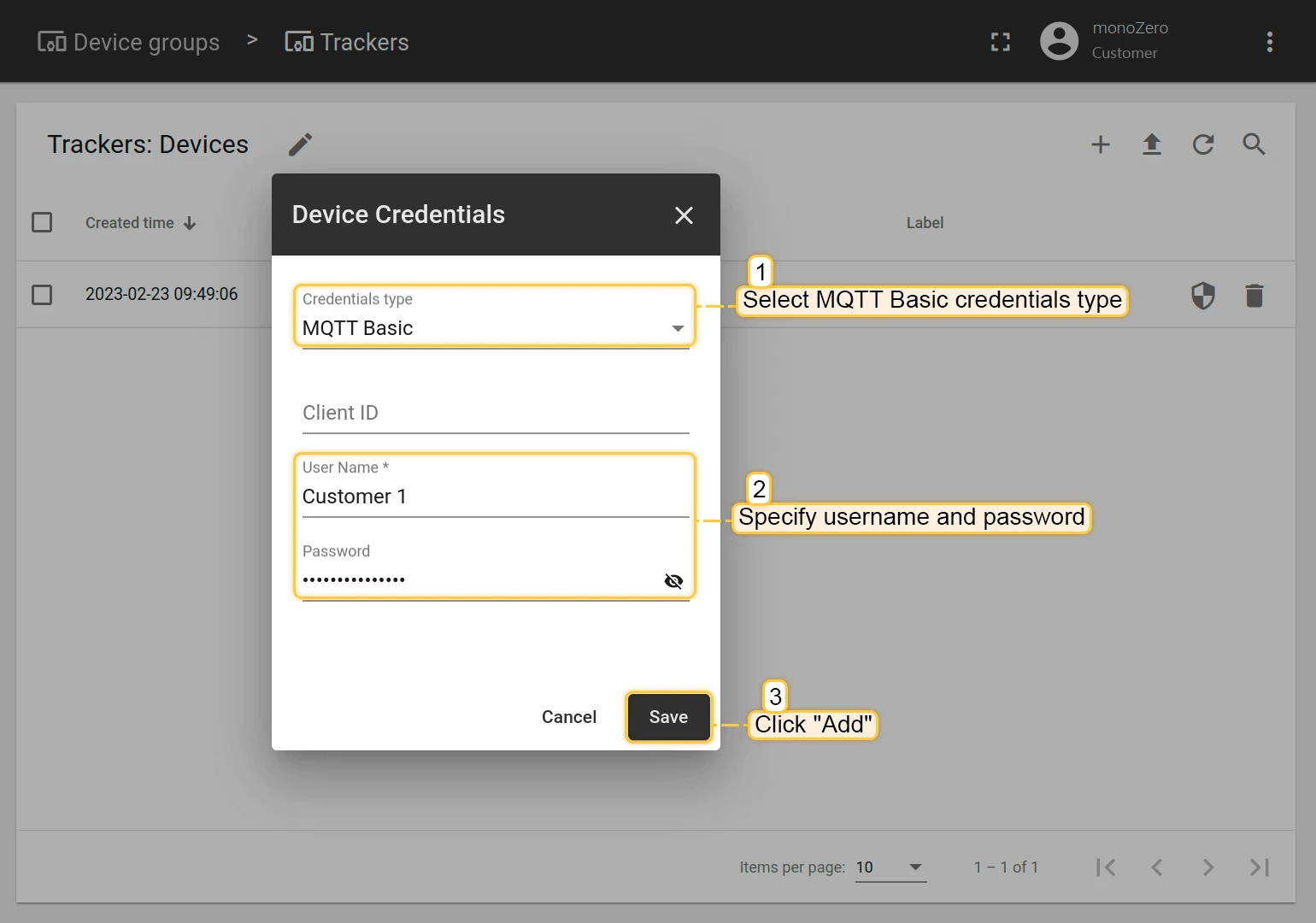
Set Credentials type to MQTT Basic. Enter the Client ID, Username, and Password that match the values configured in the firmware, then click Save.
Create a dashboard
-
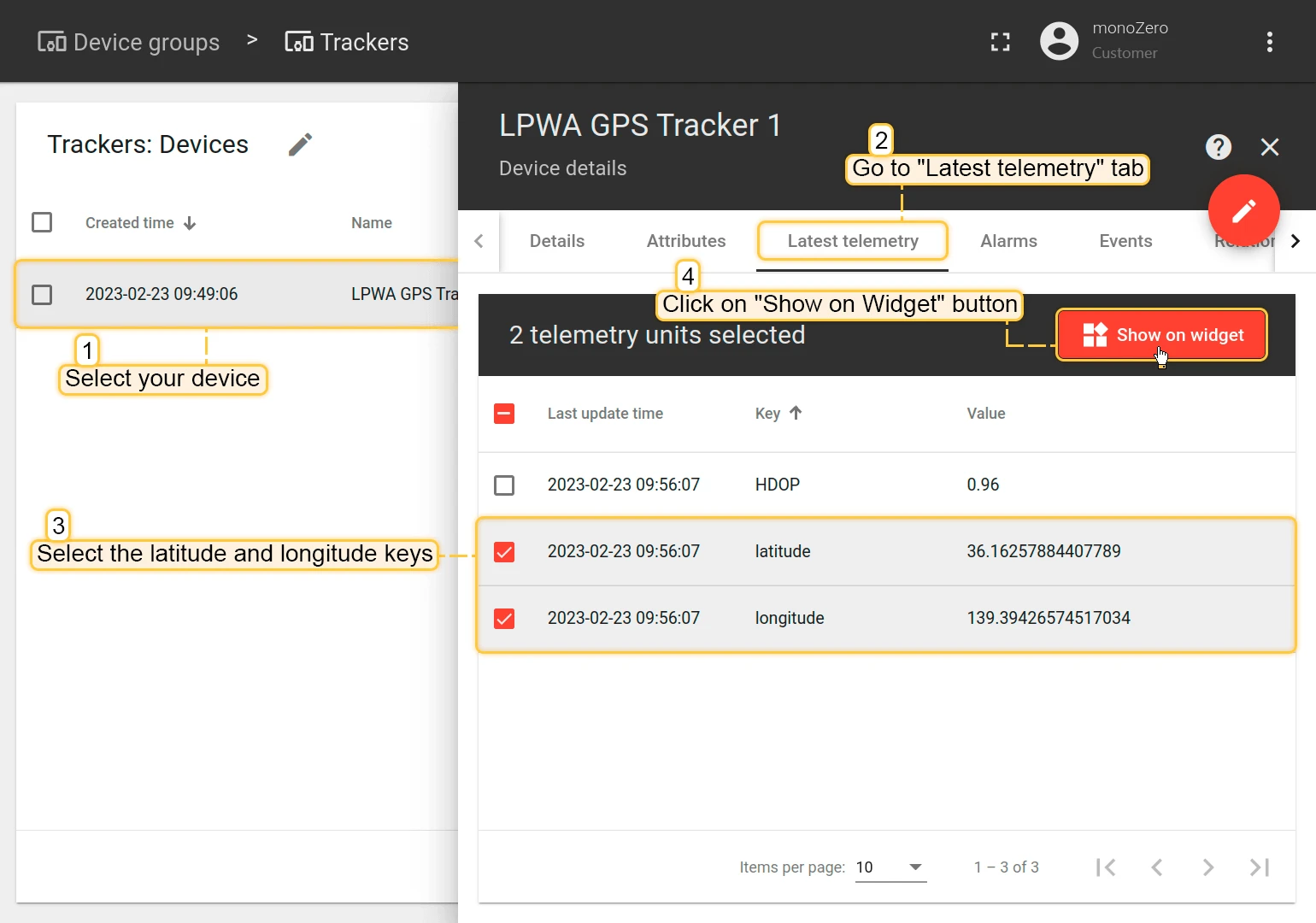
Power on the monoZero. Once the device connects and sends data, open its details in ThingsBoard and go to the Latest telemetry tab. Select the
latitudeandlongitudekeys, then click Show on widget.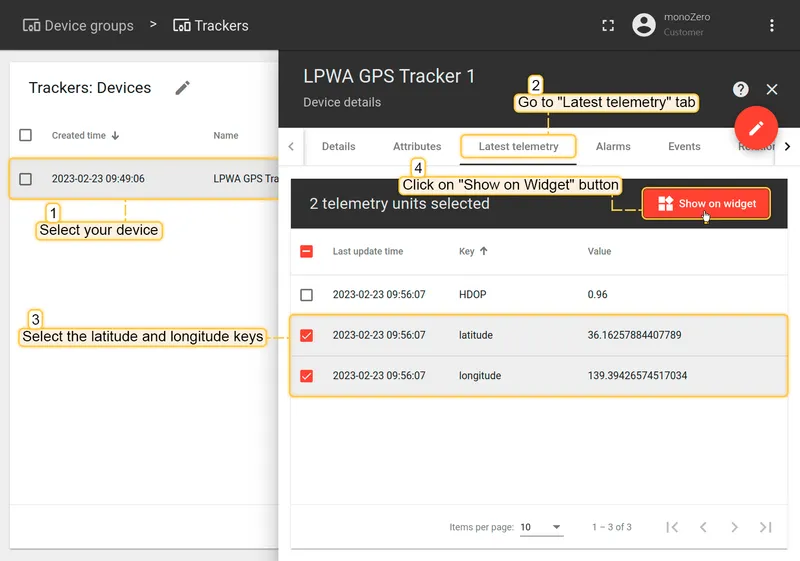
-
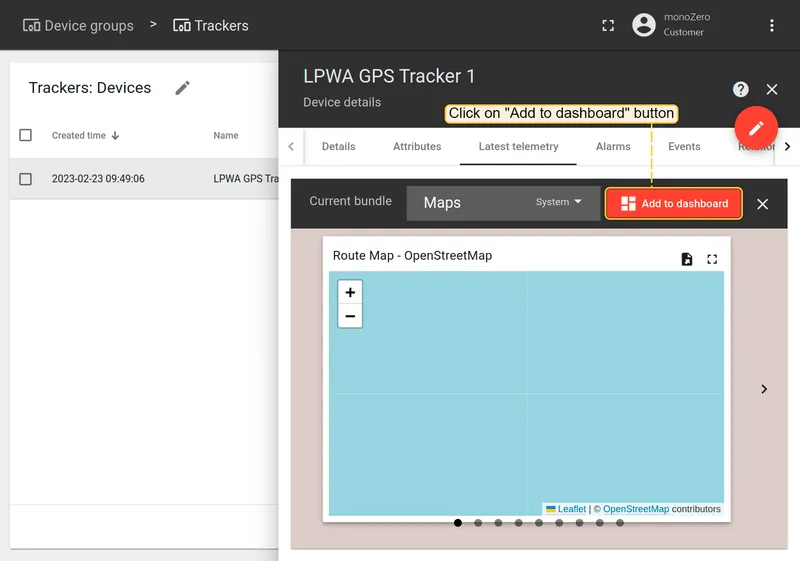
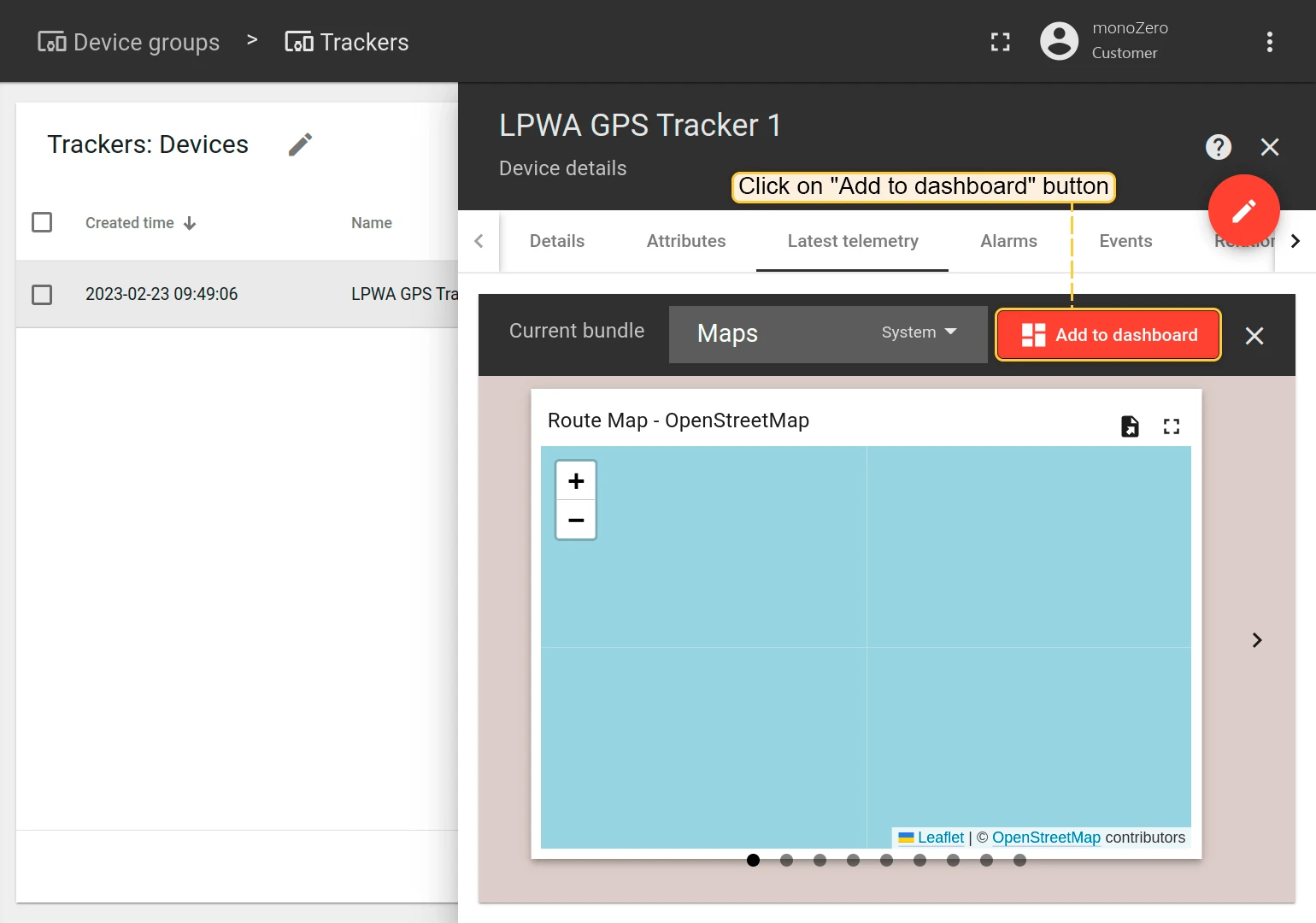
Select the OpenStreetMap widget from the Maps bundle, then click Add to dashboard.
-
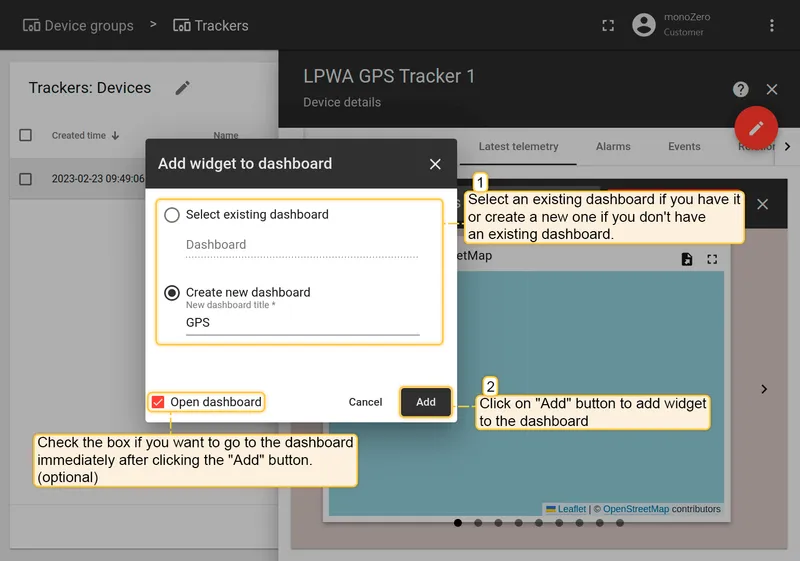
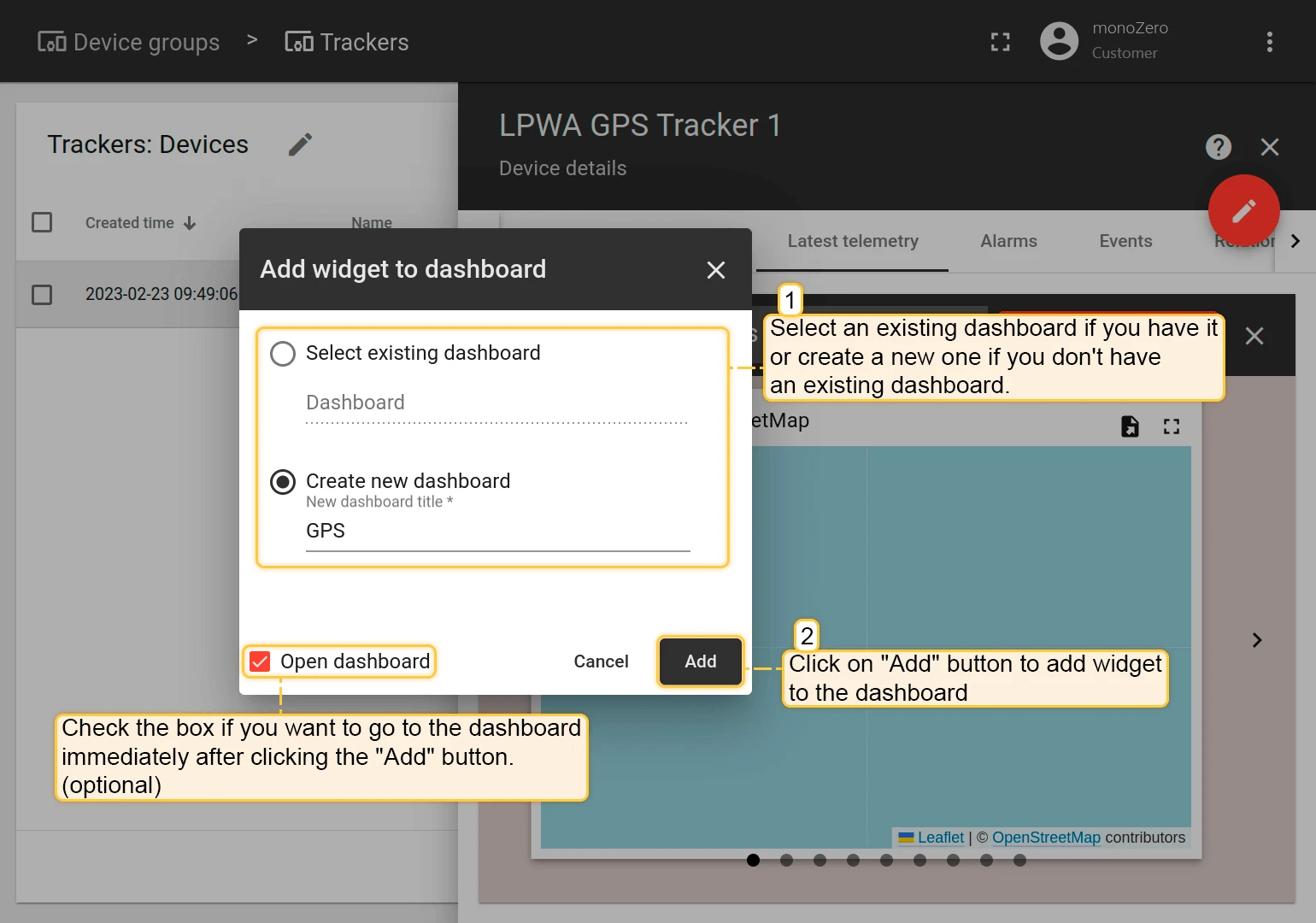
Select an existing dashboard or create a new one, then click Add.
-
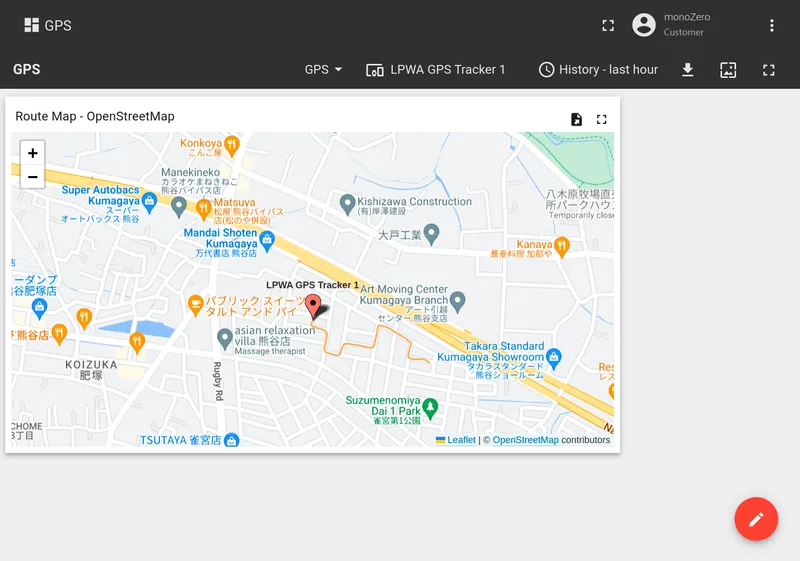
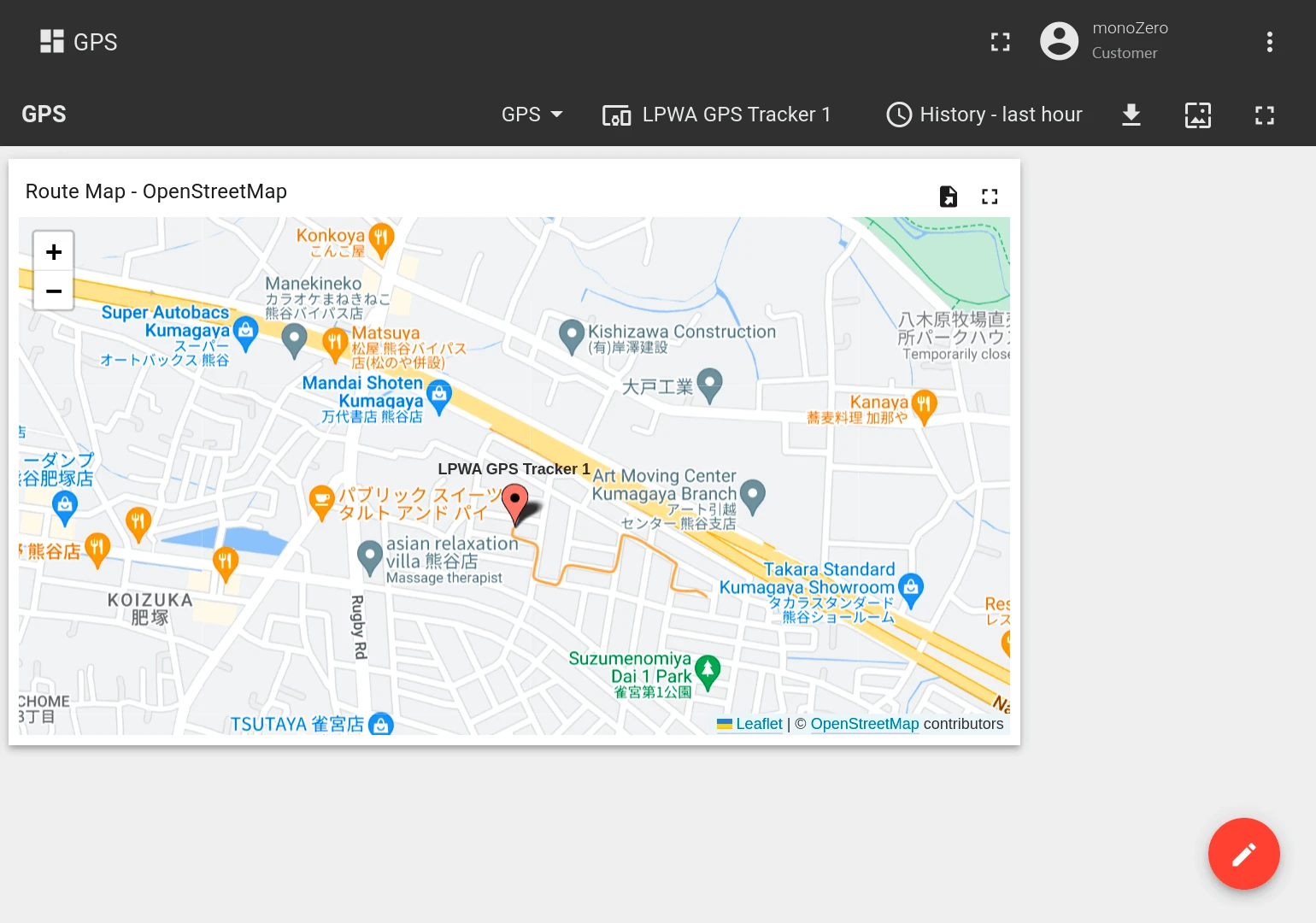
Open the dashboard. The device location appears live on the map.
Contact
For integration support or questions, visit the monoZ website.