SODAQ Universal Tracker via UDP Integration
Introduction
Section titled “Introduction”This guide connects a SODAQ NB-IoT Tracker to ThingsBoard PE via a UDP Integration. The tracker transmits hex-encoded GPS and sensor data over the T-Mobile NB-IoT network. A remote UDP integration receives the raw bytes, an uplink converter decodes them into ThingsBoard telemetry, and a device is automatically provisioned on the first message.
Prerequisites
Section titled “Prerequisites”- SODAQ NB-IoT Tracker connected to the T-Mobile NB-IoT network
- ThingsBoard PE server or a free ThingsBoard Cloud account
- Remote Integration installed and running — UDP integration runs as a remote service outside ThingsBoard
- Basic ThingsBoard knowledge — complete the Getting Started and Platform Integrations guides before proceeding
Step 1: Data converter configuration
Section titled “Step 1: Data converter configuration”The uplink converter receives the raw hex payload wrapped in a JSON envelope by the UDP integration and decodes it into the ThingsBoard telemetry format.
Input payload (hex string as received from T-Mobile NB-IoT):
010145292a2bfbfc0000000000000000e6e3355c751a879de31e6535d10306005600d00402UDP integration wraps it in JSON before passing to the converter:
{ "reports": [{ "value": "010145292a2bfbfc0000000000000000e6e3355c751a879de31e6535d10306005600d00402" }]}Decoded output:
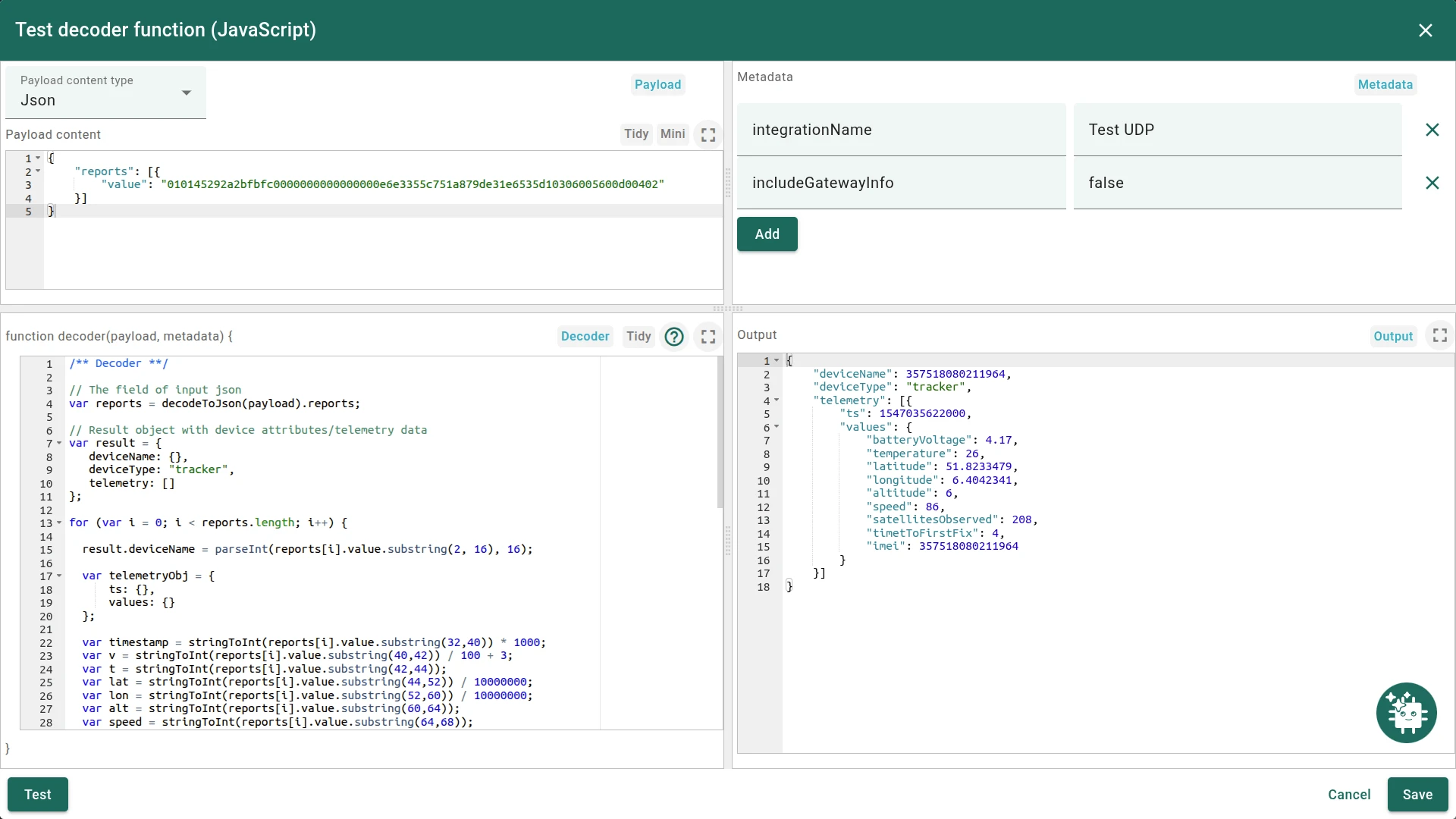
{ "deviceName": 357518080211964, "deviceType": "tracker", "telemetry": [{ "ts": 1547035622000, "values": { "batteryVoltage": 4.17, "temperature": 26, "latitude": 51.8233479, "longitude": 6.4042341, "altitude": 6, "speed": 86, "satellitesObserved": 208, "timetToFirstFix": 4 } }]}Key points:
- The IMEI encoded in bytes 2–8 of the hex string becomes the device name in ThingsBoard.
- ThingsBoard automatically creates a device with type
trackerand a name equal to the IMEI. - Timestamp and sensor readings are decoded from the hex string.
The following table shows each encoded field’s position and byte length:
| Field | First byte | Byte length |
|---|---|---|
| deviceName | 2 | 7 |
| ts | 16 | 4 |
| batteryVoltage | 20 | 1 |
| temperature | 21 | 1 |
| latitude | 22 | 4 |
| longitude | 26 | 4 |
| altitude | 30 | 2 |
| speed | 32 | 2 |
| satellitesObserved | 35 | 1 |
| timetToFirstFix | 36 | 1 |
Import uplink converter
Section titled “Import uplink converter”- Download sodaq_udp_data_uplink_converter.json.
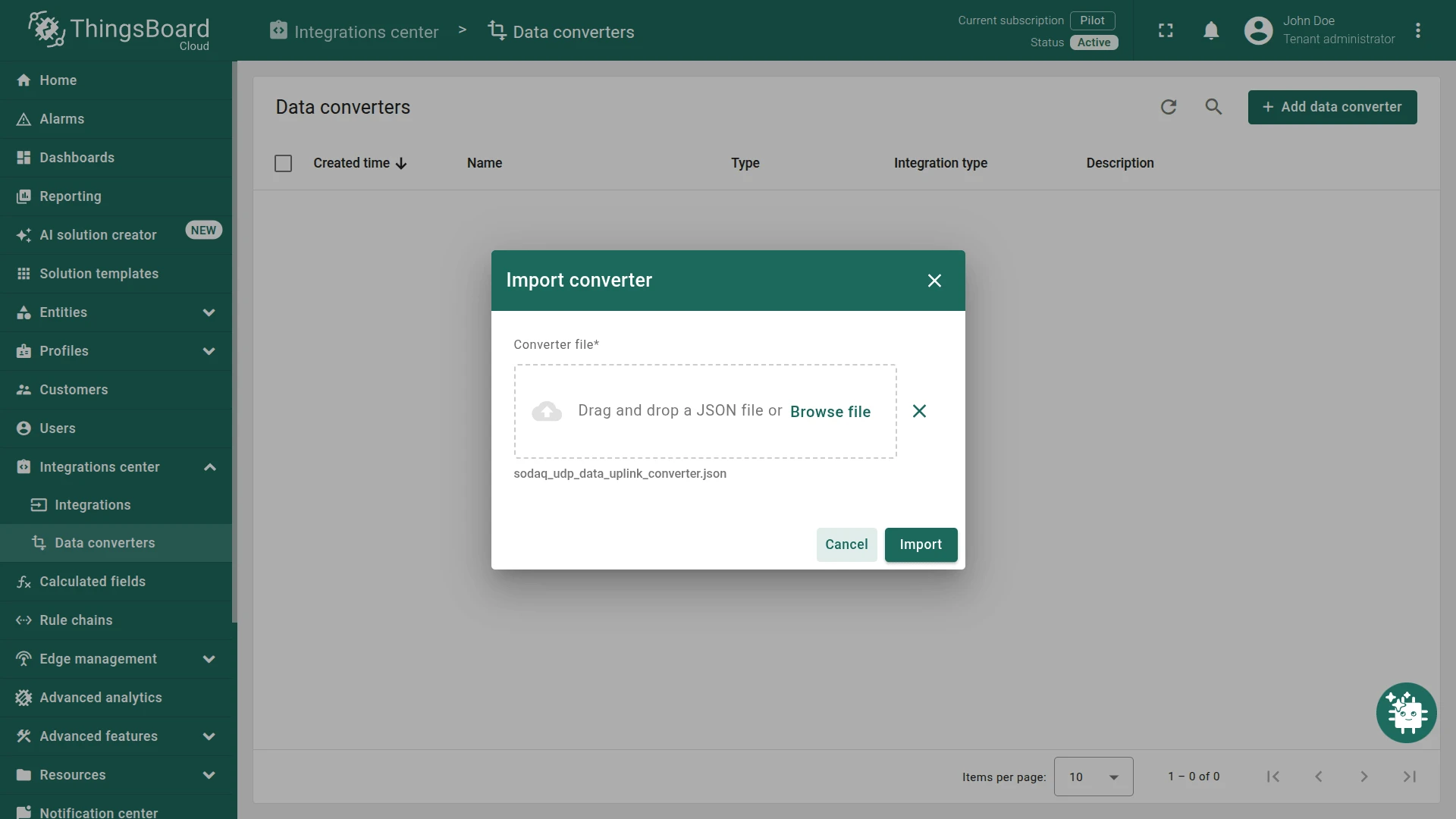
- Go to Integrations center ⇾ Data converters and click + Add data converter ⇾ Import converter.
- Upload the downloaded file and click Import.
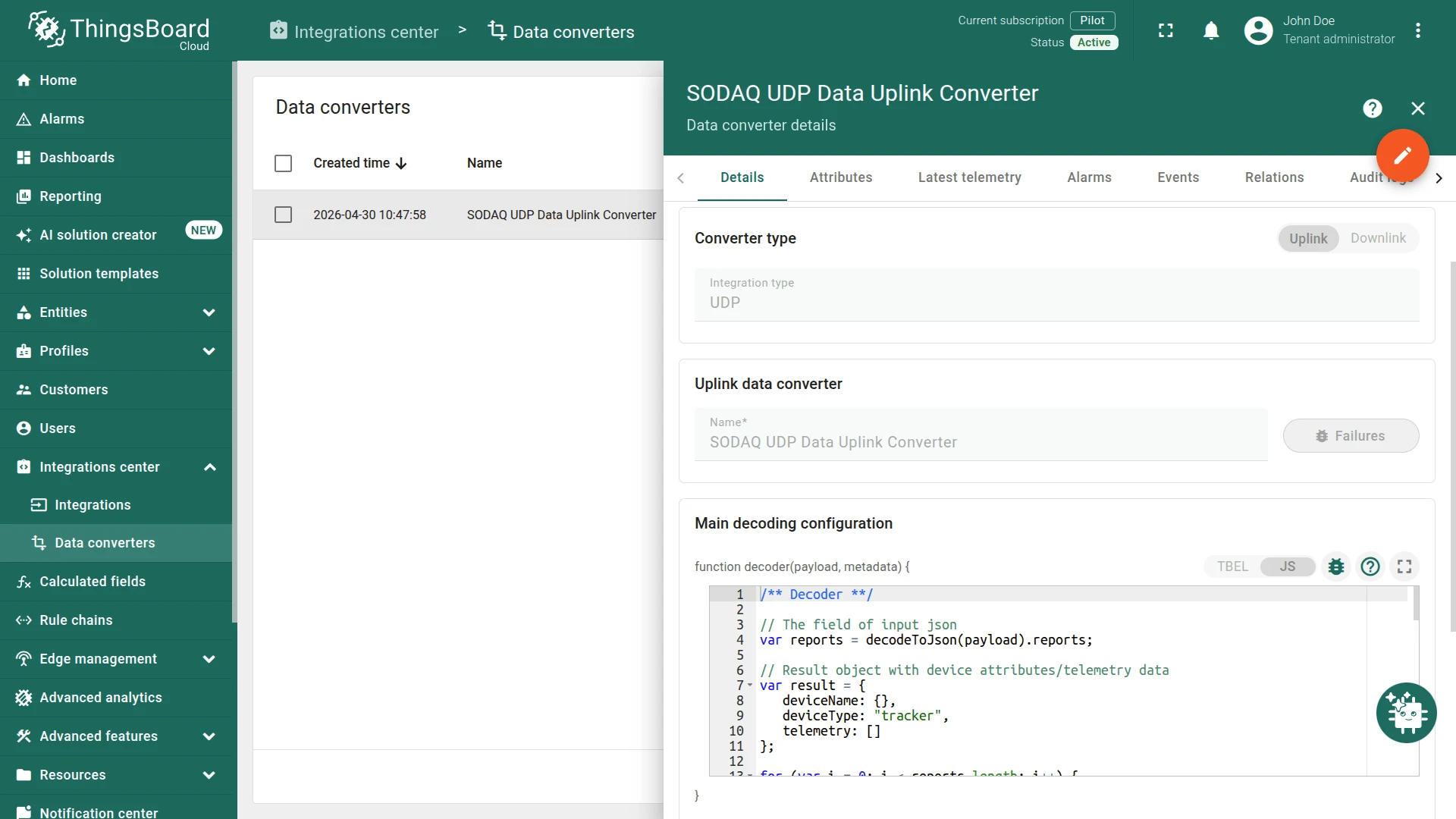
Decoder function:
/** Decoder **/
// The field of input jsonvar reports = decodeToJson(payload).reports;
// Result object with device attributes/telemetry datavar result = {   deviceName: {},   deviceType: "tracker",   telemetry: []};
for (var i = 0; i < reports.length; i++) {
  result.deviceName = parseInt(reports[i].value.substring(2, 16), 16);
  var telemetryObj = {      ts: {},      values: {}  };
  var timestamp = stringToInt(reports[i].value.substring(32,40)) * 1000;  var v = stringToInt(reports[i].value.substring(40,42)) / 100 + 3;  var t = stringToInt(reports[i].value.substring(42,44));  var lat = stringToInt(reports[i].value.substring(44,52)) / 10000000;  var lon = stringToInt(reports[i].value.substring(52,60)) / 10000000;  var alt = stringToInt(reports[i].value.substring(60,64));  var speed = stringToInt(reports[i].value.substring(64,68));  var sat = stringToInt(reports[i].value.substring(68,70));  var ttf = stringToInt(reports[i].value.substring(70,72));
  telemetryObj.ts = timestamp;  telemetryObj.values.batteryVoltage = v;  telemetryObj.values.temperature = t;
  if (lat !== 0) {        telemetryObj.values.latitude = lat;  }  if (lon !== 0) {        telemetryObj.values.longitude = lon;  }  if (alt !== 0) {        telemetryObj.values.altitude = alt;  }
  telemetryObj.values.speed = speed;  telemetryObj.values.satellitesObserved = sat;  telemetryObj.values.timetToFirstFix = ttf;  telemetryObj.values.imei = result.deviceName;
  result.telemetry.push(telemetryObj);}
/** Helper functions **/
function stringToInt(hex) {    return parseInt('0x' + hex.match(/../g).reverse().join(''));}
function decodeToString(payload) {   return String.fromCharCode.apply(String, payload);}
function decodeToJson(payload) {  var str = decodeToString(payload);  return JSON.parse(str);}
return result;You can test the converter before connecting the device. Open the Uplink Pulse Sensor converter, enter edit mode and click the Test decoder function tab. Paste the sample input above into the Payload content field and press Test.
Step 2: Integration configuration
Section titled “Step 2: Integration configuration”-
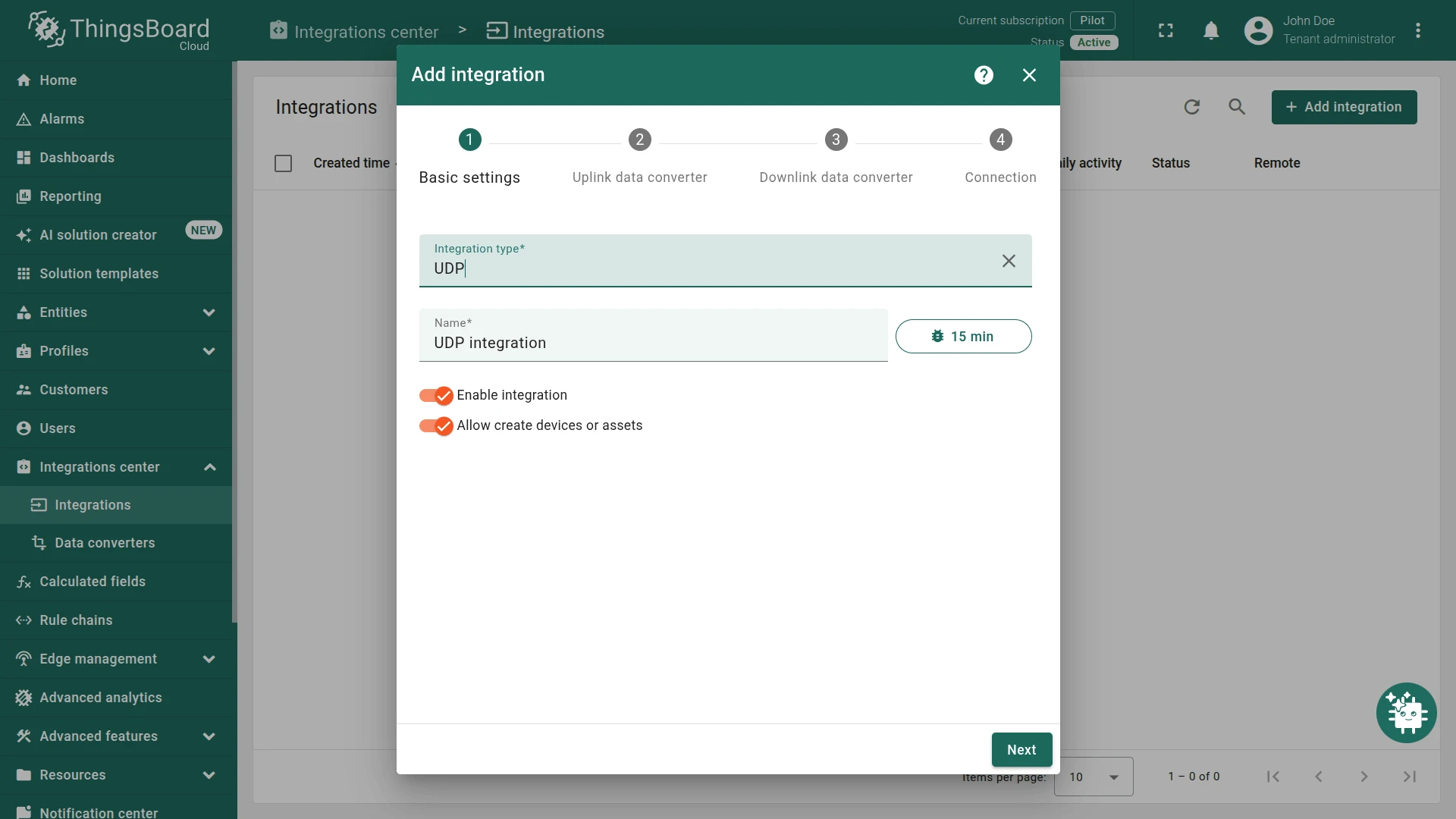
Go to Integrations center ⇾ Integrations and click + Add integration. Set Integration type to UDP, enter a name (e.g.
SODAQ UDP Integration), and click Next.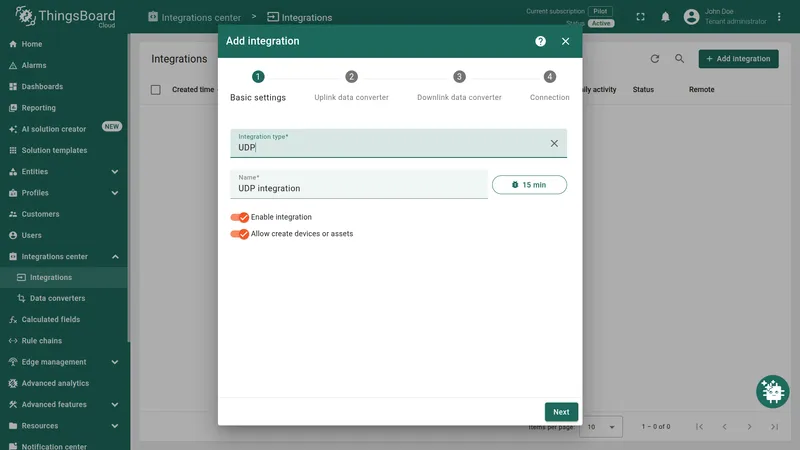
-
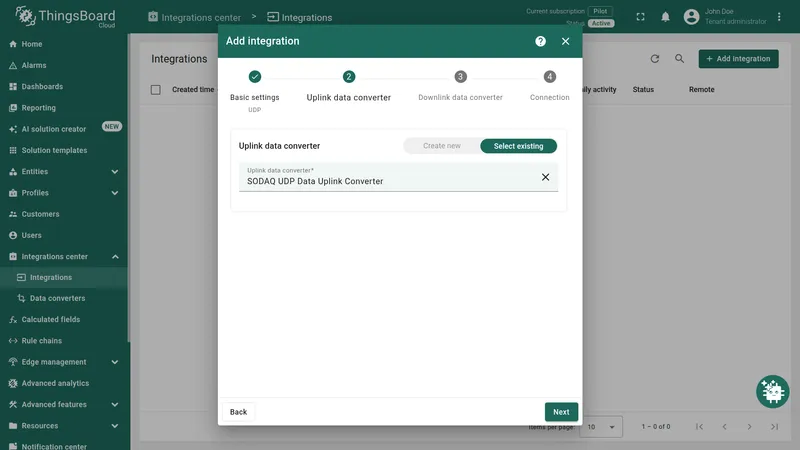
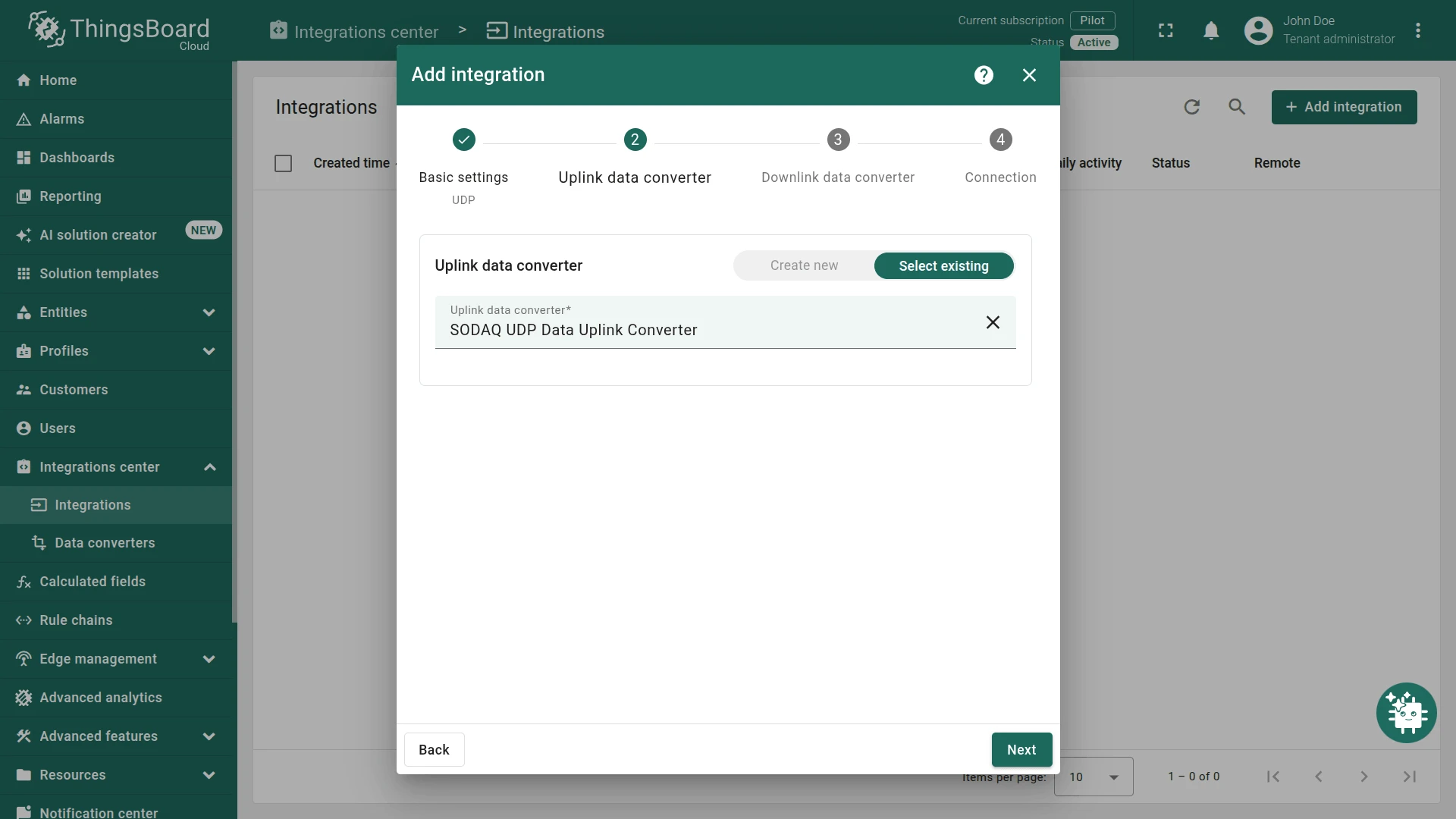
In the Uplink data converter step, click Select existing and choose the SODAQ UDP Data Uplink Converter created in Step 1. Click Next.
-
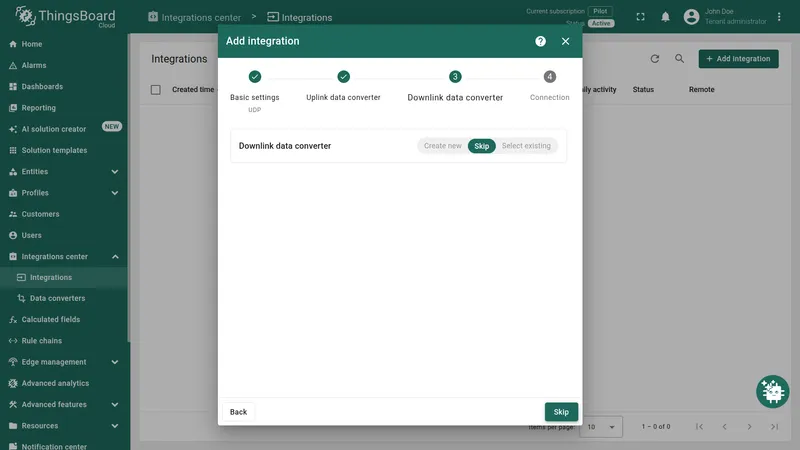
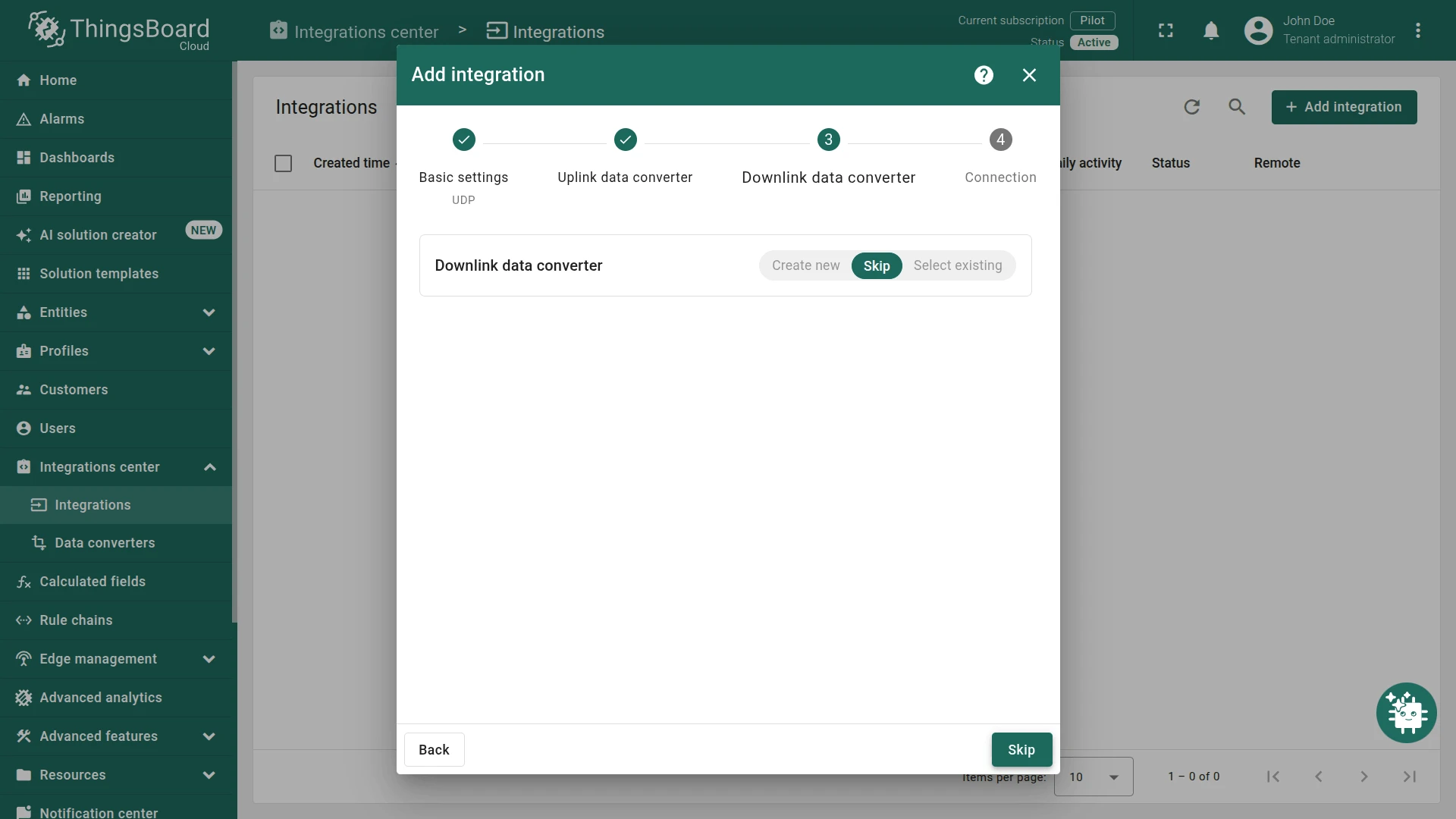
In the Downlink data converter step, click Skip — no downlink converter is needed.
-
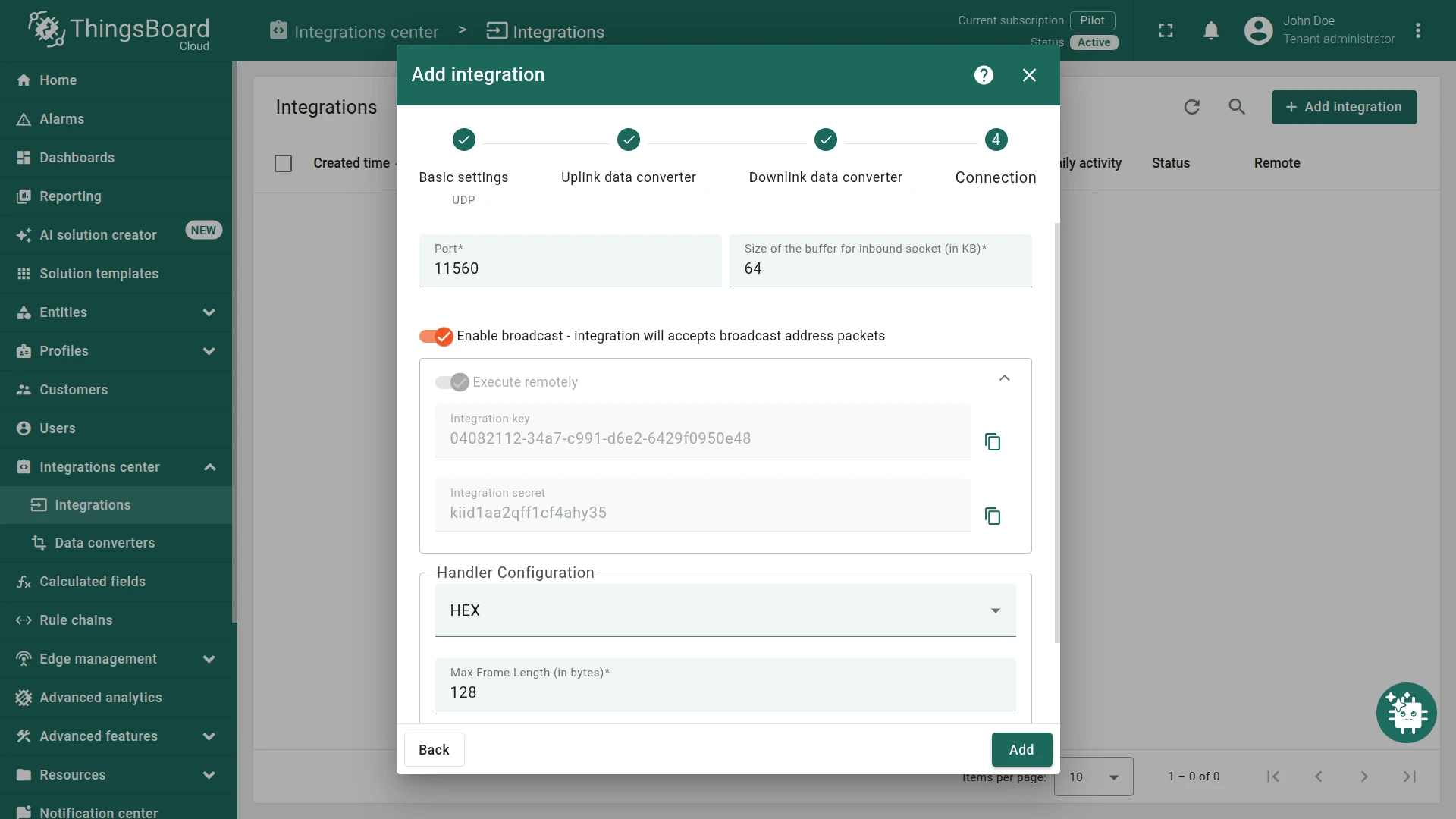
In the Connection step, fill in the fields below, then click Add.
Field Value Port 11560 End of buffer (broadcast socket) 64 Enable Broadcast On Handler Configuration HEX Max Frame Length 128 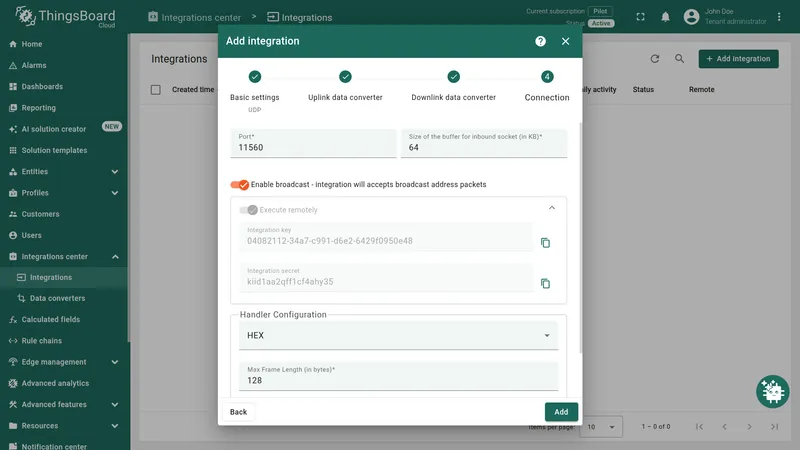
Step 3: Verify the integration
Section titled “Step 3: Verify the integration”Send a test message using the echo and netcat utilities to confirm ThingsBoard processes the payload correctly. Replace $URL_THINGSBOARD_CLOUD_HOST and $PORT with your actual host and port:
echo -e -n '$PAYLOAD' | xxd -r -p | nc -q1 -w1 -u $URL_THINGSBOARD_CLOUD_HOST $PORTExample with sample payload:
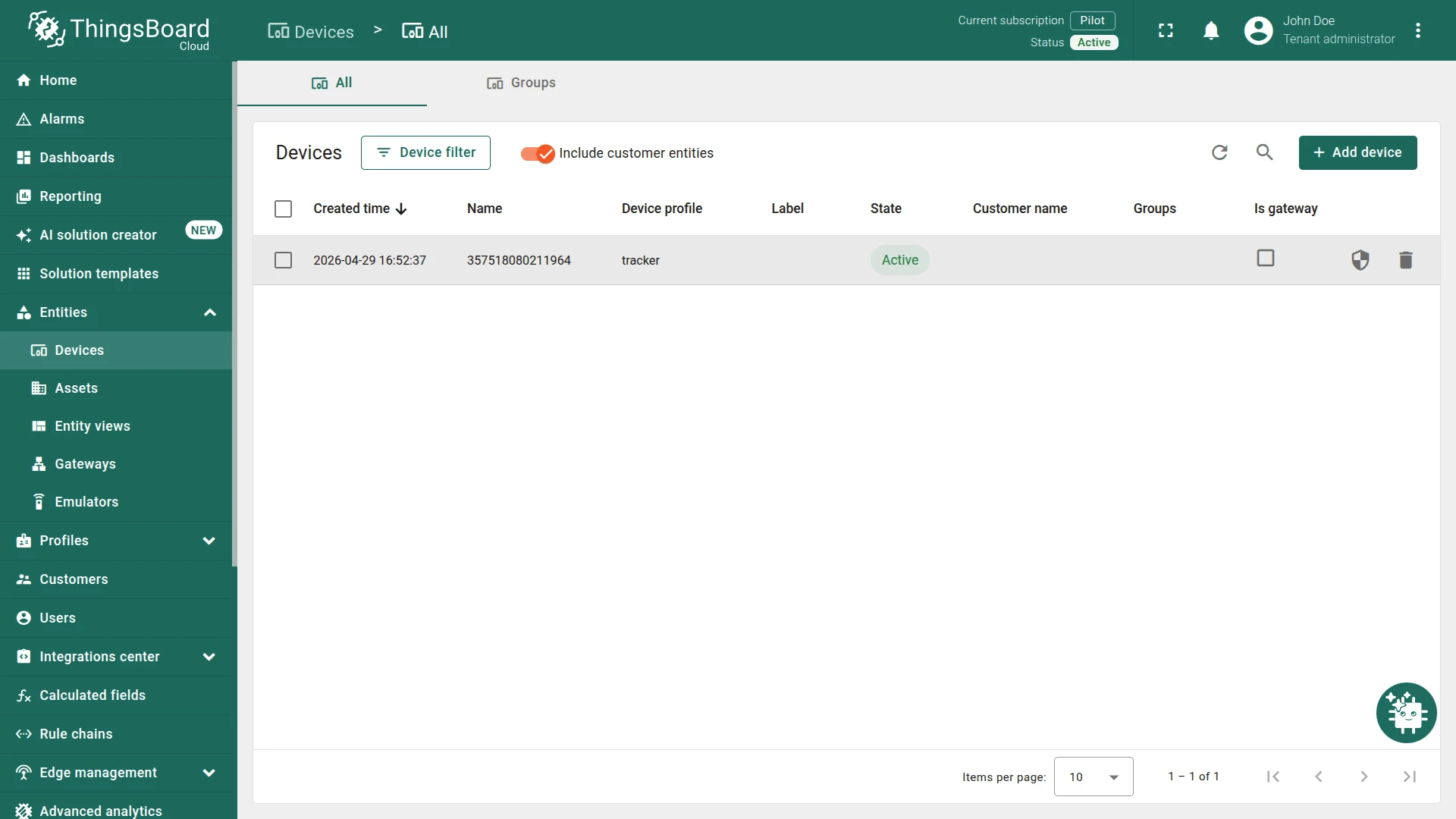
echo -e -n '010145292a2bfbfc0000000000000000e6e3355c751a879de31e6535d10306005600d00402' | xxd -r -p | nc -q1 -w1 -u 127.0.0.1 11560A device named 357518080211964 should be created in ThingsBoard.
Navigate to Integration Debug Events and verify that data arrives and is processed without errors.