Integrations
ThingsBoard Platform Integrations connect external platforms, network servers, and protocol gateways to ThingsBoard, translating messages between external protocols and the ThingsBoard data model — without modifying device firmware or configuration.
Use integrations when devices cannot connect directly to ThingsBoard, or when they already communicate with another IoT platform or protocol gateway.
Common scenarios:
- Devices connected to external IoT platforms (AWS IoT, Azure IoT Hub, Google Cloud Pub/Sub)
- LoRaWAN network servers (ChirpStack, The Things Stack, Loriot, ThingPark)
- MQTT brokers, OPC-UA servers, and other protocol gateways
- Industrial gateways and NB-IoT / SigFox network servers
Once data is received through an integration, it is available to the full ThingsBoard feature set: device management, Rule Engine processing, telemetry storage, dashboards, and RPC commands.
How Integrations Work
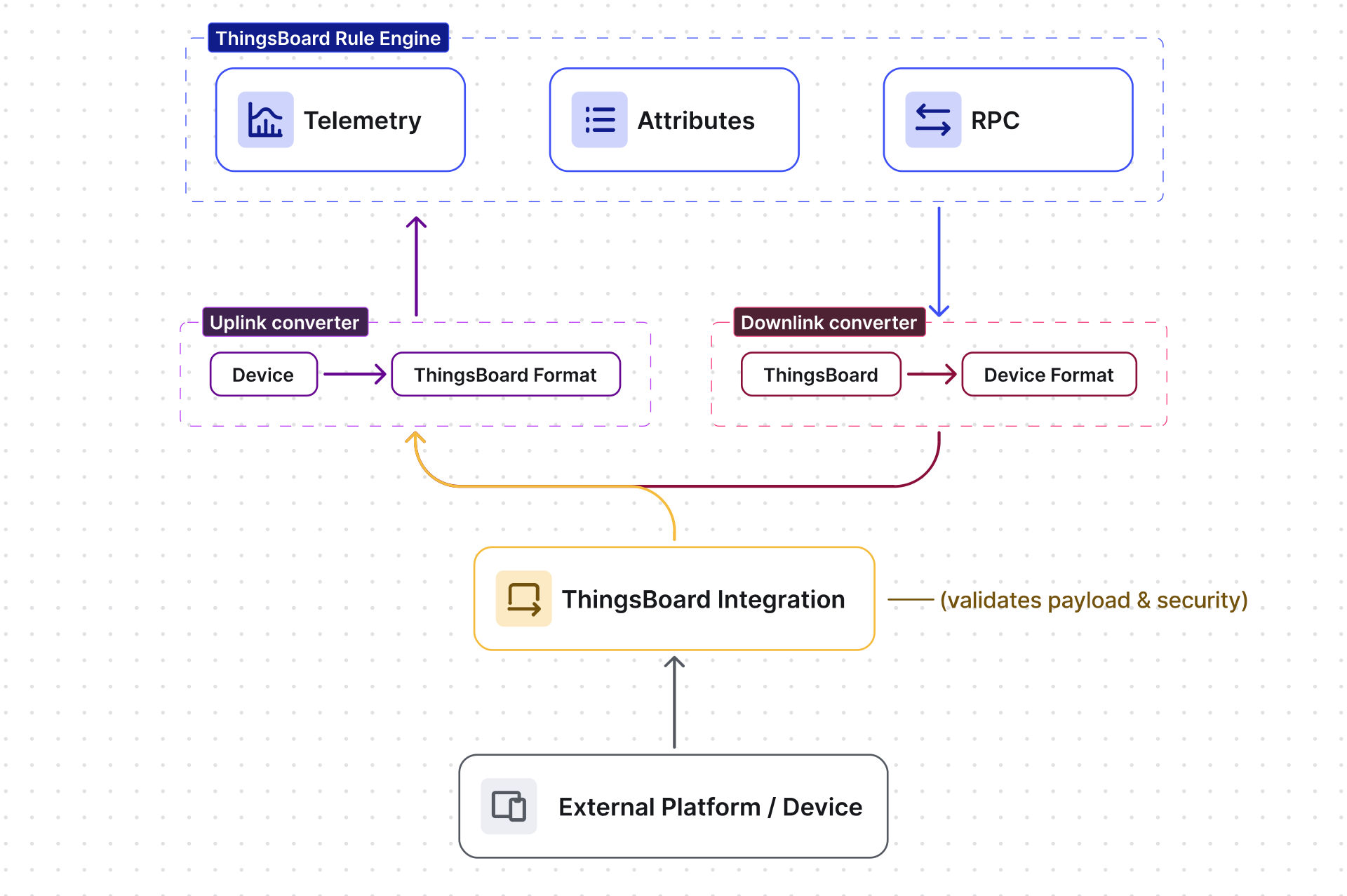
Section titled “How Integrations Work”ThingsBoard integrations handle two message flows: uplink (device ⇾ ThingsBoard) and downlink (ThingsBoard ⇾ device).
Uplink flow (Device ⇾ ThingsBoard)
The integration receives a message from an external device or network server and forwards it to the assigned Uplink Data Converter, which extracts device name, telemetry, and attributes from the raw payload. The decoded message then enters the Rule Engine for storage, alarm evaluation, and further processing.
Downlink flow (ThingsBoard ⇾ Device)
The Rule Engine generates a message — typically a shared attribute update or RPC call — and routes it through an Integration Downlink rule node to the assigned Downlink Data Converter, which encodes it into the format and protocol expected by the external platform.
Create Integration
Section titled “Create Integration”Go to Integrations ⇾ Integrations, and click + Add integration.
Integrations are created through a 4-step wizard:
- Basic settings:
- Select the integration type from the dropdown. For a full list of available types, see Integration types.
- Enter any integration name.
- Enable integration — controls whether the integration is active and processes incoming requests. Leave on to start immediately. Disable to pause the integration without deleting it (useful during maintenance or while updating the converter).
- Allow create devices or assets — when enabled, ThingsBoard automatically creates a new device the first time an uplink arrives for an unknown device name. Disable if you want to accept data only from devices already registered in ThingsBoard.
- Click Next.
- Uplink data converter — select or create the uplink converter:
- Select existing — choose a previously created converter by name.
- Create new — enter a name and write the decoder script inline.
- Library (supported types only) — select vendor and model; the decoder is auto-populated.
- Click Next.
- Downlink data converter (optional):
- Downlink is only needed if the device needs to receive commands from ThingsBoard.
- For a basic scenario, click Skip.
- Connection settings:
- Configure integration-specific parameters: endpoint URL, credentials, topic filters, security tokens, etc.
- Optionally add Metadata key–value pairs — injected into every message as
integrationMetadatain converter scripts. - Some integrations show a Check connection button — click it to verify connectivity before saving.
- Click Add.
Deployment Options
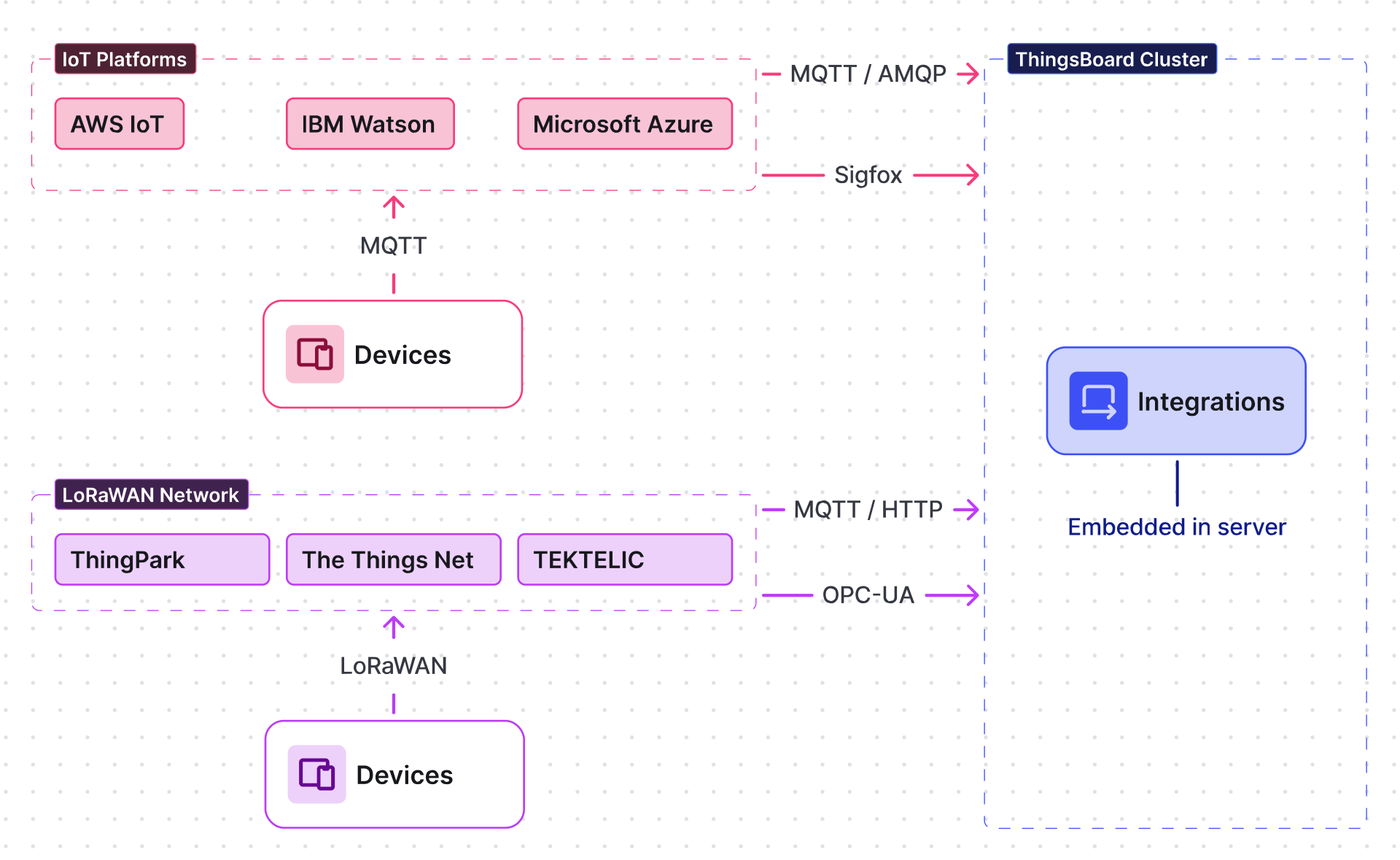
Section titled “Deployment Options”ThingsBoard supports two integration deployment options: embedded and remote. See details and architecture diagrams below.
Embedded Integrations
Section titled “Embedded Integrations”Embedded integrations run inside the main ThingsBoard server process (monolith deployment).
| Pros | Cons |
|---|---|
| Simple setup — just a few clicks in the UI | Consumes resources from the main ThingsBoard process |
| Minimal message delivery latency | Low isolation from core platform |
| Cannot reach local MQTT brokers / OPC-UA servers when ThingsBoard runs in the cloud |
Remote Integrations
Section titled “Remote Integrations”Remote integrations run as a separate process, typically deployed close to the data source (e.g. a local MQTT broker or OPC-UA server that has no external IP). The remote integration pulls data and streams it to the cloud-hosted ThingsBoard instance when internet is available.
| Pros | Cons |
|---|---|
| Connects to servers in a local network | Requires installing a separate package |
| Isolates integration from the main ThingsBoard process | |
| Buffers data locally when internet is unavailable |
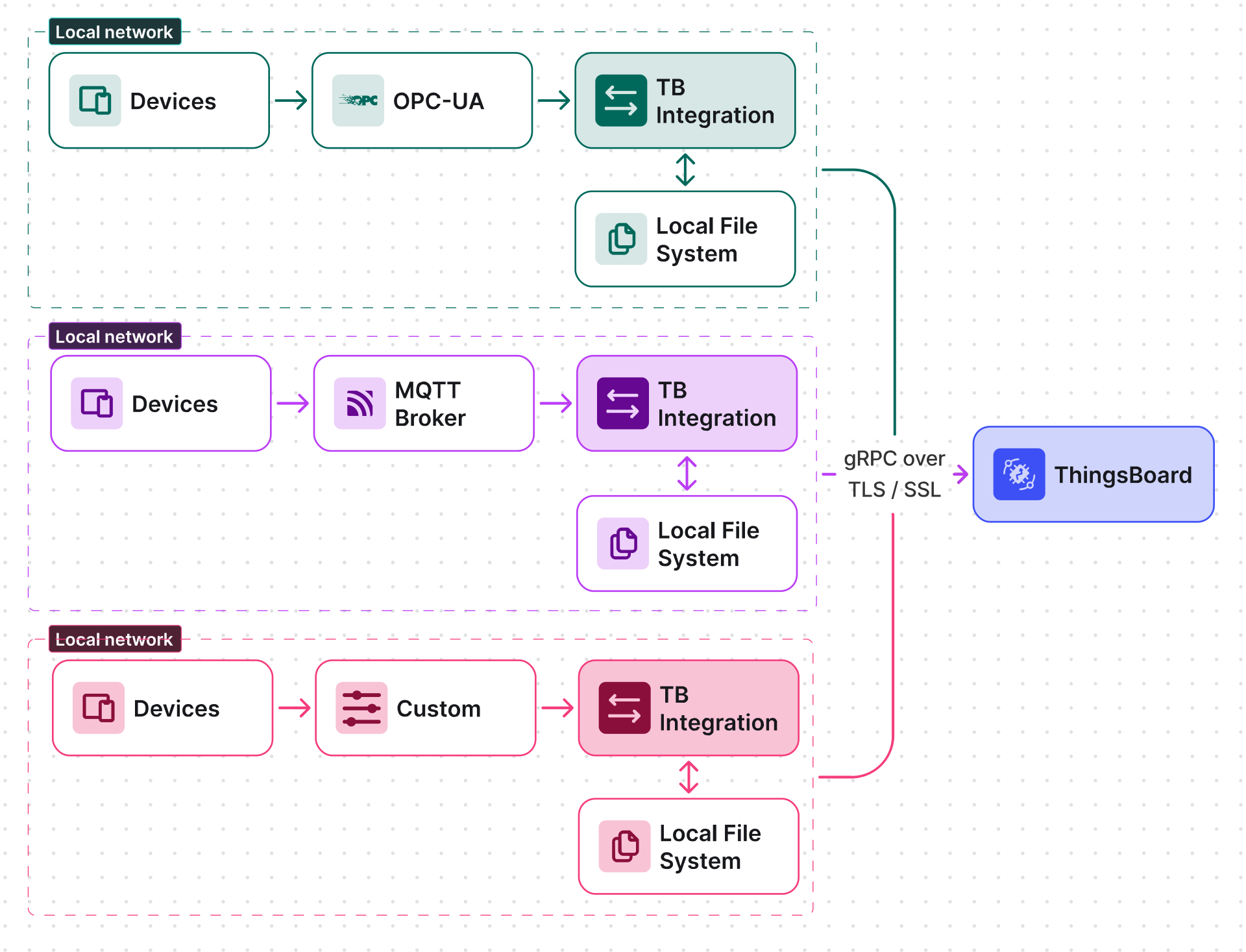
Learn more in the Remote Integrations guide.
Debug Mode
Section titled “Debug Mode”Debug mode captures all raw input/output events for a converter or integration — full payload, metadata, decoder input and output — which is useful during development and troubleshooting. Because debug data is written to the database, it should be disabled in production.
Enabling Debug Mode
Section titled “Enabling Debug Mode”Debug mode is controlled individually per converter and per integration via the debug button in their settings. Click it to open the Debug configuration popup with two options:
- Failures only (24/7) — logs only error messages. Always active with no time limit.
- All messages (1 hour) — logs all debug messages. Active for 1 hour, after which the mode automatically reverts to Failures only. While active, the button shows the remaining time (e.g. 1 hour).
Select the desired option and click Apply.
When a new integration or converter is created, debug is set to All messages for the first hour, then automatically reverts to Failures only.
Integration Events
Section titled “Integration Events”Each integration has an Events tab that records every processed message — the primary surface for debugging uplink and downlink flows without enabling full debug mode.
To view events: go to Integrations ⇾ Integrations, click an integration name, and open the Events tab.
Use the Event type dropdown to filter by category, and the time range filter to narrow results by time window.
Each row shows the following columns:
| Column | Description |
|---|---|
| Event time | Timestamp when the event was processed |
| Server | ThingsBoard server node that processed the message |
| Type | Message direction: Uplink or Downlink |
| Message | Summary of the message payload — click ··· to open the full JSON in a popup |
| Status | Processing result: OK or an error code |
| Error | Error details if the message failed |
Event type filter options:
| Type | Description |
|---|---|
| Error | Failed messages with the full error details and stack trace |
| Lifecycle event | Integration lifecycle changes — start, stop, reconnect, and similar state transitions |
| Statistics | Aggregated message counts and processing metrics |
| Debug | Detailed trace events for all messages — only captured while debug mode is active |
Managing Integrations
Section titled “Managing Integrations”All integrations are listed in Integrations ⇾ Integrations. From the list you can:
- Edit: click an integration name to open it, click the pencil icon (Toggle edit mode) in the top right, make changes, and click Apply changes.
- Enable / Disable: use the toggle on the integration row to pause message processing without deleting the integration. The configuration and assigned converters are preserved and take effect immediately when re-enabled.
- Delete: click the delete icon on a row, or select multiple integrations and use bulk delete.
Integration Status
Section titled “Integration Status”Each integration in the list shows a status badge:
| Badge | Meaning |
|---|---|
| Active | The integration started, or was updated, successfully. |
| Failed | An update to a previously-running integration failed. Open the integration → Events tab → set Event type to Lifecycle event to see the error. |
| Pending | The integration has not yet completed a successful start. This includes a freshly created integration still starting up, and one whose first start attempt failed — with or without a corresponding Lifecycle event. |
Integrations vs IoT Gateway
Section titled “Integrations vs IoT Gateway”| Platform Integrations | IoT Gateway | |
|---|---|---|
| Designed for | Server-to-server communication | Local network deployments |
| Scale | High throughput, cluster-ready | Up to ~1,000 devices |
| Custom decoders | Modify converter scripts in real time via UI | Requires connector configuration update and gateway restart |
Both systems serve different use cases and complement each other.
See Also
Section titled “See Also”- Integration Types — full catalog of supported integrations
- Uplink Data Converter — decoding incoming device payloads into ThingsBoard entities
- Downlink Data Converter — encoding ThingsBoard commands for external platforms
- Remote Integrations — connecting local-network devices to cloud-hosted ThingsBoard
- TBEL scripting reference — built-in functions and operators for writing converter scripts
Was this helpful?