
TBMQ PE includes two predefined user roles: Administrator and Viewer. For a detailed explanation of role-based access control, see RBAC.
User management can be performed through TBMQ’s Web UI or REST API.
Add user
To add a new User, please follow these steps:
- On the left-hand menu, click ‘Users’ and then the plus icon to create a new user.
- Provide the user’s email address, which must be unique within the system. The fields for first name, last name, and description are optional. Click Add to create the user.
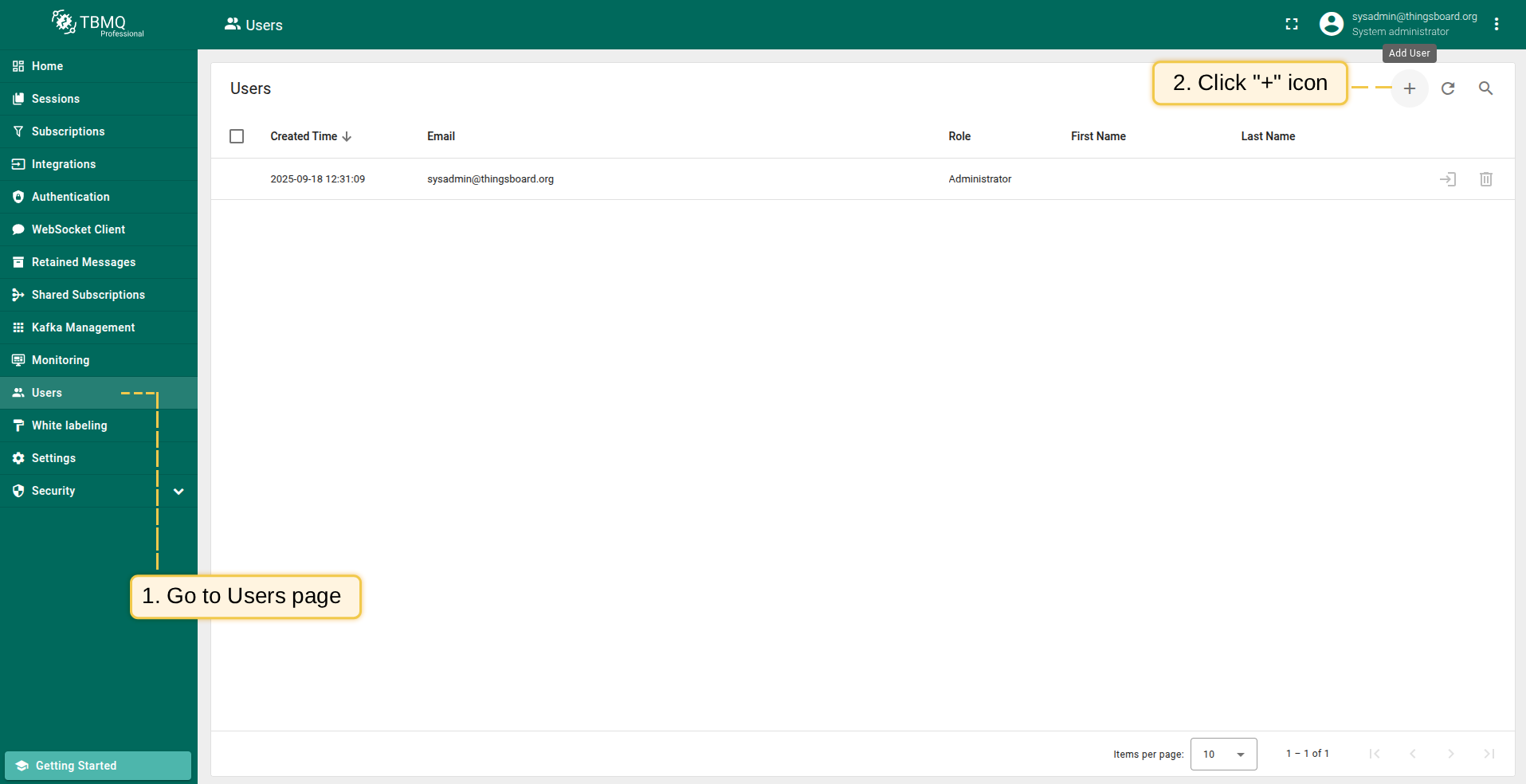
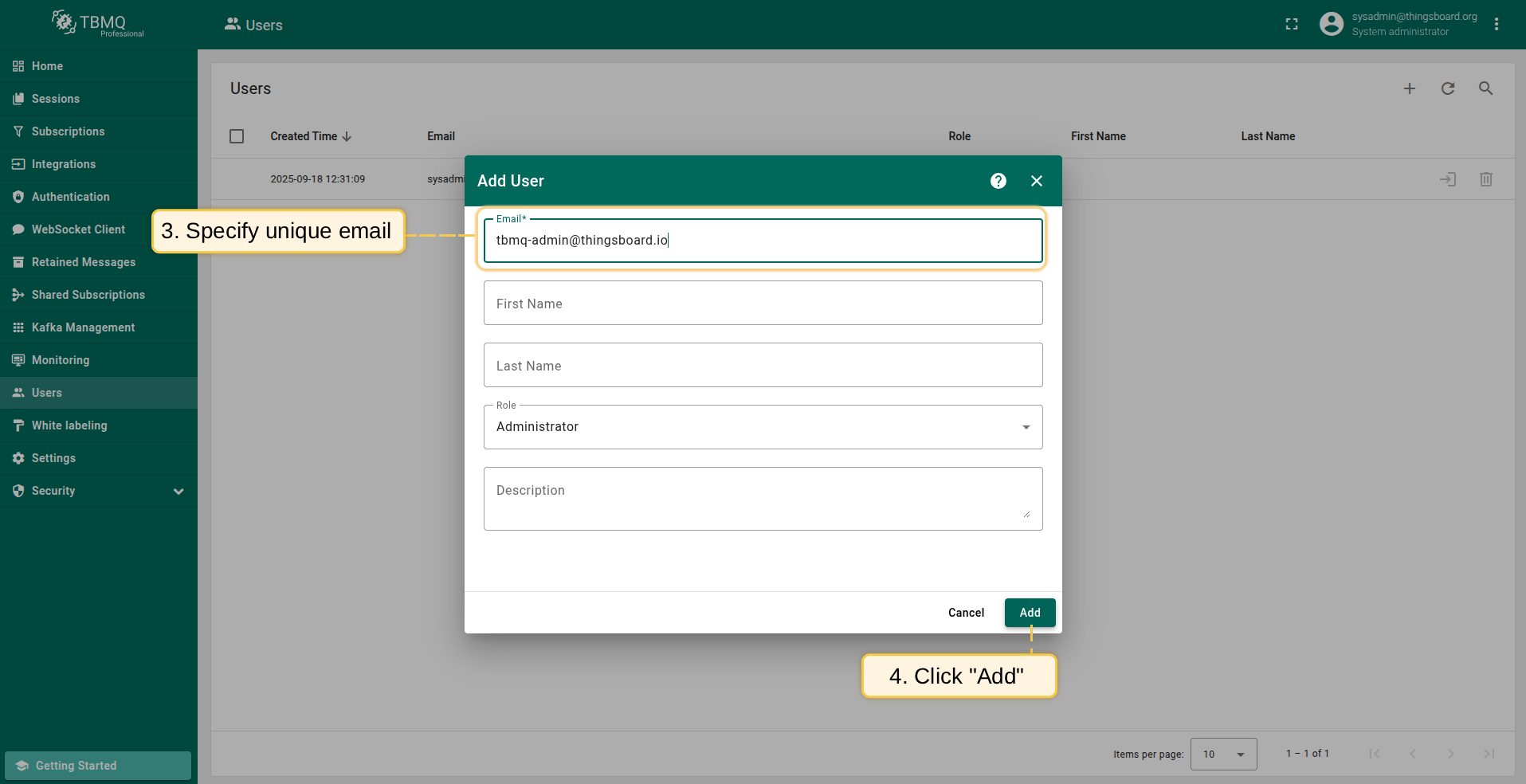
Note that all new users are initially created with the default password sysadmin. Upon logging in, users will be prompted to change the default password.
Edit user
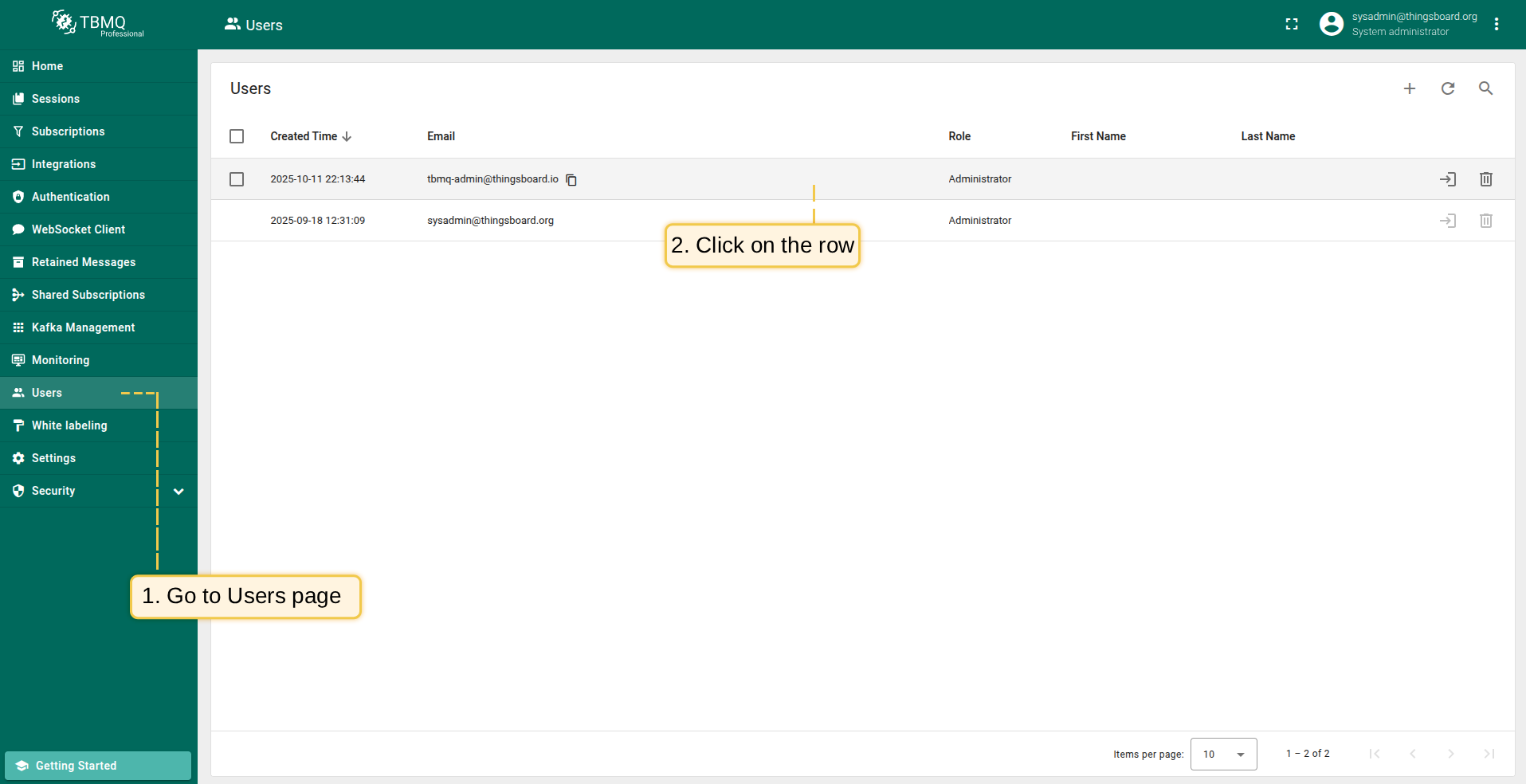
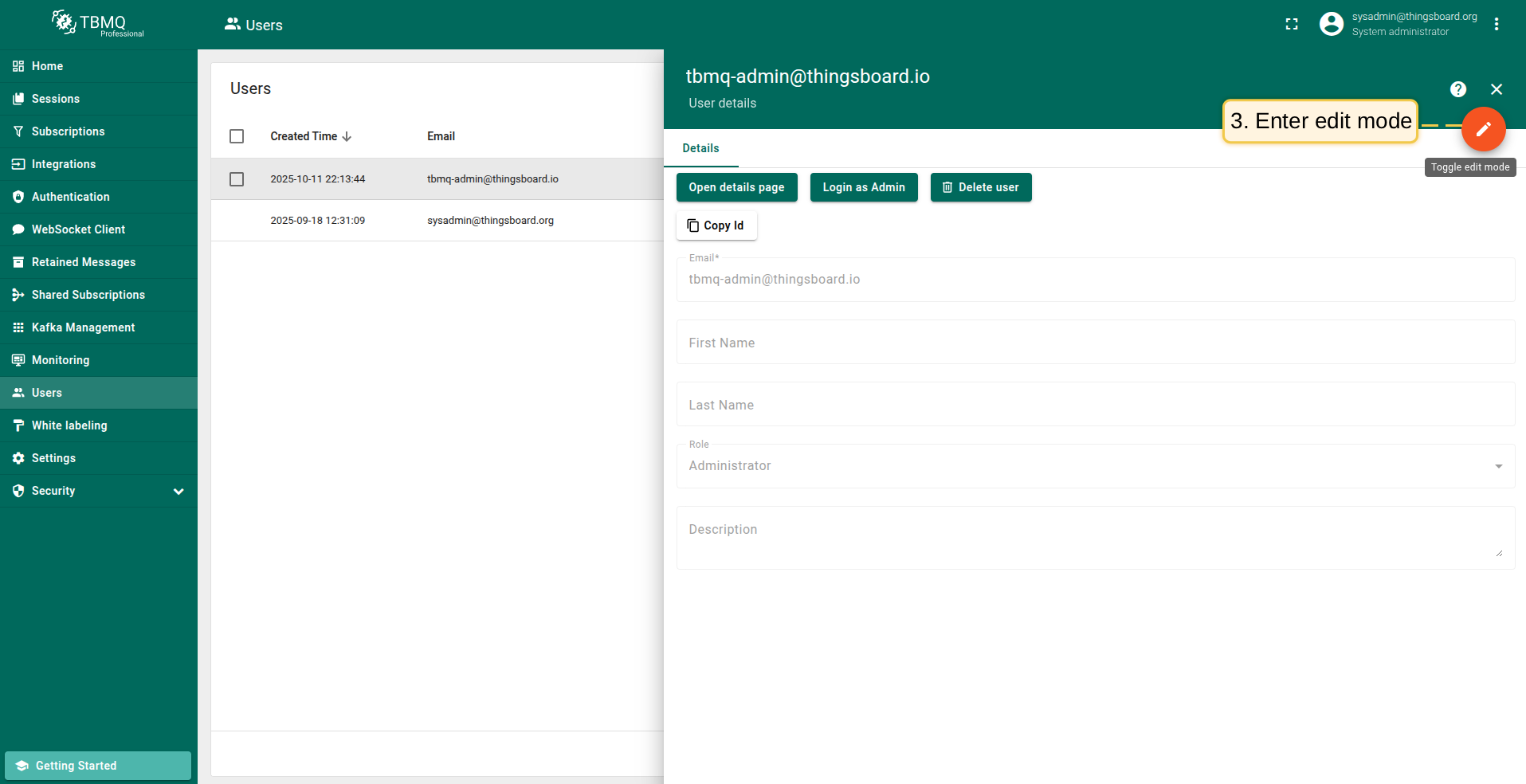
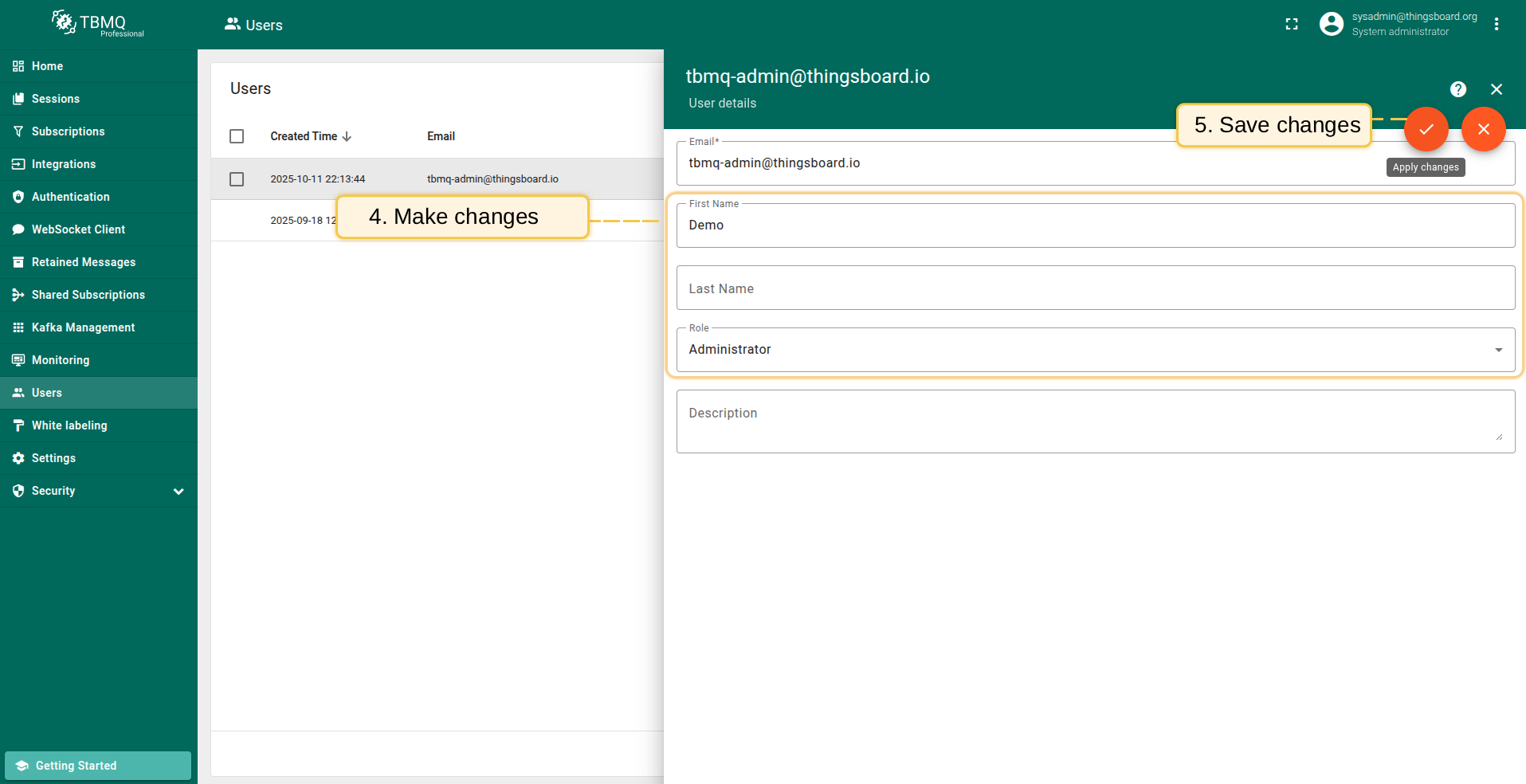
To edit the details of an existing administrator, please follow these steps:
- Locate the desired user in the Users table and click on the corresponding row.
- Click the Toggle edit mode button to modify the user’s first name, last name, or description.
- Click the Apply changes button to save any modifications.
Delete user
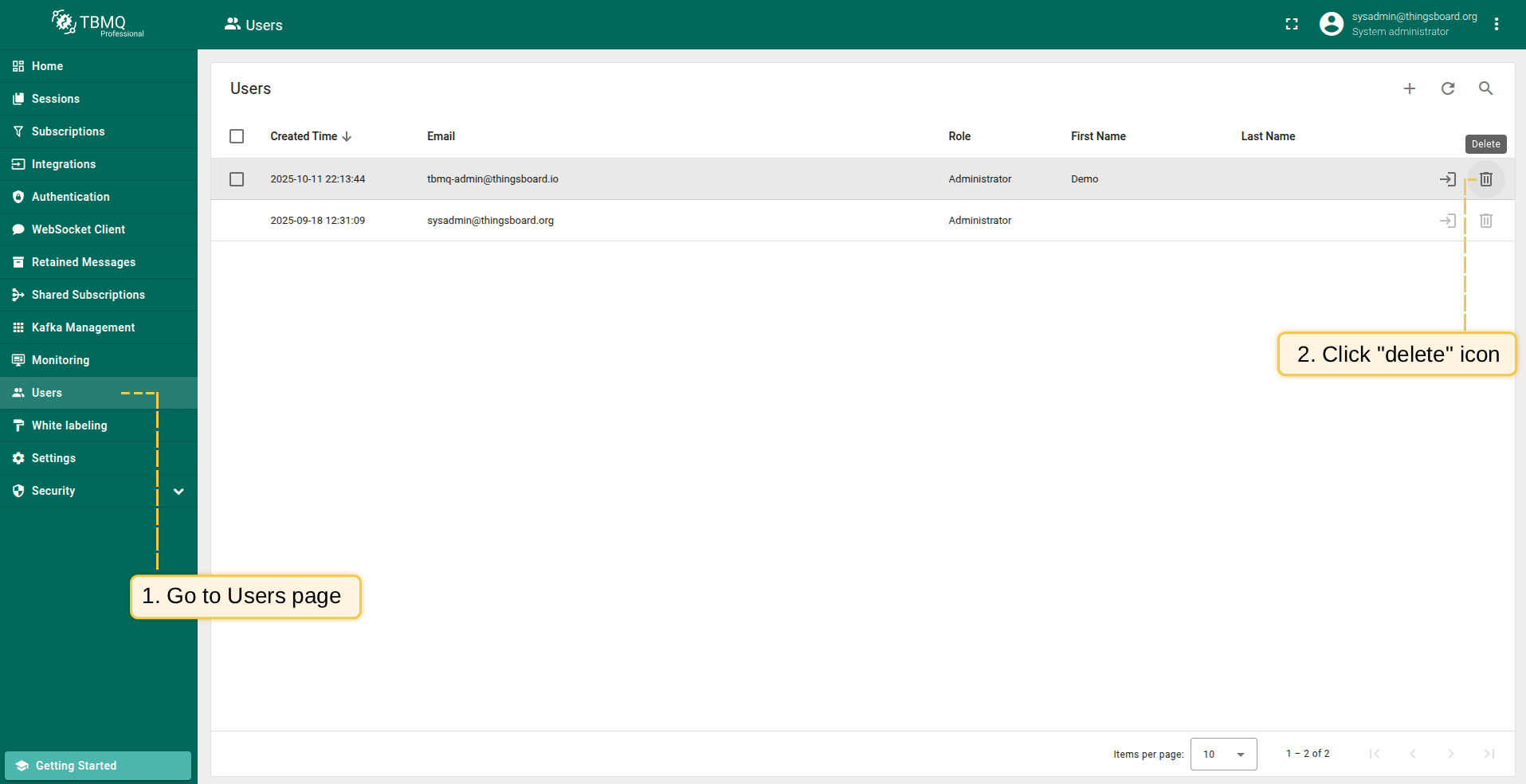
Logged-in user can delete other users, but not itself. To delete the user, follow these steps:
- Find the user in the Users table and click on the corresponding row.
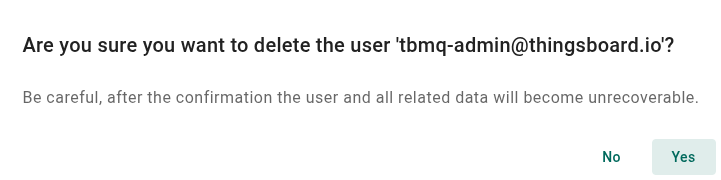
- Click the Delete user button and confirm the action by selecting Yes.
Login as another user
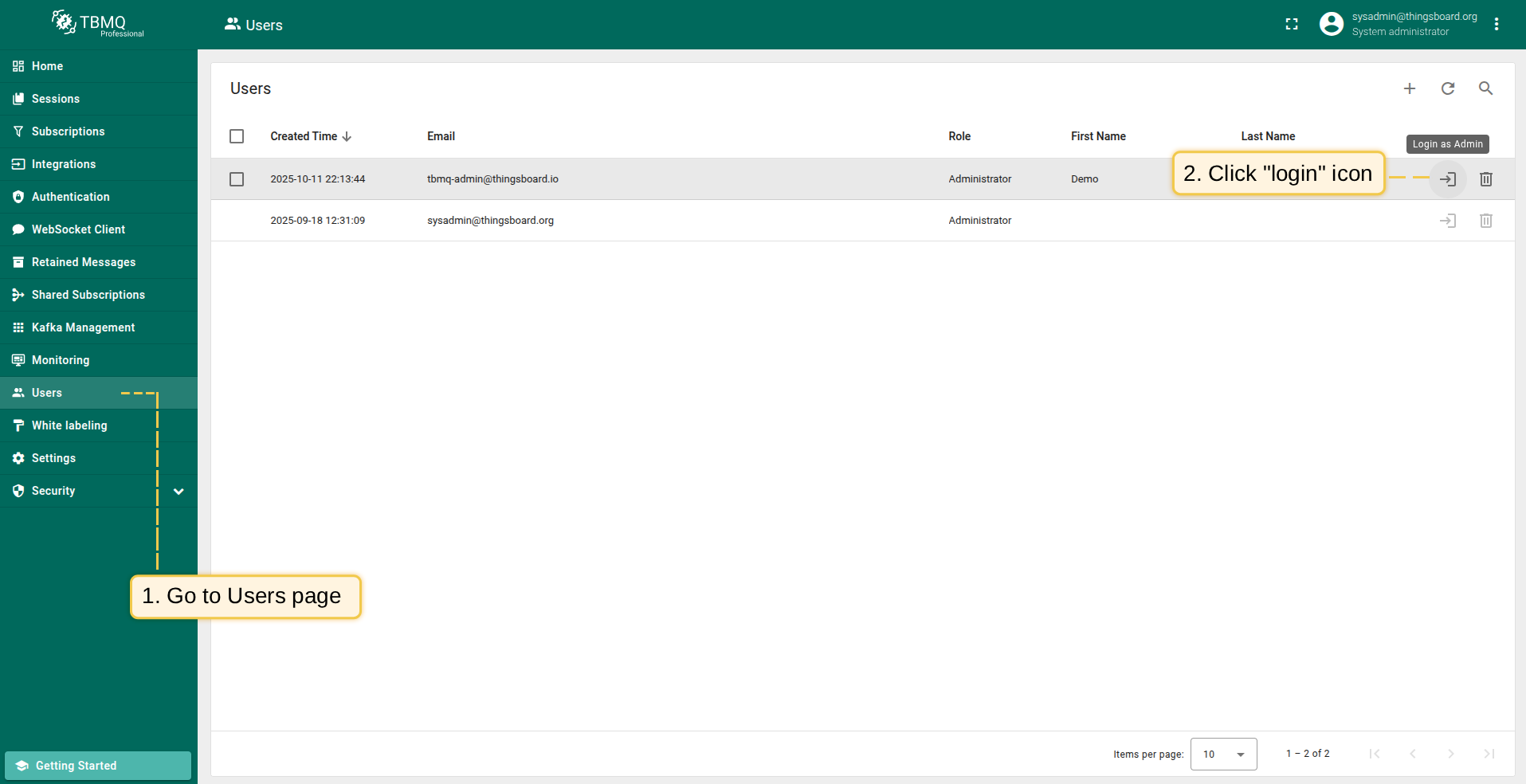
TBMQ allows Admin users to securely log in as other users automatically, without requiring their credentials or manual authentication.
- Find the user in the Users table (you can only log in as other users).
- Click the Login button in the corresponding row.
User created via OAuth 2.0
If a user signs in using OAuth 2.0 while the Allow user creation option is enabled, the user account is automatically created in the system. These users are created without a password set and can continue using Single Sign-On (SSO) to log in. If the user wants to log in using a regular username/password flow, they should go to Account → Security and set a new password. When changing the password, leave the Current password field empty.