
Smartico G-1.6
Smartico G-1.6
Smartico
- Platform
- ThingsBoard
- Hardware Type
- Sensors
- Connectivity
- LoRaWAN
- Industry
- Energy Management, Smart Cities, Smart Buildings
- Use Case
- Smart Energy, Smart Metering, Water Metering
Introduction
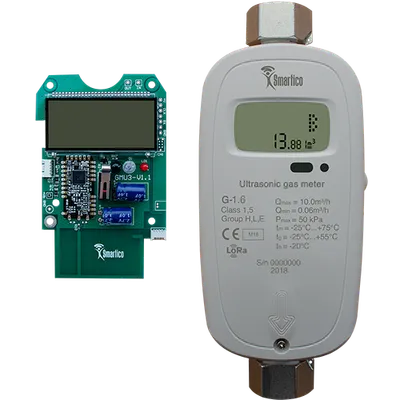
The Smartico G-1.6 is a residential ultrasonic gas meter available in the G-1.6, G-2.5, G-4, and G-6 size range. It measures the volume of consumed natural and liquefied gas with conversion to standard reference conditions at 20 °C. The meter has no moving mechanical parts, which allows mounting in confined spaces. Data is transmitted wirelessly over LoRaWAN in the license-free frequency range.
This guide describes how to receive telemetry from the Smartico G-1.6 over LoRaWAN using ChirpStack and a ThingsBoard MQTT integration, and visualize the data on a dashboard.
Prerequisites
- Smartico G-1.6 — 1×
- ChirpStack LoRaWAN Network Server with the device registered and connected
- ChirpStack MQTT integration configured with a Mosquitto MQTT broker
- ThingsBoard PE instance: use ThingsBoard Cloud or install a local PE server
Configure ChirpStack
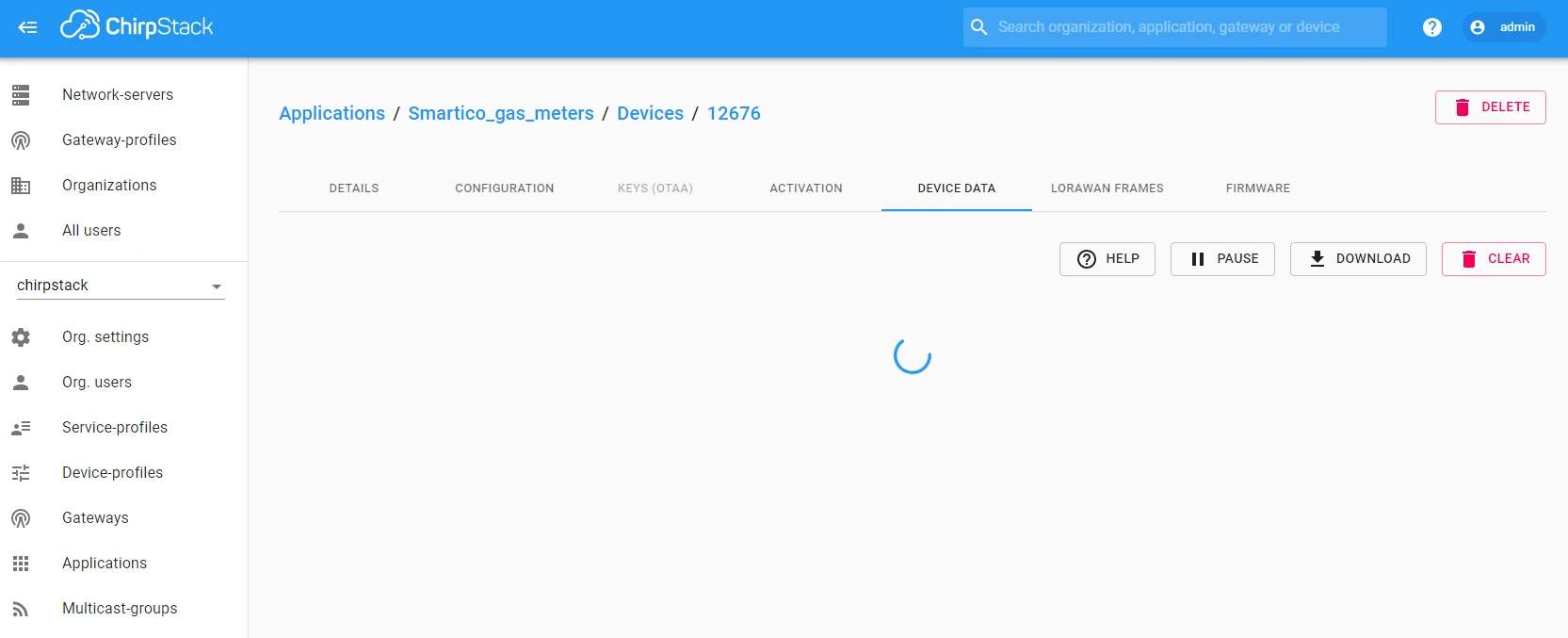
Register the Smartico G-1.6 in ChirpStack and verify the device is transmitting. The device should appear on the Applications page with its serial number (like 12676).

Create the uplink data converter
The uplink data converter decodes the Base64-encoded payload from the G-1.6 into ThingsBoard telemetry format.
- Download uplink_gas_meter.json.
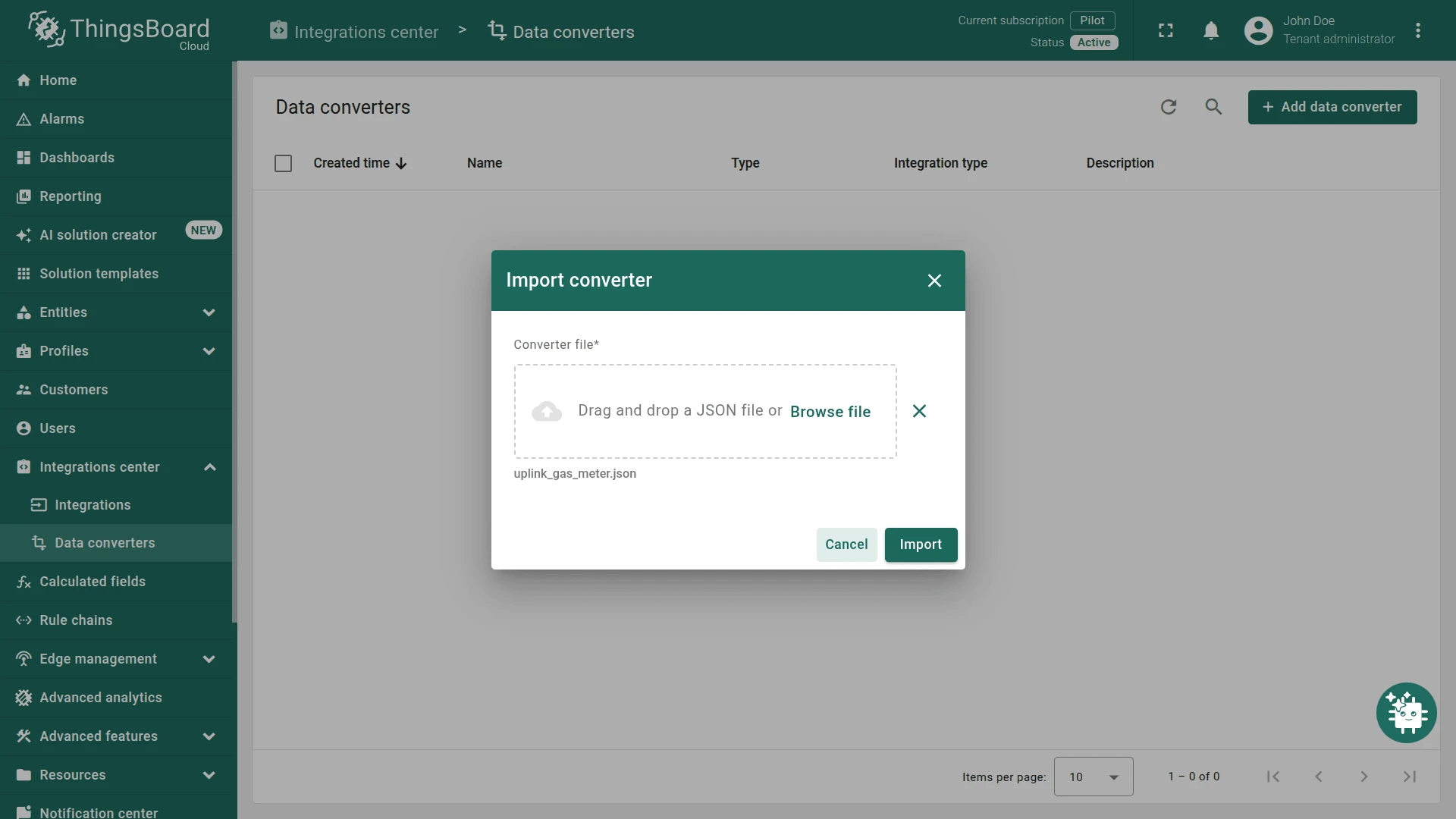
- Go to Integrations center ⇾ Data converters and click + Add data converter ⇾ Import converter.
- Drag and drop the downloaded
uplink_gas_meter.jsonfile. - Click Import.
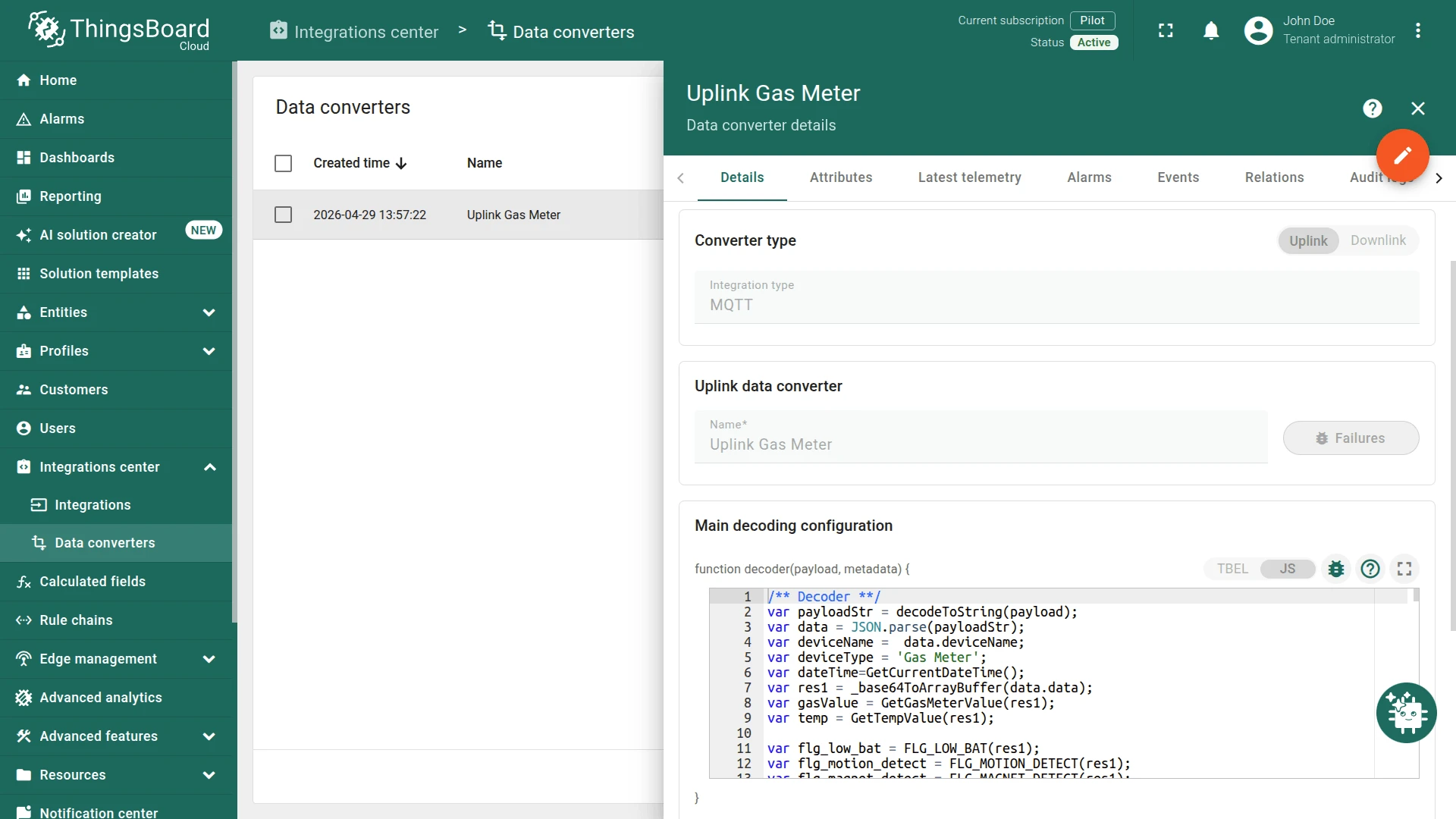
/** Decoder **/var payloadStr = decodeToString(payload);var data = JSON.parse(payloadStr);var deviceName =  data.deviceName;var deviceType = 'Gas Meter';var dateTime=GetCurrentDateTime();var res1 = _base64ToArrayBuffer(data.data);var gasValue = GetGasMeterValue(res1);var temp = GetTempValue(res1);
var flg_low_bat = FLG_LOW_BAT(res1);var flg_motion_detect = FLG_MOTION_DETECT(res1);var flg_magnet_detect = FLG_MAGNET_DETECT(res1);var flg_tamper_detect = FLG_TAMPER_DETECT(res1);var sts_valve = STS_VALVE(res1);var flg_err_ovr = FLG_ERR_OVR(res1);var flg_err_reverse = FLG_ERR_REVERSE(res1);var flg_err_sensor = FLG_ERR_SENSOR(res1);var flg_err_gas = FLG_ERR_GAS(res1);var flg_power_on = FLG_POWER_ON(res1);var flg_err_time = FLG_ERR_TIME(res1);var flg_lock = FLG_LOCK(res1);var flg_cfg_done = FLG_CFG_DONE(res1);
var result = {   deviceName: deviceName,   deviceType: deviceType,   attributes: {       integrationName: metadata['integrationName'],   },   telemetry: {       gasMeter: gasValue,       temperature: temp,       REAL_TIME: dateTime,       SN: data.deviceName,       FLG_LOW_BAT: flg_low_bat,       FLG_MOTION_DETECT: flg_motion_detect,       FLG_MAGNET_DETECT: flg_magnet_detect,       FLG_TAMPER_DETECT: flg_tamper_detect,       STS_VALVE: sts_valve,       FLG_ERR_OVR: flg_err_ovr,       FLG_ERR_REVERSE: flg_err_reverse,       FLG_ERR_SENSOR: flg_err_sensor,       FLG_ERR_GAS: flg_err_gas,       FLG_ERR_TIME: flg_err_time,       FLG_POWER_ON: flg_power_on,       FLG_LOCK: flg_lock,       FLG_CFG_DONE: flg_cfg_done   }};
/** Helper functions **/
function decodeToString(payload) {   return String.fromCharCode.apply(String, payload);}
function decodeToJson(payload) {   var str = decodeToString(payload);   var data = JSON.parse(str);   return data;}
function GetCurrentDateTime(){    var a=new Date();    var year = a.getFullYear().toString();  var month = (a.getMonth()+1).toString();  if(month.length==1) month="0"+month;  var date = a.getDate().toString();  if(date.length==1) date="0"+date;  var hour = a.getHours().toString();  if(hour.length==1) hour="0"+hour;  var min = a.getMinutes().toString();  if(min.length==1) min="0"+min;  var sec = a.getSeconds().toString();  if(sec.length==1) sec="0"+sec;  var time = date + '.' + month + '.' + year + ' ' + hour + ':' + min + ':' + sec ;  return time;}
function _base64ToArrayBuffer(base64) {    var binary_string = atob(base64);    var len = binary_string.length;    var bytes = new Uint8Array(len);    var str="";    for (var i = 0; i < len; i++) {        bytes[i] = binary_string.charCodeAt(i);    }    return bytes;}
function GetGasMeterValue(arr) {    var bytes = arr;    var value = 0;    for (var j = 7; j < 11; j++) {    value = (value << 8) | bytes[j];}    return value/1000;}
function GetTempValue(arr) {    var bytes = arr;    var value = "0";    var value1 = parseInt(bytes[11],10).toString(16);    if(value1.length==1) value1="0"+value1;    var value2 = parseInt(bytes[12],10).toString(16);    if(value2.length==1) value2="0"+value2;    value=value1+value2;    if(value.toLowerCase()=="ffff")         return null;    value = parseInt(value, 16).toString(10);    value = (value << 16)>>16;    return value/100;}
function FLG_LOW_BAT(arr) {    var value = parseInt(arr[2], 10).toString(2);    while(value.length<8){    value='0'+value;}    return Number(value[7]);}
function FLG_MOTION_DETECT(arr) {    var value = parseInt(arr[2], 10).toString(2);    while(value.length<8){    value='0'+value;}    return Number(value[6]);}
function FLG_MAGNET_DETECT(arr) {    var value = parseInt(arr[2], 10).toString(2);    while(value.length<8){    value='0'+value;}    return Number(value[5]);}
function FLG_TAMPER_DETECT(arr) {    var value = parseInt(arr[2], 10).toString(2);    while(value.length<8){    value='0'+value;}    return Number(value[4]);}
function STS_VALVE(arr) {    var value = parseInt(arr[2], 10).toString(2);    while(value.length<8){    value='0'+value;}    var str = value[1]+value[2]+value[3];    var res = parseInt(str, 2).toString(10);    return Number(res);}
function FLG_ERR_OVR(arr) {    var value = parseInt(arr[2], 10).toString(2);    while(value.length<8){    value='0'+value;}    return Number(value[0]);}
function FLG_ERR_REVERSE(arr) {    var value = parseInt(arr[1], 10).toString(2);    while(value.length<8){    value='0'+value;}    return Number(value[7]);}
function FLG_ERR_SENSOR(arr) {    var value = parseInt(arr[1], 10).toString(2);    while(value.length<8){    value='0'+value;}    return Number(value[6]);}
function FLG_ERR_GAS(arr) {    var value = parseInt(arr[1], 10).toString(2);    while(value.length<8){    value='0'+value;}    return Number(value[5]);}
function FLG_ERR_TIME(arr) {    var value = parseInt(arr[1], 10).toString(2);    while(value.length<8){    value='0'+value;}    return Number(value[4]);}
function FLG_POWER_ON(arr) {    var value = parseInt(arr[1], 10).toString(2);    while(value.length<8){    value='0'+value;}    return Number(value[2]);}
function FLG_LOCK(arr) {    var value = parseInt(arr[1], 10).toString(2);    while(value.length<8){    value='0'+value;}    return Number(value[1]);}
function FLG_CFG_DONE(arr) {    var value = parseInt(arr[1], 10).toString(2);    while(value.length<8){    value='0'+value;}    return Number(value[0]);}
return result;
You can test the converter before connecting the device. Open the Uplink Gas meter converter, enter edit mode and click the Test decoder function tab. Paste the sample input below into the Payload content field and press Test.
Sample input payload (Base64-encoded)
{ "applicationID": "1", "applicationName": "Smartico_gas_meters", "deviceName": "12676", "devEUI": "02aaaa0200003184", "rxInfo": [{ "gatewayID": "647fdafffe00d228", "uplinkID": "bd949c88-fd1e-4c97-bbef-ad6412139d89", "name": "Kona_micro_lite", "rssi": -65, "loRaSNR": 6, "location": { "latitude": 48.44229794818326, "longitude": 35.014479160308845, "altitude": 144 } }], "txInfo": { "frequency": 868300000, "dr": 0 }, "adr": true, "fCnt": 742, "fPort": 2, "data": "BAwMAQAxhAAAA1YK4w=="}Expected decoded output
{ "deviceName": "12676", "deviceType": "Gas Meter", "attributes": { "integrationName": "Gas Meter" }, "telemetry": { "gasMeter": 0.854, "temperature": 27.87, "REAL_TIME": "26.08.2020 15:02:39", "SN": "12676", "FLG_LOW_BAT": 0, "FLG_MOTION_DETECT": 0, "FLG_MAGNET_DETECT": 1, "FLG_TAMPER_DETECT": 1, "STS_VALVE": 0, "FLG_ERR_OVR": 0, "FLG_ERR_REVERSE": 0, "FLG_ERR_SENSOR": 0, "FLG_ERR_GAS": 1, "FLG_ERR_TIME": 1, "FLG_POWER_ON": 0, "FLG_LOCK": 0, "FLG_CFG_DONE": 0 }}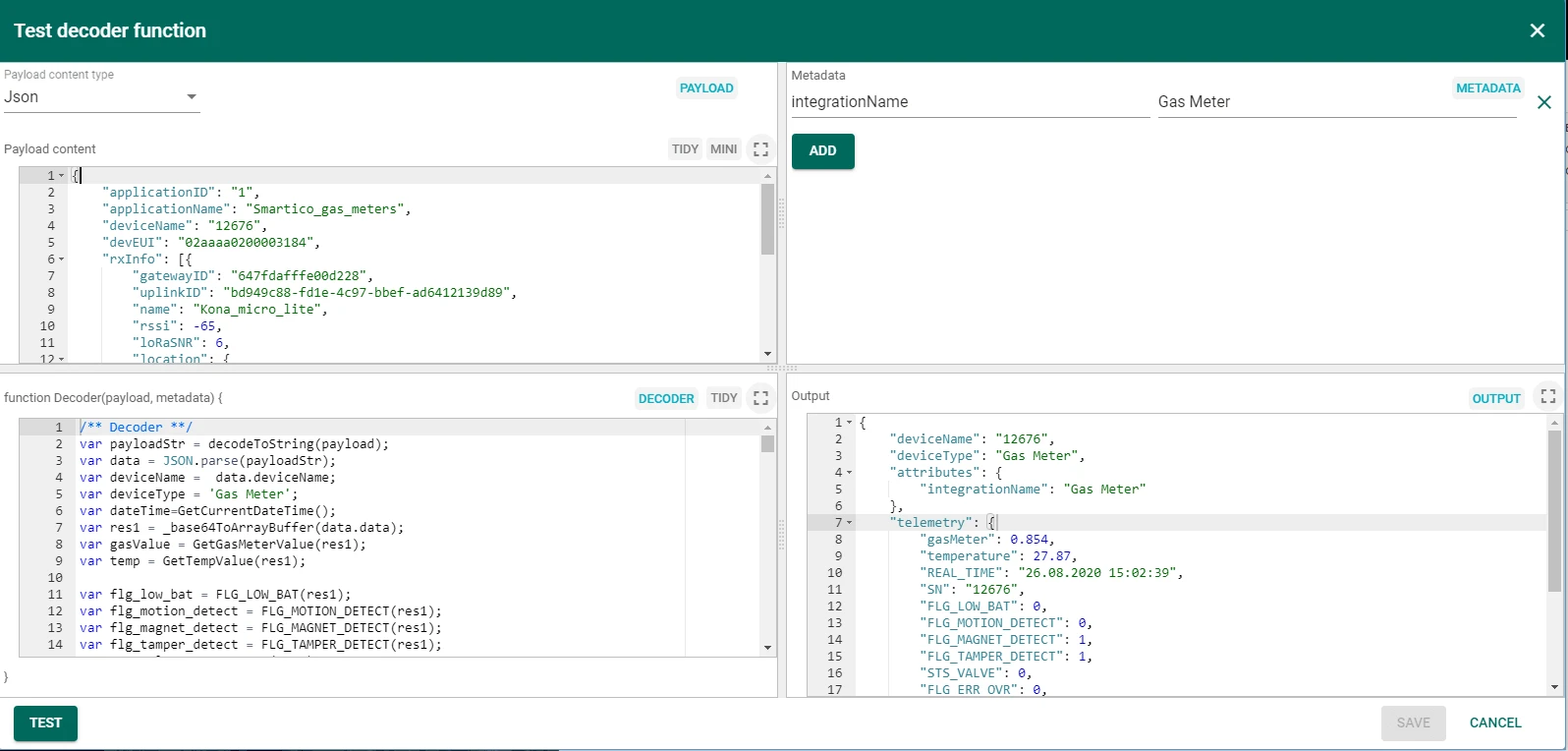
Create the integration
For more information about MQTT integrations in ThingsBoard, see the MQTT integration documentation.
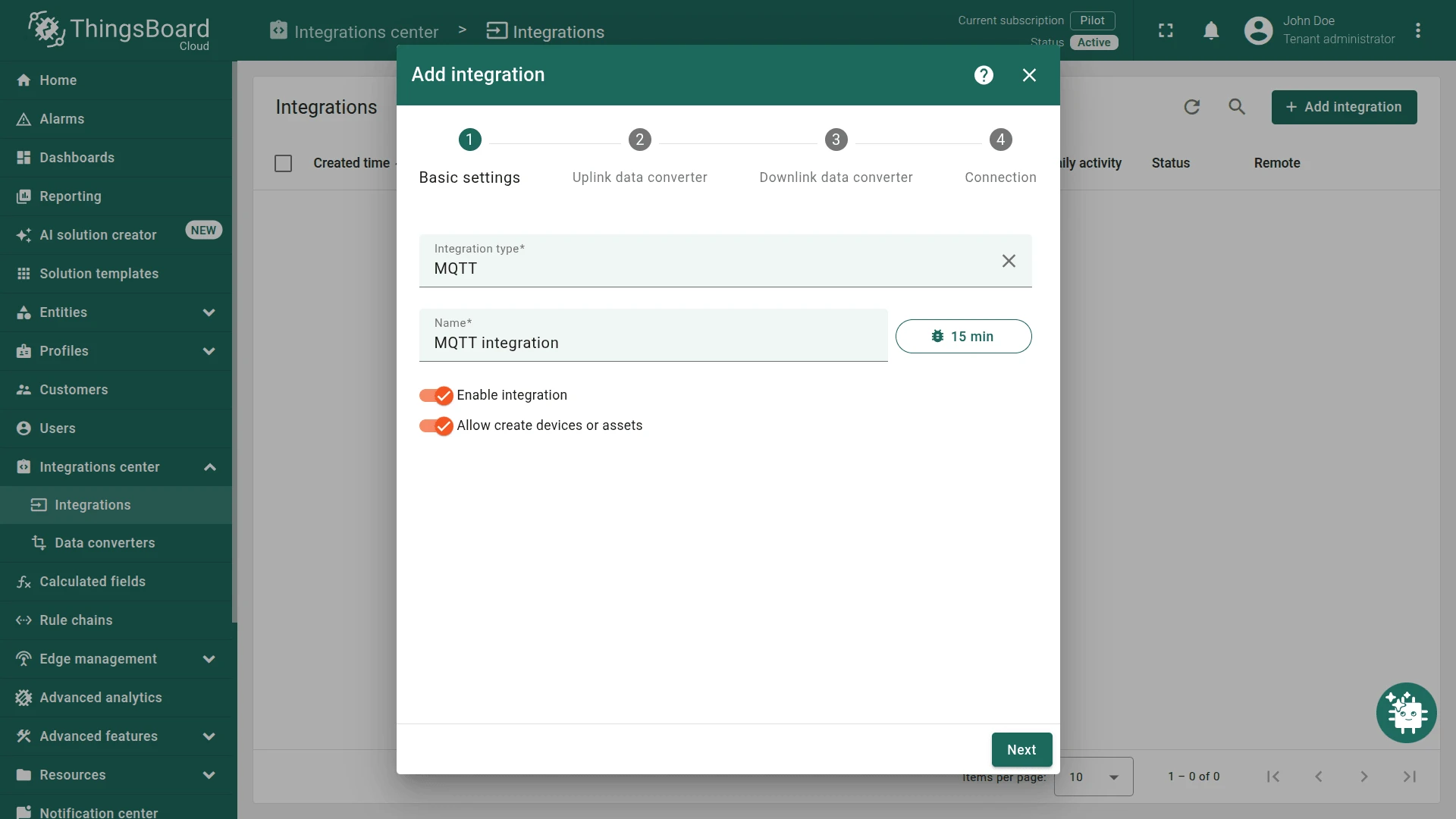
- Go to Integrations center ⇾ Integrations and click + Add integration.
- Basic settings:
- Set Integration type to MQTT.
- Enable integration and Allow create devices or assets are on by default.
- Click Next.
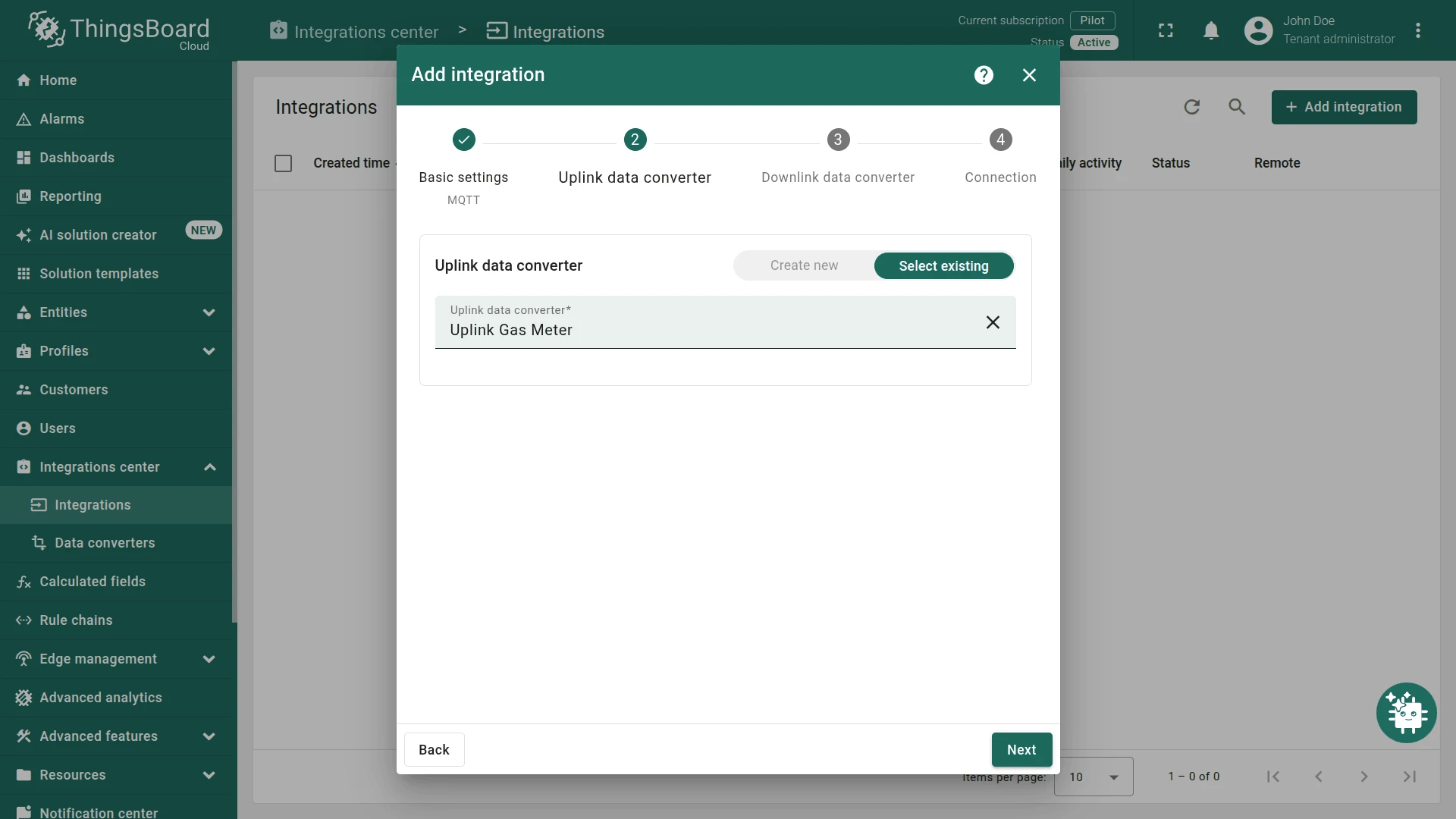
- Uplink data converter:
- Select existing — choose the previously created
Uplink Gas Meterfrom the list. - Click Next.
- Select existing — choose the previously created
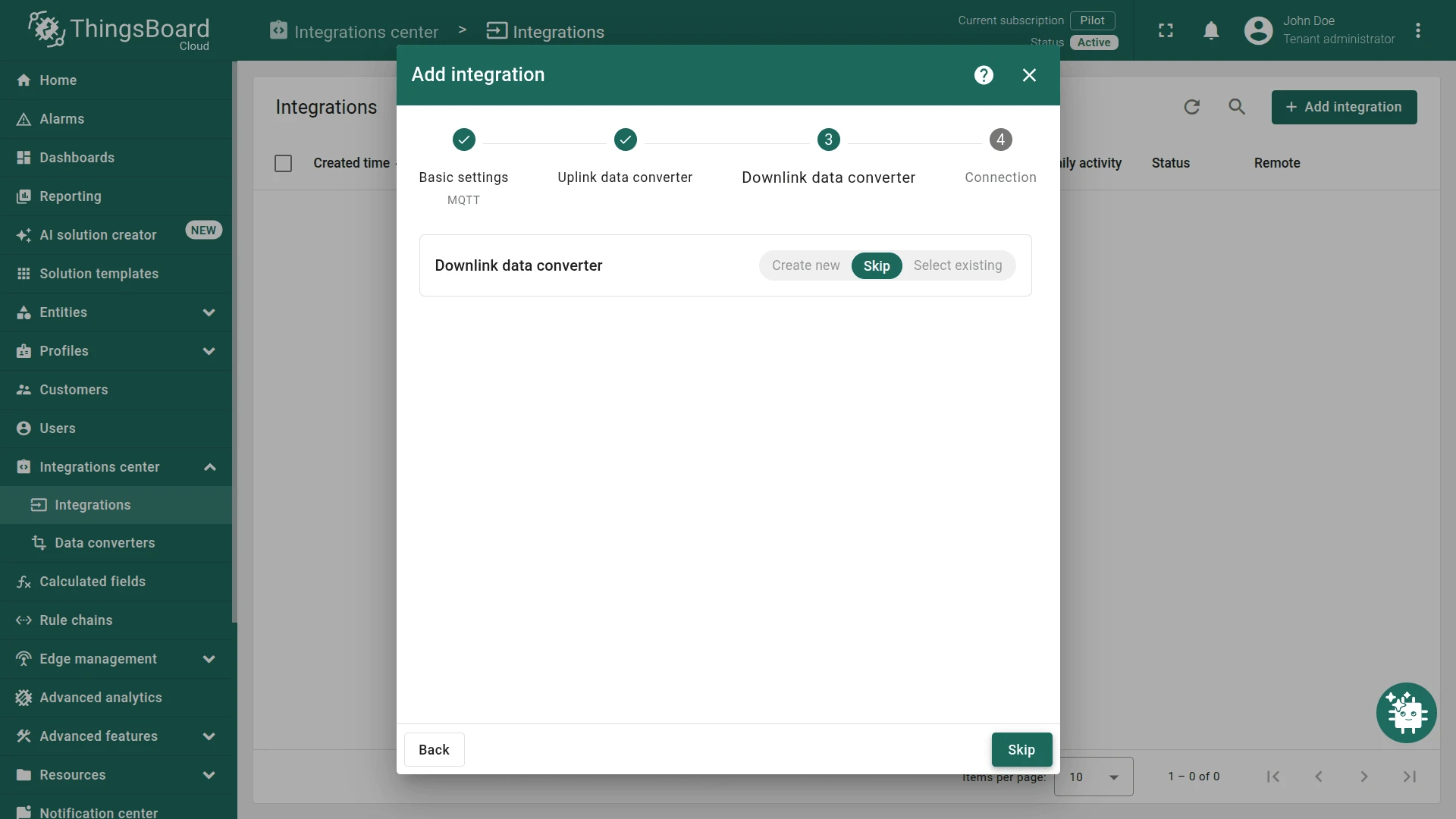
- Downlink data converter:
- Click Skip — only needed for RPC; can be added later.
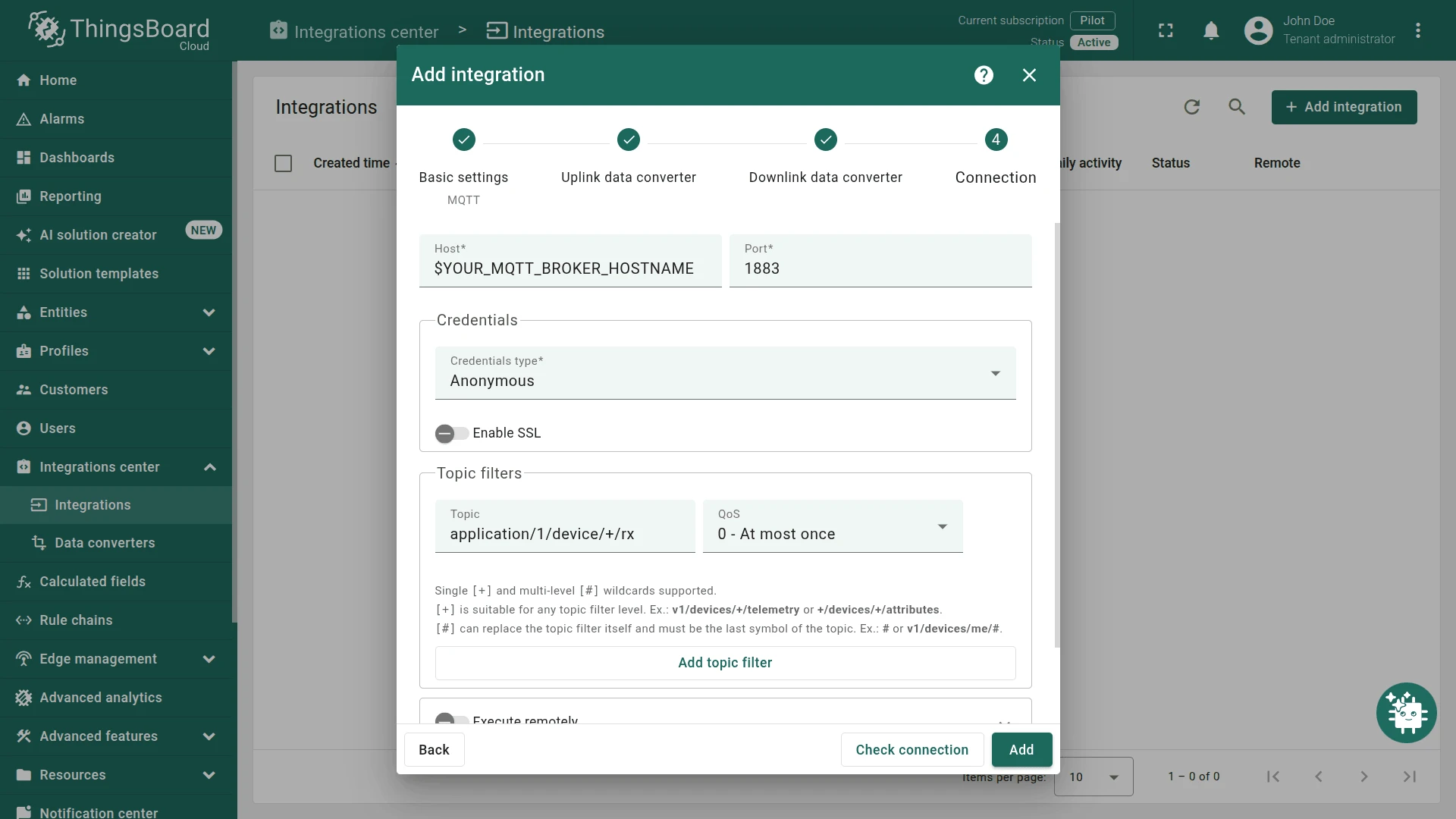
- Connection:
- Set your MQTT broker Host and Port.
- Select the Credentials type (e.g. Anonymous).
- Add at least one topic filter with QoS (e.g.
application/1/device/+/rx, QoS0 — At most once).
- Click Add to complete the integration setup.
Verify data
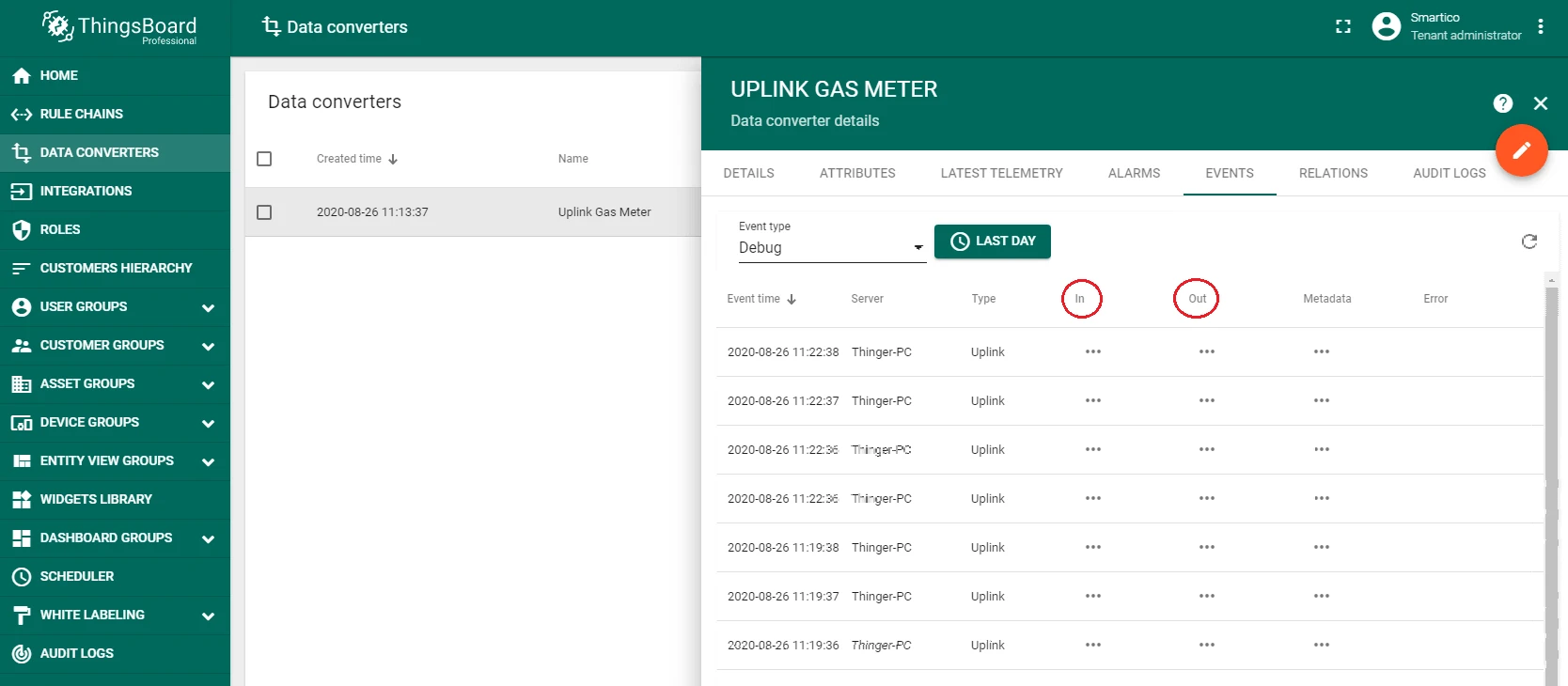
After the G-1.6 transmits its first packet, a new device named after its serial number (like 012676) appears automatically in Entities > Devices. You can also verify input and output data in Data converters > Uplink Gas meter > Events.
Create an asset
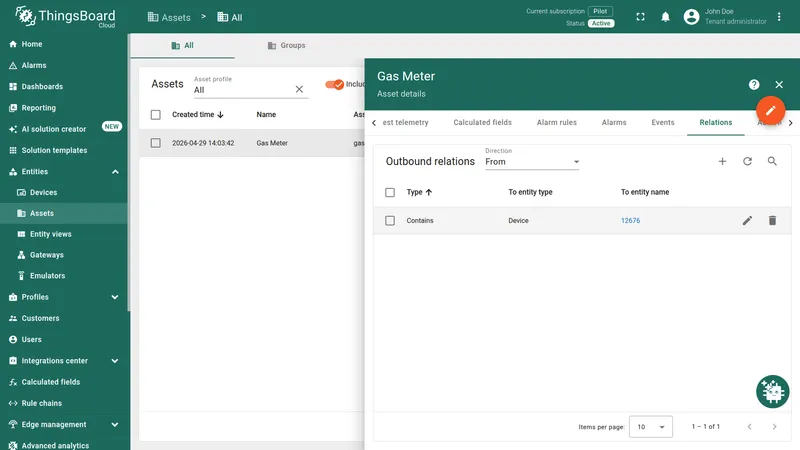
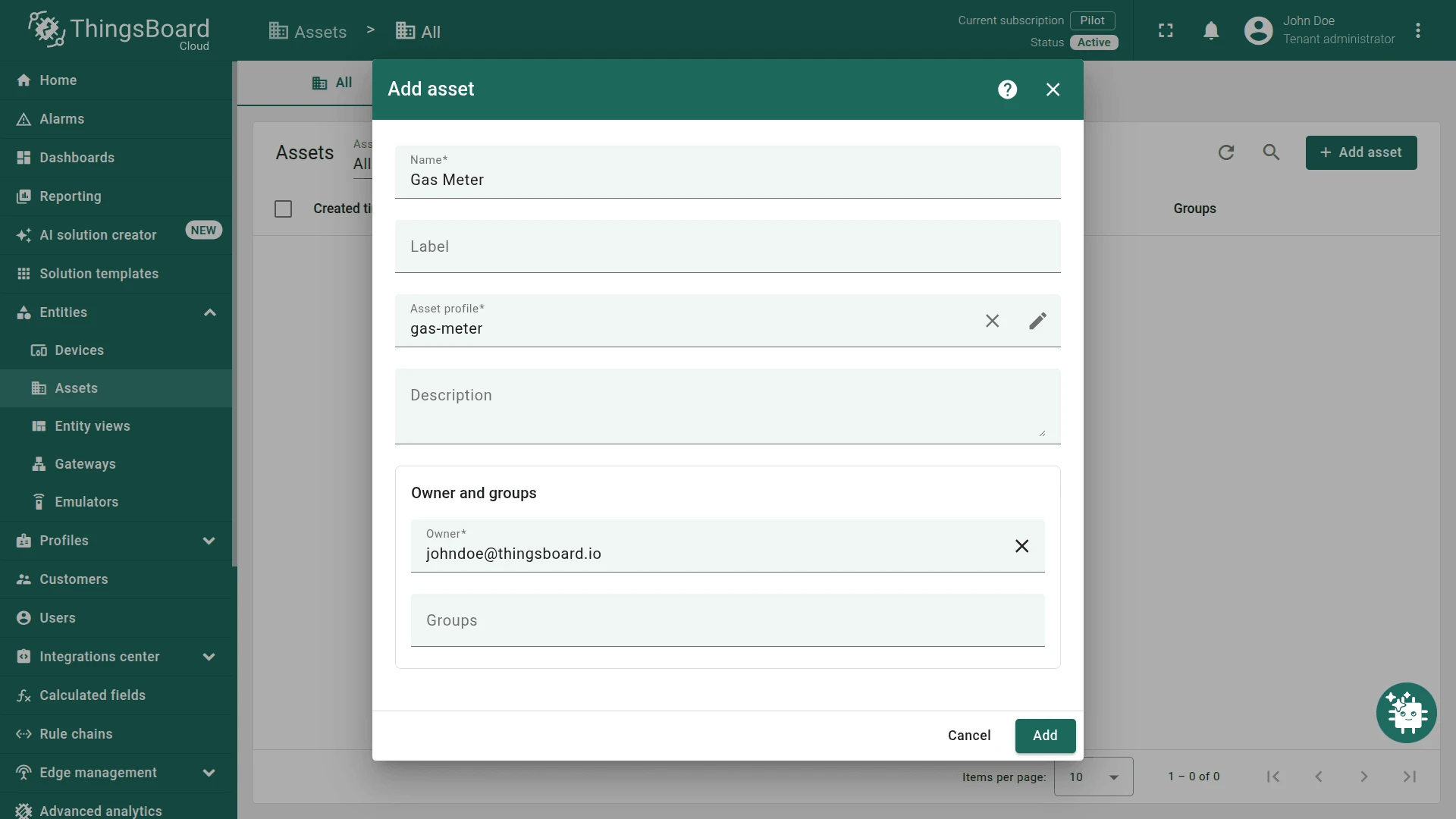
To display data on the dashboard, create an asset and add the device as a relation.
-
Go to Entities ⇾ Assets and create a new asset named
Gas Meterwith asset typegas-meter.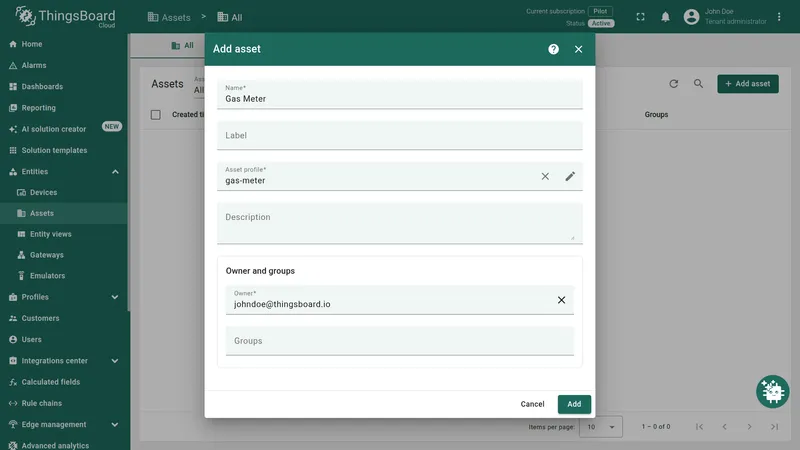
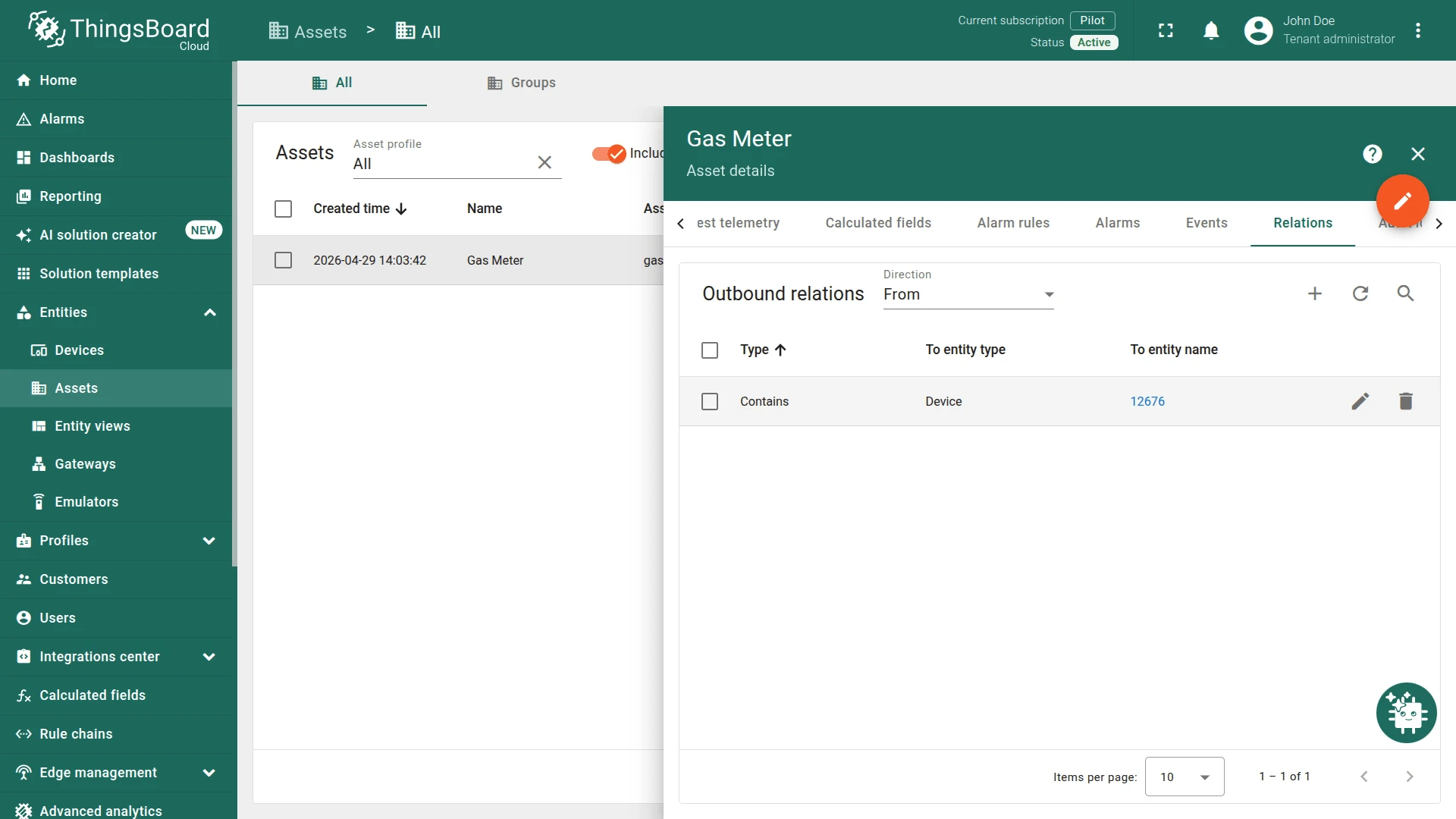
-
Open the asset, go to the Relations tab, and add a relation to the device.
Import the rule chain
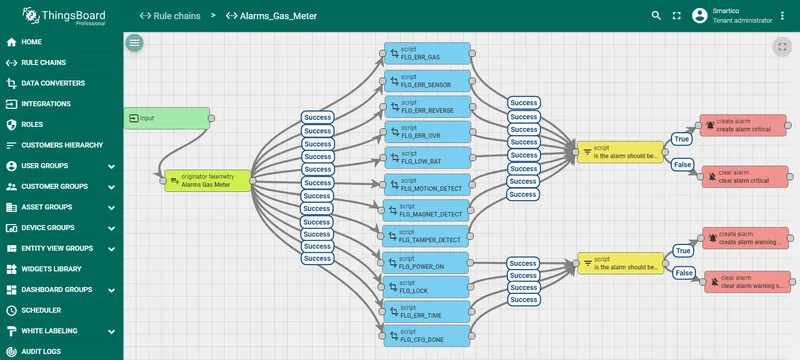
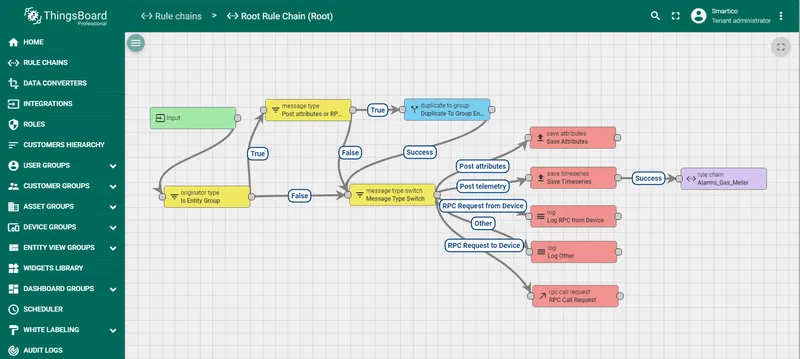
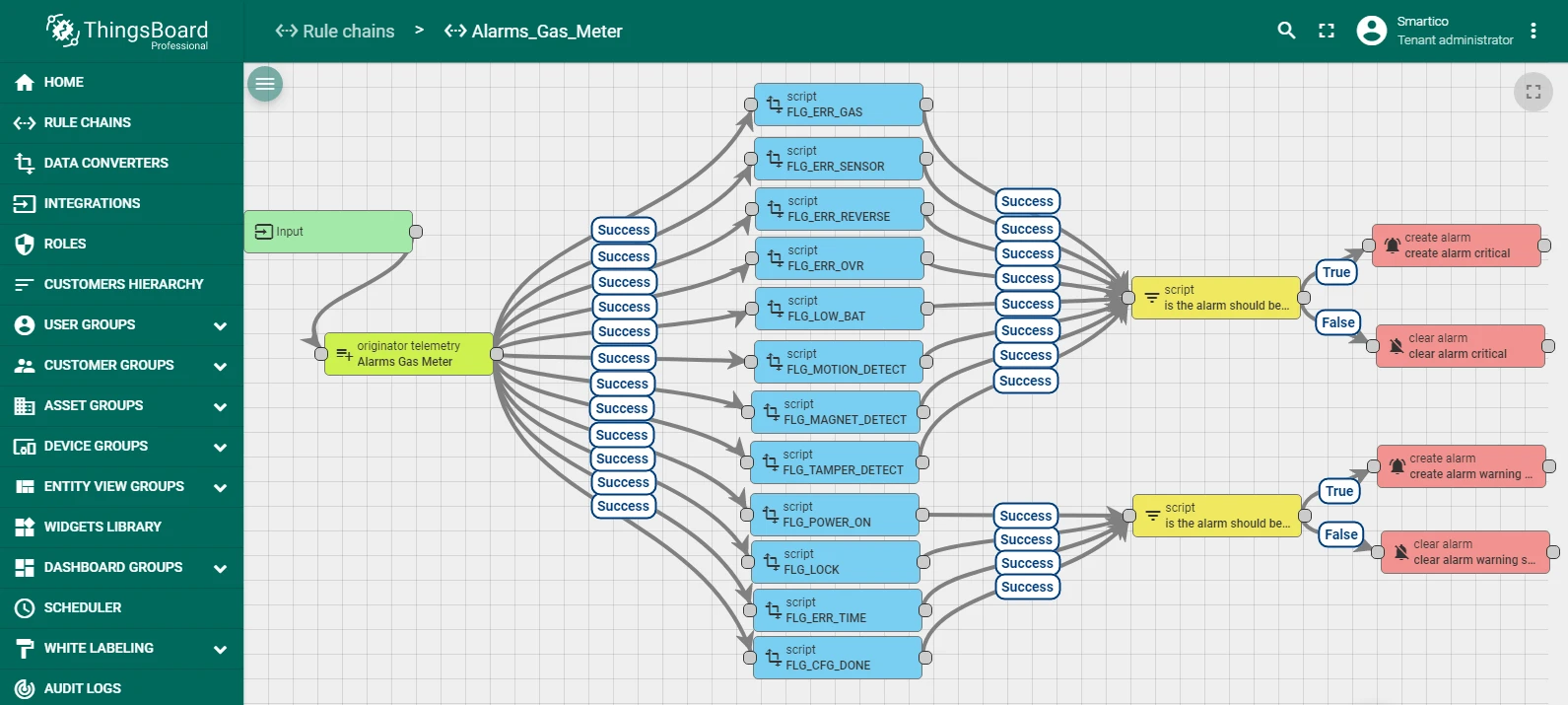
In addition to meter readings, the device reports status flags: low battery, tamper detection, magnetic field exposure, and others. These are displayed in an Alarm widget. You need to import the rule chain first to enable alarm processing.
-
Download alarms_gas_meter.json and import it in Rule chains.
-
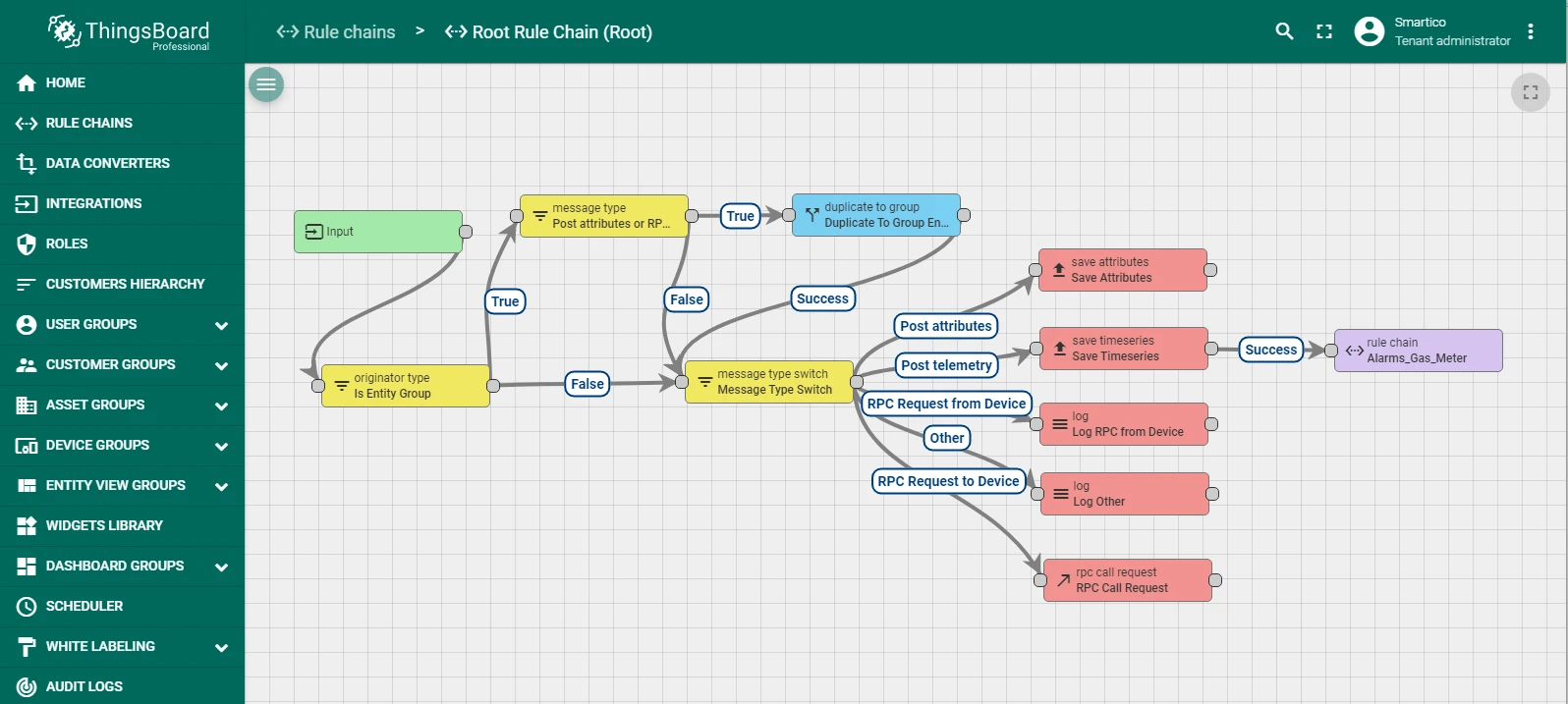
Open the Root Rule Chain, add a link to the imported Alarms Gas Meter rule chain, and save.
Import the dashboard
-
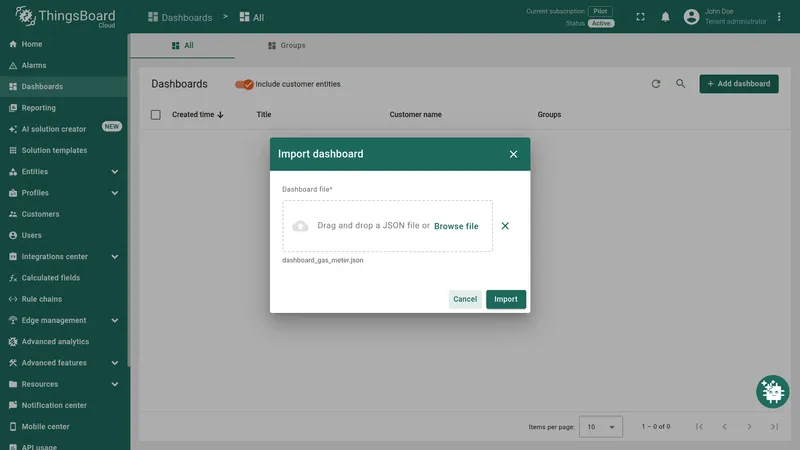
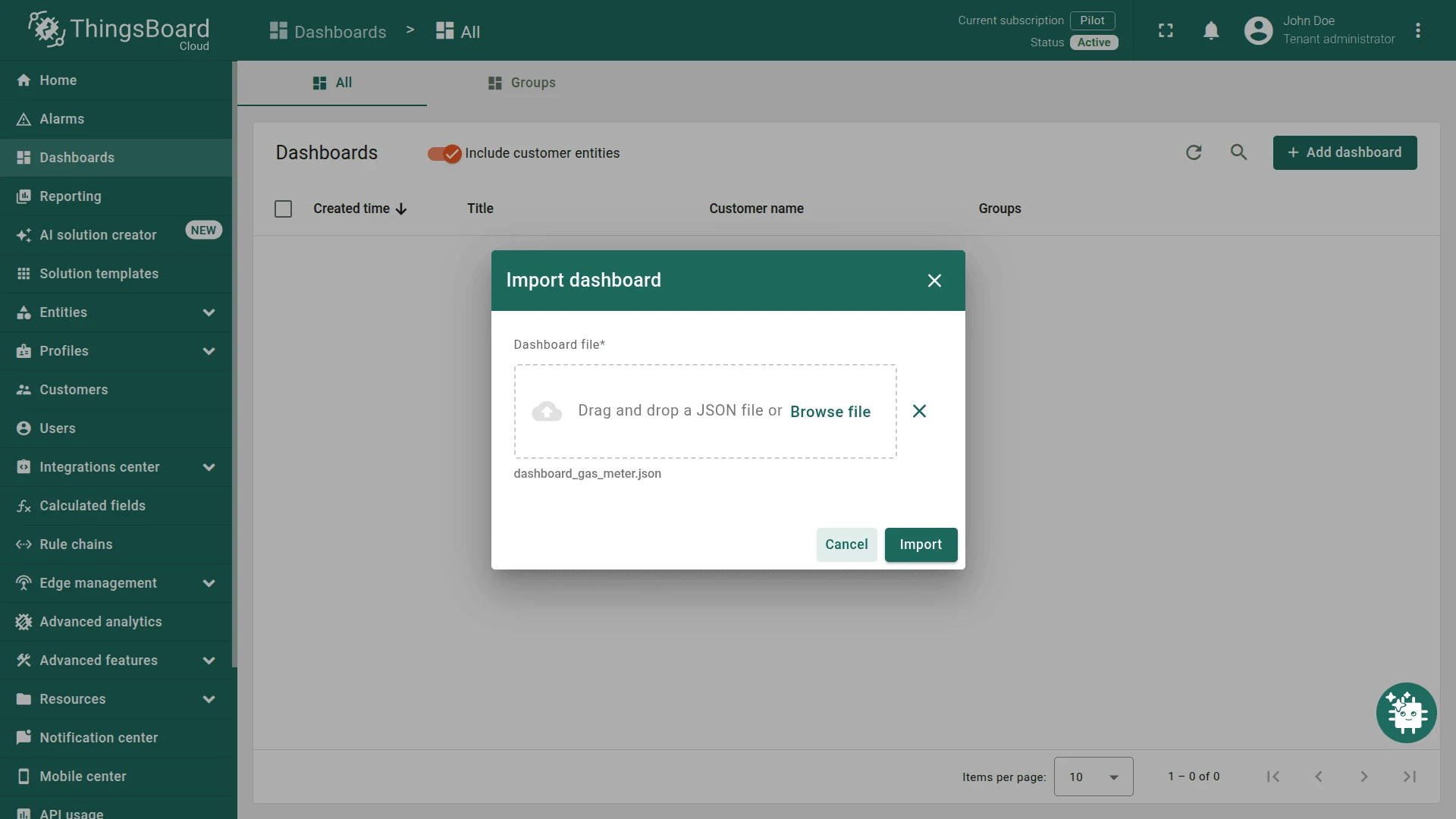
Download dashboard_gas_meter.json and import it in Dashboards. See the dashboard import instructions.
-
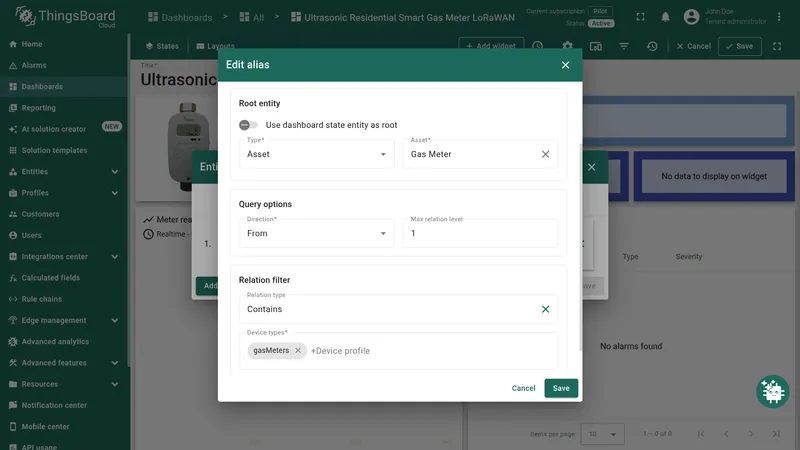
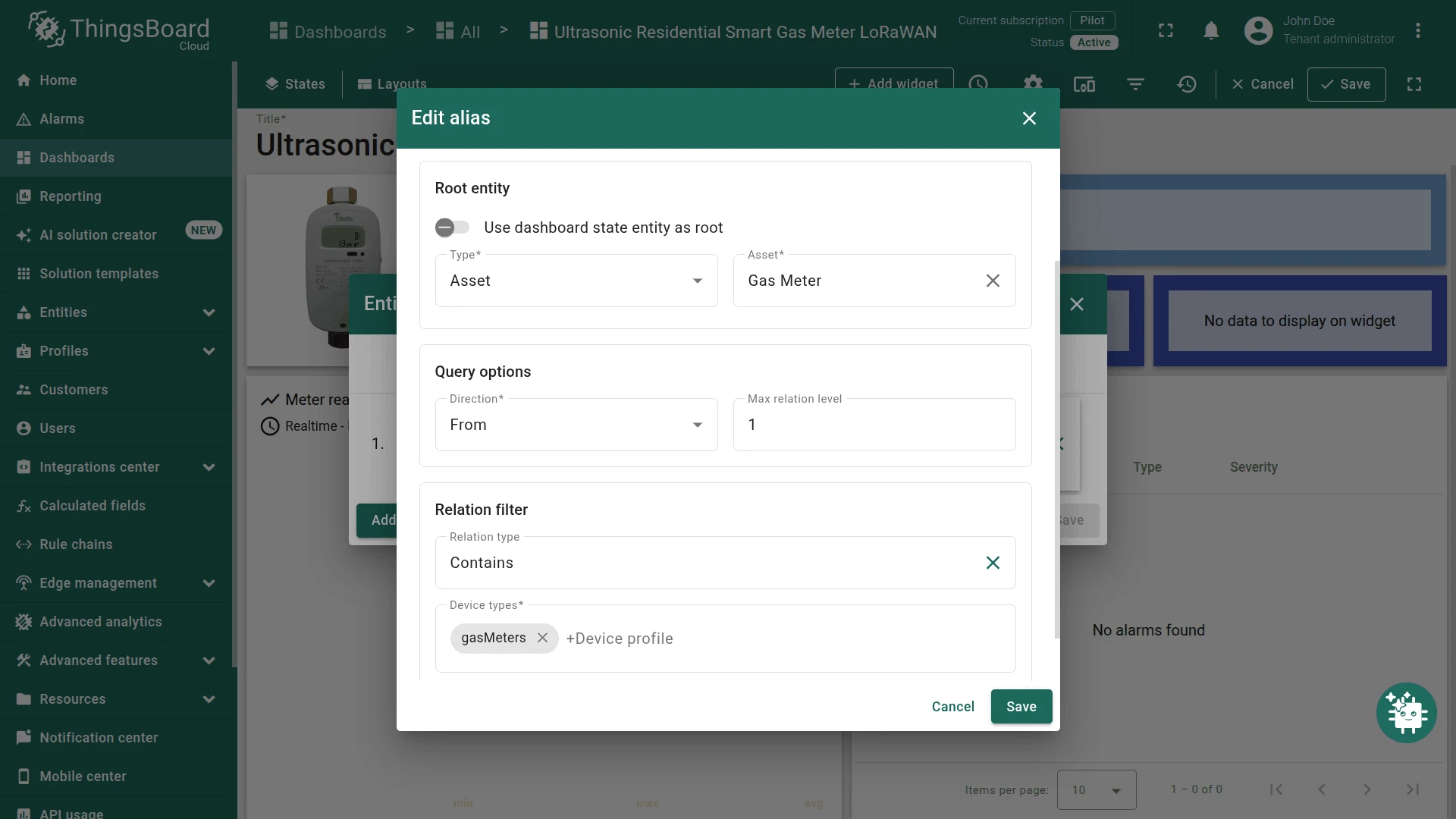
After importing, edit the dashboard alias and set it to the Gas Meter asset created in the previous step.
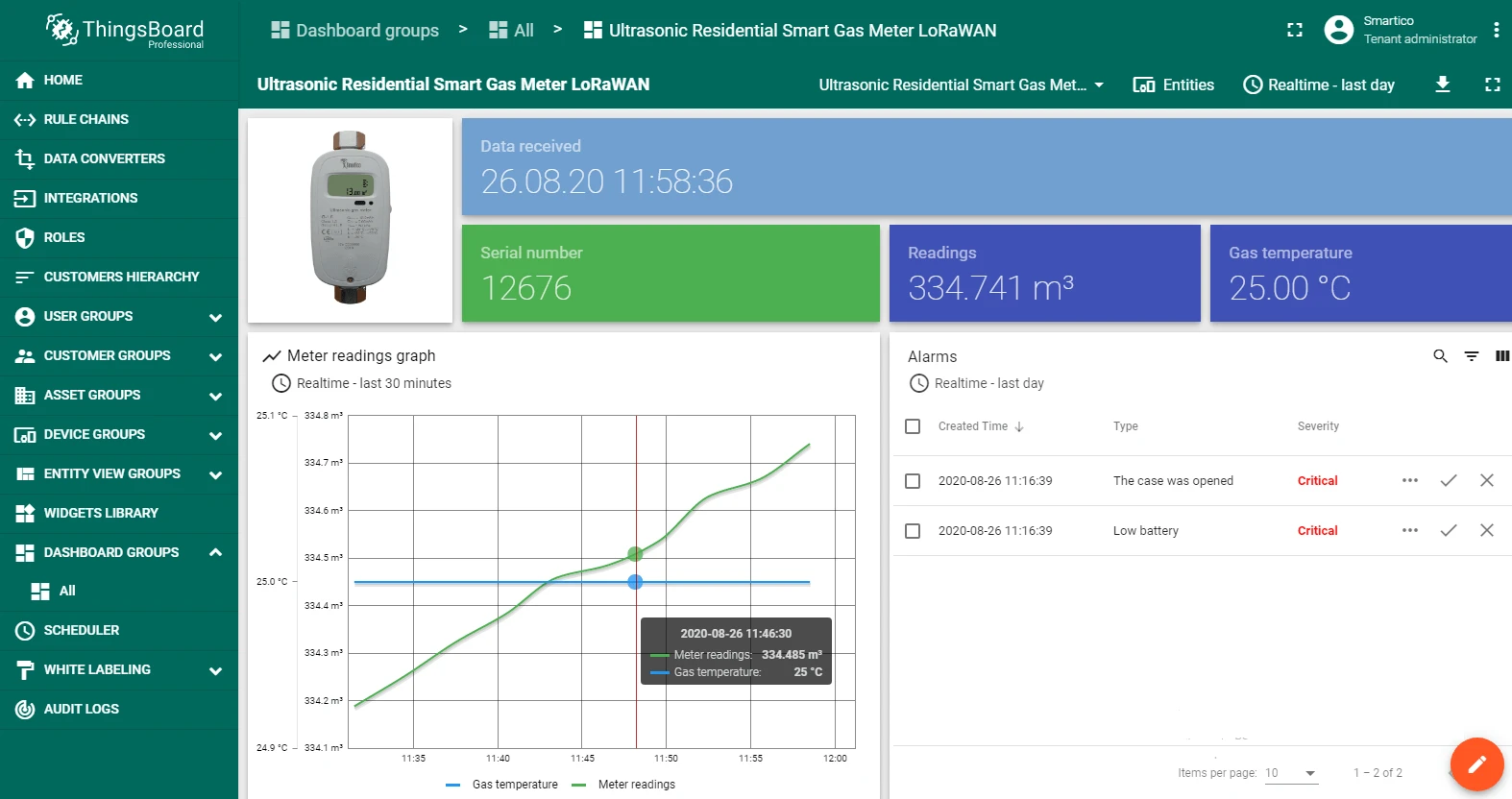
The dashboard now displays live gas meter readings and device status from the Smartico G-1.6.