Aliases
An alias is a reference to one or more entities, used as a data source in dashboard widgets.
Aliases are either static (fixed, pre-selected entities) or dynamic (resolved at runtime based on entity type, relations, or dashboard state).
Creating an alias
Section titled “Creating an alias”Aliases can be created from the dashboard toolbar or directly while configuring a widget.
From the dashboard toolbar:
- Open the dashboard and switch to Edit mode.
- Click the Entity aliases icon in the upper-right corner of the toolbar.
- In the opened dialog, click Add alias.
- Enter the alias name, select a Filter type, fill in the required fields, and click Add.
- Click Save in the lower-right corner to apply.
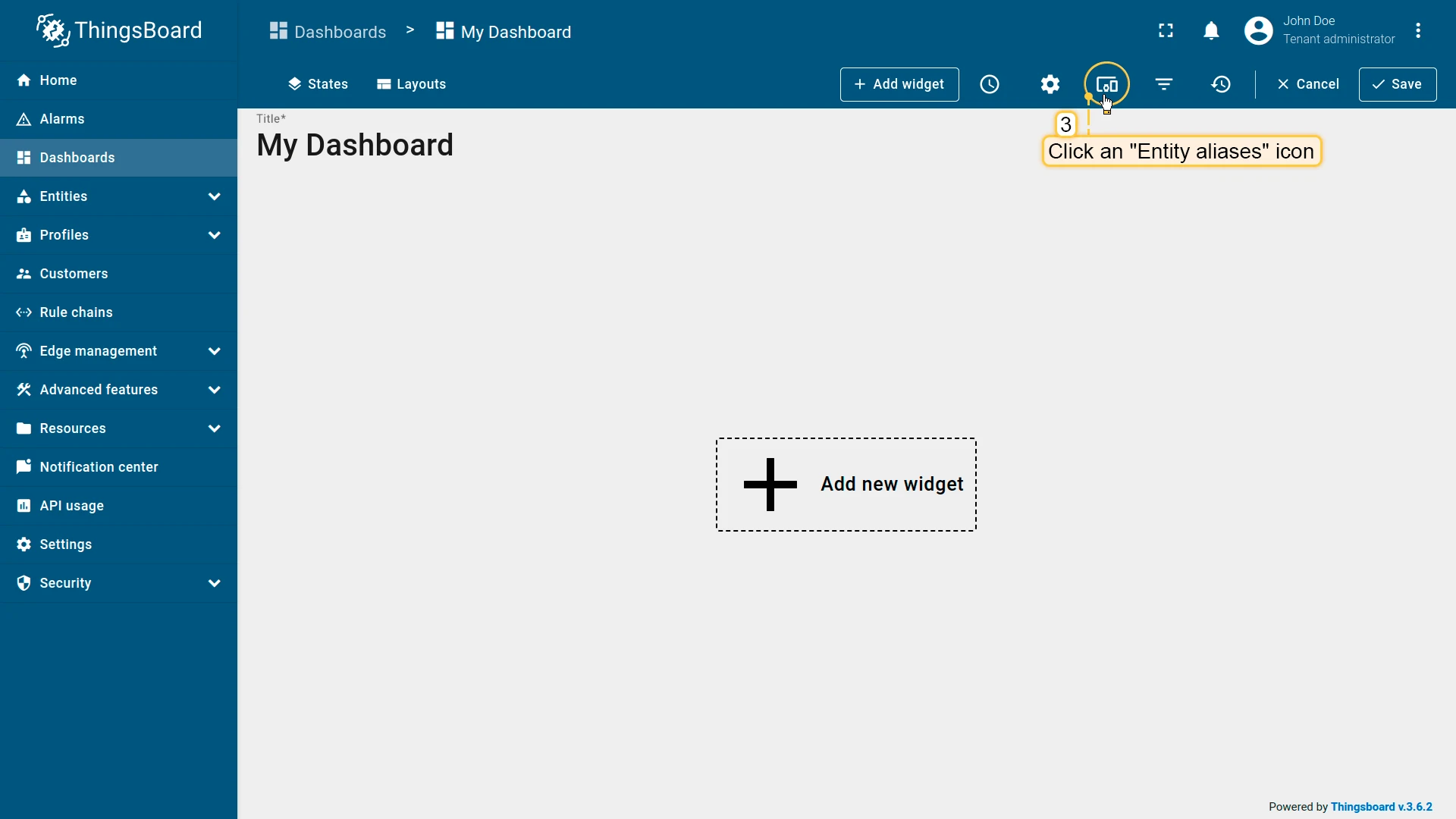
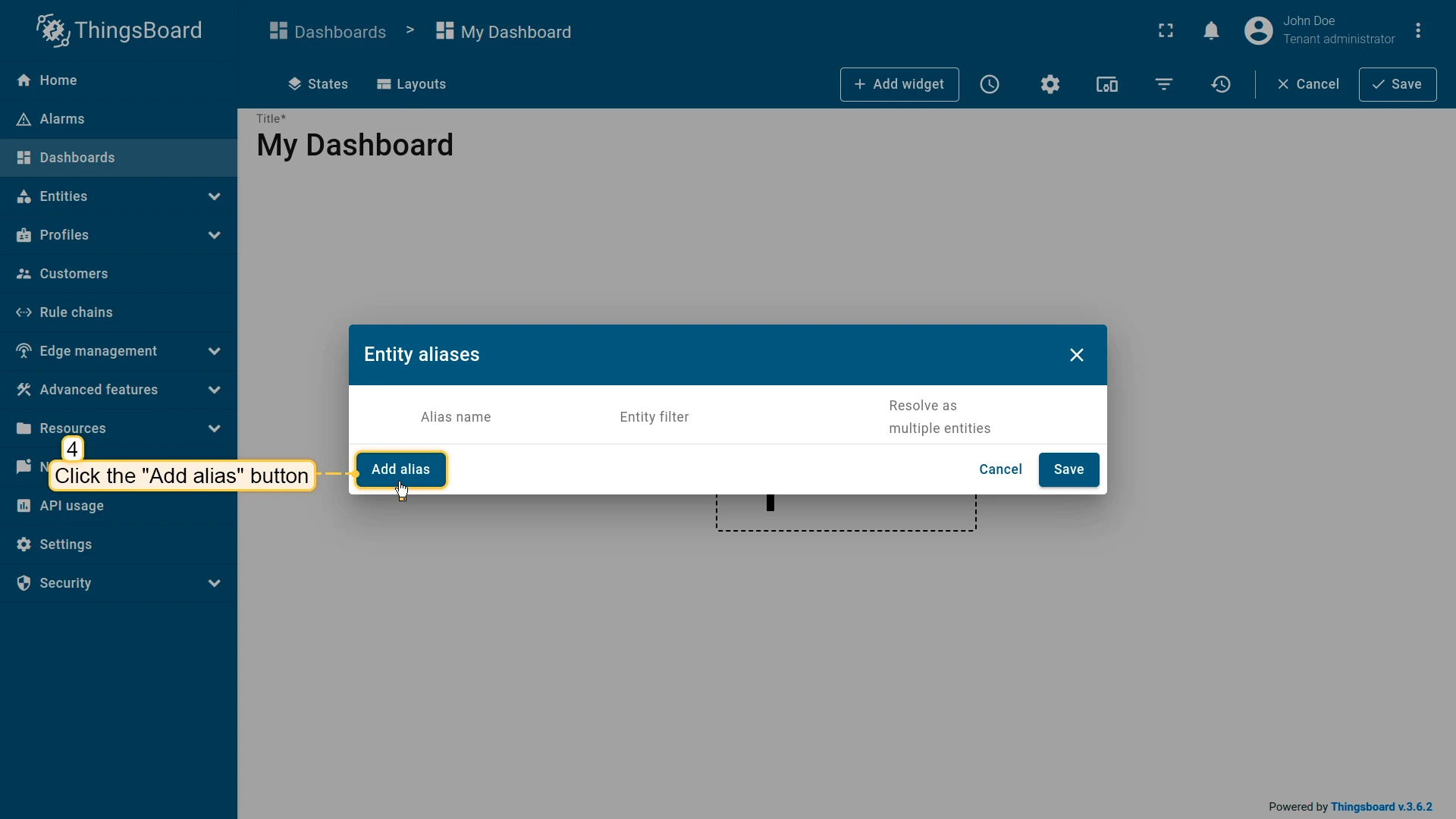
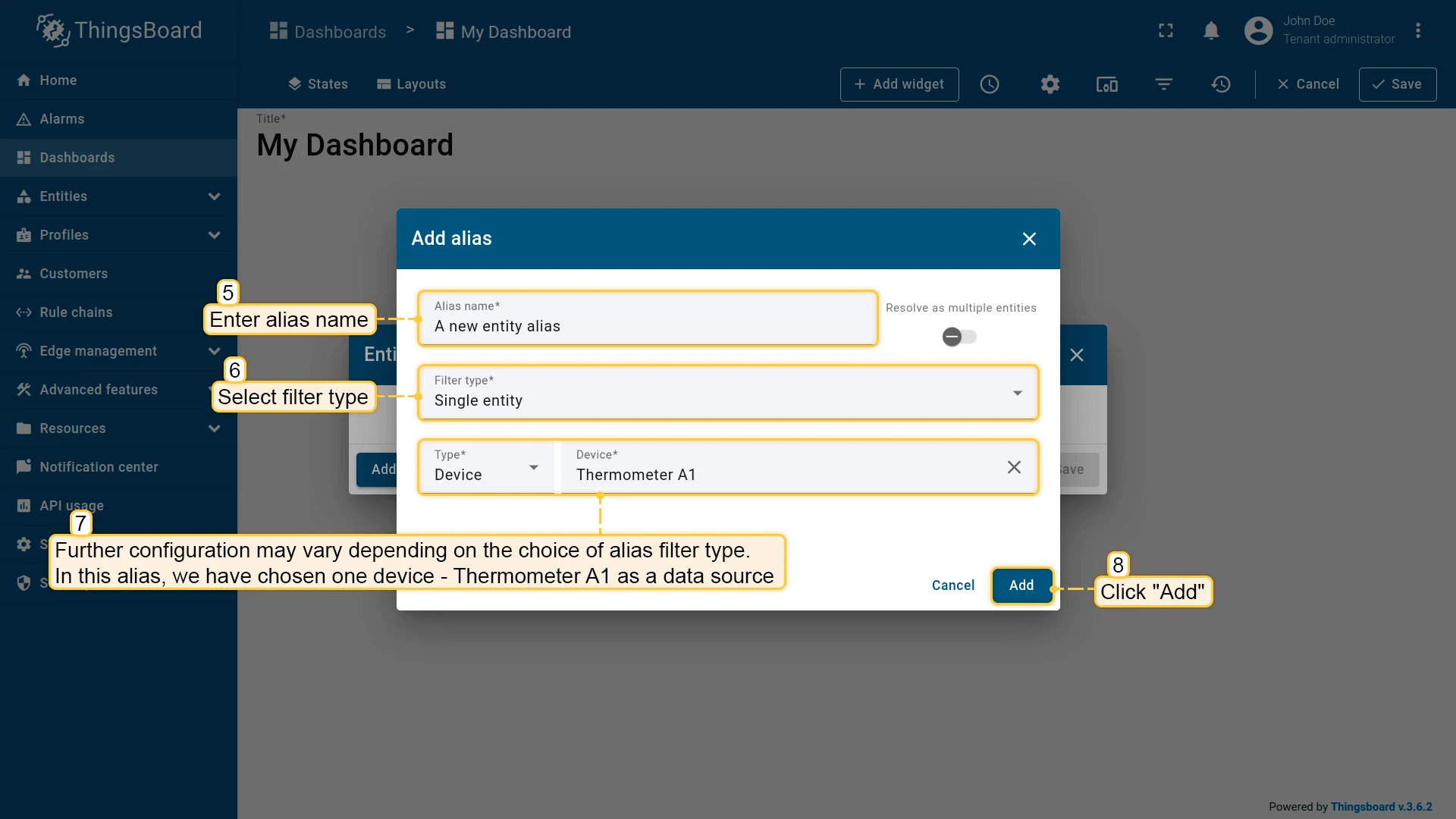
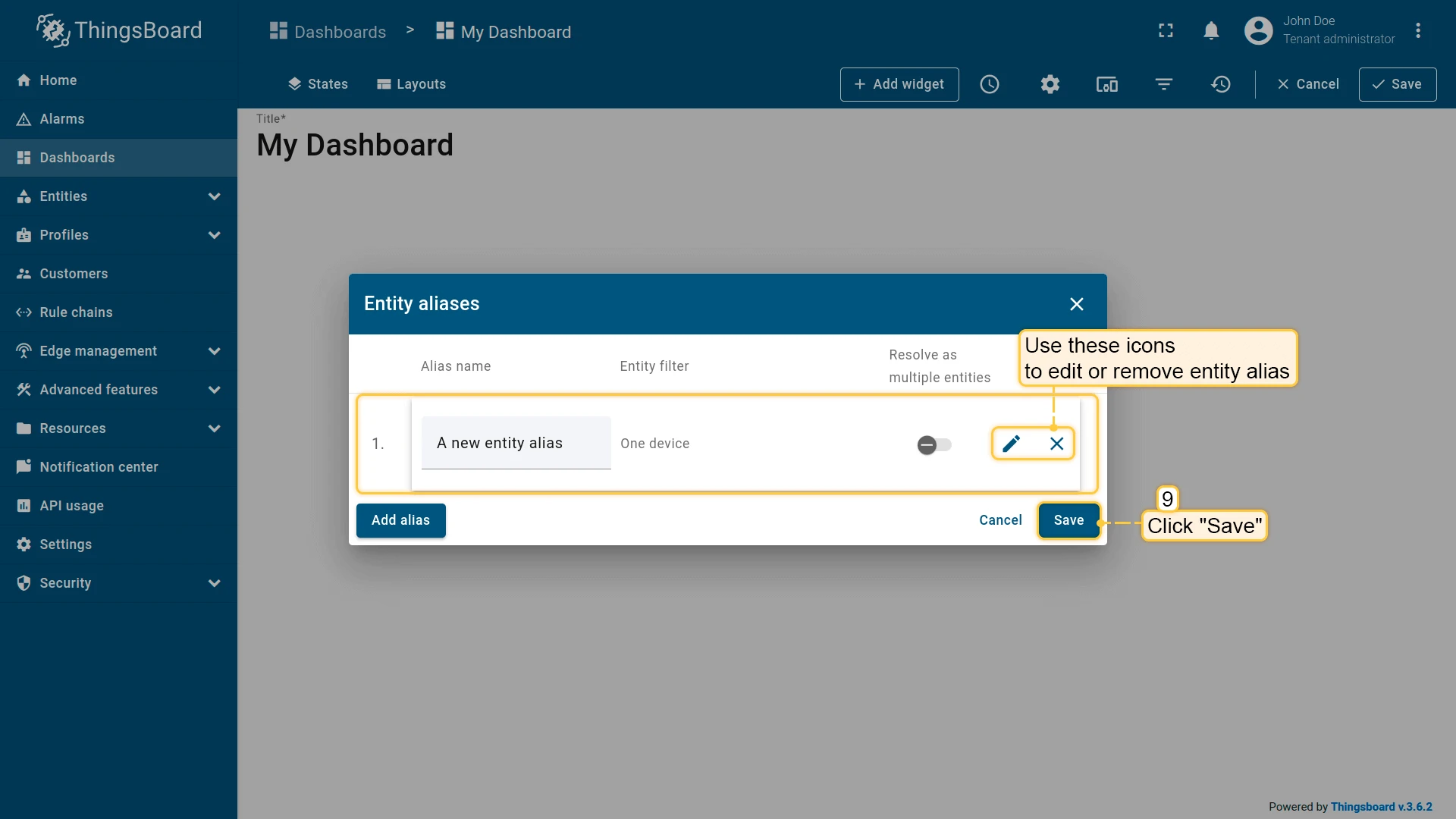
To create a new alias while configuring a widget:
- Click the pencil icon on the widget to open its settings.
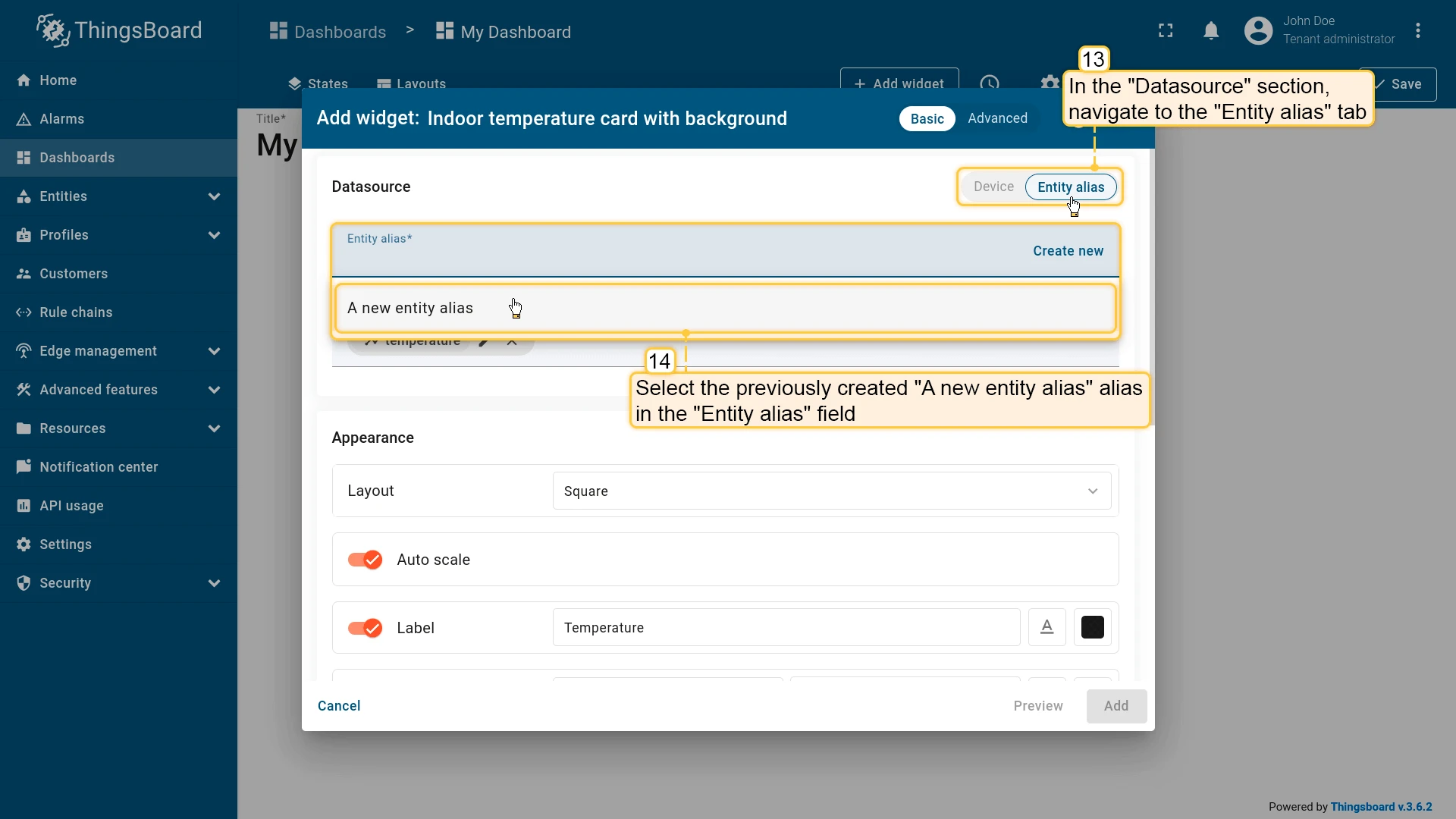
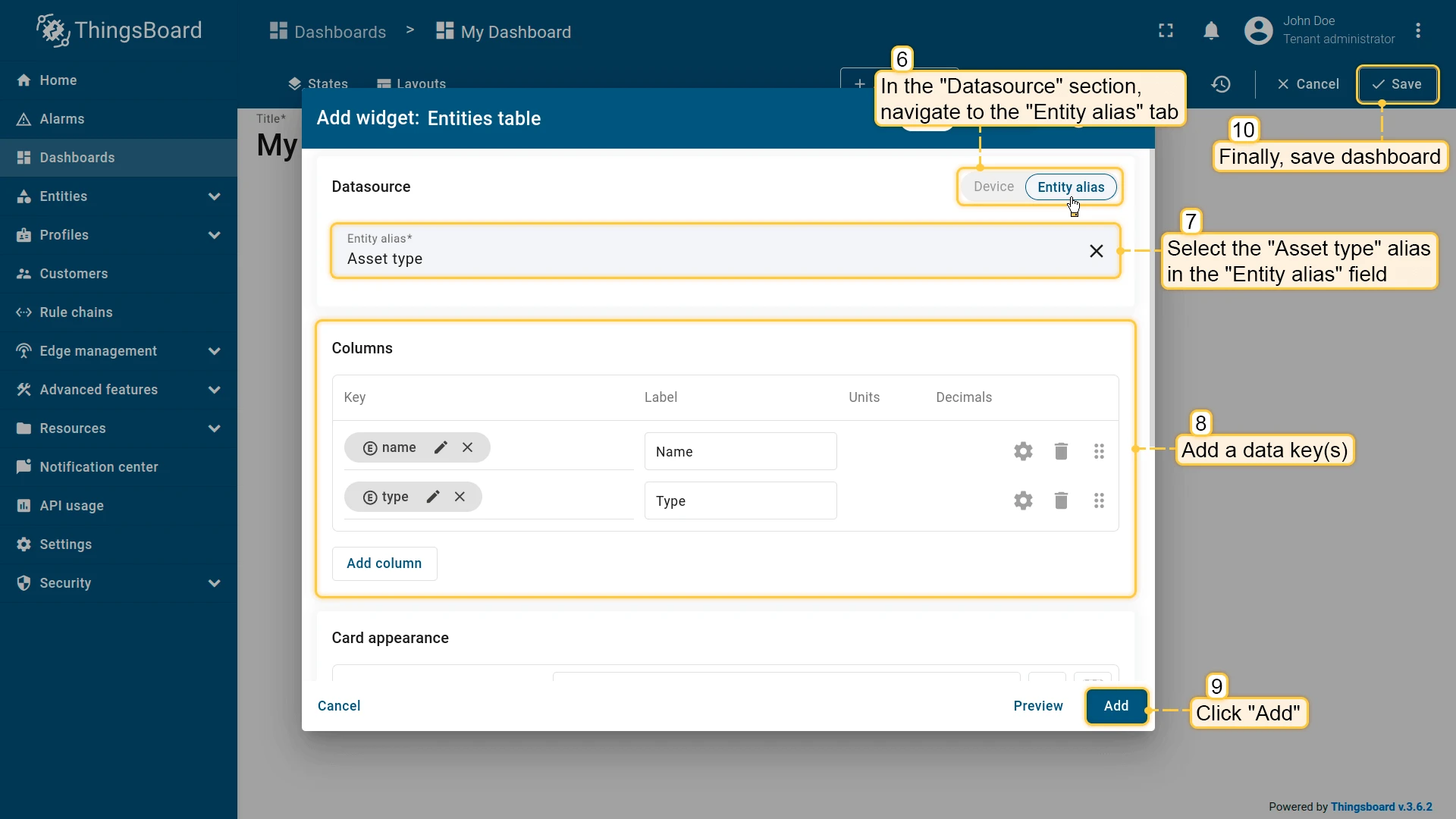
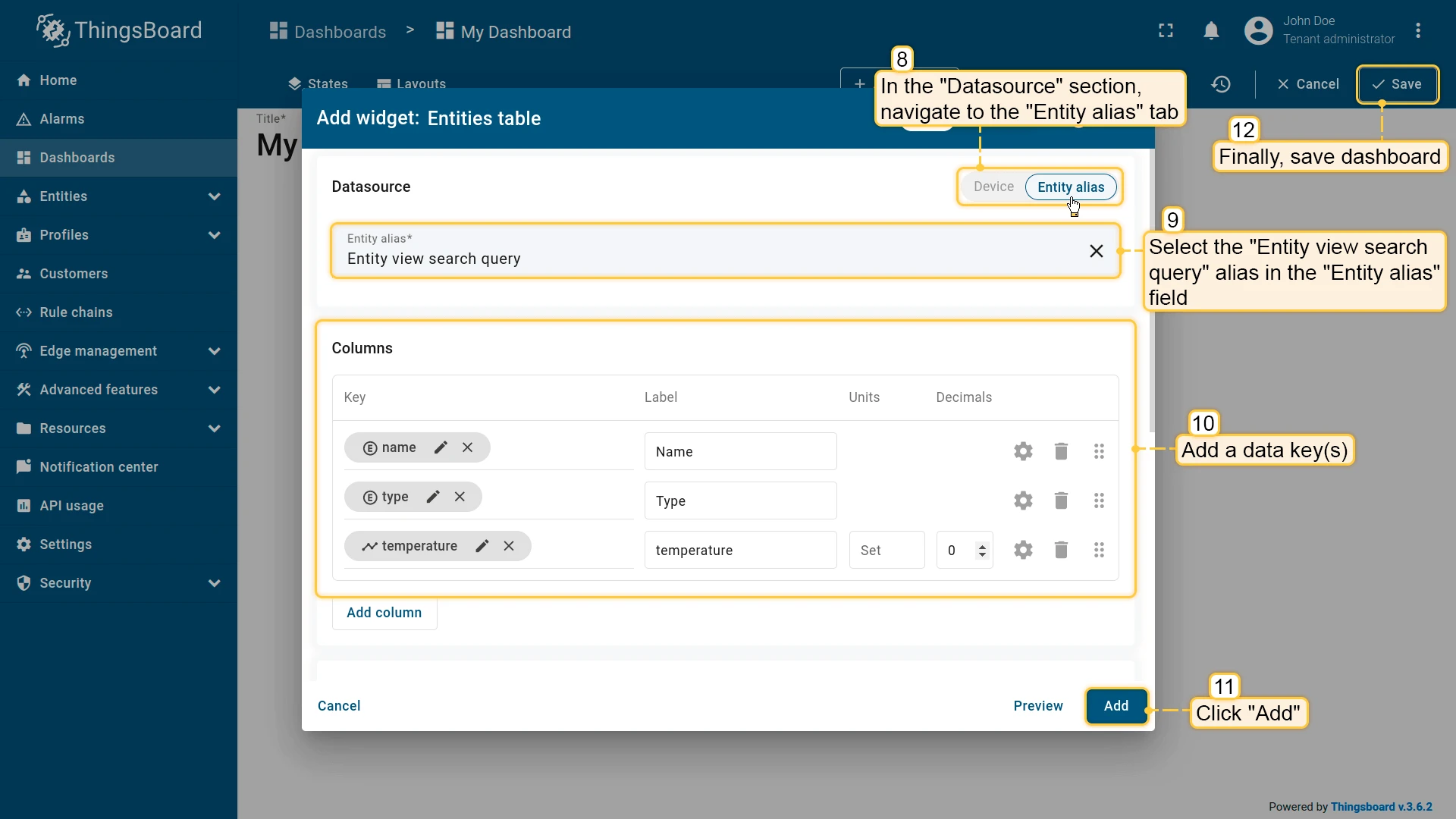
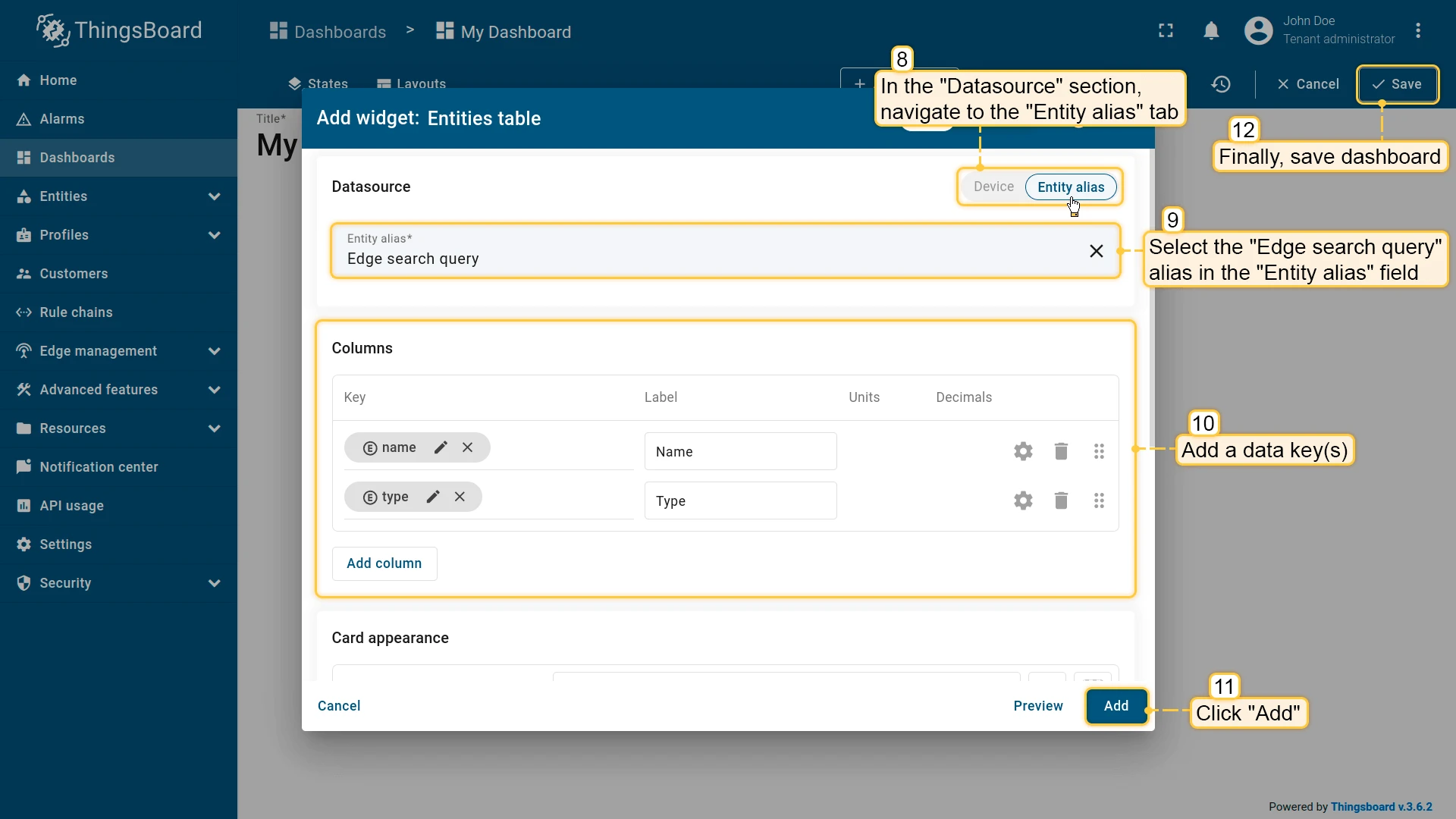
- Go to the Datasource section and select the Entity alias tab.
- Type the new alias name and click Create a new one!
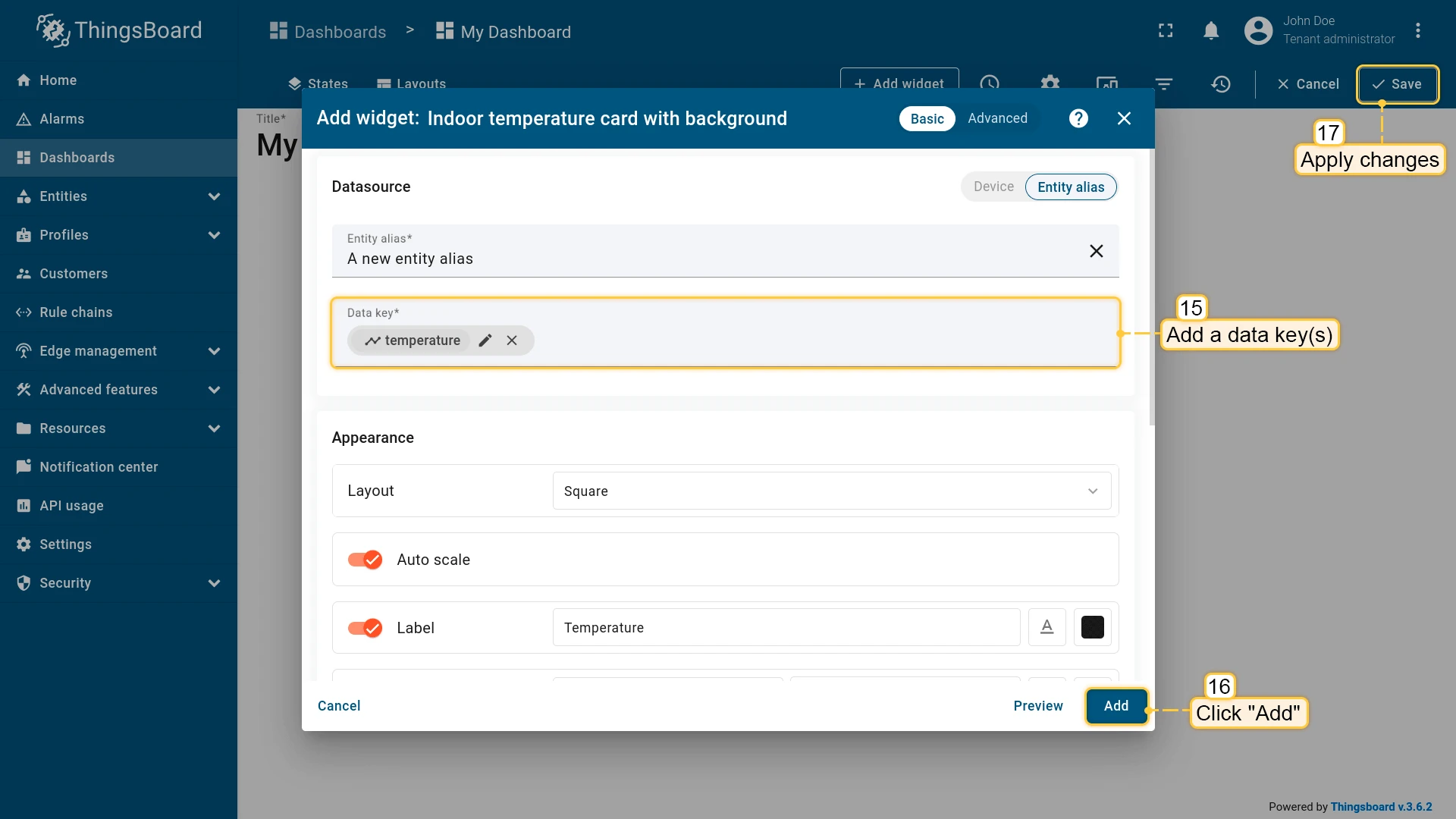
- Complete the alias configuration and click Add.
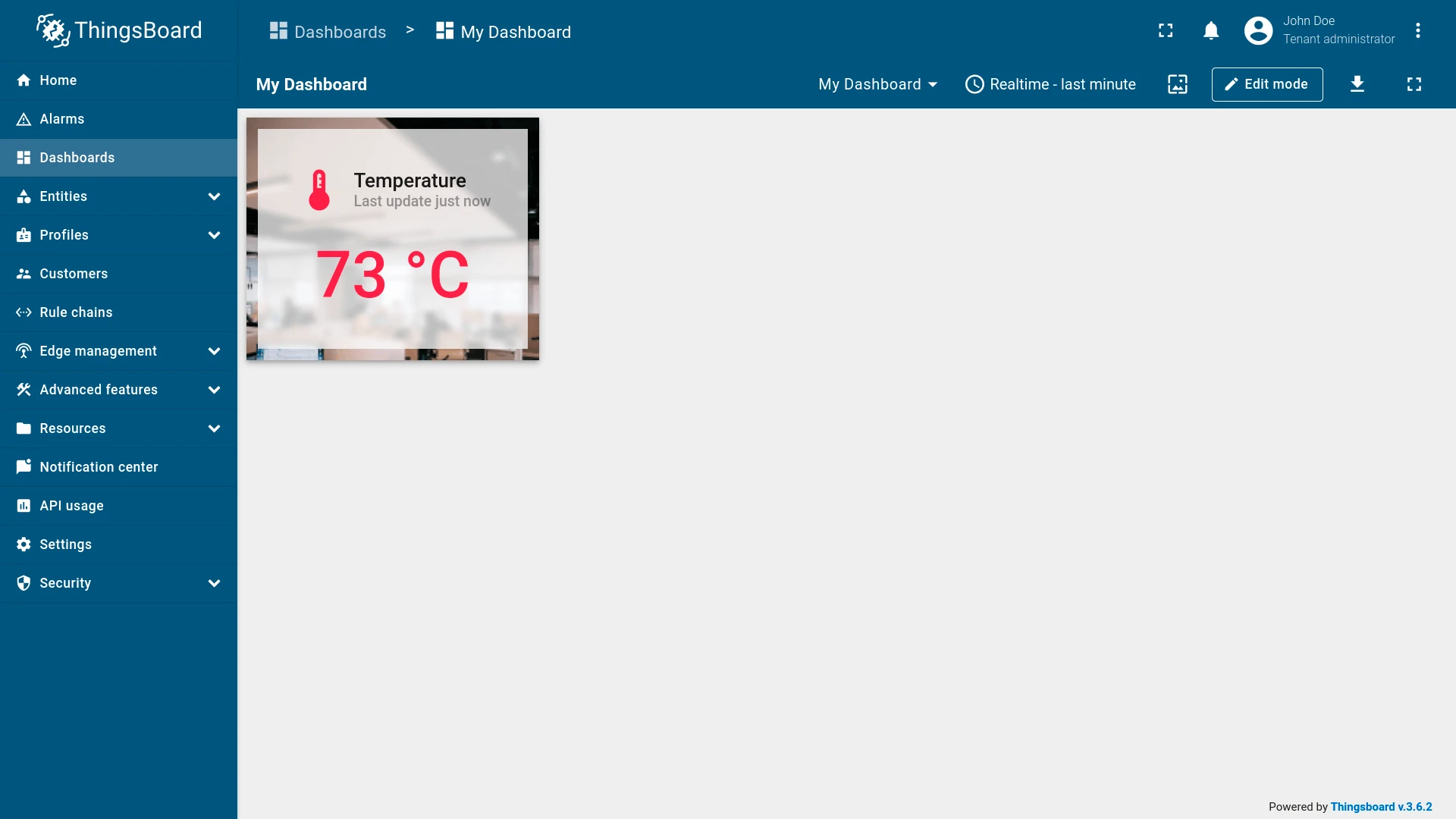
- Apply and save the widget — the alias is created and assigned immediately.
Assign an alias to a widget
Section titled “Assign an alias to a widget”In the widget settings, open the Datasource section, switch to the Entity alias tab, and select an alias from the dropdown. Add the required data keys and apply.
Edit / Delete an alias
Section titled “Edit / Delete an alias”To edit an alias:
- Open the dashboard and switch to Edit mode.
- Click the Entity aliases icon in the toolbar.
- Click the pencil icon next to the alias you want to change.
- Update the configuration and click Save.
- Click Save in the lower-right corner to apply.
To delete an alias:
- Open the dashboard and switch to Edit mode.
- Click the Entity aliases icon in the toolbar.
- Click the trash icon next to the alias you want to remove and confirm.
- Click Save in the lower-right corner to apply.
Alias types
Section titled “Alias types”The following alias types are available for dashboard widgets.
The Resolve as multiple entities toggle (visible in the alias configuration dialog) controls whether the alias can return more than one entity. It is enabled by default for multi-entity alias types (e.g., Entity list, Entity type) and disabled for single-entity types. Widgets that display a single value (e.g., value cards) work with single-entity aliases; table and chart widgets typically use multi-entity aliases.
| Alias type | Description |
|---|---|
| Single entity | Resolves to one specific entity chosen by type and name. |
| Entity list | Resolves to a manually selected list of entities. |
| Entity name | Resolves to all entities of a given type whose names start with a specified text. |
| Entity type | Resolves to all entities of a specified type, including customers’ entities. |
| Entity from dashboard state | Resolves to an entity passed through dashboard state parameters. |
| Asset type | Resolves to assets of the specified asset profile, optionally filtered by name. |
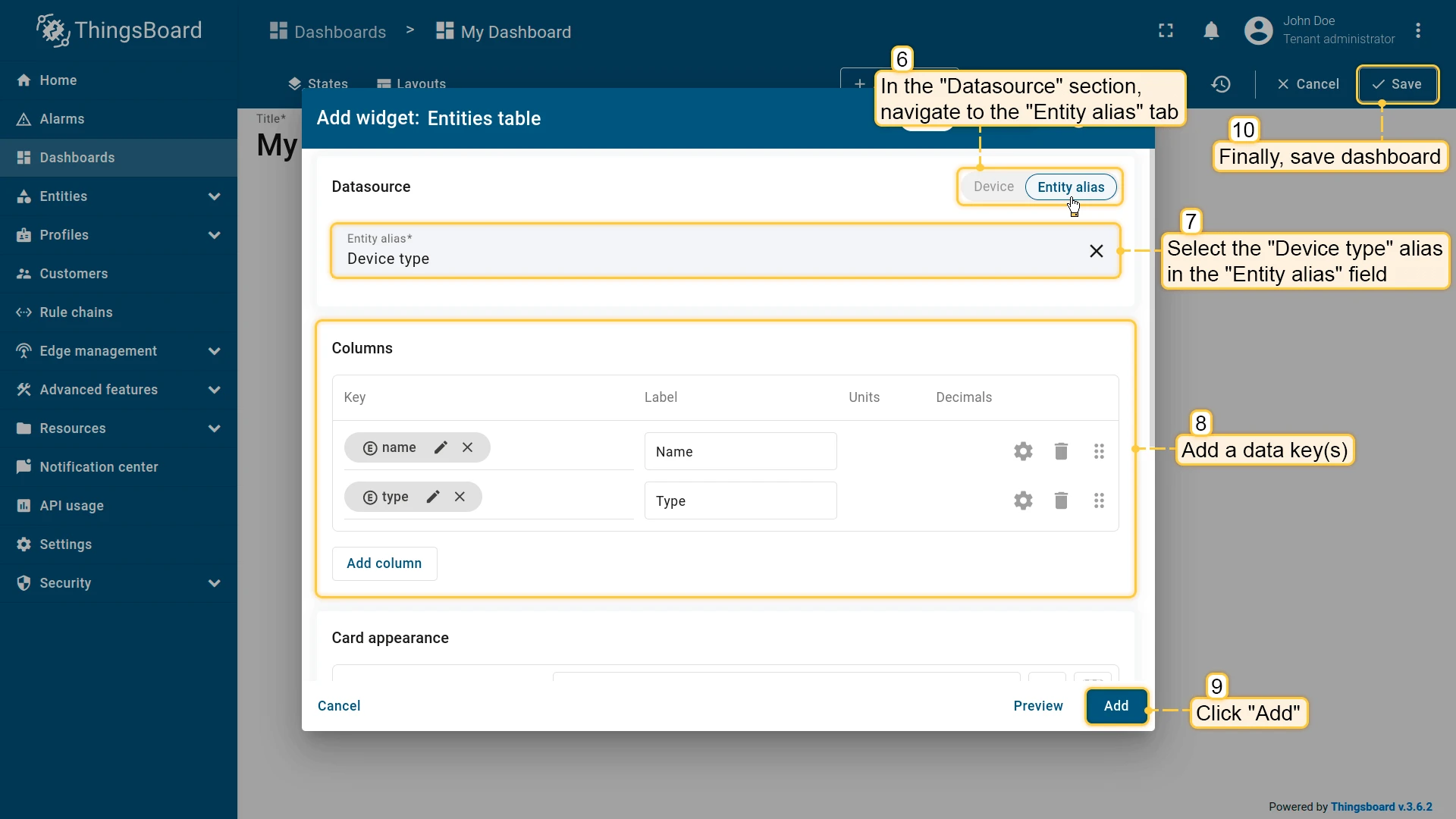
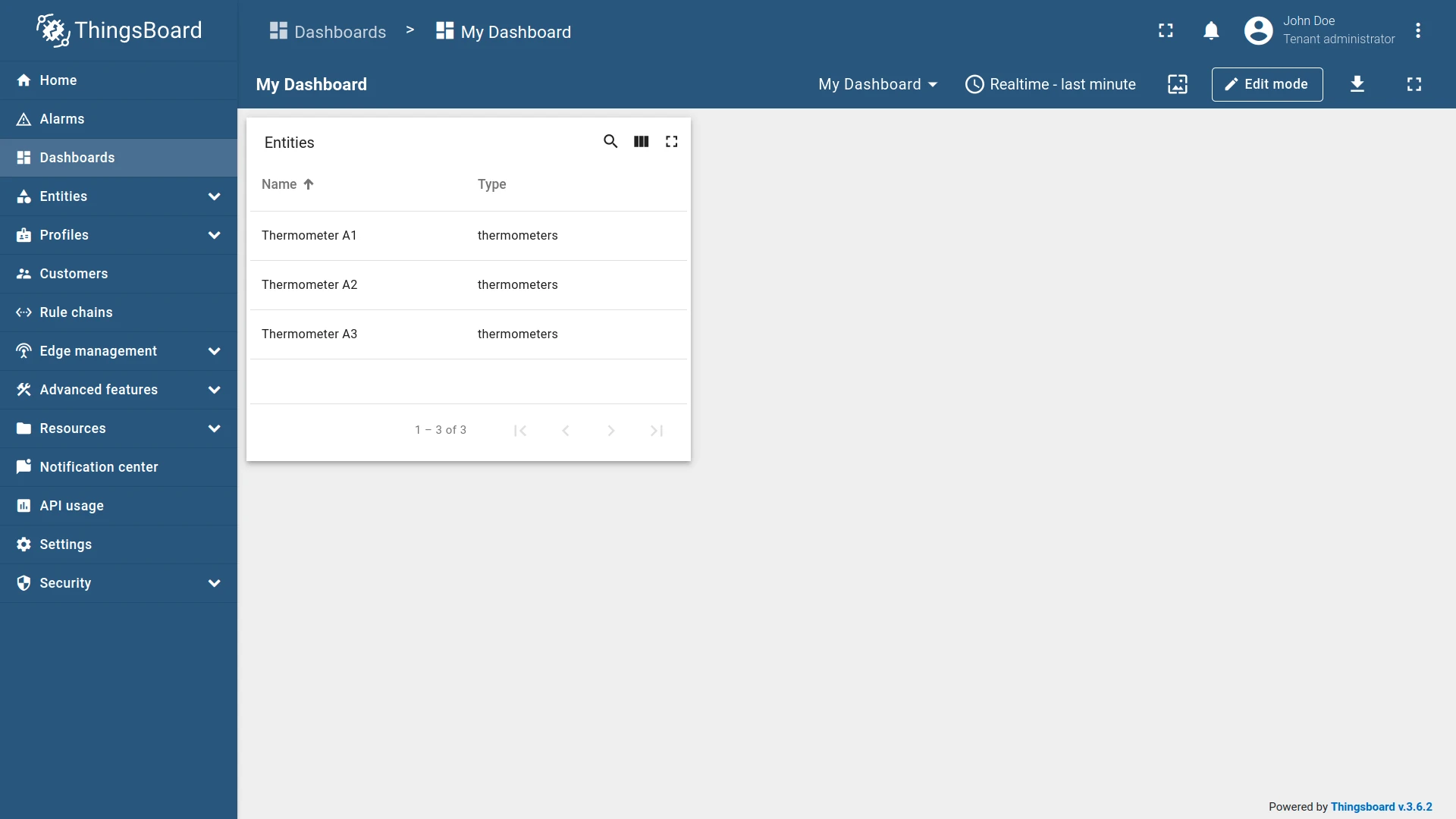
| Device type | Resolves to devices of the specified device profile, optionally filtered by name. |
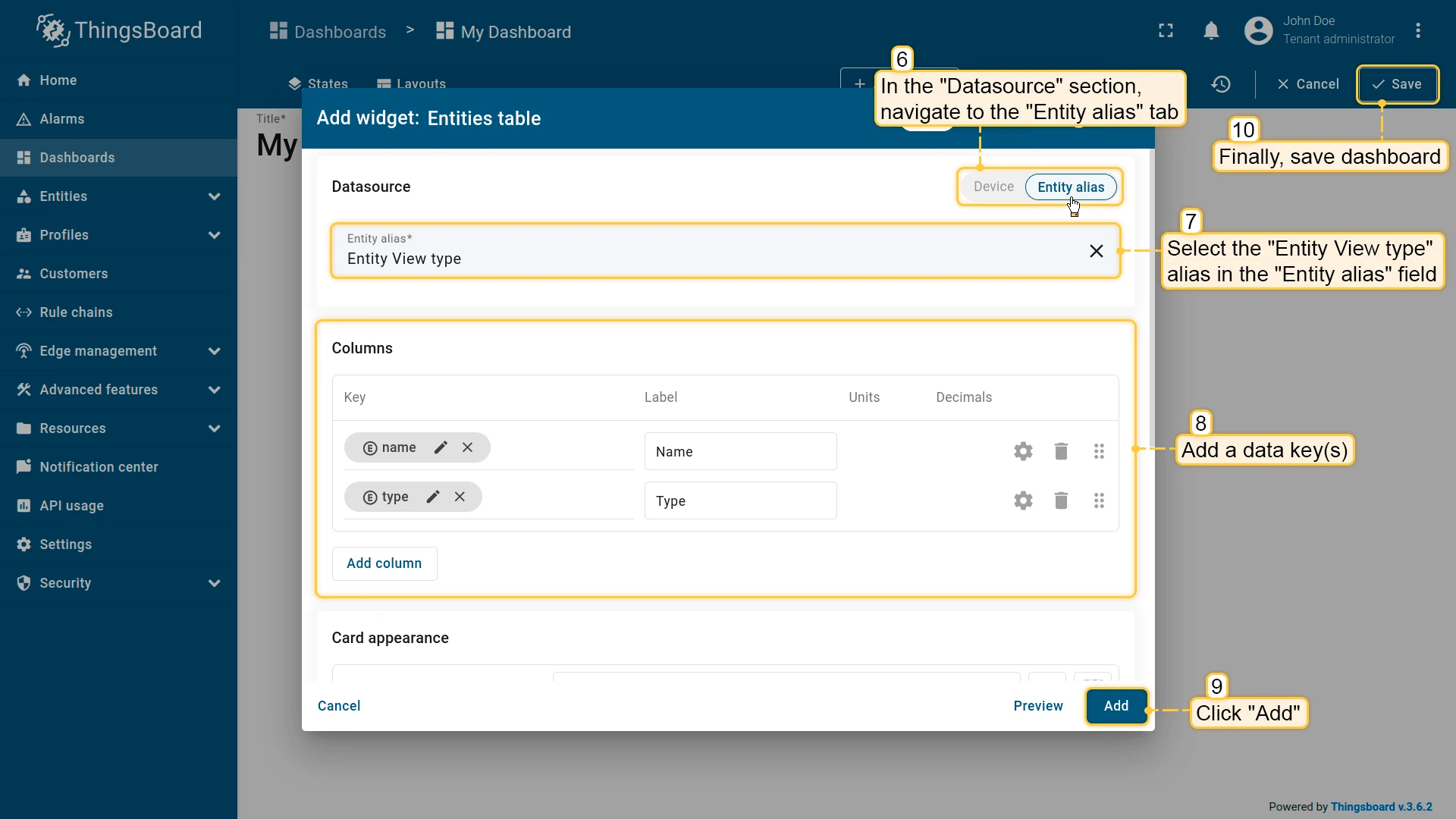
| Entity view type | Resolves to entity views of the specified type, optionally filtered by name. |
| Edge type | Resolves to edges of the specified type, optionally filtered by name. |
| API usage state | Resolves to the platform’s API usage statistics. |
| Relations query | Resolves to entities connected via relations to a root entity, up to a specified depth and direction. |
| Asset search query | Resolves to assets of specified profiles connected via relations to a root entity, up to a specified depth and direction. |
| Device search query | Resolves to devices of specified profiles connected via relations to a root entity, up to a specified depth and direction. |
| Entity view search query | Resolves to entity views of specified types connected via relations to a root entity, up to a specified depth and direction. |
| Edge search query | Resolves to edges of specified types connected via relations to a root entity, up to a specified depth and direction. |
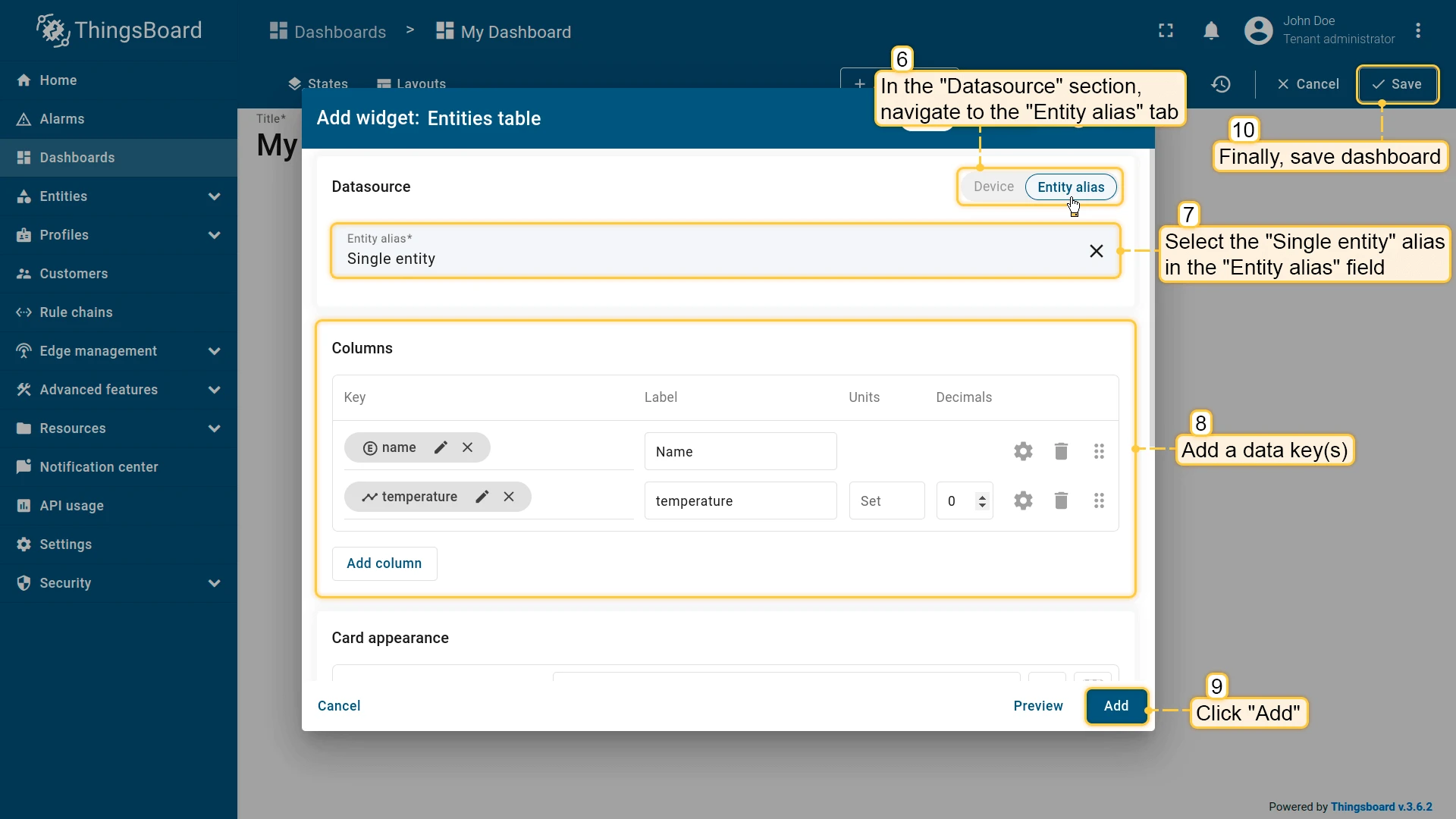
Single entity
Section titled “Single entity”Resolves to one specific entity chosen by type and name.
Configuration:
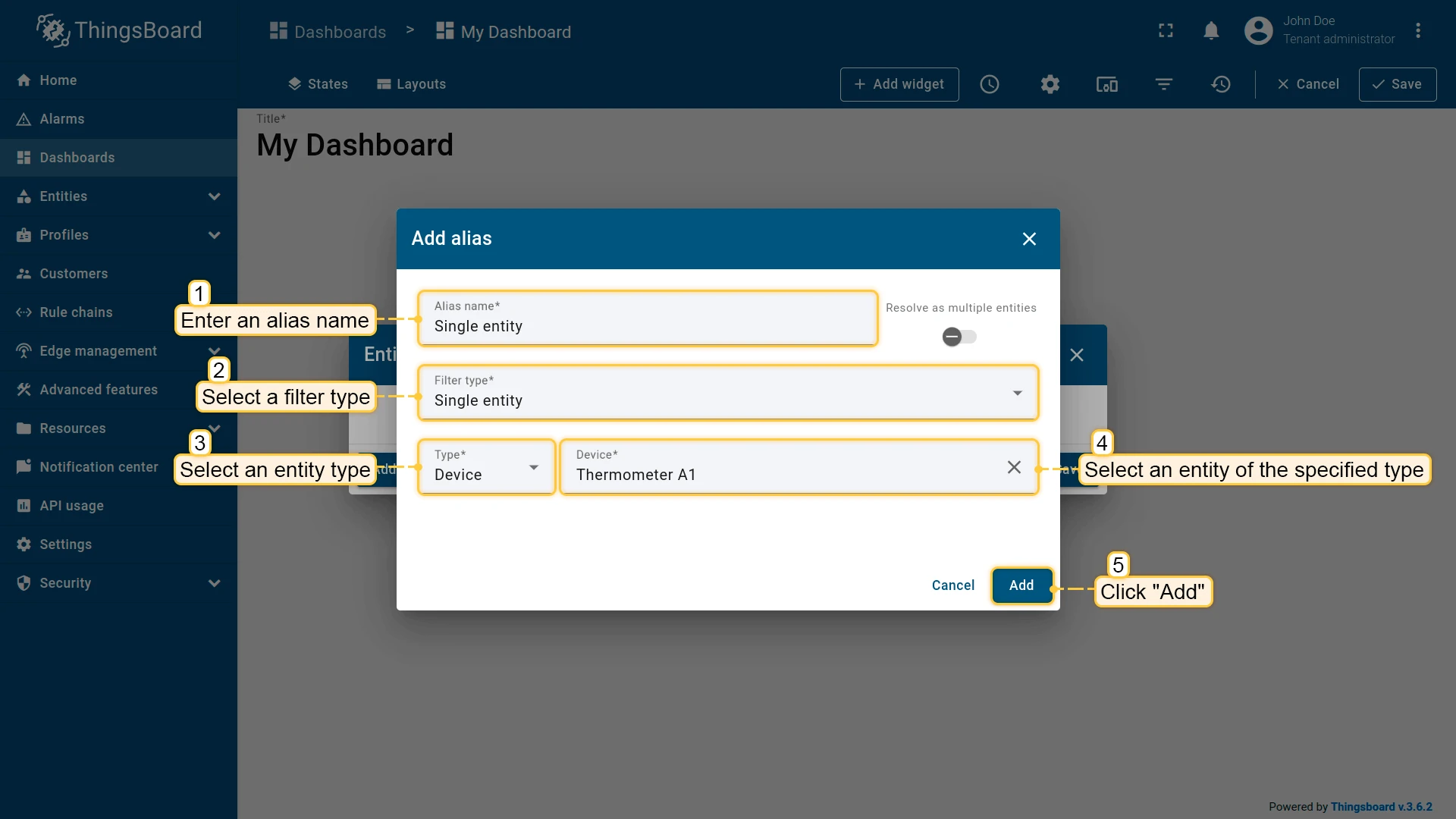
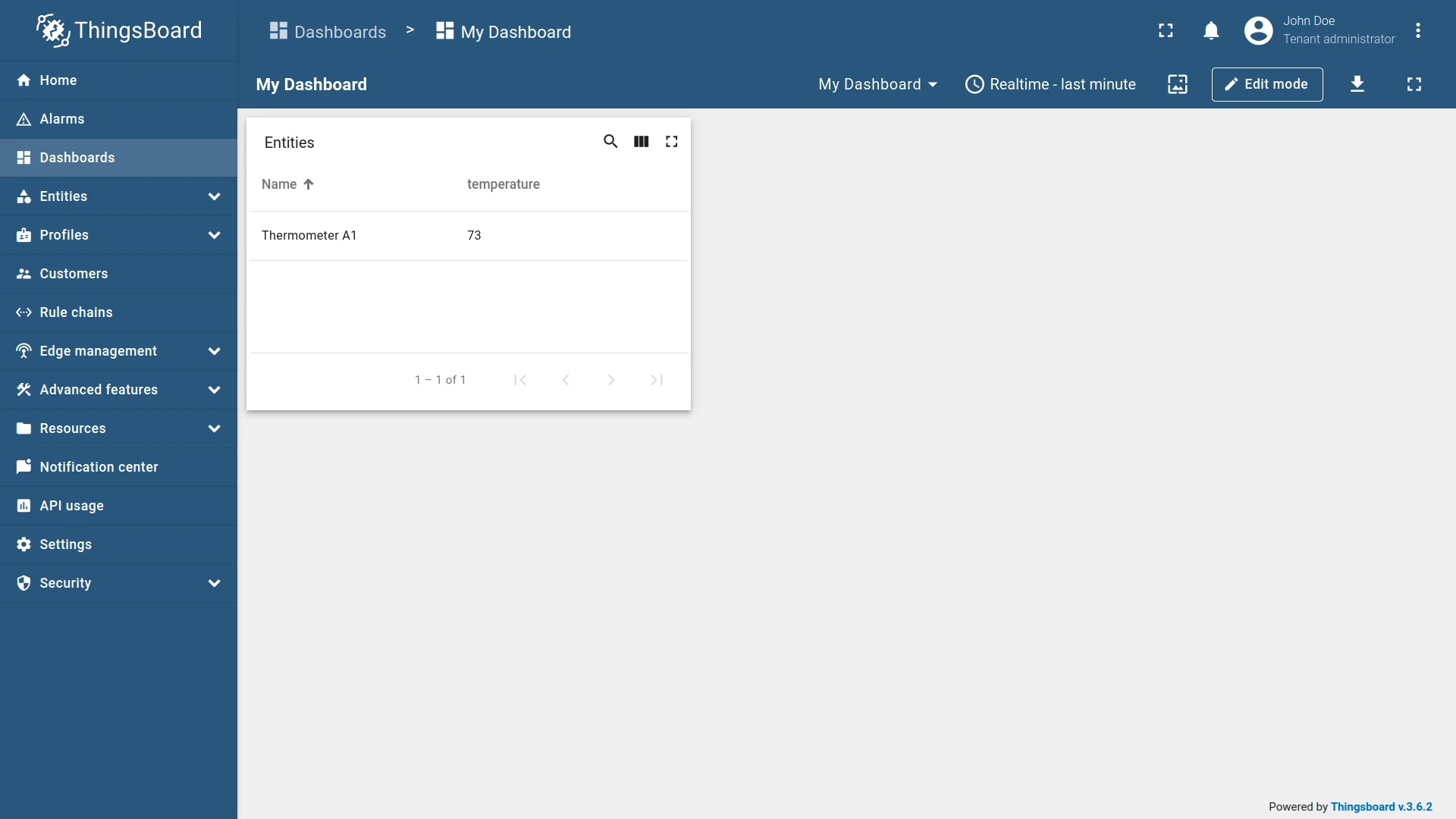
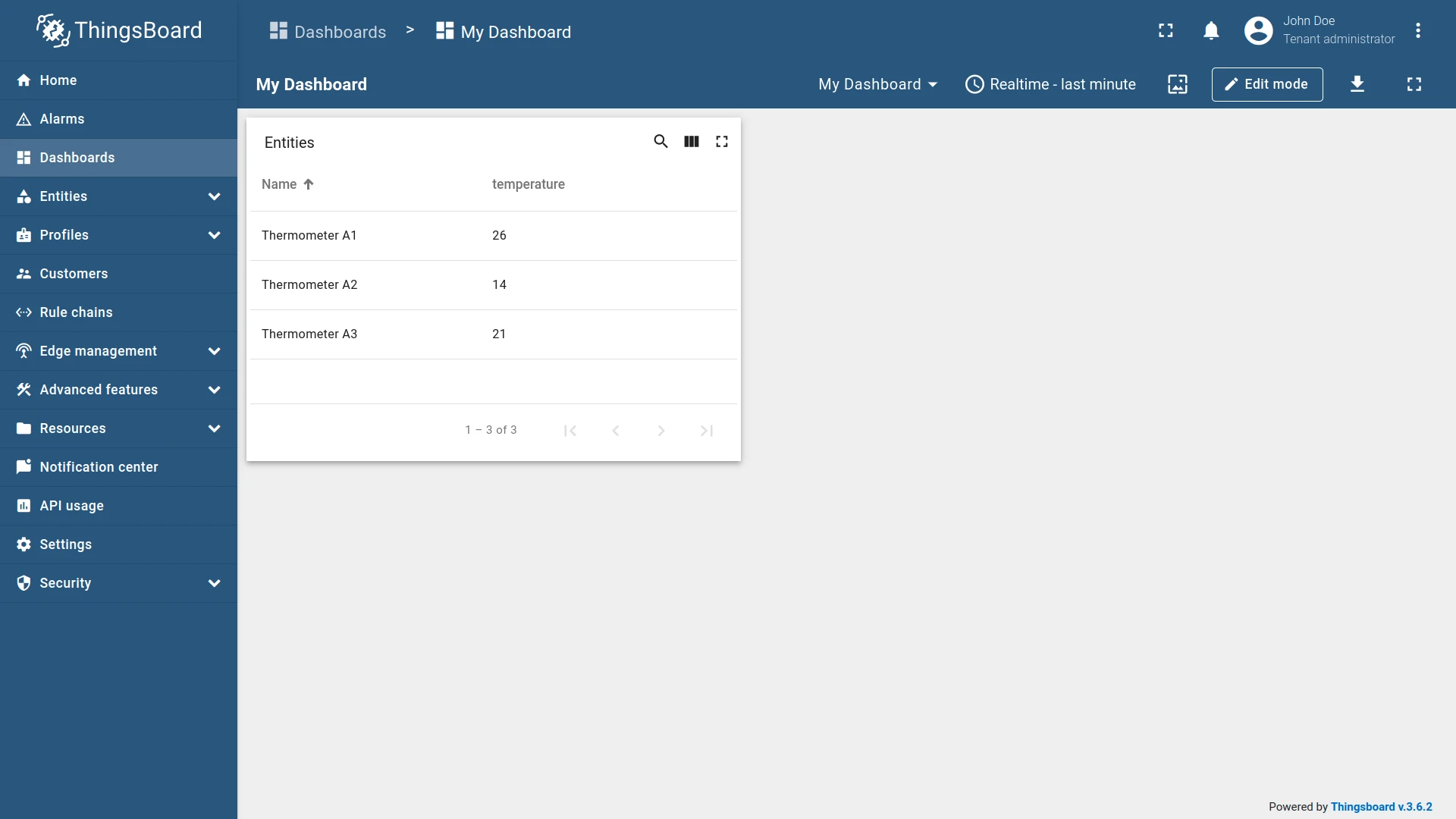
Example: An alias resolving to a single device — Thermometer A1.
Entity list
Section titled “Entity list”Resolves to a manually selected list of entities.
Configuration:
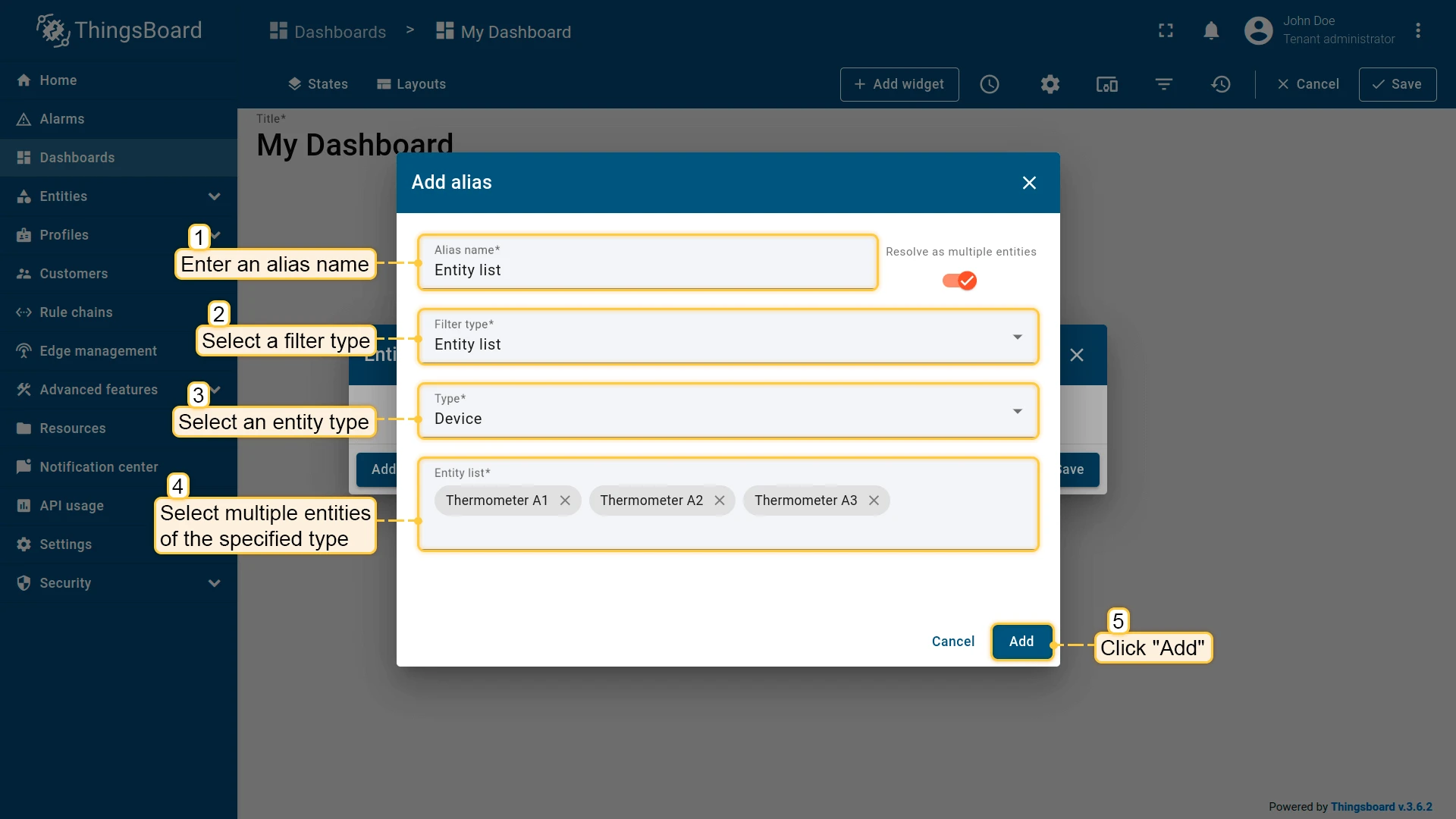
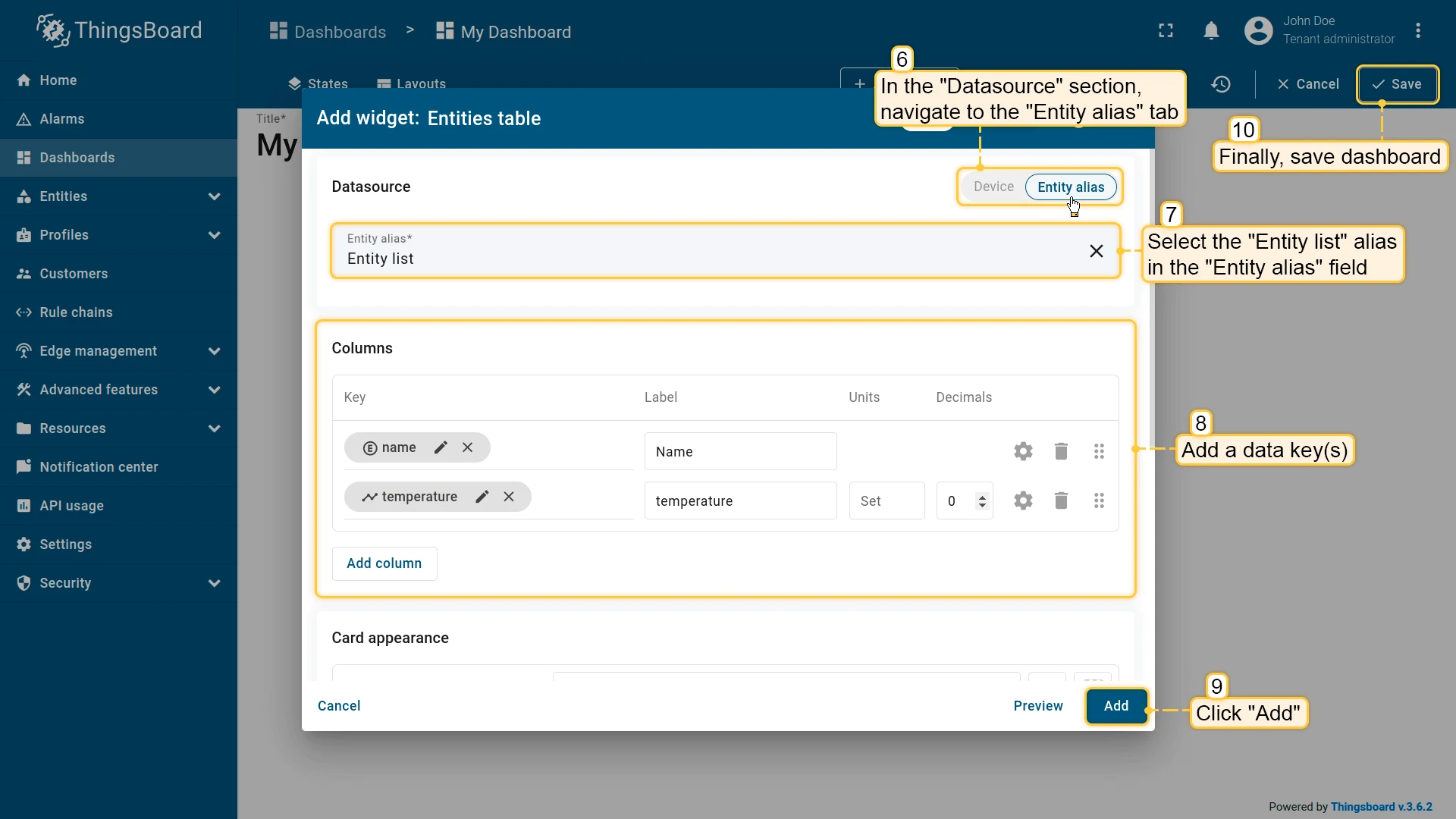
Example: An alias resolving to three specific devices — Thermometer A1, Compressor BC-10, and Compressor QA-32.
Entity name
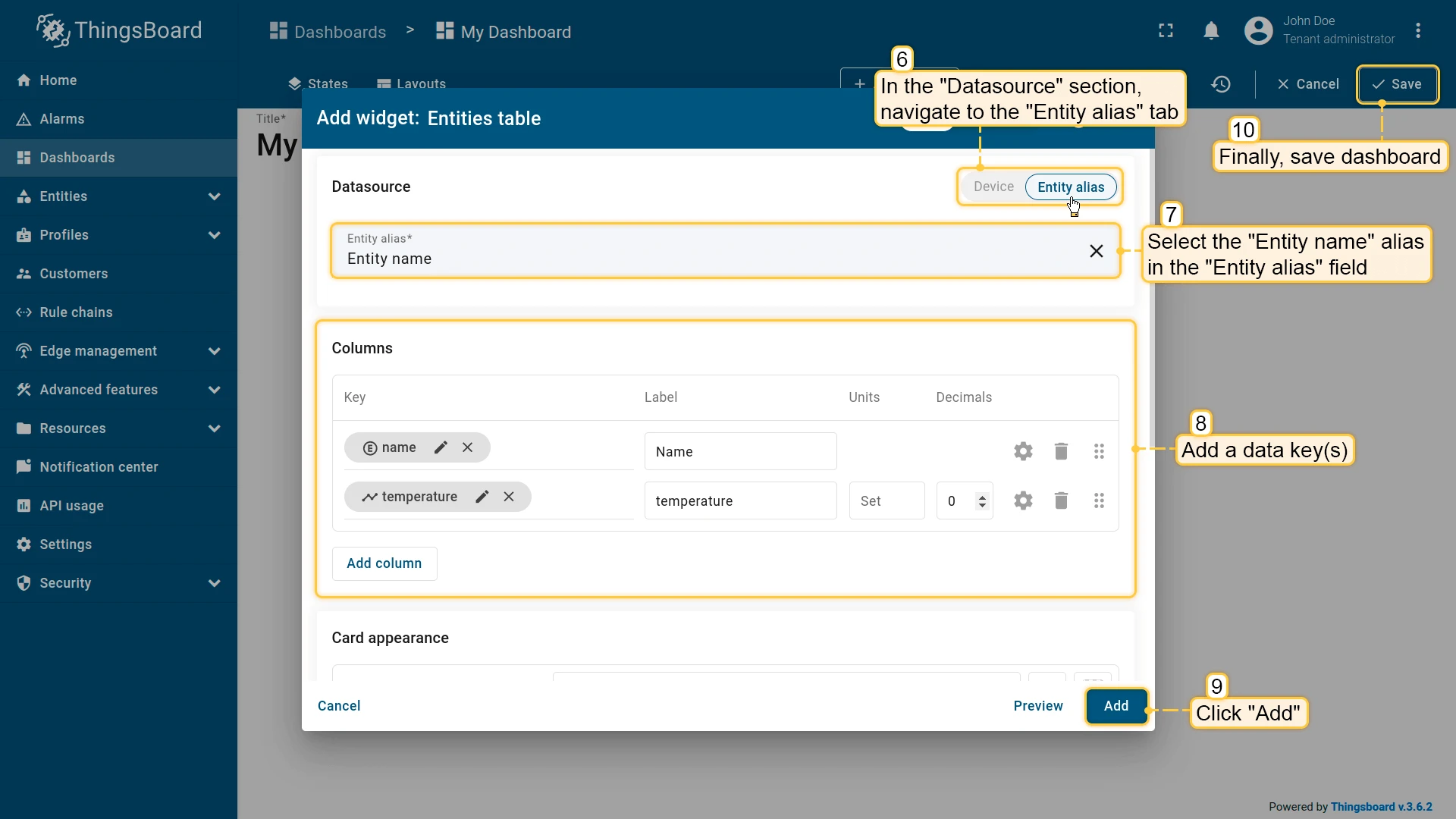
Section titled “Entity name”Resolves to all entities of a given type whose names start with a specified text.
Configuration:
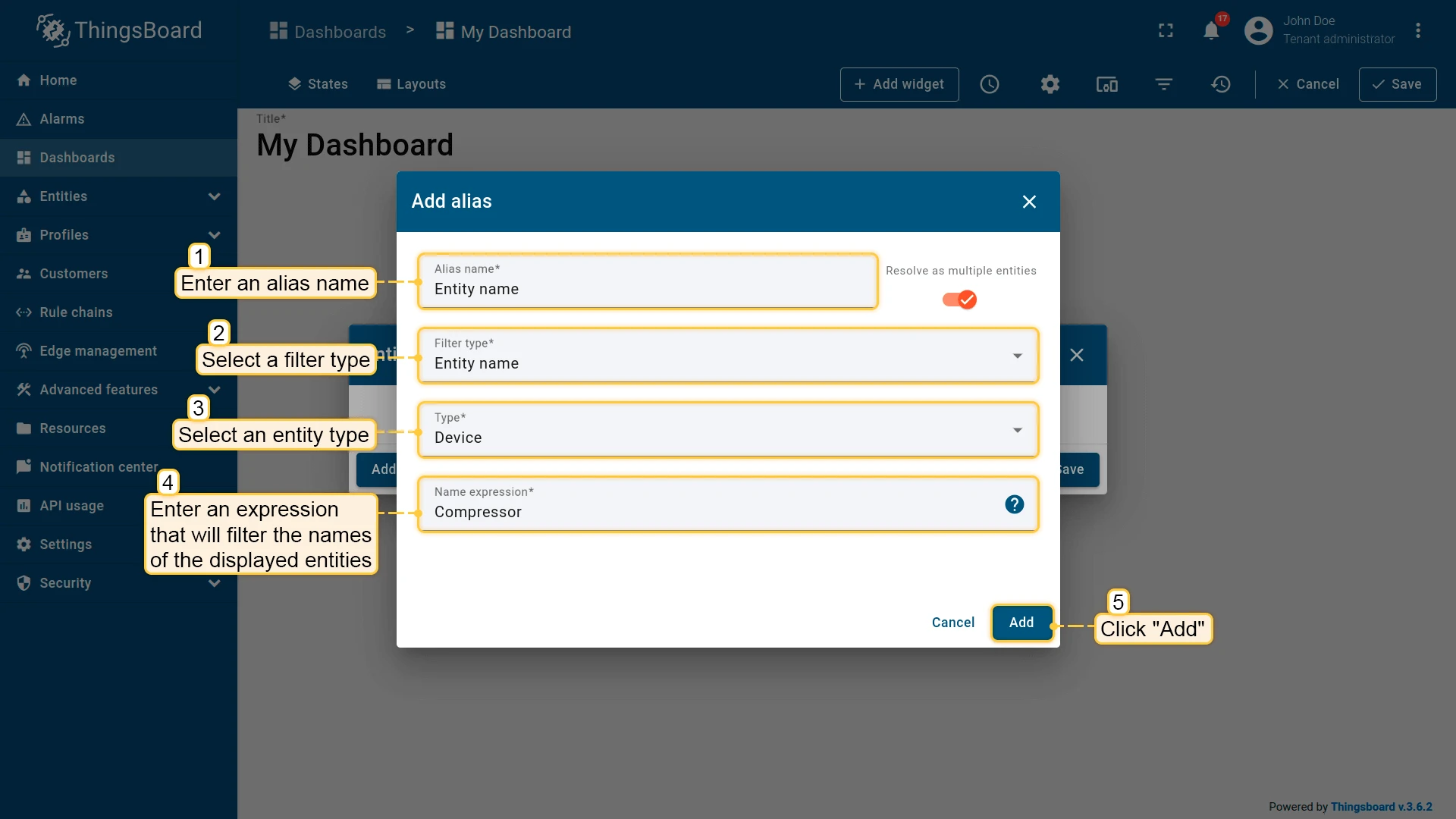
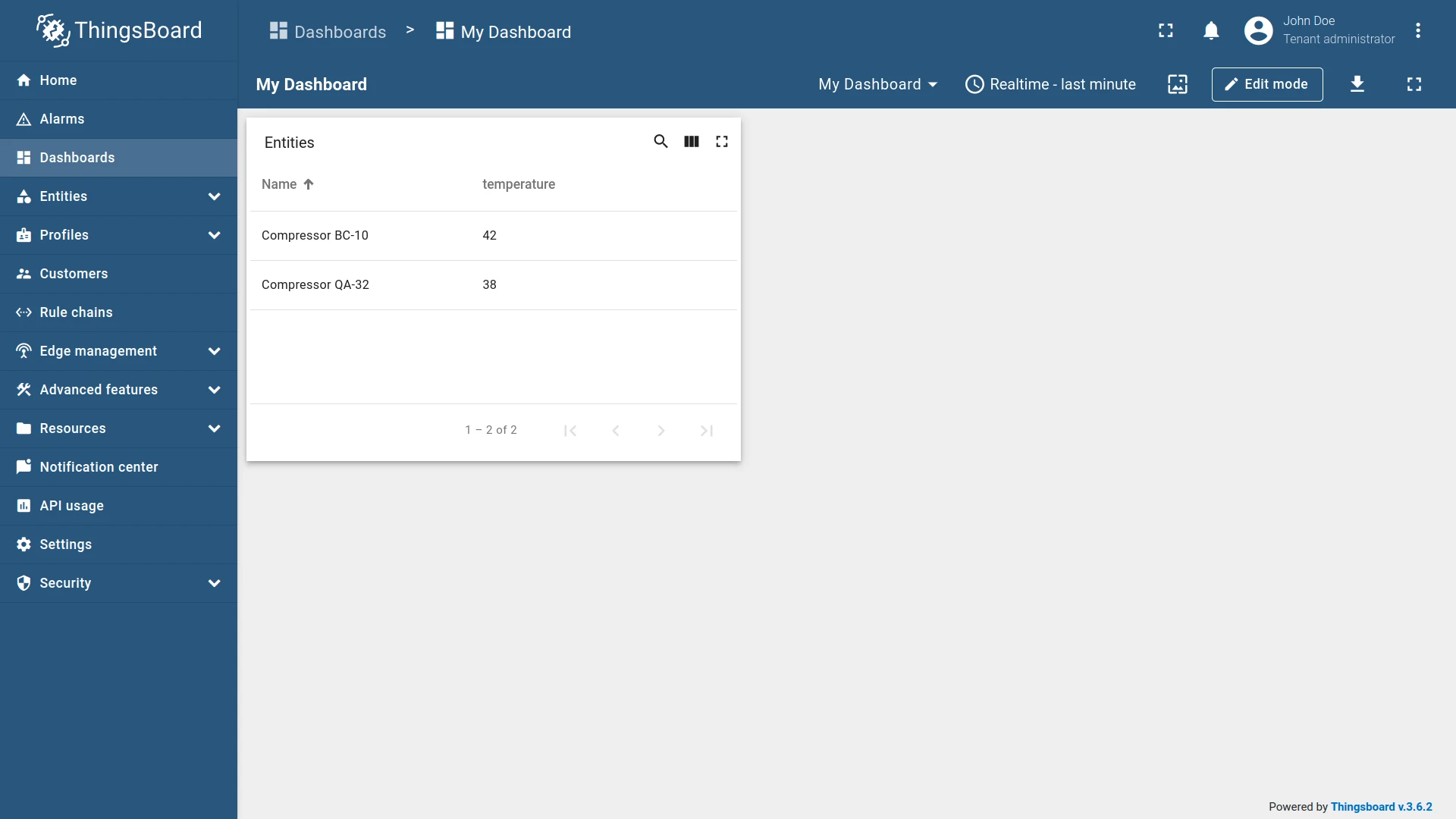
Example: An alias resolving to devices whose names start with “Compressor”.
Entity type
Section titled “Entity type”Resolves to all entities of a specified type, including customers’ entities.
Configuration:
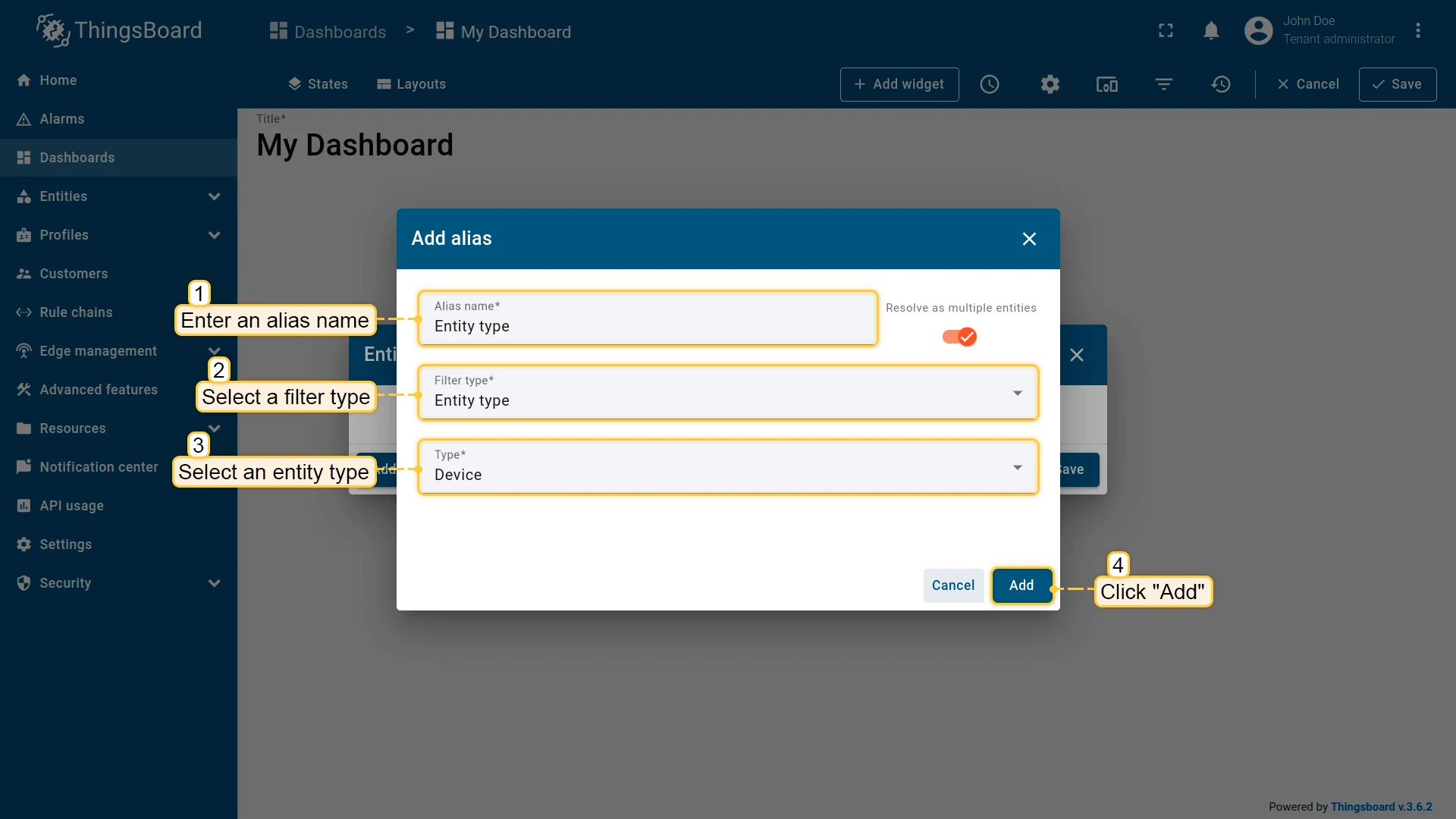
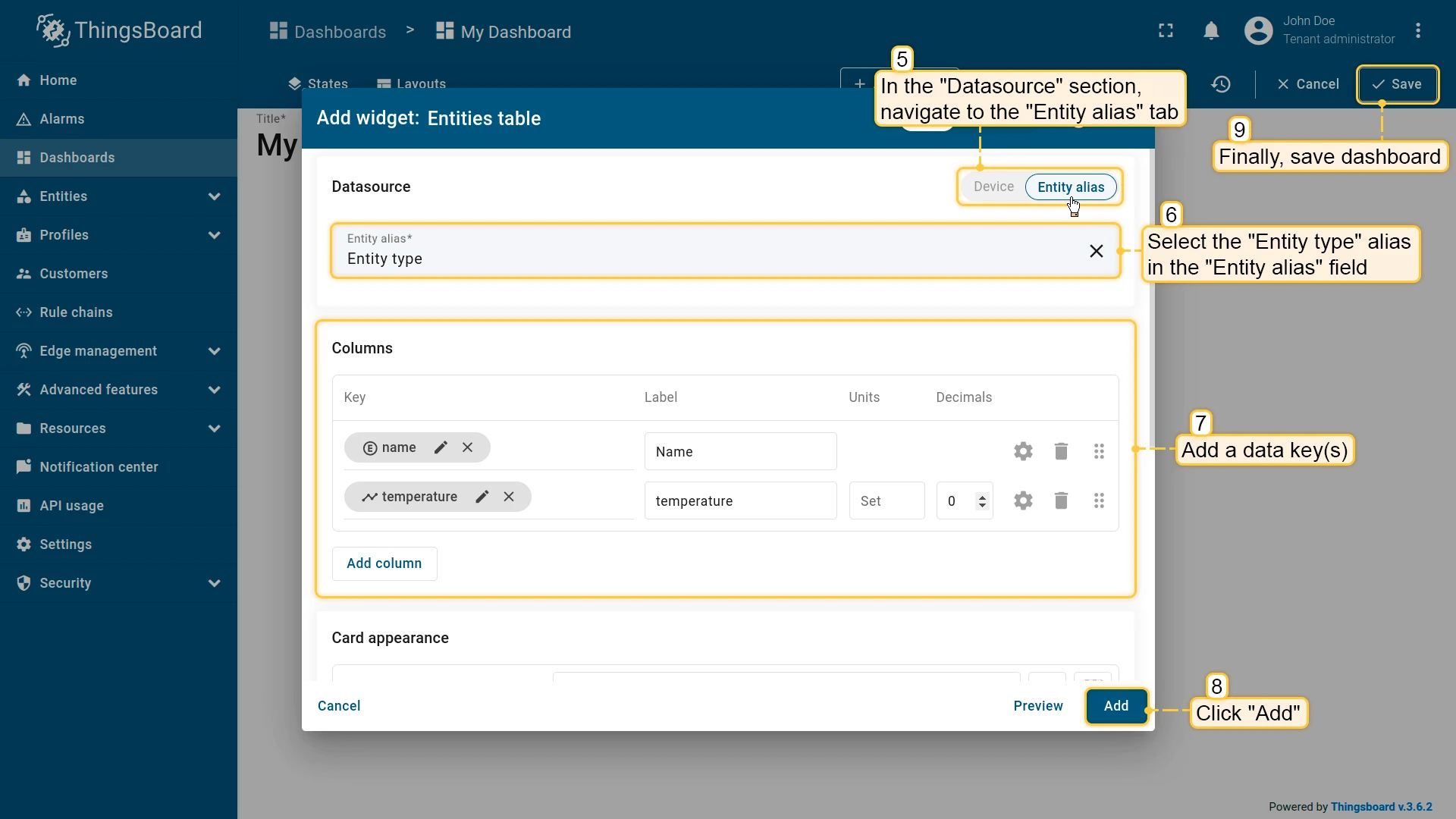
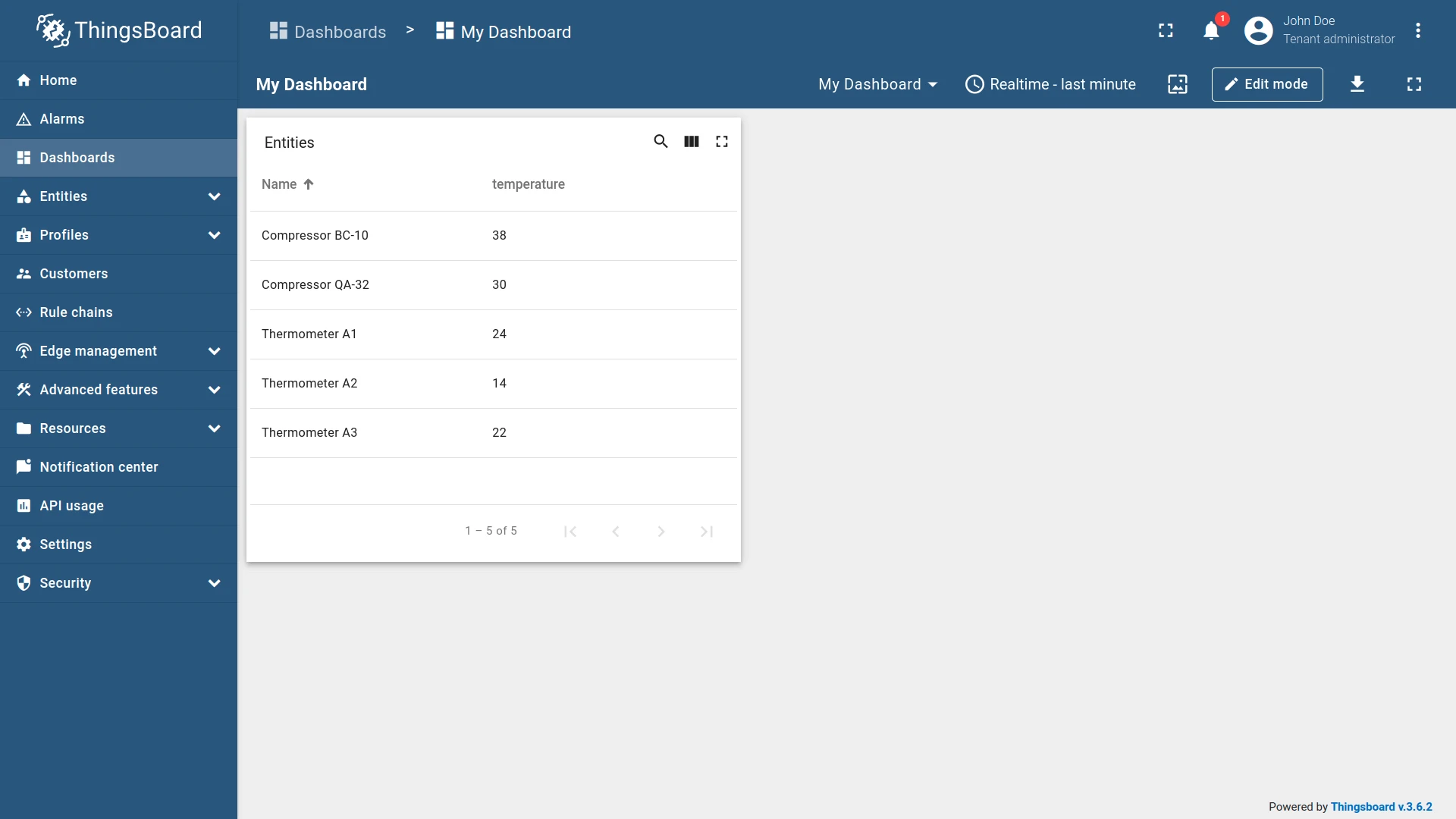
Example: An alias resolving to all devices, including customers’ devices.
Entity from dashboard state
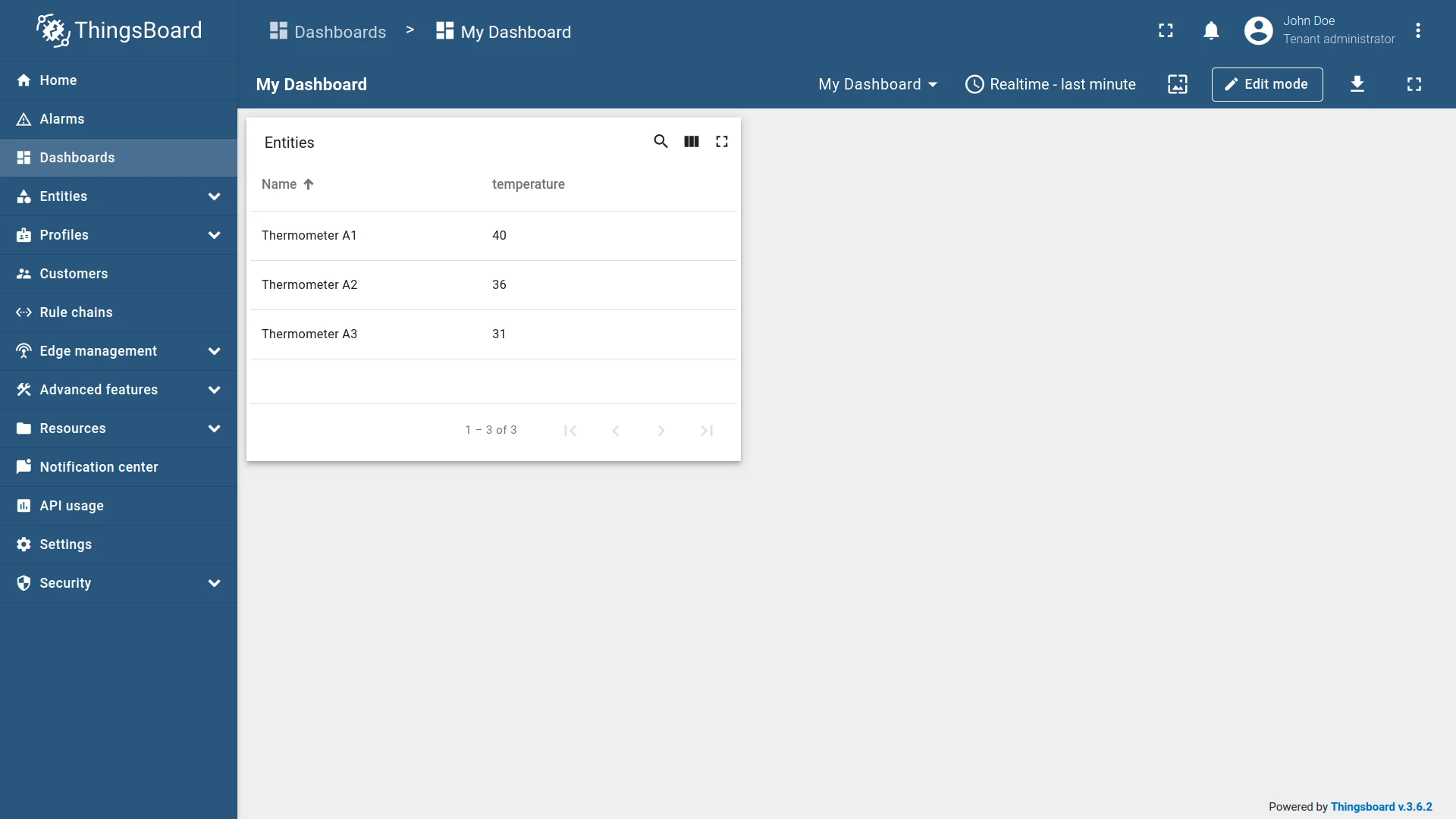
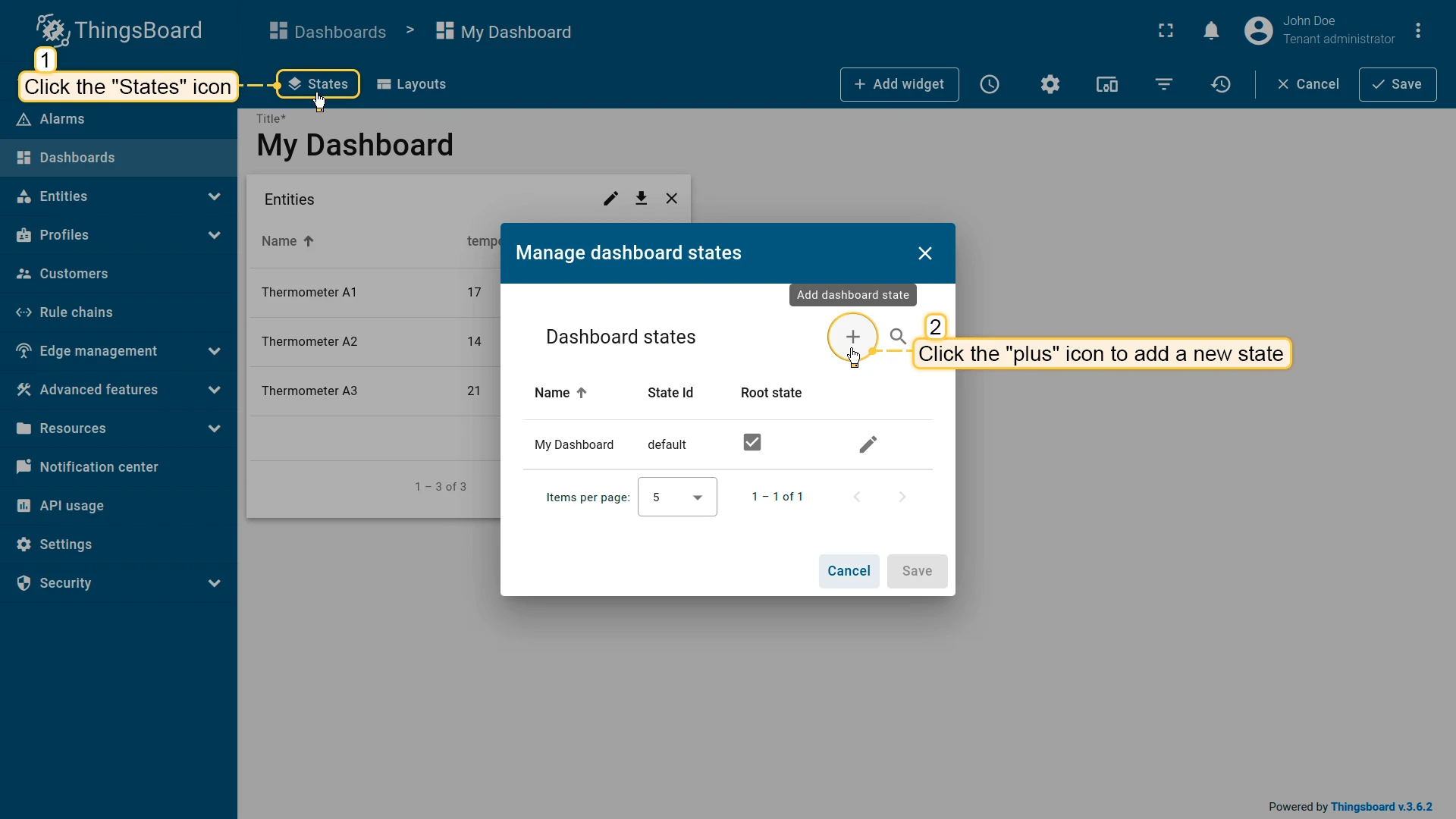
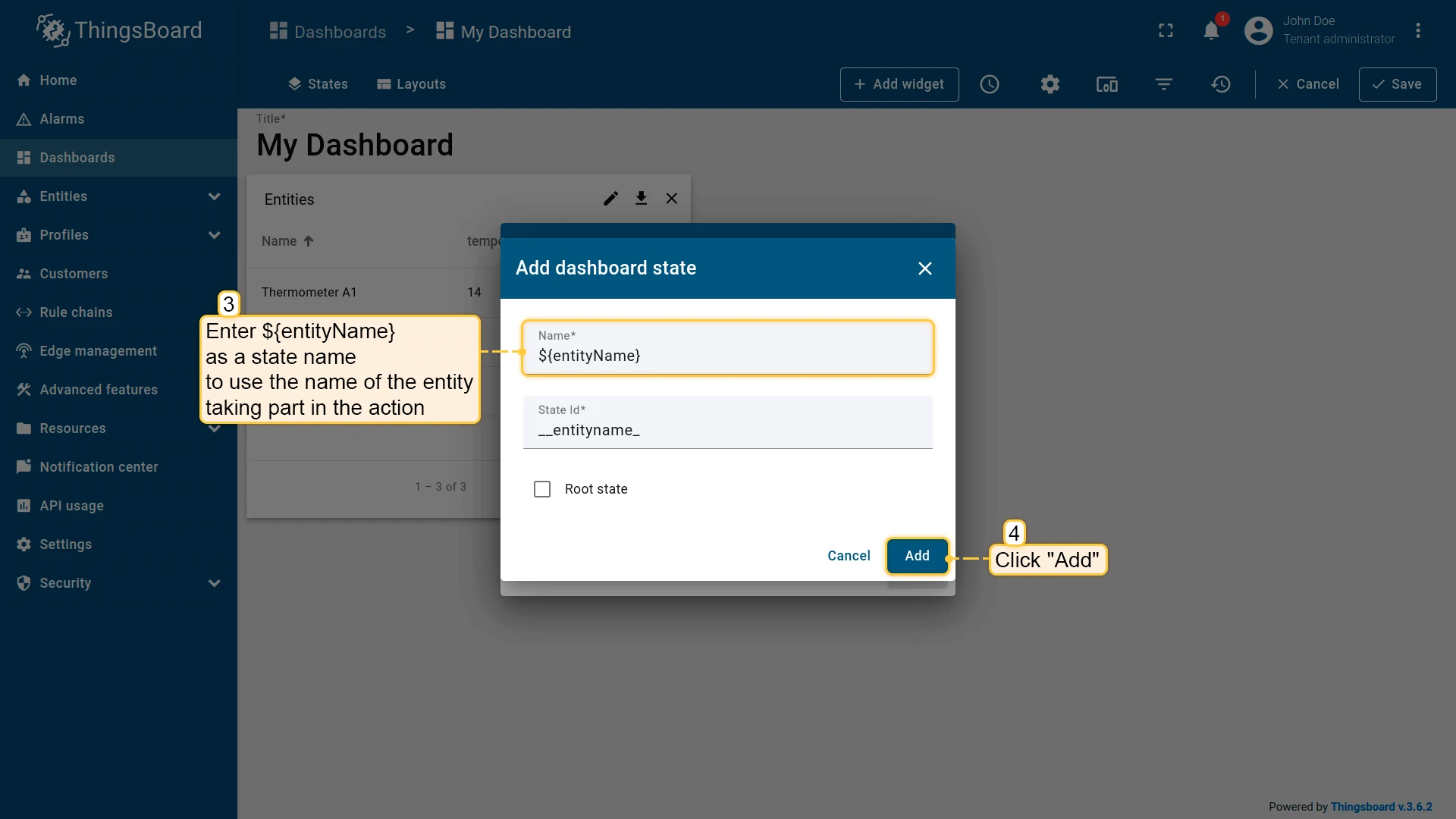
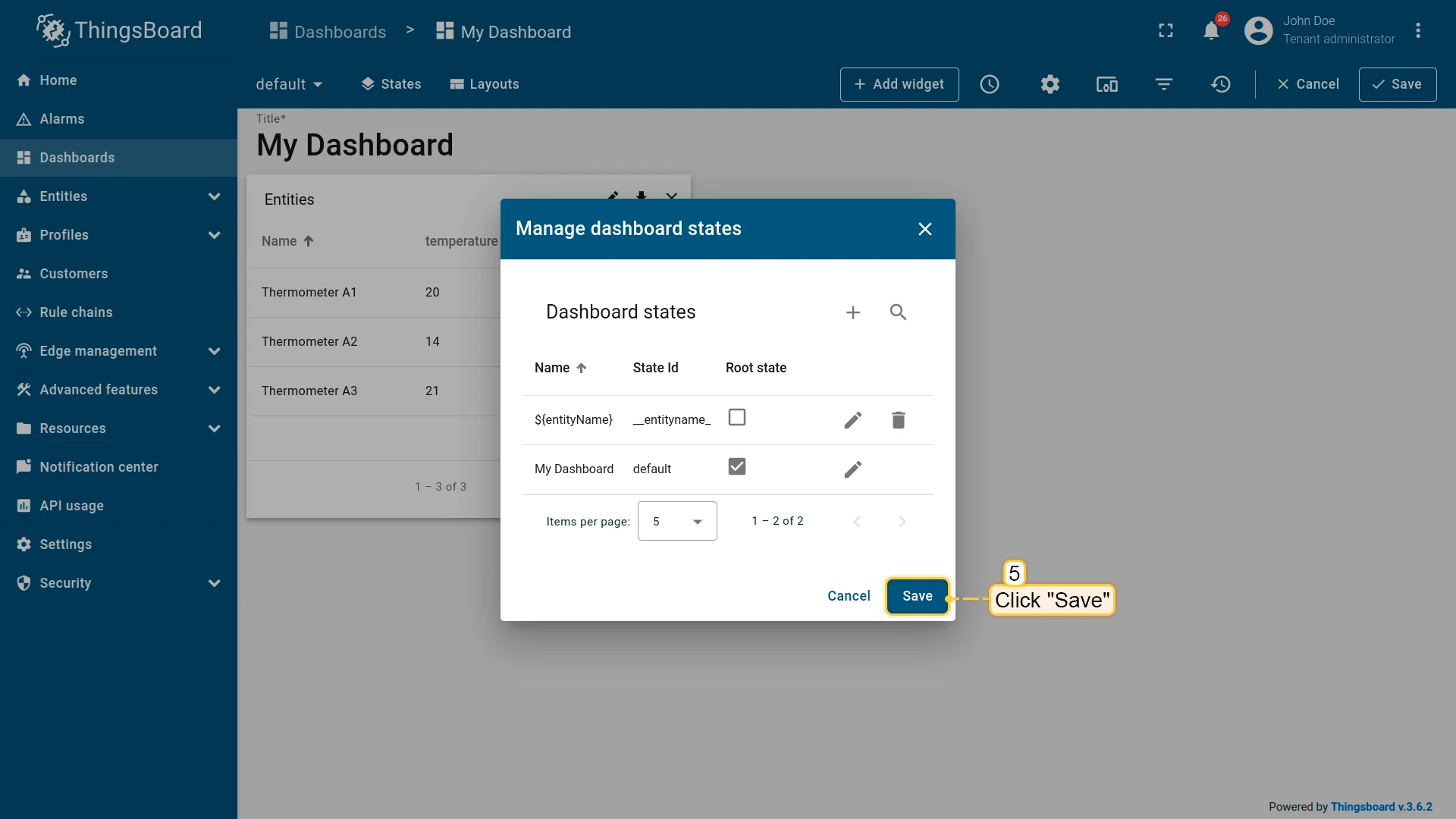
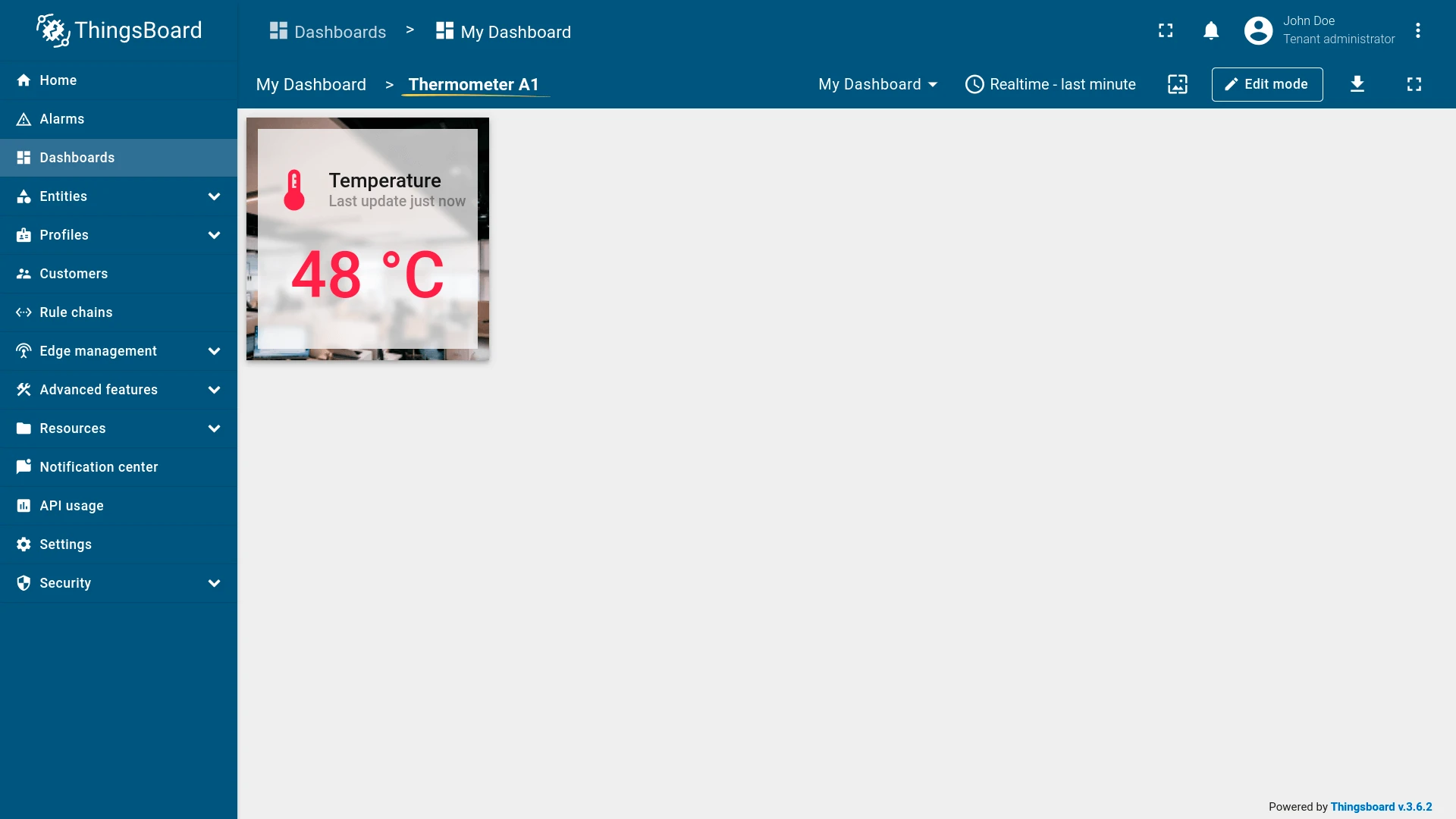
Section titled “Entity from dashboard state”Resolves to an entity passed through dashboard state parameters. Used in drill-down dashboards to display data for the currently selected entity.
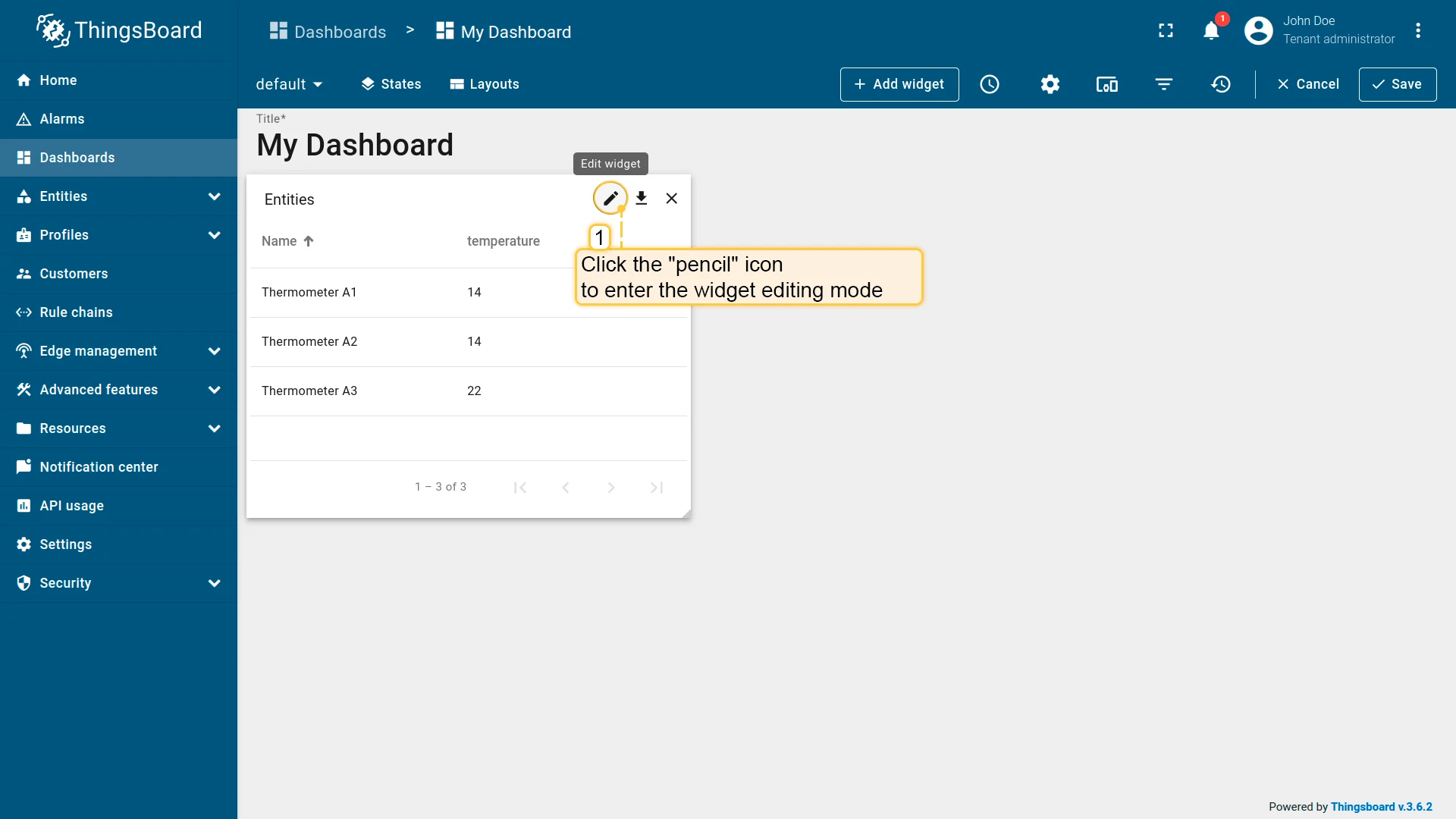
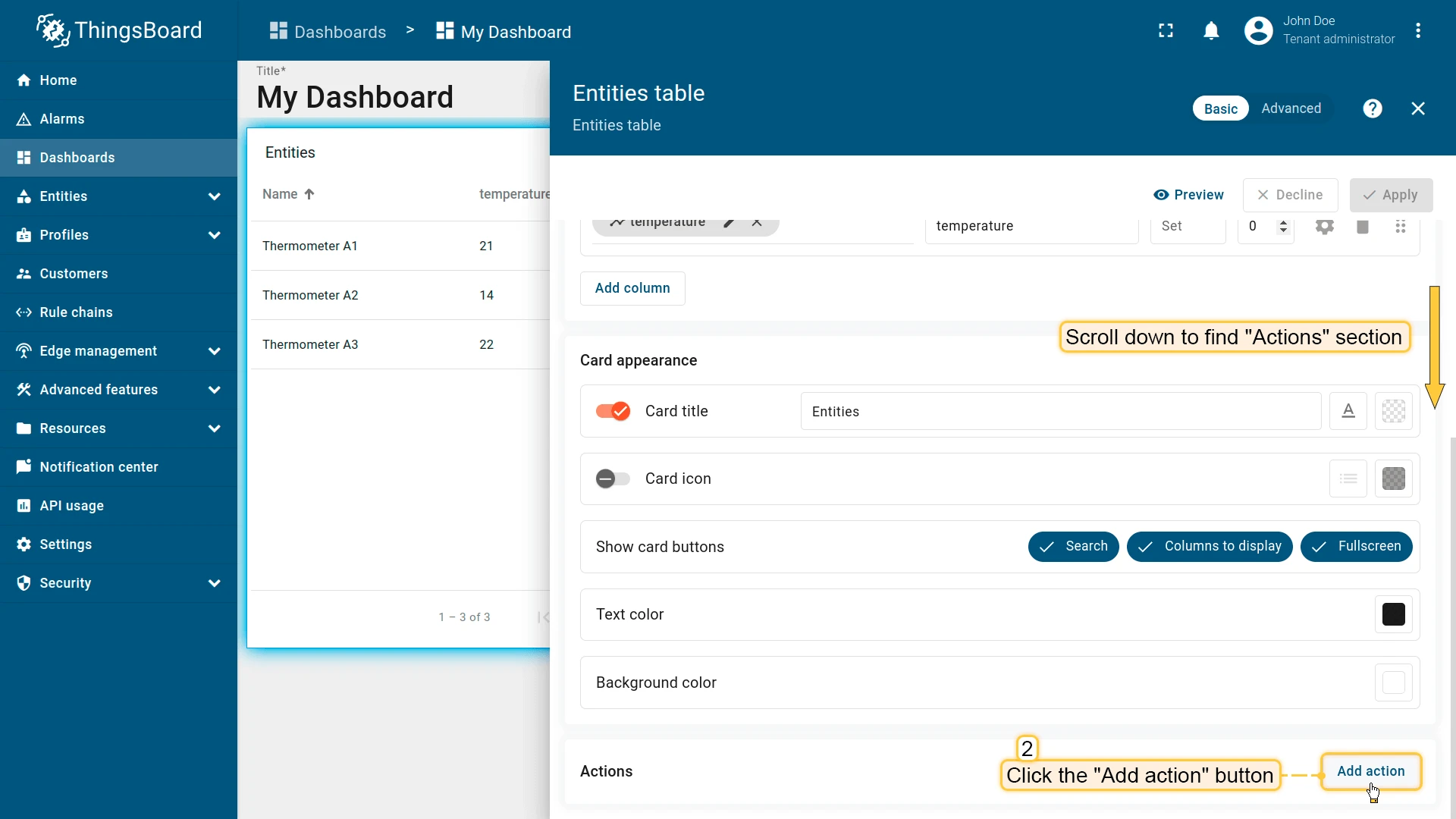
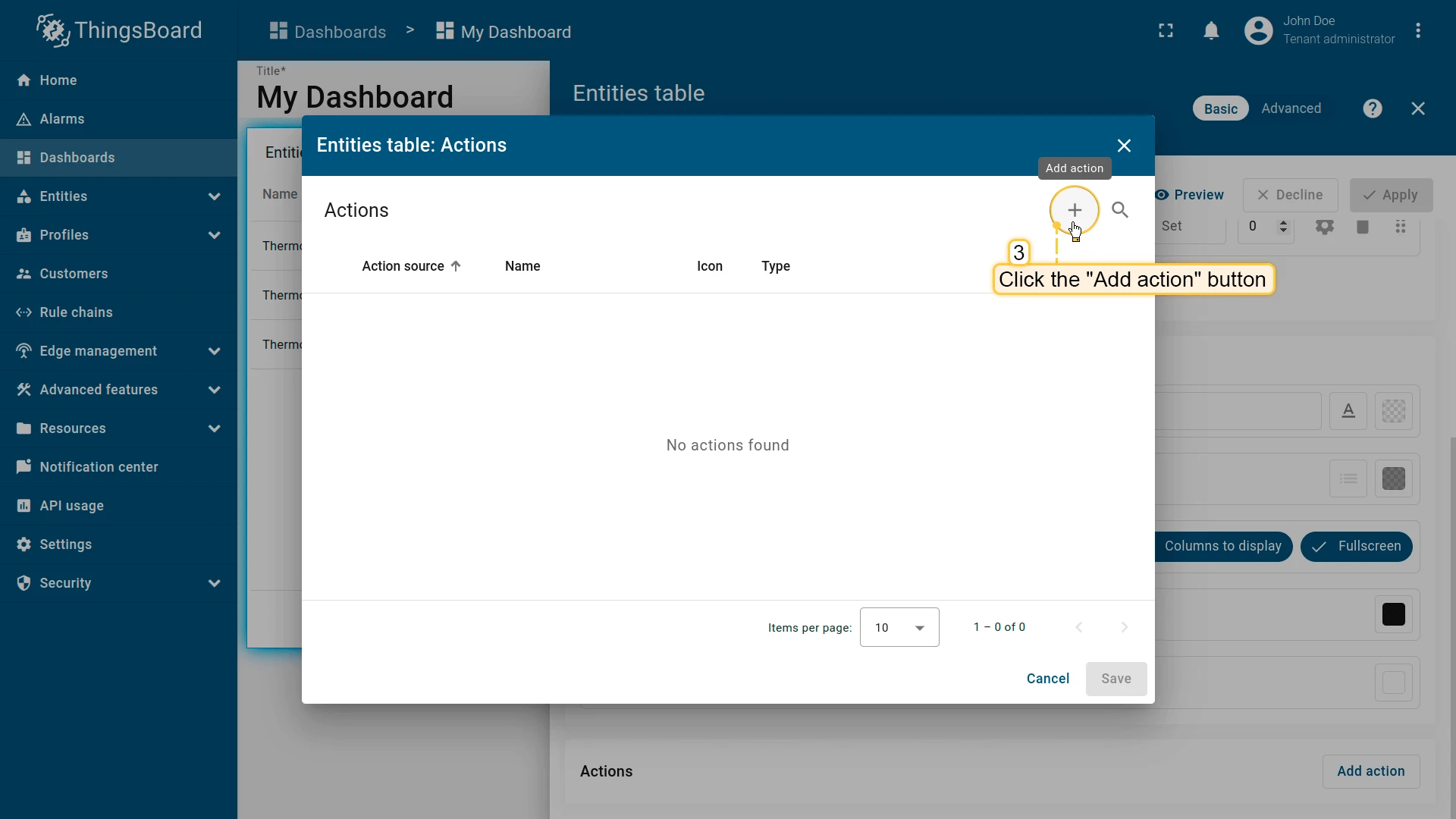
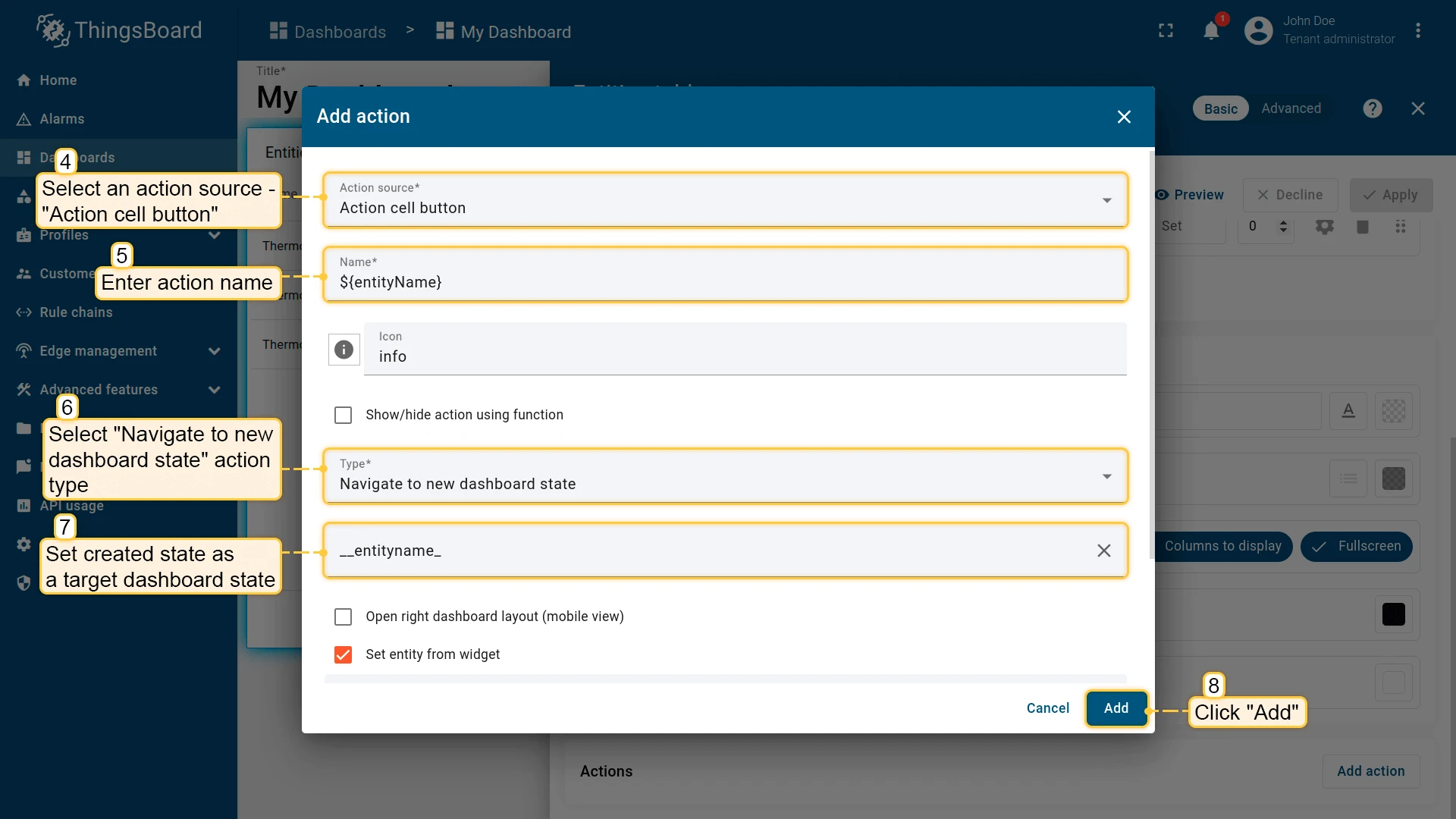
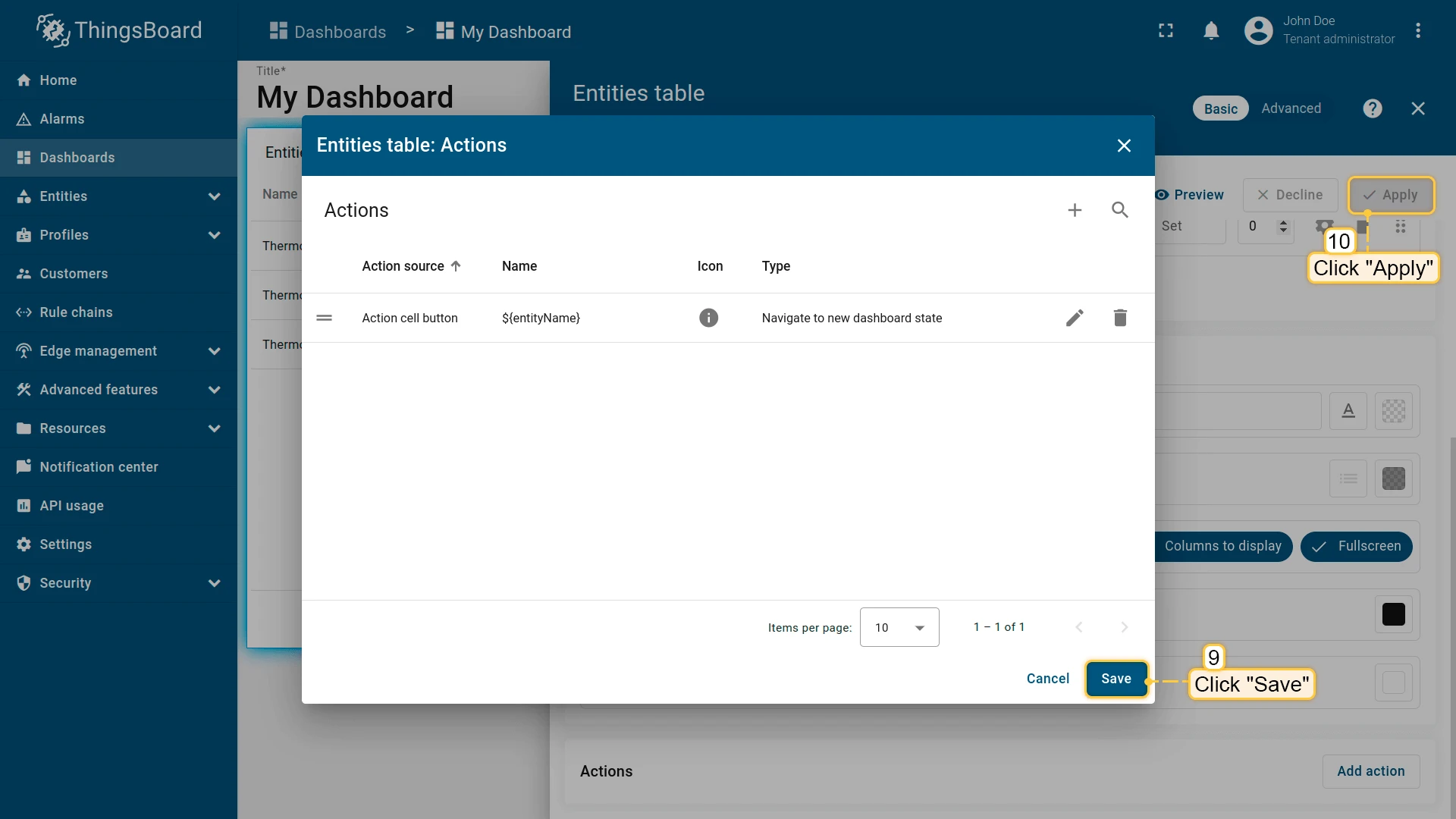
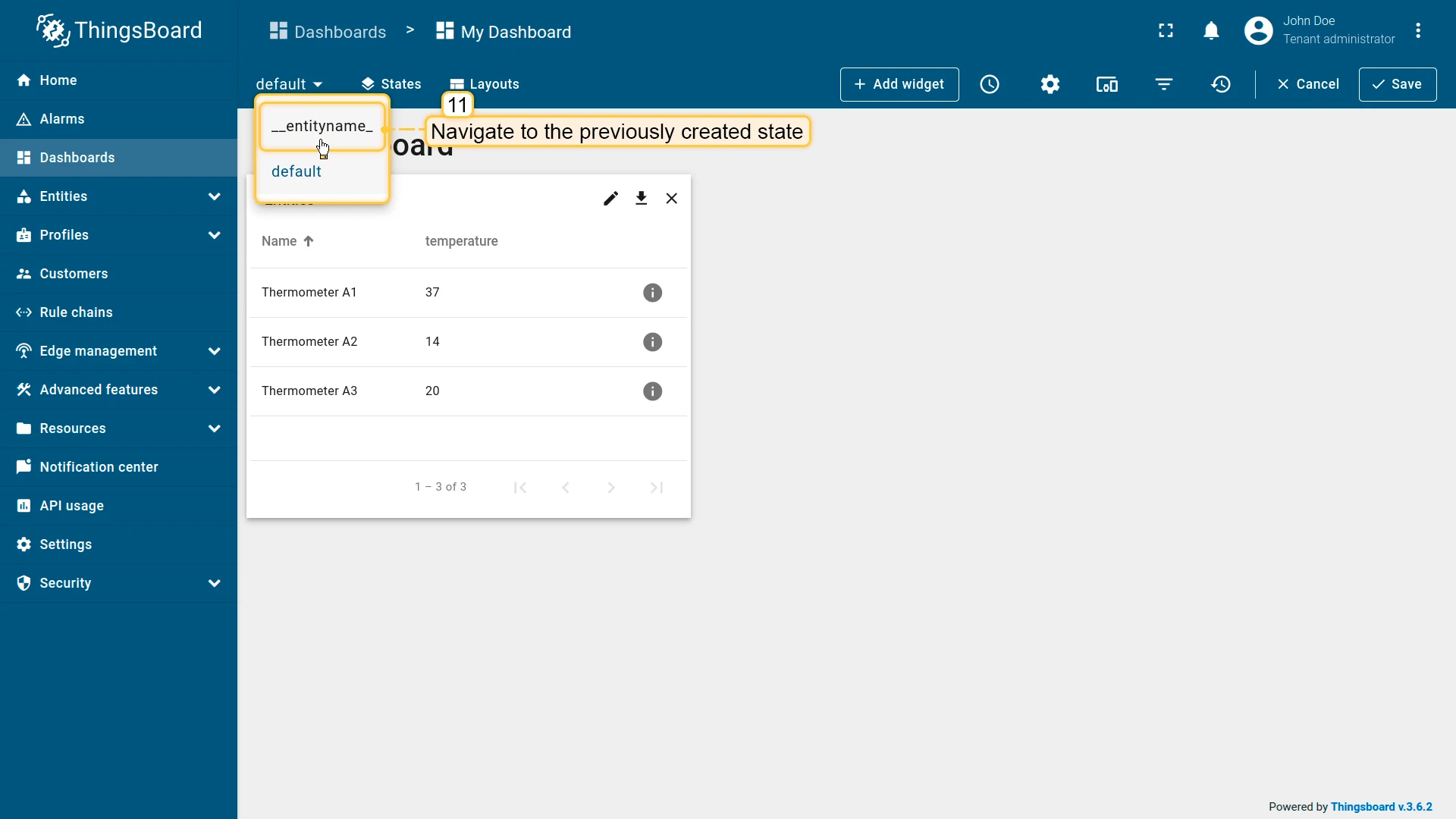
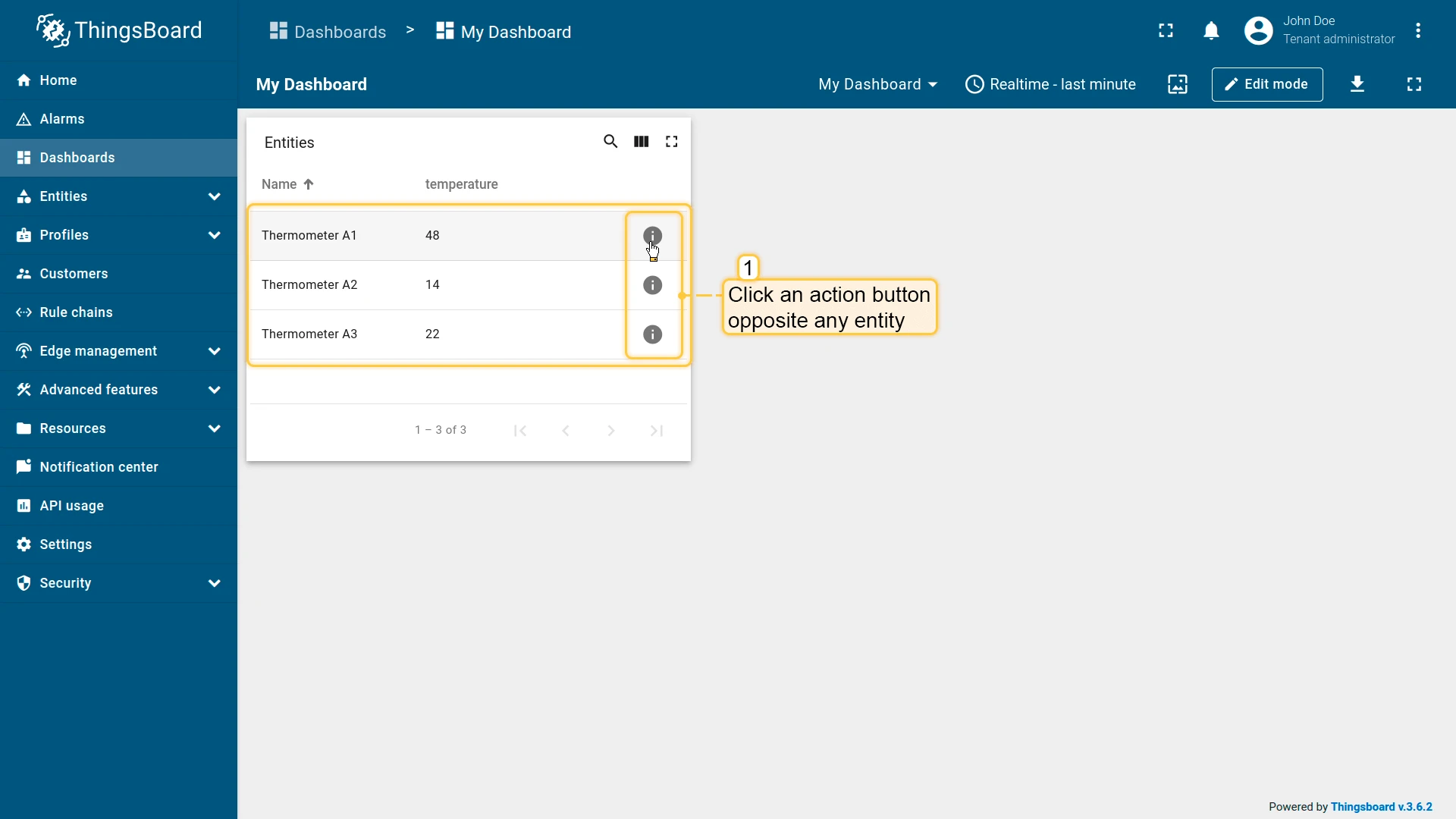
When a user interacts with a widget (for example, clicks a table row), a navigation action can pass the selected entity to the next dashboard state as a named parameter. This alias resolves to the entity referenced by that parameter, so widgets in the target state automatically display data for the entity the user selected.
Configuration:
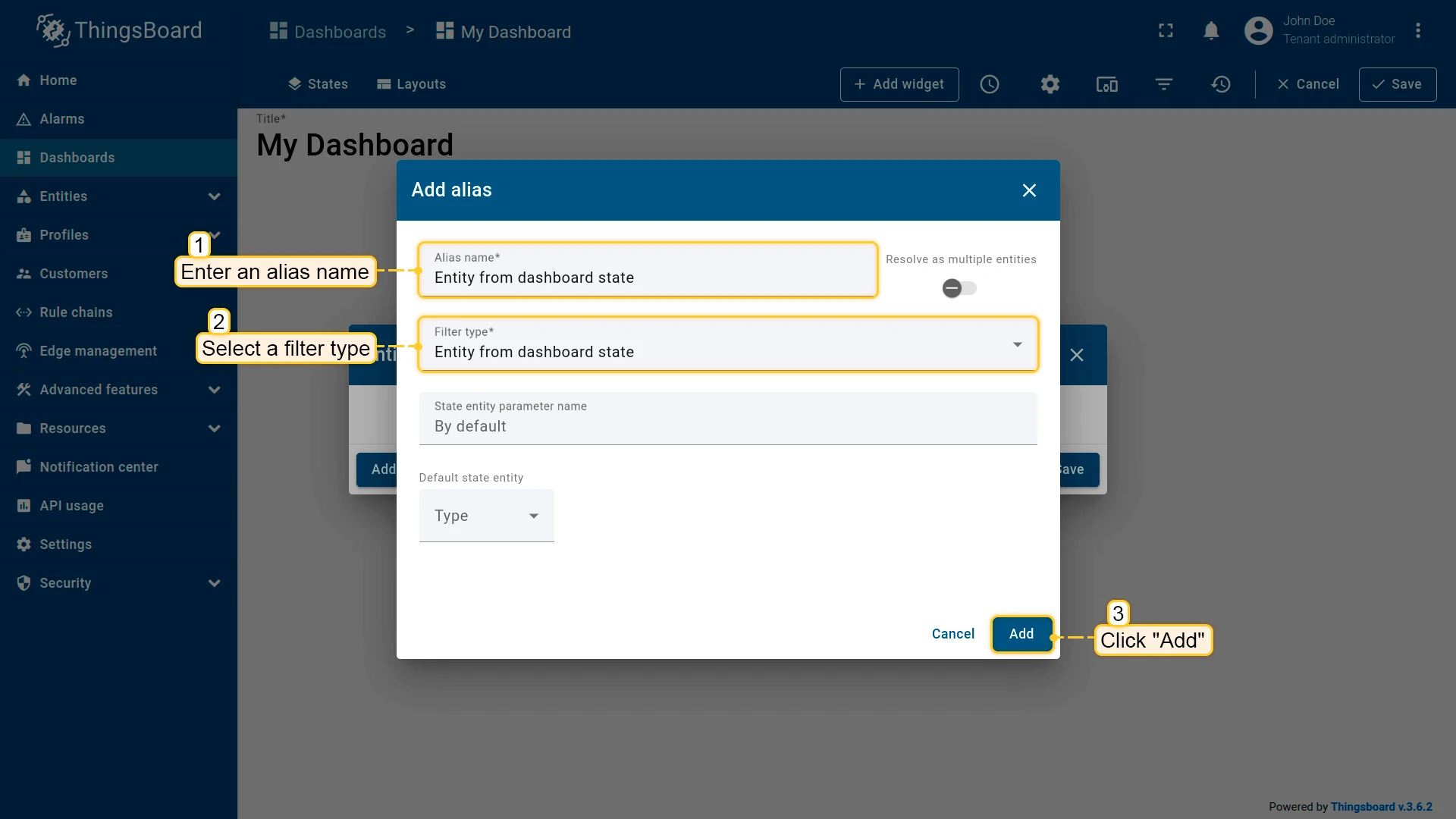
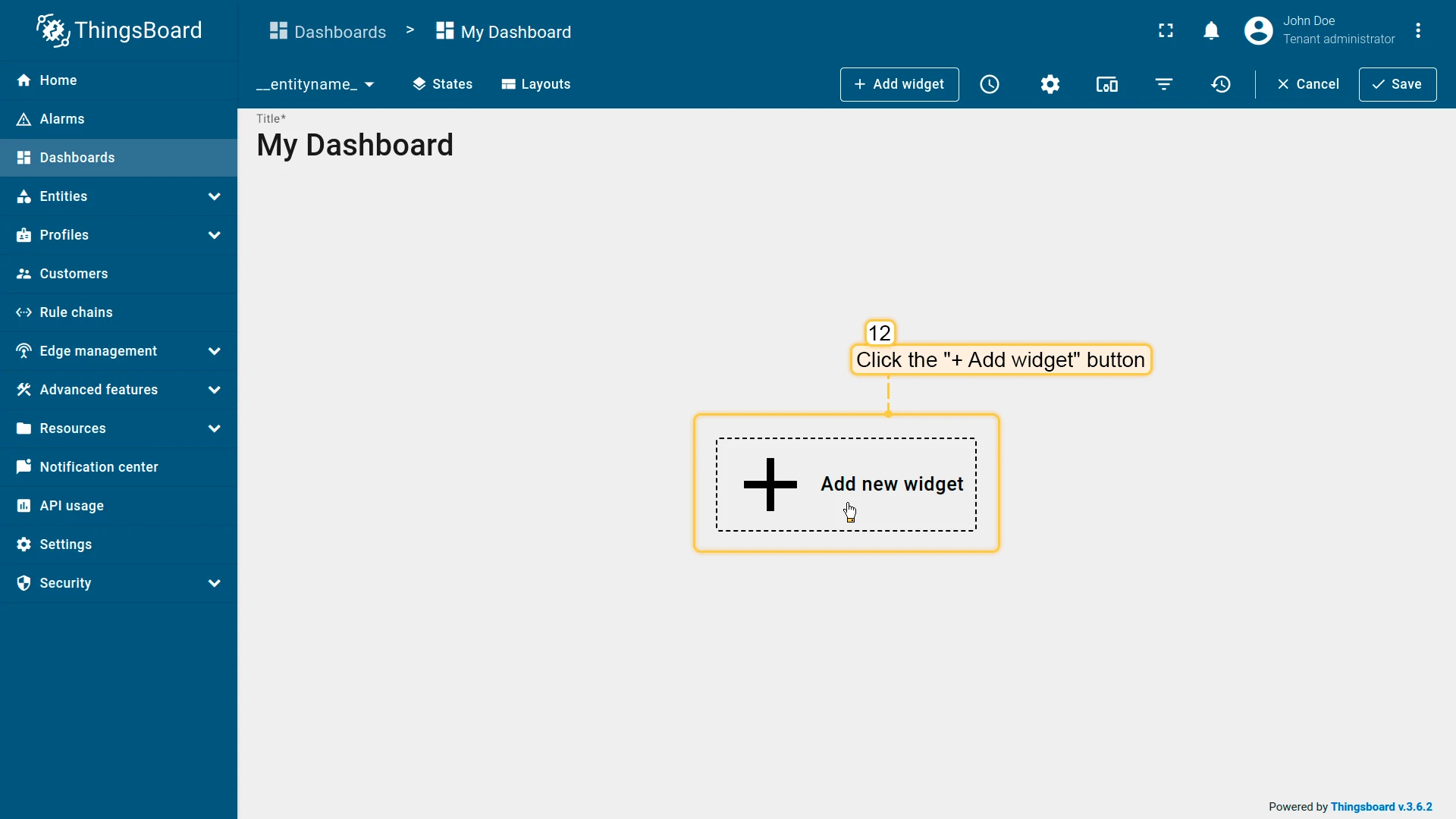
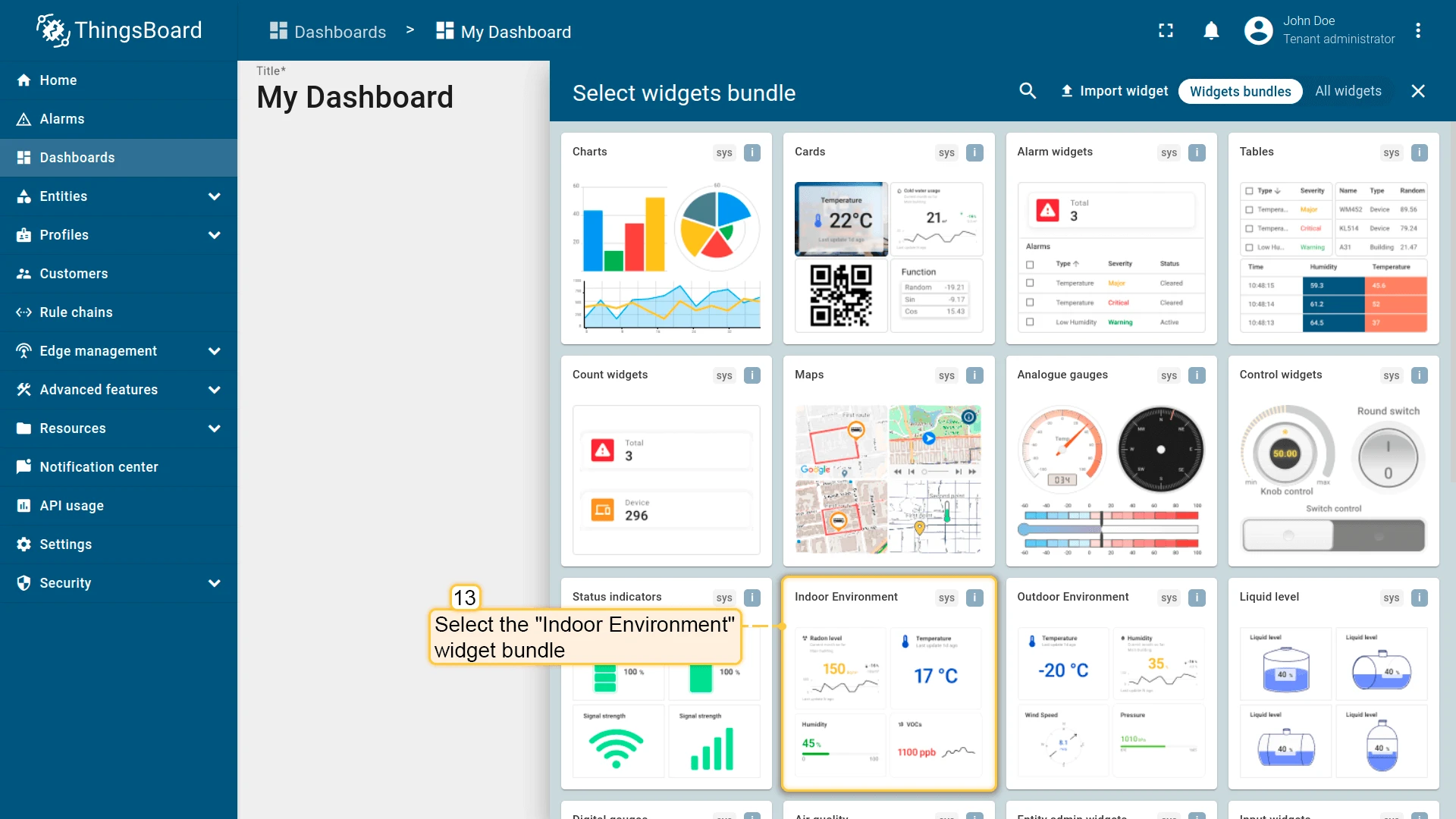
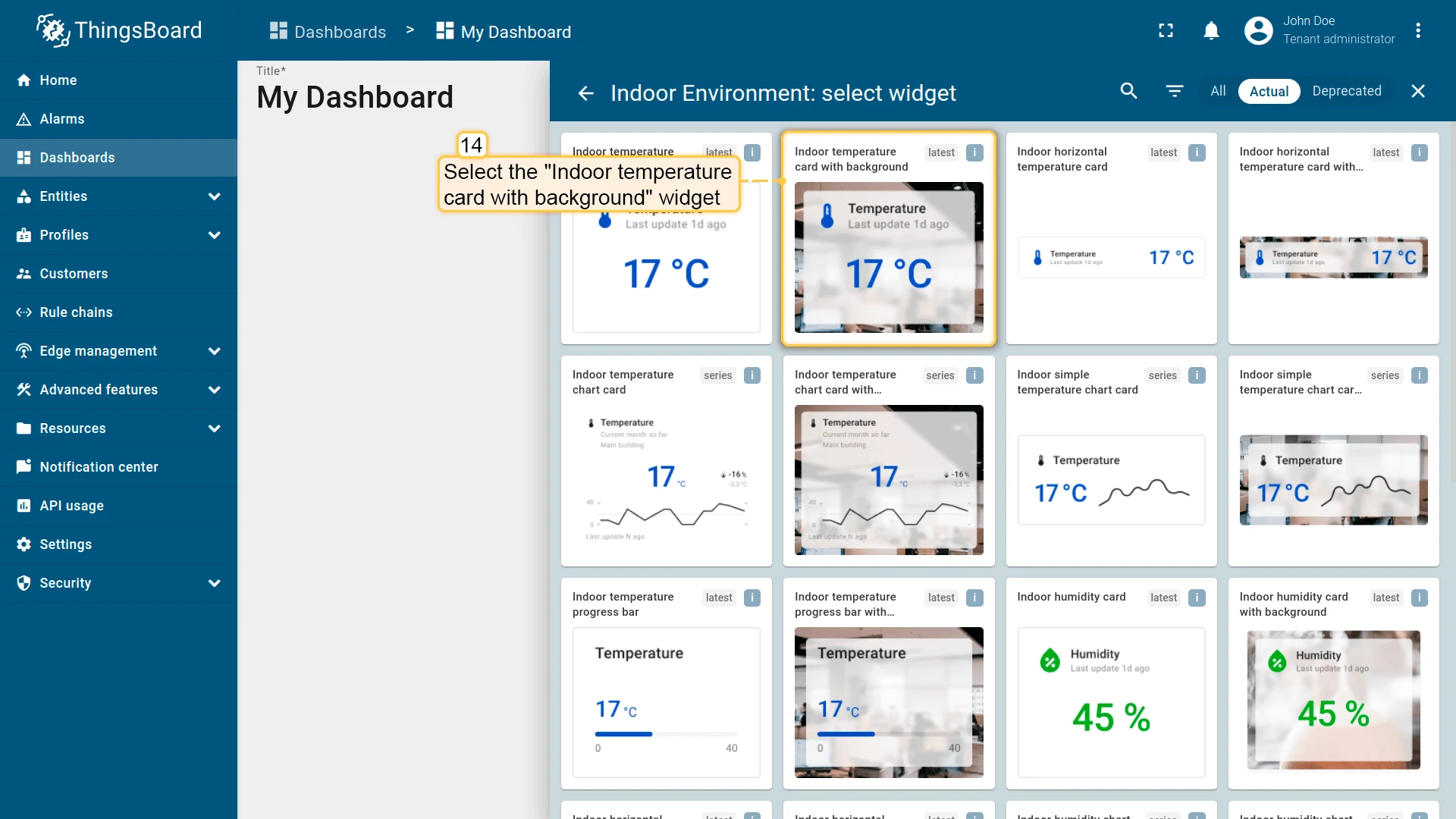
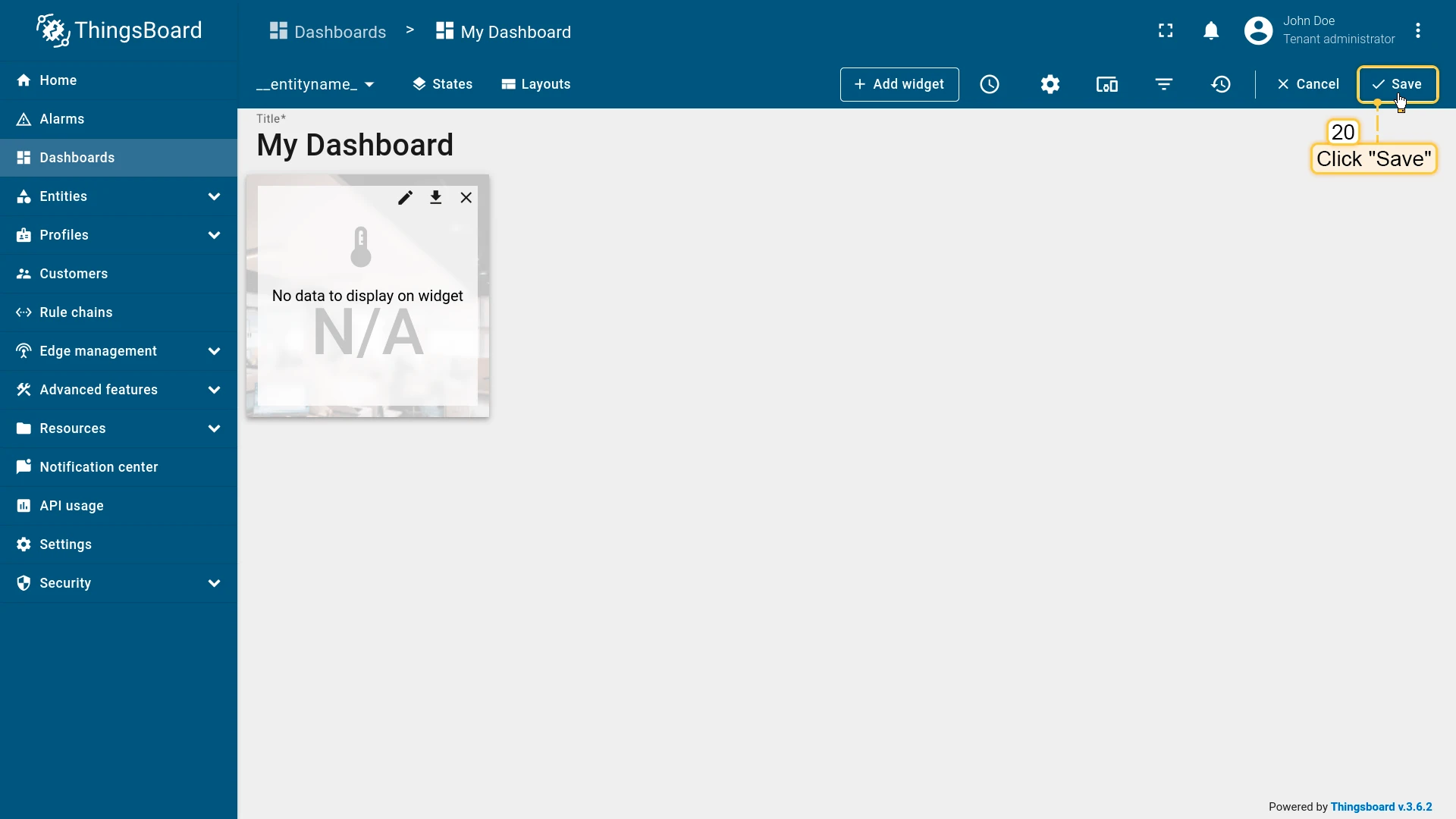
Example: A drill-down dashboard where clicking a device row navigates to a detail state showing data for the selected device.

Asset type
Section titled “Asset type”Resolves to assets of the specified asset profile, optionally filtered by name.
Configuration:
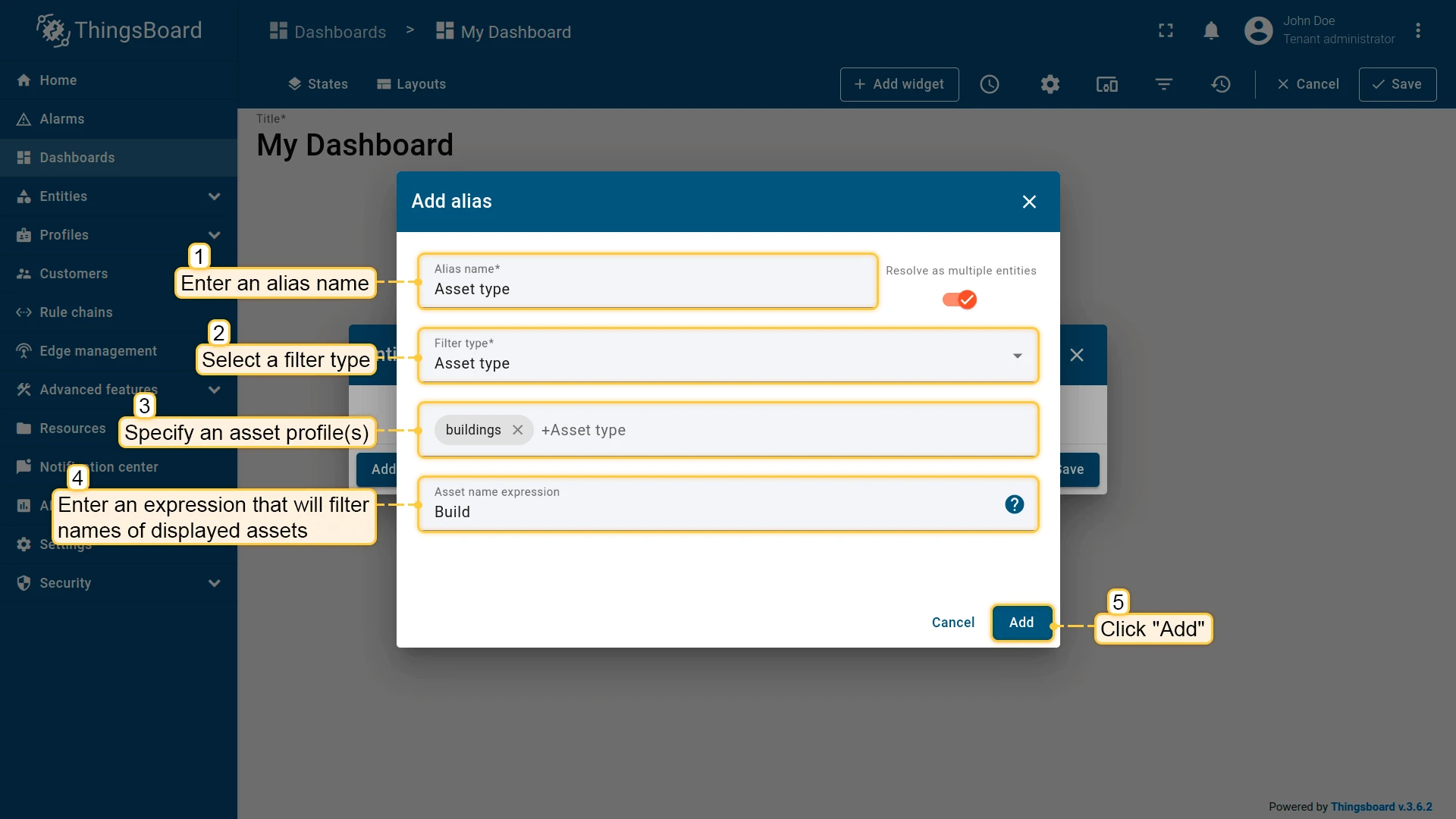
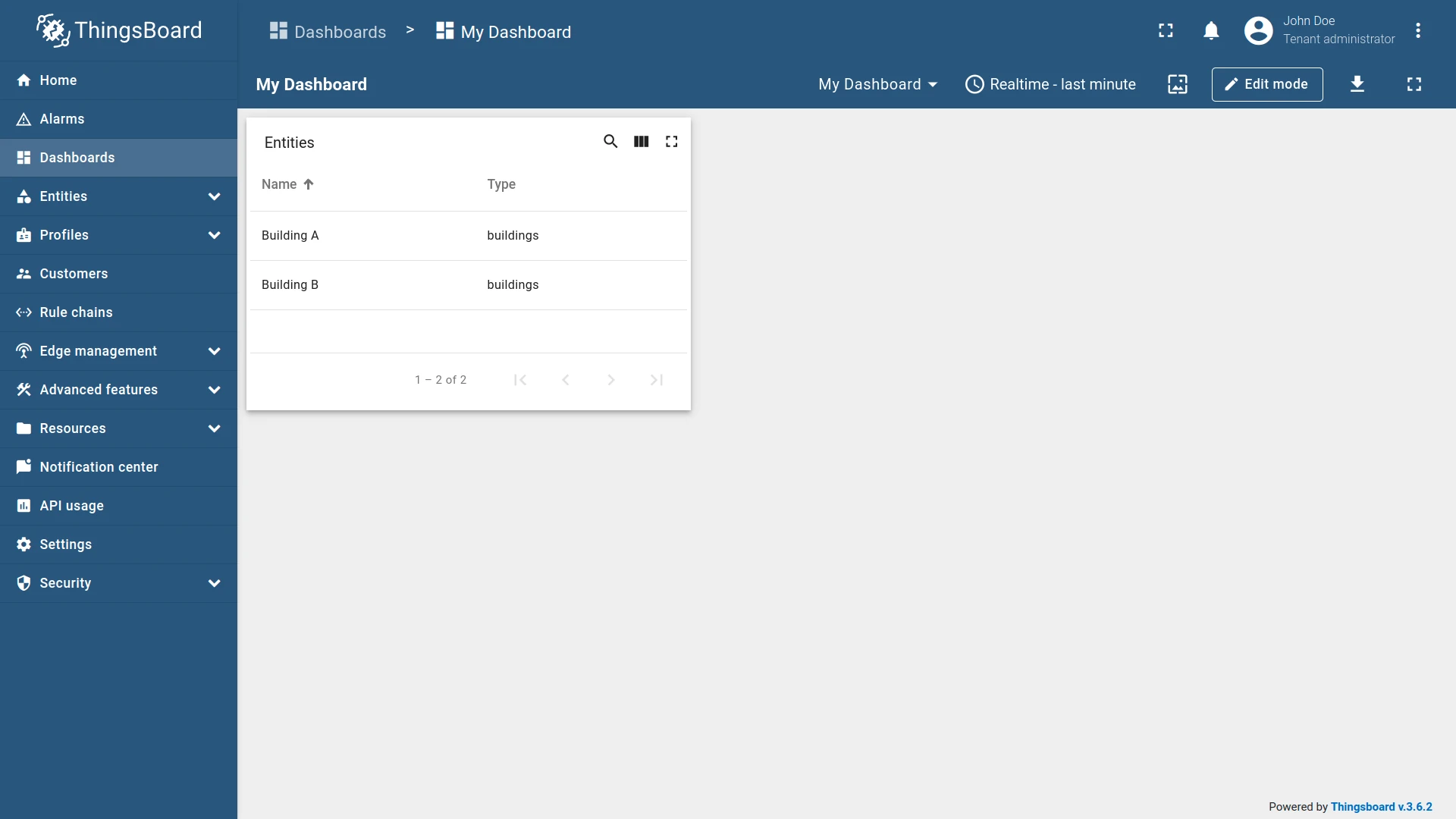
Example: An alias resolving to assets with profile “buildings” whose names start with “Build”.
Device type
Section titled “Device type”Resolves to devices of the specified device profile, optionally filtered by name.
Configuration:
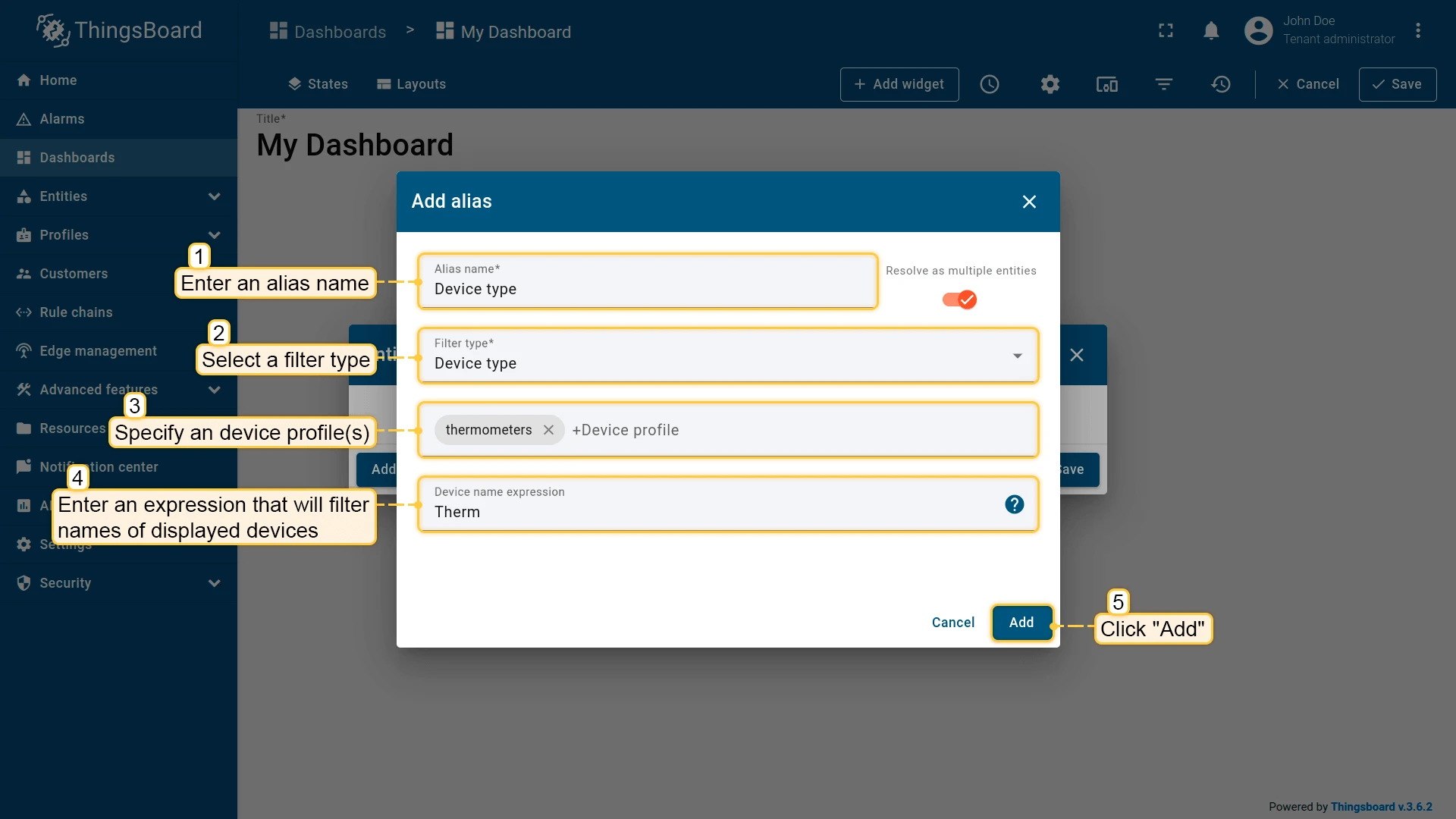
Example: An alias resolving to devices with profile “thermometers” whose names start with “Therm”.
Entity view type
Section titled “Entity view type”Resolves to entity views of the specified type, optionally filtered by name.
Configuration:
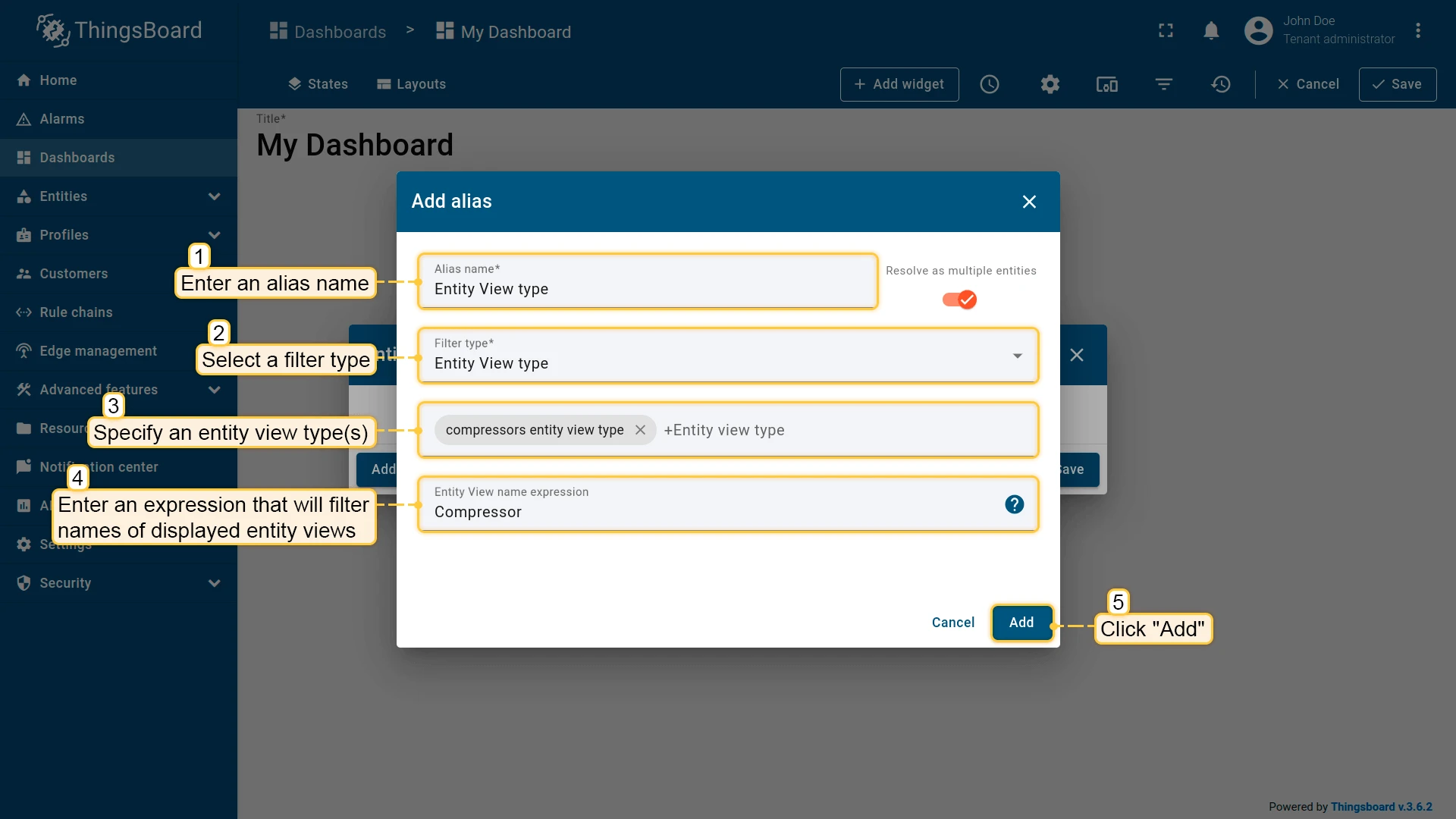
Example: An alias resolving to entity views of type “Compressors Entity View Type”.
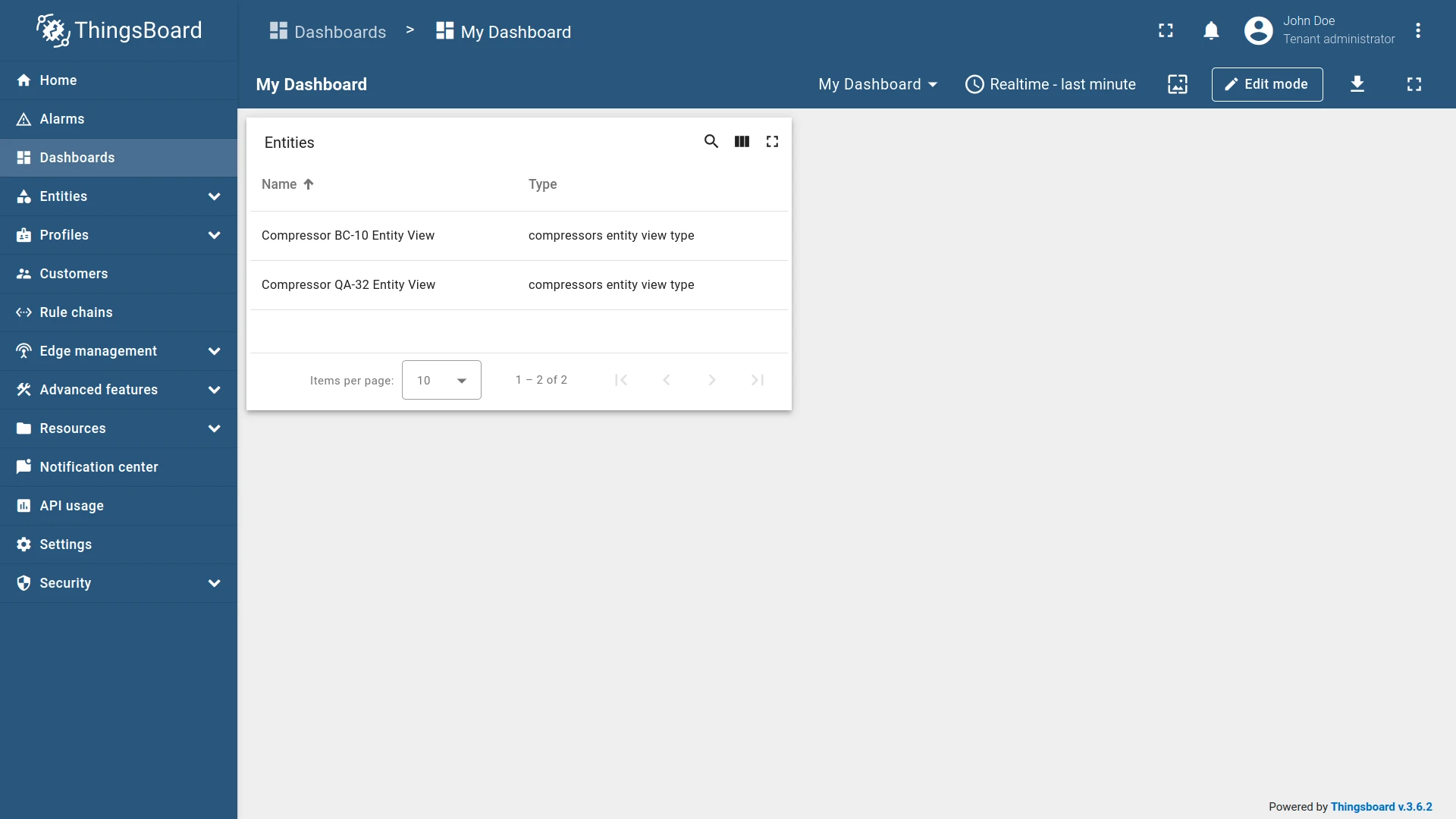
Edge type
Section titled “Edge type”Resolves to edges of the specified type, optionally filtered by name.
Configuration:
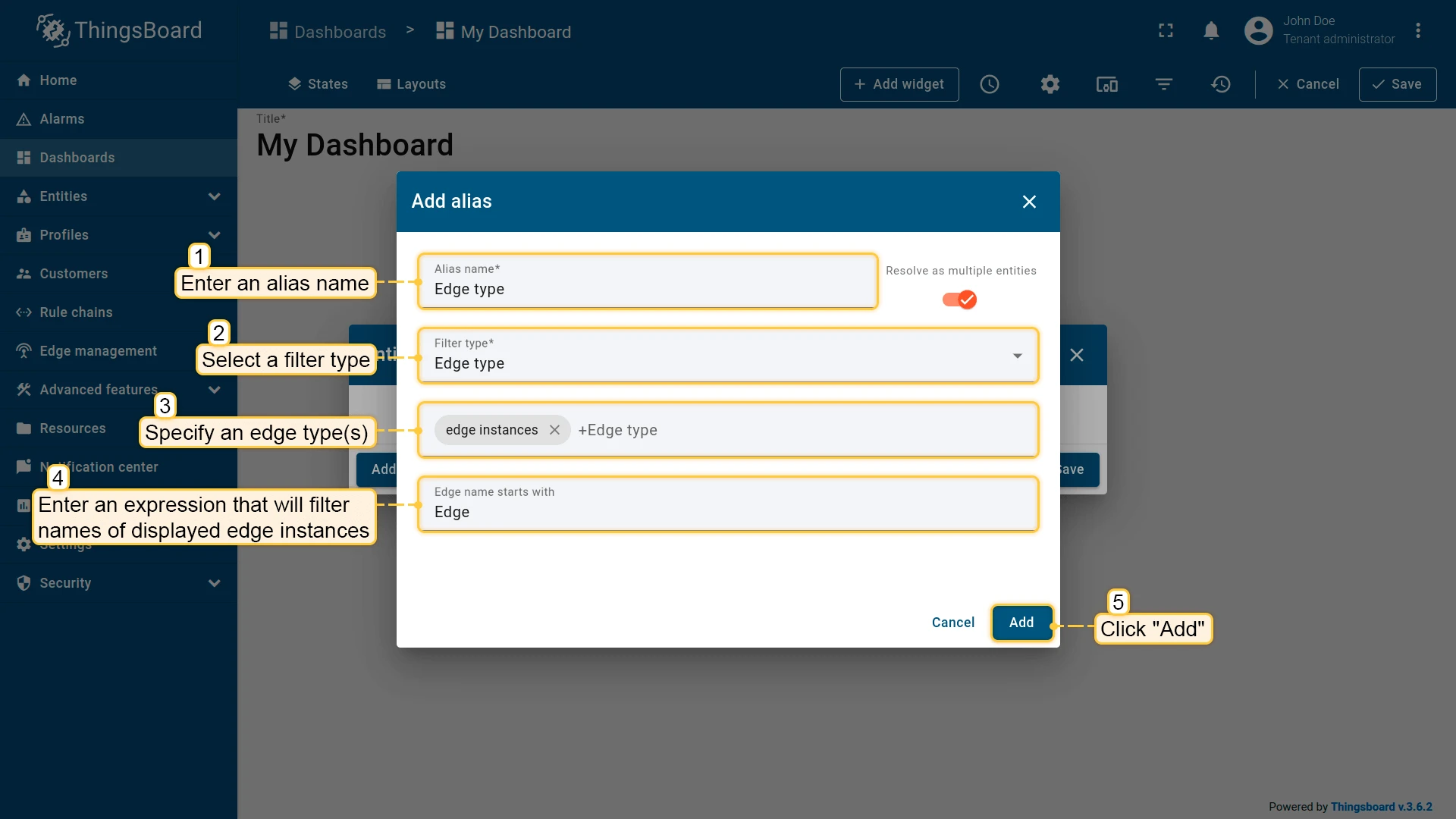
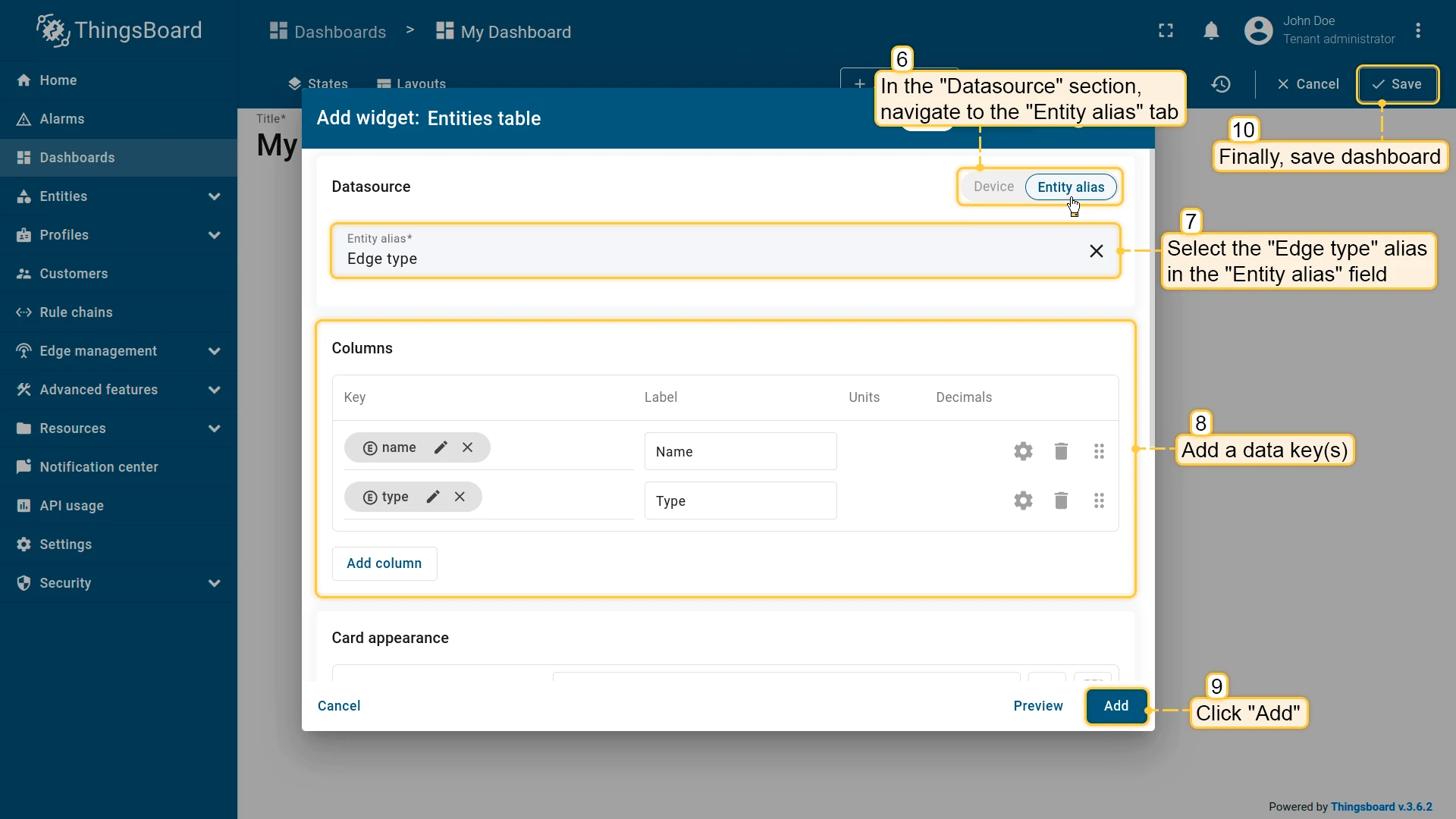
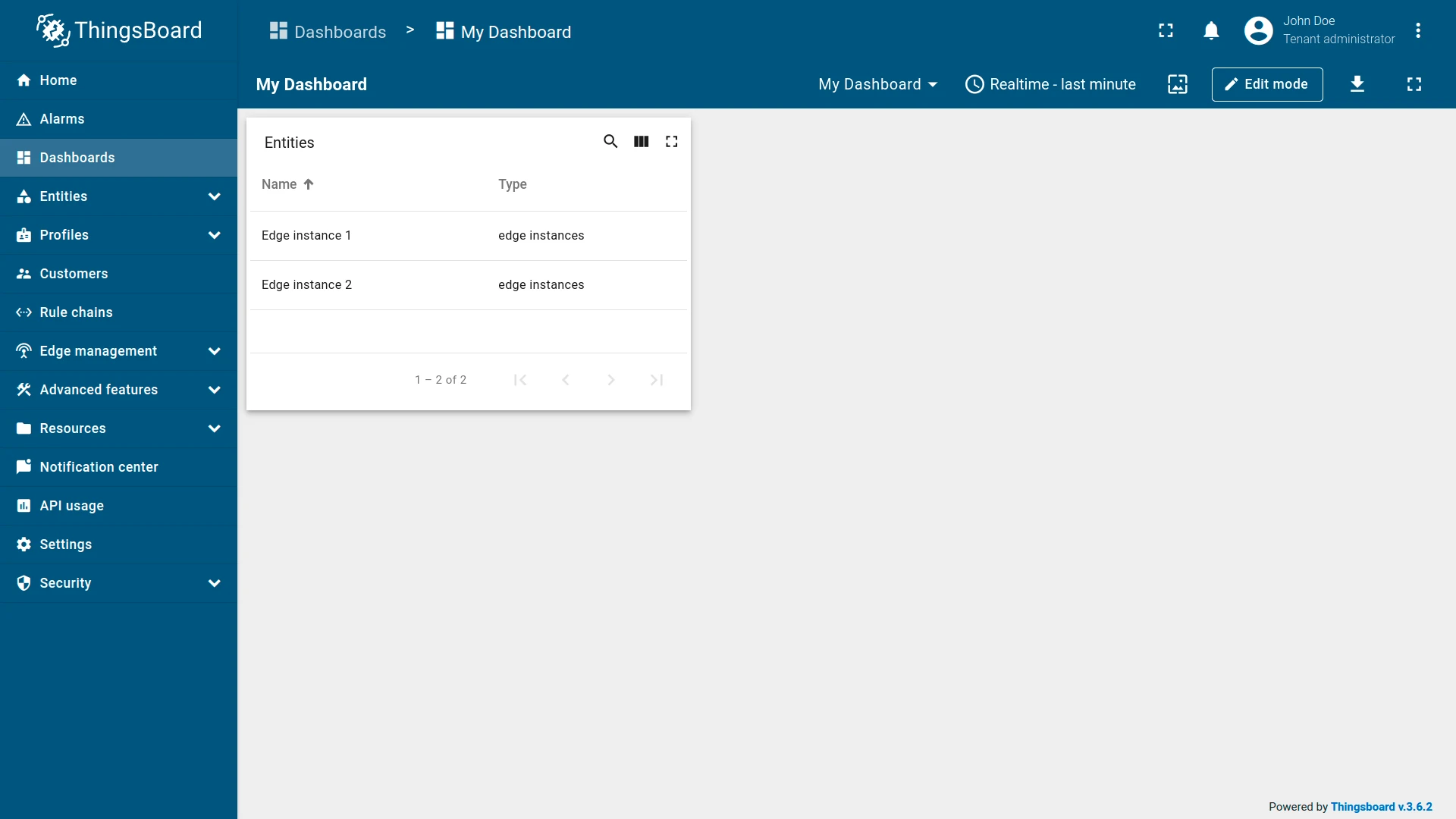
Example: An alias resolving to edges of type “edge instance” whose names start with “Edge”.
API usage state
Section titled “API usage state”Resolves to the platform’s API usage statistics.
Configuration:
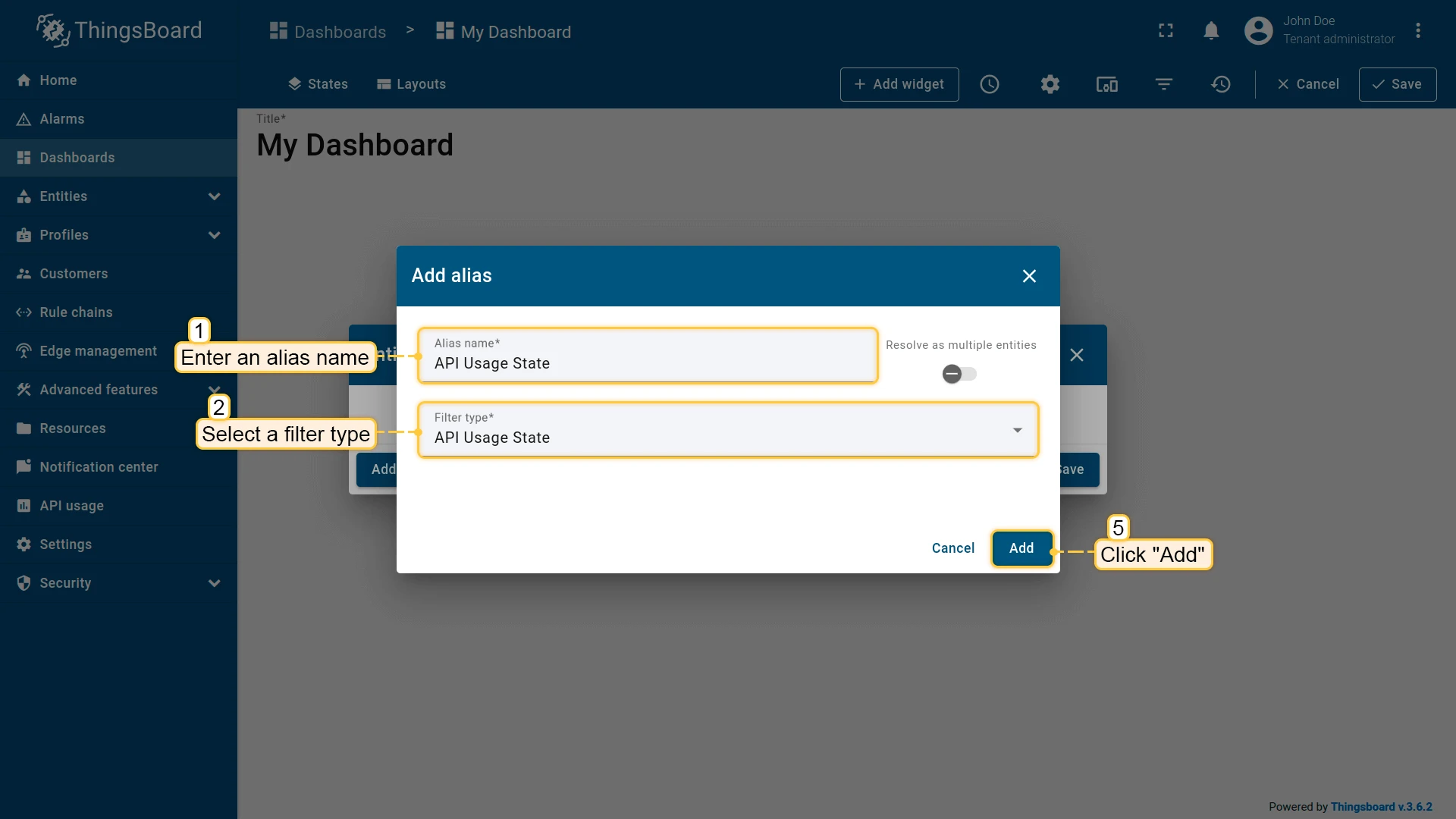
Example: An alias resolving to the platform’s API usage statistics.
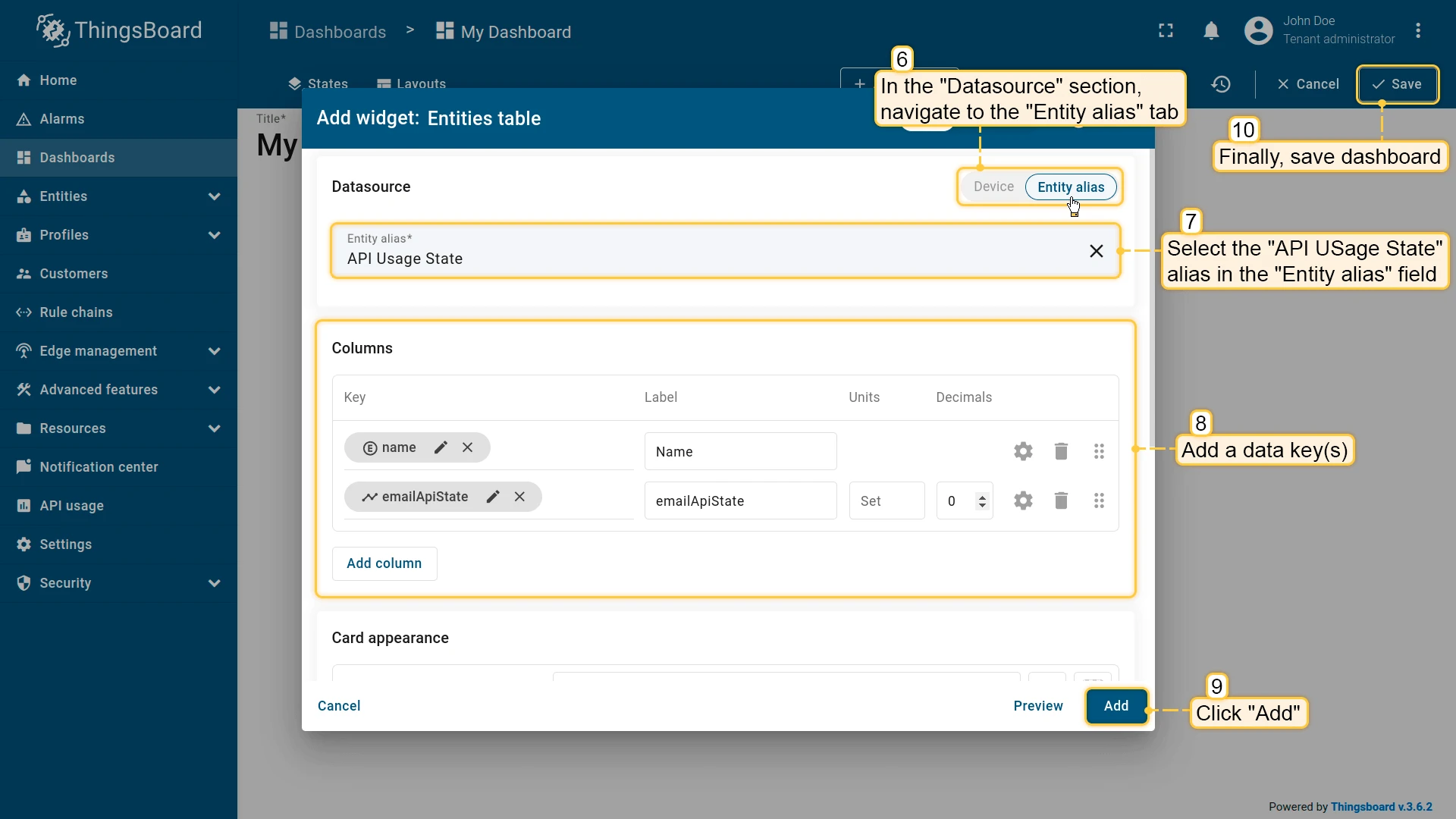
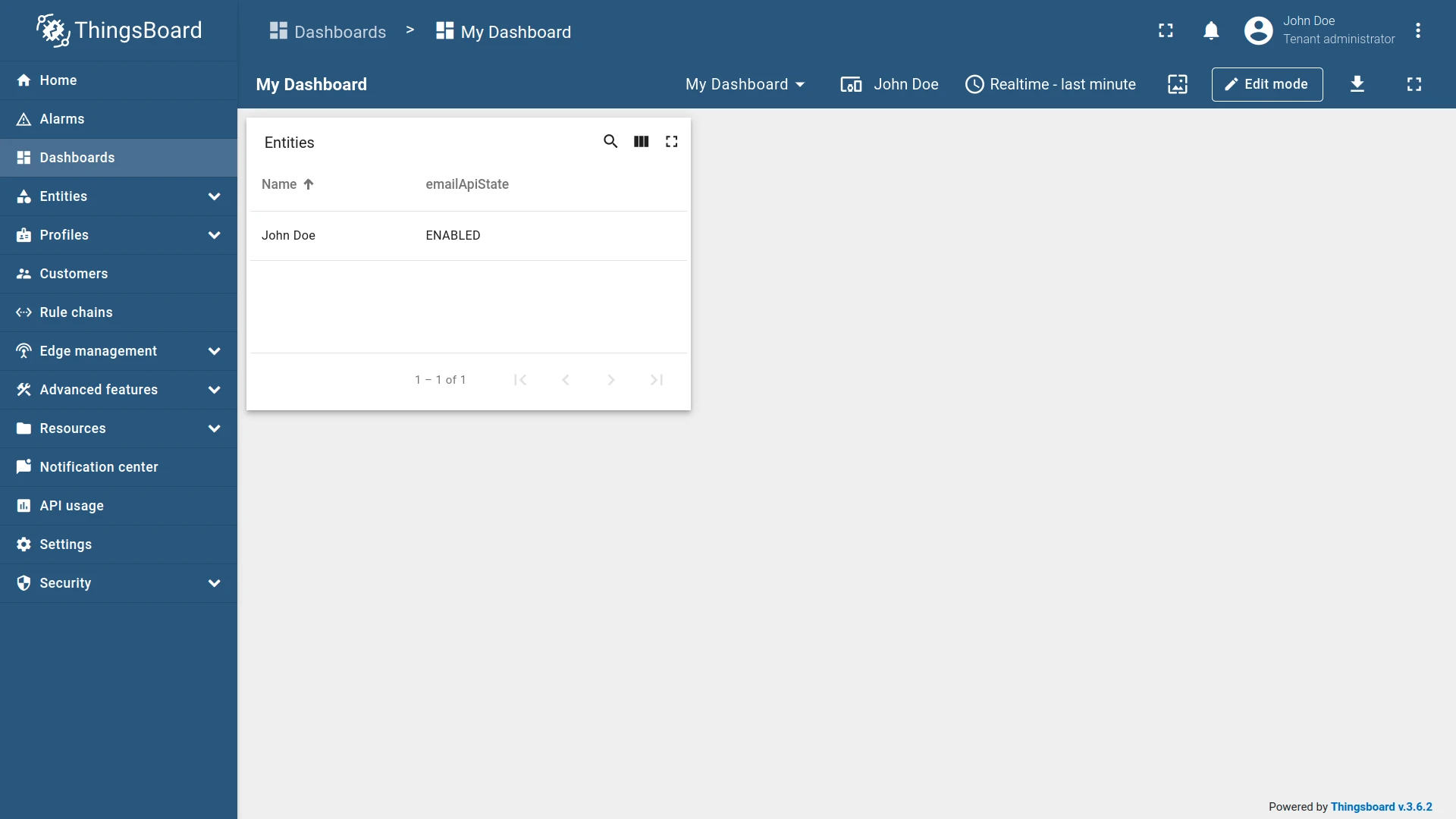
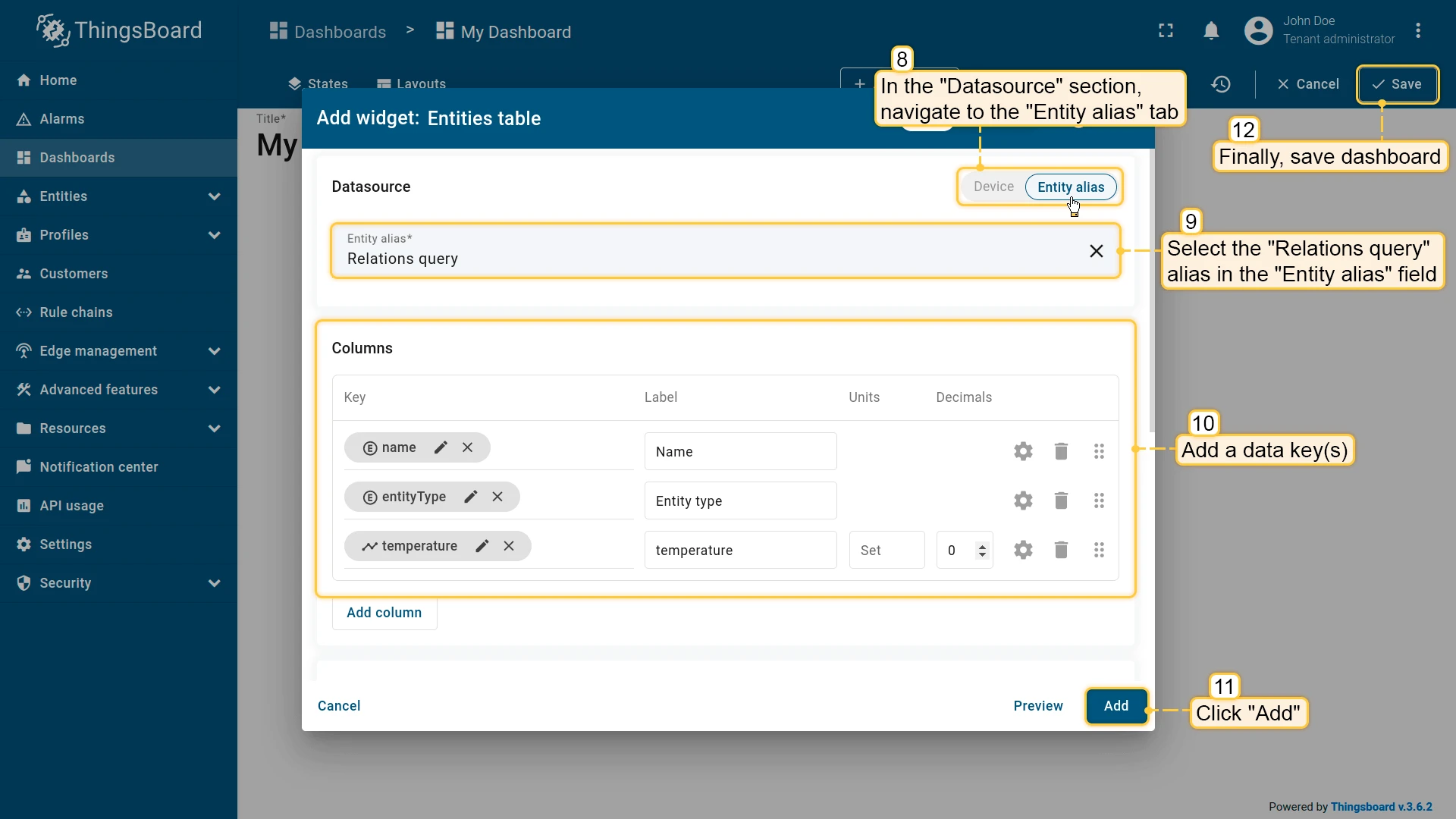
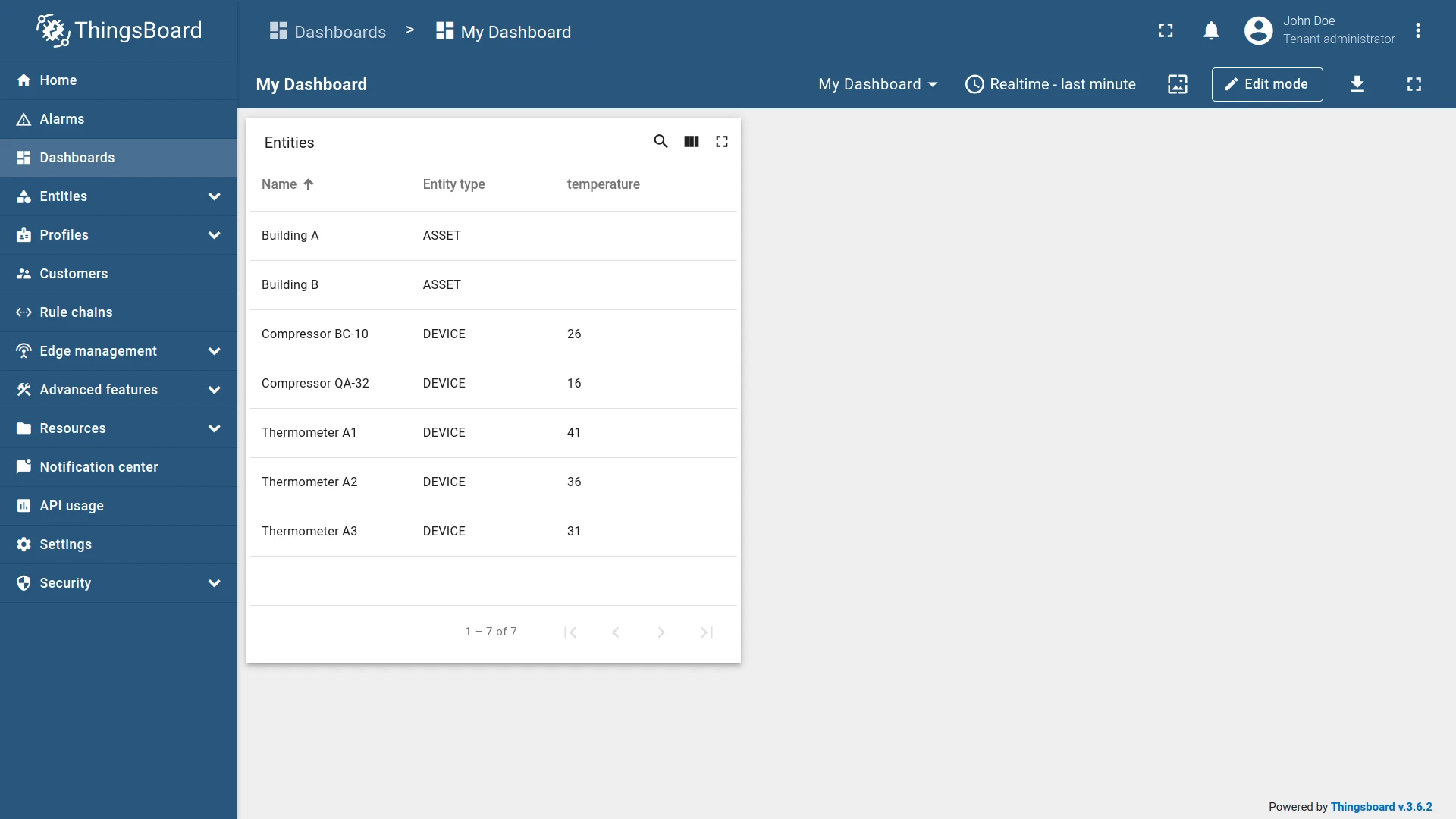
Relations query
Section titled “Relations query”Resolves to entities connected via relations to a root entity, up to a specified depth and in a specified direction.
Configuration:
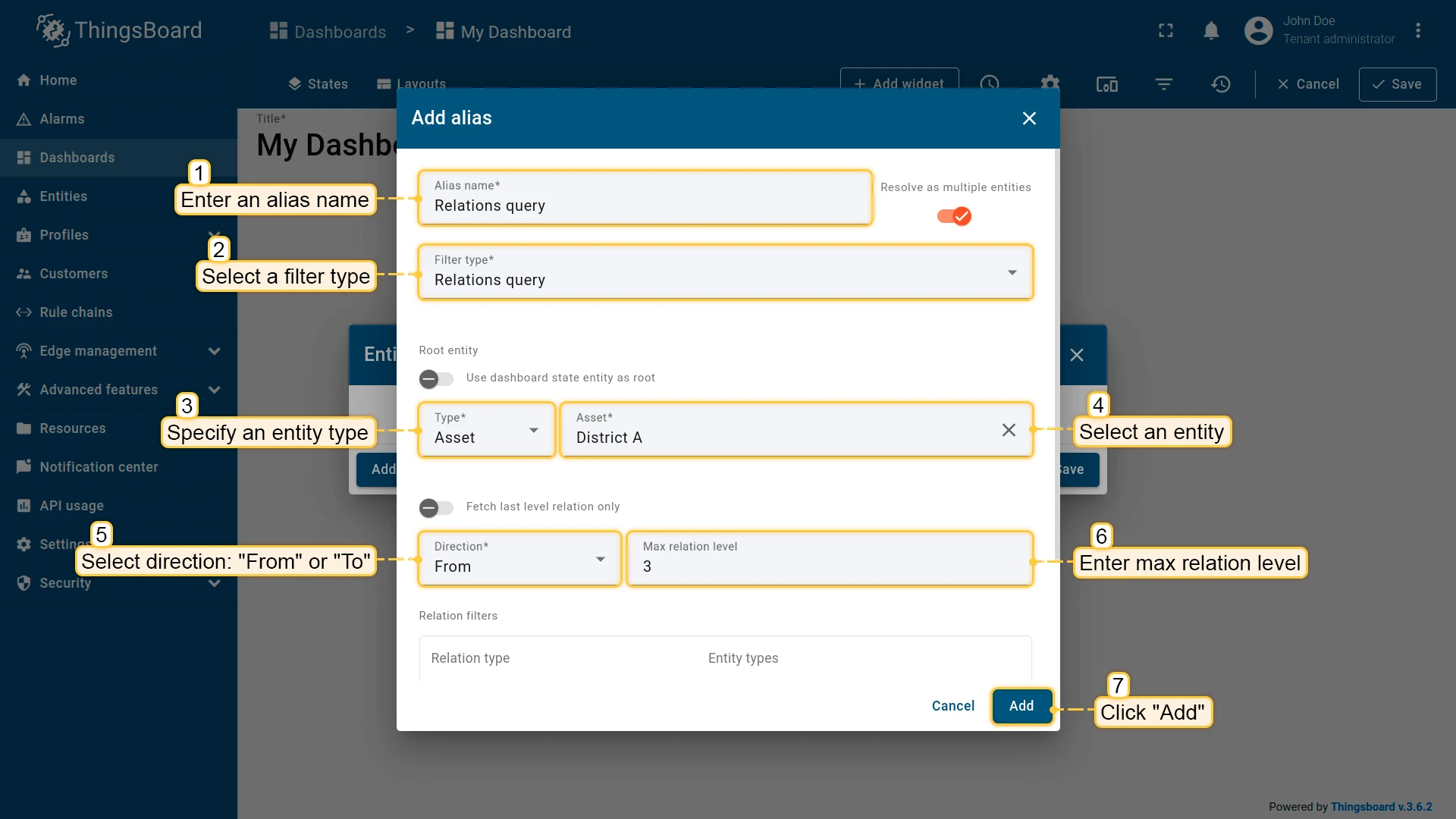
Example: An alias resolving to all entities related to a root entity, up to a specified depth.
Asset search query
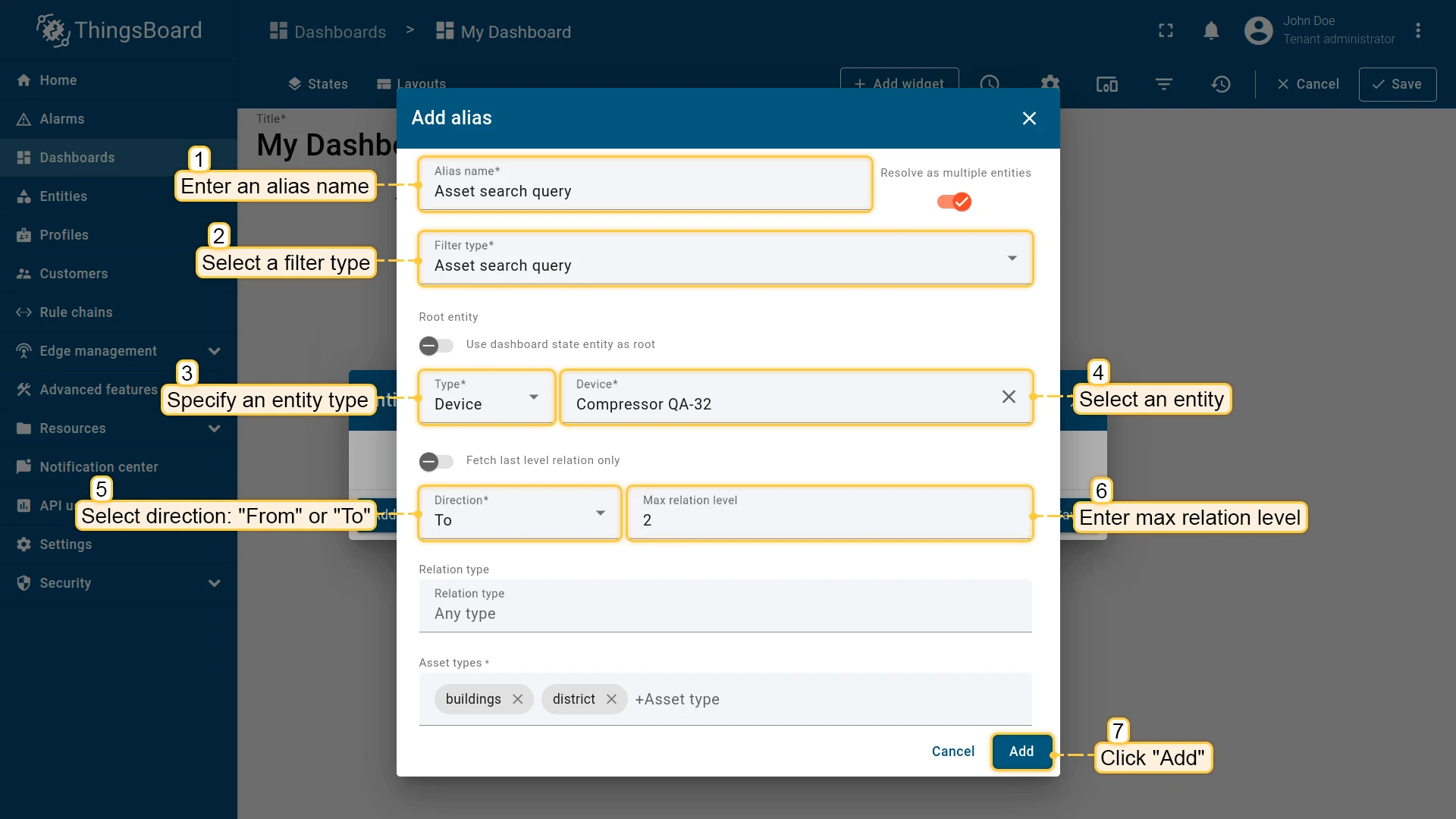
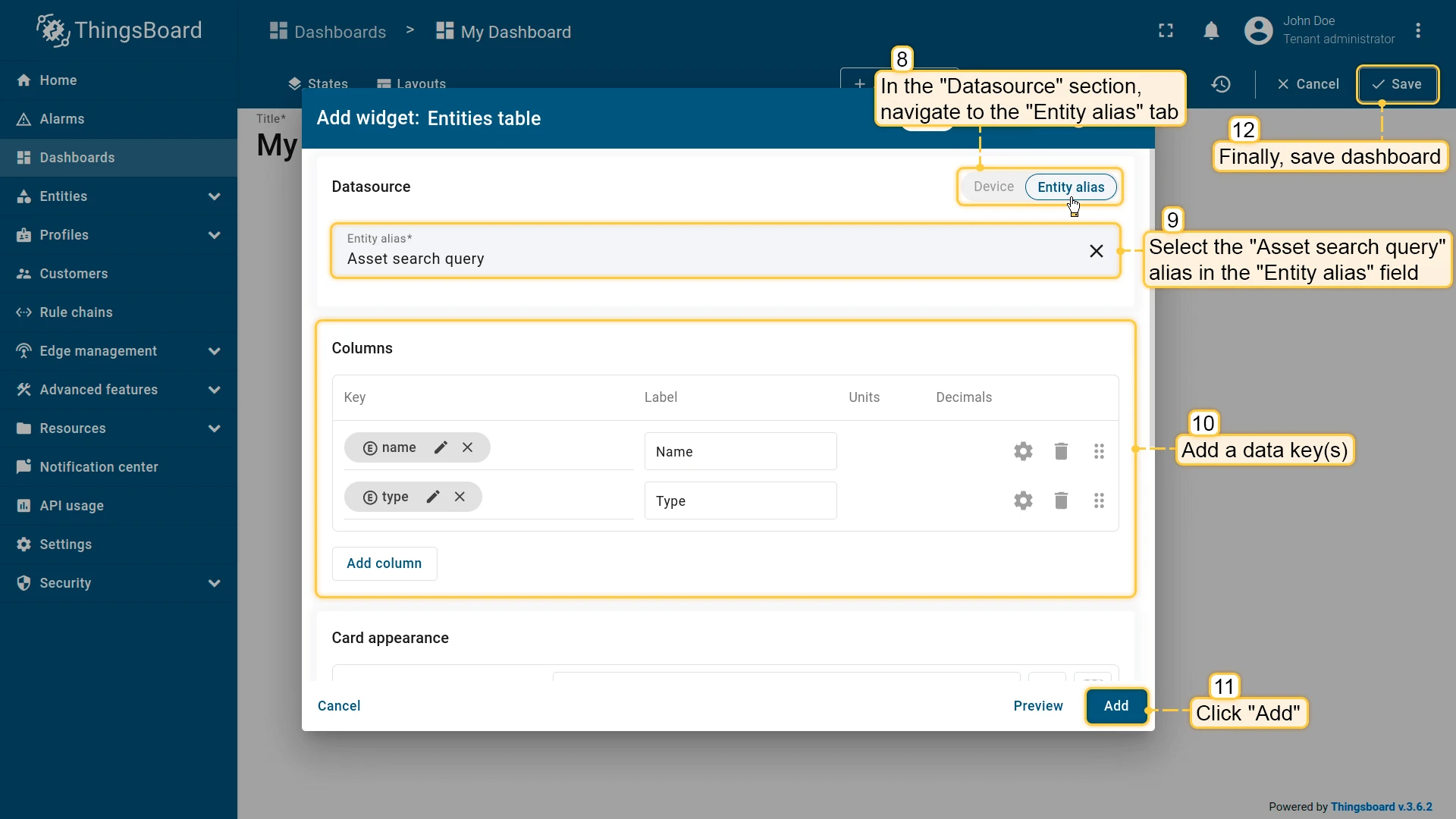
Section titled “Asset search query”Resolves to assets of specified profiles connected via relations to a root entity, up to a specified depth and direction.
Configuration:
Example: An alias resolving to assets of specified profiles related to a root entity.
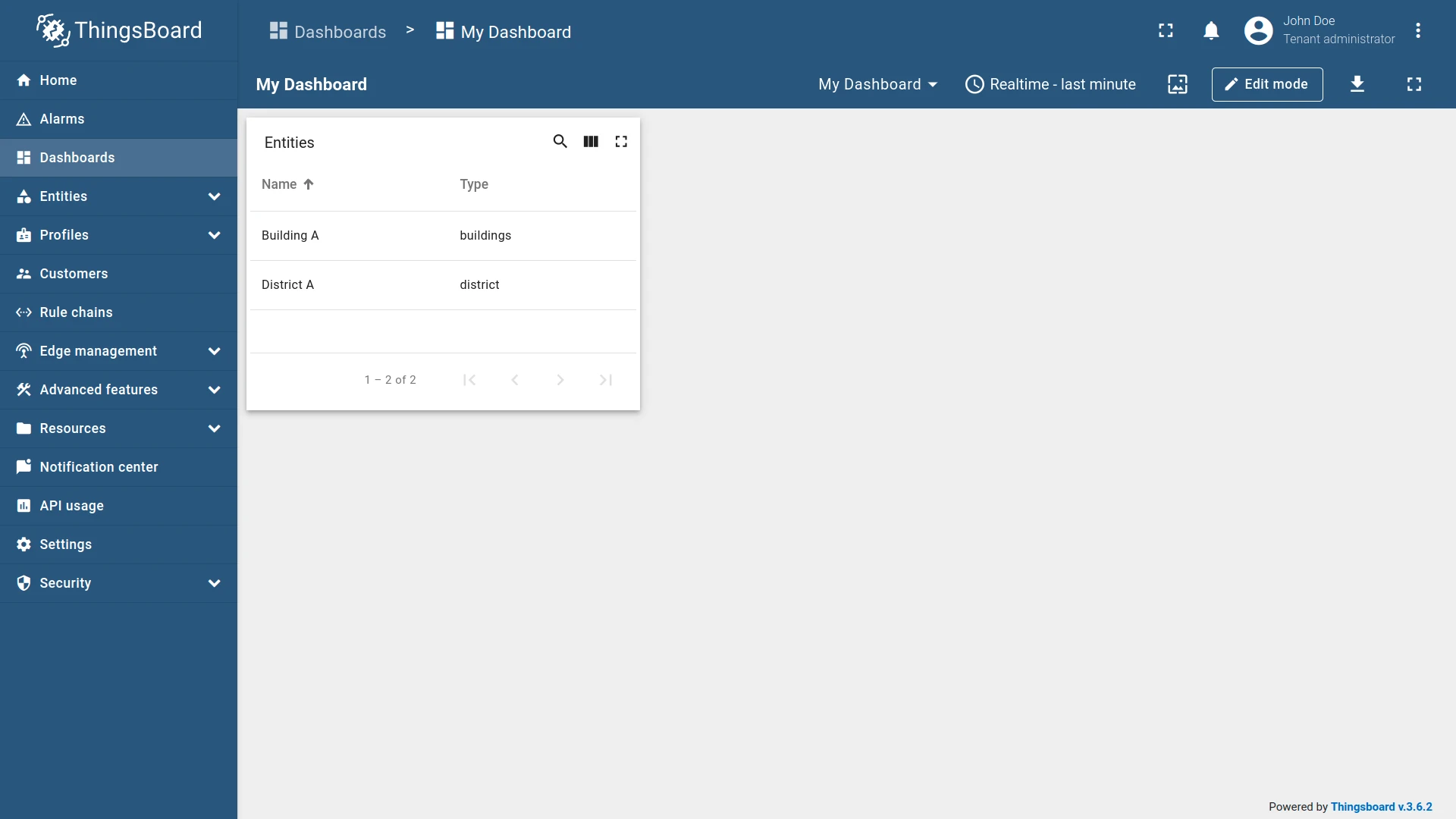
Device search query
Section titled “Device search query”Resolves to devices of specified profiles connected via relations to a root entity, up to a specified depth and direction.
Configuration:
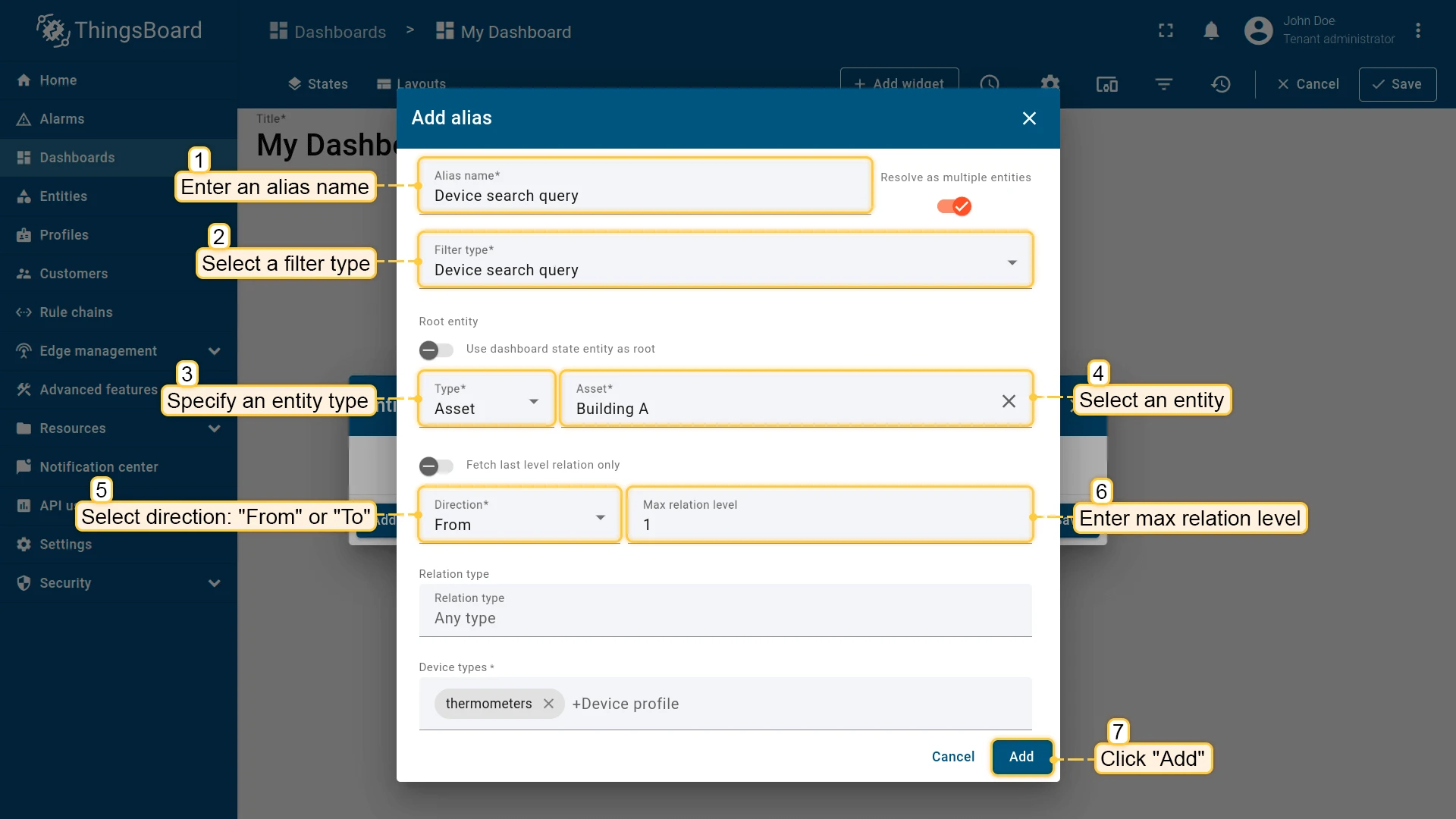
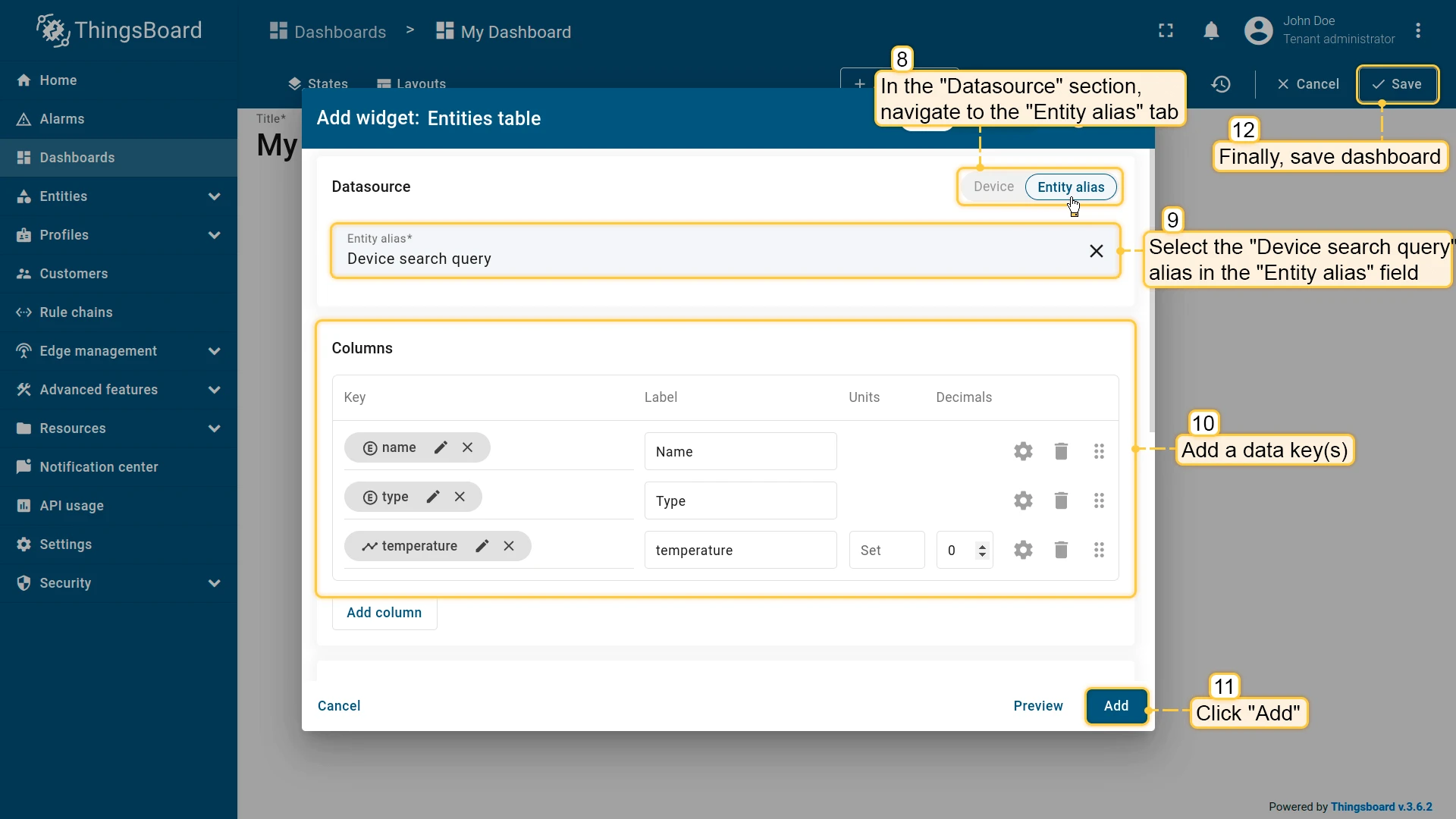
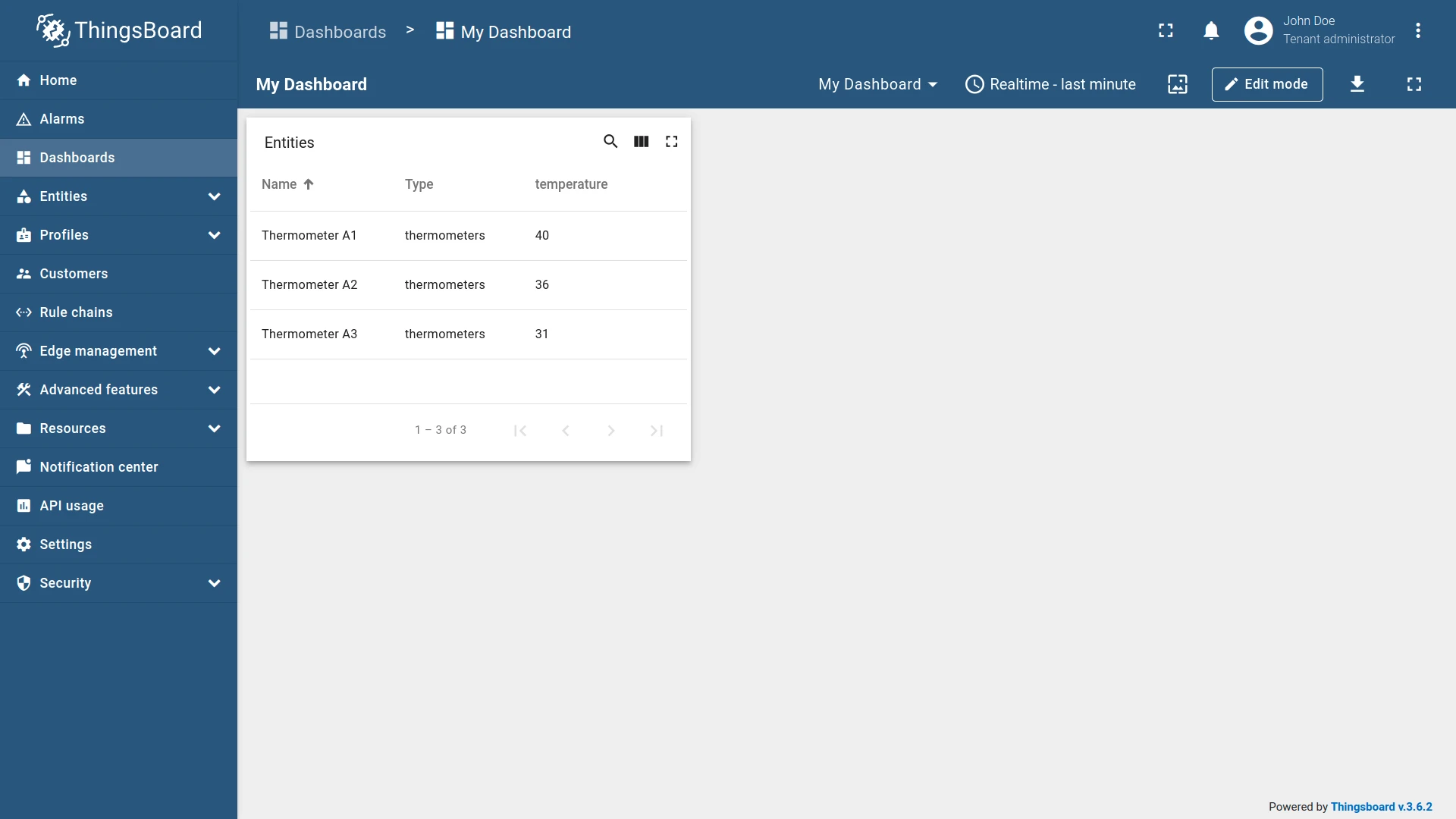
Example: An alias resolving to devices of specified profiles related to a root entity.
Entity view search query
Section titled “Entity view search query”Resolves to entity views of specified types connected via relations to a root entity, up to a specified depth and direction.
Configuration:
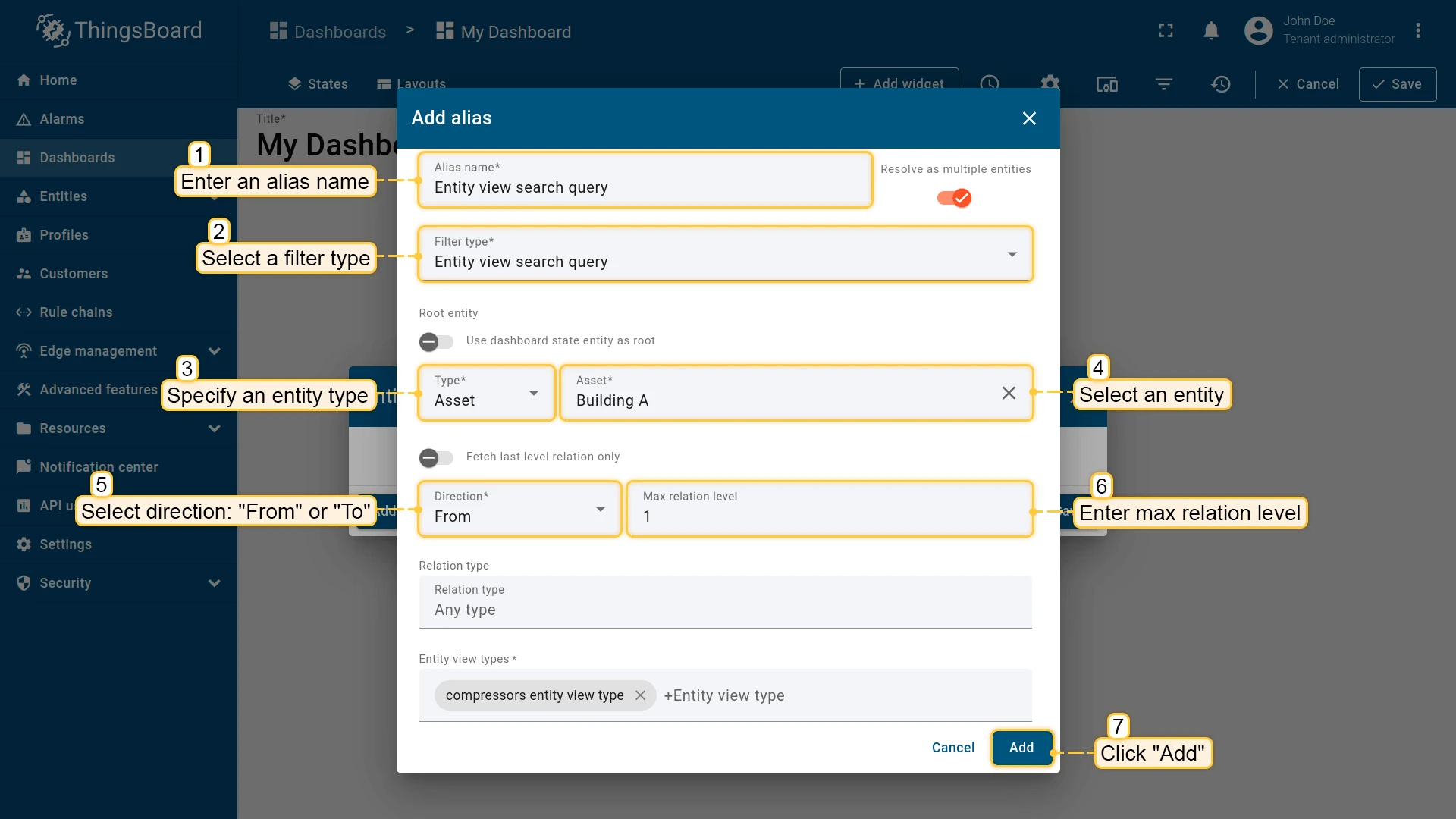
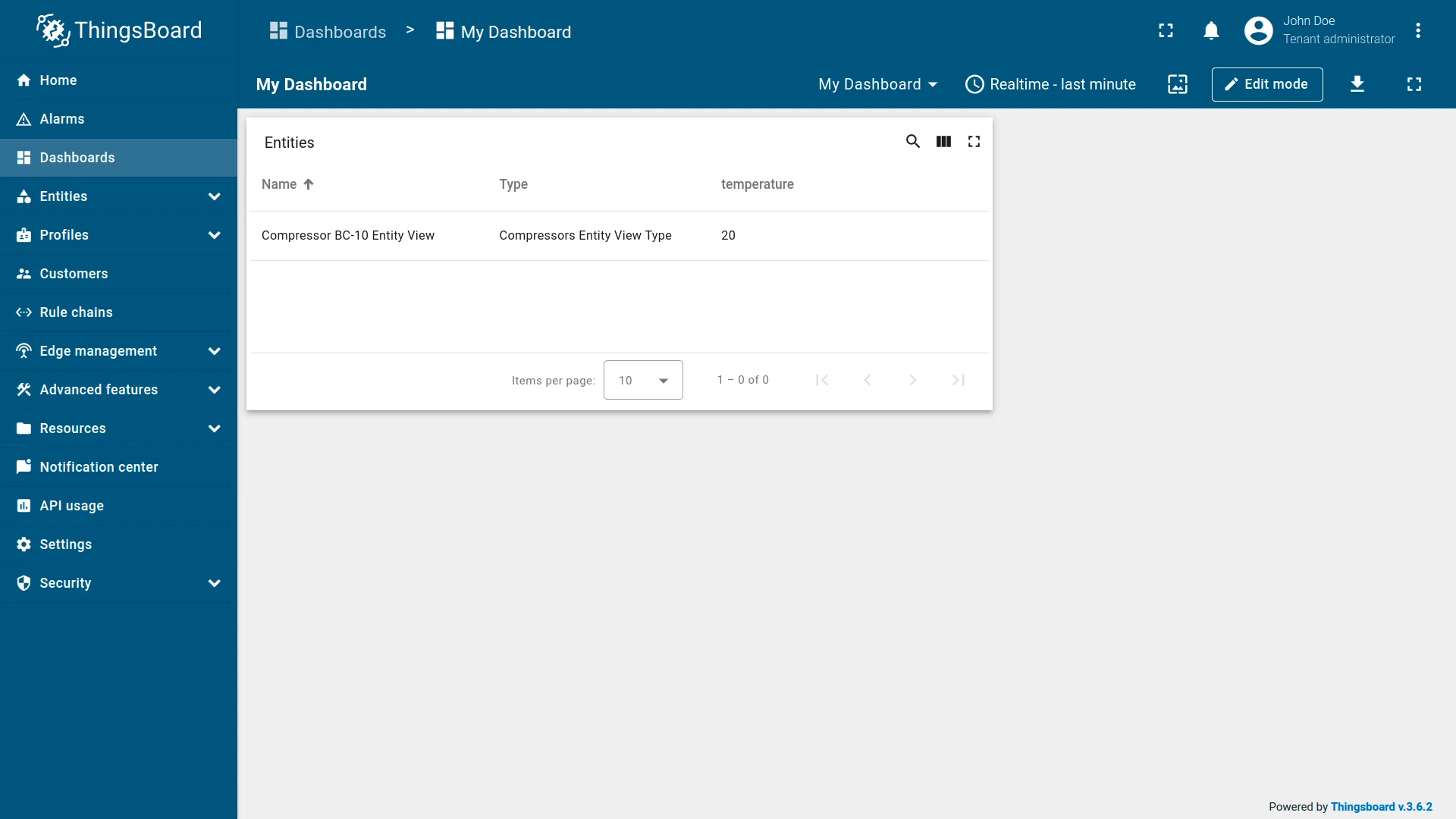
Example: An alias resolving to entity views of specified types related to a root entity.
Edge search query
Section titled “Edge search query”Resolves to edges of specified types connected via relations to a root entity, up to a specified depth and direction.
Configuration:
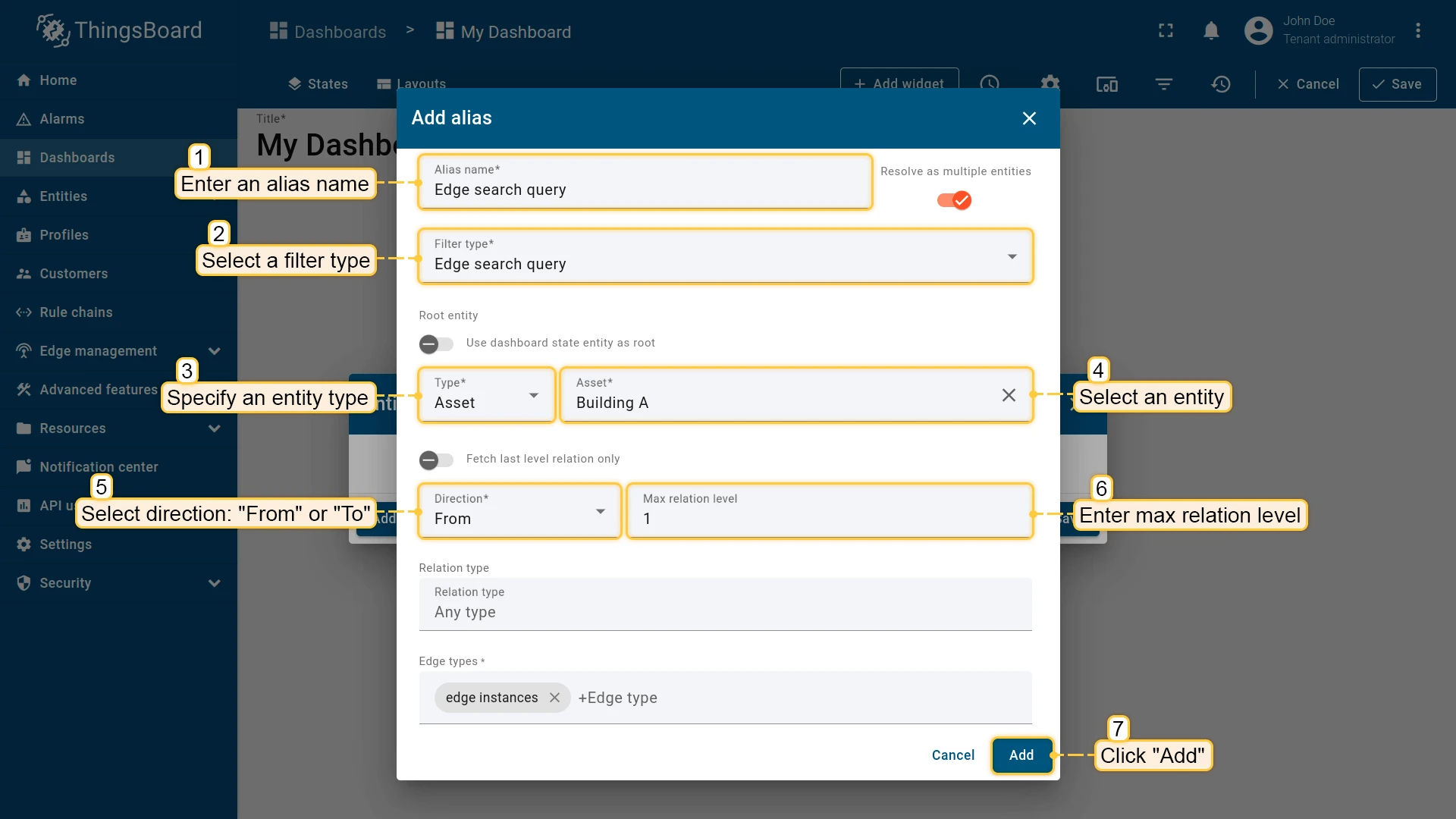
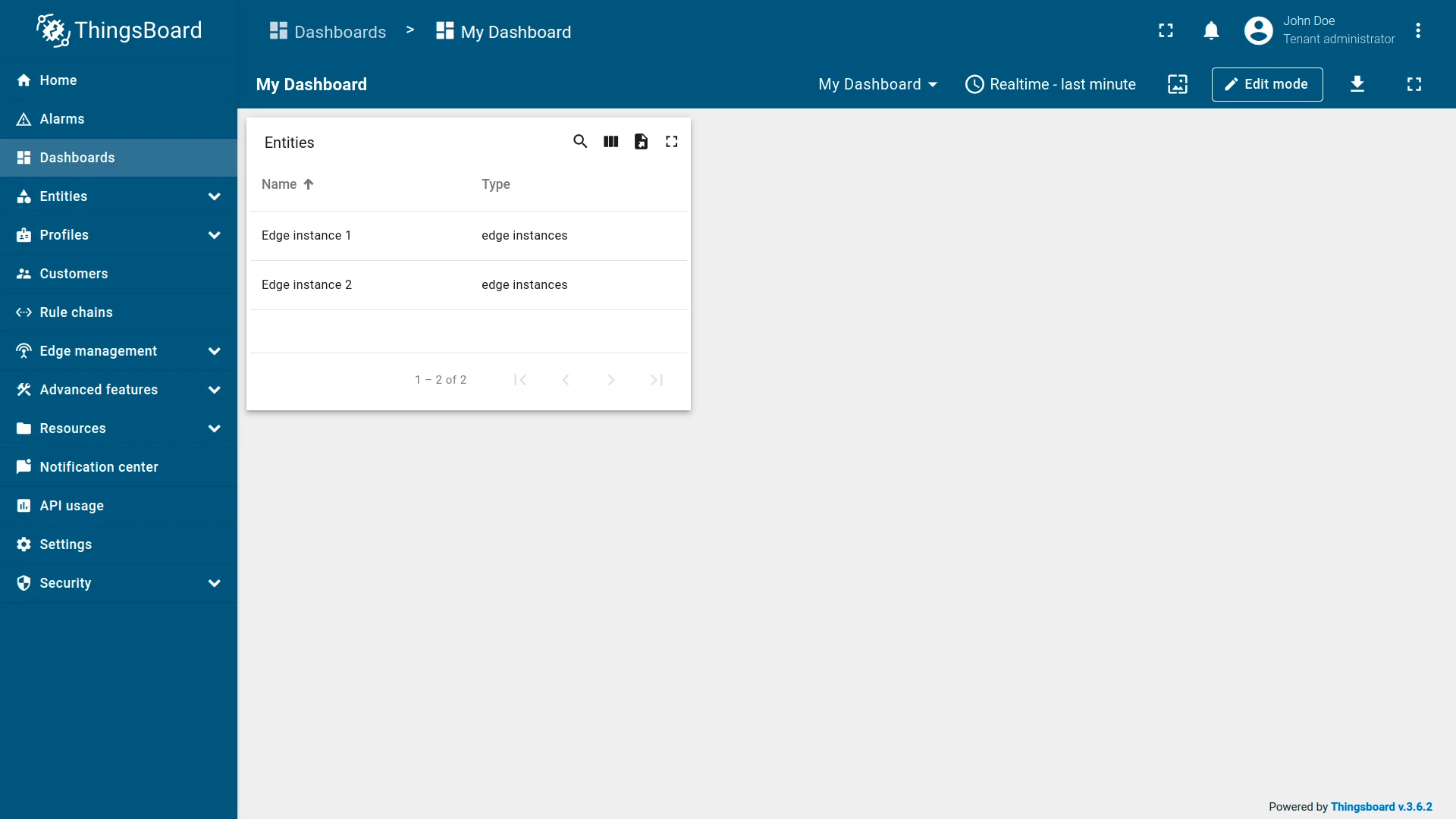
Example: An alias resolving to edges of specified types related to a root entity.
Was this helpful?