
This guide explains how to configure ThingsBoard to automatically send email notifications to users when an alarm is created.
It extends the Create and Clear Alarms use case by using the Notification Center to deliver alarm-based email notifications.
Use case
Assume your refrigeration equipment periodically reports temperature telemetry to ThingsBoard.
- Normal operating temperature range: 2 °C to 5 °C
- Any value outside this range is considered an abnormal condition.
When this condition is met:
- An alarm is created by the alarm rules.
- An email notification is sent to the responsible users.
This setup ensures timely awareness and faster response to critical equipment issues.
Prerequisites
Before proceeding, make sure that you have completed the following steps:
- Completed the Create and Clear Alarms tutorial and already configured alarm creation and clearing rules.
- Added at least one Customer User who will receive alarm notifications.
- Configured a mail server, which is required for delivering email notifications.
It is also recommended to review the following ThingsBoard documentation:
- Notification center - learn how to configure notification delivery and recipients
- Alarm rules - learn how to define alarm trigger conditions
These concepts are essential for understanding and correctly configuring the solution described below.
Configure Notification Center
The Notification Center is responsible for delivering notifications to users.
It consists of three core components:
- Recipients – define who will receive notifications.
- Templates – define the notification content and delivery method.
- Rules – define the conditions under which notifications are sent.
All three components must be configured to enable alarm-based notifications.
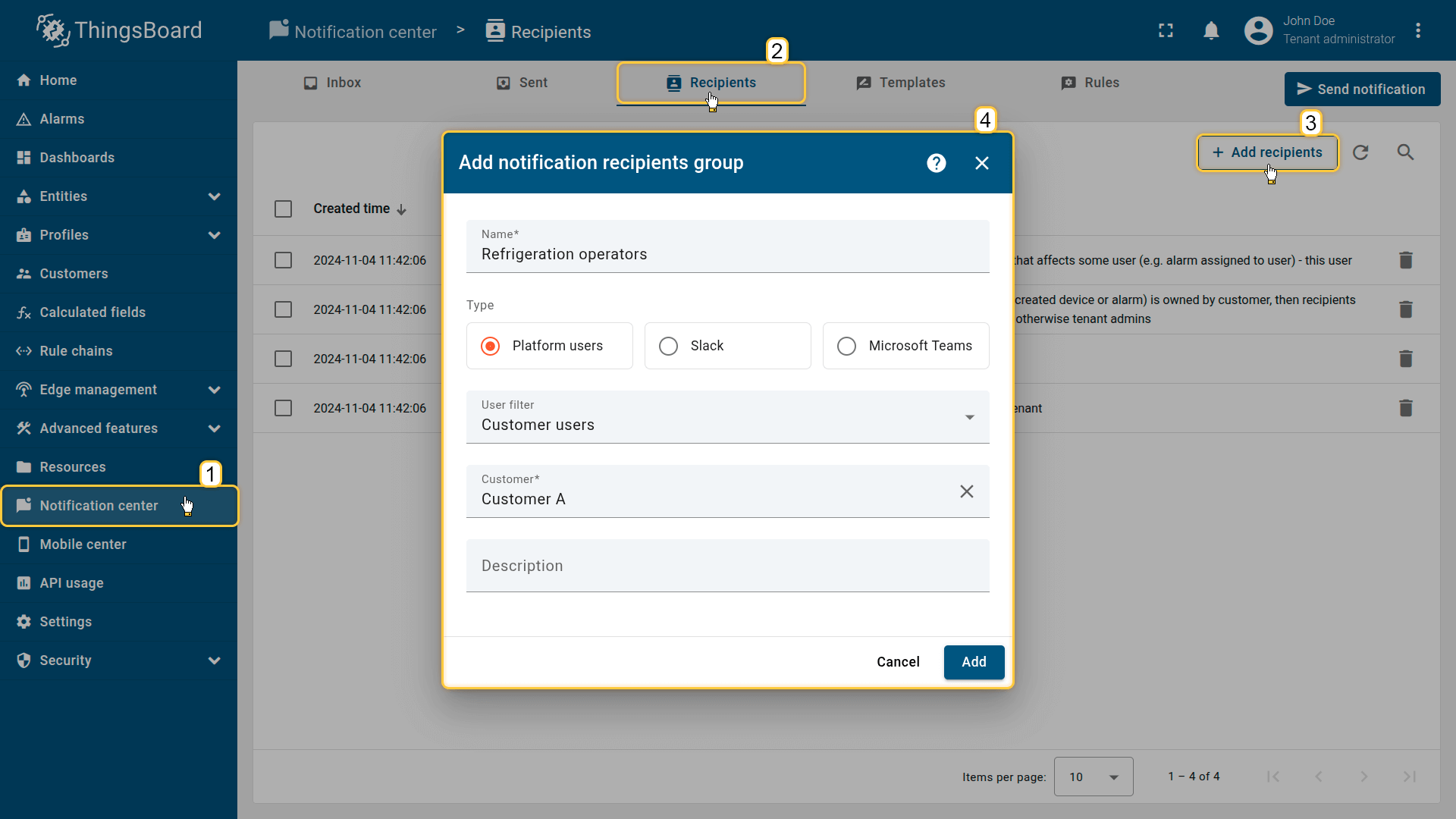
Step 1: Configure notification recipients
The Recipients section defines the target users who will receive notifications.
- Navigate to Notification Center ⇾ Recipients.
- Click + Add recipient.
- Configure the recipient group:
• Name: Refrigeration operators
• Type: Platform users
• User filter: Customer users
• Customer: Customer A (specify your customer) - Click Add.
Customer A represents all customer users responsible for monitoring the refrigeration equipment.
Step 2: Create notification template
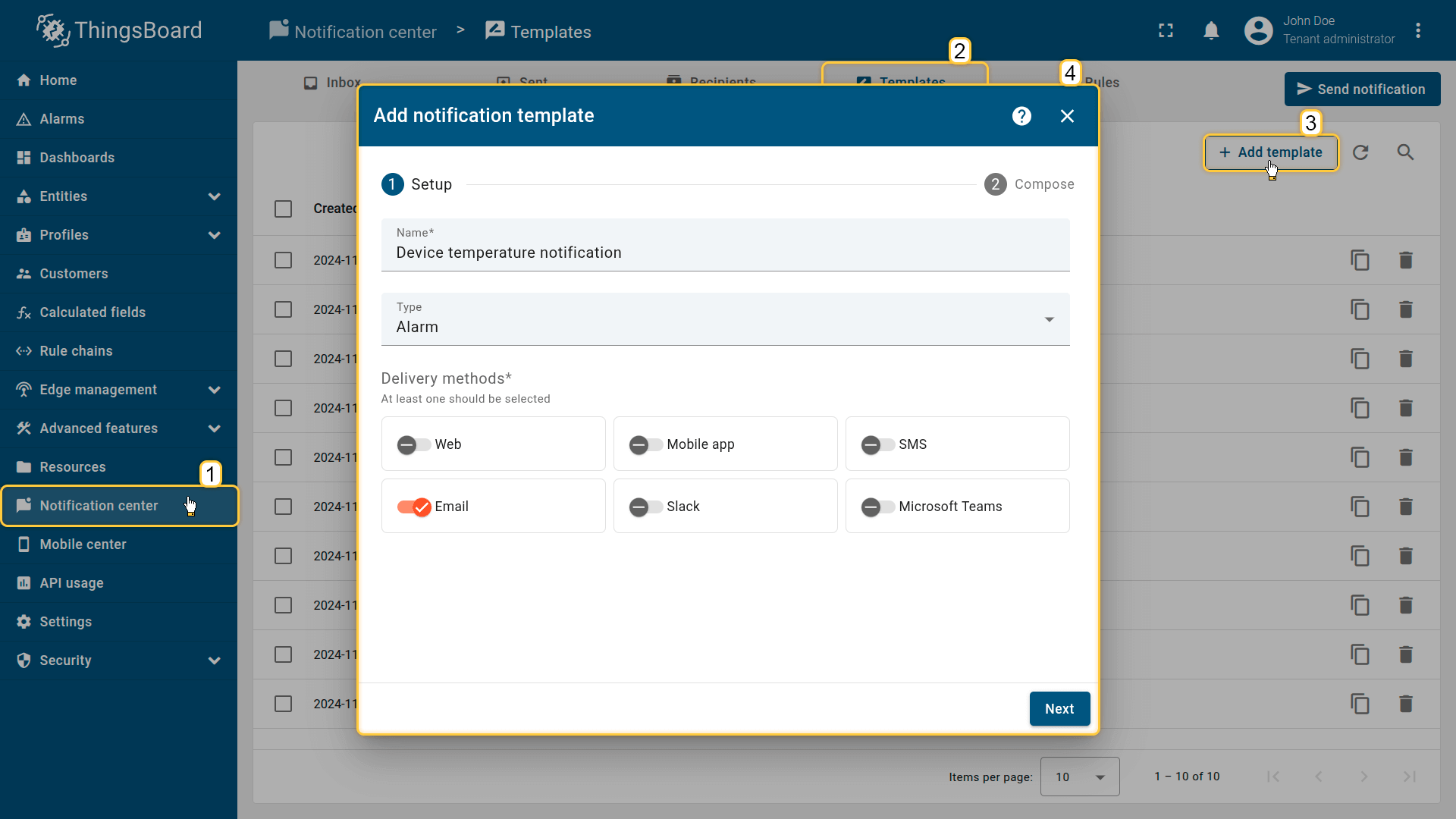
Templates define the notification content and delivery method.
- Navigate to Notification Center ⇾ Templates.
- Click + Add template.
- Configure general settings:
• Name: Device temperature notification
• Type: Alarm
• Delivery methods: Email - Click Next.
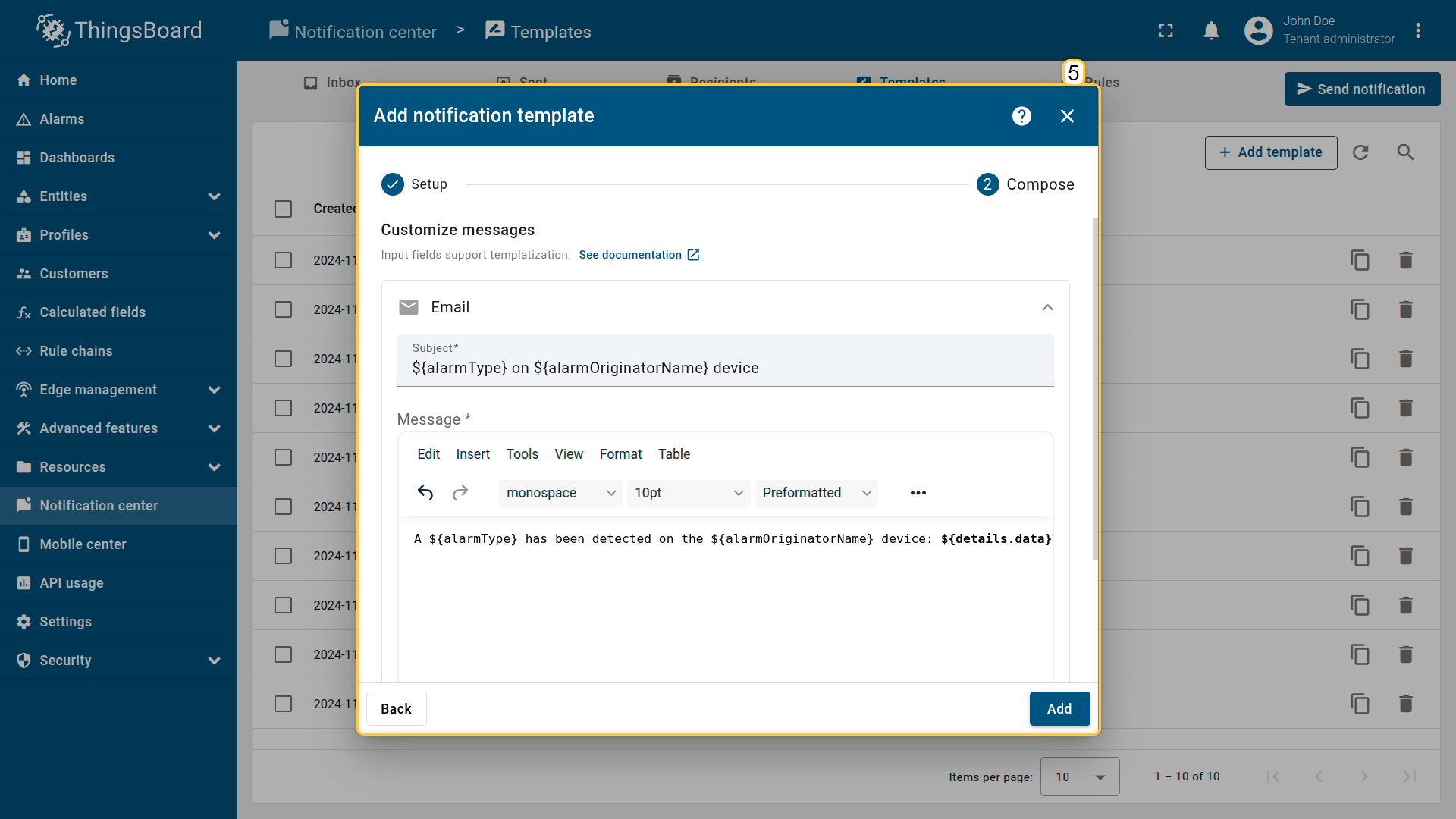
- Define the email content:
• Subject1
${alarmType} on ${alarmOriginatorName} device• Message
1
A ${alarmType} has been detected on the ${alarmOriginatorName} device: ${details.data} °C.
Template variables:
• ${alarmOriginatorName} – name of the device that triggered the alarm.
• ${details.data} – alarm details populated by the alarm rule. - Click Add to save the template.
Step 3: Create notification rule
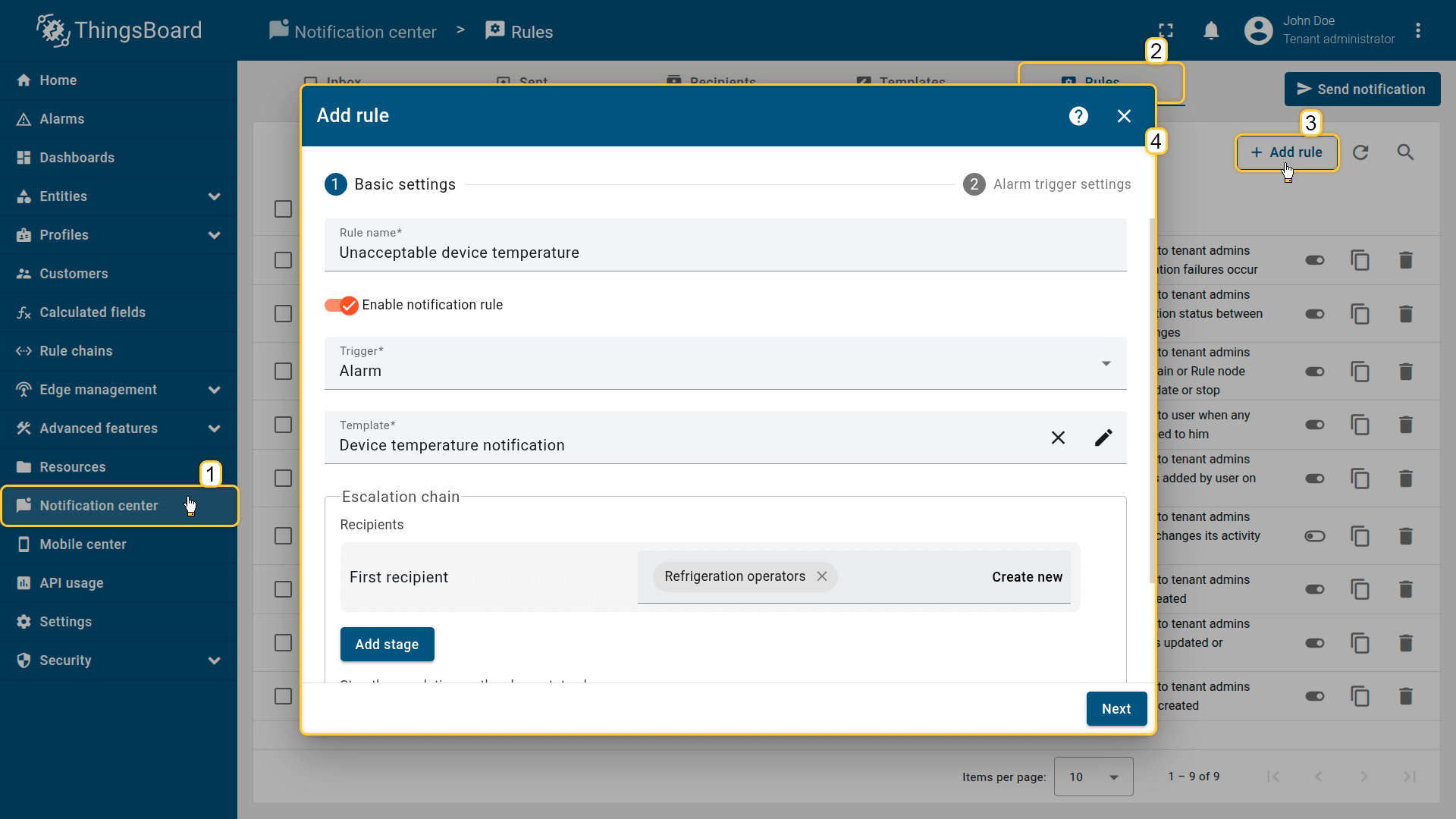
Notification rules define when notifications are sent and which components are used.
- Navigate to Notification Center ⇾ Rules.
- Click + Add rule.
- Configure rule parameters:
• Rule name: Unacceptable device temperature
• Trigger: Alarm
• Template: Device temperature notification
• Recipients: Refrigeration operators - Click Next.
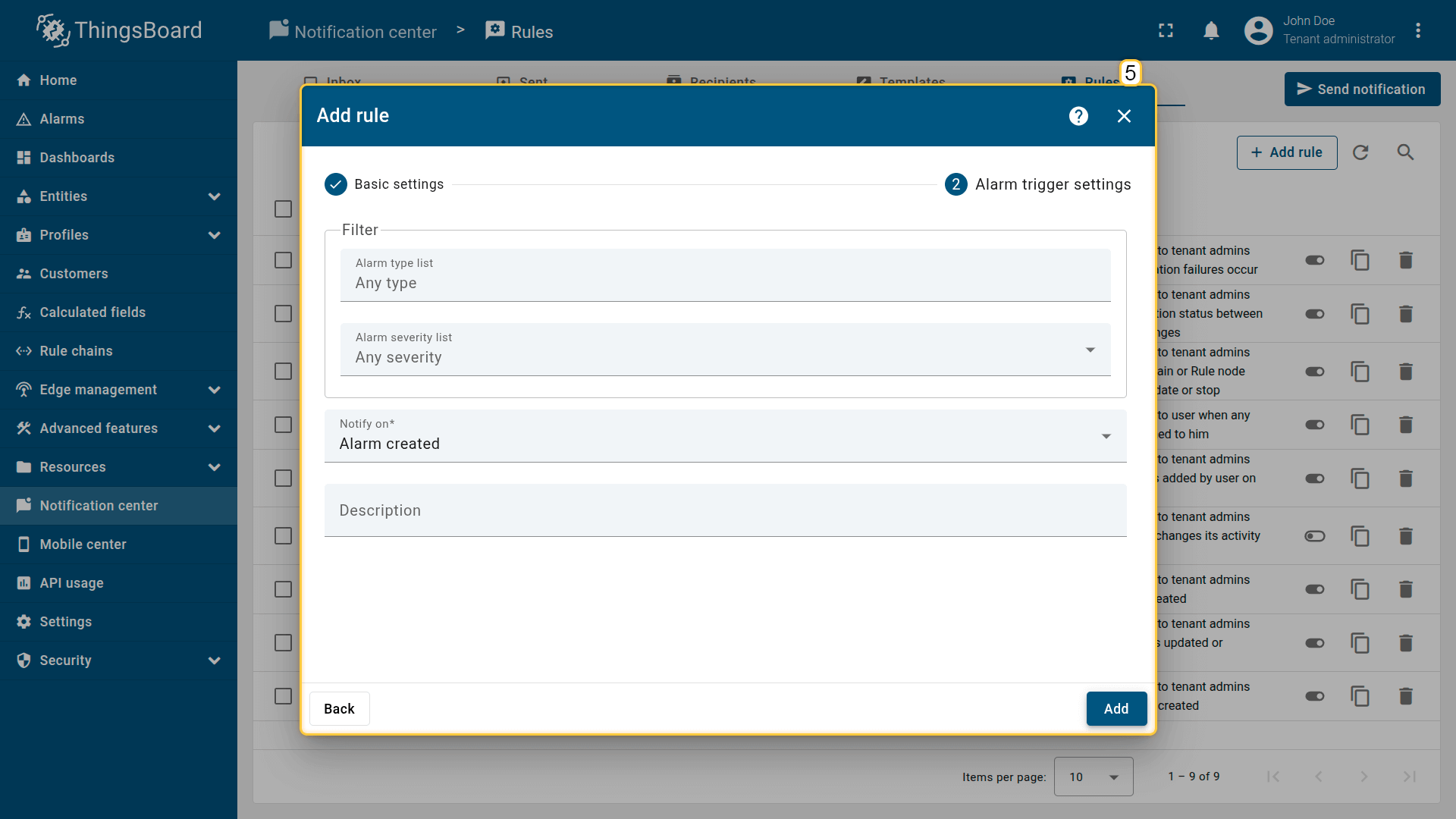
- Configure trigger conditions:
• Alarm type list: Any type
• Alarm severity list: Any severity
• Notify on: Alarm created - Click Add.
This rule ensures that an email is sent only when a new alarm is created.
Verification
To verify the configuration, publish telemetry that exceeds the defined temperature threshold.
Publish test telemetry
Example: publish a temperature value of 7 °C, which should trigger a high temperature alarm.
1
curl -v -X POST http://$THINGSBOARD_HOST_NAME/api/v1/$ACCESS_TOKEN/telemetry --header Content-Type:application/json --data "{temperature:7}"
⚠️ Replace
• $THINGSBOARD_HOST_NAME with your ThingsBoard hostname or IP address.
• $ACCESS_TOKEN with the device access token.
Expected result
- A new alarm is created for the device.
- The email notification is sent to all users of Customer A.
- The email contains the device name and reported temperature value.
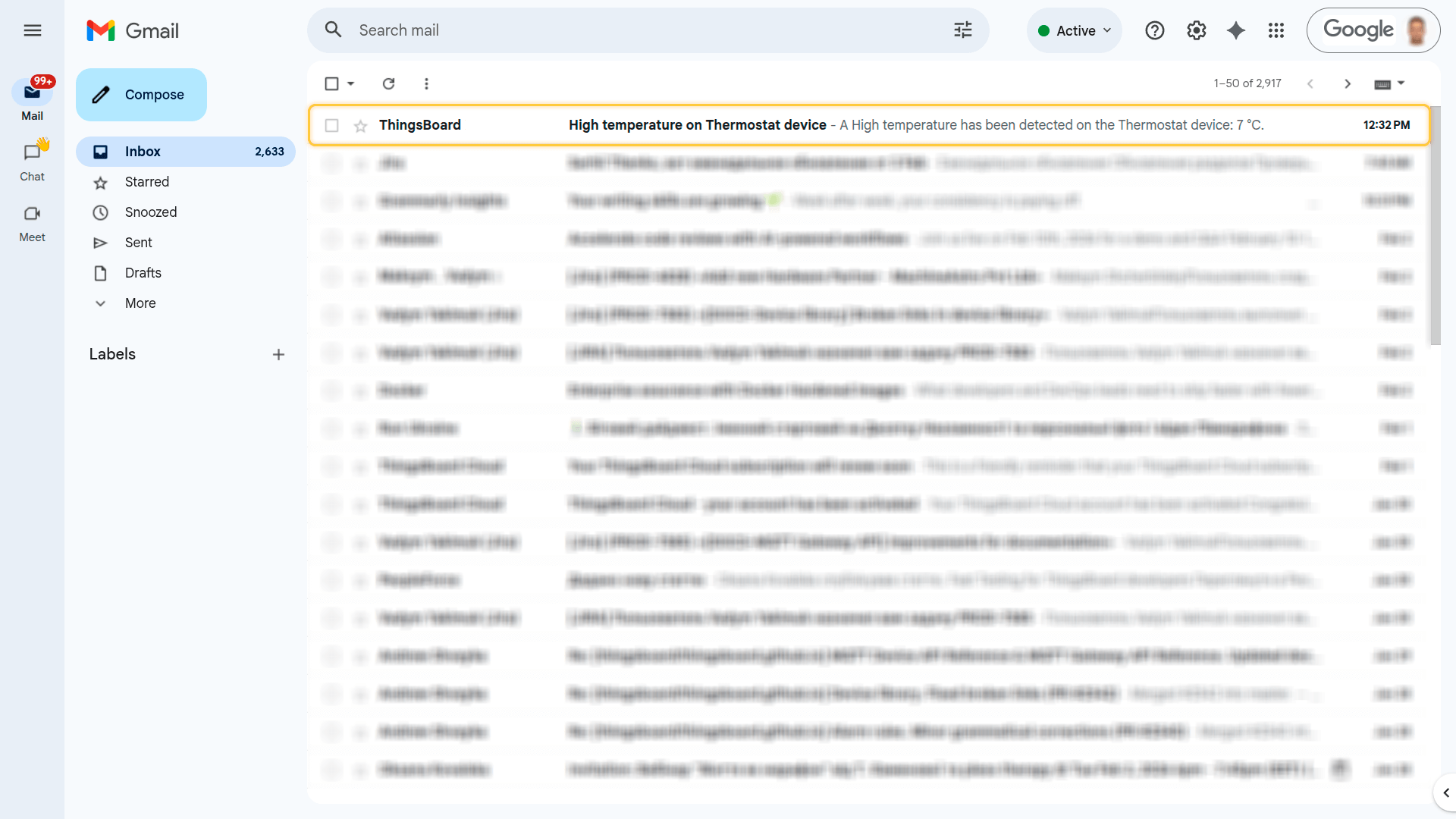
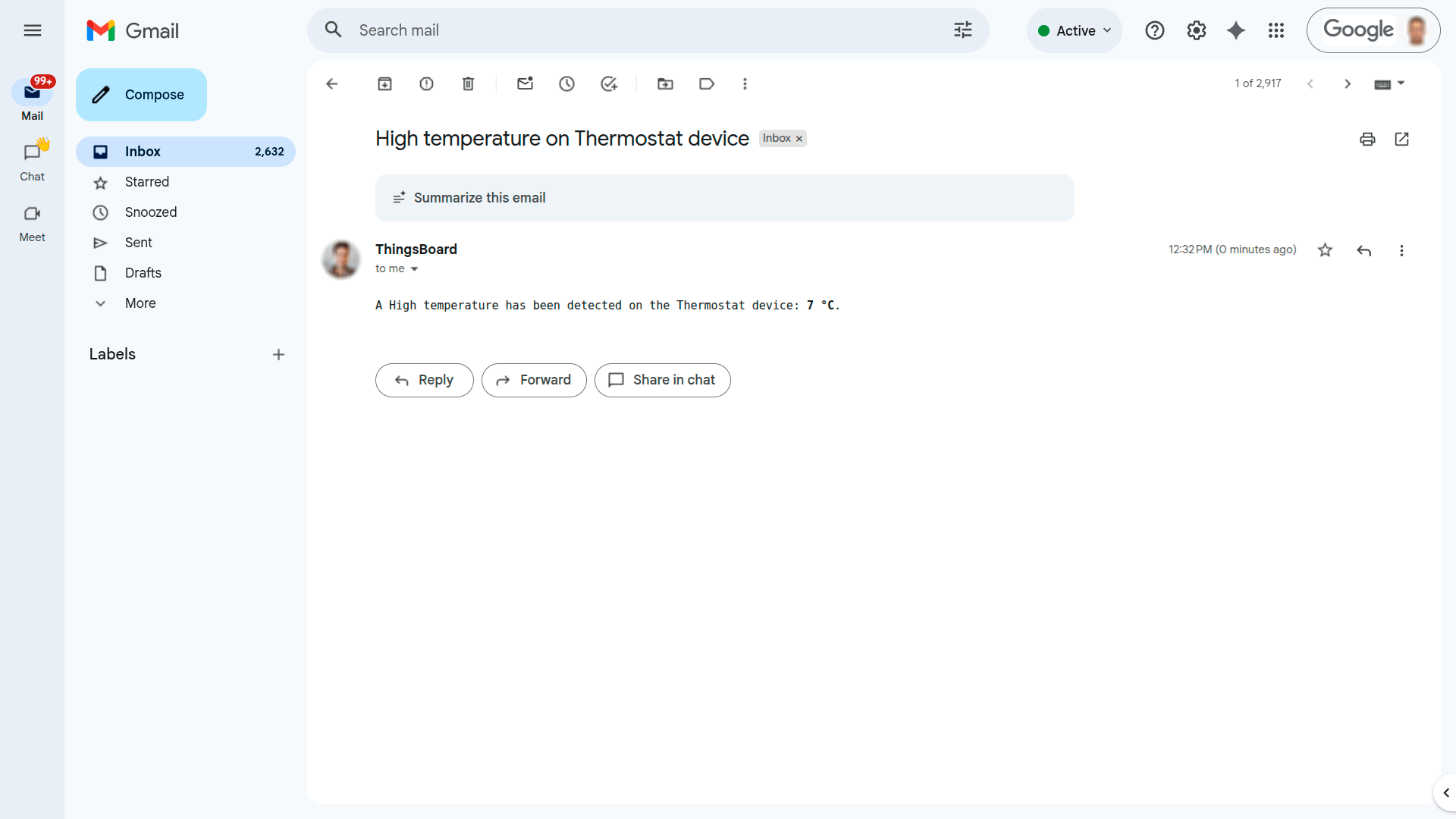
If no email is received, check the Spam folder and verify mail server settings.
Email notifications are sent only when an alarm is created, not when an existing alarm is updated.
See Also
- Send email to customer guide.
- Create Alarm when the Device is offline guide.
- Create alarm with details guide.
Next steps
-
Getting started guides - These guides provide quick overview of main ThingsBoard features. Designed to be completed in 15-30 minutes.
-
Connect your device - Learn how to connect devices based on your connectivity technology or solution.
-
Data visualization - These guides contain instructions on how to configure complex ThingsBoard dashboards.
-
IoT Data analytics - Learn how to use rule engine to perform basic analytics tasks.
-
Advanced features - Learn about advanced ThingsBoard features.
-
Contribution and Development - Learn about contribution and development in ThingsBoard.