
Script calculated fields use TBEL (ThingsBoard Expression Language) to perform advanced, real-time computations on telemetry and attributes. Unlike Simple fields, Script fields support conditional logic, iteration over rolling time-series values, working with historical windows, and returning multiple results in a single execution.
Use “Script” calculated fields when you need logic that goes beyond a single math expression, such as:
- Multi-step calculations (e.g., dew point, air density, efficiency metrics)
- Conditional rules (e.g., generate status flags based on multiple inputs)
- Multi-output results (e.g., compute several derived values at once)
- Event-like telemetry generation (e.g., produce anomaly records with timestamps)
- Rolling analytics using historical windows (e.g., rolling average, trend detection, smoothing)
Configuration
Open the create calculated field dialog and specify:
- the calculated field title,
- the entity or entity profile to which the calculated field will be applied,
- Select “Script” as a calculated field type.
Arguments
Arguments define which data sources and keys are passed into the script. For Script calculated fields, arguments can be Latest telemetry, Attribute, or time series rolling).
The data source can be Current entity, another Device/Asset, the Customer, the Current tenant, or the Current owner.
For details about argument types and parameters, see the Arguments section in the Calculated fields documentation.
Script
Define the calculation logic using a TBEL function based on the variables configured in Arguments.
Script calculated fields must implement:
1
function calculate(ctx, arg1, arg2, ...): object | object[]
The function can return a single JSON object (multiple output keys) or an array of JSON objects (multiple time series records).
The output variable names are defined directly in the returned object.
Example: Dew point calculation
1
2
3
4
5
6
7
8
// Constants for Magnus formula
var a = 17.625;
var b = 243.04;

var alpha = ((a * temperature) / (b + temperature)) + Math.log(humidity / 100.0);
var dewPoint = toFixed((b * alpha) / (a - alpha), 1);

return {"dewPoint": dewPoint};
The function uses the temperature and humidity arguments to calculate the dew point value. The calculation result will be stored in the variable dewPoint, rounding the value to one decimal places.
Direct argument access
Arguments are also passed as function parameters (arg1, arg2, …), so you can use them directly (for example, temperature, humidity) for cleaner scripts.
Use either direct parameters or
ctx.args.<arg>depending on clarity and your preferred style.
Context object (ctx)
The ctx object provides metadata and access to argument values:
ctx.latestTs— the most recent timestamp (milliseconds) from telemetry-based arguments. Useful for storing results with the same timestamp as incoming data.ctx.args— an object containing all configured arguments, accessible via dot (.) notation:- Single-value arguments (attributes or latest telemetry)
ctx.args.<arg>.ts— timestamp of the argument.ctx.args.<arg>.value— value of the argument.
- Rolling time series arguments
ctx.args.<arg>.timeWindow— object with start and end timestamps{ startTs, endTs }.ctx.args.<arg>.values— array of{ ts, value }records representing timestamped telemetry.ctx.args.<arg>.<method>()— built-in methods such asmean(),sum(),min(),max(),first(),last(),merge(), and others.
- Single-value arguments (attributes or latest telemetry)
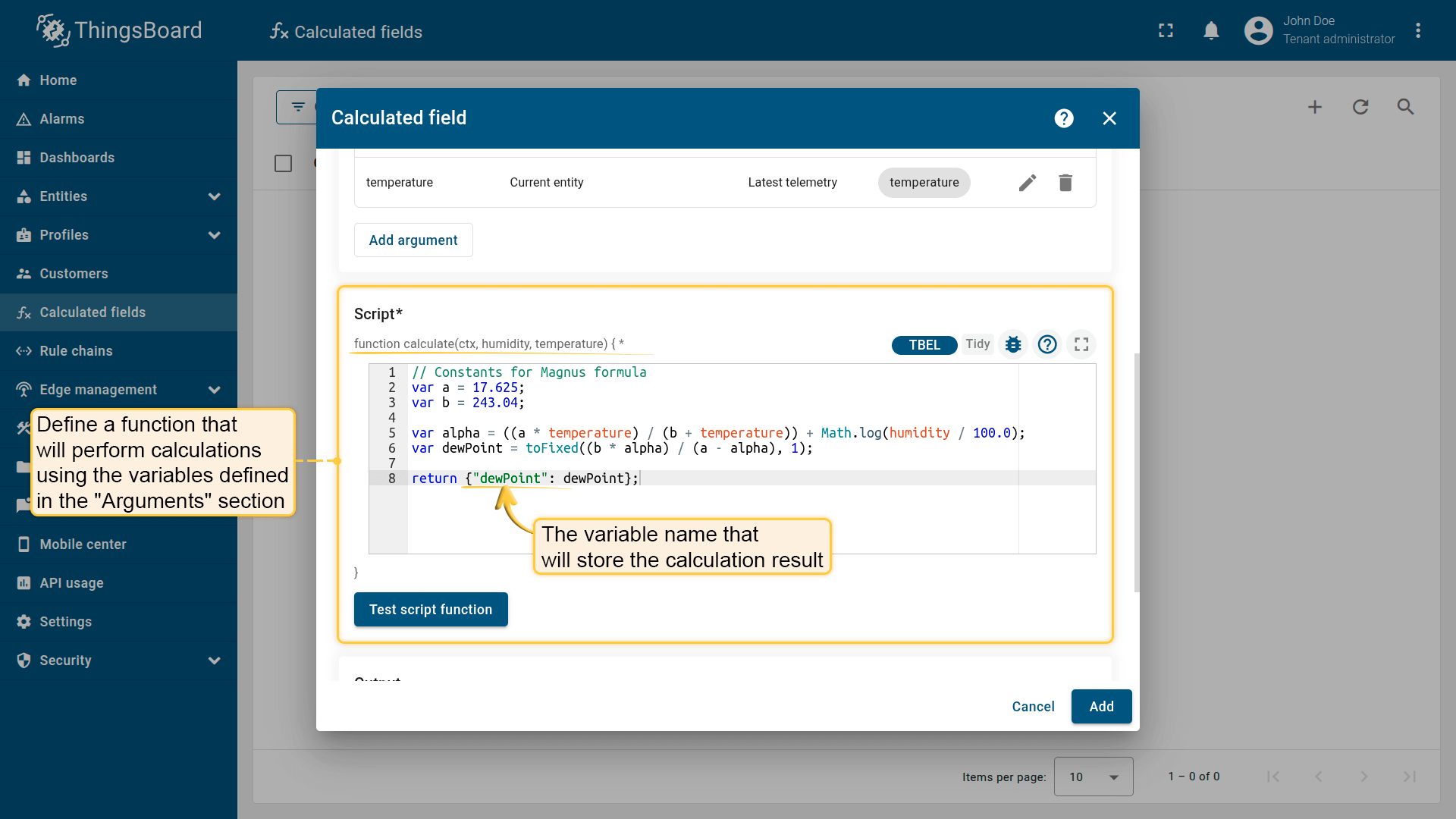
Define a function that will perform calculations using the variables defined in the “Arguments” section. The variable name that will store the calculation result is defined within the function itself.
Output
The calculation result is stored either as a time series or an attribute.
For more details about output types and processing strategies, see the Output section.
Examples
To help you get started, here are three common configuration patterns applied to real-world scenarios.
Example 1: Fahrenheit to Celsius
Scenario
A device reports indoor temperature in degrees Fahrenheit as telemetry under the temperatureF key.
Goal
Convert temperatureF to degrees Celsius, round to two decimal places, and store the result as telemetry under the temperatureC key using the same timestamp as the incoming data.
Calculated field configuration
Download the “Fahrenheit to Celsius” calculated field configuration (JSON).
Configuration steps
1. Import demo device
Import a device that publishes temperature telemetry.
- Download the CSV file: fahrenheit-to-celsius-calculation-device-data.csv
- Go to the “Devices” and import the CSV file.
CSV includes:
- Name: Smart Device
- Type: smart-device
- Time series: temperatureF
Important note about the CSV: the column type for the temperatureF key must be set to “Time series”.

Import a device that publishes temperature telemetry.
2. Apply the calculated field to the device profile
- Download the calculated field configuration file (JSON).
- Go to the “Calculated fields” tab and import the configuration.
Apply a calculated field to the “smart-device” profile, which is automatically created during device import. This field will apply to all devices associated with this profile.
This configuration reads temperatureF, converts it to Celsius, and stores the result as temperatureC.
Script used in this example:
function calculate(ctx, altitude, temperature) {
1
2
3
4
5
6
7
var temperatureC = (temperatureF - 32) / 1.8;
return {
    "ts": ctx.latestTs,
    "values": {
        "temperatureC": toFixed(temperatureC, 2)
    }
}
}
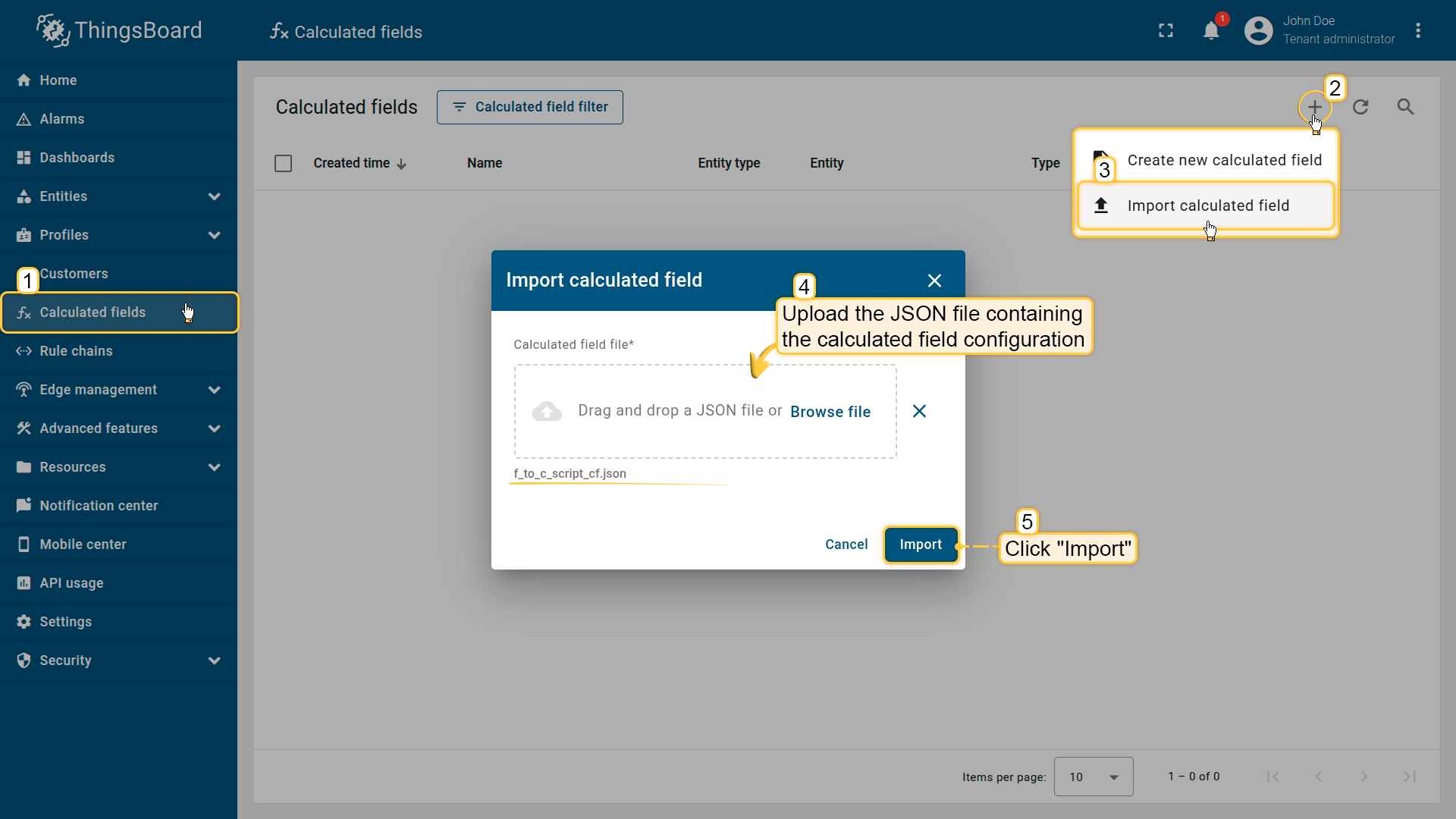
Go to the Calculated fields tab and import the calculated field configuration.
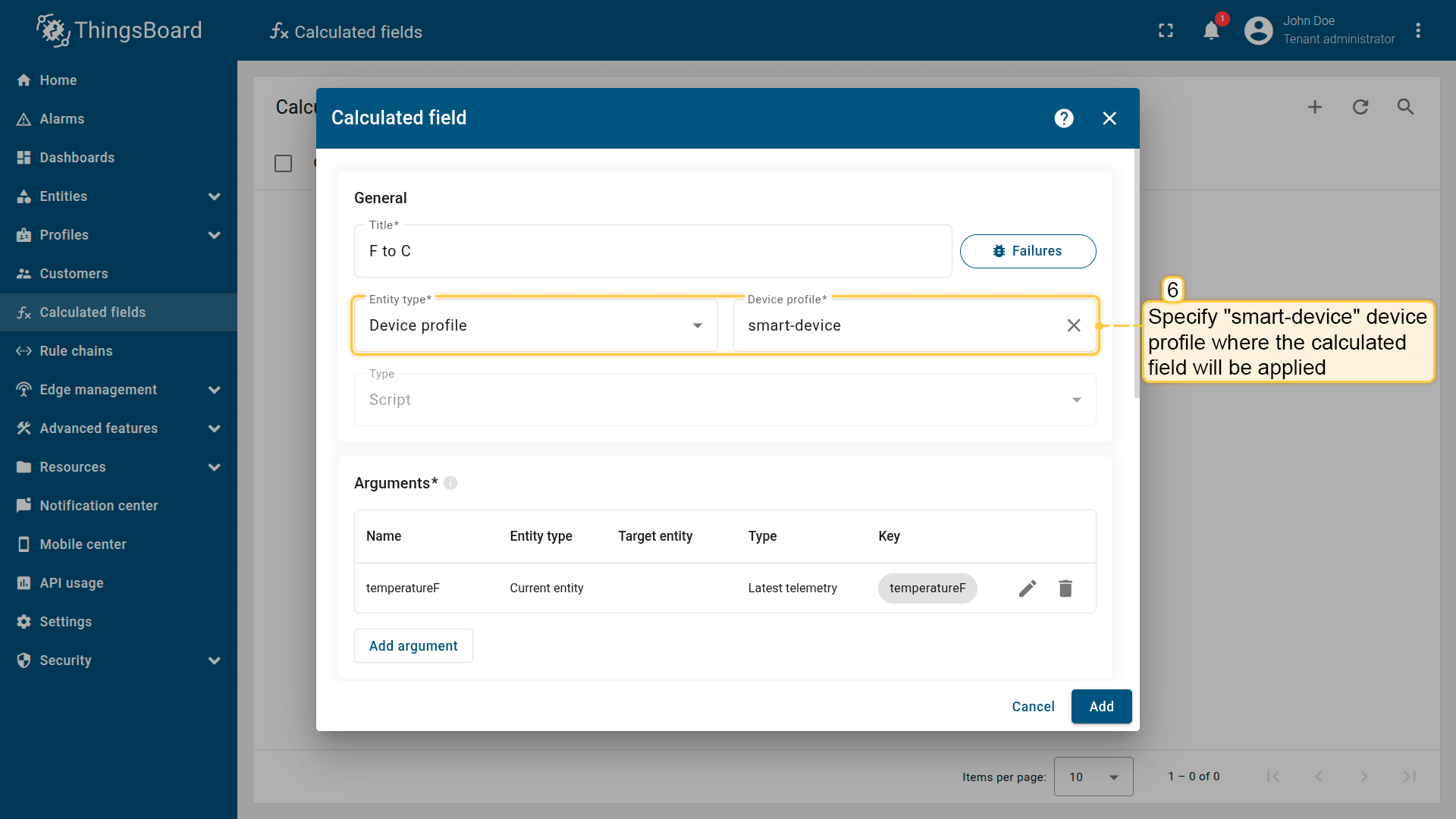
Apply the calculated field to the smart-device profile so it runs for all devices using it.
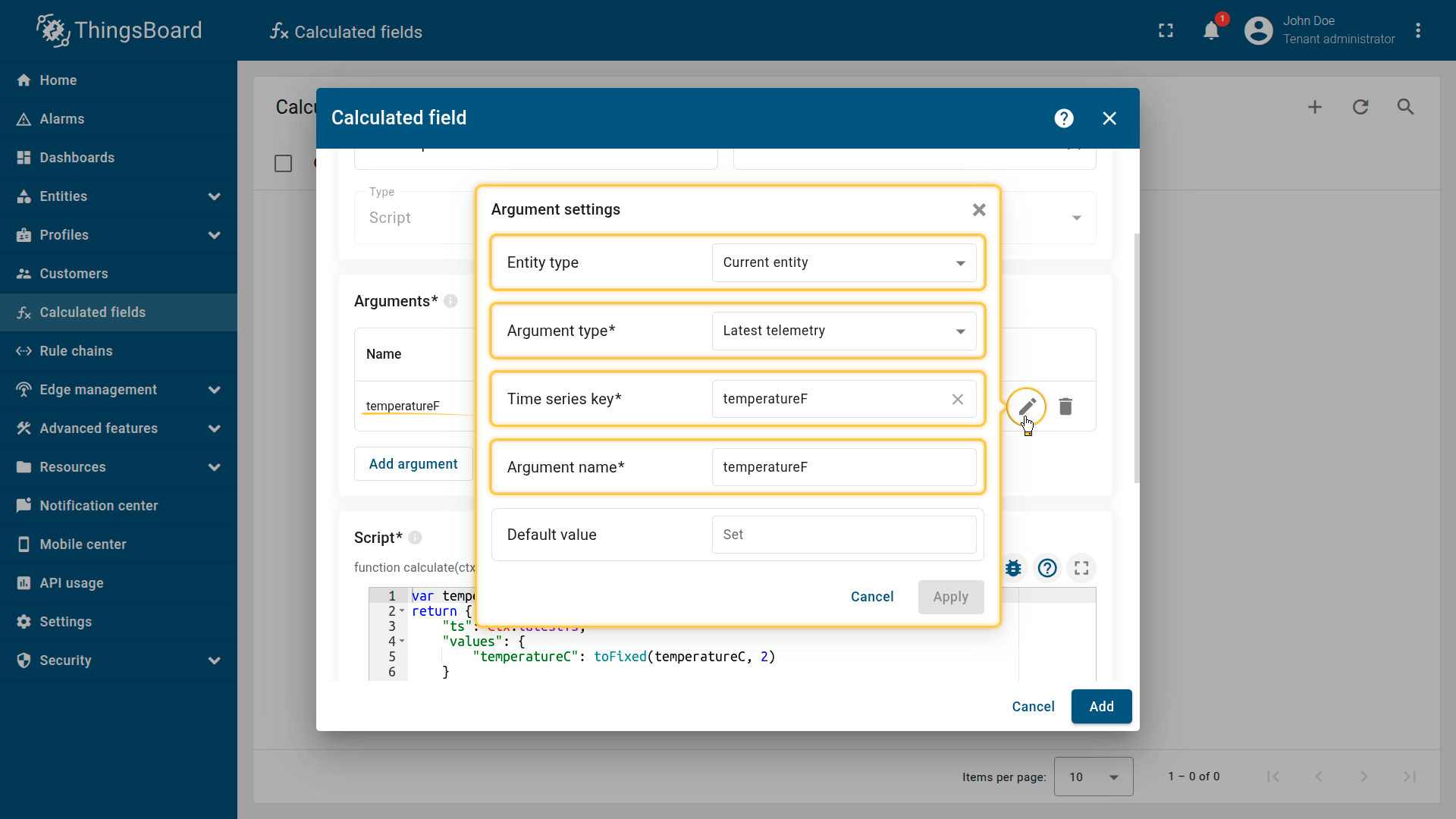
Argument settings:
- Entity type: Current entity
- Argument type: Latest telemetry
- Time series key: temperatureF
- Argument name: temperatureF.
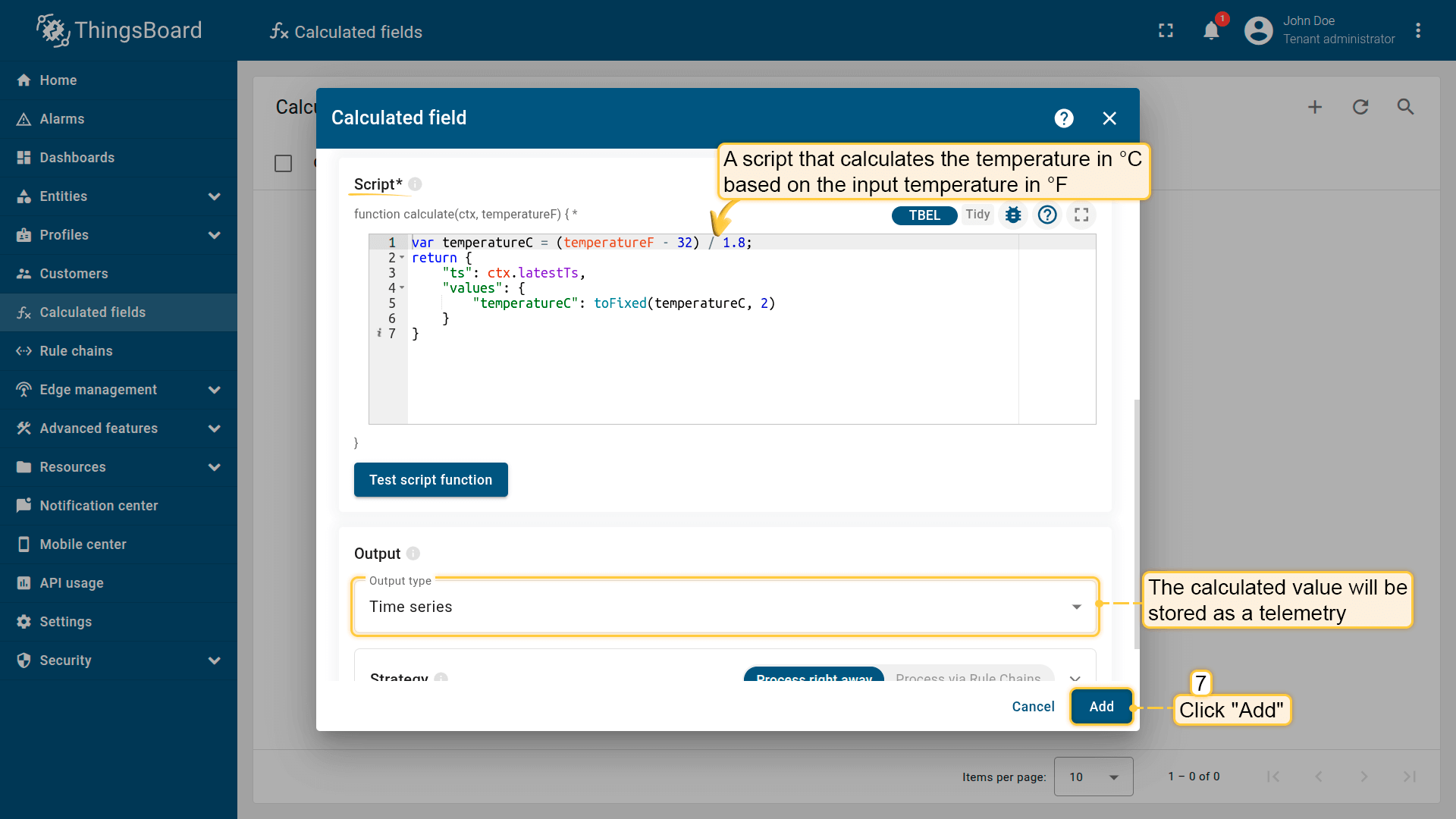
The specified script converts the temperature value from Fahrenheit to Celsius and stores the result under the temperatureC telemetry key.
Click Add to save the calculated field.
Result
On the “Latest telemetry” tab of the Smart Device, the calculated temperature value in Celsius is displayed under a new telemetry key: temperatureC.
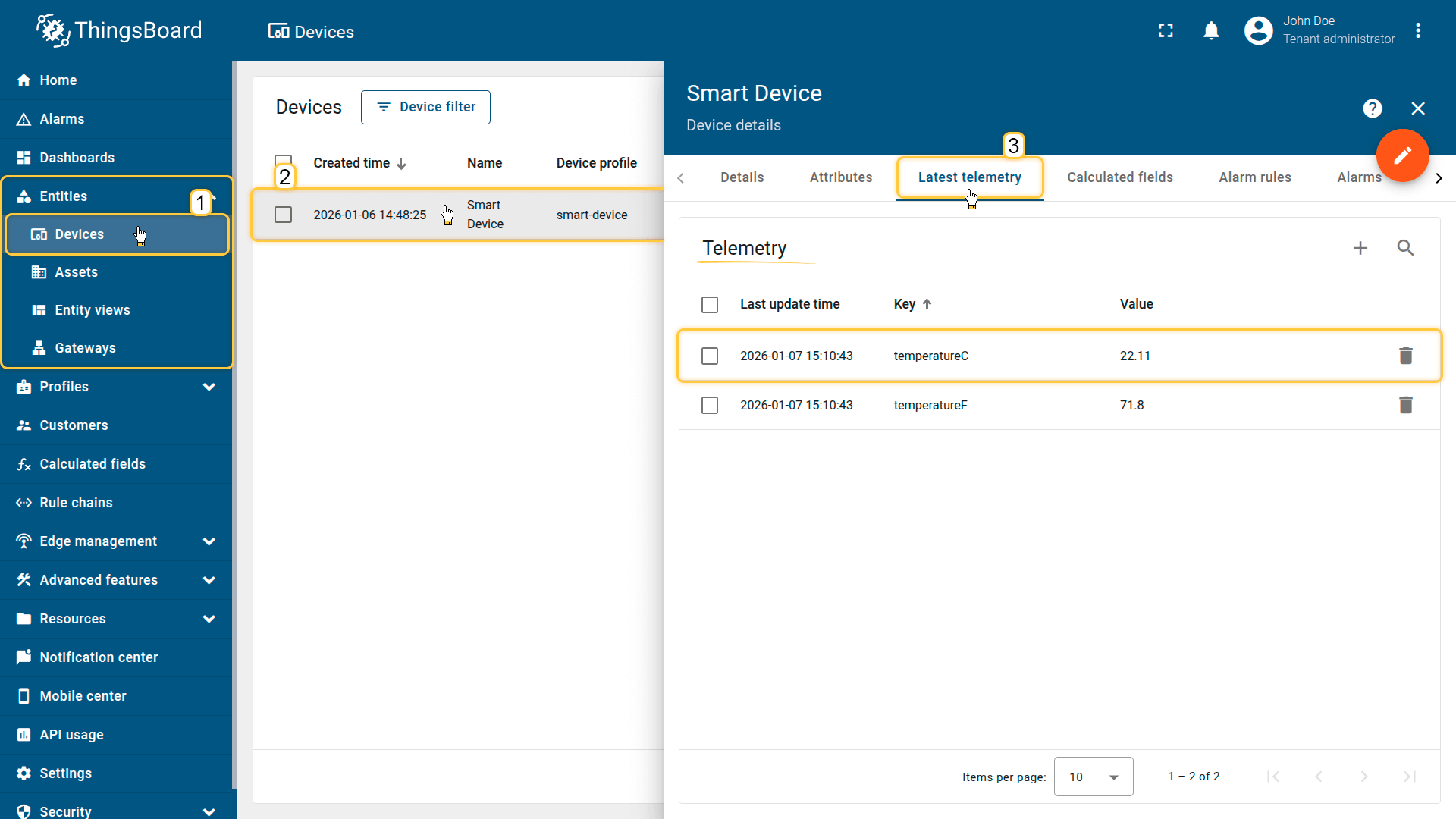
On the “Latest telemetry” tab of the Smart Device, the calculated temperature value in Celsius is displayed under a new telemetry key: temperatureC.
Example 2: Air density calculation
Scenario
The Building A asset has two associated devices:
- Smart Device — publishes temperature (Fahrenheit) as telemetry under (temperature)
- Altimeter — provides altitude as a server attribute (altitude)
Goal
Calculate air density based on:
- average temperature over the last 15 minutes (rolling window)
- altitude attribute
Store the result as a new telemetry value under the airDensity key on Building A.
Calculated field configuration
Click to download the “Air density calculation” field configuration (JSON).
Configuration steps
1. Import demo device
Import two devices: one publishing temperature telemetry and one providing altitude as an attribute.
- Download the CSV file: air-density-calculation-device-data.csv
- Go to the “Devices” and import the CSV file.
CSV includes:
Device 1
- Name: Smart Device
- Type: smart-device
- Time series: temperature
Device 2
- Name: Altimeter
- Type: height-sensor
- Server attribute: altitude
Important notes about the CSV:
- the column type for the temperature key must be set to “Time series”.
- the column type for the altitude key must be set to “Server attribute”.
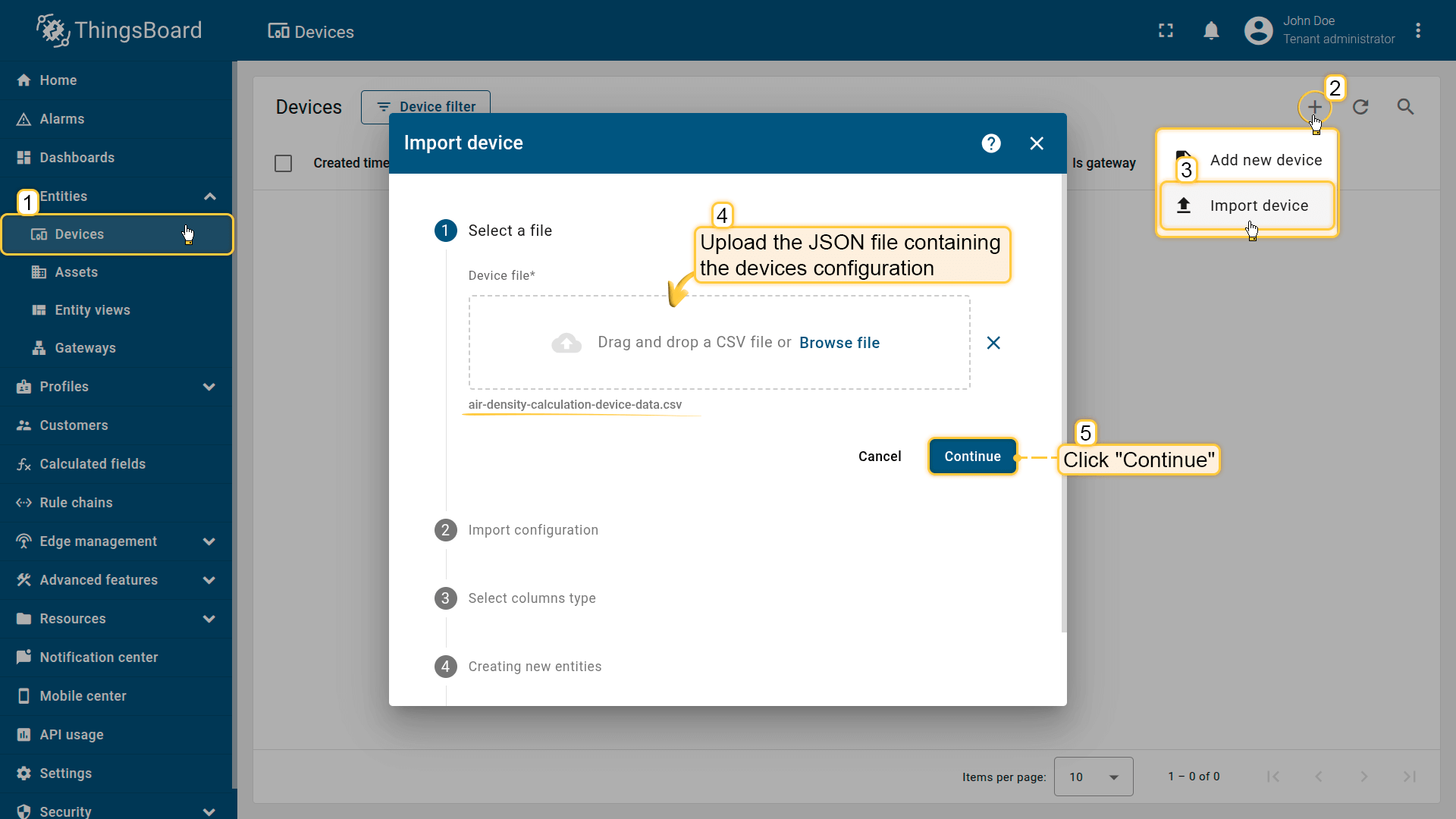
Go to the Devices and import device configurations from a CSV file.
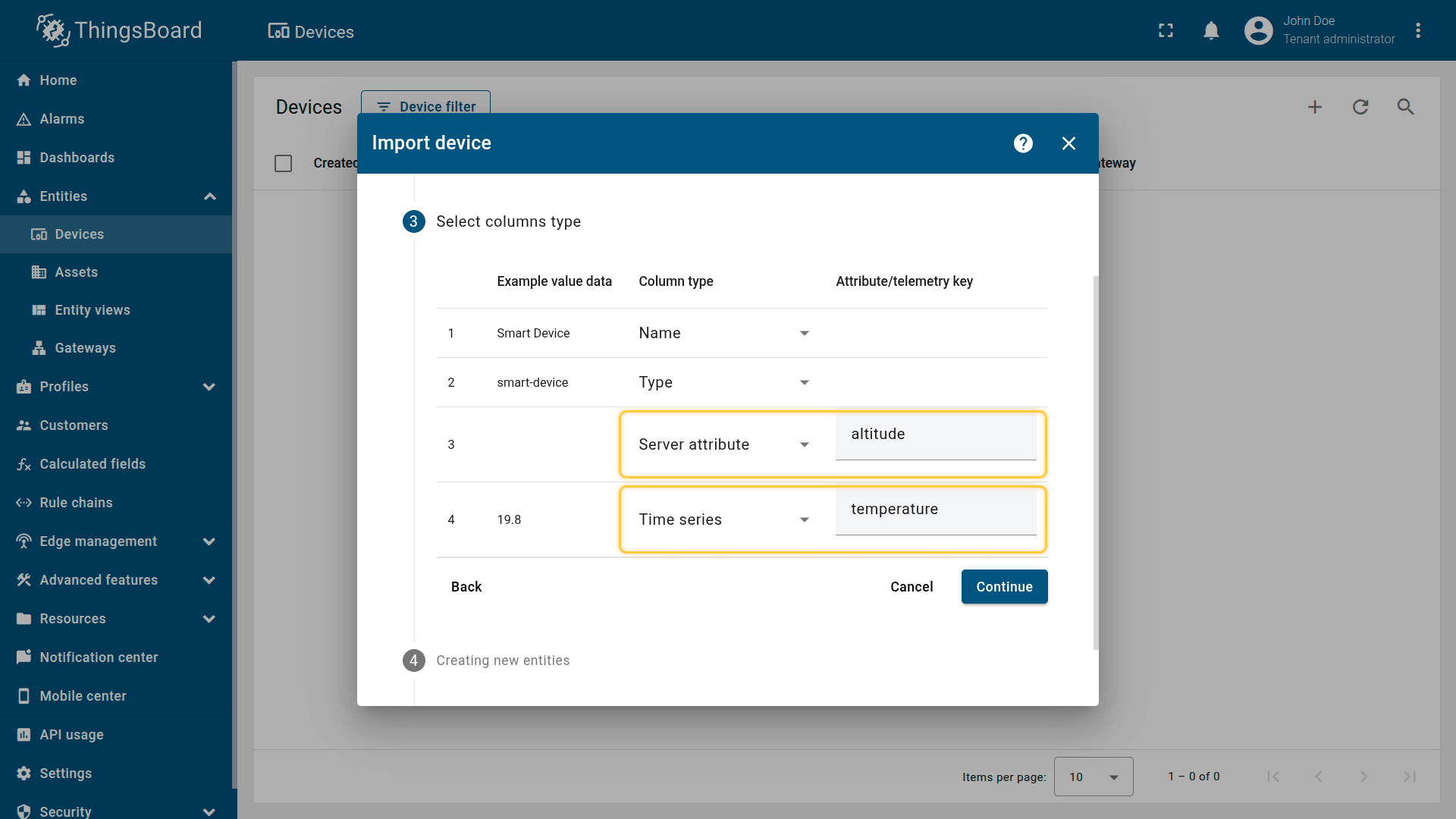
Servet attribute: altitude
Time series: temperature
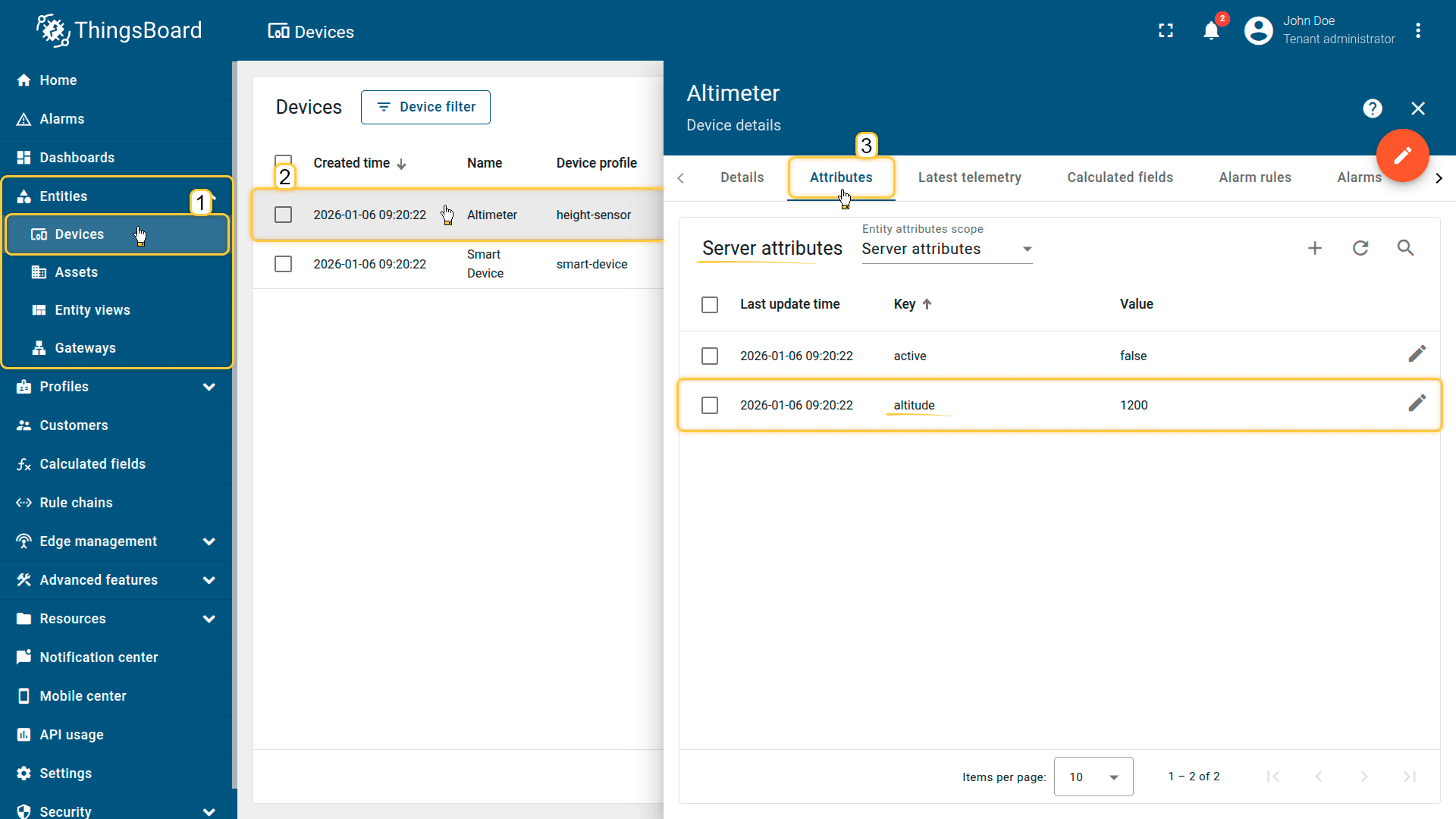
The imported Altimeter device publishes altitude as a server-side attribute.
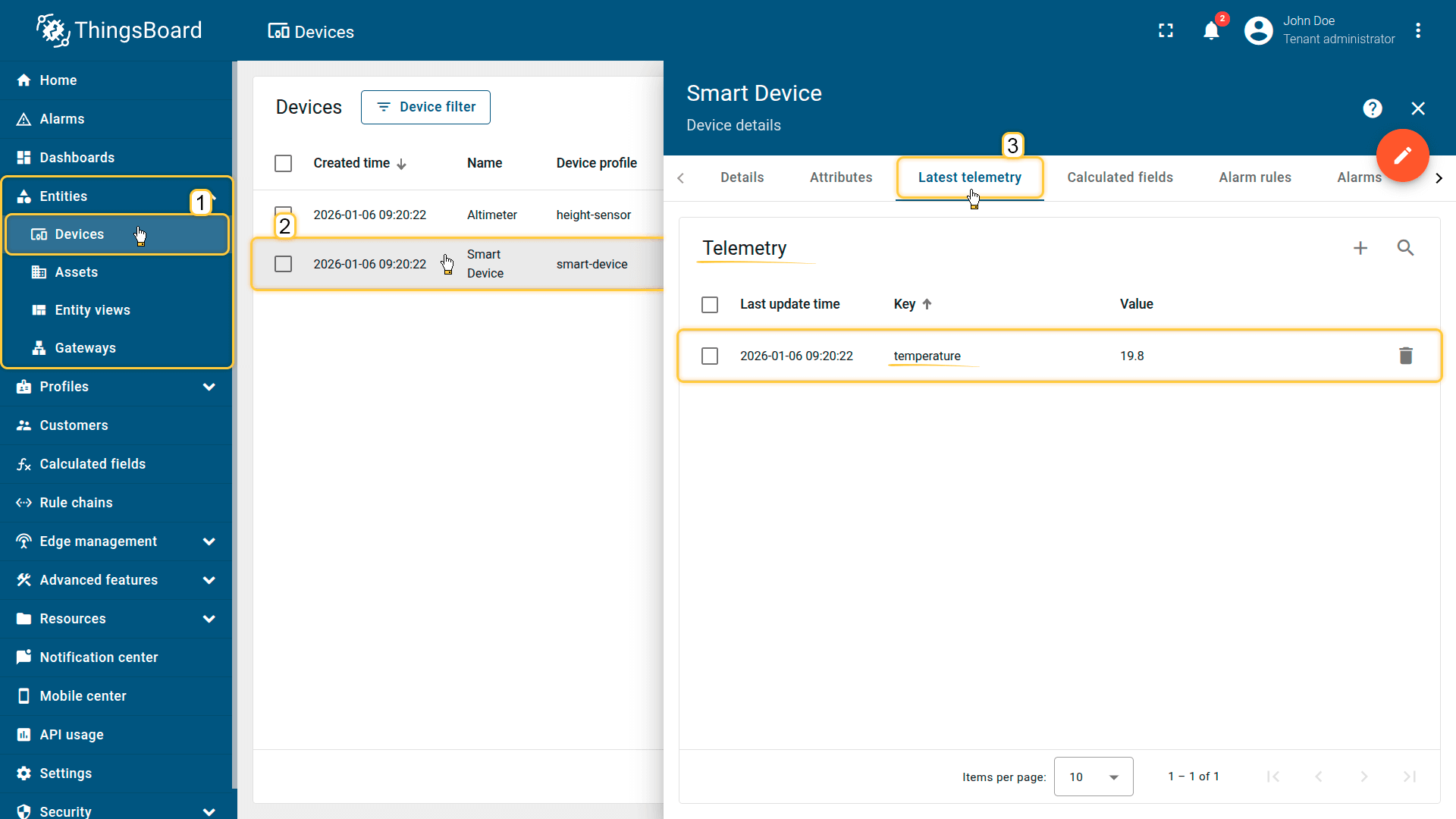
The imported Smart Device publishes temperature as telemetry data.
2. Import demo asset
Import the asset that represents the building.
- Download the CSV file: air-density-calculation-asset-data.csv
- Go to “Assets” and import the CSV file.
CSV includes:
- Name: Building A
- Type: building
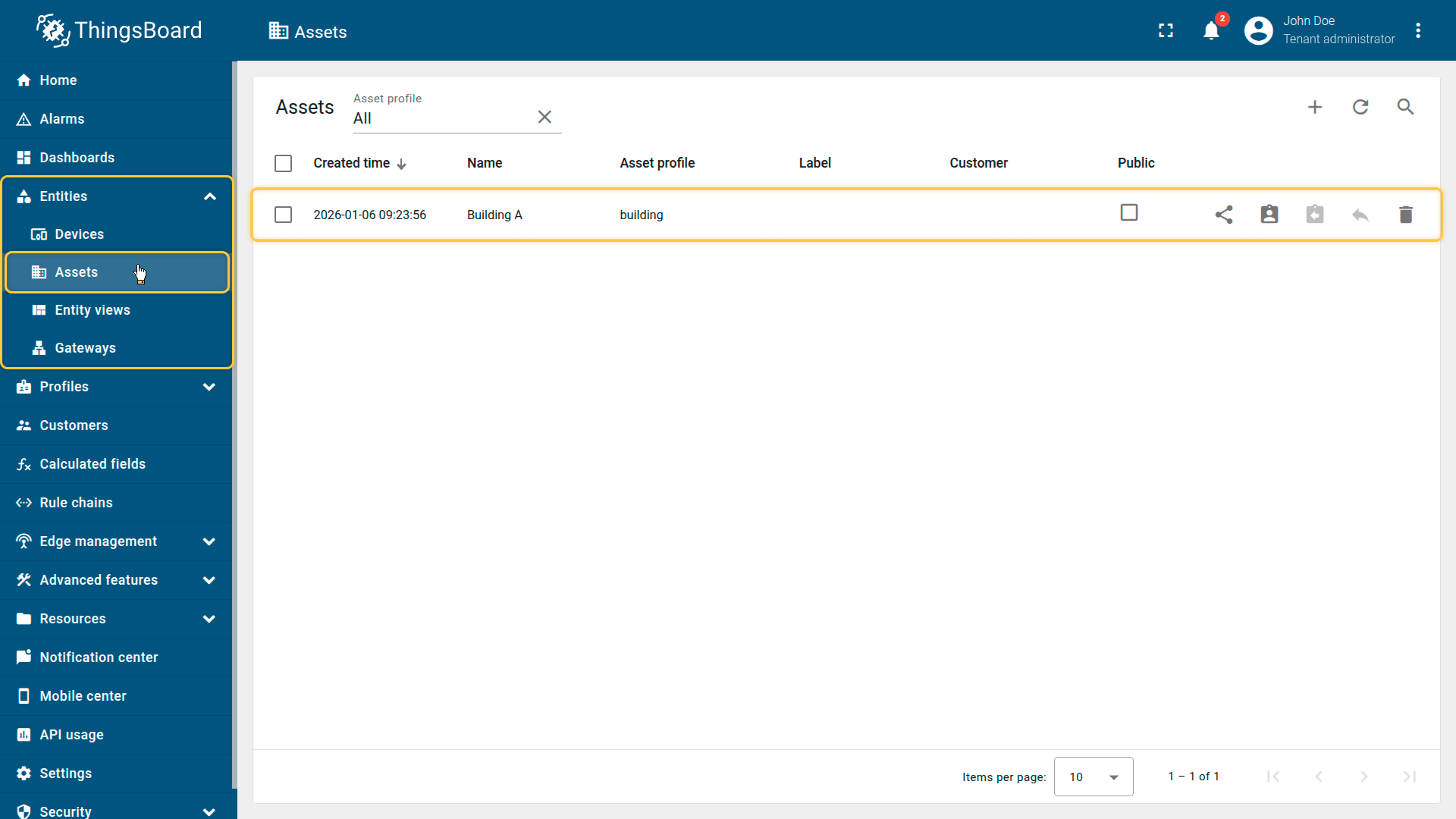
Import the demonstration asset Building A.
3. Apply the calculated field to the asset profile
Apply the calculated field to the “building” asset profile, so it runs for Building A.
- Download the calculated field configuration file.
- Go to the “Calculated fields” tab and import the configuration.
This configuration:
- reads rolling temperature from Smart Device
- reads altitude from Altimeter as an attribute
- calculates air density
- stores the output as telemetry on the asset
Script used in this example:
function calculate(ctx, altitude, temperature) {
1
2
3
4
5
6
7
8
9
10
11
12
13
var avgTemperature = temperature.mean(); // Get average temperature
var temperatureK = (avgTemperature - 32) * (5 / 9) + 273.15; // Convert Fahrenheit to Kelvin

// Estimate air pressure based on altitude
var pressure = 101325 * Math.pow((1 - 2.25577e-5 * altitude), 5.25588);

// Air density formula
var airDensity = pressure / (287.05 * temperatureK);

return {
    "airDensity": toFixed(airDensity, 2)
};
}
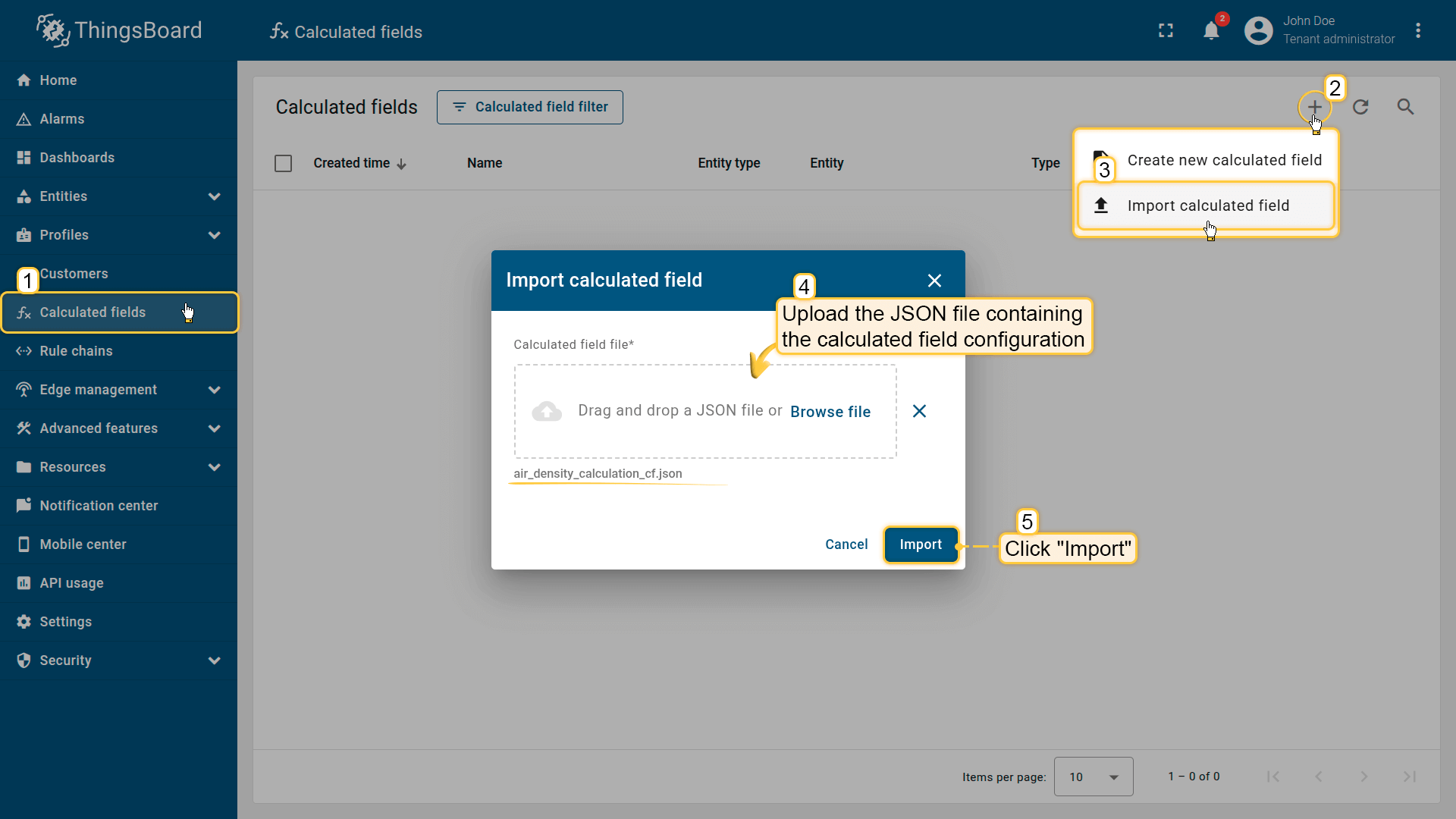
Go to the Calculated fields tab and import the calculated field configuration.
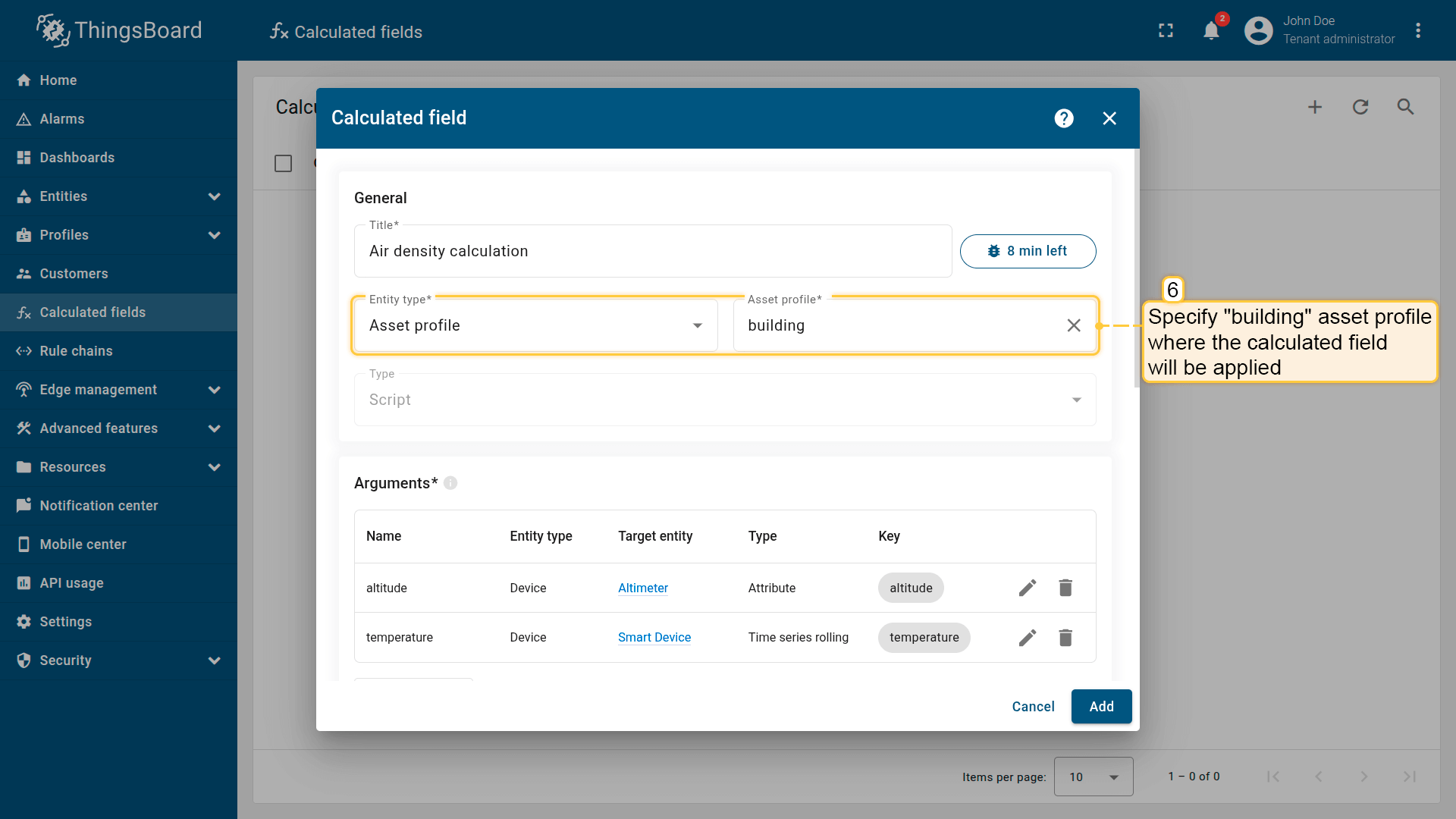
Apply the calculated field to the building profile so it runs for all asset using it.
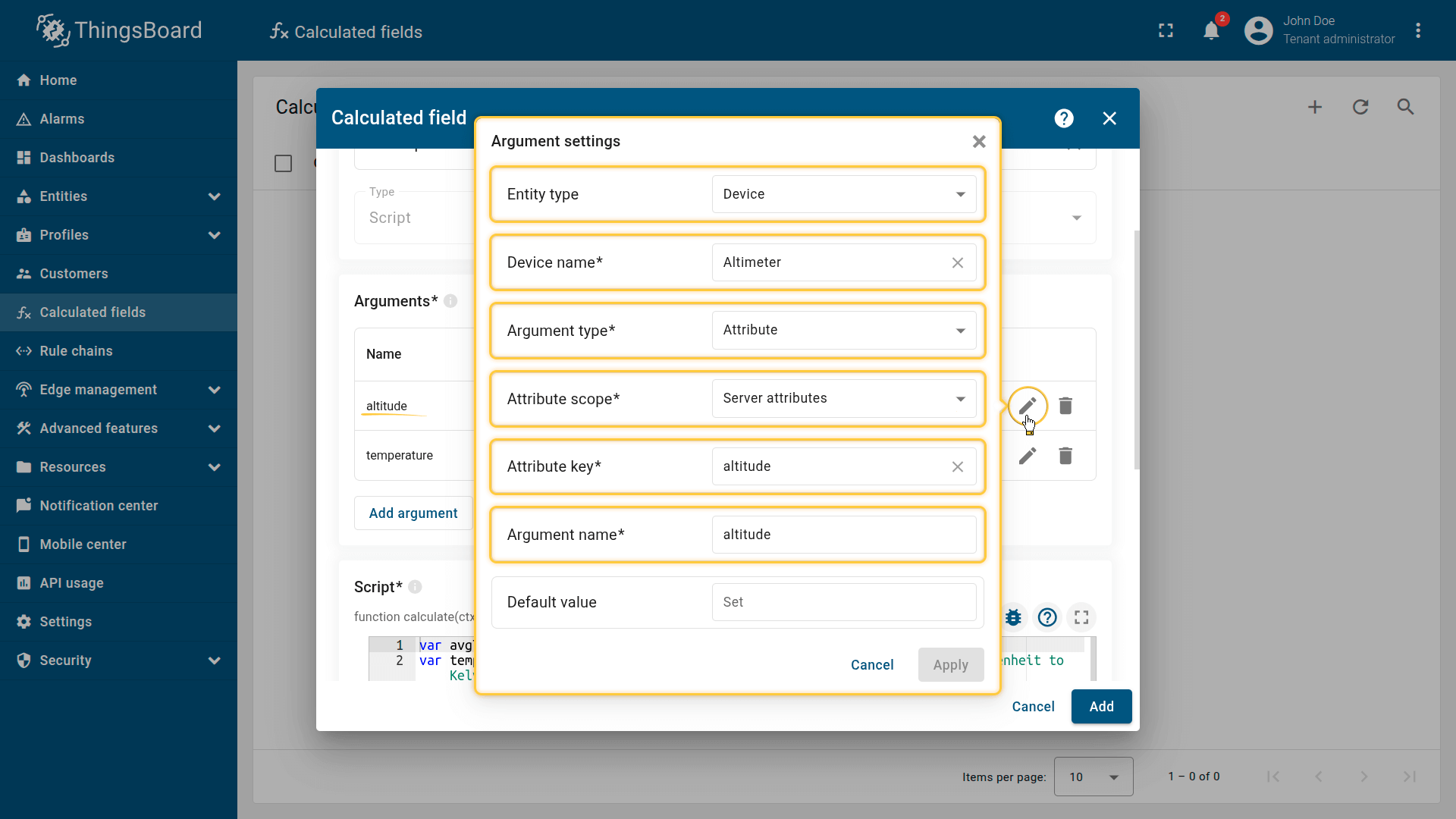
First argument settings:
- Entity: Altimeter
- Argument type: Attribute
- Attribute scope: Server attribute
- Attribute key: altitude
- Argument name: altitude
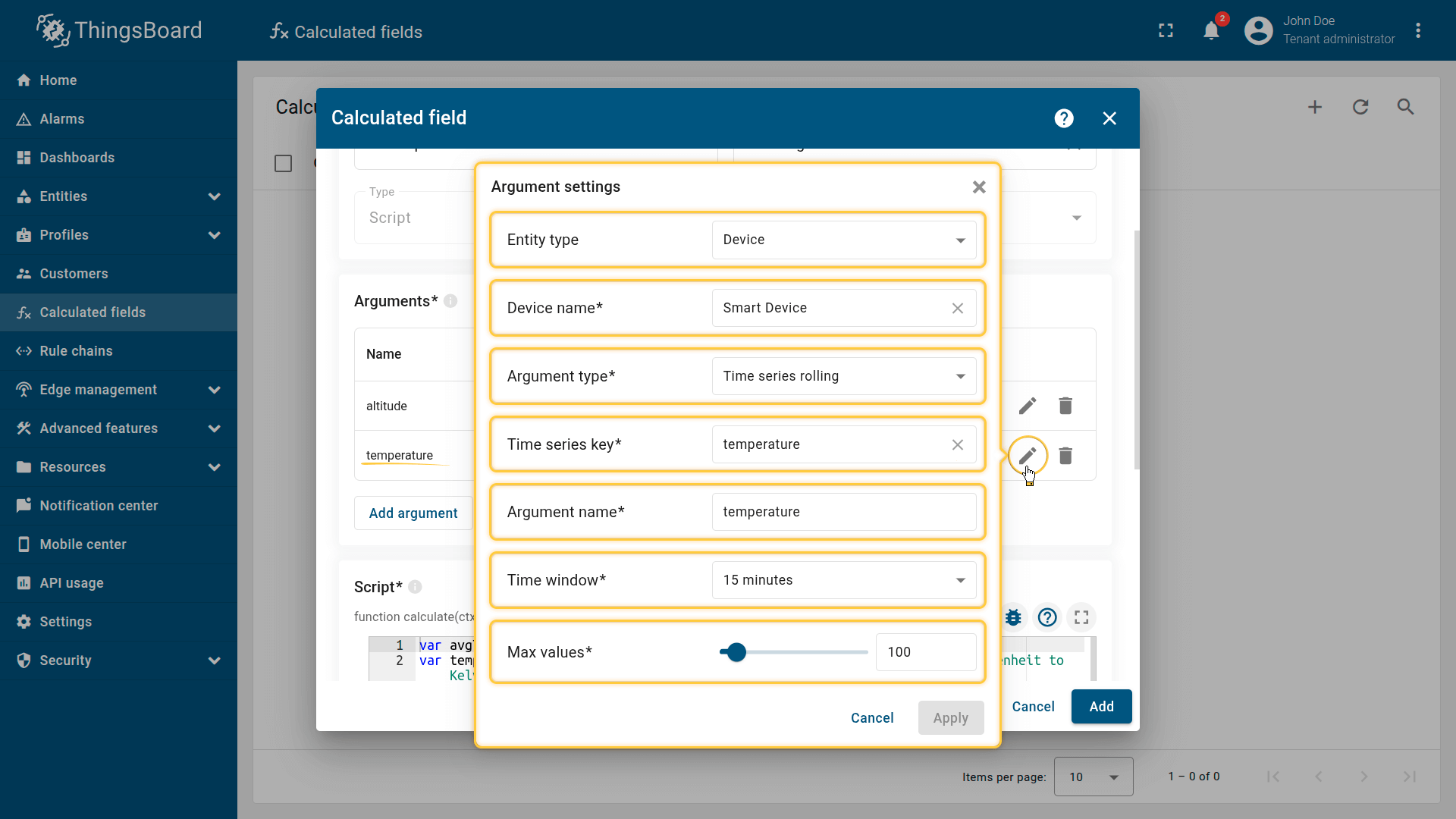
Second argument settings:
- Entity: Smart Device
- Argument type: Time series rolling
- Time series key: temperature
- Argument name: temperature
- Time window: 15 minutes
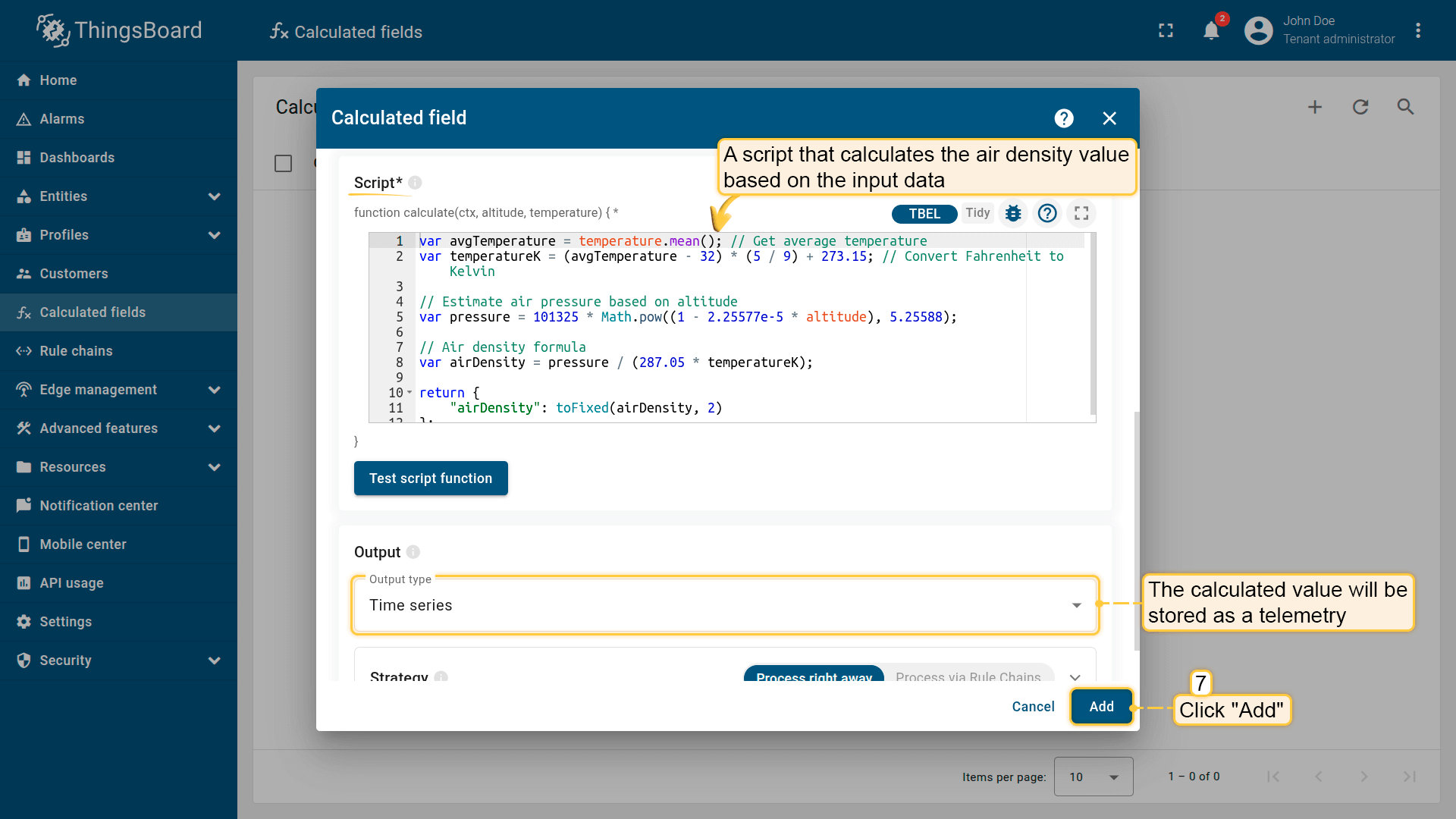
The specified script calculates the air density and stores the result under the airDensity key.
Click Add to save the calculated field.
Result
In the “Latest telemetry” tab of the Building A asset, the calculated value appears under the airDensity key.
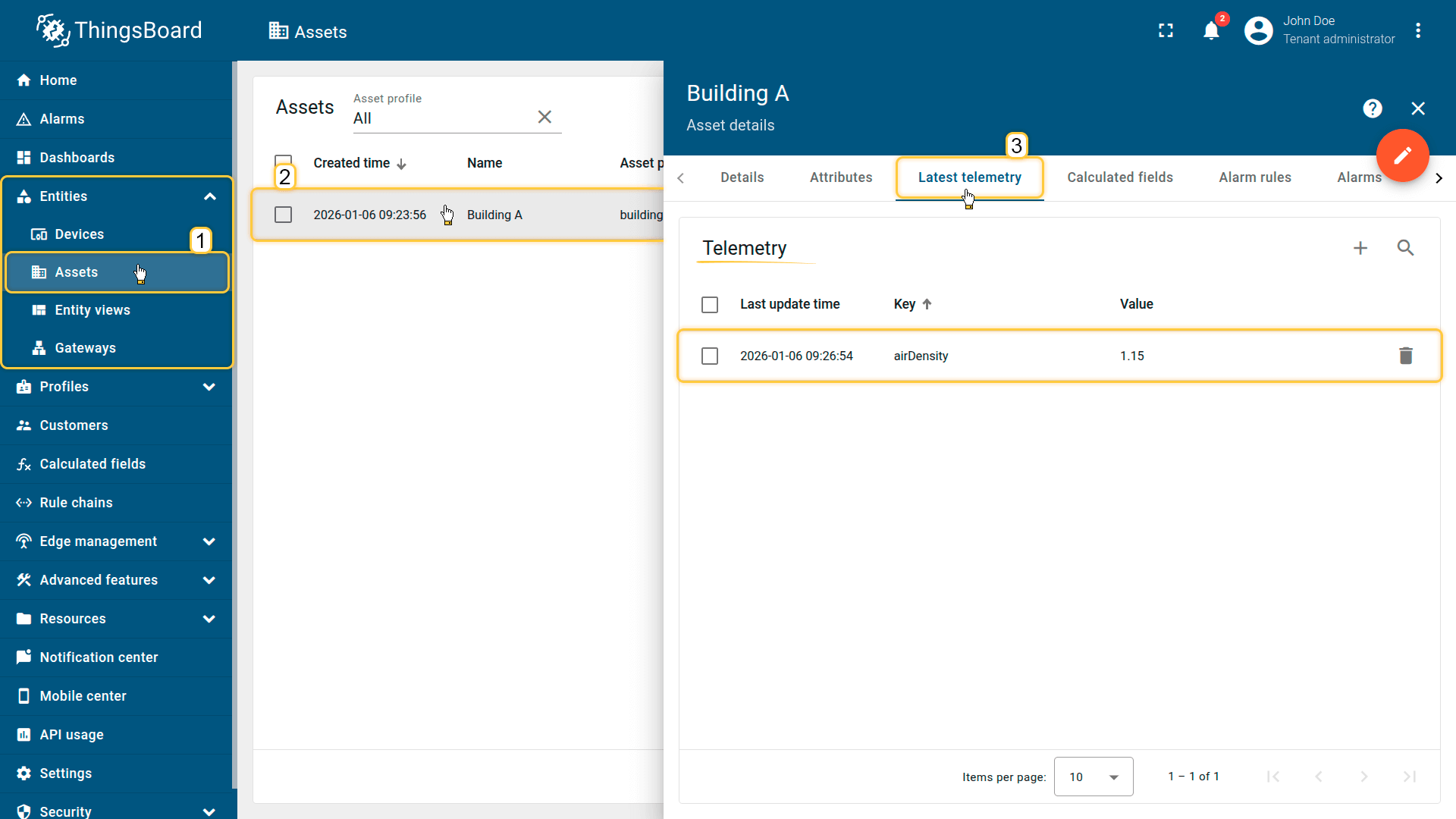
In the Latest telemetry tab of the Building A asset, the calculated value appears under the airDensity key.
Example 3: Freezer temperature analysis
Scenario
A freezer device publishes two telemetry keys:
- temperature — freezer temperature (°C)
- defrost — defrost mode status (0 = OFF, 1 = ON)
Goal
Generate an event-like telemetry record under the issue key whenever:
- defrost = 0 (defrost is OFF), and
- temperature > -5°C
When the condition is met, store an “issue record” with a timestamp.
Calculated field configuration
Download the “Freezer temperature analysis” calculated field configuration (JSON).
Configuration steps
1. Import demo device
Import a device that publishes temperature and defrost data as telemetry.
- Download the CSV file: freezer-temperature-analysis-device-data.csv
- Go to the “Devices” and import the CSV file.
CSV includes:
- Name: Smart Device
- Type: smart-device
- Time series: temperature, defrost
Important note about the CSV: the column type for the temperature and defrost keys must be set to “Time series”.
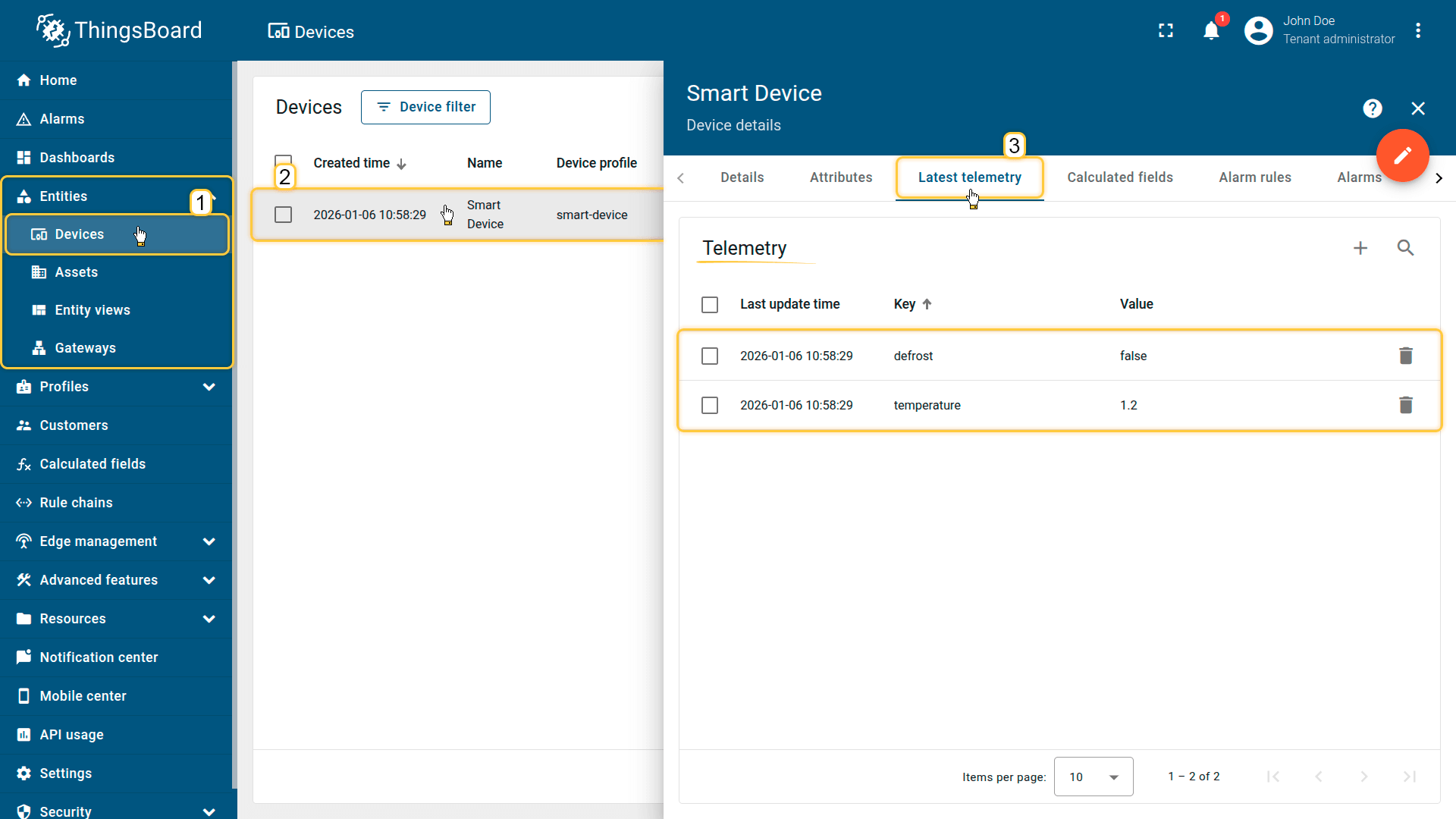
Import a device that publishes temperature and defrost data as telemetry.
2. Apply the calculated field to the device profile
Apply the calculated field to the “smart-device” profile so it runs for the freezer device(s).
- Download the calculated field configuration file.
- Go to the “Calculated fields” tab and import the configuration.
This configuration:
- Aligns the temperature and defrost state data by timestamp.
- Selects only the moments when the temperature is higher than -5°C and defrost is off.
- As a result, you get a list of such moments with the timestamp, the temperature value, and a defrostState: false flag (or an empty list if no such moments exist).
Script used in this example:
function calculate(ctx, altitude, temperature) {
1
2
3
4
5
6
7
8
9
10
11
12
13
14
15
16
17
18
var merged = temperature.merge(defrost);
var result = [];

foreach(item: merged) {
  if (item.v1 > -5.0 && item.v2 == 0) {
    result.add({
      ts: item.ts,
      values: {
        issue: {
          temperature: item.v1,
          defrostState: false
        }
      }
    });
  }
}

return result;
}
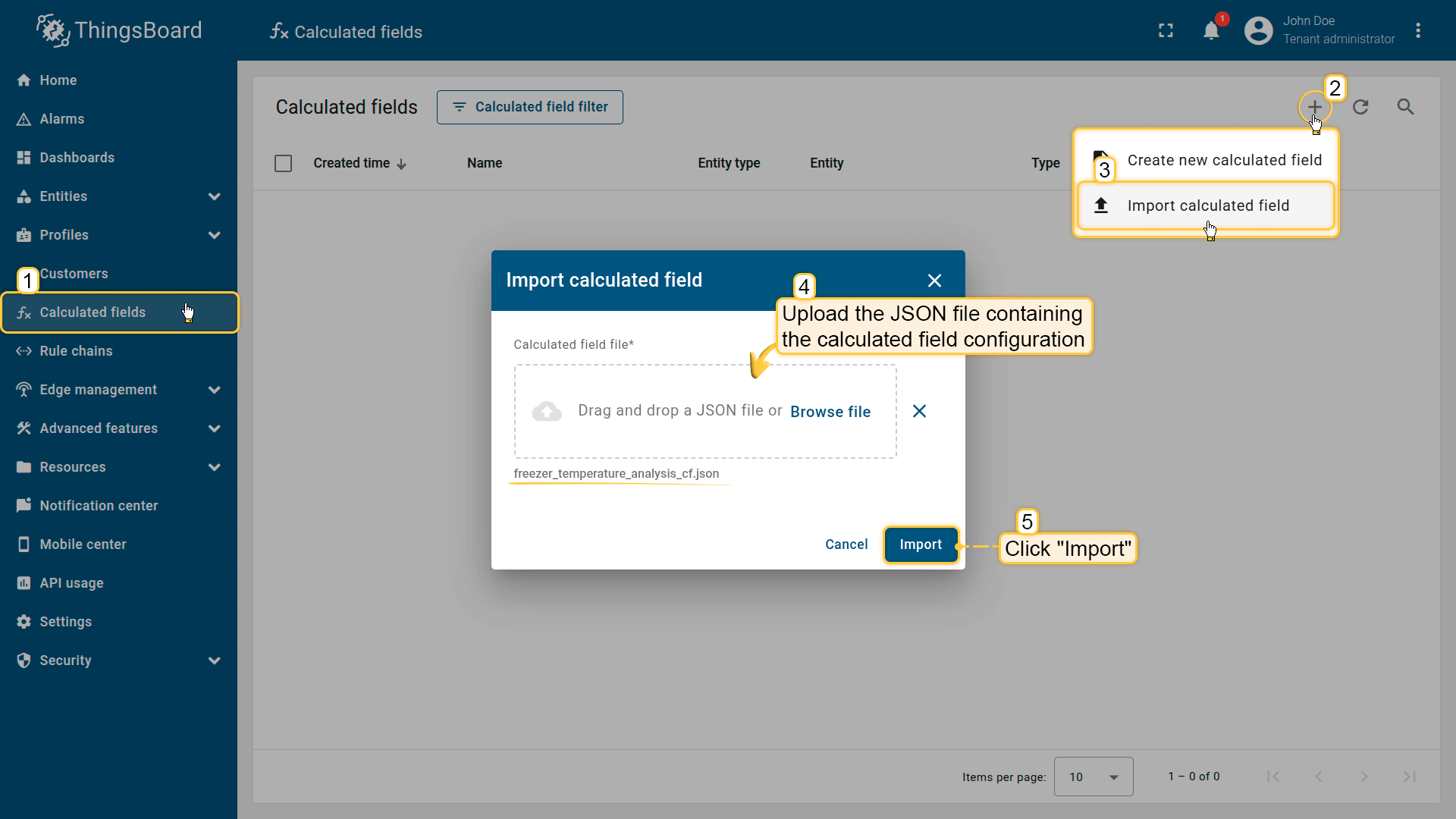
Go to the Calculated fields tab and import the calculated field configuration.
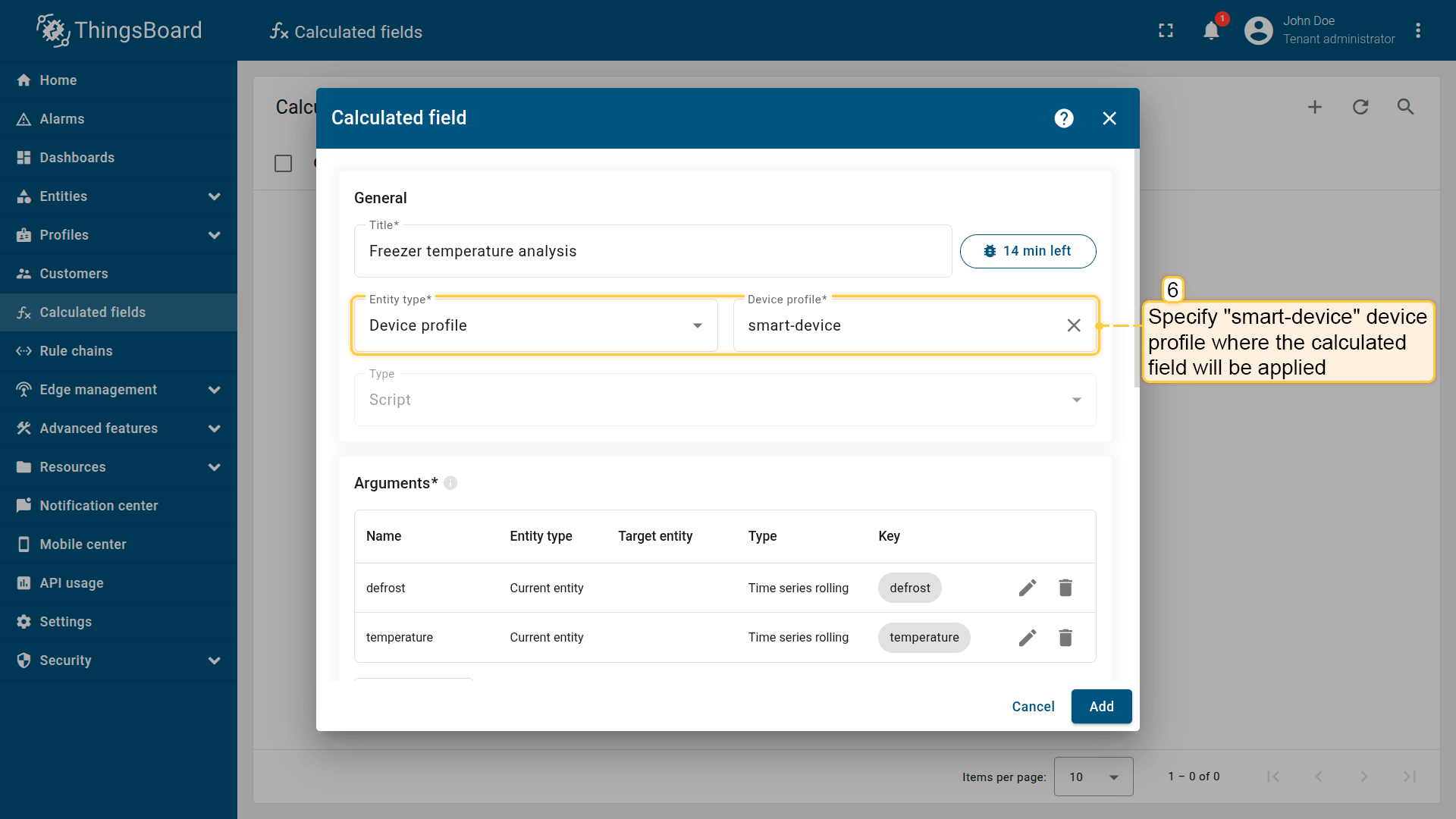
Apply the calculated field to the smart-device profile so it runs for all devices using it.
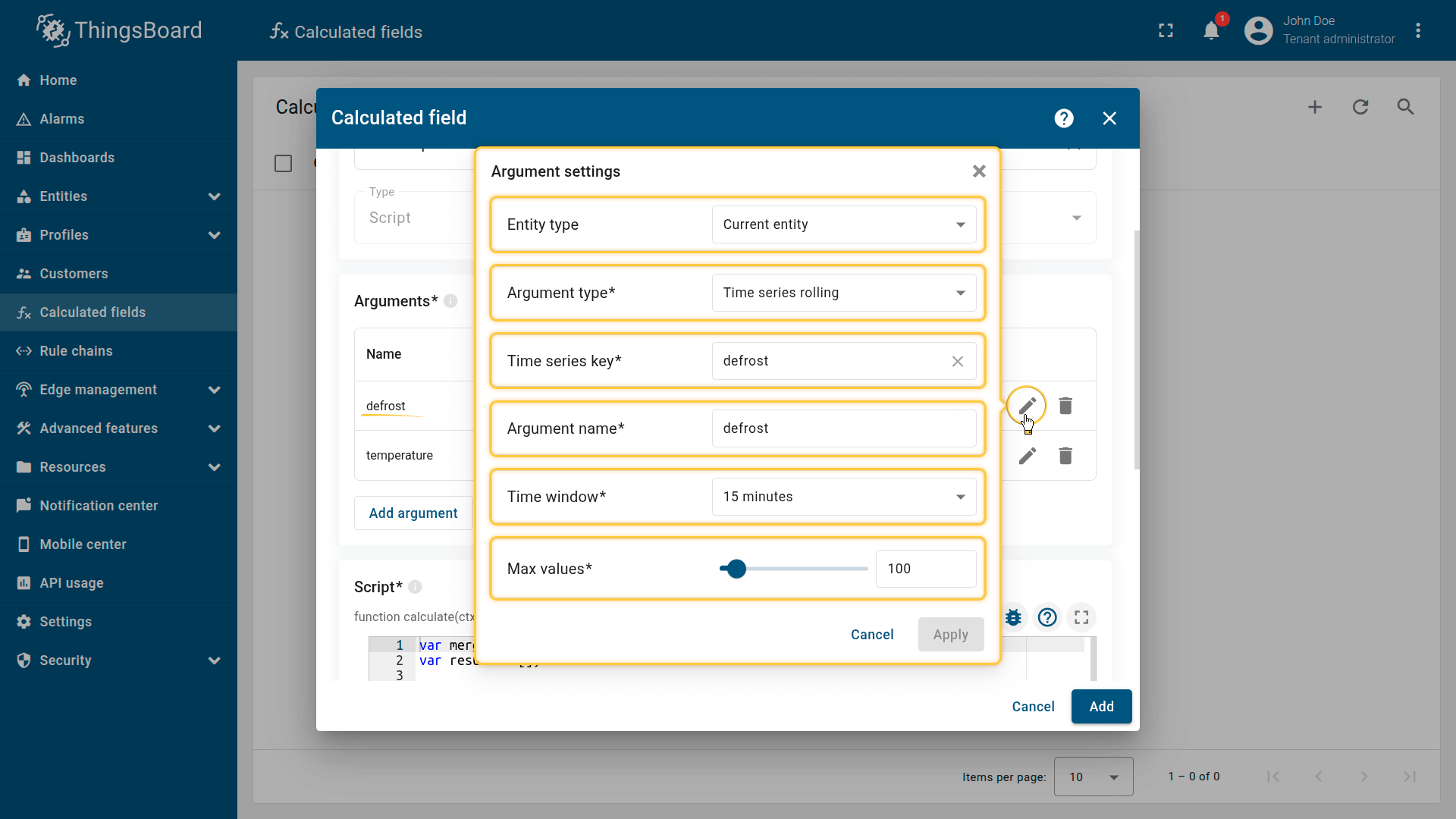
First argument settings:
- Entity type: Current entity
- Argument type: Time series rolling
- Time series key: defrost
- Argument name: defrost
- Time window: 15 minutes
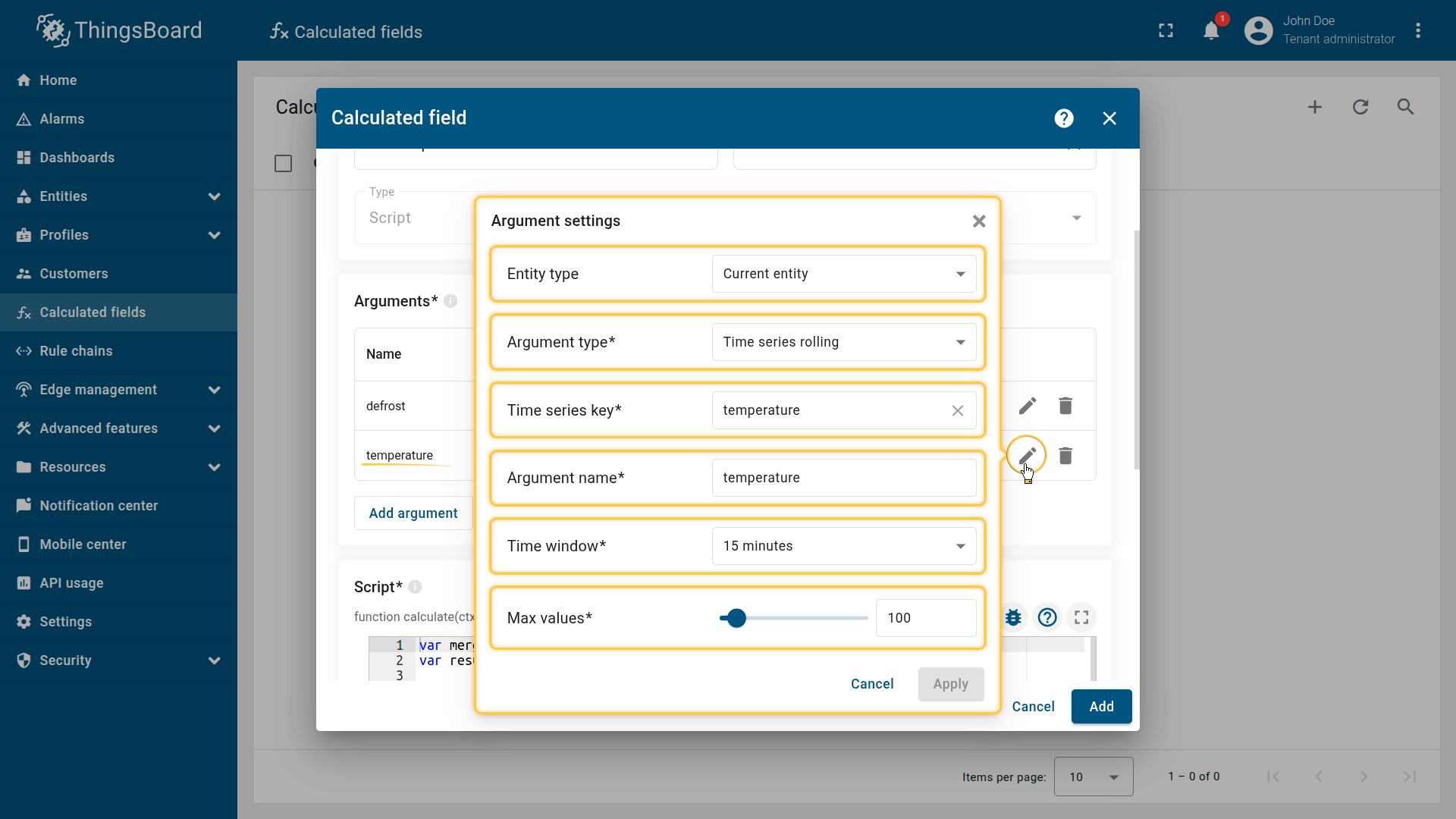
Second argument settings:
- Entity type: Current entity
- Argument type: Time series rolling
- Attribute key: temperature
- Argument name: temperature
- Time window: 15 minutes
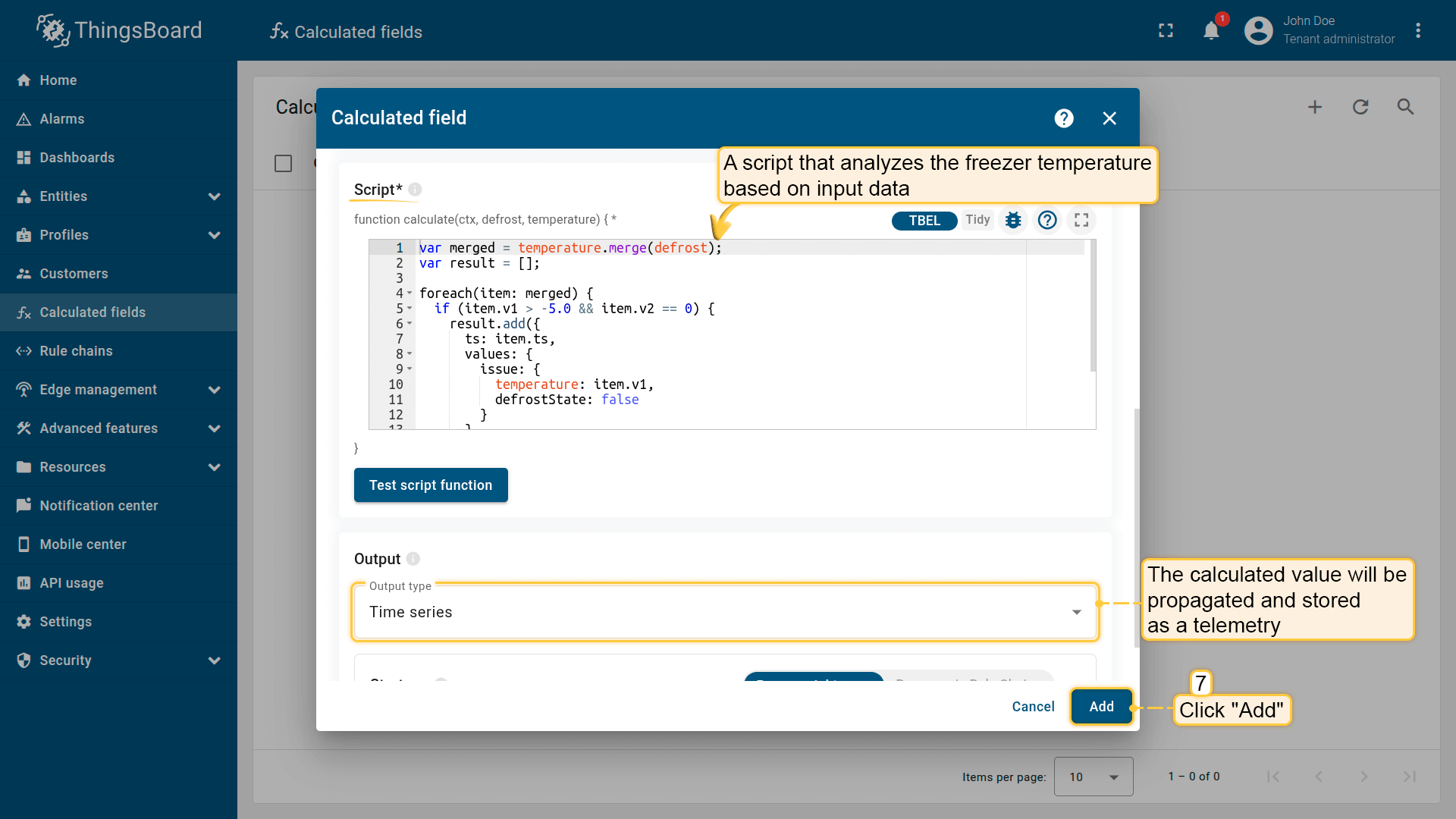
The function aligns the temperature and defrost state data by timestamp, and then selects only the moments when the temperature is higher than -5°C and defrost is off.
As a result, you get a list of such moments with the timestamp, the temperature value, and a defrostState: false flag (or an empty list if no such moments exist).
Click Add to save the calculated field.
Result
In the “Latest telemetry” tab of the Smart Device, the issue key appears when the condition is met, for example:
1
2
3
4
5
6
7
{
  "issue": {
    "temperature": 0.8,
    "defrostState": false
  }
}
This indicates the freezer is in a potentially critical state and may require attention.
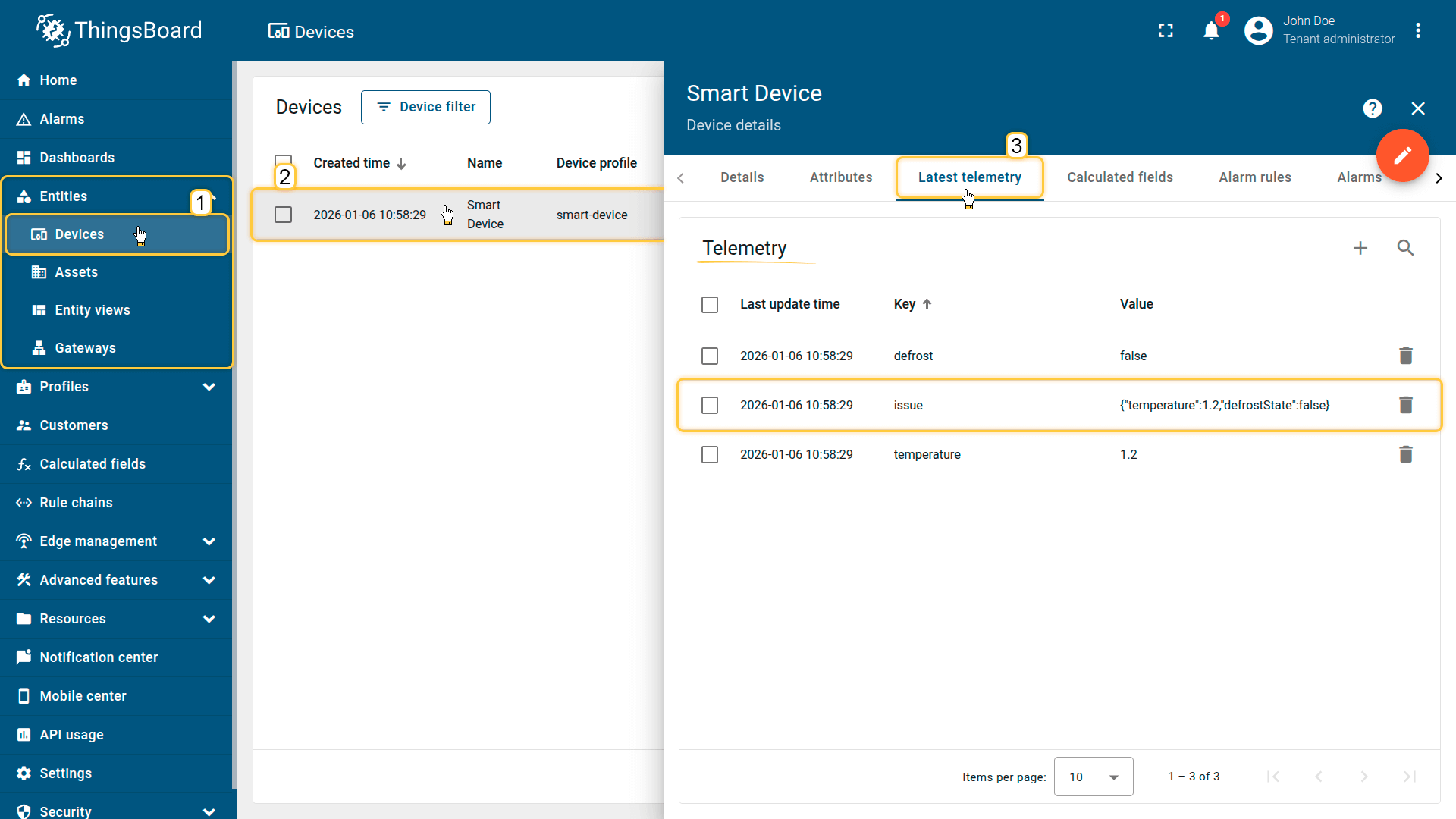
In the Latest telemetry tab of the Smart Device, the issue key appears when the condition is met. This indicates the freezer is in a potentially critical state and may require attention.
Your feedback
Don't hesitate to star ThingsBoard on github to help us spread the word. If you have any questions about this sample, please contact us.