
Simple calculated fields perform real-time calculations using a single mathematical expression. They support basic arithmetic operations (+, -, *, /) and standard functions such as sqrt, pow, abs, min, and max. This type is designed for lightweight transformations and derived values that do not require scripting.
Use Simple calculated fields when you need fast, declarative computations such as:
- Normalization and scaling (multipliers, offsets, calibration factors)
- Derived sensor metrics (e.g., dew point, heat index, power = voltage × current)
- Threshold-based values (clamping, simple scoring, deltas)
- Cross-entity calculations (e.g., combine device telemetry with asset attributes)
Configuration
Open the create calculated field dialog and specify:
- the calculated field title,
- the entity or entity profile to which the calculated field will be applied,
- Select “Simple” as a calculated field type.
Arguments
For a Simple calculated field, arguments can be either latest telemetry or attribute.
The data source can be Current entity, another Device/Asset, the Customer, the Current tenant, or the Current owner.
For details about argument types and configuration parameters, see the Arguments.
Expression
In the Expression section, define the calculation using a single mathematical formula.
- References argument variables directly by name (e.g., temperature, humidity)
- Supports arithmetic operations (+, -, *, /) and standard functions such as abs, sqrt, pow, min, and max.
- Produces a single result value, saved under the configured output key
Output
The calculation result is stored either as a time series or an attribute.
In Output, specify:
- Key — the name under which the computed value will be saved
- Decimals — optional rounding
[Only for Time series]
Use latest timestamp — stores the result using the most recent argument timestamp instead of server time.
For more details about output types and processing strategies, see the Output.
Example: Dew point calculation
Scenario
The Smart Device sends temperature and humidity telemetry in real time.
Goal
Calculate the dew point and store the result as telemetry under the dewPoint key on the same device.
Calculated field configuration
Download the “Dew point calculation” calculated field configuration (JSON).
Configuration steps
1. Import demo device
Import a device that publishes temperature and humidity telemetry.
- Download the CSV file: dew-point-calculation-device-data.csv
- Go to the “Devices” and import the CSV file.
CSV includes:
- Name: Smart Device
- Type: smart-device
- Time series: humidity, temperature
Important note about the CSV: the column type for the humidity and temperature keys must be set to “Time series”.
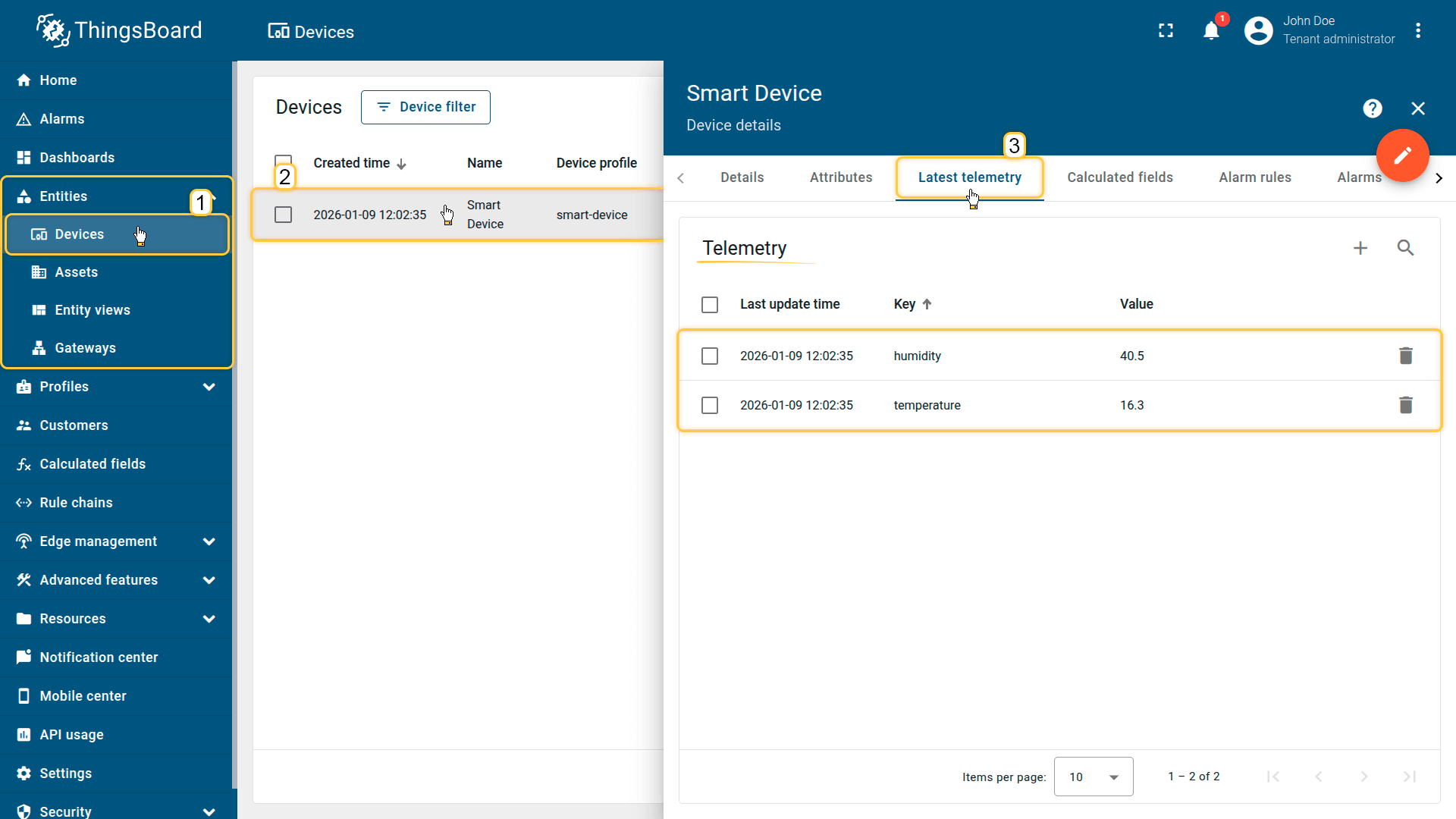
Import a device that publishes temperature and humidity telemetry.
2. Apply the calculated field to the device profile
During the Smart Device import, a “smart-device” profile is automatically created and assigned to it.
Apply the calculated field to this profile so it runs for all devices that use the same profile.
- Download the calculated field configuration file (JSON).
- Go to the “Calculated fields” tab and import the configuration.
Expression used in this example:
1
2
(243.04 * (ln(humidity / 100) + 17.625 * temperature / (243.04 + temperature)) /
(17.625 - (ln(humidity / 100) + 17.625 * temperature / (243.04 + temperature))))
Output settings:
- Output type: Time series
- Key: dewPoint
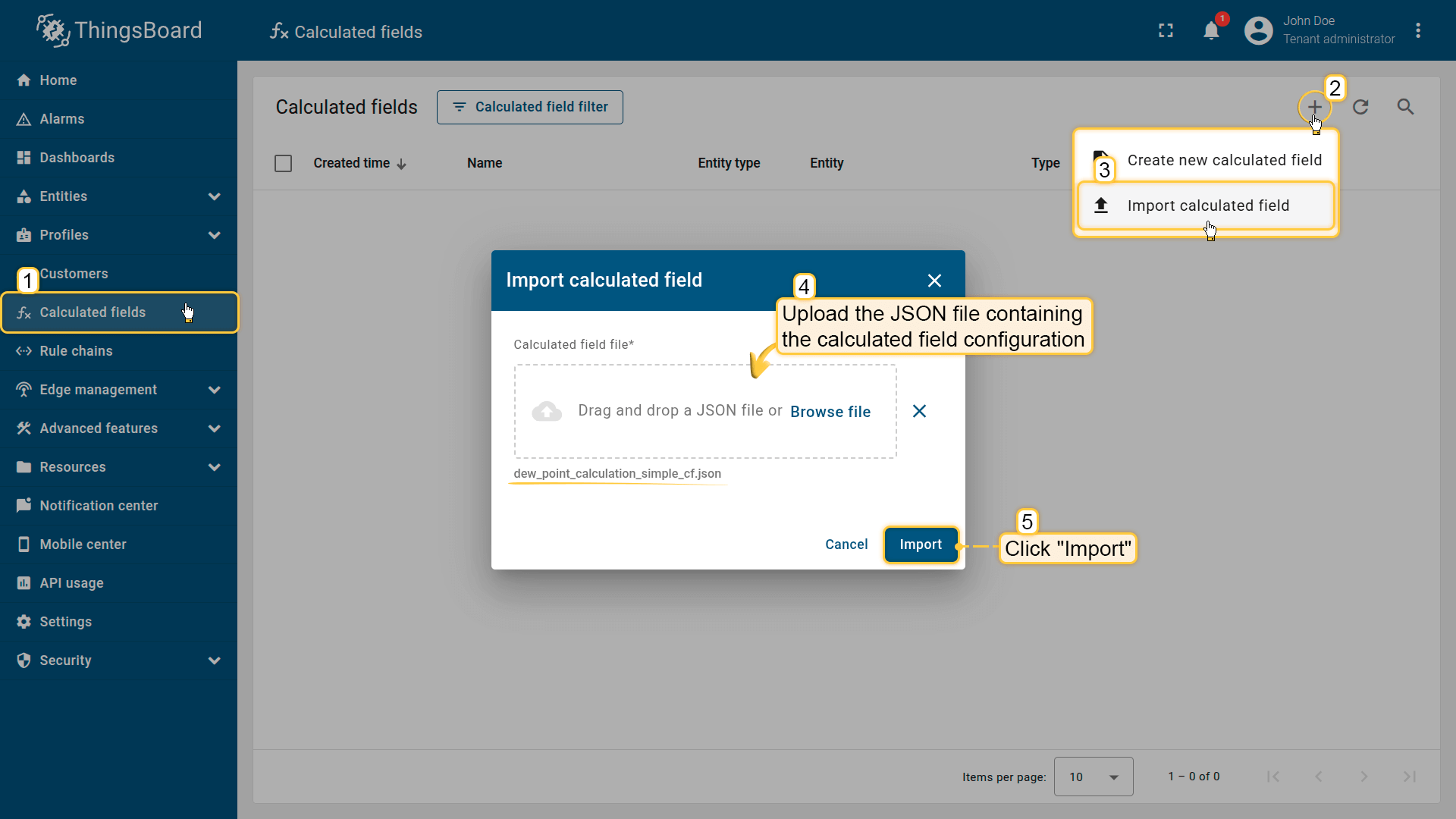
Go to the Calculated fields tab and import the calculated field configuration.
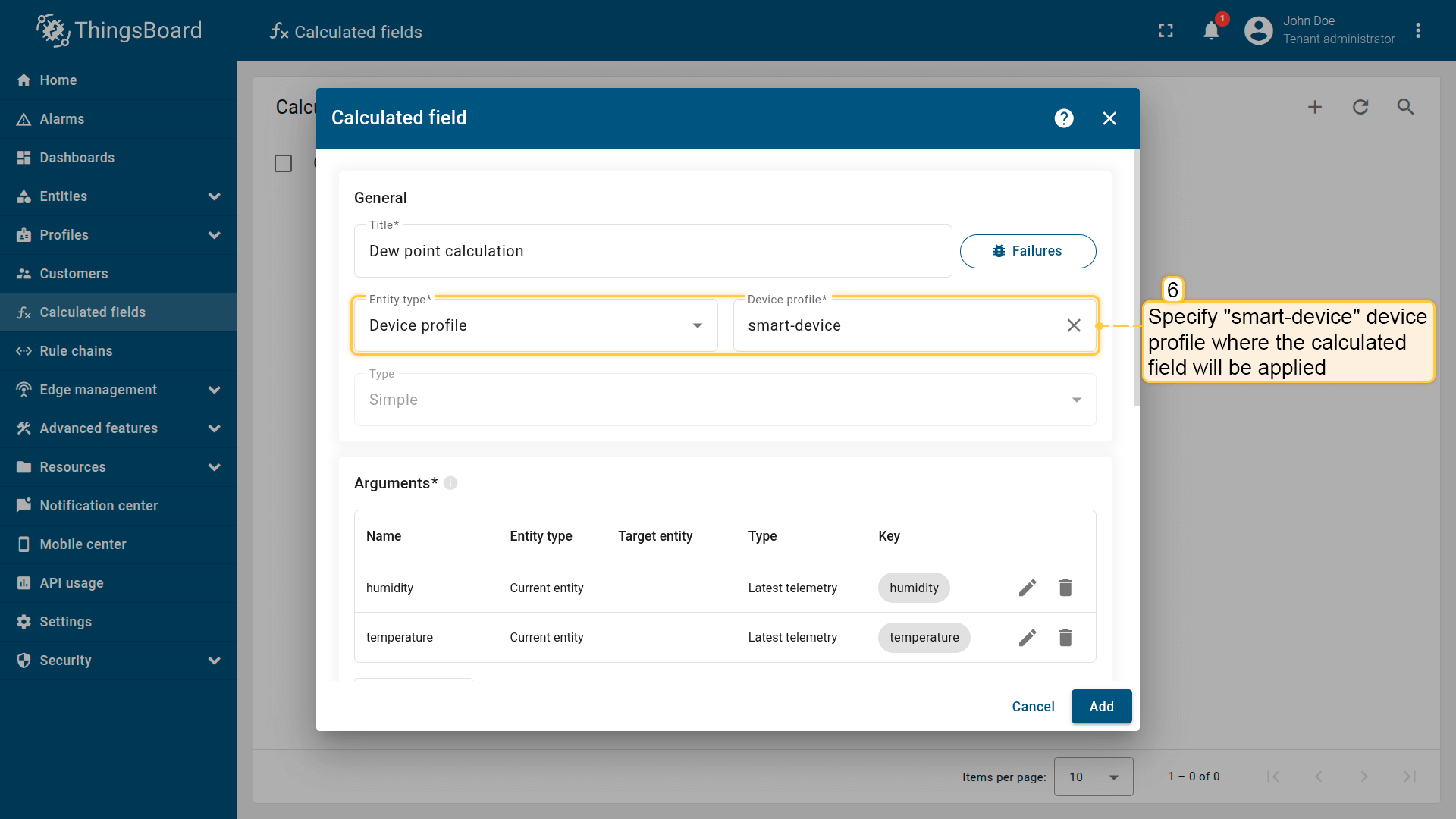
Apply the calculated field to the smart-device profile so it runs for all devices using it.
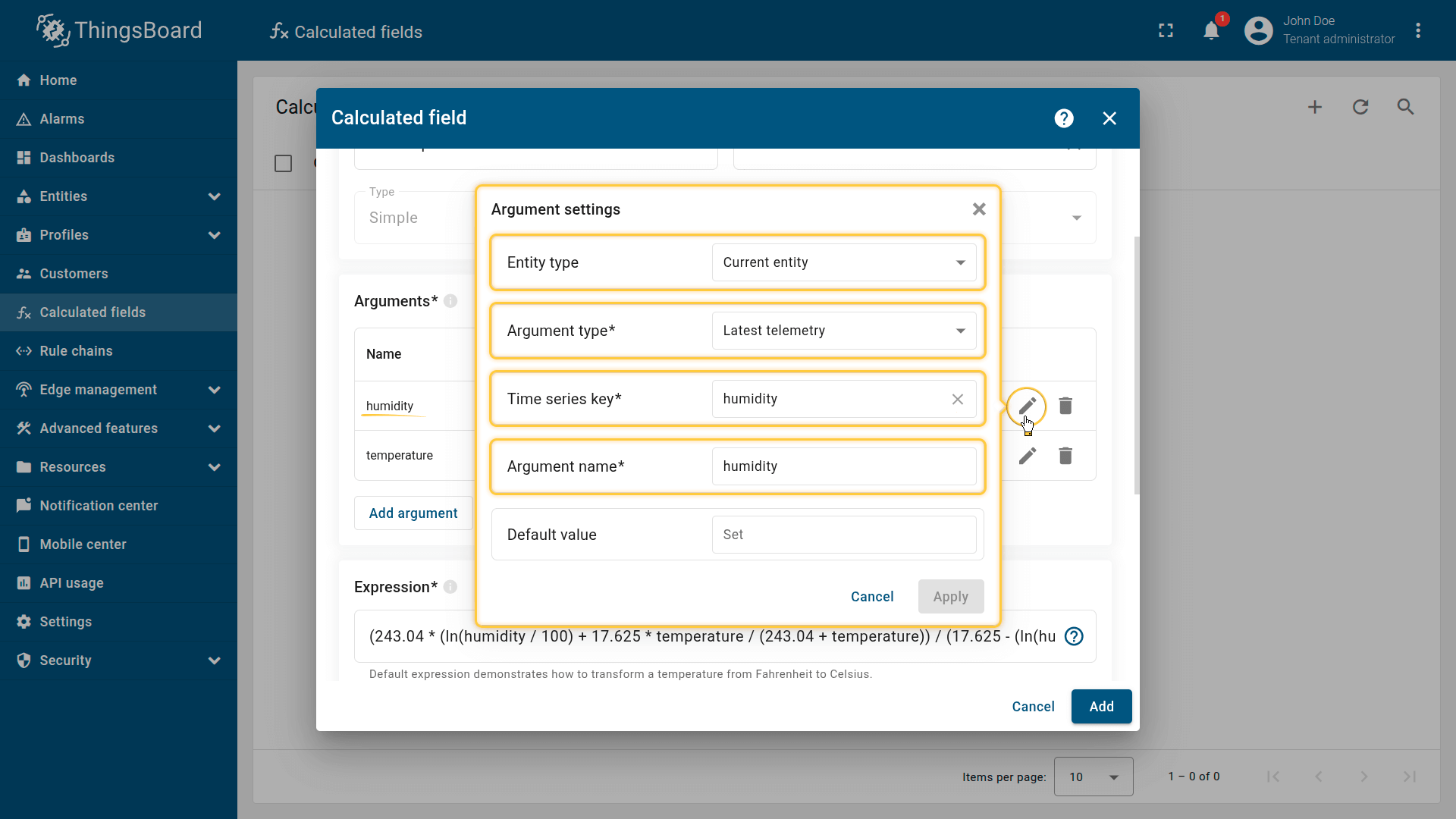
First argument settings:
- Entity type: Current entity
- Argument type: Latest telemetry
- Time series key: humidity
- Argument name: humidity.
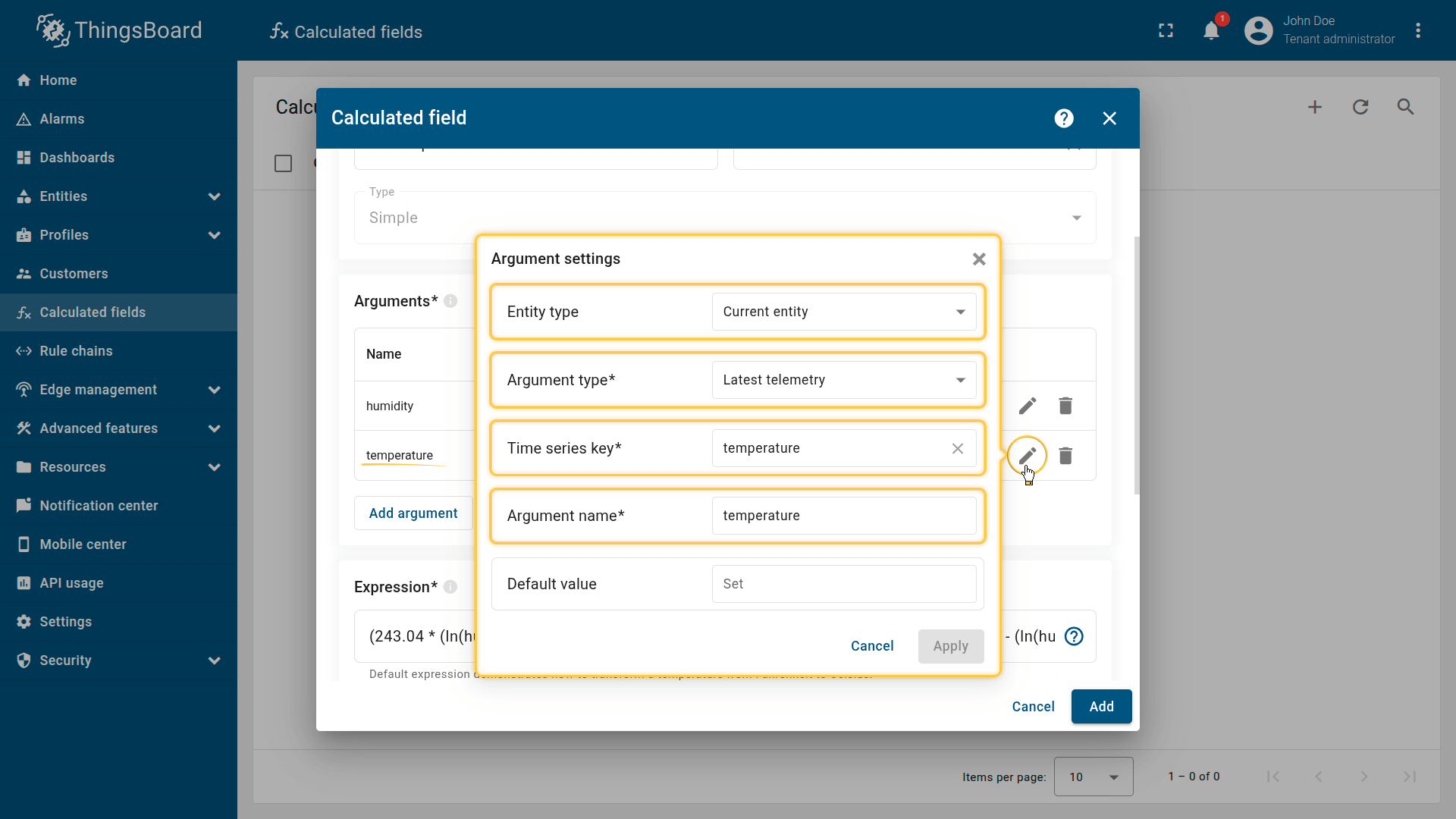
Second argument settings:
- Entity type: Current entity
- Argument type: Latest telemetry
- Time series key: temperature
- Argument name: temperature.
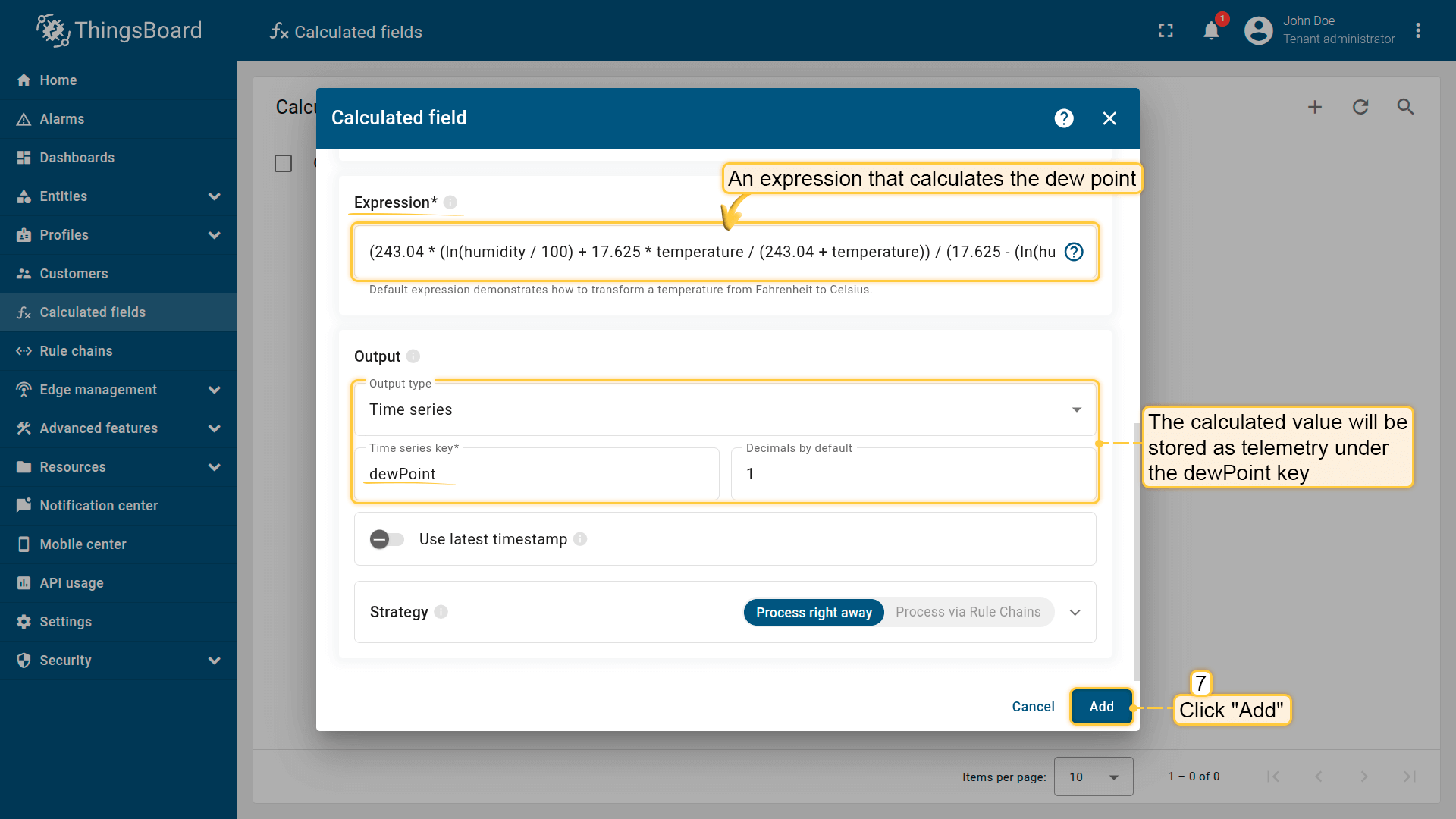
The specified mathematical expression calculates the dew point.
The output value is stored as a time series under the dewPoint key.
Click Add to save the calculated field.
Result
The dew point is calculated and saved as telemetry on the Smart Device under the dewPoint key.
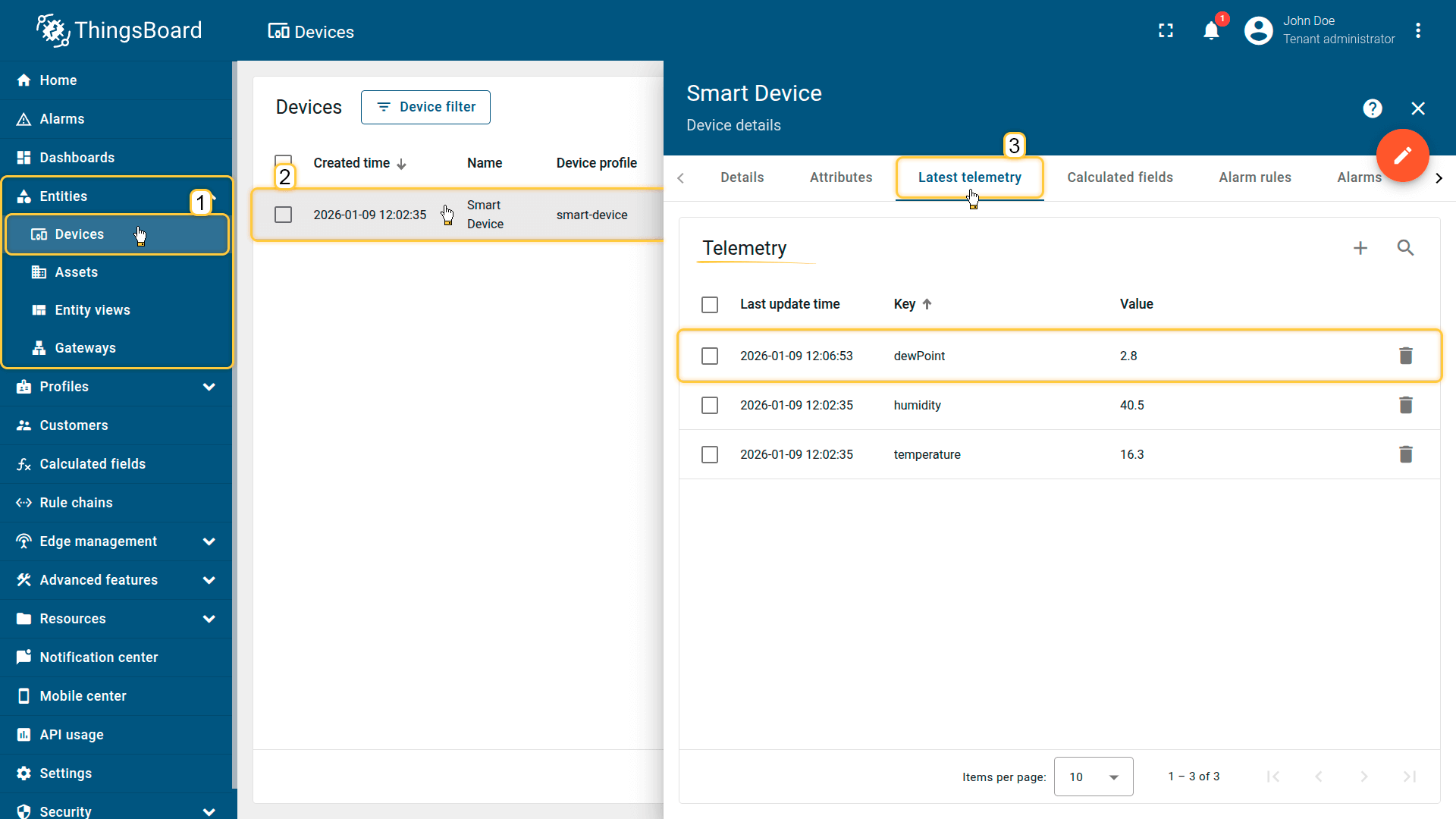
The dew point is calculated and saved as telemetry on the Smart Device under the dewPoint key.
Your feedback
Don't hesitate to star ThingsBoard on github to help us spread the word. If you have any questions about this sample, please contact us.