
This guide describes how to activate Trendz in your ThingsBoard public Cloud environment via the Billing page.
Activation Steps
Step 1. Open the Billing Page
- Log in to your ThingsBoard Cloud environment.
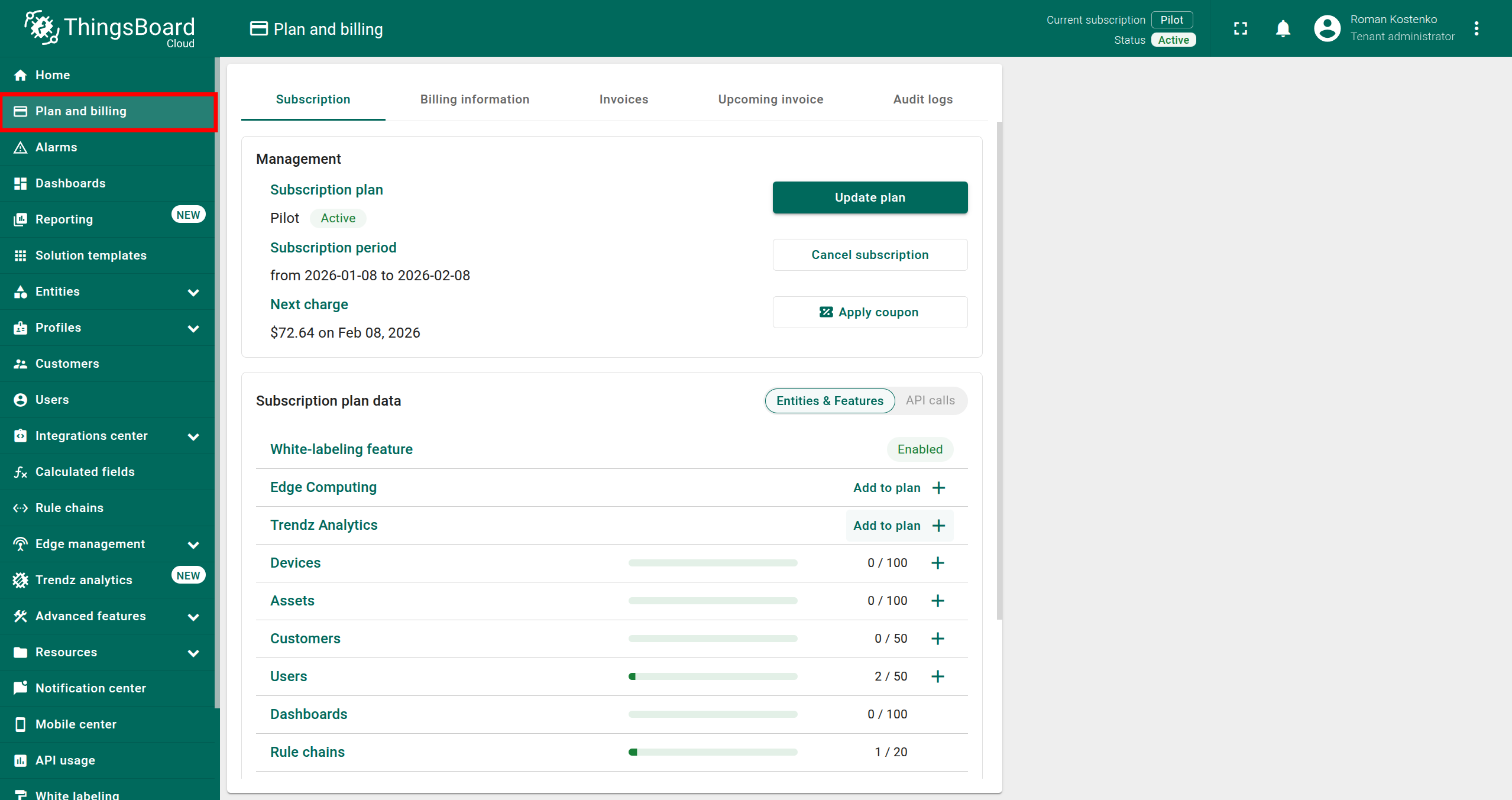
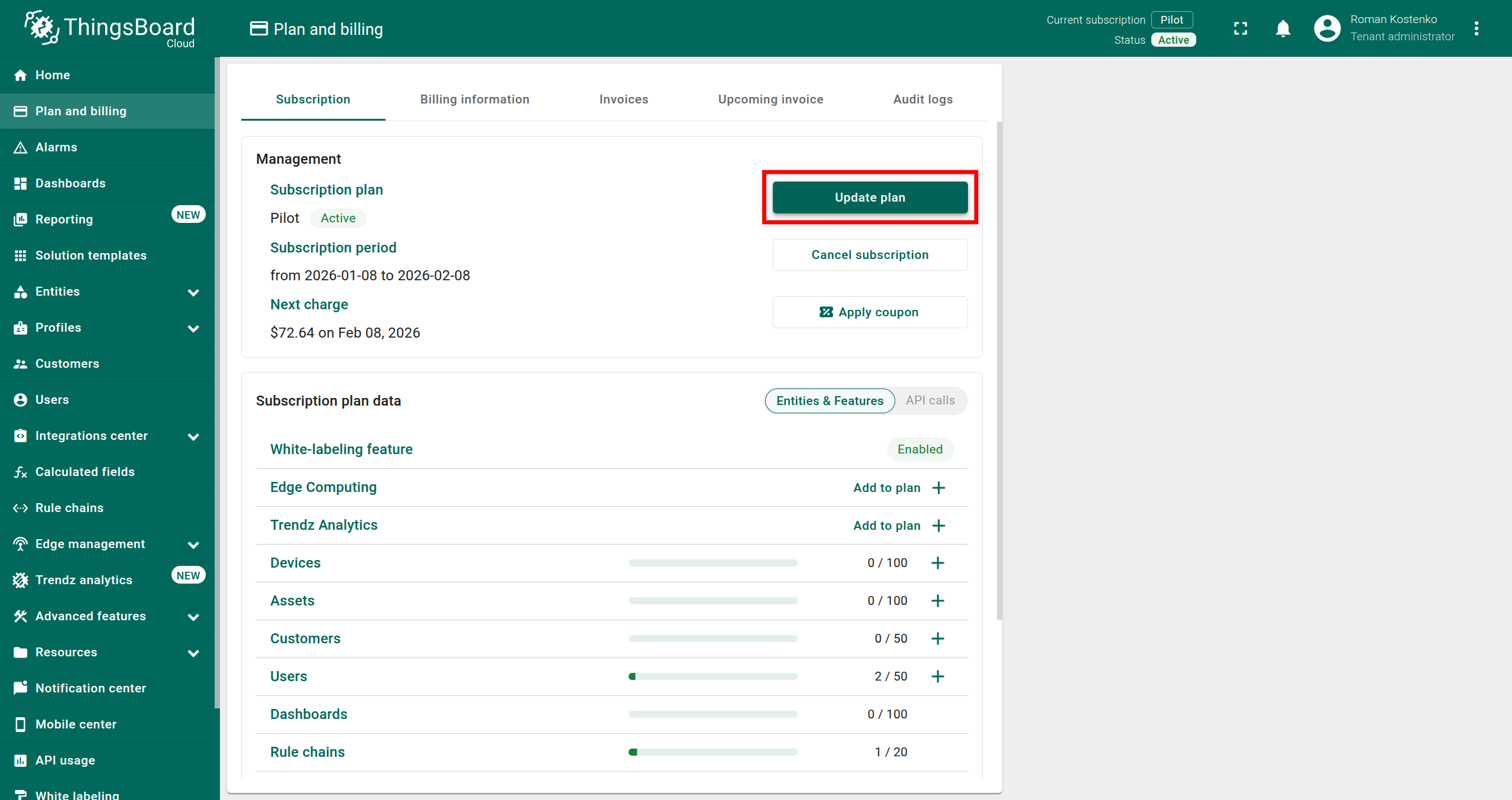
- In the left-side navigation menu, open the Plan and Billing page.
Step 2. Add the Trendz add-on
Option A: Add Trendz add-on only
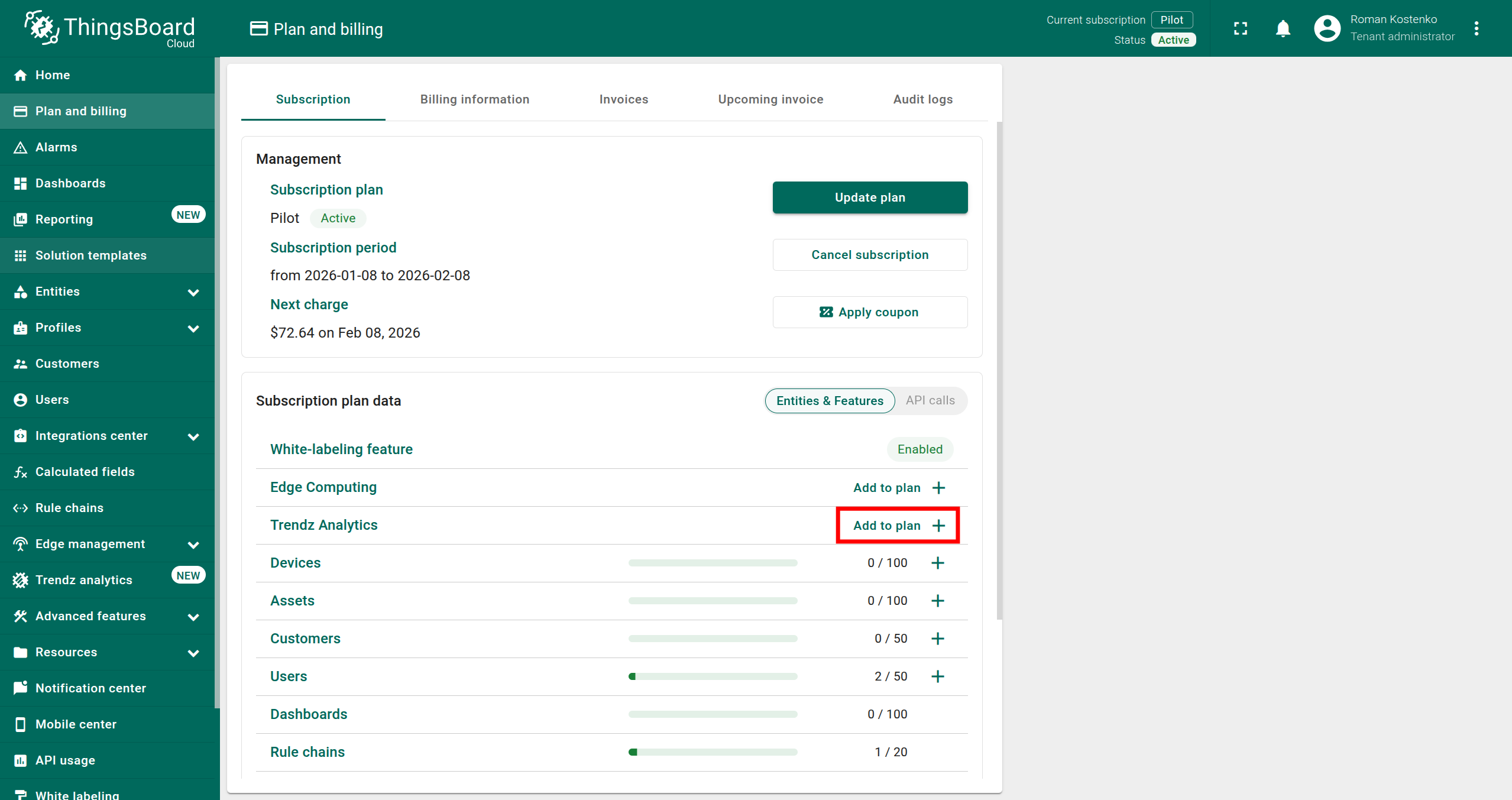
- Click the Add to plan + button in the Trendz Analytics row.
- Click the Next: Summary button.
Option B: Change subscription plan and add Trendz add-on
- Click the Update plan button.
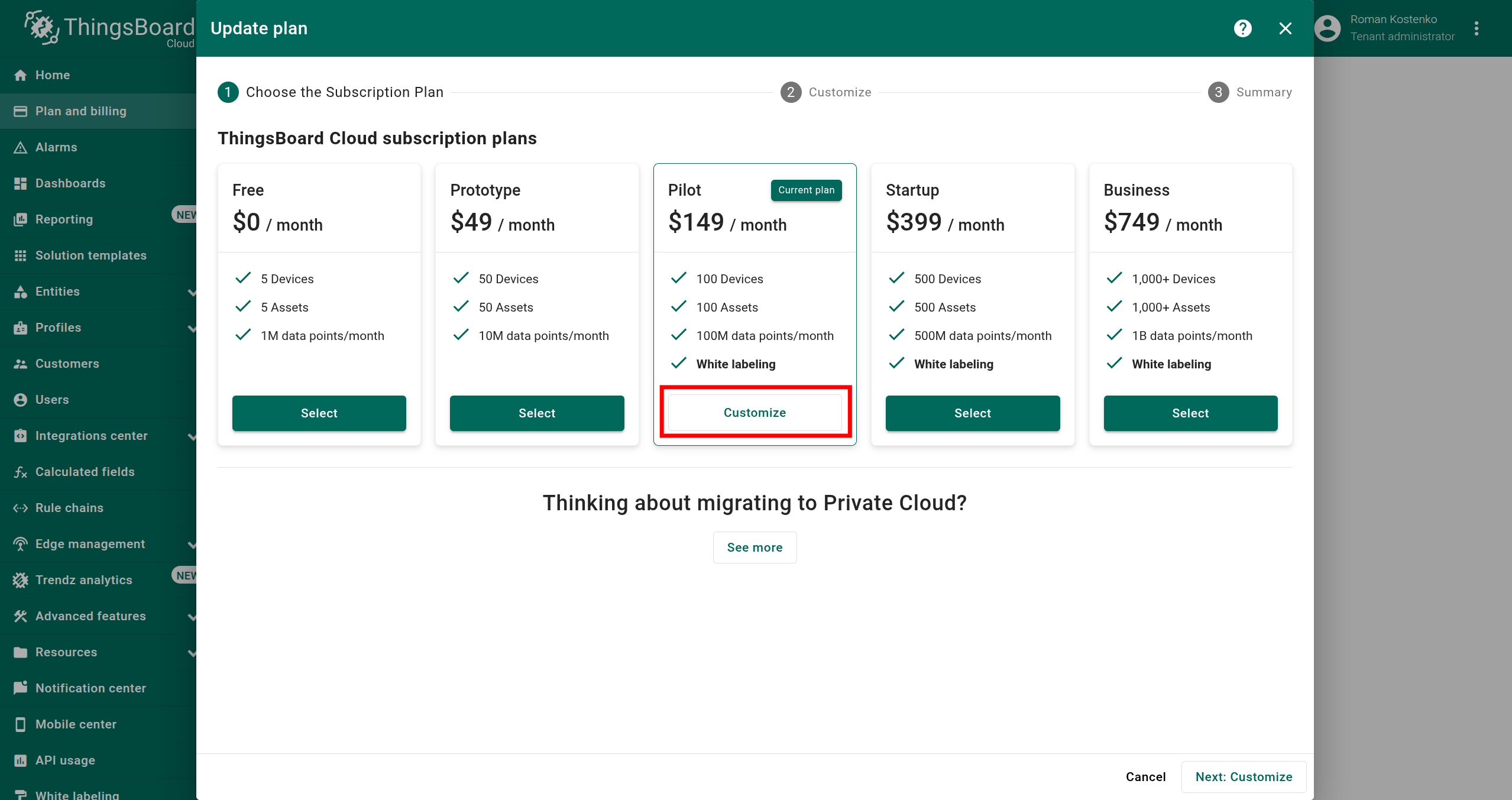
- In the modal that appears, select the most suitable plan for your business goals and click the Customize or Select button.
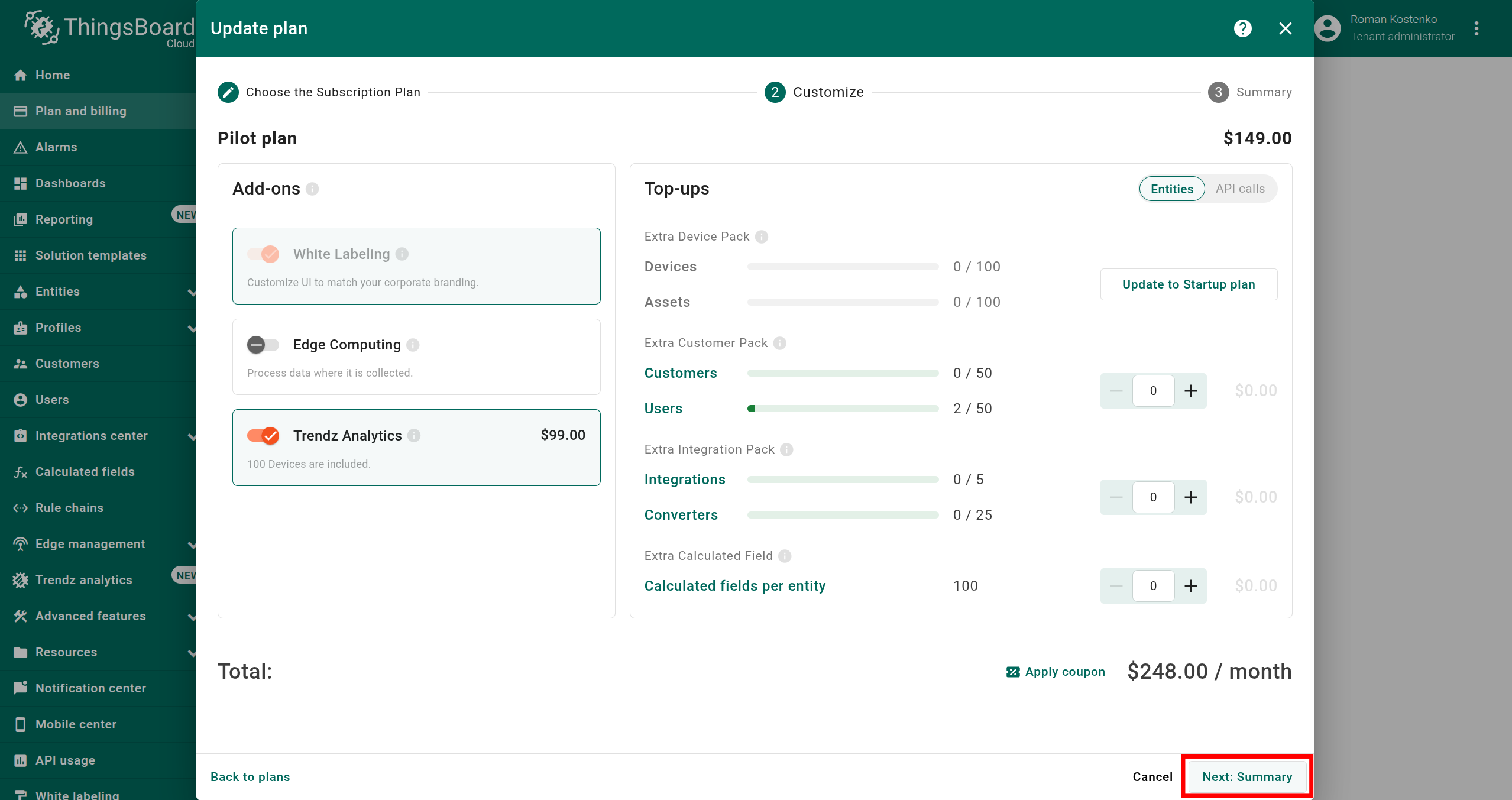
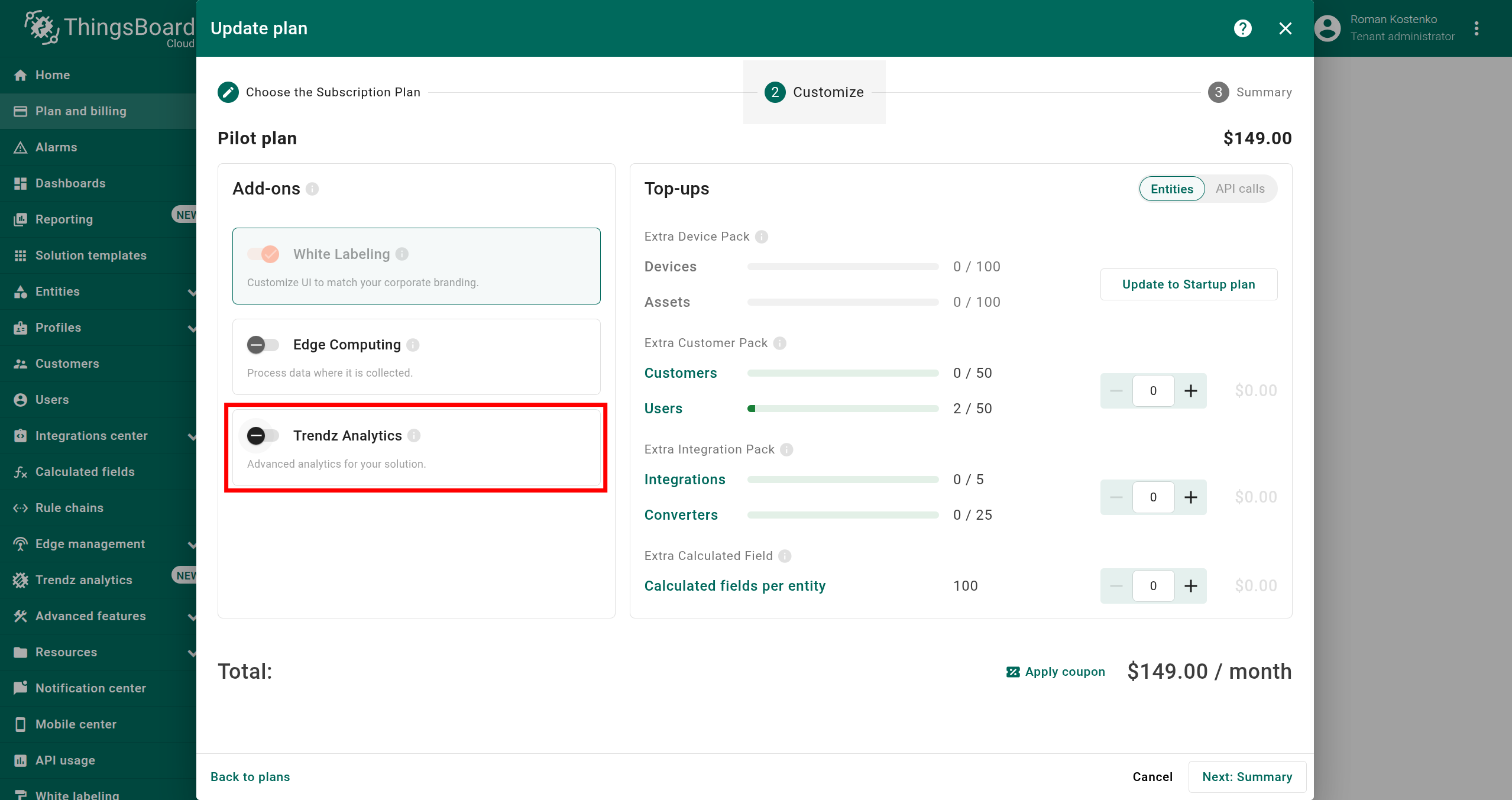
- In the Customize step, enable the Trendz Analytics add-on.
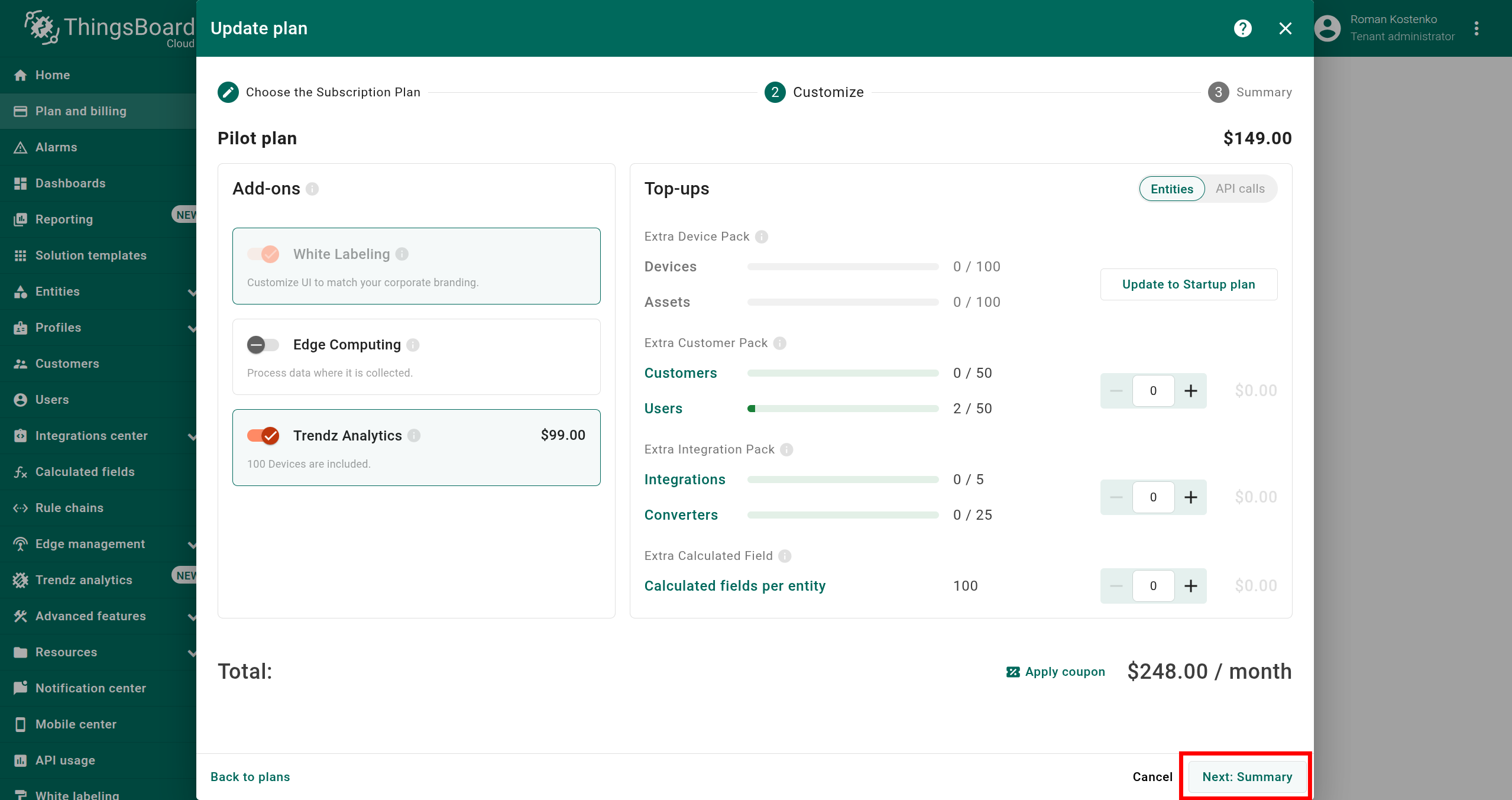
- Click the Next: Summary button.
Step 3. Activate plan
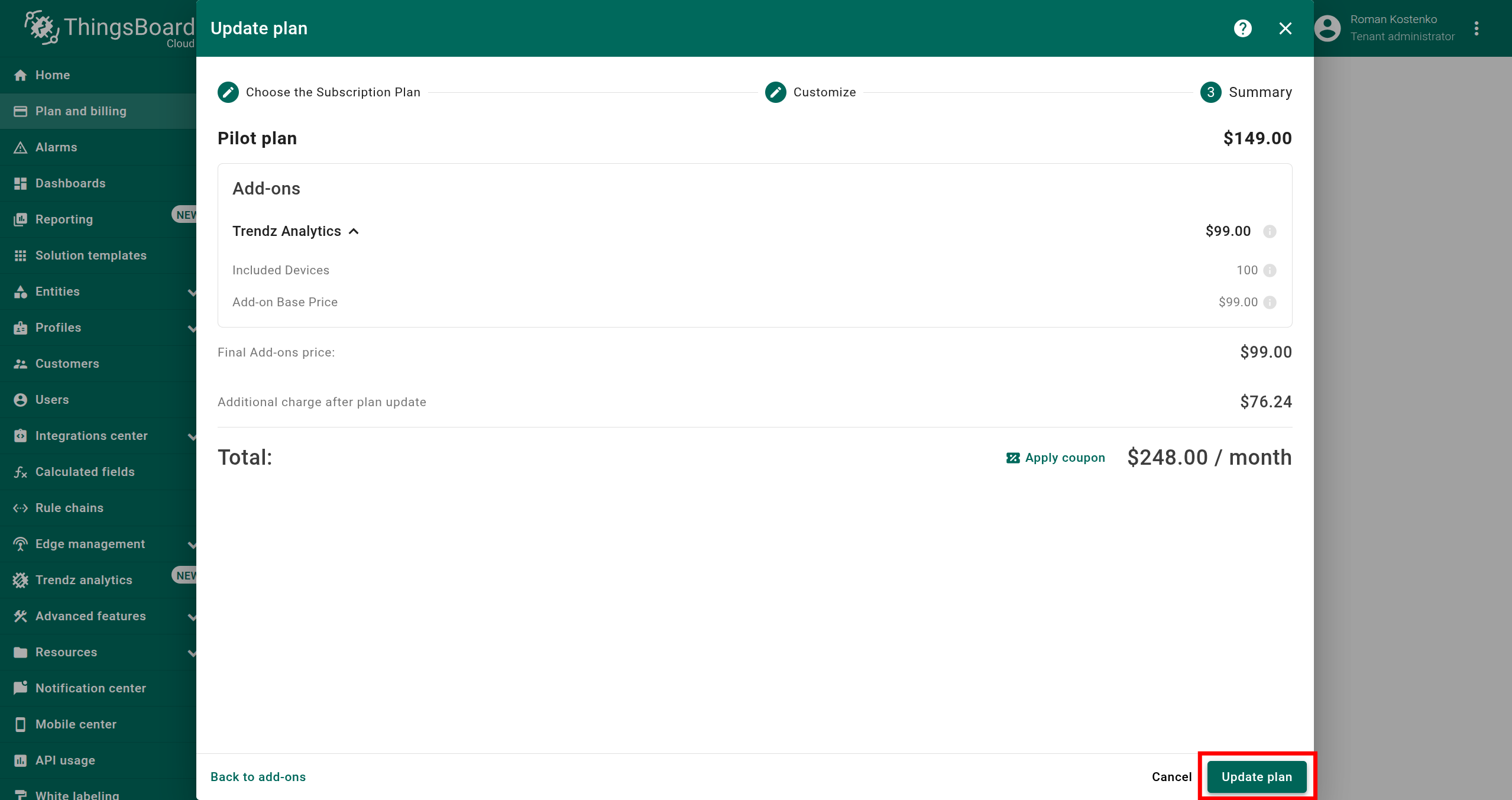
- Review your plan configuration to ensure everything is correct.
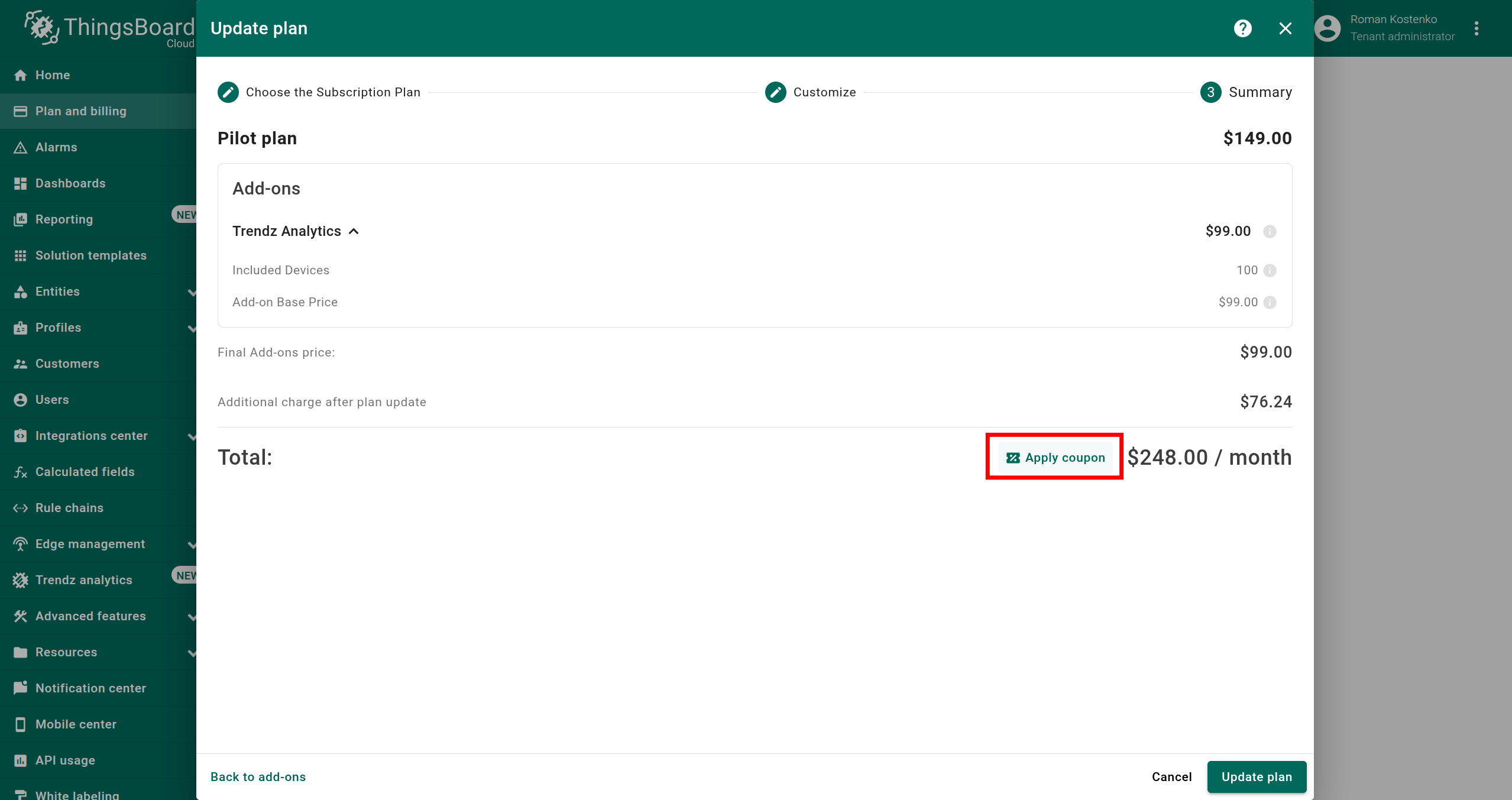
- If you have a coupon code, click Apply coupon button and submit it.
- Click the Update plan button to activate your plan.
- Verify that Trendz Analytics
Step 4. Access Trendz Interface
You can access the Trendz interface using the following links:
After the first login to Trendz, you need to discover topology to allow Trendz to know about assets, devices, their profiles and relations:
- Click the Discover Topology button to start topology discovery process.
- Wait until your topology will be discovered.
- Click the Finish button to close topology discovery page and unlock the main Trendz functionality.
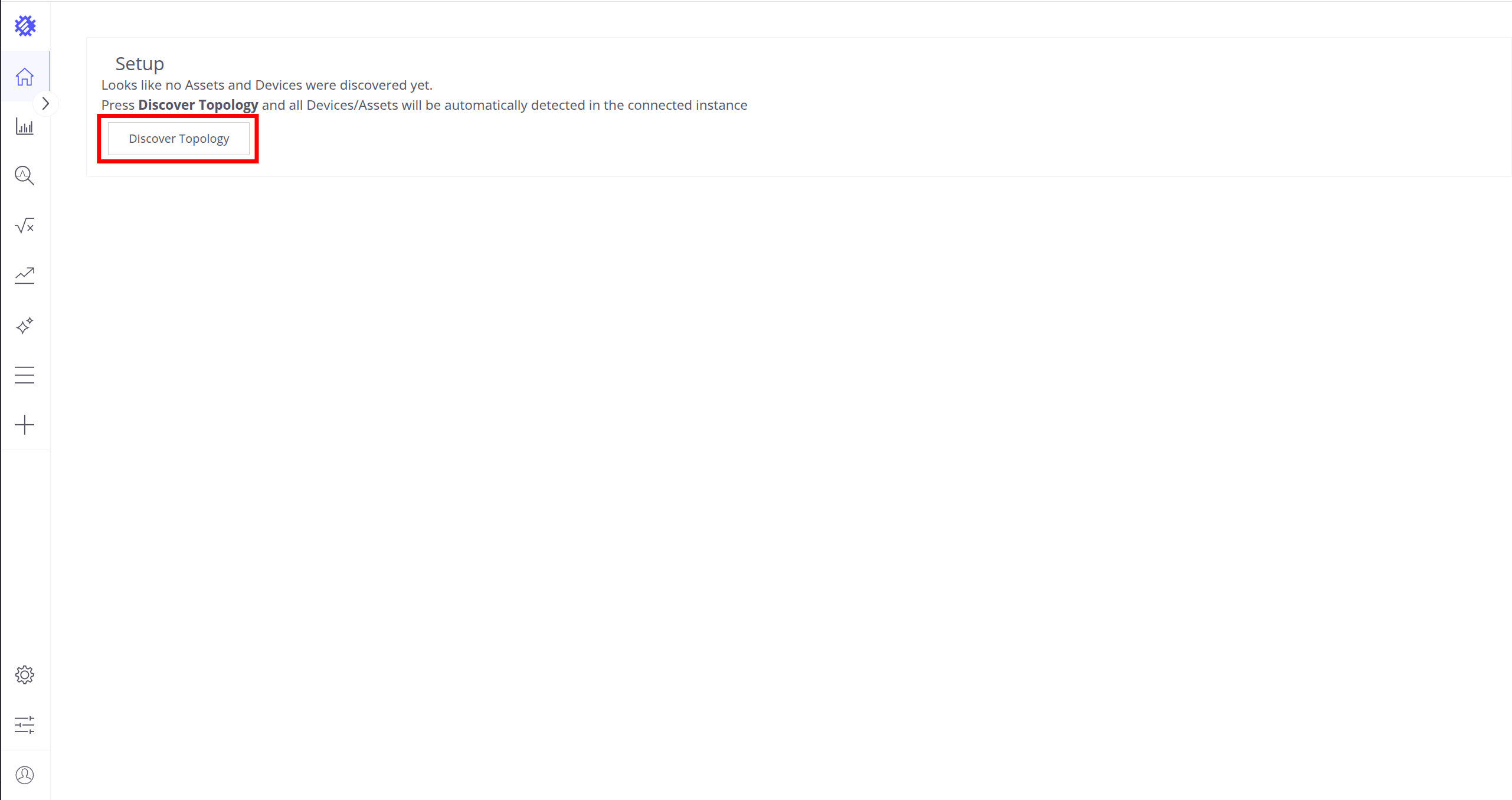
Click the Discover Topology button to start topology discovery process.

Click the Finish button to close topology discovery page and unlock the main Trendz functionality.
You could read more about how Trendz uses this topology here.
Pricing
You can find out up-to-date prices on Trendz add-on in the ThingsBoard billing page as it is shown on step-3.
If you have any questions about anything, just contact us - our team will help you find the best solution tailored to your requirements.
Next Steps
- Follow our Getting Started guide to explore all Trendz capabilities.
- Visit our Documentation to explore all Trendz capabilities and features.