
This section describes how to activate Trendz for a ThingsBoard self-hosted environment via the License Portal.
Activation Steps
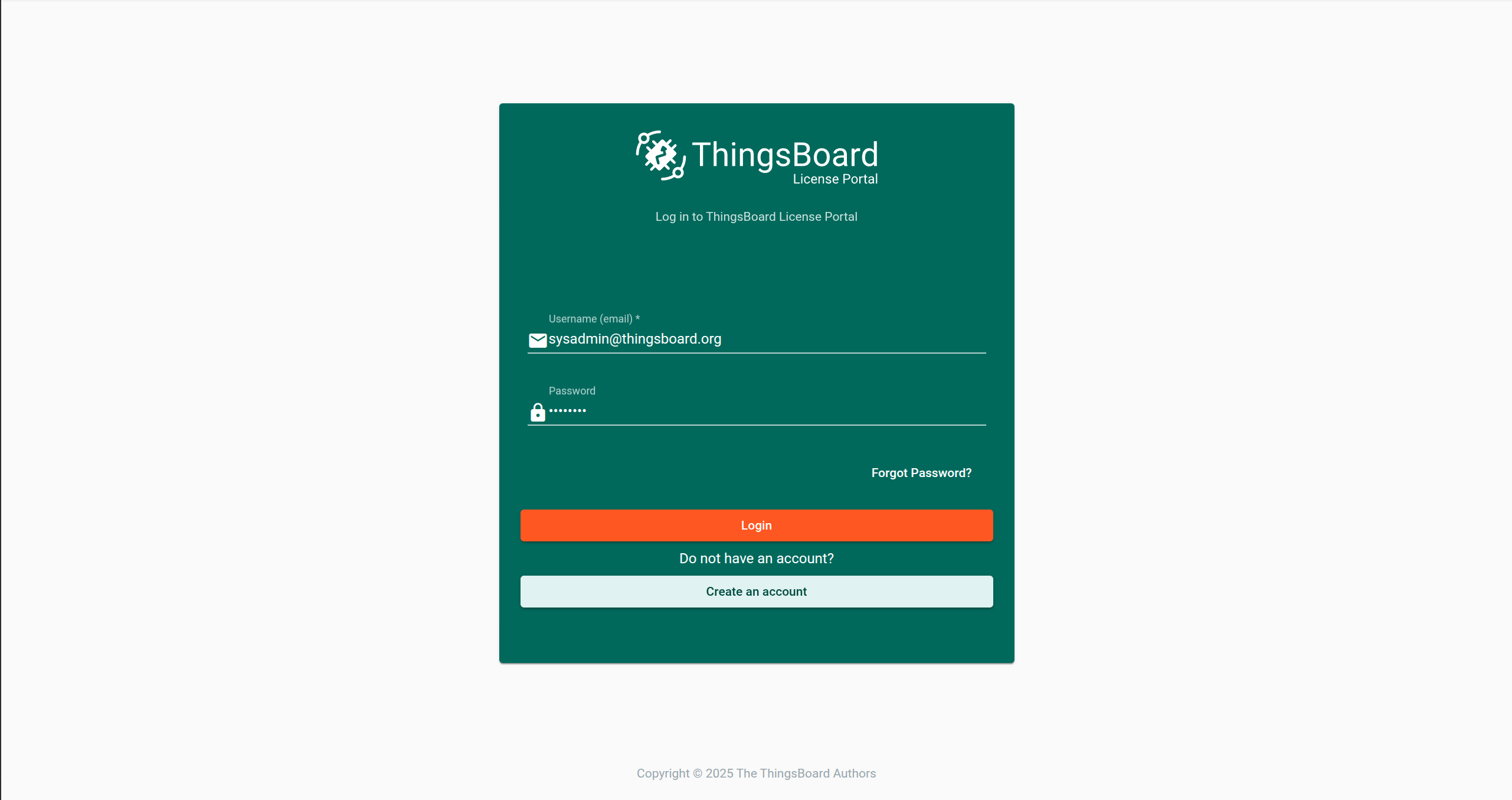
Step 1. Log in to the License Portal
- Open the ThingsBoard License Portal.
- Sign in with your ThingsBoard account as a sysadmin.
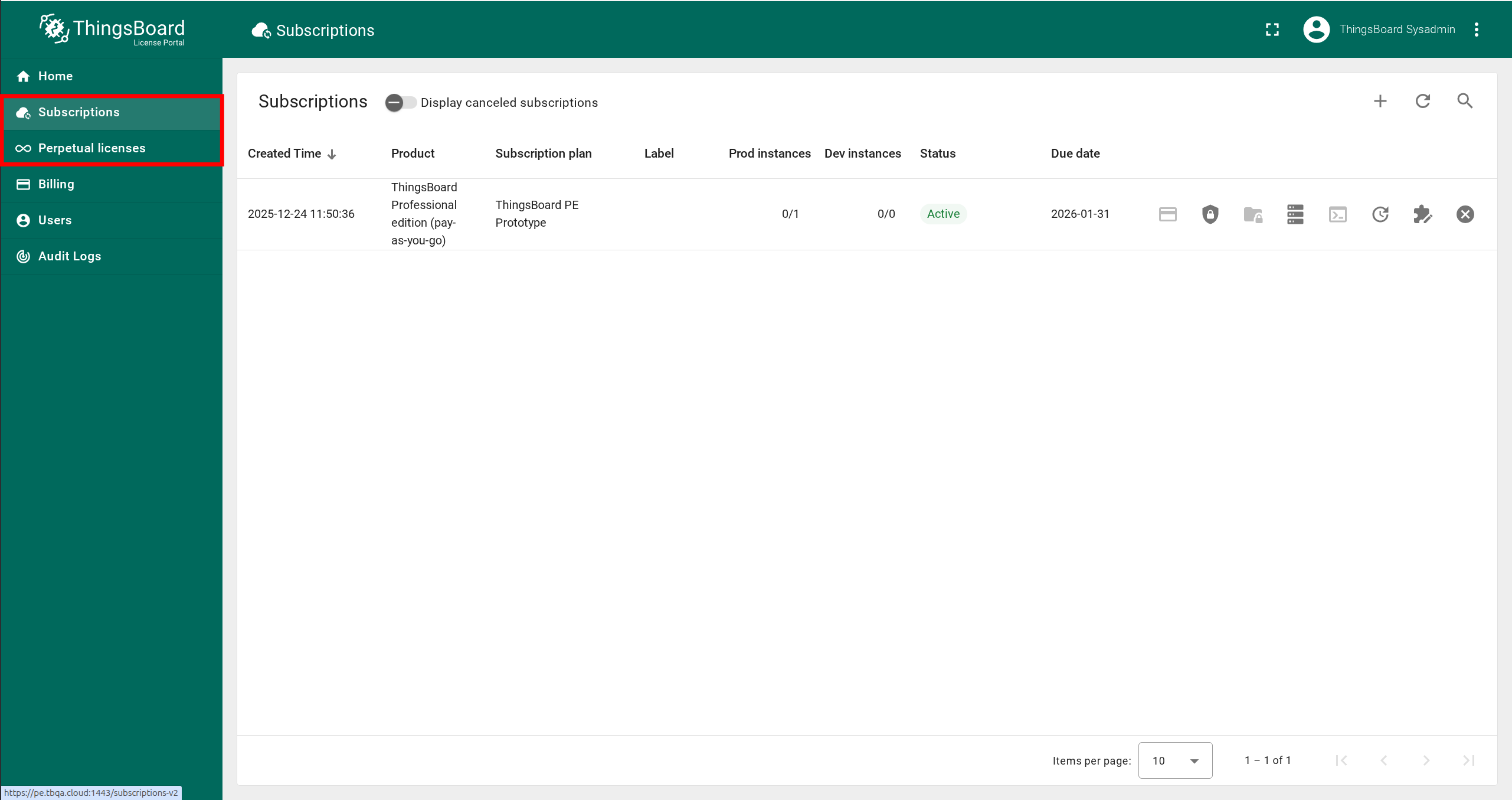
- Go to the Subscriptions tab or Perpetual licenses tab (depends on your subscription type).
Step 2. Select Instance and Enable Trendz Add-on
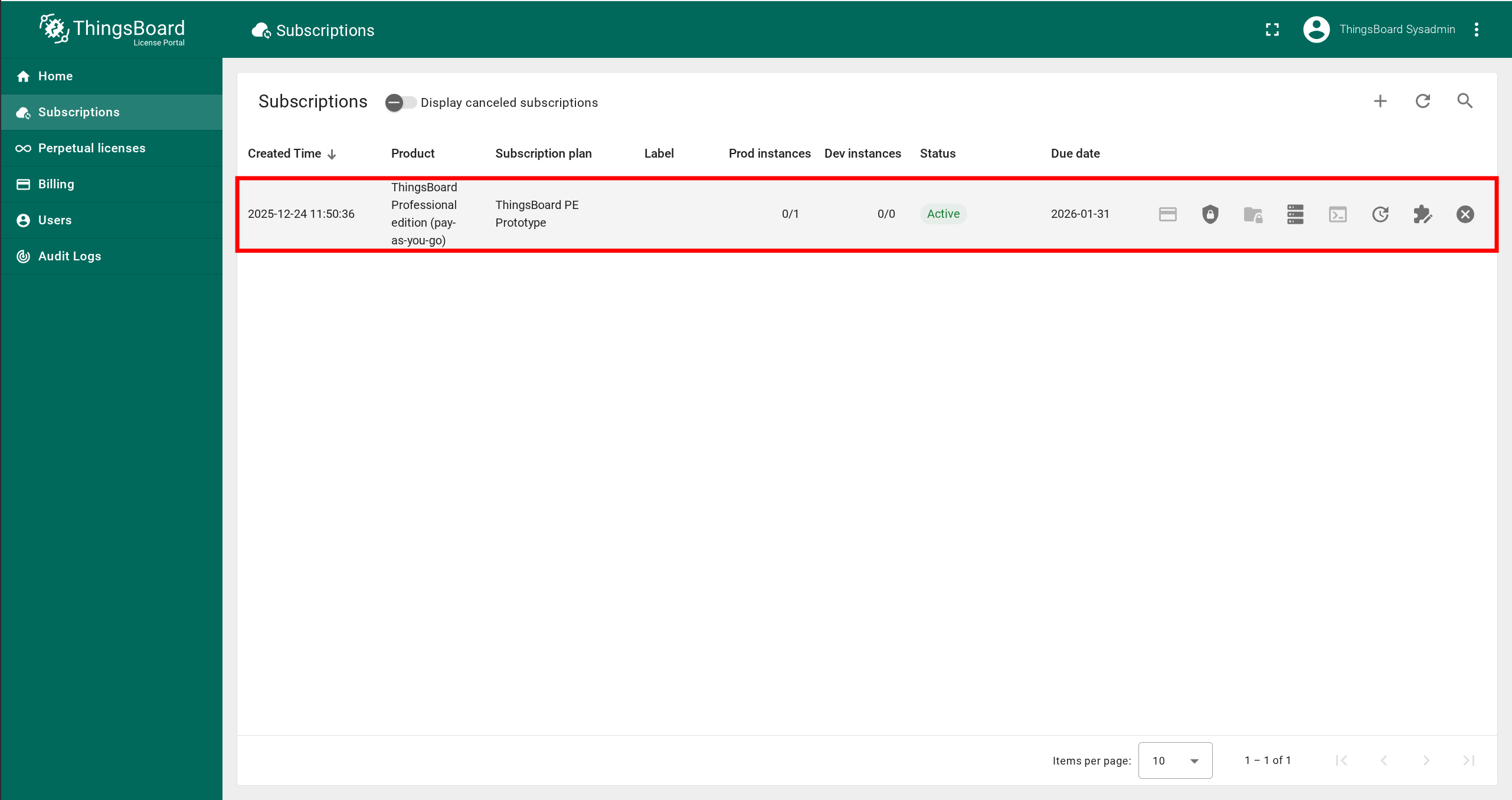
- In the list of licensed installations, select the ThingsBoard instance for which you want to enable Trendz.
- Click on it to open the instance profile.
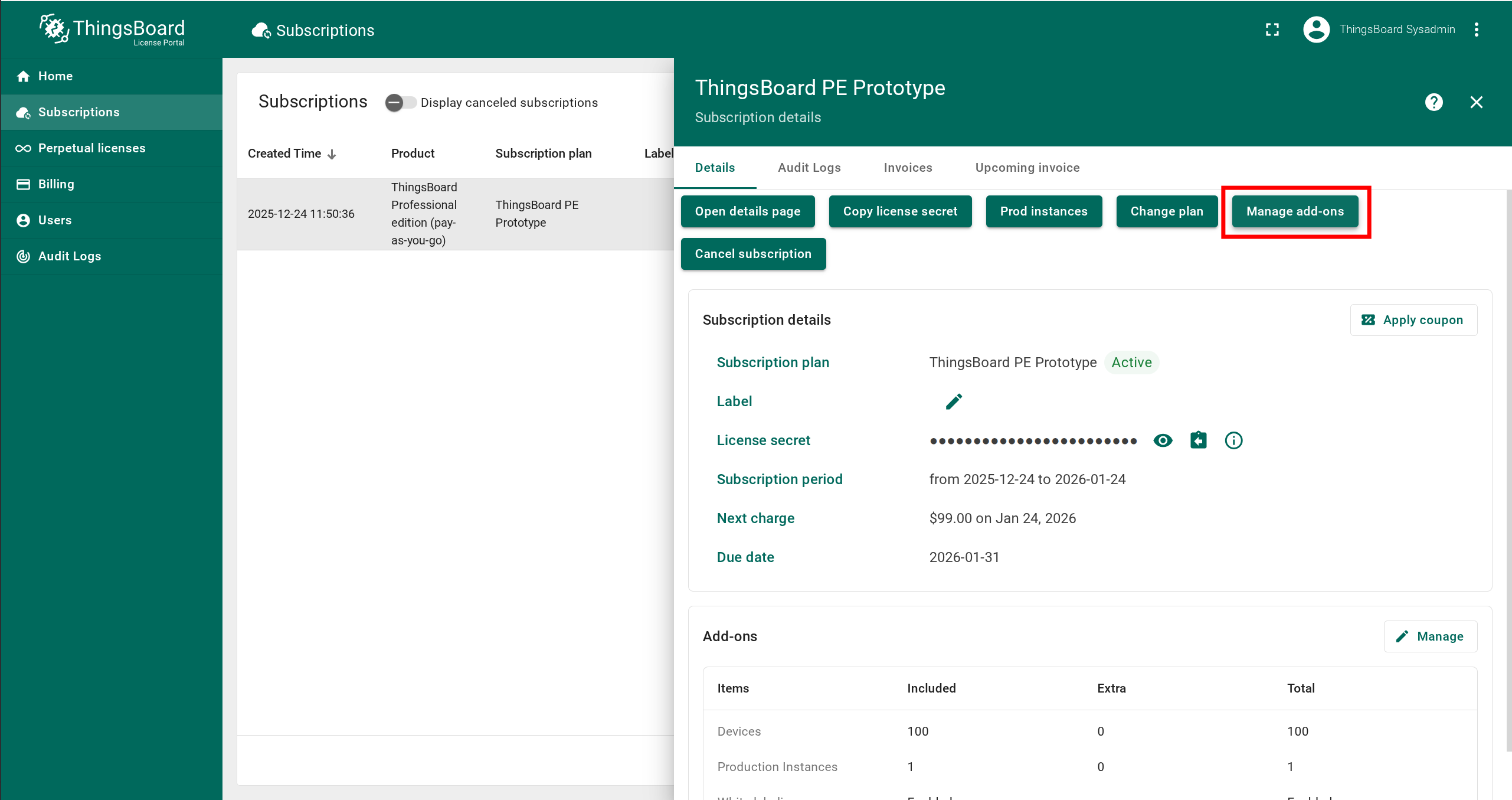
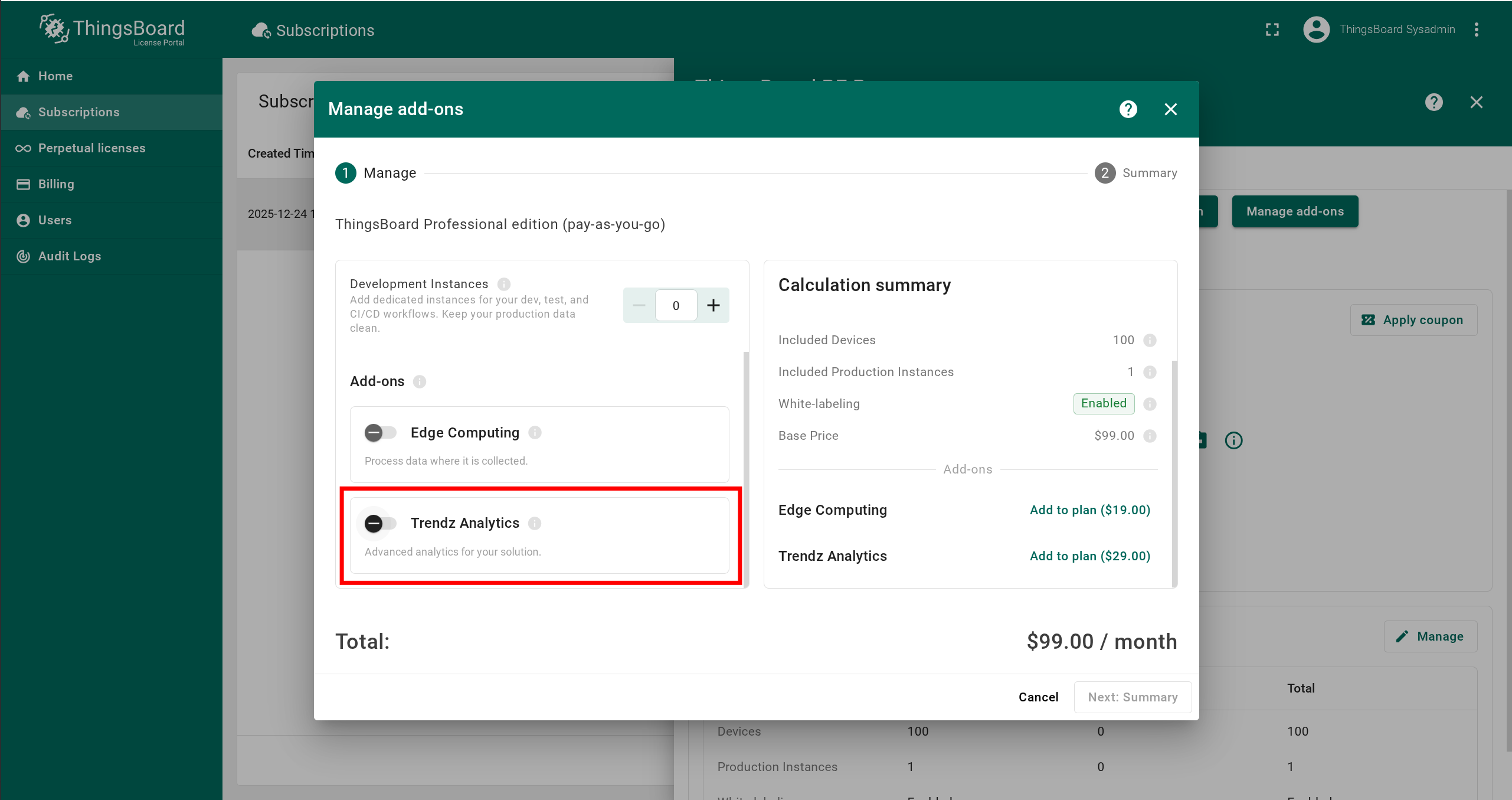
- Click Manage Add-ons.
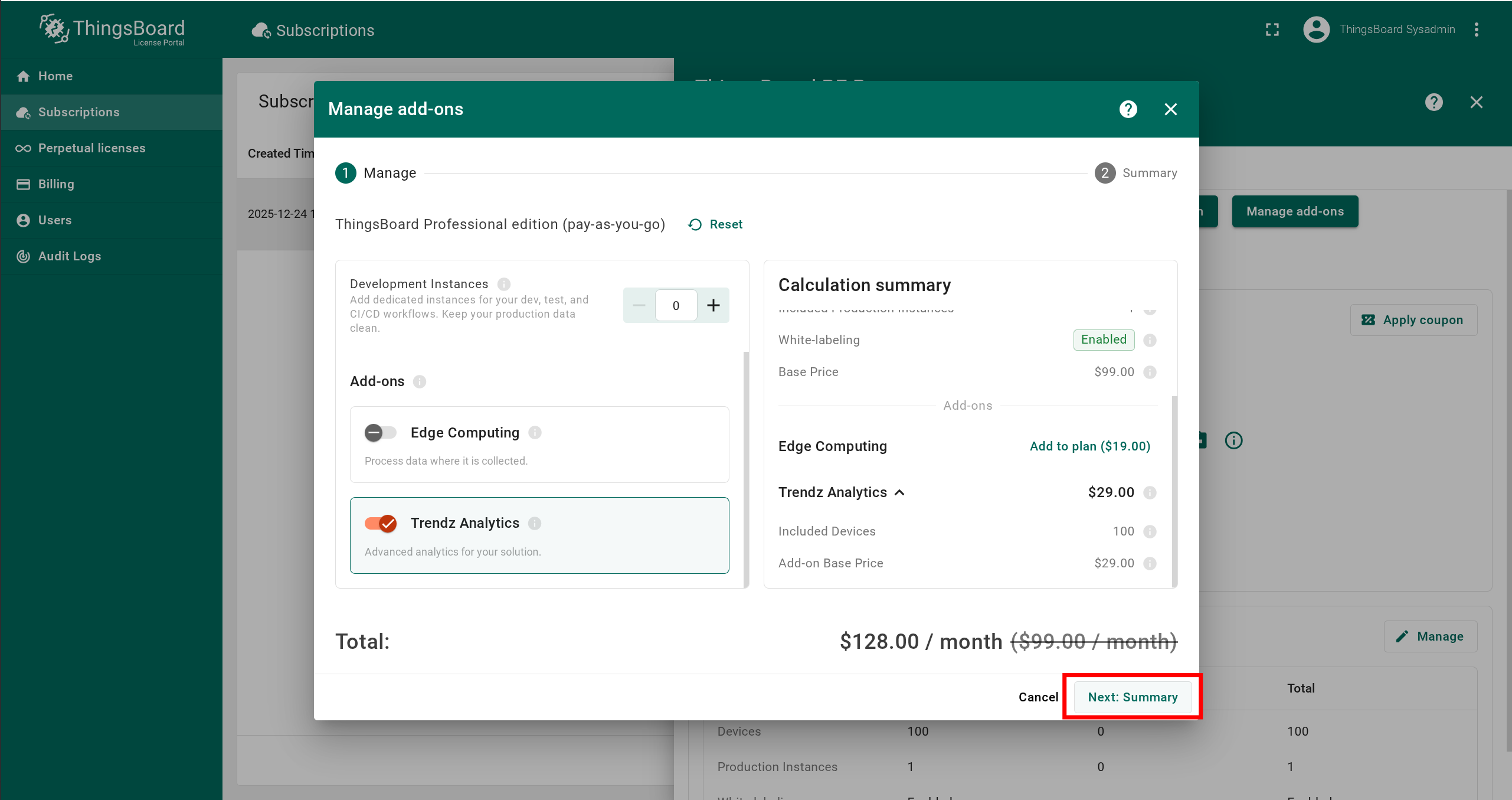
- Scroll down and enable the Trendz Analytics checkbox.
- Click Next in the lower right corner.
Step 3. Review Summary and Complete Payment
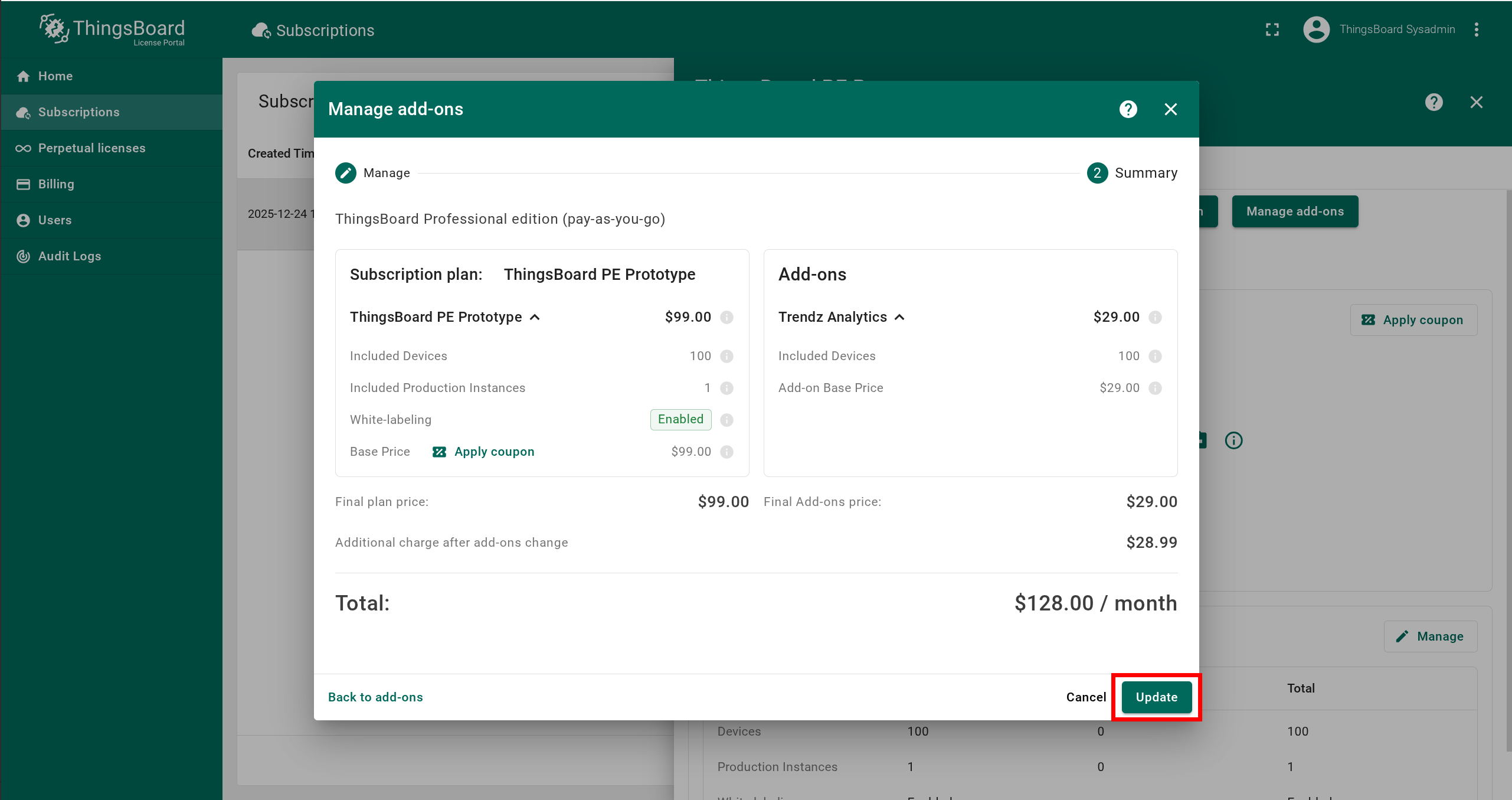
- On the Summary screen, verify the selected plan and full price.
- If everything is correct, click Update and complete the payment.
Step 4. Restart ThingsBoard
Finally, it’s necessary to restart ThingsBoard service, to fetch the newest subscription information.
Pricing
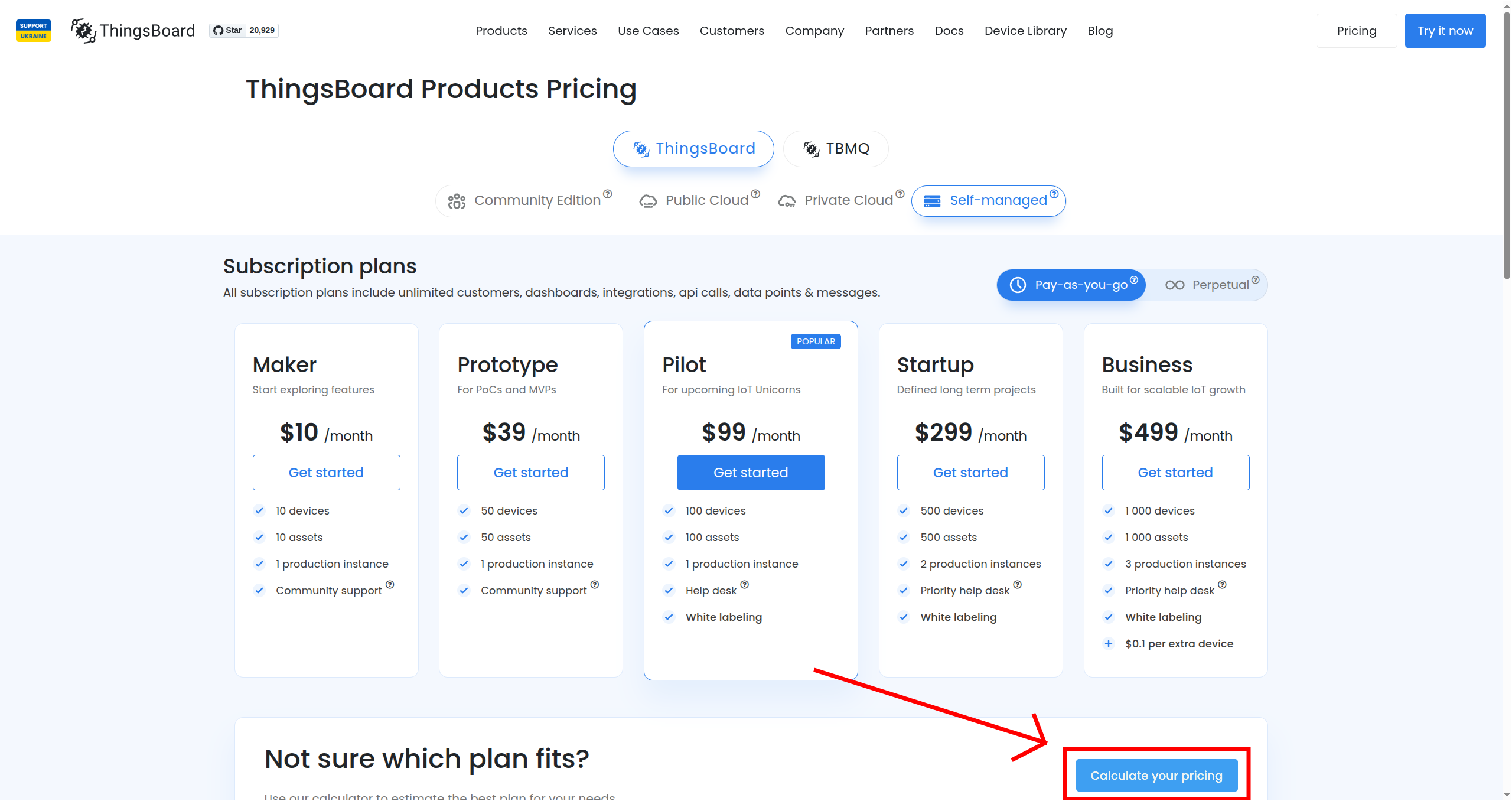
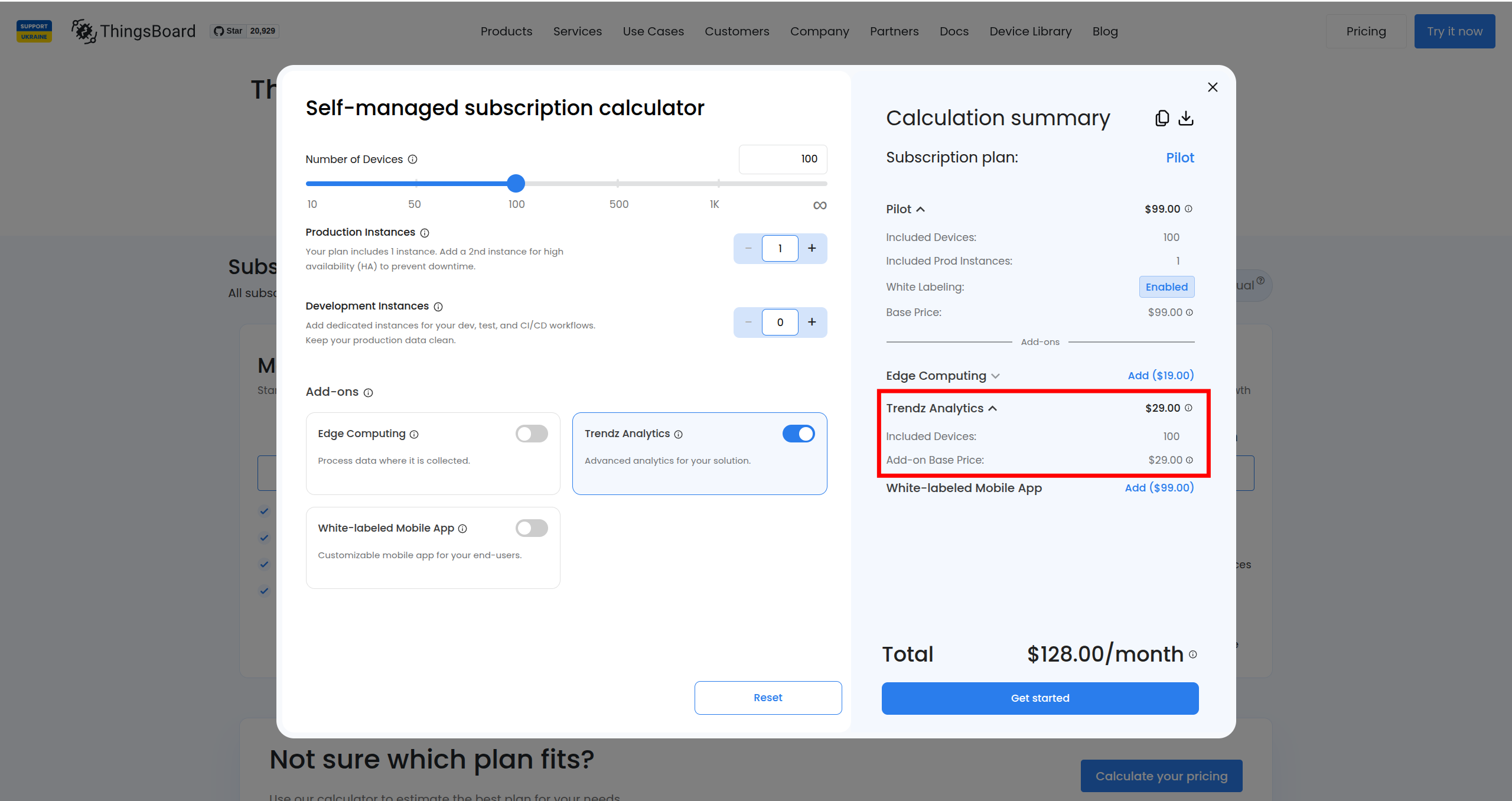
You can find out up-to-date prices on Trendz add-on in the pricing page.
If you have any questions about anything, just contact us - our team will help you find the best solution tailored to your requirements.
Next Steps
- Follow our Installation guide to install Trendz on your environment.
- Follow our Getting Started guide to explore all Trendz capabilities.
- Visit our Documentation to explore all Trendz capabilities and features.