Remote Agent: Manage Remote Docker Hosts from ThingsBoard

On this page
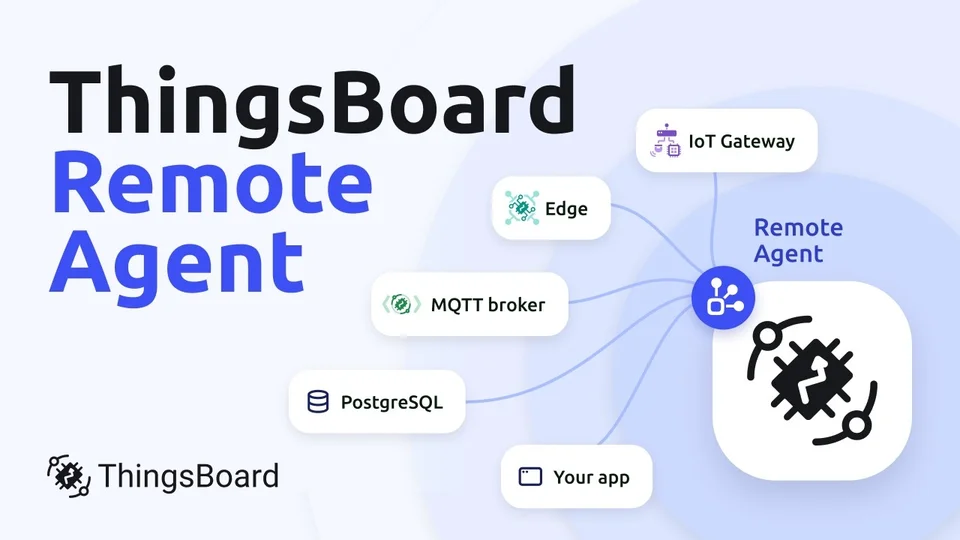
A ThingsBoard deployment is often more than the platform. A hotel chain runs ThingsBoard Edge in its hotels, a manufacturer runs IoT Gateway in its plants, and an MQTT broker or a local database runs on the same host, behind NAT at the customer’s site.
Each of those hosts runs software you have to install, upgrade and monitor. With a few sites, that’s routine. With hundreds, it means an SSH session to every host, configuration changed by hand, and the 2 a.m. “is it still running?” check.
Other Docker management tools can run the containers, but they don’t know about ThingsBoard Edge or IoT Gateway versions, database migrations or the entities those applications connect to.
Remote Agent brings those hosts into ThingsBoard. A small container on each host connects outbound to ThingsBoard, and you deploy, upgrade and monitor its Docker Compose applications from the same UI that manages your devices. It works the same for one host or hundreds: routine work doesn’t need SSH, and you upgrade a whole fleet with one bulk action. Remote Agent is available in ThingsBoard 4.4 and ThingsBoard Cloud.
Playing this video loads it from YouTube (Google), which sets cookies on its own domain. See our Cookie Policy.
Video: https://www.youtube.com/watch?v=14quDoeEybA
TL;DR
- Remote Agent is a Docker Compose manager built into ThingsBoard. You run one small container per host and manage everything else from the ThingsBoard UI. How it works →
- On a single host, you deploy any Compose project, watch CPU, memory, disk and live container logs, and update or upgrade with volume backups and automatic rollback. One host →
- Built for ThingsBoard: it finds new ThingsBoard Edge and IoT Gateway versions for you, upgrades them with database migration and automatic rollback, and creates the Edge or Gateway entity with its credentials. Upgrades →
- For a fleet, every host joins with the same provisioning command, installs its assigned applications on its own, and is upgraded with one bulk action. Fleets →
- The agent connects outbound only, so hosts need no public IP, open ports or VPN. What to plan for →
How does Remote Agent connect to a remote host?
The agent runs as a Docker container on the remote host. It opens an outbound gRPC stream to ThingsBoard, on the same port ThingsBoard Edge already uses, and authenticates with a routing key and secret. ThingsBoard sends step-based commands over that stream. The agent executes them against the local Docker Engine and reports progress for every step.
Four design decisions make it a good fit for production hosts:
- Outbound connections only. The agent opens no listening ports, so the host needs no public IP, port forwarding or VPN.
- Exactly-once execution. Every step is idempotent, and the agent records each finished step. The server watches every running operation and resends the current step when no progress arrives, so a dropped message only delays the work, and a step that already finished isn’t repeated. After a reconnect or an agent restart, execution continues from the first unfinished step.
- Rollback to the last working version. Before an update or upgrade, the agent snapshots the application and backs up the volumes you select. If a step fails on the host, the agent restores those volumes and the previous containers. If the operation fails on the server side, ThingsBoard sends the rollback itself. Either way, the application ends on its previous working version.
- Plain Docker underneath. The agent talks to the Docker Engine API directly, so the host needs only Docker, without the Compose CLI or Compose files. It uses the standard Docker Compose labels, so your applications remain ordinary Compose projects, and containers you started yourself can be brought under management by recreating them with the standard Compose labels.
How do you manage a single remote host?
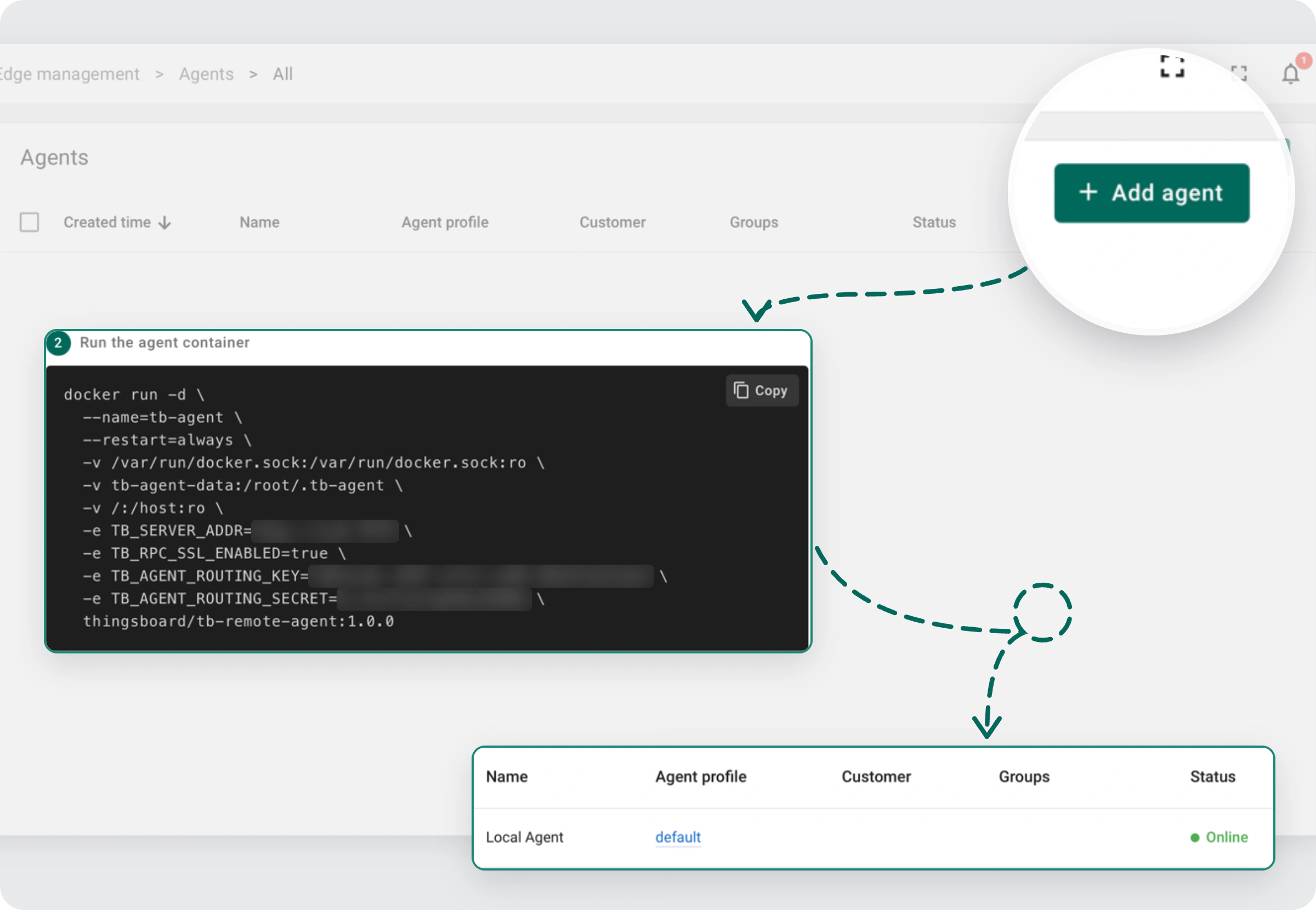
Start with one machine. In ThingsBoard, go to Edge management > Agents, click Add new agent, and copy the generated docker run command. The server address and credentials are already filled in. Run it on the host, and the agent shows up as Online. From that moment, you manage the host from the UI.
Deploy any Docker Compose application
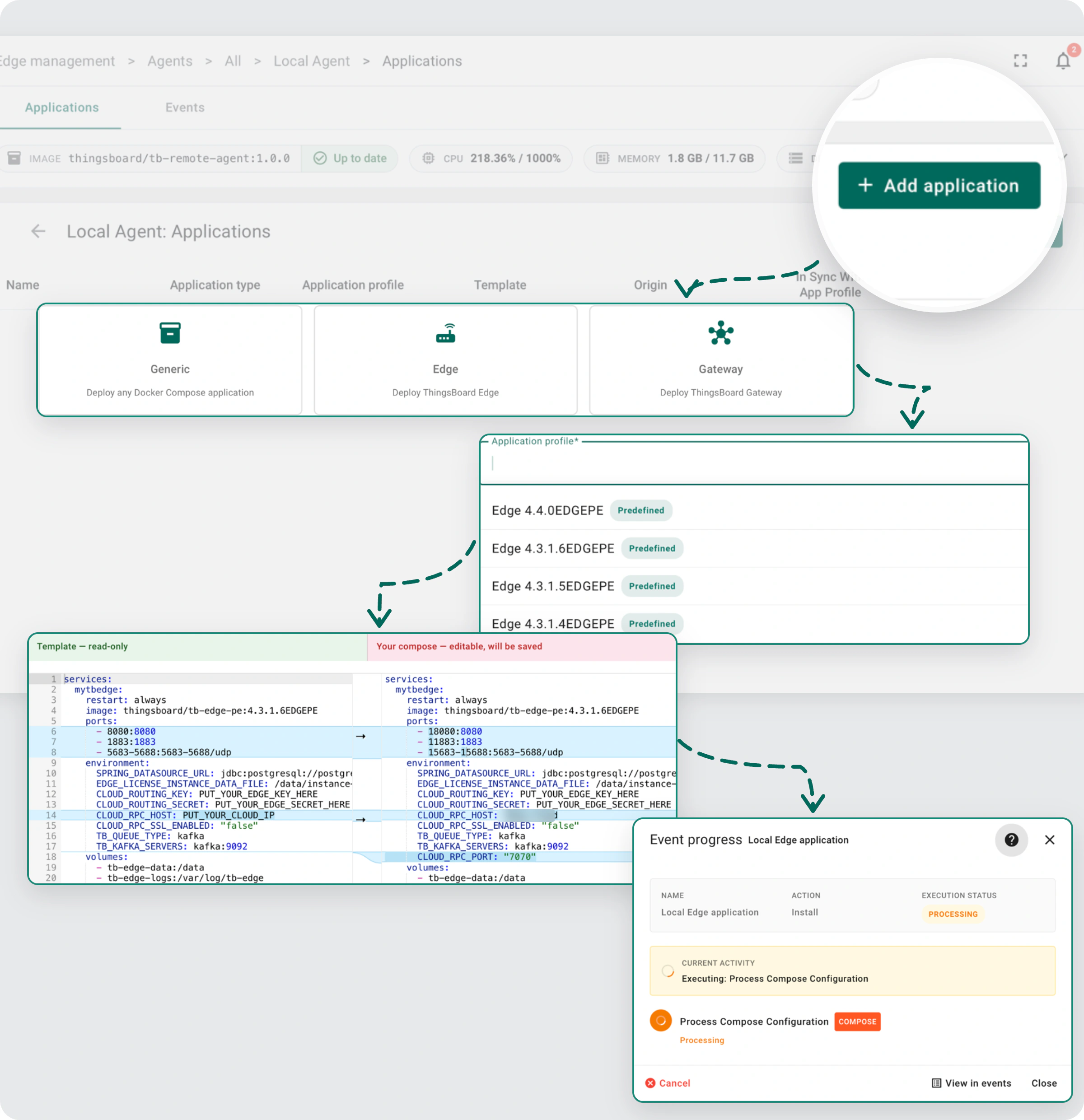
Click Add application and pick a type:
- Edge: a ThingsBoard Edge instance, linked to its Edge entity and credentials automatically.
- Gateway: a ThingsBoard IoT Gateway, linked to its gateway device the same way.
- Generic: any Docker Compose project, such as an MQTT broker, a database, a dashboard or your own service.
Pick a predefined application profile for the version you want, adjust its Compose configuration if you need to, and click Install. You follow the install step by step as the agent pulls images and starts containers, and the application then appears in the list.
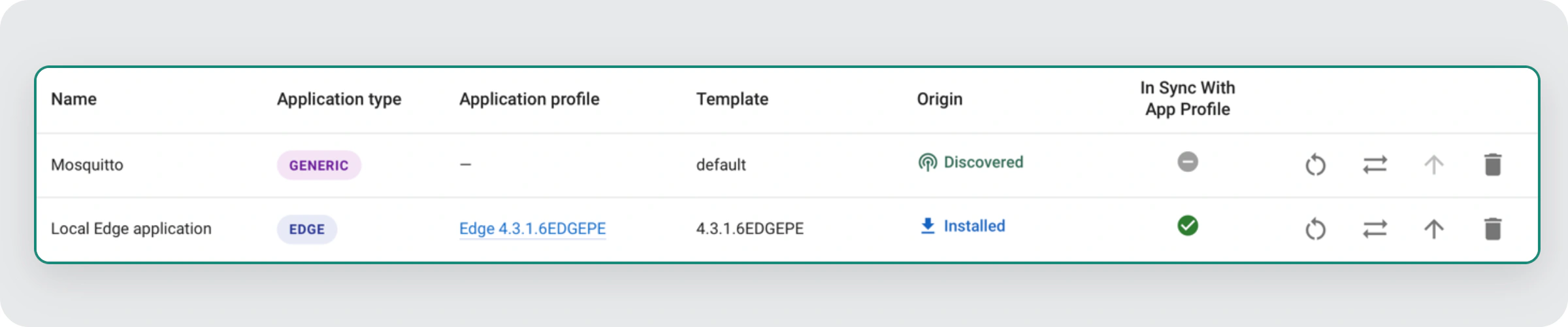
Compose projects that already run on the host don’t need to be redeployed. When the agent connects, it discovers them and reports them to ThingsBoard, and you manage them as they are.
Watch metrics and live logs
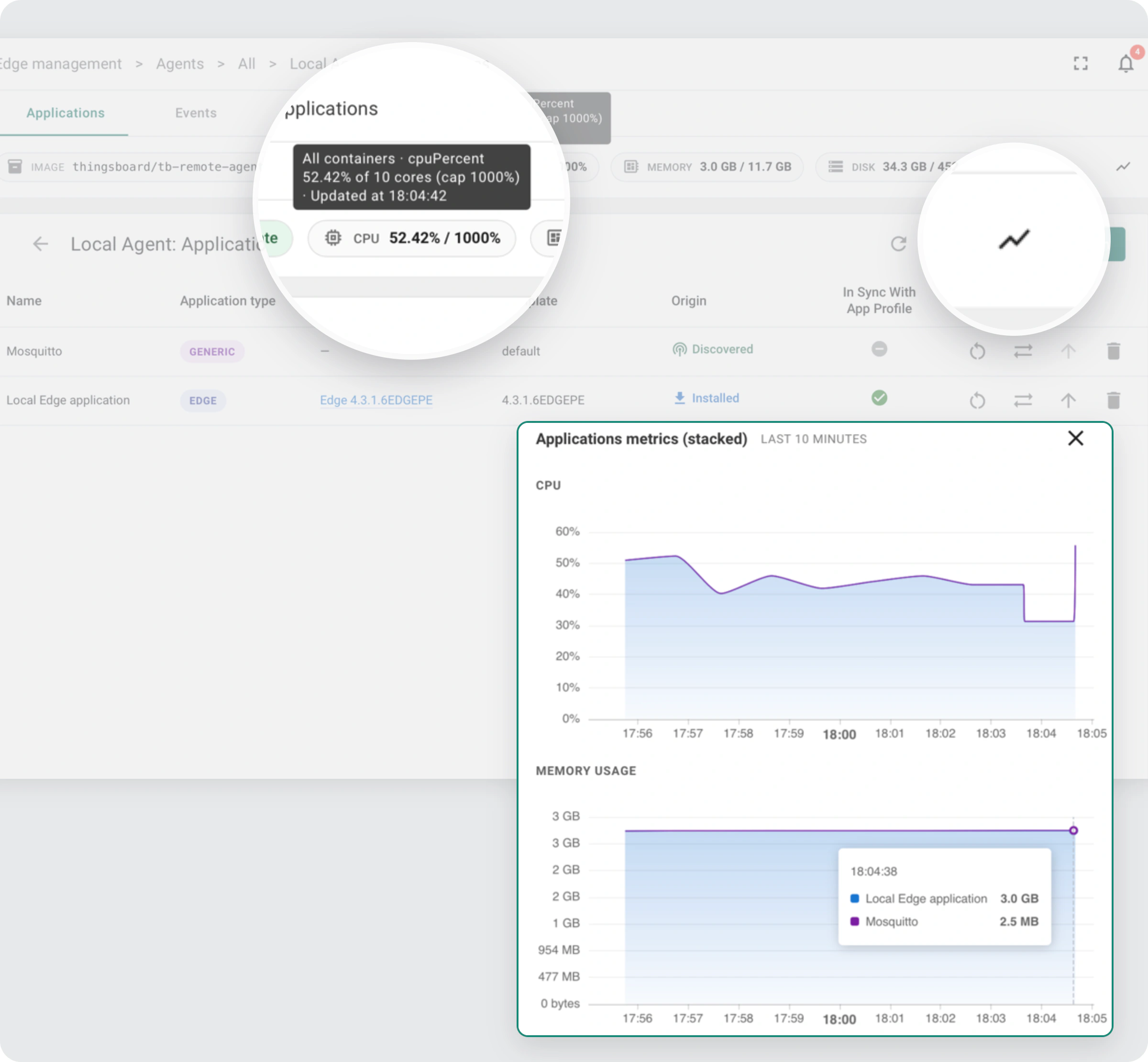
The agent continuously reports what runs on the host. On the agent’s Applications page, the chips at the top show host CPU, memory and disk. Hover one for details, or click the chart icon next to them to open the history of every application on the host, stacked.
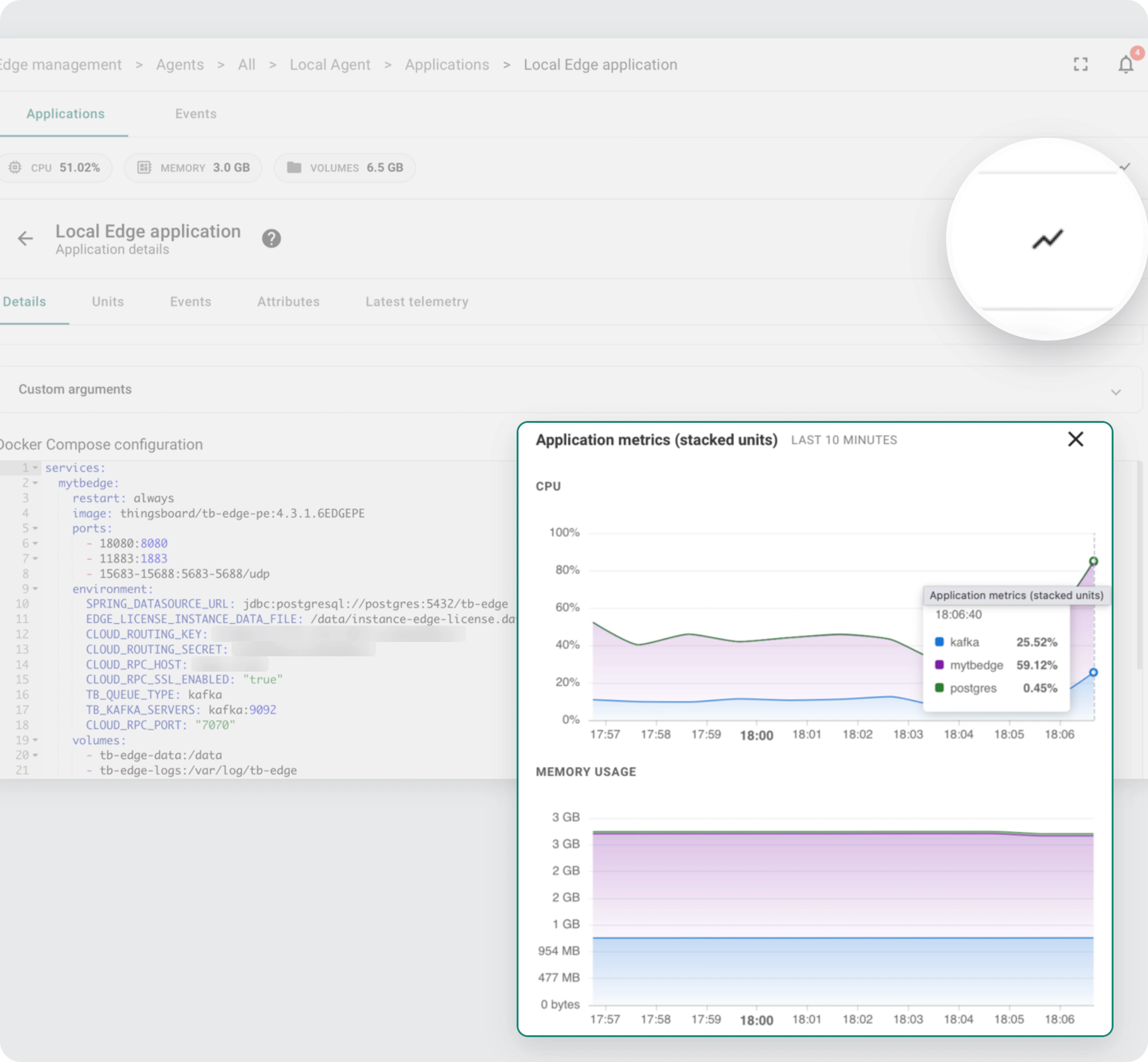
Click an application to open its details. The same chart icon there breaks CPU and memory down per container, so you see which service is busy.
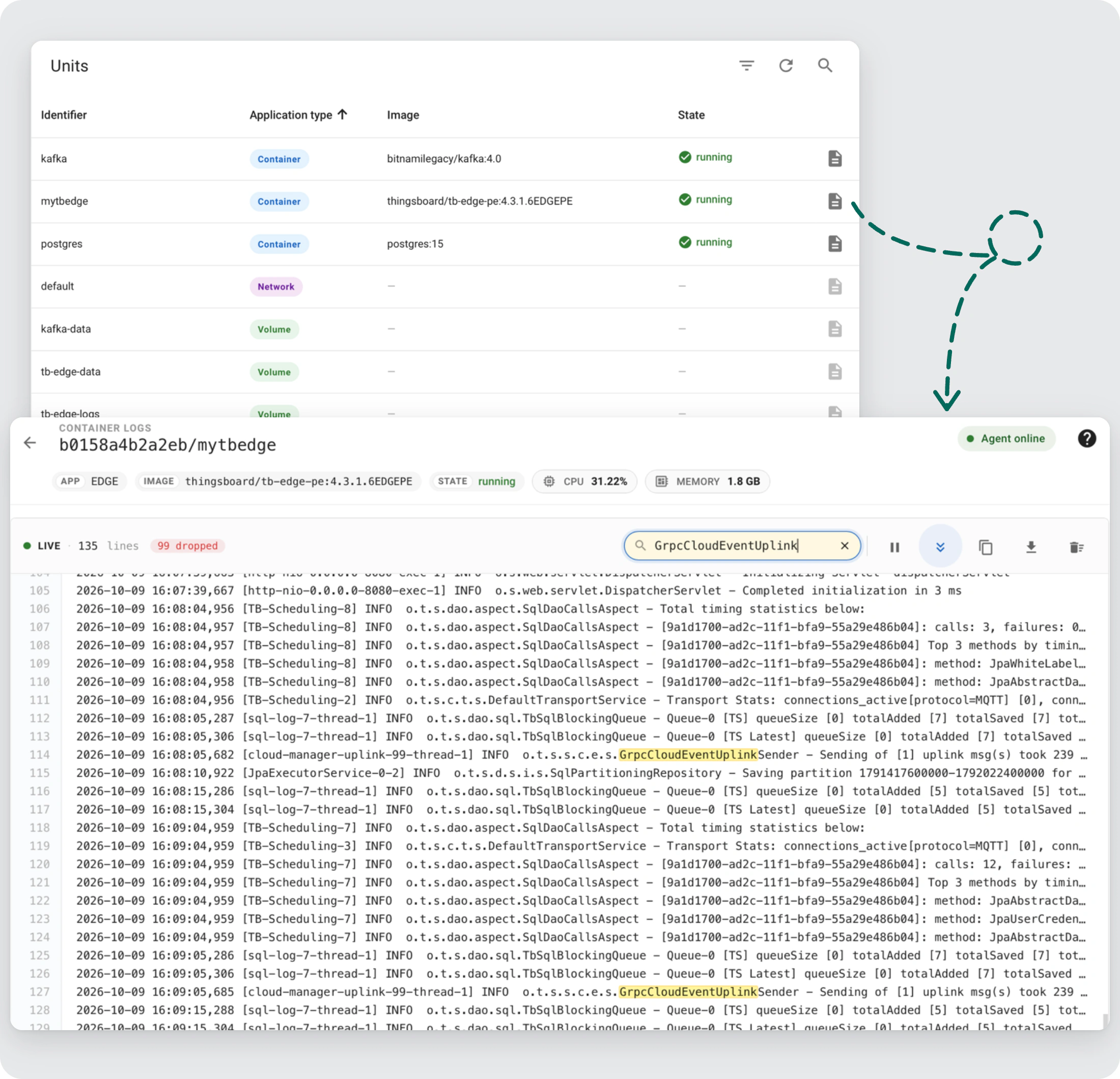
The Units tab lists the application’s containers, volumes and networks with their images and state. Click the log icon on a container to stream its logs live into the browser, with highlight filters, pause, copy and download.
Update and upgrade with automatic rollback
Two actions change a running application:
- Update applies a changed Compose configuration on the current version, such as new environment variables, a re-pulled image or rotated credentials.
- Upgrade moves a ThingsBoard product, like ThingsBoard Edge or IoT Gateway, to a new version. This is the action that runs the database upgrade scripts.
ThingsBoard syncs the templates for its products from a public repository, so when a new version ships, the deployed application is marked Upgrade available. This works without updating the platform.
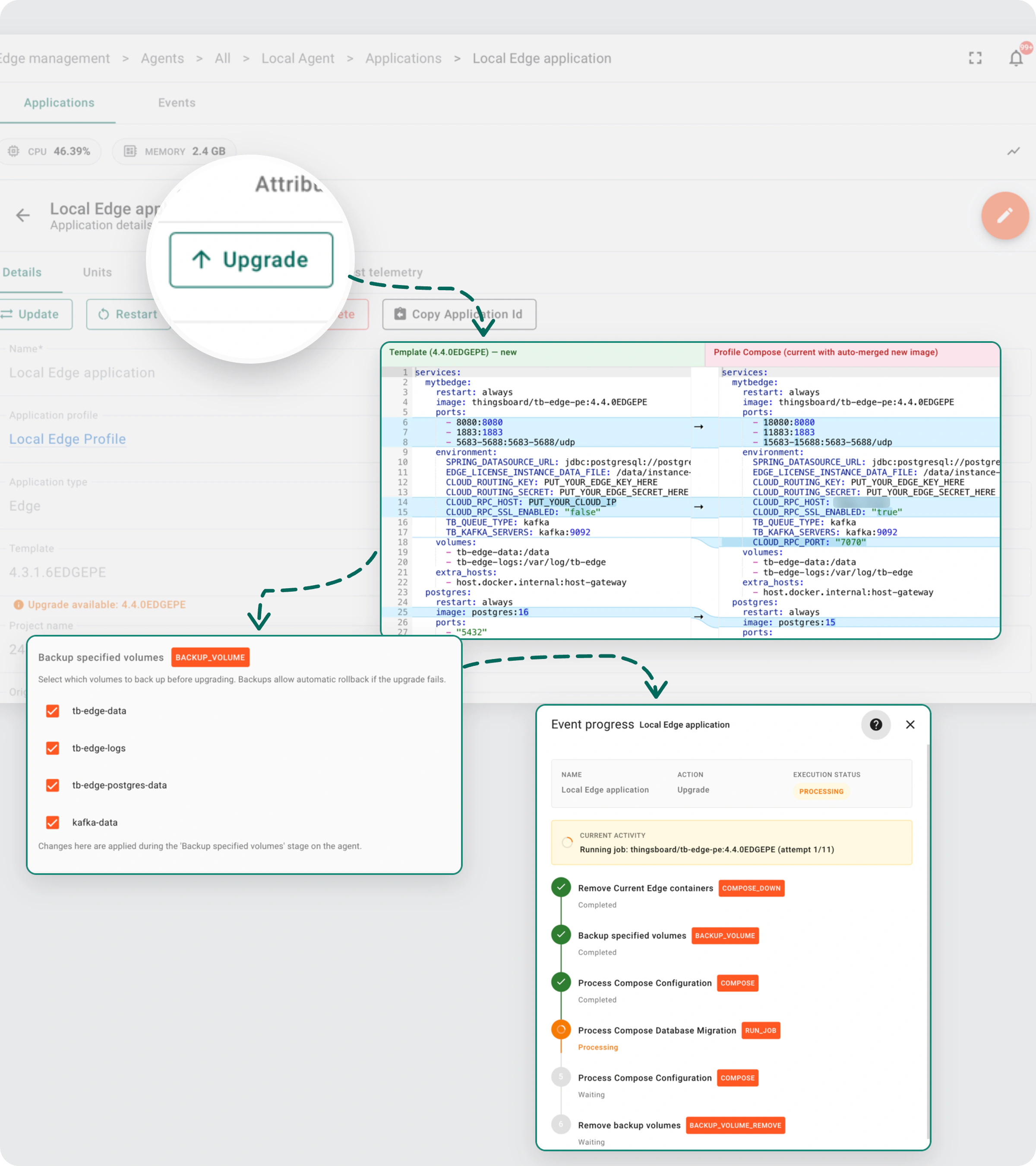
Both actions use the rollback described above: if any step fails, the application returns to its previous working version with the backed-up volumes, and canceling a running operation rolls it back the same way. Every step is visible in the event progress view as it runs.
Click Upgrade on the application, and ThingsBoard merges the new image version into your configuration. The left side shows what ThingsBoard suggests from the new template, and you merge anything else you need into the right side. Pick the volumes to back up, confirm, and the agent stops the old version, migrates the database and starts the new one.
Upgrade PostgreSQL to a new major version
A PostgreSQL data directory isn’t compatible across major versions, so a new major version needs a dump and restore, not just a new image tag. Remote Agent does that step for you. In the merge above, your configuration keeps postgres:15 while the Edge 4.4 template ships postgres:16, and you can take the new major version in the same upgrade or in any later update. When an update or upgrade moves a service based on the official postgres image to a new major version, the agent detects it, backs up the volume, dumps the database with the old version and restores it with the new one. The migration resumes after a crash and rolls back with the rest of the operation if it fails.
Keep the agent up to date
The agent upgrades itself, too. When a new agent image is published, click Upgrade agent. The agent pulls the image, starts a replacement container with the same settings, hands the host over and removes the old one. Your applications keep running throughout, and if the handover doesn’t complete, the old agent keeps serving. See Agent self-upgrade.
How do you manage a fleet with one configuration?
Most fleets run the same stack on many hosts: an Edge per hotel, a gateway per plant, the same broker and service bundle at every customer site. Remote Agent keeps those hosts consistent with two kinds of profiles.
Application profiles: define the stack once
An application profile is a reusable application configuration: the type, a template version, the Docker Compose configuration and custom arguments. You create it once, and every application deployed from it shares that definition. There are two ways to create one:
- Predefined profiles: pick a card from Quick start, a ready-made ThingsBoard Edge or IoT Gateway profile for a specific version, created in one click.
- Add application profile: build your own. Choose the type and template version, then edit the Docker Compose configuration next to the read-only template. Use it for customized Edge or Gateway setups, or for any other Compose application, like the Mosquitto broker below.
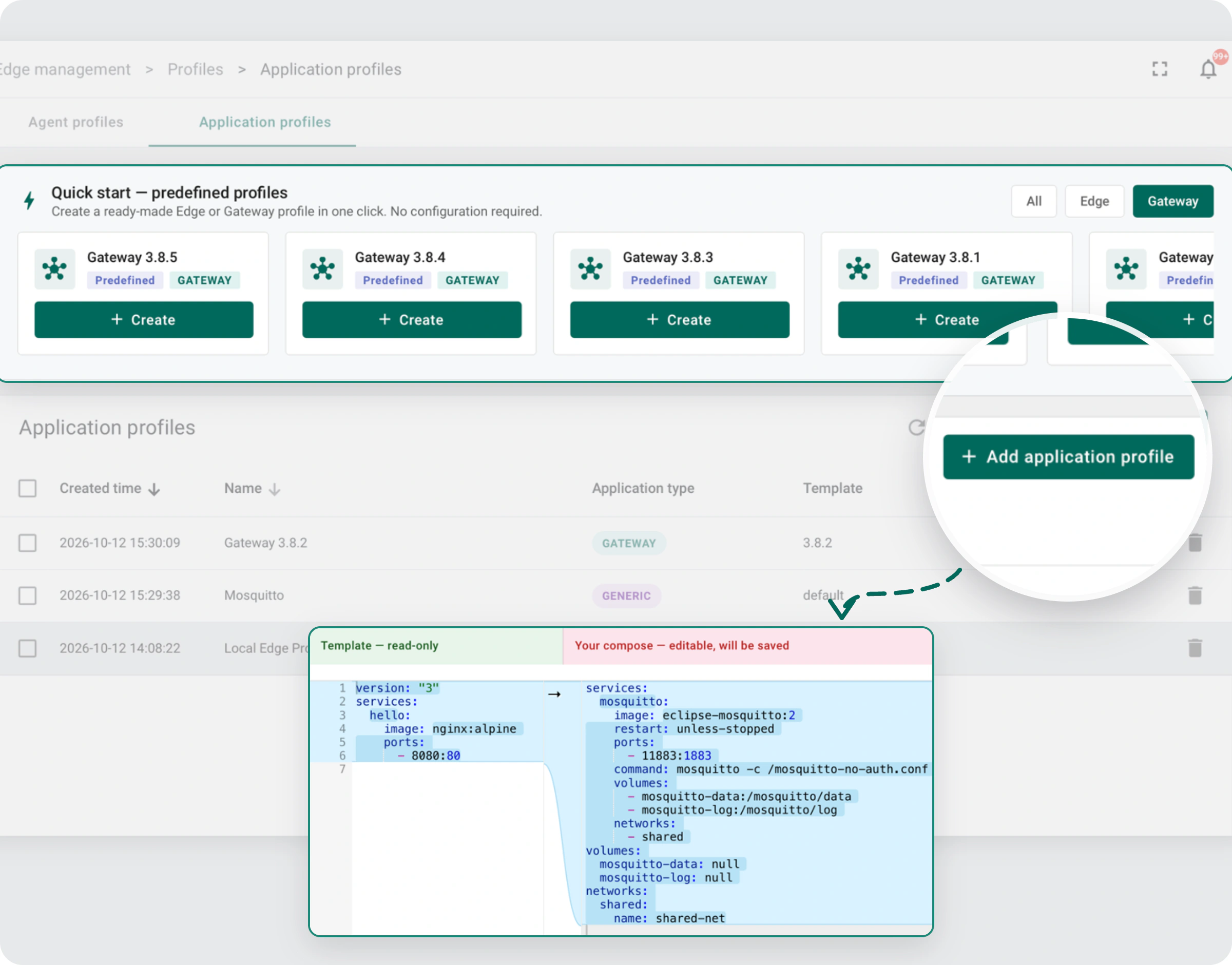
When you edit the profile, running applications stay as they are. Applications that no longer match are marked out of sync in the In Sync With App Profile column, and you choose when to apply the change. When a new Edge or Gateway version arrives, upgrading the profile shows a side-by-side merge of the new template into your configuration, so your customizations carry forward. It’s the same side-by-side view as in the upgrade above.
Agent profiles: provision a fleet with one command
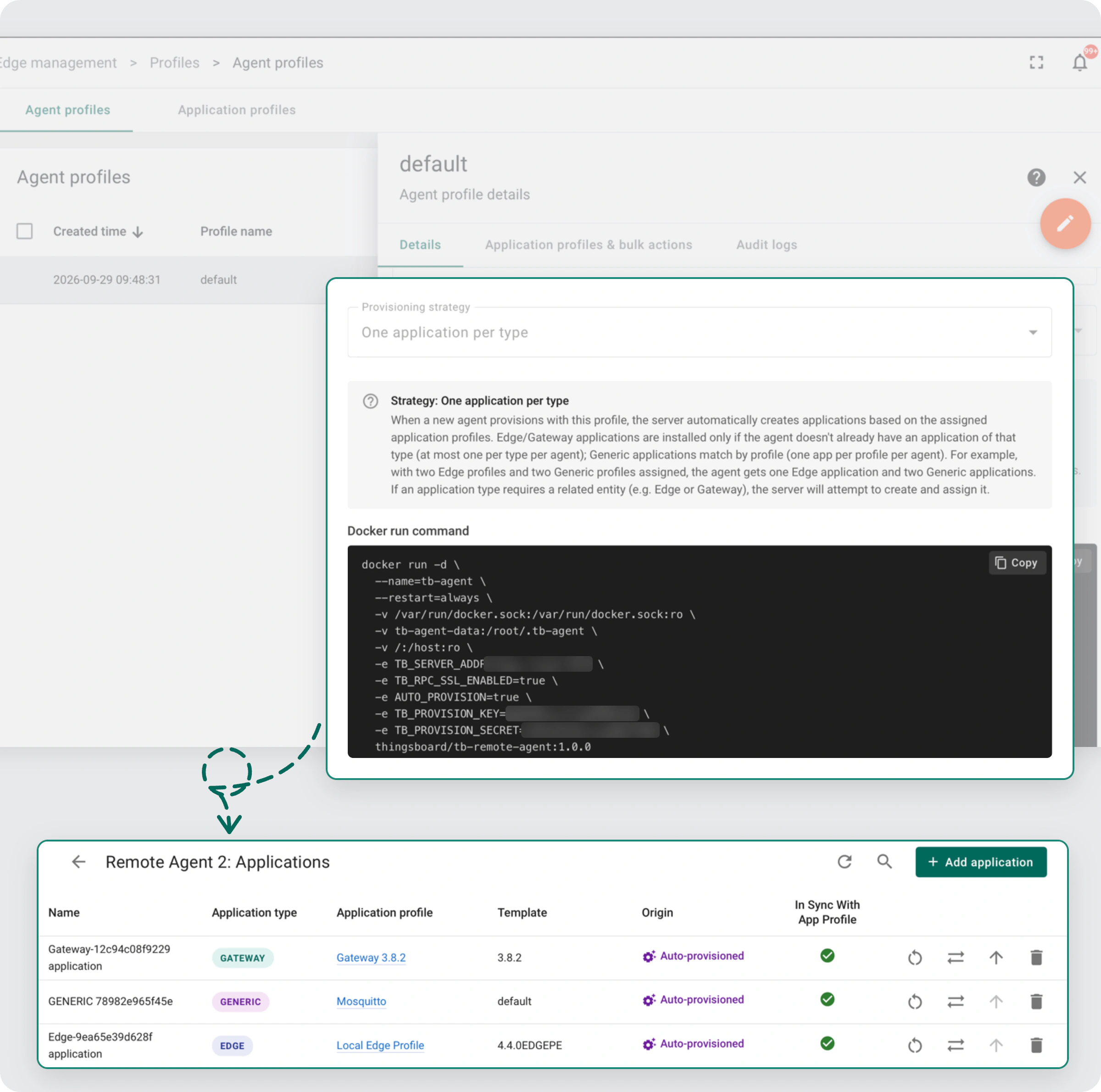
An agent profile describes how new hosts join and what they run. Use the default profile, pick a preset (Edge, Gateway or Edge + Gateway), or configure your own, and ThingsBoard gives you a provisioning command.
That command is the same for every machine, so you can put it in your setup script, a cloud-init file or the checklist your field technicians follow. Each host that runs it registers itself as a new agent and, depending on the provisioning strategy, installs the assigned applications automatically. You don’t generate credentials or copy Compose files per site.
What a fleet runs is the list of application profiles assigned to its agent profile. Click Assign profile and pick the profiles: predefined ones, your own, or a new one created inline. Every agent on that profile gets them, and the same list holds the bulk actions for each profile.
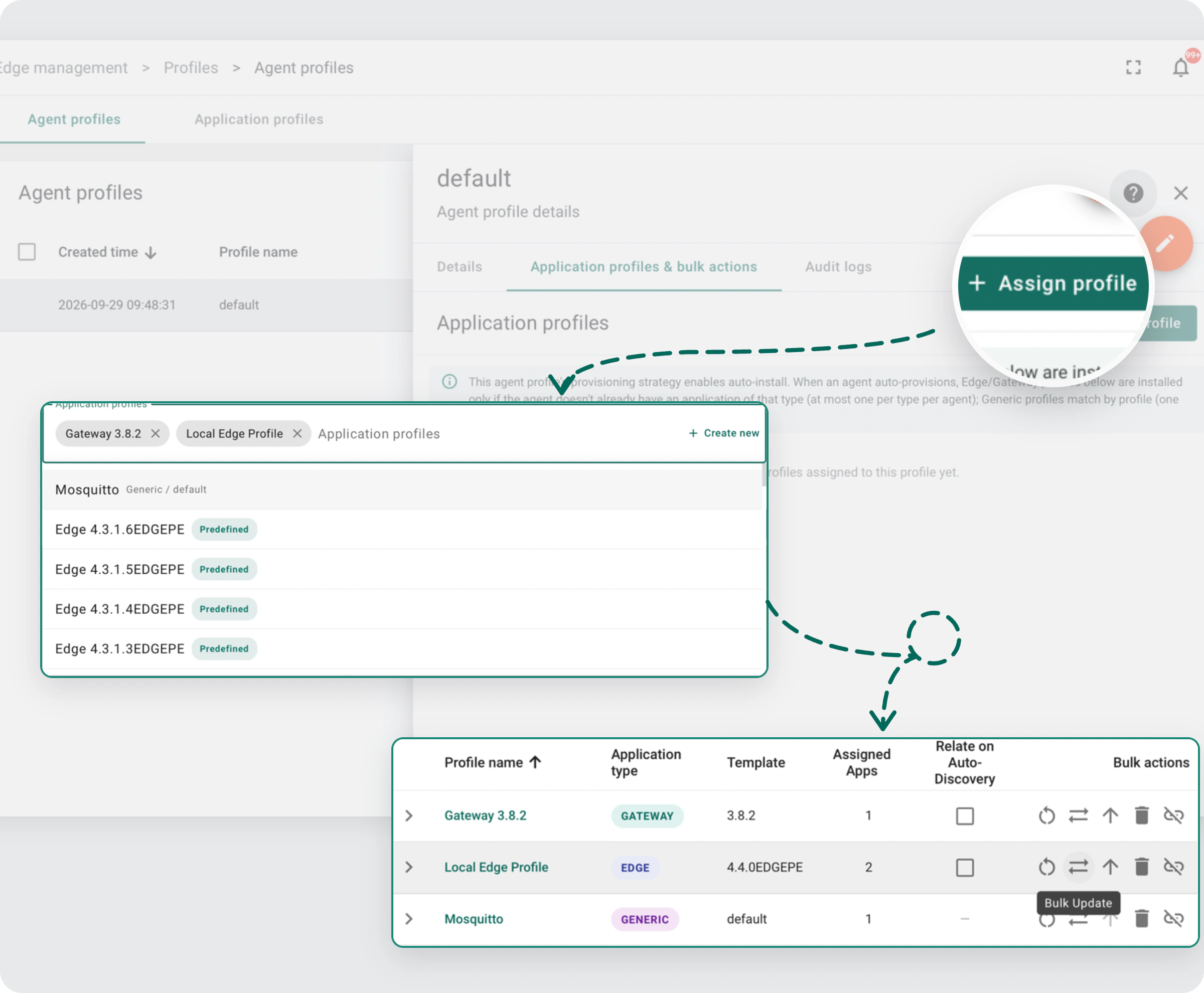
Then run the provisioning command on a new host. The agent registers itself, and the assigned applications install on their own. Each one is marked Auto-provisioned, and the Edge and Gateway entities and their credentials are created along the way.
For a fleet that is already in the field, turn on Relate on Auto-Discovery for the Edge or Gateway profile before you connect the agents. Each discovered application that matches the profile’s template is attached to it and switches to the profile’s Docker Compose configuration, so the fleet comes under profile management without reinstalling anything.
Bulk actions: one action for every site
With profiles in place, a fleet operation is a single action. On the agent profile, pick an application profile and run a bulk restart, update, upgrade or delete. It targets every matching application across every agent that uses that agent profile.
Before anything runs, a pre-flight preview shows how many applications are eligible and why any are skipped, for example an application on a different version or one with an operation already in progress.
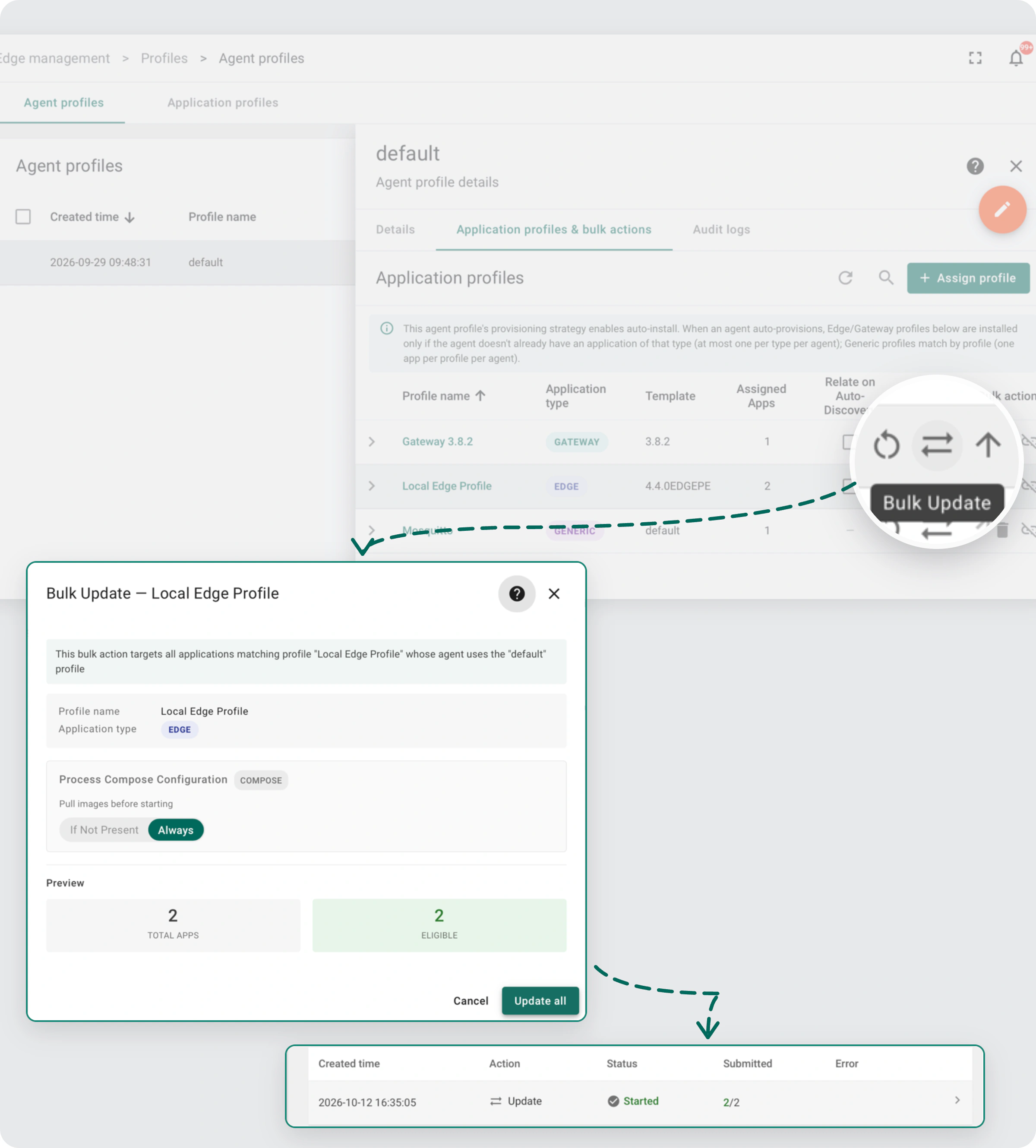
Each targeted application gets its own execution, with its own backup and its own rollback, so a failure on one host doesn’t stop the rollout on the others. You follow the whole rollout (done, error, running, pending) from one panel and can open any single host’s step-by-step progress.
Staged rollouts: staging first, then production
One application profile can be assigned to several agent profiles, which makes staged rollouts straightforward. Assign your Edge application profile to a staging and a production agent profile, bulk upgrade staging, verify, adjust the configuration if needed, then bulk upgrade production from the same profile.
What changes with Remote Agent?
The same tasks, with and without Remote Agent
| Task | Without Remote Agent | With Remote Agent |
|---|---|---|
| Reach a host behind NAT or a firewall | VPN or inbound port per site | Outbound connection from the agent |
| Deploy a Compose stack | SSH in, copy files, run commands | Pick a profile in the UI, or auto-install on provisioning |
| Upgrade ThingsBoard Edge | Manual backup, migration and restart per host | One upgrade action with volume backups and automatic rollback |
| Upgrade every site | Repeat the above, host by host | One bulk upgrade, staging first |
| Check the state of a site | SSH in, docker ps, docker logs |
Status, metrics and live logs in the UI |
| Find sites that differ from the shared configuration | Compare hosts one by one | In Sync With App Profile column |
What to plan for
- Host requirements. Each host needs Docker and outbound access to the ThingsBoard gRPC port, the one ThingsBoard Edge uses (
7070by default). - Existing containers. Discovery works with Compose projects. Containers started another way are picked up once they carry the standard Docker Compose project and service labels.
- The provisioning command. It is the same for every host in an agent profile and carries the profile’s provisioning credentials: anyone who has it can connect a new host to your ThingsBoard. Share it only with the people who set up hosts.
Conclusion
Your devices already report to ThingsBoard. With Remote Agent, the software running next to them does too: you deploy, upgrade and monitor it from the same place, on one host or across the whole fleet. Upgrades of ThingsBoard Edge and IoT Gateway include the database migration and roll back on failure, and a fleet that shares one configuration is provisioned with one command and upgraded with one bulk action.
Remote Agent is available today in ThingsBoard 4.4 and ThingsBoard Cloud.
How do you get started?
- Install the first agent. Go to Edge management > Agents > Add new agent and run the generated command on a host with Docker. See Install Remote Agent.
- Deploy or adopt an application. Add an Edge, Gateway or Generic application, or let the agent discover the ones already running. See Applications.
- Scale out with profiles. Create an agent profile, run its provisioning command on the rest of your hosts, and manage them with bulk actions.
Bring your remote hosts into ThingsBoard