Example: smart retail solution
This example builds a smart retail solution from one prompt and then changes it. It shows the full design flow: the approval mode, the agent’s questions, the design review, the dashboards, the deployment, and an update. The solution is a chain of supermarkets with refrigeration, ambient, and door sensors.
-
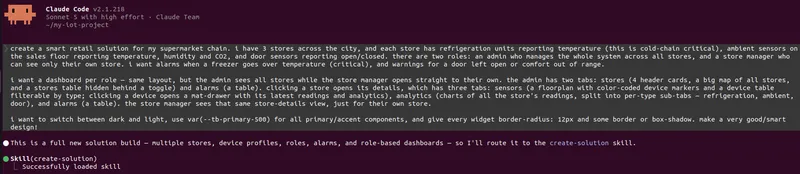
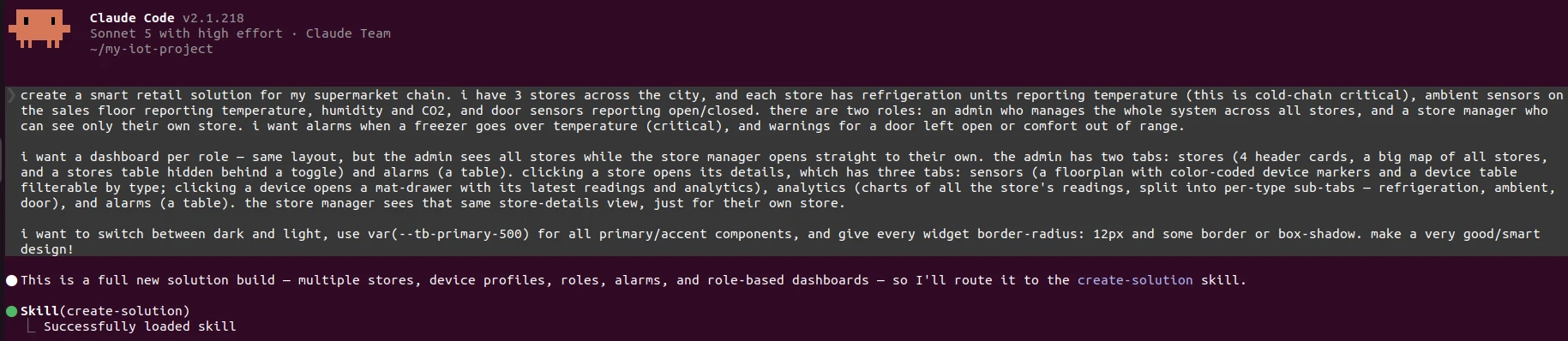
Describe the solution. Give the full picture in the first prompt: the domain, the hierarchy, the roles, the alarms, and the dashboard layout.
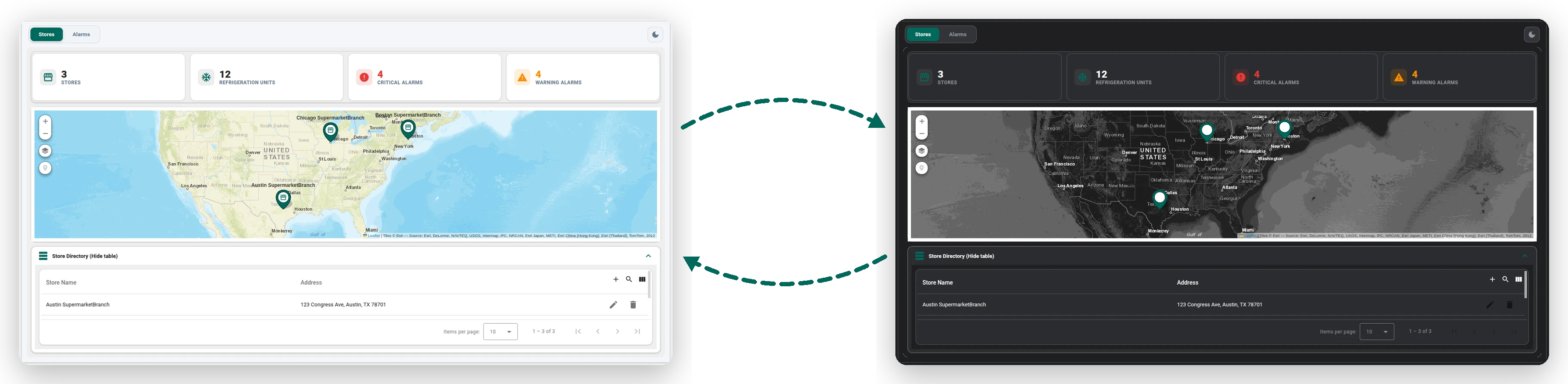
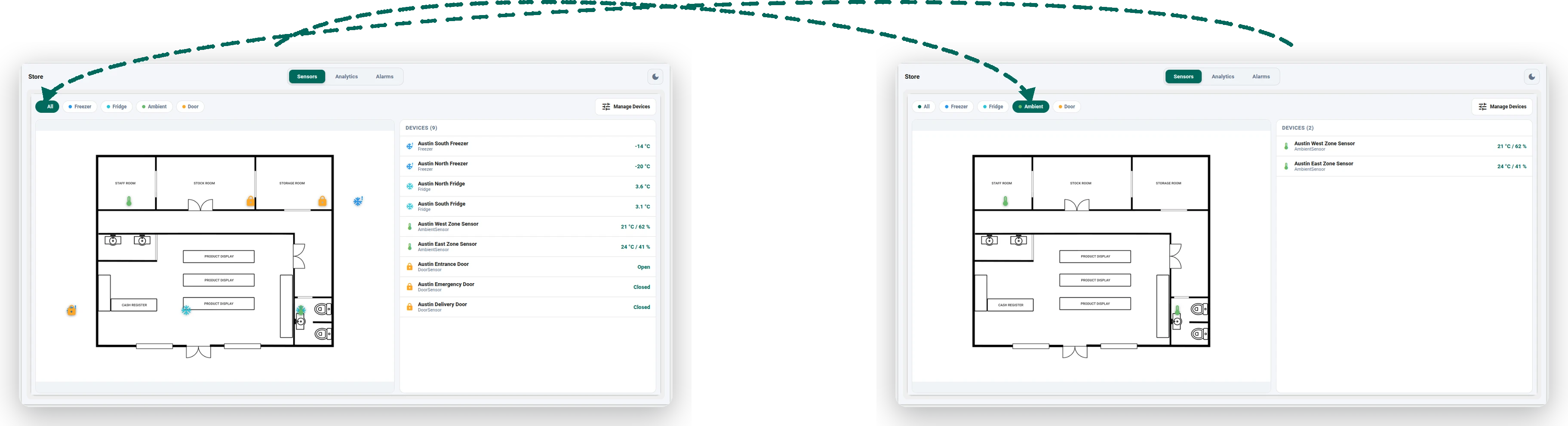
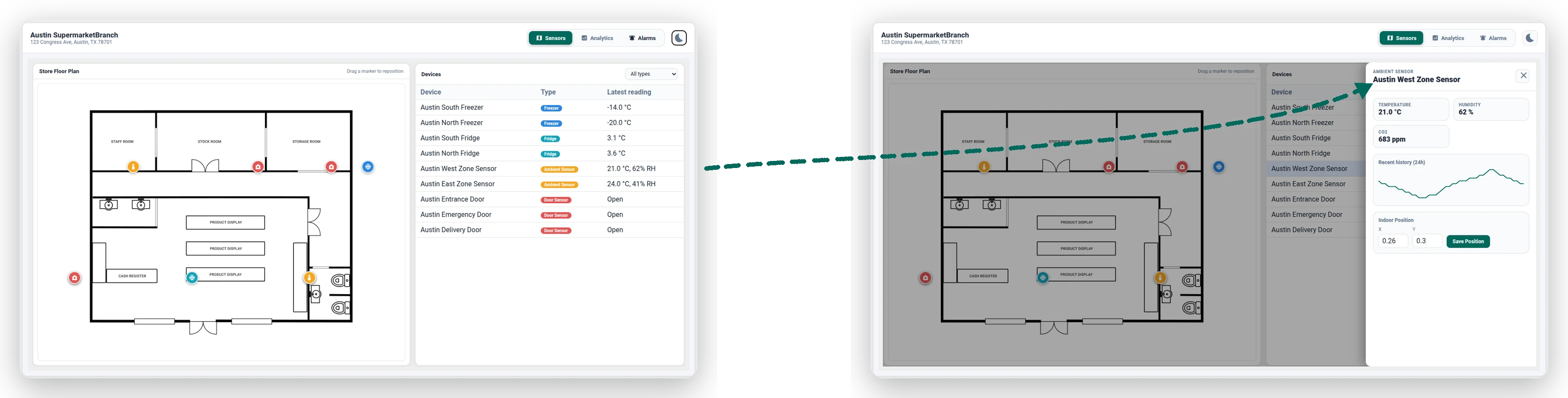
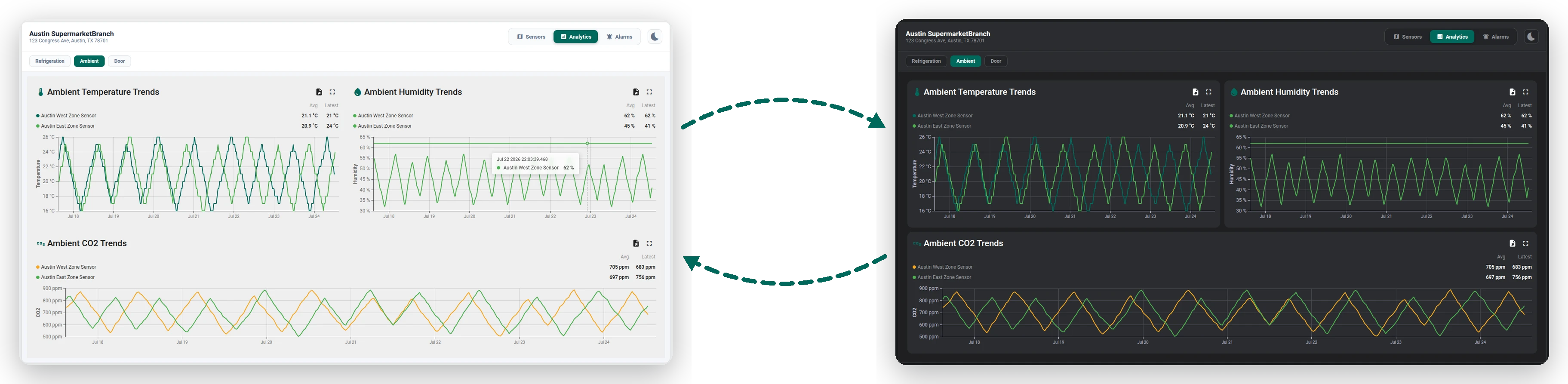
create a smart retail solution for my supermarket chain. i have 3 stores across the city, and each store has refrigeration units reporting temperature (this is cold-chain critical), ambient sensors on the sales floor reporting temperature, humidity and CO2, and door sensors reporting open/closed. there are two roles: an admin who manages the whole system across all stores, and a store manager who can see only their own store. i want alarms when a freezer goes over temperature (critical), and warnings for a door left open or comfort out of range.i want a dashboard per role. same layout, but the admin sees all stores while the store manager opens straight to their own. the admin has two tabs: stores (4 header cards, a big map of all stores, and a stores table hidden behind a toggle) and alarms (a table). clicking a store opens its details, which has three tabs: sensors (a floorplan with color-coded device markers and a device table filterable by type; clicking a device opens a mat-drawer with its latest readings and analytics), analytics (charts of all the store's readings, split into per-type sub-tabs: refrigeration, ambient, door), and alarms (a table). the store manager sees that same store-details view, just for their own store.i want to switch between dark and light, use var(--tb-primary-500) for all primary/accent components, and give every widget border-radius: 12px and some border or box-shadow. make a very good/smart design!The request names roles and stores, so the agent starts the full design flow.
-
Select the approval mode. The agent asks how you want to approve. Select one of these options:
- Approve at each step. The agent stops after the design and again after the dashboard design.
- Build everything now. The agent does not stop.
To stop the approvals later, tell the agent “just continue” or “stop asking”.

-
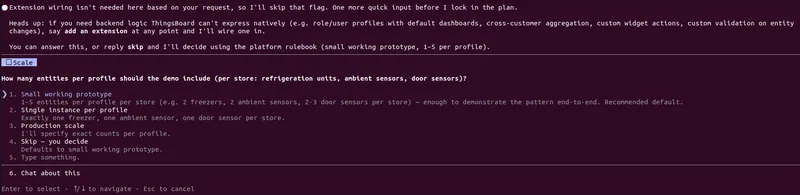
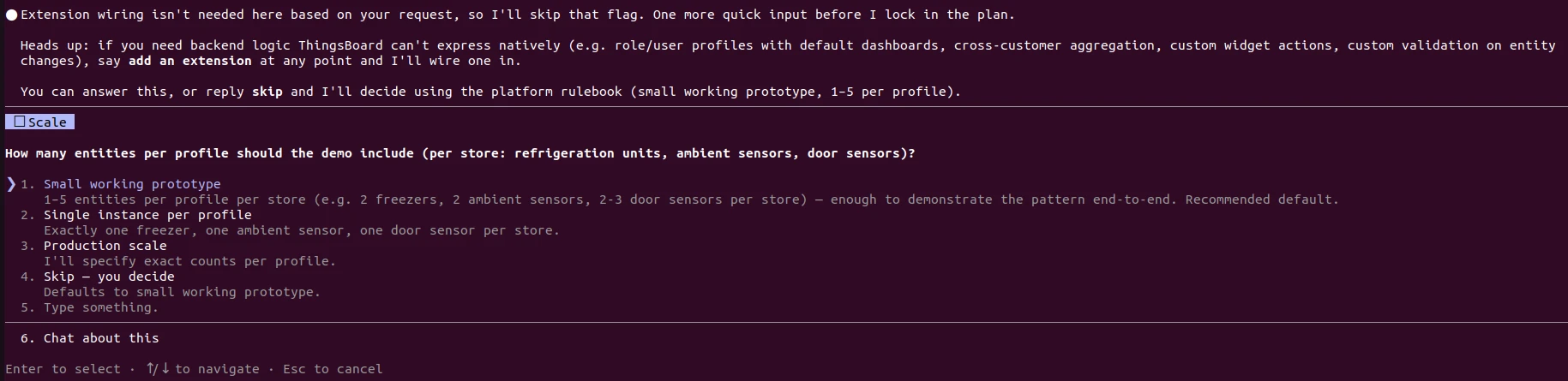
Answer the questions. The agent can ask some questions about missing details, like the number of demo devices of each type. Answer them, or let the agent use default values.
-
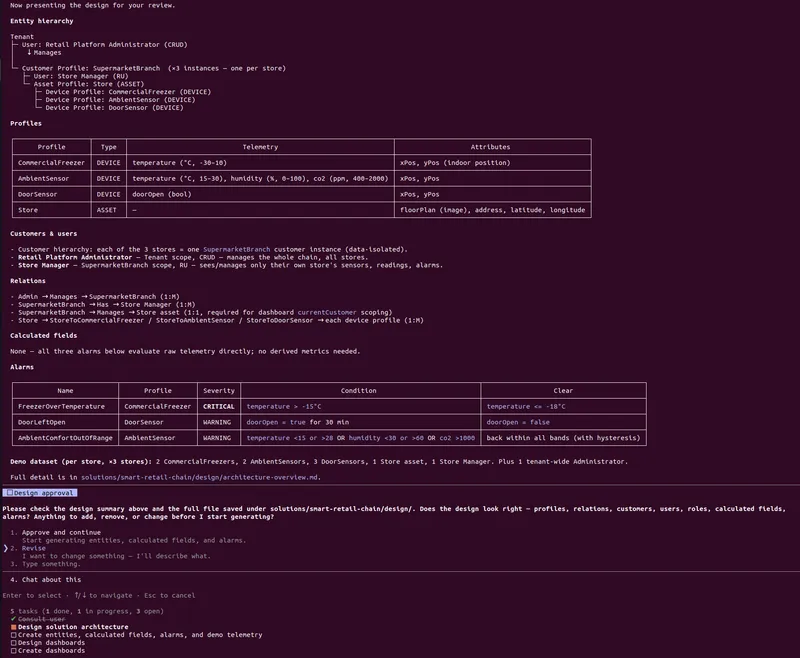
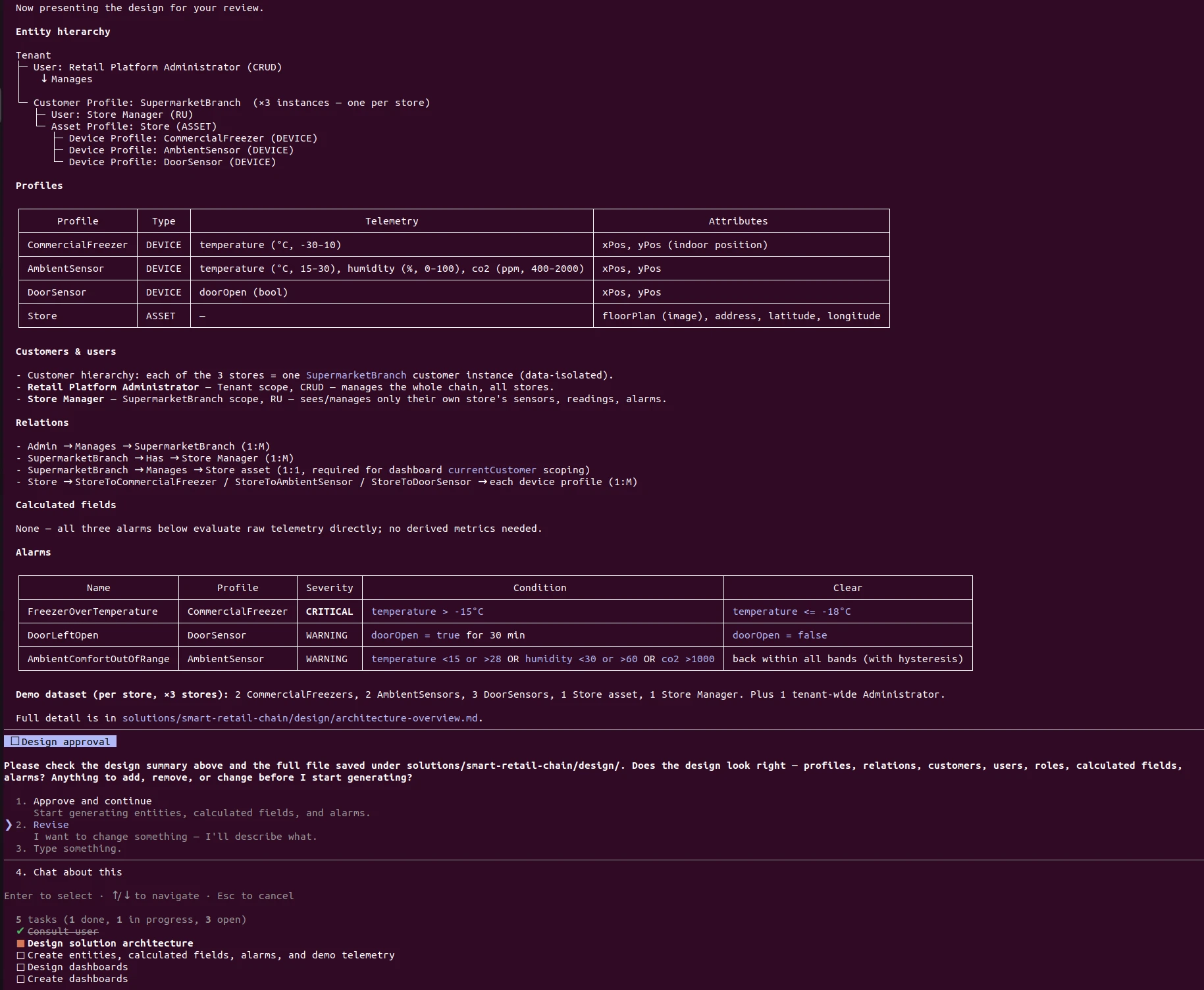
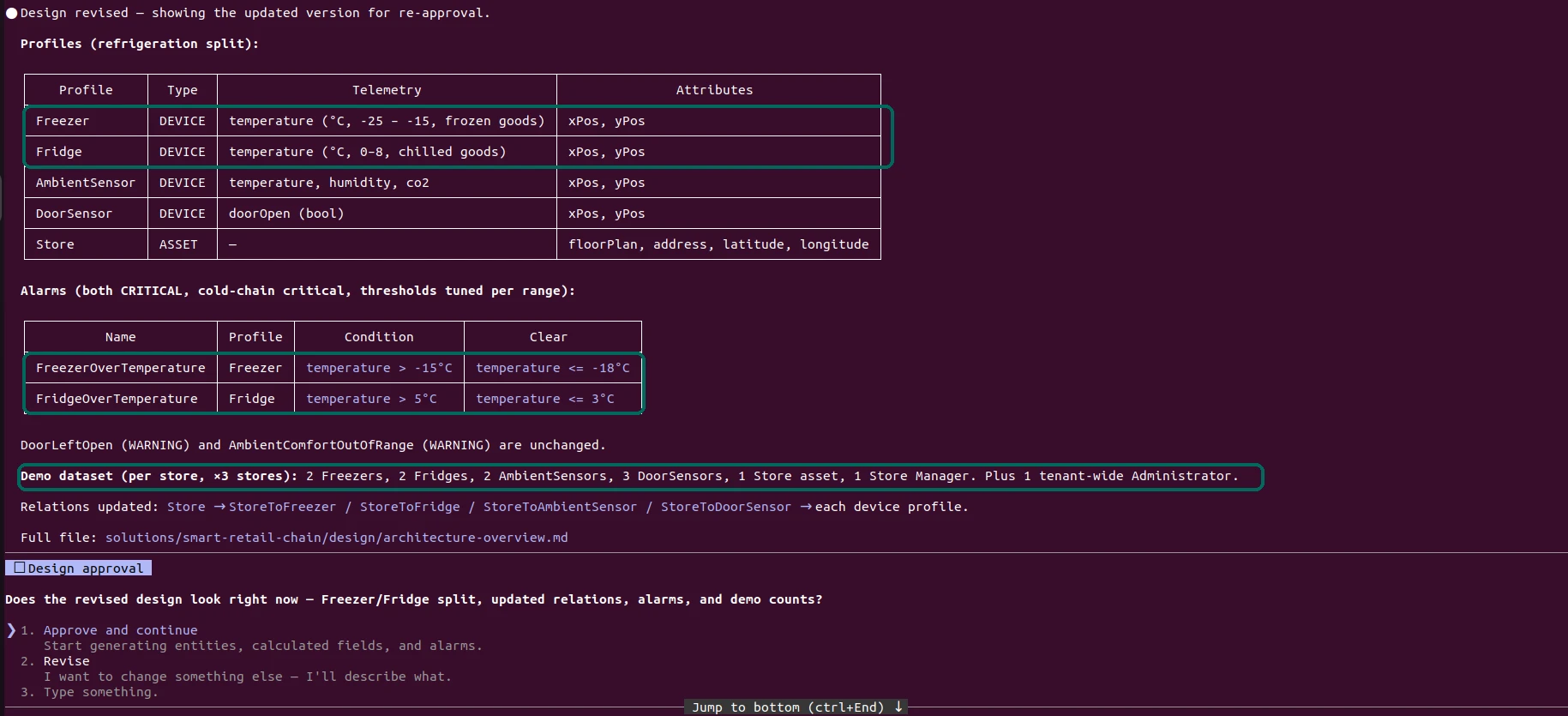
Review the design. The agent shows the design before it creates entities. The design has the hierarchy, the profiles with their telemetry keys and attributes, the relations, the alarm rules, and the demo data. Approve the design, or select Revise.
-
Change the design if necessary. Select Revise and write the change. The agent changes the design and asks for approval again. It creates no entities before you approve.
split CommercialFreezer into two profiles, Freezer and Fridge, since a freezer for frozen goods needs a much lower range than a fridge for chilled goods.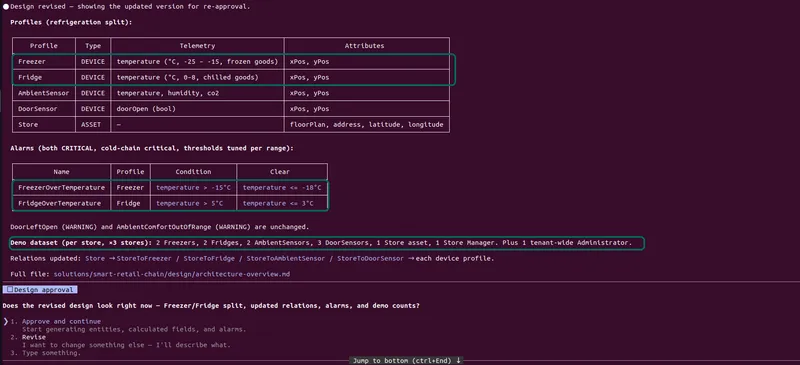
-
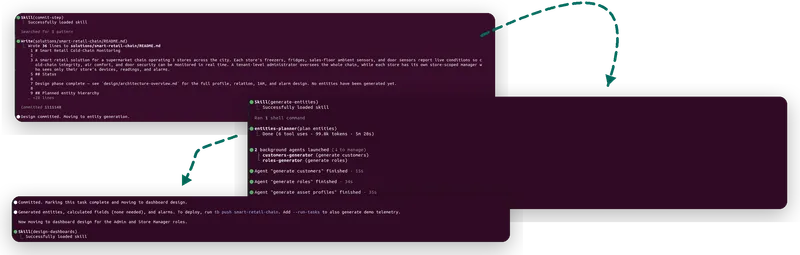
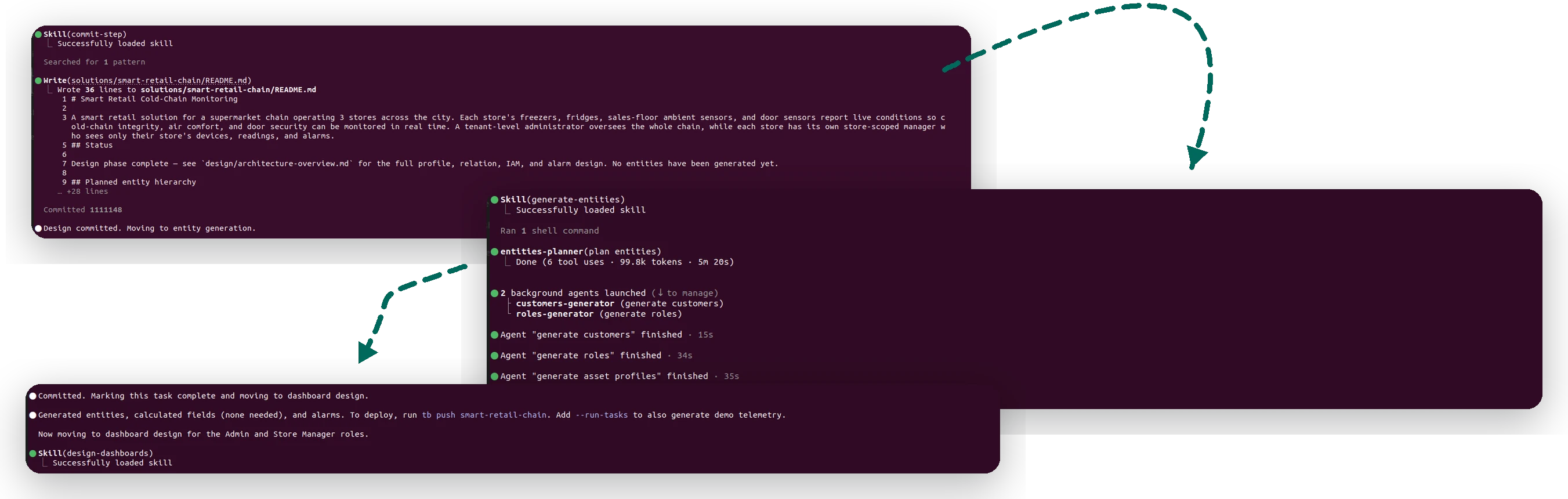
Let the agent build the entities. After your approval, the agent commits the design to git. Then it creates the profiles, devices, assets, customers, users, roles, and alarm rules. It commits again when the entities are ready.
-
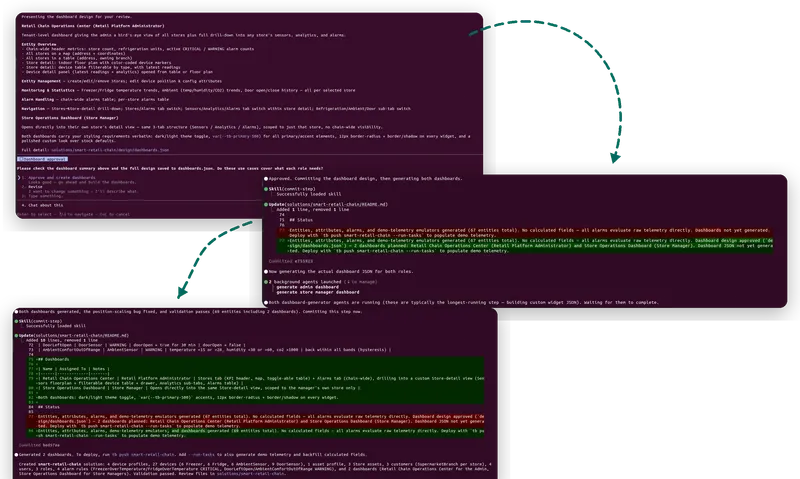
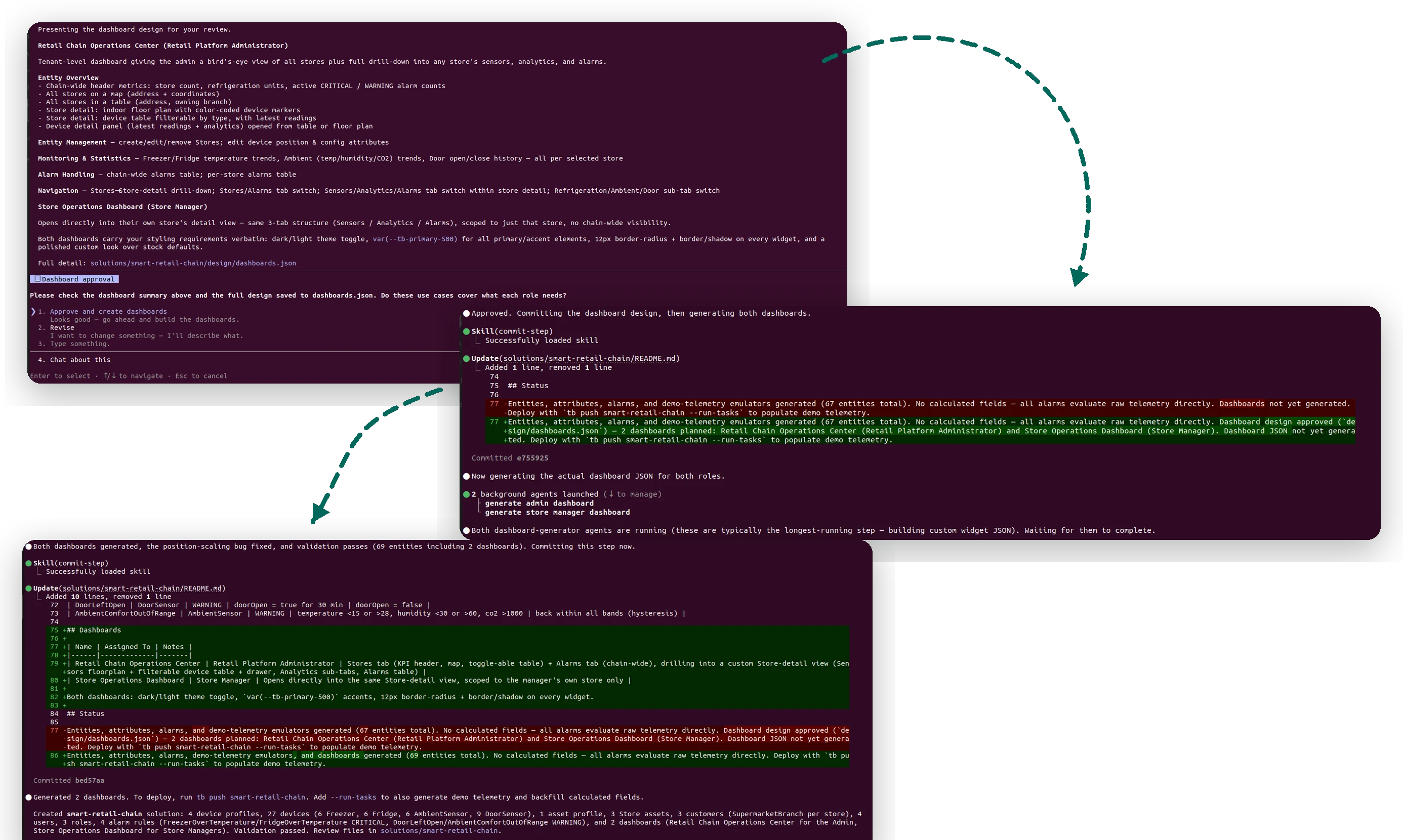
Review the dashboard design. The agent designs one dashboard for each role and waits for your approval. Here it proposes two dashboards:
- Retail Chain Operations Center for the admin, with the tabs Stores and Alarms.
- Store Operations Dashboard for the store manager. It opens on the manager’s store.
Approve the design. The agent builds the dashboards, validates the solution, and commits it.
-
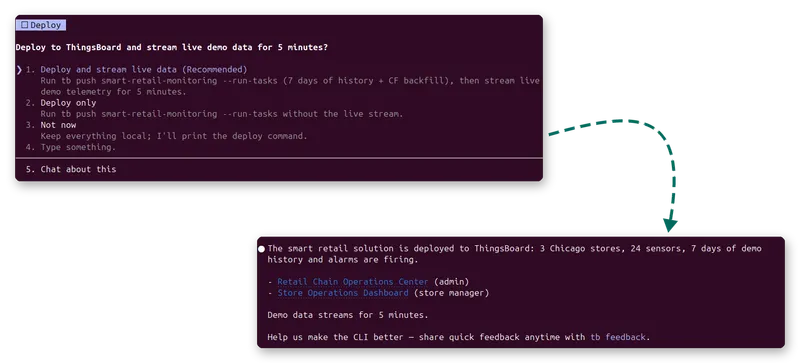
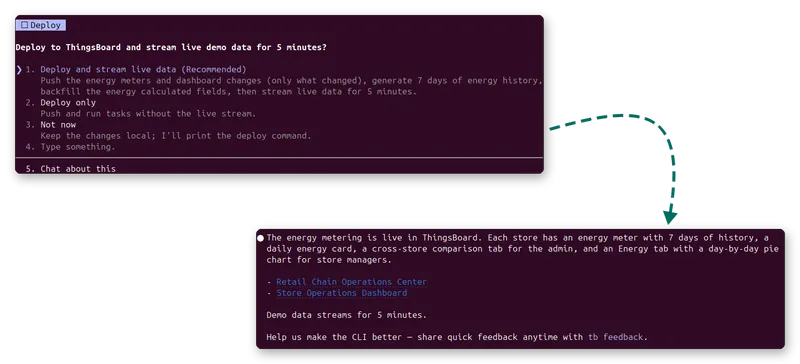
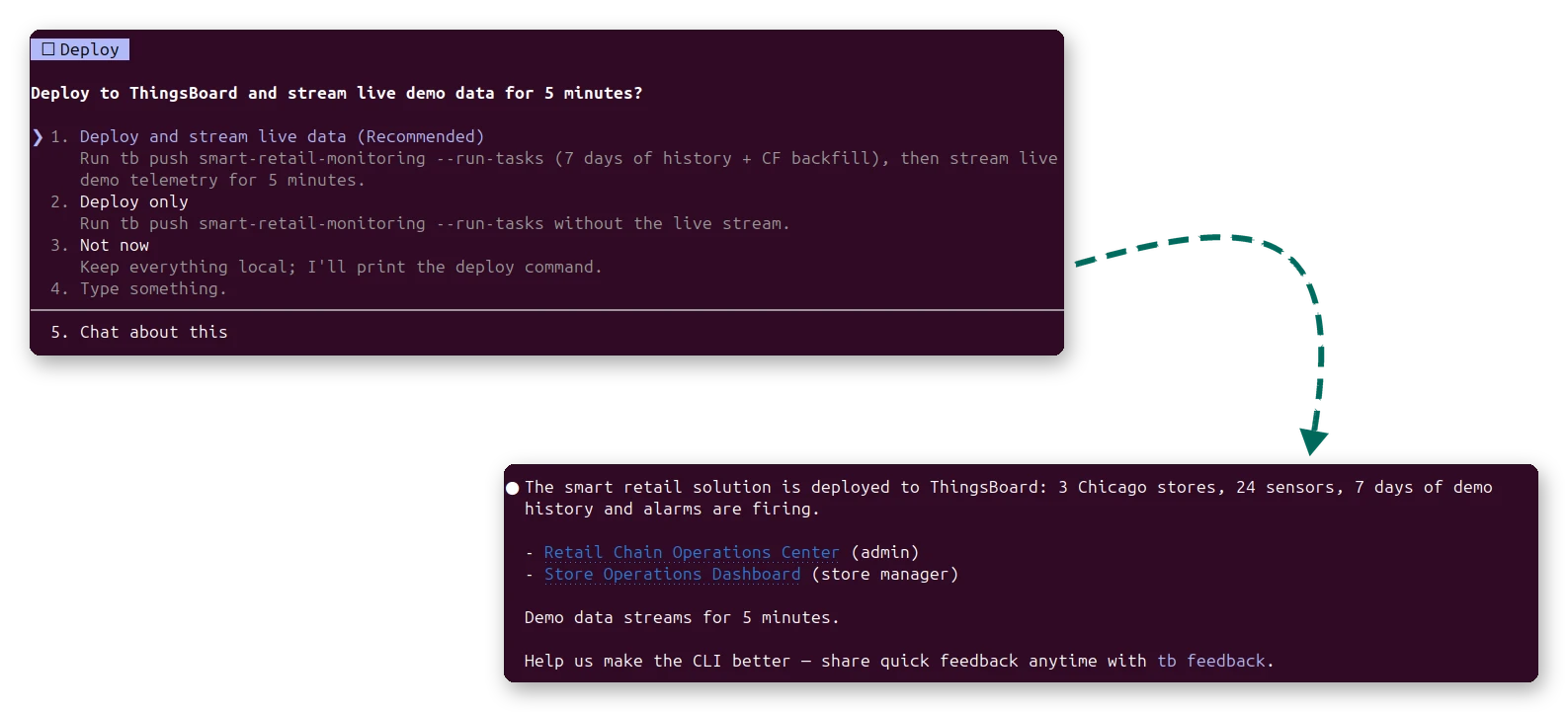
Deploy the solution. The agent asks Deploy to ThingsBoard and stream live demo data for 5 minutes? Select Deploy and stream live data. The agent pushes the solution, writes the demo history, and starts the live demo data. Then it shows the links to the dashboards.
-
Open the dashboards. Open a link from the agent. Each role has its own dashboard. Both dashboards use the same store details view.
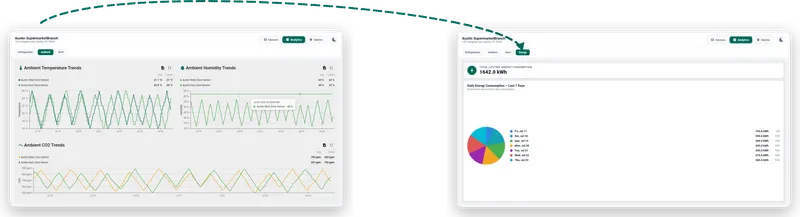
The admin dashboard shows all stores on a map. You can open each store from there. The dashboard has a light theme and a dark theme.
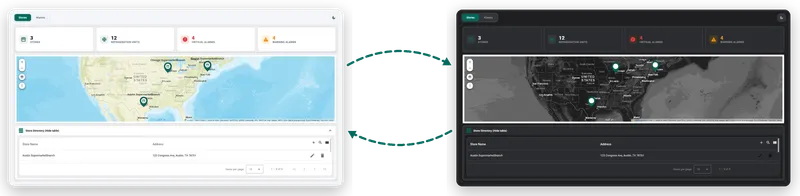
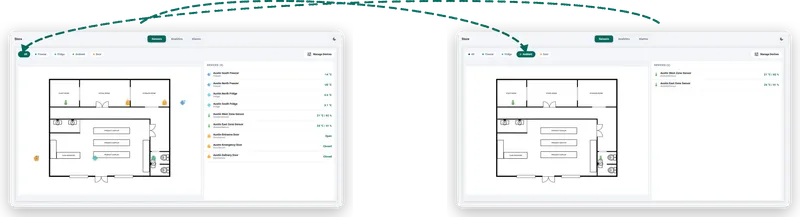
The store manager dashboard opens on the store details view, with the tabs Sensors, Analytics, and Alarms. The admin opens the same view from the map or the store table.
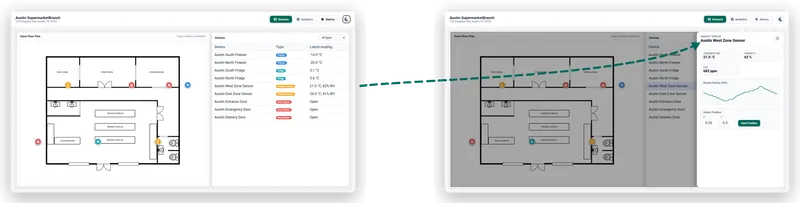
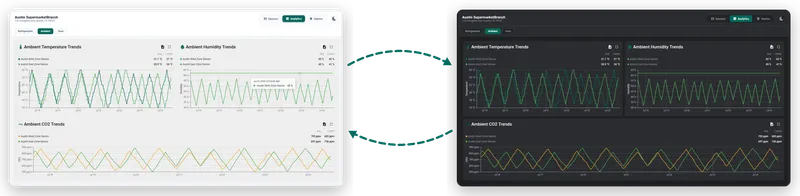
-
Ask for a change. Write the change in your own words. This example adds energy monitoring to each store:
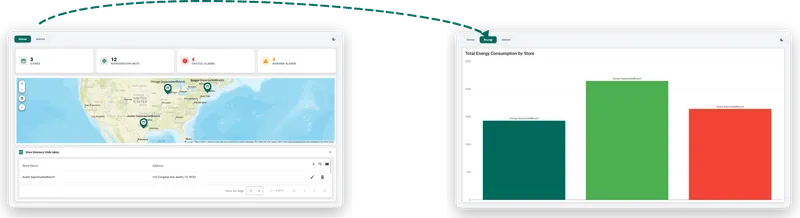
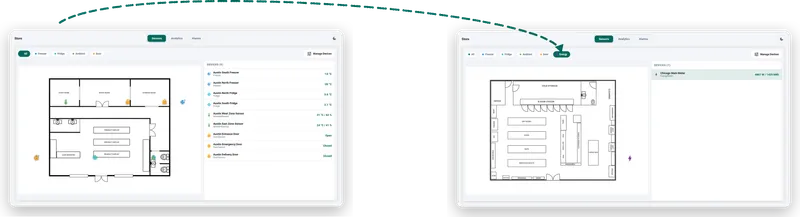
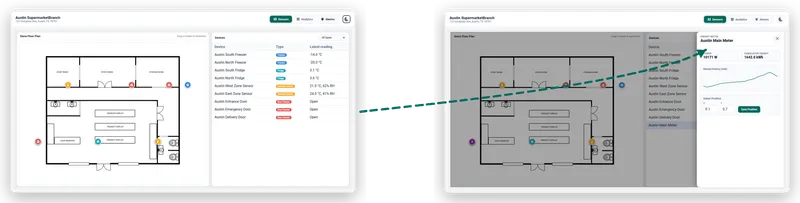
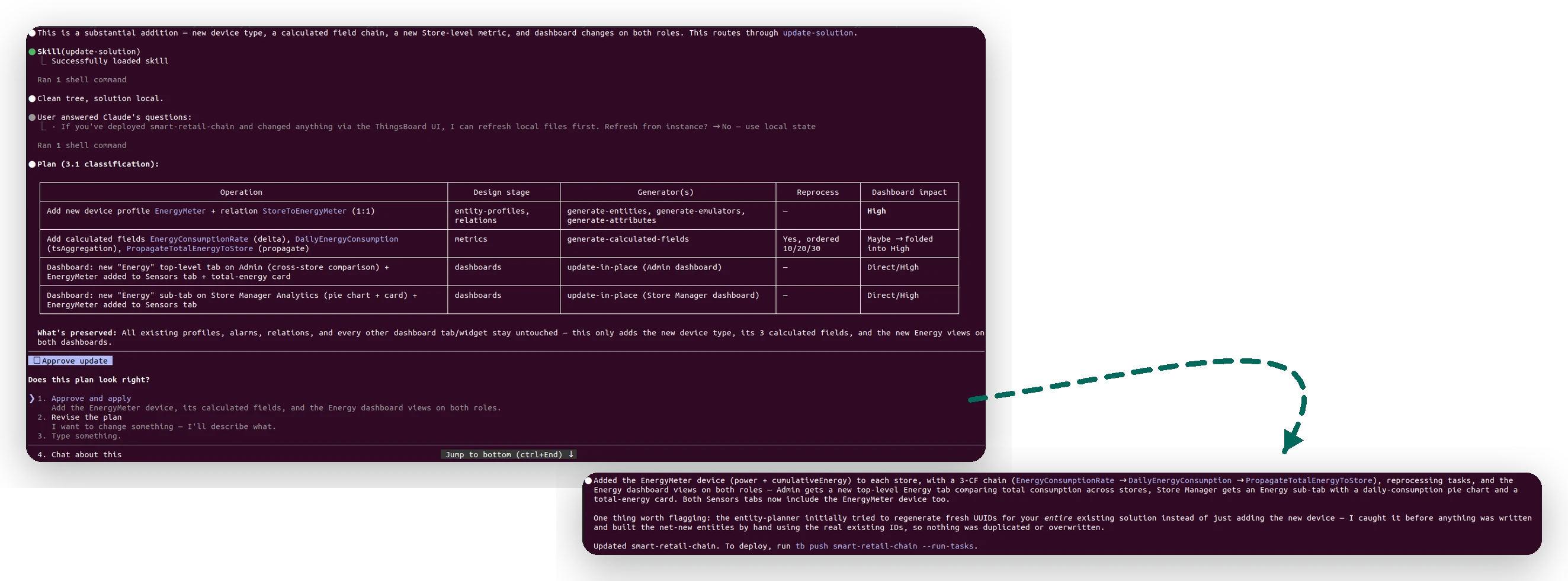
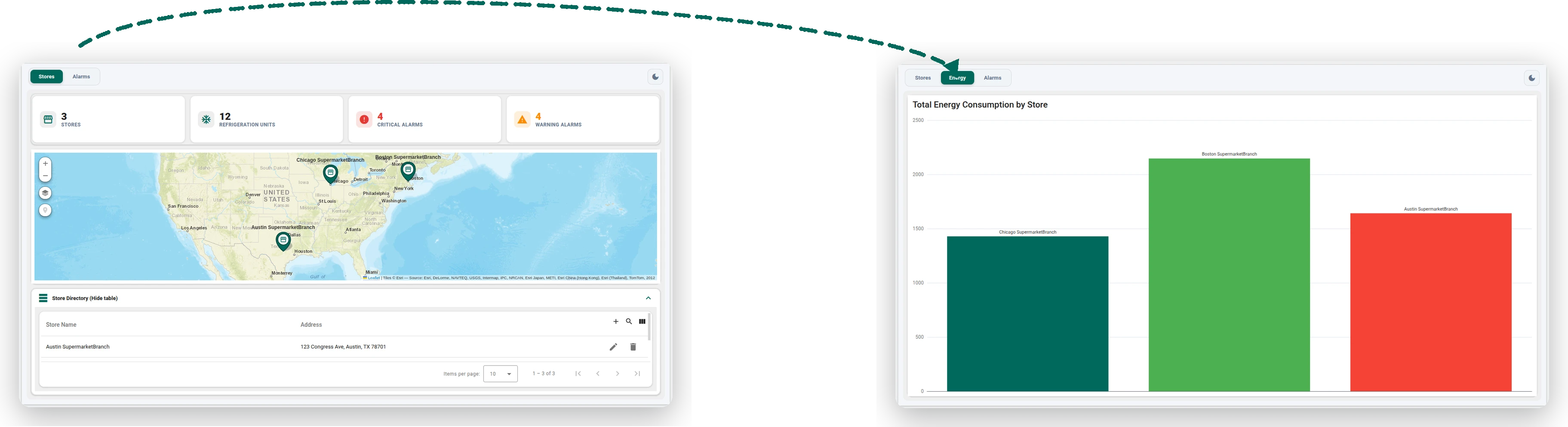
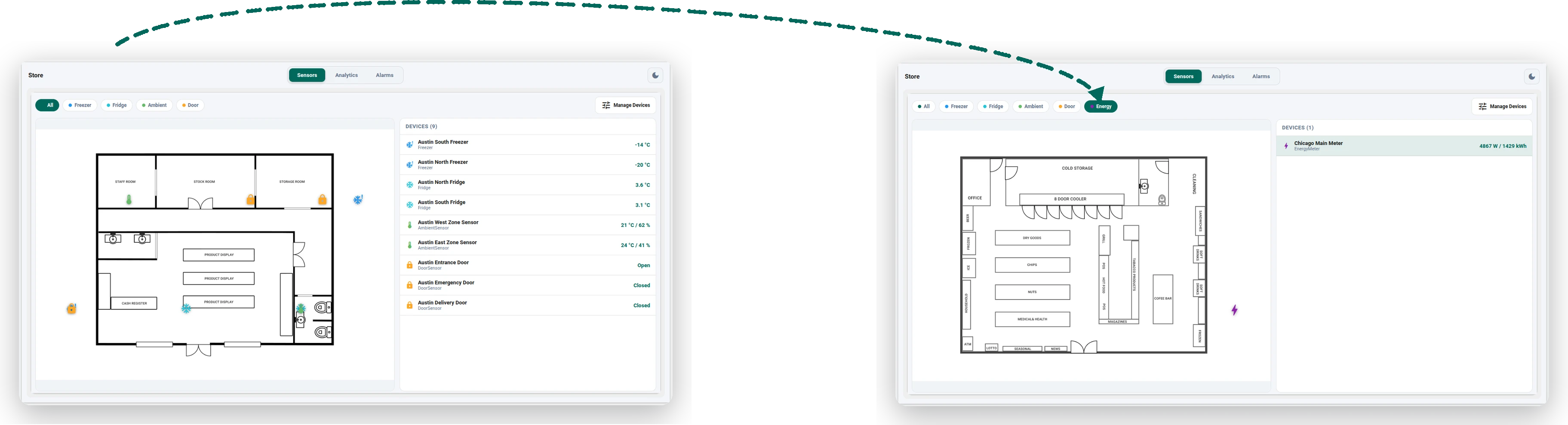
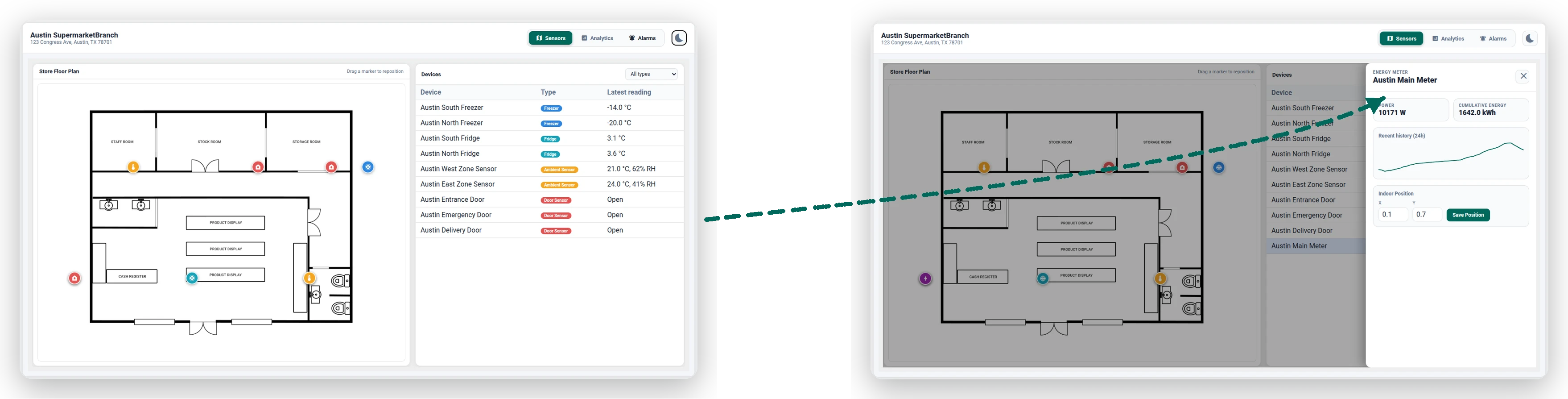
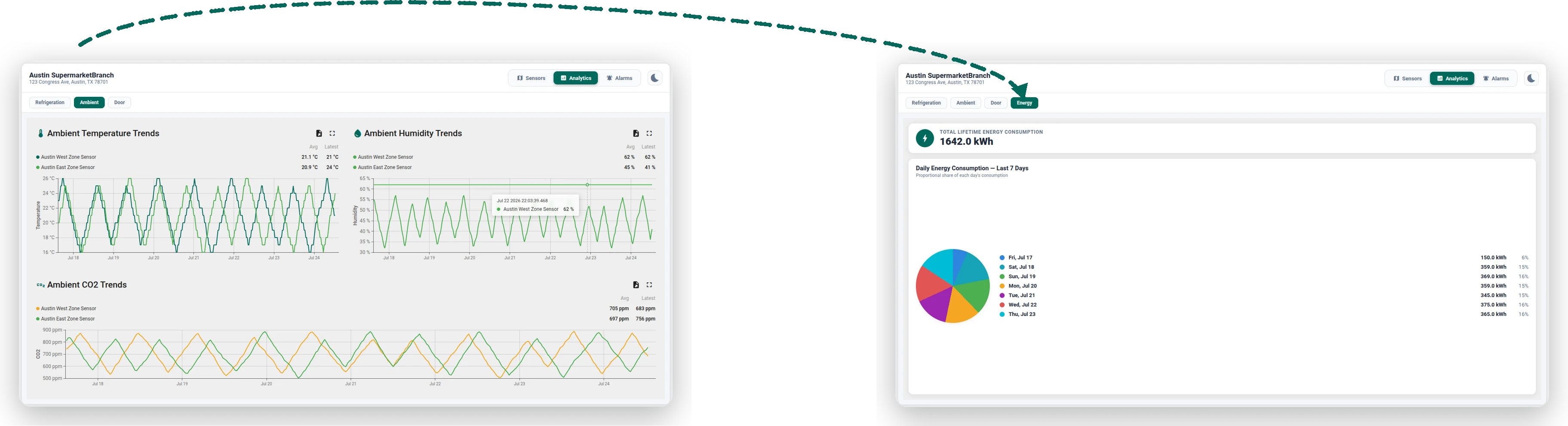
add an energy meter to each store, reporting power and cumulative energy, and show it on the store details view alongside the other devices. calculate each store's total energy consumption and show it as its own card. on the admin dashboard, add a new analytics tab with a chart comparing energy consumption across all stores. on the store manager dashboard, add an energy option to the analytics tab, showing the store's energy analytics with a pie-chart comparison.The agent shows a plan before it changes files. Here the plan has a new
EnergyMeterprofile, the calculated fields for the total consumption, and changes to both dashboards. The plan also lists the items that stay the same.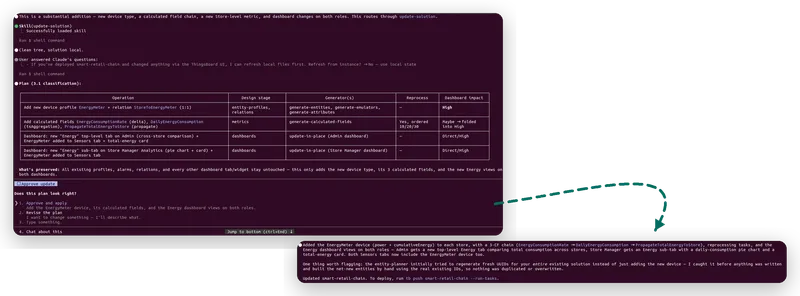
-
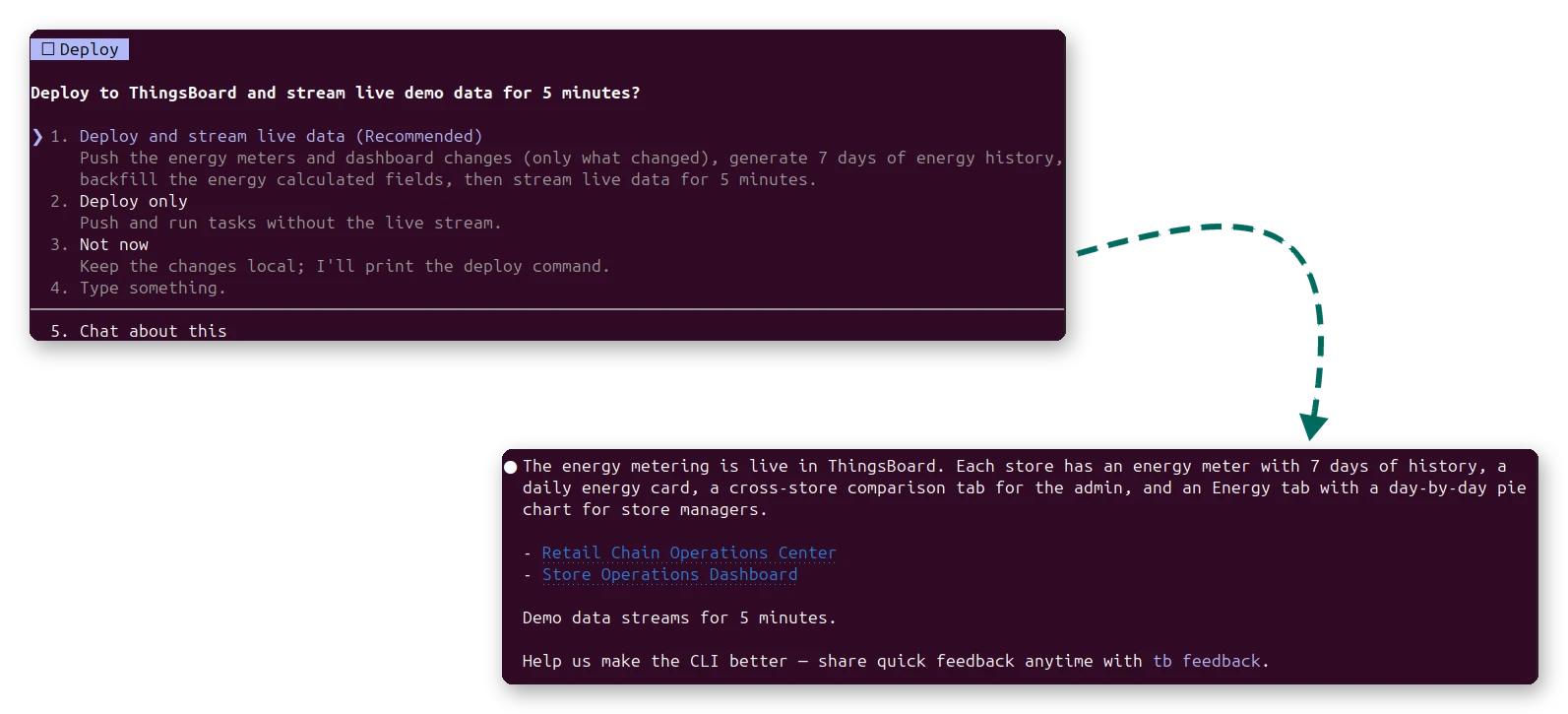
Deploy the change. The agent asks again if you want to deploy. Agree. The agent pushes the solution again. The CLI creates the three new energy meters and updates the other entities. It creates no duplicates. It writes demo data for the new meters and recalculates the total consumption history.
-
Examine the change. Open the dashboards again. The new energy data shows on both dashboards. All other items are the same as before.

Some time after a deployment, the agent can ask Did you achieve the result you expected? To send feedback at any time, run tb feedback.
Was this helpful?