ThingsBoard CLI commands
This page shows the ThingsBoard CLI commands that you use most. For all commands and options, use the built-in help (see Help). To connect the CLI to ThingsBoard, see Configuration.
Create a project
Section titled “Create a project”tb init [FOLDER]tb init prepares a project folder. It does not create a solution and does not change ThingsBoard.
| Option | What it does |
|---|---|
FOLDER |
The project folder. The CLI creates it if it does not exist. Default: the current folder. |
--agent-format claude|antigravity|both |
The agent kit to install. Default: the CLI finds the installed agents and asks. |
--browser |
If the CLI is not connected, enter the ThingsBoard URL and API key on a local web page. Use it when an AI agent runs tb init. |
--skip-config |
Do not check or set up the connection. |
--guided |
Ask for the project folder and offer to start the agent. The installer uses this option. |
tb init writes the agent kit (.claude/, or .agents/ and AGENTS.md), thingsboard.json, .gitignore, and README.md. It creates a git repository if the folder is not in one. The CLI creates the entity folders when you save the first entity.
The built-in help always shows the current commands and options:
tb --help # command groupstb device --help # commands in a grouptb device save --help # options of one commandCommands that call a ThingsBoard API method also accept -H (or --help-verbose). It shows the full request schema, with the required fields and the read-only fields:
tb device save -HLocal and remote mode
Section titled “Local and remote mode”The mode is a setting of the project:
tb config mode local # default: commands save to project files; nothing reaches ThingsBoard until tb pushtb config mode remote # commands call the ThingsBoard API at onceTo send one command to the API without a change of the project mode, add --remote to it.
Entities
Section titled “Entities”Each entity type has its own command group, like tb device, tb dashboard, tb asset, tb customer, tb rule-chain, and tb calculated-field. Most groups have the commands list, get, save, and delete.
# List devicestb device list
# Create a device from a JSON bodytb device save --json '{"name": "Sensor-01", "type": "Temperature Sensor"}'
# Create a device with options for the common fieldstb device save --name Sensor-02 --type "Temperature Sensor"
# Save server-scope attributes on an entitytb attributes save DEVICE <entity-id> --scope SERVER_SCOPE --json '{"firmwareVersion": "1.0.3"}'
In local mode, tb <entity> save writes one JSON file for each entity to the matching entity folder. Nothing reaches ThingsBoard until you run tb push. In remote mode, the command saves the entity in ThingsBoard at once.
Solutions
Section titled “Solutions”Each solution is a folder solutions/<name>/. You build solutions in local mode.
tb solution new smart-building # create a solutiontb solution list # list the solutions in the projecttb device save --solution smart-building --name Sensor-01 --type "Temperature Sensor"To save an entity to a solution, add --solution <name> to the command. This option works from all folders of the project. Without it, the CLI uses the solution of the current folder, or the project root.
Validate and push
Section titled “Validate and push”tb validate # validate the root entities against ThingsBoardtb validate smart-building # validate one solutiontb push smart-building # deploy a solution (omit the name to deploy the root entities)tb push smart-building --run-tasks # also write demo data and run calculated field reprocessing| Option | What it does |
|---|---|
--profile, -p |
The profile to use. Default: the active profile. |
--all |
Push the root entities and all solutions. |
--skip-validate |
Do not validate before the push. |
--run-tasks |
After the push, run the tasks of the solution (emulators and calculated field reprocessing). |
--force-emulators |
Write the emulator data again, also for keys that already have data. This deletes the existing data of these keys first. Use it with --run-tasks. |
--yes, -y |
Do not ask for confirmation of destructive actions, like --force-emulators. |
tb push --run-tasks does the usual push. Then it does two more steps:
- Emulators. The CLI writes demo telemetry for the devices that have emulators. The dashboards then show data.
- Calculated field reprocessing. The CLI sends the earlier inputs through each calculated field again. The calculated values then cover the same time range as the demo data.
You can use --run-tasks on each push. The emulators do not write data again for keys that already have data. Use --force-emulators to write the data again.
Deploy to several environments
Section titled “Deploy to several environments”To deploy the same solution to more than one ThingsBoard environment, push it with different profiles:
tb push smart-building --profile devtb push smart-building --profile stagingtb push smart-building --profile prodThe CLI writes no state files to your project. When you push to the same environment again, the CLI updates the existing entities. It does not create duplicates. Test on dev, then push the same files to staging and prod.
tb pull does the opposite of push. It gets the current entities from ThingsBoard and writes them to the matching JSON files. Use it in these cases:
- Someone changed a dashboard in the UI.
- You want a local copy of the entities on staging.
- You want to add an entity that someone created in ThingsBoard to the project.
tb pull # refresh all local entities of the current solutiontb pull --solution smart-building # the same, for the named solutiontb pull dashboard --all # refresh all dashboards of the current solutiontb pull device <uuid> # get one entity by its internal ID on the servertb pull device <uuid1> <uuid2> # get several entitiesUse the ID form to get entities that are on the server but not in the project. The CLI writes a new file to the correct folder.
| Option | What it does |
|---|---|
--solution, -s |
The solution. Default: the solution of the current folder, or the project root. |
--dry-run |
Show the planned file changes (created, updated, renamed). Do not change files. |
--with-credentials |
Add the device credentials to the files. Default: off. Use it only if you want the credentials in git. |
--force |
Do not check for uncommitted git changes. |
--interactive, -i |
Open a picker to select entities of all types. |
tb pull does not overwrite files that have uncommitted changes. Commit or stash your changes, or add --force.
To manage a solution that already runs in ThingsBoard, select its entities in the interactive pull:
tb pull -iThe CLI opens a picker in the terminal. It shows the entities of your tenant of all types, including entity groups. Select the entities and press Enter to import them.
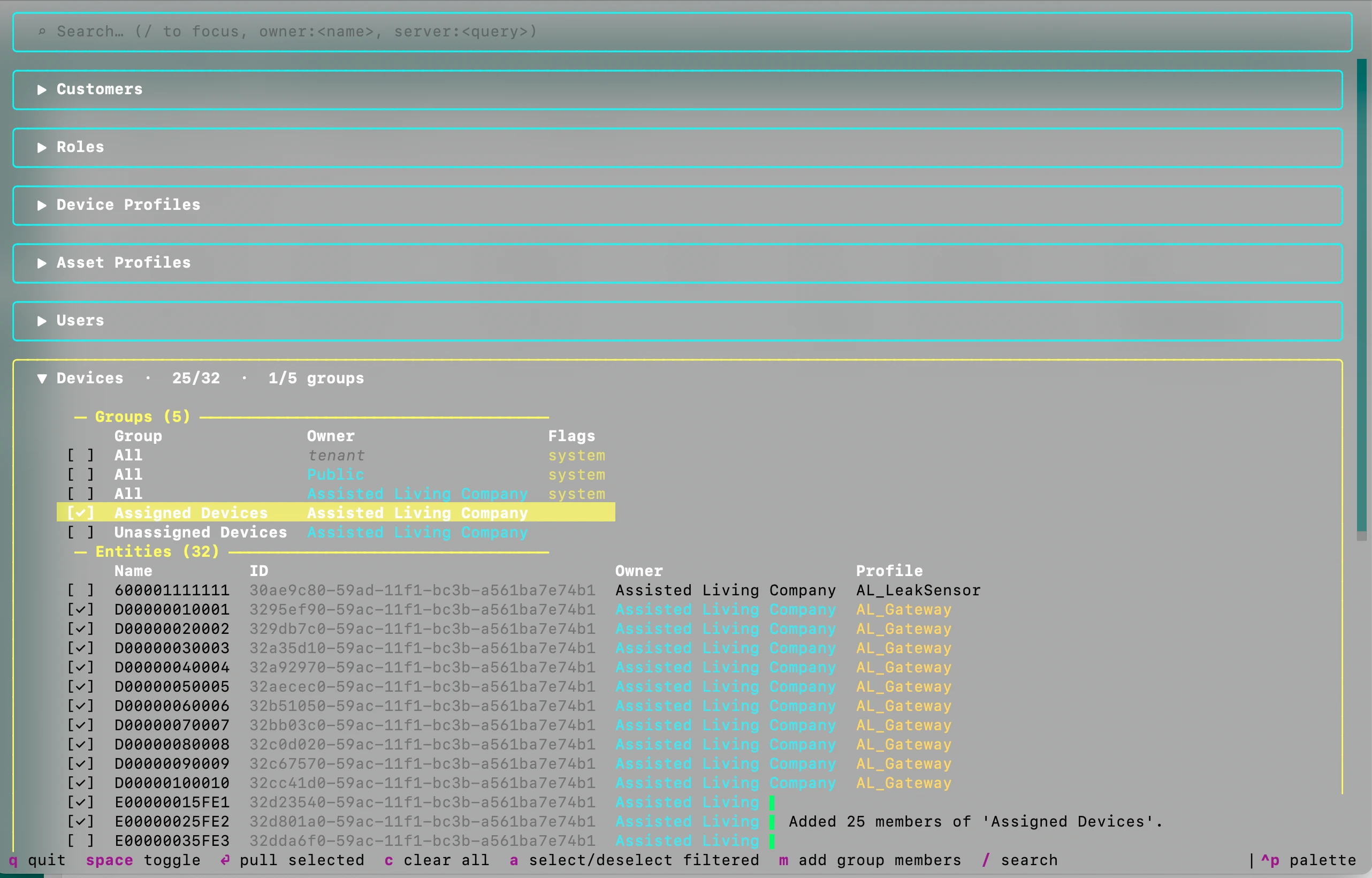
- Press Space to select or clear the row.
- Press m on a group row to select the group and all its members.
- Press a to select all rows that match the search. Press it again to clear them.
- Press c to clear all selections. Press q to quit without a pull.
To filter, type owner:<name> in the search field to show the entities of one owner. Type server:<query> to search on the server. After the pull, the entities are in your project files. The next tb push updates them.
Demo data
Section titled “Demo data”Emulators create demo telemetry for devices. The dashboards then show data before you connect real devices. The agent creates emulators for the devices that it builds.
tb emulator add --entity-type DEVICE --entity-id <uuid> --solution <name> --json '<profiles>' # add an emulatortb emulator list --solution <name> # list the emulatorstb push <name> --run-tasks # write the demo historytb emulator run <name> --duration 5m # send live demo datatb emulator addsaves the emulator insolutions/<name>/tasks/emulators/. Use--daysto set the length of the history (default: 7). Use--interval-msto set the time between values (default: 1800000, 30 minutes).tb push --run-taskswrites the demo history one time. The charts then show data when you open the dashboard.tb emulator runsends new values for a limited time. Use--durationto set the time (default: 10 minutes, maximum 24 hours). Use--intervalto set the time between values (default: 5 seconds, minimum 1 second). Each device continues from its latest value. Press Ctrl+C to stop. The devices must be in ThingsBoard, so runtb pushfirst. If the project has one solution with emulators, you can omit the solution name.
Feedback
Section titled “Feedback”To tell us about your experience with the CLI, run:
tb feedbackShell completion
Section titled “Shell completion”Install the completion one time, then restart your terminal:
tb --install-completion bash # bashtb --install-completion zsh # zshtb --install-completion fish # fishLimitations
Section titled “Limitations”tb pushhas no automatic rollback. If you push a solution with errors, fix it in the files and push again.- The CLI finds entities on the server by their external ID. The next
tb pushoverwrites UI changes to these entities, unless you runtb pullfirst. You can also add new entities from ThingsBoard to the project withtb pull.
For errors and their solutions, see Troubleshooting.
Was this helpful?