Getting Started with ThingsBoard CLI
In this guide, you tell your AI agent what your sensor sends. The agent creates the device and a dashboard in ThingsBoard. Then you see the data. This takes approximately 10 minutes.
Before you start
Section titled “Before you start”You need:
- A ThingsBoard Cloud account, or ThingsBoard Professional Edition 4.3.1.2 or later.
- Claude Code or Antigravity, installed and signed in.
Step 1. Set up
Section titled “Step 1. Set up”The setup creates a project folder. The project folder contains the ThingsBoard skills for your agent and all your solutions. The agent creates one folder for each solution in solutions/. You need only one project folder for many solutions.
Select one option. Both options give the same result.
-
Create an empty project folder and start your agent in it:
Terminal window mkdir thingsboard-project && cd thingsboard-project && claudeTerminal window mkdir thingsboard-project && cd thingsboard-project && agy -
Send this prompt to the agent:
Set up ThingsBoard CLI in this folder:1. Install or upgrade it. On macOS or Linux, run: curl -LsSf https://thingsboard.io/cli/install.sh | shOn Windows, run: powershell -ExecutionPolicy ByPass -c "irm https://thingsboard.io/cli/install.ps1 | iex"2. Run "tb init --agent-format <agent> --browser". Use "claude" for Claude Code or "antigravity" for Antigravity. It opens a page where I enter my ThingsBoard URL and API key. Tell me to complete the page, then wait. Never ask me for the API key in the chat, and never print secrets.3. Check the connection with "tb device list".If everything works, reply with one sentence: the setup is complete, and I must restart you to load the ThingsBoard skills. Then show the restart commands for you only. Claude Code: type /exit, then run claude --continue. Antigravity: close it, then run agy in this folder. If a step fails, tell me what failed and how to fix it. -
The agent asks for permission to run commands. Allow them.
-
Your browser opens the page Connect ThingsBoard CLI. Select ThingsBoard Cloud (North America) or ThingsBoard Cloud (Europe). For your own server, select Your own server, enter its address (like
iot.example.comor192.168.1.10:8080), and click Continue. -
Click Create an API key. ThingsBoard opens the Security page. In the API keys section, click Manage, then + Generate. Copy the key.
-
Paste the key on the Connect ThingsBoard CLI page and click Connect. The page shows Connected. Go back to your agent.
-
The agent tells you that the setup is complete and asks you to restart it. Restart the agent in the same folder. The conversation continues:
Type
/exit, then run:Terminal window claude --continueClose the agent, then run
agyin the same folder.
The agent now has the ThingsBoard skills. Continue with Step 2.
-
Run this command:
Terminal window curl -LsSf https://thingsboard.io/cli/install.sh | shTerminal window powershell -ExecutionPolicy ByPass -c "irm https://thingsboard.io/cli/install.ps1 | iex"The command installs ThingsBoard CLI. Then it starts the setup.
-
Answer the questions. Press Enter to accept a default value.
- Project folder. Press Enter to use
thingsboard-project. The CLI creates this folder. - Connect it now? Press Enter.
- ThingsBoard URL. For Cloud EU, enter
https://eu.thingsboard.cloud. For your own server, enter its URL. - API key. Your browser opens the ThingsBoard Security page. In the API keys section, click Manage, then + Generate. Copy the key and paste it in the terminal.
- Start Claude Code now? Press Enter.
You see this result:
OK ThingsBoard CLI installedProject folder [thingsboard-project]:The CLI is not connected to ThingsBoard. Connect it now? [Y/n]:ThingsBoard URL [https://thingsboard.cloud]:Opening https://thingsboard.cloud/security in your browser.In the API keys section, click Manage, then + Generate.Copy the key and paste it here.API key: <your API key>OK Connected to https://thingsboard.cloud (profile 'cloud')Detected Claude Code.OK Initialized ThingsBoard project in thingsboard-project…Next steps:1. Start Claude Code in the project folder: cd thingsboard-project && claude2. Tell it what your device sends, like this:"My sensor sends {"temperature": 22.5}. Show it on a dashboard."Start Claude Code now? [Y/n]: - Project folder. Press Enter to use
The agent starts in the project folder.
Step 2. Describe your sensor
Section titled “Step 2. Describe your sensor”Send this prompt to the agent:
My office has a sensor that sends {"temperature": 22.5, "humidity": 41, "co2": 650} every minute. Create the device and a dashboard for it. Alert me when CO2 goes above 1000.The agent does these steps:
- It can ask you a question. Answer it, or tell the agent to use a default.
- It creates the device, the dashboard, and the CO2 alarm as files in your project.
- It creates an emulator. The emulator makes demo data for your sensor.
- It checks the files against your ThingsBoard.
Step 3. Deploy and open the dashboard
Section titled “Step 3. Deploy and open the dashboard”-
The agent asks: Deploy to ThingsBoard and stream live demo data for 5 minutes? Select Deploy and stream live data.
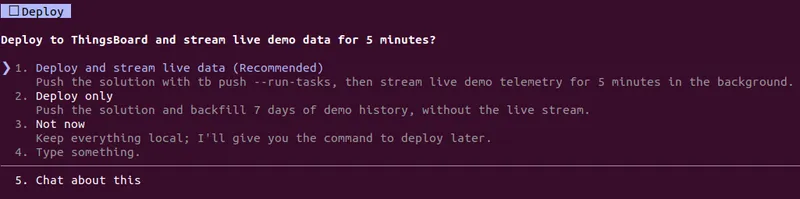
The agent does these steps:
- It sends the files to ThingsBoard.
- It adds seven days of demo data.
- It starts the emulator. The emulator sends new values every 5 seconds.
- It shows the dashboard link:
Dashboards:Office Climate: https://thingsboard.cloud/dashboards/all/… -
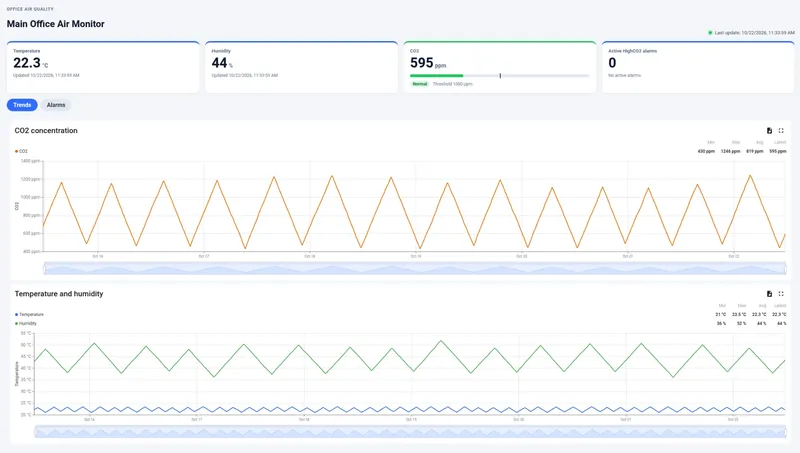
Click the link. The dashboard shows the temperature, the humidity, and the CO2 level for the last seven days. The latest values change every 5 seconds. If CO2 goes above 1000, the alarm appears.
To stream demo data again later, run this command in the project folder:
tb emulator run --duration 5mUse the data from your device
Section titled “Use the data from your device”Change the prompt from Step 2. Tell the agent what your device is and paste the data that it sends:
My device is a <device type>. It sends this JSON: <paste your payload>. Show the values on a dashboard.Troubleshooting
Section titled “Troubleshooting”The connection failed
The CLI shows the reason and lets you try again.
- The API key is not valid: Copy the key again, or create a new key.
- The CLI cannot reach the server: Check the address. For Cloud EU, select ThingsBoard Cloud (Europe).
The browser does not open
The CLI shows a link. Copy the link and open it in your browser.
tb: command not found
Open a new terminal window and try again. If the problem continues, run uv tool update-shell.
The agent does not know ThingsBoard CLI
Start the agent in the project folder. The agent loads the ThingsBoard skills from this folder.
Next steps
Section titled “Next steps”- How it works: projects, solutions, push and pull.
- Start from a device payload: describe what your device sends.
- Example: smart retail solution: the full design flow, step by step.
- Commands: run the CLI yourself.
- Configuration: profiles, API keys, and environment variables.
Share your experience with tb feedback.
Was this helpful?