Customize home screen in ThingsBoard Mobile Application
ThingsBoard lets you control how dashboards appear on the mobile app’s home screen — set a cover image, define the display order, hide specific dashboards, and rearrange the navigation bar — all from the dashboard details form.
Dashboard image
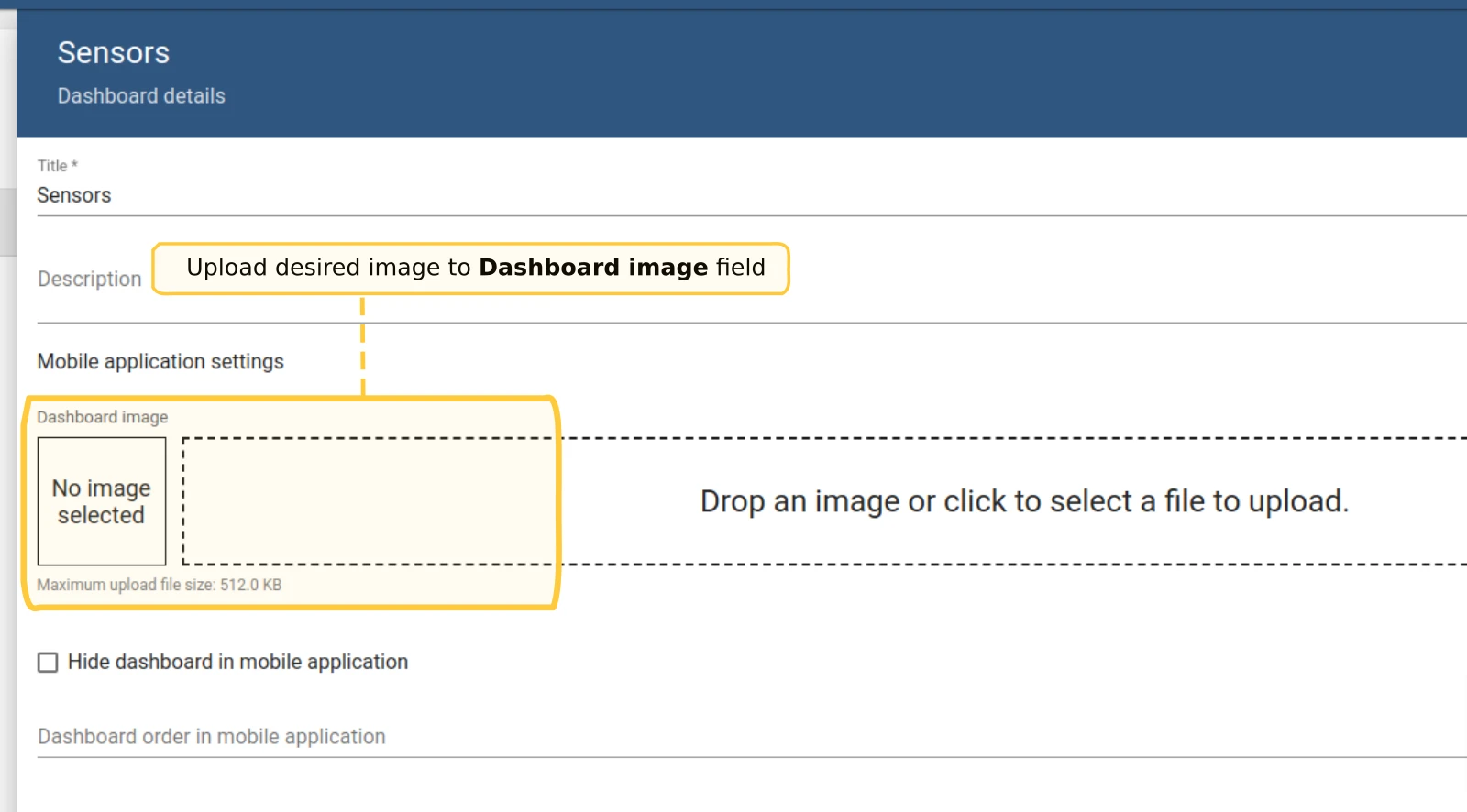
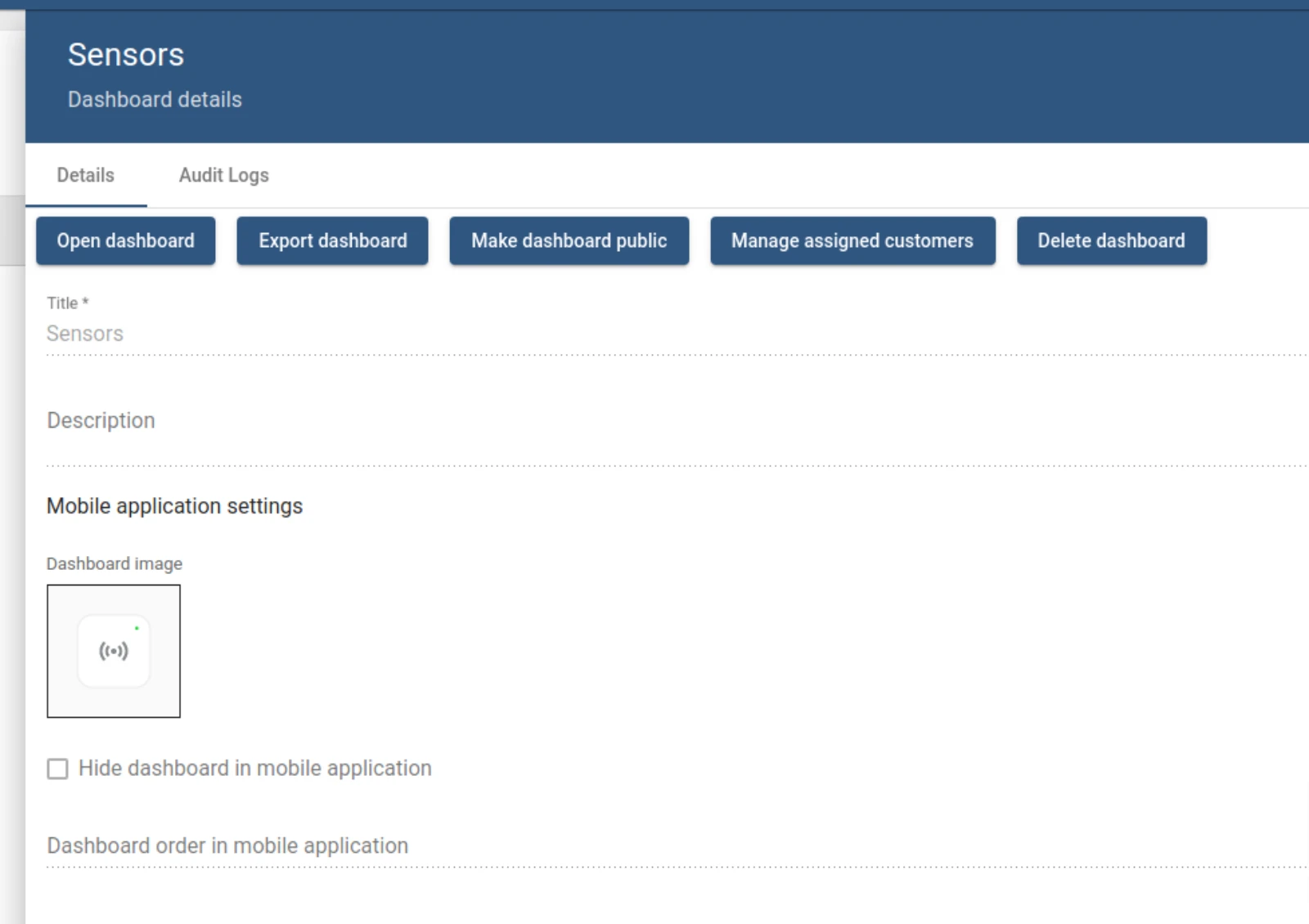
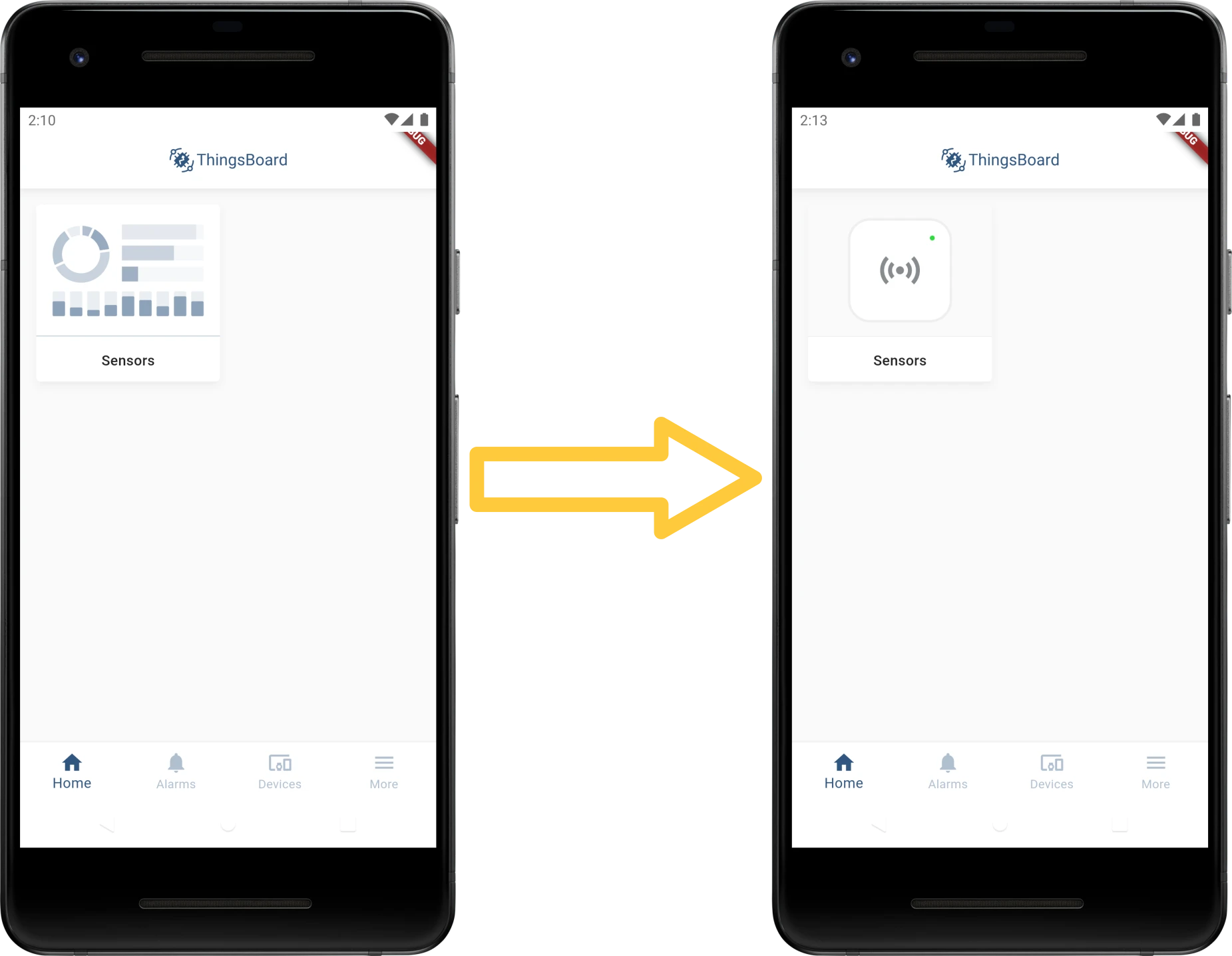
Section titled “Dashboard image”Upload a cover image that the mobile app displays on the dashboard tile in the home screen list.
- Go to Dashboards in the left main menu.
- Click the dashboard you want to modify.
- In the dashboard details panel, click the Edit (pencil) button.
- Upload the desired image to the Dashboard image field.
- Click Apply changes.
Dashboard order
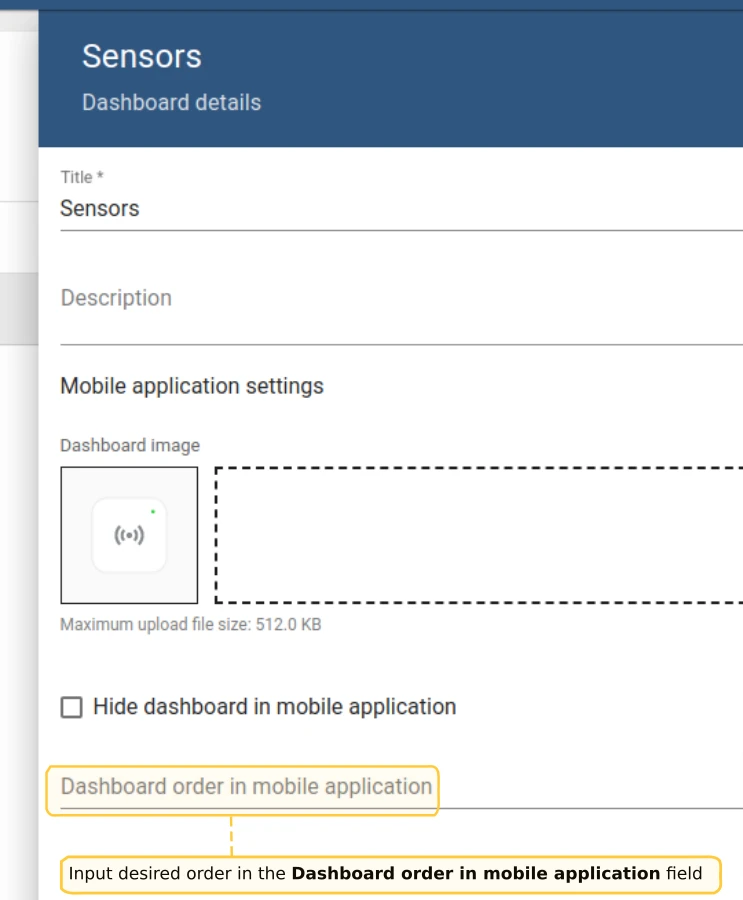
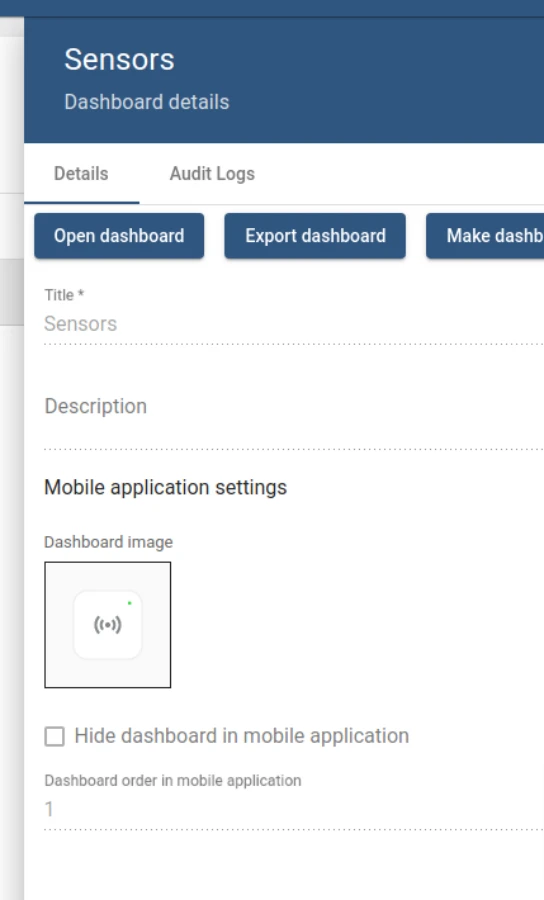
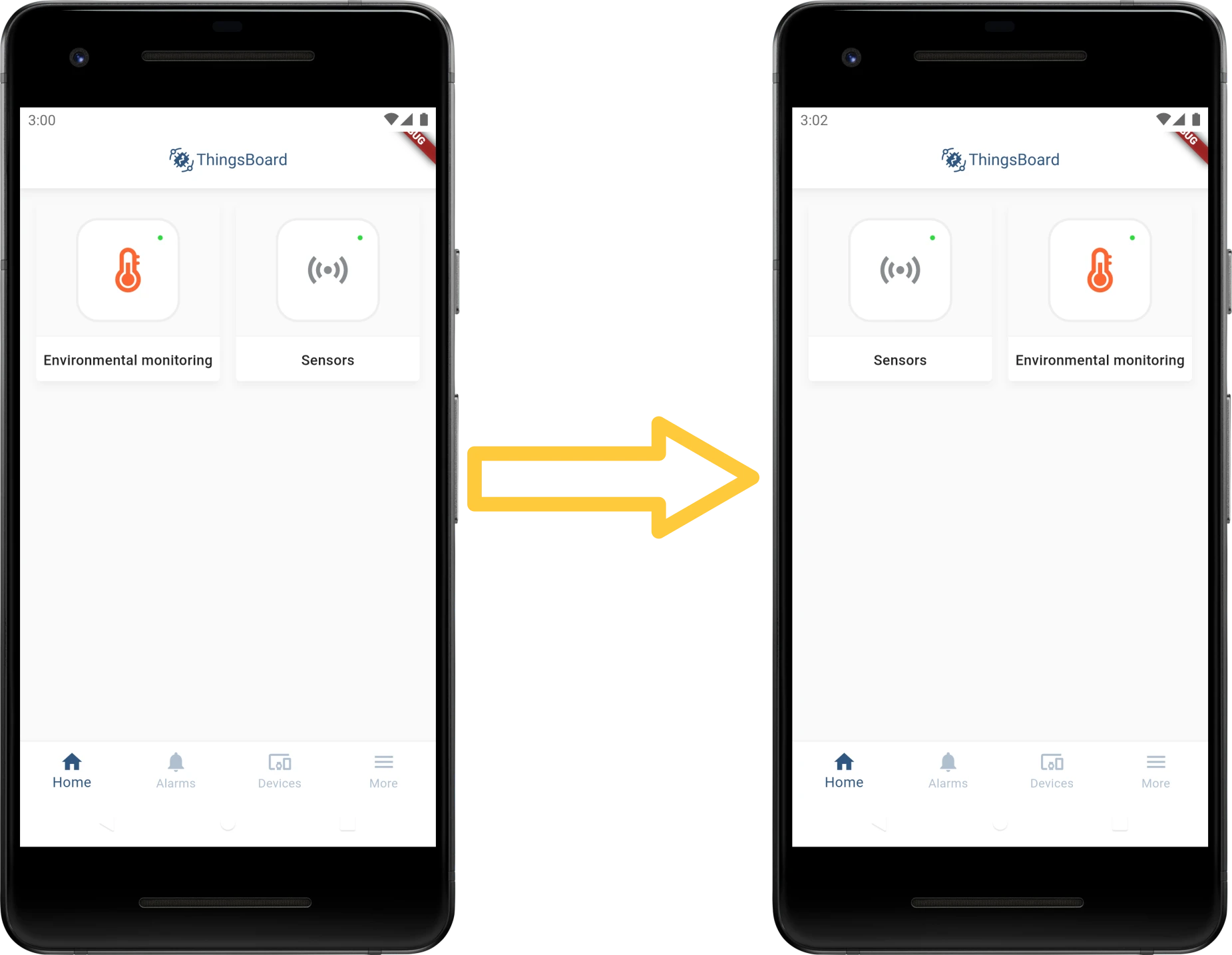
Section titled “Dashboard order”Set the position of a dashboard in the mobile app home screen list. Lower numbers appear first.
- Go to Dashboards in the left main menu.
- Click the dashboard you want to modify.
- In the dashboard details panel, click the Edit (pencil) button.
- Enter the desired position in the Dashboard order in mobile application field.
- Click Apply changes.
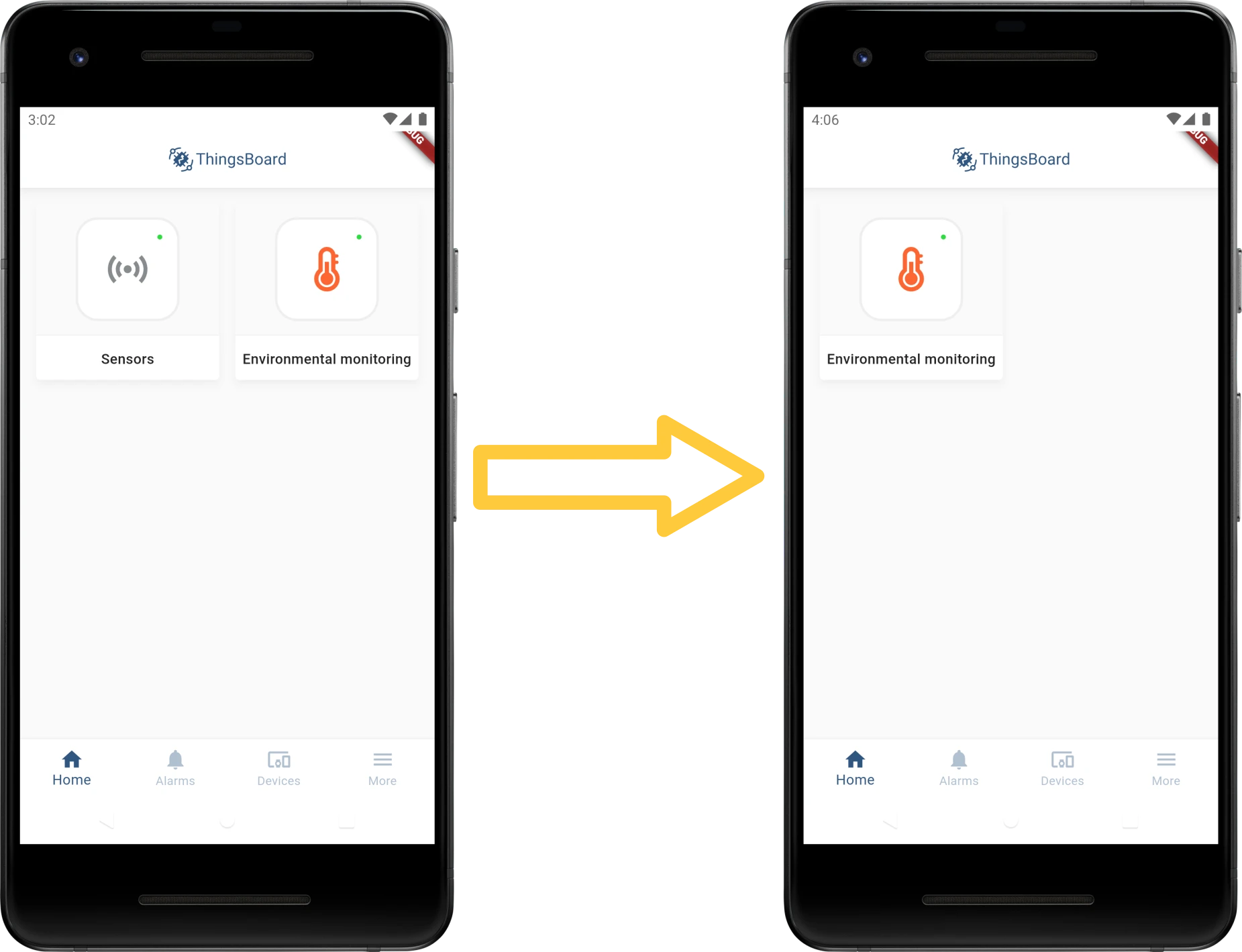
Hide dashboard in mobile app
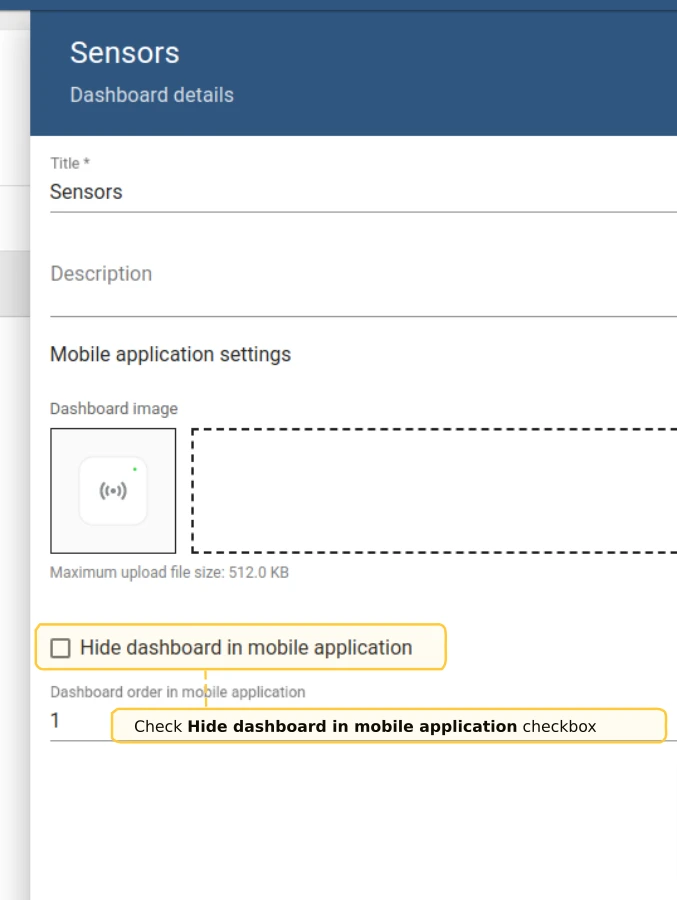
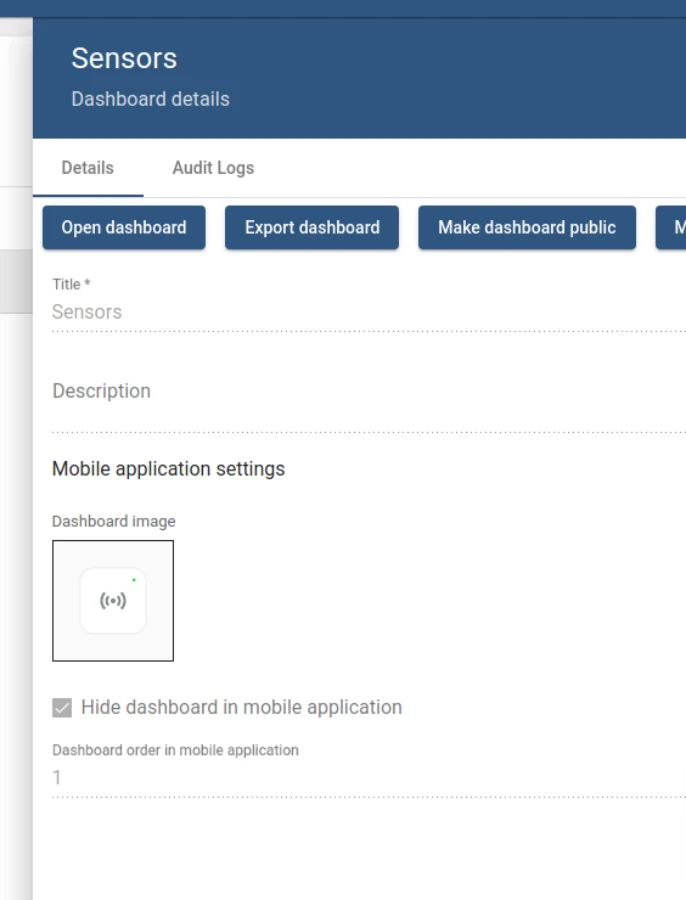
Section titled “Hide dashboard in mobile app”You can hide specific dashboards so they do not appear on the mobile app home screen.
- Go to Dashboards in the left main menu.
- Click the dashboard you want to hide.
- In the dashboard details panel, click the Edit (pencil) button.
- Enable the Hide dashboard in mobile application checkbox.
- Click Apply changes.
Modify navigation bar
Section titled “Modify navigation bar”Use the Mobile App Center Layout section to reorder tabs and show or hide items in the navigation bar.
Was this helpful?
Thank you for your feedback!