Add a custom localization to ThingsBoard Mobile Application
Add a new language to the mobile app build or improve an existing translation.
Supported languages
Section titled “Supported languages”The ThingsBoard mobile app includes the following languages by default:
- English
- Arabic
- Chinese (Taiwan)
- Chinese (Simplified)
Add or improve localization
Section titled “Add or improve localization”The app reads localized strings from .arb files in lib/l10n. Each .arb file represents one locale — for example, intl_en.arb for English. Keys stay the same across all languages; only the values change per locale.
For full details on Flutter’s internationalization system, see the official Internationalizing Flutter apps guide.
-
Open the localization folder.
Go to your project’s
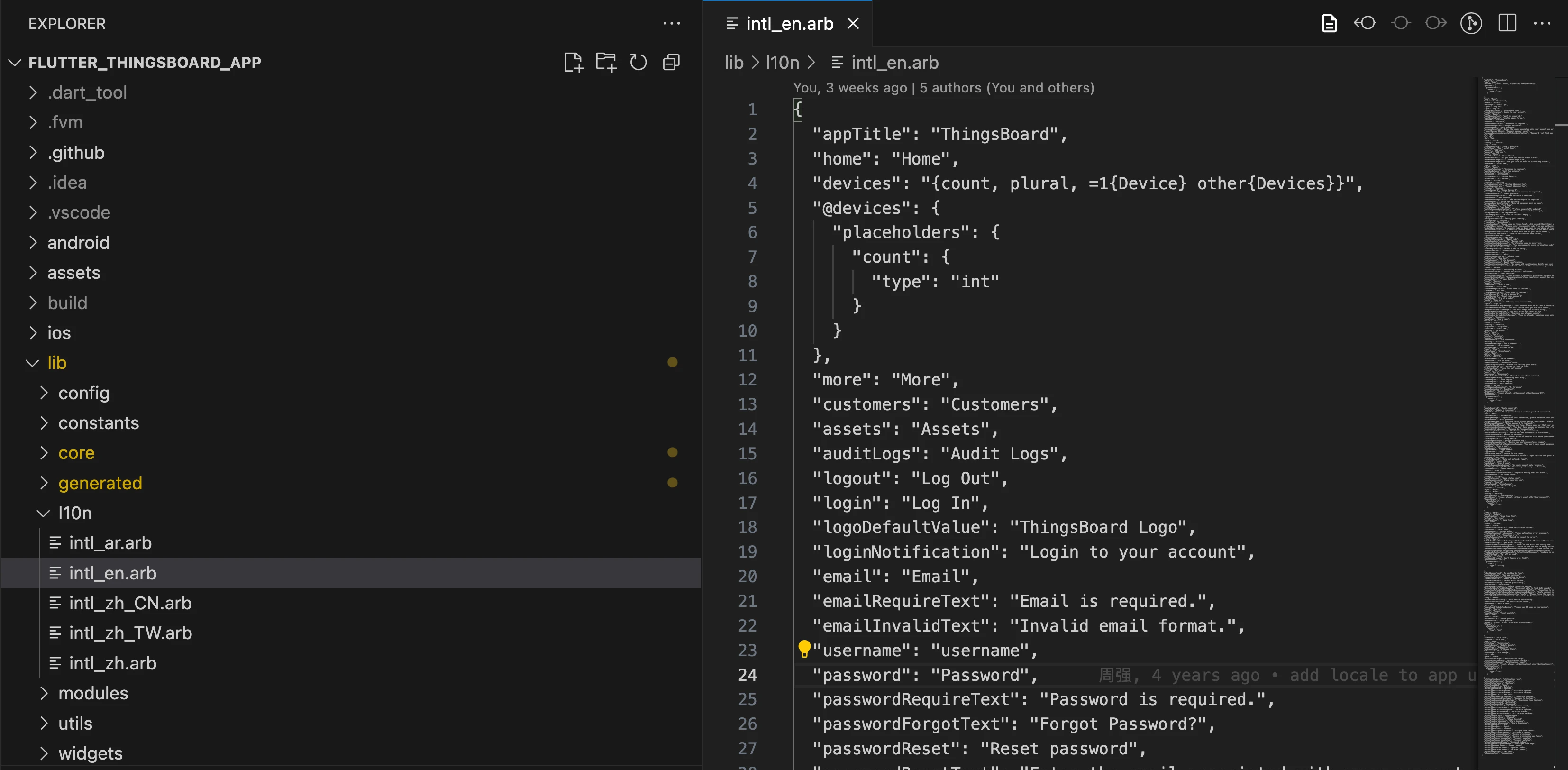
lib/l10ndirectory. You’ll see files like:intl_ar.arbintl_en.arb...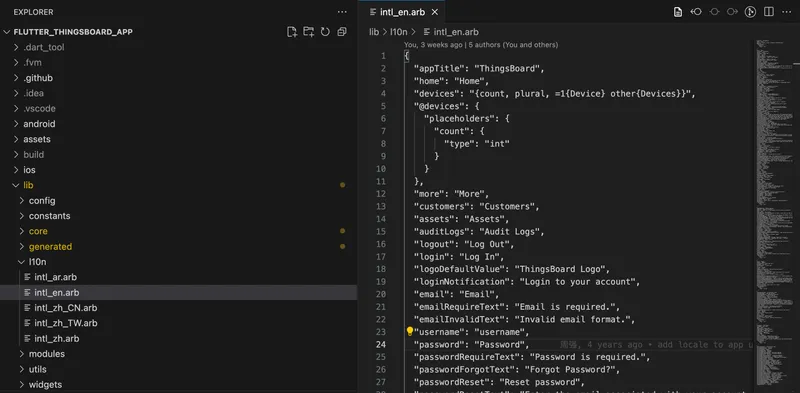
-
Create a language file.
Add a new
.arbfile named using the formatintl_<languageCode>.arb. For example:intl_es.arb— Spanishintl_fr.arb— Frenchintl_de.arb— German
For a region-specific variant, use BCP-47 style — for example,
intl_pt_BR.arb. -
Add translations.
Copy the contents of
intl_en.arbinto the new file. Translate only the values (the text on the right of each key). Do not change the keys.{"appTitle": "Your App Title Translation","login": "Your Login Translation","password": "Your Password Translation"} -
Generate localization files.
App version 1.7.0 and later — install the Flutter Intl extension, which automatically tracks localization changes and regenerates files:
Without the extension — add
intl_utilsto dev dependencies and run the generator manually:Terminal window flutter pub add -d intl_utilsTerminal window dart run intl_utils:generateRun the generate command after each change to your
.arbfiles.App version before 1.7.0 — run:
Terminal window flutter gen-l10n
Test custom localization
Section titled “Test custom localization”- Change your device or simulator language to the target locale and relaunch the app.
- For right-to-left languages like Arabic, verify layout mirroring and text direction.
- Check that pluralization, placeholders, and date/number formatting look correct.
Contribute translations
Section titled “Contribute translations”Community contributions to improve localization are welcome. To contribute:
- Open a pull request to the <a href="https://github.com/thingsboard/flutter_thingsboard_app" target="_blank" rel="noopener noreferrer">flutter_thingsboard_app</a> repository with your new or updated
.arbfiles. - Submit an improvement request with the
.arbfiles attached.
Was this helpful?