Configure OAuth 2.0 in ThingsBoard Mobile Application
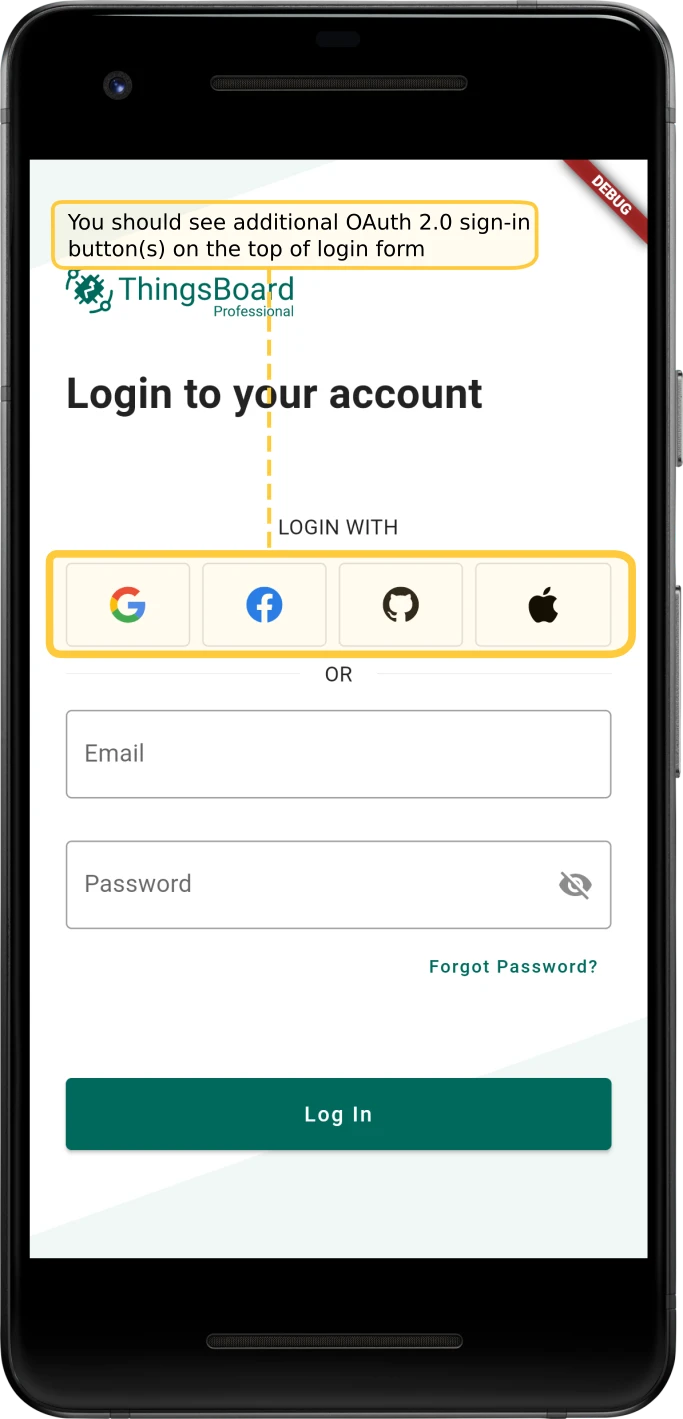
The mobile app supports OAuth 2.0 authentication. When configured, additional sign-in buttons appear on the login screen so users can authenticate with the configured OAuth 2.0 provider. A System Administrator configures OAuth 2.0. For general OAuth configuration, see OAuth 2.0 Support.
Register the mobile app in OAuth settings
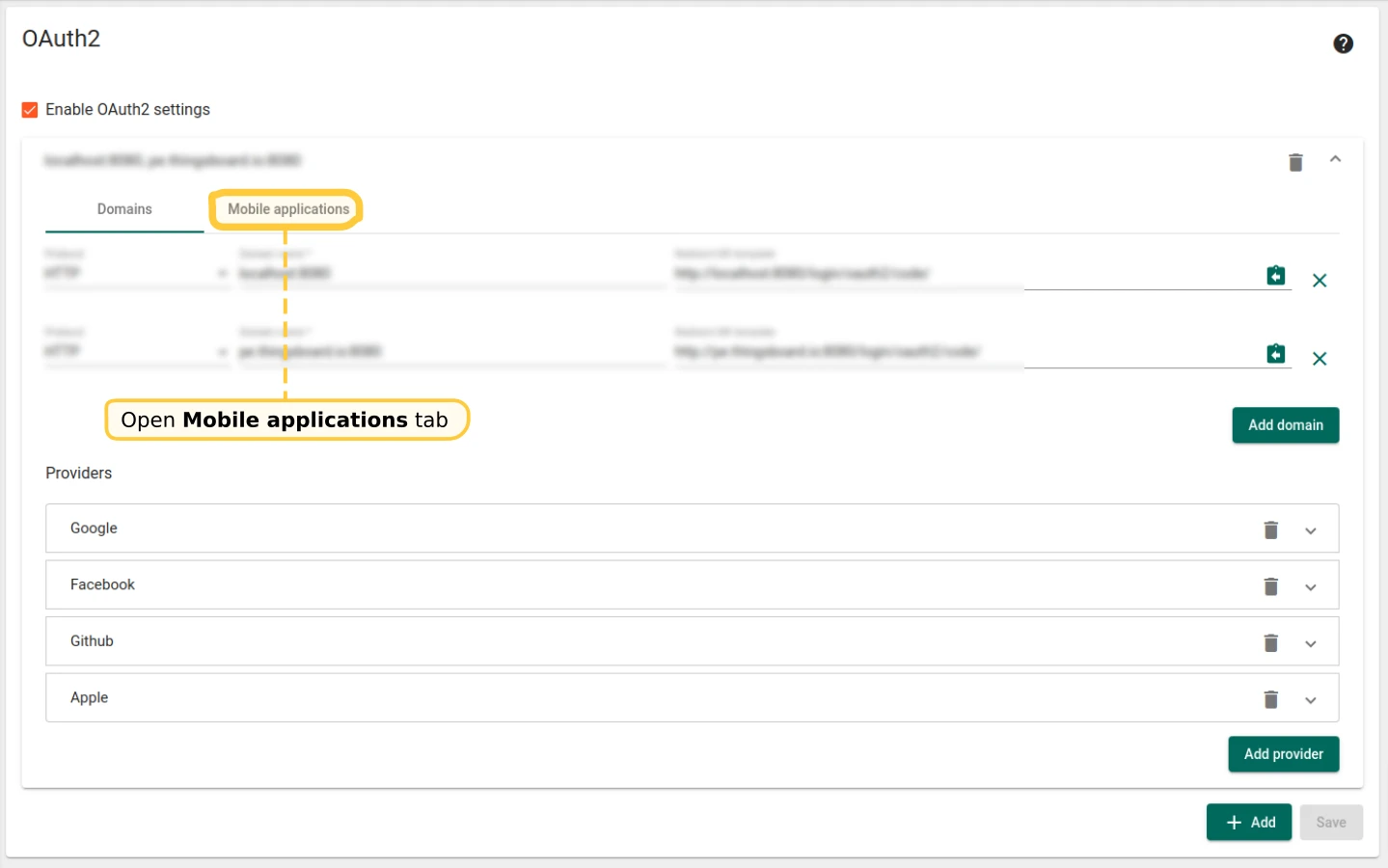
Section titled “Register the mobile app in OAuth settings”- As a System Administrator, go to System Settings → OAuth2.
- Expand the domains panel.
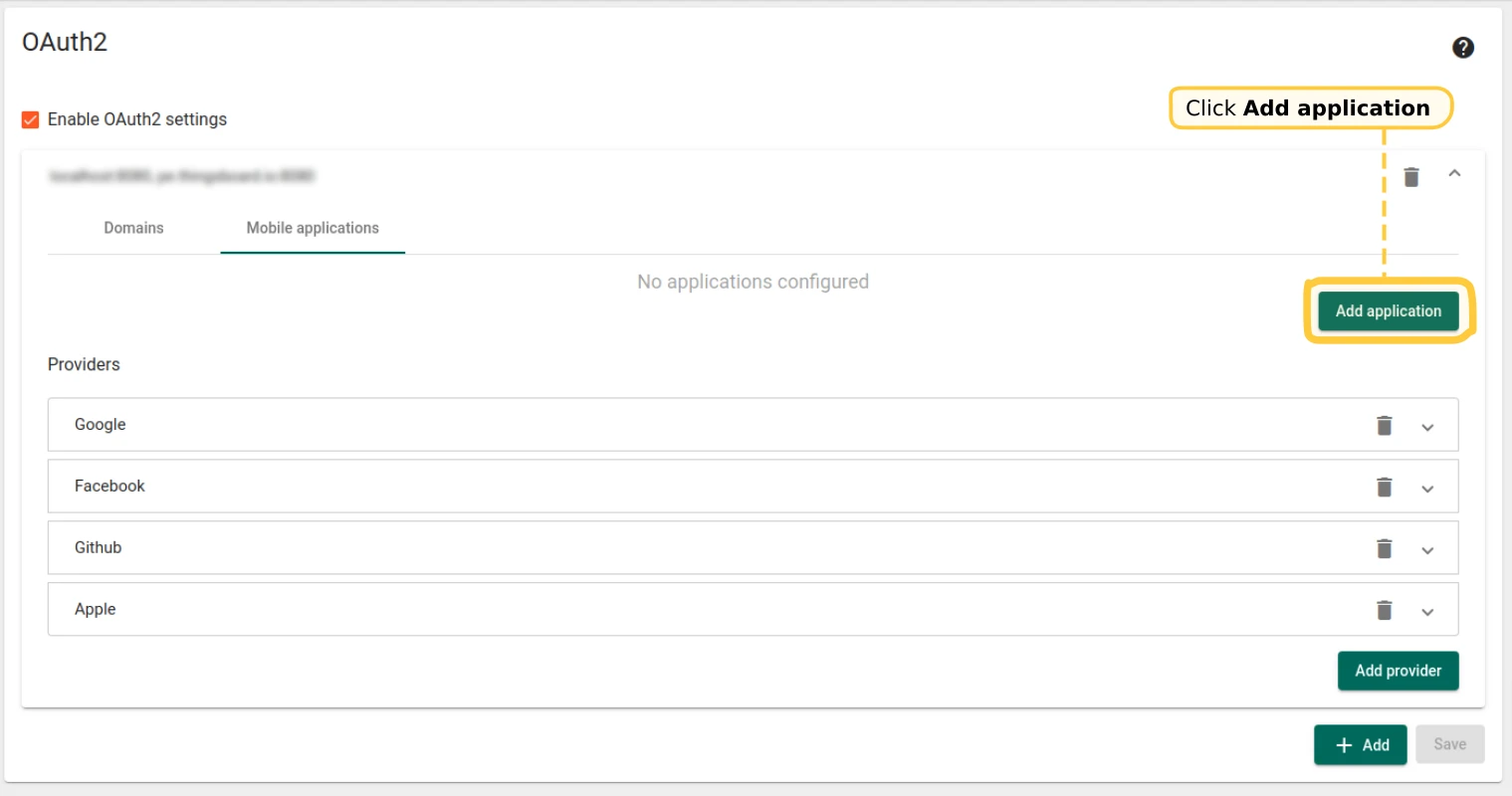
- Open the Mobile applications tab and click Add application.
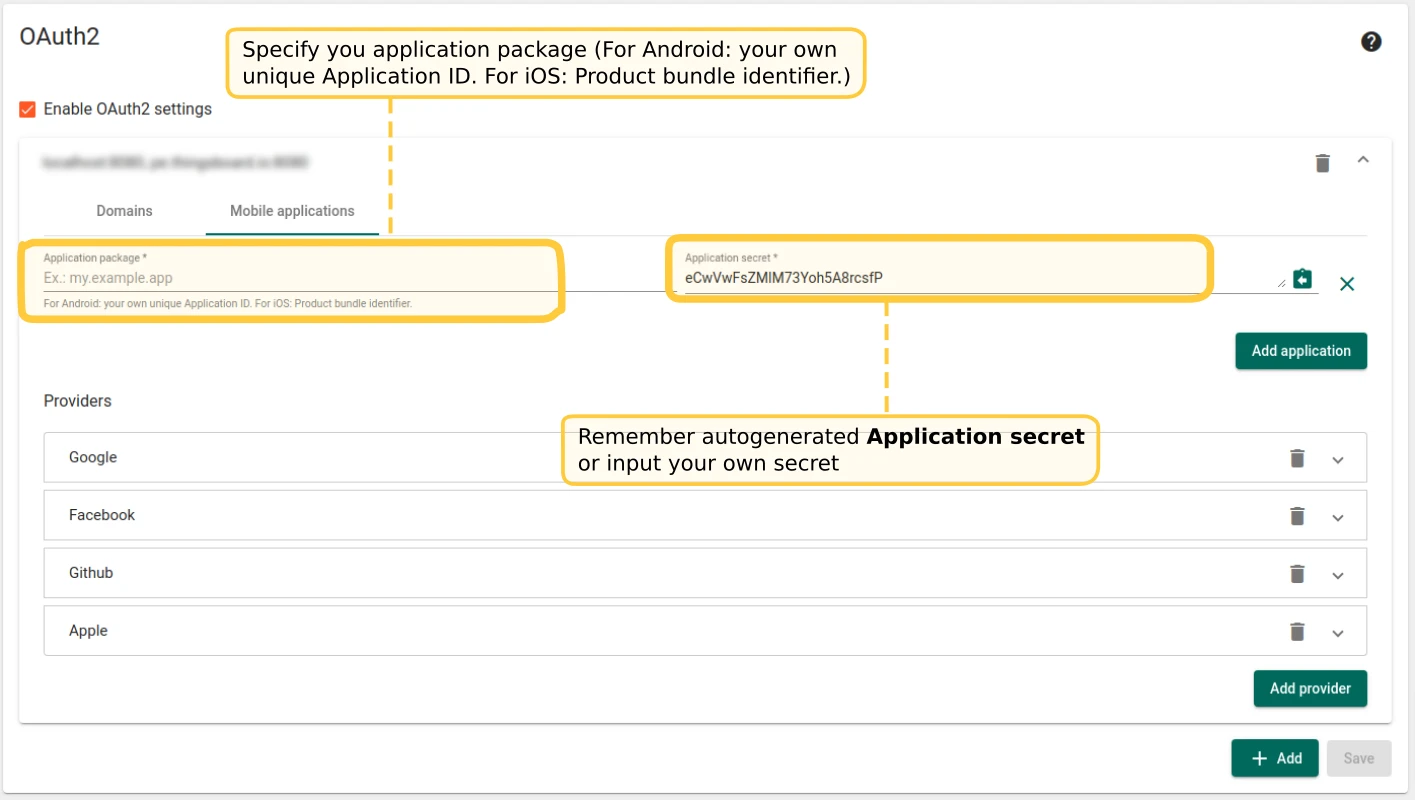
- Enter your application package name — for Android: the Application ID; for iOS: the Product Bundle Identifier.
- Copy the auto-generated Application secret, or enter your own.
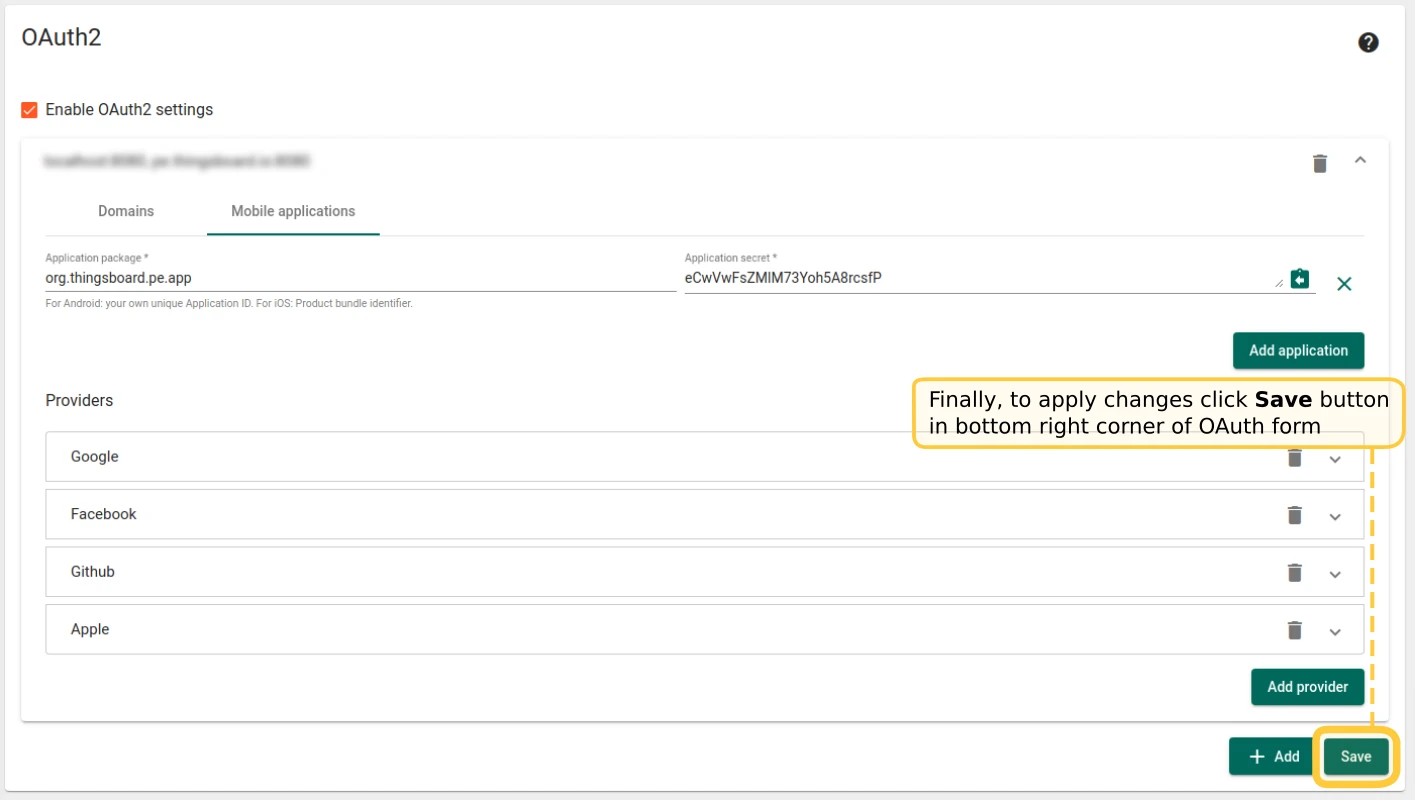
- Click Save in the bottom-right corner to apply the changes.
Configure the mobile app
Section titled “Configure the mobile app”Open the `flutter_thingsboard_pe_app` project in your editor. Edit lib/constants/app_constants.dart:
- Set
thingsboardOAuth2AppSecretto the Application secret value from the previous step. - Set
thingsboardOAuth2CallbackUrlSchemeto a unique scheme — for example, your application package name with anauthsuffix (likeorg.mycompany.myapp.auth).
abstract class ThingsboardAppConstants {  // ...
  static final thingsboardOAuth2CallbackUrlScheme = 'Your callback url scheme here';
static final thingsboardOAuth2AppSecret = 'Your app secret here';}Next, edit android/app/src/main/AndroidManifest.xml. Find TbWebCallbackActivity and set its scheme to the same value as thingsboardOAuth2CallbackUrlScheme:
<activity android:name=".TbWebCallbackActivity"> <intent-filter android:label="tb_web_auth"> <action android:name="android.intent.action.VIEW" /> <category android:name="android.intent.category.DEFAULT" /> <category android:name="android.intent.category.BROWSABLE" /> <data android:scheme="Your callback url scheme here" /> </intent-filter></activity>Verify OAuth 2.0 setup
Section titled “Verify OAuth 2.0 setup”Run the mobile app. The login screen should show the OAuth 2.0 sign-in button(s) at the top. Use one to log in as an existing user to confirm the setup works.
Was this helpful?
Thank you for your feedback!