Configure QR code settings in ThingsBoard Mobile Application
Configure your custom mobile app to launch directly from a QR code scan using the phone’s camera.
iOS application setup
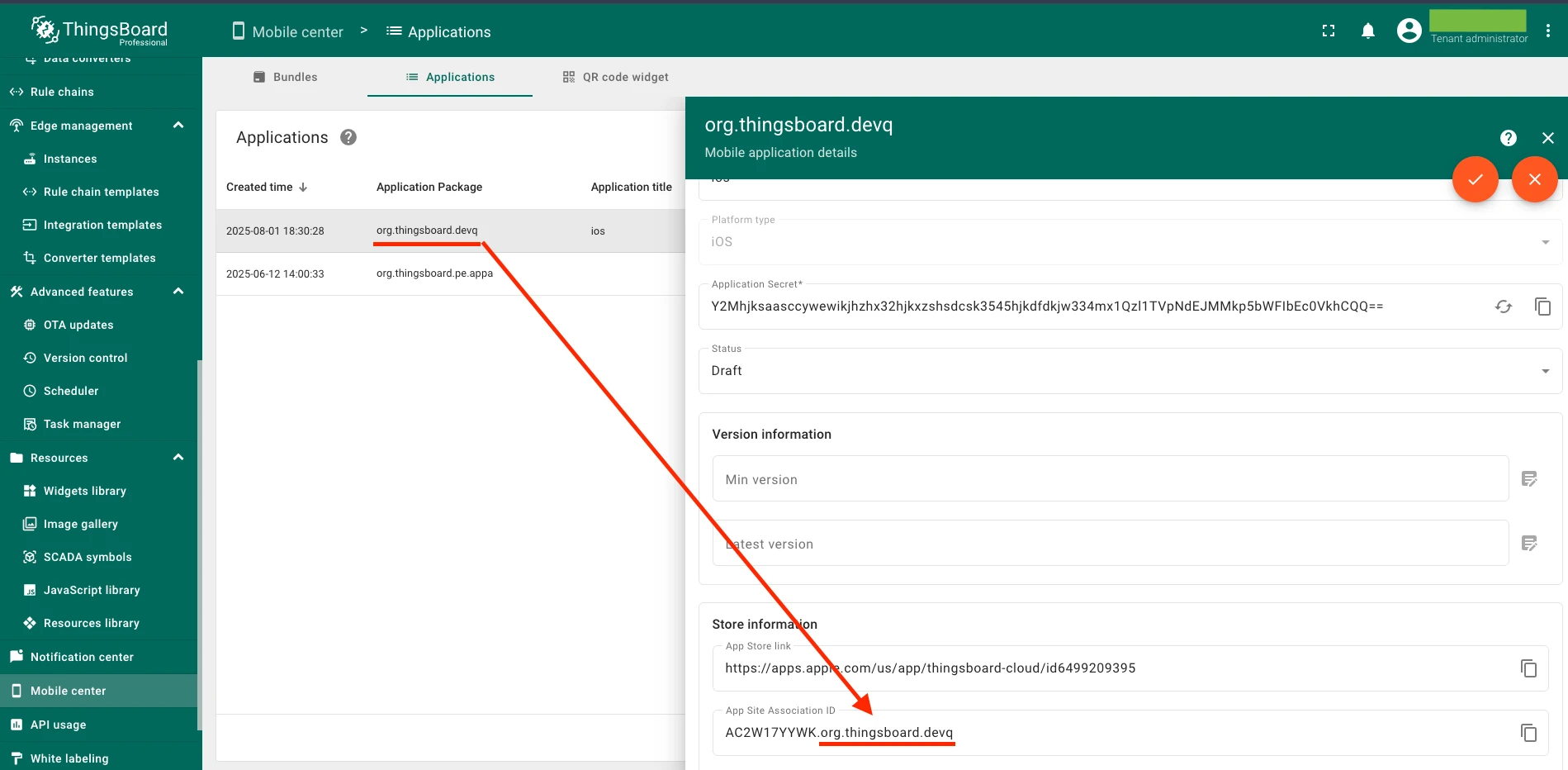
Section titled “iOS application setup”Navigate to Mobile Center → Applications → Your custom iOS app in the ThingsBoard platform.
App Site Association ID
Section titled “App Site Association ID”In your app store info settings, provide the App Site Association ID. It consists of two parts separated by a dot: {Team ID}.{Bundle ID}.
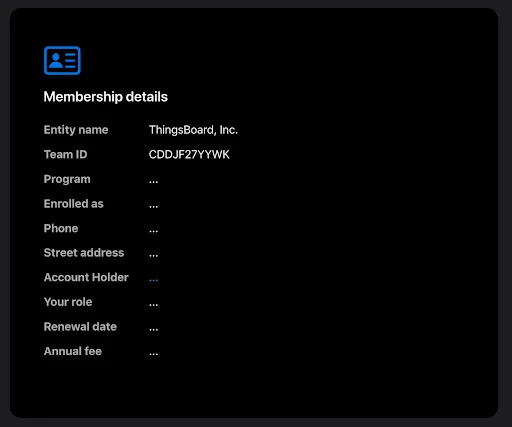
Team ID — find it in your Apple Developer Account under Membership details.
Bundle ID — must match the Application package configured in your app settings.
Android application setup
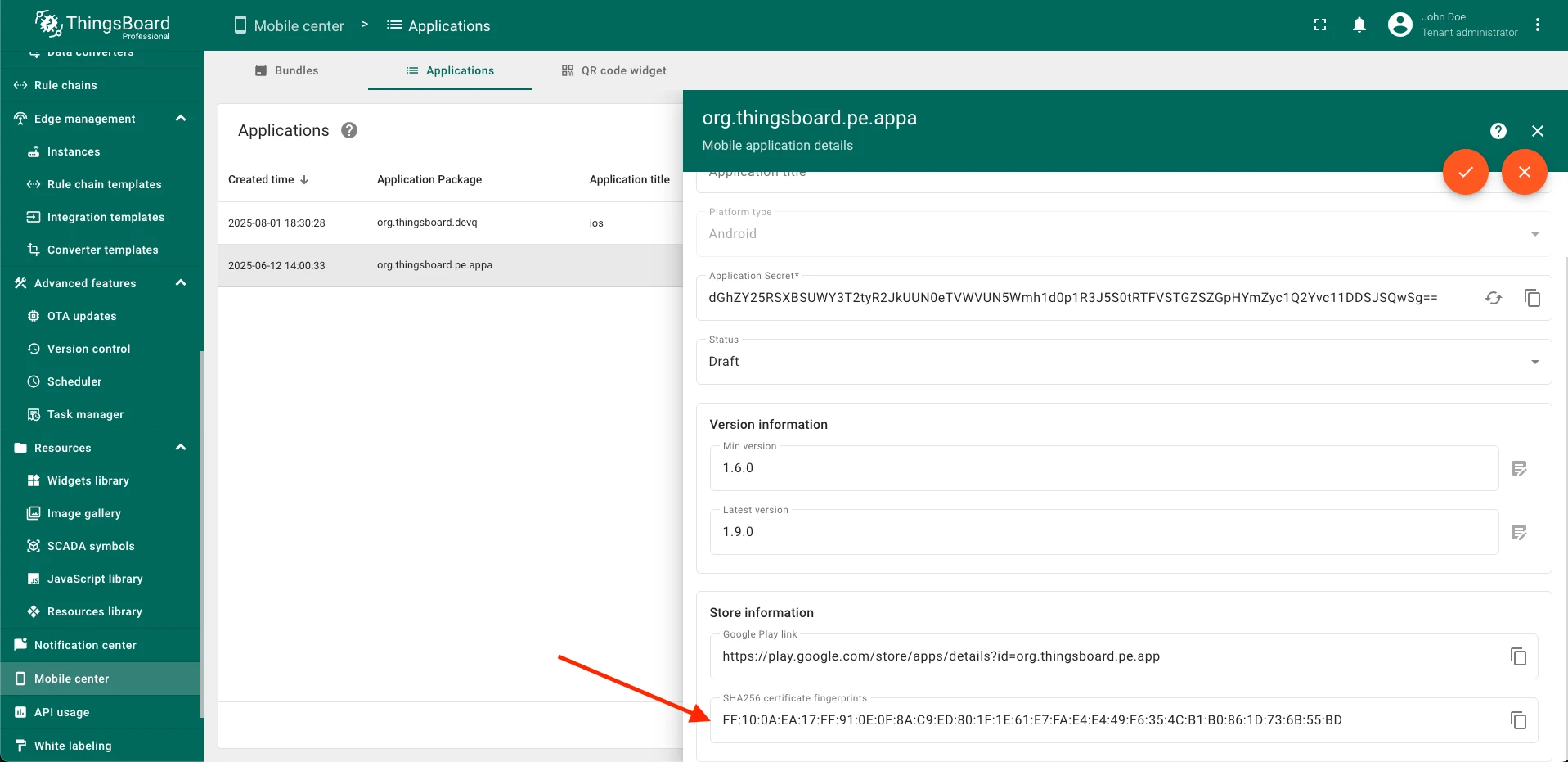
Section titled “Android application setup”Navigate to Mobile Center → Applications → Your custom Android app in the ThingsBoard platform.
SHA-256 fingerprint
Section titled “SHA-256 fingerprint”Provide the SHA-256 fingerprint of your app’s signing key.
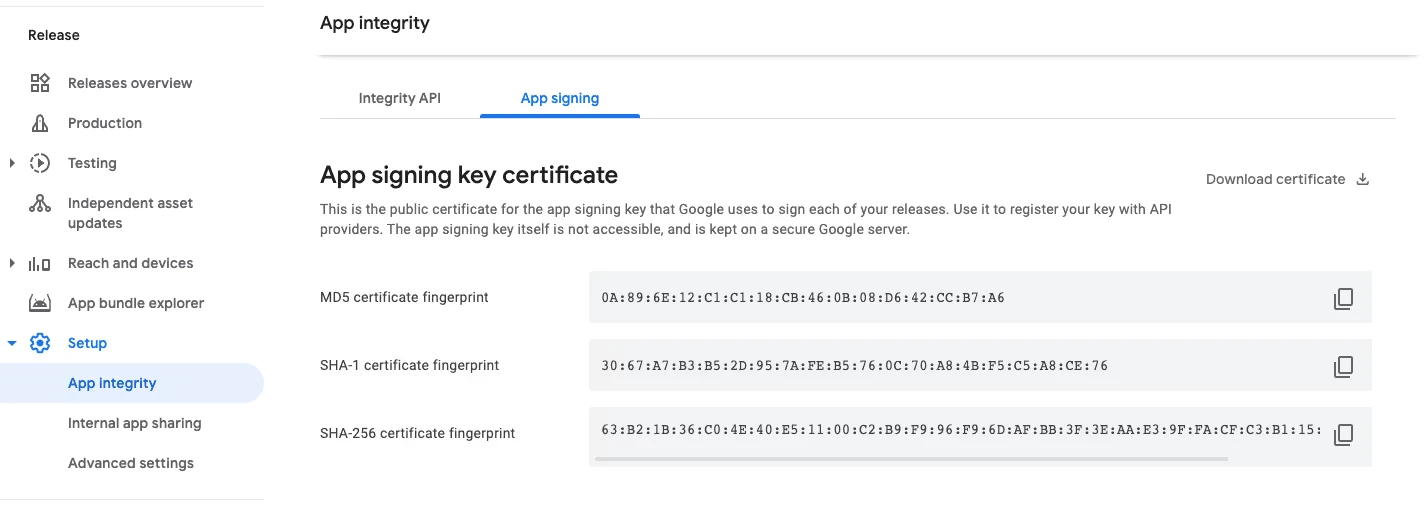
- Google Play distributed apps — find the SHA-256 certificate fingerprint in the Google Play Console under Release → Setup → App Integrity → App Signing tab.
- Locally distributed apps — use the SHA-256 key that your APK is signed with.
For details, see Set up app links for Android in the Flutter documentation.
Was this helpful?
Thank you for your feedback!