White-labeling
ThingsBoard white-labeling allows you to configure your company or product logo and color scheme. In addition to the web interface, white-label settings also apply to the ThingsBoard PE Mobile app. You can customize the login screen and the main app interface.
Login screen white-labeling
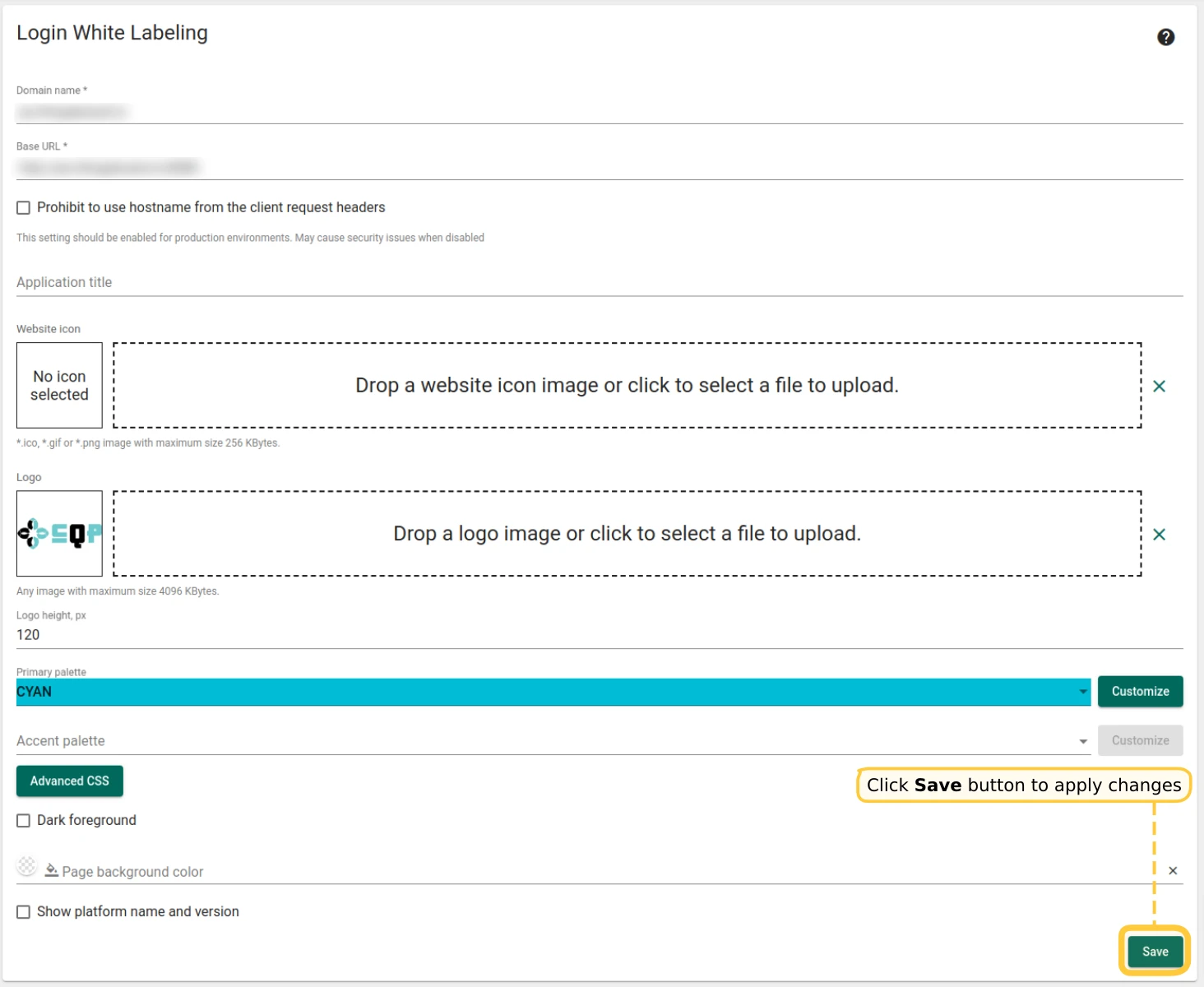
Section titled “Login screen white-labeling”As a System or Tenant Administrator, configure the login screen logo and color palette in the Login White Labeling form.
- Go to White Labeling → Login White Labeling through the main menu.
- Enter your domain in the Domain name field for tenant-level settings.
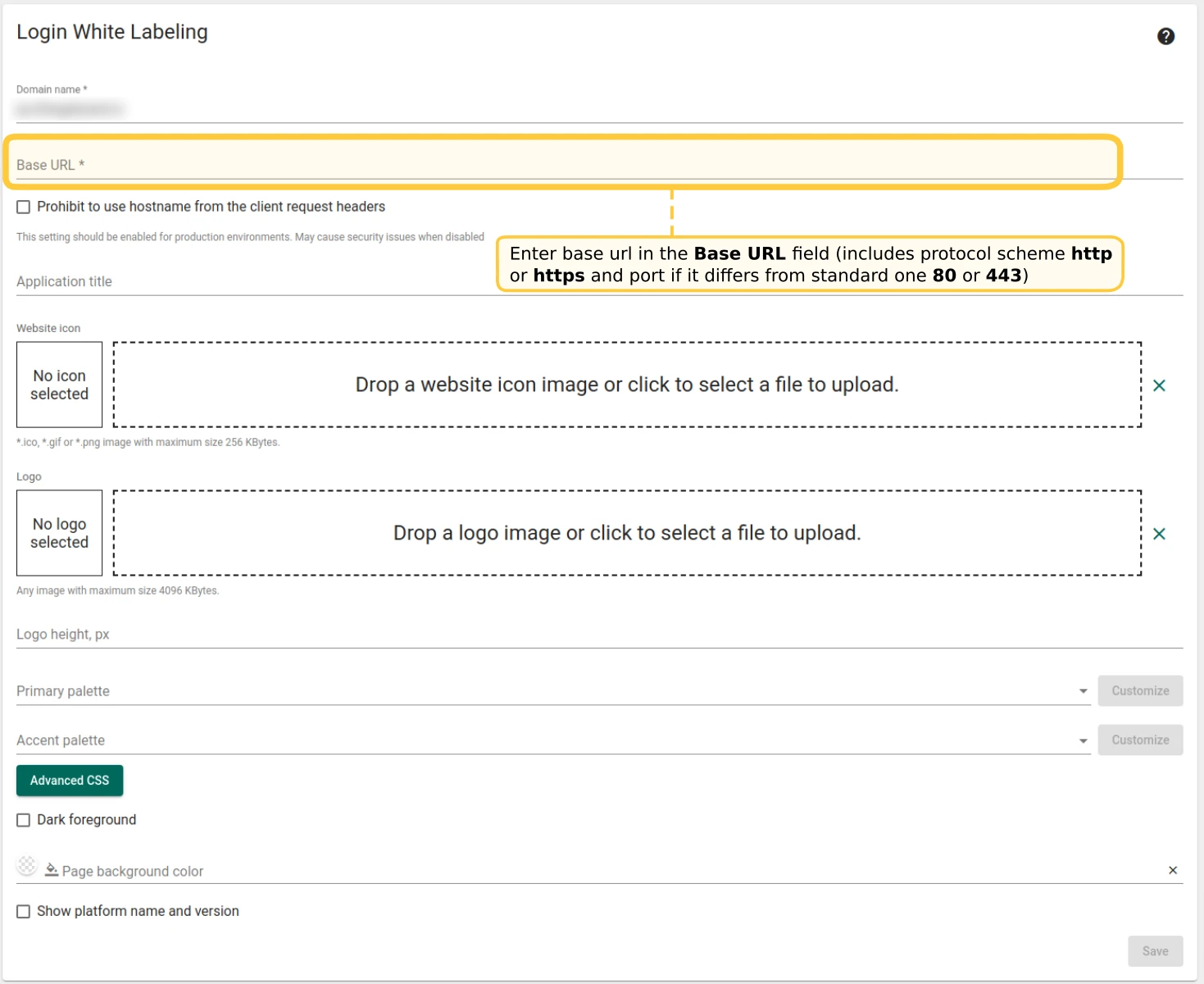
- Enter the base URL in the Base URL field (includes protocol —
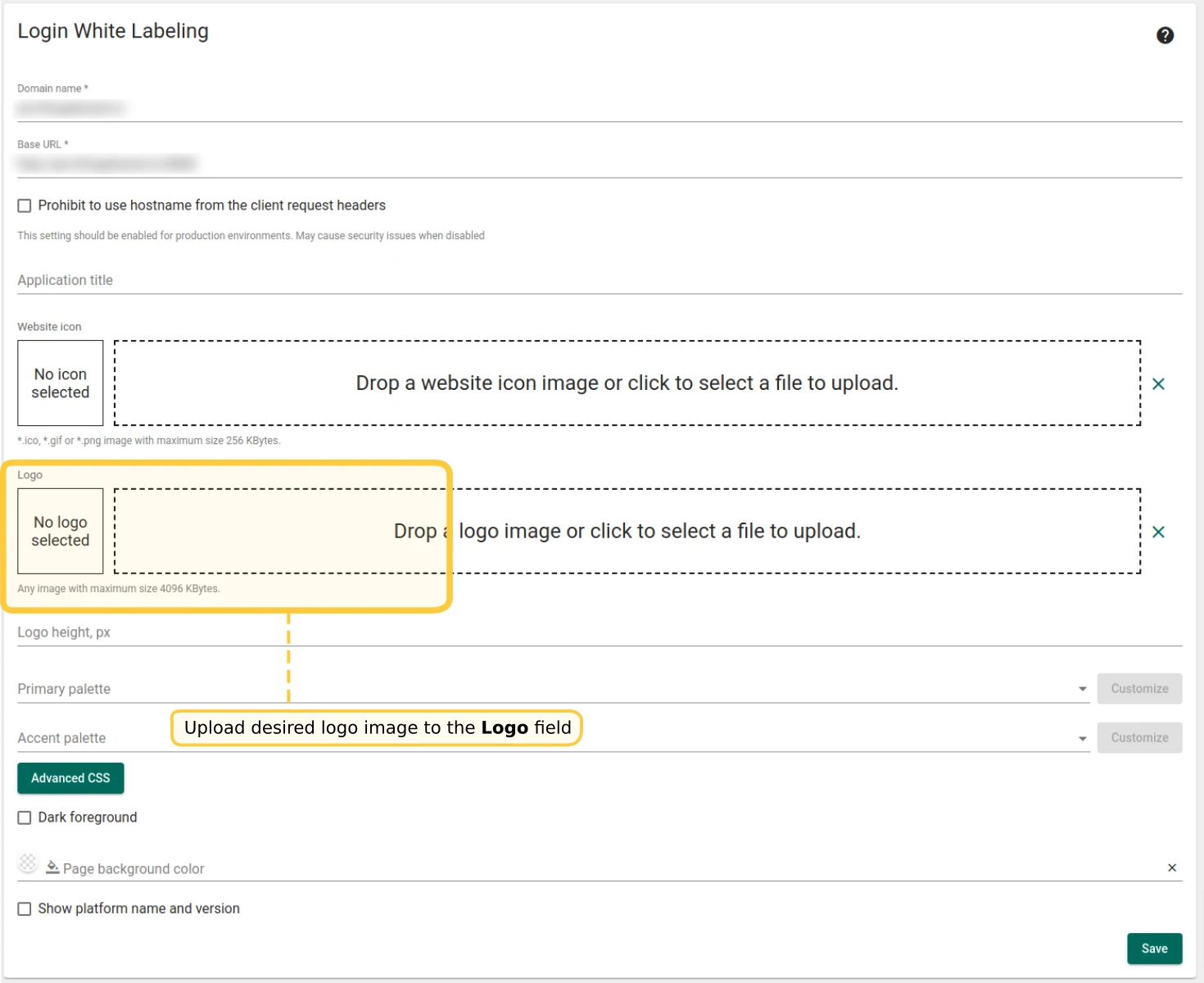
httporhttps— and port if it differs from the standard80or443). - Upload your logo image in the Logo field.
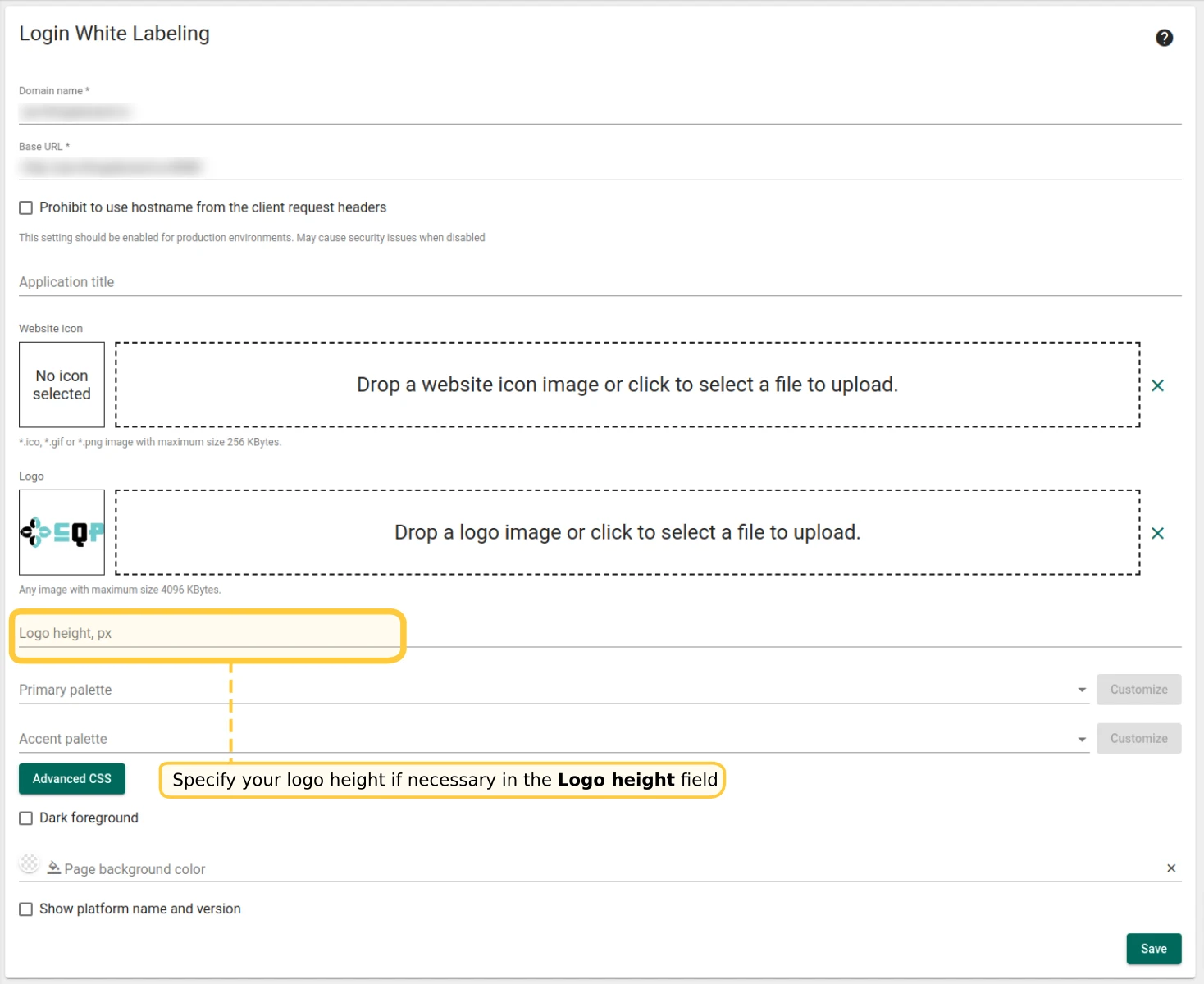
- Specify the logo height if necessary in the Logo height field.
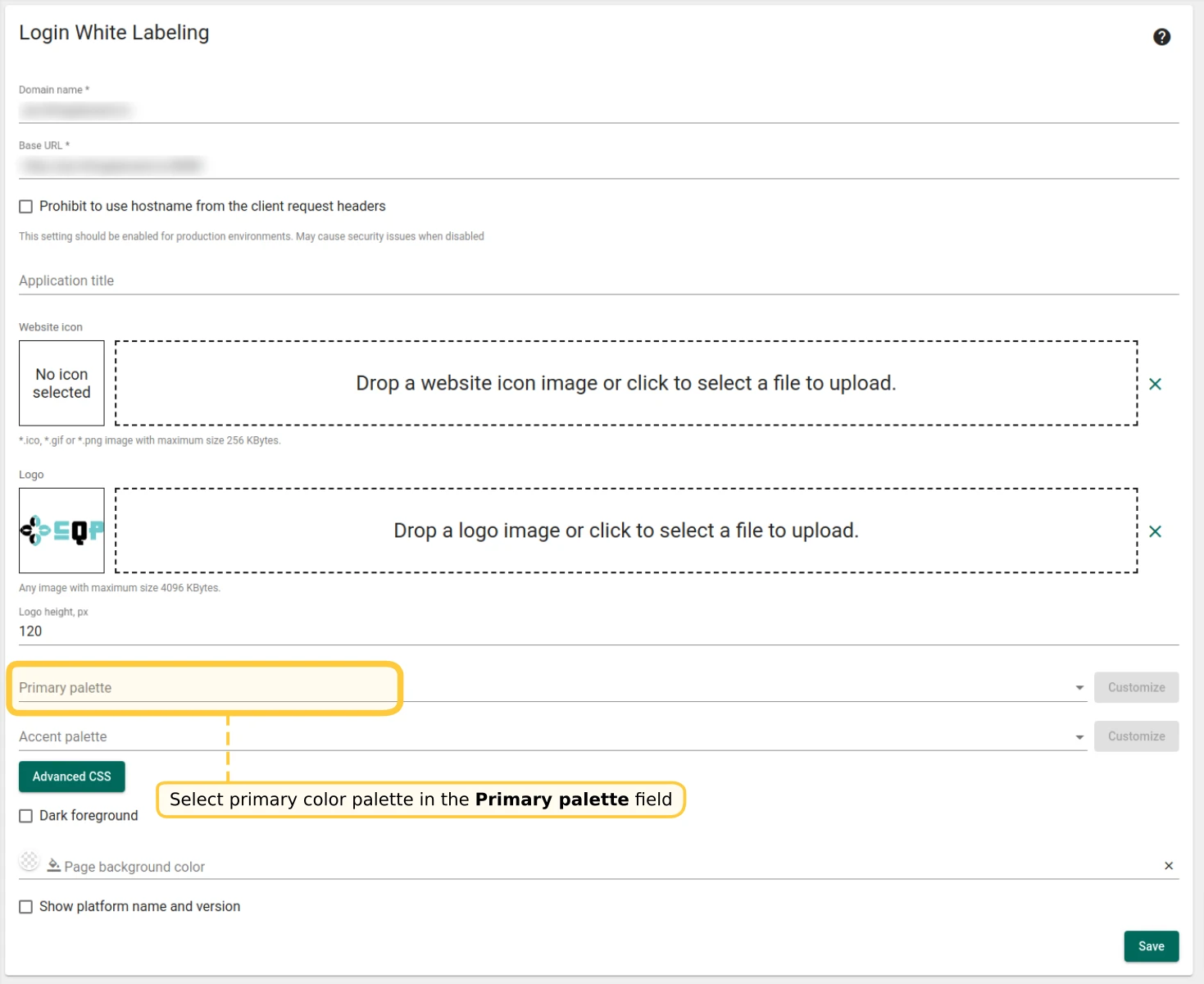
- Select a primary color palette in the Primary palette field.
- Click Save to apply changes.

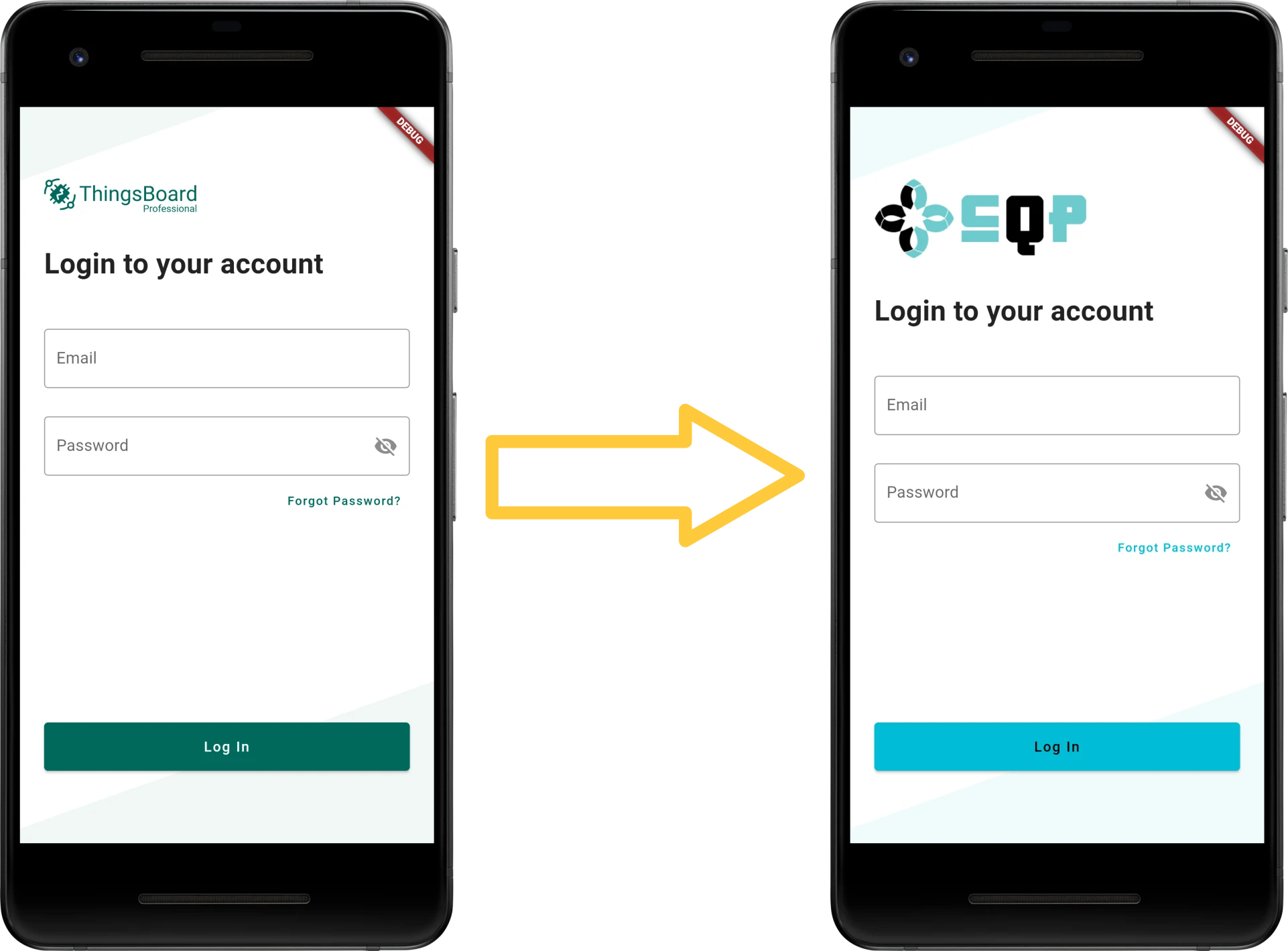
Run the mobile app to verify. Your logo should appear at the top of the login form, and buttons and background should use the selected color palette.
Main application interface white-labeling
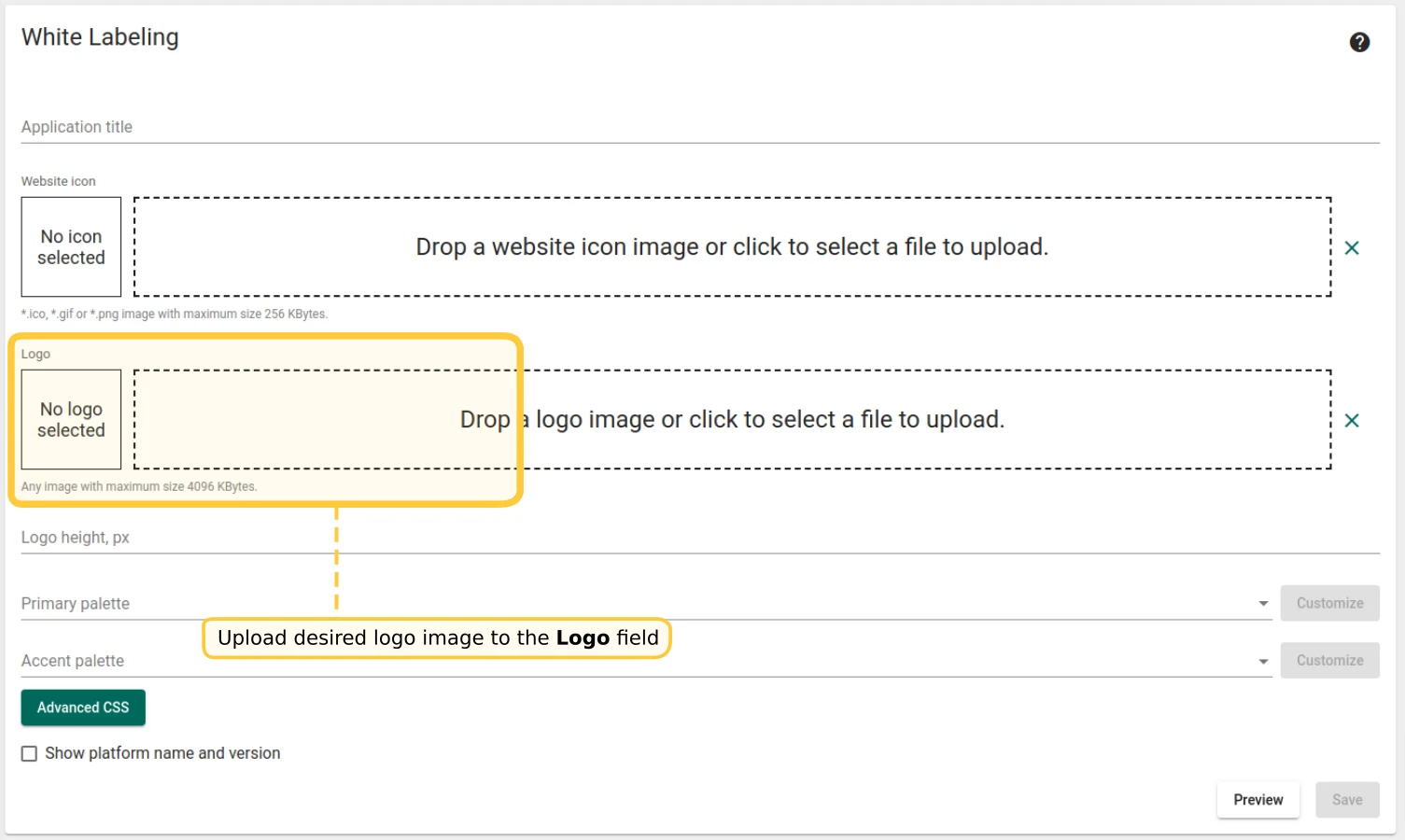
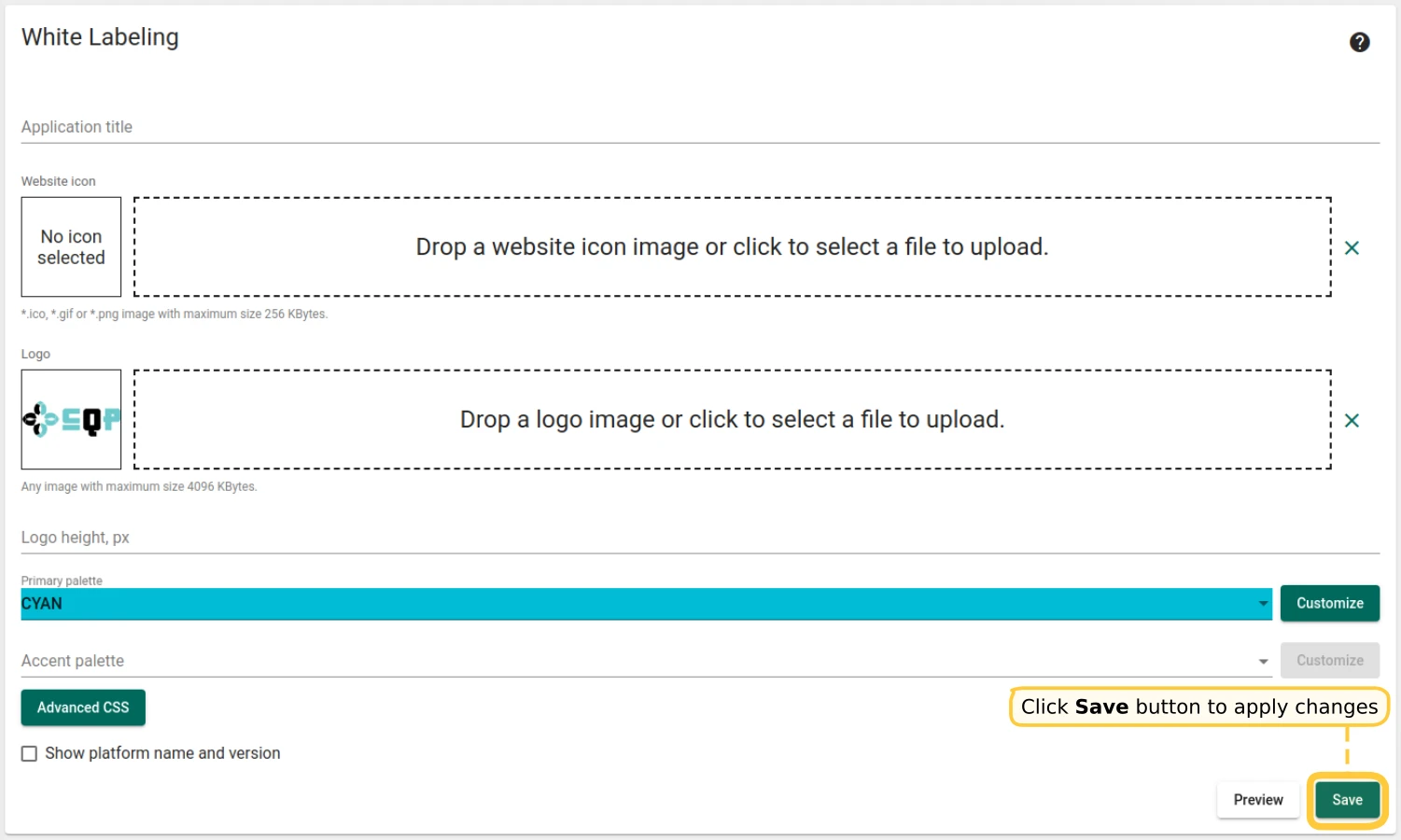
Section titled “Main application interface white-labeling”As a System or Tenant Administrator, configure the main app interface logo and color palette in the White Labeling form.
- Go to White Labeling → White Labeling through the main menu.
- Upload your logo image in the Logo field.
- Select a primary color palette in the Primary palette field.
- Click Save to apply changes.
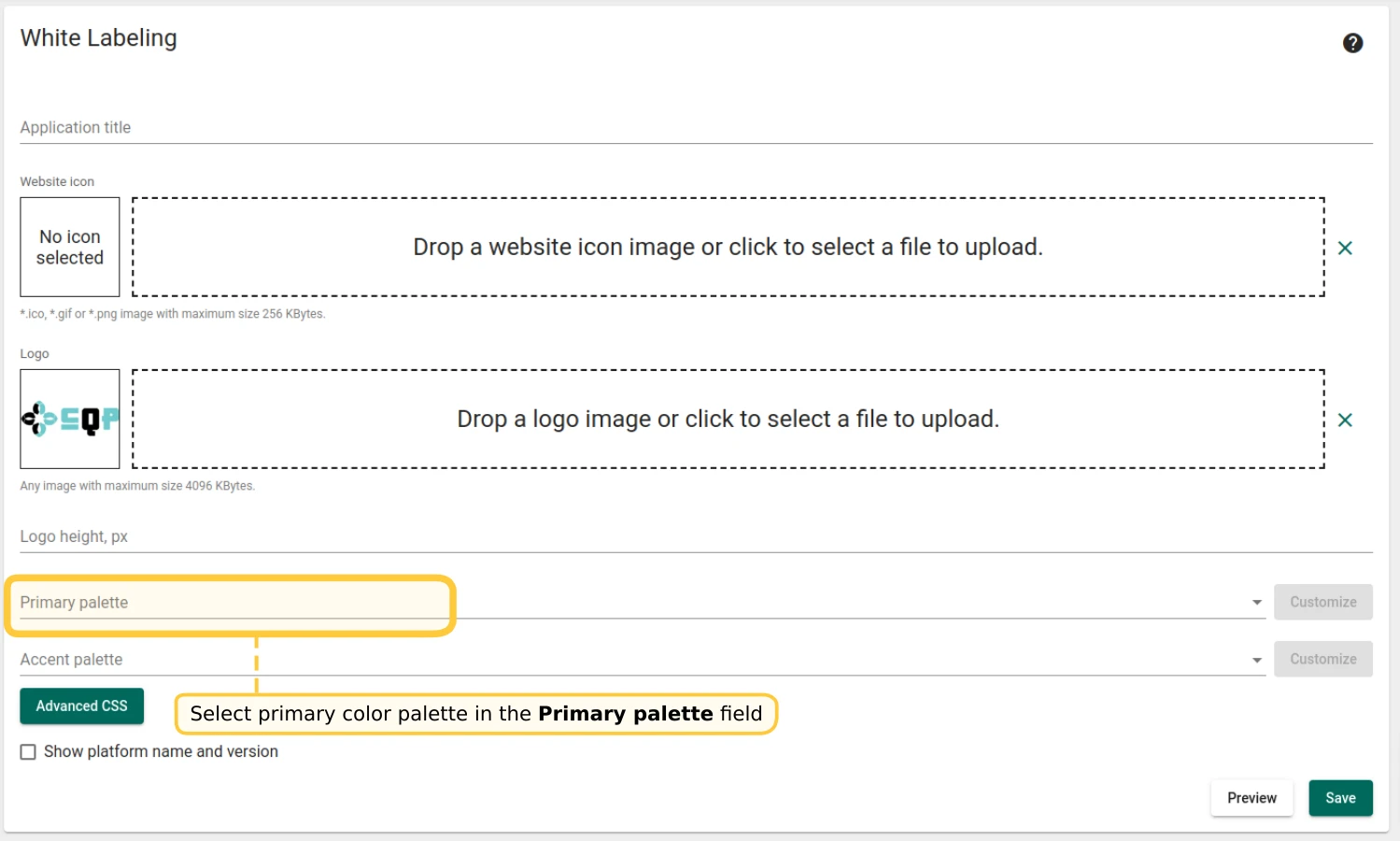
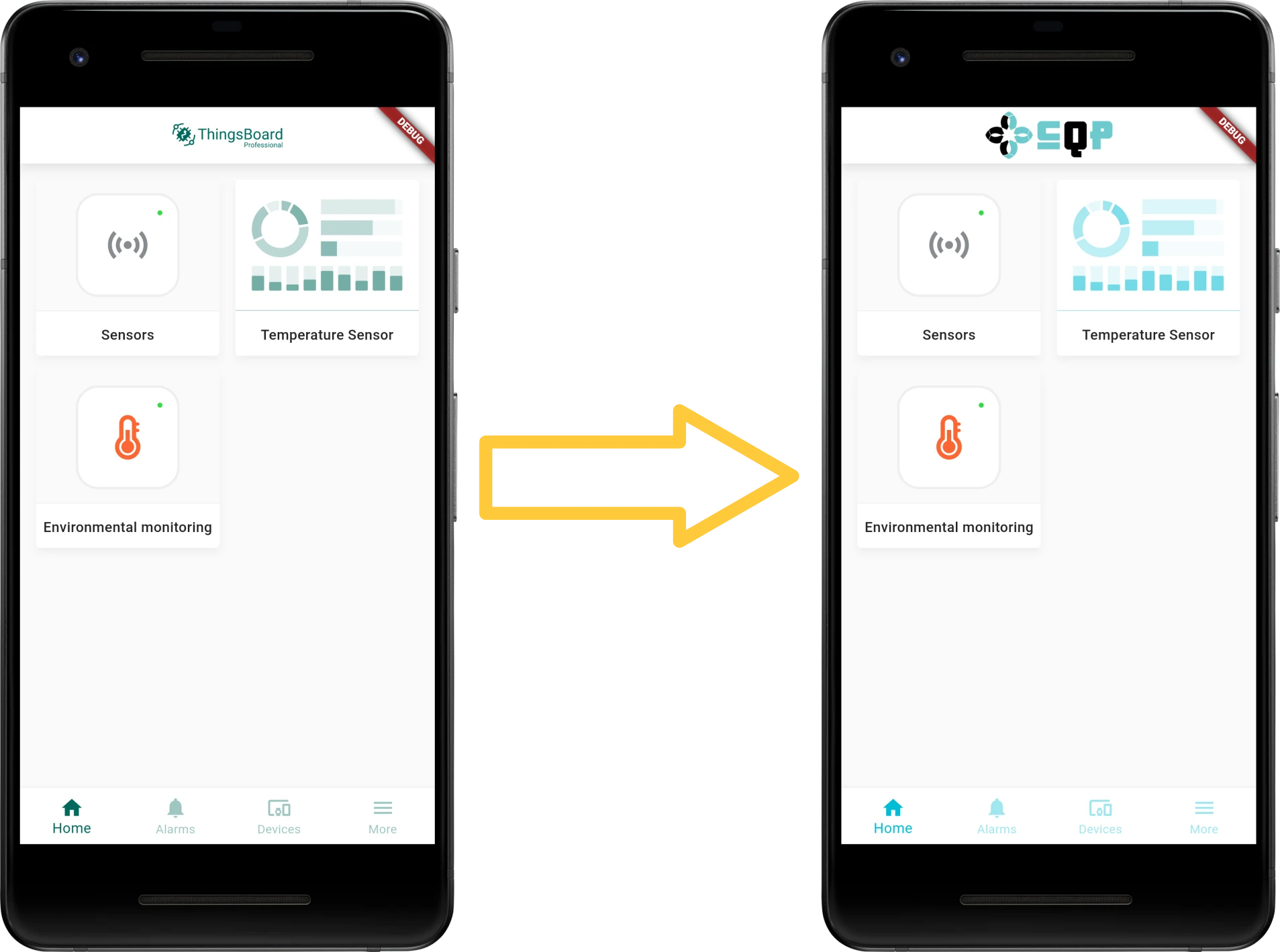
Run the mobile app and log in to verify. Your logo should appear on the top bar of the home screen, and buttons and icons should use the selected color palette.
Was this helpful?