Configure mobile actions in ThingsBoard Mobile Application
Mobile actions are a special subtype of widget actions that let you trigger native device functions — take a photo, scan a QR code, get the phone’s location, make a phone call, and more. The result of each action is passed to a JavaScript function you configure, so you can process it further — for example, save a photo as an entity attribute or use a scanned QR code to claim a device.
Configure a mobile action
Section titled “Configure a mobile action”- Go to Dashboard groups in the left main menu.
- Open the target dashboard group.
- Click the dashboard you want to modify.
- In the dashboard details panel, click Open dashboard.
- Click the Edit (pencil) button in the bottom-right corner to enter edit mode.
- Click the Edit (pencil) icon on the target widget to open its settings.
- Navigate to the Actions tab.
- Click + to add a new action.
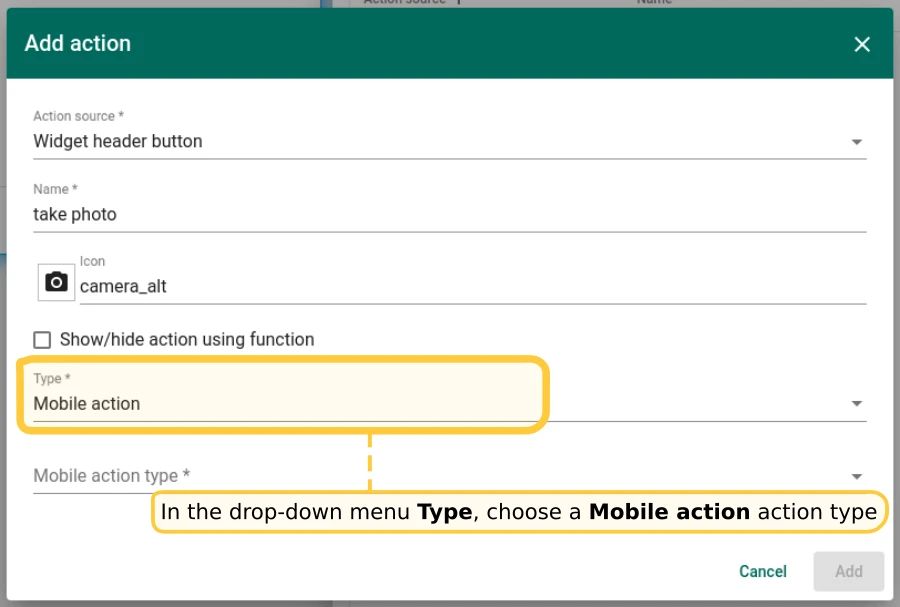
- In the Type drop-down, select Mobile action.
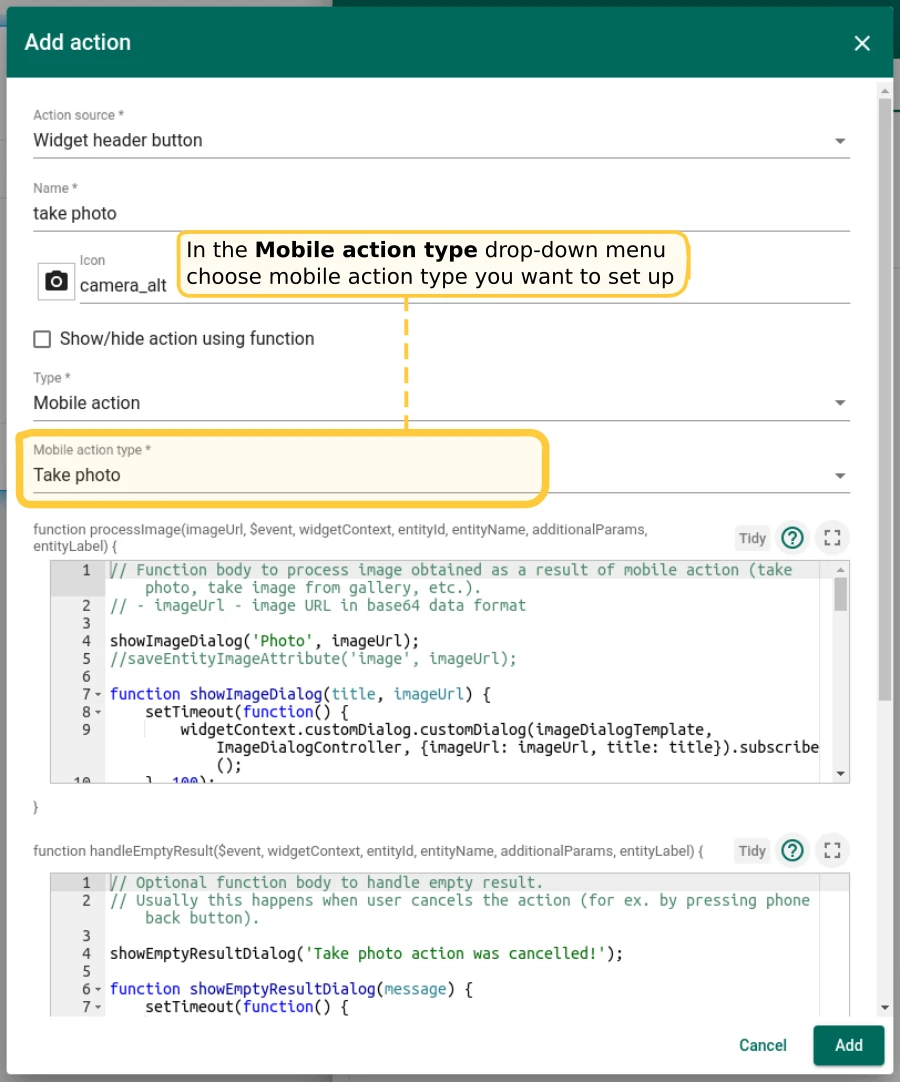
- In the Mobile action type drop-down, select the action type you want.
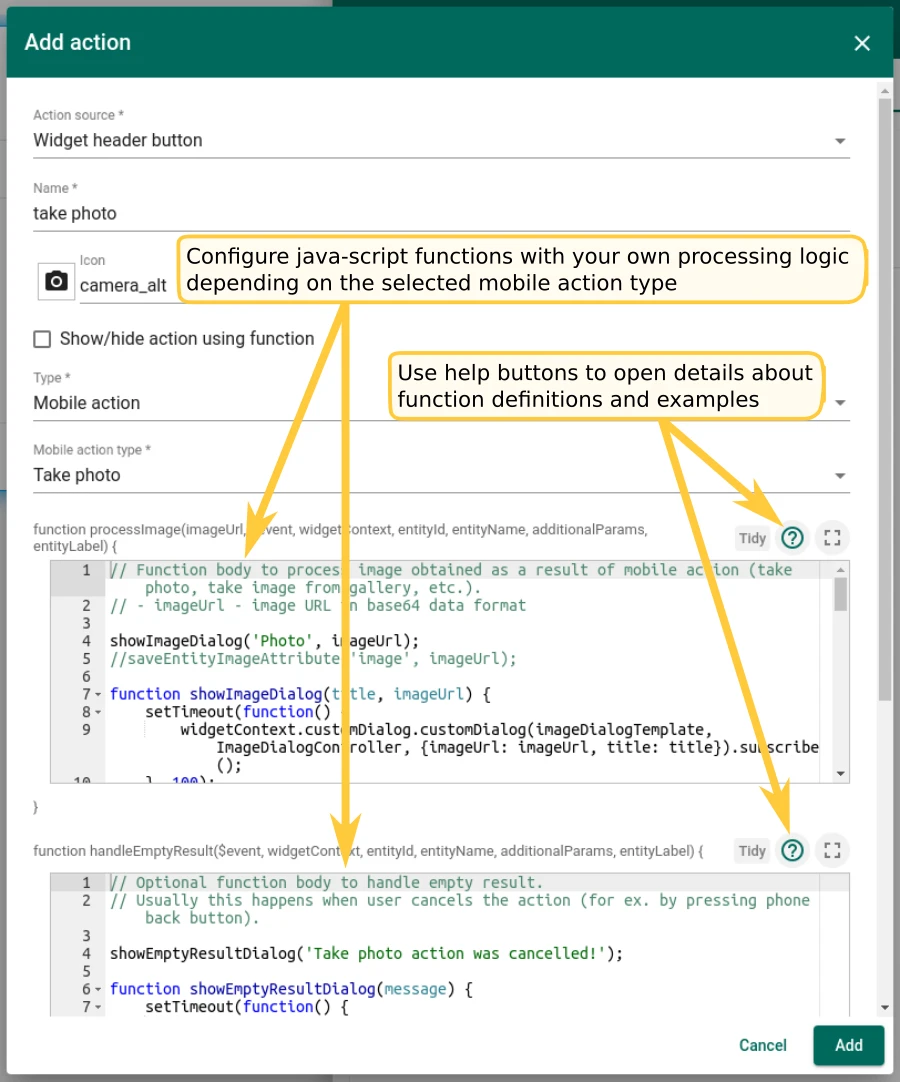
- Configure the JavaScript function with your processing logic. Use the help buttons for function definitions and examples.
Action types
Section titled “Action types”Take picture from gallery
Section titled “Take picture from gallery”Opens the device image gallery so you can select a photo. Returns the selected image as a base64 data URL.
Configure the processImage function to handle the result — for example, store the image as an entity attribute to display it later in widgets.
Take photo
Section titled “Take photo”Opens the device camera to capture a photo. Returns the captured image as a base64 data URL.
Configure the processImage function to handle the result.
Open map directions
Section titled “Open map directions”Takes a location in latitude/longitude format and opens the available maps app to show directions to that location.
Configure the getLocation function to extract latitude/longitude from entity attributes — for example, to direct you to a field device’s location.
Open map location
Section titled “Open map location”Takes a location in latitude/longitude format and opens the available maps app to display that location on the map.
Configure the getLocation function to extract coordinates from entity attributes.
Scan QR code
Section titled “Scan QR code”Opens the QR code scanner. Returns the scanned value.
Configure the processQrCode function to process the result. A common use case is device claiming — the QR code encodes the device name and secret key, which are then used to claim the device. For details, see Claiming devices.
Make phone call
Section titled “Make phone call”Takes a phone number and opens the appropriate app to initiate a call.
Configure the getPhoneNumber function to extract the number from entity attributes.
Get phone location
Section titled “Get phone location”Reads the current device location from location services. Returns a latitude/longitude pair.
Configure the processLocation function to handle the result — for example, save the coordinates as entity attributes to update the entity’s position on a map widget.
Turn on Save location to entity to have the platform write the coordinates for you, instead of doing it yourself in the function. You then pick a target entity and the data keys to save under, and the function still runs afterwards — with the name of the entity the location was saved to. See Location tracking.
Start live location tracking
Section titled Start live location trackingStarts a background GPS tracking session. Unlike Get phone location, which reads one position and finishes, a session keeps streaming fixes and saving each one to the target entity until it is stopped.
The dashboard resolves the target entity, the data keys and the session limits up front, so the app has everything it needs and never looks anything up mid-session. A tracking bar appears across the app while the session runs.
Configure the target entity, the saved keys, the accuracy and the session limits in the widget action — see Location tracking. For what the session looks like on the phone, see Live location tracking.
Stop live location tracking
Section titled Stop live location trackingEnds the tracking session currently running in the app. It has no configuration of its own — the session already knows where it writes.
A session can also be stopped from the app’s tracking bar or tracking page, so a stop action on the dashboard is a convenience rather than a requirement.
Take screenshot
Section titled “Take screenshot”Captures the current phone screen. Returns the image as a base64 data URL.
Configure the processImage function to handle the result — for example, store the screenshot as an entity attribute.
Was this helpful?