Device Provisioning
The IoT Gateway supports device provisioning, letting it automatically register itself on the ThingsBoard platform and obtain credentials on first startup — no manual per-device credential setup required.
How It Works
Section titled “How It Works”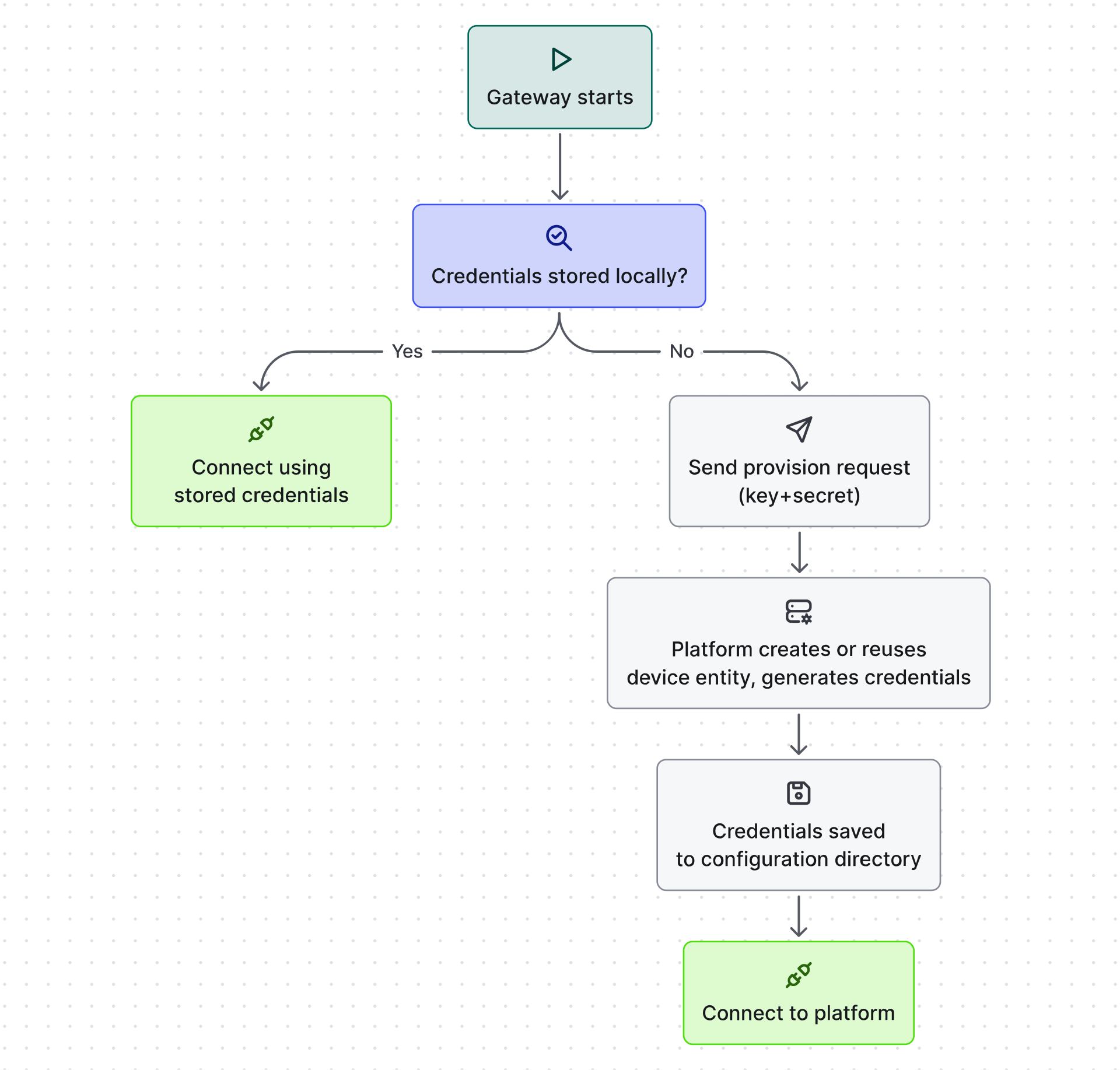
If credentials need to be rotated or the authentication type changed, you can remove the stored credentials and the gateway will re-provision on the next start.
Environment Variables
Section titled “Environment Variables”Provisioning is configured via environment variables — typically set in docker-compose.yml or
your system environment.
| Variable | Required | Description |
|---|---|---|
TB_GW_PROVISIONING_DEVICE_KEY |
Yes | Provisioning device key (from the device profile) |
TB_GW_PROVISIONING_DEVICE_SECRET |
Yes | Provisioning device secret (from the device profile) |
TB_GW_PROVISIONING_DEVICE_NAME |
No | Name assigned to the device in ThingsBoard. A random name is generated if not set |
TB_GW_PROVISIONING_DEVICE_ACCESS_TOKEN |
No | If set, the platform assigns this token and uses Access Token authentication |
TB_GW_PROVISIONING_DEVICE_USERNAME |
No | MQTT Basic authentication username |
TB_GW_PROVISIONING_DEVICE_PASSWORD |
No | MQTT Basic authentication password |
TB_GW_PROVISIONING_DEVICE_CLIENT_ID |
No | MQTT Basic authentication client ID |
TB_GW_PROVISIONING_DEVICE_CA_CERT_FILENAME |
No | CA certificate filename in the config/ folder. If set, the gateway generates a client certificate and uses X.509 Certificate authentication |
The credentials type is determined by which optional variables you provide:
| Variables set | Credentials type |
|---|---|
ACCESS_TOKEN |
Access Token |
USERNAME / PASSWORD / CLIENT_ID |
MQTT Basic |
CA_CERT_FILENAME |
X.509 Certificate |
| (none) | Platform default |
Resetting Provisioned Credentials
Section titled “Resetting Provisioned Credentials”To force re-provisioning (e.g. to rotate credentials or switch authentication type), use the
gateway_remove_provisioned_credentials
service RPC method. The gateway deletes its stored credentials and re-provisions on the next restart.
Example: Setting Up Device Provisioning
Section titled “Example: Setting Up Device Provisioning”-
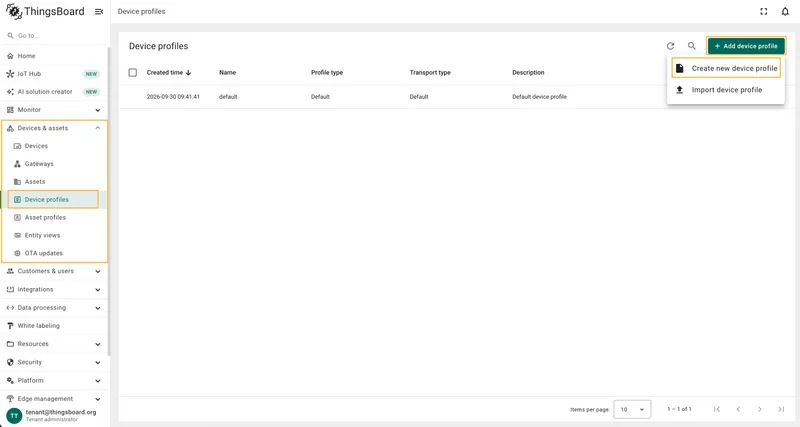
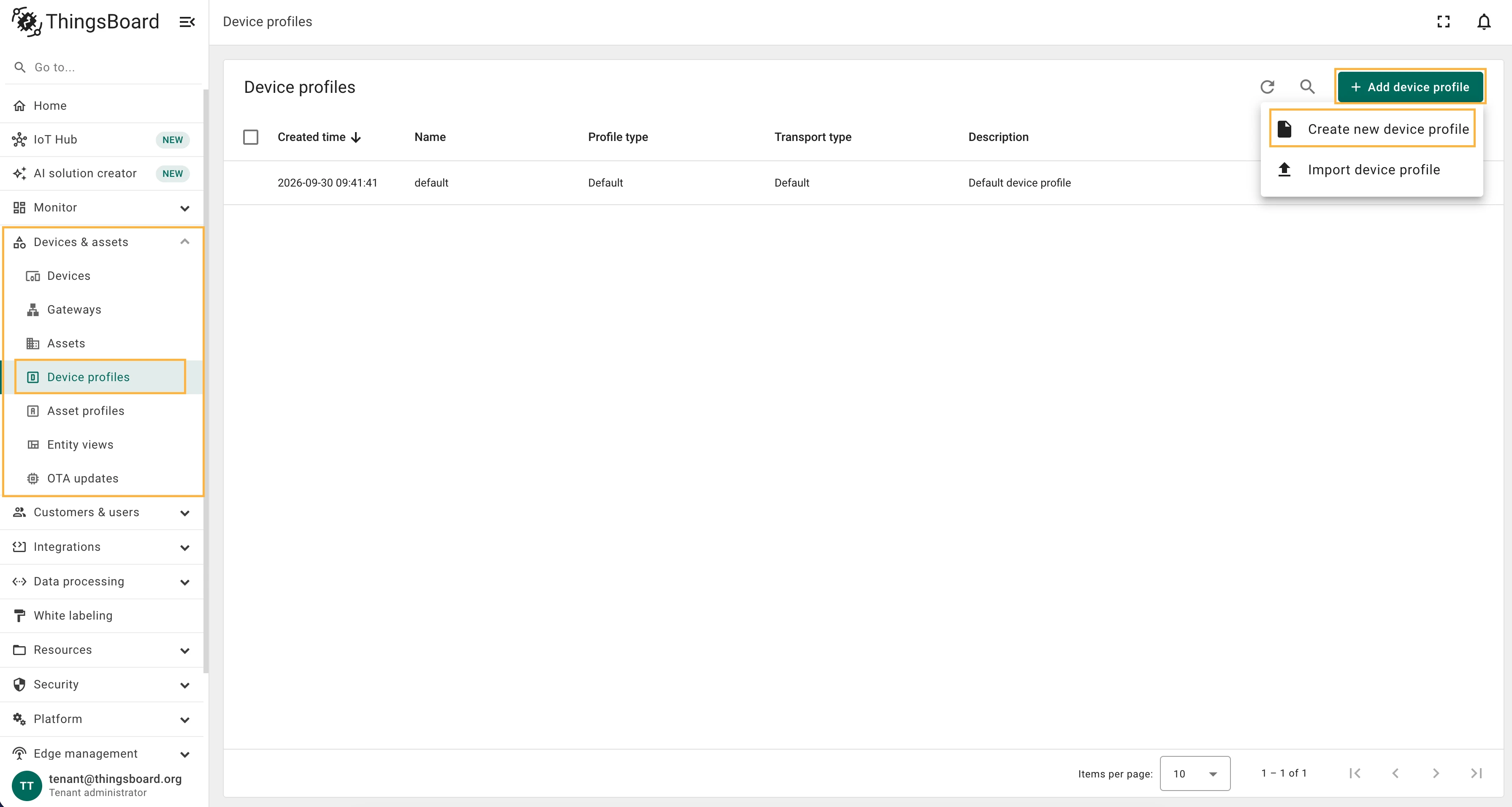
Create a Device Profile — go to Devices & assets > Device profiles, click + Add device profile and select Create new device profile.
-
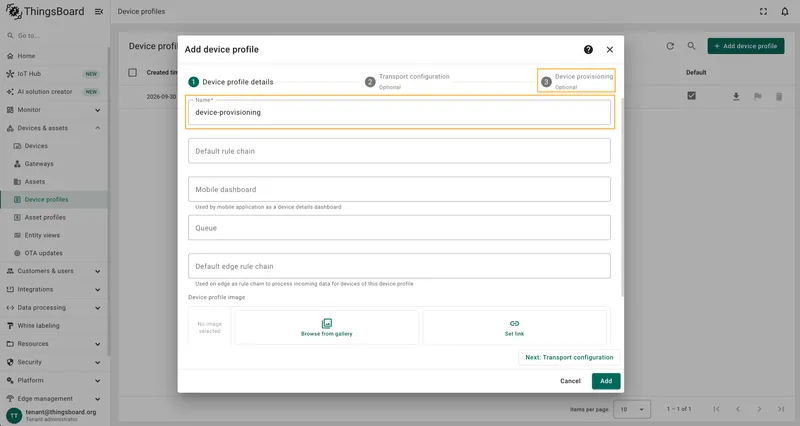
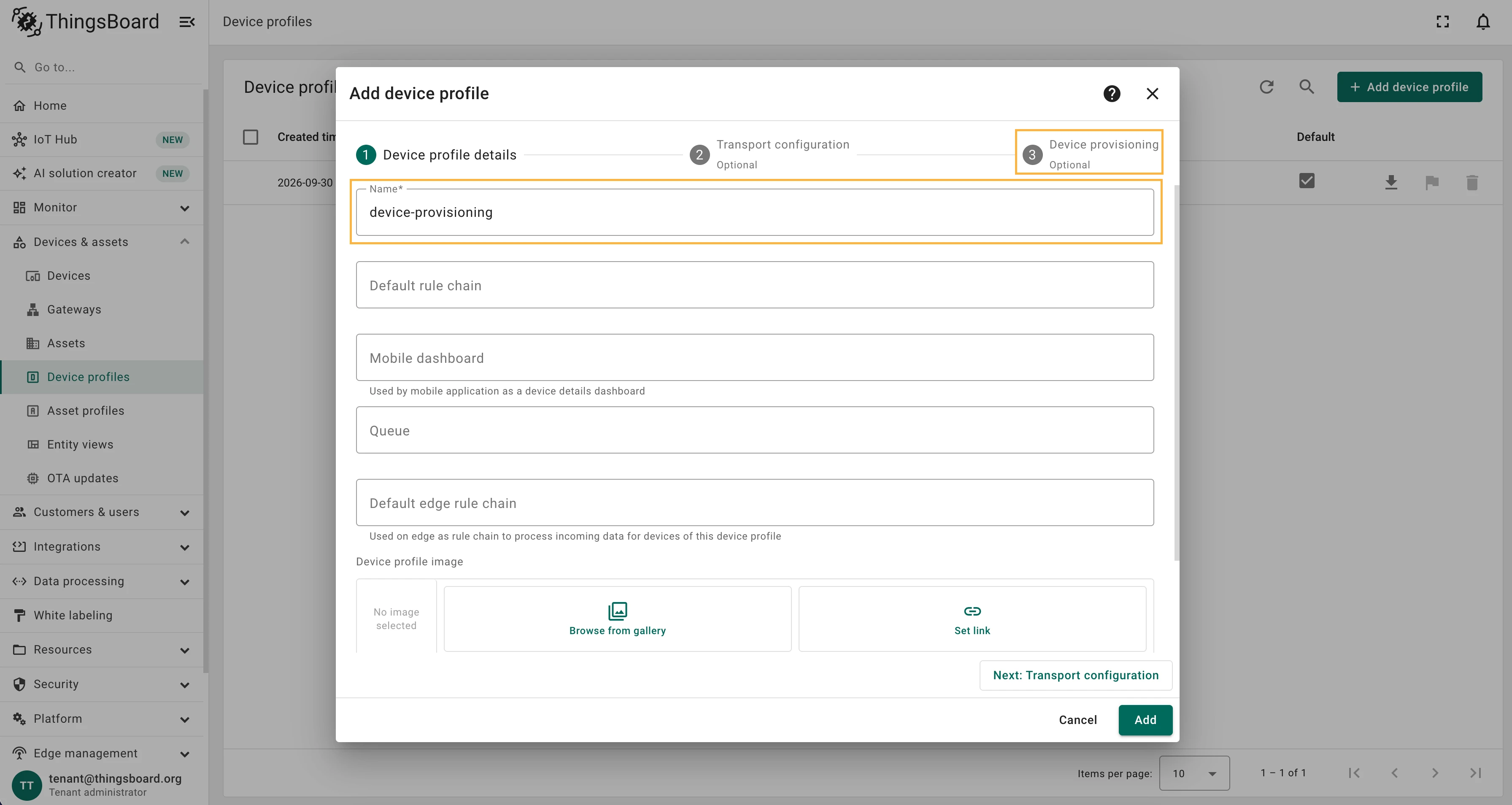
Enter a profile name and open the Device provisioning tab.
-
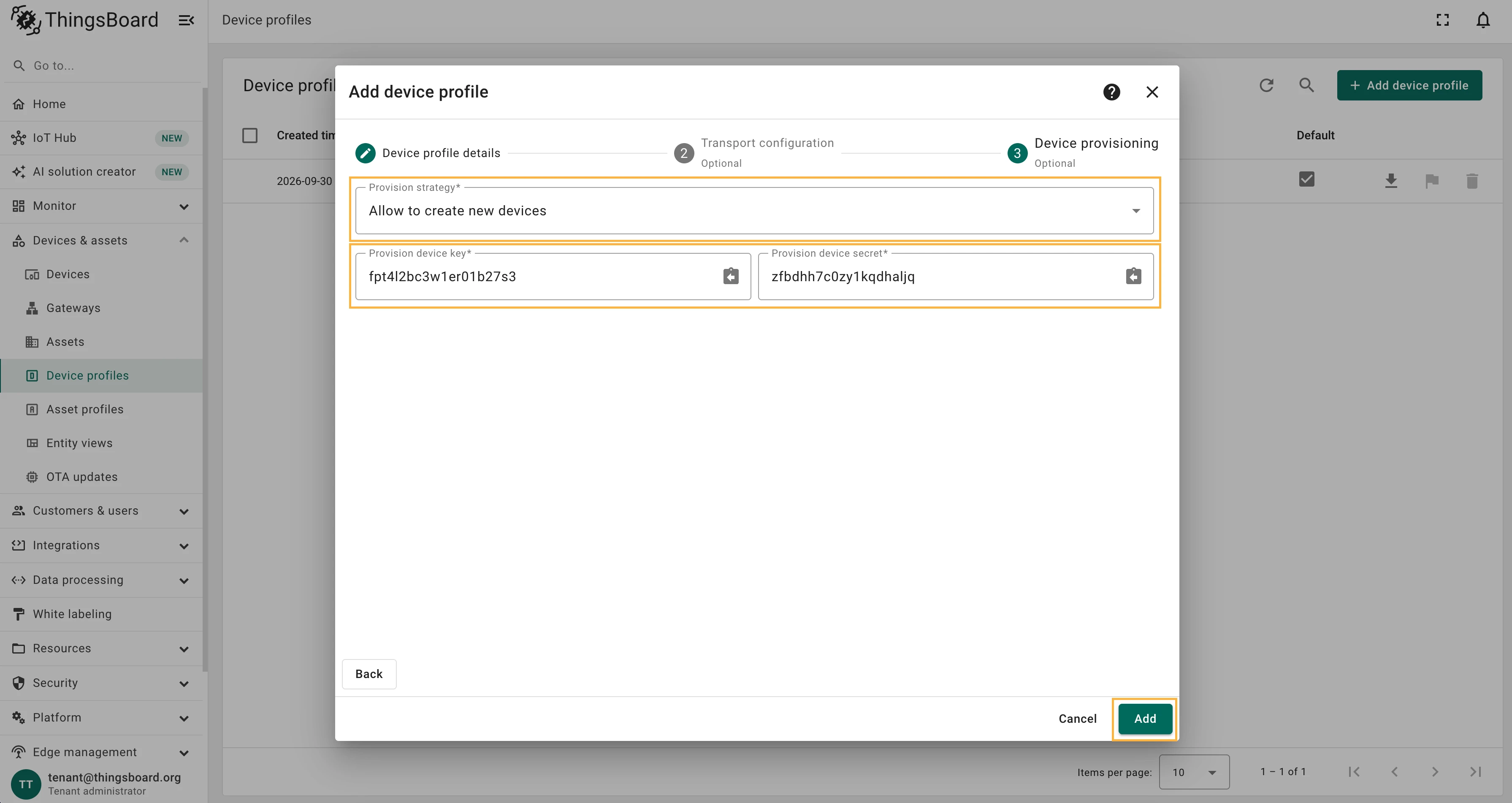
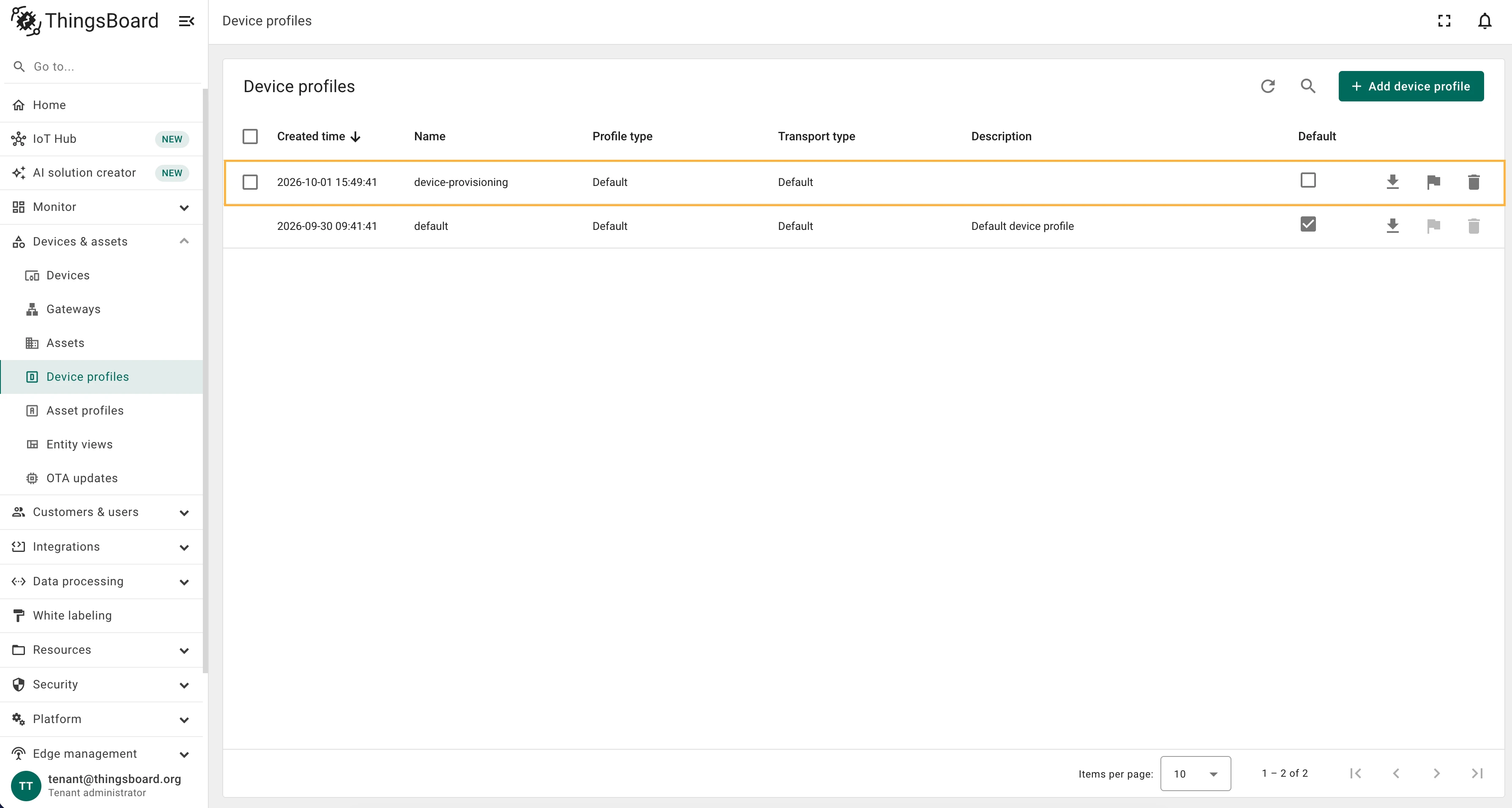
Select Allow to create new devices, then copy and save the Provisioning device key and Provisioning device secret. Click Add.
-
Download the Gateway
docker-compose.ymland open it in a text editor.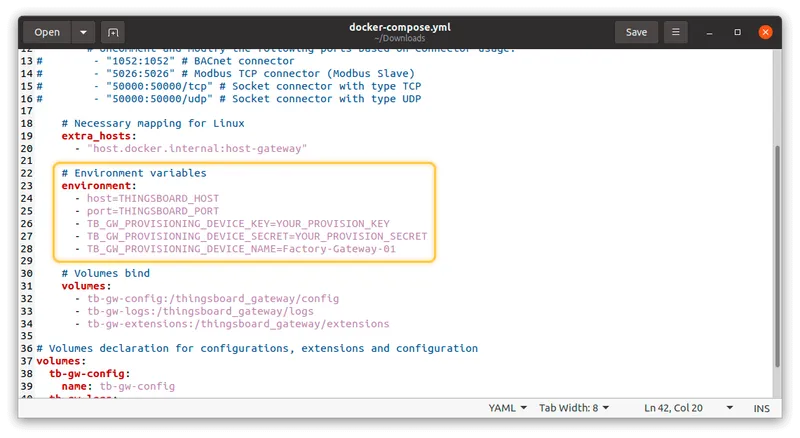
-
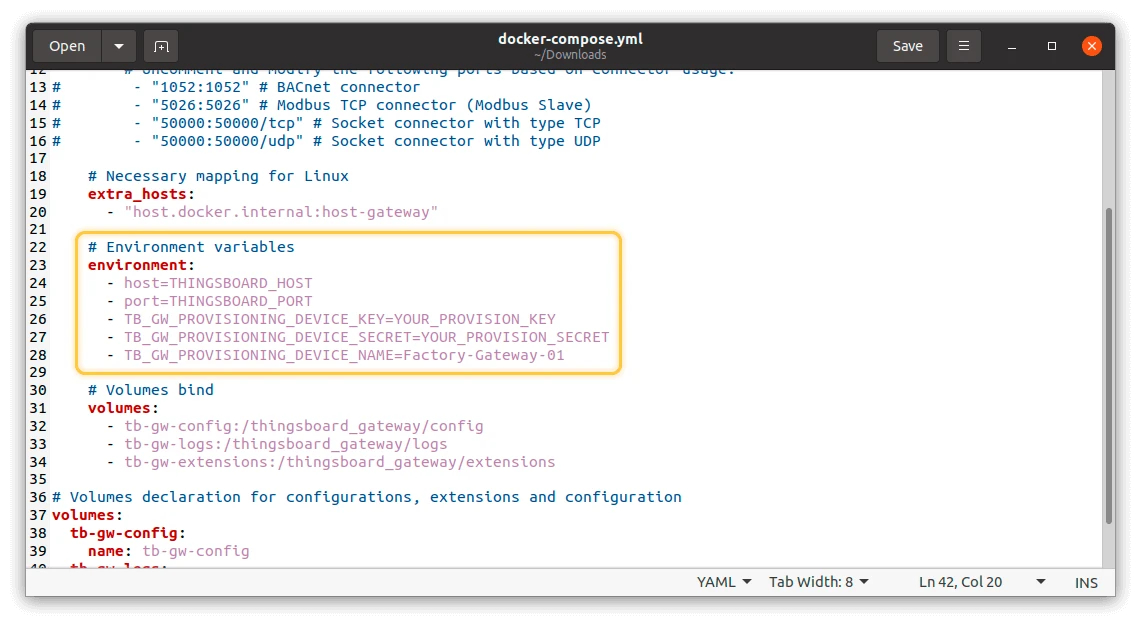
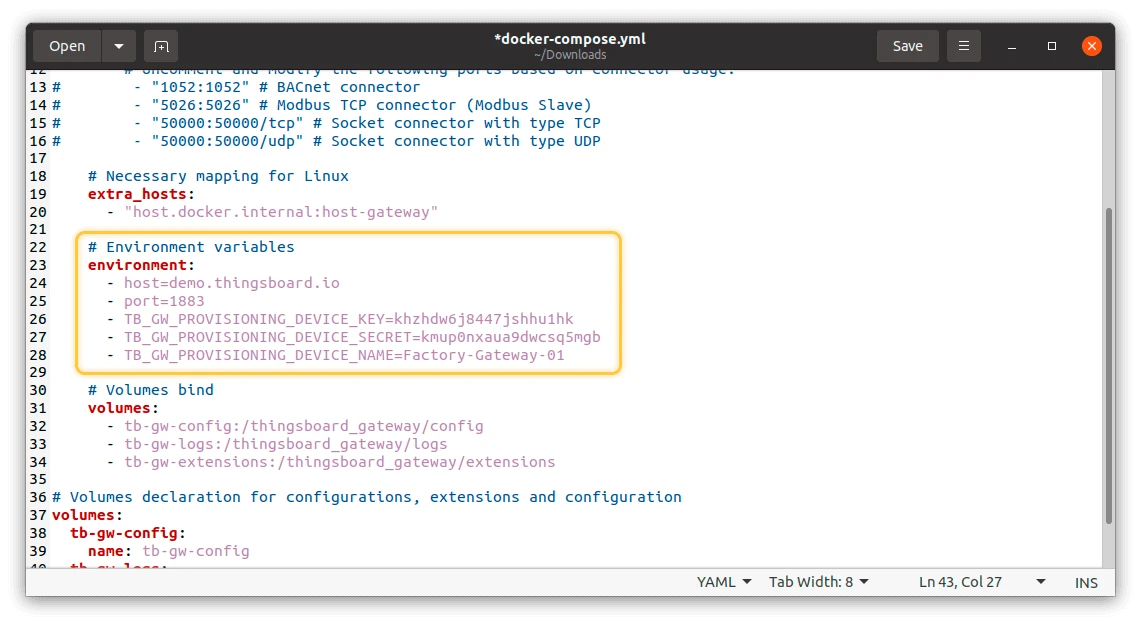
Set the provisioning environment variables, replacing the placeholders with your values:
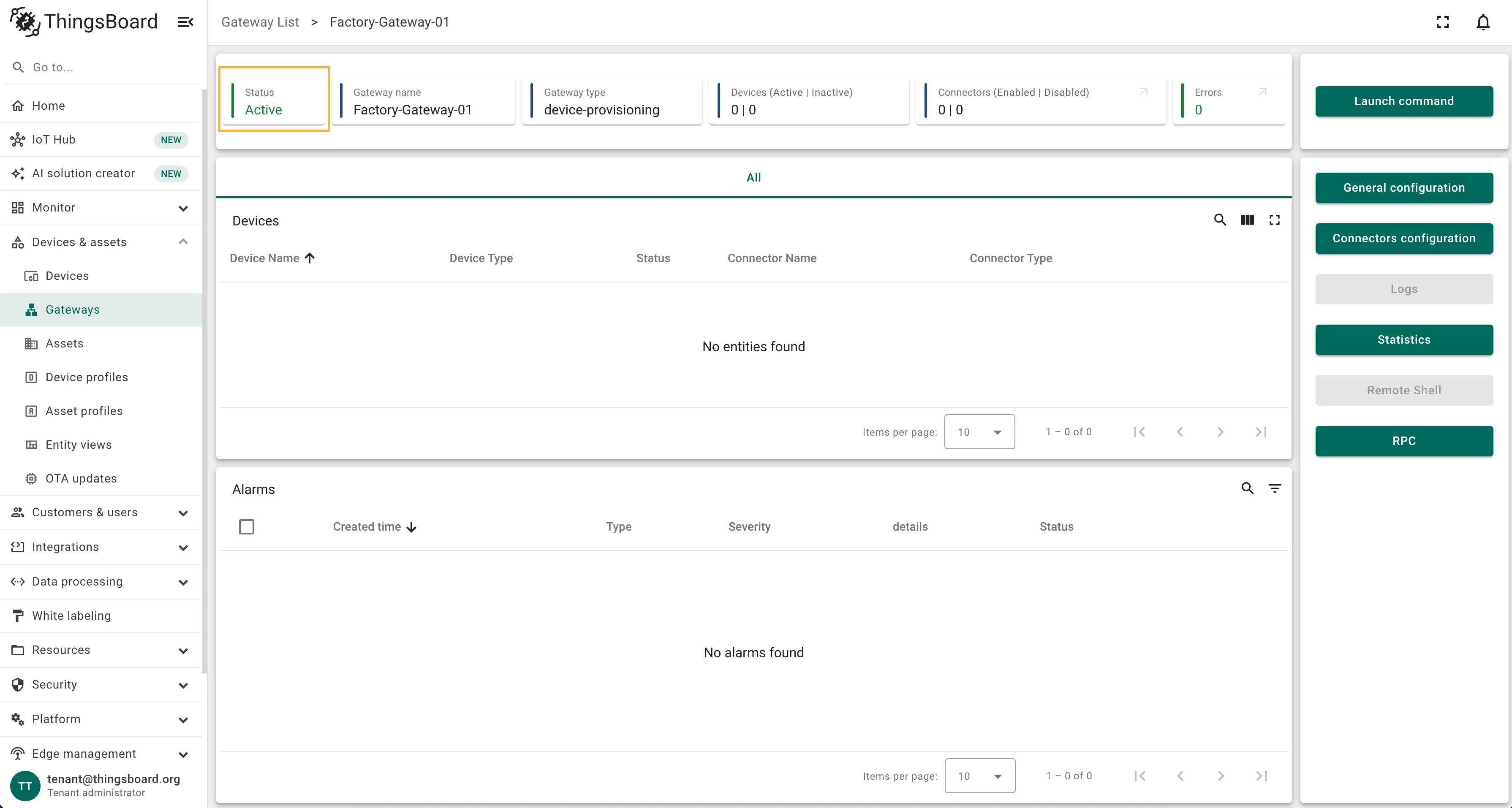
environment:- host=THINGSBOARD_HOST- port=THINGSBOARD_PORT- TB_GW_PROVISIONING_DEVICE_KEY=YOUR_PROVISION_KEY- TB_GW_PROVISIONING_DEVICE_SECRET=YOUR_PROVISION_SECRET- TB_GW_PROVISIONING_DEVICE_NAME=Factory-Gateway-01Replace
THINGSBOARD_HOSTandTHINGSBOARD_PORTwith the host and port of your ThingsBoard instance, andYOUR_PROVISION_KEY/YOUR_PROVISION_SECRETwith the values from Step 3.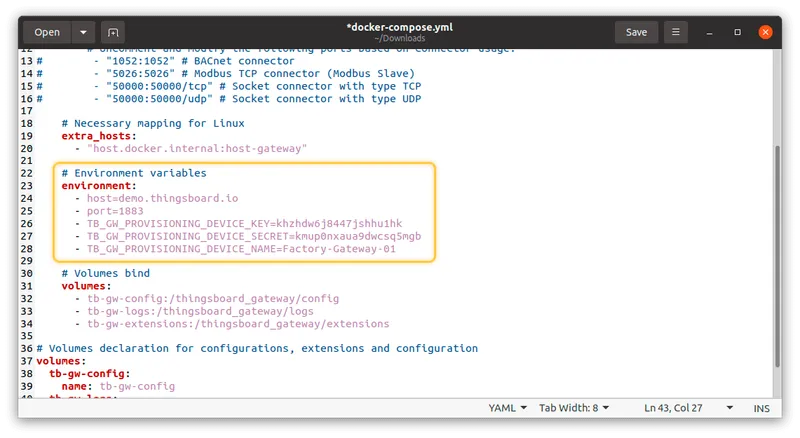
-
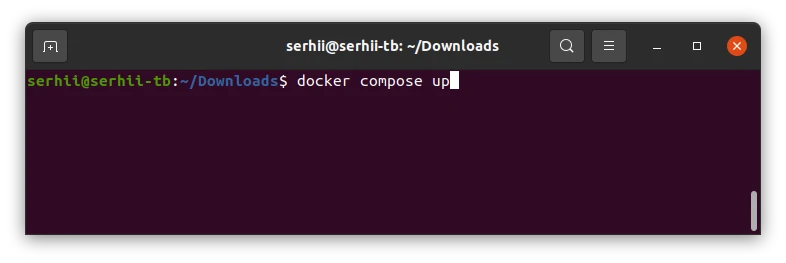
Start the Gateway:
Terminal window docker compose up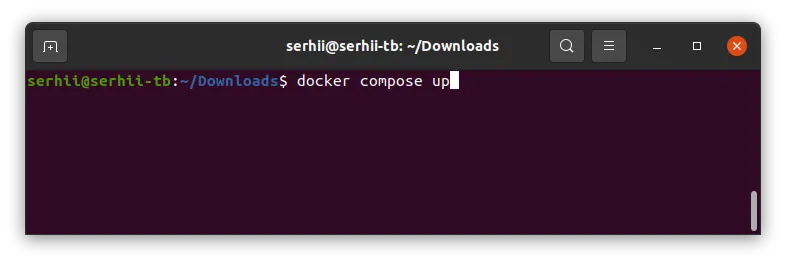
-
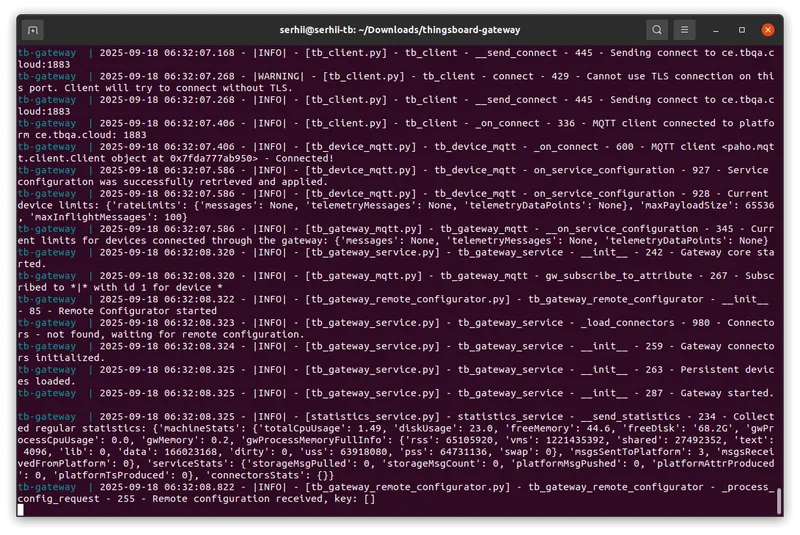
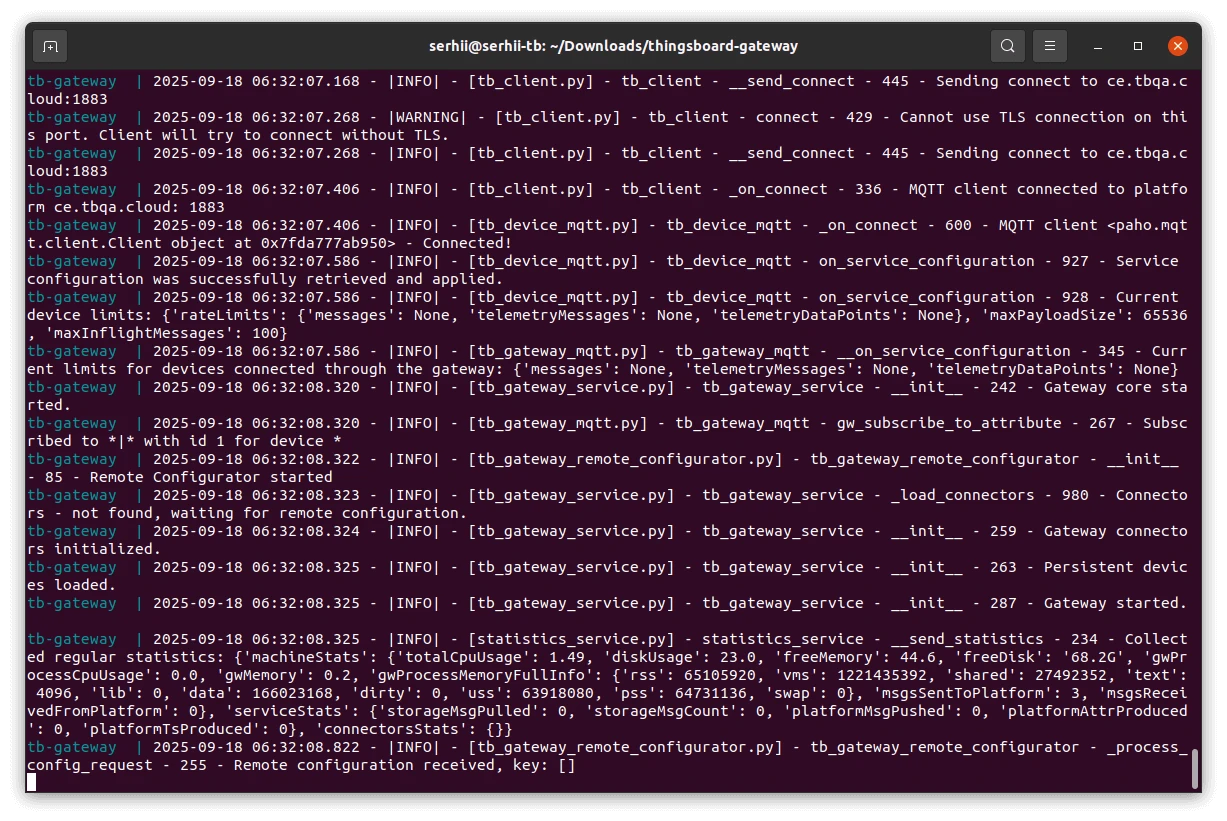
The gateway auto-registers, receives credentials, and connects to the platform.
-
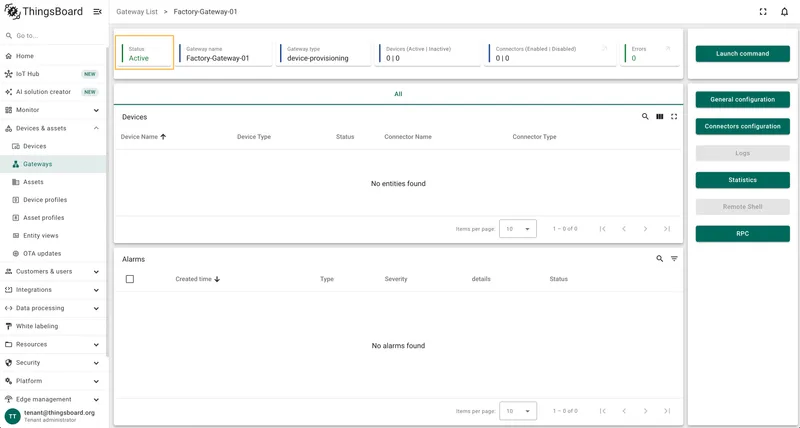
In the ThingsBoard UI, verify the gateway appears as active on the Gateways page or in the device details.
Was this helpful?