Provisioning
Provisioning is how devices get registered in ThingsBoard with credentials before they start sending data. There are two independent approaches: Bulk Provisioning (an admin imports a CSV file) and Auto Provisioning (devices self-register on first boot). Both result in the device existing in ThingsBoard with credentials ready to use.
This is distinct from Claiming: provisioning creates the device and gives it credentials; claiming transfers an already-provisioned device to a specific customer.
Bulk Provisioning
Section titled “Bulk Provisioning”Bulk provisioning imports a list of devices or assets into ThingsBoard from a CSV file in one operation. Each row creates (or updates) one entity and can include attributes, telemetry, and device credentials — no API scripting required.
A common use case is pre-loading a batch of devices before shipping so they can use Auto Provisioning with the Check Pre-Provisioned Devices strategy: the devices are known to ThingsBoard in advance and only those exact devices are allowed to self-register.
What You Can Import
Section titled “What You Can Import”| Column type | Description |
|---|---|
| Name | Entity name (required) |
| Type | Device or Asset type |
| Label | Optional display label |
| Server attribute | Any key — stored as a server-side attribute |
| Shared attribute | Any key — stored as a shared attribute (devices can read) |
| Telemetry | Any key — stored as a time-series data point |
| Access token | Device credential — Access Token value |
| X.509 | Device credential — X.509 certificate (PEM-encoded value) |
| MQTT client ID | Device credential — MQTT Basic: client ID |
| MQTT username | Device credential — MQTT Basic: username |
| MQTT password | Device credential — MQTT Basic: password |
Import Process
Section titled “Import Process”- Navigate to Entities ⇾ Devices (or Assets) and click the Import icon.
- Upload your CSV file. Set the delimiter and toggle First line contains column names if applicable.
- Enable Update attributes/telemetry if you want matching existing entities to be updated rather than flagged as errors.
- Map each CSV column to a ThingsBoard field type (Name, Type, attribute, telemetry, Access Token, etc.).
- Review the results — the summary shows how many entities were created, updated, or failed.
CSV Format
Section titled “CSV Format”The file must have at minimum a name column and a type column. All other columns are optional. Empty cells are allowed — missing values are simply skipped for that entity.
name,type,label,serialNumber,accessTokenSensor-001,Temperature Sensor,Warehouse A,SN-4A21F,tok-a1b2c3d4Sensor-002,Temperature Sensor,Warehouse B,SN-4A22F,tok-e5f6g7h8Gateway-001,IoT Gateway,Main Hub,GW-0010A,tok-i9j0k1l2Bulk Provisioning via REST API
Section titled “Bulk Provisioning via REST API”For automated pipelines — CI/CD, ERP integrations, or manufacturing systems — the same import can be triggered programmatically. See Bulk Import REST API for the endpoint and request format.
Auto Provisioning
Section titled “Auto Provisioning”Devices self-register on first boot by sending a provisioning request with a key and secret embedded in firmware. ThingsBoard validates it, creates or finds the device, and returns the credentials the device will use for all subsequent communication. No admin action needed per device.
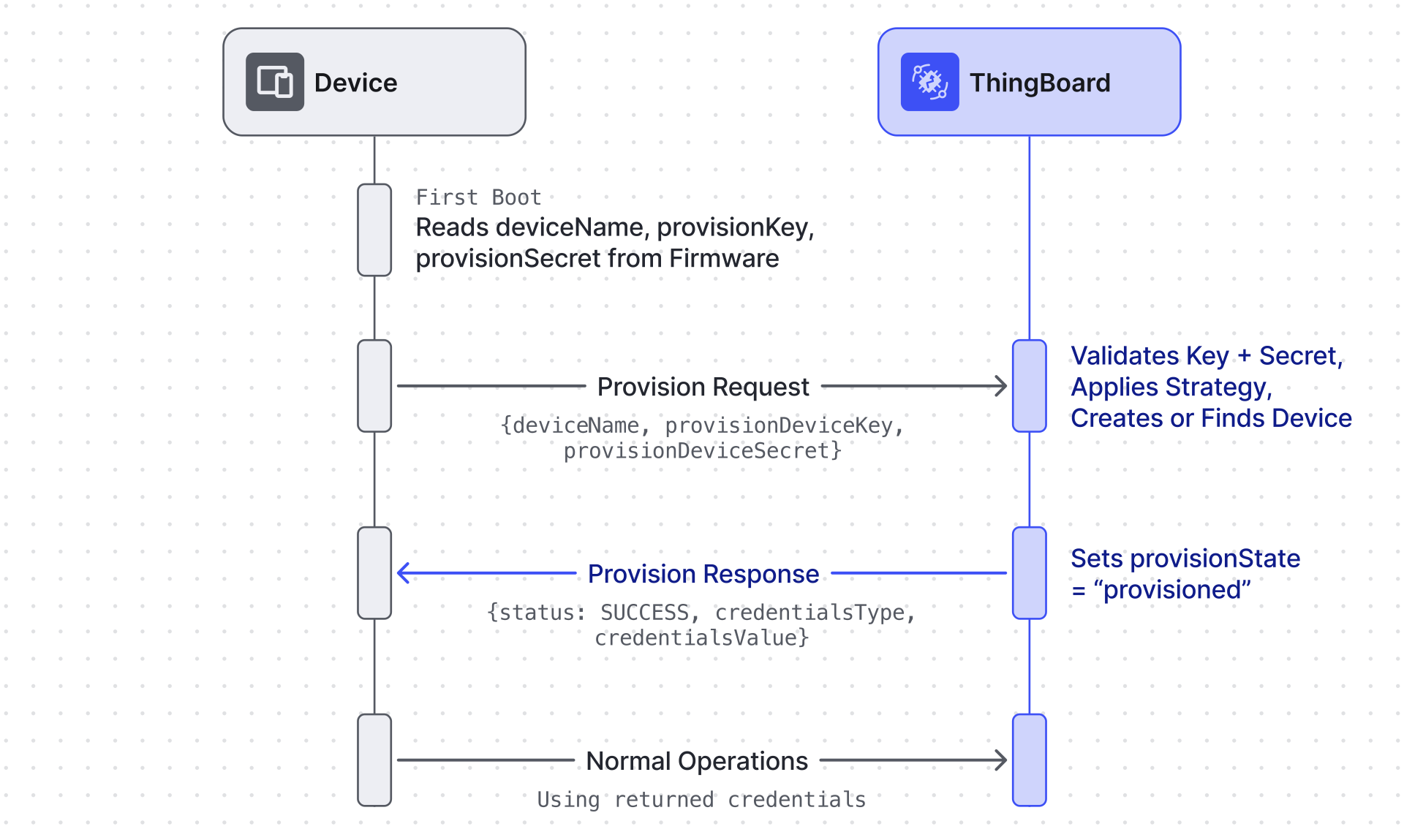
Once provisioned, the device’s provisionState server-side attribute is set to provisioned. Re-sending a provisioning request after that will be rejected with a failure response — provisioning is a one-shot operation.
To re-provision a device, the reset procedure depends on the strategy:
Allow Creating New Devices — delete the device in ThingsBoard. The device can then provision again as a new entity.
Check Pre-Provisioned Devices — delete the provisionState server-side attribute on the device (device ⇾ Attributes ⇾ Server attributes). The device name and credentials remain intact. Via REST API: DELETE /api/plugins/telemetry/DEVICE/{deviceId}/SERVER_SCOPE?keys=provisionState
Strategies
Section titled “Strategies”Allow creating new devices — ThingsBoard creates the device on first request. Use this when device names (e.g. MAC addresses) aren’t known at manufacturing time but are readable by firmware at runtime.
Check Pre-Provisioned Devices — ThingsBoard only accepts devices already present in the system and rejects all others. Use bulk provisioning to load the approved list first. Good for regulated or high-security deployments where unknown devices must be blocked.
X.509 Certificate Chain — instead of a key/secret pair, register one intermediate CA certificate on the profile. ThingsBoard authenticates each connecting device via mutual TLS against that certificate and extracts the device name from the leaf certificate’s Common Name using a configurable regular expression. Best for MQTT fleets that already issue device certificates from a shared certificate authority. See X.509 Certificate for how to generate the certificate hierarchy and connect a device. For setup, certificate renewal and revocation, see X.509 Certificate Chain Provisioning.
Configure in Device Profile
Section titled “Configure in Device Profile”In the Device Profile, go to the Device Provisioning tab and select a strategy.
For Allow Creating New Devices and Check Pre-Provisioned Devices, copy the generated Provision device key and Provision device secret — these go into the device firmware.
For X.509 Certificate Chain, there’s no key/secret pair. Instead:
| Field | Description |
|---|---|
| Certificate in PEM format | The intermediate CA certificate used to validate devices’ certificates during the TLS handshake |
| CN Regular Expression variable | Extracts the device name from the certificate’s Common Name (defaults to (.*), matching the whole CN) |
| Create new devices | When enabled, a device is auto-created the first time its certificate is seen; when disabled, only pre-registered devices can connect — see Pre-register devices |
Credential Types
Section titled “Credential Types”How the credential type is determined depends on the strategy:
Allow Creating New Devices — the device specifies the type in the provision request body (credentialsType: ACCESS_TOKEN, MQTT_BASIC, or X509_CERTIFICATE). ThingsBoard creates the device with exactly those credentials.
Check Pre-Provisioned Devices — ThingsBoard returns whatever credentials are already configured on the device, regardless of what the provision request body contains. To use a specific credential type (for example, MQTT Basic), set it on the device before it provisions — via the device Credentials tab in the UI, or via POST /api/device-with-credentials for bulk setup. Values sent in the provision request body are ignored.
X.509 Certificate Chain — always X.509. There’s no separate choice: the device’s own certificate, signed by the profile’s registered CA, is the credential.
| Type | How it works | Best for |
|---|---|---|
| Access Token | ThingsBoard generates a unique token | Simplest setup, most protocols |
| MQTT Basic | Device supplies username, password, and client ID | MQTT devices that manage their own identity |
| X.509 Certificate | Device provides a certificate; ThingsBoard returns credentials ID | Highest security; requires MQTT over SSL |
Protocol References
Section titled “Protocol References”Provisioning requests can be sent over MQTT, HTTP, and CoAP. See the transport-specific guides for exact topics, endpoints, and complete request/response examples:
- MQTT Provisioning API — also supports devices that register their own X.509 certificate (X.509 Certificate Chain provisioning happens during the TLS handshake and does not use provisioning requests)
- HTTP Provisioning API — supports Access Token and MQTT Basic
- CoAP Provisioning API — supports Access Token
Was this helpful?