Rule Engine
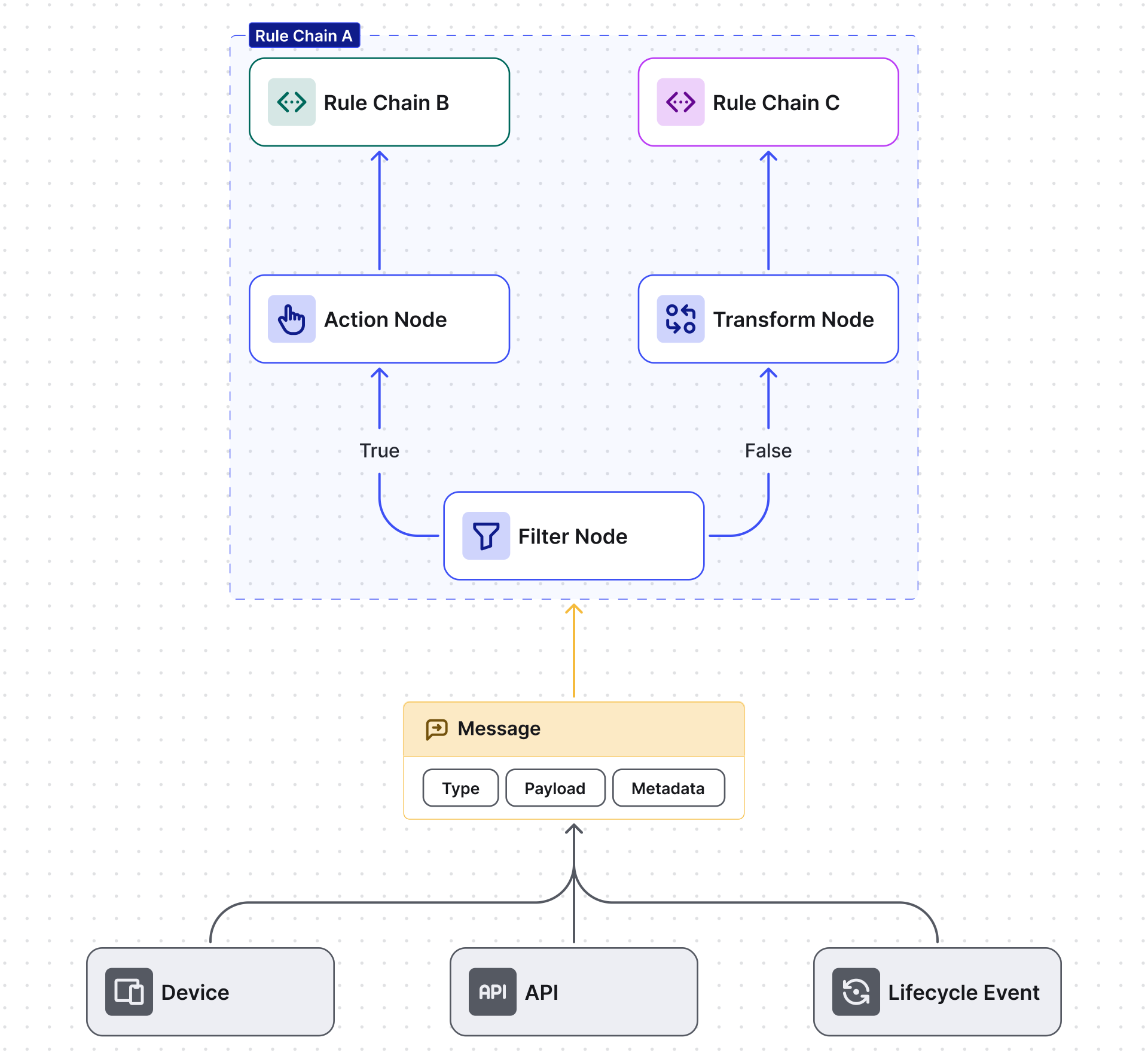
The Rule Engine is the data processing backbone of ThingsBoard. Every incoming telemetry reading, attribute update, device lifecycle event, or RPC call becomes a Message that flows through a Rule Chain — a visual pipeline of Rule Nodes that filter, enrich, transform, or act on it.
Message
Section titled “Message”A Rule Engine Message is an immutable, serializable data structure representing a single event:
| Field | Description |
|---|---|
| Message ID | Time-based universally unique identifier |
| Originator | The entity that generated the message (Device, Asset, etc.) |
| Type | What triggered the message — e.g. POST_TELEMETRY_REQUEST, INACTIVITY_EVENT |
| Payload | JSON body with the event data |
| Metadata | Key-value pairs with contextual data (device name, type, custom fields added by nodes) |
For the full list of built-in type strings, originators, metadata fields, and payload shapes, see Rule Engine Message Types.
Rule Node
Section titled “Rule Node”A Rule Node processes one incoming message at a time and produces one or more outgoing messages. Nodes are the building blocks of Rule Chains and fall into seven categories — see Rule Nodes for the full reference.
Rule Chain
Section titled “Rule Chain”A Rule Chain is a directed graph of Rule Nodes connected by relations. When a node produces
an outgoing message, the relation type (e.g. Success, Failure, True, False, or a custom
name) determines which connected nodes receive it next.
The Root Rule Chain is the default entry point for all incoming messages. There is exactly one Root Rule Chain per tenant at a time. A tenant administrator can define any number of additional chains; both the root and additional chains can forward messages to each other using the Rule Chain flow node.
Device profile routing — a Device Profile can override routing for all its devices with two settings:
| Setting | Effect |
|---|---|
| Default rule chain | Messages from devices of this profile are routed to the specified chain instead of the Root Rule Chain |
| Queue | Messages from devices of this profile are placed in the specified queue instead of the default Main queue |
This lets you isolate processing logic and queue priorities per device type without modifying the root chain.
The Root Rule Chain and additional Rule Chains can be created and managed only by Tenant Administrators.
Message Processing Results
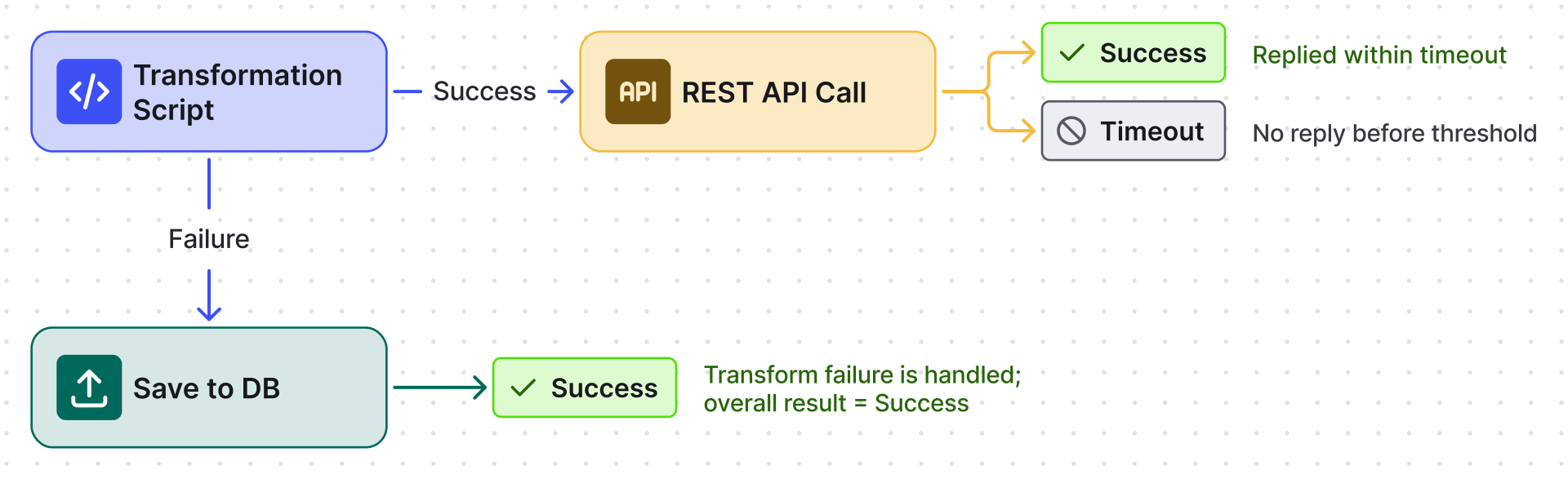
Section titled “Message Processing Results”Every message processing attempt ends as Success, Failure, or Timeout:
| Result | When it occurs |
|---|---|
| Success | The last node in the processing path completes successfully |
| Failure | A node produces a Failure output and no downstream node handles it |
| Timeout | Overall processing time exceeds the configured threshold |
A message is only marked as Failure if the failure output is unhandled. Connecting a node to the Failure relation (e.g. a log or fallback write) means the failure is handled and the message can still end as Success:
To track success, failure, and timeout counts across all rule chains, use the statistics dashboard. To investigate why a specific node failed, enable debug mode on that node.
Managing Rule Chains
Section titled “Managing Rule Chains”Create a Rule Chain
Section titled “Create a Rule Chain”- Go to Data processing ⇾ Rule chains in the left sidebar.
- Click + Add rule chain ⇾ Create new rule chain in the top-right corner.
- Enter a name and click Add.
- Click the rule chain row to open the editor and configure nodes.
Export a Rule Chain
Section titled “Export a Rule Chain”- Go to Data processing ⇾ Rule chains in the left sidebar.
- Click the Export rule chain icon in the desired row.
A JSON file is saved to your computer.
Import a Rule Chain
Section titled “Import a Rule Chain”- Go to Data processing ⇾ Rule chains in the left sidebar.
- Click + Add rule chain ⇾ Import rule chain in the top-right corner.
- Upload the JSON file and click Import.
Set a Rule Chain as Root
Section titled “Set a Rule Chain as Root”- Go to Data processing ⇾ Rule chains.
- Click the flag icon in the row of the rule chain you want to set as root, and confirm.
Create a Nested Rule Chain
Section titled “Create a Nested Rule Chain”- Go to Data processing ⇾ Rule chains in the left sidebar.
- Open the chain that contains the nodes you want to extract.
- Select the nodes and the links between them — drag a selection rectangle around the group, or Ctrl-click each node and each link individually. Without the links in the selection, Create nested rule chain stays disabled.
- Press Ctrl+R, or right-click the selection and choose Create nested rule chain. ThingsBoard creates a new rule chain from the selected nodes and replaces them in the current chain with a single Rule Chain node pointing at it.
Forward Messages to Another Rule Chain
Section titled “Forward Messages to Another Rule Chain”- Go to Data processing ⇾ Rule chains in the left sidebar.
- Open the rule chain that will reference the target chain.
- From the Flow palette, drag a Rule Chain node onto the canvas.
- In the node’s configuration, select the target rule chain.
- Wire one or more connections from the relevant node output of your existing flow into the Rule Chain node, then save.
Delete a Rule Chain
Section titled “Delete a Rule Chain”- Go to Data processing ⇾ Rule chains.
- Click the Delete icon in the desired row — or select multiple rows and use Delete selected.
Configuration
Section titled “Configuration”To configure a rule node, double-click it in the Rule Chain editor. The configuration window is specific to each node type.
Nodes with TBEL/JS scripts provide a Test button. Use it to verify the script with custom inputs before deploying:
| Panel | Content |
|---|---|
| Top-left | Message type |
| Left | Message payload |
| Right | Metadata |
| Script area | The TBEL/JS function |
| Output | Execution result |
Monitoring
Section titled “Monitoring”ThingsBoard provides a Statistics dashboard for tracking throughput, failures, and exceptions across all queues, and Debug mode for per-node message tracing. See Rule Engine Monitoring for the full reference, including the debug event columns, the two debug modes, and the step-by-step troubleshooting workflow.
Queues
Section titled “Queues”Rule Engine uses message queues to guarantee delivery under load, handle traffic spikes, and control the order in which messages are processed. See Queues for configuration details, submit and retry strategies, and the three built-in queues.
Custom REST API Calls
Section titled “Custom REST API Calls”ThingsBoard provides an HTTP API to send custom requests directly to the Rule Engine and return the processing result in the response body — useful for extending the platform API, enriching calls with device/asset attributes, or powering custom widgets.
Use the rule-engine-controller endpoints from the
REST API reference.
The entity ID in the request becomes the message originator. If omitted, the calling user entity is used.
Quick Start: Temperature Validation
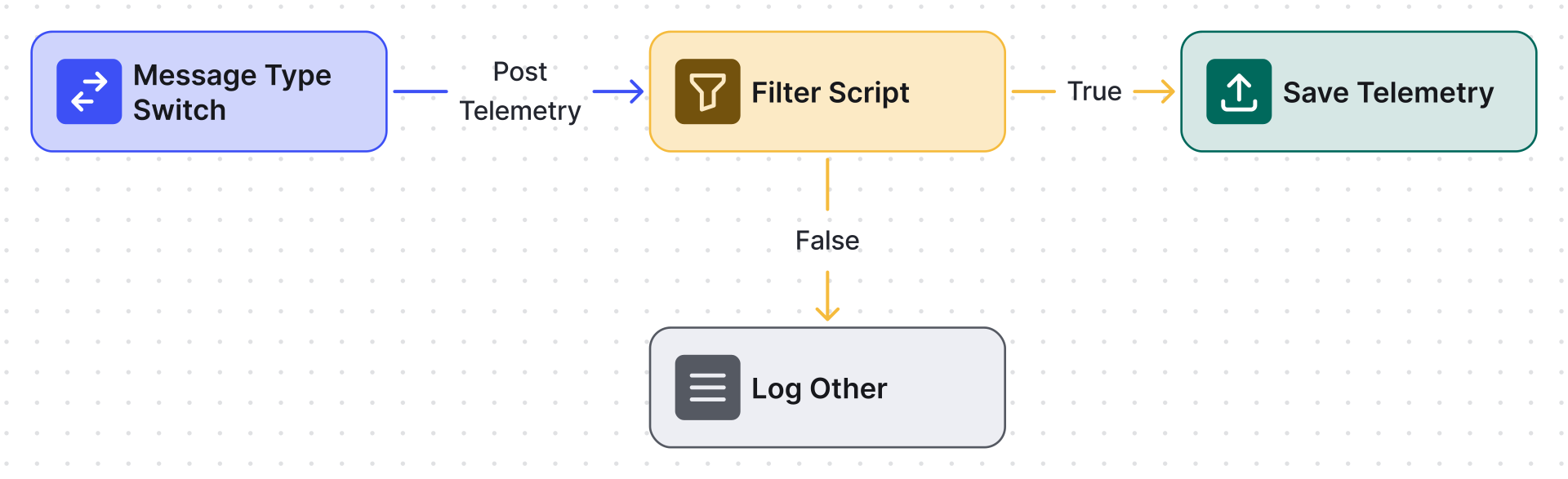
Section titled “Quick Start: Temperature Validation”A DHT22 sensor reports temperatures between −40 °C and +80 °C. Any reading outside that range should be discarded and logged instead of saved.
- Go to Data processing ⇾ Rule chains and open the Root Rule Chain.
- Drag a Script Filter node onto the canvas. Enter title Temperature Validation and
write the script:
Click Add.return typeof temperature === 'undefined' || (temperature >= -40 && temperature <= 80);
- Delete the Post Telemetry relation between Message Type Switch and Save Timeseries (hover the connection arrow and click ✕).
- Draw a Post Telemetry relation from Message Type Switch to Temperature Validation.
- Draw a True relation from Temperature Validation to Save Timeseries.
- Draw a False relation from Temperature Validation to Log Other.
- Click Apply changes.
Test — out-of-range value (99 °C):
curl -X POST -d '{"temperature":99}' \ http://localhost:8080/api/v1/$ACCESS_TOKEN/telemetry \ -H "Content-Type:application/json"The value does not appear in Latest Telemetry — filtered and logged.
Test — valid value (24 °C):
curl -X POST -d '{"temperature":24}' \ http://localhost:8080/api/v1/$ACCESS_TOKEN/telemetry \ -H "Content-Type:application/json"The value appears in Latest Telemetry — saved successfully.
Was this helpful?