SigFox Integration
The Sigfox integration connects ThingsBoard to the Sigfox Backend over HTTP. Use it to bring data from Sigfox-connected devices into ThingsBoard for monitoring and rule-based automation — including sending commands back to those devices.
Architecture
Section titled “Architecture”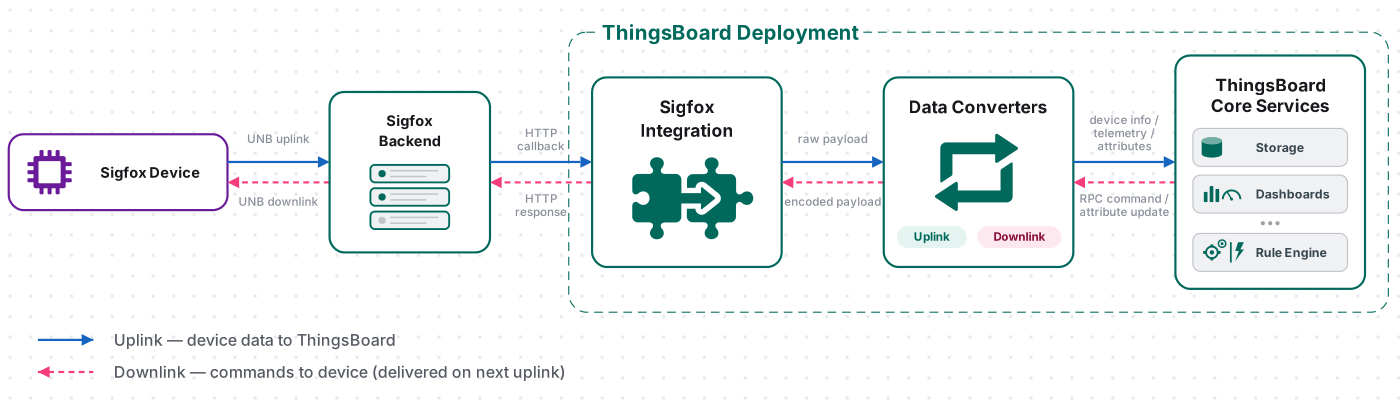
A Sigfox device transmits an uplink to the Sigfox Backend, which forwards it over HTTP to the integration’s endpoint through a custom callback. The uplink converter decodes the payload into telemetry and attributes, and the ThingsBoard Core Service stores the data, creating the device automatically on first contact. For downlink, the Rule Engine hands a message to the integration; the downlink converter encodes it, and the Sigfox Backend delivers it to the device.
Prerequisites
Section titled “Prerequisites”Before creating the integration, ensure:
- You have access to ThingsBoard Cloud with integration functionality enabled for your tenant.
- You have permissions to create integrations and data converters in ThingsBoard.
- You have a Sigfox Backend account with administrative access to your device type.
- You have at least one Sigfox device registered in the Sigfox Backend.
- Your ThingsBoard integration’s HTTP endpoint is reachable from the public internet over HTTPS — the Sigfox Backend must be able to reach it to deliver callbacks. If your instance isn’t directly reachable, use Remote Integration instead.
Set Up the Sigfox Integration
Section titled “Set Up the Sigfox Integration”To set up the Sigfox integration, first create an uplink data converter to process incoming messages, then create and configure the integration.
Create the Uplink Data Converter
Section titled “Create the Uplink Data Converter”The uplink converter decodes the incoming Sigfox callback message (JSON with the device, time, and data fields you define in the callback body) and maps it to the ThingsBoard data model — it resolves the target device and extracts fields into telemetry and attributes. For the full decoder function reference, see Uplink data converter.
A Sigfox uplink message delivered to the ThingsBoard endpoint looks like this:
{ "device": "1CB0F1", "time": "1661868952", "data": "2502af2102462a", "seqNumber": "3737"}The device field identifies the transmitting device and maps to the device name. The time field is the Unix timestamp (seconds). The data field is a hex-encoded sensor reading whose byte layout is device-specific — in this example the first byte holds configuration flags (stored as attributes) and the remaining bytes encode temperature, humidity, CO₂, and the CO₂ baseline.
- Go to Integrations ⇾ Data converters.
- Click + Add data converter ⇾ Create new converter.
In the Add data converter dialog:
- Converter type — leave Uplink (selected by default).
- Integration type — in the search field, enter
SigFoxand select SigFox from the list. - Name — enter a converter name, for example
SigFox Uplink Converter. - Main decoding configuration — a code editor with the function signature
function decoder(payload, metadata) {. Paste the decoder function shown below. By default the editor opens in TBEL; use the TBEL / JS toggle (upper right) to switch languages. - Click Add.
The decoder below parses the callback JSON, resolves the device name from the Sigfox device ID, and decodes the hex data field into telemetry. Adapt the byte offsets and scaling to match your device protocol.
The decoder function used in this tutorial:
/** Decoder **/
// Decode payload to jsonvar payloadStr = decodeToJson(payload);
// Set general device informationvar deviceName = 'Sigfox-' + payloadStr.device;var deviceType = 'Sigfox device';var groupName = 'Control room devices';// var customerName = 'Customer A';// use assetName and assetType instead of deviceName and deviceType// to automatically create assets instead of devices.// var assetName = 'Asset A';// var assetType = 'building';
// Parse specific device information, it may be different, depends on device typevar attrByte = parseInt(payloadStr.data.substring(0, 2), 16); // force TBEL to convert to INTvar autoCalibration = (attrByte & 0x1) === 1 ? "on" : "off"; // bitmask for first bitvar zeroPointAdjusted = ((attrByte & 0x2) >> 1) === 1 ? true : false; // bitmask for second bit; right shift one bit to get second bit to the LSB positionvar transmitPower = ((attrByte & 0x4) >> 2) === 1 ? "full" : "low"; // bitmask for third bit; right shift two bits to get third bit to the LSB positionvar powerControl = ((attrByte & 0x8) >> 3) === 1 ? "on" : "off"; // bitmask for third bit; right shift three bits to get fourth bit to the LSB positionvar firmwareVersion = attrByte >> 4; // shift right to bring the nibble down to the first four bits; result is INT
var data = payloadStr.data;
var temperature = null;var humidity = null;var co2 = null;var co2Baseline = null;
if (data != null) {  if (data.length() >= 6) {    temperature = toFixed(parseInt(payloadStr.data.substring(2, 6), 16) / 10.0 - 40, 1);  }  if (data.length() >= 8) {    humidity = parseInt(payloadStr.data.substring(6, 8), 16);  }  if (data.length() >= 12) {    co2 = parseInt(payloadStr.data.substring(8, 12), 16);  }
  if (data.length() >= 14) {    var co2BaselineN = parseInt(payloadStr.data.substring(12, 14), 16);    if (co2BaselineN === 0) {      co2Baseline = 400;    } else {      co2Baseline = co2BaselineN * 10;    }  }}
var result = {  // Use deviceName and deviceType or assetName and assetType, but not both.  deviceName: deviceName,  deviceType: deviceType,  //  assetName: assetName,  //  assetType: assetType,  //  customerName: customerName,  groupName: groupName,  attributes: {    sigfoxId: payloadStr.device,    deviceTypeId: payloadStr.deviceTypeId,    autoCalibration: autoCalibration,    zeroPointAdjusted: zeroPointAdjusted,    transmitPower: transmitPower,    powerControl: powerControl,    fwVersion: firmwareVersion  },  telemetry: {    ts: parseLong("" + payloadStr.time + "000"),    values: {      temperature: temperature,      humidity: humidity,      co2: co2,      co2Baseline: co2Baseline,      customData1: payloadStr["customData#int1"],      customData2: payloadStr["customData#int2"]    }  }};
return result;/** Decoder **/
// Decode the incoming byte array into a JSON object.var payloadStr = decodeToJson(payload);
// Set general device information.var deviceName = "Sigfox-" + payloadStr.device;var deviceType = "Sigfox device";var groupName = "Control room devices";// var customerName = "Customer A";// Use assetName and assetType instead of deviceName and deviceType// to automatically create an asset instead of a device.// var assetName = "Asset A";// var assetType = "building";
// Sigfox device payload represented as a hexadecimal string.var data = payloadStr.data;
// Initialize decoded attributes.var autoCalibration = null;var zeroPointAdjusted = null;var transmitPower = null;var powerControl = null;var firmwareVersion = null;
// Initialize decoded telemetry values.var temperature = null;var humidity = null;var co2 = null;var co2Baseline = null;
if (data != null && data.length >= 2) { // Decode the first byte containing configuration flags // and the firmware version. var attrByte = parseInt(data.substring(0, 2), 16);
// Bit 0: automatic calibration status. autoCalibration = (attrByte & 0x01) === 1 ? "on" : "off";
// Bit 1: zero-point adjustment status. zeroPointAdjusted = ((attrByte & 0x02) >> 1) === 1;
// Bit 2: transmission power mode. transmitPower = ((attrByte & 0x04) >> 2) === 1 ? "full" : "low";
// Bit 3: power control status. powerControl = ((attrByte & 0x08) >> 3) === 1 ? "on" : "off";
// Bits 4–7: firmware version. firmwareVersion = attrByte >> 4;}
if (data != null) { // Bytes 2–3: temperature in 0.1 °C units with a -40 °C offset. if (data.length >= 6) { var rawTemperature = parseInt(data.substring(2, 6), 16); temperature = Math.round((rawTemperature / 10.0 - 40) * 10) / 10; }
// Byte 4: relative humidity. if (data.length >= 8) { humidity = parseInt(data.substring(6, 8), 16); }
// Bytes 5–6: CO2 concentration. if (data.length >= 12) { co2 = parseInt(data.substring(8, 12), 16); }
// Byte 7: CO2 baseline. if (data.length >= 14) { var rawCo2Baseline = parseInt(data.substring(12, 14), 16); co2Baseline = rawCo2Baseline === 0 ? 400 : rawCo2Baseline * 10; }}
var result = { // Use deviceName and deviceType or assetName and assetType, but not both. deviceName: deviceName, deviceType: deviceType,
// assetName: assetName, // assetType: assetType, // customerName: customerName,
groupName: groupName,
attributes: { sigfoxId: payloadStr.device, deviceTypeId: payloadStr.deviceTypeId, autoCalibration: autoCalibration, zeroPointAdjusted: zeroPointAdjusted, transmitPower: transmitPower, powerControl: powerControl, fwVersion: firmwareVersion },
telemetry: { // Convert the Unix timestamp from seconds to milliseconds. ts: parseInt(payloadStr.time, 10) * 1000,
values: { temperature: temperature, humidity: humidity, co2: co2, co2Baseline: co2Baseline, customData1: payloadStr["customData#int1"], customData2: payloadStr["customData#int2"] } }};
/** Helper functions **/
// Convert the incoming byte array into a string.function decodeToString(payload) { return String.fromCharCode.apply(String, payload);}
// Convert the incoming byte array into a JSON object.function decodeToJson(payload) { return JSON.parse(decodeToString(payload));}
return result;Converter Input
ThingsBoard passes two variables to the decoder:
| Variable | Type | Description |
|---|---|---|
payload |
byte array | The raw bytes of the HTTP callback body posted by the Sigfox Backend — the JSON template you define when creating the callback (see Configure the Sigfox Backend). Use decodeToJson(payload) to parse it into an object. |
metadata |
object | Key-value map with integration-level context, such as ts and integrationName, plus any Metadata entries defined on the integration and matched request headers. |
This metadata object — available to the decoder script as metadata.xxx — is separate from the Metadata column shown on the integration and converter Events tabs (see Verify Converter Events), which displays integration-level context rather than per-message fields.
Adapt the Decoder to Your Device
- Device name — change
'Sigfox-' + payloadStr.deviceto any identifier present in your payload. - Payload encoding — update the
substringranges and arithmetic to match your device’s byte layout. Refer to the device datasheet for the field order, scaling factors, and offsets. - Telemetry — add or remove keys under
telemetry.values(for example,pressure: ...). - Attributes — the first byte of
payloadStr.datais decoded into device attributes. Update the bit-mask logic to match your device’s configuration-byte structure, or remove the block if your device sends no configuration flags. - Match your payload structure — update the byte offsets, lengths, scaling, and field names to match your device’s binary specification. The
datafield carries up to 12 bytes. - Add or remove fields — add more
parseInt(json.data.substring(start, end), 16)calls (or bit-mask logic, string extraction, etc.) for additional sensors; remove entries your device does not transmit. - Add more callback fields — if you include extra Sigfox variables in the callback body (for example
station,lat,lng, oravgSnr), read them from the parsed object asdata.<field>. - Override device identity from the payload — set
result.deviceName,result.deviceType,result.group, orresult.customerto derive device identity from payload content rather than the Sigfox device ID.
Create the Sigfox Integration
Section titled “Create the Sigfox Integration”- Go to Integrations ⇾ Integrations and click + Add integration.
- Basic settings:
- Set Integration type to SigFox.
- Enter a Name for the integration, or keep the default
SigFox integration. - Leave Enable integration and Allow create devices or assets on so a device is created automatically on first message.
- Click Next.
- Uplink data converter:
- Click Select existing and choose the Sigfox Uplink Converter created above, or click Create new to define the decoder inline.
- Click Next.
- Downlink data converter:
- Click Skip — a downlink converter is only needed when ThingsBoard must send commands back to devices. See Configure Downlink to add one later.
- Connection:
- Copy the generated HTTP endpoint URL — you will paste it into the Sigfox Backend callback’s URL pattern field.
- Optionally, enable Security (Headers filter) and add a header key-value pair to restrict access to this endpoint.
- Click Add to complete the integration setup.
Connection Settings
Section titled “Connection Settings”Base URL
The base address of the ThingsBoard server, used to construct the HTTP endpoint URL below. Pre-filled with the current server address — change it only if the Sigfox Backend must reach ThingsBoard through a different address (for example, a reverse proxy or load balancer).
Example: https://thingsboard.cloud
HTTP Endpoint URL
The auto-generated webhook address for this integration, in the form:
https://{base-url}/api/v1/integrations/sigfox/{integration-id}Paste this URL into the URL pattern field of the Sigfox callback (see Configure the Sigfox Backend) so the Sigfox Backend forwards device uplink messages to ThingsBoard. The URL is stable for the lifetime of the integration.
Enable Security (Headers Filter)
When enabled, ThingsBoard validates every incoming request against the header name-value pairs you configure and rejects requests that are missing them.
| Field | Description |
|---|---|
| Header | Name of the required HTTP header |
| Value | Required value for that header |
Add the same header to the callback’s Headers field so the Sigfox Backend authenticates against the endpoint.
Execute Remotely
When enabled, ThingsBoard generates an Integration key and Integration secret for running the integration outside the ThingsBoard cluster — useful when ThingsBoard is not publicly reachable from the internet. See Remote Integration.
Advanced Settings
| Parameter | Default | Description |
|---|---|---|
| Replace response status from “No-Content” to “OK” | off | Controls the response code returned to the Sigfox Backend callback: 204 No Content (off) or 200 OK (on). |
| Description | — | Optional text description for the integration. |
| Metadata | — | Key-value pairs available to converter scripts — merged into the metadata parameter for the uplink decoder, or passed separately as the integrationMetadata parameter for the downlink encoder. |
Configure the Sigfox Backend
Section titled “Configure the Sigfox Backend”Configure your Sigfox account to forward device messages to the ThingsBoard HTTP endpoint.
Configure your Sigfox device type to route uplink messages to the ThingsBoard HTTP endpoint URL copied in Create the Sigfox Integration. In the Sigfox Backend, this is done by creating a custom callback on the device type.
Configure the Device Type
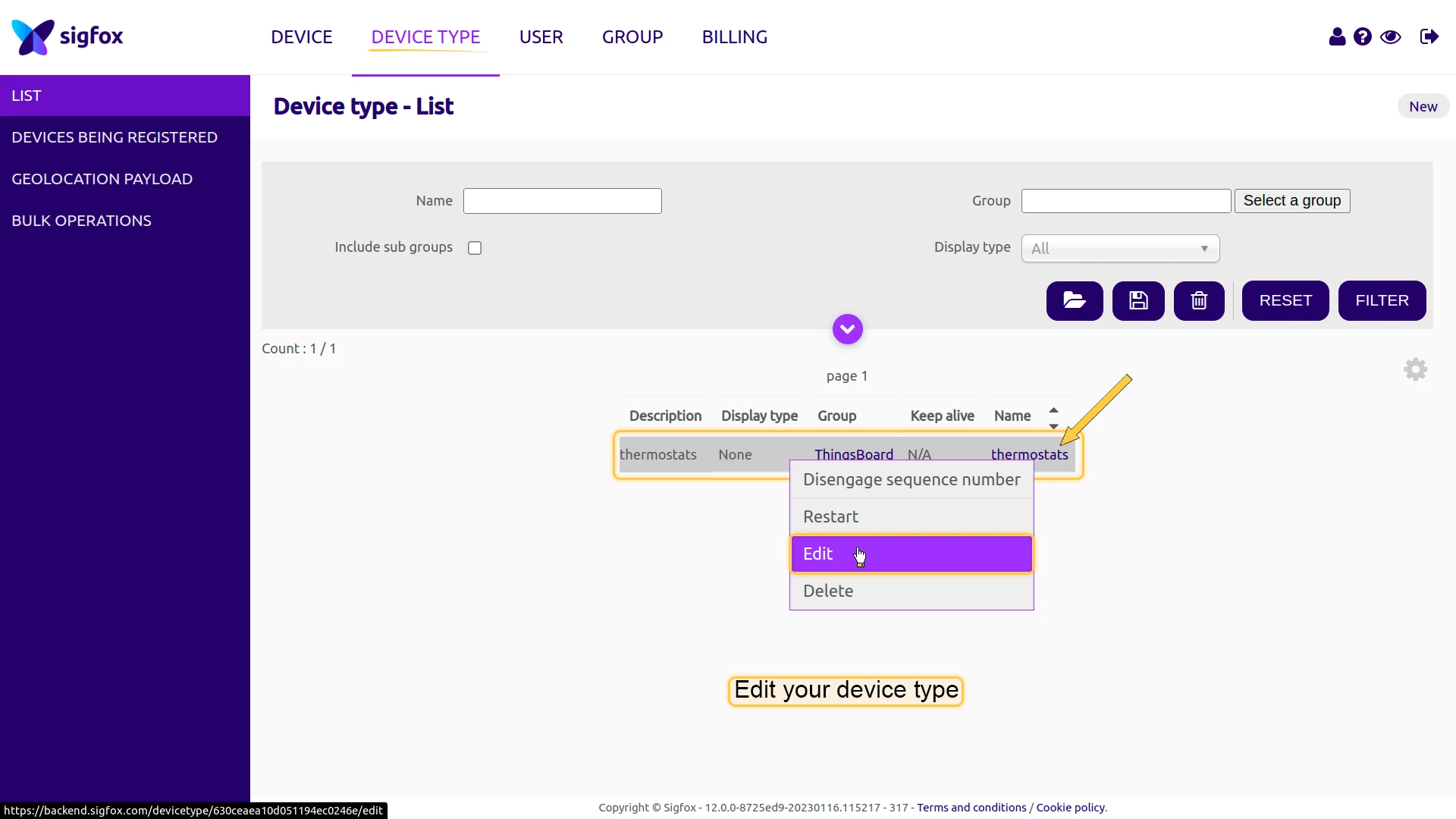
Section titled “Configure the Device Type”- In the Sigfox Backend, go to Device type and locate the device type associated with your device (for example,
thermostats). - Open the row’s context menu and select Edit.
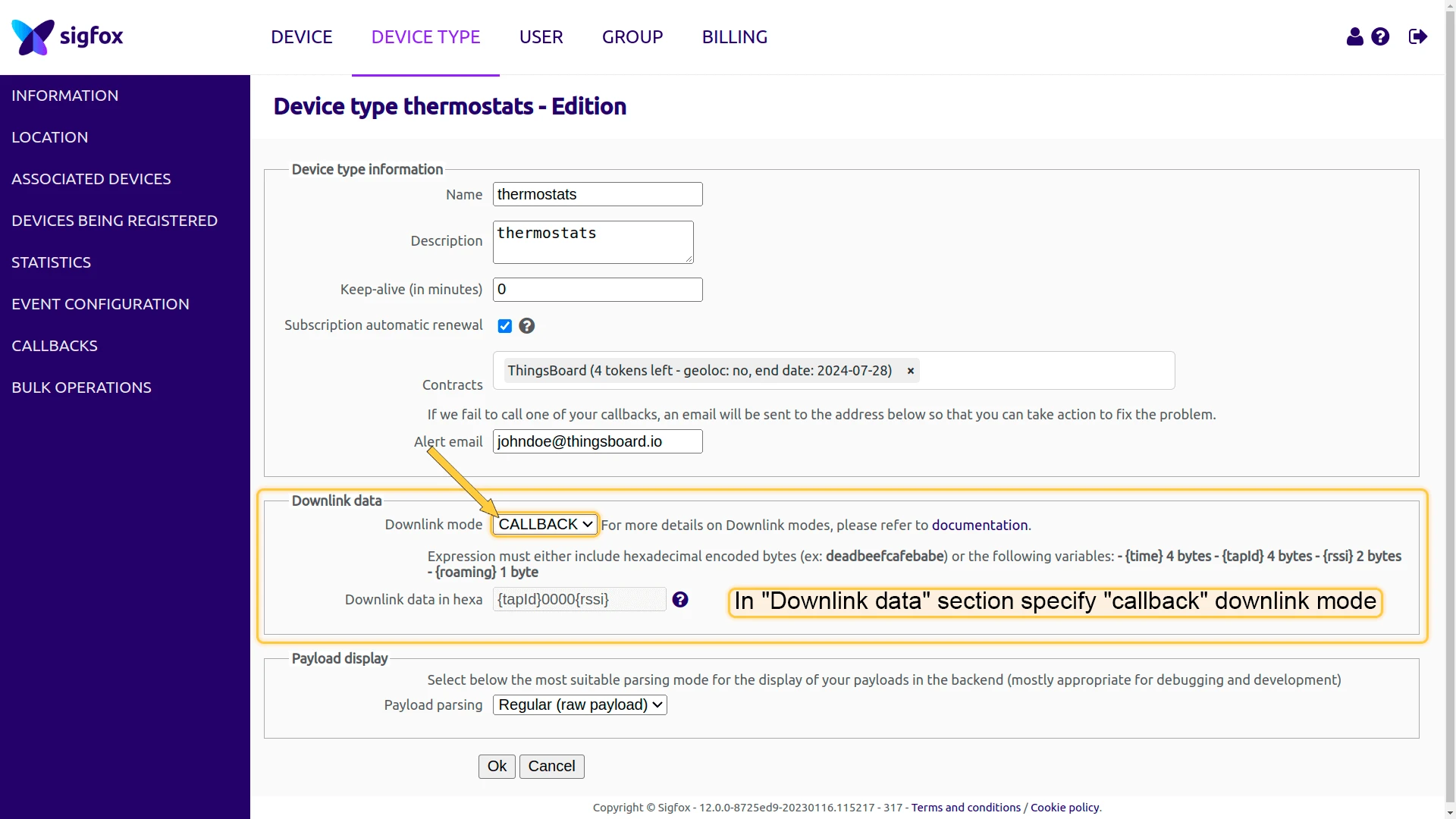
- In the Downlink data section, set Downlink mode to
CALLBACK. This lets the Sigfox Backend request the downlink payload from ThingsBoard in reply to each uplink. - Click Ok to save.
Create a Custom Callback
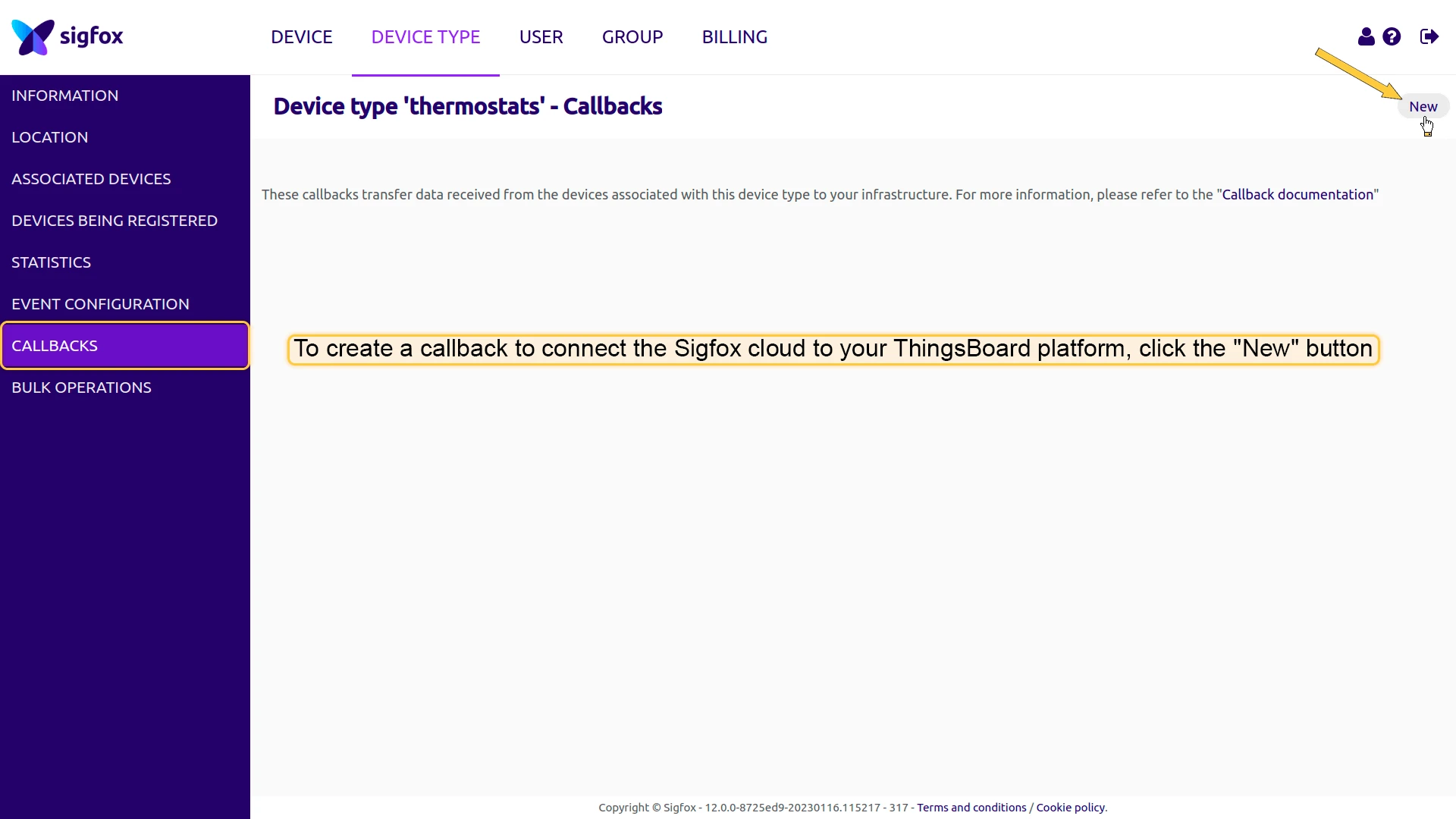
Section titled “Create a Custom Callback”- In the Sigfox Backend, open Device type and select the device type associated with your device.
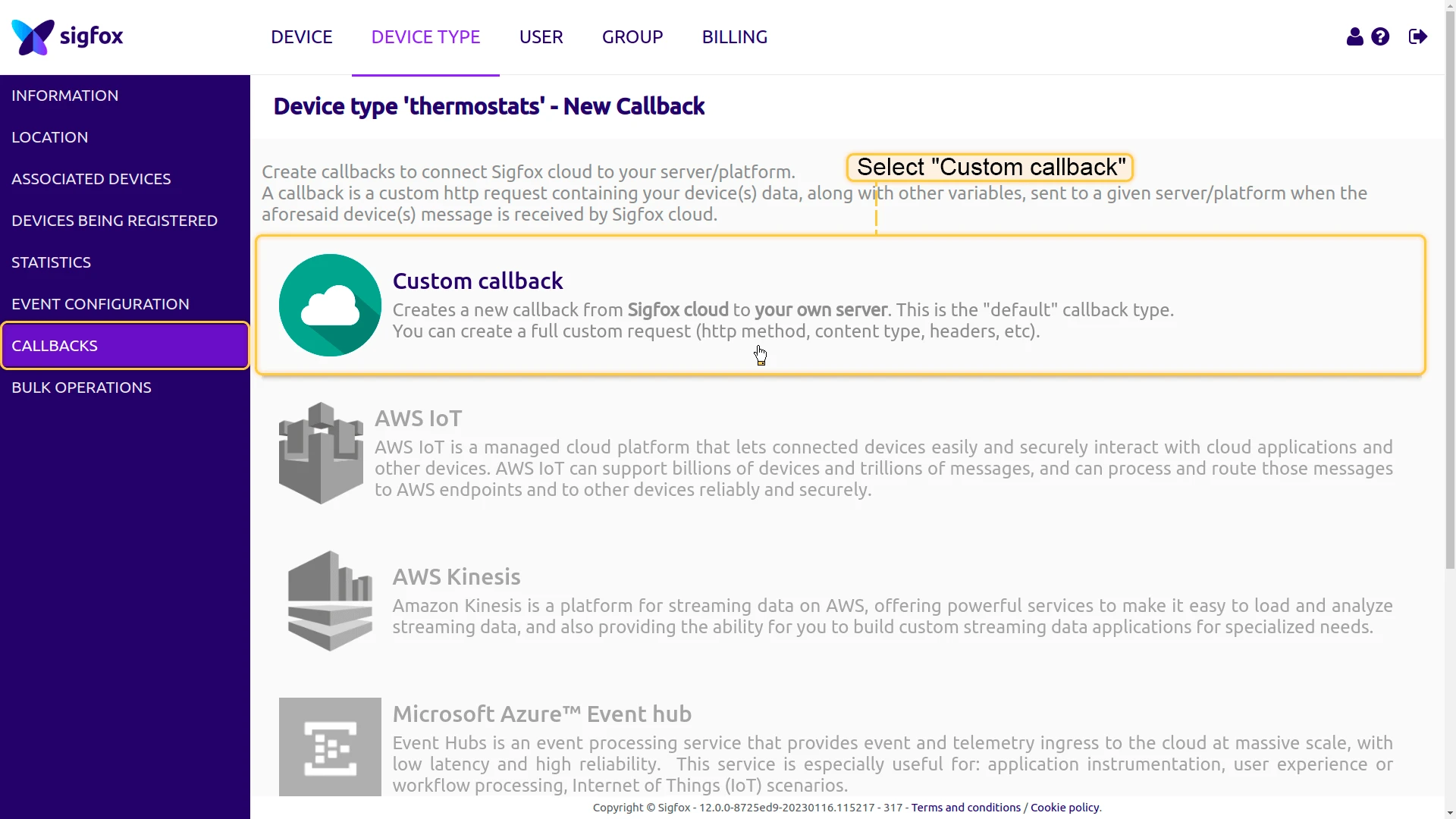
- Open the Callbacks tab and click New ⇾ Custom callback.
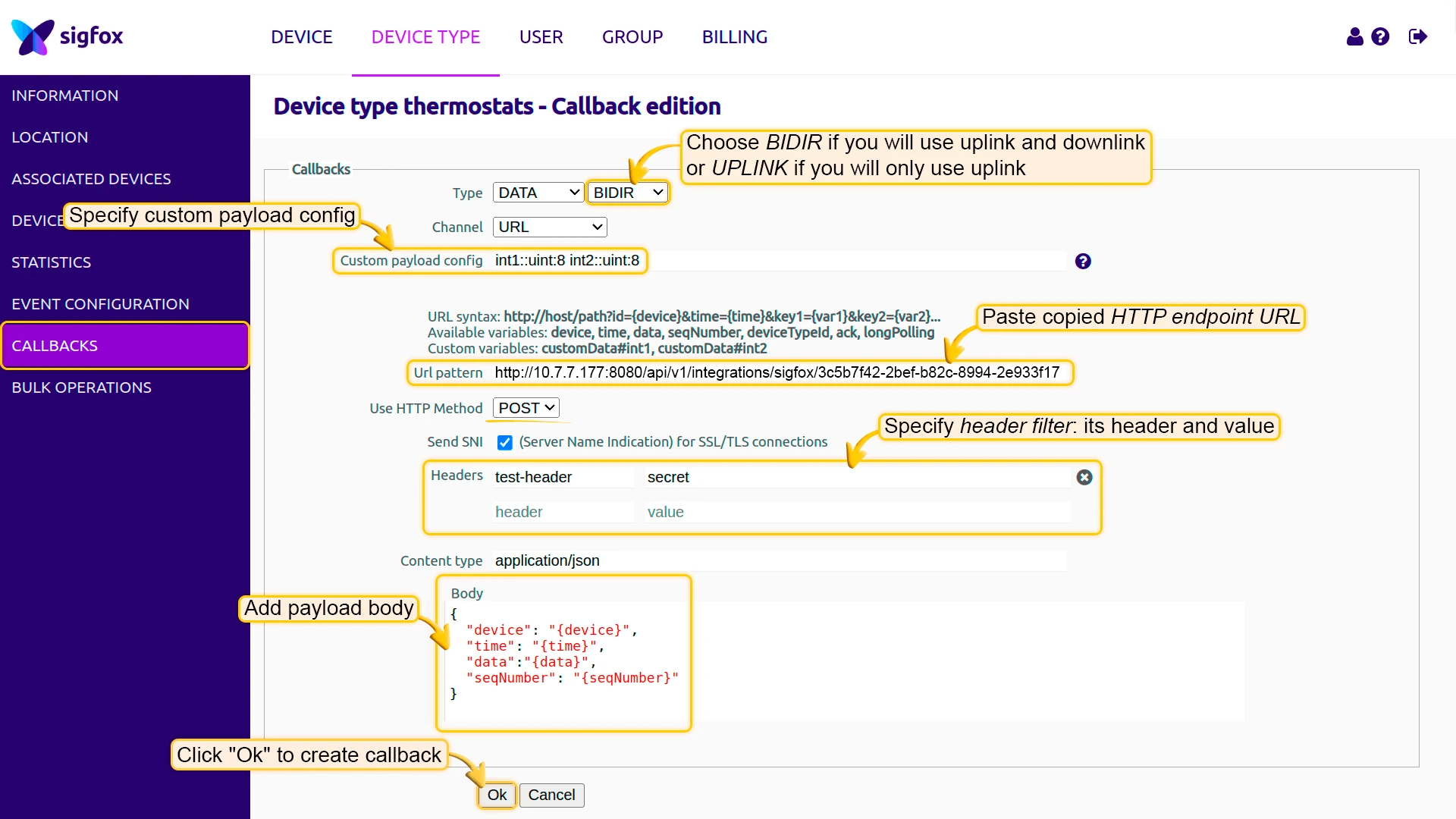
- Configure the callback:
- Type:
DATA, Channel:URL, Subtype:BIDIR(required for downlink support). - Custom payload config — the format string that decodes the raw Sigfox frame into named variables for your device (for example,
int1::uint:8). Leave the rawdatafield untouched if you decode entirely in the ThingsBoard uplink converter. - URL pattern — paste the ThingsBoard HTTP endpoint URL copied from the integration.
- HTTP method:
POST. - Headers — if Security is enabled on the integration, add the same header key-value pair here.
- Content type:
application/json.
- Type:
- Enter the message body below and click Ok.
Callback body:
{ "device": "{device}", "time": "{time}", "data": "{data}", "seqNumber": "{seqNumber}"}The tokens in braces ({device}, {time}, {data}, {seqNumber}) are Sigfox Backend variables and are case-sensitive. The resulting JSON must match the fields your uplink converter reads. Add more variables here — such as {rssi}, {snr}, or {station} — if your converter needs them.
Activate the Downlink Callback
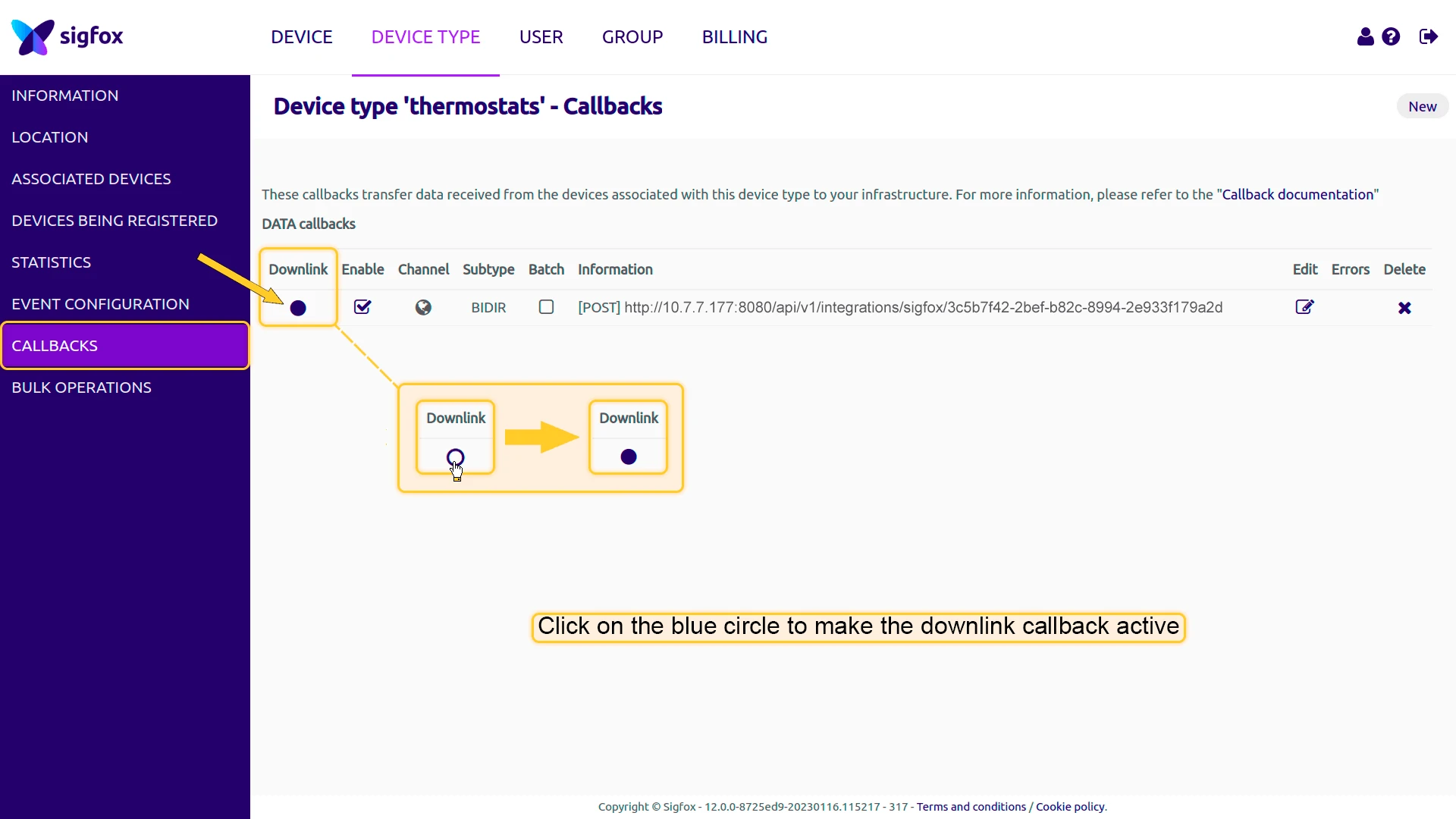
Section titled “Activate the Downlink Callback”After creating the callback, click the circle in the Downlink column to designate it as the active downlink handler. The circle turns solid to indicate active status. Only one callback per device type can act as the downlink handler.
Test Uplink
Section titled “Test Uplink”After the integration and converter are configured, and the device is transmitting through the Sigfox Backend, confirm that ThingsBoard receives, decodes, and stores the data correctly.
Send Test Uplink
Section titled “Send Test Uplink”Wait for your device to transmit an uplink through the Sigfox Backend, or emulate one by sending an HTTP request directly to the ThingsBoard endpoint with curl — bypassing Sigfox entirely. This is useful to verify the integration and converter before connecting real hardware.
Replace $HTTP_ENDPOINT_URL with the HTTP endpoint URL copied in Create the Sigfox Integration:
curl -v \ -H "Content-Type: application/json" \ -d '{"device":"1CB0F1","time":"1742481772","seqNumber":"512","data":"2502af2102462a","rssi":"-98.00","snr":"18.10"}' \ "$HTTP_ENDPOINT_URL"The data value 2502af2102462a decodes to temperature = 28.7, humidity = 33, co2 = 582, and co2Baseline = 420 — see Verify Converter Events below.
Verify Integration Events
Section titled “Verify Integration Events”Go to Integrations ⇾ Integrations, open the Sigfox integration, and click the Events tab. With Event type set to Debug, a row appears with Type: Uplink and Status: OK.
Click … in the Message column to inspect the raw JSON body received from the Sigfox Backend.
Verify Converter Events
Section titled “Verify Converter Events”Go to Integrations ⇾ Data converters, open the uplink converter you configured for this integration, and click its Events tab.
Click … in each column to inspect:
- In — the raw callback JSON payload received by the converter.
- Out — the decoded result produced by the script:
deviceName,deviceType,groupName,attributes(sigfoxId,autoCalibration,zeroPointAdjusted,transmitPower,powerControl,fwVersion), andtelemetry.values(temperature,humidity,co2,co2Baseline). - Metadata — integration-level context, including
integrationName.
Verify Device Provisioning
Section titled “Verify Device Provisioning”Go to Devices & assets ⇾ Devices. ThingsBoard automatically provisions a new device named Sigfox-<device ID> (e.g. Sigfox-1CB0F1) on the first uplink, provided Allow create devices or assets is enabled. Open the device and check:
- Latest telemetry —
temperature,humidity,co2, andco2Baselinedecoded by the script. - Client attributes —
sigfoxId,autoCalibration,zeroPointAdjusted,transmitPower,powerControl, andfwVersionset by the script.
Expected result: the device appears in Devices & assets ⇾ Devices within seconds of the uplink, with telemetry and attributes matching the values above.
Configure Downlink
Section titled “Configure Downlink”To send messages from ThingsBoard back to a Sigfox device, create a downlink converter, assign it to the integration, and add an Integration Downlink node to the Root Rule Chain. For the full encoder reference, see Downlink data converter.
Create and Assign the Downlink Converter
Section titled “Create and Assign the Downlink Converter”Data converters translate between ThingsBoard’s data model and the Sigfox message format. The uplink converter (configured above) decodes incoming device payloads into telemetry and attributes; the downlink converter does the reverse — it encodes an outgoing Rule Engine message into the hex payload and target device ID the Sigfox Backend expects, ready to be queued for delivery.
- Go to Integrations ⇾ Integrations and open the SigFox integration.
- Click the pencil icon to enter edit mode.
- In the Downlink data converter field, click Create new.
- In the Add data converter dialog:
- Enter a name for the converter, for example,
SigFox Downlink Converter. - Use the default encoder script or replace it with your own implementation.
- Click Add.
- Enter a name for the converter, for example,
- Click Apply changes to save the integration.
The encoder function used in this tutorial:
// Encode downlink data from the incoming Rule Engine message.// msg - JSON message payload, e.g. { "downlink": "0000780001900000" }// msgType - message type, e.g. "ATTRIBUTES_UPDATED".// metadata.cs_sigfoxId - Sigfox device ID stored on first uplink, e.g. "1CB0F1".
var deviceId = metadata.cs_sigfoxId;var payload = msg.downlink;
if (deviceId == null) {  raiseError("Sigfox device ID is missing (expected metadata.cs_sigfoxId).");}
if (payload == null) {  raiseError("Downlink payload is missing (expected msg.downlink).");}
// Convert the payload to a string and restore omitted leading zeros.payload = "" + payload;
while (payload.length() < 16) {  payload = "0" + payload;}
if (payload.length() > 16) {  raiseError("Sigfox downlink payload must not exceed 16 hexadecimal characters.");}
return { contentType: "TEXT", data: payload, metadata: { device: deviceId }};// Encode downlink data from the incoming Rule Engine message.// msg - JSON message payload, e.g. { "downlink": "0000780001900000" }// msgType - message type, e.g. "ATTRIBUTES_UPDATED".// metadata.cs_sigfoxId - Sigfox device ID stored on first uplink, e.g. "1CB0F1".
var deviceId = metadata.cs_sigfoxId;var payload = msg.downlink;
if (deviceId == null) { throw new Error("Sigfox device ID is missing (expected metadata.cs_sigfoxId).");}
if (payload == null) { throw new Error("Downlink payload is missing (expected msg.downlink).");}
// Convert the payload to a string and restore omitted leading zeros.payload = String(payload);
while (payload.length < 16) { payload = "0" + payload;}
if (payload.length > 16) { throw new Error("Sigfox downlink payload must not exceed 16 hexadecimal characters.");}
return { contentType: "TEXT", data: payload, metadata: { device: deviceId }};To adapt this encoder to your use case:
msg.downlink— replace with the Rule Engine message field that carries the value to send (for example,msg["base-key"]when the triggering shared attribute is namedbase-key).- Leading-zero padding — the script left-pads
payloadwith"0"up to 16 hex characters (8 bytes) before sending it. This guards against ThingsBoard coercing a purely numeric attribute value into a JSON number and silently dropping leading zeros (see Test Downlink). Remove this block only if your payload is never numeric-looking, or if you cast it to a string yourself upstream. - Length check — the script rejects payloads longer than 16 hex characters with
raiseError/throw, since the Sigfox network supports up to 8 bytes of downlink payload. Adjust the16limit if your device’s downlink protocol uses a shorter fixed length. contentType— useTEXTfor a plain string,JSONfor a JSON object, orBINARYfor a base64-encoded binary payload.metadata.device— populated frommetadata.cs_sigfoxId, which the Fetch sigfoxId node injects (see Configure the Root Rule Chain). Change this only if you route the target device ID through a different metadata key.
Configure the Root Rule Chain
Section titled “Configure the Root Rule Chain”To trigger a downlink when an attribute changes (for example, a shared attribute update), add two nodes to the Root Rule Chain: an Originator attributes node (Enrichment category) that reads the device sigfoxId client attribute into message metadata, and an Integration Downlink node (Action category) that forwards the encoded message to the Sigfox integration.
- Open Data processing ⇾ Rule chains ⇾ Root Rule Chain.
- In the node panel, search for originator attributes. The node appears under the Enrichment category. Drag it onto the canvas.
- Configure the node:
- Name —
Fetch sigfoxId. - Under Client attributes, add the key
sigfoxId. - Set Add originator attributes to to Metadata.
- Click Add.
- Name —
- In the node panel, search for integration downlink. The node appears under the Action category. Drag it onto the canvas.
- Configure the node:
- Name —
Downlink to Sigfox. - Integration — select your Sigfox integration.
- Click Add.
- Name —
- Connect the Message Type Switch node to the Fetch sigfoxId node using the Post attributes and Attributes Updated relations.
- Connect the Fetch sigfoxId node to the Downlink to Sigfox node using the Success relation.
- Click Apply changes.
Test Downlink
Section titled “Test Downlink”Adding or updating a shared attribute triggers the Attributes Updated relation, which forwards the change through Fetch sigfoxId to Downlink to Sigfox. ThingsBoard encodes the value with the downlink converter and queues it for delivery — the Sigfox Backend receives it the next time the device transmits an uplink that requests a downlink (a flag the device firmware sets; ThingsBoard cannot trigger this on its own).
- Go to Devices & assets ⇾ Devices and open your device.
- Open the Attributes tab and switch to Shared attributes.
- Click +, enter a key (for example,
downlink) and a string value (for example,0000780001900000), then click Add.
Example: increased interval (every 120 minutes) for maximum savings. Intended for sensors in long-term archives or warehouses, where readings change slowly. Sending every 2 hours instead of the default 30 minutes lets the Airwits battery last as long as possible.
HEX code: 0000780001900000
| Bytes | Meaning |
|---|---|
00 |
Byte 0 — Transmit Power Mode 1 not enabled (0x00) |
00 78 |
Bytes 1–2 — new interval: 0x0078 = 120 minutes (2 hours) |
00 01 90 00 00 |
Bytes 3–7 — CO₂ baseline calibration 0x0190 = 400 ppm, and zeros filling out the packet length |
Saving the attribute immediately logs an ATTRIBUTES_UPDATED downlink event on the integration — but this only means the payload was encoded and queued, not delivered. The SigFox Downlink Converter’s own Events tab stays empty at this point, since the converter only runs again once the Sigfox Backend actually requests the downlink.
Resend a Test Uplink
Section titled “Resend a Test Uplink”The downlink is only handed to the Sigfox Backend in reply to an uplink that requests one. Wait for the device’s next such transmission, or trigger one immediately by resending the same test request from Send Test Uplink:
curl -v \ -H "Content-Type: application/json" \ -d '{"device":"1CB0F1","time":"1742481772","seqNumber":"512","data":"2502af2102462a","rssi":"-98.00","snr":"18.10"}' \ "$HTTP_ENDPOINT_URL"The response body now carries the queued downlink for the device:
{"1CB0F1":{"downlinkData":"0000780001900000"}}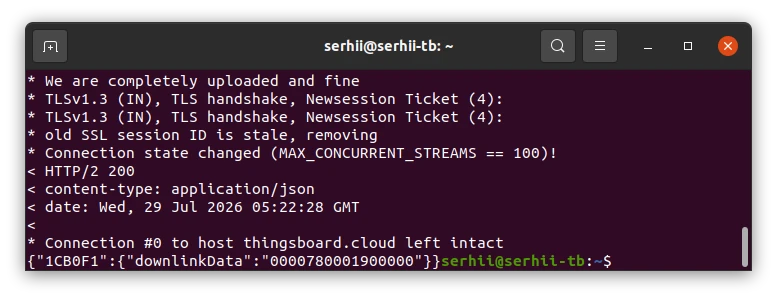
Confirm Delivery in Integration Events
Section titled “Confirm Delivery in Integration Events”Go to Integrations ⇾ Integrations, open the SigFox integration, and click the Events tab again. Alongside the earlier ATTRIBUTES_UPDATED event, an Uplink / Downlink pair now appears from the resent request — all with Status: OK.
Confirm Delivery in Converter Events
Section titled “Confirm Delivery in Converter Events”Go to Integrations ⇾ Data converters, open the SigFox Downlink Converter, and click its Events tab — the row that was missing before now appears:
- In — the Rule Engine message and metadata, including
metadata.cs_sigfoxIdset by the Fetch sigfoxId node. - Out — the encoded result:
contentType, thedatapayload, andmetadata.device.
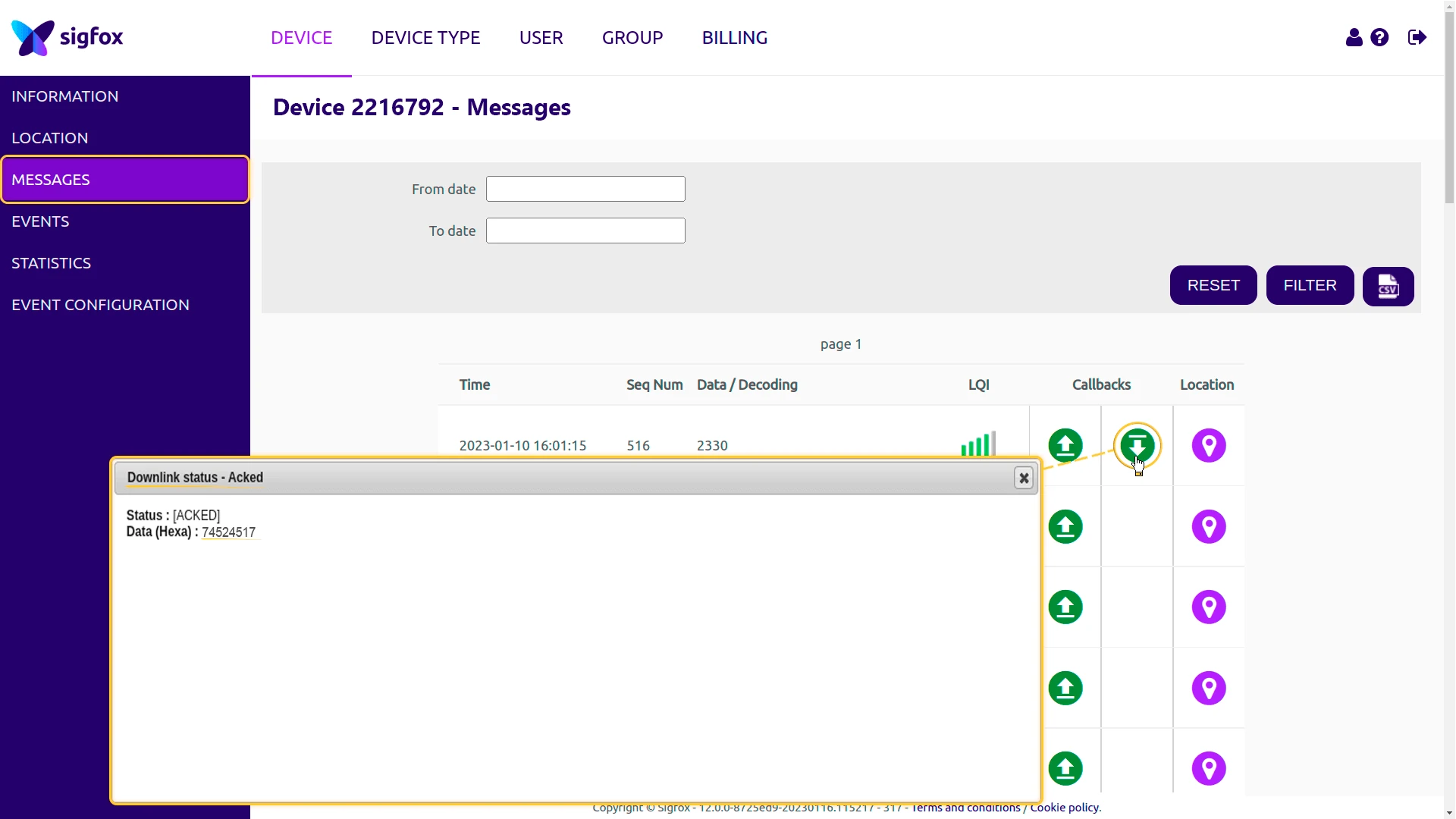
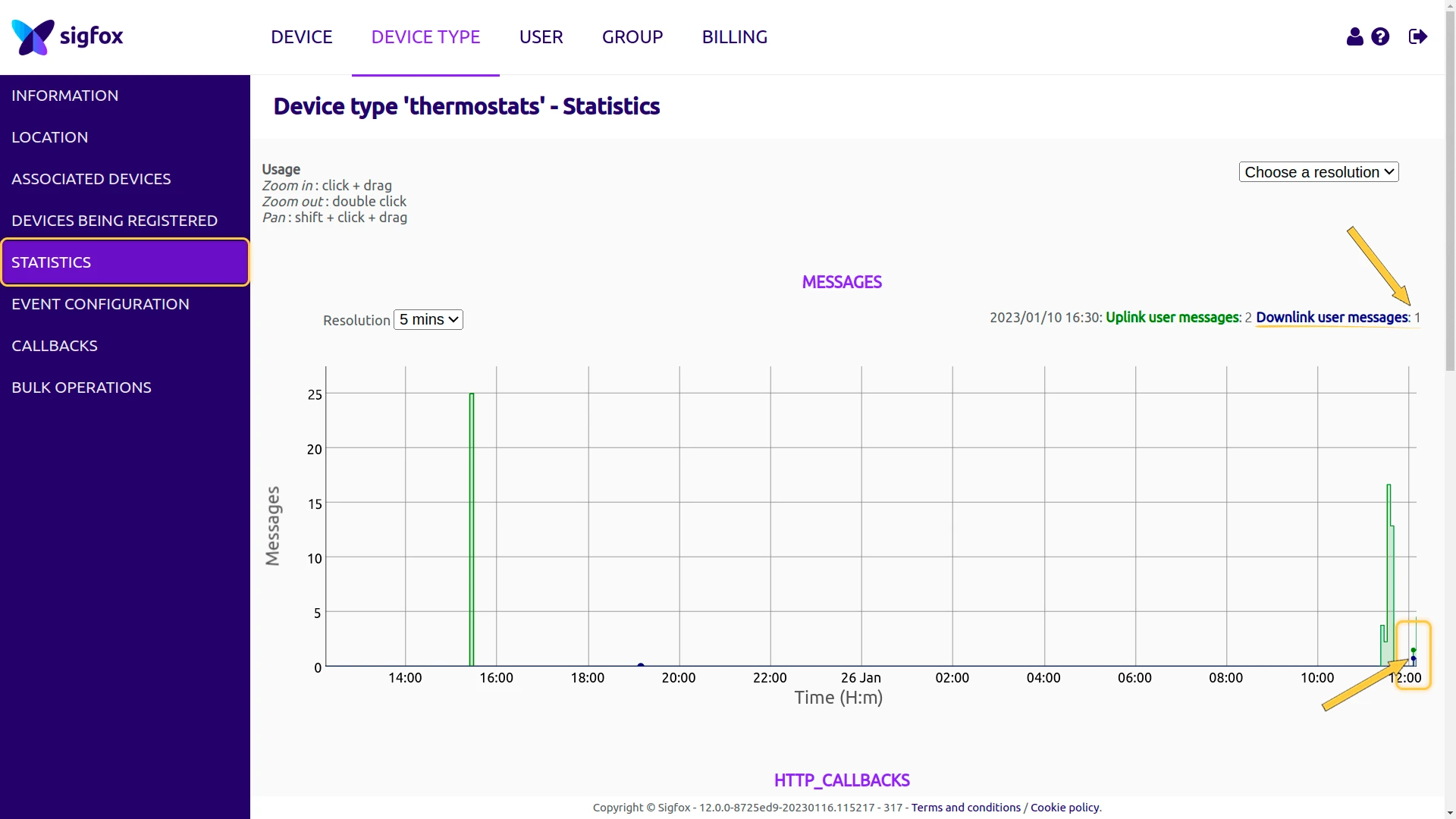
In the Sigfox Backend, open the device Messages tab to confirm the downlink was acknowledged, and check the device type Statistics tab to see it reflected on the message chart.
Troubleshooting
Section titled “Troubleshooting”| Issue | Likely cause | Resolution |
|---|---|---|
| No device created after uplink | Allow create devices or assets is disabled, or the callback never reached ThingsBoard | Enable device creation on the integration; verify the callback URL pattern matches the integration’s HTTP endpoint URL and that the callback status in the Sigfox Backend shows a 2xx response. |
Callback returns 401 / 403 |
Security is enabled on the integration but the callback sends no matching header | Add the same header key-value pair to the callback’s Headers field, or disable Security on the integration. |
| Uplink received but no telemetry | Converter error, or the payload field names do not match the decoder | Enable Debug mode and check the converter Events tab; confirm the callback message body keys (device, time, data) match the fields the decoder reads. |
| Telemetry values look wrong | The substring ranges, scaling, or offsets do not match the device’s byte layout |
Verify the byte layout against the device datasheet and adjust the decoder arithmetic. |
| Downlink never delivered | Downlink mode is not CALLBACK, the callback subtype is not BIDIR, or the callback is not activated as the downlink handler |
Set Downlink mode to CALLBACK, set the callback subtype to BIDIR, and activate it in the Downlink column. Remember the downlink is delivered only on the device’s next uplink. |
| Downlink sent to the wrong device | metadata.device in the encoder points to a different Sigfox ID |
Set metadata.device to the target device’s Sigfox ID (without the Sigfox- prefix). |
| Downlink rejected as too large | Payload exceeds the Sigfox limit | Keep the downlink payload within 8 bytes. |
See Also
Section titled “See Also”- Integrations overview — integration events, debug, and Remote Integration setup.
- Uplink data converter — full decoder reference: input parameters, output fields, and scripting patterns.
- Downlink data converter — full encoder reference and testing.
- Remote Integration — run the integration as a standalone process outside the ThingsBoard server.
- Rule Engine — how uplink messages are processed after the converter.
- TBEL — the recommended converter scripting language.
Was this helpful?