AWS Kinesis Integration
AWS Kinesis Integration connects ThingsBoard to Amazon Kinesis Data Streams. ThingsBoard reads every shard of a stream with the Kinesis Client Library (KCL). An uplink data converter transforms each record into device or asset data, including telemetry and attributes. ThingsBoard can also write downlink records to a Kinesis stream.
Use AWS Kinesis Integration when:
- Devices, AWS IoT rules, or backend services already write data to a Kinesis data stream.
- One stream carries data for many devices: the converter resolves each device from the record.
- You need to send commands or events back to AWS through a stream.
Architecture
Section titled “Architecture”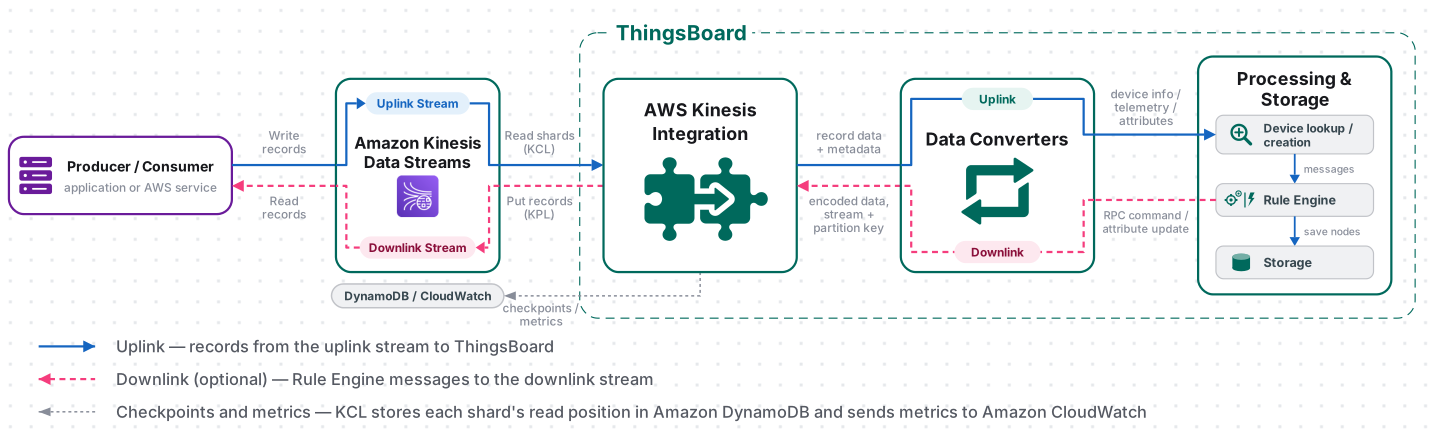
- Receive data. A producer writes a record to the stream. The integration reads each shard and stores its read position (checkpoint) in an Amazon DynamoDB table.
- Decode the payload. The uplink converter receives the record data and its partition key, identifies the device or asset, and extracts attributes and telemetry.
- Process the message. ThingsBoard processes the converted data through the Rule Engine. If Allow create devices or assets is enabled, ThingsBoard creates an entity that does not exist yet.
- Send downlink data (optional). The Rule Engine passes a message to the integration. The downlink converter encodes it and names the target stream and partition key. The integration writes the record with the Kinesis Producer Library (KPL).
Prerequisites
Section titled “Prerequisites”- Access to ThingsBoard Cloud with integrations enabled for your tenant.
- Permission to create integrations and data converters, and to edit rule chains for downlink.
- An AWS account on a paid plan, with permission to create Kinesis data streams, IAM users, and IAM policies. Kinesis Data Streams is not available on the AWS Free plan.
- The AWS CLI version 2, configured with
aws configurefor the Region you use, or AWS CloudShell in the AWS console, where the CLI is already configured for the console Region. This guide uses the CLI to create the streams and send test records.
Prepare AWS Kinesis
Section titled “Prepare AWS Kinesis”Create two streams and an IAM user whose access key the integration uses.
Create the Streams
Section titled “Create the Streams”This guide uses the stream my-thingsboard for uplink and tb-test-downlink for downlink. Create both in the same Region:
aws kinesis create-stream --stream-name my-thingsboard --shard-count 1aws kinesis create-stream --stream-name tb-test-downlink --shard-count 1On success, the commands print nothing. With --shard-count, each stream uses provisioned capacity with one shard.
Wait until both streams are active. Each command returns without output when StreamStatus is ACTIVE, usually within a minute:
aws kinesis wait stream-exists --stream-name my-thingsboardaws kinesis wait stream-exists --stream-name tb-test-downlinkTo check a stream, read its status, capacity mode, and shard count:
aws kinesis describe-stream-summary --stream-name my-thingsboard \ --query 'StreamDescriptionSummary.[StreamStatus,StreamModeDetails.StreamMode,OpenShardCount]'The output lists ACTIVE, PROVISIONED, and 1.
Create IAM Credentials
Section titled “Create IAM Credentials”Besides Kinesis, the integration uses Amazon DynamoDB and Amazon CloudWatch. KCL creates three DynamoDB tables named after the Application name of the integration (by default, the stream name): a lease table with checkpoints, <name>-CoordinatorState, and <name>-WorkerMetricStats. KCL and KPL also publish metrics to CloudWatch.
-
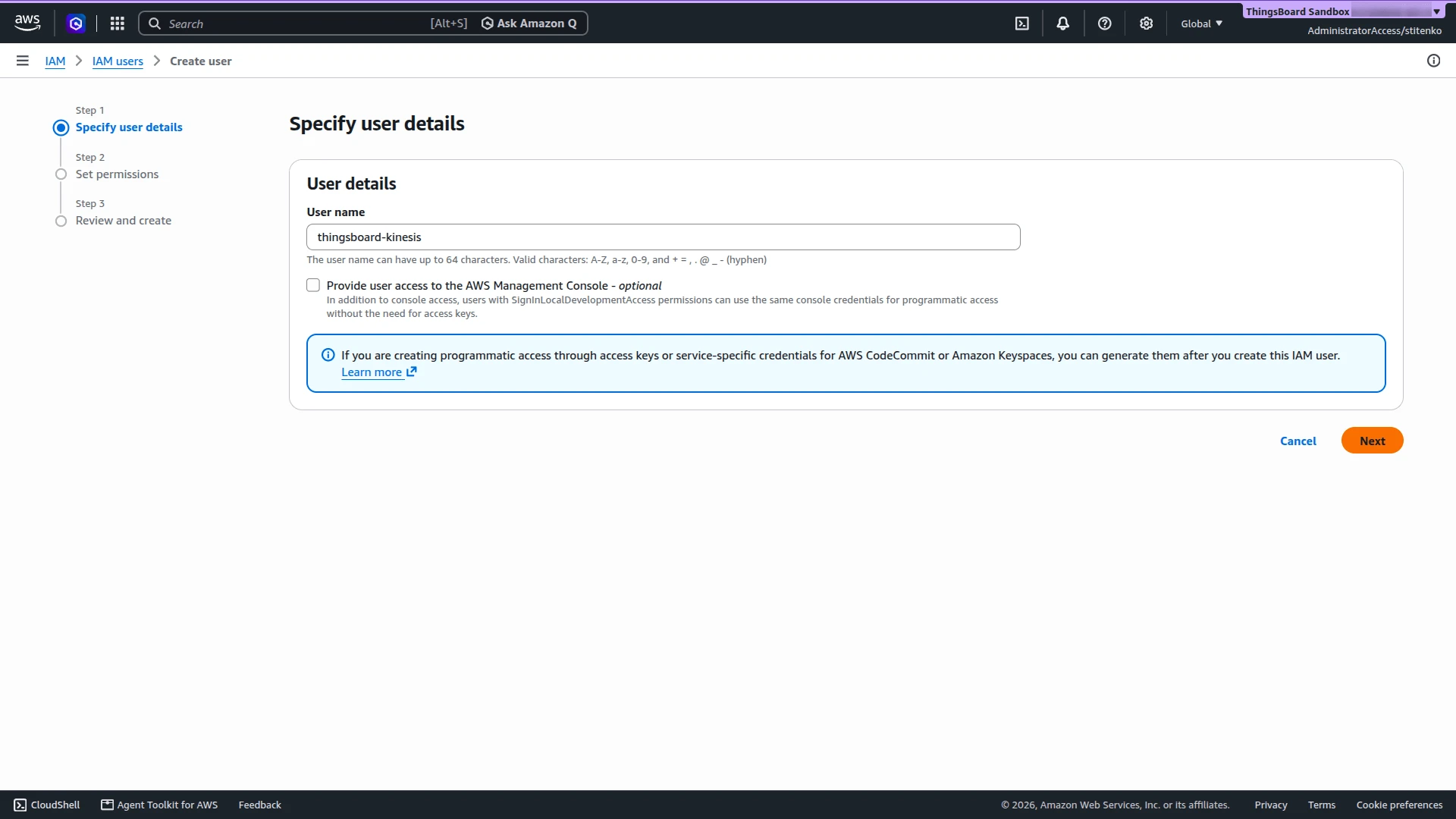
Create the user. In the AWS console, open IAM ⇾ IAM users and click Create user.
- Specify user details — enter a name, for example
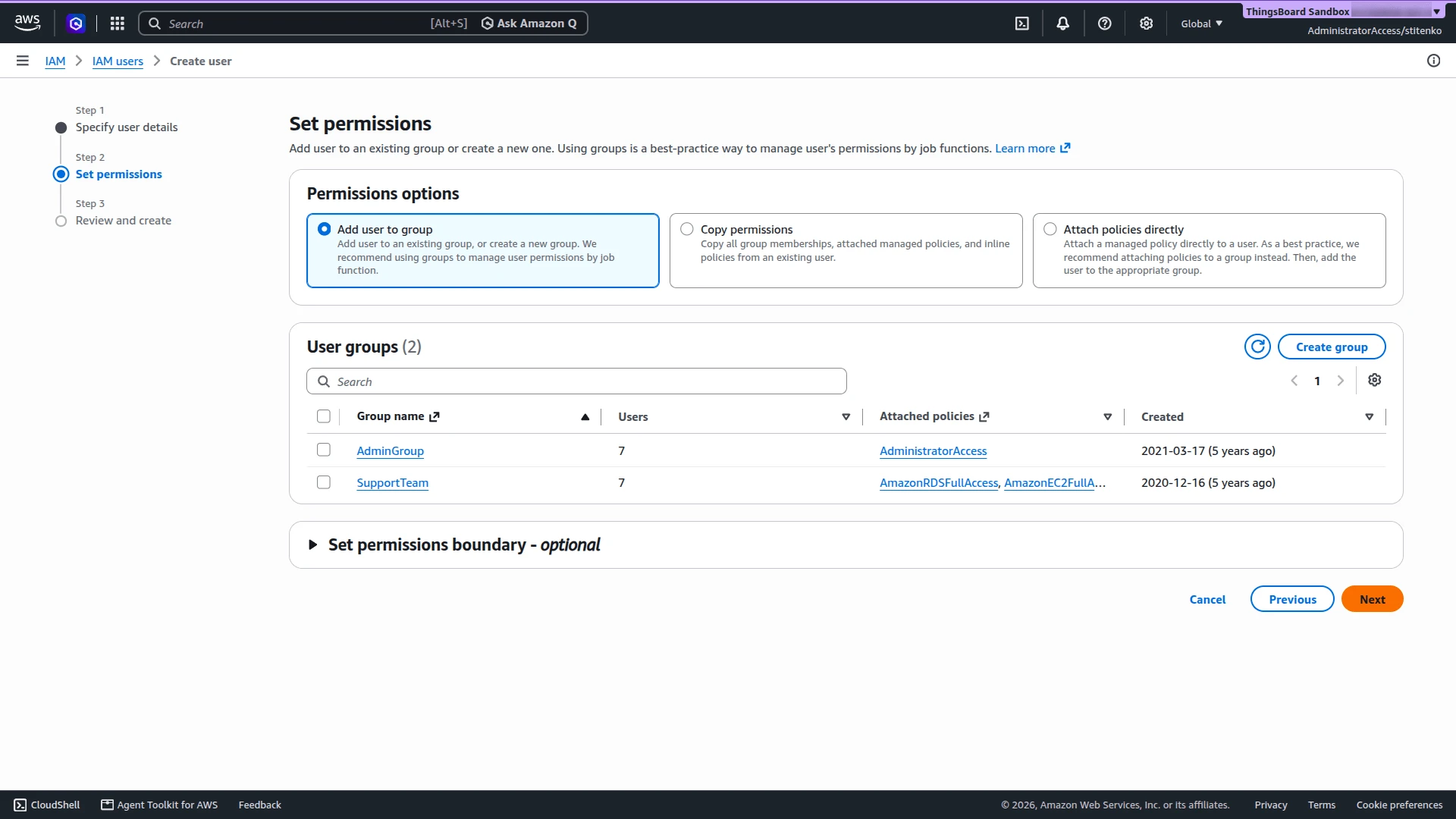
thingsboard-kinesis. Leave Provide user access to the AWS Management Console off: the integration needs only an access key. - Set permissions — select no group and no policy. The user gets only the policy from step 3.
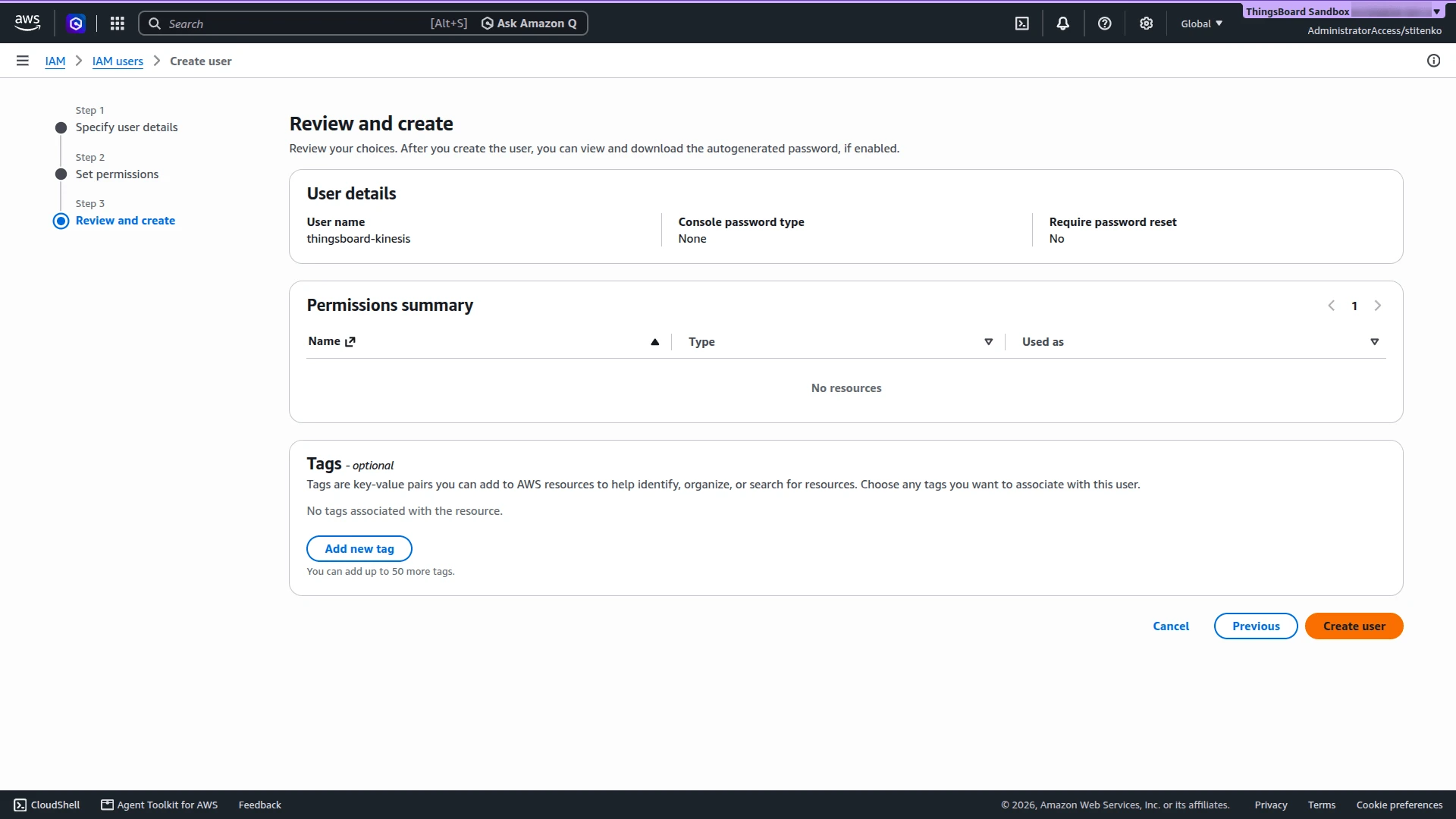
- Review and create — click Create user.
- Specify user details — enter a name, for example
-
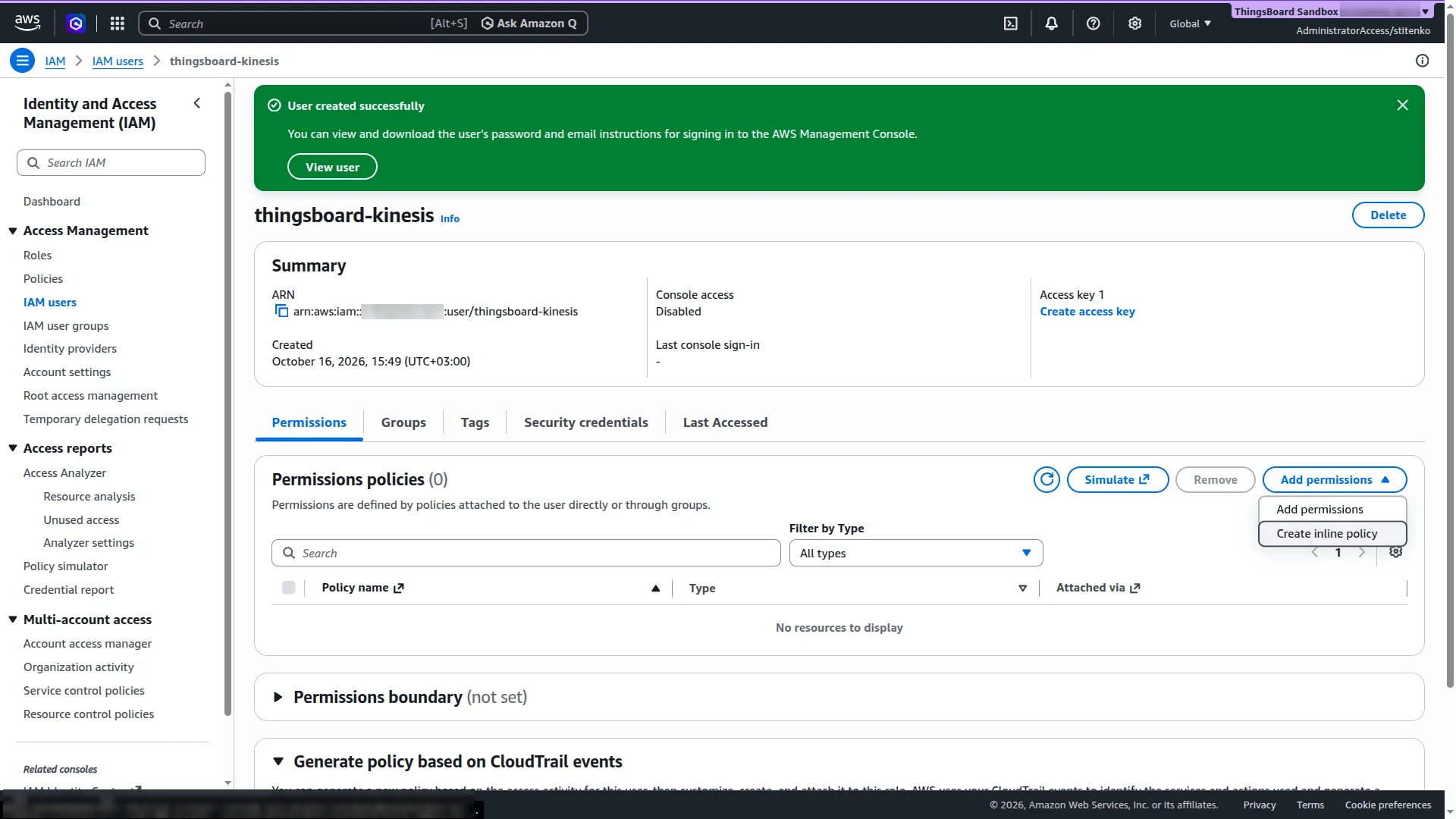
The page of the new user opens. On the Permissions tab, click Add permissions ⇾ Create inline policy.
-
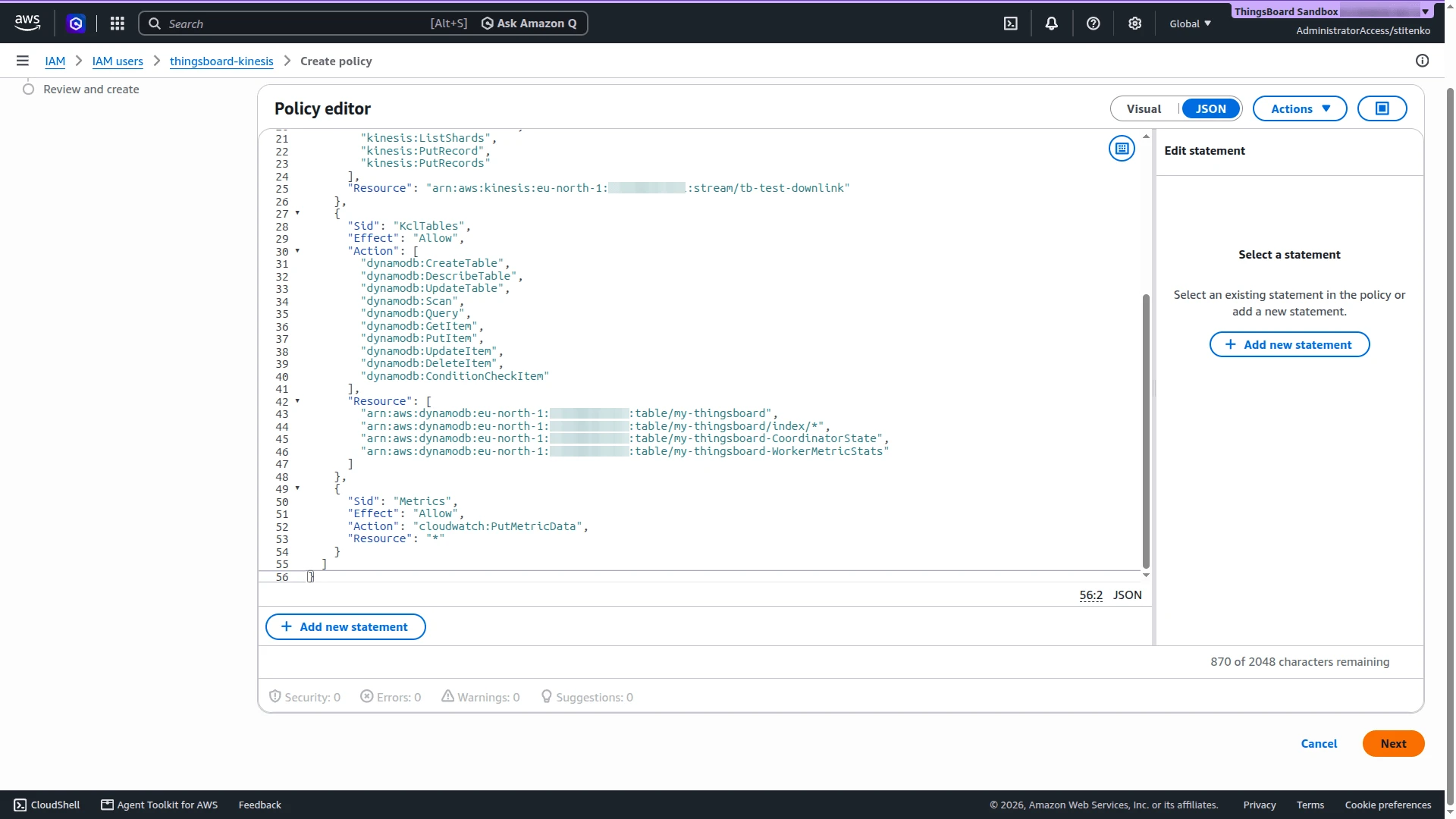
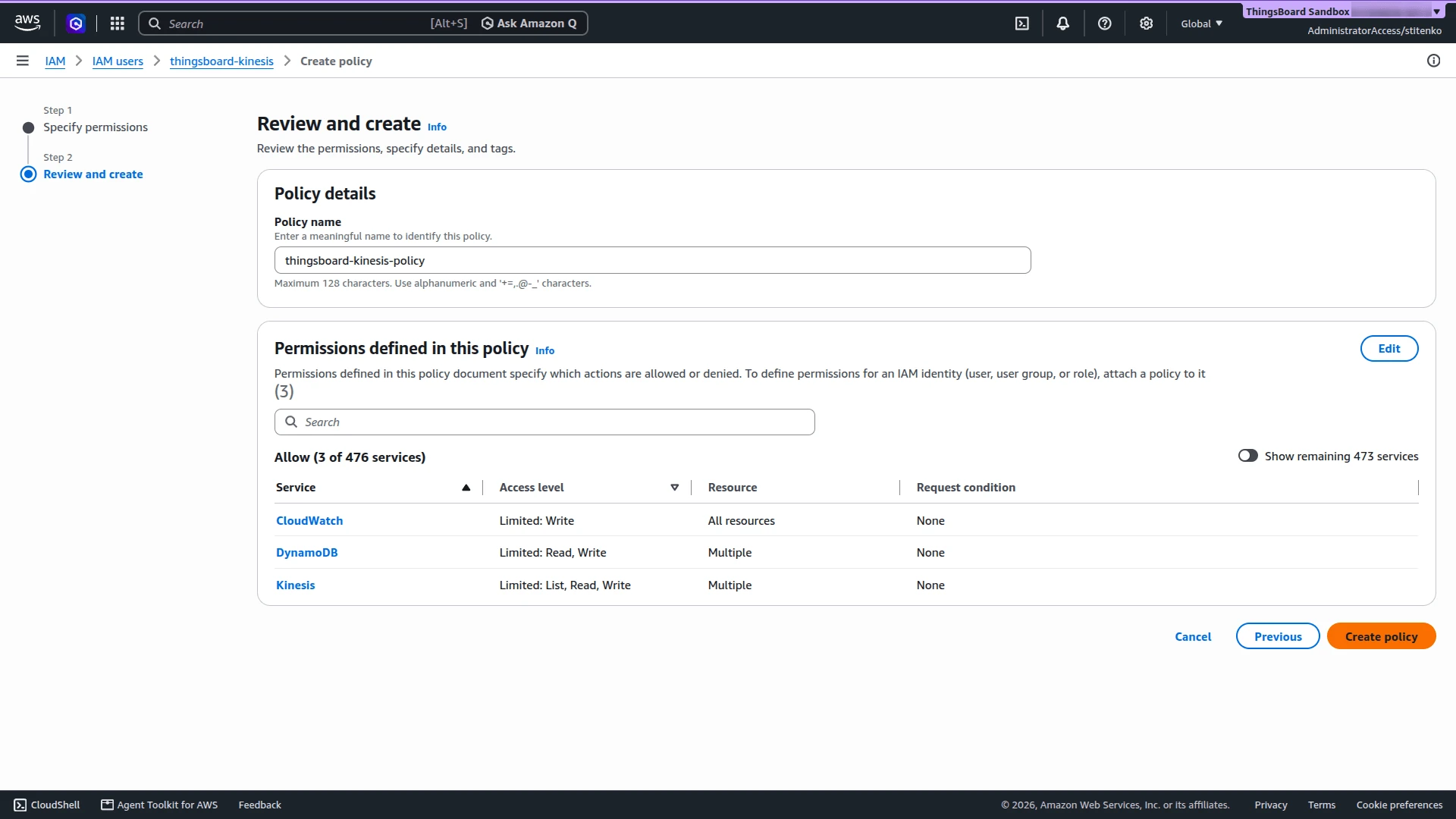
In the Policy editor, switch to JSON and replace the content with the policy below. Replace
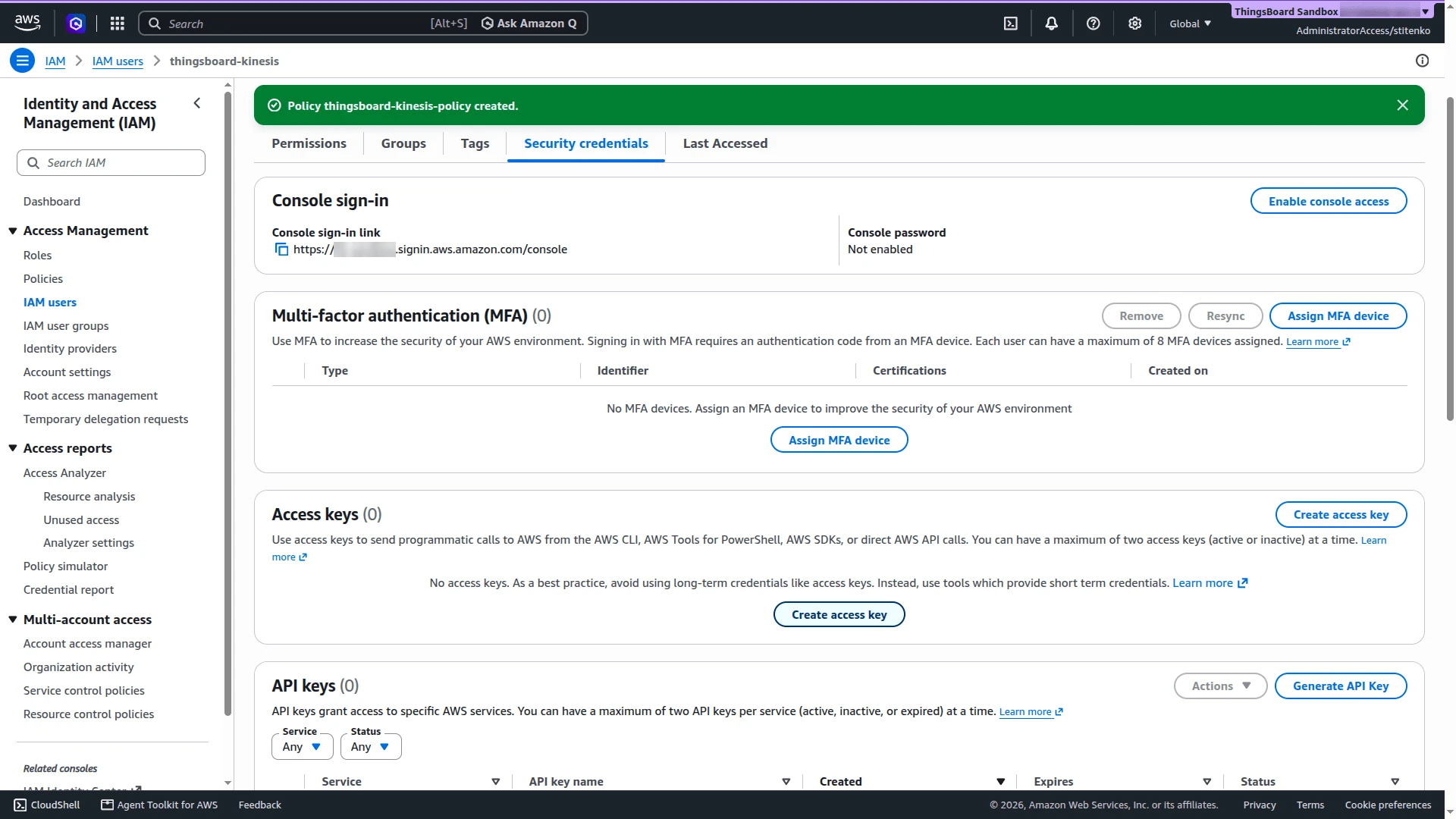
REGIONandACCOUNT_IDwith your Region and AWS account ID. Click Next, enter a Policy name, for examplethingsboard-kinesis-policy, and click Create policy.{"Version": "2012-10-17","Statement": [{"Sid": "ReadUplinkStream","Effect": "Allow","Action": ["kinesis:DescribeStream","kinesis:DescribeStreamSummary","kinesis:GetRecords","kinesis:GetShardIterator","kinesis:ListShards"],"Resource": "arn:aws:kinesis:REGION:ACCOUNT_ID:stream/my-thingsboard"},{"Sid": "WriteDownlinkStream","Effect": "Allow","Action": ["kinesis:DescribeStream","kinesis:ListShards","kinesis:PutRecord","kinesis:PutRecords"],"Resource": "arn:aws:kinesis:REGION:ACCOUNT_ID:stream/tb-test-downlink"},{"Sid": "KclTables","Effect": "Allow","Action": ["dynamodb:CreateTable","dynamodb:DescribeTable","dynamodb:UpdateTable","dynamodb:Scan","dynamodb:Query","dynamodb:GetItem","dynamodb:PutItem","dynamodb:UpdateItem","dynamodb:DeleteItem","dynamodb:ConditionCheckItem"],"Resource": ["arn:aws:dynamodb:REGION:ACCOUNT_ID:table/my-thingsboard","arn:aws:dynamodb:REGION:ACCOUNT_ID:table/my-thingsboard/index/*","arn:aws:dynamodb:REGION:ACCOUNT_ID:table/my-thingsboard-CoordinatorState","arn:aws:dynamodb:REGION:ACCOUNT_ID:table/my-thingsboard-WorkerMetricStats"]},{"Sid": "Metrics","Effect": "Allow","Action": "cloudwatch:PutMetricData","Resource": "*"}]} -
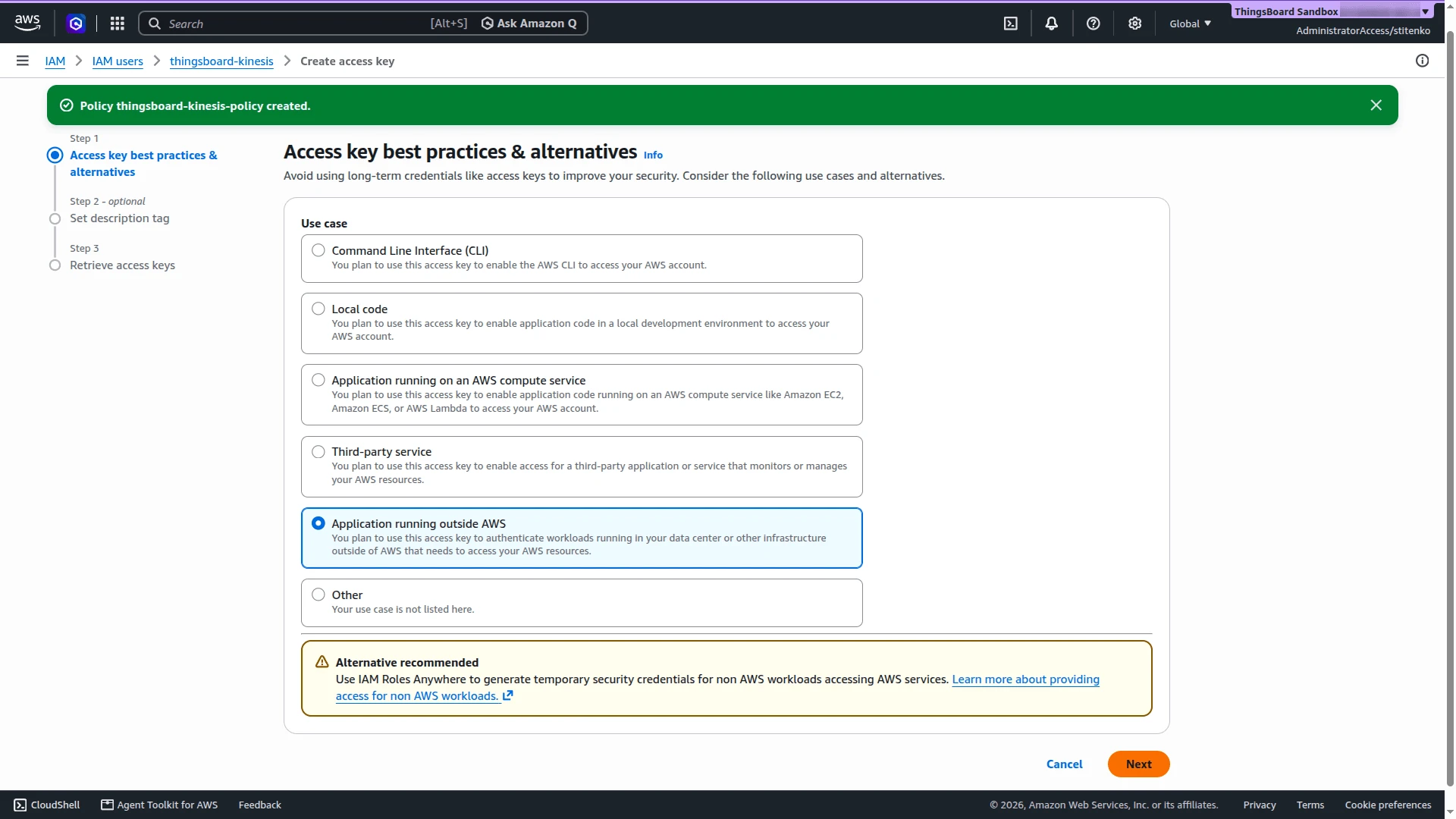
Open the Security credentials tab and click Create access key. Select Application running outside AWS and click Next. AWS recommends temporary credentials instead; the integration needs an access key, so continue.
-
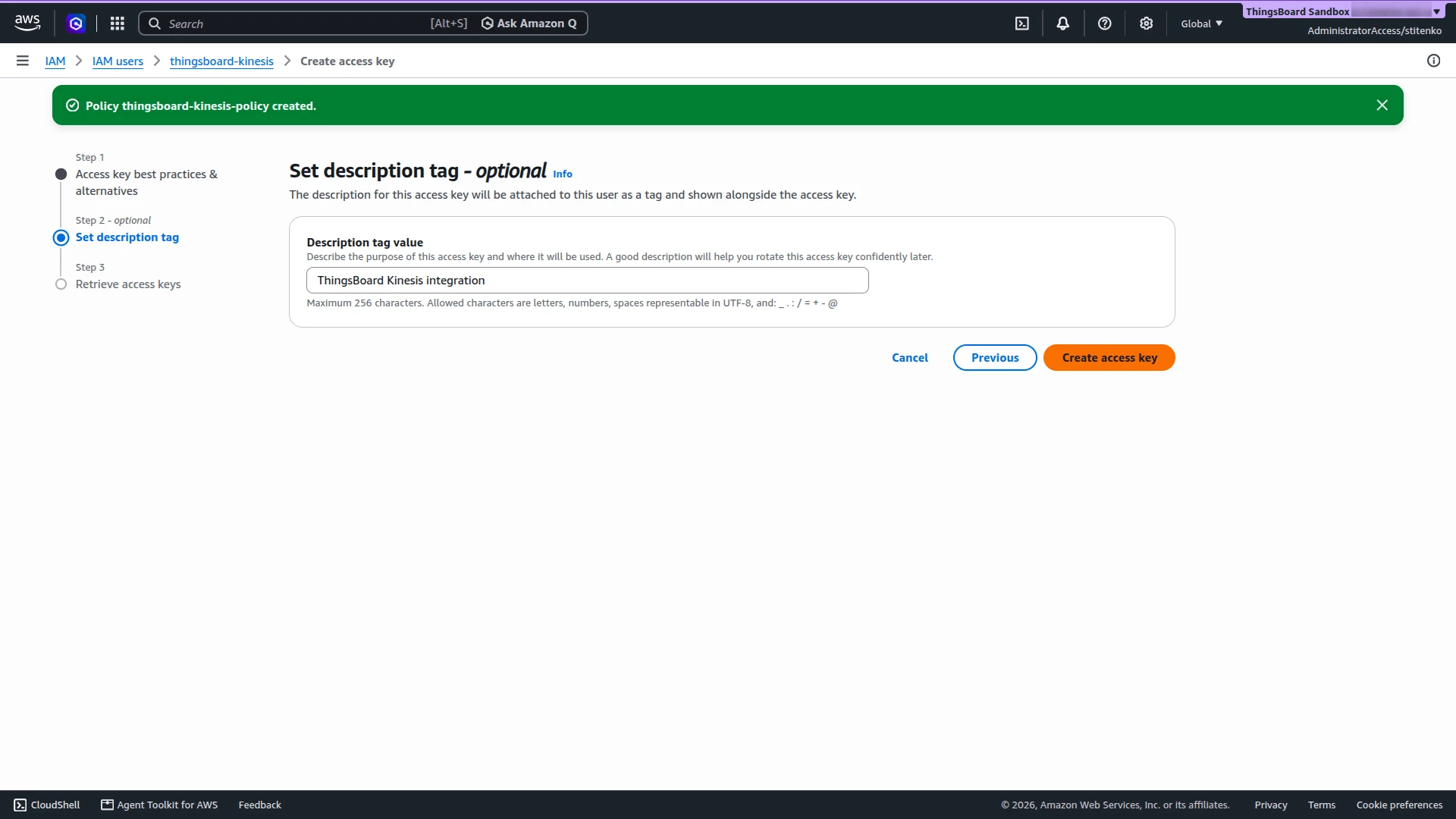
Optionally, enter a Description tag value, for example
ThingsBoard Kinesis integration, and click Create access key. -
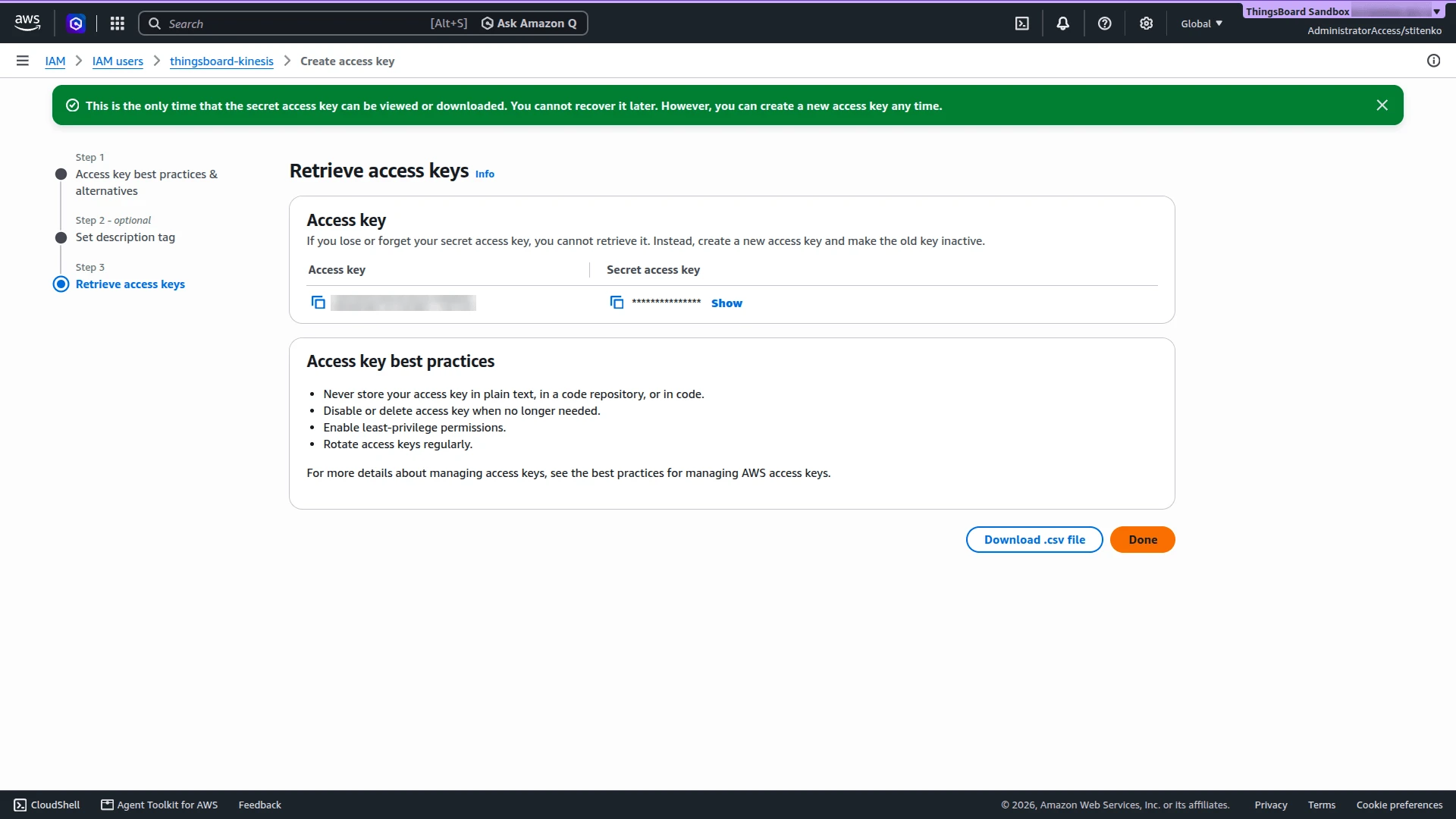
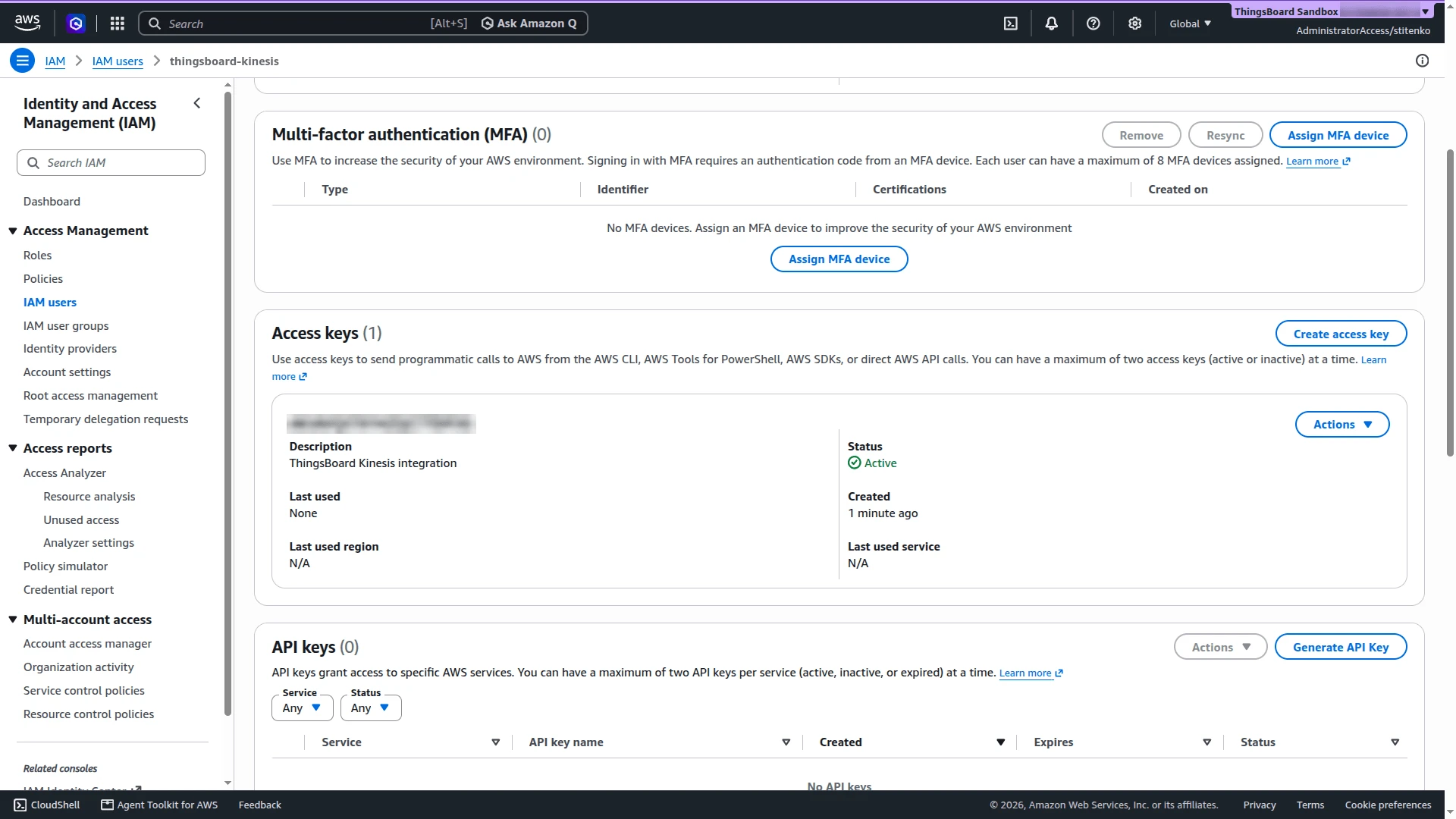
On Retrieve access keys, copy the Access key and the Secret access key, or click Download .csv file. AWS shows the secret only once. Then click Done.
Set Up AWS Kinesis Integration
Section titled “Set Up AWS Kinesis Integration”Create the uplink converter, assign it to a new AWS Kinesis integration, and write a test record.
Create the Uplink Data Converter
Section titled “Create the Uplink Data Converter”The uplink converter receives the data of each record as a byte array, resolves the target device, and returns its telemetry and attributes. AWS Kinesis Integration uses the Generic converter: the decoder is a TBEL or JavaScript script. For converter types and the full decoder reference, see Uplink data converter.
Kinesis does not define a record format. This guide uses the sample record that the Test decoder function dialog provides by default:
{ "deviceName": "Thermometer", "deviceType": "thermostat", "serialNumber": "SN-12345", "temperature": 25.5}-
Go to Integrations ⇾ Data converters and click + Add data converter ⇾ Create new converter.
-
Converter type — keep Uplink.
-
Integration type — select AWS Kinesis.
-
Name — enter a name, for example
AWS Kinesis Uplink Converter. -
Main decoding configuration — the editor opens with the default decoder below. It already handles this record format, so keep it. It takes
deviceNameanddeviceTypefrom the record, the time fromts(milliseconds) ortimestamp(ISO 8601), stores the keys inattributeKeyList(hereserialNumber) as attributes, and stores all other fields as telemetry. When the record has no time field, it uses the server time. The editor opens in TBEL; use the TBEL / JS toggle to switch to JavaScript.// Decode an uplink message from a buffer// payload - array of bytes// metadata - key/value object/** Decoder **/// decode payload to JSONvar data = decodeToJson(payload);// --- Device name and type ---var deviceName = data.deviceName != null ? data.deviceName : 'Unknown Device';var deviceType = data.deviceType != null ? data.deviceType : 'default';// var customerName = 'Customer C';// var groupName = 'thermostat devices';// use assetName and assetType instead of deviceName and deviceType// to automatically create assets instead of devices.// var assetName = 'Asset A';// var assetType = 'building';// --- Timestamp parsing ---var timestamp = -1;if (data.ts != null) {timestamp = data.ts;} else if (data.timestamp != null) {timestamp = new Date(data.timestamp).getTime();}if (timestamp == -1) {timestamp = Date.now();}// --- Telemetry and attributes ---var telemetry = {};// Keys from the payload that should be stored as attributes instead of telemetryvar attributeKeyList = ["serialNumber"];// Add the payload keys that match the attribute key list to attributesvar attributes = {};for (var i = 0; i < attributeKeyList.size(); i++) {var attributeKey = attributeKeyList[i];if (data[attributeKey] != null) {attributes[attributeKey] = data[attributeKey];}}// Keys to exclude from telemetry (device info, attributes and non-telemetry fields)var excludeFromTelemetryList = ["deviceName", "deviceType", "ts", "timestamp"];excludeFromTelemetryList.addAll(attributeKeyList);// Parse all remaining JSON fields as telemetrytelemetry.putAll(toFlatMap(data, excludeFromTelemetryList, true));// Result object with device attributes/telemetry datavar result = {deviceName: deviceName,deviceType: deviceType,// customerName: customerName,// groupName: groupName,// assetName: assetName,// assetType: assetType,};// Add attributes to the result only if at least one matching key was foundif (attributes.size() > 0) {result.put("attributes", attributes);}result.put("telemetry", {ts: timestamp,values: telemetry});/** Helper functions 'decodeToString', 'decodeToJson' and 'toFlatMap' are already built-in **/return result;// Decode an uplink message from a buffer// payload - array of bytes// metadata - key/value object/** Decoder **/// decode payload to JSONvar data = decodeToJson(payload);// --- Device name and type ---var deviceName = data.deviceName != null ? data.deviceName : 'Unknown Device';var deviceType = data.deviceType != null ? data.deviceType : 'default';// var customerName = 'Customer C';// var groupName = 'thermostat devices';// use assetName and assetType instead of deviceName and deviceType// to automatically create assets instead of devices.// var assetName = 'Asset A';// var assetType = 'building';// --- Timestamp parsing ---var timestamp = -1;if (data.ts != null) {timestamp = data.ts;} else if (data.timestamp != null) {timestamp = new Date(data.timestamp).getTime();}if (timestamp == -1) {timestamp = Date.now();}// --- Telemetry and attributes ---var telemetry = {};// Keys from the payload that should be stored as attributes instead of telemetryvar attributeKeyList = ["serialNumber"];// Add the payload keys that match the attribute key list to attributesvar attributes = {};for (var i = 0; i < attributeKeyList.length; i++) {var attributeKey = attributeKeyList[i];if (data[attributeKey] != null) {attributes[attributeKey] = data[attributeKey];}}// Keys to exclude from telemetry (device info, attributes and non-telemetry fields)var excludeFromTelemetryList = ["deviceName", "deviceType", "ts", "timestamp"].concat(attributeKeyList);// Parse all remaining JSON fields as telemetrytoFlatMap(data, telemetry, excludeFromTelemetryList);// Result object with device attributes/telemetry datavar result = {deviceName: deviceName,deviceType: deviceType,// customerName: customerName,// groupName: groupName,// assetName: assetName,// assetType: assetType,};// Add attributes to the result only if at least one matching key was foundif (Object.keys(attributes).length > 0) {result.attributes = attributes;}result.telemetry = {ts: timestamp,values: telemetry};/** Helper functions **/function decodeToString(payload) {return String.fromCharCode.apply(String, payload);}function decodeToJson(payload) {var str = decodeToString(payload);return JSON.parse(str);}function toFlatMap(obj, result, excludeList, prefix) {prefix = prefix || '';for (var key in obj) {if (excludeList.indexOf(key) !== -1) continue;var value = obj[key];var fullKey = prefix ? prefix + '.' + key : key;if (typeof value === 'object' && value !== null && !Array.isArray(value)) {toFlatMap(value, result, excludeList, fullKey);} else {result[fullKey] = value;}}}return result;To adapt:
- Device name in another field — replace
data.deviceNameanddata.deviceType, for example withdata.deviceId. - Device name from the partition key — if producers use the device ID as the partition key, use
metadata.partitionKey. - Other device properties — add their keys to
attributeKeyList, for examplefirmwareVersion. - Assets instead of devices — uncomment
assetNameandassetTypeand use them instead ofdeviceNameanddeviceType. - Customer or group — uncomment
customerNameorgroupNameto assign the device to a customer or an entity group.
- Device name in another field — replace
-
Click Test decoder function and check the result (see Test the Decoder).
-
Click Add.
Decoder Inputs
The decoder signature is function decoder(payload, metadata): object | object[].
| Variable | Type | Content |
|---|---|---|
payload |
byte array | The record data, exactly as the producer wrote it. The AWS CLI and SDKs Base64-encode data only in transit; the decoder receives the original bytes. |
metadata |
{[key: string]: string} |
partitionKey and sequenceNumber of the record. Also integrationName and the key–value pairs from the integration’s Metadata field. |
For field renaming, nested values, and non-JSON payloads, see Common scripting patterns.
Test the Decoder
Click Test decoder function below the editor. The Payload already holds the sample record. Click Test. The Output panel shows:
{ "deviceName": "Thermometer", "deviceType": "thermostat", "attributes": { "serialNumber": "SN-12345" }, "telemetry": { "ts": 1792072084561, "values": { "temperature": 25.5 } }}The record has no time field, so ts is the time of the test.
Create the Integration
Section titled “Create the Integration”- Go to Integrations ⇾ Integrations and click + Add integration.
- Basic settings:
- Integration type — select AWS Kinesis.
- Name — enter a name, for example
AWS Kinesis integration. - Enable integration and Allow create devices or assets — keep both on, so the device is created on its first record.
- Click Next.
- Uplink data converter:
- Click Select existing and choose
AWS Kinesis Uplink Converter. - Alternatively, click Create new to write a decoder here.
- Click Next.
- Click Select existing and choose
- Downlink data converter:
- Click Skip. Add a downlink converter later if you need to write records to a stream.
- Connection:
- Stream name —
my-thingsboard. - Region — the code of the Region where you created the streams, for example
eu-north-1. - Initial position in stream — select Latest.
- Access Key Id and Secret Access Key — paste the access key of the IAM user.
- Leave the other parameters at their defaults. See Connection Settings for details.
- Stream name —
- Click Add.
Connection Settings
Section titled “Connection Settings”| Parameter | Description |
|---|---|
| Stream name | Stream the integration reads. Required. |
| Region | AWS Region code of the stream, for example eu-north-1, not the Region name shown in the console. Required. The DynamoDB tables, CloudWatch metrics, and downlink stream use the same Region. |
| Initial position in stream | Where to start reading a shard that has no checkpoint yet. Required. Latest reads only records written after the integration starts. Trim horizon reads from the oldest record still retained in the stream. At timestamp is not supported: the integration fails to start with Invalid InitialPosition: AT_TIMESTAMP. |
| Use credentials from the Amazon EC2 Instance Metadata Service | Takes credentials from the IAM role of the EC2 instance that runs ThingsBoard or the remote integration. Hides Access Key Id and Secret Access Key. Off by default. |
| Access Key Id and Secret Access Key | Access key of the IAM user. Required unless the previous option is on. |
| Use Consumers with Enhanced Fan-Out | Reads through an enhanced fan-out consumer with dedicated read throughput, at extra AWS cost. Off by default, so the integration polls the shards. Turning it on hides Max records and Request timeout in seconds. |
| Max records | Polling only. Maximum number of records per GetRecords request, 1–10000. Default: 10000. |
| Request timeout in seconds | Polling only. Timeout of a GetRecords request. Default: 30. |
| Execute remotely | Runs the integration as a separate process outside the ThingsBoard cluster. ThingsBoard generates an Integration key and Integration secret for it. See Remote Integration. |
Advanced settings
| Parameter | Default | Description |
|---|---|---|
| Application name | Stream name | KCL application name. It names the DynamoDB tables that keep the checkpoints. Integrations with the same name share these tables and split the shards between them; use different names for integrations that must each read every record. |
| Description | — | Free-text description. |
| Metadata | — | Key–value pairs added to the metadata of every message from this integration. |
Test Uplink
Section titled “Test Uplink”Write a record to the stream, then confirm that ThingsBoard decoded it and created the device.
Send a Test Uplink
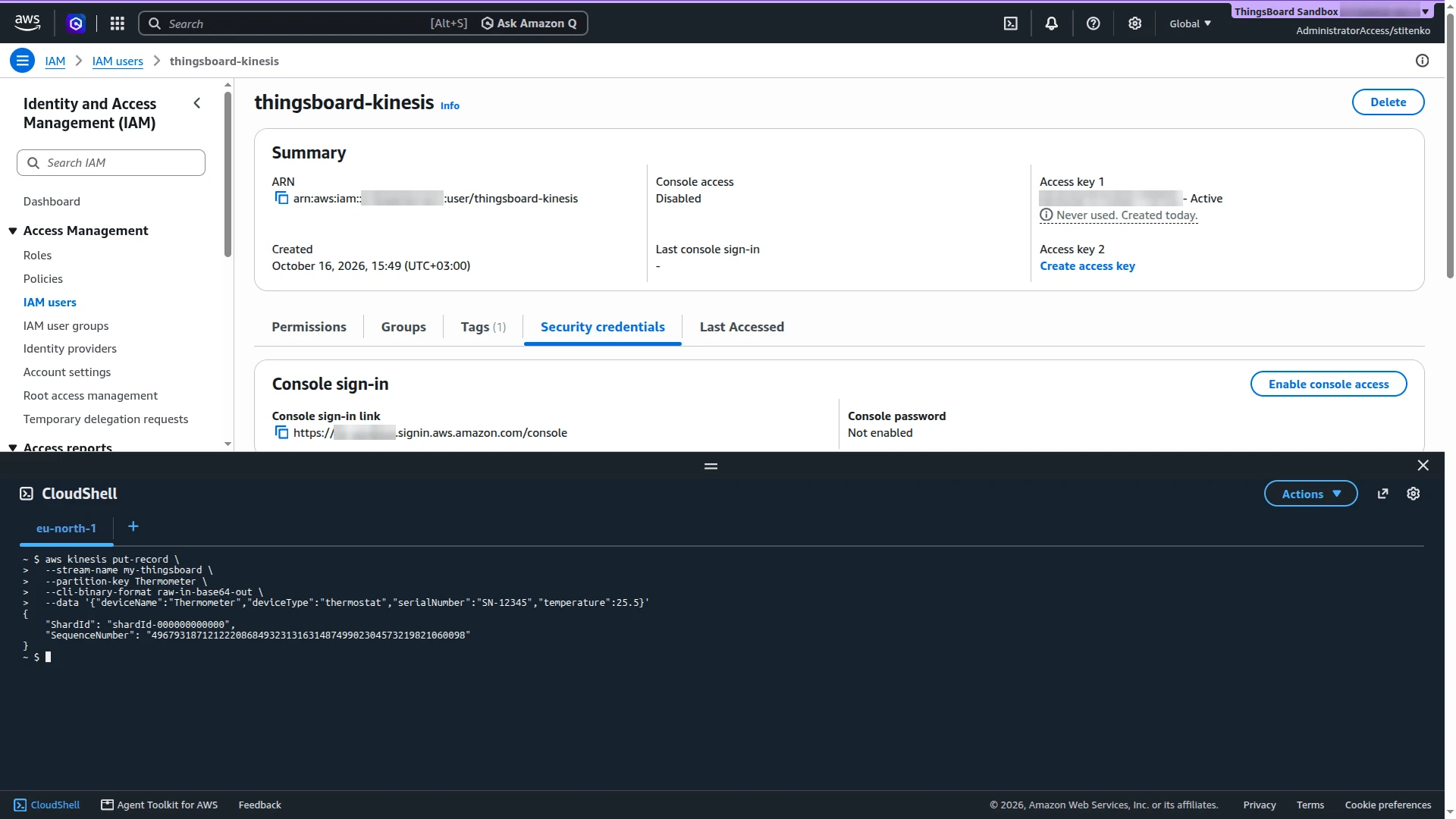
Section titled “Send a Test Uplink”Run aws kinesis put-record. The --cli-binary-format raw-in-base64-out option makes AWS CLI version 2 send --data as plain text:
aws kinesis put-record \ --stream-name my-thingsboard \ --partition-key Thermometer \ --cli-binary-format raw-in-base64-out \ --data '{"deviceName":"Thermometer","deviceType":"thermostat","serialNumber":"SN-12345","temperature":25.5}'The command prints the ShardId and SequenceNumber of the new record. The integration reads it within a few seconds.
With Latest, the integration skips records written before it started reading. Write the record after the integration is created. If no uplink arrives, write the record again.
Verify the Result
Section titled “Verify the Result”- Integration events — go to Integrations ⇾ Integrations, open the integration, and click the Events tab. The uplink appears with status OK. Click
⋅⋅⋅in the Message column to see the shard ID, sequence number, partition key, and payload. - Converter events — open
AWS Kinesis Uplink Converterin Integrations ⇾ Data converters and click the Events tab. In shows the record data, Out shows the decoded result, and Metadata shows the partition key, sequence number, and integration name. - Device — go to Devices & assets ⇾ Devices. The integration has created Thermometer with type thermostat. Open it and check
temperature=25.5on the Latest telemetry tab andserialNumberon the Attributes tab.
Configure Downlink
Section titled “Configure Downlink”ThingsBoard writes a downlink record when the Rule Engine routes a message to the integration — for example, after a shared attribute update. The target stream and partition key come from streamName and partitionKey in the downlink converter’s output metadata. The stream must be in the integration’s Region.
The downlink converter turns a Rule Engine message into a Kinesis record. For the full encoder reference, see Downlink data converter.
Create and Assign the Downlink Converter
Section titled “Create and Assign the Downlink Converter”Add a downlink converter to the integration. The encoder returns:
| Field | Required | Description |
|---|---|---|
contentType |
Yes | JSON, TEXT, or BINARY (a Base64-encoded string). |
data |
Yes | Record data. |
metadata.streamName |
Yes | Target stream. |
metadata.partitionKey |
Yes | Partition key. Records with the same key go to the same shard, in order. |
- Open the integration in Integrations ⇾ Integrations and click Toggle edit mode (pencil icon).
- In the Downlink data converter field, click Create new. The Downlink converter type and AWS Kinesis integration type are preselected.
- Enter a name, for example
AWS Kinesis Downlink Converter. - In Main encoding configuration, replace the default encoder with the one below.
- To record downlink events, click the debug icon next to the name, select All messages, and click Apply.
- Click Add, then Apply changes.
Encoder used in this guide (TBEL and JavaScript):
/** Encoder **/
// Write the Rule Engine message data as the record data.var result = {    contentType: "JSON",    data: JSON.stringify(msg),    metadata: {        // Target stream.        streamName: "tb-test-downlink",        // One partition key per device keeps its records in order.        // The originator fields node adds deviceName to the metadata.        partitionKey: metadata.deviceName    }};
return result;
To adapt:
- Other stream — change
streamName. The IAM policy must allowkinesis:PutRecordson that stream. - Selected fields — build
datafrom the fields you need, for exampleJSON.stringify({ interval: msg.temperatureUploadFrequency }). - Other message types — branch on
msgType, for exampleRPC_CALL_FROM_SERVER_TO_DEVICE.
Configure the Root Rule Chain
Section titled “Configure the Root Rule Chain”Attribute update messages carry no device name in their metadata. An originator fields node adds it, so the encoder can use it as the partition key.
- Go to Data processing ⇾ Rule chains and open the Root Rule Chain.
- From the Enrichment section, drag an originator fields node onto the canvas. Enter a Name (for example,
Add device name). Under Originator fields mapping, map Name to the target keydeviceName. Keep Add mapped originator fields to set to Metadata, and click Add. - From the Action section, drag an integration downlink node onto the canvas. Enter a Name (for example,
Downlink to AWS Kinesis), select your AWS Kinesis integration, and click Add. - Connect the message type switch node to the originator fields node with the Attributes Updated relation.
- Connect the originator fields node to the integration downlink node with the Success relation.
- Click Apply changes.
Test Downlink
Section titled “Test Downlink”- Go to Devices & assets ⇾ Devices, open Thermometer, and select the Attributes tab.
- Select Shared attributes and click +.
- Set Key to
temperatureUploadFrequency, Type to Integer, Value to60, and click Add. ThingsBoard writes the downlink record.
Verify the Downlink
Section titled “Verify the Downlink”-
Converter events — open the downlink converter’s Events tab. In shows the Rule Engine message, and Out shows the encoded data with
streamNameandpartitionKey=Thermometerinmetadata. -
Integration events — the integration’s Events tab shows a Downlink event with the stream name, partition key, and payload.
-
AWS — read the downlink stream from its oldest record. The command gets a shard iterator and passes it to
get-records:Terminal window ITER=$(aws kinesis get-shard-iterator \--stream-name tb-test-downlink \--shard-id shardId-000000000000 \--shard-iterator-type TRIM_HORIZON \--query ShardIterator --output text)aws kinesis get-records --shard-iterator "$ITER"A shard iterator expires after 5 minutes. If
Recordsis empty, runaws kinesis get-records --shard-iteratorwith the returnedNextShardIteratoruntil the record appears. The record hasPartitionKey=Thermometerand Base64-encodedData:{"Records": [{"SequenceNumber": "49679318713549456377638275380422332354075930242739863554","ApproximateArrivalTimestamp": "2026-10-16T14:28:39.979000+00:00","Data": "eyJ0ZW1wZXJhdHVyZVVwbG9hZEZyZXF1ZW5jeSI6NjB9","PartitionKey": "Thermometer"}],"MillisBehindLatest": 0}Decode
Datato get the payload{"temperatureUploadFrequency":60}:Terminal window echo 'eyJ0ZW1wZXJhdHVyZVVwbG9hZEZyZXF1ZW5jeSI6NjB9' | base64 --decode
Clean Up
Section titled “Clean Up”Delete the test resources when you finish, because AWS bills the streams for every shard-hour.
-
In ThingsBoard, turn off Enable integration for the integration, or delete it. A running integration creates the DynamoDB tables again.
-
Delete the streams and the DynamoDB tables. Use your Application name instead of
my-thingsboardin the table names if you set one.Terminal window aws kinesis delete-stream --stream-name my-thingsboardaws kinesis delete-stream --stream-name tb-test-downlinkaws dynamodb delete-table --table-name my-thingsboardaws dynamodb delete-table --table-name my-thingsboard-CoordinatorStateaws dynamodb delete-table --table-name my-thingsboard-WorkerMetricStats -
Delete the IAM user. Its access keys and inline policy go first:
Terminal window for k in $(aws iam list-access-keys --user-name thingsboard-kinesis \--query 'AccessKeyMetadata[].AccessKeyId' --output text); doaws iam delete-access-key --user-name thingsboard-kinesis --access-key-id "$k"doneaws iam delete-user-policy --user-name thingsboard-kinesis --policy-name thingsboard-kinesis-policyaws iam delete-user --user-name thingsboard-kinesis -
Check that nothing is left.
list-streamsandlist-tablesprint[], andget-userfails withNoSuchEntity:Terminal window aws kinesis list-streams --query 'StreamNames'aws dynamodb list-tables --query 'TableNames'aws iam get-user --user-name thingsboard-kinesis
Troubleshooting
Section titled “Troubleshooting”| Symptom | Cause | Fix |
|---|---|---|
| No uplinks and no errors | The stream name or Region is wrong, or the record was written before the integration started with Latest. | Check Stream name and Region. Write a new record. |
Integration does not start, Invalid InitialPosition: AT_TIMESTAMP |
At timestamp is selected. | Select Latest or Trim horizon. |
AccessDeniedException in the logs or events |
The IAM policy lacks a Kinesis, DynamoDB, or CloudWatch action. | Compare the policy with Create IAM Credentials. Check the table names when you use a custom Application name. |
| Old records are not read after switching to Trim horizon | Checkpoints from the earlier run already exist. | Set a new Application name. |
| Only some records arrive | Another integration or KCL application with the same Application name reads the stream and takes some shards. | Give each integration its own Application name. |
| Records processed twice after a restart | The integration saves checkpoints on a graceful stop. After an unexpected stop, it resumes from the last saved checkpoint. | Deduplicate in the Rule Engine where it matters, for example by sequenceNumber. |
| Decoder error | The record data is not valid JSON. | Open the converter’s Events tab and check In. Adapt the decoder to the producer’s format. |
| Device not created | Allow create devices or assets is off. | Turn the option on in the integration. |
| Device named Unknown Device appears | The record has no deviceName field, so the decoder uses its default name. |
Read the device name from your field in the decoder. See To adapt in Create the Uplink Data Converter. |
Downlink record has partition key null or ${partitionKey} |
The message metadata has no deviceName, so this guide’s encoder sets partitionKey to null (TBEL) or omits it (JavaScript, the placeholder is not replaced). The same applies to streamName. |
Add the originator fields node from Configure the Root Rule Chain, or set both keys in the encoder. |
| Downlink not written | The rule chain does not reach the integration downlink node, or the IAM policy denies kinesis:PutRecords on the target stream. |
Check the Attributes Updated and Success relations and the policy. |
To read debug events, open the integration or converter, click Events, and select an event: In is the received data, Out is the converter result, and Error holds the error text.
See Also
Section titled “See Also”- Integrations overview — how integrations, converters, uplinks, and downlinks fit together.
- Uplink data converter — decoder inputs, output format, and scripting patterns.
- Downlink data converter — encoder reference.
- AWS SQS Integration — read messages from an Amazon SQS queue.
- Remote Integration — run the integration outside the ThingsBoard cluster.
- Integration downlink node — forward Rule Engine messages to an integration.
- TBEL — built-in functions and syntax for converter scripts.
- Kinesis Client Library — leases, checkpoints, and DynamoDB tables.
Was this helpful?