MQTT Integration
MQTT Integration connects ThingsBoard to an external MQTT broker as a client. It subscribes to the topics you configure, and an uplink data converter transforms each message into device or asset data, including telemetry and attributes. ThingsBoard can also publish downlink messages to the broker for devices to consume.
Use MQTT Integration when:
- Devices already publish to an existing broker (Mosquitto, HiveMQ, EMQX, and others) and you want their data in ThingsBoard without changing the firmware.
- The device name or type is encoded in the topic path rather than in the payload.
- Devices send a custom payload format that must be converted before ThingsBoard processes it.
- You need to send commands to devices through the same broker.
Architecture
Section titled “Architecture”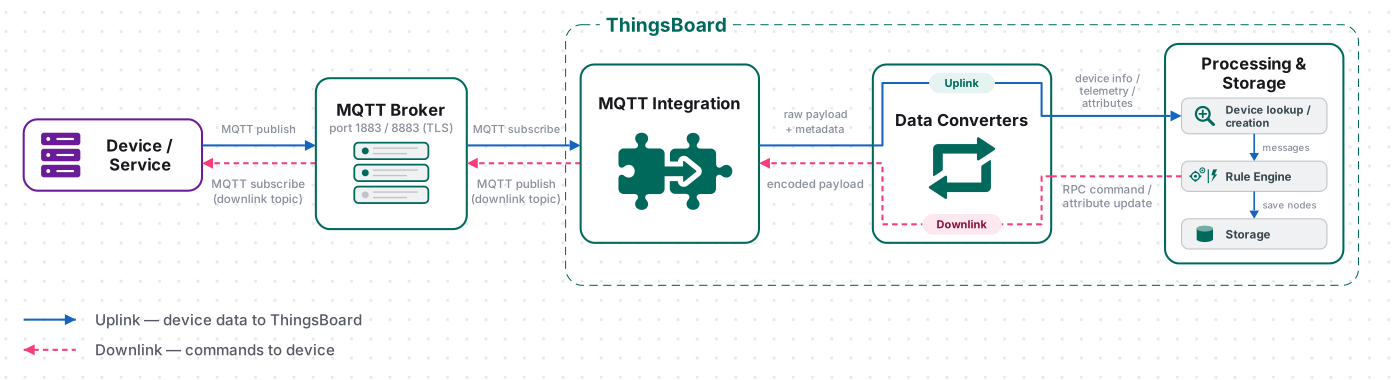
- Receive data. A device publishes a message to the broker. The integration is subscribed to that topic and receives the message.
- Decode the payload. The uplink converter uses the payload and topic to identify the device or asset and extract attributes and telemetry.
- Process the message. ThingsBoard processes the converted data through the Rule Engine. If Allow create devices or assets is enabled, ThingsBoard can create an entity that does not exist yet.
- Send downlink data (optional). The Rule Engine passes a message to the integration. The downlink converter encodes it, and the integration publishes it to the broker on the downlink topic.
Prerequisites
Section titled “Prerequisites”- Access to ThingsBoard Cloud with integrations enabled for your tenant.
- Permission to create integrations and data converters.
- The broker host, port, and credentials.
- The topics your devices publish to, and a sample payload.
Set Up MQTT Integration
Section titled “Set Up MQTT Integration”Create the uplink converter, assign it to a new MQTT integration, and publish a test message.
Create the Uplink Data Converter
Section titled “Create the Uplink Data Converter”The uplink converter receives each MQTT message as a byte array plus its topic, resolves the target device, and returns its telemetry and attributes. MQTT Integration uses the Generic converter: you write the decoder in TBEL or JavaScript. For converter types and the full decoder reference, see Uplink data converter.
- Go to Integrations ⇾ Data converters and click + Add data converter ⇾ Create new converter.
- Converter type — keep Uplink.
- Integration type — select MQTT.
- Name — enter a name, for example
MQTT Uplink Converter. To record converter events, click Failures next to the name, select All messages, and click Apply. - Main decoding configuration — the editor is pre-filled with the default MQTT decoder template. Use it as a starting point and, if needed, adapt it to your device. The editor opens in TBEL; use the TBEL / JS toggle to switch to JavaScript.
// Decode an uplink message from a buffer// payload - array of bytes// metadata - key/value object/** Decoder **/// decode payload to JSONvar data = decodeToJson(payload);// --- MQTT topic configuration ---// Supported MQTT topic formats:// tb/devices/{deviceType}/{deviceName}// tb/devices/{deviceType}/{deviceName}/telemetry// tb/sensors/{deviceType}/{deviceName}// tb/sensors/{deviceType}/{deviceName}/telemetry//// Adjust these prefixes to match your MQTT topic layout.// Each prefix must consist of exactly two topic levels, e.g. "factory/devices":// {prefix}/{deviceType}/{deviceName}[/telemetry]var topicPrefixes = ["tb/devices", "tb/sensors"];// --- Device name and type ---var topicParts = metadata != null && metadata['topic'] != null? metadata['topic'].split('/'): null;// Validate the supported topic structure.var validTopic = topicParts != null &&(topicParts.length == 4 || topicParts.length == 5) &&topicPrefixes.indexOf(topicParts[0] + "/" + topicParts[1]) >= 0 &&topicParts[2] != '' &&topicParts[3] != '' &&(topicParts.length == 4 || topicParts[4] == 'telemetry');// Prefer device information from the payload.// Otherwise, extract it from the MQTT topic.// If neither provides deviceType, it falls back to 'default'.var deviceName = data.deviceName != null &&data.deviceName.toString().trim() != ''? data.deviceName: (validTopic ? topicParts[3] : null);var deviceType = data.deviceType != null &&data.deviceType.toString().trim() != ''? data.deviceType: (validTopic ? topicParts[2] : 'default');// Reject messages without a valid device name.if (deviceName == null || deviceName.toString().trim() == '') {raiseError("Device name is missing. Provide deviceName in the payload or use a supported MQTT topic format.");}// var customerName = 'Customer C';// var groupName = 'thermostat devices';// use assetName and assetType instead of deviceName and deviceType// to automatically create assets instead of devices.// var assetName = 'Asset A';// var assetType = 'building';// --- Timestamp parsing ---// ts - Unix time in milliseconds (seconds are not converted).// timestamp - ISO 8601 string, used only when ts is missing.// If neither is provided, the current time is used.var timestamp = -1;if (data.ts != null) {timestamp = data.ts;} else if (data.timestamp != null) {timestamp = new Date(data.timestamp).getTime();}if (timestamp == -1) {timestamp = Date.now();}// --- Telemetry and attributes ---var telemetry = {};// Keys from the payload that should be stored as attributes instead of telemetryvar attributeKeyList = ["serialNumber"];// Add the payload keys that match the attribute key list to attributesvar attributes = {};for (var i = 0; i < attributeKeyList.size(); i++) {var attributeKey = attributeKeyList[i];if (data[attributeKey] != null) {attributes[attributeKey] = data[attributeKey];}}// Keys to exclude from telemetry (device info, attributes and non-telemetry fields)var excludeFromTelemetryList = ["deviceName", "deviceType", "ts", "timestamp"];excludeFromTelemetryList.addAll(attributeKeyList);// Parse all remaining JSON fields as telemetrytelemetry.putAll(toFlatMap(data, excludeFromTelemetryList, true));// Result object with device attributes/telemetry datavar result = {deviceName: deviceName,deviceType: deviceType,// customerName: customerName,// groupName: groupName,// assetName: assetName,// assetType: assetType,};// Add attributes to the result only if at least one matching key was foundif (attributes.size() > 0) {result.put("attributes", attributes);}result.put("telemetry", {ts: timestamp,values: telemetry});/** Helper functions 'decodeToString', 'decodeToJson' and 'toFlatMap' are already built-in **/return result;// Decode an uplink message from a buffer// payload - array of bytes// metadata - key/value object/** Decoder **/// decode payload to JSONvar data = decodeToJson(payload);// --- MQTT topic configuration ---// Supported MQTT topic formats:// tb/devices/{deviceType}/{deviceName}// tb/devices/{deviceType}/{deviceName}/telemetry// tb/sensors/{deviceType}/{deviceName}// tb/sensors/{deviceType}/{deviceName}/telemetry//// Adjust these prefixes to match your MQTT topic layout.// Each prefix must consist of exactly two topic levels, e.g. "factory/devices":// {prefix}/{deviceType}/{deviceName}[/telemetry]var topicPrefixes = ["tb/devices", "tb/sensors"];// --- Device name and type ---var topic = metadata != null ? metadata['topic'] : null;var topicParts = typeof topic === 'string'? topic.split('/'): null;// Validate the supported topic structure.var validTopic = topicParts != null &&(topicParts.length === 4 || topicParts.length === 5) &&topicPrefixes.indexOf(topicParts[0] + "/" + topicParts[1]) !== -1 &&topicParts[2] !== '' &&topicParts[3] !== '' &&(topicParts.length === 4 || topicParts[4] === 'telemetry');// Prefer device information from the payload.// Otherwise, extract it from the MQTT topic.// If neither provides deviceType, it falls back to 'default'.var deviceName = data.deviceName != null &&String(data.deviceName).trim() !== ''? data.deviceName: (validTopic ? topicParts[3] : null);var deviceType = data.deviceType != null &&String(data.deviceType).trim() !== ''? data.deviceType: (validTopic ? topicParts[2] : 'default');// Reject messages without a valid device name.if (deviceName == null || String(deviceName).trim() === '') {throw new Error('Device name is missing. Provide deviceName in the payload or use a supported MQTT topic format.');}// var customerName = 'Customer C';// var groupName = 'thermostat devices';// use assetName and assetType instead of deviceName and deviceType// to automatically create assets instead of devices.// var assetName = 'Asset A';// var assetType = 'building';// --- Timestamp parsing ---// ts - Unix time in milliseconds (seconds are not converted).// timestamp - ISO 8601 string, used only when ts is missing.// If neither is provided, the current time is used.var timestamp = -1;if (data.ts != null) {timestamp = data.ts;} else if (data.timestamp != null) {timestamp = new Date(data.timestamp).getTime();}if (timestamp == -1) {timestamp = Date.now();}// --- Telemetry and attributes ---var telemetry = {};// Keys from the payload that should be stored as attributes instead of telemetryvar attributeKeyList = ["serialNumber"];// Add the payload keys that match the attribute key list to attributesvar attributes = {};for (var i = 0; i < attributeKeyList.length; i++) {var attributeKey = attributeKeyList[i];if (data[attributeKey] != null) {attributes[attributeKey] = data[attributeKey];}}// Keys to exclude from telemetry (device info, attributes and non-telemetry fields)var excludeFromTelemetryList = ["deviceName", "deviceType", "ts", "timestamp"].concat(attributeKeyList);// Parse all remaining JSON fields as telemetrytoFlatMap(data, telemetry, excludeFromTelemetryList);// Result object with device attributes/telemetry datavar result = {deviceName: deviceName,deviceType: deviceType,// customerName: customerName,// groupName: groupName,// assetName: assetName,// assetType: assetType,};// Add attributes to the result only if at least one matching key was foundif (Object.keys(attributes).length > 0) {result.attributes = attributes;}result.telemetry = {ts: timestamp,values: telemetry};/** Helper functions **/function decodeToString(payload) {return String.fromCharCode.apply(String, payload);}function decodeToJson(payload) {var str = decodeToString(payload);return JSON.parse(str);}function toFlatMap(obj, result, excludeList, prefix) {prefix = prefix || '';for (var key in obj) {if (excludeList.indexOf(key) !== -1) continue;var value = obj[key];var fullKey = prefix ? prefix + '.' + key : key;if (typeof value === 'object' && value !== null && !Array.isArray(value)) {toFlatMap(value, result, excludeList, fullKey);} else {result[fullKey] = value;}}}return result;
- Click Test decoder function and check the result (see Test the Decoder).
- Click Add.
Decoder Inputs
The decoder signature is function decoder(payload, metadata): object | object[].
| Variable | Type | Content |
|---|---|---|
payload |
byte array | The MQTT message body. |
metadata |
{[key: string]: string} |
topic — the topic the message arrived on, for example tb/devices/thermostat/Thermostat-01/telemetry. Also integrationName and the key–value pairs from the integration’s Metadata field. |
With a wildcard topic filter, topic holds the actual topic of the message, not the filter. Split it with metadata['topic'].split('/') to read a device name or type from the path.
Built-in helpers:
| Function | Result |
|---|---|
decodeToJson(payload) |
Parses the bytes as JSON and returns an object. |
decodeToString(payload) |
Converts the bytes to a UTF-8 string. |
toFlatMap(obj, excludeKeys, flatNested) |
TBEL only. Returns a flat key–value map of obj, skipping excludeKeys. With flatNested set to true, nested objects become dot-separated keys. Add the result with putAll(...). The JavaScript template defines its own toFlatMap(obj, result, excludeList), which writes into result. |
For field renaming, nested values, and non-JSON payloads, see Common scripting patterns and the converter examples below.
Device Name and Type
The default decoder resolves the device in this order:
| Value | Source |
|---|---|
deviceName |
deviceName in the payload. Otherwise, the topic, if it has a supported format. |
deviceType |
deviceType in the payload. Otherwise, the topic, if it has a supported format. Otherwise, default. |
Supported topic formats:
tb/devices/{deviceType}/{deviceName}, optionally followed by/telemetrytb/sensors/{deviceType}/{deviceName}, optionally followed by/telemetry
If neither the payload nor the topic provides the device name, the decoder fails with Device name is missing. Provide deviceName in the payload or use a supported MQTT topic format.
If your devices publish to other topics, change topicPrefixes at the start of the decoder, for example to ["factory/devices"]. Each prefix must have exactly two topic levels: the decoder reads {prefix}/{deviceType}/{deviceName}, optionally followed by /telemetry.
Test the Decoder
Click Test decoder function below the editor. The dialog opens with Payload content type set to JSON and this sample payload:
{ "serialNumber": "SN-001", "temperature": 25.5, "humidity": 60, "battery": 95}Metadata is pre-filled with integrationName, includeGatewayInfo, and the topic that a real MQTT message carries:
| Key | Value |
|---|---|
topic |
tb/devices/thermostat/Thermostat-01/telemetry |
Click Test. The payload has no deviceName or deviceType, so the decoder takes them from topic. The Output panel shows:
{ "deviceName": "Thermostat-01", "deviceType": "thermostat", "attributes": { "serialNumber": "SN-001" }, "telemetry": { "ts": 1791873701196, "values": { "temperature": 25.5, "humidity": 60, "battery": 95 } }}Check that deviceName is set and telemetry.values holds the expected keys. If the output is empty or shows an error, fix the decoder and test again.
To see how the template handles a topic in another format, change topic to sensors/Thermostat-01 and click Test again. The decoder fails with Device name is missing. Provide deviceName in the payload or use a supported MQTT topic format. Add "deviceName": "Thermostat-01" to the payload, and the test passes with the device type default.
Create the Integration
Section titled “Create the Integration”- Go to Integrations ⇾ Integrations and click + Add integration.
- Basic settings:
- Integration type — select MQTT.
- Name — keep the default
MQTT integrationor enter your own. - Enable integration and Allow create devices or assets — keep both on, so the device is created on its first uplink.
- Click Next.
- Uplink data converter:
- Click Select existing and choose
MQTT Uplink Converter. - Alternatively, click Create new to write a decoder here.
- Click Next.
- Click Select existing and choose
- Downlink data converter:
- Click Skip. Add a downlink converter later if you need to send commands to devices.
- Connection:
- Host and Port — enter the broker address. For a quick test, use the TBMQ demo broker:
demo.tbmq.io, port1883. - Credentials type — select the type your broker requires. For the demo broker, select Basic with
demo/demo. - Topic filters — replace the default
#withtb/devices/+/+/telemetry. This filter matches the topic format of the default decoder for every device type and name. With#, the integration also receives every other message on the broker, including its own downlinks ontb/devices/{deviceType}/{deviceName}/commands. - Leave the other parameters at their defaults. See Connection Settings for details.
- Host and Port — enter the broker address. For a quick test, use the TBMQ demo broker:
- Click Check connection. When the broker is reachable, the wizard shows Connected. Click Add.
Connection Settings
Section titled “Connection Settings”Broker connection
| Parameter | Description |
|---|---|
| Host | Broker hostname or IP address. Example: demo.tbmq.io. |
| Port | Broker port. Default: 1883 (plain MQTT). MQTT over TLS usually uses 8883. |
| Enable SSL | Off by default. Connects over TLS. Turn it on for port 8883 or any broker that requires TLS. PEM credentials always use TLS. |
| Credentials type | Anonymous (default), Basic, or PEM. See Credentials. |
| Topic filters | One or more subscriptions, each with a Topic and QoS. Default: # with QoS 0. Click Add topic filter to add more. See Topic filters. |
| Execute remotely | Runs the integration as a separate process outside the ThingsBoard cluster, for example next to a broker in a private network. ThingsBoard generates an Integration key and Integration secret for it. See Remote Integration. |
Advanced settings
| Parameter | Default | Description |
|---|---|---|
| Protocol version | MQTT 3.1.1 | MQTT 3.1, MQTT 3.1.1, or MQTT 5.0. Match the broker. |
| Clean session | on | On: each connection starts a new session. Off: the broker keeps the session and delivers QoS 1 and 2 messages published while the integration was disconnected. |
| Retained | off | Publishes downlink messages with the retain flag. |
| Client ID | empty | Empty: an ID is generated. A custom ID must be unique on the broker — most brokers drop a connection when another one uses the same ID. Maximum length: 23 characters for MQTT 3.1, 256 for later versions. |
| Max bytes in message | 32368 |
Maximum size of an incoming message, in bytes (1–256,000,000). |
| Connection timeout (sec) | 10 |
Time to wait for the broker to accept the connection (1–200). |
| Downlink topic pattern | ${topic} |
Topic for downlink messages. Each ${key} is replaced with the value of key from the downlink converter’s output metadata. Use a fixed topic or any mix of text and placeholders. |
| Description | — | Free-text description. |
| Metadata | — | Key–value pairs added to the metadata of every message from this integration. |
Credentials
Section titled “Credentials”| Type | Fields |
|---|---|
| Anonymous | None. For brokers that allow unauthenticated clients. |
| Basic | Username and Password. Enter the password or take it from Secrets storage. |
| PEM | Mutual TLS. CA certificate file — verifies the broker’s certificate. Certificate file — the client certificate. Private key file — the key for that certificate. Private key password — only for an encrypted key. Upload each file with Browse file, or click Use Secret storage to take it from Secrets storage. |
To create a client certificate and key signed by your CA:
openssl req -newkey rsa:2048 -keyout client_key.pem -out client.csr \  -nodes -subj "/CN=thingsboard-integration"
openssl x509 -req -in client.csr -CA ca.pem -CAkey ca_key.pem \  -CAcreateserial -out client.pem -days 3650
Upload ca.pem as CA certificate file, client.pem as Certificate file, and client_key.pem as Private key file. The broker must have TLS enabled first; for TBMQ, see MQTT over SSL.
Topic Filters
Section titled “Topic Filters”The integration subscribes to all topic filters when it connects.
| Wildcard | Matches | Example filter | Matching topics |
|---|---|---|---|
+ |
One level | tb/devices/+/+/telemetry |
tb/devices/thermostat/Thermostat-01/telemetry, tb/devices/meter/Meter-02/telemetry |
# |
All remaining levels; must be last | v1/devices/me/# |
v1/devices/me/telemetry, v1/devices/me/attributes/request/1 |
| QoS | Name | Delivery |
|---|---|---|
0 |
At most once | No acknowledgment. A message may be lost. |
1 |
At least once | Acknowledged. A message may arrive twice. |
2 |
Exactly once | Delivered once. Highest overhead. |
Test Uplink
Section titled “Test Uplink”Publish a message to the broker, then confirm that ThingsBoard decoded it and created the device.
Send a Test Uplink
Section titled “Send a Test Uplink”Publish a test message with mosquitto_pub or any MQTT client. The payload has no deviceName, so the converter takes it from the topic (Thermostat-01).
For the TBMQ demo broker:
mosquitto_pub -h demo.tbmq.io -p 1883 \ -u "demo" -P "demo" \ -t "tb/devices/thermostat/Thermostat-01/telemetry" \ -m '{"temperature":25.1}' -q 0For your broker with Basic credentials:
mosquitto_pub -h YOUR_BROKER_HOST -p 1883 \ -u "YOUR_USERNAME" -P "YOUR_PASSWORD" \ -t "tb/devices/thermostat/Thermostat-01/telemetry" \ -m '{"temperature":25.1}' -q 0For a broker without authentication:
mosquitto_pub -h YOUR_BROKER_HOST -p 1883 \ -t "tb/devices/thermostat/Thermostat-01/telemetry" \ -m '{"temperature":25.1}' -q 0Verify the Result
Section titled “Verify the Result”- Integration events — go to Integrations ⇾ Integrations, open the integration, and click the Events tab. The uplink appears with status OK. Click
⋅⋅⋅in the Message column to see the topic and payload. - Converter events — open
MQTT Uplink Converterin Integrations ⇾ Data converters and click the Events tab. In shows the received payload, Out shows the decoded result, and Metadata shows the topic and integration name. - Device — go to Devices & assets ⇾ Devices. The integration has created Thermostat-01 with the device profile
thermostat. Open it and confirmtemperature = 25.1on the Latest telemetry tab.
Message Retransmission
Section titled “Message Retransmission”ThingsBoard resends unacknowledged MQTT packets — PUBLISH (QoS 1 and 2), SUBSCRIBE, UNSUBSCRIBE, and PUBREL — with exponential backoff. The delay doubles after each attempt, and a jitter factor adds random variance so that clients do not retry in sync.
Example: 3 attempts, 5,000 ms initial delay, jitter factor 0.15 → retries at about 5,000 ms, 10,000 ms, and 20,000 ms (±15% each). After the last attempt, the packet is dropped.
Configure Downlink
Section titled “Configure Downlink”ThingsBoard publishes downlinks to the broker when the Rule Engine routes a message to the integration — for example, after a shared attribute update. Downlinks are always published with QoS 1. The topic comes from the Downlink topic pattern: with the default ${topic}, it is the topic value in the downlink converter’s output metadata.
The downlink converter turns a Rule Engine message into an MQTT payload. For the full encoder reference, see Downlink data converter.
Create and Assign the Downlink Converter
Section titled “Create and Assign the Downlink Converter”The encoder returns:
contentType—JSON,TEXT, orBINARY.data— the payload to publish.metadata— values for the Downlink topic pattern placeholders, for exampletopic.
For RPC commands, msg.method and msg.params are available. msg.params is a string — use parseFloat(msg.params) or JSON.parse(msg.params) to get a number or an object.
- Open the integration in Integrations ⇾ Integrations and click Toggle edit mode (pencil icon).
- In the Downlink data converter field, click Create new. The Downlink converter type and MQTT integration type are preselected.
- Enter a name, for example
MQTT Downlink Converter. - In Main encoding configuration, use the default encoder or write your own.
- Click Test encoder function and check the result (see Test the Encoder).
- To record downlink events, click Disabled next to the name, select All messages, and click Apply.
- Click Add, then Apply changes.
The default encoder publishes the message as JSON to tb/devices/{deviceType}/{deviceName}/commands. If deviceName or deviceType is missing or contains /, +, or #, it raises an error and the downlink is not sent.
/** Encoder **/
// Publish the ThingsBoard message as JSON to the device commands topic:// tb/devices/{deviceType}/{deviceName}/commands// Requires deviceName and deviceType in the message metadata,// e.g. added by the "Originator fields" rule node (name -> deviceName, type -> deviceType).// metadata.topic is read by the integration when Downlink topic pattern is ${topic}.var deviceName = metadata['deviceName'];var deviceType = metadata['deviceType'];
// Reject values that are missing or contain MQTT topic separators/wildcards ('/', '+', '#'):// such a topic would be invalid and the command would not be delivered.if (!isValidTopicLevel(deviceName) || !isValidTopicLevel(deviceType)) {  var errorMessage = "Invalid MQTT downlink topic: deviceName '" + deviceName + "' and deviceType '" + deviceType +      "' must be present and must not contain '/', '+' or '#'.";  raiseError(errorMessage);}
var result = {  contentType: "JSON",  data: JSON.stringify(msg),  metadata: {    topic: 'tb/devices/' + deviceType + '/' + deviceName + '/commands'  }};
function isValidTopicLevel(value) {  return value != null && value.toString().trim() != '' &&      value.indexOf('/') < 0 && value.indexOf('+') < 0 && value.indexOf('#') < 0;}
return result;
Test the Encoder
Click Test encoder function in the encoder toolbar. The dialog opens with Message type ATTRIBUTES_UPDATED, a sample message, and Metadata that includes deviceName and deviceType. To match this guide, set:
- Message —
{"temperatureUploadFrequency": 60} deviceName—Thermostat-01deviceType—thermostat
Click Test. The Output panel shows:
{ "contentType": "JSON", "data": "{\"temperatureUploadFrequency\":60}", "metadata": { "topic": "tb/devices/thermostat/Thermostat-01/commands" }}Configure the Root Rule Chain
Section titled “Configure the Root Rule Chain”The encoder builds the topic from deviceName and deviceType, so the rule chain first adds these values to the message metadata.
- Go to Data processing ⇾ Rule chains and open the Root Rule Chain.
- From the Enrichment section, drag an originator fields node onto the canvas.
- Enter a Name (for example,
Retrieve device name) and map the source fields:- Name ⇾ deviceName
- Profile name ⇾ deviceType
- Add mapped originator fields to ⇾ Metadata
- Click Add.
- Connect the message type switch node to the originator fields node with the Attributes Updated relation.
- From the Action section, drag an integration downlink node onto the canvas.
- Enter a Name (for example,
Downlink to MQTT integration), select your MQTT integration, and click Add. - Connect the originator fields node to the integration downlink node with the Success relation.
- Click Apply changes.
Test Downlink
Section titled “Test Downlink”Subscribe to the downlink topic, then update a shared attribute to trigger a downlink.
-
Subscribe to the downlink topic:
Terminal window mosquitto_sub -h demo.tbmq.io -p 1883 -t "tb/devices/thermostat/Thermostat-01/commands" -u "demo" -P "demo" -
Go to Devices & assets ⇾ Devices, select your device, and open the Attributes tab.
-
Select Shared attributes and click +.
-
Set Key to
temperatureUploadFrequency, Type to Integer, Value to60, and click Add. ThingsBoard publishes the downlink.
Verify the Downlink
Section titled “Verify the Downlink”-
Subscriber output — the terminal prints the downlink payload:
{"temperatureUploadFrequency":60} -
Converter events — open the downlink converter’s Events tab. In shows the Rule Engine message with
deviceNameanddeviceTypein its metadata. Out shows the encoded payload and the topictb/devices/thermostat/Thermostat-01/commandsinmetadata.topic. Metadata shows the integration name.
Converter Examples by Payload Type
Section titled “Converter Examples by Payload Type”Ready-made decoders for common payload shapes. Each example lists the input, the decoder, and the output.
Device Name and Type in the Payload
Use when every message carries deviceName and deviceType.
Input payload (any topic):
{ "deviceName": "Thermometer", "deviceType": "thermostat", "model": "SN-001", "temperature": 33}Decoder:
/** Decoder **/
var data = decodeToJson(payload);
var deviceName = data.deviceName;var deviceType = data.deviceType;
var result = {   deviceName: deviceName,   deviceType: deviceType,   attributes: {       model: data.model,       integrationName: metadata['integrationName'],   },   telemetry: {       temperature: data.temperature   }};
/** Helper function 'decodeToJson' is already built-in **/
return result;
Field mapping:
| JSON field | Output field | Type | Notes |
|---|---|---|---|
deviceName |
deviceName |
— | Device identifier; creates the device on first uplink |
deviceType |
deviceType |
— | Device profile name |
model |
model |
attribute | |
temperature |
temperature |
telemetry |
Output:
{ "deviceName": "Thermometer", "deviceType": "thermostat", "attributes": { "model": "SN-001", "integrationName": "MQTT integration" }, "telemetry": { "temperature": 33 }}To adapt:
- Device name in another field — replace
data.deviceNamewith that field. - One profile for all devices — replace
data.deviceTypewith a string, for example'thermostat'. - Rename a field — write
outputName: data.sourceField. - More telemetry — extend the
telemetryobject.
Device Name from the Topic
Use when devices send readings only and put their identity in the topic path.
Topic structure: tb/mqtt-integration-tutorial/sensors/{deviceName}, for example tb/mqtt-integration-tutorial/sensors/Thermometer-01.
Input payload:
{ "temperature": 25.1}Decoder:
/** Decoder **/
// decode payload to stringvar payloadStr = decodeToString(payload);var data = JSON.parse(payloadStr);
// Topic: tb/mqtt-integration-tutorial/sensors/{deviceName}// Index:  0             1                2         3var deviceName = metadata.topic.split("/")[3];var deviceType = 'sensor'; // hardcoded device profile
// Result object with device attributes/telemetry datavar result = {  deviceName: deviceName,  deviceType: deviceType,  attributes: {    integrationName: metadata['integrationName'],  },  telemetry: {    temperature: data.temperature,  }};
/** Helper functions 'decodeToString' and 'decodeToJson' are already built-in **/
return result;
/** Decoder **/
// decode payload to stringvar payloadStr = decodeToString(payload);var data = JSON.parse(payloadStr);
// Topic: tb/mqtt-integration-tutorial/sensors/{deviceName}// Index: 0 1 2 3var deviceName = metadata.topic.split("/")[3];var deviceType = 'sensor'; // hardcoded device profile
// Result object with device attributes/telemetry datavar result = { deviceName: deviceName, deviceType: deviceType, attributes: { integrationName: metadata['integrationName'], }, telemetry: { temperature: data.temperature, }};
/** Helper functions **/
function decodeToString(payload) { return String.fromCharCode.apply(String, payload);}
function decodeToJson(payload) { // convert payload to string. var str = decodeToString(payload);
// parse string to JSON var data = JSON.parse(str); return data;}
return result;Field mapping:
| Source | Output field | Type | Notes |
|---|---|---|---|
metadata.topic.split("/")[3] |
deviceName |
— | Fourth topic segment (0-indexed: 3) |
'sensor' |
deviceType |
— | Fixed profile |
data.temperature |
temperature |
telemetry | |
metadata['integrationName'] |
integrationName |
attribute |
Output for {"temperature": 25.1} on tb/mqtt-integration-tutorial/sensors/Thermometer-01:
{ "deviceName": "Thermometer-01", "deviceType": "sensor", "attributes": { "integrationName": "MQTT integration" }, "telemetry": { "temperature": 25.1 }}To adapt:
- Another topic depth — change the index in
split("/")[3]. - Device type from the topic — replace
'sensor'with another segment, for examplemetadata.topic.split("/")[2]. - Device name in the payload — replace the topic segment with a payload field, for example
data.deviceId. - Wildcard filter — with
tb/mqtt-integration-tutorial/sensors/+,metadata.topicholds the real topic, so the samesplitworks.
Nested JSON Flattened with toFlatMap
Use when the payload is nested and every remaining field should become telemetry. toFlatMap produces dot-separated keys (sensors.co2) and skips the keys in excludeKeys.
Input payload:
{ "deviceName": "air-monitor-X", "deviceType": "air-quality", "meta": { "source": "cloud" }, "sensors": { "co2": 412, "pm25": 8.2, "voc": 0.3 }, "location": { "lat": 50.45, "lon": 30.52 }, "ts": 1700000000000}Decoder:
/** Decoder **/
var data = decodeToJson(payload);
// Fields to exclude from telemetry — used as device identity, attributes, or timestampvar excludeKeys = ['deviceName', 'deviceType', 'ts', 'meta', 'location'];
// Flatten all remaining fields into telemetry (nested objects become dot-separated keys)var telemetry = {};telemetry.putAll(toFlatMap(data, excludeKeys, true));
// Use the device timestamp (ms) if present, otherwise the current timevar ts = data.ts != null ? data.ts : Date.now();
var result = {    deviceName: data.deviceName,    deviceType: data.deviceType,    attributes: {        latitude:        data.location.lat,        longitude:       data.location.lon,        source:          data.meta.source,        integrationName: metadata['integrationName']    },    telemetry: {        ts:     ts,        values: telemetry    }};
/** Helper functions 'decodeToString', 'decodeToJson' and 'toFlatMap' are already built-in **/
return result;
Field mapping:
| JSON field | Output field | Type | Notes |
|---|---|---|---|
deviceName |
deviceName |
— | Excluded from telemetry |
deviceType |
deviceType |
— | Excluded from telemetry |
location.lat |
latitude |
attribute | Extracted explicitly |
location.lon |
longitude |
attribute | Extracted explicitly |
meta.source |
source |
attribute | Extracted explicitly |
sensors.co2 |
sensors.co2 |
telemetry | Mapped by toFlatMap |
sensors.pm25 |
sensors.pm25 |
telemetry | Mapped by toFlatMap |
sensors.voc |
sensors.voc |
telemetry | Mapped by toFlatMap |
ts |
ts |
— | Timestamp, ms; excluded from telemetry |
Output:
{ "deviceName": "air-monitor-X", "deviceType": "air-quality", "attributes": { "latitude": 50.45, "longitude": 30.52, "source": "cloud", "integrationName": "MQTT integration" }, "telemetry": { "ts": 1700000000000, "values": { "sensors.co2": 412, "sensors.pm25": 8.2, "sensors.voc": 0.3 } }}To adapt:
- Other top-level fields to skip — add them to
excludeKeys. - Rename a flattened key — extract the field explicitly and add its parent to
excludeKeysso it is not duplicated. - No timestamp — use
ts: Date.now(). - Timestamp in seconds — use
ts: data.ts * 1000.
Delimited Text Payload
Use when the device sends text instead of JSON. decodeToString converts the bytes to a string, and split separates the fields.
Input payload:
sensor-001;23.5;60;87Decoder:
/** Decoder **/
// Decode bytes to a UTF-8 string and split by delimitervar raw   = decodeToString(payload);var parts = raw.trim().split(';');
// parts[0] = device name// parts[1] = temperature// parts[2] = humidity// parts[3] = battery
var result = {    deviceName: parts[0],    deviceType: 'csv-sensor',    attributes: {        integrationName: metadata['integrationName'],        topic: metadata['topic']    },    telemetry: {        ts: Date.now(),        values: {            temperature: parseFloat(parts[1]),            humidity:    parseFloat(parts[2]),            battery:     parseInt(parts[3])        }    }};
/** Helper function 'decodeToString' is already built-in **/
return result;
Field mapping:
| Position | Output field | Type | Notes |
|---|---|---|---|
parts[0] |
deviceName |
— | Device identifier |
'csv-sensor' |
deviceType |
— | Fixed profile |
parts[1] |
temperature |
telemetry | Float |
parts[2] |
humidity |
telemetry | Float |
parts[3] |
battery |
telemetry | Integer |
Output:
{ "deviceName": "sensor-001", "deviceType": "csv-sensor", "attributes": { "integrationName": "MQTT integration", "topic": "tb/sensors/csv/sensor-001" }, "telemetry": { "ts": 1780299924174, "values": { "temperature": 23.5, "humidity": 60.0, "battery": 87 } }}To adapt:
- Another delimiter — replace
';', for example with','or'|'. - Device name from the topic — replace
parts[0]withmetadata['topic'].split('/').pop(). - Timestamp in the string — parse it into
tsand convert seconds to milliseconds. - Fewer or more fields — edit the
valuesobject and the index comments.
Troubleshooting
Section titled “Troubleshooting”| Symptom | Cause | Fix |
|---|---|---|
| Check connection fails or the integration is disconnected | Wrong host or port, or a firewall blocks the connection. | Check the host, port, and firewall rules. |
| Same, after authentication | Wrong credentials or credentials type. | Check the username and password or the certificate files. Match the credentials type to the broker. |
| Same, with TLS | Enable SSL does not match the broker. | Match Enable SSL and the port to the broker (1883 plain, 8883 TLS). |
Usage of local network host ... is not allowed |
ThingsBoard Cloud cannot connect to a private-network host. | Use a public broker address or a Remote Integration. |
| No messages received | No topic filter matches the published topic. | Check the topic filters and wildcard syntax. |
| Device not created, the converter event has an error | The payload has no deviceName, and the topic does not match a format that the default decoder supports. The decoder fails with Device name is missing. Provide deviceName in the payload or use a supported MQTT topic format. |
Add deviceName to the payload, publish to tb/devices/{deviceType}/{deviceName}/telemetry, or change topicPrefixes in the decoder to match your topics. |
| Telemetry not saved | The decoder returns {}, [], or empty values. |
Make sure values holds at least one key. |
| Decoder error | The TBEL or JavaScript code throws an exception. | Open the converter’s Events tab and read the Error column. |
| Wrong timestamp | The device sends ts in seconds. |
Convert it: ts: data.ts * 1000. |
| Duplicate messages after reconnect | QoS 1 or 2 with Clean session off. | Turn on Clean session. |
| Connection keeps dropping | Another client uses the same Client ID. | Clear Client ID to get a generated one, or make it unique. |
| Downlink not received | The rule chain does not reach the integration downlink node, or the topic differs from the subscription. | Check the Root Rule Chain wiring and the topic in the downlink converter’s Events. |
| Downlink not sent, the downlink converter event has an error | The message metadata has no deviceName or deviceType, or a value contains /, +, or #. The encoder fails with Invalid MQTT downlink topic: deviceName '...' and deviceType '...' must be present and must not contain '/', '+' or '#'. |
Map Name ⇾ deviceName and Profile name ⇾ deviceType in the originator fields node of the Root Rule Chain, or rename the device or device profile. |
To read debug events, open the integration or converter, click Events, and select an event: In is the received data, Out is the converter result, and Error holds the error text.
See Also
Section titled “See Also”- Integrations overview — how integrations, converters, uplinks, and downlinks fit together.
- Uplink data converter — decoder inputs, output format, and scripting patterns.
- Downlink data converter — encoder reference.
- Remote Integration — run the integration next to a broker in a private network.
- TBEL — built-in functions and syntax for converter scripts.
- Rule Engine — how messages are processed after decoding.
- MQTT one-way RPC — send a command to a device over MQTT without a response.
- MQTT two-way RPC — send a command to a device over MQTT and receive its response.
Was this helpful?