HTTP Integration
HTTP Integration lets devices, gateways, applications, and third-party services send data to ThingsBoard through a dedicated HTTP endpoint. An uplink data converter transforms the incoming request into device or asset data, including telemetry and attributes. ThingsBoard can also return a downlink message in the response to a subsequent HTTP request from the same device.
Use HTTP Integration when:
- A device or gateway sends HTTP(S) requests but cannot use the standard ThingsBoard device APIs.
- A third-party application sends webhooks with a payload format you cannot change.
- A backend or gateway sends custom JSON, text, or binary data that must be converted before ThingsBoard processes it.
Architecture
Section titled “Architecture”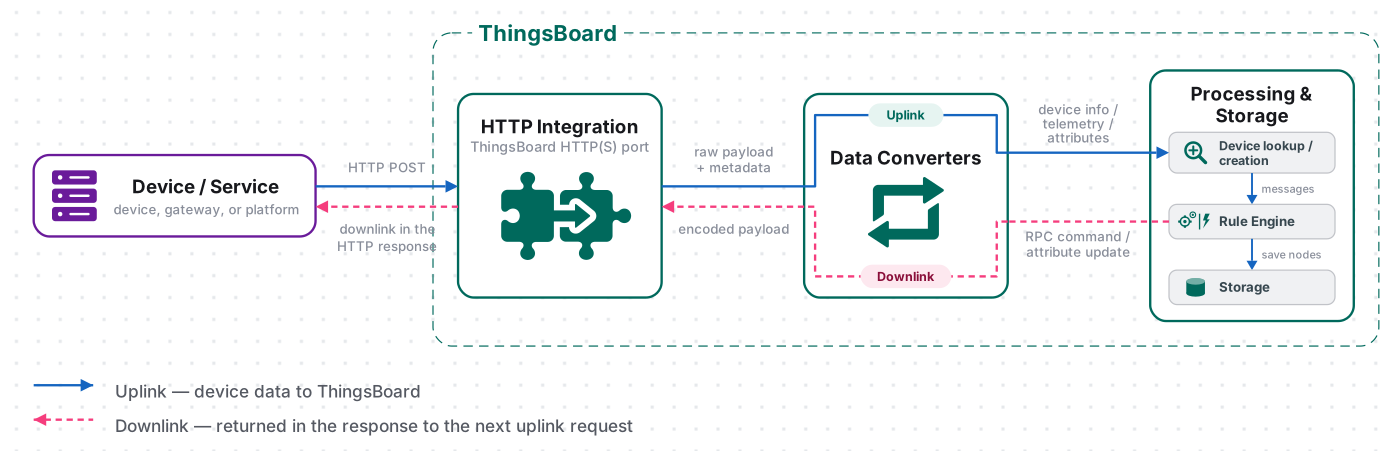
- Receive data. A device or service sends an HTTP request to the integration endpoint.
- Decode the payload. The uplink converter identifies the device or asset and extracts attributes and telemetry.
- Process the message. ThingsBoard processes the converted data through the Rule Engine. If Allow create devices or assets is enabled, ThingsBoard can create an entity that does not exist yet.
- Return downlink data (optional). If a downlink is queued for that device, ThingsBoard returns the encoded message in the response to a subsequent uplink request. HTTP Integration does not initiate a separate connection to the device.
Prerequisites
Section titled “Prerequisites”- Access to ThingsBoard Cloud with integrations enabled for your tenant.
- Permission to create integrations and data converters.
- A sample of the request body your device or service sends.
Set Up HTTP Integration
Section titled “Set Up HTTP Integration”Create the uplink converter, assign it to a new HTTP integration, and send a test request.
Create the Uplink Data Converter
Section titled “Create the Uplink Data Converter”The uplink converter reads the HTTP request body and maps it to ThingsBoard entities and data. HTTP Integration uses the Generic converter: you write the decoder in TBEL or JavaScript, or load a ready-made one from the Converters library. For converter types and the full decoder reference, see Uplink data converter.
-
Go to Integrations ⇾ Data converters and click + Add data converter ⇾ Create new converter.
-
Converter type — keep Uplink.
-
Integration type — select HTTP.
-
Name — enter a name, for example
HTTP Uplink Converter. -
Main decoding configuration — the editor is pre-filled with the default decoder template. Use it as a starting point and, if needed, adapt it to your device. The editor opens in TBEL; use the TBEL / JS toggle to switch to JavaScript.
// Decode an uplink message from a buffer// payload - array of bytes// metadata - key/value object/** Decoder **/// decode payload to JSONvar data = decodeToJson(payload);// --- Device name and type ---// Take the device name and type from the payload.// If deviceType is not provided, it falls back to 'default'.var deviceName = data.deviceName != null &&data.deviceName.toString().trim() != ''? data.deviceName: null;var deviceType = data.deviceType != null &&data.deviceType.toString().trim() != ''? data.deviceType: 'default';// Reject messages without a valid device name.if (deviceName == null) {raiseError("Device name is missing. Provide deviceName in the payload.");}// var customerName = 'Customer C';// var groupName = 'thermostat devices';// use assetName and assetType instead of deviceName and deviceType// to automatically create assets instead of devices.// var assetName = 'Asset A';// var assetType = 'building';// --- Timestamp parsing ---// ts - Unix time in milliseconds (seconds are not converted).// timestamp - ISO 8601 string, used only when ts is missing.// If neither is provided, the current time is used.var timestamp = -1;if (data.ts != null) {timestamp = data.ts;} else if (data.timestamp != null) {timestamp = new Date(data.timestamp).getTime();}if (timestamp == -1) {timestamp = Date.now();}// --- Telemetry and attributes ---var telemetry = {};// Keys from the payload that should be stored as attributes instead of telemetryvar attributeKeyList = ["serialNumber"];// Add the payload keys that match the attribute key list to attributesvar attributes = {};for (var i = 0; i < attributeKeyList.size(); i++) {var attributeKey = attributeKeyList[i];if (data[attributeKey] != null) {attributes[attributeKey] = data[attributeKey];}}// Keys to exclude from telemetry (device info, attributes and non-telemetry fields)var excludeFromTelemetryList = ["deviceName", "deviceType", "ts", "timestamp"];excludeFromTelemetryList.addAll(attributeKeyList);// Parse all remaining JSON fields as telemetrytelemetry.putAll(toFlatMap(data, excludeFromTelemetryList, true));// Result object with device attributes/telemetry datavar result = {deviceName: deviceName,deviceType: deviceType,// customerName: customerName,// groupName: groupName,// assetName: assetName,// assetType: assetType,};// Add attributes to the result only if at least one matching key was foundif (attributes.size() > 0) {result.put("attributes", attributes);}result.put("telemetry", {ts: timestamp,values: telemetry});/** Helper functions 'decodeToString', 'decodeToJson' and 'toFlatMap' are already built-in **/return result;// Decode an uplink message from a buffer// payload - array of bytes// metadata - key/value object/** Decoder **/// decode payload to JSONvar data = decodeToJson(payload);// --- Device name and type ---// Take the device name and type from the payload.// If deviceType is not provided, it falls back to 'default'.var deviceName = data.deviceName != null &&String(data.deviceName).trim() !== ''? data.deviceName: null;var deviceType = data.deviceType != null &&String(data.deviceType).trim() !== ''? data.deviceType: 'default';// Reject messages without a valid device name.if (deviceName == null) {throw new Error('Device name is missing. Provide deviceName in the payload.');}// var customerName = 'Customer C';// var groupName = 'thermostat devices';// use assetName and assetType instead of deviceName and deviceType// to automatically create assets instead of devices.// var assetName = 'Asset A';// var assetType = 'building';// --- Timestamp parsing ---// ts - Unix time in milliseconds (seconds are not converted).// timestamp - ISO 8601 string, used only when ts is missing.// If neither is provided, the current time is used.var timestamp = -1;if (data.ts != null) {timestamp = data.ts;} else if (data.timestamp != null) {timestamp = new Date(data.timestamp).getTime();}if (timestamp == -1) {timestamp = Date.now();}// --- Telemetry and attributes ---var telemetry = {};// Keys from the payload that should be stored as attributes instead of telemetryvar attributeKeyList = ["serialNumber"];// Add the payload keys that match the attribute key list to attributesvar attributes = {};for (var i = 0; i < attributeKeyList.length; i++) {var attributeKey = attributeKeyList[i];if (data[attributeKey] != null) {attributes[attributeKey] = data[attributeKey];}}// Keys to exclude from telemetry (device info, attributes and non-telemetry fields)var excludeFromTelemetryList = ["deviceName", "deviceType", "ts", "timestamp"].concat(attributeKeyList);// Parse all remaining JSON fields as telemetrytoFlatMap(data, telemetry, excludeFromTelemetryList);// Result object with device attributes/telemetry datavar result = {deviceName: deviceName,deviceType: deviceType,// customerName: customerName,// groupName: groupName,// assetName: assetName,// assetType: assetType,};// Add attributes to the result only if at least one matching key was foundif (Object.keys(attributes).length > 0) {result.attributes = attributes;}result.telemetry = {ts: timestamp,values: telemetry};/** Helper functions **/function decodeToString(payload) {return String.fromCharCode.apply(String, payload);}function decodeToJson(payload) {var str = decodeToString(payload);return JSON.parse(str);}function toFlatMap(obj, result, excludeList, prefix) {prefix = prefix || '';for (var key in obj) {if (excludeList.indexOf(key) !== -1) continue;var value = obj[key];var fullKey = prefix ? prefix + '.' + key : key;if (typeof value === 'object' && value !== null && !Array.isArray(value)) {toFlatMap(value, result, excludeList, fullKey);} else {result[fullKey] = value;}}}return result;The template stores the keys listed in
attributeKeyList(by default,serialNumber) as attributes and every other payload field, exceptdeviceName,deviceType,ts, andtimestamp, as telemetry. To store other keys as attributes, add them toattributeKeyList. IfdeviceNameis missing or empty, the decoder throws an error and the message is not processed. IfdeviceTypeis missing or empty, it is set todefault. -
Click Test decoder function and check the result (see Test the Decoder).
-
Click Add.
Decoder Inputs
The decoder signature is function decoder(payload, metadata): object | object[].
| Variable | Type | Content |
|---|---|---|
payload |
byte array | The request body. |
metadata |
{[key: string]: string} |
integrationName, every request header as Header:<name>, and the key–value pairs from the integration’s Metadata field. |
The endpoint accepts these request body formats:
Content-Type |
What reaches payload |
|---|---|
application/json |
The JSON body. |
text/plain |
The text body. |
application/octet-stream |
The raw bytes. |
application/x-www-form-urlencoded |
The form fields as a JSON object. |
multipart/form-data |
A JSON object keyed by form field. Each JSON file is embedded as JSON; any other file is a Base64 string. |
Built-in helpers:
| Function | Result |
|---|---|
decodeToJson(payload) |
Parses the bytes as JSON and returns an object. |
decodeToString(payload) |
Converts the bytes to a UTF-8 string. |
toFlatMap(obj, excludeKeys, flatNested) |
TBEL only. Returns a flat key–value map of obj, skipping excludeKeys. With flatNested set to true, nested objects become dot-separated keys. Add the result with putAll(...). The JavaScript template defines its own toFlatMap(obj, result, excludeList), which writes into result. |
For field renaming, nested values, and non-JSON payloads, see Common scripting patterns and the converter examples below.
Test the Decoder
Click Test decoder function below the editor. The dialog opens with pre-filled Metadata rows, Payload content type set to JSON, and this sample payload:
{ "deviceName": "Thermostat-01", "deviceType": "thermostat", "serialNumber": "SN-12345", "temperature": 25.5}Click Test. The Output panel shows:
{ "deviceName": "Thermostat-01", "deviceType": "thermostat", "attributes": { "serialNumber": "SN-12345" }, "telemetry": { "ts": 1793375570587, "values": { "temperature": 25.5 } }}Check that deviceName is set and telemetry.values holds the expected keys. If the output is empty or shows an error, fix the decoder and test again.
Create the Integration
Section titled “Create the Integration”- Go to Integrations ⇾ Integrations and click + Add integration.
- Basic settings:
- Integration type — select HTTP.
- Name — keep the default
HTTP integrationor enter your own. - Enable integration and Allow create devices or assets — keep both on, so the device is created on its first uplink.
- Click Next.
- Uplink data converter:
- Click Select existing and choose
HTTP Uplink Converter. - Alternatively, click Create new to write a decoder here, or Library to load a ready-made one.
- Click Next.
- Click Select existing and choose
- Downlink data converter:
- Click Skip. Add a downlink converter later if you need to send commands to the device.
- Connection:
- Copy the HTTP endpoint URL. You need it to send uplinks.
- Leave the other parameters at their defaults. See Connection Settings for details.
- Click Add.
Connection Settings
Section titled “Connection Settings”| Parameter | Description |
|---|---|
| Base URL | Address of your ThingsBoard server, used to build the endpoint URL. Example: https://thingsboard.cloud. |
| HTTP endpoint URL | Read-only. Format: {Base URL}/api/v1/integrations/http/{integrationKey}, where integrationKey is a UUID assigned at creation. Accepts POST and PUT uplinks. A GET without query parameters returns 200 OK as a health check. A GET with query parameters is processed as an uplink, with the parameters as a JSON object. An optional extra path segment (.../{integrationKey}/{suffix}) reaches the converter as Header:suffix. |
| Enable security | Accepts only requests that carry the configured headers. See Secure the Endpoint with Header Filters. |
| Execute remotely | Runs the integration as a separate process outside the ThingsBoard cluster, for example in a private network. ThingsBoard generates an Integration key and Integration secret for it. See Remote Integration. |
| Replace response status from ‘No-Content’ to ‘OK’ | In Advanced settings. Off by default. When an uplink produces data and no downlink is queued, the endpoint returns 204 No Content (off) or 200 OK (on). Enable it for clients that treat 204 as an error. A converter that returns an empty result ({} or []) always gets 204. A queued downlink always gets 200 OK with the downlink payload. |
| Metadata | Key–value pairs added to the metadata of every message from this integration. |
Test Uplink
Section titled “Test Uplink”Send a request to the endpoint, then confirm that ThingsBoard decoded it and created the device.
Send a Test Uplink
Section titled “Send a Test Uplink”Replace $YOUR_HTTP_ENDPOINT_URL with the HTTP endpoint URL and run:
curl -v -X POST -d '{"deviceName":"Thermometer A","deviceType":"thermostat","temperature":33}' $YOUR_HTTP_ENDPOINT_URL -H "Content-Type:application/json"The endpoint returns 204 by default, or 200 if Replace response status from ‘No-Content’ to ‘OK’ is on. HTTP/2 responses (for example, from ThingsBoard Cloud) show only the code (HTTP/2 204). HTTP/1.1 responses add the reason phrase (HTTP/1.1 204 No Content).
Verify the Result
Section titled “Verify the Result”- Integration events — go to Integrations ⇾ Integrations, open the integration, and click the Events tab. The uplink appears with status OK.
- Converter events — open
HTTP Uplink Converterin Integrations ⇾ Data converters and click the Events tab. In shows the received body, Out shows the decoded result, and Metadata shows the request headers and integration name. - Device — go to Devices & assets ⇾ Devices. The integration has created Thermometer A. Open it and confirm
temperature = 33on the Latest telemetry tab.
Secure the Endpoint with Header Filters
Section titled “Secure the Endpoint with Header Filters”Anyone who knows the endpoint URL can send data to it. A header filter rejects every request that does not carry the required headers with the exact values, and returns 403 Forbidden before the converter runs.
- Open the integration and click Toggle edit mode (pencil icon).
- Turn on Enable security.
- Under Headers filter, click Add and fill in Header and Value (see the fields below). Repeat for each header. A request must carry all of them.
- Click Apply changes.
Header filter fields:
| Field | Description |
|---|---|
| Header | Name of the HTTP header that ThingsBoard checks in every incoming request, for example Authorization or X-API-Key. |
| Value | Value the header must carry. The match is exact and case-sensitive: any other value, or a missing header, gets 403 Forbidden. |
Example. Set Header to Authorization and Value to Bearer my-secret-token. Each request then needs this header:
curl -v -X POST \ -d '{"deviceName":"Thermometer A","deviceType":"thermostat","temperature":33,"model":"SN-001"}' \ $YOUR_HTTP_ENDPOINT_URL \ -H "Content-Type: application/json" \ -H "Authorization: Bearer my-secret-token"Configure Downlink
Section titled “Configure Downlink”HTTP downlinks are not pushed. ThingsBoard queues the downlink for the device and returns it as the response body to the next uplink request that the converter maps to that device. That response is always 200 OK.
Use downlink when the device polls for commands or configuration, or when the sender expects data in the response.
The downlink converter turns a Rule Engine message into the response body. For the full encoder reference, see Downlink data converter.
Create and Assign the Downlink Converter
Section titled “Create and Assign the Downlink Converter”- Open the integration in Integrations ⇾ Integrations and click Toggle edit mode (pencil icon).
- In the Downlink data converter field, click Create new. The Downlink converter type and HTTP integration type are preselected.
- Enter a name, for example
HTTP Downlink Converter. - Main encoding configuration opens with the default encoder shown below. Keep it or replace it with your own.
- To record downlink events, click the debug icon next to the name, select All messages, and click Apply.
- Click Add, then Apply changes.
Default encoder:
/** Encoder **/
// Encode downlink data from the incoming Rule Engine message.// msg: JSON message payload.// msgType: message type, e.g. 'ATTRIBUTES_UPDATED', 'POST_TELEMETRY_REQUEST', etc.// metadata: key-value pairs containing additional message data.// integrationMetadata: key-value pairs configured in the integration.
var result = {    // Specify the HTTP response body format: JSON, TEXT, or BINARY.    contentType: "JSON",
    // Serialize the incoming message and use it as the HTTP response body.    data: JSON.stringify(msg),
    // Add optional metadata when required by the integration.    metadata: {}};
return result;
contentType sets the response Content-Type: application/json, text/plain, or application/octet-stream. To add a response header, put it in the encoder’s metadata as Header:<name>.
Configure the Root Rule Chain
Section titled “Configure the Root Rule Chain”To send downlinks through the integration, modify the Root Rule Chain:
- Go to Data processing ⇾ Rule chains and open the Root Rule Chain.
- Find the integration downlink node in the node library panel on the left. Drag it onto the canvas.
- In the node configuration dialog, enter a name (e.g.
Downlink to HTTP integration) and select your HTTP integration. Click Add. - Connect the message type switch node to the newly created integration downlink node using the Post attributes and Attributes Updated relation types to trigger downlinks whenever shared attributes are created or updated.
- Apply the changes.
Test Downlink
Section titled “Test Downlink”Update a shared attribute to queue a downlink, then send an uplink to receive it.
- Go to Devices & assets ⇾ Devices, select your device, and open the Attributes tab.
- Select Shared attributes and click +.
- Set Key to
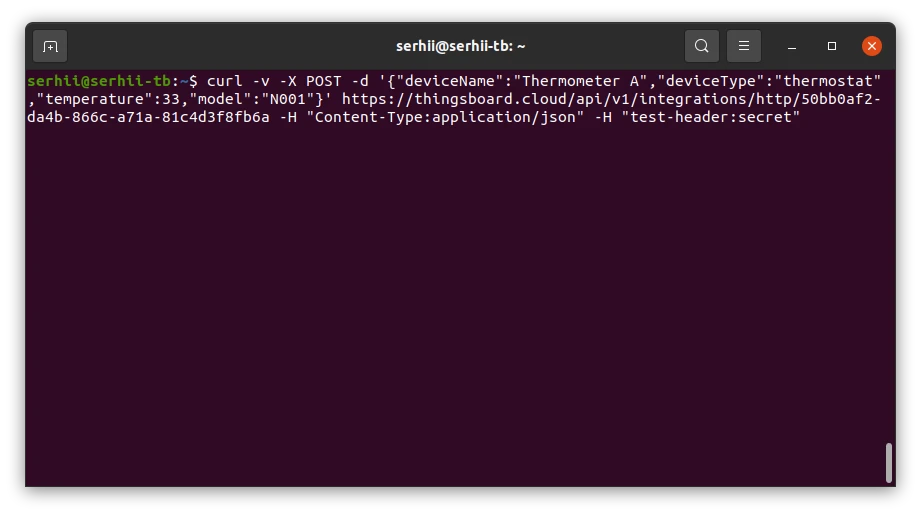
temperatureUploadFrequency, Type to Integer, Value to60, and click Add. ThingsBoard queues the downlink. - Send the test uplink again.
Verify the Downlink
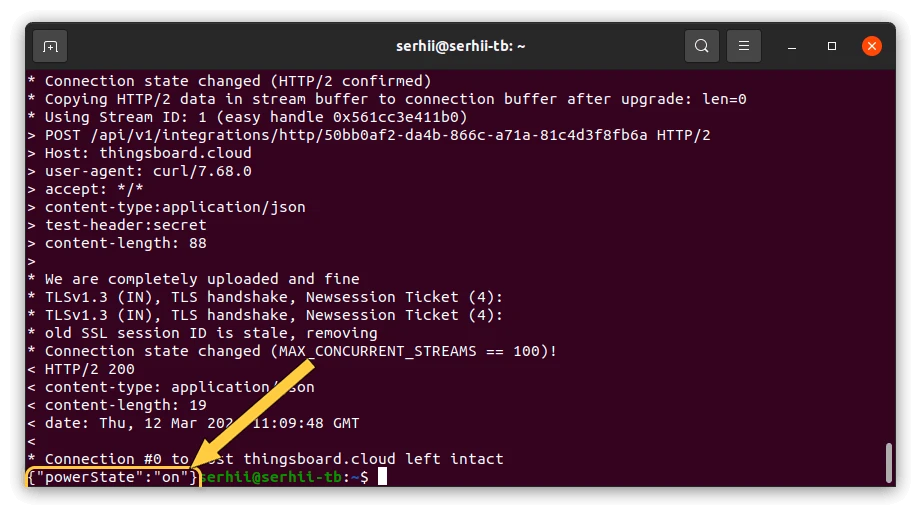
Section titled “Verify the Downlink”- HTTP response — the endpoint returns
200with the body{"temperatureUploadFrequency":60}.
- Converter events — open the downlink converter’s Events tab. In shows the Rule Engine message, Out shows the encoded response, and Metadata shows the request headers.
Converter Examples by Payload Type
Section titled “Converter Examples by Payload Type”Ready-made decoders for common payload shapes. Each example lists the input, the decoder, and the output.
Simple JSON with Explicit Fields
Use when the payload has a few known fields and each one is mapped explicitly.
Input payload:
{ "deviceName": "Thermometer A", "deviceType": "thermostat", "model": "SN-001", "param2": "SN-12345", "temperature": 25.0}Decoder:
/** Decoder **/
// Decode JSON bodyvar data = decodeToJson(payload);
var deviceName = data.deviceName;var deviceType = data.deviceType;
// Result object with device attributes/telemetry datavar result = {   deviceName: deviceName,   deviceType: deviceType,   attributes: {       model: data.model,       serialNumber: data.param2,  // renamed: param2 → serialNumber   },   telemetry: {       temperature: data.temperature   }};
/** Helper functions 'decodeToString' and 'decodeToJson' are already built-in **/
return result;
Field mapping:
| JSON field | Output field | Type | Notes |
|---|---|---|---|
deviceName |
deviceName |
— | Device identifier; creates the device on first uplink |
deviceType |
deviceType |
— | Device profile name |
model |
model |
attribute | |
param2 |
serialNumber |
attribute | Renamed |
temperature |
temperature |
telemetry |
Output:
{ "deviceName": "Thermometer A", "deviceType": "thermostat", "attributes": { "model": "SN-001", "serialNumber": "SN-12345" }, "telemetry": { "temperature": 25.0 }}To adapt:
- Device name in another field — replace
data.deviceNamewith that field. - One profile for all devices — replace
data.deviceTypewith a string, for example'thermostat'. - Rename a field — write
outputName: data.sourceField, as withserialNumber: data.param2. - Non-JSON payload — replace
decodeToJson(payload)withdecodeToString(payload)and parse the string.
Array of Readings for Multiple Devices
Use when a gateway sends readings from several devices in one request. The decoder returns one object per device, and ThingsBoard creates or updates each device separately.
Input payload:
{ "gateway": "gw-01", "readings": [ { "device": "node-1", "temp": 21.0, "ts": 1700000001000 }, { "device": "node-2", "temp": 19.5, "ts": 1700000001000 } ]}Decoder:
/** Decoder **/
var data   = decodeToJson(payload);var result = [];
for (var i = 0; i < data.readings.length; i++) {    var r = data.readings[i];    result.push({        deviceName: r.device,        deviceType: 'node-sensor',        attributes: {            gateway:         data.gateway,            integrationName: metadata['integrationName']        },        telemetry: {            ts:     r.ts,            values: { temperature: r.temp }        }    });}
/** Helper functions 'decodeToString', 'decodeToJson' and 'toFlatMap' are already built-in **/
return result;
Field mapping:
| JSON field | Output field | Type | Notes |
|---|---|---|---|
readings[i].device |
deviceName |
— | One device per array element |
'node-sensor' |
deviceType |
— | Fixed profile for all nodes |
gateway |
gateway |
attribute | Added to every device |
readings[i].ts |
ts |
— | Per-reading timestamp, ms |
readings[i].temp |
temperature |
telemetry | Renamed |
Output:
[ { "deviceName": "node-1", "deviceType": "node-sensor", "attributes": { "gateway": "gw-01", "integrationName": "Test HTTP" }, "telemetry": { "ts": 1700000001000, "values": { "temperature": 21.0 } } }, { "deviceName": "node-2", "deviceType": "node-sensor", "attributes": { "gateway": "gw-01", "integrationName": "Test HTTP" }, "telemetry": { "ts": 1700000001000, "values": { "temperature": 19.5 } } }]To adapt:
- Another array name — replace
data.readings, for example withdata.sensors. - Another device ID field — replace
r.device, for example withr.serialNumber. - More telemetry — extend
values, for examplehumidity: r.hum. - Timestamp in seconds — use
ts: r.ts * 1000. - No timestamp — use
ts: Date.now(). - Profile per reading — replace
'node-sensor'withr.type.
Nested JSON Flattened with toFlatMap
Use when the payload is deeply nested and every remaining field should become telemetry. toFlatMap produces dot-separated keys (sensors.co2) and skips the keys in excludeKeys.
Input payload:
{ "deviceName": "air-monitor-X", "deviceType": "air-quality", "meta": { "source": "cloud", "version": "2.0" }, "sensors": { "co2": 412, "pm25": 8.2, "voc": 0.3 }, "location": { "lat": 50.45, "lon": 30.52 }, "ts": 1700000000000}Decoder:
/** Decoder **/
var data = decodeToJson(payload);
// Fields to exclude from telemetry — used as device identity, attributes, or timestampvar excludeKeys = ['deviceName', 'deviceType', 'ts', 'meta', 'location'];
// Flatten all remaining fields into telemetry (nested objects become dot-separated keys)var telemetry = {};telemetry.putAll(toFlatMap(data, excludeKeys, true));
// Use the device timestamp (ms) if present, otherwise the current timevar ts = data.ts != null ? data.ts : Date.now();
var result = {    deviceName: data.deviceName,    deviceType: data.deviceType,    attributes: {        latitude:        data.location.lat,        longitude:       data.location.lon,        source:          data.meta.source,        integrationName: metadata['integrationName']    },    telemetry: {        ts:     ts,        values: telemetry    }};
/** Helper functions 'decodeToString', 'decodeToJson' and 'toFlatMap' are already built-in **/
return result;
Field mapping:
| JSON field | Output field | Type | Notes |
|---|---|---|---|
deviceName |
deviceName |
— | Excluded from telemetry |
deviceType |
deviceType |
— | Excluded from telemetry |
location.lat |
latitude |
attribute | Extracted explicitly |
location.lon |
longitude |
attribute | Extracted explicitly |
meta.source |
source |
attribute | Extracted explicitly |
sensors.co2 |
sensors.co2 |
telemetry | Mapped by toFlatMap |
sensors.pm25 |
sensors.pm25 |
telemetry | Mapped by toFlatMap |
sensors.voc |
sensors.voc |
telemetry | Mapped by toFlatMap |
ts |
ts |
— | Timestamp, ms; excluded from telemetry |
Output:
{ "deviceName": "air-monitor-X", "deviceType": "air-quality", "attributes": { "latitude": 50.45, "longitude": 30.52, "source": "cloud", "integrationName": "Test HTTP" }, "telemetry": { "ts": 1700000000000, "values": { "sensors.co2": 412, "sensors.pm25": 8.2, "sensors.voc": 0.3 } }}To adapt:
- Other top-level fields to skip — add them to
excludeKeys. - Rename a flattened key — extract the field explicitly and add its parent to
excludeKeysso it is not duplicated. - More attributes — extract them explicitly, for example
firmwareVersion: data.meta.version. - Timestamp in seconds — use
ts: data.ts * 1000.
Delimited Text Payload
Use when the device sends text instead of JSON. decodeToString converts the bytes to a string, and split separates the fields.
Input payload (text/plain):
sensor-001;23.5;60;87Decoder:
/** Decoder **/
// Decode bytes to a UTF-8 string and split by delimitervar raw   = decodeToString(payload);var parts = raw.trim().split(';');
// parts[0] = device name// parts[1] = temperature// parts[2] = humidity// parts[3] = battery
var result = {    deviceName: parts[0],    deviceType: 'csv-sensor',    attributes: {        integrationName: metadata['integrationName']    },    telemetry: {        ts: Date.now(),        values: {            temperature: parseFloat(parts[1]),            humidity:    parseFloat(parts[2]),            battery:     parseInt(parts[3])        }    }};
/** Helper functions 'decodeToString', 'decodeToJson' and 'toFlatMap' are already built-in **/
return result;
Field mapping:
| Position | Output field | Type | Notes |
|---|---|---|---|
parts[0] |
deviceName |
— | Device identifier |
'csv-sensor' |
deviceType |
— | Fixed profile |
parts[1] |
temperature |
telemetry | Float |
parts[2] |
humidity |
telemetry | Float |
parts[3] |
battery |
telemetry | Integer |
Output:
{ "deviceName": "sensor-001", "deviceType": "csv-sensor", "attributes": { "integrationName": "Test HTTP" }, "telemetry": { "ts": 1780299924174, "values": { "temperature": 23.5, "humidity": 60.0, "battery": 87 } }}To adapt:
- Another delimiter — replace
';', for example with','or'|'. - Device name not in the payload — use a fixed string or a
metadatavalue instead ofparts[0]. - Another field order — change the indexes.
- Timestamp in the string — parse it, for example
ts: parseInt(parts[4]), and convert seconds to milliseconds.
Troubleshooting
Section titled “Troubleshooting”| Symptom | Cause | Fix |
|---|---|---|
400 Bad Request |
Invalid JSON in the body, or the decoder threw an error. | Check the body syntax. Check the converter’s Events tab for the error. |
403 Forbidden |
Header filters are on and a required header is missing or has the wrong value. | Match the request headers to the Headers filter settings. |
404 Not Found |
Wrong integration key in the URL. | Copy the HTTP endpoint URL from the integration again. |
500 Internal Server Error |
Processing failed after decoding. | Check the integration’s Events tab for the error. |
| Device not created | deviceName is empty or undefined. |
Check Out in the converter events. Make sure the field exists in the payload. |
| Telemetry not saved | The decoder returns {}, [], or empty values. |
Make sure values holds at least one key. |
| Wrong timestamp | The device sends ts in seconds. |
Convert it: ts: data.ts * 1000. |
| Downlink not received | No uplink has been sent since the downlink was queued, or the uplink maps to another device. | Send an uplink for the same device name. Check the Root Rule Chain wiring. |
To read debug events, open the integration or converter, click Events, and select an event: In is the received data, Out is the converter result, and Error holds the error text.
See Also
Section titled “See Also”- Integrations overview — how integrations, converters, uplinks, and downlinks fit together.
- Uplink data converter — decoder inputs, output format, and scripting patterns.
- Downlink data converter — encoder reference.
- Remote Integration — run the integration outside the ThingsBoard cluster.
- TBEL — built-in functions and syntax for converter scripts.
- Rule Engine — how messages are processed after decoding.
Was this helpful?