Azure Event Hub Integration
Azure Event Hub Integration reads events from an Azure Event Hubs event hub, typically the built-in Event Hub-compatible endpoint of Azure IoT Hub. An uplink data converter transforms each event into device or asset data, including telemetry and attributes. For IoT Hub, ThingsBoard can also send downlink cloud-to-device messages to any device in the hub.
Use Azure Event Hub Integration when:
- Your devices already send device-to-cloud messages to Azure IoT Hub, and you want their telemetry in ThingsBoard.
- Your applications publish events to an Azure event hub.
- You need to send commands from ThingsBoard to IoT Hub devices as cloud-to-device messages.
Architecture
Section titled “Architecture”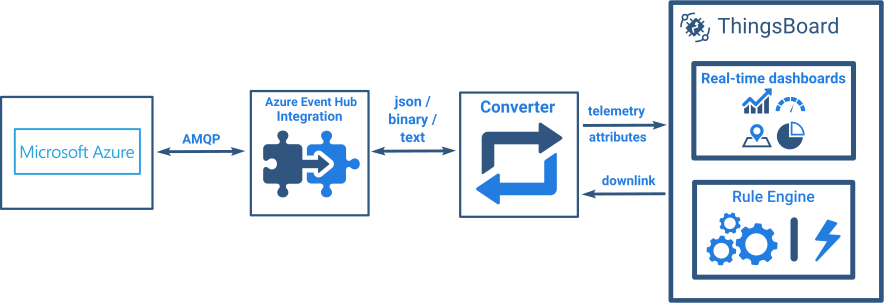
- Receive data. Devices send device-to-cloud messages to IoT Hub, which routes them to its built-in Event Hub-compatible endpoint. The integration reads every partition of that endpoint as a member of a consumer group.
- Decode the payload. The uplink converter identifies the target device or asset from the payload and extracts attributes and telemetry.
- Process the message. ThingsBoard processes the converted data through the Rule Engine. If Allow create devices or assets is enabled, ThingsBoard can create an entity that does not exist yet.
- Send downlink data (optional). The Rule Engine passes a message to the integration. The downlink converter encodes it, and the integration sends it through the IoT Hub service API as a cloud-to-device message to the device in
metadata.deviceId.
Prerequisites
Section titled “Prerequisites”- Access to ThingsBoard Cloud with integrations enabled for your tenant.
- Permission to create integrations and data converters, and to edit rule chains for downlink.
- An Azure account with an active subscription and permission to create an IoT hub and register devices.
- The Azure CLI with the azure-iot extension to send test messages.
- Outbound TCP ports
5671(AMQP) and443open from the ThingsBoard server to Azure.
Configure Azure IoT Hub
Section titled “Configure Azure IoT Hub”Create the hub, register a device, and copy the connection details of the built-in endpoint.
Create an IoT Hub
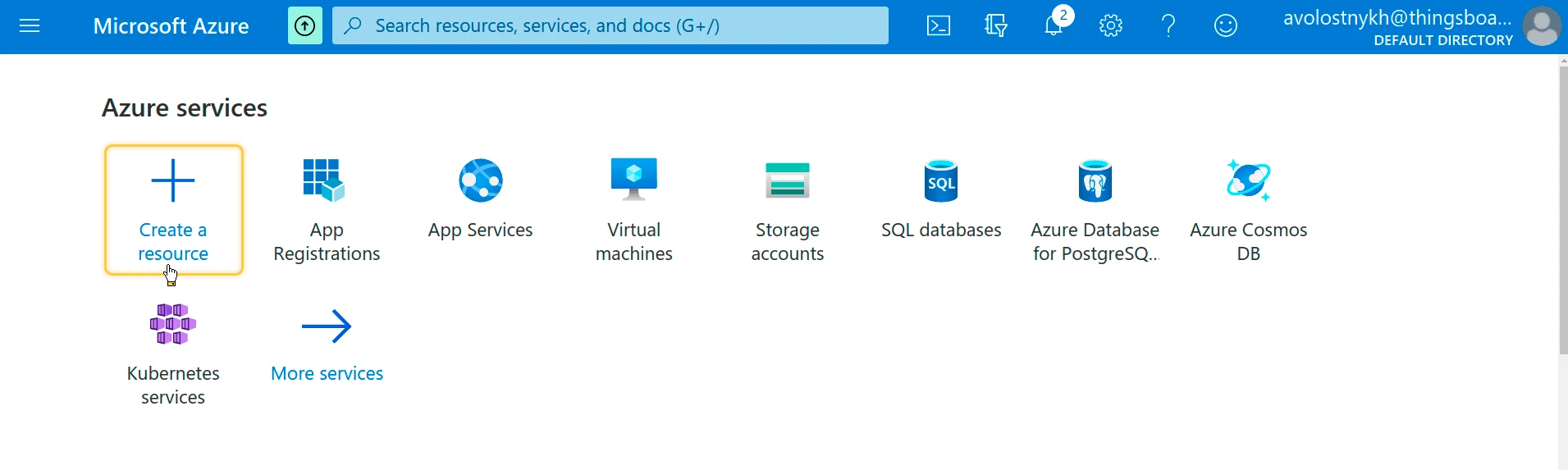
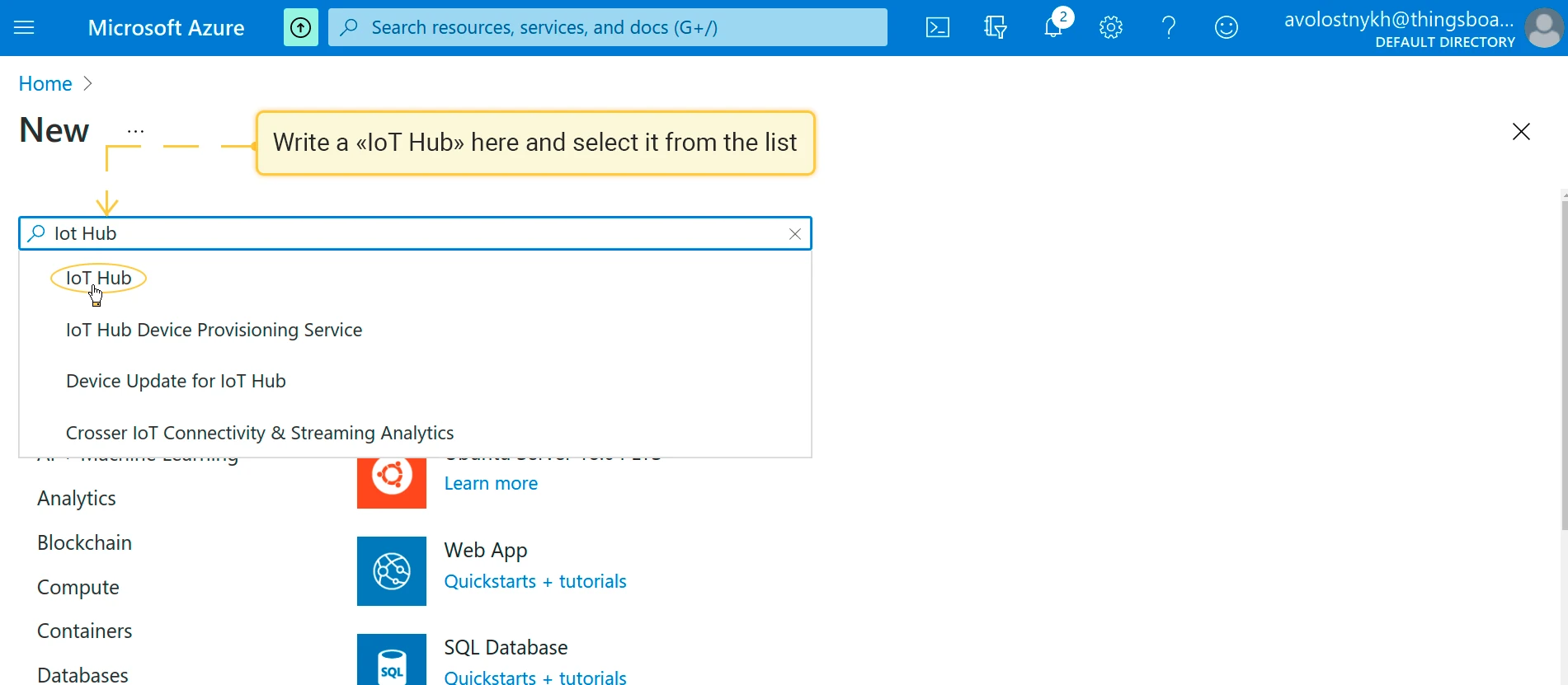
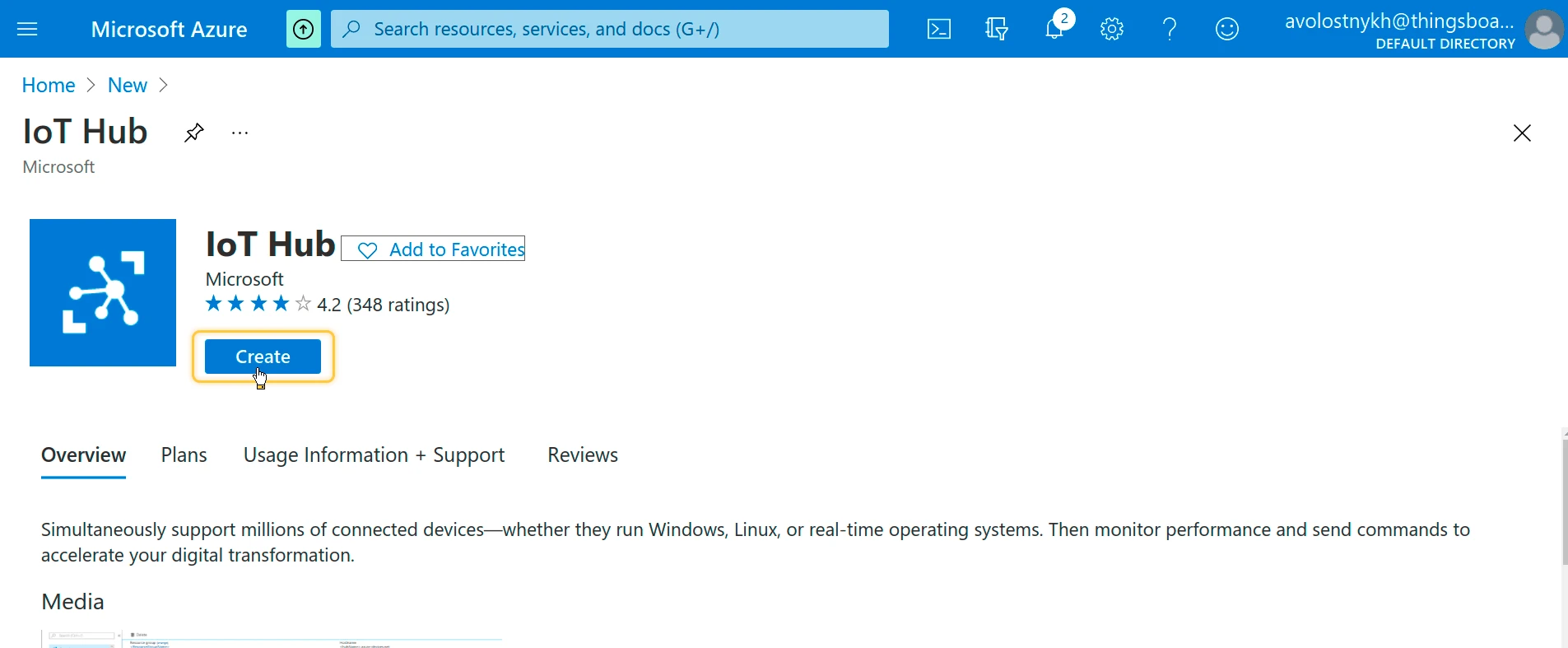
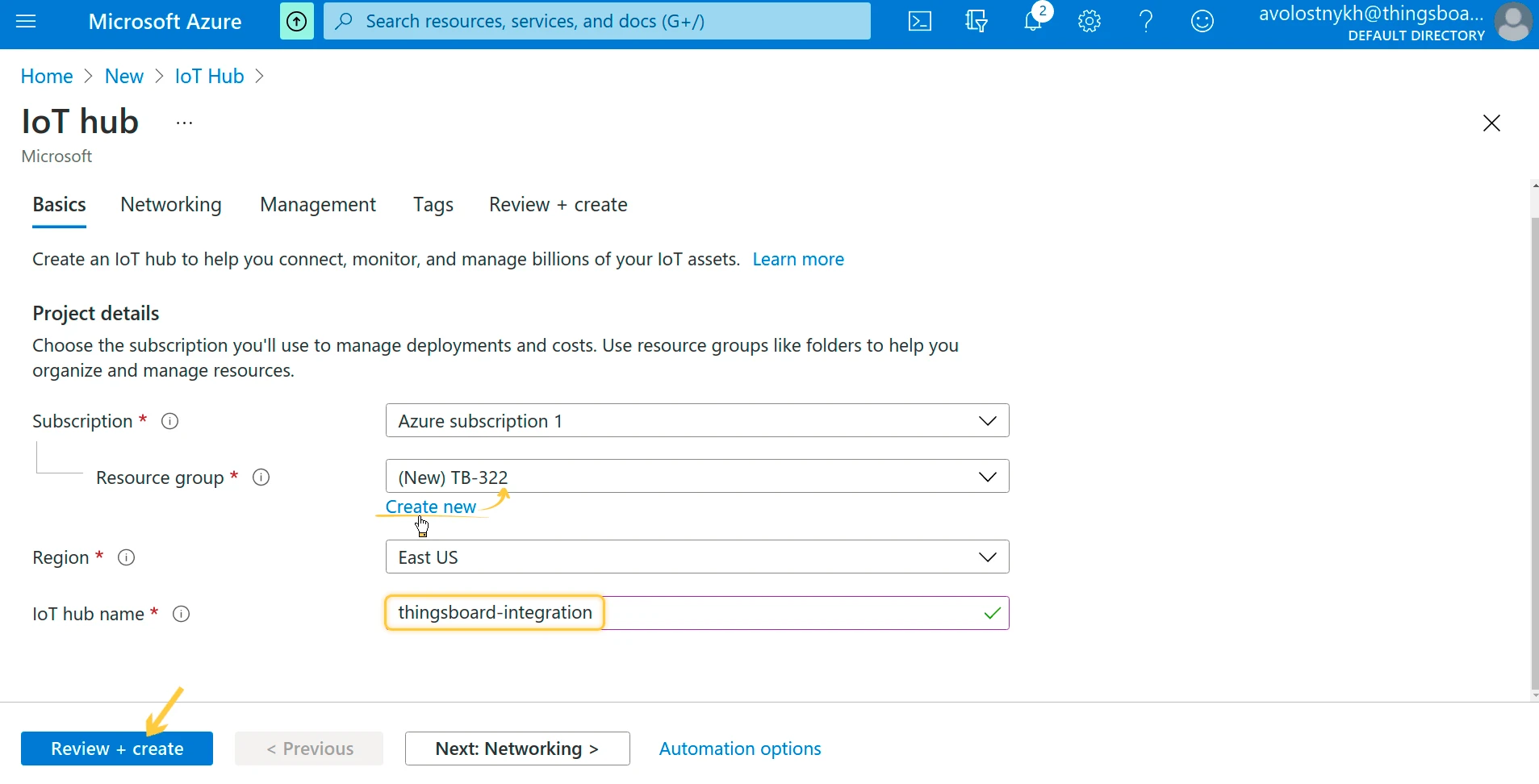
Section titled “Create an IoT Hub”- In the Azure portal, click + Create a resource, search for IoT Hub, and click Create.
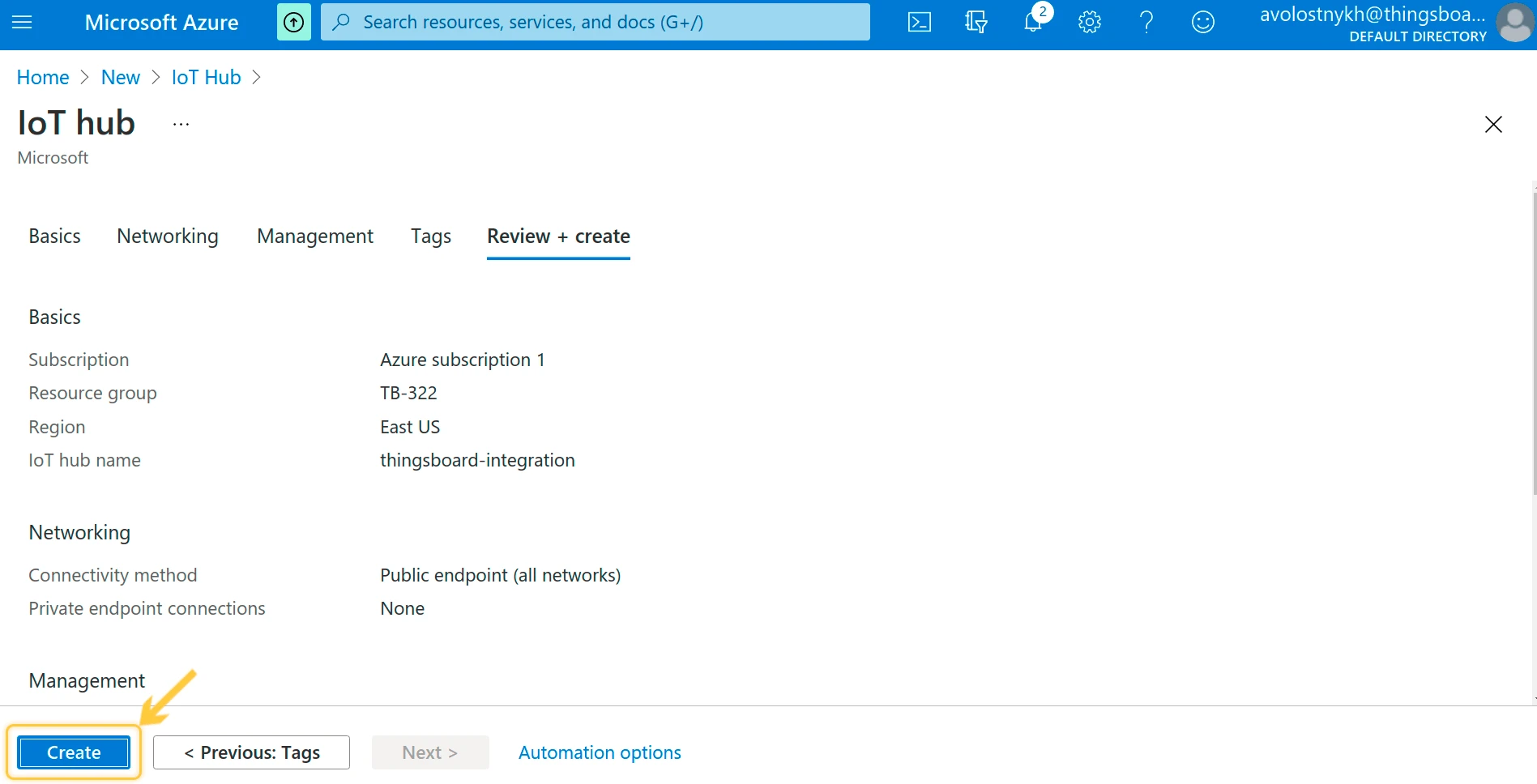
- On the Basics tab, select or create a Resource group and enter a globally unique IoT hub name, for example
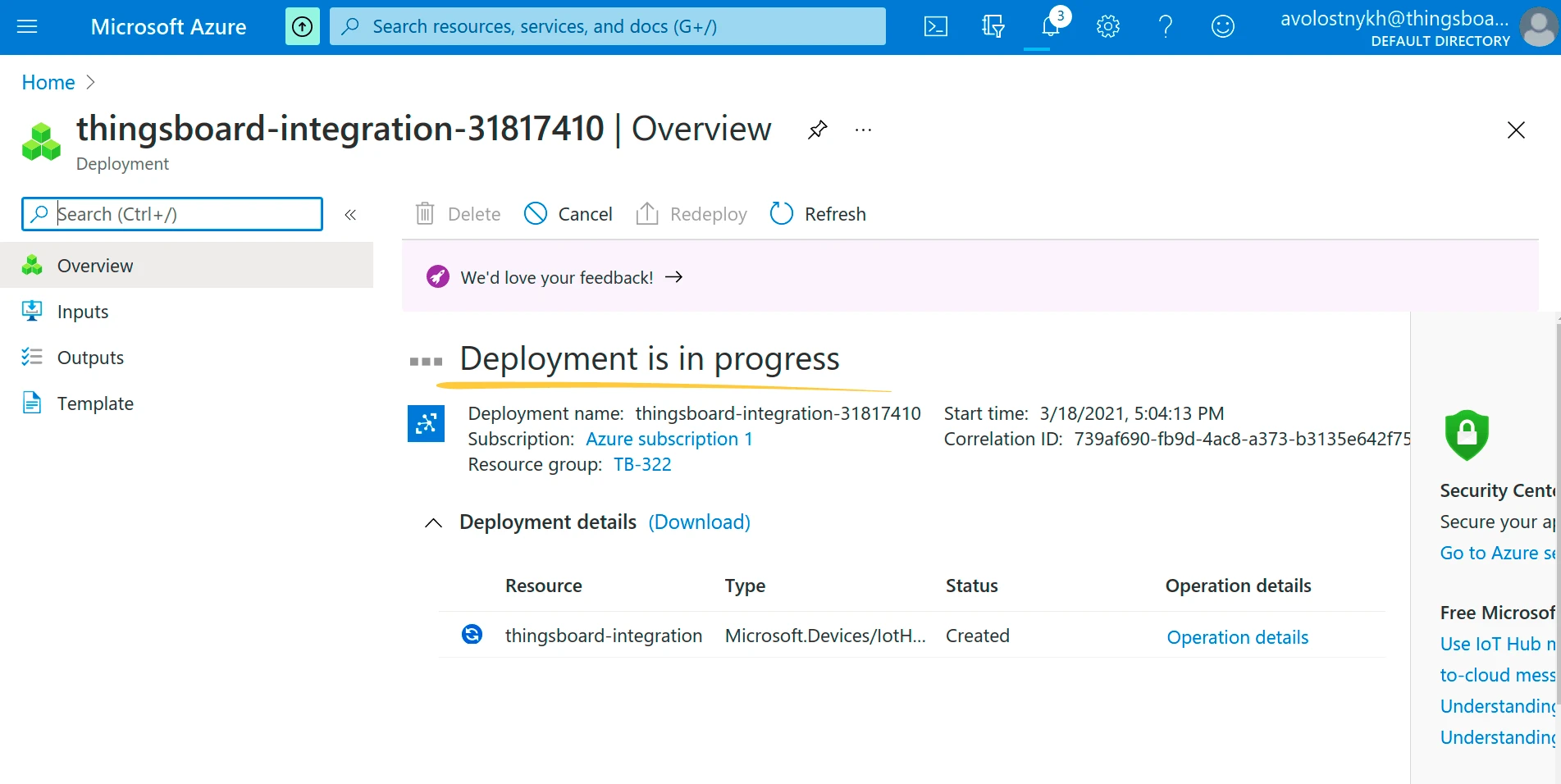
thingsboard-integration. - Click Review + create, then Create.
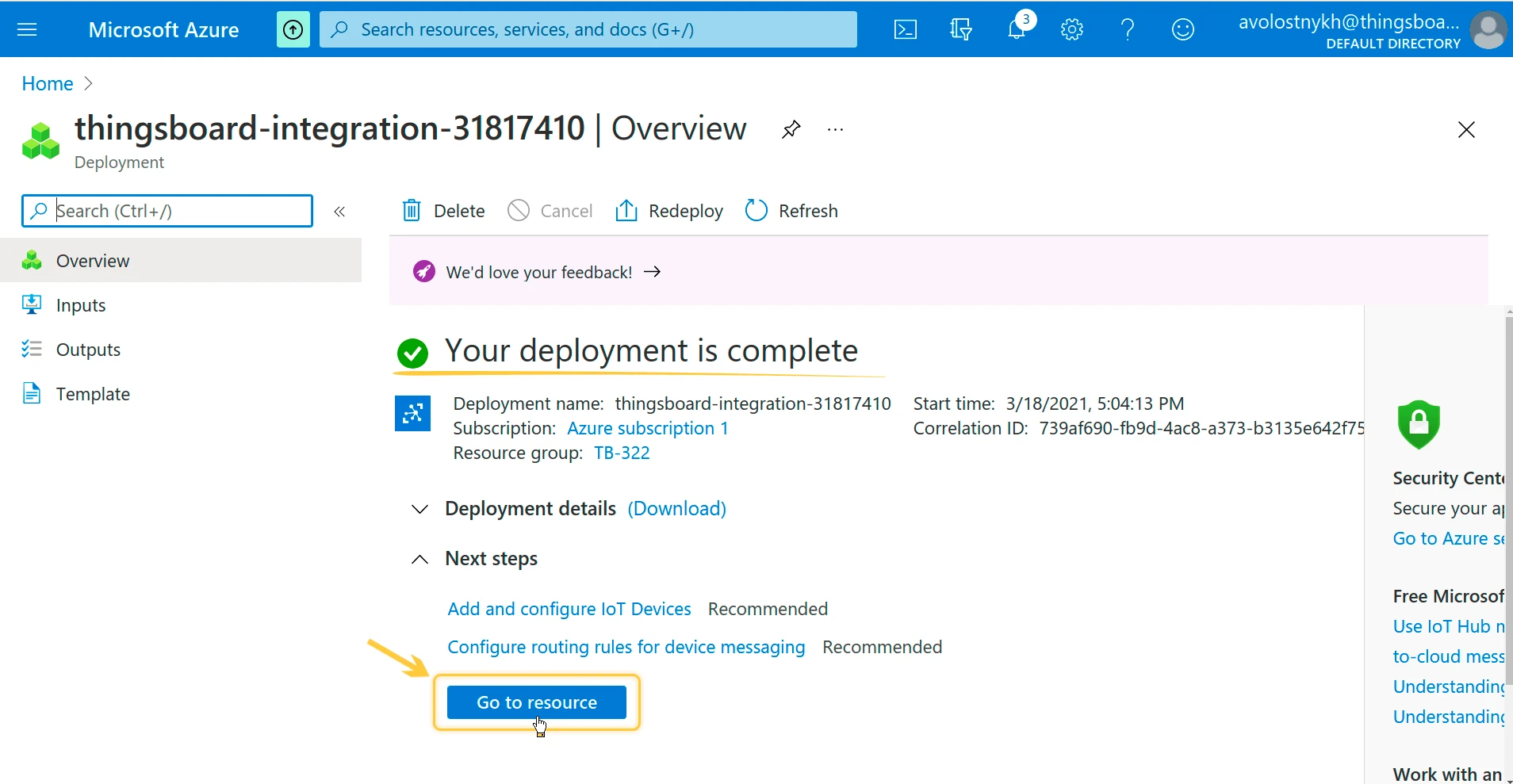
- When the deployment finishes, click Go to resource.
The Basic tier does not support cloud-to-device messages. For downlink, choose the Free or Standard tier. For tiers and limits, see Create an IoT hub.
Register a Device
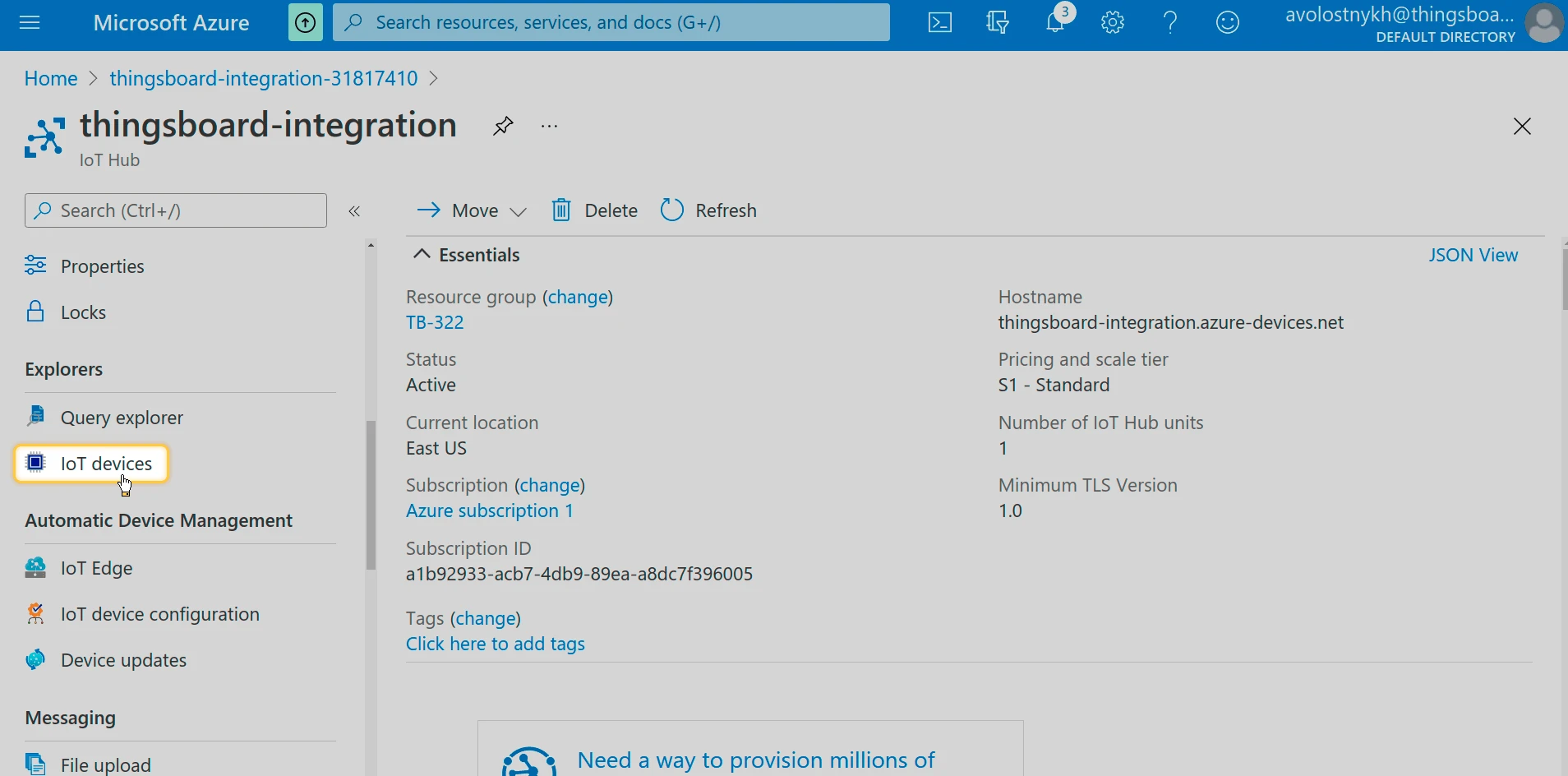
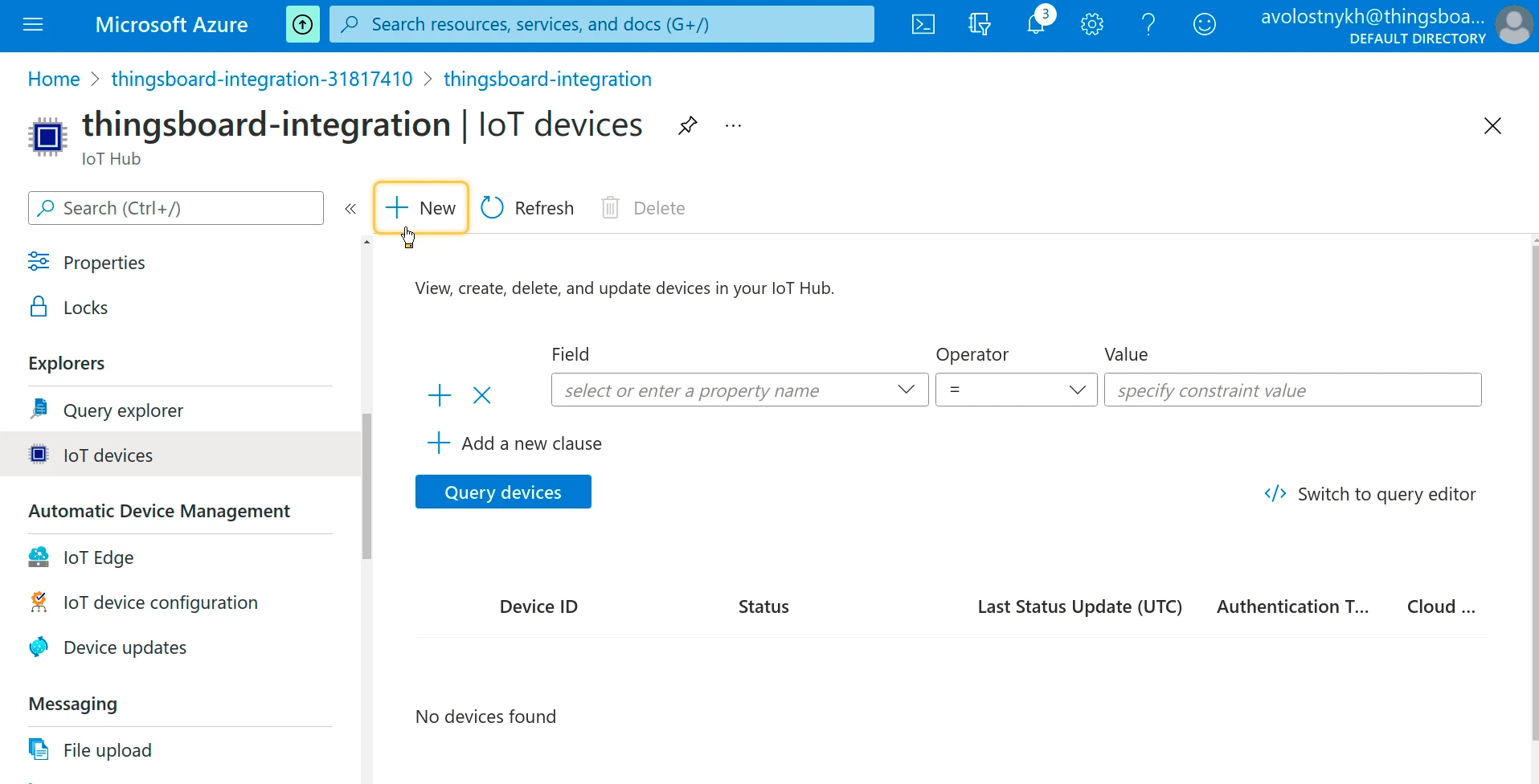
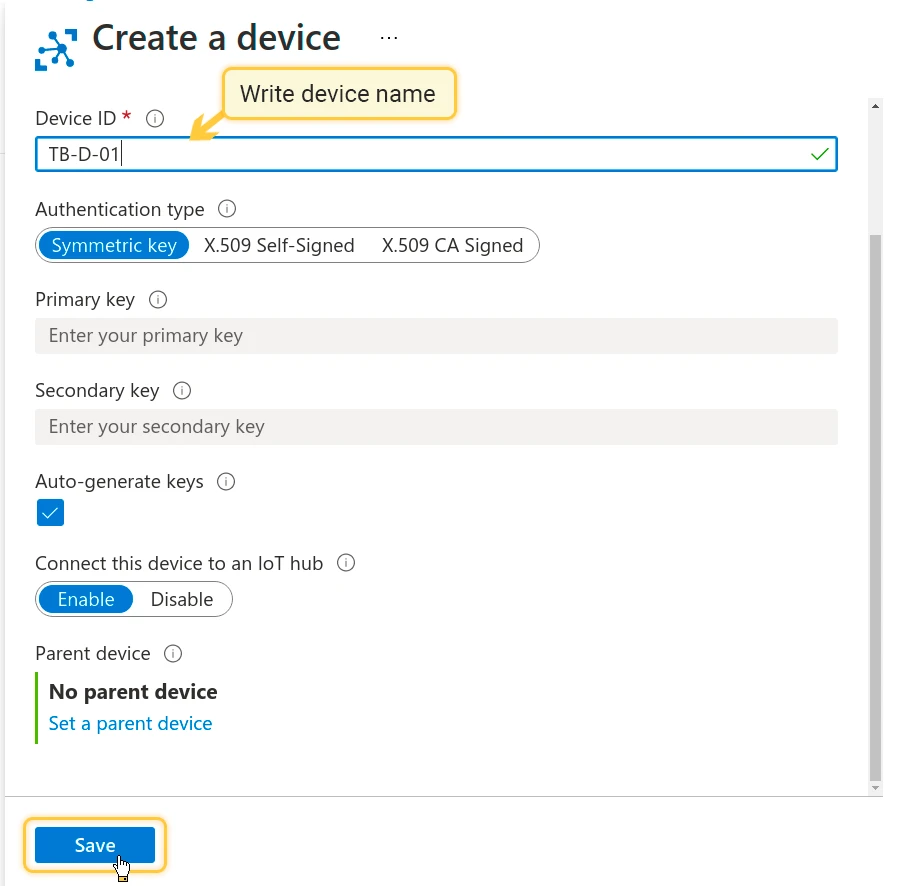
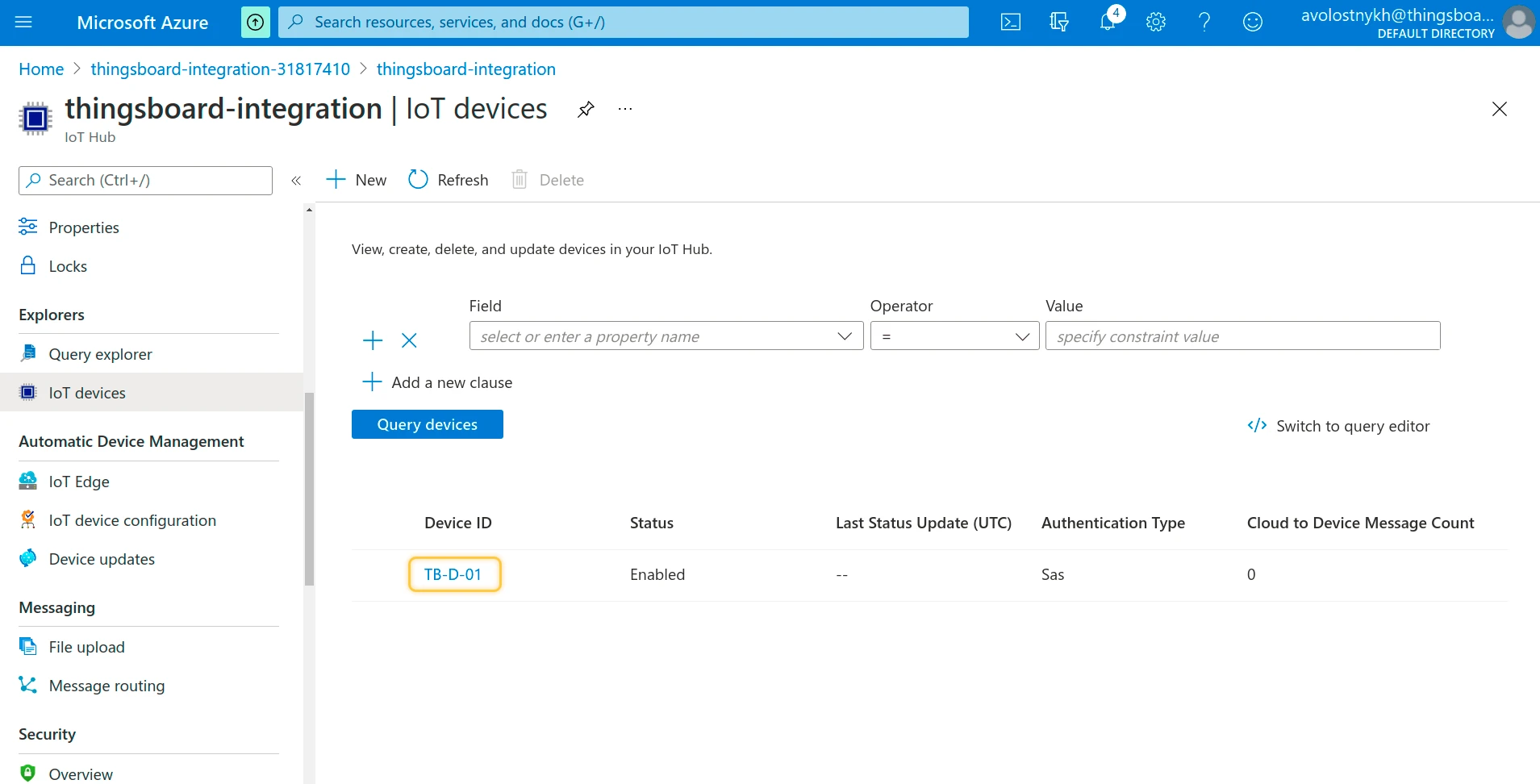
Section titled “Register a Device”This guide registers a device with the ID 8F4A2C6D, the same ID the sample payload carries. The ThingsBoard device then has the same name as its Azure device, so downlinks reach it without extra mapping.
- In the hub, go to Device management ⇾ Devices and click + Add device.
- Enter the Device ID
8F4A2C6D. - Keep Authentication type set to Symmetric key and Auto-generate keys selected.
- Click Save.
Copy the Built-in Endpoint
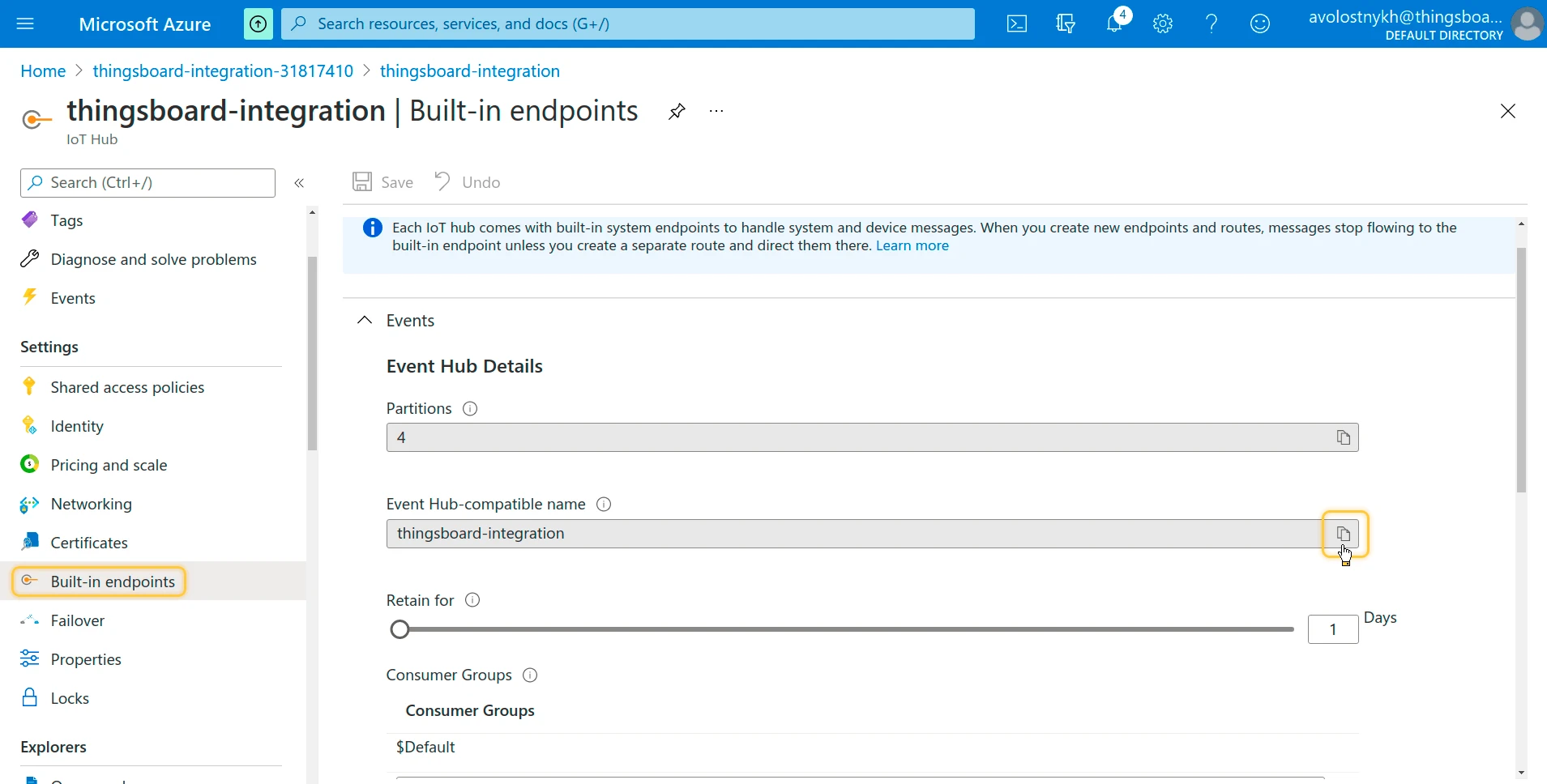
Section titled “Copy the Built-in Endpoint”- In the hub, go to Hub settings ⇾ Built-in endpoints.
- Under Event Hub compatible endpoint, copy the Event Hub-compatible endpoint. It is a connection string that ends in
EntityPath=<event hub name>. - Optional: under Consumer Groups, add a consumer group for ThingsBoard, for example
thingsboard. Do this if another application already reads the endpoint with$Default.
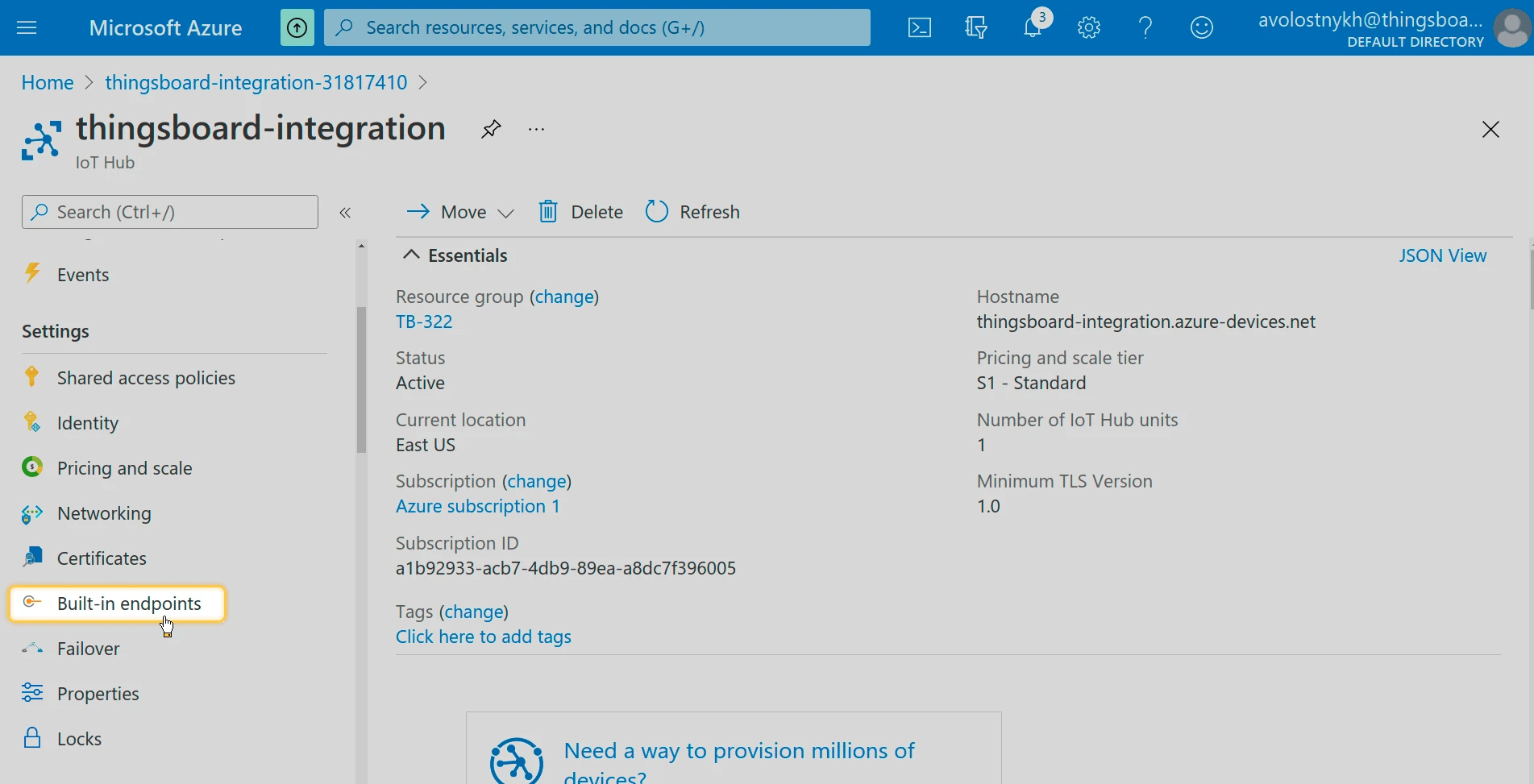
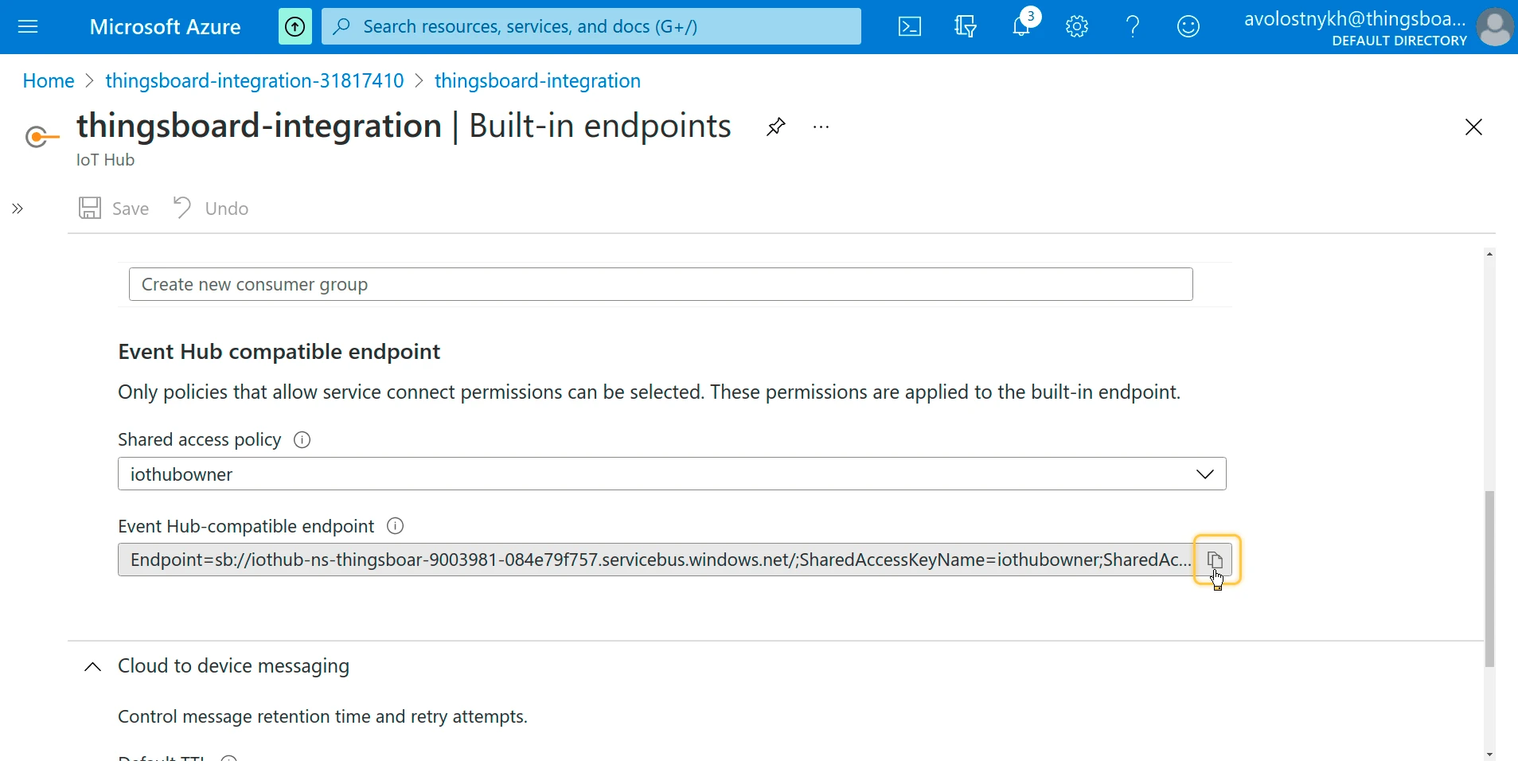
The Shared access policy above the endpoint selects the key in the connection string. ThingsBoard reuses this key for downlinks, so keep a policy with Service connect permission, such as iothubowner or service.
To read a standalone event hub instead, copy the connection string of a shared access policy on that event hub. It also ends in EntityPath=<event hub name>. Downlink is not available in this case.
You now have the values for the integration:
| Value | Example | Source |
|---|---|---|
| Connection string | Endpoint=sb://…;SharedAccessKeyName=iothubowner;SharedAccessKey=…;EntityPath=… |
Built-in endpoints page |
| IoT Hub Name | thingsboard-integration |
Hub name, as in thingsboard-integration.azure-devices.net. Needed only for downlink. |
| Consumer group | thingsboard |
Optional. Default: $Default. |
Set Up Azure Event Hub Integration
Section titled “Set Up Azure Event Hub Integration”Create the uplink converter, assign it to a new Azure Event Hub integration, and send a test message.
Create the Uplink Data Converter
Section titled “Create the Uplink Data Converter”The uplink converter receives each event body as a byte array, resolves the target device, and returns its telemetry and attributes. Azure Event Hub Integration uses the Generic converter: you write the decoder in TBEL or JavaScript. For converter types and the full decoder reference, see Uplink data converter.
This guide uses the sample payload that ThingsBoard provides for Azure Event Hub converters, with a recent timestamp:
{ "deviceId": "8F4A2C6D", "deviceType": "Packing machine", "temperature": 25.5, "pressure": 1013.25, "vibration": { "x": 0.02, "y": 0.03, "z": 0.015 }, "location": { "latitude": 37.7749, "longitude": -122.4194, "altitude": 10 }, "timestamp": "2026-10-14T10:30:00Z", "status": "ALARM", "alarms": [ { "type": "temperature", "severity": "high", "message": "Temperature exceeds threshold." }, { "type": "vibration", "severity": "critical", "message": "Excessive vibration detected." } ], "metadata": { "version": 1, "batteryLevel": 100, "batteryStatus": "Charging", "manufacturer": "Example corporation" }}-
Go to Integrations ⇾ Data converters and click + Add data converter ⇾ Create new converter.
-
Converter type — keep Uplink.
-
Integration type — select Azure Event Hub.
-
Name — enter a name, for example
Azure Event Hub Uplink Converter. -
Main decoding configuration — the editor opens with the default Azure Event Hub template. Replace it with the decoder below. The decoder maps measurements and state to telemetry and static device properties to attributes. It also reads
timestamp,location, andvibrationwhen the payload carries them. The editor opens in TBEL; use the TBEL / JS toggle to switch to JavaScript.var data = decodeToJson(payload);var deviceName = data.deviceId != null ? data.deviceId : "Device A";var deviceType = data.deviceType != null ? data.deviceType : "default";// ISO 8601 timestamp; fall back to server time.var ts = data.timestamp != null ? new Date(data.timestamp).getTime() : Date.now();// Static device properties become attributes.var attributes = {};if (data.location != null) {attributes.latitude = data.location.latitude;attributes.longitude = data.location.longitude;attributes.altitude = data.location.altitude;}if (data.metadata != null) {attributes.version = data.metadata.version;attributes.manufacturer = data.metadata.manufacturer;}// Measurements and state become telemetry.var telemetry = {temperature: data.temperature,pressure: data.pressure,status: data.status,receivedAlarms: data.alarms};if (data.vibration != null) {telemetry.vibrationX = data.vibration.x;telemetry.vibrationY = data.vibration.y;telemetry.vibrationZ = data.vibration.z;}if (data.metadata != null) {telemetry.batteryLevel = data.metadata.batteryLevel;telemetry.batteryStatus = data.metadata.batteryStatus;}return {deviceName: deviceName,deviceType: deviceType,attributes: attributes,telemetry: {ts: ts,values: telemetry}};var data = decodeToJson(payload);var deviceName = data.deviceId != null ? data.deviceId : "Device A";var deviceType = data.deviceType != null ? data.deviceType : "default";// ISO 8601 timestamp; fall back to server time.var ts = data.timestamp != null ? new Date(data.timestamp).getTime() : Date.now();// Static device properties become attributes.var attributes = {};if (data.location != null) {attributes.latitude = data.location.latitude;attributes.longitude = data.location.longitude;attributes.altitude = data.location.altitude;}if (data.metadata != null) {attributes.version = data.metadata.version;attributes.manufacturer = data.metadata.manufacturer;}// Measurements and state become telemetry.var telemetry = {temperature: data.temperature,pressure: data.pressure,status: data.status,receivedAlarms: data.alarms};if (data.vibration != null) {telemetry.vibrationX = data.vibration.x;telemetry.vibrationY = data.vibration.y;telemetry.vibrationZ = data.vibration.z;}if (data.metadata != null) {telemetry.batteryLevel = data.metadata.batteryLevel;telemetry.batteryStatus = data.metadata.batteryStatus;}var result = {deviceName: deviceName,deviceType: deviceType,attributes: attributes,telemetry: {ts: ts,values: telemetry}};// Convert the byte array to a string.function decodeToString(payload) {return String.fromCharCode.apply(String, payload);}// Convert the byte array to a JSON object.function decodeToJson(payload) {return JSON.parse(decodeToString(payload));}return result;To adapt:
- Device name in another field — replace
data.deviceId, for example withdata.serialNumber. - Device name of the sender — for IoT Hub messages, use the Azure Device ID of the sender:
metadata["sysProp:iothub-connection-device-id"]. - Optional fields — remove the
location,vibration,status, oralarmsmappings your devices never send. - Other telemetry — add keys to
telemetry, for examplehumidity: data.humidity. - Other device properties — add them to
attributes, for examplemodel: data.model. - Update-only keys — for Azure Event Hub, ThingsBoard pre-fills the Update only keys list in Advanced decoding parameters with
manufacturer,receivedAlarms,status,batteryLevel,batteryStatus, andversion. These keys are stored only when their value changes. Edit the list to match your keys.
- Device name in another field — replace
-
Click Test decoder function and check the result (see Test the Decoder).
-
Click Add.
Decoder Inputs
The decoder signature is function decoder(payload, metadata): object | object[].
| Variable | Type | Content |
|---|---|---|
payload |
byte array | The event body. |
metadata |
{[key: string]: string} |
Each system property of the event as sysProp:<name>. For IoT Hub messages, this includes sysProp:iothub-connection-device-id (the sending device) and sysProp:iothub-enqueuedtime. Also integrationName and the key–value pairs from the integration’s Metadata field. Application properties of the event are not passed. |
Built-in helpers:
| Function | Result |
|---|---|
decodeToJson(payload) |
Parses the bytes as JSON and returns an object. |
decodeToString(payload) |
Converts the bytes to a UTF-8 string. |
toFlatMap(obj, excludeKeys, flatNested) |
TBEL only. Returns a flat key–value map of obj, skipping excludeKeys. With flatNested set to true, nested objects become dot-separated keys. |
For field renaming, nested values, and non-JSON payloads, see Common scripting patterns.
Test the Decoder
Click Test decoder function below the editor. Replace the content of Payload with the sample payload. Click Test. The Output panel shows:
{ "deviceName": "8F4A2C6D", "deviceType": "Packing machine", "attributes": { "latitude": 37.7749, "longitude": -122.4194, "altitude": 10, "version": 1, "manufacturer": "Example corporation" }, "telemetry": { "ts": 1791973800000, "values": { "temperature": 25.5, "pressure": 1013.25, "status": "ALARM", "receivedAlarms": [ { "type": "temperature", "severity": "high", "message": "Temperature exceeds threshold." }, { "type": "vibration", "severity": "critical", "message": "Excessive vibration detected." } ], "vibrationX": 0.02, "vibrationY": 0.03, "vibrationZ": 0.015, "batteryLevel": 100, "batteryStatus": "Charging" } }}ts is the payload’s timestamp, 2026-10-14T10:30:00Z, in milliseconds.
Check that deviceName is set and telemetry holds the expected keys. If the output is empty or shows an error, fix the decoder and test again.
Create the Integration
Section titled “Create the Integration”- Go to Integrations ⇾ Integrations and click + Add integration.
- Basic settings:
- Integration type — select Azure Event Hub.
- Name — keep the default or enter your own.
- Enable integration and Allow create devices or assets — keep both on, so the device is created on its first uplink.
- Click Next.
- Uplink data converter:
- Click Select existing and choose
Azure Event Hub Uplink Converter. - Alternatively, click Create new to write a decoder here.
- Click Next.
- Click Select existing and choose
- Downlink data converter:
- Click Skip. Add a downlink converter later if you need to send cloud-to-device messages.
- Connection:
- Connection string — paste the Event Hub-compatible endpoint.
- Consumer group — in Advanced settings, enter
thingsboardif you created it. Otherwise, leave it empty to use$Default. - Leave the other parameters at their defaults. See Connection Settings for details.
- Click Check connection. ThingsBoard connects to the endpoint and lists its partitions.
- Click Add.
Connection Settings
Section titled “Connection Settings”| Parameter | Description |
|---|---|
| Connection string | Event Hubs connection string with EntityPath, for example the IoT Hub Event Hub-compatible endpoint. Required. |
| IoT Hub Name | Name of the IoT hub, without .azure-devices.net. Required when a downlink converter is assigned. ThingsBoard combines it with the key from Connection string to call the IoT Hub service API. |
| Enable persistent checkpoints | Off by default: after a restart, the integration reads only new events. When on, it stores its position in Azure Blob Storage and resumes from the last checkpoint. See Persistent Checkpoints. |
| Execute remotely | Runs the integration as a separate process outside the ThingsBoard cluster. ThingsBoard generates an Integration key and Integration secret for it. See Remote Integration. |
Advanced settings
| Parameter | Default | Description |
|---|---|---|
| Connection timeout (sec) | 10 |
Timeout for each connection attempt, from 1 to 200 seconds. |
| Consumer group | $Default |
Consumer group the integration reads with. Use a dedicated group when other applications read the same endpoint. |
| Description | — | Free-text description. |
| Metadata | — | Key–value pairs added to the metadata of every message from this integration. |
Persistent Checkpoints
Section titled “Persistent Checkpoints”A checkpoint records the last event the integration processed in each partition. Without persistent checkpoints, the integration keeps them in memory, and events sent while it is stopped are skipped. With persistent checkpoints, it stores them in an Azure Blob Storage container and processes those events after a restart, as long as the hub still retains them.
- In the Azure portal, open a storage account, or create one.
- Go to Security + networking ⇾ Access keys and copy the Connection string of key1.
- In the integration, turn on Enable persistent checkpoints.
- Paste the connection string into Storage connection string.
- Enter a Container name, for example
eventhubcontainer. The integration creates the container if it does not exist.
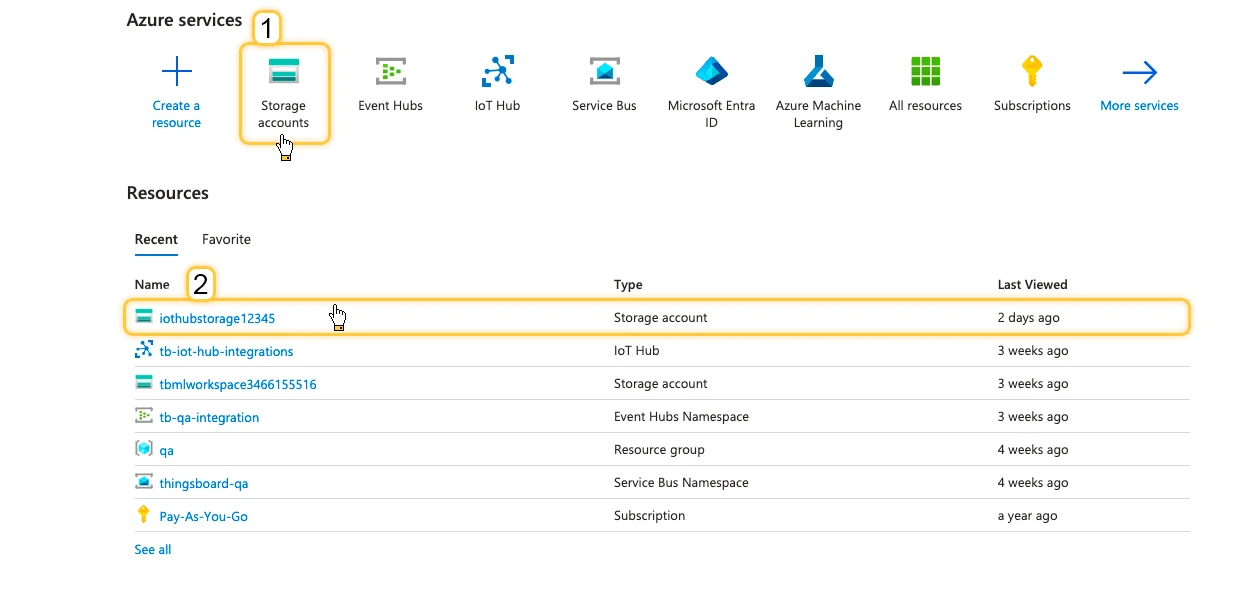
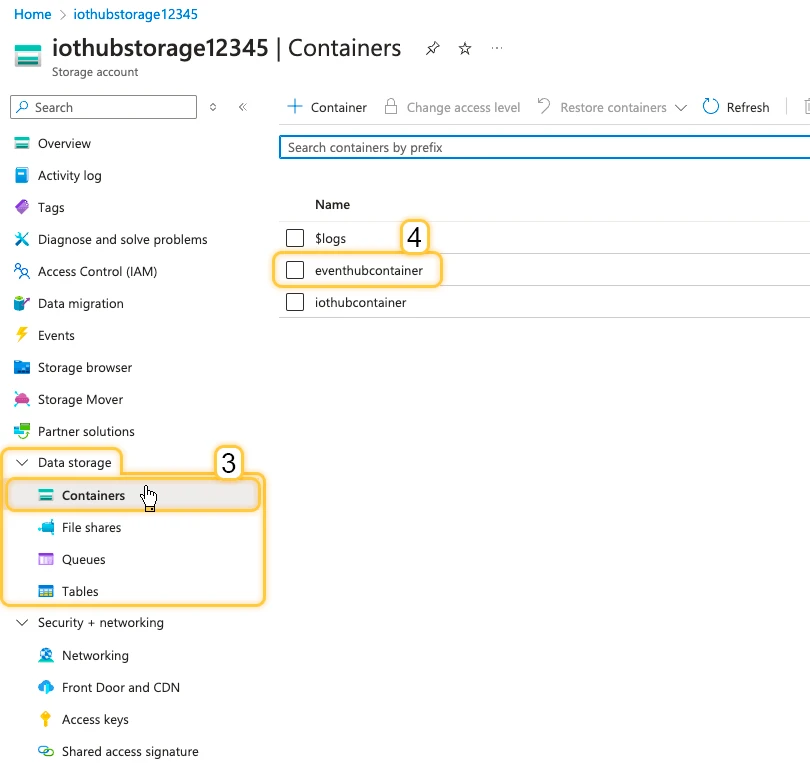
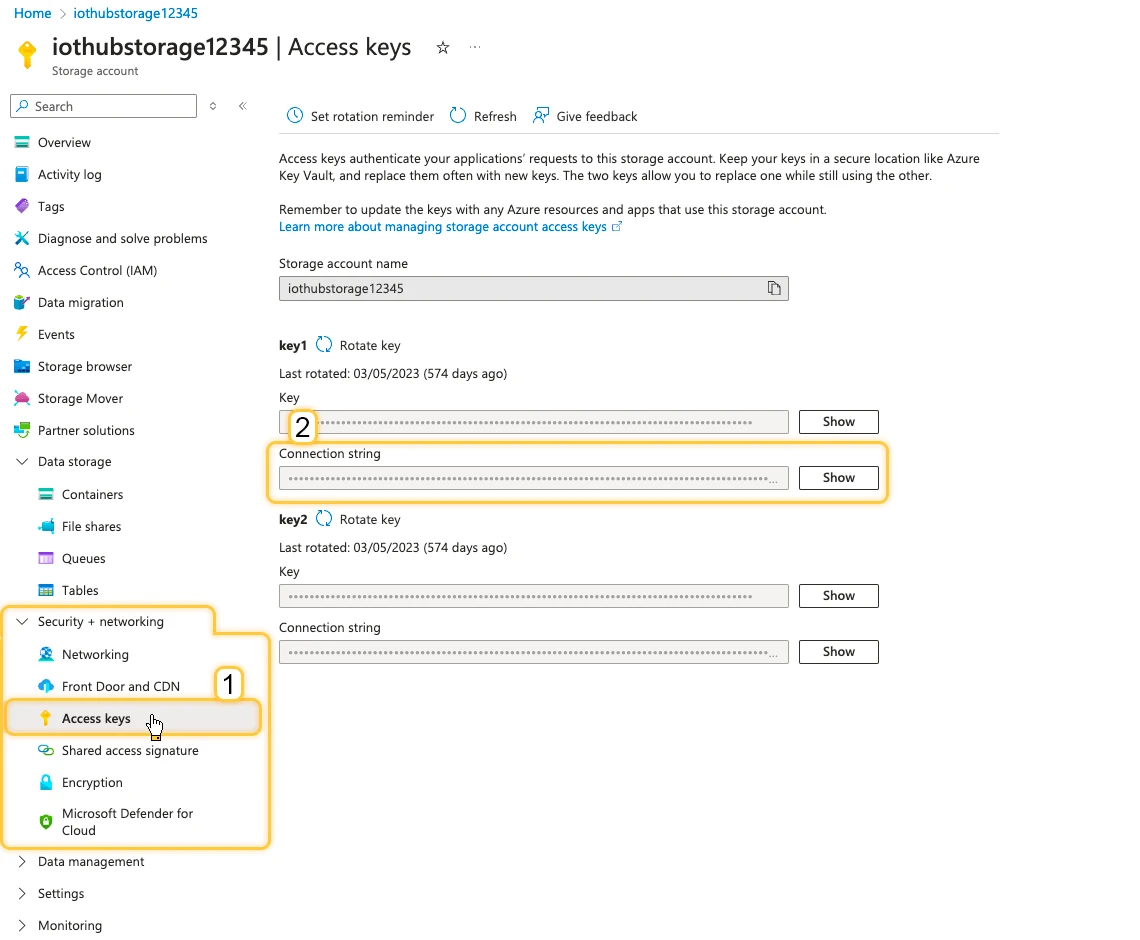
With persistent checkpoints on, Check connection also checks access to the container.
Test Uplink
Section titled “Test Uplink”Send a device-to-cloud message as device 8F4A2C6D, then confirm that ThingsBoard decoded it and created the device.
Send a Test Uplink
Section titled “Send a Test Uplink”The integration reads only events that arrive after it starts, so add the integration first. Send the sample payload without timestamp. The decoder then uses the current server time; with a fixed timestamp, the data would fall outside the recent time windows of your dashboards as time passes.
az iot device send-d2c-message \ --hub-name thingsboard-integration \ --device-id 8F4A2C6D \ --data '{"deviceId":"8F4A2C6D","deviceType":"Packing machine","temperature":25.5,"pressure":1013.25,"vibration":{"x":0.02,"y":0.03,"z":0.015},"location":{"latitude":37.7749,"longitude":-122.4194,"altitude":10},"status":"ALARM","alarms":[{"type":"temperature","severity":"high","message":"Temperature exceeds threshold."},{"type":"vibration","severity":"critical","message":"Excessive vibration detected."}],"metadata":{"version":1,"batteryLevel":100,"batteryStatus":"Charging","manufacturer":"Example corporation"}}'The command sends the message as the device, the same way device firmware does.
Verify the Result
Section titled “Verify the Result”- Integration events — go to Integrations ⇾ Integrations, open the integration, and click the Events tab. The uplink appears with status OK. Click
⋅⋅⋅in the Message column to see the event:systemPropertiesandpayload. - Converter events — open
Azure Event Hub Uplink Converterin Integrations ⇾ Data converters and click the Events tab. In shows the received payload, Out shows the decoded result, and Metadata shows thesysProp:values and the integration name. - Device — go to Devices & assets ⇾ Devices. The integration has created 8F4A2C6D with the
Packing machineprofile. Open it and check the Latest telemetry tab fortemperature,pressure,status,receivedAlarms,vibrationX–vibrationZ,batteryLevel, andbatteryStatus, and the Attributes tab forlatitude,longitude,altitude,version, andmanufacturer.
Configure Downlink
Section titled “Configure Downlink”ThingsBoard sends a downlink when the Rule Engine routes a message to the integration — for example, after a shared attribute update. The integration sends it through the IoT Hub service API as a cloud-to-device message to the Azure device in metadata.deviceId. IoT Hub queues the message until the device receives it or the message expires.
Downlink requires:
- An IoT hub as the event source. A standalone event hub has no cloud-to-device messaging.
- IoT Hub Name in the integration.
- A Connection string whose policy has Service connect permission.
The downlink converter turns a Rule Engine message into the message body. For the full encoder reference, see Downlink data converter.
Create and Assign the Downlink Converter
Section titled “Create and Assign the Downlink Converter”The encoder returns:
contentType—JSON,TEXT, orBINARY.data— the message body.metadata—deviceId, the Azure Device ID of the target device. Required: without it, the integration skips the message. Everymetadatakey is also added to the message properties, together withcontent-type.
- Open the integration in Integrations ⇾ Integrations and click Toggle edit mode (pencil icon).
- In the Downlink data converter field, click Create new. The Downlink converter type and Azure Event Hub integration type are preselected.
- Enter a name, for example
Azure Event Hub Downlink Converter. - In Main encoding configuration, replace the default encoder with the one below.
- To record downlink events, click the debug icon next to the name, select All messages, and click Apply.
- Click Add.
- Enter the IoT Hub Name, for example
thingsboard-integration. The field becomes required once a downlink converter is assigned. - Click Apply changes.
Encoder used in this guide (TBEL and JavaScript):
/** Encoder **/
// Send the Rule Engine message as the message body.var result = {  // Payload content type: JSON, TEXT, or BINARY (Base64).  contentType: 'JSON',  data: JSON.stringify(msg),  metadata: {    // Azure Device ID of the target device.    // This guide uses the same ID as the ThingsBoard device name.    deviceId: metadata.deviceName  }};
return result;
To check the encoder, click Test encoder function. Message type is already ATTRIBUTES_UPDATED. Set Message to {"temperatureUploadFrequency":60} and deviceName in Metadata to 8F4A2C6D, if they differ, then click Test. The Output shows:
{ "contentType": "JSON", "data": "{\"temperatureUploadFrequency\":60}", "metadata": { "deviceId": "8F4A2C6D" }}To adapt:
- Another envelope — build
datain the structure your device firmware expects, for example{ "method": "setConfig", "params": msg }. - Different Azure Device IDs — when ThingsBoard device names differ from Azure Device IDs, store the Azure ID in a device attribute and read it into
metadatawith an enrichment node. - Message properties — add keys to
metadata, for examplesource: 'thingsboard'. The device receives them as message properties. - Other message types — branch on
msgType, for example to handleRPC_CALL_FROM_SERVER_TO_DEVICEwithmsg.methodandmsg.params. See Rule Engine message types.
Configure the Root Rule Chain
Section titled “Configure the Root Rule Chain”The encoder reads deviceName from the message metadata, so the rule chain first adds the device name.
- Go to Data processing ⇾ Rule chains and open the Root Rule Chain.
- From the Enrichment section, drag an originator fields node onto the canvas.
- Enter a Name (for example,
Retrieve device name) and map the source fields:- Name ⇾ deviceName
- Add mapped originator fields to ⇾ Metadata
- Click Add.
- Connect the message type switch node to the originator fields node with the Attributes Updated relation.
- From the Action section, drag an integration downlink node onto the canvas.
- Enter a Name (for example,
Downlink to Azure Event Hub), select your Azure Event Hub integration, and click Add. - Connect the originator fields node to the integration downlink node with the Success relation.
- Click Apply changes.
Test Downlink
Section titled “Test Downlink”- Go to Devices & assets ⇾ Devices, select 8F4A2C6D, and open the Attributes tab.
- Select Shared attributes and click +.
- Set Key to
temperatureUploadFrequency, Type to Integer, Value to60, and click Add. ThingsBoard sends the downlink.
Verify the Downlink
Section titled “Verify the Downlink”-
Integration events — the integration’s Events tab shows a Downlink event with
deviceId,payload({"temperatureUploadFrequency":60}), andproperties. -
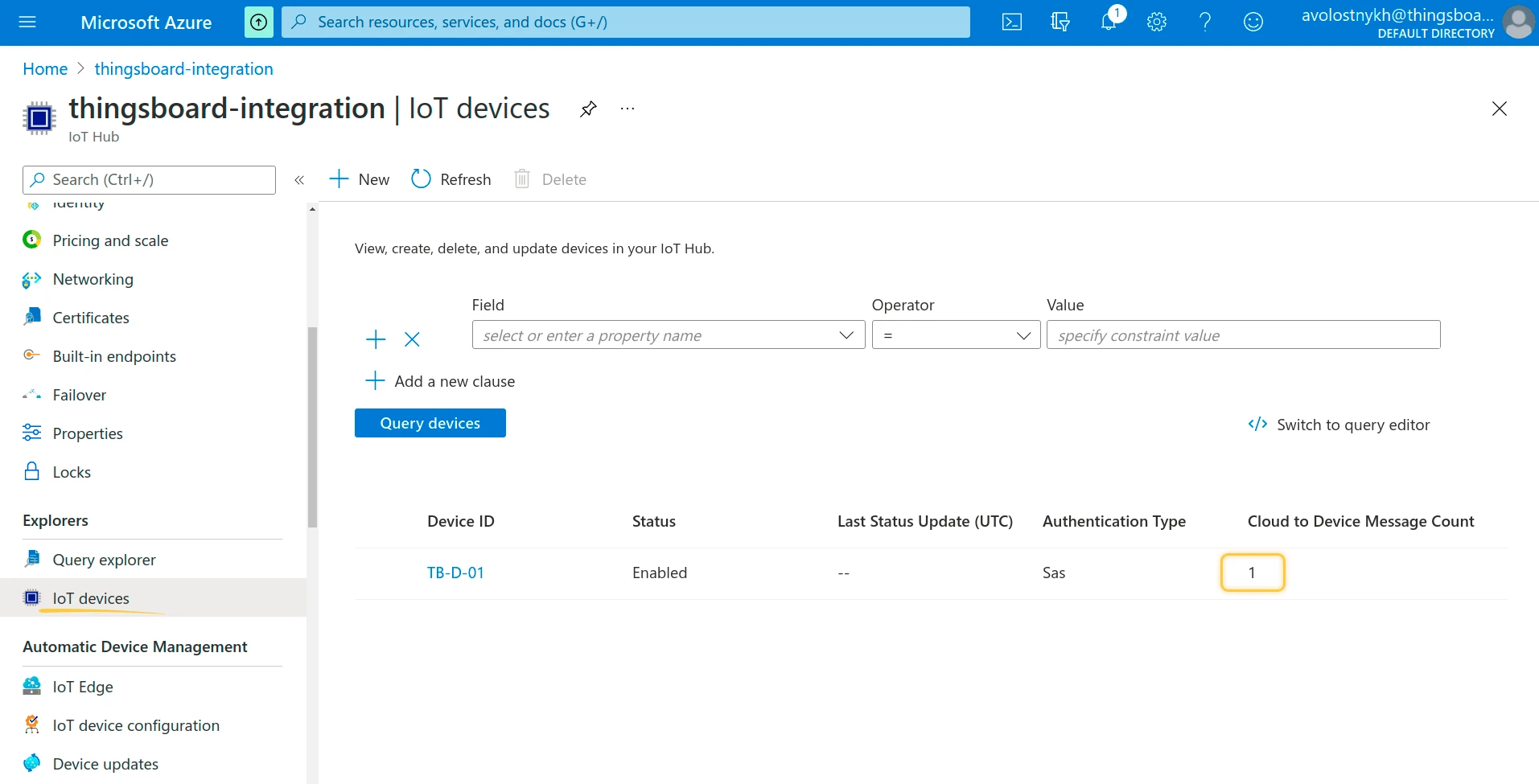
Azure portal — in the hub, go to Device management ⇾ Devices. The Cloud to Device Message Count of
8F4A2C6Dhas increased. -
Device side — receive the message as the device:
Terminal window az iot device c2d-message receive --hub-name thingsboard-integration --device-id 8F4A2C6D
Troubleshooting
Section titled “Troubleshooting”| Symptom | Cause | Fix |
|---|---|---|
| Check connection fails with “Unable to connect. Check for correct Connection String!” | Wrong connection string, missing EntityPath, wrong Consumer group, or blocked port 5671. |
Copy the Event Hub-compatible endpoint again. Check that the consumer group exists and that outbound TCP 5671 is open. |
| Check connection fails with “…Check for correct Storage Connection String!” | Wrong storage connection string. | Copy it again from the storage account’s Access keys page. |
| No uplinks after a restart | Persistent checkpoints are off, so events sent while the integration was stopped are skipped. | Turn on persistent checkpoints. |
| No uplinks, connection is fine | Messages were sent before the integration started, or another reader takes the partitions in the same consumer group. | Send a new message. Use a dedicated Consumer group. |
| Device not created | deviceName is empty, or Allow create devices or assets is off. |
Check Out in the converter events and the integration settings. |
| Integration fails to start after a downlink converter is assigned | IoT Hub Name is wrong, or the policy lacks Service connect permission. | Enter the hub name without .azure-devices.net. Select a policy such as iothubowner or service on Built-in endpoints and copy the endpoint again. |
| No downlink is sent | The rule chain does not reach the integration downlink node, or the encoder does not set metadata.deviceId. |
Check the Root Rule Chain wiring. Check Out in the downlink converter events for deviceId. |
| Downlink sent, the device receives nothing | The Device ID does not exist in the hub, the message expired, or the hub is on the Basic tier. | Compare deviceId with the device list. Check Default TTL on Built-in endpoints. Use the Free or Standard tier. |
To read debug events, open the integration or converter, click Events, and select an event: In is the received data, Out is the converter result, and Error holds the error text.
See Also
Section titled “See Also”- Integrations overview — how integrations, converters, uplinks, and downlinks fit together.
- Azure IoT Hub Integration — connect to IoT Hub over MQTT as one device.
- Uplink data converter — decoder inputs, output format, and scripting patterns.
- Downlink data converter — encoder reference.
- Remote Integration — run the integration outside the ThingsBoard cluster.
- TBEL — built-in functions and syntax for converter scripts.
- IoT Hub built-in endpoint — Event Hub-compatible endpoint, consumer groups, and retention.
- Cloud-to-device messages — delivery, expiration, and feedback.
Was this helpful?