UDP Integration
UDP Integration connects ThingsBoard to devices that communicate over raw User Datagram Protocol (UDP) sockets. Use it to bridge an existing UDP-based device protocol into ThingsBoard for monitoring and rule-based automation — including sending response datagrams back to devices.
When to use UDP Integration:
- Devices use a custom binary or text protocol over a raw UDP socket.
- Firmware transmits fire-and-forget datagrams to a fixed host and port.
- Low-overhead, connectionless transport is preferred over TCP (e.g., battery-powered sensors, high-frequency telemetry streams).
- You need to bridge an existing UDP-based device protocol with ThingsBoard without re-flashing firmware.
Architecture
Section titled “Architecture”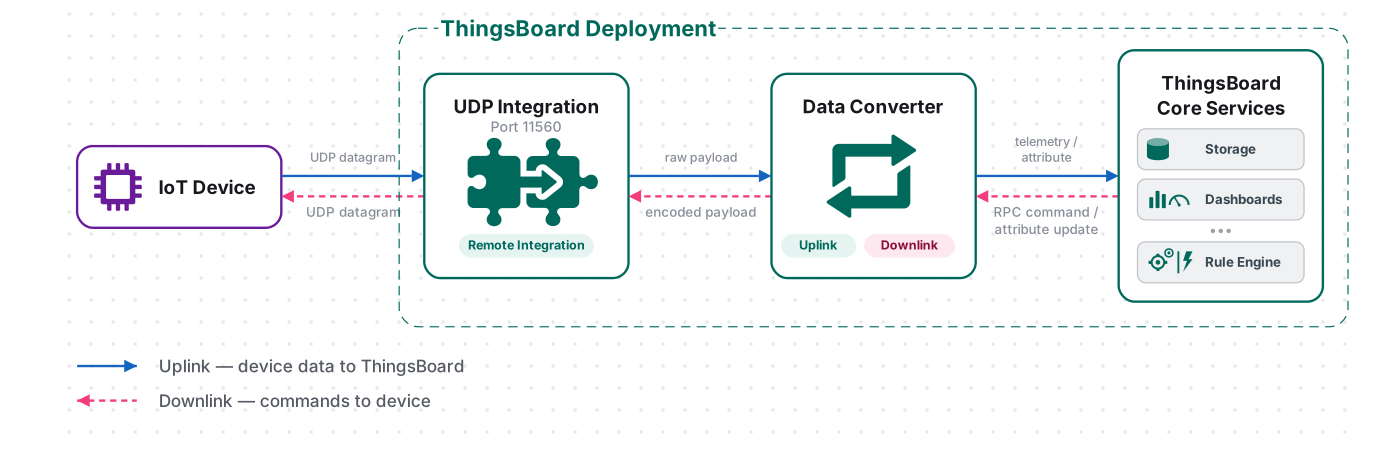
A device sends a UDP datagram to the UDP Integration process listening on the configured port (e.g. 11560). The uplink converter decodes the datagram into telemetry and attributes, and the ThingsBoard Core Service stores the data, creating the device automatically on first contact. For downlink, the Rule Engine hands a message to the integration; the downlink converter encodes it, and the integration sends the response datagram back to the device’s source address.
Prerequisites
Section titled “Prerequisites”Before creating the integration, ensure:
- You have access to ThingsBoard Cloud with integration functionality enabled for your tenant.
- You have permissions to create integrations and data converters.
- You know the payload format your UDP devices use.
- Port 11560 (or whichever port you configure) must be open for incoming UDP traffic on the machine running the UDP Integration process. The remote process also needs outbound access to ThingsBoard’s gRPC port 9090.
- The
echocommand piped tonetcat(nc) is available for sending test UDP datagrams.
In this tutorial, device SN-003 sends temperature and humidity readings to the UDP Integration server on port 11560.
The integration accepts four payload formats. Select the one that matches your device:
SN-003,default,temperature,25.7,humidity,69{ "deviceName": "SN-003", "deviceType": "default", "temperature": 25.7, "humidity": 69}The binary payload is 19 bytes:
\x53\x4e\x2d\x30\x30\x33\x64\x65\x66\x61\x75\x6c\x74\x32\x35\x2e\x37\x36\x39Byte layout:
- Bytes 0–5 (
\x53\x4e\x2d\x30\x30\x33) — device name:SN-003. - Bytes 6–12 (
\x64\x65\x66\x61\x75\x6c\x74) — device type:default. - Bytes 13–16 (
\x32\x35\x2e\x37) — temperature:25.7. - Bytes 17–18 (
\x36\x39) — humidity:69.
A hex-encoded string representation of the binary payload above, converted to bytes using xxd -r -p before sending:
534e2d30303364656661756c7432352e373639| Hex segment | Value |
|---|---|
534e2d303033 |
Device name: SN-003 |
64656661756c74 |
Device type: default |
32352e37 |
Temperature: 25.7 |
3639 |
Humidity: 69 |
Set Up the UDP Integration
Section titled “Set Up the UDP Integration”To set up the UDP integration, first create an uplink data converter to process incoming messages, then create and configure the integration.
Create the Uplink Data Converter
Section titled “Create the Uplink Data Converter”The decoder function receives the raw UDP datagram body as a payload byte array. It must return an object with at least deviceName and deviceType. Optionally, it can include telemetry (time-series measurements) and attributes (device properties) as flat key-value maps.
For the full decoder function reference — all input parameters and output fields — see Uplink data converter.
- Go to Integrations ⇾ Data converters.
- Click + Add data converter ⇾ Create new converter.
In the Add data converter dialog:
- Converter type — leave Uplink (selected by default).
- Integration type — in the search field, enter
UDPand select UDP from the list. - Name — enter a converter name, for example
UDP Uplink Converter. - Main decoding configuration — paste the decoder function from the appropriate tab below, then continue with step 7.
Select the tab matching your payload type:
/** Decoder **/
// decode payload to stringvar strArray = decodeToString(payload);var payloadArray = strArray.replaceAll("\"", "").replaceAll("\\\\n", "").split(',');
var telemetryPayload = {};for (var i = 2; i < payloadArray.length; i = i + 2) {  var telemetryKey = payloadArray[i];  var telemetryValue = parseFloat(payloadArray[i + 1]);  telemetryPayload[telemetryKey] = telemetryValue;}
// Result object with device attributes/telemetry datavar result = {  deviceName: payloadArray[0],  deviceType: payloadArray[1],  telemetry: telemetryPayload,  attributes: {}};
/** Helper functions 'decodeToString' and 'decodeToJson' are already built-in **/
return result;/** Decoder **/
// decode payload to stringvar strArray = decodeToString(payload);var payloadArray = strArray.replace(/"/g, "").replace(/\s/g, "").replace(/\\n/g, "").split(',');
var telemetryPayload = {};for (var i = 2; i < payloadArray.length; i = i + 2) { var telemetryKey = payloadArray[i]; var telemetryValue = parseFloat(payloadArray[i + 1]); telemetryPayload[telemetryKey] = telemetryValue;}
// Result object with device attributes/telemetry datavar result = { deviceName: payloadArray[0], deviceType: payloadArray[1], telemetry: telemetryPayload, attributes: {}};
/** Helper functions **/
function decodeToString(payload) { return String.fromCharCode.apply(String, payload);}
return result;The decoder expects a comma-separated string where position 0 is the device name, position 1 is the device type, and positions 2–N are alternating telemetry key/value pairs: deviceName,deviceType,key1,value1,key2,value2,...
To adapt this converter to your device:
- Change the separator by replacing
split(',')with your delimiter (e.g.split(';')orsplit('|')). - If the device name or type is at a different position, adjust the
payloadArray[0]/payloadArray[1]index. - If telemetry keys are fixed rather than embedded in the payload, replace the loop with explicit assignments:
telemetryPayload['temperature'] = parseFloat(payloadArray[2]);. - To report device properties instead of measurements, move fields from the
telemetrymap to theattributesmap.
/** Decoder **/
// decode payload to JSONvar data = decodeToJson(payload);
var deviceName = data.deviceName;var deviceType = data.deviceType;var result = {    deviceName: deviceName,    deviceType: deviceType,    attributes: {},    telemetry: {        temperature: data.temperature,        humidity: data.humidity    }};
/** Helper functions 'decodeToString' and 'decodeToJson' are already built-in **/
return result;
/** Decoder **/
// decode payload to JSONvar data = decodeToJson(payload);
var deviceName = data.deviceName;var deviceType = data.deviceType;var result = { deviceName: deviceName, deviceType: deviceType, attributes: {}, telemetry: { temperature: data.temperature, humidity: data.humidity }};
/** Helper functions **/
function decodeToString(payload) { return String.fromCharCode.apply(String, payload);}
function decodeToJson(payload) { var str = decodeToString(payload); var data = JSON.parse(str); return data;}
return result;The decoder parses the payload as a JSON object and maps fields directly to deviceName, deviceType, and telemetry keys.
To adapt this converter to your device:
- Replace
data.deviceName/data.deviceTypewith the actual field names your device sends (e.g.data.id,data.model). - Add or remove telemetry fields to match your sensor output:
pressure: data.pressure, co2: data.co2. - Move fields to
attributesif they represent device properties rather than time-series data (e.g.firmware: data.fw).
/** Decoder **/
// decode payload to stringvar payloadStr = decodeToString(payload);
var deviceName = payloadStr.substring(0, 6);var deviceType = payloadStr.substring(6, 13);
// Result object with device/asset attributes/telemetry datavar result = {   deviceName: deviceName,   deviceType: deviceType,   attributes: {},   telemetry: {       temperature: parseFloat(payloadStr.substring(13, 17)),       humidity: parseFloat(payloadStr.substring(17, 19))   }};
/** Helper functions 'decodeToString' and 'decodeToJson' are already built-in **/
return result;/** Decoder **/
// decode payload to stringvar payloadStr = decodeToString(payload);
var deviceName = payloadStr.substring(0, 6);var deviceType = payloadStr.substring(6, 13);
// Result object with device/asset attributes/telemetry datavar result = { deviceName: deviceName, deviceType: deviceType, attributes: {}, telemetry: { temperature: parseFloat(payloadStr.substring(13, 17)), humidity: parseFloat(payloadStr.substring(17, 19)) }};
/** Helper functions **/
function decodeToString(payload) { return String.fromCharCode.apply(String, payload);}
function decodeToJson(payload) { var str = decodeToString(payload); var data = JSON.parse(str); return data;}
return result;The decoder converts the raw bytes to a string and reads device identity and sensor values from fixed byte offsets. This approach is typical for compact, bandwidth-constrained binary protocols.
To adapt this converter to your device:
- Adjust the
substring(start, end)offsets to match your device’s byte layout. - For integer fields stored as raw bytes (not ASCII digits), use
parseBytesToInt(payload, offset, length, bigEndian)instead ofparseFloat(payloadStr.substring(...)). For example:temperature: parseBytesToInt(payload, 13, 2, true) / 100.0. - If the device name or type is fixed rather than embedded in the payload, replace the
substringcalls with string literals. - Add more telemetry fields by reading additional byte ranges and adding them to the
telemetrymap.
/** Decoder **/
// decode payload to JSONvar data = decodeToJson(payload).reports[0].value;
// Result object with device telemetry datavar result = {    deviceName: hexToString(data.substring(0, 12)),    deviceType: hexToString(data.substring(12, 26)),    telemetry: {        temperature: parseFloat(hexToString(data.substring(26, 34))),        humidity: parseFloat(hexToString(data.substring(34, 38)))    }};
/** Helper functions **/
// Hexadecimal string to stringfunction hexToString(hex) {    return bytesToString(hexToBytes(hex));}
return result;/** Decoder **/
// decode payload to JSONvar data = decodeToJson(payload).reports[0].value;
// Result object with device telemetry datavar result = { deviceName: hexToString(data.substring(0, 12)), deviceType: hexToString(data.substring(12, 26)), telemetry: { temperature: parseFloat(hexToString(data.substring(26, 34))), humidity: parseFloat(hexToString(data.substring(34, 38))) }};
/** Helper functions **/
function decodeToString(payload) { return String.fromCharCode.apply(String, payload);}
// Hexadecimal string to stringfunction hexToString(hex) { var str = ''; for (var i = 0; i < hex.length; i += 2) { var notNullValue = parseInt(hex.substr(i, 2), 16); if (notNullValue) { str += String.fromCharCode(notNullValue); } } return str;}
function decodeToJson(payload) { var str = decodeToString(payload); var data = JSON.parse(str); return data;}
return result;The decoder interprets the payload as a JSON envelope, extracts a hex-encoded data string from reports[0].value, and converts each hex substring back to its ASCII representation to read device identity and sensor values.
To adapt this converter to your device:
- Adjust the
substring(start, end)offsets to match your device’s hex-encoded field layout (each ASCII character encodes to 2 hex digits, so a 6-character name occupies 12 hex characters). - For numeric fields not represented as ASCII digits, use
parseInt(hexToString(data.substring(start, end)), 16)to decode a raw integer. - If your device sends a flat hex string rather than a JSON envelope, replace
decodeToJson(payload).reports[0].valuewithdecodeToString(payload)and adjust offsets accordingly.
- Click Test payload decoder to verify your script. Paste a sample payload matching your format, then click Test and confirm the result contains the expected
deviceName,deviceType, andtelemetryfields. - Click Add to save the converter.
Create the UDP Integration
Section titled “Create the UDP Integration”- Go to Integrations ⇾ Integrations and click + Add integration.
- Basic settings:
- Set integration type to UDP.
- Enter a name — for example,
UDP integration. - Leave Enable integration and Allow create devices or assets on so the device is created automatically on first data.
- Click Next.
- Uplink data converter:
- Click Select existing and choose the UDP Uplink Converter created in the previous step, or click Create new to define the decoder inline.
- Click Next.
- Downlink data converter:
- Click Skip for now. You can add a downlink converter later.
- Connection settings:
- Set the Port — default is
11560. This port must be open on the machine running the UDP Integration process. - The Execute remotely option is always enabled for UDP. Copy the Integration key and Integration secret — you will need them to start the remote integration process.
- Configure the Handler Configuration — select the message framing strategy that matches your device protocol. See Handler Configuration below.
- Set the Port — default is
- Click Add to save the integration.
Connection Settings
Section titled “Connection Settings”Port
UDP port the integration listens on for incoming datagrams. Must be unique per integration on a given host. Default: 11560.
Size of the buffer for inbound socket (in KB)
Size of the receive buffer for the inbound UDP socket in kilobytes. Increase this value if datagrams are being dropped under high load. Default: 64.
Enable Broadcast
When enabled, the integration socket accepts broadcast UDP packets (destination 255.255.255.255 or a subnet broadcast address). Disable for unicast-only deployments. Enabled by default.
Execute Remotely
Execute remotely is always enabled for UDP Integration. Copy the automatically generated Integration key and Integration secret values — credentials required to launch the UDP Integration as a standalone remote process. See Remote Integration for full setup instructions.
Downlink Cache
| Parameter | Description |
|---|---|
| Cache Size | Maximum number of device source addresses remembered for downlink routing. When the limit is reached, the oldest entry is evicted. |
| Cache time to live in minutes | How long a device’s source address is retained. If a downlink is triggered after the entry expires, it cannot be delivered until the device sends another uplink. |
Advanced Settings
| Field | Description |
|---|---|
| Description | Optional free-text description of the integration. |
| Metadata | Optional key–value pairs injected into every message and accessible in converter scripts via the metadata object. Click Add to add a row. |
Handler Configuration
Section titled “Handler Configuration”Defines how the integration interprets the raw datagram bytes before passing them to the converter. Select the type that matches your device protocol:
Interprets the datagram as a text string encoded in the specified character set. Suitable for devices that send CSV lines or human-readable payloads.
| Parameter | Description |
|---|---|
| Charset Name | Character encoding used to decode the datagram bytes into a string. Default: UTF-8. |
Passes the raw datagram bytes to the converter without modification. The converter is responsible for parsing the JSON content. No additional parameters. Suitable when devices send a single JSON object per datagram.
Passes the raw datagram bytes directly to the converter without any framing or length-field parsing. Suitable for custom binary protocols where each UDP datagram is a complete, self-contained message.
Interprets the datagram as a hex-encoded string. The raw bytes are converted to their hexadecimal string representation before being passed to the converter.
Install and Run Remote UDP Integration
Section titled “Install and Run Remote UDP Integration”Refer to the remote integration guide to install and start the UDP Integration service.
Use the Integration key and Integration secret from the integration’s Connection settings when configuring the service.
Test Uplink
Section titled “Test Uplink”After the integration is created, send a test uplink and confirm that ThingsBoard received the message, decoded it correctly, and provisioned the device.
Send Test Uplink
Section titled “Send Test Uplink”Once the UDP Integration process is running, the UDP socket is bound and ready to receive datagrams. Use netcat in UDP mode (-u) to simulate a device sending data.
Select your payload type:
echo -e 'SN-003,default,temperature,25.7,humidity,69' | nc -u -w5 localhost 11560echo -e -n '{"deviceName": "SN-003", "deviceType": "default", "temperature": 25.7, "humidity": 69}' | nc -u -w5 localhost 11560echo -e -n '\x53\x4e\x2d\x30\x30\x33\x64\x65\x66\x61\x75\x6c\x74\x32\x35\x2e\x37\x36\x39' | nc -u -w5 localhost 11560echo -e -n '534e2d30303364656661756c7432352e373639' | xxd -r -p | nc -u -w5 localhost 11560Verify Integration Events
Section titled “Verify Integration Events”Go to Integrations ⇾ Integrations, open UDP integration, and click the Events tab. Each successfully processed uplink appears as a row with status OK.
Verify Converter Events
Section titled “Verify Converter Events”To inspect converter processing, go to Integrations ⇾ Data converters, click UDP Uplink Converter, and open its Events tab:
- In — what the integration received (the raw datagram bytes)
- Out — what the converter returned
- Error — error text, if any
Verify Device Provisioning
Section titled “Verify Device Provisioning”Go to Devices & assets ⇾ Devices. Device SN-003 is auto-created on the first uplink. Open it and confirm the Latest Telemetry tab shows temperature = 25.7 and humidity = 69.
Configure Downlink
Section titled “Configure Downlink”Downlink allows ThingsBoard to send messages back to devices over UDP — for example, in response to an RPC call or a shared attribute update. The response datagram is sent to the source IP address and port of the most recent uplink datagram received from that device.
The downlink converter transforms a Rule Engine message into the bytes sent back to the device.
Create and Assign the Downlink Converter
Section titled “Create and Assign the Downlink Converter”- Go to Integrations ⇾ Integrations and open the UDP integration.
- Click the pencil icon to enter edit mode.
- In the Downlink data converter field, click Create new.
- In the Add data converter dialog:
- Enter a name for the converter, for example,
UDP Downlink Converter. - Use the default encoder script or replace it with your own implementation.
- Click Add.
- Enter a name for the converter, for example,
- Click Apply changes to save the integration.
The encoder function used in this tutorial:
/** Encoder **/
// Encode downlink data from the incoming Rule Engine message.// msg: JSON message payload.// msgType: message type, e.g. 'ATTRIBUTES_UPDATED', 'POST_TELEMETRY_REQUEST', etc.// metadata: key-value pairs containing additional message data.// integrationMetadata: key-value pairs configured in the integration.
var result = {    // Specify the response body format: JSON, TEXT, or BINARY.    contentType: "JSON",
    // Serialize the incoming message and use it as the UDP payload.    data: JSON.stringify(msg),
    // Add optional metadata when required by the integration.    metadata: {}};
return result;Configure the Root Rule Chain
Section titled “Configure the Root Rule Chain”To send downlinks through the integration, modify the Root Rule Chain:
- Go to Data processing ⇾ Rule chains and open the Root Rule Chain.
- Find the integration downlink node in the node library panel on the left. Drag it onto the canvas.
- In the node configuration dialog, enter a name (e.g.
Downlink to UDP integration) and select your UDP integration. Click Add. - Connect the message type switch node to the newly created integration downlink node using the Post attributes and Attributes Updated relation types to trigger downlinks whenever shared attributes are created or updated.
- Apply the changes.
Test Downlink
Section titled “Test Downlink”Trigger a downlink by adding a shared attribute to the device:
- Go to Devices & assets ⇾ Devices, open SN-003, and navigate to the Attributes tab.
- Select Shared attributes, click + to add a new attribute.
- Set the key (e.g.
powerState) and value (e.g.on). - Click Add.
To receive the downlink response, keep the connection open with -w10 and send an uplink:
echo -e 'SN-003,default,temperature,25.7,humidity,69' | nc -w10 -u localhost 11560The Rule Engine routes the attribute creation message to the Integration Downlink node, which encodes it and sends it to the device. The terminal will print:
{"powerState":"on"}Troubleshooting
Section titled “Troubleshooting”| Symptom | Cause | Fix |
|---|---|---|
| No device created after sending data | deviceName is empty or undefined |
Check Debug Events → Out on the uplink converter; verify the decoder correctly extracts deviceName from the payload |
Error in converter |
TBEL or JavaScript exception | Open Events → Error on the uplink converter and inspect the stack trace; use Test payload decoder to test against a sample payload |
| Datagram not received by integration | UDP port blocked or wrong target host/port | Verify the integration process is running; confirm the UDP port is open in the firewall; check that nc -u is targeting the correct host and port |
| Messages decoded incorrectly | Handler type mismatch | Verify the Handler Configuration tab matches your device’s actual payload format; use a packet capture (tcpdump -i lo udp port 11560) to inspect raw datagrams |
| Integration process fails to connect to ThingsBoard | Wrong host, port, key, or secret | Verify host, port, routingKey, and secret in tb-remote-integration.yml; ensure ThingsBoard gRPC port 9090 is reachable |
| Port already in use | Another process or integration is using the same UDP port | Choose a different port in the integration Connection settings and update the configuration file accordingly |
| Device does not receive downlink | Ephemeral source port changes between sends | Device must send from a fixed source port; single-shot nc -u uses a random ephemeral port — bind to a fixed port with -p or use a proper device client |
| Data present but timestamp is wrong | Device sends ts in seconds |
Convert before assigning: ts: data.ts * 1000 |
| Telemetry not saved | Converter returns {} or [] |
Ensure telemetry contains at least one field |
See Also
Section titled “See Also”- Integrations Overview — how ThingsBoard connects to external platforms and how uplink/downlink flow works
- Uplink Data Converter — full decoder function reference: input parameters, output fields, and scripting patterns
- Downlink Data Converter — full encoder function reference for sending commands to devices
- Remote Integration — run the integration as a standalone process outside the ThingsBoard server
- TBEL scripting reference — built-in functions and operators for writing converter scripts
- Rule Engine — how uplink messages are processed after the converter
Was this helpful?