Scheduler
The Scheduler lets you fire Rule Engine messages on a one-time or recurring basis. Each scheduler event produces a message with a configurable originator, type, body, and metadata — then forwards it to the root Rule chain for processing.
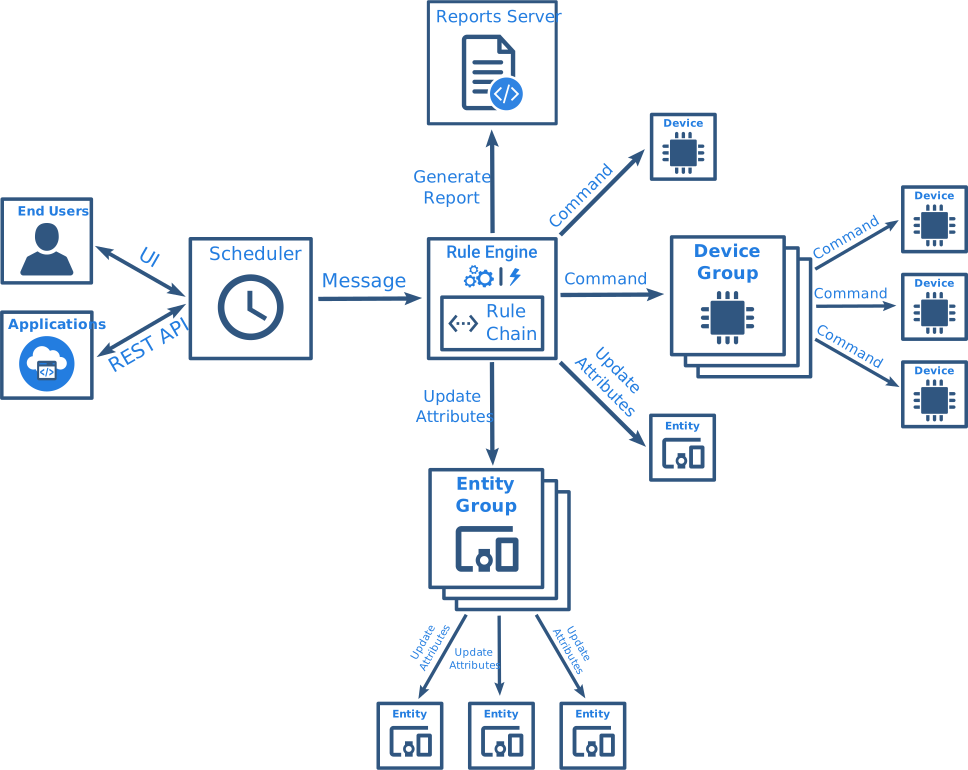
Scheduler Administration
Section titled “Scheduler Administration”Both tenant administrators and customer users can create and manage scheduler events from the Scheduler events page. The maximum number of scheduler events per tenant is configurable in the Tenant profile. The page supports two view modes:
- List view — tabular list of all configured events showing event name, type, schedule, and status
- Calendar view — events displayed on a calendar according to their schedule; click any cell to create a new event for that date
You can switch between views using the toggle icons in the page header. Calendar view defaults to Month but supports other types: Week, Day, List Year, List Month, List Week, List Day, Agenda Week, Agenda Day.
Create a Scheduler Event
Section titled “Create a Scheduler Event”- Navigate to Platform ⇾ Scheduler.
- Click + Add scheduler event in the top-right corner, or click any cell in the calendar view.
- Fill in the Configuration form — select an event type and provide event-specific parameters (see Event types below).
- Switch to the Schedule form and configure the timing.
- Click Add.
The event dialog has two tabs:
- Configuration — event type selection and type-specific parameters (originator, message body, metadata, etc.)
- Schedule — timing settings (timezone, start date/time, repeat rules)
Schedule Parameters
Section titled “Schedule Parameters”| Parameter | Description |
|---|---|
| Timezone | Timezone in which the event is processed |
| Start Date/Time | When the event fires for the first time |
| Repeat | Whether the event is one-time or recurring |
| Repeats | Repeat rule — Daily or Weekly |
| Repeat on | Weekdays when the event fires (Weekly only) |
| Ends on | Date after which the event stops repeating |
Event types
Section titled “Event types”The Event type field in the Configuration form determines what message the scheduler generates. You can select a built-in type or specify a custom one.
Custom type
Section titled “Custom type”Use this type to inject an arbitrary message into the Rule Engine on a schedule — for example, to trigger a custom rule chain, start a processing pipeline, or fire a notification at a fixed interval. The event type name is used as the Rule Engine message type unless you override it.
| Field | Description |
|---|---|
| Originator | Message originator — a single entity (Device, Asset, etc.) or a group of entities. If not specified, the scheduler event entity itself is the originator |
| Message type | Rule Engine message type — a predefined type or custom string. If not specified, the event type name is used |
| Message body | Message payload in JSON format |
| Metadata | Key-value pairs added to the message metadata |
Generate Report
Section titled “Generate Report”Schedule automatic report generation using the Reporting feature. Select a report template, specify the time zone and the user whose context the report runs under, and configure recipients and optional email delivery.
Typical use case: Email a daily energy consumption summary to all tenant administrators every morning at 8:00 AM.
| Field | Description |
|---|---|
| Report template | The report template to use (defined in the Reporting feature) |
| User | The user whose session context is used when generating the report |
| Time zone | Timezone for interpreting relative time expressions in the report |
| Recipients | Who receives the generated report — all users, tenant administrators, or a specific notification template |
Generate Dashboard Report
Section titled “Generate Dashboard Report”An older event type that generates a report by rendering a dashboard directly. It supports PDF, JPEG, and PNG output and optional email delivery. New scheduler events should use Generate Report with a report template instead.
Update Attributes
Section titled “Update Attributes”Schedule attribute updates for one or more entities. Use this type to write server or shared attributes on a fixed schedule — for example, to reset a daily counter at midnight, push a configuration threshold to a device group every Monday, or apply a value change across a customer’s fleet at a specific time.
| Field | Description |
|---|---|
| Target | Single entity — one specific entity; Group entities — an entity group; Entities group owner — all device groups owned by a specific customer |
| Entity attributes scope | Server attributes or Shared attributes (Shared is available only for Device targets) |
| Attributes | Key-value pairs to write |
Send RPC Request to Device
Section titled “Send RPC Request to Device”Schedule a command to a device or group of devices using the RPC mechanism. Use this type to automate recurring control actions — for example, to activate irrigation pumps every morning, restart a device on a weekly schedule, or set a thermostat mode at a specific time.
| Field | Description |
|---|---|
| Target | Device — one specific device; Device group — a specific device group; Devices group owner — all device groups owned by a specific customer |
| Method | RPC method name |
| Params | Method parameters in JSON format |
| RPC request timeout | How long (in milliseconds) to wait for a device response. Default: 5000 ms |
| One-way RPC request | When enabled, the platform sends the command without waiting for a response. Enabled by default |
| RPC request persistent | When enabled, the command is stored and delivered to the device even if it is currently offline |
Update Firmware
Section titled “Update Firmware”Schedule an OTA firmware update for a device or a group of devices. The scheduler triggers the update at the configured time using the firmware package assigned through the OTA Updates feature.
Typical use case: Roll out a new firmware version to a fleet of devices during a maintenance window — for example, every Sunday at 2:00 AM — without manual intervention.
| Field | Description |
|---|---|
| Target | Device — a single device; Device profile — all devices of a given profile; Device group — a specific device group; Devices group owner — all device groups owned by a specific customer |
| Assigned firmware | The firmware package to push to the target devices |
Update Software
Section titled “Update Software”Schedule an OTA software package update for a device or a group of devices. Works the same way as Update Firmware, but targets software packages rather than firmware.
Typical use case: Deploy a new application package to edge gateways during off-peak hours on a recurring schedule.
| Field | Description |
|---|---|
| Target | Device — a single device; Device profile — all devices of a given profile; Device group — a specific device group; Devices group owner — all device groups owned by a specific customer |
| Assigned software | The software package to push to the target devices |
Scheduler Widget
Section titled “Scheduler Widget”The Scheduler events and Reports schedule widgets (part of the Scheduling widgets bundle) provide the same capabilities as the Scheduler events page and can be added to any Dashboard. The widget also supports custom event types with configurable forms via the Advanced tab.
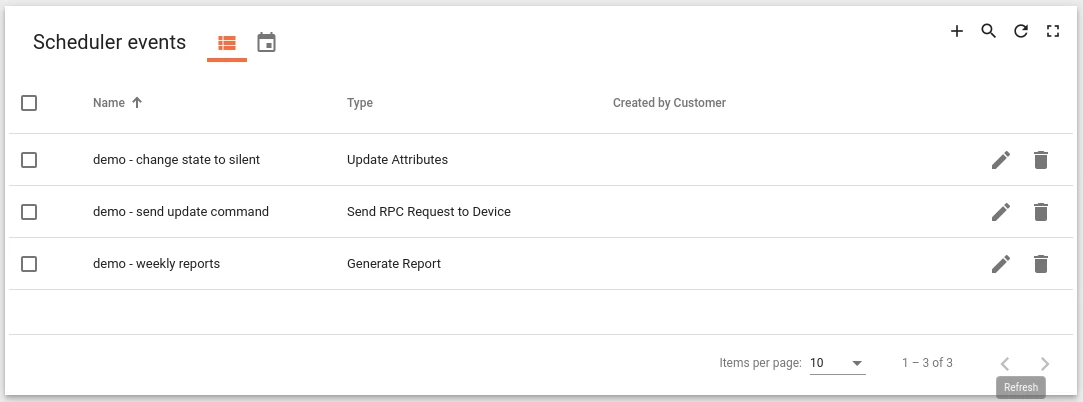
See Widgets documentation for details on widget configuration.
Reliability and Edge Support
Section titled “Reliability and Edge Support”Scheduler events are processed internally by ThingsBoard and delivered through the message queue (Kafka). This means scheduled messages survive server restarts and are processed once the system is back online. However, if the system is completely down at the scheduled time, the event is not fired retroactively.
Scheduler events can also target Edge instances indirectly — configure the event to push a message into a rule chain that conditionally forwards it to the appropriate Edge instance using your custom routing logic.
Was this helpful?