ThingPark Integration
The Actility ThingPark integration connects ThingsBoard to the ThingPark LoRaWAN network server. Use it to bring telemetry from LoRaWAN devices already registered in ThingPark into ThingsBoard for monitoring, and rule-based automation — including sending commands back to those devices.
Architecture
Section titled “Architecture”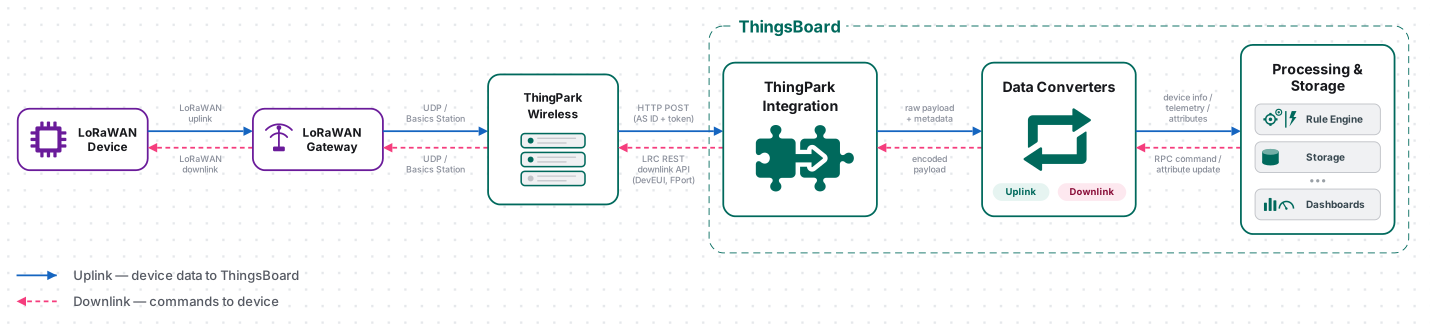
A LoRaWAN device sends an uplink to ThingPark, which forwards it over HTTP to the integration’s endpoint. The uplink converter decodes the payload into telemetry and attributes, and the ThingsBoard Core Service stores the data, creating the device automatically on first contact. For downlink, the Rule Engine hands a message to the integration; the downlink converter encodes it, and ThingPark delivers it to the device.
Prerequisites
Section titled “Prerequisites”Before creating the integration, ensure:
- You have access to ThingsBoard PE or ThingsBoard Cloud with integration functionality enabled for your tenant.
- You have permissions to create integrations and data converters.
- You have an Actility ThingPark account with a ThingPark Wireless OSS instance.
- You have at least one LoRaWAN device registered in ThingPark, with its DevEUI and AppEUI on hand.
Set Up the Integration in ThingsBoard
Section titled “Set Up the Integration in ThingsBoard”To set up the ThingPark integration, first create an uplink data converter to process incoming messages, then create and configure the integration.
Create the Uplink Data Converter
Section titled “Create the Uplink Data Converter”The uplink converter decodes the incoming ThingPark message (JSON containing DevEUI_uplink) and maps it to the ThingsBoard data model — it resolves the target device and extracts fields into telemetry and attributes. For the full decoder function reference, see Uplink data converter.
If your device is in the built-in catalog, use the Library tab — see Converters library for ready-to-use decoder functions for over 100 devices.
Sample payload:
{ "DevEUI_uplink": { "Time": "2024-01-15T10:30:00.000+00:00", "DevEUI": "0018B20000000123", "FPort": 1, "FCntUp": 42, "ADRbit": 1, "MType": 4, "FCntDn": 5, "payload_hex": "0364011a", "mic_hex": "a1b2c3d4", "Lrcid": "00000065", "LrrRSSI": -85.0, "LrrSNR": 7.25, "SpFact": 7, "SubBand": "G0", "Channel": "LC1", "Lrrid": "FF0000C8", "Late": 0, "LrrLAT": 48.8566, "LrrLON": 2.3522 }}DevEUI identifies the device. payload_hex contains the raw application payload. LrrRSSI and LrrSNR are radio quality metrics from the receiving gateway.
- Go to Integrations center ⇾ Data converters.
- Click + Add data converter ⇾ Create new converter.
- Converter type — leave Uplink (selected by default).
- Integration type — in the search field, enter
ThingParkand select ThingPark from the list. - Name — enter a converter name, for example
ThingPark Uplink Converter. - In Main decoding configuration:
- The default device name pattern
Device $euiuses the DevEUI from the ThingPark message as the unique device name in ThingsBoard. Change it if you prefer a different naming scheme. - The default decoder is pre-filled. Leave it unchanged for this guide, or paste the decoder function below.
- The default device name pattern
- Review Advanced decoding parameters — pre-populated for ThingPark, auto-extracting telemetry keys
channel,data,fCnt,rssi, andsnr, plus attribute keysbandwidth,eui,fPort, andspreadingFactor. Adjust if needed. - Click Add.
The decoder below handles both message formats ThingPark can send: a pre-decoded JSON payload (payloadFormat is JSON) or a raw hex payload (payloadFormat is BINARY). Adapt the binary field offsets to match your device protocol.
/*** Decodes the incoming payload and returns a structured object containing telemetry data and attributes.** @param {byte[]} input - The raw payload received as an array of bytes.* @returns {Object} output - The structured output with decoded telemetry and attributes.*/
function decodePayload(input) {  // Initialize the output object with empty attributes and telemetry for clarity.  var result = { attributes: {}, telemetry: {}};
  // Extract the timestamp from metadata (represented in milliseconds).  var timestamp = metadata.ts; // ts is the timestamp parsed from the incoming message's time, or returns the current time if it cannot be parsed.
  if (metadata.payloadFormat == 'JSON') {    // payloadFormat is 'JSON' when ThingPark sends a pre-decoded JSON payload    // (DevEUI_uplink contains a "payload" object).    // All fields from the decoded payload object are put directly into telemetry.    var decoded = decodeToJson(input);    result.telemetry = {      ts: timestamp,      values: decoded    };    return result;  }
  // payloadFormat is 'BINARY' when raw hex payload is received (payload_hex field).
  // Decode serial number (SN) from the first 4 bytes of the payload.  // Press '?' icon in the top right corner to learn more about built in helper functions and capabilities.  result.attributes.sn = parseBytesToInt(input, 0, 4);
  // Combine the timestamp with decoded values and add it to the telemetry.  result.telemetry = {    ts: timestamp,    values: {      // Decode battery level from the 5th byte of the payload.      battery: parseBytesToInt(input, 4, 1),      // Decode temperature from the 6th and 7th bytes of the payload (divided by 100).      temperature: parseBytesToInt(input, 5, 2) / 100.0,      // Decode saturation from the 8th byte of the payload.      saturation: parseBytesToInt(input, 7, 1)    }  };
  // Return the fully constructed output object.  return result;  // Same logic, less code:  // return {  //     attributes: {  //         sn: parseBytesToInt(input, 0, 4)  //     },  //     telemetry: {  //         ts: convertDateToTimestamp(metadata.time),  //         values: {  //             battery: parseBytesToInt(input, 4, 1),  //             temperature: parseBytesToInt(input, 5, 2) / 100.0,  //             saturation: parseBytesToInt(input, 7, 1)  //         }  //     }  // };}
var result = decodePayload(payload);// Uncomment this code block to overwrite values set in the main configuration window. Useful if you extract device/asset/customer/group names from the payload;// result.type = 'DEVICE'; // Entity type allows you to choose type of created entity. Can be 'DEVICE' or 'ASSET'.// result.name = 'Temperature Sensor'; // Device or asset name (the value must be unique)// result.profile = 'IndustrialSensorProfile'; // Device or asset profile name.// result.customer = 'MyCustomer'; // If customer is not null - created entity will be assigned to customer with such name.// result.group = 'SensorsGroup'; // If group is not null - created entity will be added to the entity group with such name.
// Return the final result object.return result;/*** Decodes the incoming payload and returns a structured object containing telemetry data and attributes.** @param {number[]} input - The raw payload received as an array of bytes.* @returns {Object} output - The structured output with decoded telemetry and attributes.*/
function decodePayload(input) { // Initialize the output object with empty attributes and telemetry for clarity. var result = { attributes: {}, telemetry: {}};
// Extract the timestamp from metadata (represented in milliseconds). var timestamp = metadata.ts; // ts is the timestamp parsed from the incoming message's time, or returns the current time if it cannot be parsed.
if (metadata.payloadFormat == 'JSON') { // payloadFormat is 'JSON' when ThingPark sends a pre-decoded JSON payload // (DevEUI_uplink contains a "payload" object instead of raw "payload_hex"). // All fields from the decoded payload object are put directly into telemetry. var decoded = decodeToJson(input); result.telemetry = { ts: timestamp, values: decoded }; return result; }
// payloadFormat is 'BINARY' when raw hex payload is received (payload_hex field).
// Decode serial number (SN) from the first 4 bytes of the payload. // Press '?' icon in the top right corner to learn more about built in helper functions and capabilities. result.attributes.sn = parseBytesToInt(input, 0, 4);
// Initialize an object to store decoded key/value telemetry data. var values = {};
// Decode battery level from the 5th byte of the payload. values.battery = parseBytesToInt(input, 4, 1);
// Decode temperature from the 6th and 7th bytes of the payload (divided by 100). values.temperature = parseBytesToInt(input, 5, 2) / 100.0;
// Decode saturation from the 8th byte of the payload. values.saturation = parseBytesToInt(input, 7, 1);
// Combine the timestamp with values and add it to the telemetry. result.telemetry = { ts: timestamp, values: values };
// Return the fully constructed output object. return result; // Same logic, less code: // return { // attributes: { // sn: parseBytesToInt(input, 0, 4) // }, // telemetry: { // ts: convertDateToTimestamp(metadata.time), // values: { // battery: parseBytesToInt(input, 4, 1), // temperature: parseBytesToInt(input, 5, 2) / 100.0, // saturation: parseBytesToInt(input, 7, 1) // } // } // };}
var result = decodePayload(payload);// Uncomment this code block to overwrite values set in the main configuration window. Useful if you extract device/asset/customer/group names from the payload;// result.type = 'DEVICE'; // Entity type allows you to choose type of created entity. Can be 'DEVICE' or 'ASSET'.// result.name = 'Temperature Sensor'; // Device or asset name (the value must be unique)// result.profile = 'IndustrialSensorProfile'; // Device or asset profile name.// result.customer = 'MyCustomer'; // If customer is not null - created entity will be assigned to customer with such name.// result.group = 'SensorsGroup'; // If group is not null - created entity will be added to the entity group with such name.
// Return the final result object.return result;
/*** Converts a byte array to a string and parses it as JSON.** @param {number[]} payload - The array of bytes.* @returns {Object} - The parsed JSON object.*/function decodeToJson(payload) { return JSON.parse(String.fromCharCode.apply(String, payload));}
/*** Parse a slice of bytes from an array into an integer (big-endian).** @param {number[]} input - The array of bytes.* @param {number} offset - The starting index.* @param {number} length - The number of bytes to convert.* @returns {number} - The resulting integer.*/function parseBytesToInt(input, offset, length) { var result = 0; for (var i = offset; i < offset + length; i++) { result = (result << 8) | (input[i] & 0xFF); } return result;}Converter Input
ThingsBoard passes two variables to the decoder:
| Variable | Type | Description |
|---|---|---|
payload |
byte array | The application payload bytes. For BINARY format, these are the decoded bytes of the payload_hex field from the ThingPark DevEUI_uplink message. For JSON format, these are the bytes of the serialized pre-decoded payload object. |
metadata |
object | Key-value map with fields extracted from the ThingPark message: payloadFormat, ts, eui, fPort, fCnt, rssi, snr, channel, spreadingFactor, and bandwidth. |
This metadata object — available to the decoder script as metadata.xxx — is separate from the Metadata column shown on the integration and converter Events tabs (see Verify Converter Events), which displays integration-level context rather than these per-message fields.
Adapt the Decoder to Your Device
- Match your payload structure — update byte offsets, lengths, and field names in
decodePayloadto match your device’s binary specification. - Add or remove fields — add more
parseBytesToIntcalls (orparseBytesToFloat, string extraction, etc.) for additional sensors; remove entries your device does not transmit. - Use a pre-decoded payload — if your ThingPark application decodes the payload before forwarding it (
DevEUI_uplinkcontains apayloadobject instead ofpayload_hex),metadata.payloadFormatis'JSON'and the decoder already handles this path withdecodeToJson(input)— no binary parsing needed. - Override device identity from the payload — set
result.name,result.profile,result.group, orresult.customerto derive device identity from payload content rather than the Main decoding configuration template.
Create the ThingPark Integration
Section titled “Create the ThingPark Integration”- Go to Integrations center ⇾ Integrations and click + Add integration.
- Basic settings:
- Set Integration type to ThingPark.
- Enter a Name, or keep the default
ThingPark integration. - Leave Enable integration and Allow create devices or assets enabled so that devices are created automatically when data is received for the first time.
- Click Next.
- Uplink data converter:
- Click Select existing and choose the ThingPark Uplink Converter created above, or click Create new to define the decoder inline.
- Click Next.
- Downlink data converter:
- Click Skip — a downlink converter is only needed when ThingsBoard must send commands back to devices. See Configure and Test Downlink to add one later.
- Connection:
- Base URL — pre-filled with your ThingsBoard instance URL (for example,
https://thingsboard.cloud). - Copy the HTTP endpoint URL — paste this into your ThingPark application as the destination routing address so Actility forwards uplinks to ThingsBoard.
- Base URL — pre-filled with your ThingsBoard instance URL (for example,
- Click Add to finish creating the integration.
Connection Settings
Section titled “Connection Settings”Base URL
The base address of the ThingsBoard server used to construct the HTTP endpoint URL. For ThingsBoard Cloud, this is https://thingsboard.cloud.
HTTP Endpoint URL
The auto-generated webhook address for this integration, in the form:
https://{base-url}/api/v1/integrations/thingpark/{integration-id}Paste this URL into your ThingPark application server routing profile as the destination so Actility forwards device uplink messages to ThingsBoard.
Enable Security
When enabled, ThingsBoard validates an HMAC-SHA256 signature on incoming requests. Configure:
| Field | Description |
|---|---|
| AS ID | Hex string identifying this Application Server. Must match the value configured in ThingPark. |
| AS Key | Hex string used to compute and verify the HMAC signature. Must match the value configured in ThingPark. |
| Maximum time difference (seconds) | Allowed clock skew when validating message timestamps (default: 60). |
Enable Security for Automatic Token Updates
When enabled, ThingPark can refresh the authentication token automatically without manual intervention.
Execute Remotely
When enabled, ThingsBoard generates an Integration key and Integration secret for running the integration outside the ThingsBoard cluster — useful when ThingsBoard is not publicly reachable from your ThingPark deployment. See Remote Integration.
Advanced Settings
- Replace response status from ‘No-Content’ to ‘OK’ — some ThingPark deployments expect an HTTP
200 OKresponse instead of204 No Content. Enable this toggle if your ThingPark installation logs HTTP errors after a successful uplink delivery. - Downlink URL — pre-filled with ThingPark’s downlink delivery endpoint (e.g.
https://api.thingpark.com/thingpark/lrc/rest/downlink). Required only if you configure a downlink converter and rule chain — see Configure and Test Downlink. - Description — optional free-text description for this integration.
- Metadata — key-value pairs injected into every uplink message as
integrationMetadatain converter scripts; click Add to define entries.
Configure ThingPark
Section titled “Configure ThingPark”Configure your ThingPark application to route uplink messages to the ThingsBoard HTTP endpoint URL copied in Create the ThingPark Integration. In ThingPark Wireless OSS, this is set on the application’s routing or destination profile — see the official ThingPark documentation for the exact navigation in your ThingPark deployment, since menu names can differ between ThingPark plans and versions.
Test Uplink
Section titled “Test Uplink”After the integration and converter are configured, and the device is transmitting through ThingPark, confirm that ThingsBoard receives, decodes, and stores the data correctly.
Send Test Uplink
Section titled “Send Test Uplink”Wait for your device to transmit an uplink through ThingPark, or emulate one by sending an HTTP request directly to the ThingsBoard endpoint with curl — bypassing ThingPark entirely. This is useful to verify the integration and converter before connecting real hardware.
Replace $HTTP_ENDPOINT_URL with the HTTP endpoint URL copied in Create the ThingPark Integration:
curl -v \ -H "Content-Type: application/json" \ -d '{"DevEUI_uplink":{"Time":"2026-03-20T14:42:52.653+00:00","DevEUI":"20635F00C5000660","FPort":1,"FCntUp":42,"payload_hex":"00BC614E5F092950","LrrRSSI":-85.0,"LrrSNR":7.25,"SpFact":7,"SubBand":"G0","Channel":"LC1"}}' \ "$HTTP_ENDPOINT_URL"The payload_hex value 00BC614E5F092950 matches the byte layout from the uplink converter: sn = 12345678, battery = 95, temperature = 23.45, saturation = 80.
Verify Integration Events
Section titled “Verify Integration Events”Go to Integrations center ⇾ Integrations, open the ThingPark integration, and click the Events tab. With Event type set to Debug, a row appears with Type: Uplink and Status: OK. Click … in the Message column to inspect the raw DevEUI_uplink payload received from ThingPark.
Verify Converter Events
Section titled “Verify Converter Events”Go to Integrations center ⇾ Data converters, open the uplink converter you configured for this integration, and click its Events tab. Click … in each column to inspect:
- In — the raw
DevEUI_uplinkJSON payload received by the converter. - Out — the decoded result produced by the script:
attributes.snandtelemetry.values(battery,temperature,saturation). - Metadata — integration-level context, including
integrationNameand internal flags such asAS_ID,LrnDevEui, andLrnFPort.
Verify Device Provisioning
Section titled “Verify Device Provisioning”Go to Entities ⇾ Devices. ThingsBoard automatically provisions a new device named Device <DevEUI> (e.g. Device 20635F00C5000660) on the first uplink, provided Allow create devices or assets is enabled. Open the device and check:
- Latest telemetry —
battery,temperature, andsaturationdecoded by the script, alongsidechannel,data,fCnt,rssi, andsnrextracted automatically from the ThingPark message by the Advanced decoding parameters. - Client attributes —
snset by the script, alongsideeui,fPort,spreadingFactor, andbandwidthextracted automatically.
Expected result: the device appears in Entities ⇾ Devices within seconds of the uplink, with telemetry and attributes matching the values above.
Configure Downlink
Section titled “Configure Downlink”The downlink converter (encoder) transforms a Rule Engine message into the payload ThingsBoard sends back to the device. ThingsBoard posts the encoded payload to the Downlink URL — pre-filled under Advanced settings in the integration’s Connection step to https://api.thingpark.com/thingpark/lrc/rest/downlink; adjust it only if your ThingPark installation uses a different host. For the full encoder function reference, see Downlink data converter.
The encoder output must include two fields in metadata required for delivery:
| Field | Description |
|---|---|
metadata.DevEUI |
The device EUI — read from metadata.cs_eui, injected by the Originator attributes node from the device client attribute eui (ThingsBoard prefixes client-scope attributes with cs_). |
metadata.fPort |
The LoRaWAN port — read from metadata.cs_fPort, injected by the Originator attributes node from the device client attribute fPort. |
Create and Assign the Downlink Converter
Section titled “Create and Assign the Downlink Converter”- Go to Integrations center ⇾ Integrations and open the ThingPark integration.
- Click the pencil icon to enter edit mode.
- In the Downlink data converter field, click Create new.
- In the Add data converter dialog:
- Enter a name for the converter, for example,
ThingPark Downlink Converter. - Use the default encoder script or replace it with your own implementation.
- Click Add.
- Enter a name for the converter, for example,
- Click Apply changes to save the integration.
The encoder function used in this tutorial:
// Encode downlink data from incoming Rule Engine message.// msg - JSON message payload (e.g. { "state": "on" })// msgType - message type, e.g. 'ATTRIBUTES_UPDATED'// metadata - enriched by the Originator attributes node with device client attributes.//            ThingsBoard prefixes client-scope attributes with "cs_"://            metadata.cs_eui — Device EUI stored on first uplink (e.g. "20635F00C5000660")//            metadata.cs_fPort — LoRaWAN frame port stored on first uplink (e.g. "1")
var eui = metadata.cs_eui;if (eui == null) {  raiseError("DevEUI is missing (expected metadata.cs_eui).");}
// Read port from the device client attribute "fPort" (set per-device).// Falls back to 1 if the attribute is not set.var port = (metadata.cs_fPort != null && metadata.cs_fPort != '') ? parseInt(metadata.cs_fPort) : 1;
var result = {  // Downlink data content type: JSON, TEXT, or BINARY (base64 format).  contentType: "JSON",
  // Downlink data — serialise the full message payload as a JSON string.  data: JSON.stringify(msg),
  // metadata must include DevEUI and fPort for ThingPark delivery.  metadata: {    "DevEUI": eui,    "fPort": port  }};
return result;// Encode downlink data from incoming Rule Engine message.// msg - JSON message payload (e.g. { "state": "on" })// msgType - message type, e.g. 'ATTRIBUTES_UPDATED'// metadata - enriched by the Originator attributes node with device client attributes.// ThingsBoard prefixes client-scope attributes with "cs_":// metadata.cs_eui — Device EUI stored on first uplink (e.g. "20635F00C5000660")// metadata.cs_fPort — LoRaWAN frame port stored on first uplink (e.g. "1")
var eui = metadata.cs_eui;
// Read port from the device client attribute "fPort" (set per-device).// Falls back to 1 if the attribute is not set.var port = parseInt(metadata.cs_fPort) || 1;
var result = { // Downlink data content type: JSON, TEXT, or BINARY (base64 format). contentType: "JSON",
// Downlink data — serialise the full message payload as a JSON string. data: JSON.stringify(msg),
// metadata must include DevEUI and fPort for ThingPark delivery. metadata: { "DevEUI": eui, "fPort": port }};
return result;Configure the Root Rule Chain
Section titled “Configure the Root Rule Chain”To trigger a downlink when an attribute changes (for example, a shared attribute update), add two nodes to the Root Rule Chain: an Originator attributes node (Enrichment category) that reads the device eui and fPort client attributes into message metadata, and an Integration Downlink node (Action category) that forwards the encoded message to the ThingPark integration.
- Open Rule Chains ⇾ Root Rule Chain.
- In the node panel, search for originator attributes. The node appears under the Enrichment category. Drag it onto the canvas.
- Configure the node:
- Name —
Fetch eui and fPort. - Under Client attributes, add the following keys:
euiandfPort. - Set Add originator attributes to to Metadata.
- Click Add.
- Name —
- In the node panel, search for integration downlink. The node appears under the Action category. Drag it onto the canvas.
- Configure the node:
- Name —
Downlink to ThingPark. - Integration — select your ThingPark integration.
- Click Add.
- Name —
- Connect the Message Type Switch node to the Fetch eui and fPort node using the Post attributes and Attributes Updated relations.
- Connect the Fetch eui and fPort node to the Downlink to ThingPark node using the Success relation.
- Click Apply changes.
Trigger a Downlink
Section titled “Trigger a Downlink”Adding or updating a shared attribute triggers the Rule Chain, which runs the downlink converter and posts the encoded command to ThingPark.
- Go to Entities ⇾ Devices, select your device (e.g.
Device 20635F00C5000660), and open the Attributes tab. - Switch to Shared attributes and click +.
- Enter a key (e.g.
powerState) and a value (e.g.on), then click Add.
Verify Downlink Delivery
Section titled “Verify Downlink Delivery”Check Downlink Converter Events
Go to Integrations center ⇾ Data converters, open ThingPark Downlink Converter, and click the Events tab — a Downlink event should appear in the list:
- In — the
ATTRIBUTES_UPDATEDmessage containingpowerState. - Out — the encoded JSON payload, with
DevEUIandfPortset inmetadata.
Check Delivery on ThingPark
Open the ThingPark Wireless Logger and confirm a downlink entry for the device — this indicates ThingsBoard successfully posted the payload to the Downlink URL for delivery to the device over LoRaWAN.
Troubleshooting
Section titled “Troubleshooting”| Symptom | Likely Cause | Fix |
|---|---|---|
| No uplinks received | Incorrect or unrouted HTTP endpoint URL in ThingPark | Re-copy the HTTP endpoint URL from the integration (toggle edit mode → Connection) and confirm it is set as the destination in your ThingPark application routing profile. |
| No uplinks received | Integration disabled | Open the ThingPark integration, click the edit icon, and confirm Enable integration is on. |
| Uplinks received but device not created | Allow create devices or assets is disabled | Open the integration, click the edit icon, and enable Allow create devices or assets in Basic settings. |
| Uplinks received but device not created | Converter returns empty output or the device name is not resolved | Go to Data converters, open the uplink converter, and inspect Events → Out. |
| Uplink received but telemetry is empty | Payload format mismatch between the decoder and the actual message | Inspect Events → In on the converter and confirm whether metadata.payloadFormat is JSON or BINARY, then verify the decoder branch matches. |
Error in converter |
TBEL or JavaScript exception | Open Events → Error on the uplink converter and inspect the stack trace. |
| Requests rejected after enabling security | AS ID or AS Key mismatch | Confirm the AS ID and AS Key configured in Enable security are identical in ThingsBoard and in the ThingPark application. |
| Downlink not delivered | Downlink converter not assigned, or Root Rule Chain not configured | Confirm the integration has a downlink converter assigned, and that the Root Rule Chain connects message type switch → originator attributes (Success) → integration downlink. |
| Downlink not delivered | DevEUI or fPort missing from converter metadata |
Open the downlink converter Events → In and confirm the originator attributes node populated metadata.cs_eui and metadata.cs_fPort — this requires the eui and fPort client attributes to already exist on the device (set automatically by the uplink converter on the first uplink; see Verify Device Provisioning). |
| Downlink accepted by ThingsBoard but not received by the device | Downlink URL points to the wrong host | Open the integration, expand Advanced settings, and confirm Downlink URL matches your ThingPark installation’s downlink endpoint. |
See Also
Section titled “See Also”- Integrations Overview — how ThingsBoard connects to external platforms and how uplink/downlink flow works
- ThingPark Enterprise Integration — connect to a private, on-premise ThingPark Enterprise deployment instead of the hosted ThingPark network server
- Uplink Data Converter — full decoder function reference: input parameters, output fields, and scripting patterns
- Downlink Data Converter — full encoder function reference: input parameters, output fields, and scripting patterns
- Remote Integration — run the integration outside the ThingsBoard server to reach ThingPark from a private network
- TBEL scripting reference — built-in functions and operators for writing converter scripts
- Rule Engine — how the Root Rule Chain routes shared attribute updates to the downlink converter
- Abeeway Trackers with Actility ThingPark — complete end-to-end example: registering Abeeway trackers in ThingPark, building uplink and downlink converters, and visualizing GPS, battery, and temperature telemetry on a dashboard
Was this helpful?