RabbitMQ Integration
The RabbitMQ integration connects ThingsBoard to RabbitMQ message brokers. Use it to consume messages that producers — devices, IoT platforms, connectivity providers, or your own applications — publish to RabbitMQ queues and bring them into ThingsBoard as telemetry and attributes for monitoring and rule-based automation. The integration can also publish messages from ThingsBoard back to RabbitMQ through a downlink data converter.
Architecture
Section titled “Architecture”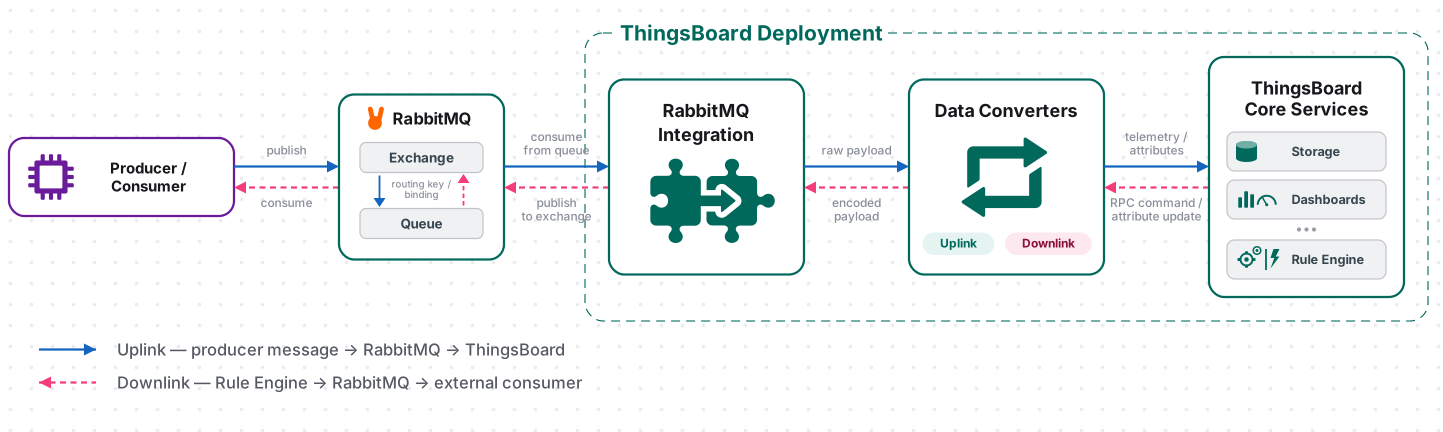
For uplink, a producer publishes a message to a RabbitMQ exchange. RabbitMQ routes the message to a queue according to the exchange type, routing key, and queue bindings. The RabbitMQ Integration consumes messages from the configured queue, and the uplink converter transforms each message into the ThingsBoard data format. ThingsBoard then stores the telemetry and attributes and can automatically create the device on first contact.
For downlink, the Rule Engine sends a message to an Integration Downlink node associated with the RabbitMQ Integration. The downlink converter encodes the message, and the integration publishes it to a RabbitMQ exchange using the configured routing key. RabbitMQ then routes the message to the target queue, where an external application or service can consume it.
Prerequisites
Section titled “Prerequisites”Before creating the integration, ensure:
- You have access to ThingsBoard PE or ThingsBoard Cloud with integration functionality enabled for your tenant.
- You have permissions to create integrations and data converters.
- You have a running RabbitMQ broker — either a local installation or a cloud-managed service such as CloudAMQP. If you do not have a broker yet, follow the Set Up RabbitMQ step below.
- A queue to consume from. The queue must exist on the broker before the integration is created.
- Credentials (username and password) with permission to read from the queue.
Set Up RabbitMQ
Section titled “Set Up RabbitMQ”The steps below stand up a fully managed single-node broker on CloudAMQP with a free Little Lemur plan (100 queues, 1 million messages/month, 20 connections), which is enough to test the integration without installing anything locally. If you use a local installation or another managed provider (Amazon MQ, Aiven, or a self-hosted cluster), skip to Required Connection Details and obtain the values from your broker instead.
Create a CloudAMQP Instance
Section titled “Create a CloudAMQP Instance”Create the RabbitMQ instance:
- Sign in to CloudAMQP
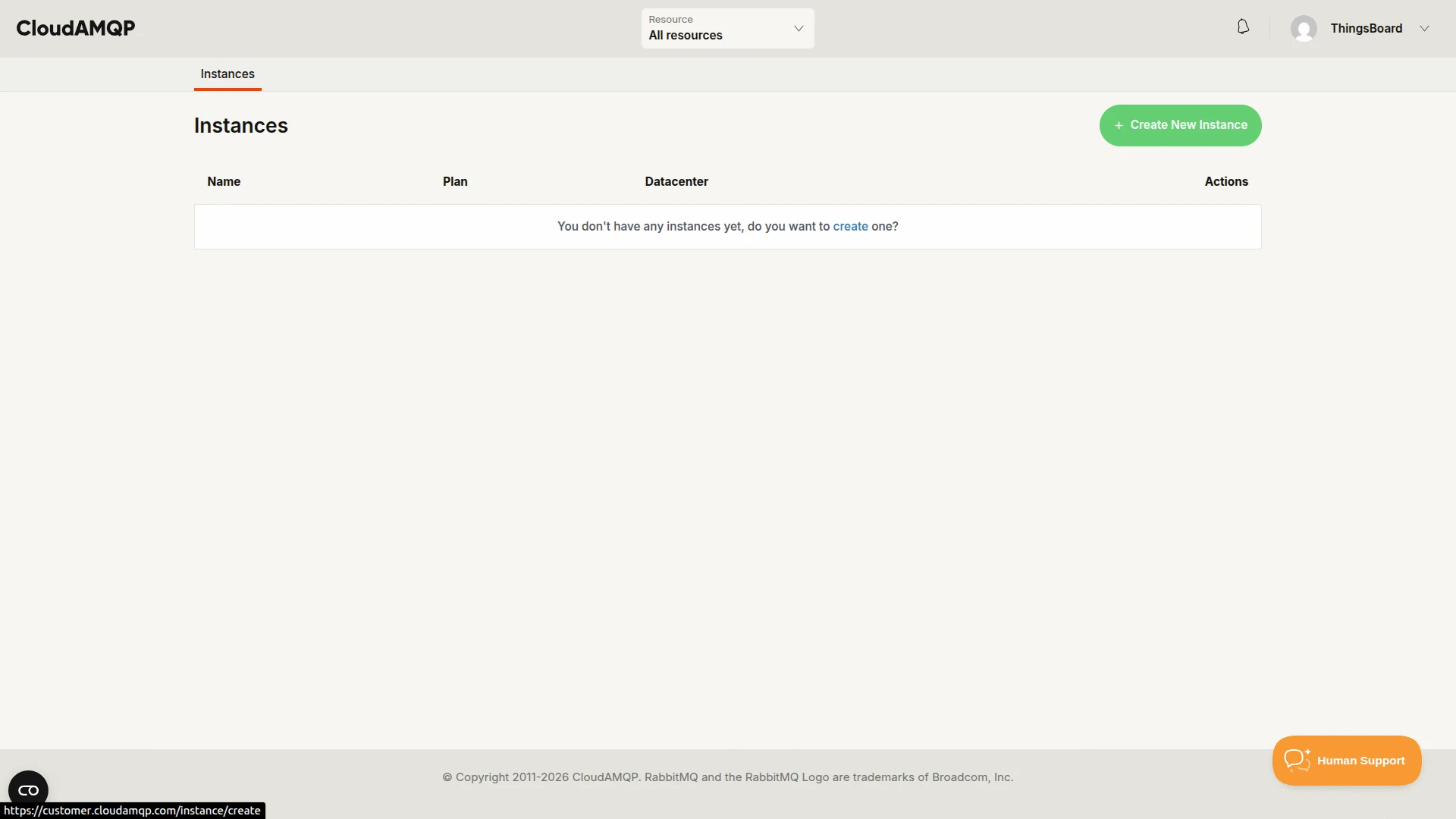
- On the Instances page, click + Create New Instance.
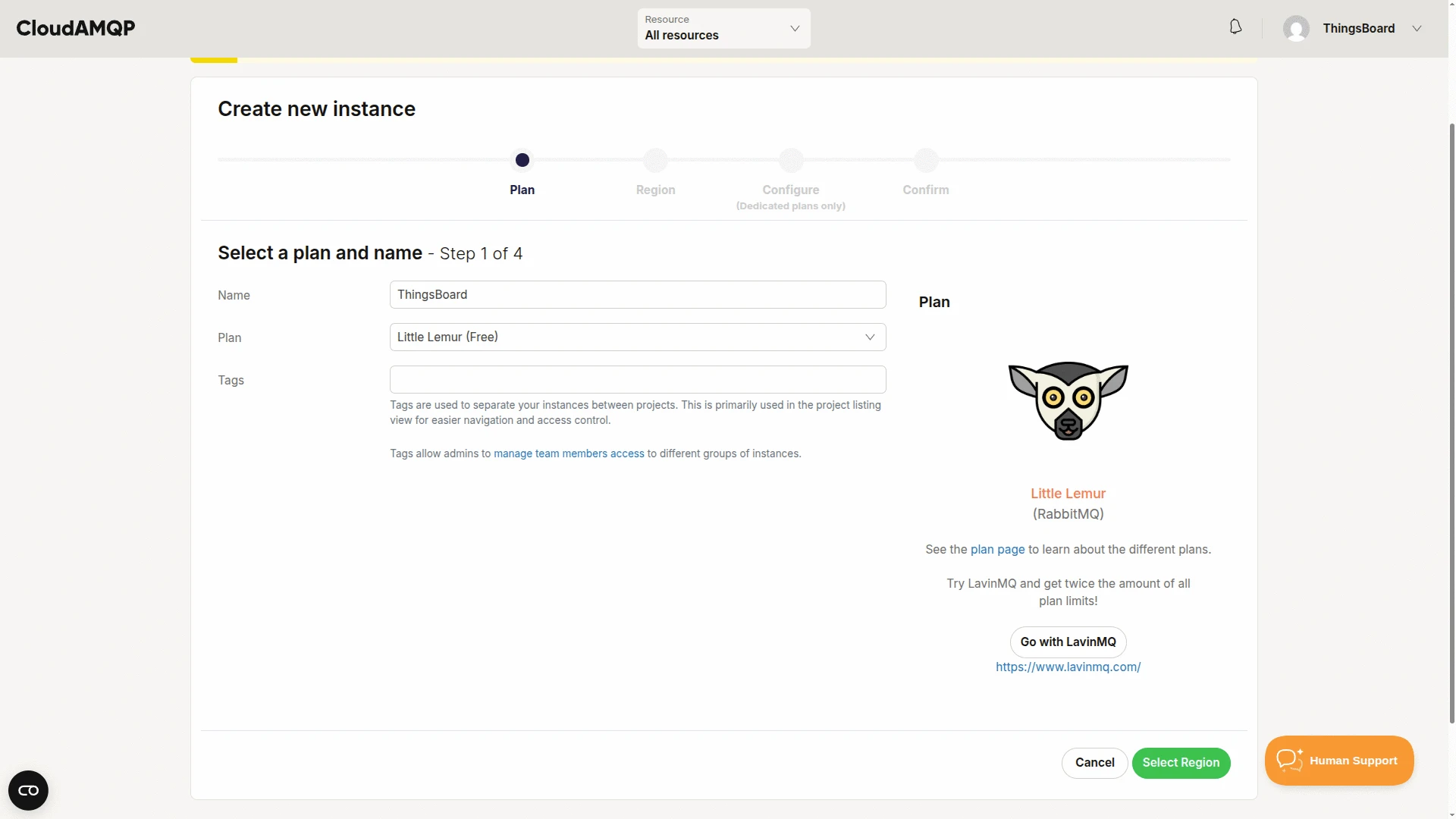
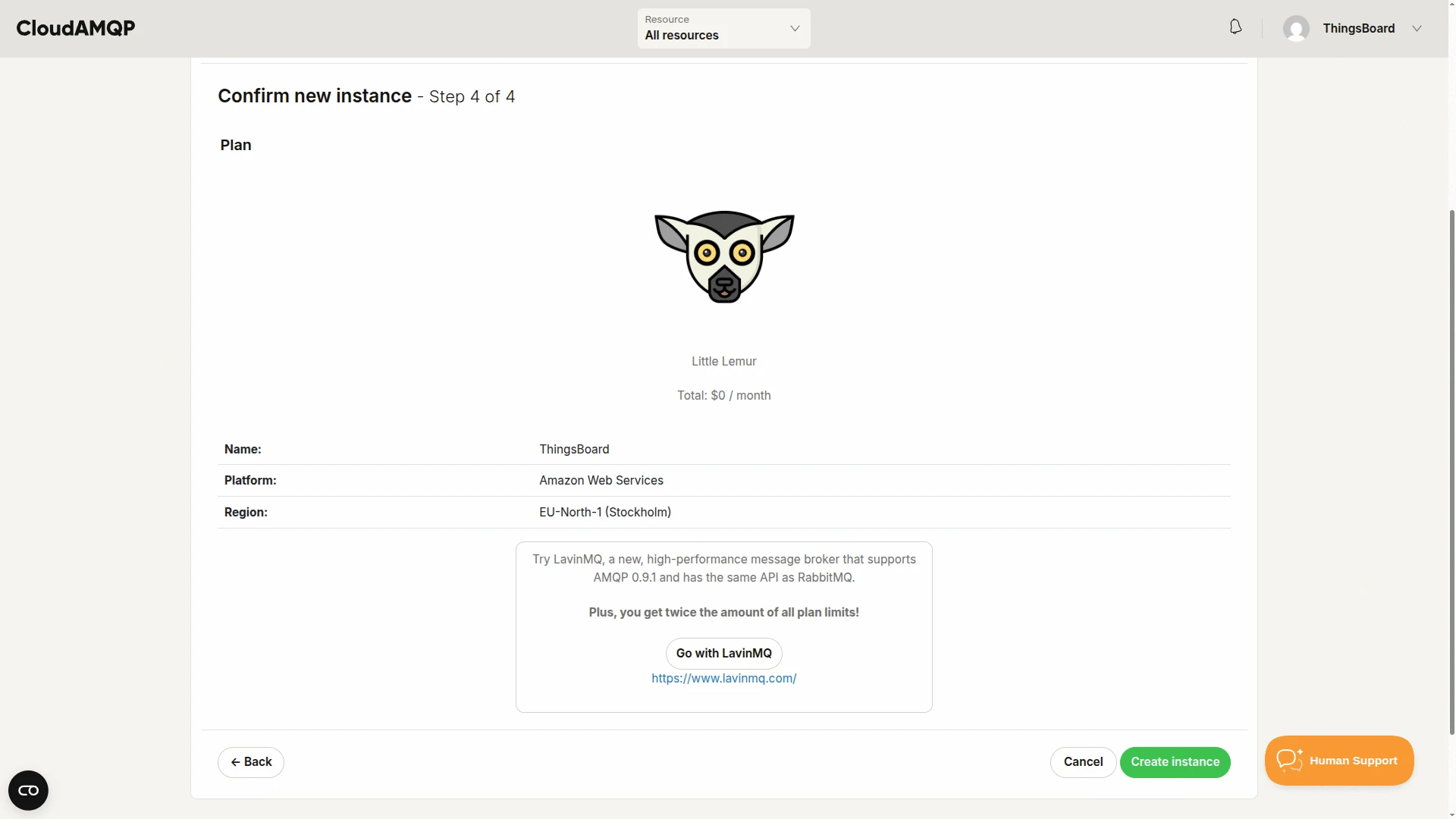
- Step 1 of 4 — Plan: enter an instance name (e.g.
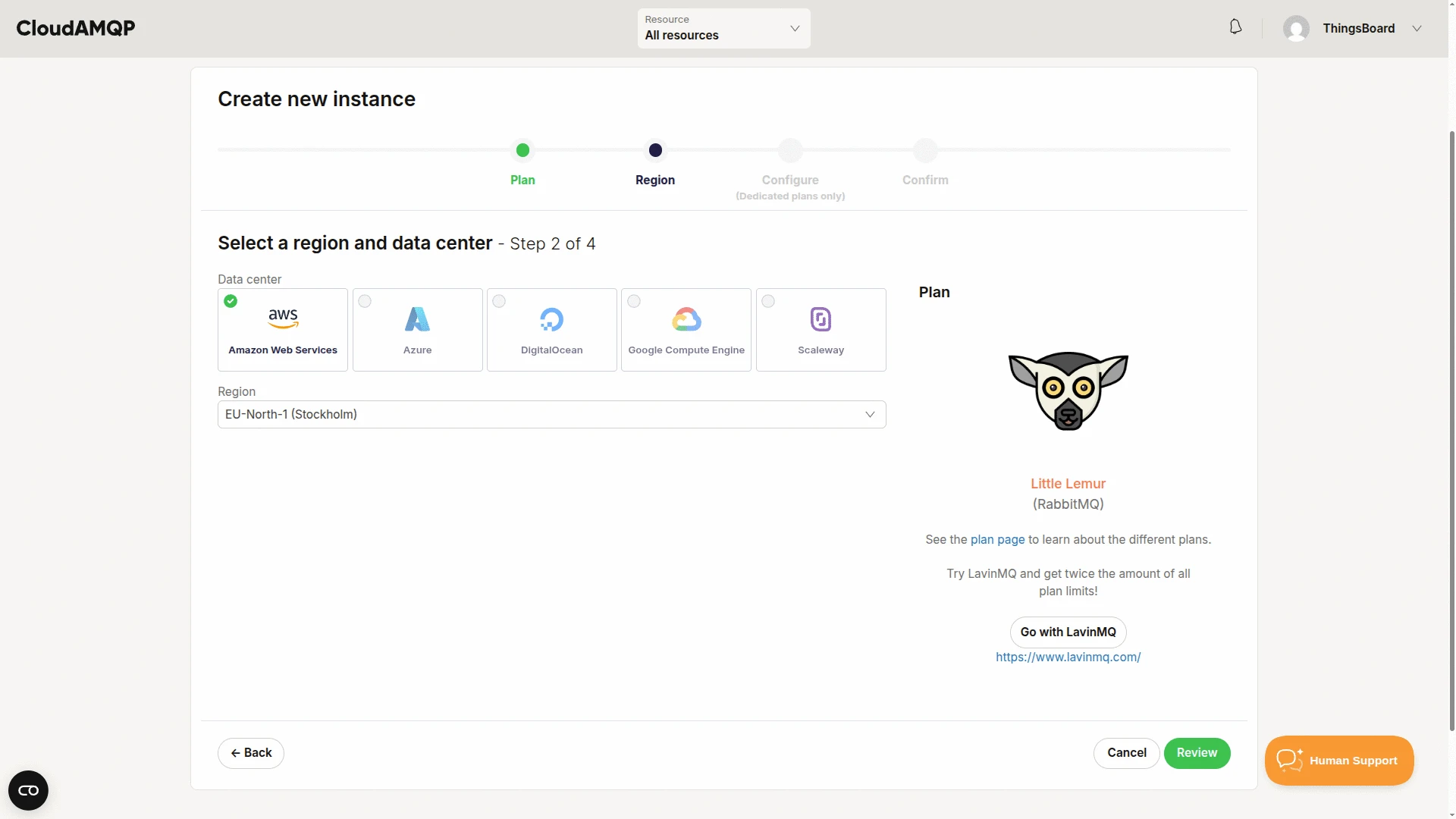
ThingsBoard), keep the free Little Lemur plan selected, and click Select Region. - Step 2 of 4 — Region: choose a data center and a region close to your ThingsBoard deployment, then click Review. The wizard skips directly to the confirmation step — Configure applies only to paid, dedicated plans.
- Step 4 of 4 — Confirm: review the summary and click Create instance.
For development and evaluation, a shared instance can be sufficient. For production workloads, choose a plan that meets your availability, throughput, and isolation requirements.
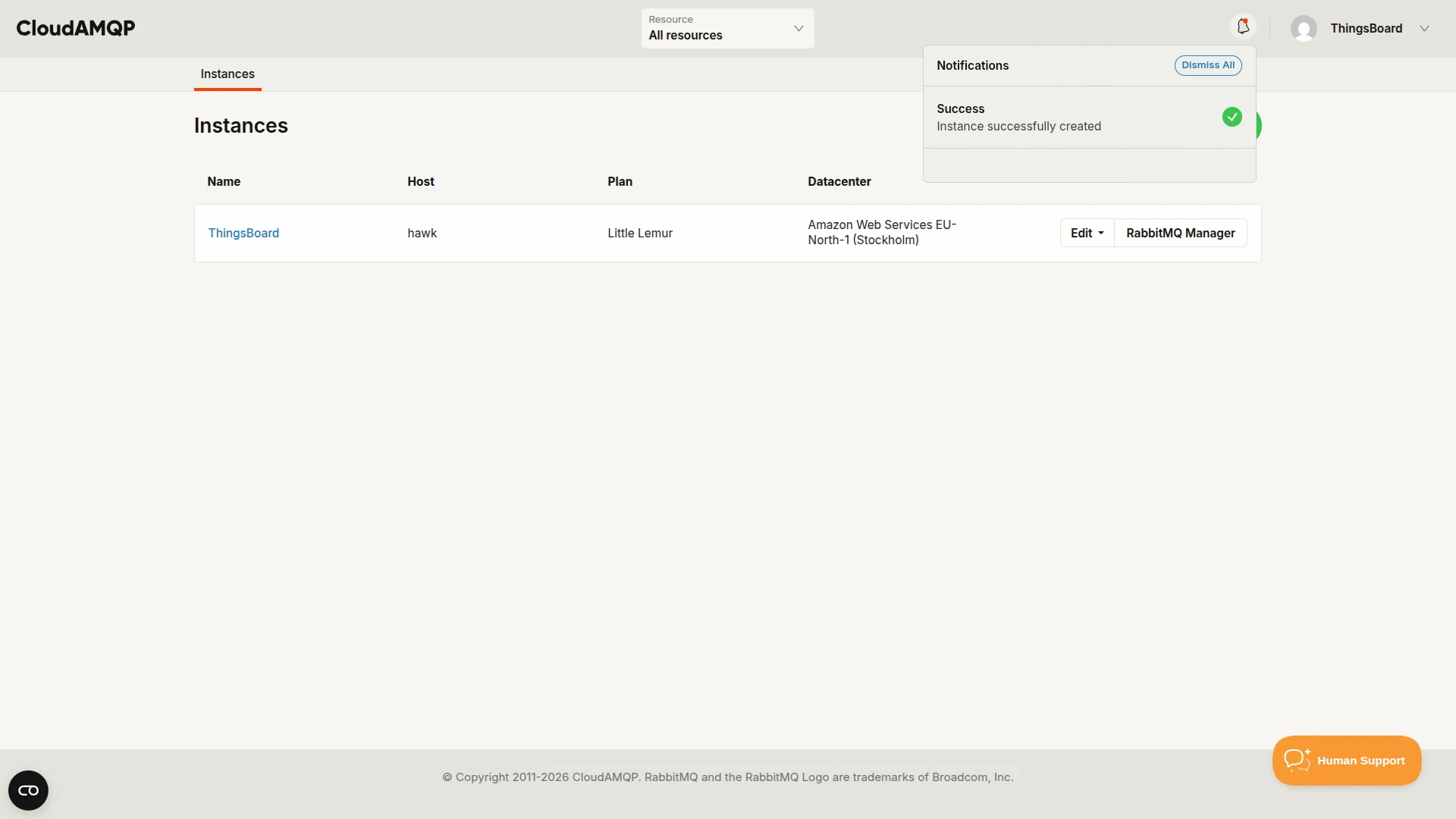
After the instance is provisioned, open the instance and go to its Overview page.
CloudAMQP displays the connection information required by ThingsBoard. Copy these values — you will need them in the integration’s Connection step.
- Cluster (under General) — the DNS load-balanced hostname of the instance (e.g.
hawk.rmq.cloudamqp.com). Use this as the integration Host — not the individual node listed under Hosts (hawk-01.rmq.cloudamqp.com); - User & Vhost (under AMQP details) — default RabbitMQ username and virtual host — both are the same string;
- Password (under AMQP details) — click the eye icon to reveal it;
- URL (under AMQP details) — complete AMQP connection URI.
The full AMQP URL is shown for reference in the following form:
amqps://<username>:<password>@<host>/<vhost>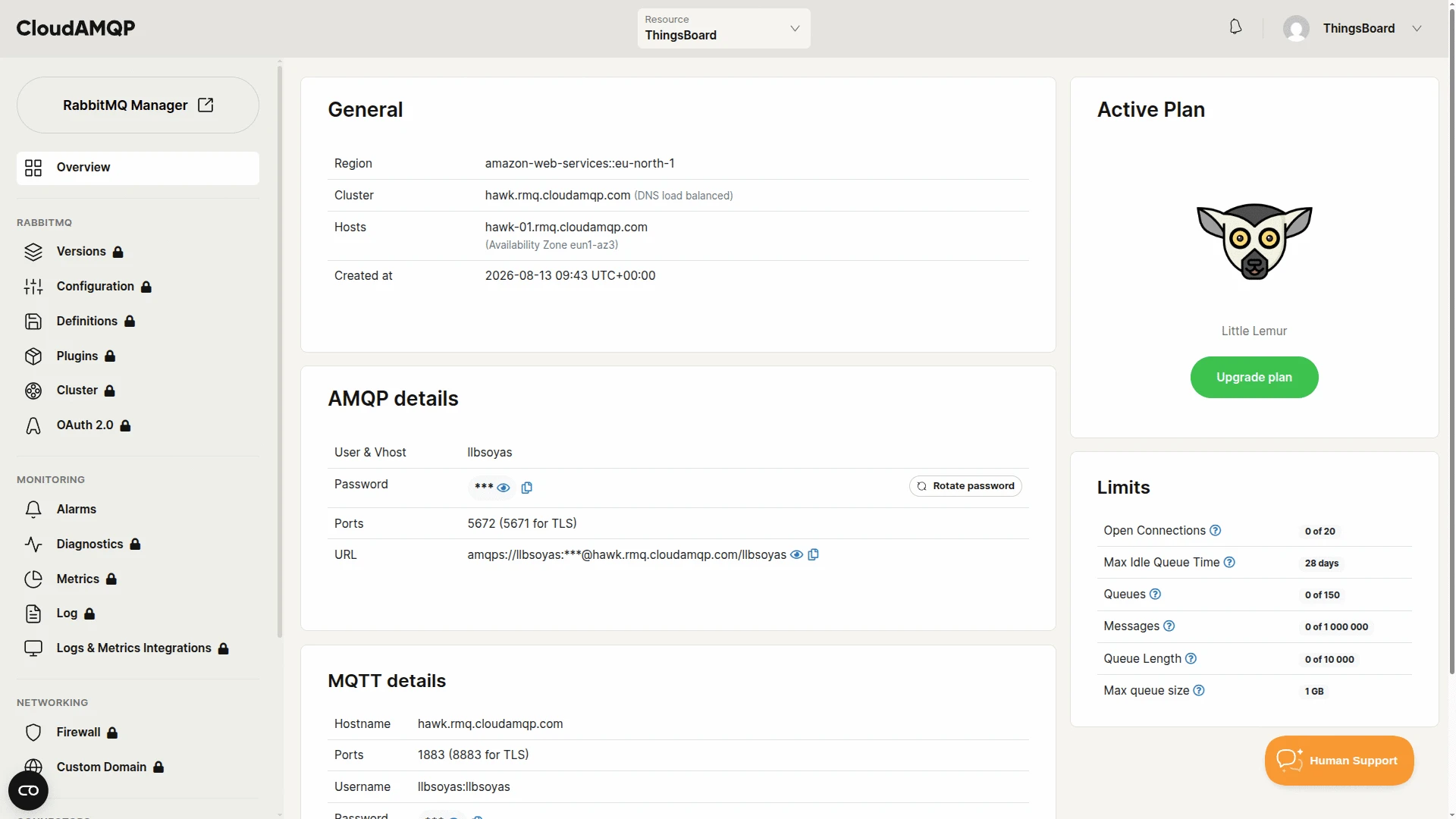
Create a Queue
Section titled “Create a Queue”Create the queue from which ThingsBoard will consume messages.
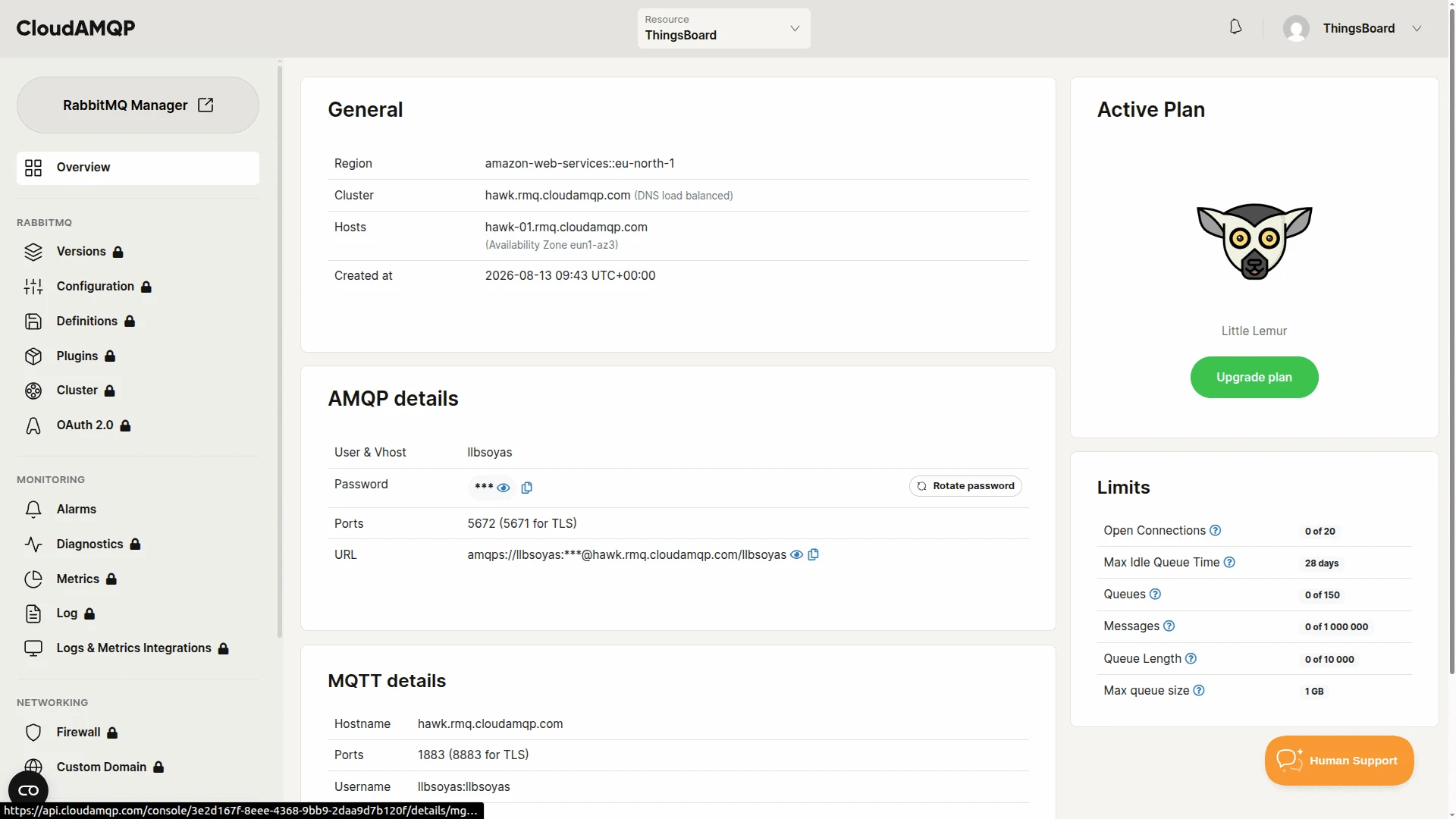
- On the CloudAMQP instance Overview page, click RabbitMQ Manager to open the RabbitMQ Management UI.
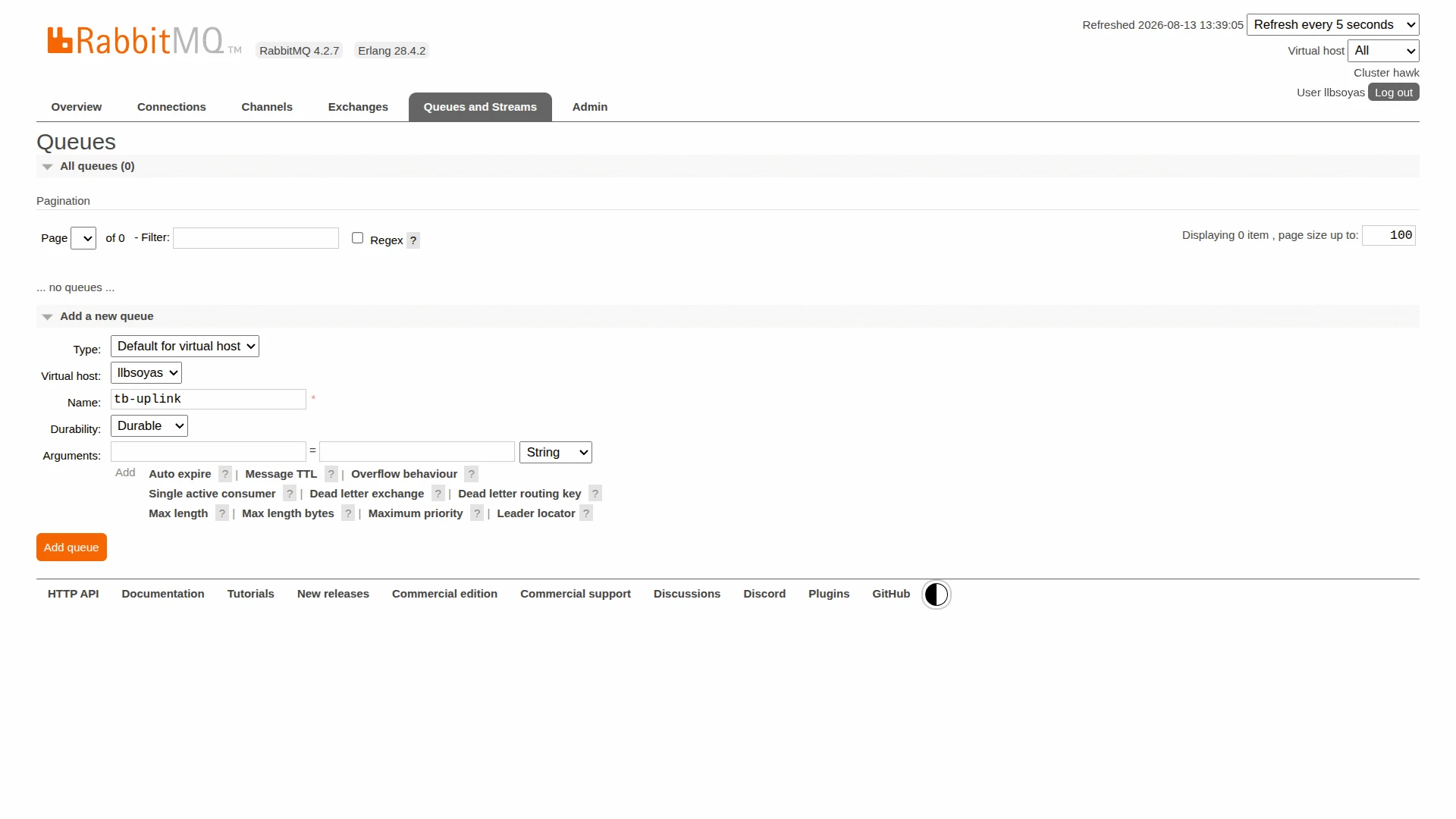
- Go to Queues and Streams. In the Add a new queue panel, enter
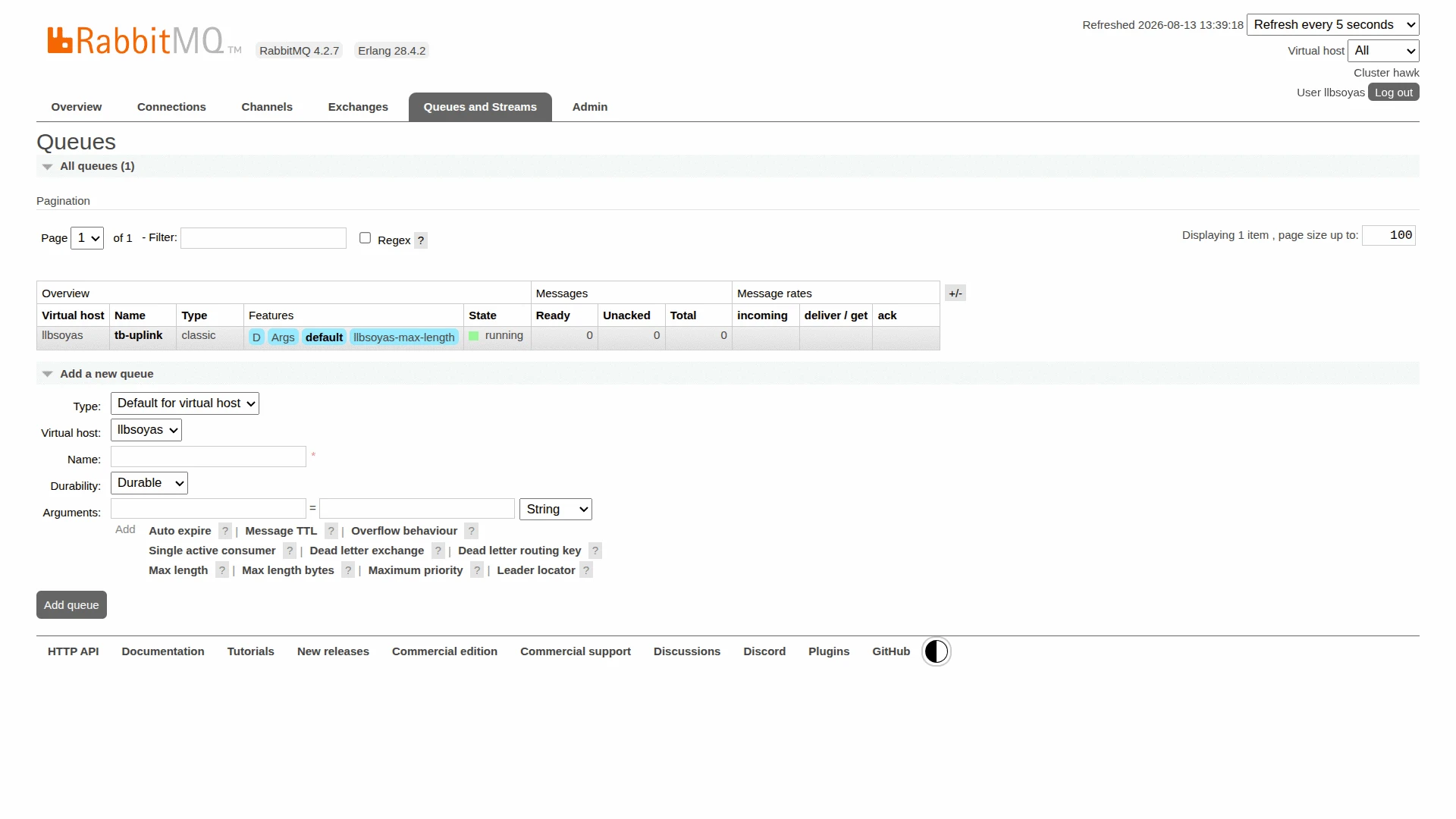
tb-uplinkas the Name, keep Durability set to Durable, and click Add queue. - The
tb-uplinkqueue appears in the list in the running state, ready to receive messages.
Required Connection Details
Section titled “Required Connection Details”Collect the values below before creating the ThingsBoard integration.
For the CloudAMQP setup used in this guide:
| Field | Value for this setup | Description |
|---|---|---|
| Host | hawk.rmq.cloudamqp.com — the CloudAMQP Cluster value (General section) |
RabbitMQ broker hostname (the DNS load-balanced cluster name, not an individual node) |
| Port | 5672 (5671 for AMQP over TLS) |
AMQP broker port |
| Queue | tb-uplink |
queue ThingsBoard consumes |
| Username | llbsoyas — the CloudAMQP User & Vhost value (AMQP details section) |
RabbitMQ username |
| Password | the CloudAMQP Password value — click the eye icon to reveal it | RabbitMQ user password |
| Virtual host | llbsoyas — same value as User & Vhost |
RabbitMQ virtual host |
| Connection timeout | 60000 |
connection timeout in milliseconds |
| Handshake timeout | 10000 |
AMQP handshake timeout in milliseconds |
| Poll interval | 5000 |
queue poll interval in milliseconds |
For CloudAMQP, the User & Vhost field represents both the default username and its virtual host.
Authentication and TLS
Section titled “Authentication and TLS”RabbitMQ connections are scoped to a virtual host. The authenticated user must have permission to access the virtual host and the resources required by the integration.
CloudAMQP provides dedicated credentials for the instance, so use the User & Vhost and Password values from its Overview page.
For self-hosted RabbitMQ installations, do not use the default guest account for remote integration access. RabbitMQ restricts guest to loopback connections by default.
For connections over an untrusted network, use AMQP over TLS.
The conventional RabbitMQ ports are:
| Port | Protocol |
|---|---|
5672 |
AMQP without TLS |
5671 |
AMQP over TLS |
For the CloudAMQP setup in this guide, use the port specified by the provider for the AMQP endpoint.
Set Up the RabbitMQ Integration
Section titled “Set Up the RabbitMQ Integration”To set up the RabbitMQ integration, first create an uplink data converter to process incoming messages, then create and configure the integration.
Create the Uplink Data Converter
Section titled “Create the Uplink Data Converter”The uplink converter receives each consumed RabbitMQ message, decodes the message body, and returns a structured object that ThingsBoard uses to create or update a device and store its telemetry and attributes. For the full decoder function reference — all input parameters and output fields — see Uplink Data Converter.
RabbitMQ uses a generic uplink converter. These converters decode a JSON message received from a RabbitMQ queue and transform it into the ThingsBoard integration data format.
- Go to Integrations center ⇾ Data converters.
- Click + Add data converter ⇾ Create new converter.
In the Add data converter dialog:
- Converter type — leave Uplink (selected by default).
- Integration type — in the search field, enter
RabbitMQand select RabbitMQ from the list. - Name — enter a converter name, for example
RabbitMQ Uplink Converter. - Main decoding configuration — a code editor with the function signature
function decoder(payload, metadata) {. Paste the decoder function shown below. By default the editor opens in TBEL; use the TBEL / JS toggle (upper right) to switch languages. - Click Add.
// Decode an uplink message from a buffer// payload - array of bytes// metadata - key/value object
/** Decoder **/
// decode payload to JSONvar data = decodeToJson(payload);
// --- Device name and type ---var deviceName = data.deviceName != null ? data.deviceName : 'Unknown Device';var deviceType = data.deviceType != null ? data.deviceType : 'default';// var customerName = 'Customer C';// var groupName = 'thermostat devices';
// use assetName and assetType instead of deviceName and deviceType// to automatically create assets instead of devices.// var assetName = 'Asset A';// var assetType = 'building';
// --- Timestamp parsing ---var timestamp = -1;if (data.ts != null) {  timestamp = data.ts;} else if (data.timestamp != null) {  timestamp = new Date(data.timestamp).getTime();}if (timestamp == -1) {  timestamp = Date.now();}
// --- Telemetry and attributes ---var telemetry = {};var attributes = {  model: 'Model A',  serialNumber: 'SN111',  integrationName: metadata['integrationName'],};
// Keys to exclude from telemetry (already used or non-telemetry fields)var excludeFromTelemetryList = ["deviceName", "deviceType", "ts", "timestamp"];
// Parse all remaining JSON fields as telemetrytelemetry.putAll(toFlatMap(data, excludeFromTelemetryList, true));
// Result object with device attributes/telemetry datavar result = {  deviceName: deviceName,  deviceType: deviceType,  // customerName: customerName,  // groupName: groupName,  // assetName: assetName,  // assetType: assetType,  attributes: attributes,  telemetry: {    ts: timestamp,    values: telemetry  }};
/** Helper functions 'decodeToString', 'decodeToJson' and 'toFlatMap' are already built-in **/
return result;// Decode an uplink message from a buffer// payload - array of bytes// metadata - key/value object
/** Decoder **/
// decode payload to JSONvar data = decodeToJson(payload);
// --- Device name and type ---var deviceName = data.deviceName != null ? data.deviceName : 'Unknown Device';var deviceType = data.deviceType != null ? data.deviceType : 'default';// var customerName = 'Customer C';// var groupName = 'thermostat devices';
// use assetName and assetType instead of deviceName and deviceType// to automatically create assets instead of devices.// var assetName = 'Asset A';// var assetType = 'building';
// --- Timestamp parsing ---var timestamp = -1;if (data.ts != null) { timestamp = data.ts;} else if (data.timestamp != null) { timestamp = new Date(data.timestamp).getTime();}if (timestamp == -1) { timestamp = Date.now();}
// --- Telemetry and attributes ---var telemetry = {};var attributes = { model: 'Model A', serialNumber: 'SN111', integrationName: metadata['integrationName'],};
// Keys to exclude from telemetry (already used or non-telemetry fields)var excludeFromTelemetryList = ["deviceName", "deviceType", "ts", "timestamp"];
// Parse all remaining JSON fields as telemetrytoFlatMap(data, telemetry, excludeFromTelemetryList);
// Result object with device attributes/telemetry datavar result = { deviceName: deviceName, deviceType: deviceType, // customerName: customerName, // groupName: groupName, // assetName: assetName, // assetType: assetType, attributes: attributes, telemetry: { ts: timestamp, values: telemetry }};
/** Helper functions **/
function decodeToString(payload) { return String.fromCharCode.apply(String, payload);}
function decodeToJson(payload) { var str = decodeToString(payload); return JSON.parse(str);}
function toFlatMap(obj, result, excludeList, prefix) { prefix = prefix || ''; for (var key in obj) { if (excludeList.indexOf(key) !== -1) continue; var value = obj[key]; var fullKey = prefix ? prefix + '.' + key : key; if (typeof value === 'object' && value !== null && !Array.isArray(value)) { toFlatMap(value, result, excludeList, fullKey); } else { result[fullKey] = value; } }}
return result;Converter Input
ThingsBoard passes two variables to the decoder function:
| Variable | Type | Description |
|---|---|---|
payload |
byte array | The raw bytes of the AMQP message body, encoded as UTF-8. |
metadata |
object | Key-value map containing integrationName and any pairs configured in the integration’s Metadata settings. Open the uplink converter’s Events tab and inspect a real Metadata panel to confirm exactly which fields your setup receives. |
JSON Payload Example
RabbitMQ does not impose an application-level schema on a message body. The body is stored as bytes and may contain JSON, plain text, binary data, or any other format selected by the producer. In this example, a device or intermediate service publishes a JSON telemetry message to a queue. Because field names, message structure, naming conventions, nesting, and serialization formats may vary between producers, update the decoder function to match the exact message format used by your system.
In this example, the device Sensor A1 publishes the following JSON message to the tb-uplink queue:
{ "deviceName": "Sensor A1", "deviceType": "thermostat", "temperature": 23.5, "humidity": 60}The converter returns:
{ "deviceName": "Sensor A1", "deviceType": "thermostat", "telemetry": { "ts": 1638876127000, "values": { "temperature": 23.5, "humidity": 60 } }}In short:
deviceName: the value of thedeviceNamefield (falls back toUnknown Deviceif absent);deviceType: the value of thedeviceTypefield (falls back todefault);attributes: static device attributes plus theintegrationNameinjected by the integration;telemetry: every remaining field mapped as a timestamped telemetry value. The timestamp comes from ats(Unix ms) ortimestamp(ISO 8601) field if present, otherwise the server receive time is used.
Create the RabbitMQ Integration
Section titled “Create the RabbitMQ Integration”- Go to Integrations center ⇾ Integrations and click + Add integration.
- Basic settings:
- Set Integration type to RabbitMQ.
- Enter a Name, or keep the default
RabbitMQ integration. - Leave Enable integration and Allow create devices or assets on so the device can be created automatically on the first valid message.
- Click Next.
- Uplink data converter:
- Click Select existing and choose the RabbitMQ Uplink Converter created in the previous step.
- Alternatively, click Create new to define the decoder inline.
- Click Next.
- Downlink data converter:
- Click Skip for now. Downlink can be configured later in this guide.
- Connection:
- Host — hostname of your RabbitMQ broker. On CloudAMQP use the Cluster value (e.g.
hawk.rmq.cloudamqp.com), not an individual node from Hosts. - Port —
5672for plain AMQP,5671for AMQP over TLS. - In the Queues section, set:
- Name — the queue to consume from (e.g.
tb-uplink). The integration consumes from this single queue. - Durable / Exclusive / Auto delete — match how the queue was declared. For the
tb-uplinkqueue created above, set Durable on, Exclusive off, and Auto delete off.
- Name — the queue to consume from (e.g.
- Expand Advanced settings and fill in Username, Password, and Virtual host — see Required Connection Details for the values to use.
- Host — hostname of your RabbitMQ broker. On CloudAMQP use the Cluster value (e.g.
- Check connection (optional): click Check connection to move to the final wizard step and verify the broker is reachable — a green Connected status confirms success.
- Click Add.
Connection Settings
Section titled “Connection Settings”| Parameter | Description |
|---|---|
| Host | Hostname or IP address of the RabbitMQ broker, e.g. hawk.rmq.cloudamqp.com. On CloudAMQP, use the Cluster value (the DNS load-balanced hostname from the AMQP URL), not an individual node from Hosts. |
| Port | AMQP port. Default: 5672. Use 5671 for AMQP over TLS. |
| Queue ⇾ Name | Name of the queue ThingsBoard consumes messages from (the Name field in the Queue section). The queue must already exist on the broker. The Durable / Exclusive / Auto delete flags below must match how it was declared — a mismatch causes a channel-level error and nothing is consumed. |
| Queue ⇾ Durable | The queue survives a broker restart. Combine with persistent messages so data is not lost on restart. Set on for a persistent uplink queue such as tb-uplink. |
| Queue ⇾ Exclusive | The queue is restricted to a single connection and is deleted when that connection closes. Set off for a shared, pre-declared queue — otherwise the declaration conflicts and consumption fails. |
| Queue ⇾ Auto delete | The queue is deleted automatically once its last consumer disconnects. Set off for a persistent uplink queue that must retain messages while no consumer is attached. |
| Username | RabbitMQ user for the AMQP connection. The default guest/guest works only from localhost — use a dedicated user for remote access. |
| Password | Password for the above user. |
| Downlink topic | Routing key used when publishing downlink messages to the exchange. Required when a downlink converter is configured. |
| Exchange name | Exchange ThingsBoard publishes downlink messages to. Leave empty to use the RabbitMQ default exchange (amq.default), which routes to the queue whose name matches the routing key. |
| Virtual host | RabbitMQ virtual host. Default: /. On CloudAMQP this equals the instance username. |
| Connection timeout, ms | Maximum time to wait for an AMQP connection to be established. Default: 60000. |
| Handshake timeout, ms | Maximum time for the AMQP protocol handshake after the TCP connection. Default: 10000. |
| Poll interval, ms | How often the integration polls the queue for new messages. Default: 5000. |
| Metadata | Additional key-value pairs injected into every uplink message as integrationMetadata in the converter script. |
| Execute Remotely | When enabled, ThingsBoard generates an Integration key and Integration secret, letting the integration run as a separate process outside the ThingsBoard cluster — useful when the broker is only reachable from a restricted network. See Remote Integration. |
Test Uplink
Section titled “Test Uplink”Publish a test message to the queue the integration consumes from, then confirm it lands in ThingsBoard.
Produce a Test Record
Section titled “Produce a Test Record”Publish the test message to the tb-uplink queue using any of the following methods.
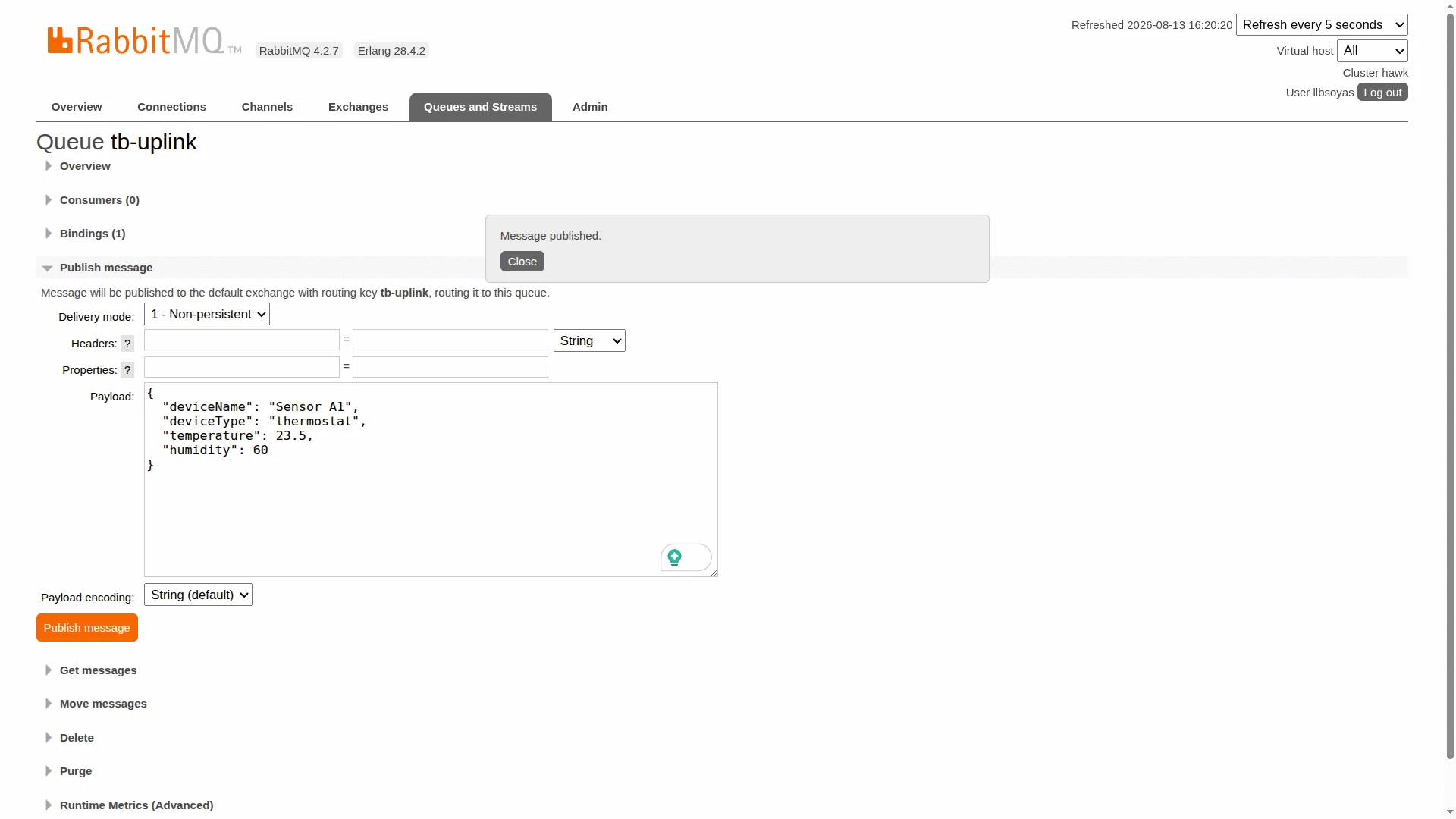
- Open the Management UI, go to Queues and Streams, and click the tb-uplink queue.
- In the queue’s Publish message panel, paste the JSON payload into the Payload field. Leave Delivery mode, Headers, Properties, and Payload encoding at their defaults.
- Click Publish message. A Message published. confirmation appears above the form.
{ "deviceName": "Sensor A1", "deviceType": "thermostat", "temperature": 23.5, "humidity": 60}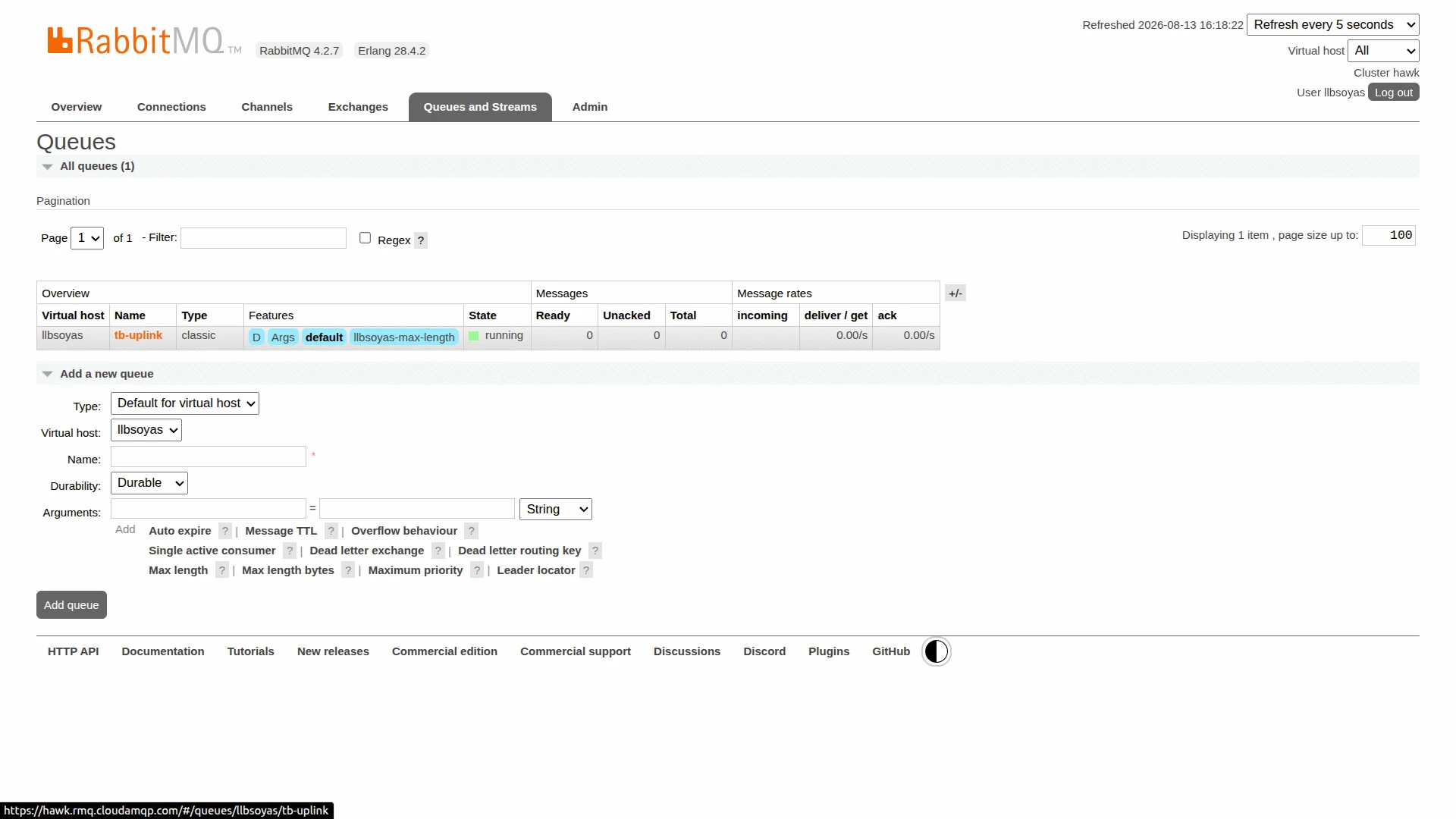
Use the RabbitMQ Management HTTP API exposed by CloudAMQP on port 443. Replace HOST, USER, PASSWORD, and VHOST with the values from your instance’s Overview page:
curl --user USER:PASSWORD \ --json '{ "properties": {"content_type": "application/json"}, "routing_key": "tb-uplink", "payload": "{\"deviceName\":\"Sensor A1\",\"deviceType\":\"thermostat\",\"temperature\":23.5,\"humidity\":60}", "payload_encoding": "string" }' \ "https://HOST/api/exchanges/VHOST/amq.default/publish"rabbitmqadmin publish \ exchange=amq.direct \ routing_key=tb-uplink \ payload='{"deviceName":"Sensor A1","deviceType":"thermostat","temperature":23.5,"humidity":60}' \ properties='{"content_type":"application/json"}'Verify Integration Events
Section titled “Verify Integration Events”Go to Integrations center ⇾ Integrations, open the RabbitMQ integration, and check the Events tab. Click … in the Message column to inspect the raw payload consumed from the queue.
Verify Converter Events
Section titled “Verify Converter Events”Go to Integrations center ⇾ Data converters, click the RabbitMQ Uplink Converter, and open its Events tab. Click … in the respective column to inspect each field:
- In — the raw payload passed to the converter.
- Out — the decoded result:
deviceName,deviceType, andtelemetry(temperature, humidity). If the decoder script also setsattributes(e.g. model, serialNumber), they appear here too. - Metadata —
integrationNameinjected by the integration.
Verify Device Provisioning
Section titled “Verify Device Provisioning”Go to Entities ⇾ Devices. The device Sensor A1 is automatically provisioned on the first message. Open it and check the Latest telemetry tab — temperature and humidity should reflect the published values.
Configure Downlink
Section titled “Configure Downlink”To publish messages from ThingsBoard back to RabbitMQ, the integration uses its downlink converter together with an Integration Downlink node in the Rule Engine. The node forwards a message to the RabbitMQ Integration, the downlink converter encodes it, and the integration publishes it to the configured exchange with the Downlink topic as the routing key.
The steps below test downlink on the CloudAMQP setup: create a separate downlink queue, point the integration at it, wire an Integration Downlink node into the Root Rule Chain, then trigger it by updating a shared attribute on device Sensor A1 and confirm the message with the Management UI.
Create the Downlink Queue
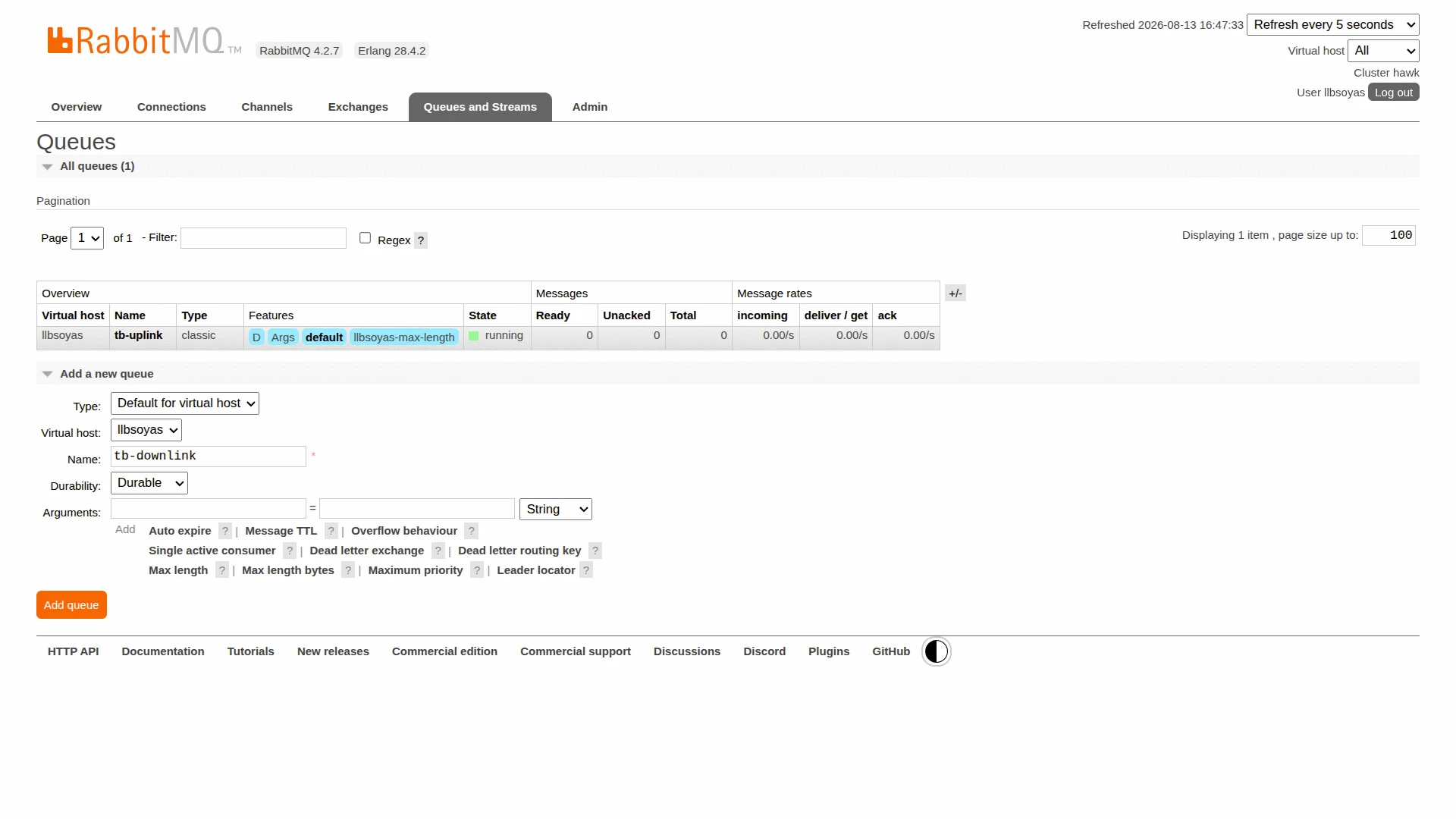
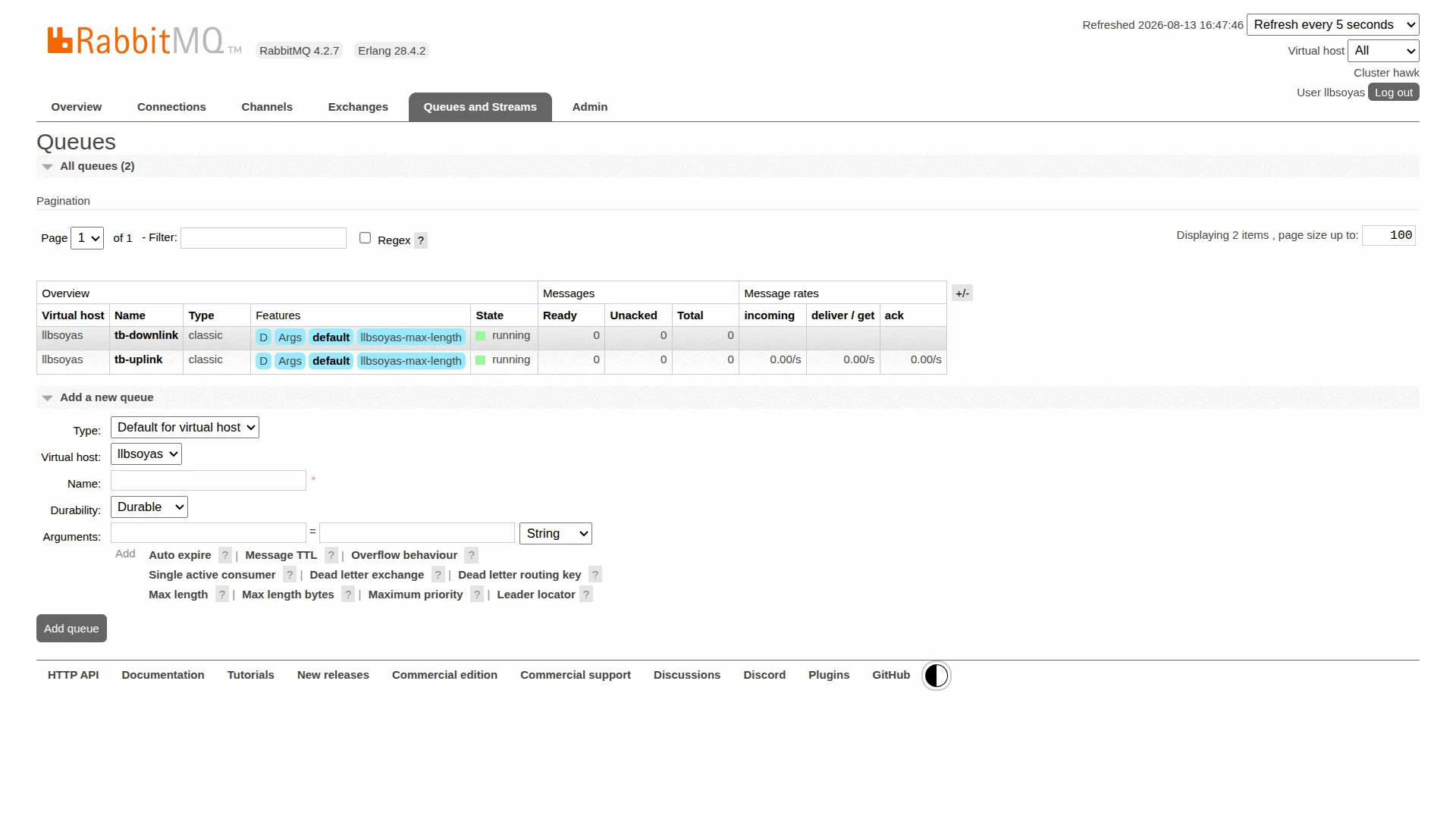
Section titled “Create the Downlink Queue”In the CloudAMQP Management UI, create a dedicated queue for outgoing messages:
- Go to Queues and Streams and expand Add a new queue.
- Keep Type as Default for virtual host and Durability as Durable.
- Enter
tb-downlinkas the Name and click Add queue.
Create the Downlink Data Converter
Section titled “Create the Downlink Data Converter”The downlink converter encodes Rule Engine messages into AMQP payloads. Skip this step if the integration doesn’t need to publish downlink messages.
The output object must include:
contentType—TEXT,JSON, orBINARYdata— the message body to publishmetadata— optional AMQP message headers as key-value pairs
- Go to Integrations center ⇾ Data converters.
- Click + Add data converter ⇾ Create new converter.
- Set Converter type to Downlink.
- Select integration type from the dropdown — RabbitMQ.
- Enter a converter name:
RabbitMQ Downlink Converter. - Paste the encoder function from the tab below.
- Click Add.
var result = {  contentType: 'JSON',  data: JSON.stringify(msg),  metadata: {    deviceName: metadata.deviceName  }};
return result;
var result = { contentType: 'JSON', data: JSON.stringify(msg), metadata: { deviceName: metadata.deviceName }};
return result;To adapt this converter:
- Specific fields only — replace
JSON.stringify(msg)with a selective object to send only the relevant command fields. - Binary payload — set
contentTypetoBINARYand encodedataaccordingly.
Attach the Downlink Converter
Section titled “Attach the Downlink Converter”- Open the RabbitMQ integration and click the edit icon (pencil).
- Attach RabbitMQ Downlink Converter as the downlink data converter.
- Expand Advanced settings and set:
- Downlink topic —
tb-downlink(used as the routing key when publishing downlink messages). - Exchange name — leave empty to use the default exchange.
- Downlink topic —
- Click Apply changes.
Configure the Root Rule Chain
Section titled “Configure the Root Rule Chain”Add and Configure the Integration Downlink node:
- Go to Rule chains and open the Root Rule Chain (the chain that processes your device’s messages).
In the node palette on the left, search for downlink, then drag the integration downlink node (under Action) onto the canvas. In the Add rule node dialog, set:
Field Value for this setup Name To RabbitMQ IntegrationIntegration RabbitMQ integration- Click Add.
- Connect the Message Type Switch node to the new node via the Attributes Updated relation.
- Click Apply changes.
Trigger a Downlink
Section titled “Trigger a Downlink”Trigger a downlink by adding a shared attribute to device Sensor A1:
- Go to Entities ⇾ Devices and open Sensor A1.
- Navigate to the Attributes tab, switch to Shared attributes, and click +.
- Enter key
powerStateand valueon, then click Add.
Adding the attribute fires the rule chain, which forwards the message through the Integration Downlink node to the RabbitMQ integration. The downlink converter encodes the message and ThingsBoard publishes it to the tb-downlink queue via the default exchange.
Verify RabbitMQ Delivery
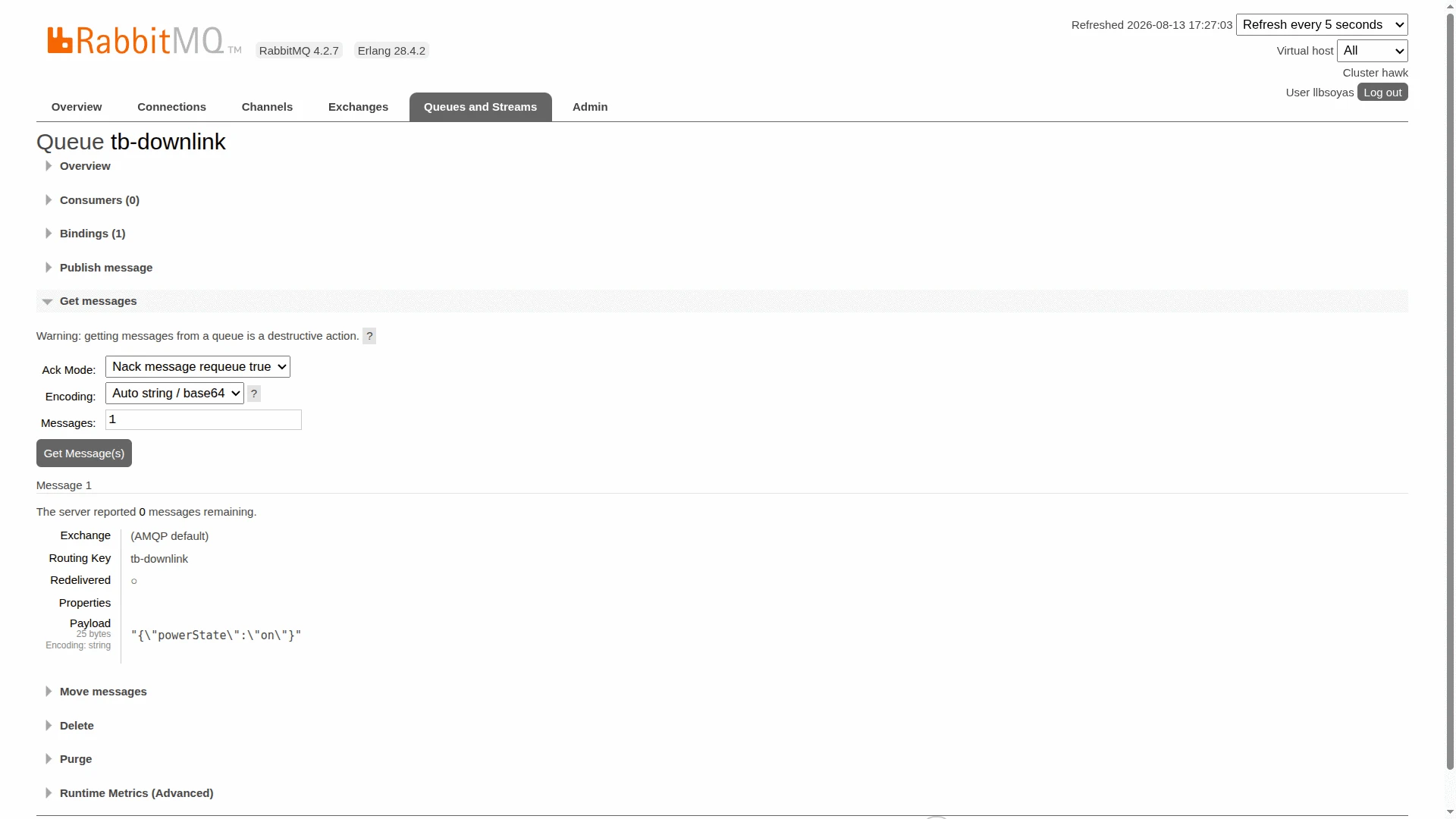
Section titled “Verify RabbitMQ Delivery”In the Management UI at https://hawk.rmq.cloudamqp.com/, go to Queues and Streams and open the tb-downlink queue. Scroll to Get messages, set Ack mode to Nack message requeue true (peek without consuming), and click Get Message(s).
The result shows:
- Exchange —
(AMQP default) - Routing Key —
tb-downlink - Payload — the downlink converter output, e.g.
{"powerState":"on"}
Troubleshooting
Section titled “Troubleshooting”This section covers the most common problems encountered when setting up and running the RabbitMQ integration. Each entry describes the symptom, the most likely cause, and the steps to resolve it.
Integration Status Is Not Active
| Symptom | Cause | Fix |
|---|---|---|
| Integration does not become Active | Wrong Host or Port | Confirm the broker host:port is reachable from the ThingsBoard server (5672, or 5671 for TLS). |
| Integration does not become Active | Wrong Username or Password | Verify the credentials in Advanced settings against your broker/provider. |
| Integration does not become Active | Wrong Virtual host | Confirm the virtual host matches the broker (default /; on CloudAMQP it equals the username). |
| Integration does not become Active | Queue does not exist | Create the queue on the broker before the integration tries to connect. |
Messages Are Not Consumed
| Symptom | Cause | Fix |
|---|---|---|
| No messages consumed | Queue flag mismatch | Ensure Durable / Exclusive / Auto delete match the flags used when the queue was declared — a channel-level error is shown on the integration Events tab. |
| No messages consumed | Producer routes to the wrong queue | Confirm the producer publishes to the queue configured in the integration (check bindings in the Management UI). |
| No messages consumed | Integration is disabled | Open the integration and confirm Enable integration is on. |
Message Consumed but Device Not Created
| Symptom | Cause | Fix |
|---|---|---|
| Message consumed, no device in ThingsBoard | Allow create devices or assets is disabled | Edit the integration and enable Allow create devices or assets in the Basic settings step. |
| Message consumed, no device in ThingsBoard | Converter returns an empty device name | Open the uplink converter Events tab and inspect the Out panel — confirm deviceName is present and non-empty. |
| Converter shows an error | TBEL or JavaScript exception in the decoder | Open the uplink converter Events tab, filter by Error, and inspect the stack trace. Common causes: malformed JSON or an undefined field. Check the raw In payload matches the format your decoder expects. |
Downlink Not Published
| Symptom | Cause | Fix |
|---|---|---|
| Nothing appears on the downlink queue | Downlink converter not attached | Edit the integration and confirm a Downlink data converter is selected. |
| Nothing appears on the downlink queue | Rule chain path never reaches the node | Confirm the Integration Downlink node is connected after the node that produces the outgoing message, via the correct relation. |
| Message published to the wrong place | Downlink topic ≠ queue name (default exchange) | With an empty Exchange name, set Downlink topic to exactly the downlink queue name. |
| Rule node shows processing errors | Encoder exception or bad connection | Open the node’s Events tab and inspect the error, then verify the integration connection and downlink converter. |
How to Read Debug Events
- Go to Integrations center ⇾ Integrations, open RabbitMQ integration, and click the Events tab.
- Click an event row to inspect:
- In — the raw payload received from RabbitMQ before processing.
- Out — what the converter returned: device name, attributes, and telemetry values passed to ThingsBoard.
- Error — error text and stack trace, if processing failed. Debug mode is active automatically for the first 15 minutes after an integration is created; afterwards only error events are retained. Re-enable it from the integration details page whenever you need to inspect raw input/output, and disable it once the issue is identified.
See Also
Section titled “See Also”- Integrations Overview — how ThingsBoard connects to external platforms and how uplink/downlink flow works
- Uplink Data Converter — full decoder function reference: input parameters, output fields, and scripting patterns
- Downlink Data Converter — encoder function reference for publishing messages back to RabbitMQ
- RabbitMQ Rule Node — publish messages from the Rule Engine directly to a RabbitMQ exchange
- Remote Integration — run the integration outside the ThingsBoard server to reach a broker on a private network
- TBEL scripting reference — built-in functions and operators for writing converter scripts
- Rule Engine — how the rule chain routes messages to the Integration Downlink node
Was this helpful?