Widget Settings
Once a Trendz view is embedded on a ThingsBoard dashboard, the widget exposes several settings that control how it displays data, refreshes it, and shares filter state with other widgets on the same dashboard.
This page covers three settings available in the widget edit panel:
- Use dashboard time window — sync the widget’s time range with the dashboard selector.
- Auto refresh — update the chart data automatically at a fixed interval.
- Broadcast / Listen filter change event — propagate a filter change from one Trendz widget to others on the same dashboard.
Use the dashboard time window
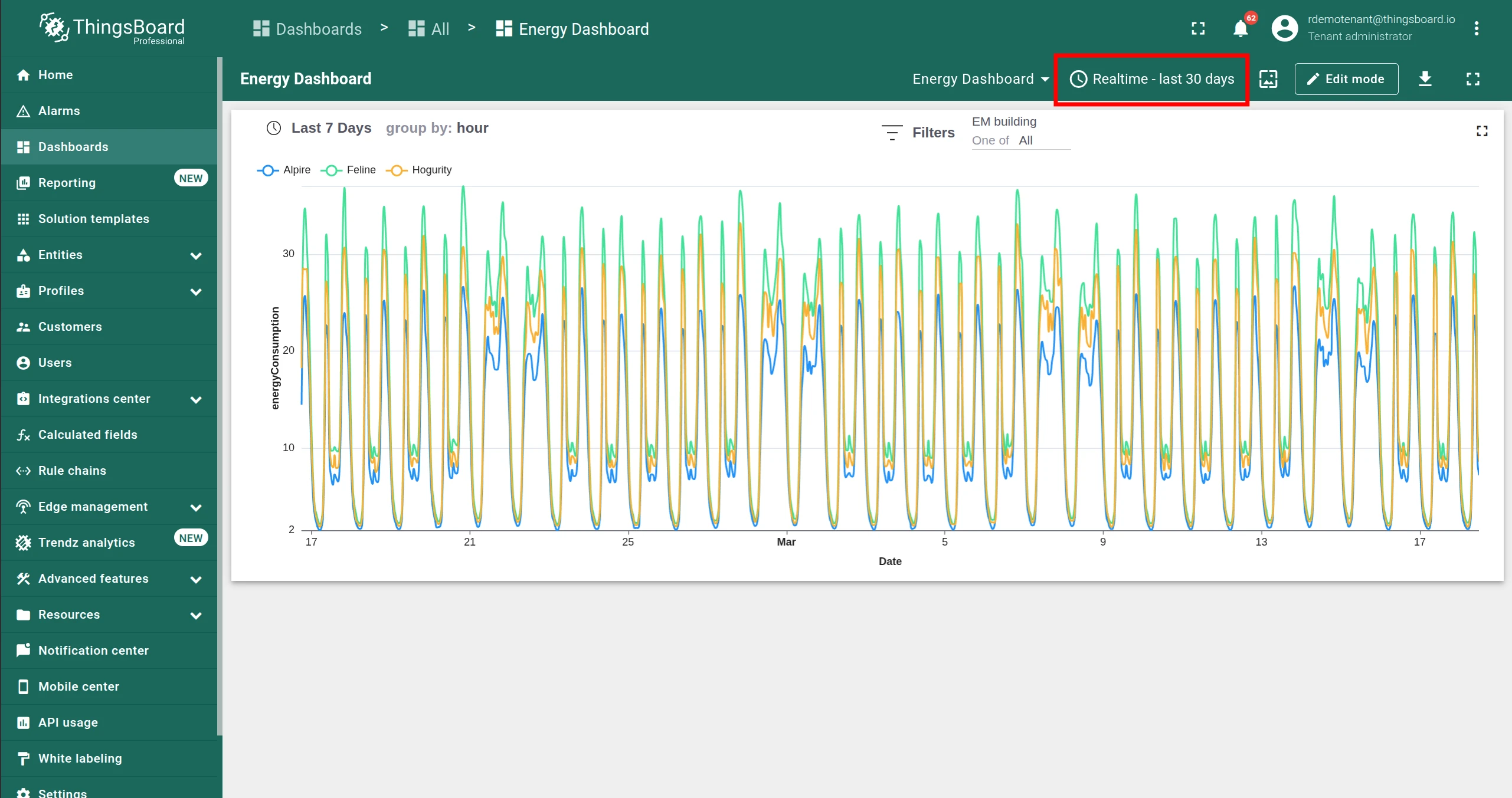
Section titled “Use the dashboard time window”By default, each Trendz view uses its own time range. You can override this so the widget follows the dashboard time window instead.
-
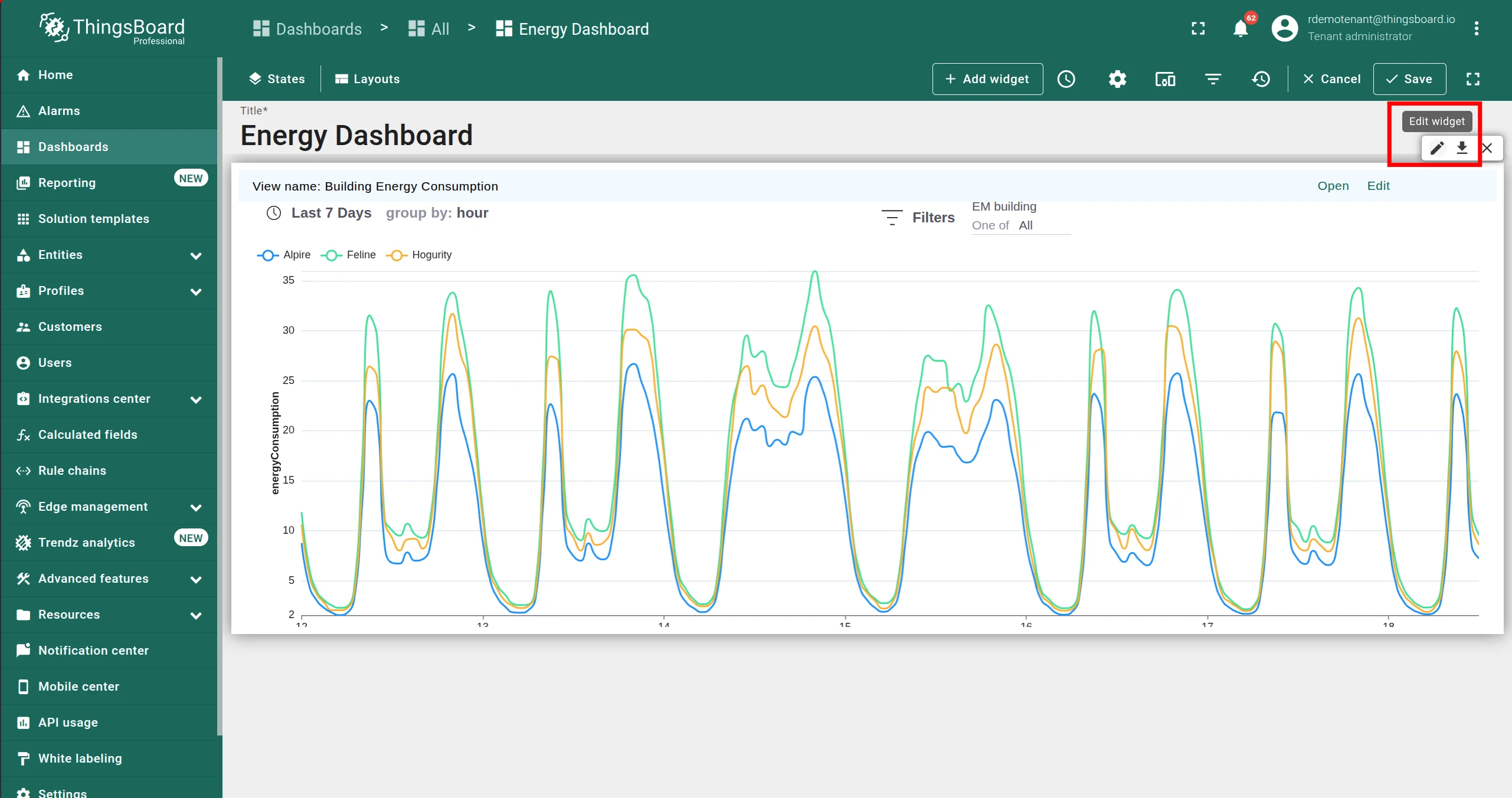
Open the dashboard in edit mode and click Edit widget on the Trendz widget.
-
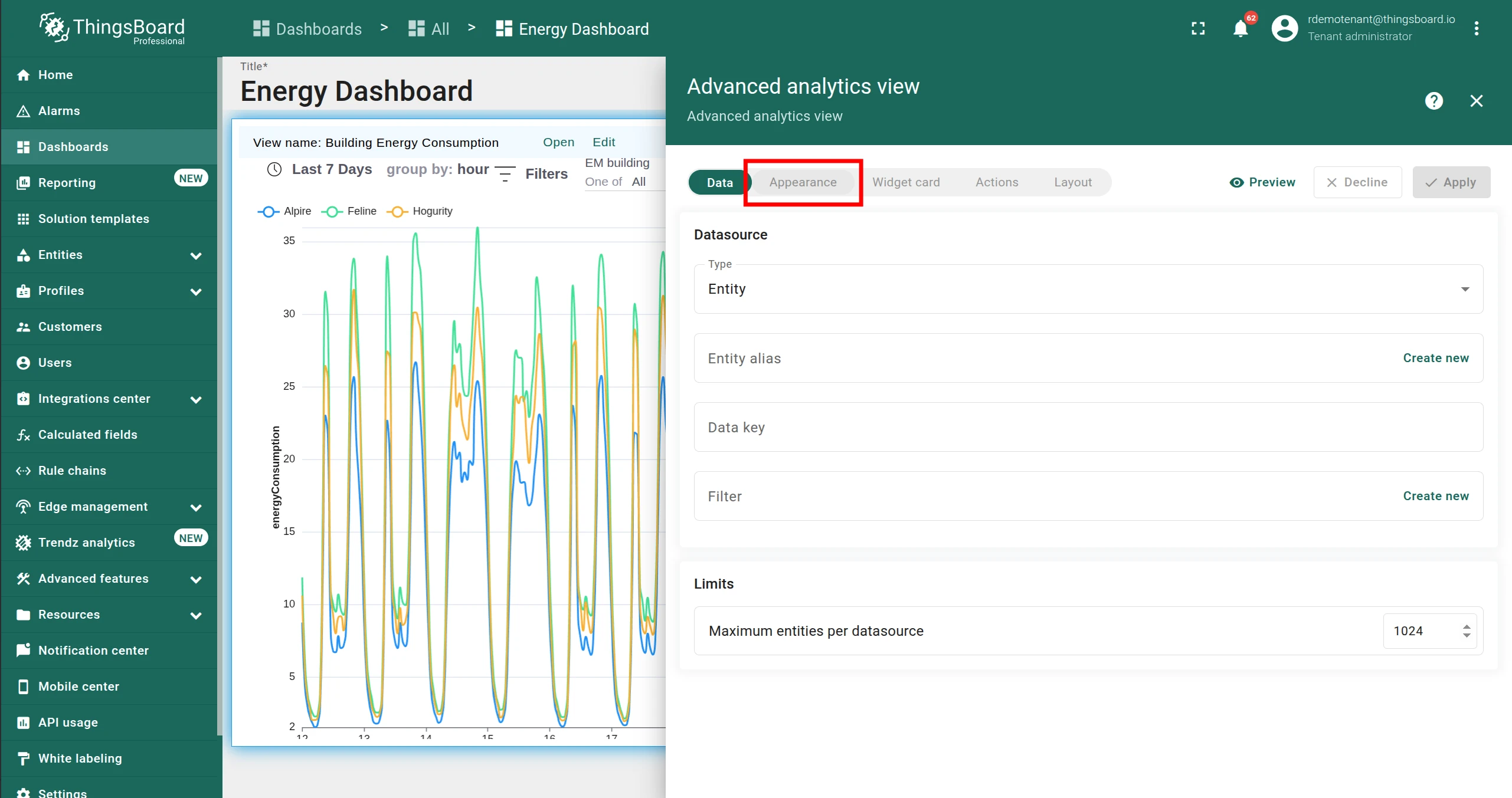
Switch to the Appearance tab.
-
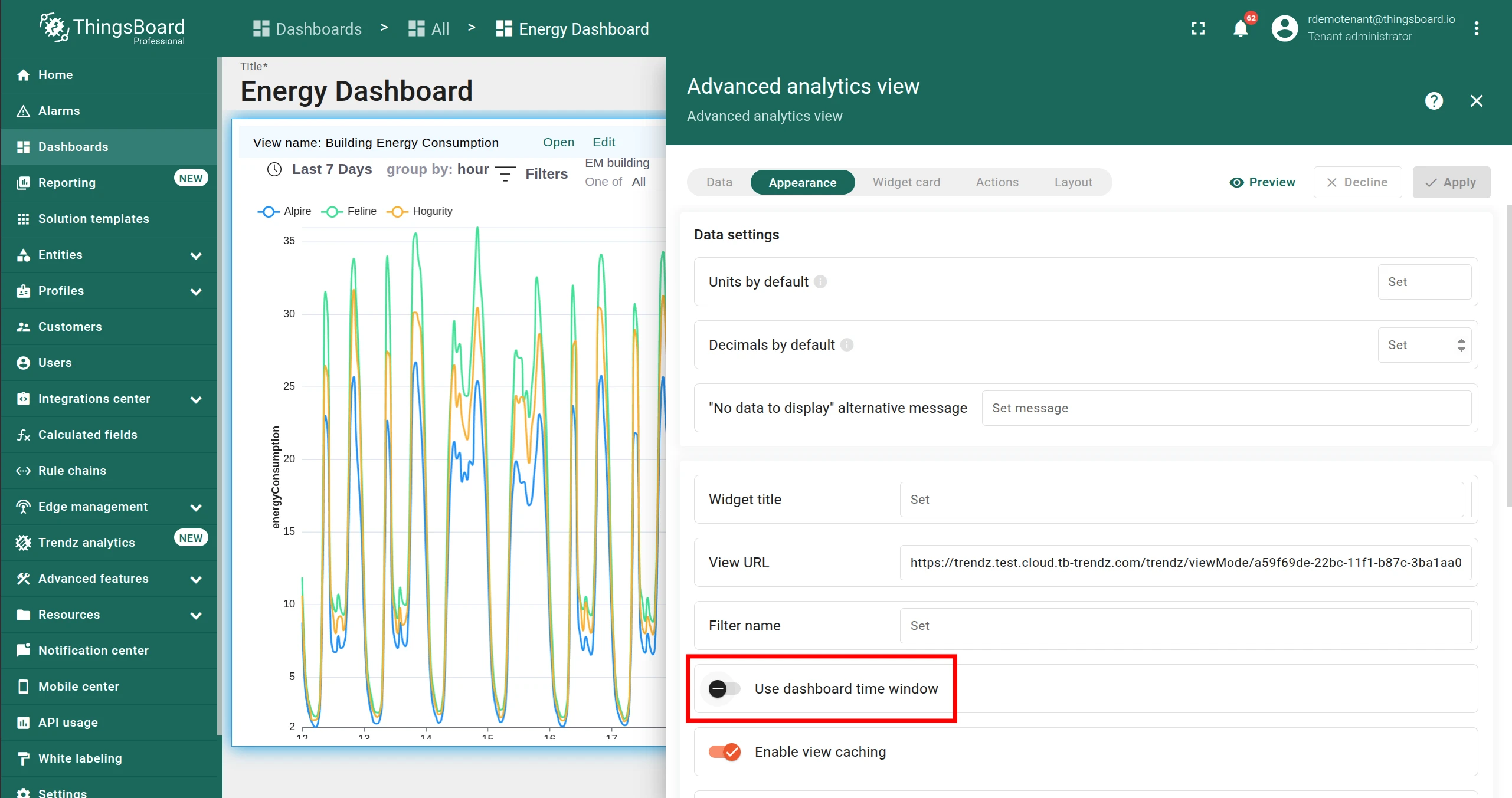
Enable Use dashboard time window.
-
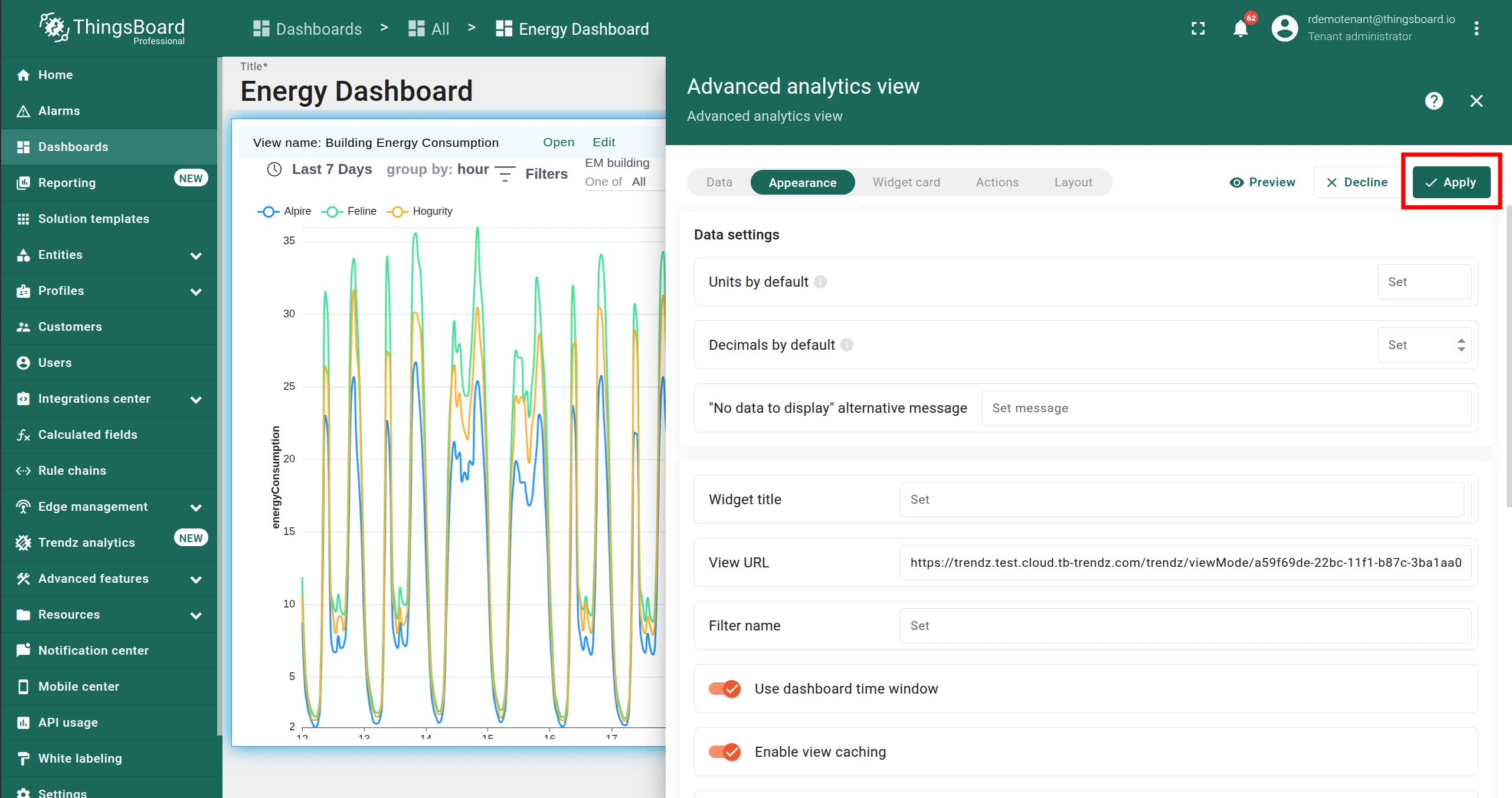
Click Apply.
Now when you change the time range on the dashboard, the Trendz view automatically reloads with the appropriate time range.
Auto refresh
Section titled “Auto refresh”You can configure a Trendz widget to update its data automatically at a fixed interval.
-
Open the dashboard in edit mode and click Edit widget on the Trendz widget.
-
Switch to the Appearance tab.
-
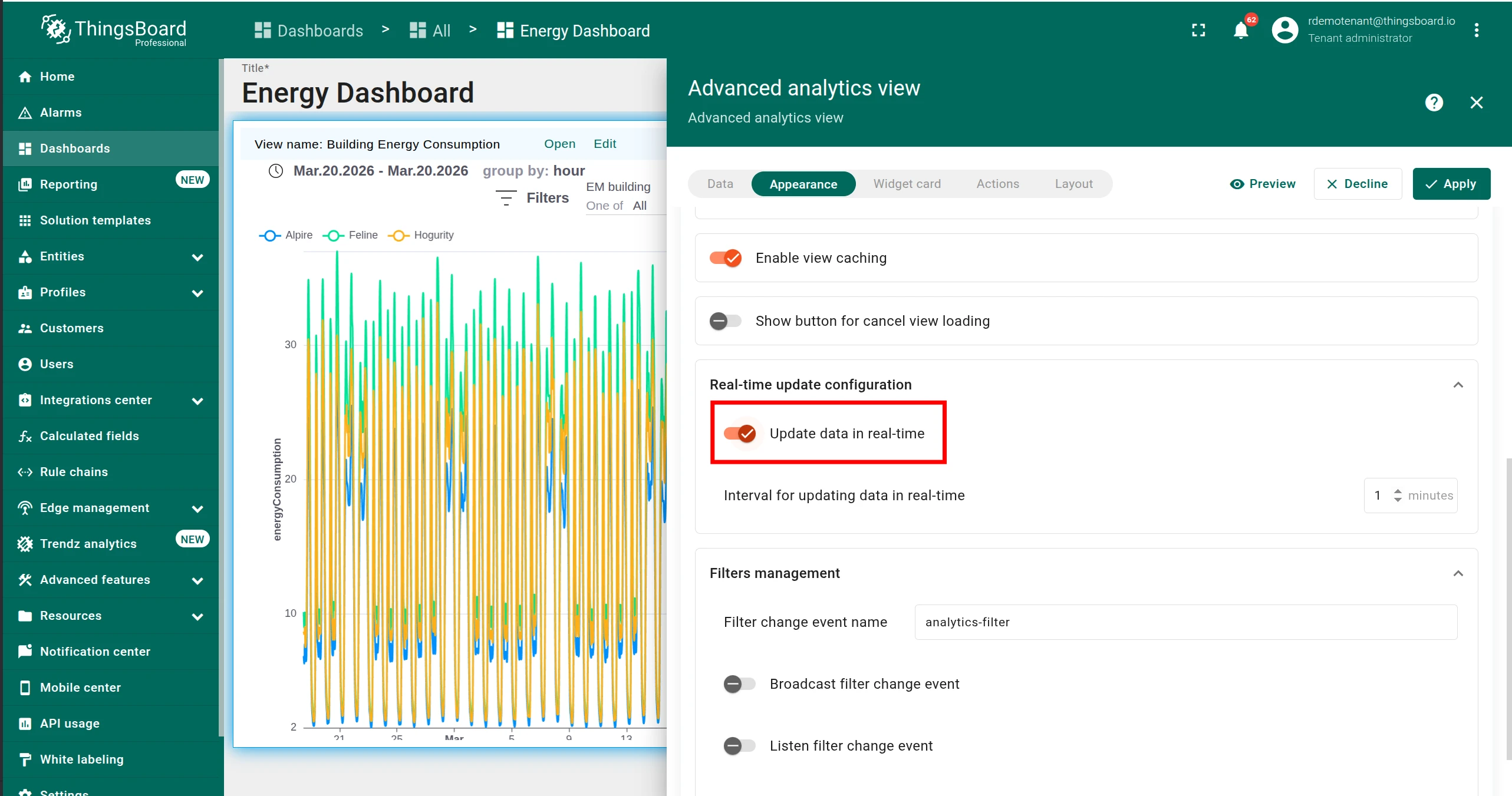
In the Real-time update configuration section, enable Update data in real time.
-
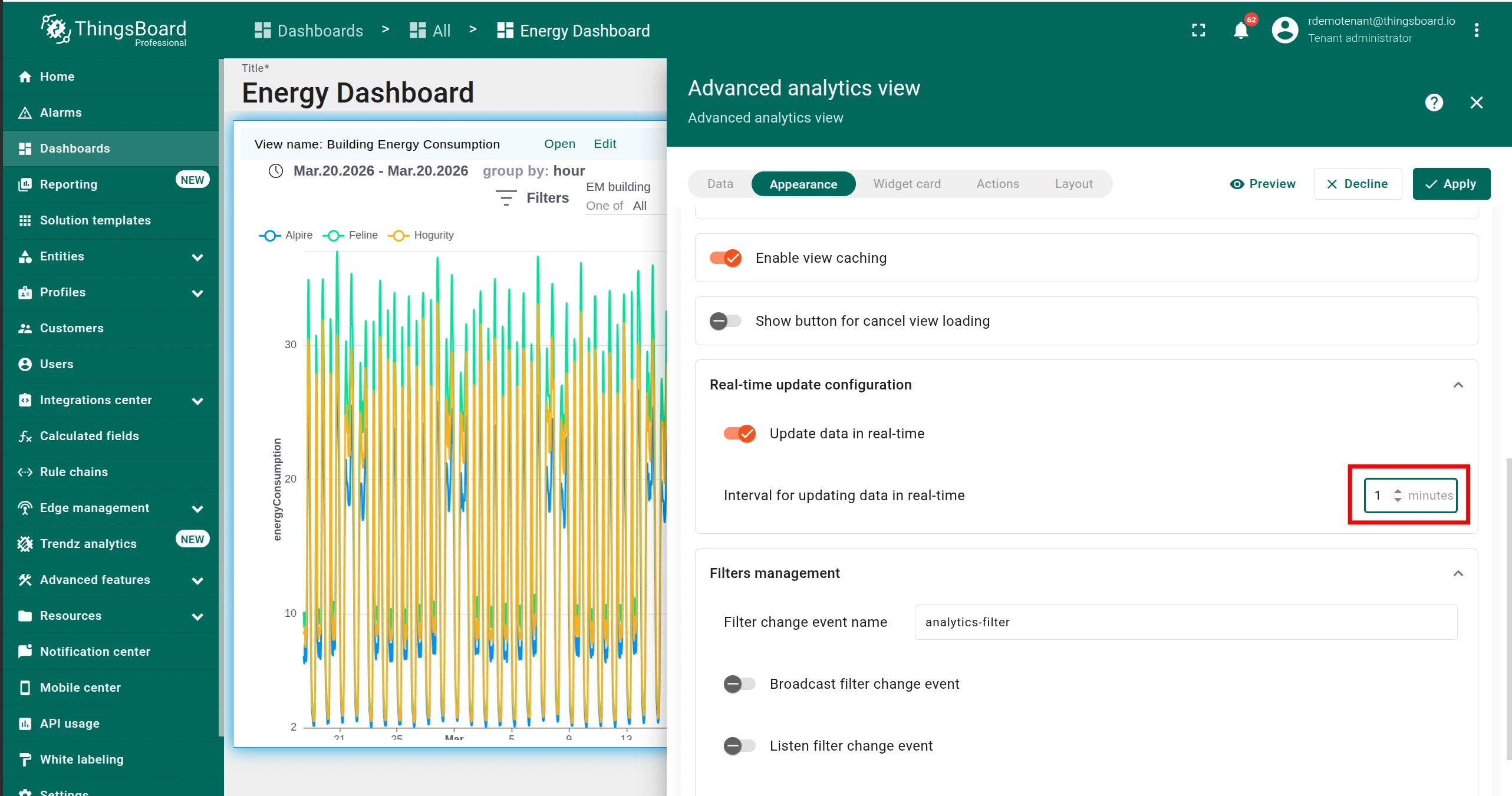
Set the desired Interval for updating data in real time in minutes.
-
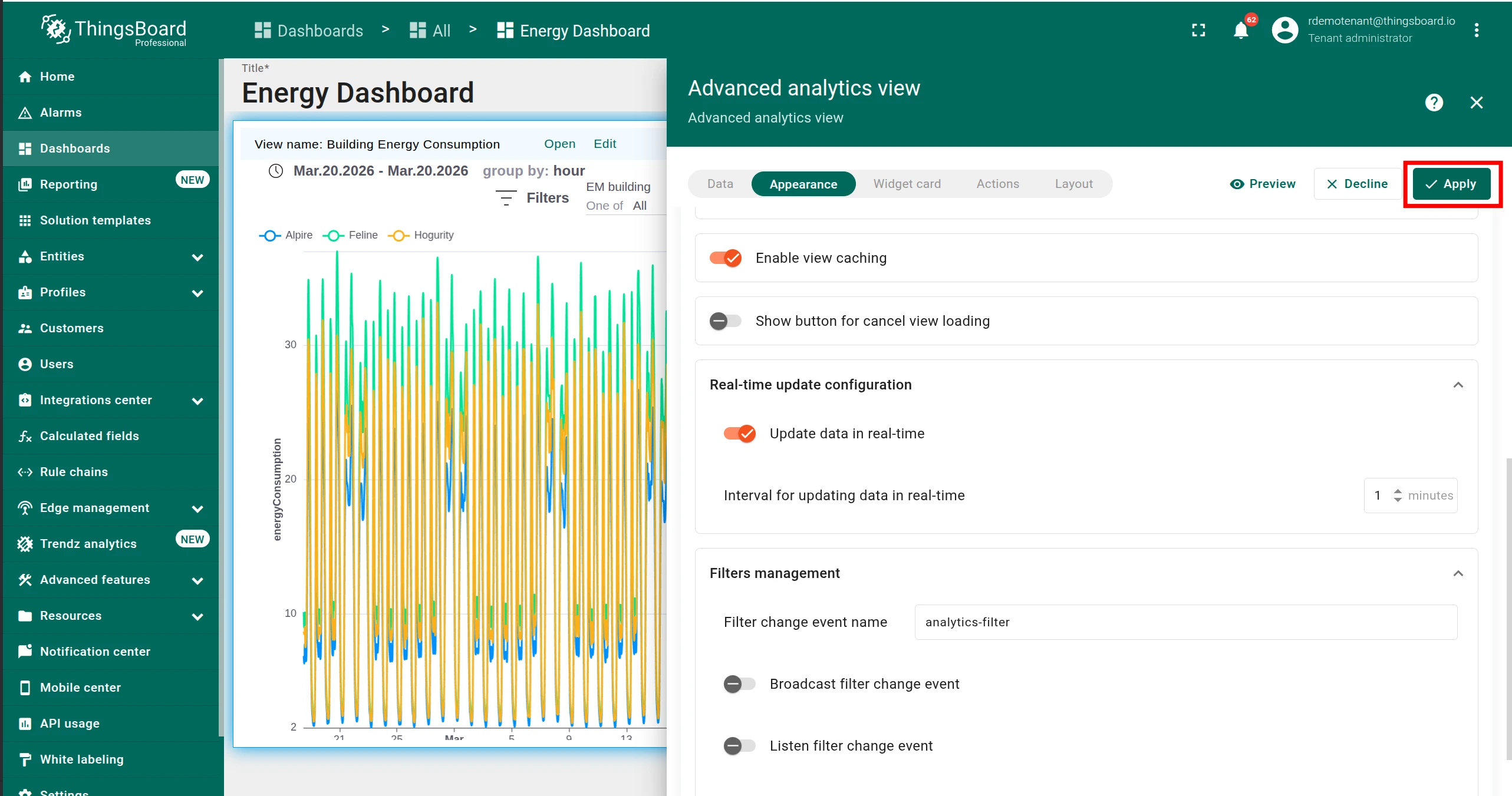
Click Apply.
Now the Trendz view automatically reloads its data at the configured interval.
Sharing filters between widgets
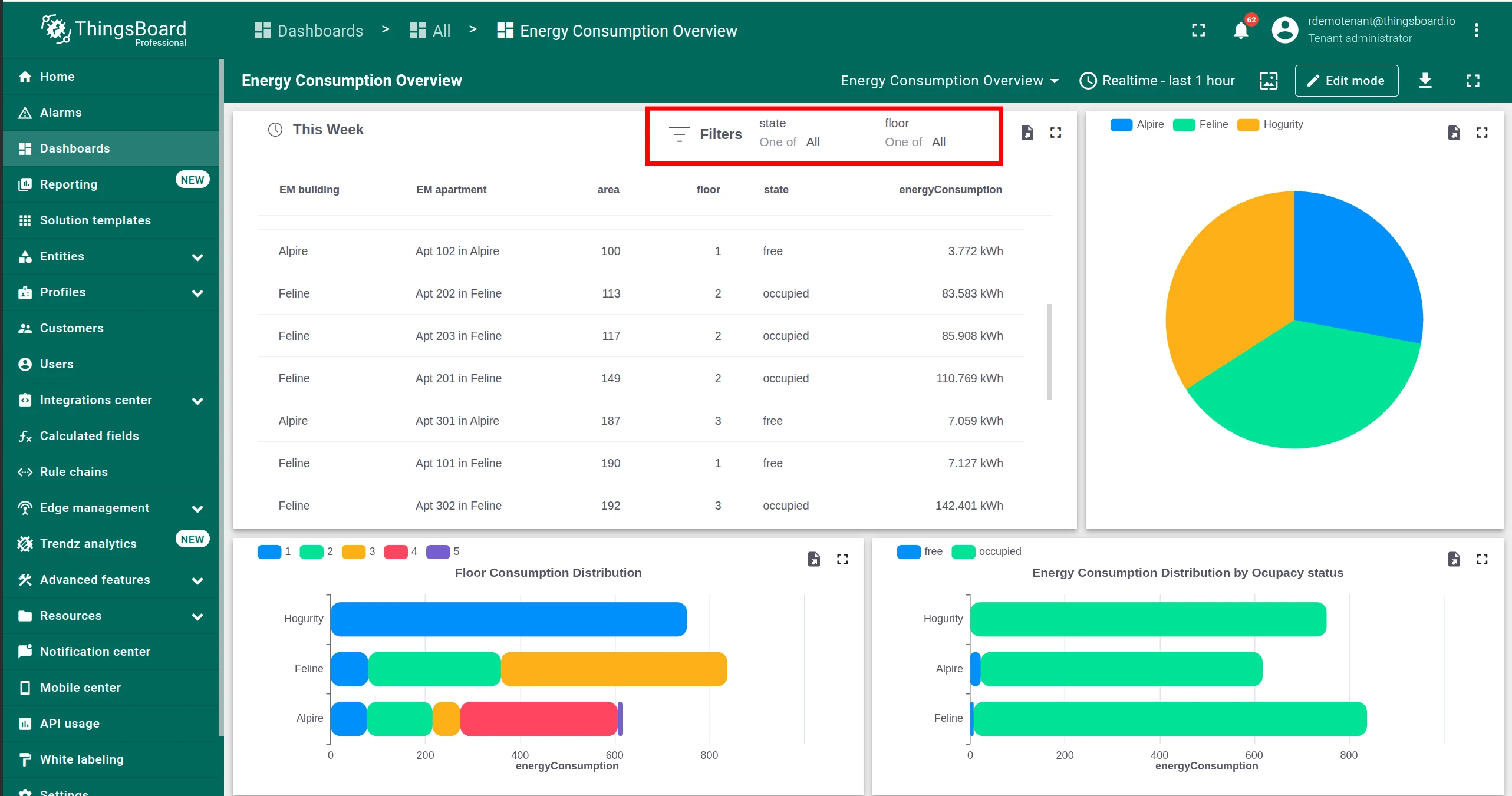
Section titled “Sharing filters between widgets”When you have multiple Trendz views on the same dashboard — for example a data table and several charts — you can make them all respond to a single filter change. Enabling Broadcast filter change event on the main view and Listen filter change event on dependent views means that whenever the main view’s filter changes, every dependent view updates instantly to match.
Configure the main view
Section titled “Configure the main view”-
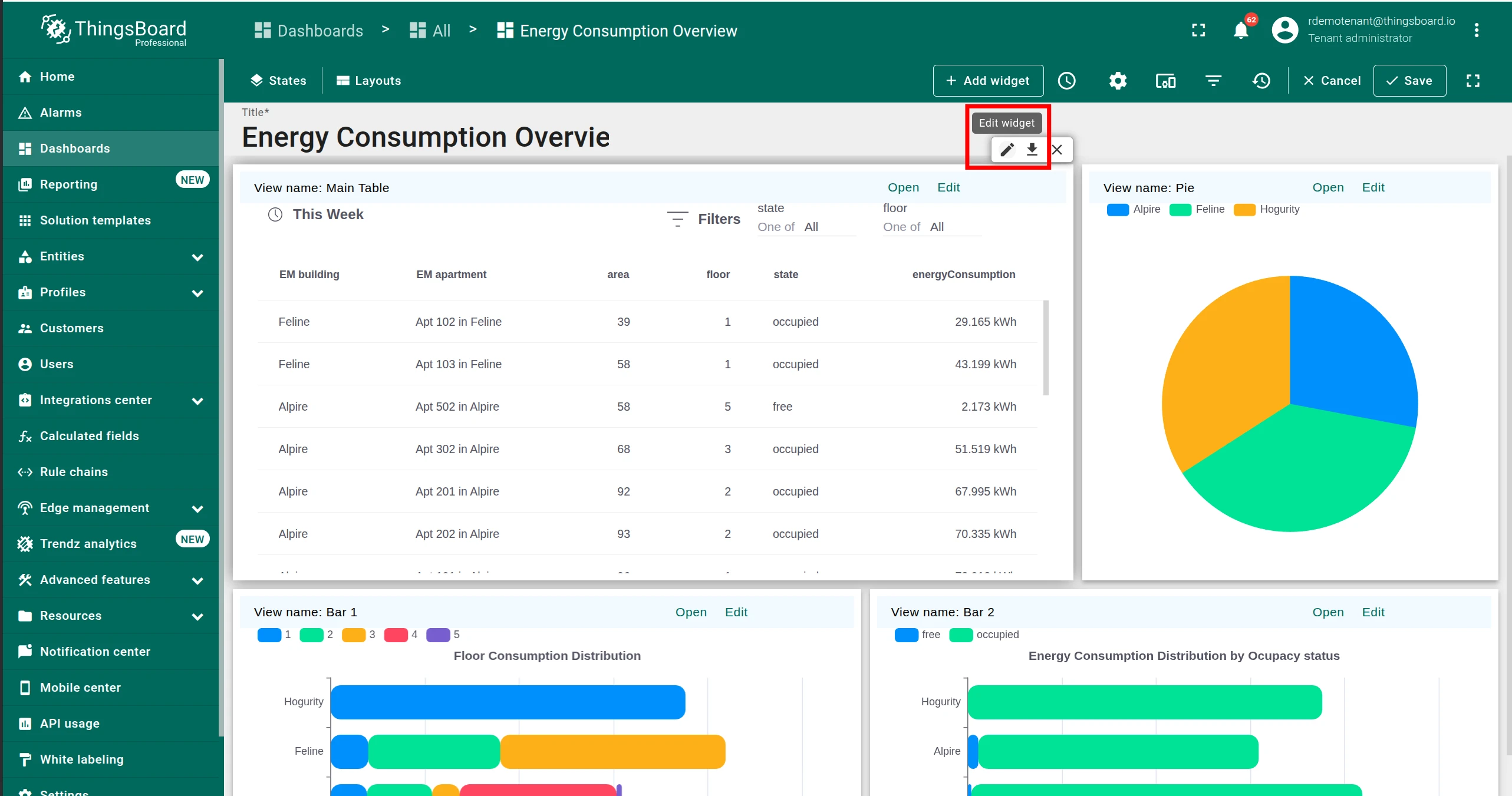
Open the dashboard in edit mode and click Edit widget on the main Trendz view.
-
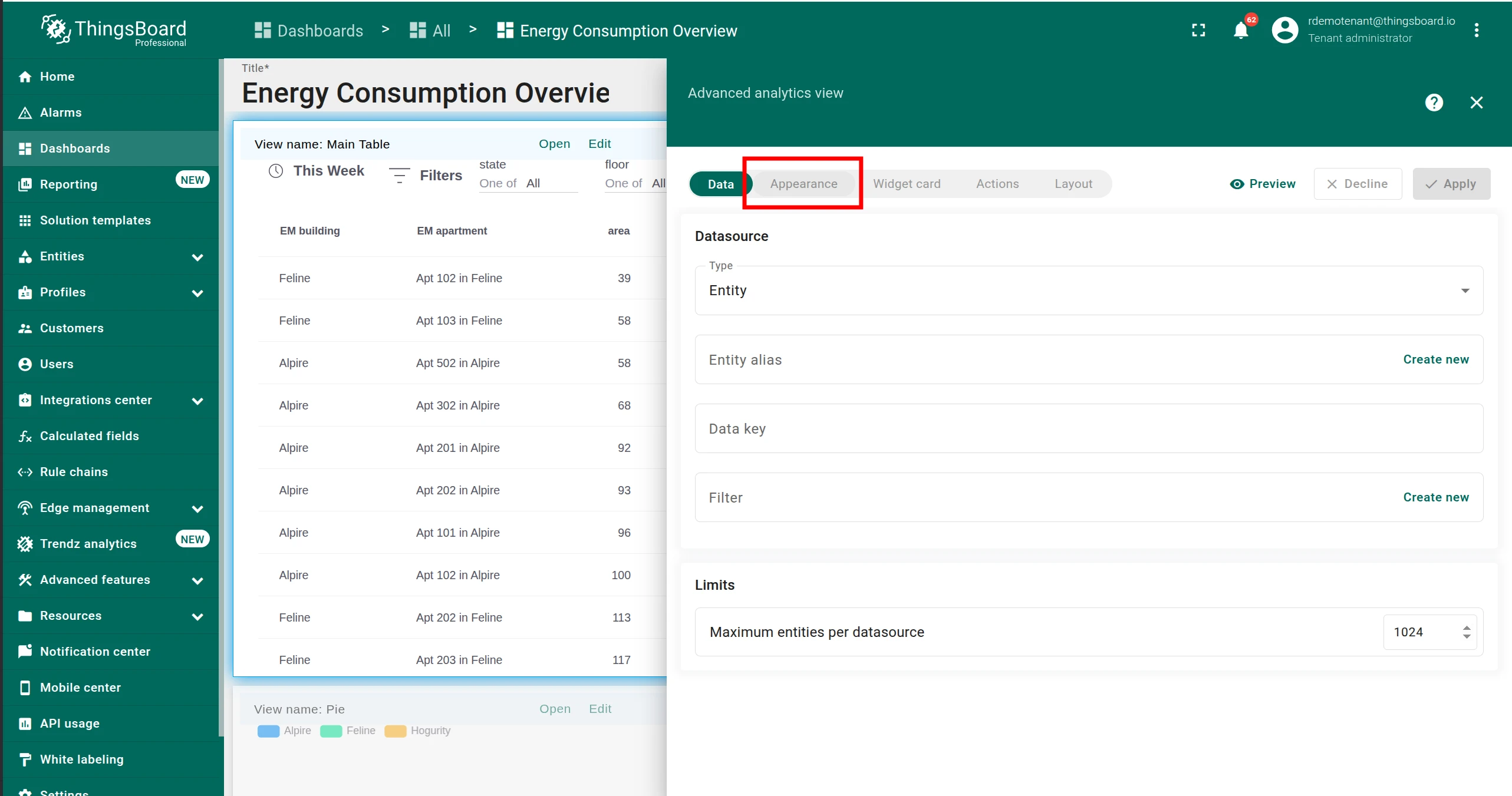
Switch to the Appearance tab.
-
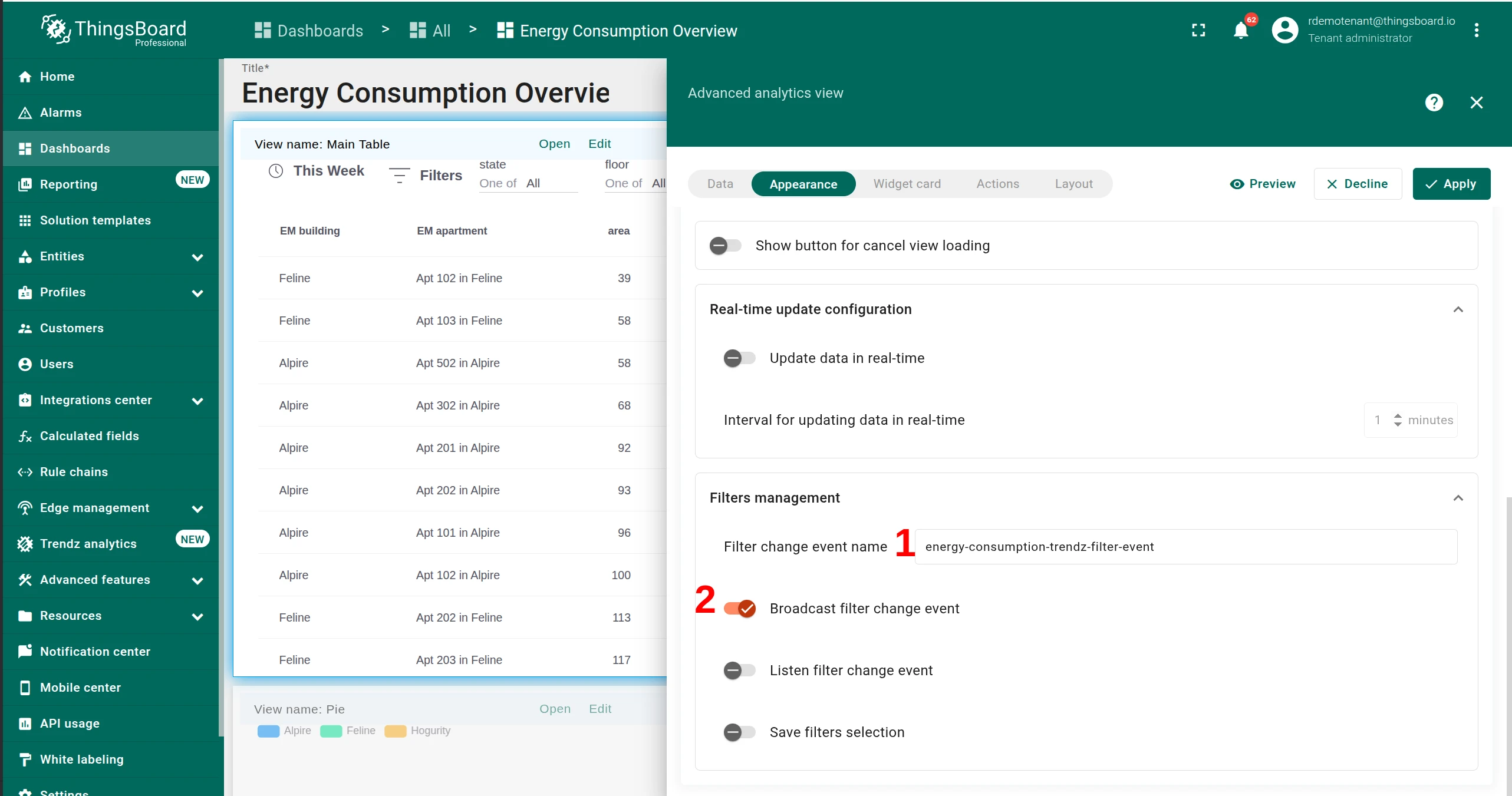
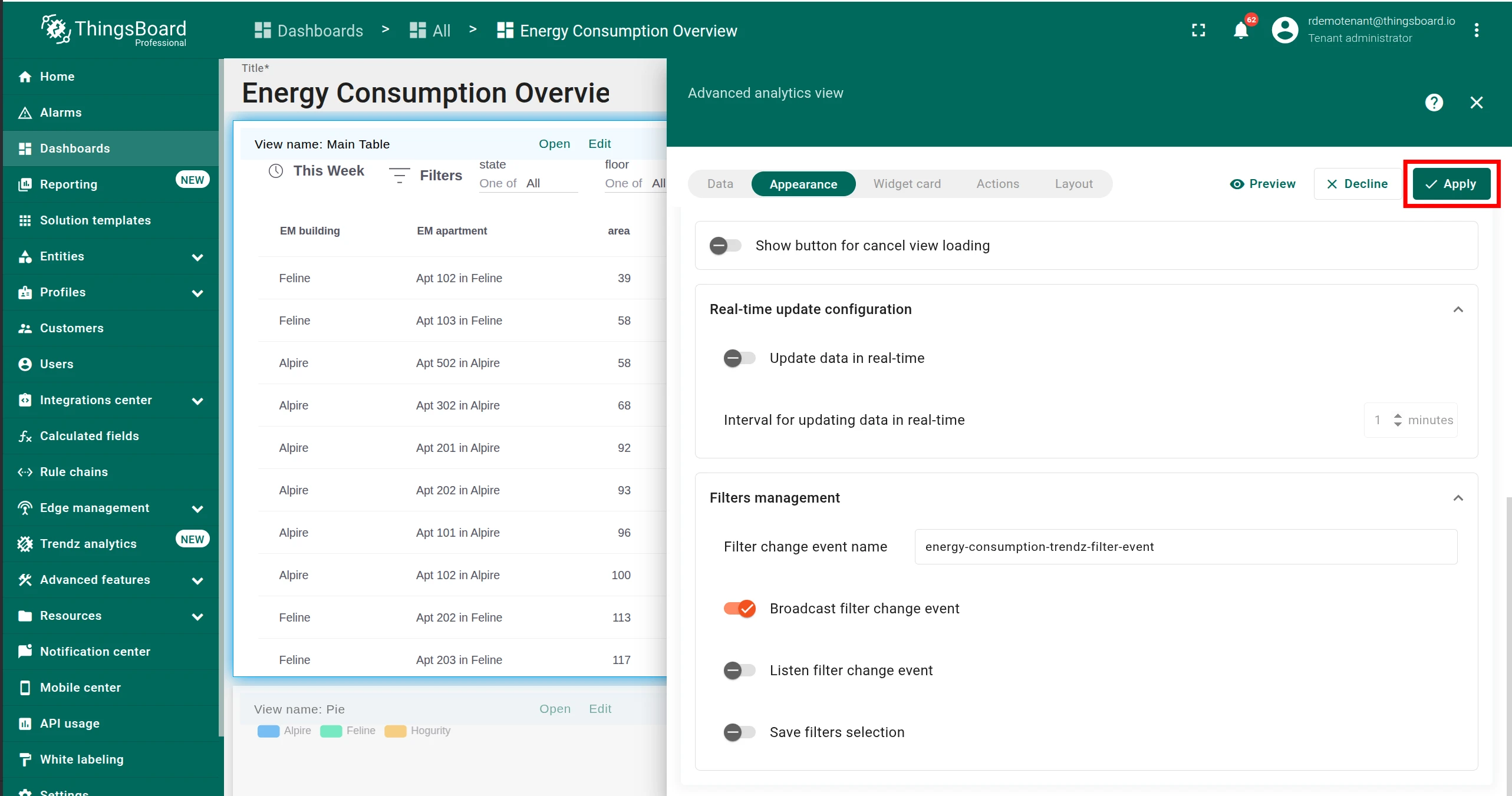
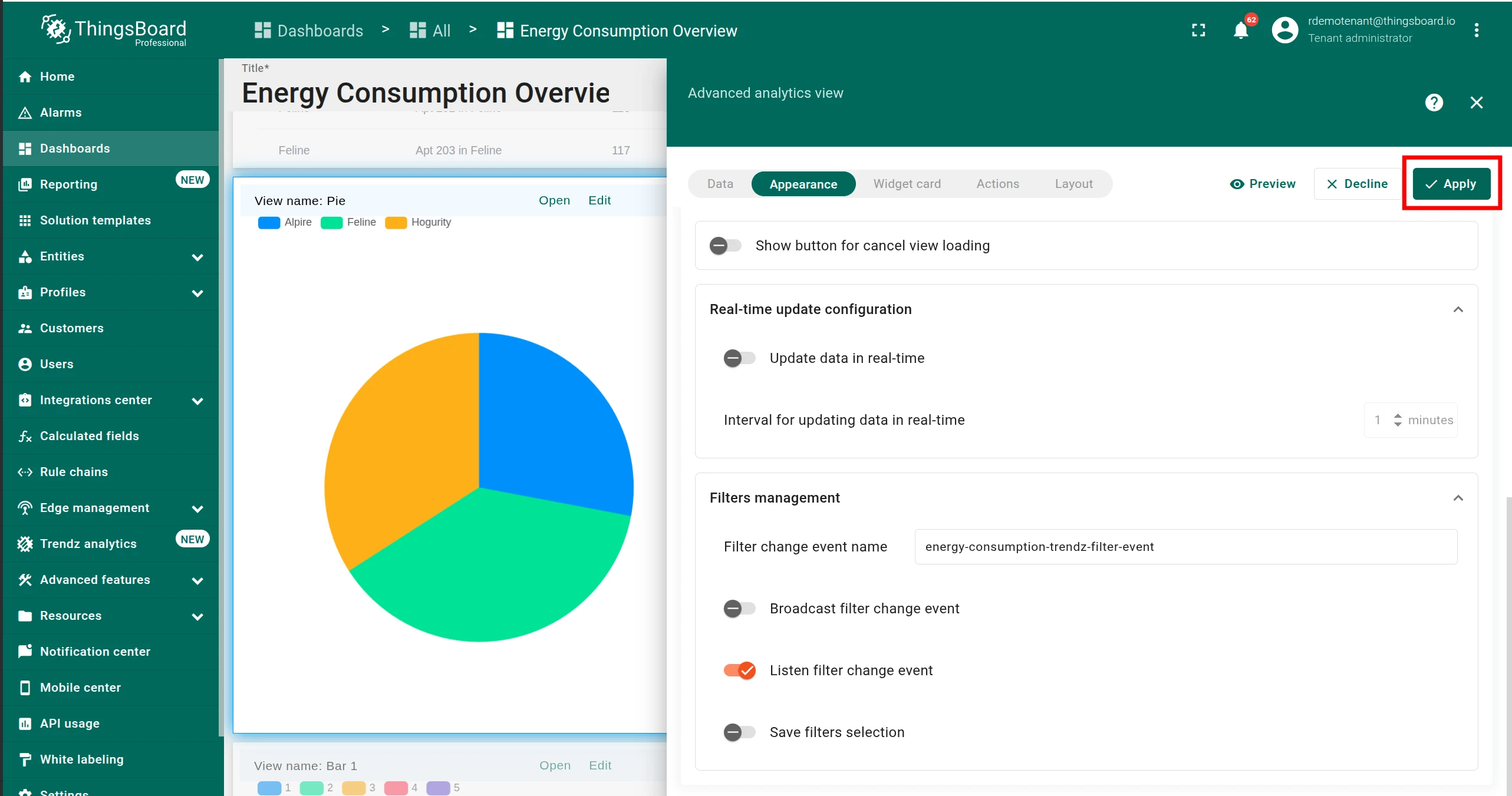
In the Filters management section, enter a name in Filter change event name (e.g.
energy-consumption-trendz-filter-event). All connected views must use this exact name. -
Enable Broadcast filter change event.
Click Apply — the main view will now broadcast its filter state whenever it changes.
Configure each dependent view
Section titled “Configure each dependent view”-
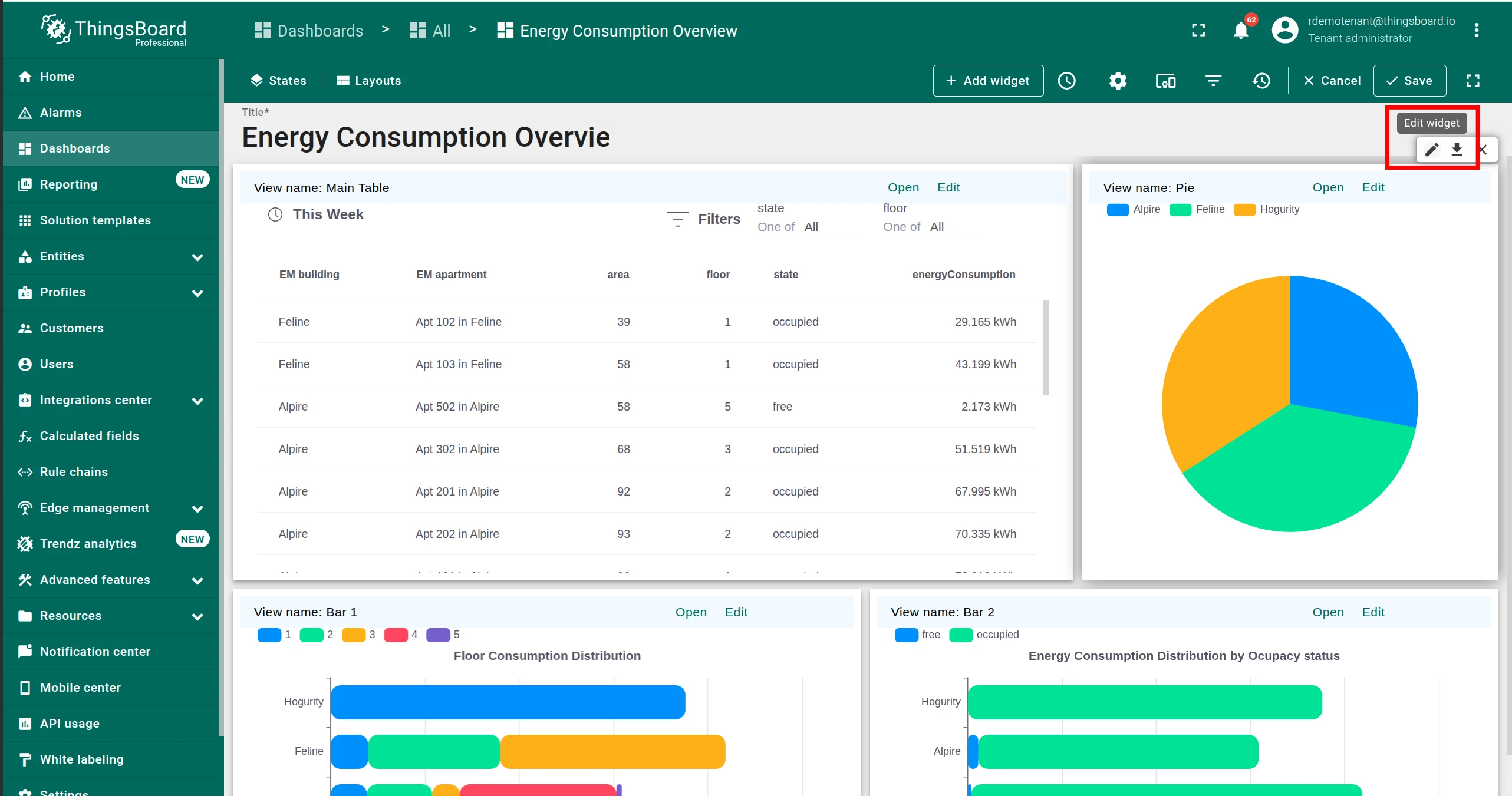
Click Edit widget on a dependent Trendz view.
-
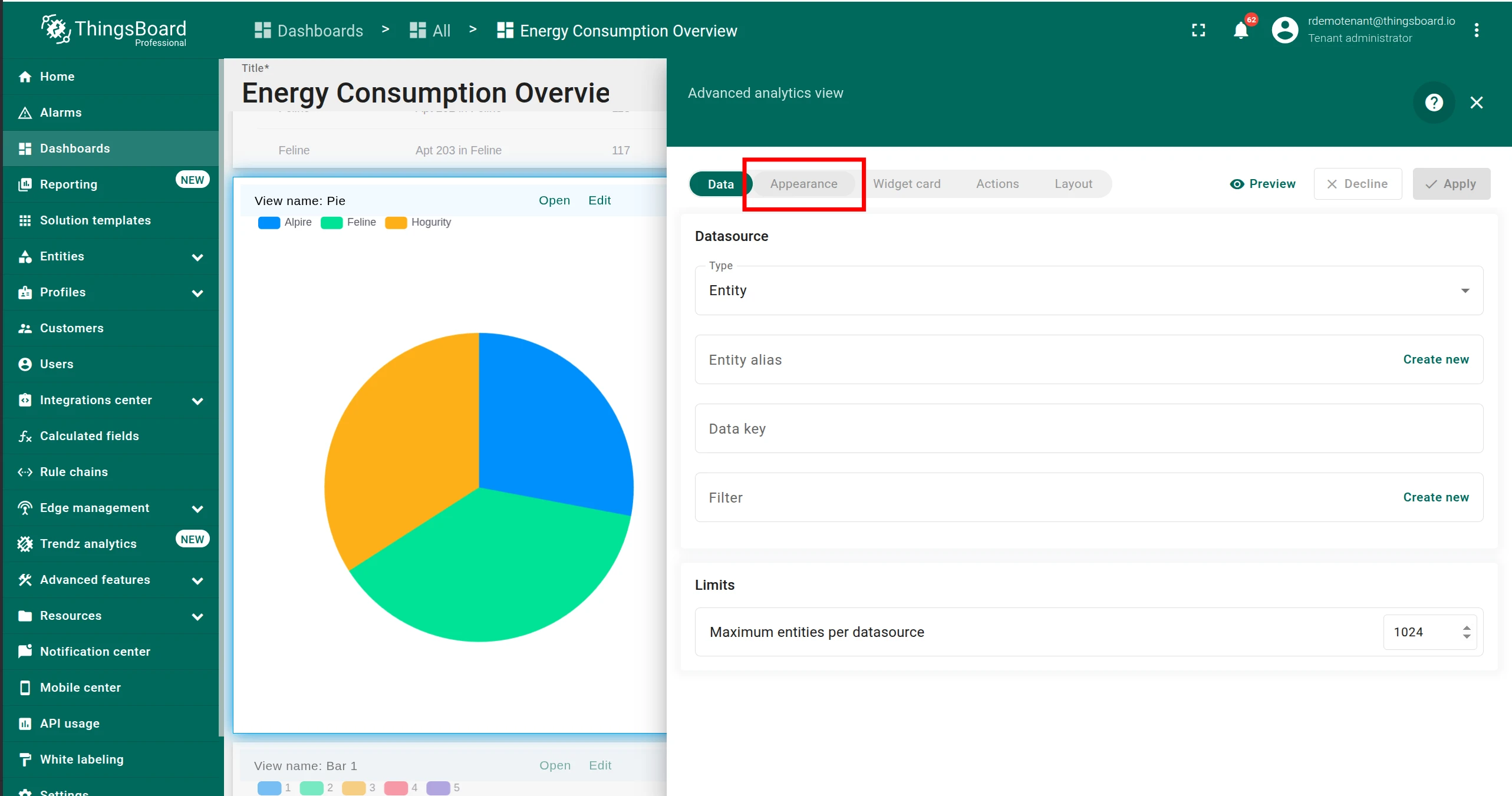
Switch to the Appearance tab.
-
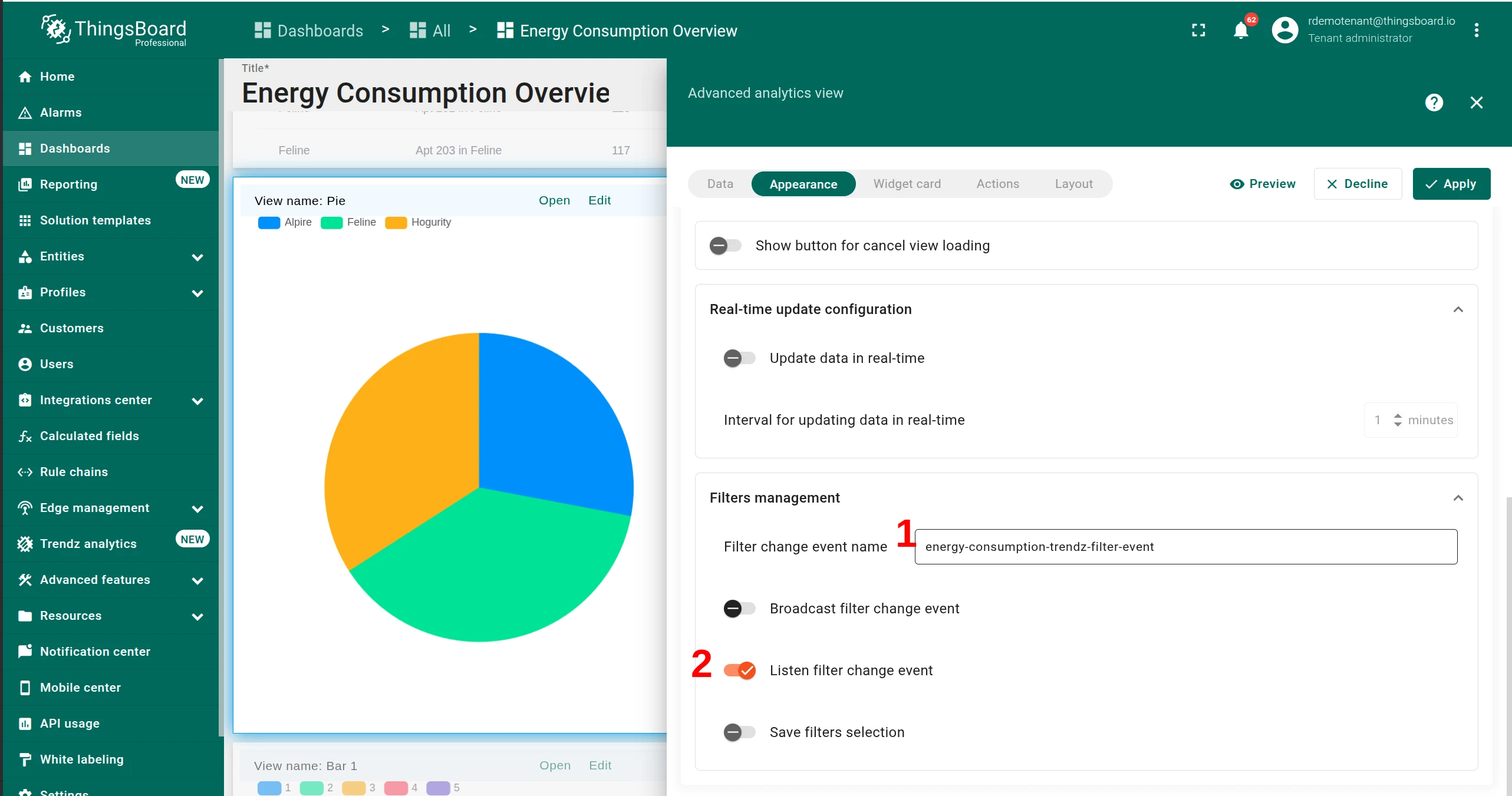
Set Filter change event name to the same value used in the main view.
-
Enable Listen filter change event.
Click Apply. Repeat for every remaining dependent view.
Save and verify
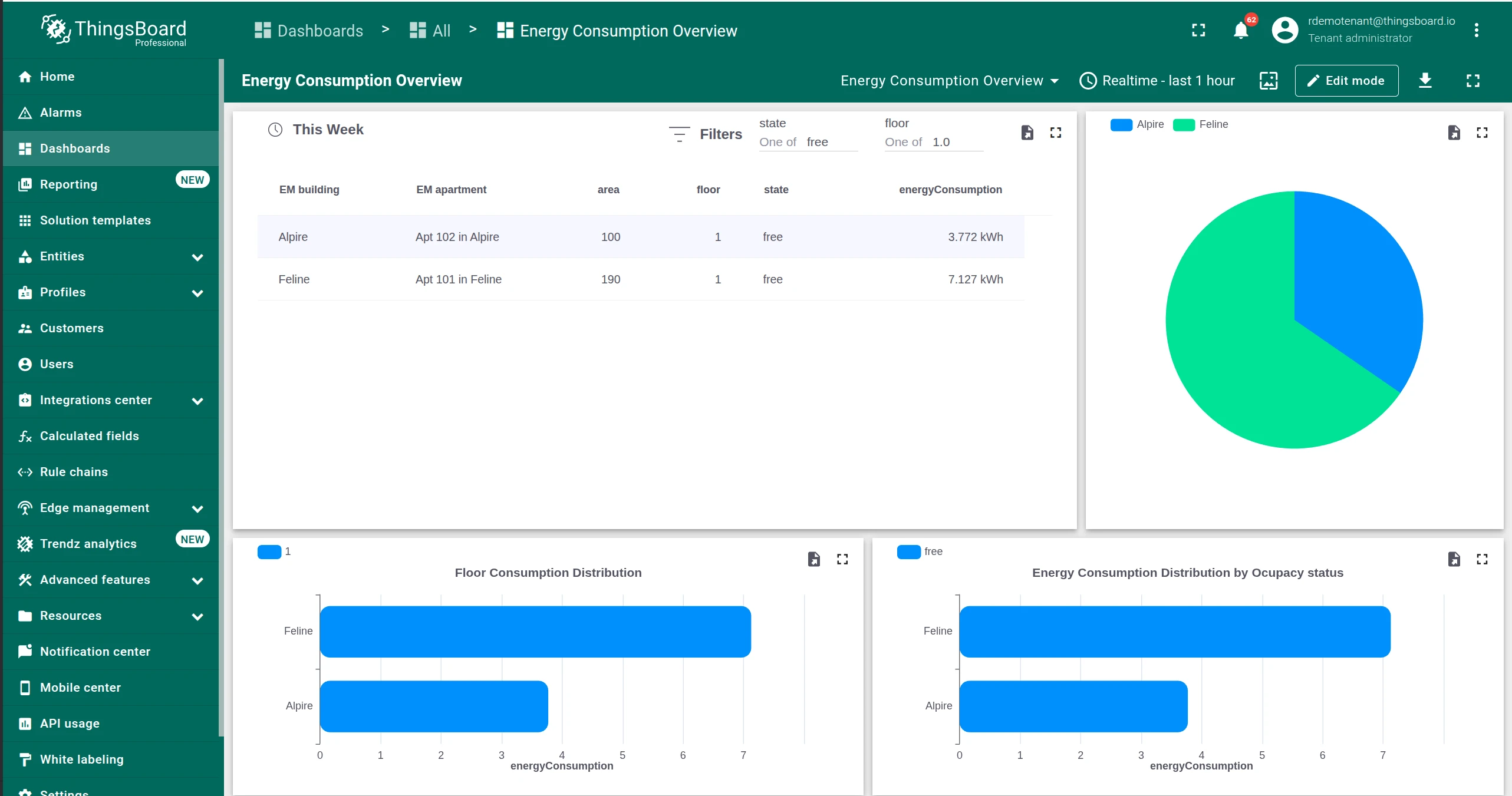
Section titled “Save and verify”Save the dashboard. Now when you change a filter on the main view, all dependent views update instantly to reflect the same selection.
Was this helpful?