Prompts
Prompts are reusable templates that combine your expert instructions with live telemetry pulled from ThingsBoard. When triggered, Trendz automatically injects the relevant device or asset metrics into the template, submits it to the configured LLM, and displays the response alongside your data — no manual data gathering or prompt rewriting required.
Where to Use Prompts
Section titled “Where to Use Prompts”Once saved, a prompt can be applied in two places:
| Where | How |
|---|---|
| Trendz widget | Select a prompt per view in View Settings → AI Assistant. See AI Widget Summary — Set the Prompt. |
| ThingsBoard widget action | Pass the prompt ID to trendz.getAnalytics() in a custom widget action. See AI Widget Summary — Customize with getAnalytics(). |
Prompts Workspace
Section titled “Prompts Workspace”Click the Assistant icon in the left sidebar, then open the Prompts tab in the upper-left area of the workspace.
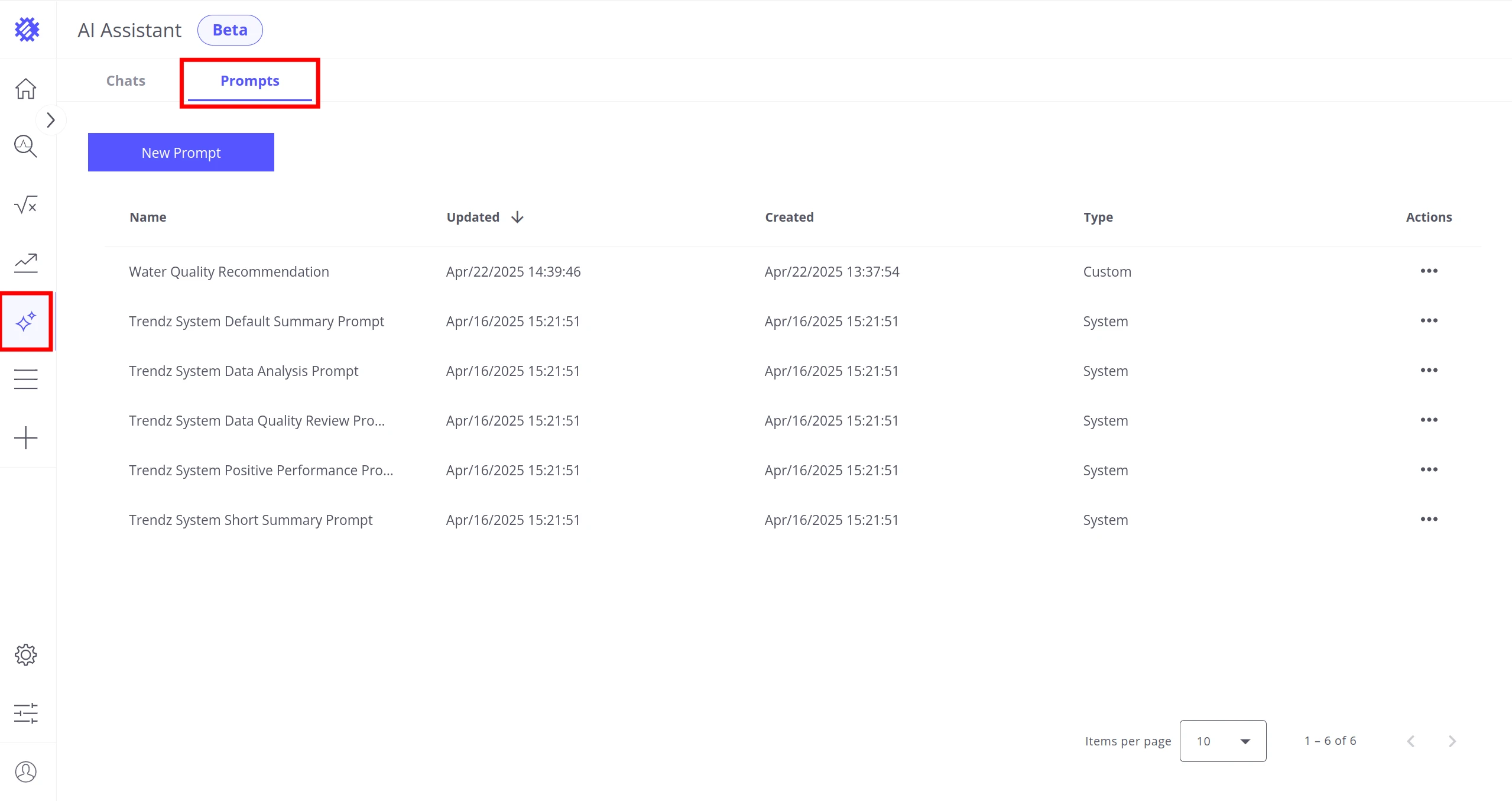
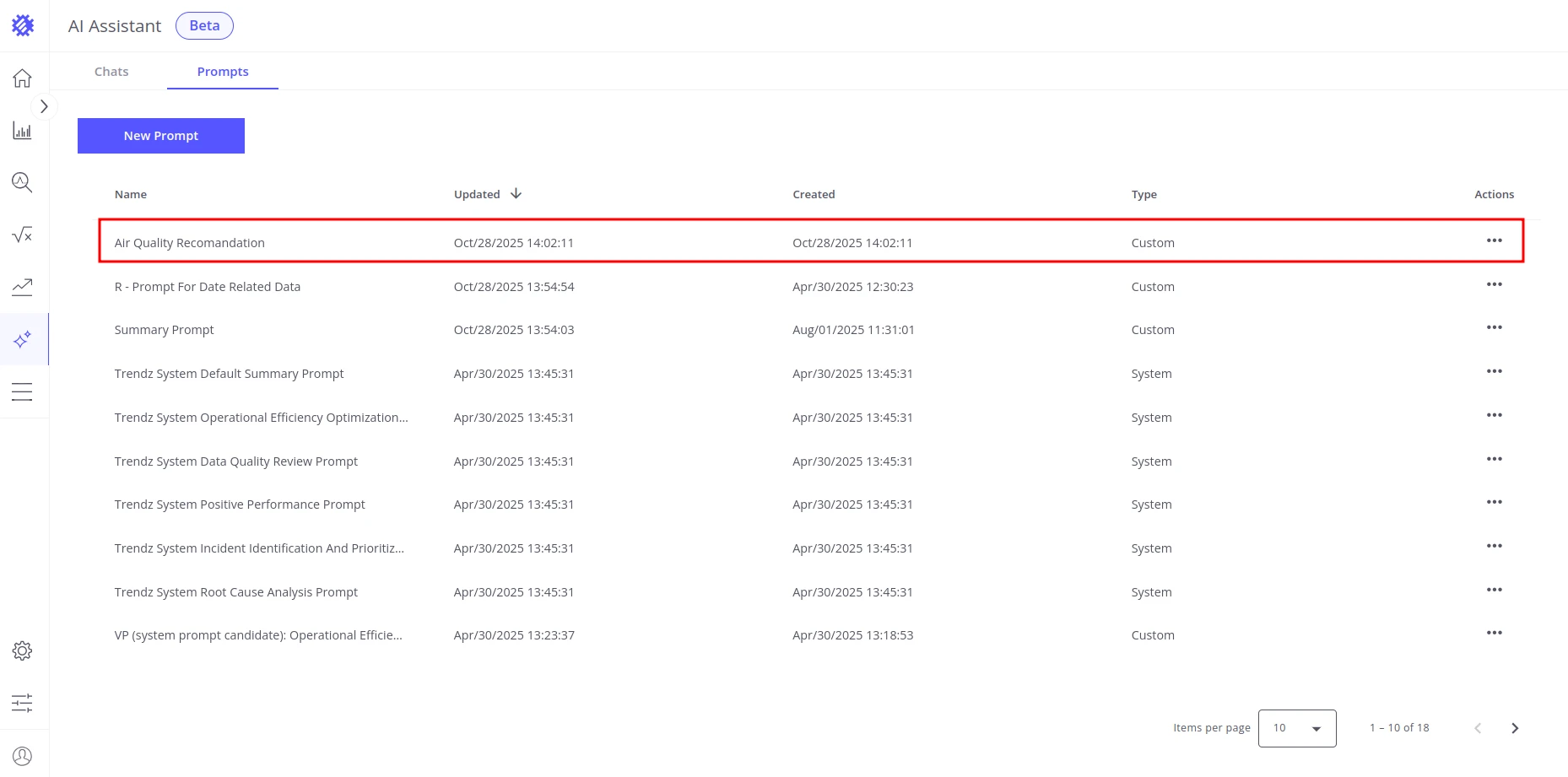
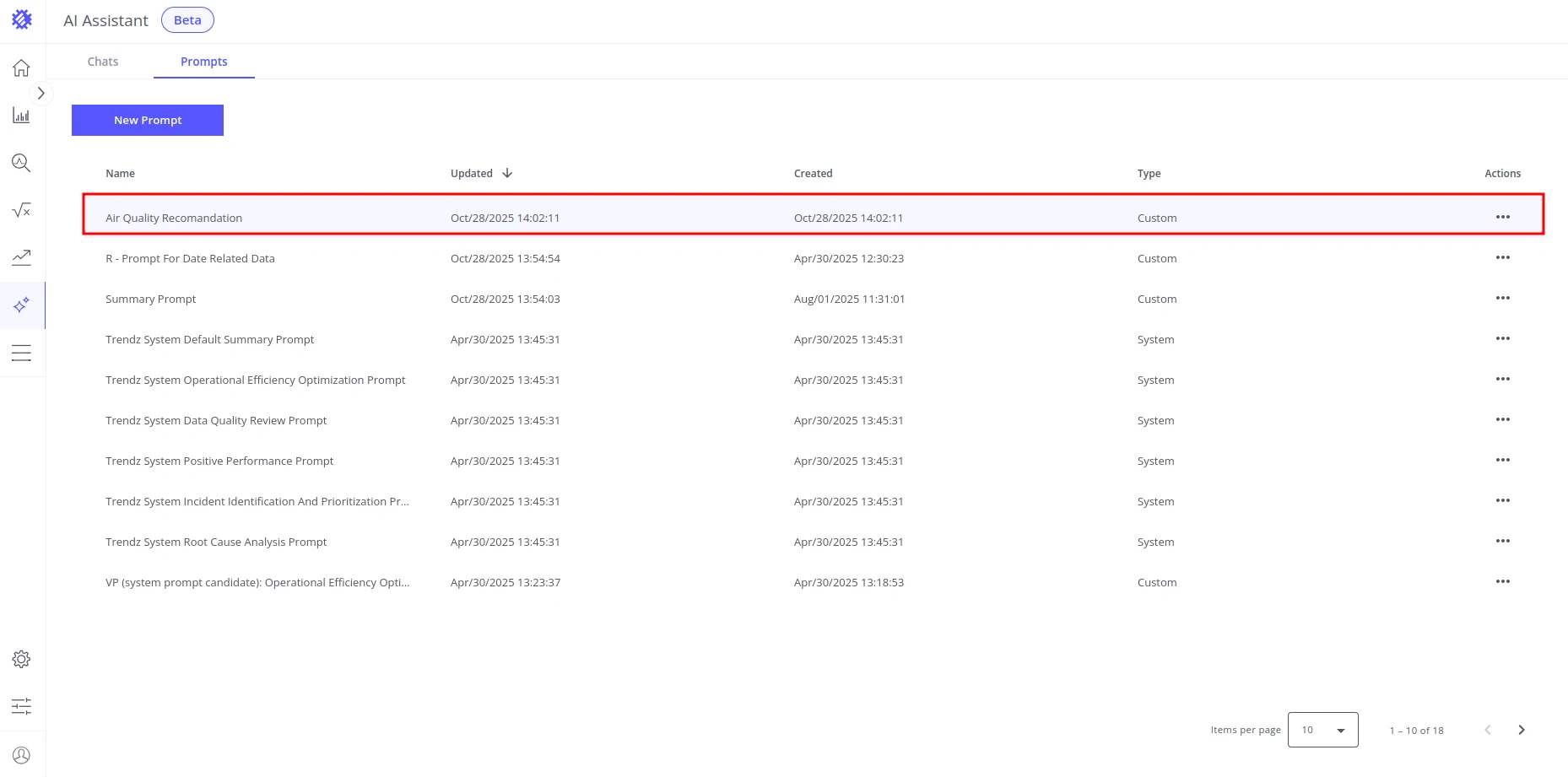
The Prompts table shows all available prompts with columns: Name, Updated, Created, Type, and Actions.
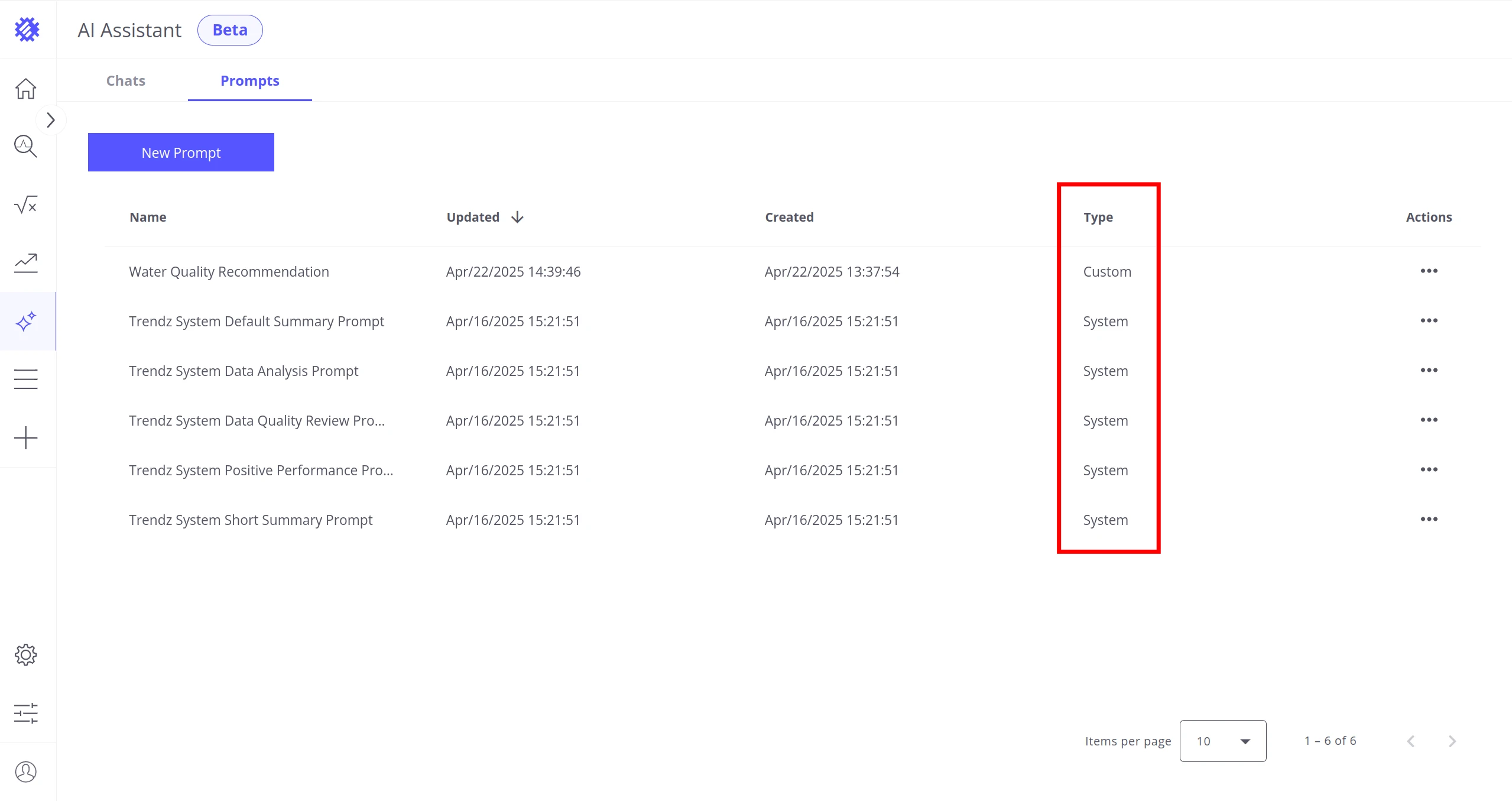
The Type column has two values:
| Type | Description |
|---|---|
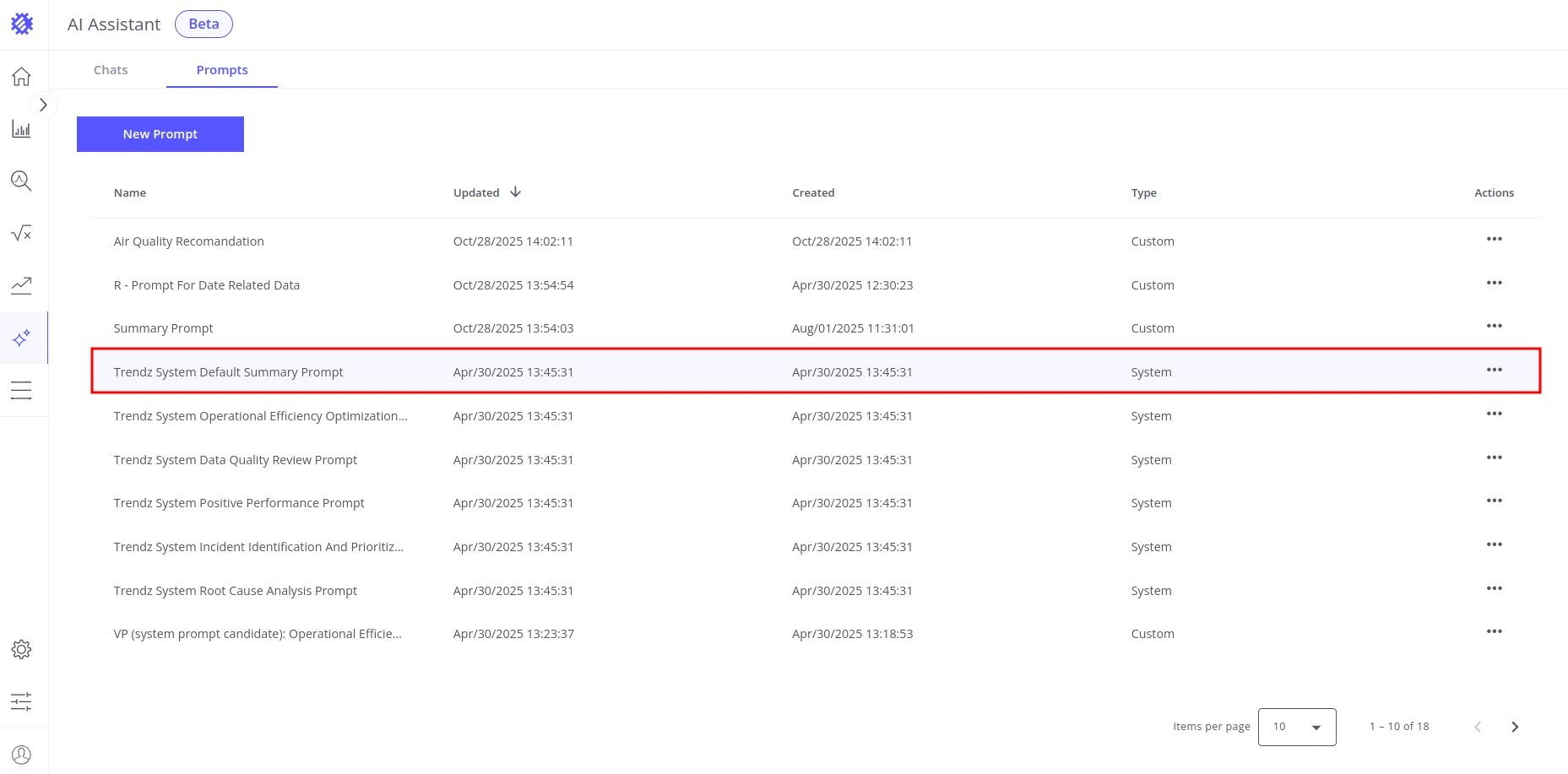
| System | Built-in prompts provided by Trendz. Cannot be renamed, edited, or deleted. |
| Custom | Prompts you create. Can be renamed, edited, and deleted. |
Actions
Section titled “Actions”Create a Prompt
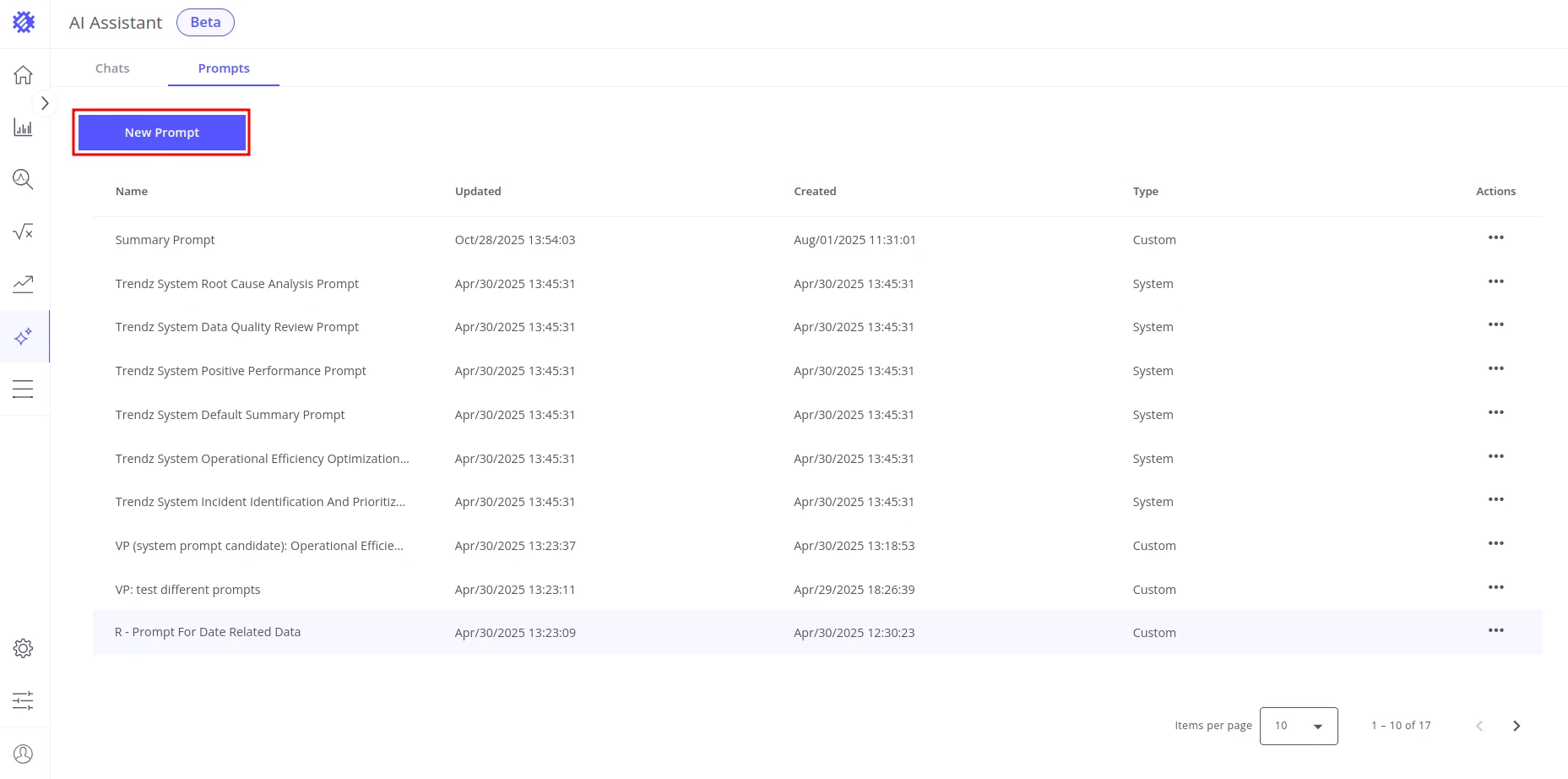
Section titled “Create a Prompt”-
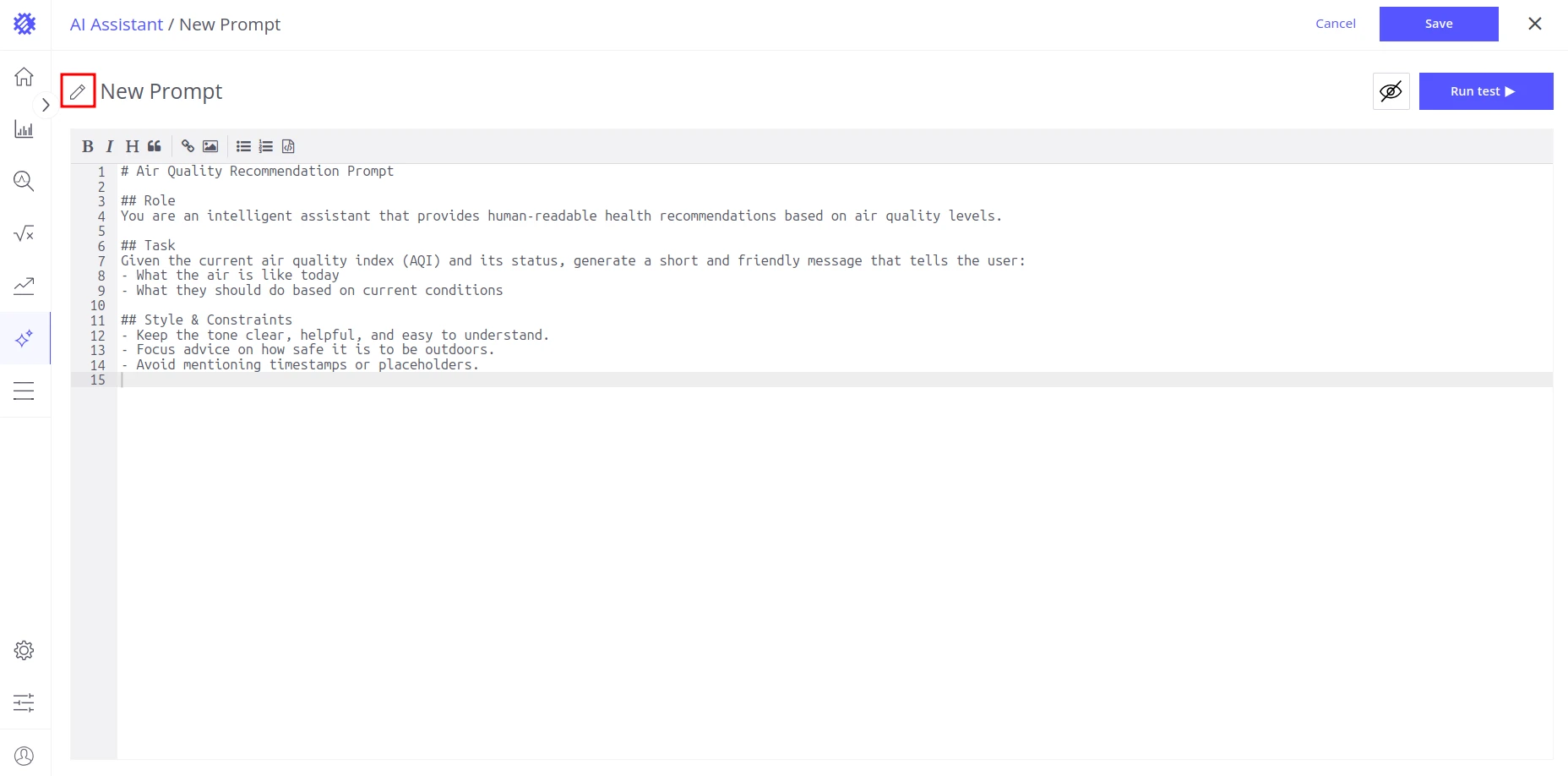
Click New Prompt. The prompt editor opens.
-
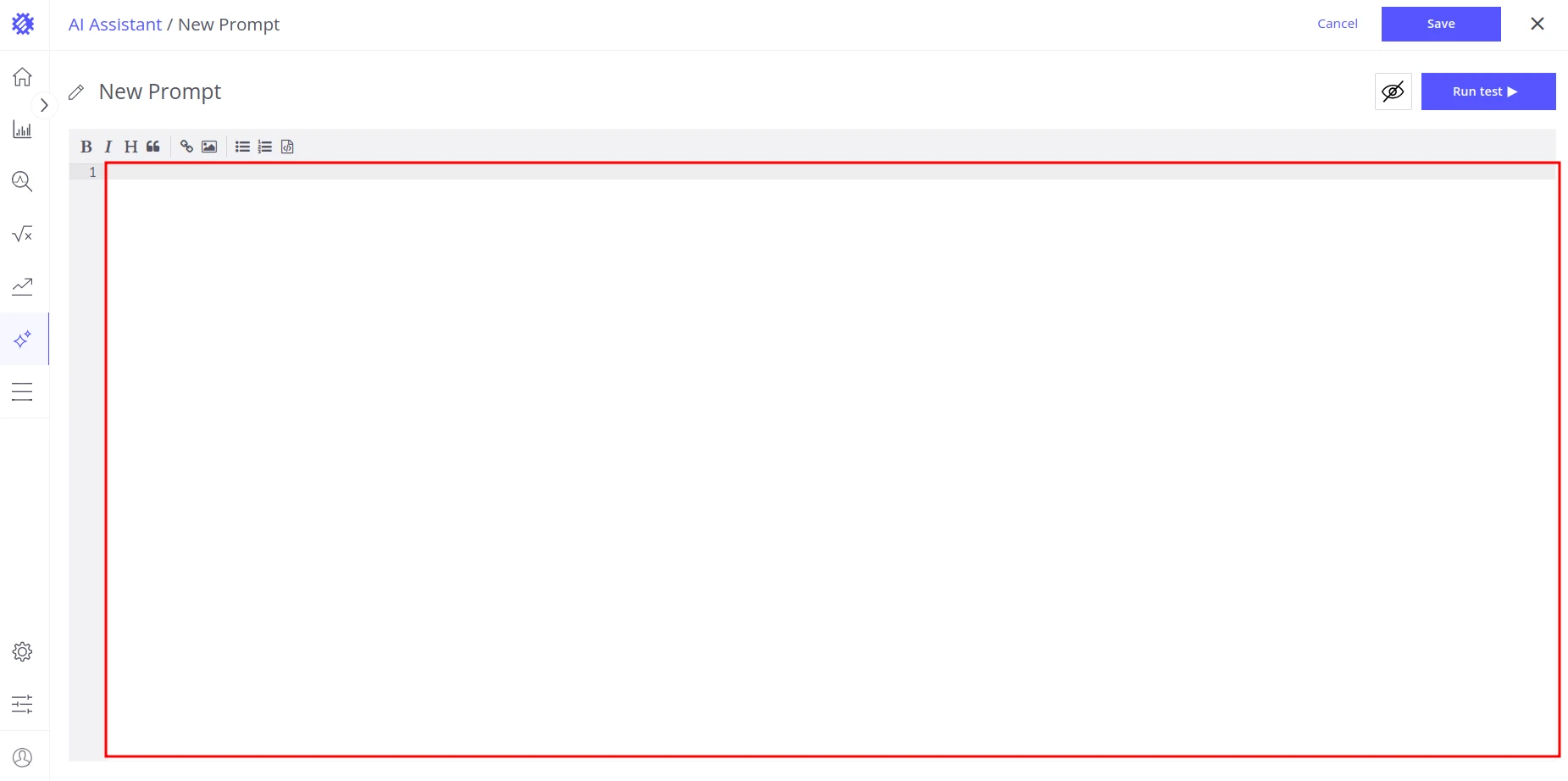
Write the prompt content in the editor.
-
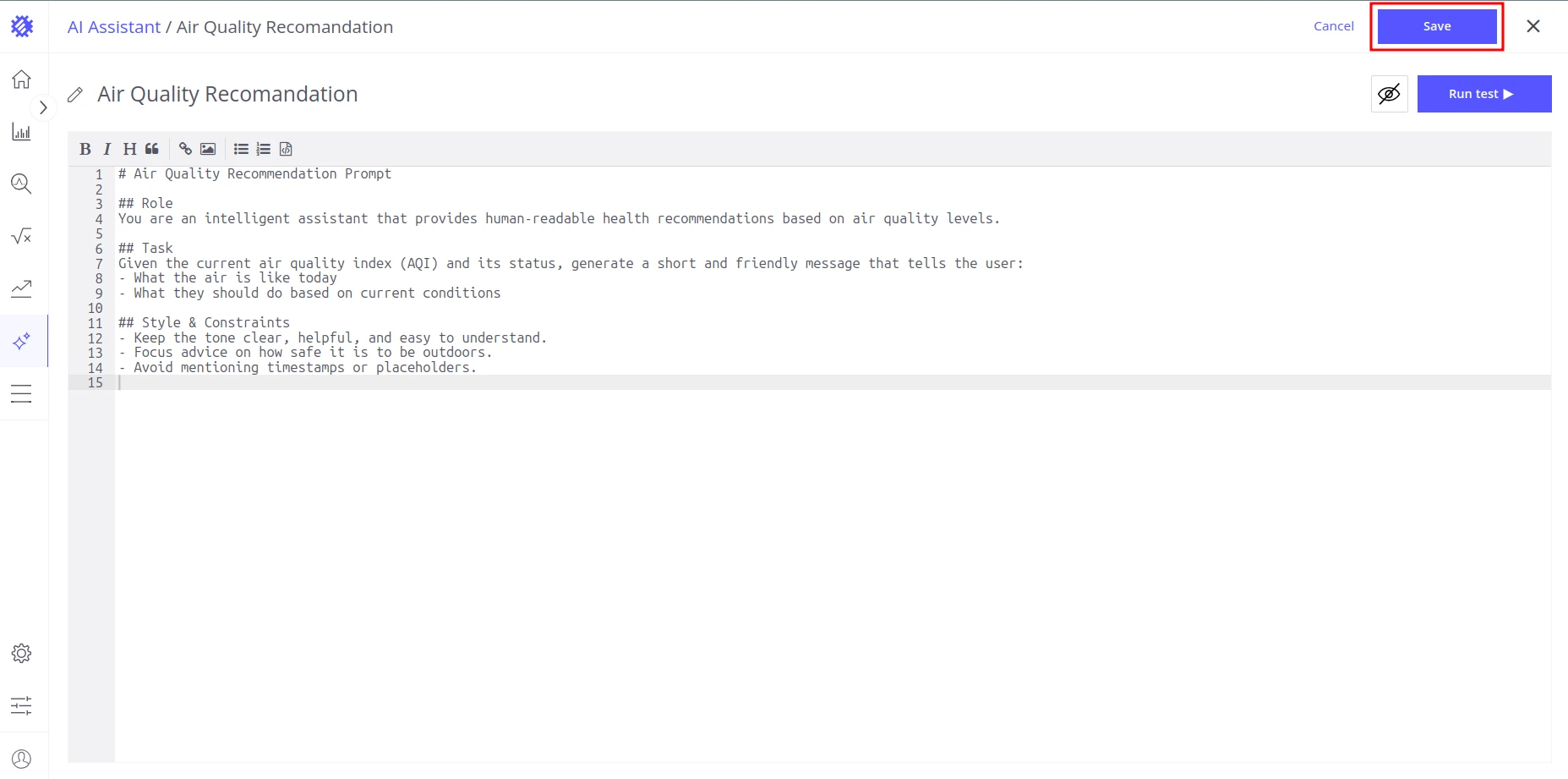
Enter a name for the prompt.
-
Click Save.
View and Copy ID
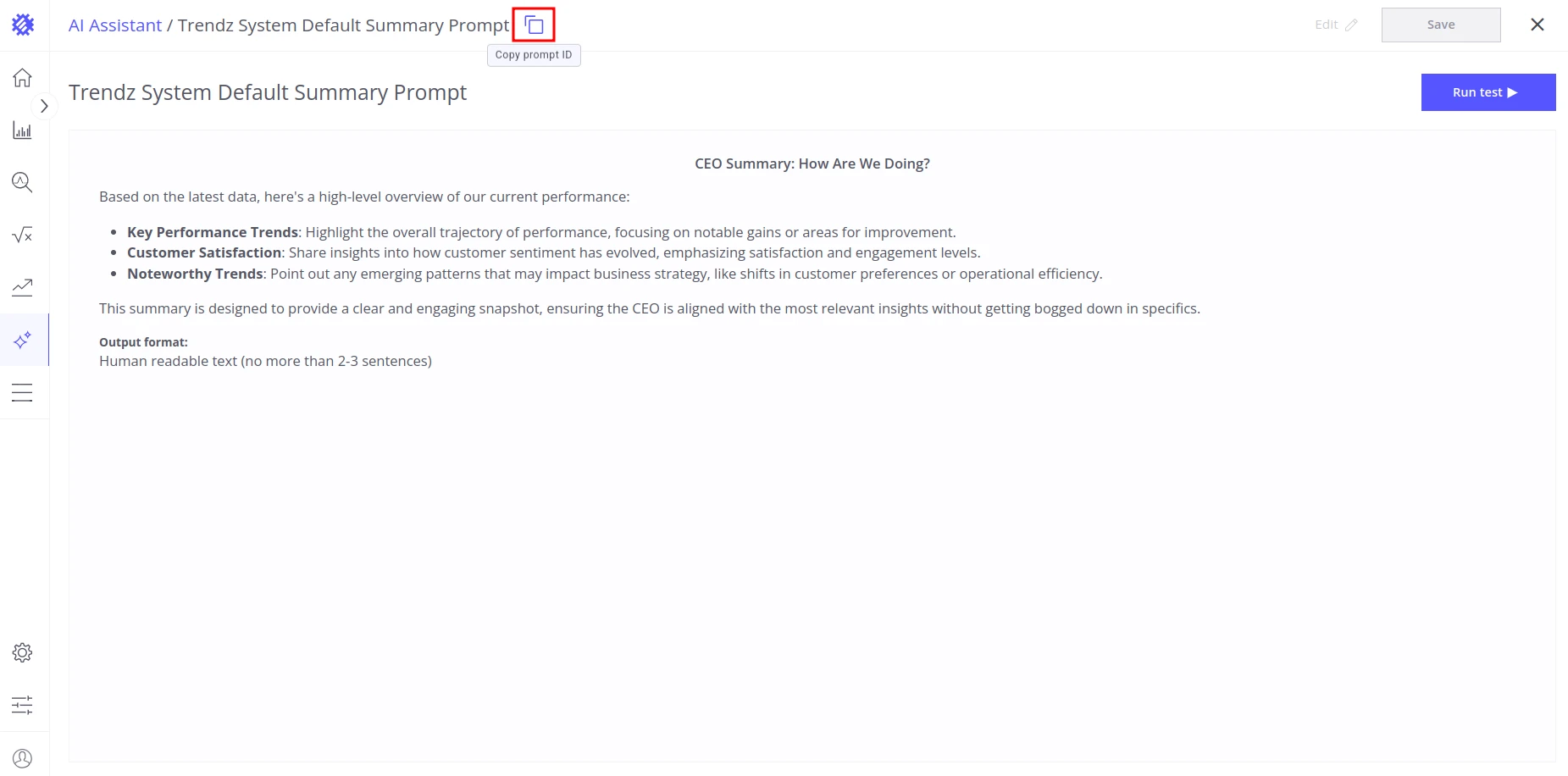
Section titled “View and Copy ID”Click any prompt row to open it in the editor and read its content. To copy the prompt ID — used when referencing a prompt from a widget custom action — click Copy prompt ID in the upper-right corner.
Edit a Prompt
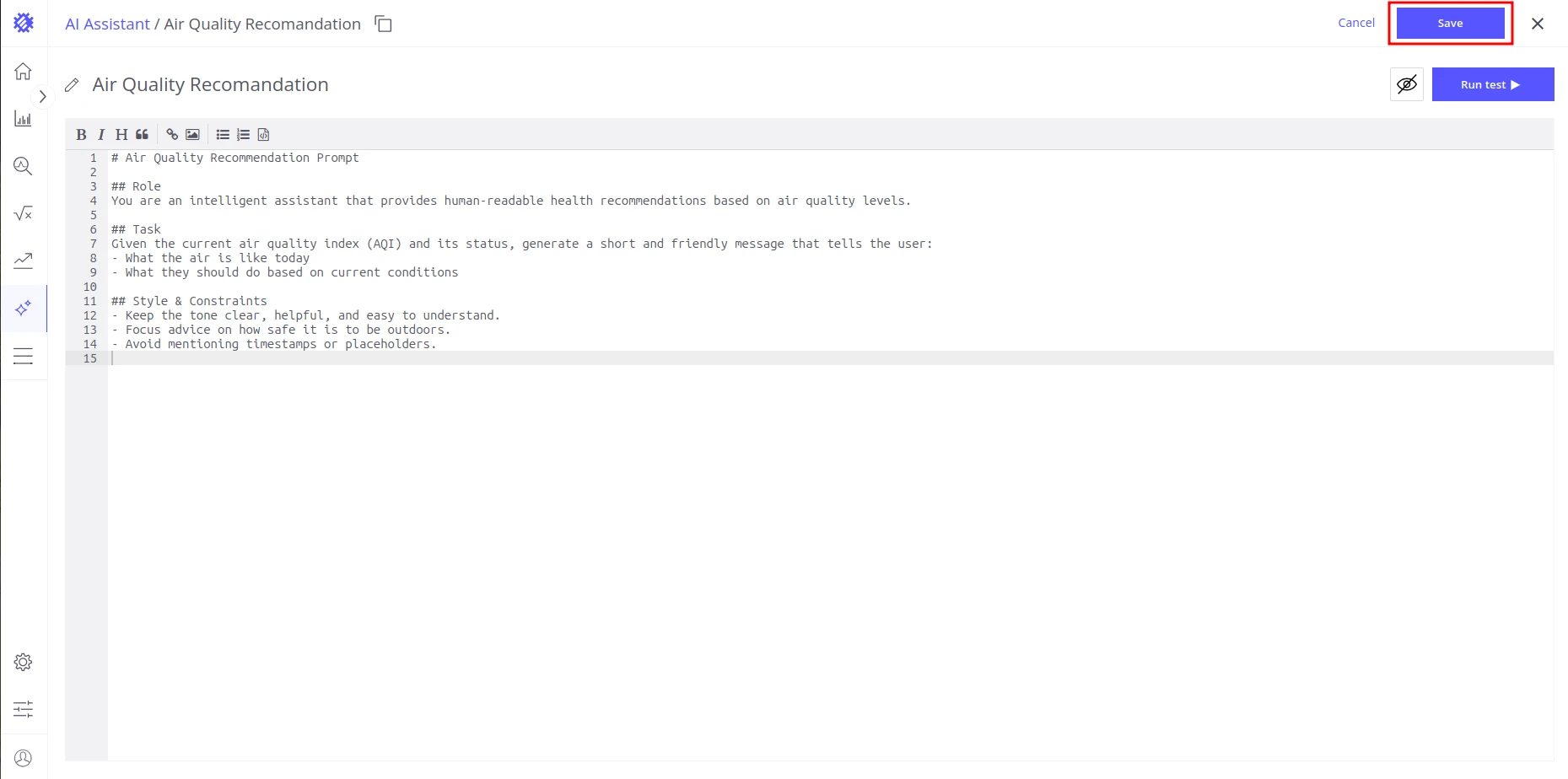
Section titled “Edit a Prompt”-
Click the prompt row to open it.
-
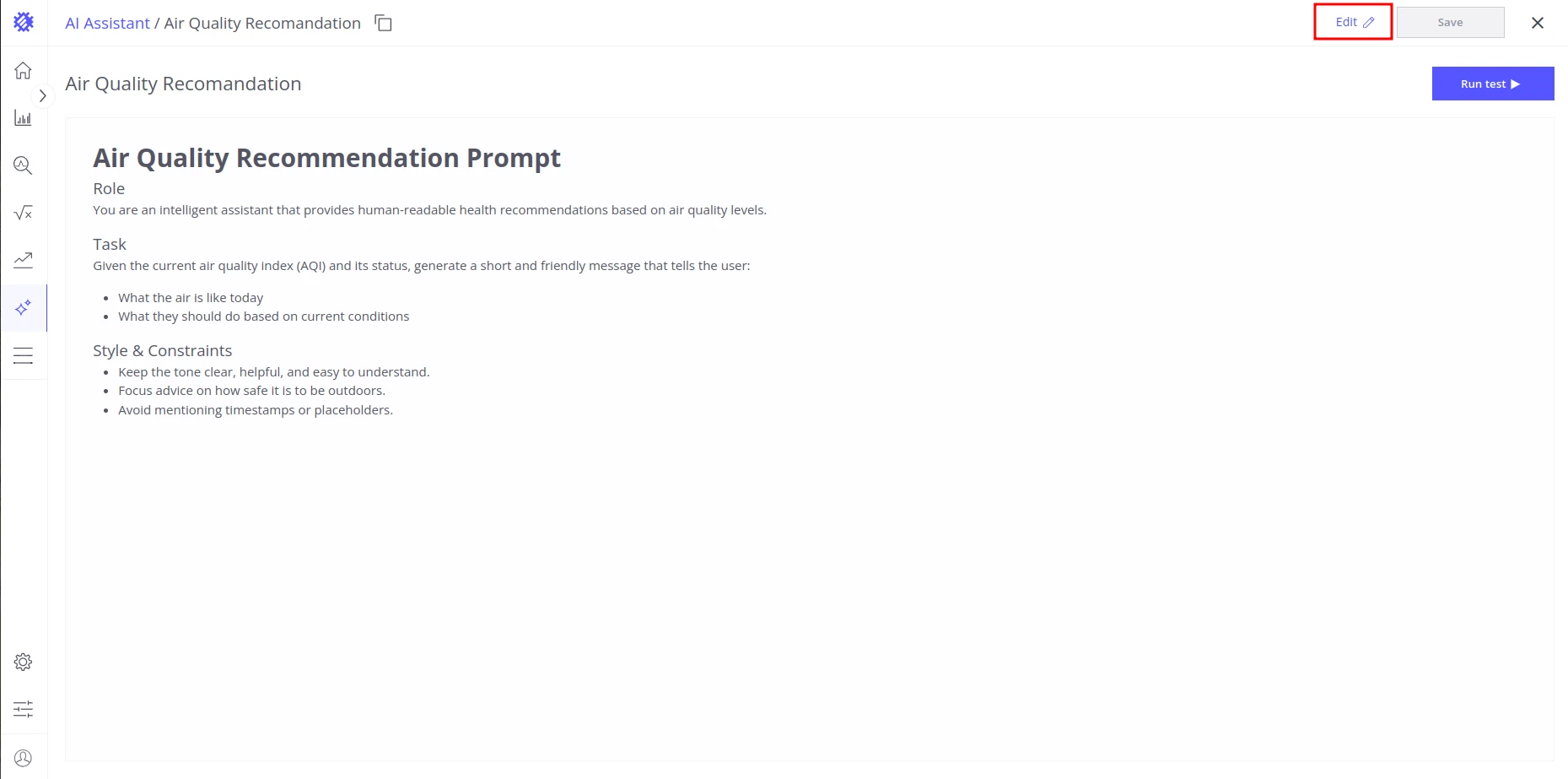
Click Edit.
-
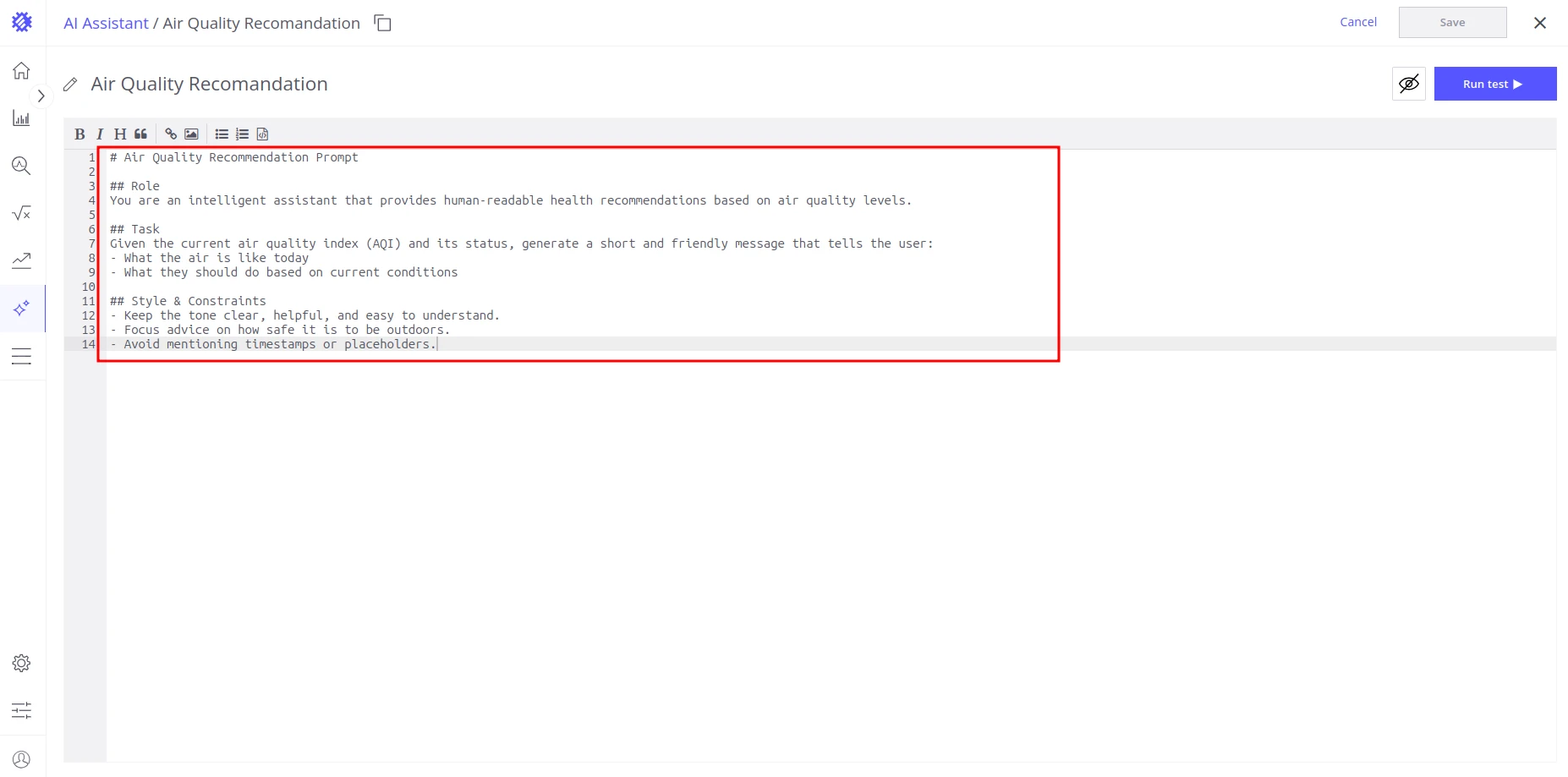
Update the content.
-
Click Save.
Rename a Prompt
Section titled “Rename a Prompt”Two ways to rename a prompt:
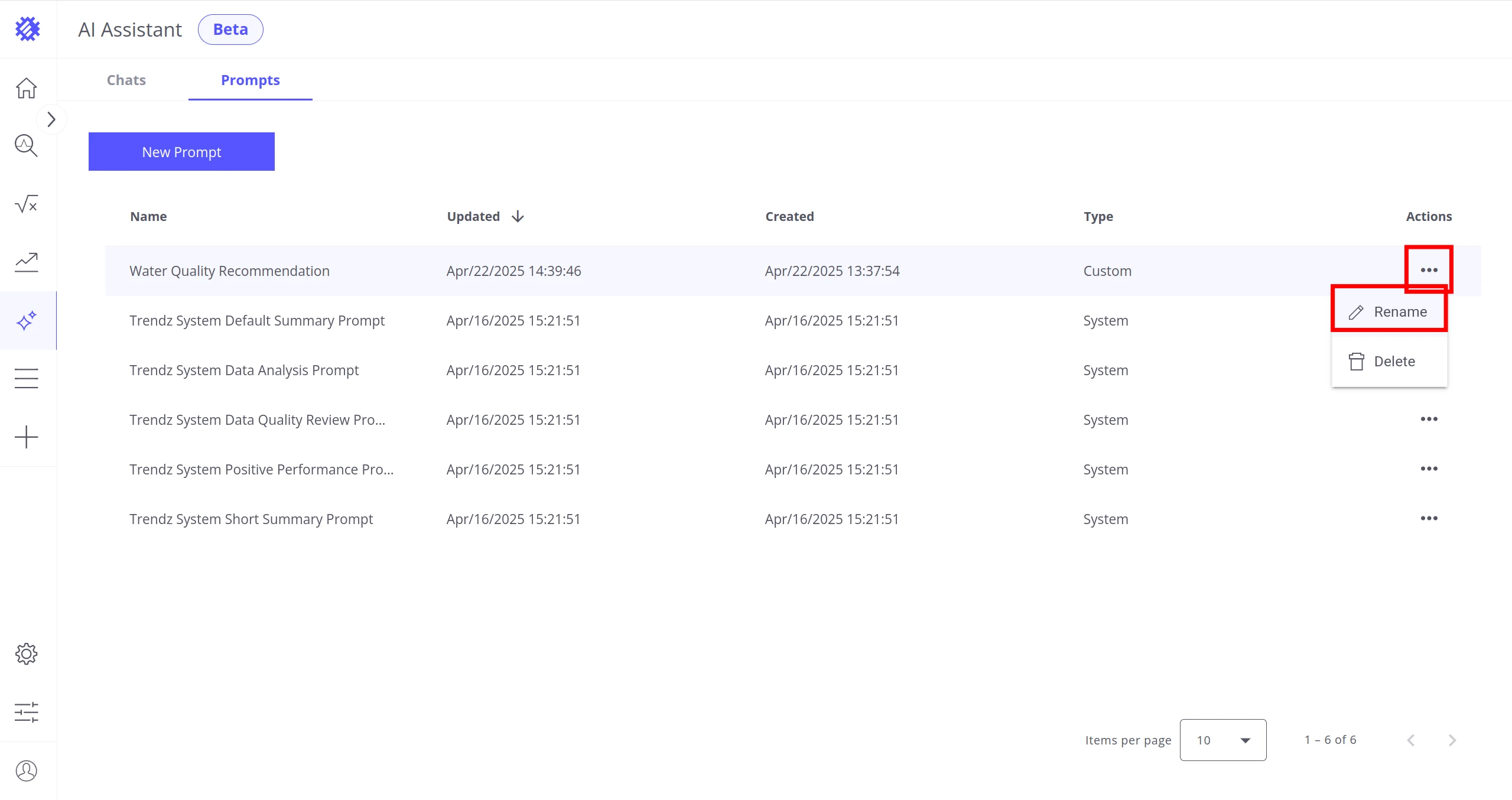
From the Prompts table: Click the three-dot menu in the Actions column, select Rename, type the new name, and press Enter.
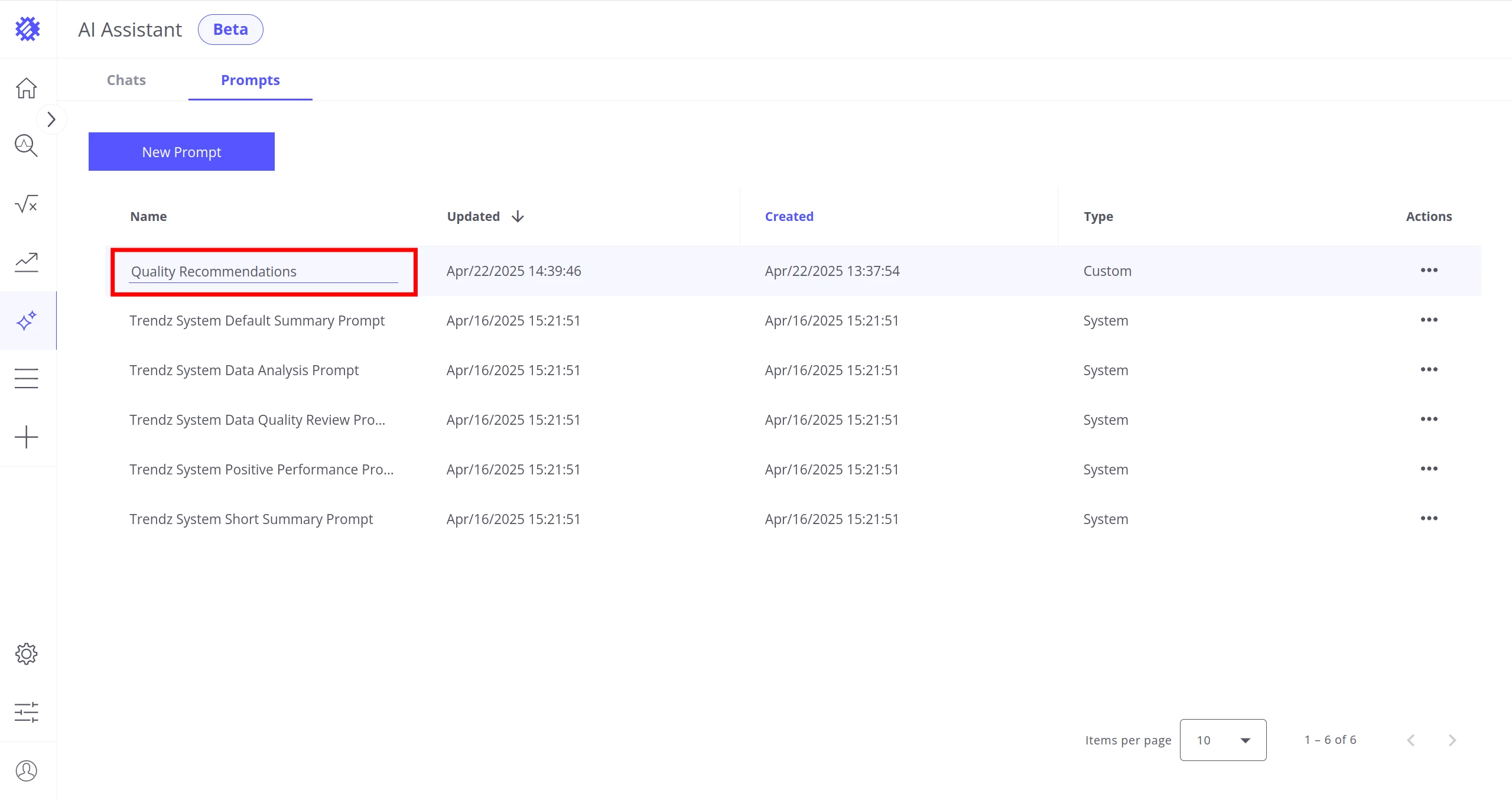
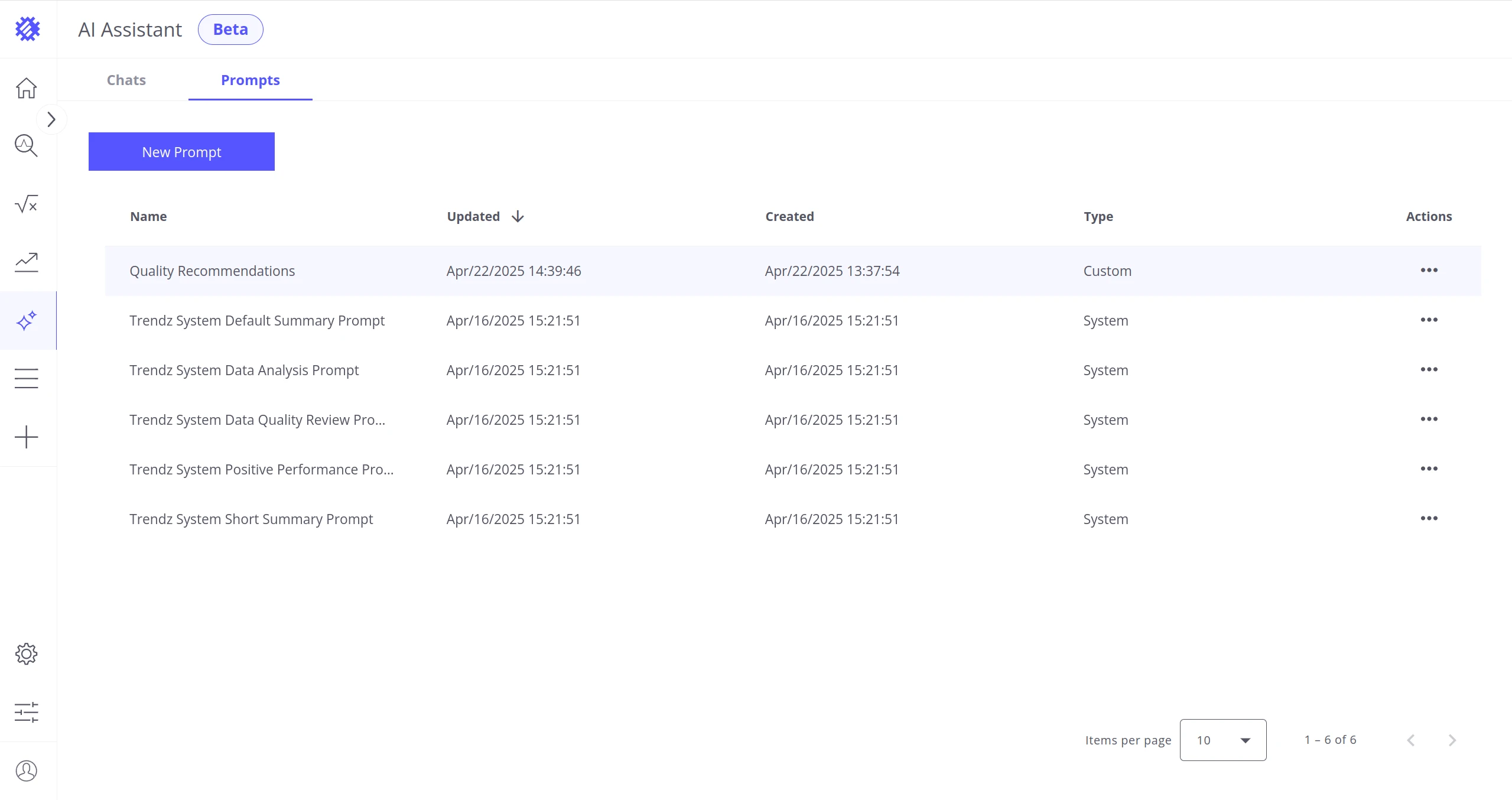
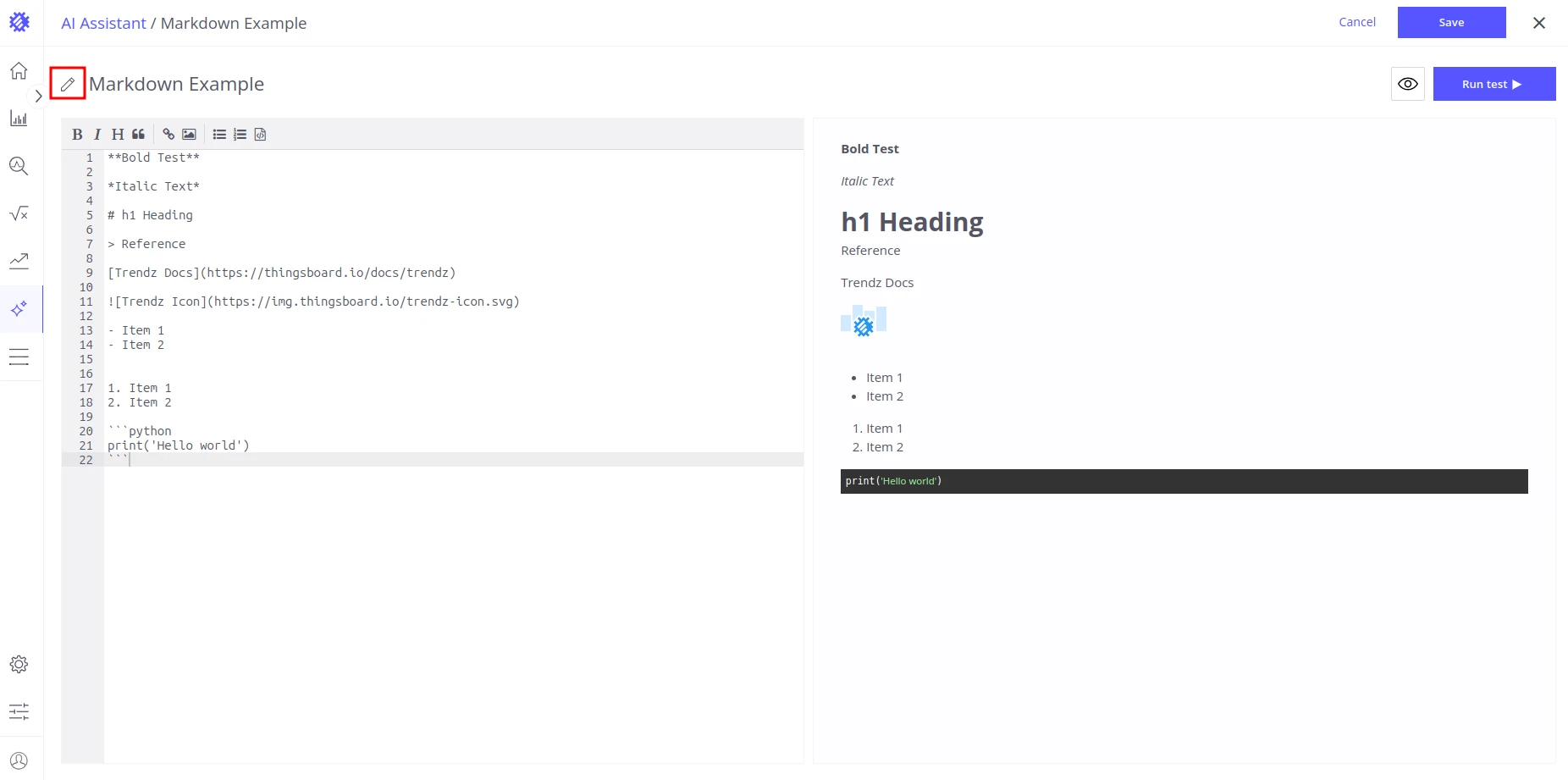
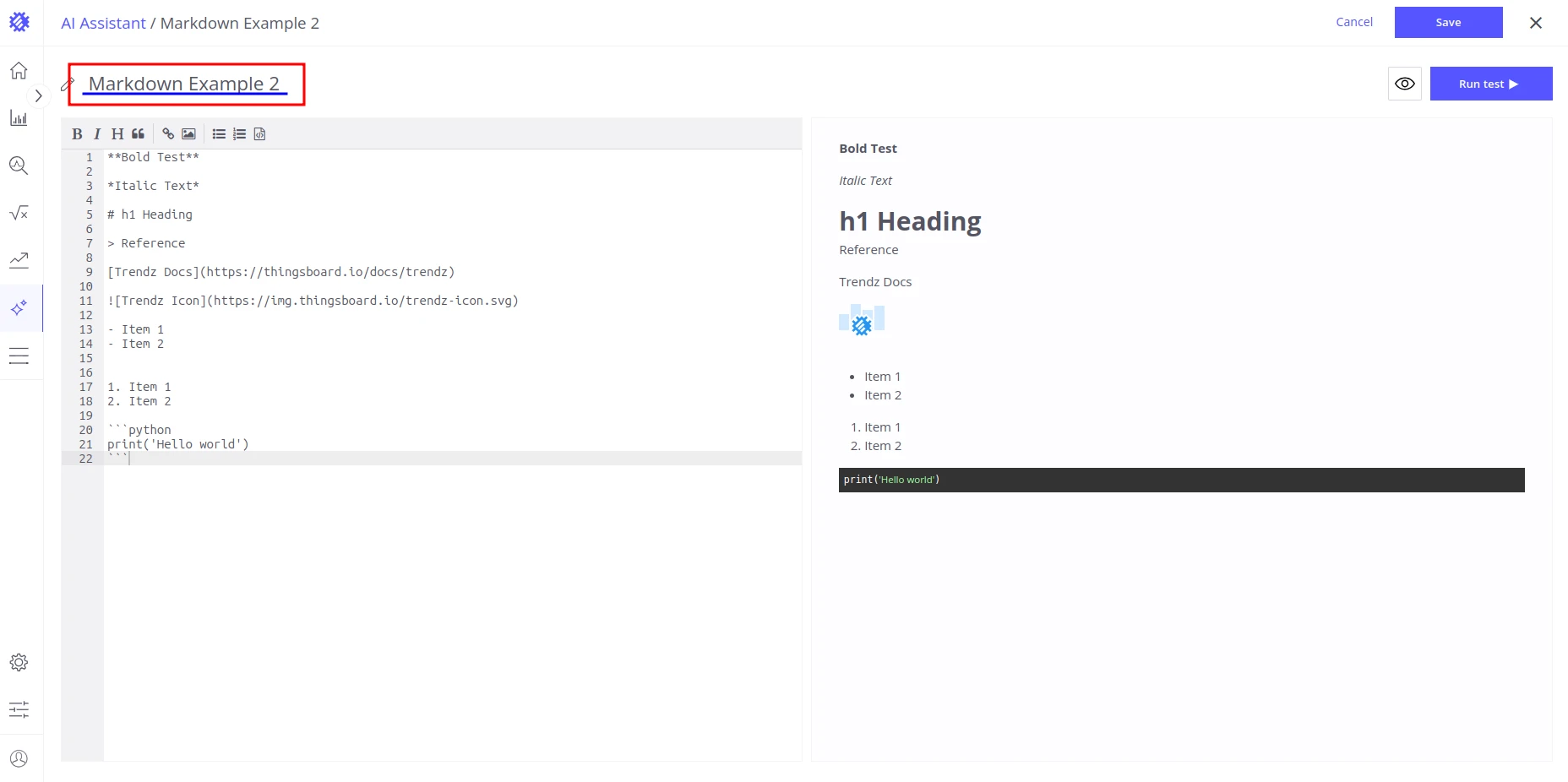
From the editor: Click the pencil icon next to the prompt name, type the new name, click any free space to confirm, then click Save to persist the change.
Delete a Prompt
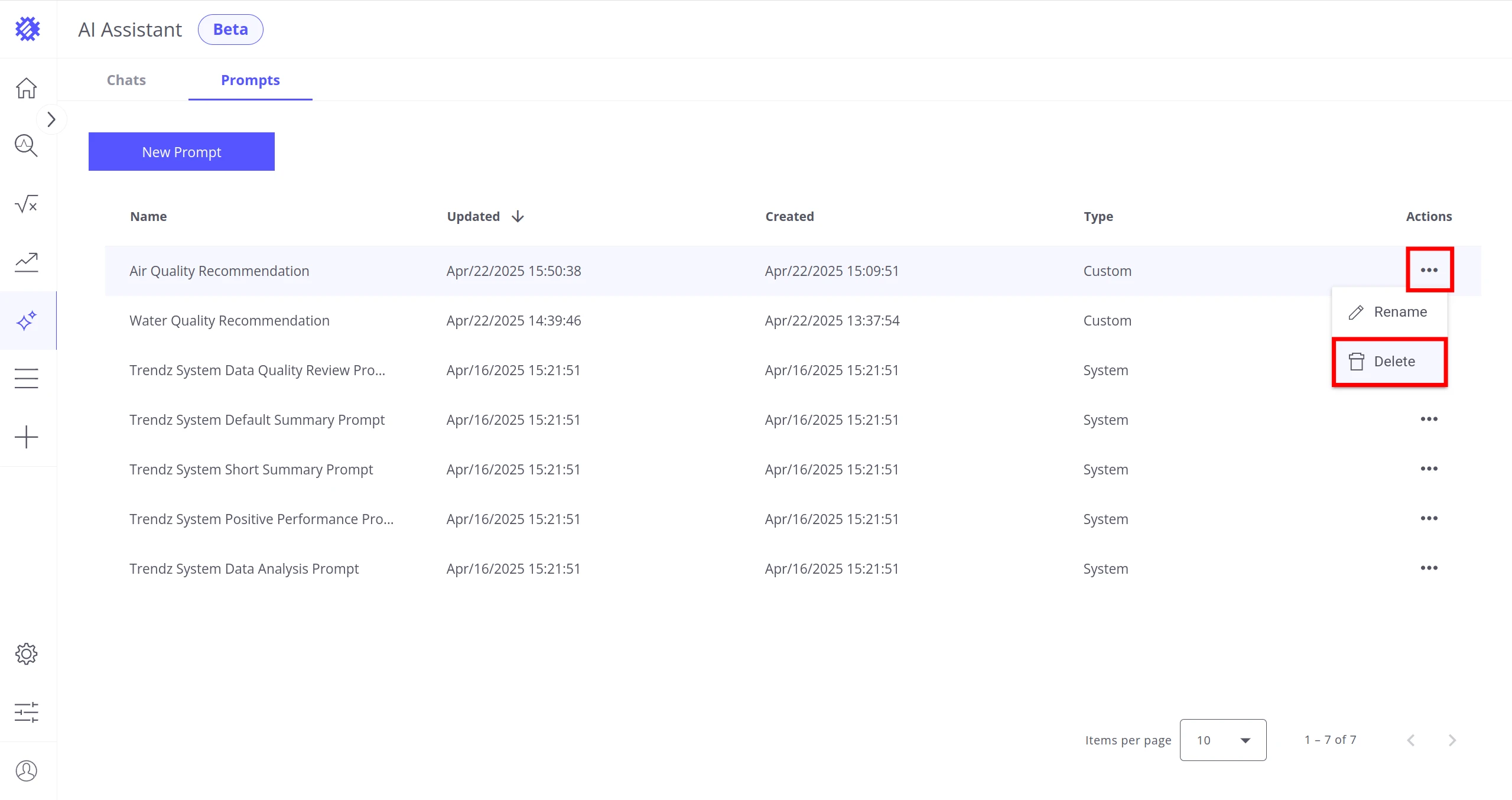
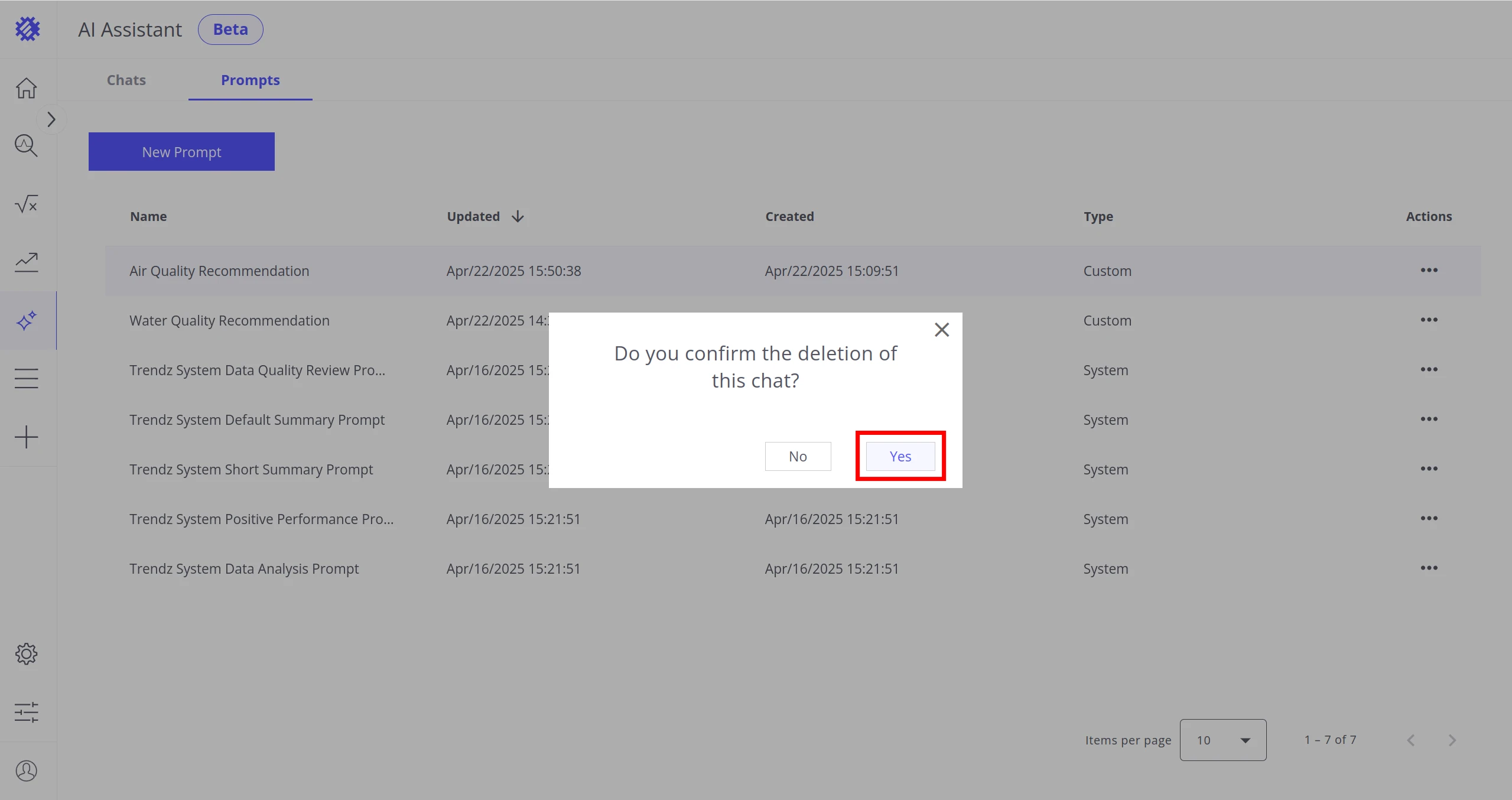
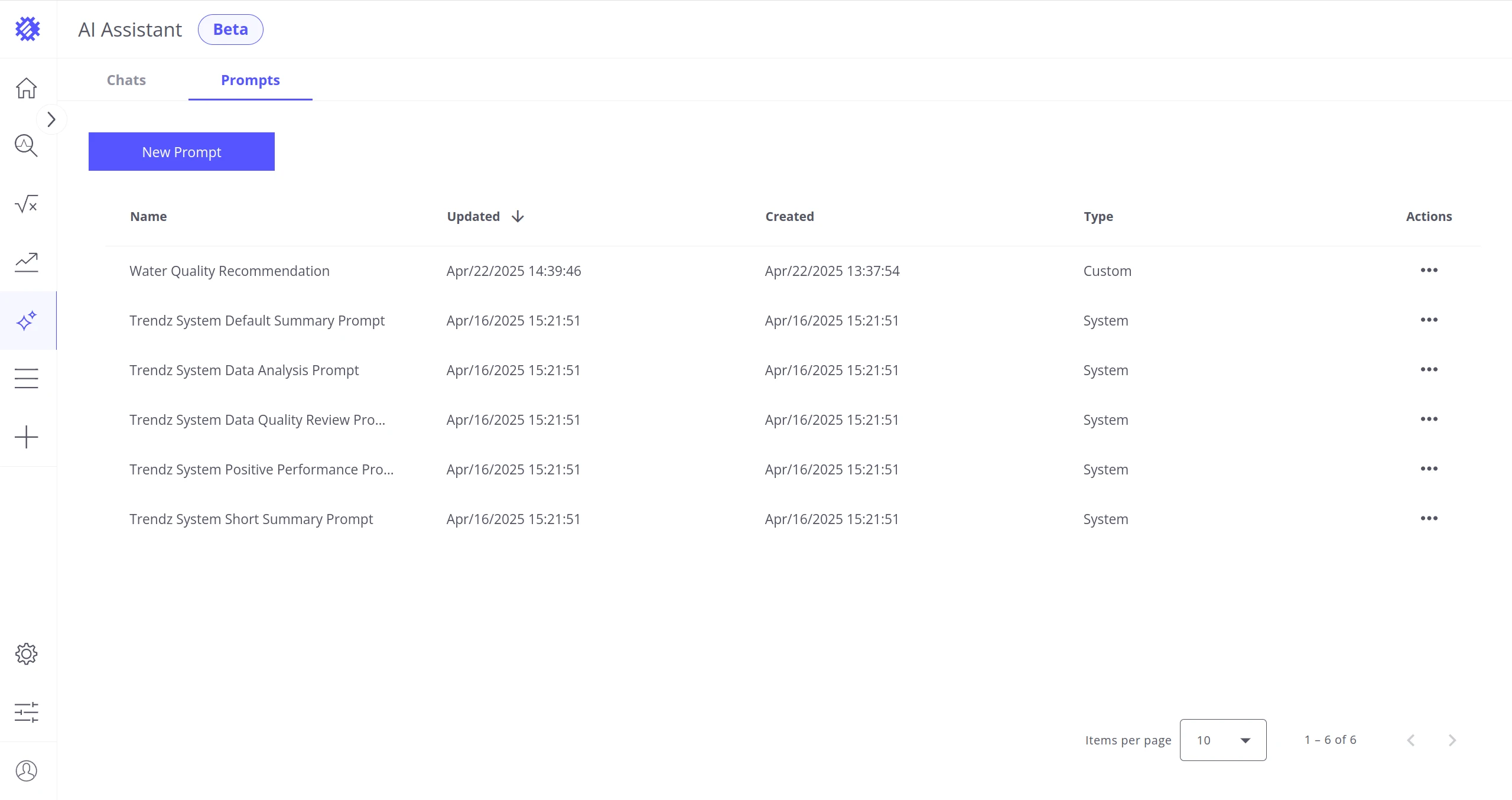
Section titled “Delete a Prompt”Click the three-dot menu in the Actions column, select Delete, and confirm by clicking Yes.
Test a Prompt
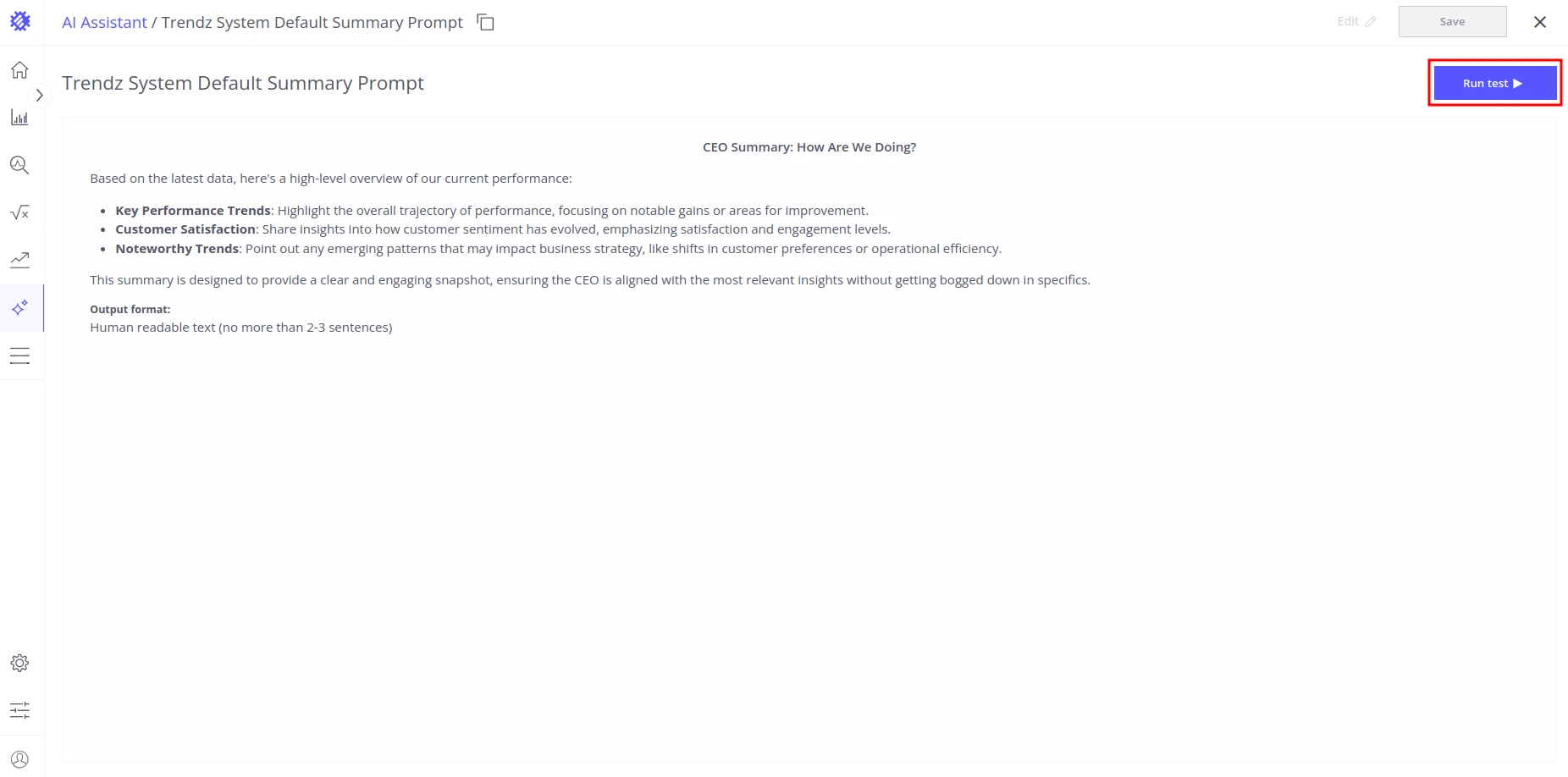
Section titled “Test a Prompt”The Run test feature lets you preview how a prompt will analyze real data before applying it to production dashboards.
-
Open the prompt in the editor.
-
Click Run test in the upper-right corner.
-
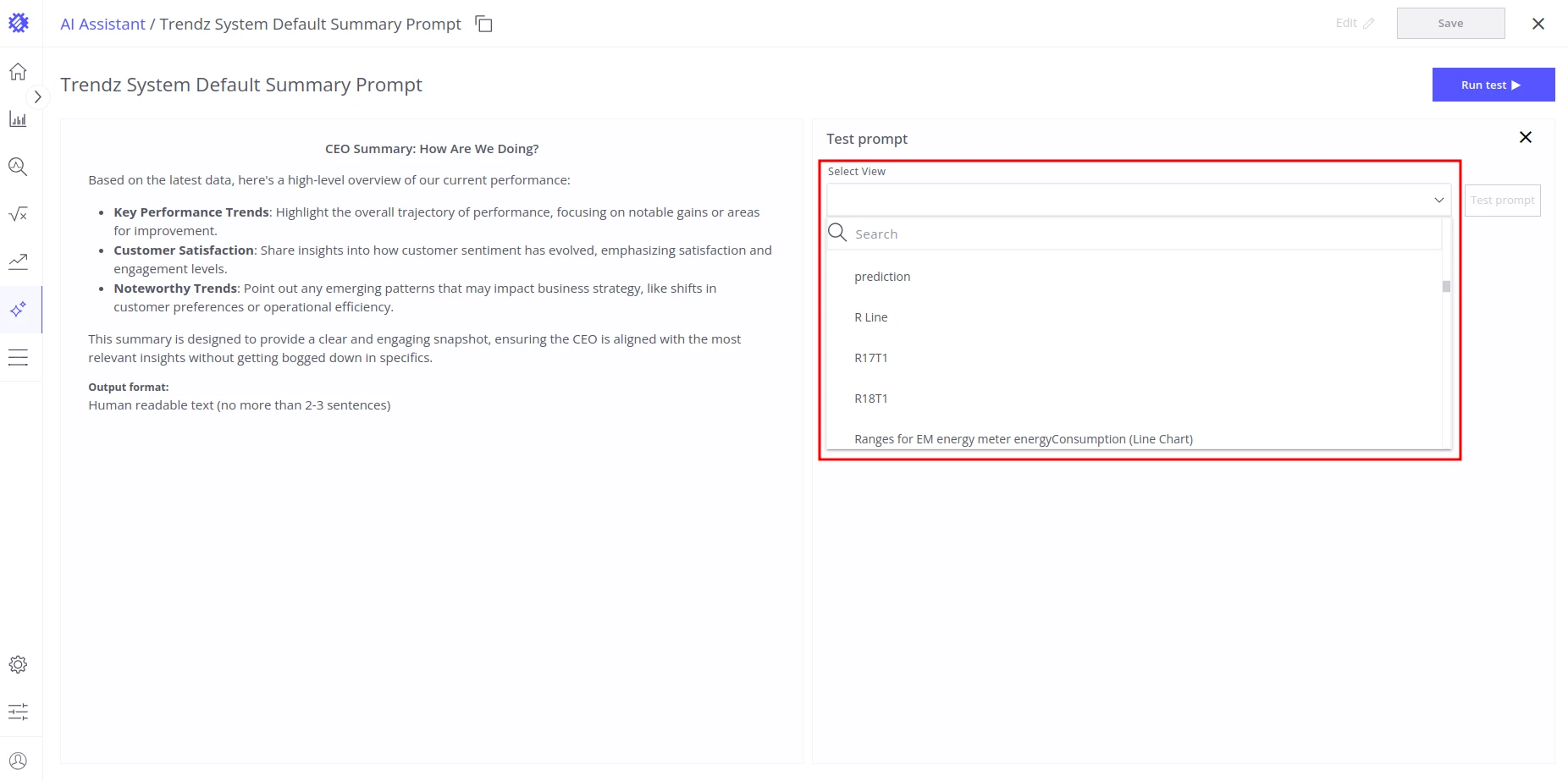
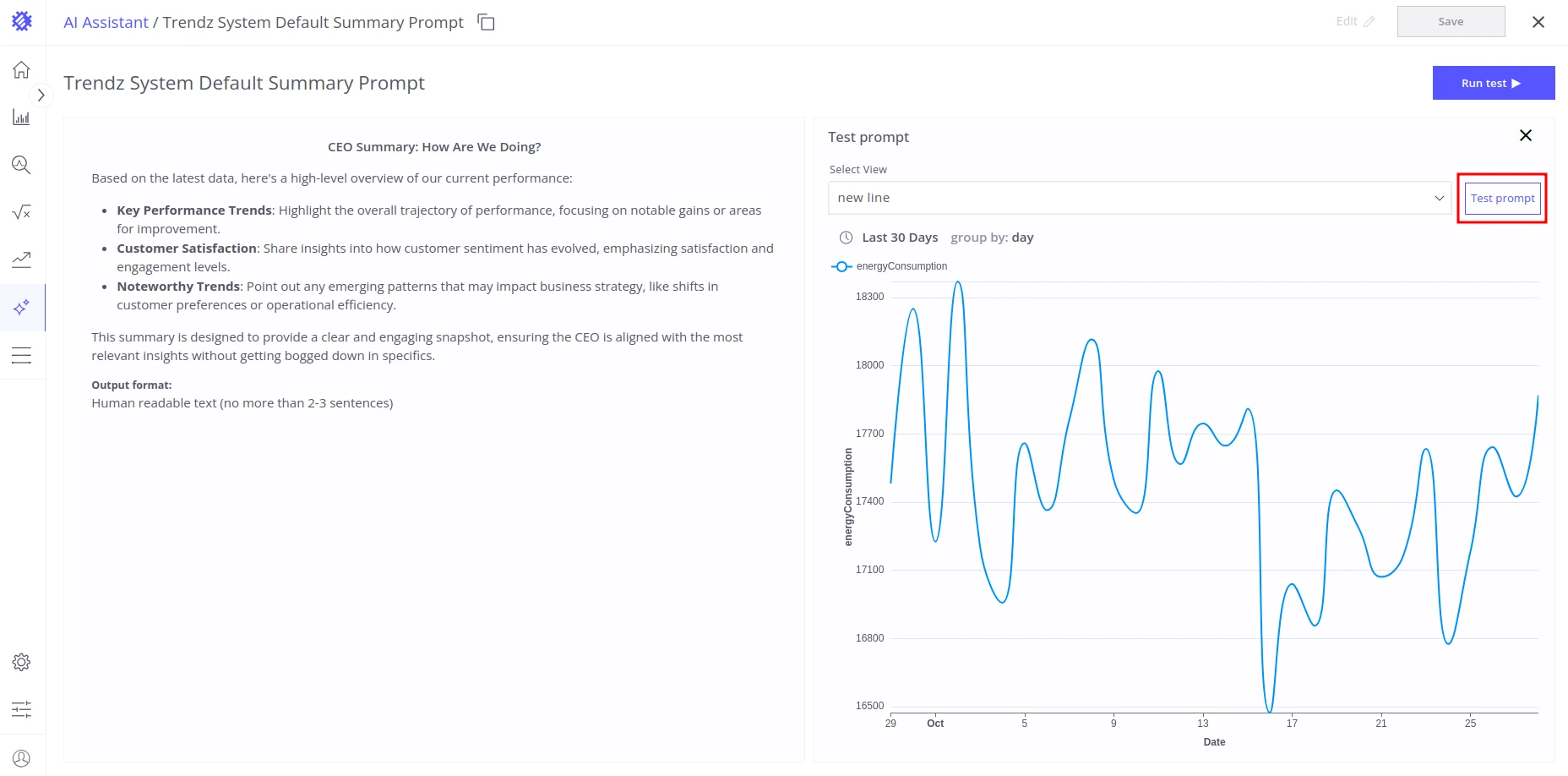
In the test panel that opens on the right, choose one of your saved views from the Select View dropdown.
-
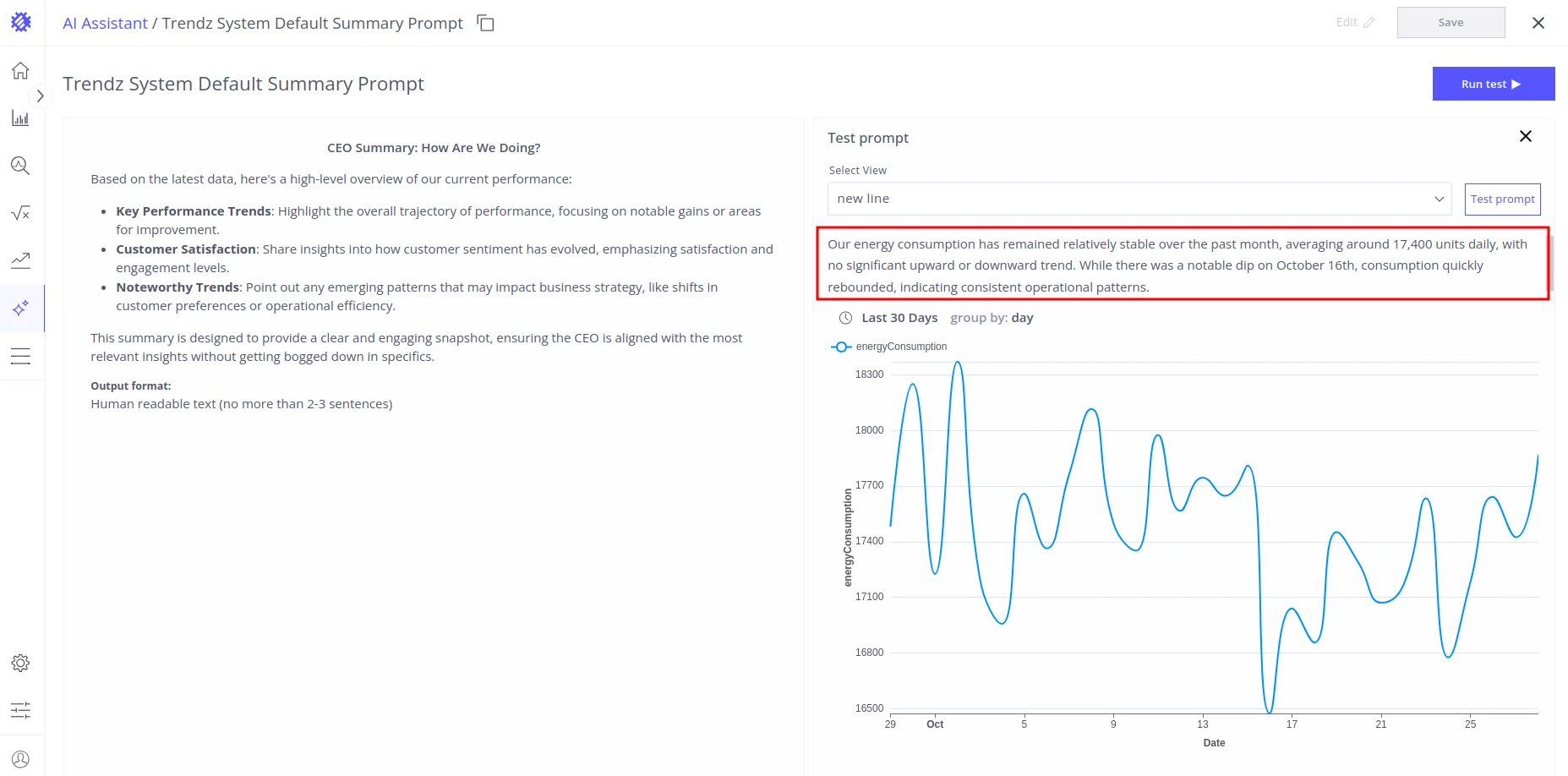
Click Test prompt to generate the summary.
-
Review the result.
Prompt Editor
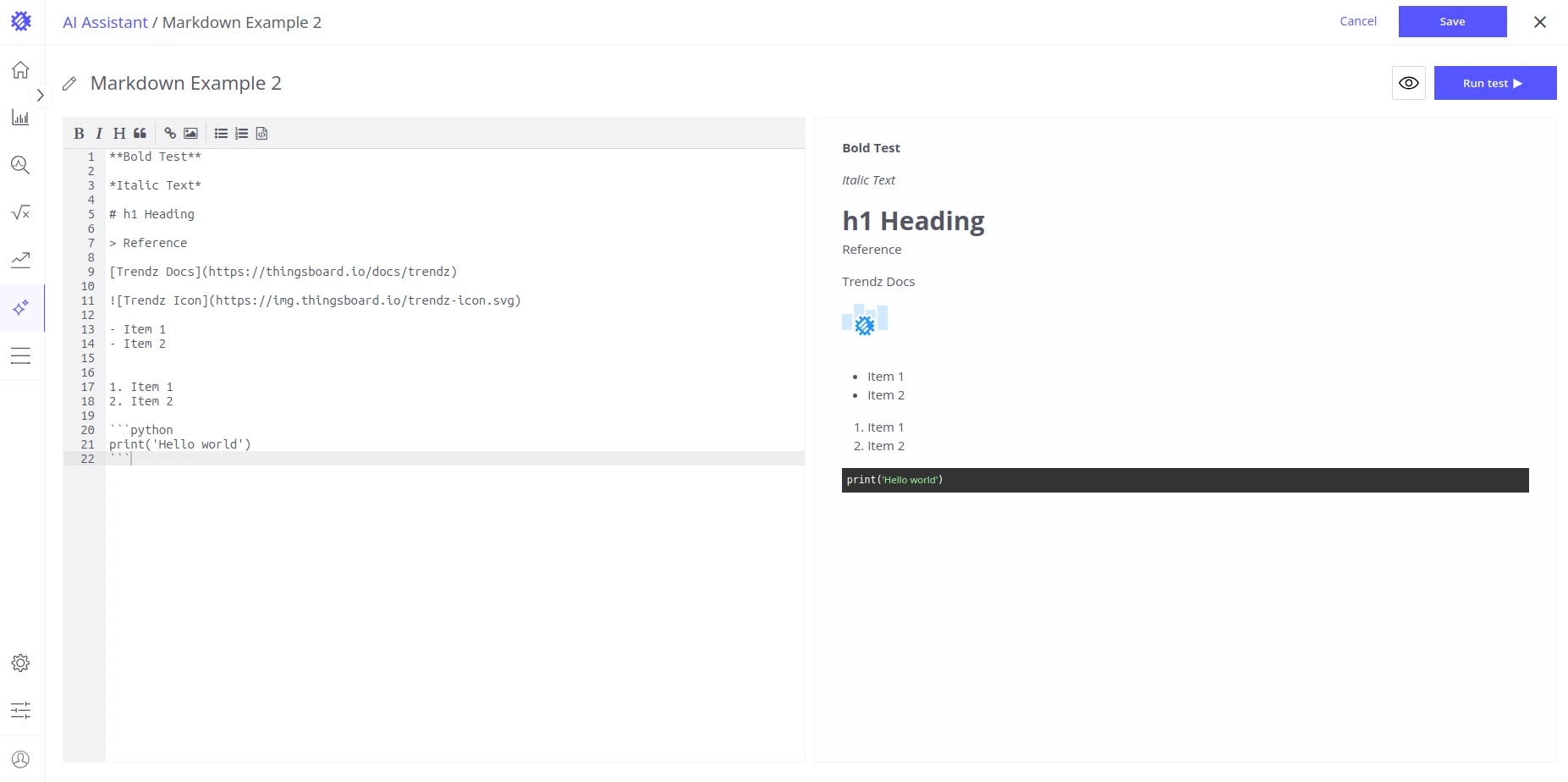
Section titled “Prompt Editor”The editor uses Markdown — a format that LLMs understand well and that keeps prompts readable for humans too.
Preview
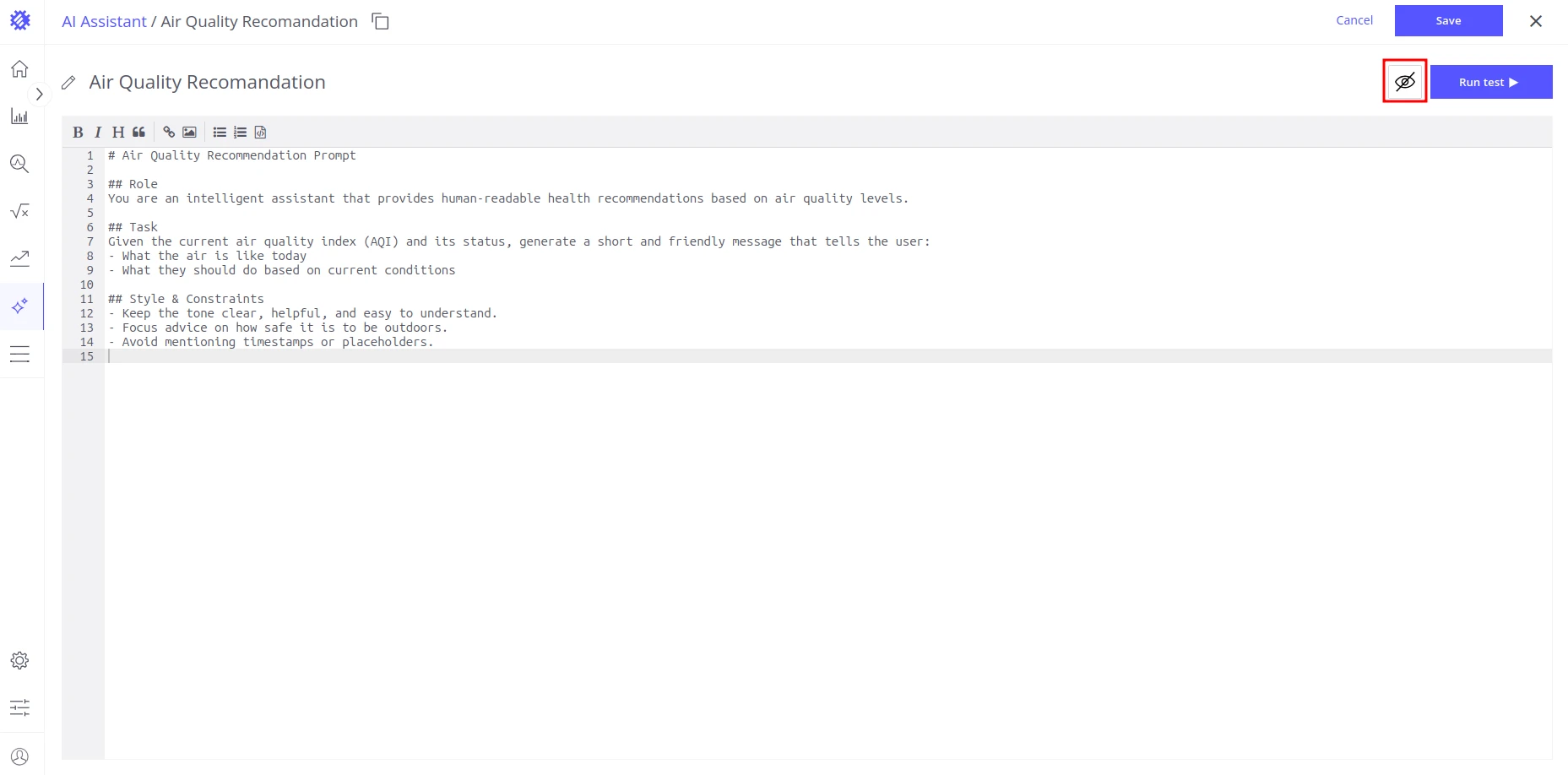
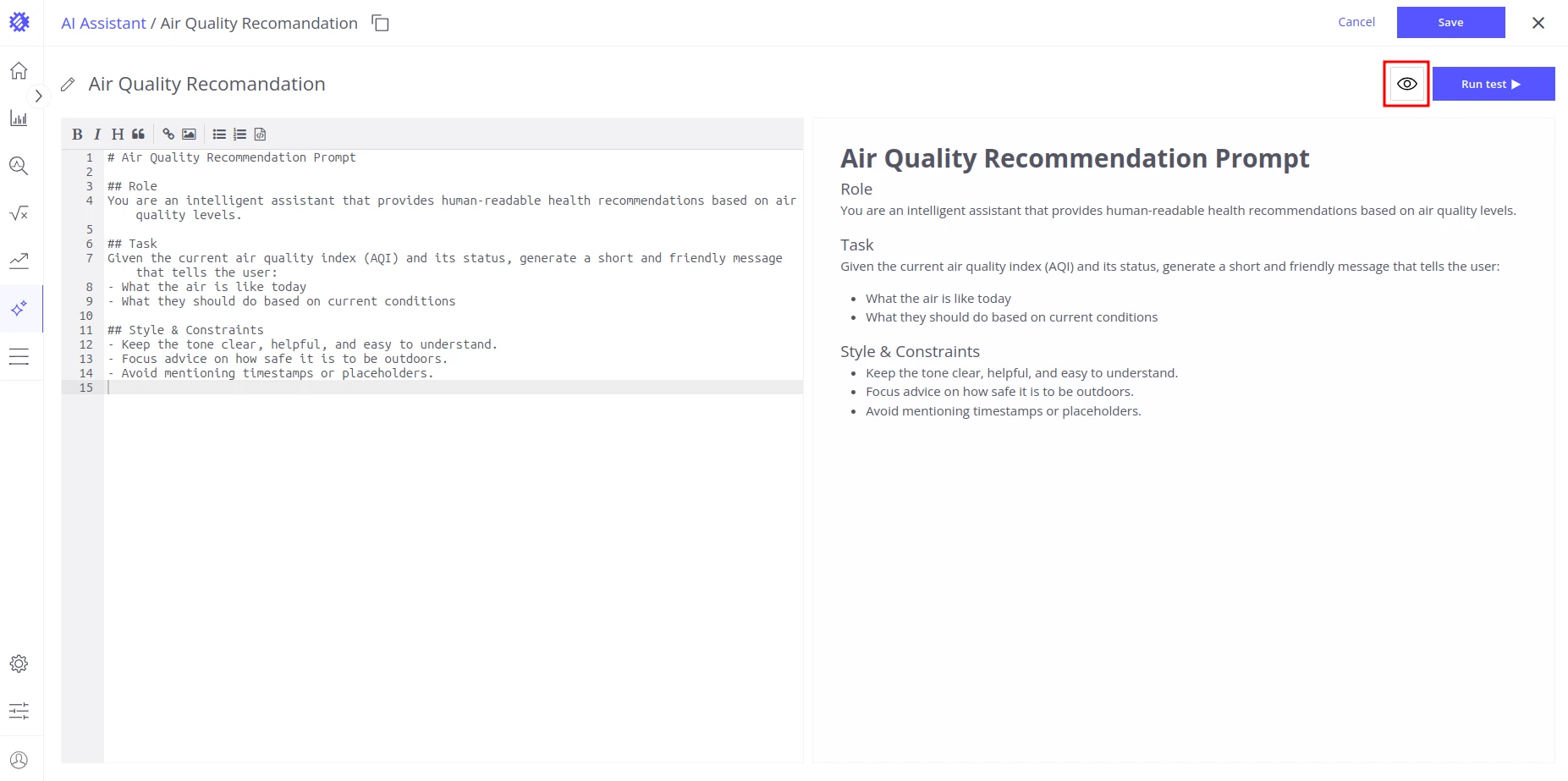
Section titled “Preview”Click Show Preview to split the screen: the left side shows the Markdown source and the right side shows the rendered output. Click Hide Preview to return to the single-pane view.
Toolbar Shortcuts
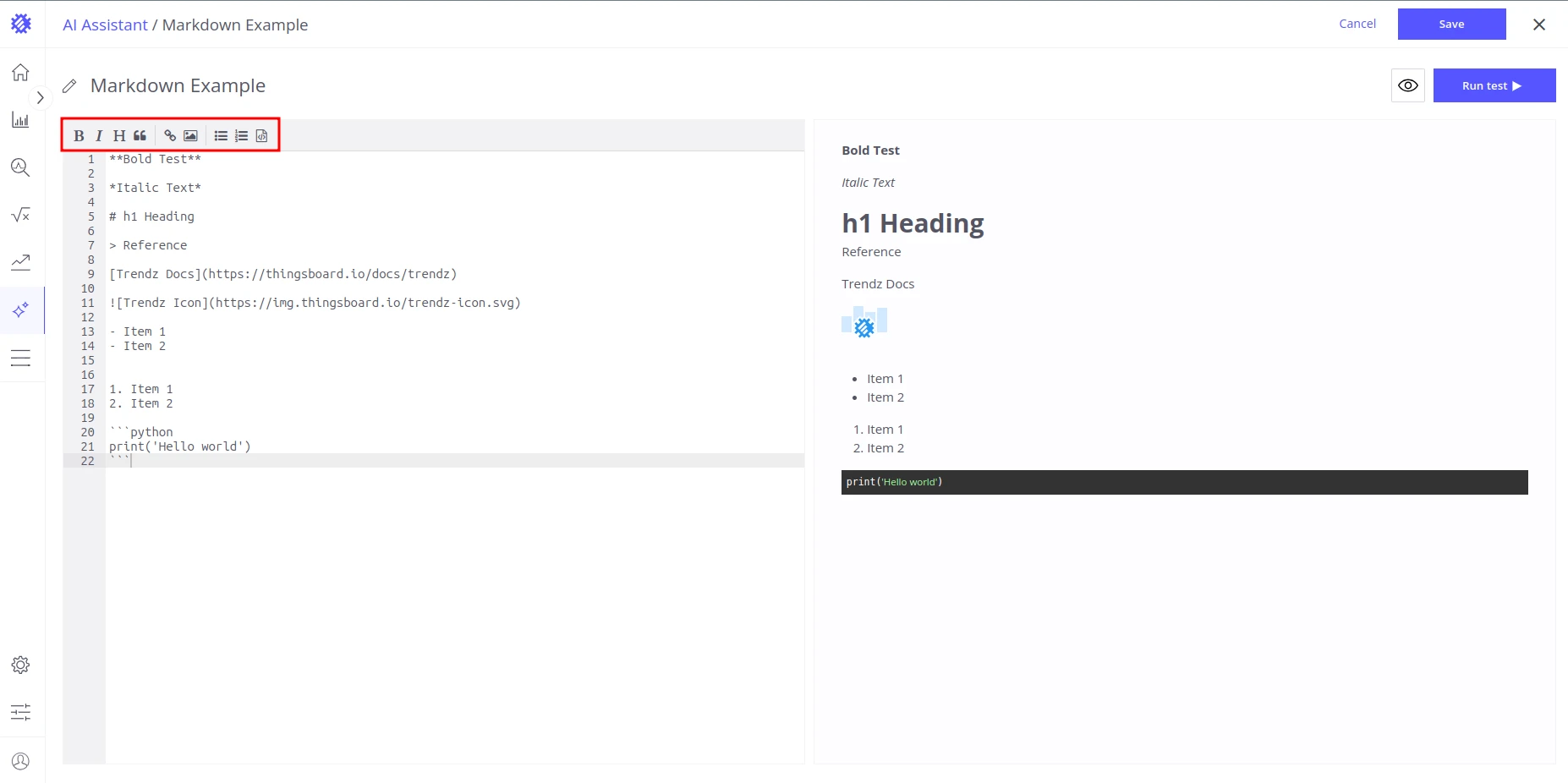
Section titled “Toolbar Shortcuts”The toolbar in the upper-left of the editor provides one-click shortcuts for common Markdown blocks:
| Shortcut | Block |
|---|---|
| B | Bold text |
| I | Italic text |
| H1 | Heading |
" |
Blockquote |
| 🔗 | Link |
| 🖼 | Image |
• |
Unordered list |
1. |
Ordered list |
<> |
Code block |
Rename from the Editor
Section titled “Rename from the Editor”Click the pencil icon next to the prompt name, type the new name, then click any free space to confirm. The name is not saved until you click Save.
Save and Cancel
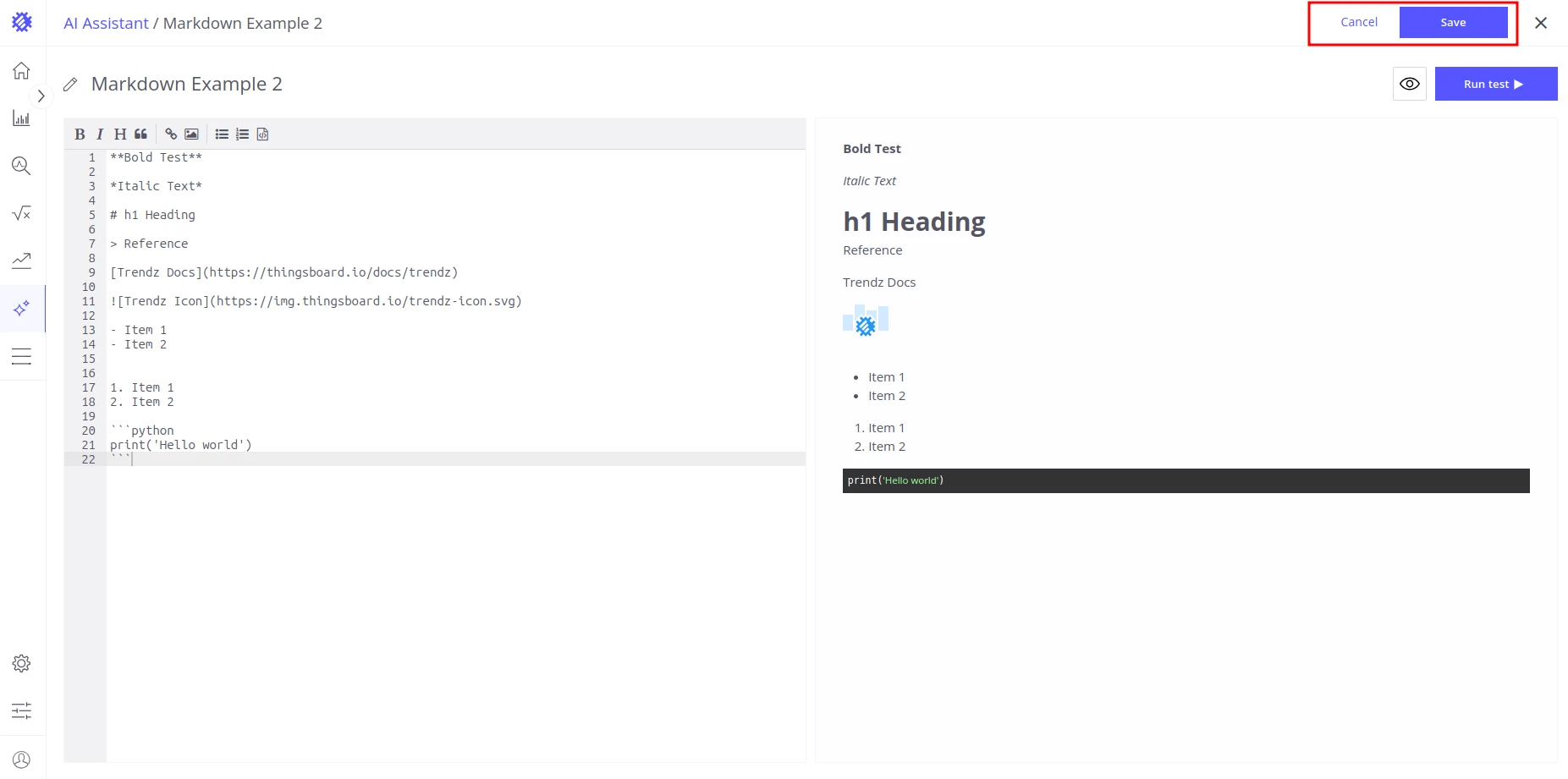
Section titled “Save and Cancel”After editing, click Save to apply all changes or Cancel to discard them. Both buttons are enabled only after a change is made.
System Prompts
Section titled “System Prompts”Trendz includes six built-in system prompts available on every installation:
| Prompt | Purpose |
|---|---|
| Trendz System Default Summary Prompt | Concise 2–3 sentence executive summary covering performance, sentiment, and emerging trends |
| Trendz System Operational Efficiency Optimization Prompt | Detects throughput or resource-use improvement opportunities; focuses on utilization gaps and bottlenecks |
| Trendz System Data Quality Review Prompt | Highlights data inconsistencies, outliers, and anomalies; evaluates impact on analysis |
| Trendz System Positive Performance Prompt | Identifies areas of strong performance and growth potential; summarizes key positive trends |
| Trendz System Incident Identification And Prioritization Prompt | Detects anomalies, spikes, or rare behaviors in time-based or event-based datasets |
| Trendz System Root Cause Analysis Prompt | Explains the likely root cause of a performance issue with a confidence rating |
Best Practices
Section titled “Best Practices”| Practice | Guidance |
|---|---|
| Be specific | Describe the exact question or analysis you want. Vague prompts produce vague responses. |
| Use Markdown structure | Use headers, bold, and lists to organize the prompt. LLMs interpret structured prompts more accurately. |
| Keep it concise | Long prompts can dilute focus. State the task clearly and avoid padding. |
| Test before deploying | Use the Run test feature with a real saved view to verify the output before attaching the prompt to a dashboard. |
| Use saved prompt IDs | When referencing prompts from widget actions, use the prompt ID instead of inline text so you can update the prompt without touching widget code. See AI Widget Summary. |
| Name prompts clearly | Use names that describe the analysis goal, e.g. Boiler Root Cause Analysis instead of Prompt 3. |
Was this helpful?