Chat Assistant Widget
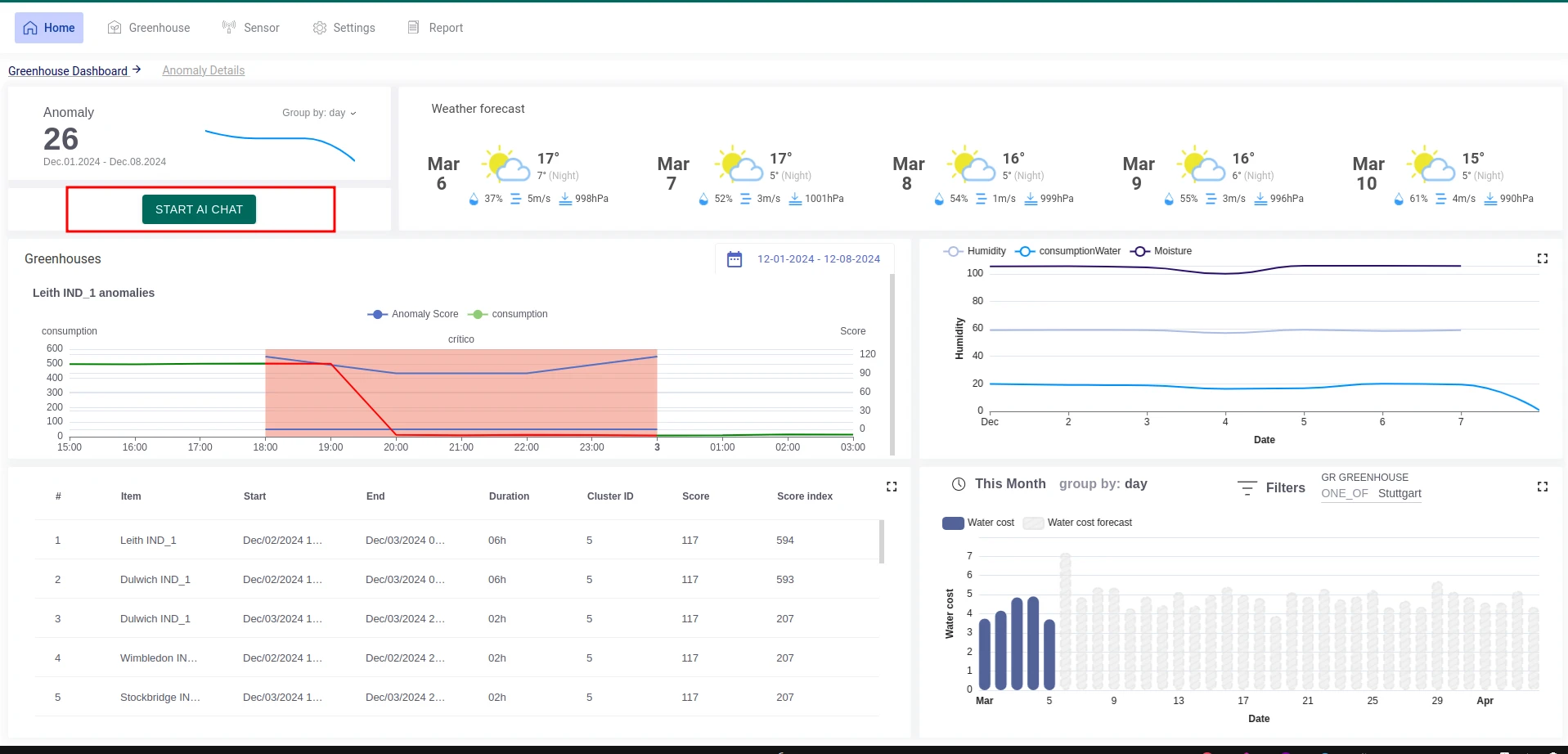
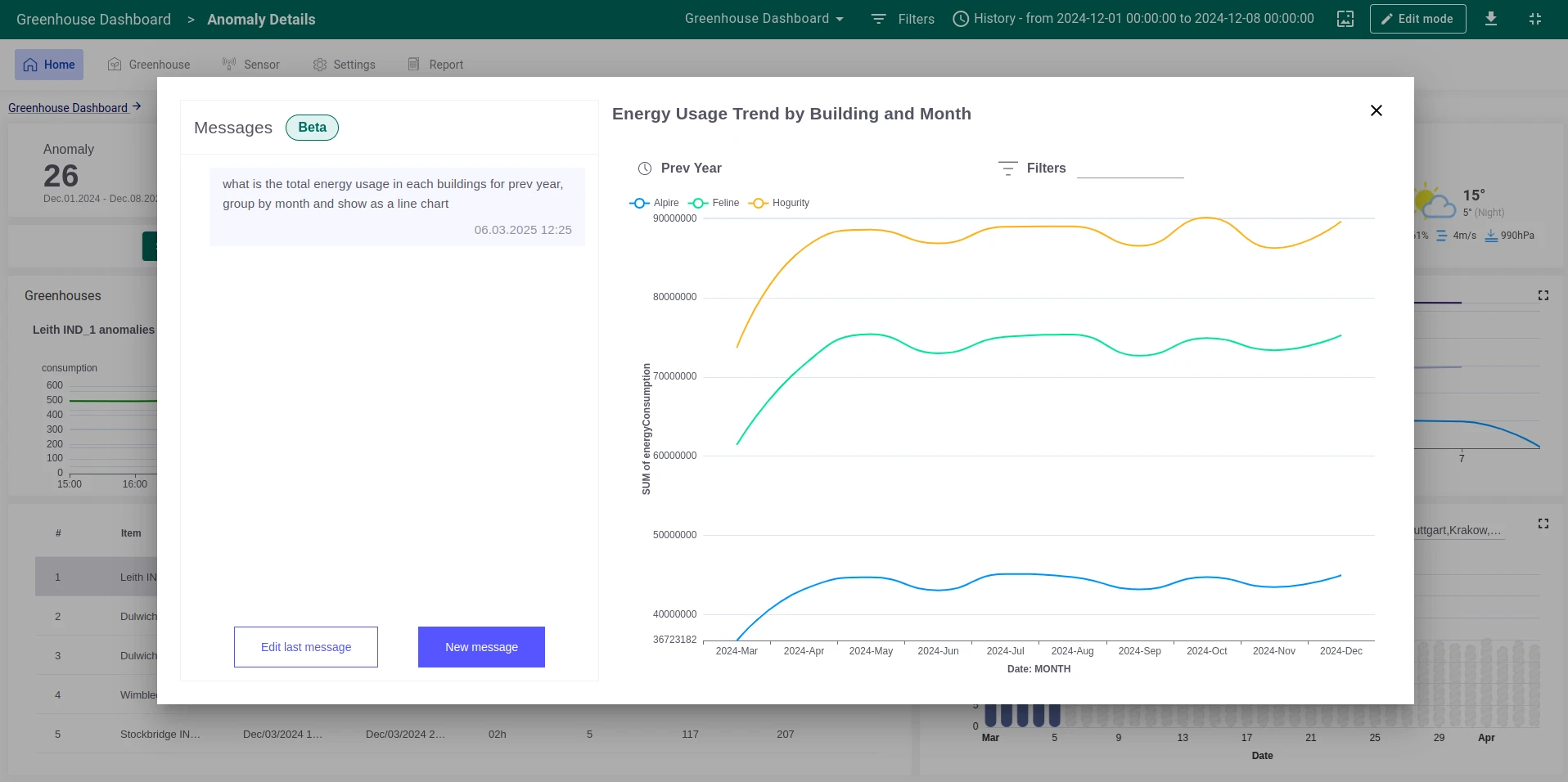
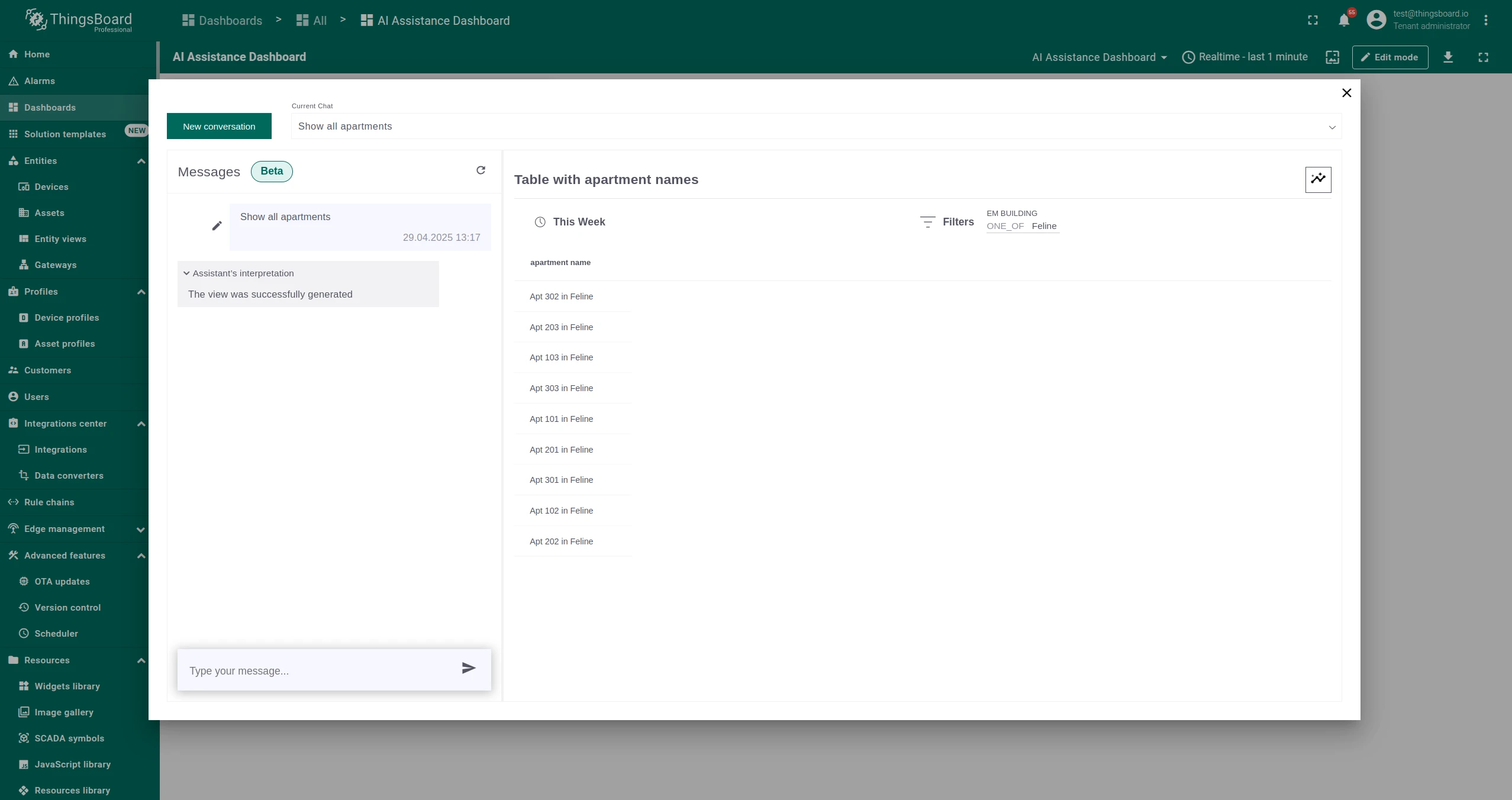
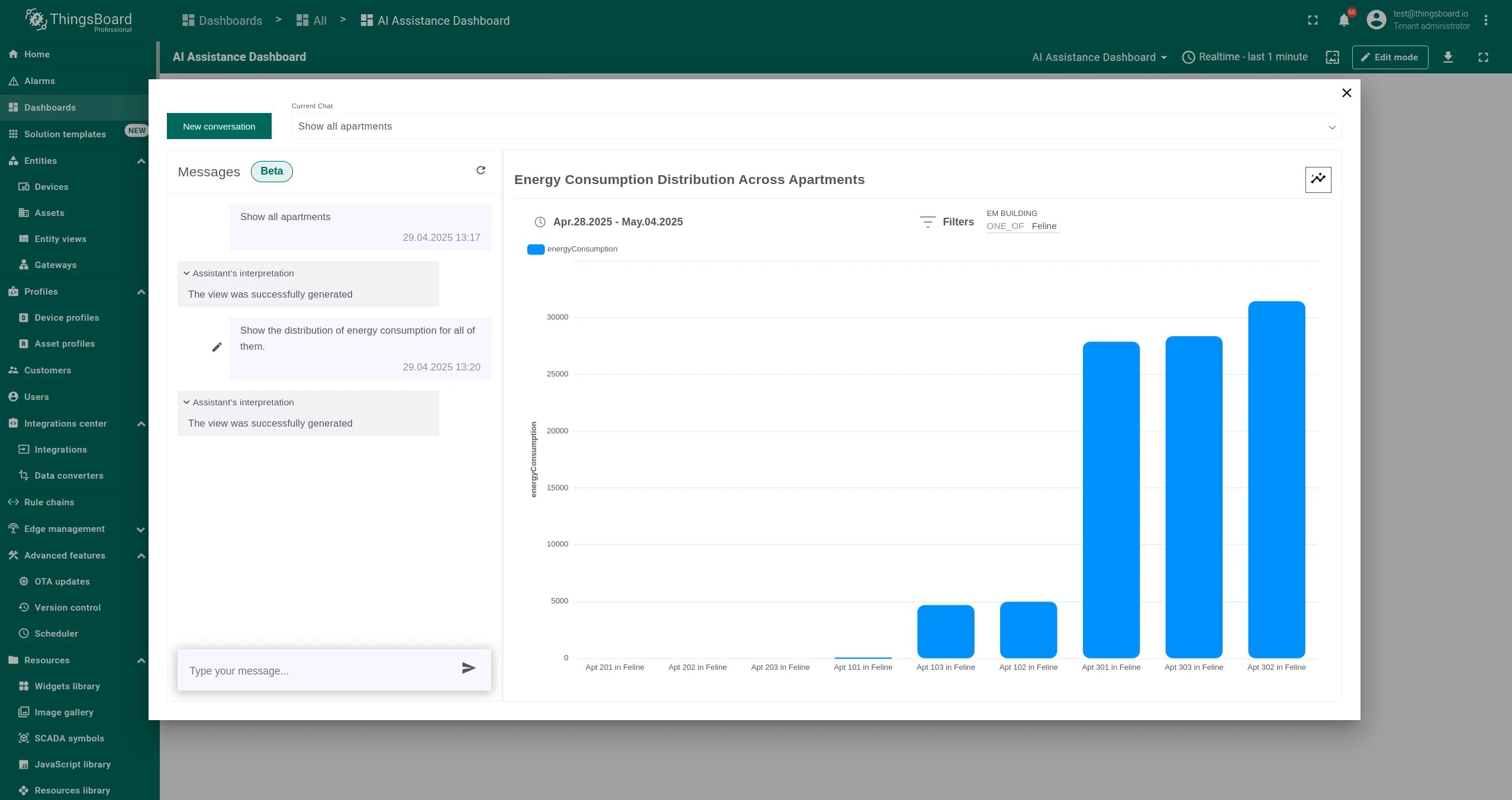
The Advanced Analytics Chat Assistant widget embeds the Trendz AI Assistant directly into a ThingsBoard dashboard. Users can type questions about the selected entity and receive visualizations instantly, without leaving the dashboard.
Key Features
Section titled “Key Features”| Feature | Description |
|---|---|
| Chat-based interaction | Type questions, edit them, and request new data. Responses appear on the right side of the chat window. |
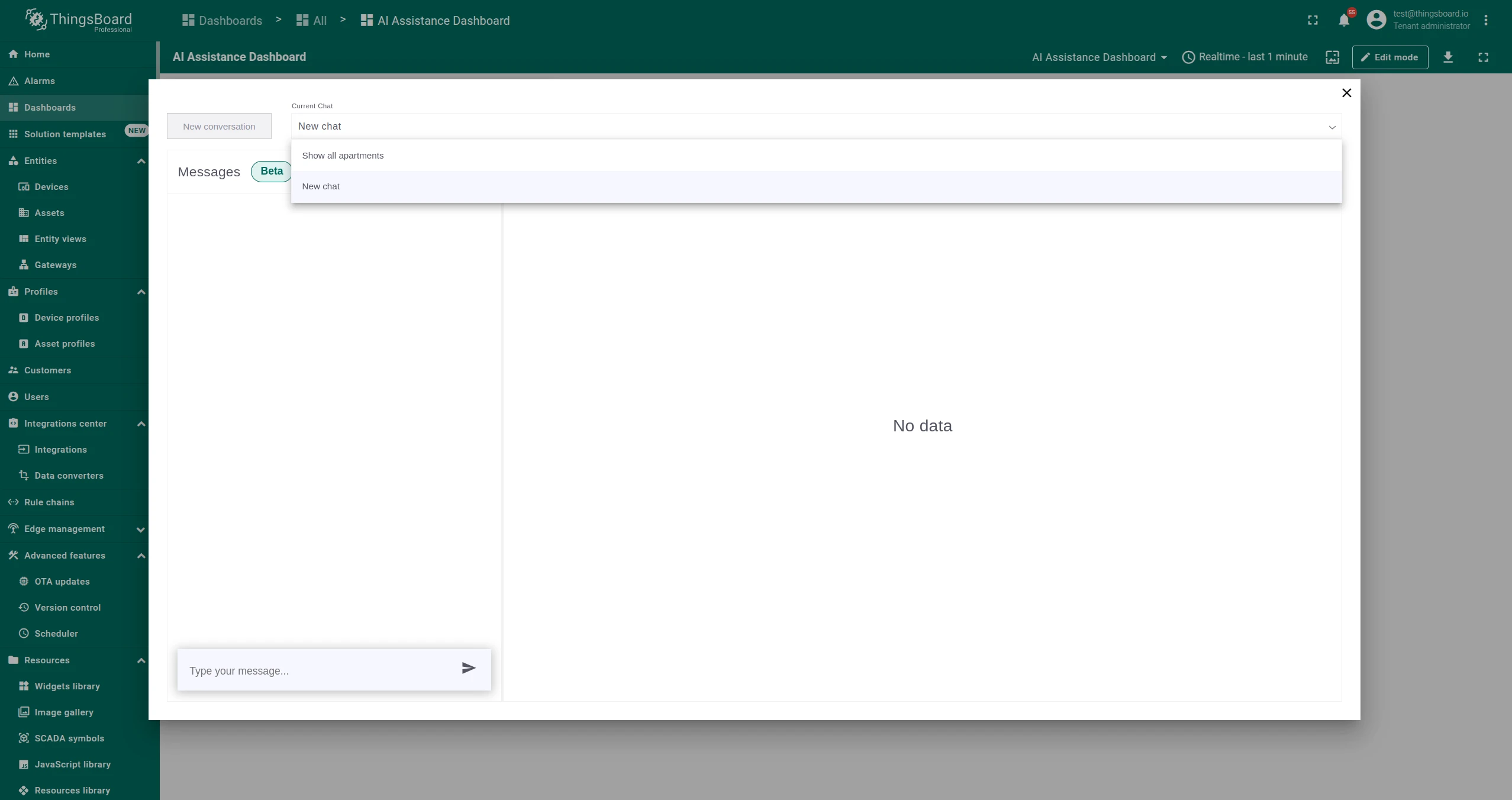
| History tracking | Previous questions and answers are stored so you can revisit past queries and see updated responses with the latest data. |
| Without alias | The assistant answers based on all data accessible to the user — no entity selection needed. |
| With alias | The widget can be bound to a specific entity via a ThingsBoard alias; responses are scoped to the selected entity. |
| Dynamic entity switching | Selecting a different entity from a linked table automatically adjusts the assistant’s responses. |
| Dashboard-specific history | Each widget instance maintains its own chat history. Users and customers only see their own histories. |
Add the Widget with an Alias
Section titled “Add the Widget with an Alias”This guide shows how to set up the widget so it responds about the entity selected in an entities table on the same dashboard.
┌─────────────────────────┐ row click ┌──────────────────────────┐ │ Entities Table Widget │ ───────────────▶ │ Dashboard state │ │ (Alias 1: asset type) │ sets "default" │ entity param: "default" │ └─────────────────────────┘ └────────────┬─────────────┘ │ bound to ┌────────────▼─────────────┐ │ Chat Assistant Widget │ │ (Alias 2: state entity) │ └──────────────────────────┘-
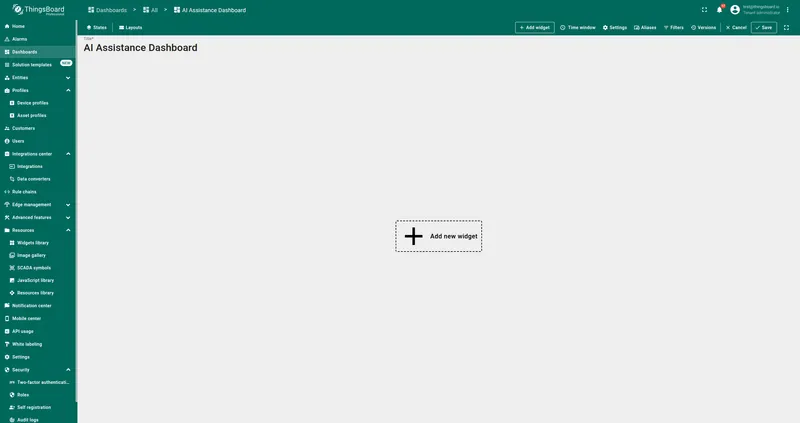
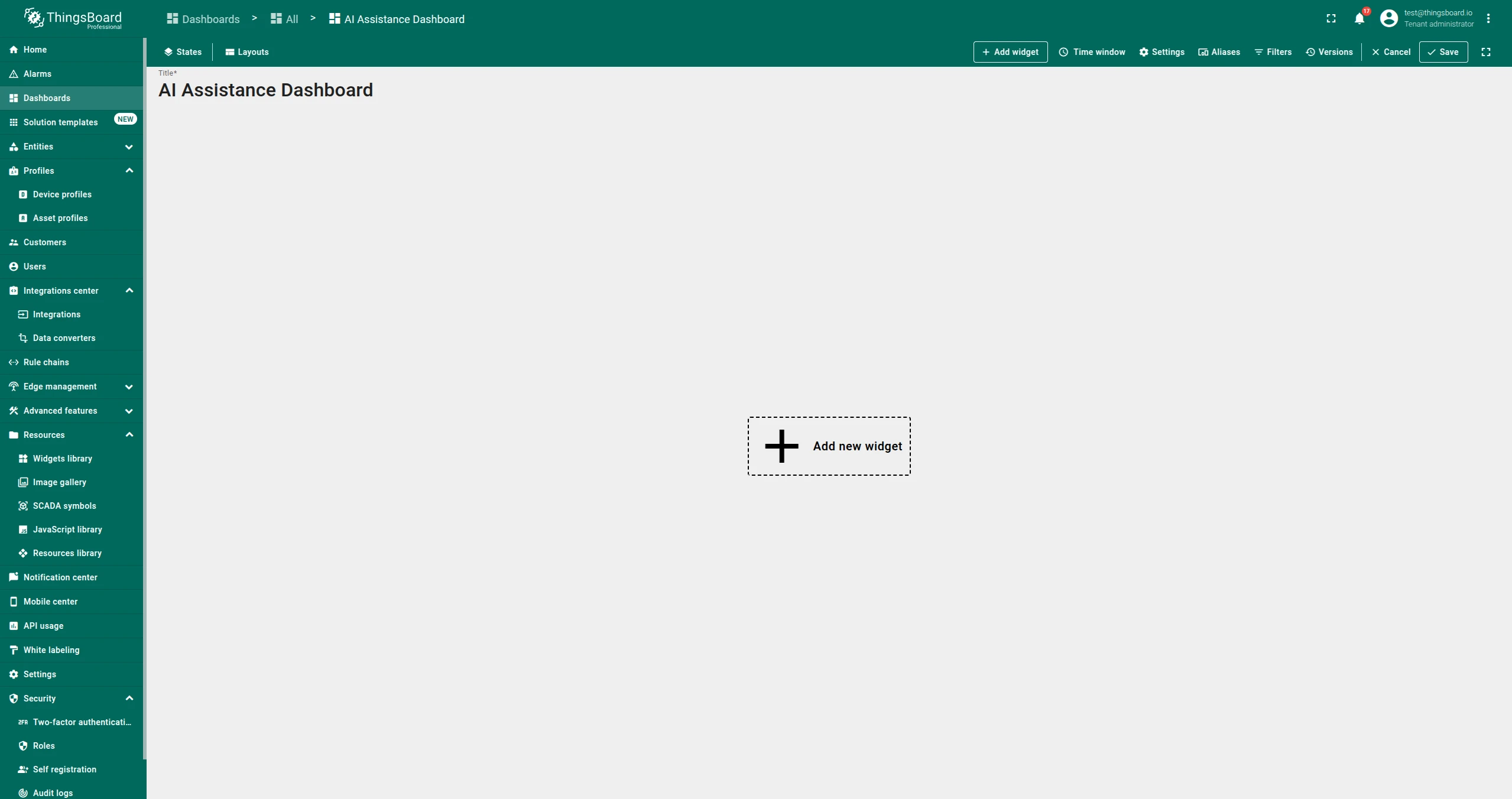
Create a dashboard.
Go to Dashboards → Add Dashboard → Create New Dashboard, enter a title, and click Add.
-
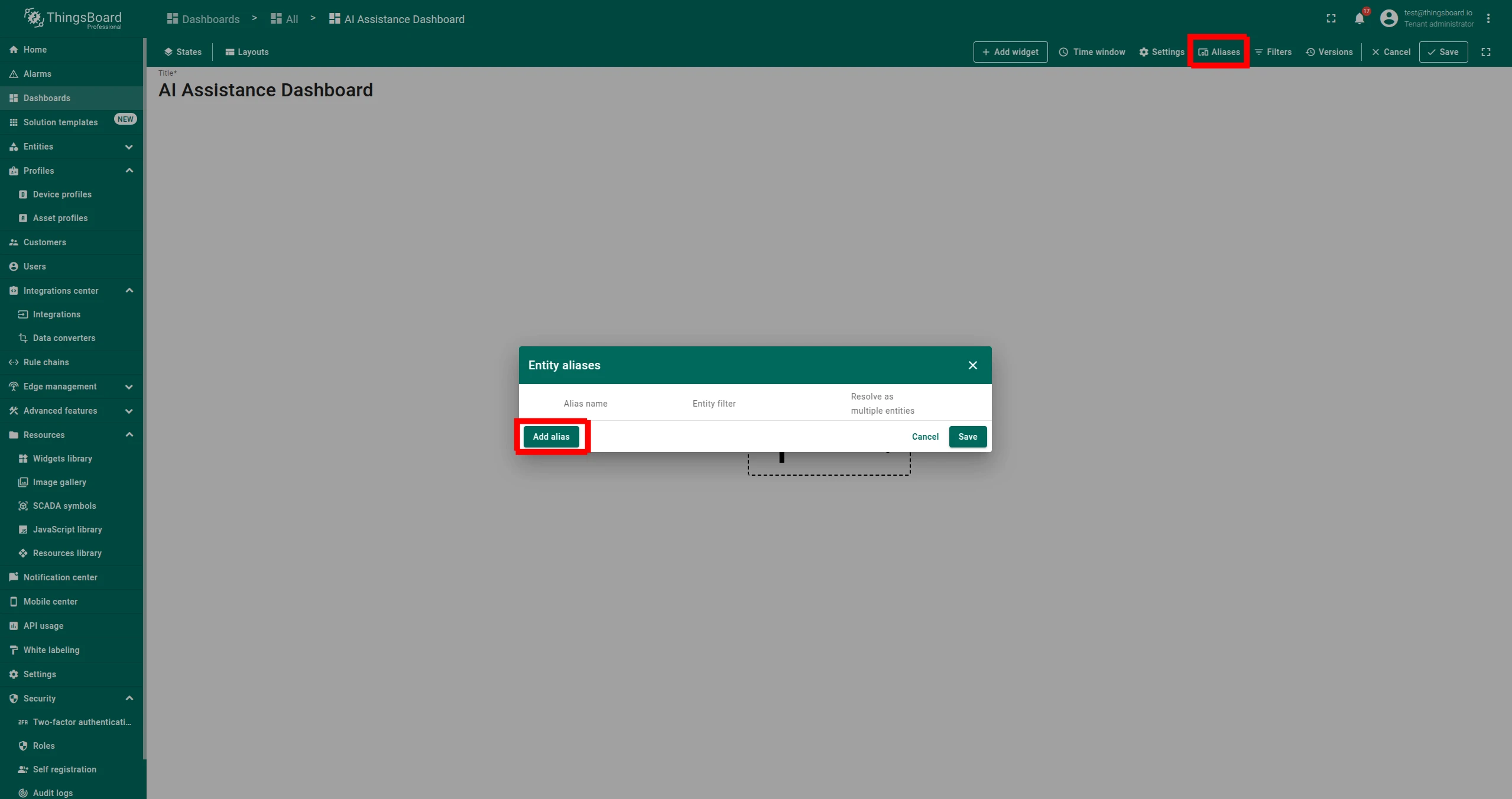
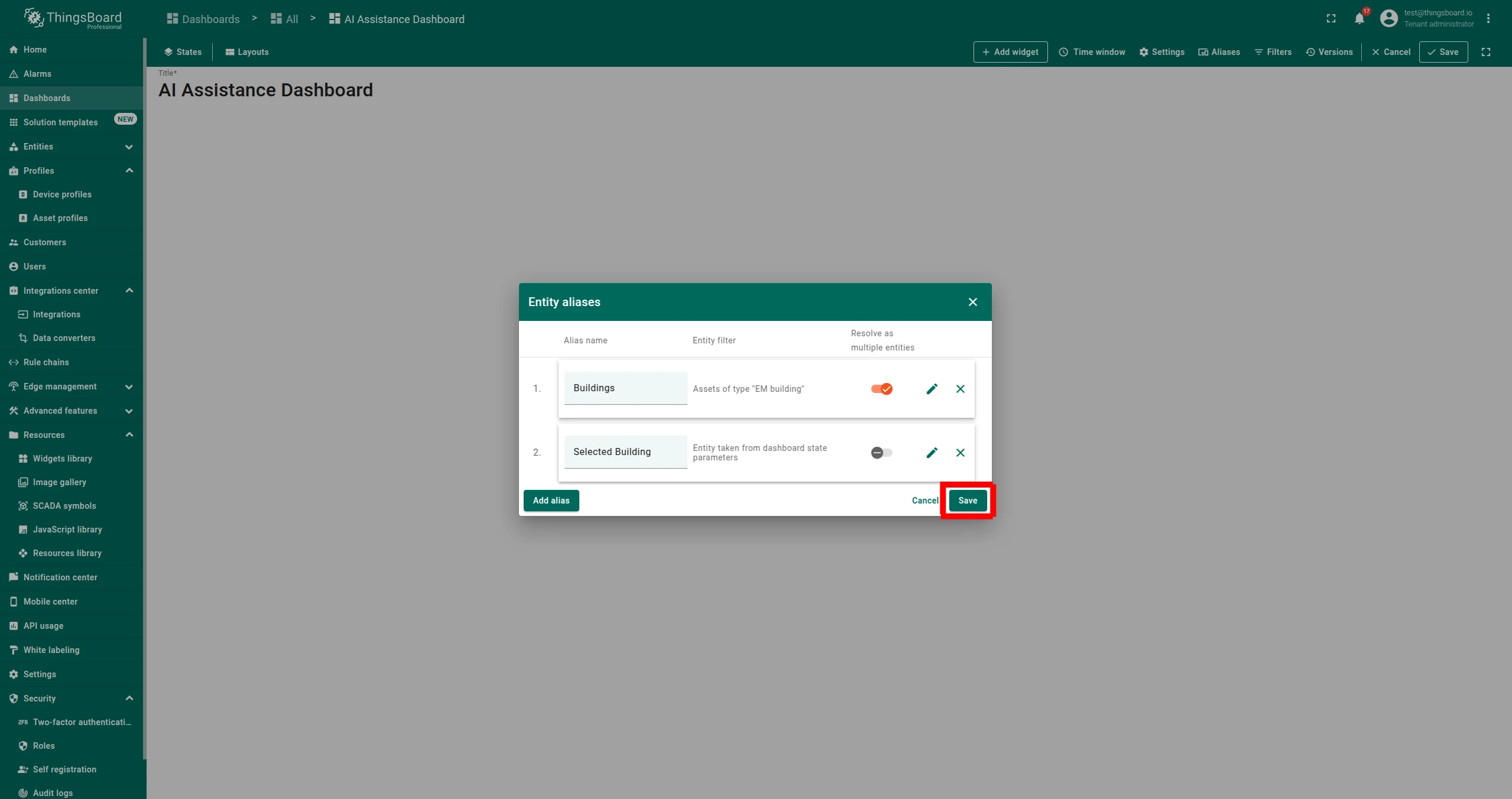
Set up two aliases.
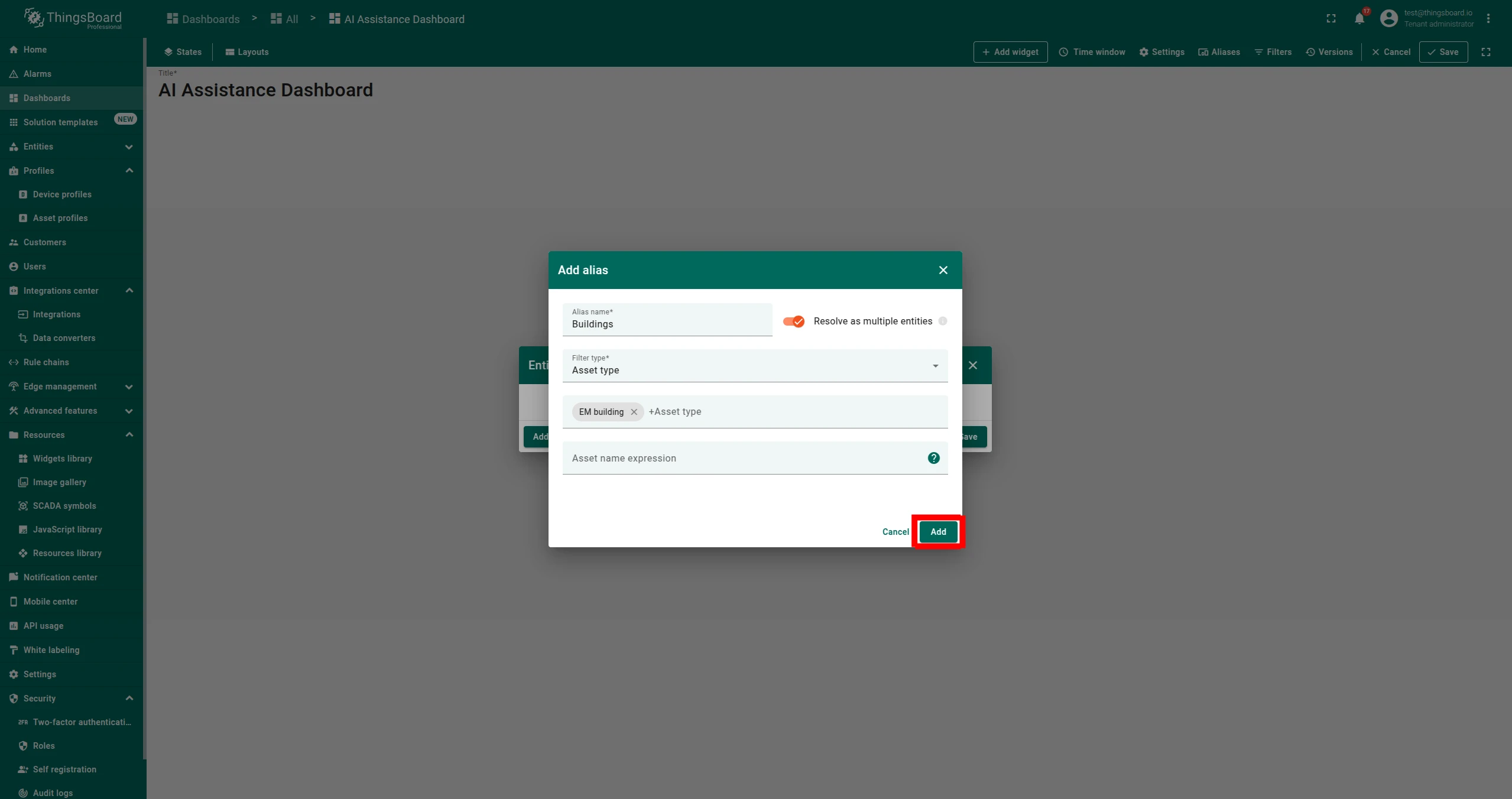
Open Aliases → Add Alias and create the first alias:
- Alias Name: any name (e.g.,
Assets) - Filter Type:
Asset type - Select the asset type, then click Add.
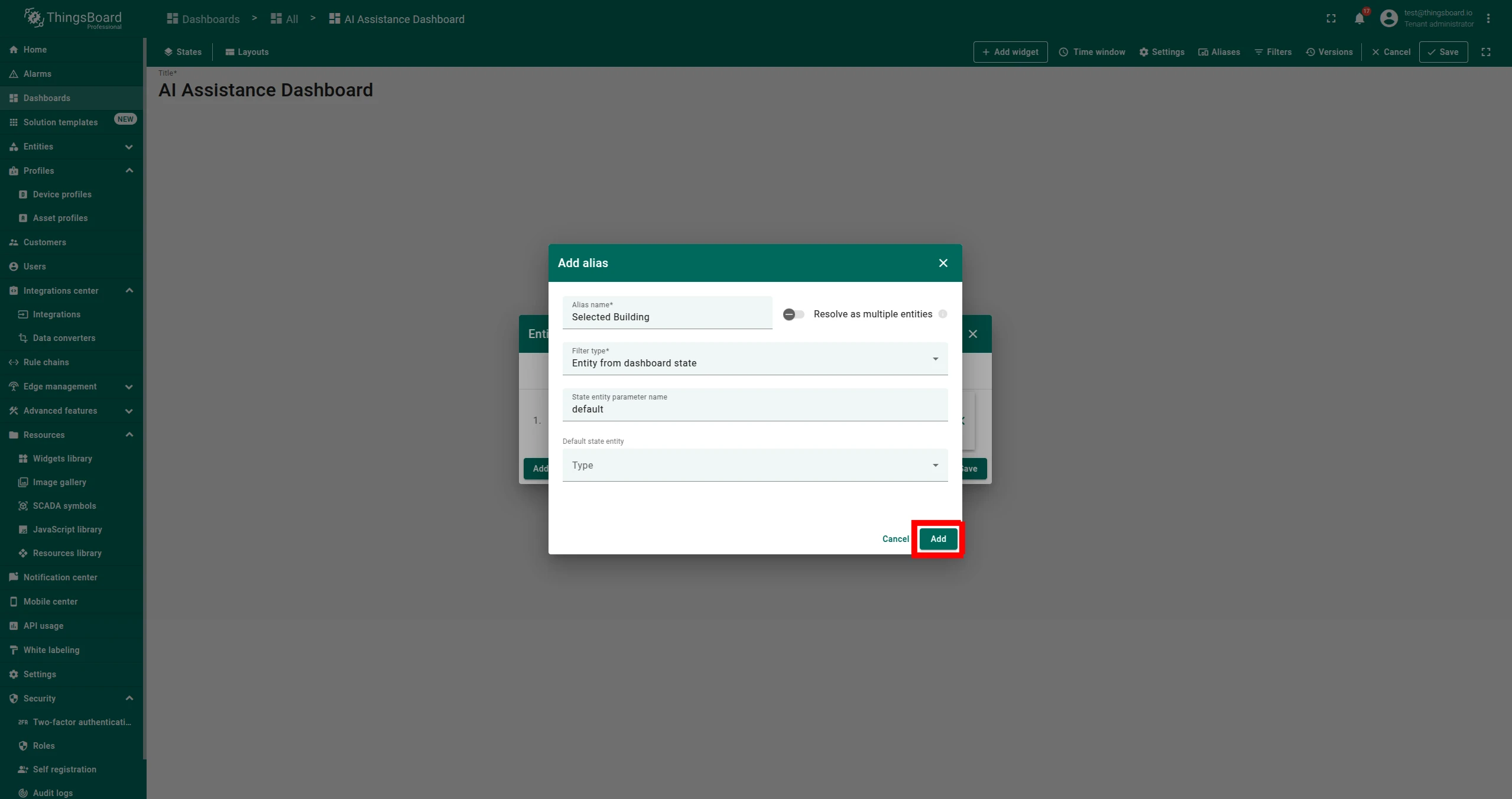
Add a second alias:
- Alias Name: any name (e.g.,
Selected Asset) - Filter Type:
Entity from dashboard state - State entity parameter name:
default - Click Add.
Click Save once both aliases are listed.
- Alias Name: any name (e.g.,
-
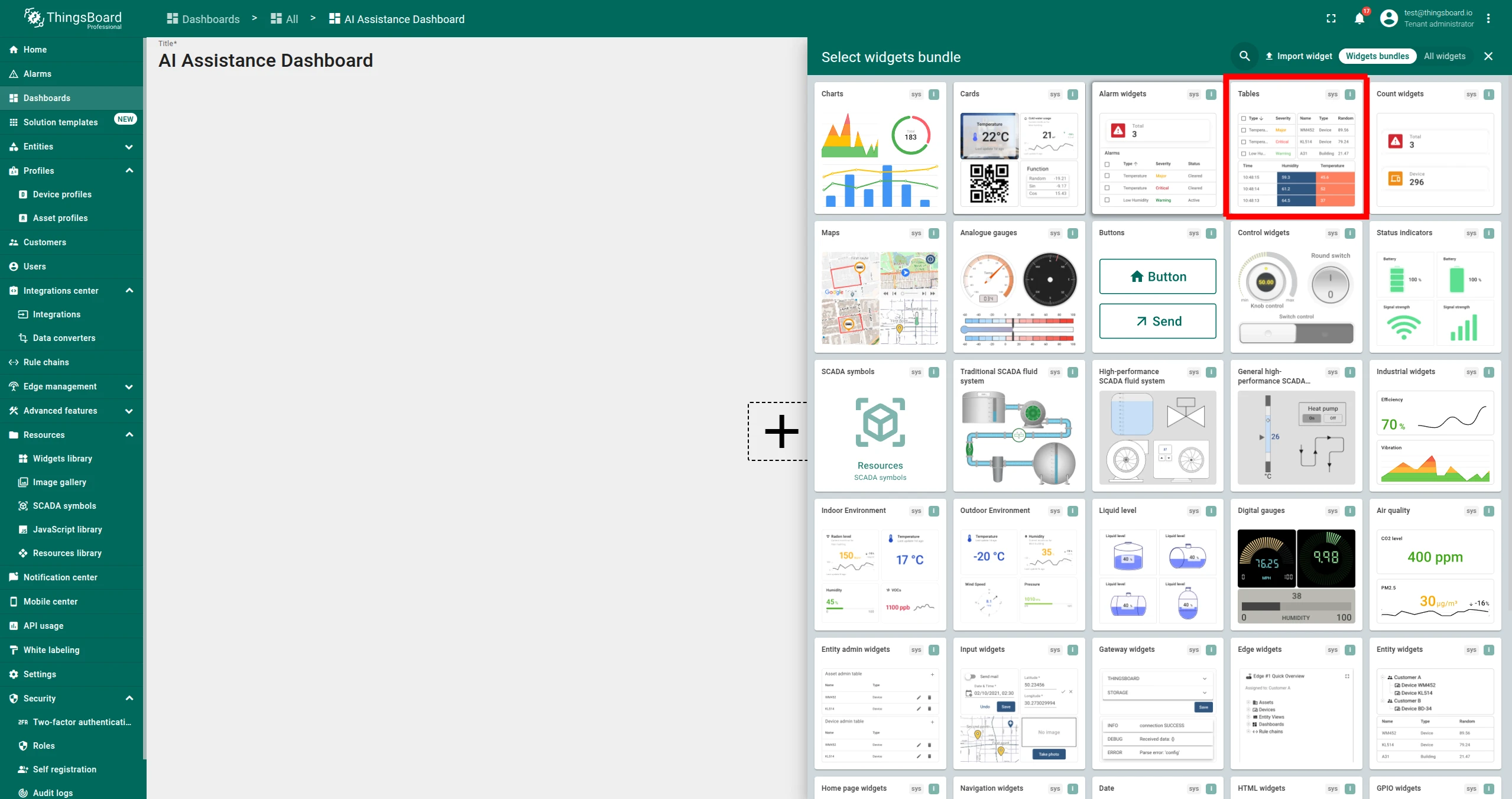
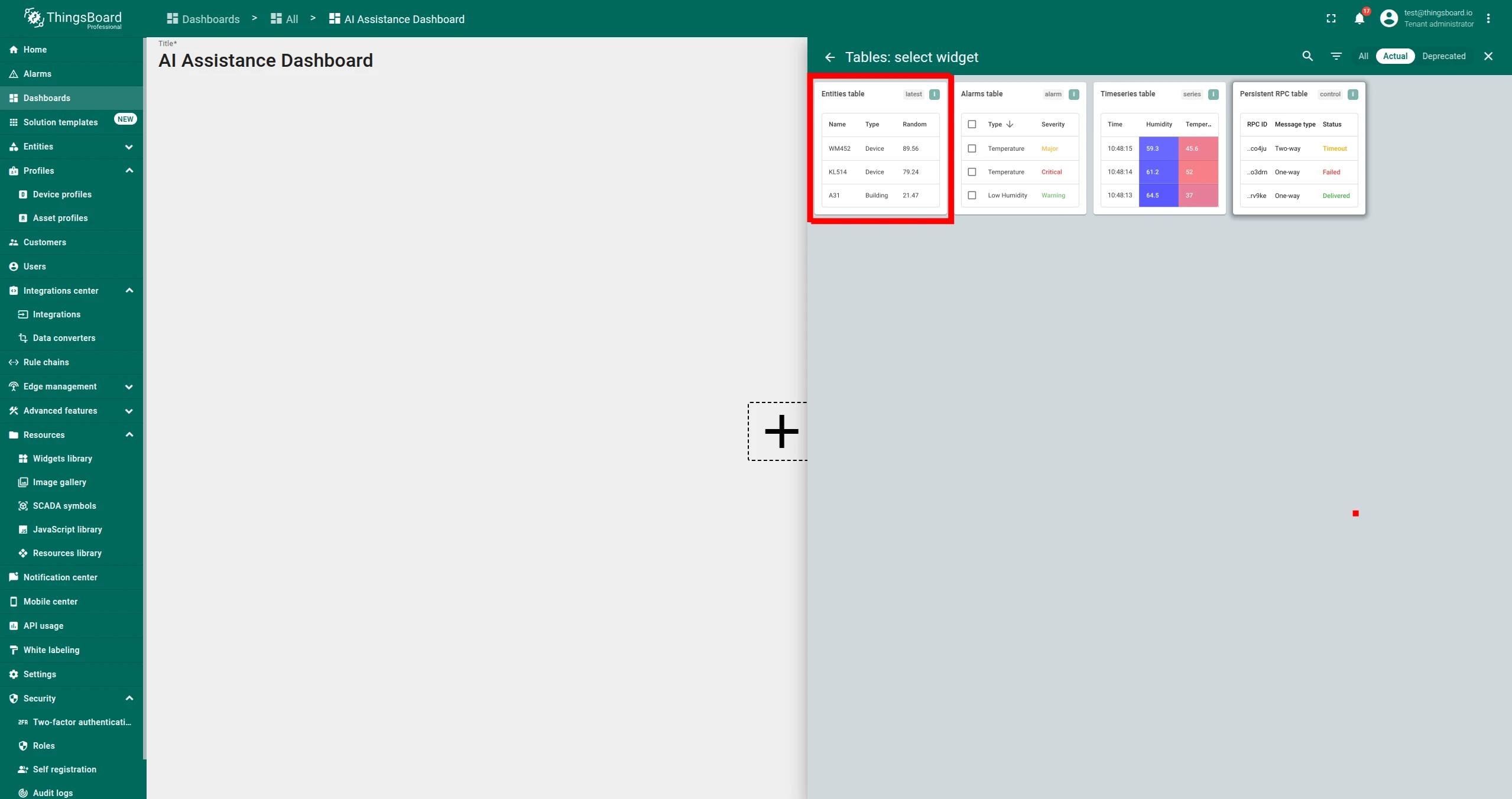
Add an Entities Table widget.
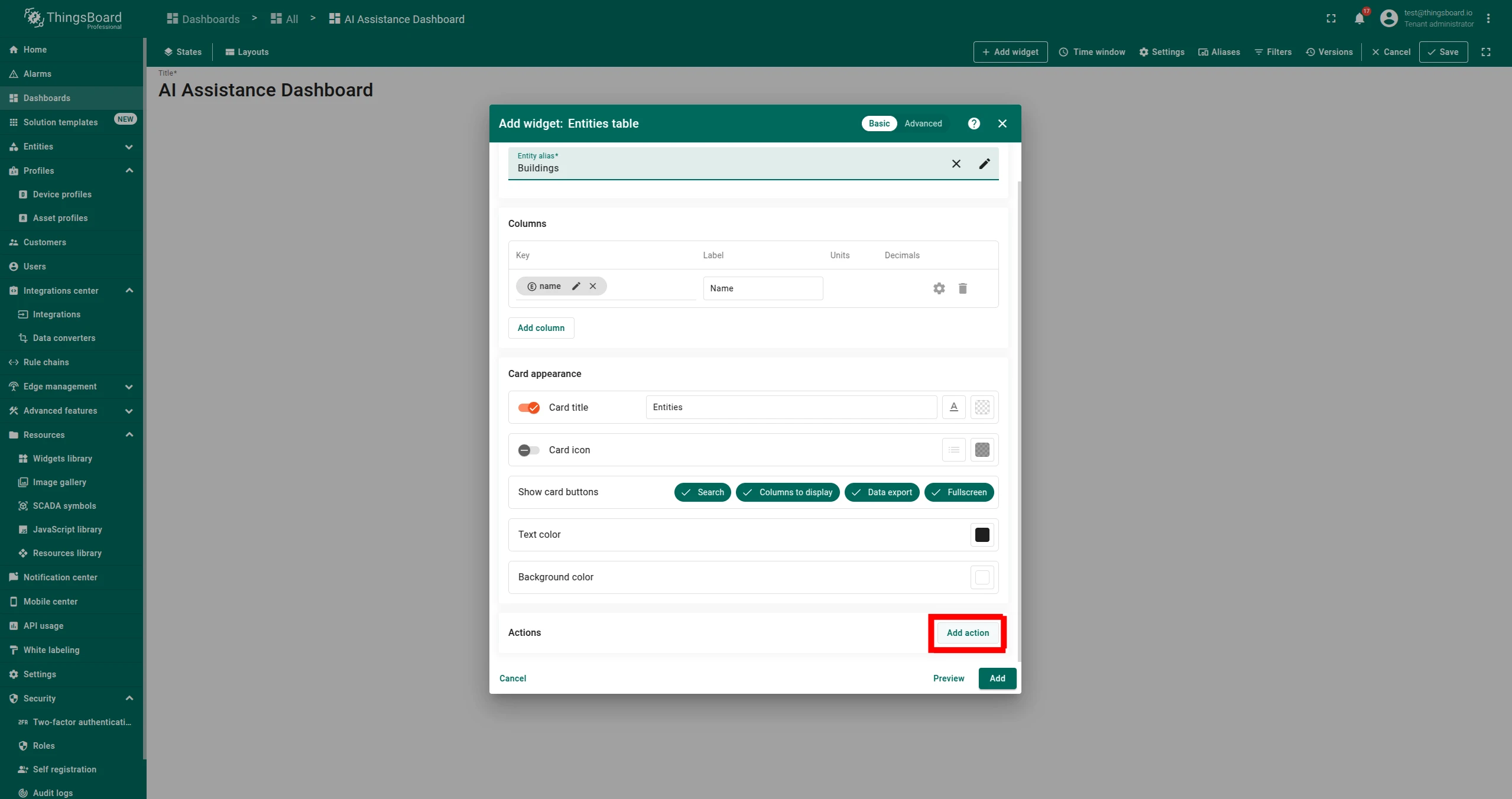
Click Add Widget, select Tables → Entities table. Set the Entity alias to your first alias (the asset-type alias).
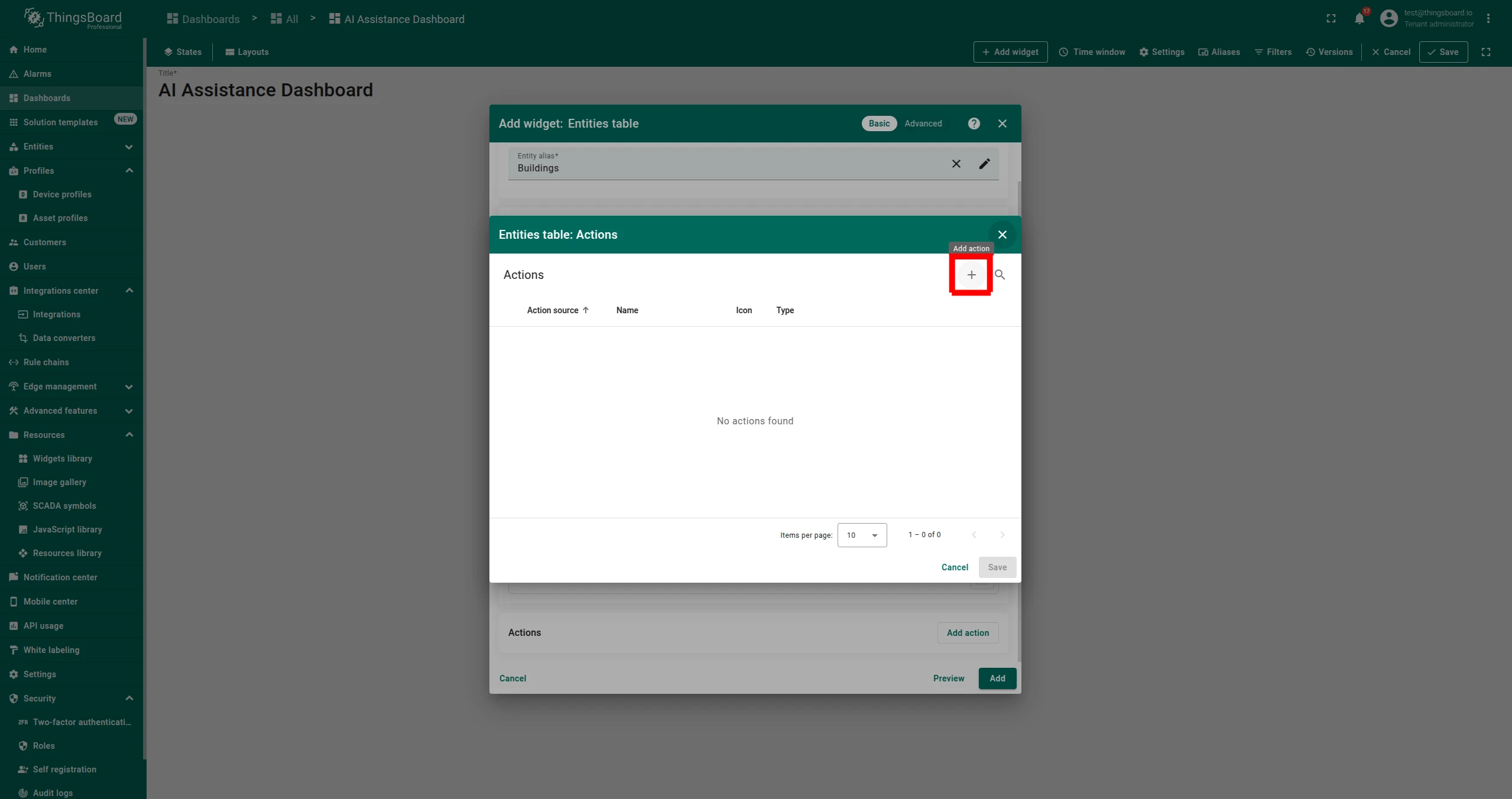
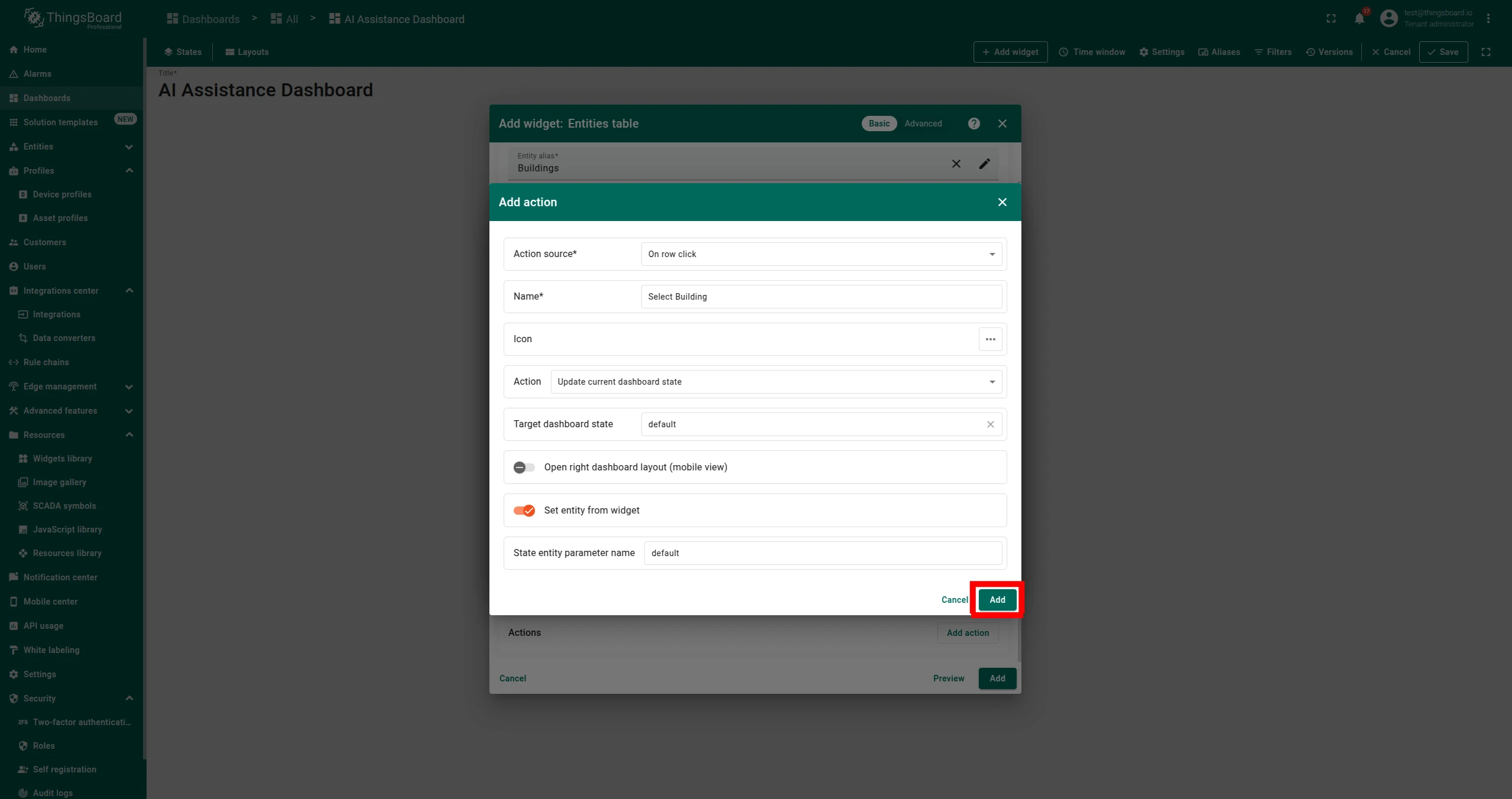
Add a row-click action:
- Action source:
On row click - Name: any name
- State entity parameter name:
default
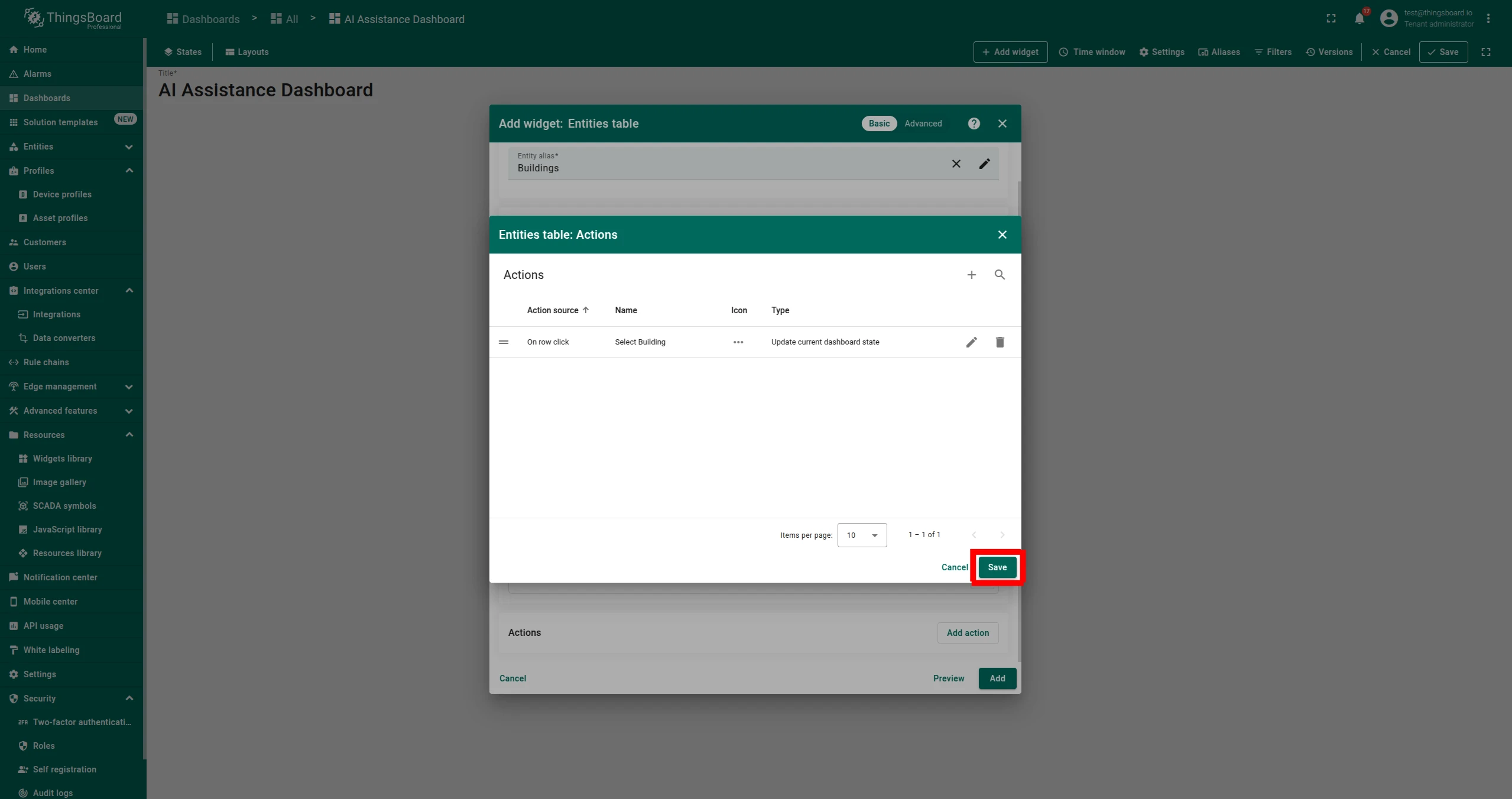
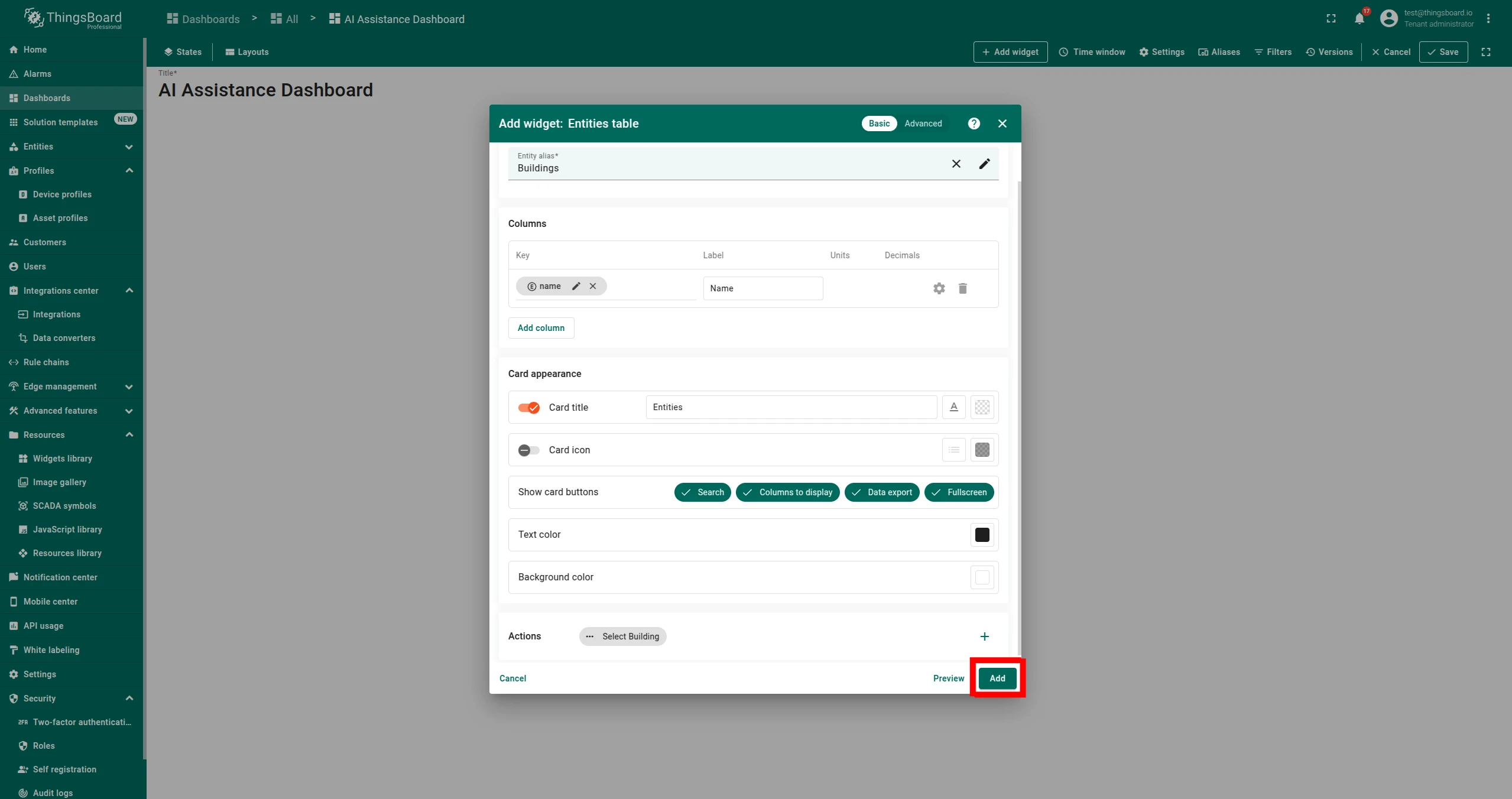
Click Save, confirm the action is listed, then click Add.
- Action source:
-
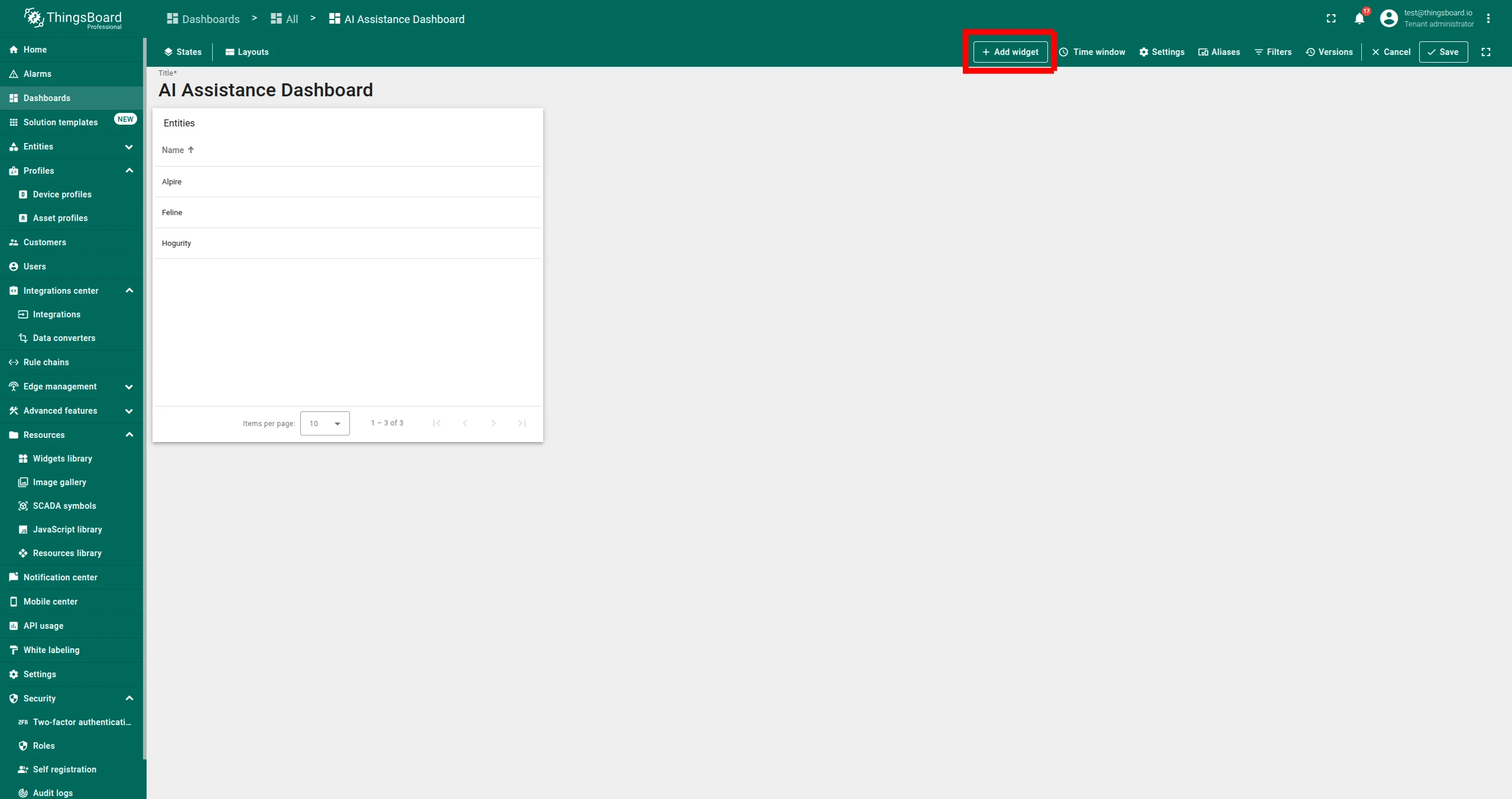
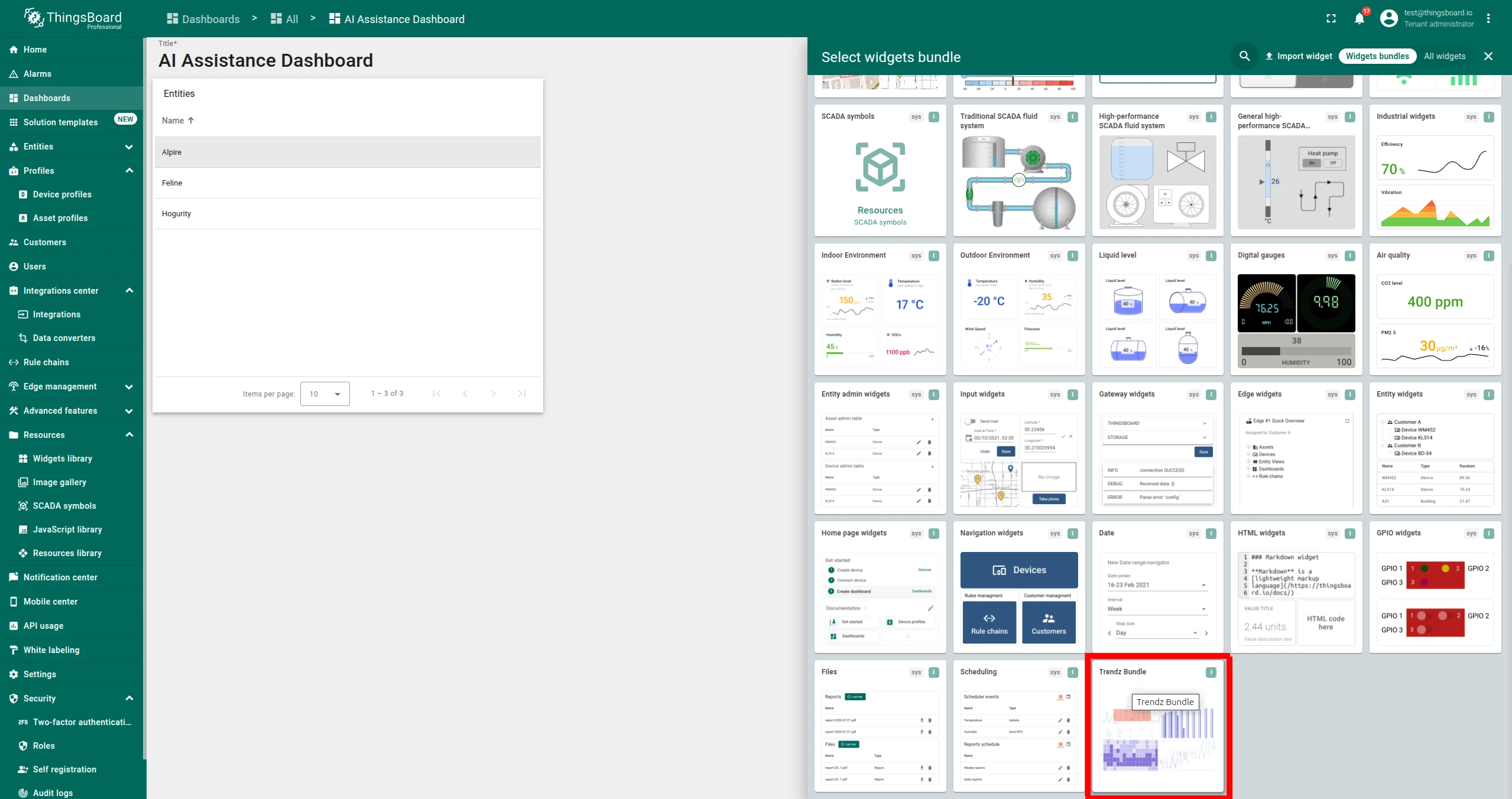
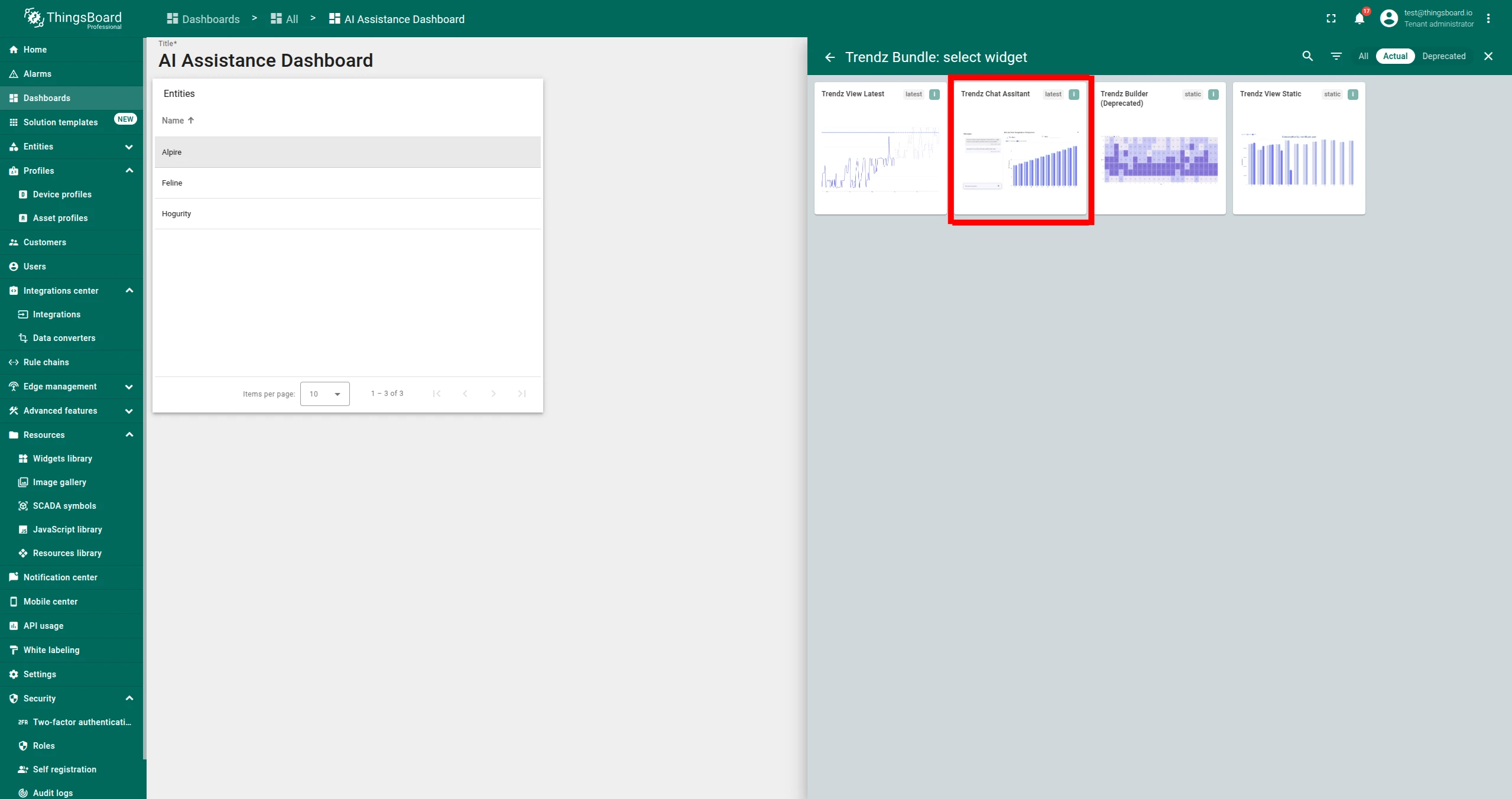
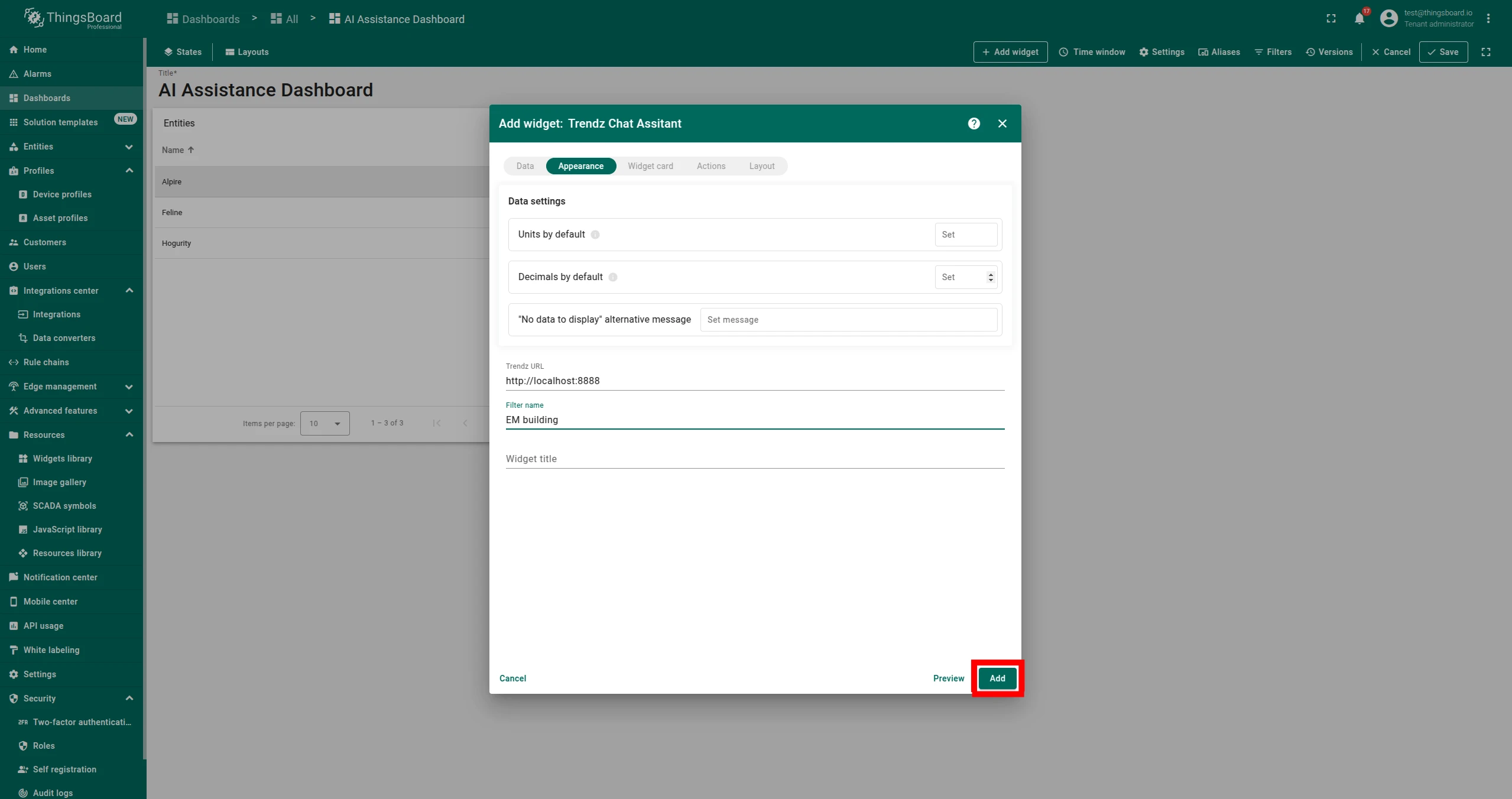
Add the Advanced Analytics Chat Assistant widget.
Click + Add widget, select Advanced analytics Bundle → Advanced analytics Chat Assistant.
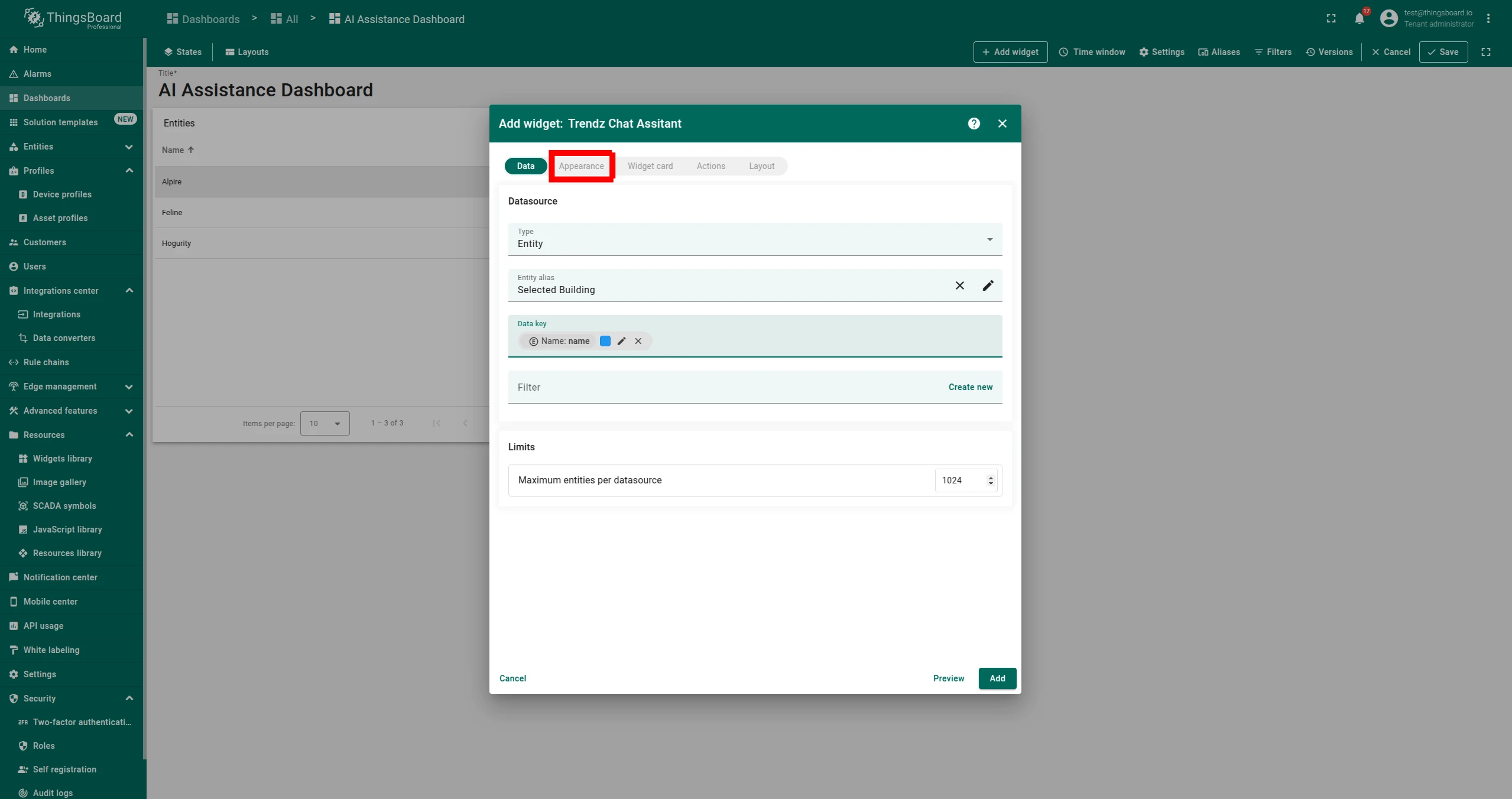
Configure it:
- Entity alias: select your second alias (the dashboard-state alias)
- Data key:
Name - In Appearance, fill in the Filter name field with the name of the Trendz Business Entity you want to filter by, then click Add.
Click Save.
-
Interact with the AI Assistant.
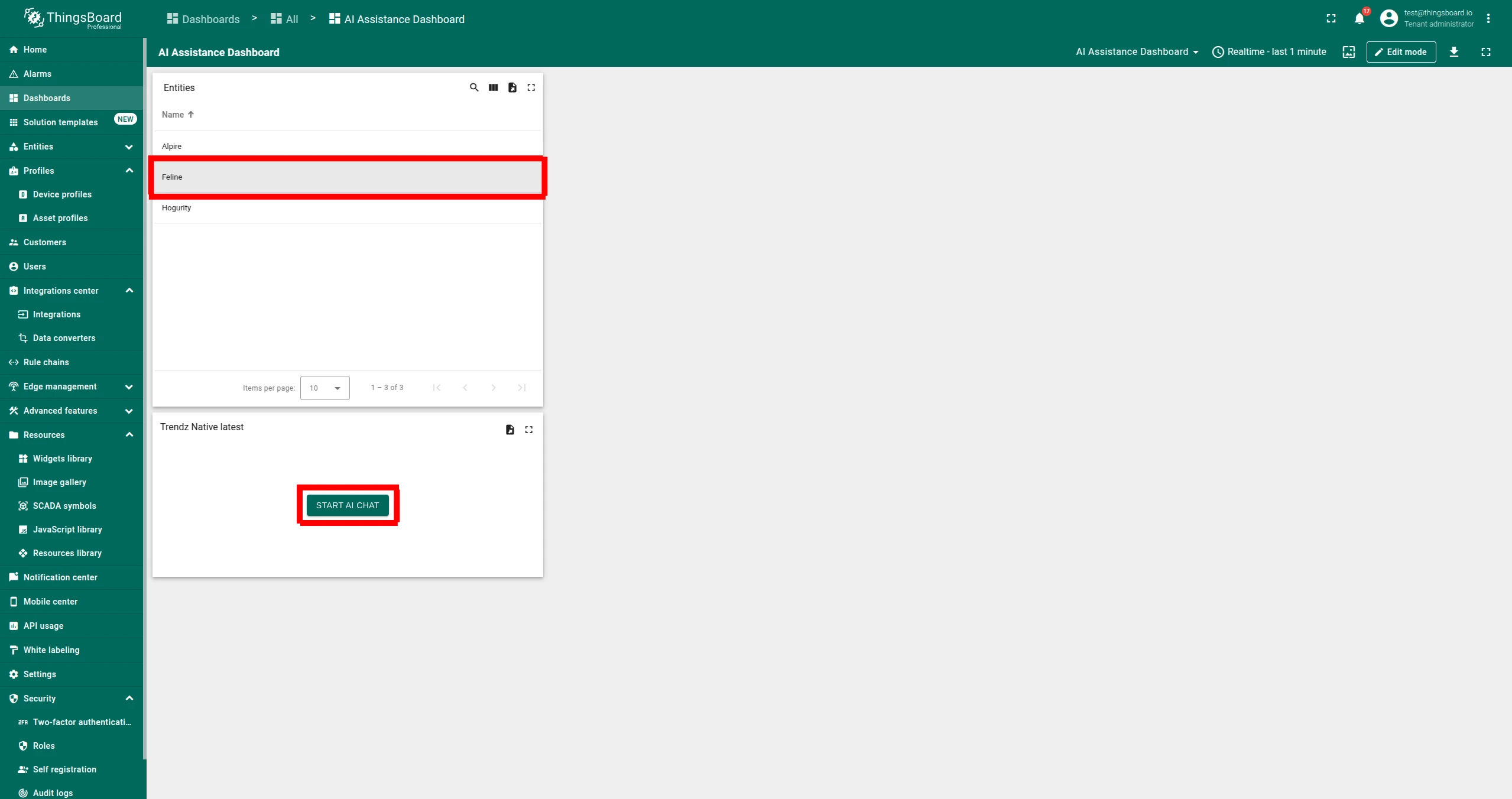
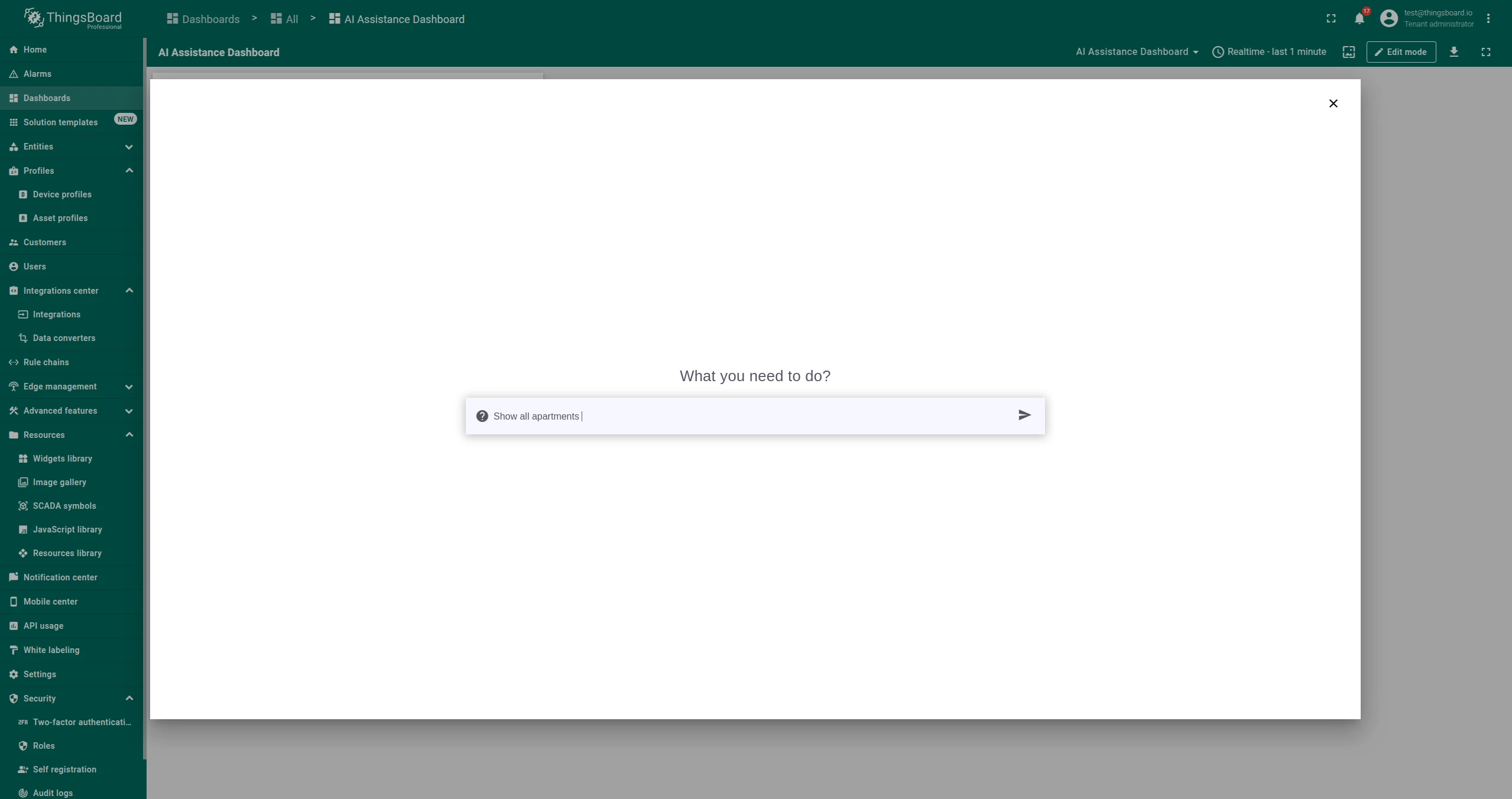
Click on any row in the Entities Table to select an asset, then click START AI CHAT. In the pop-up, type your question about the selected asset.
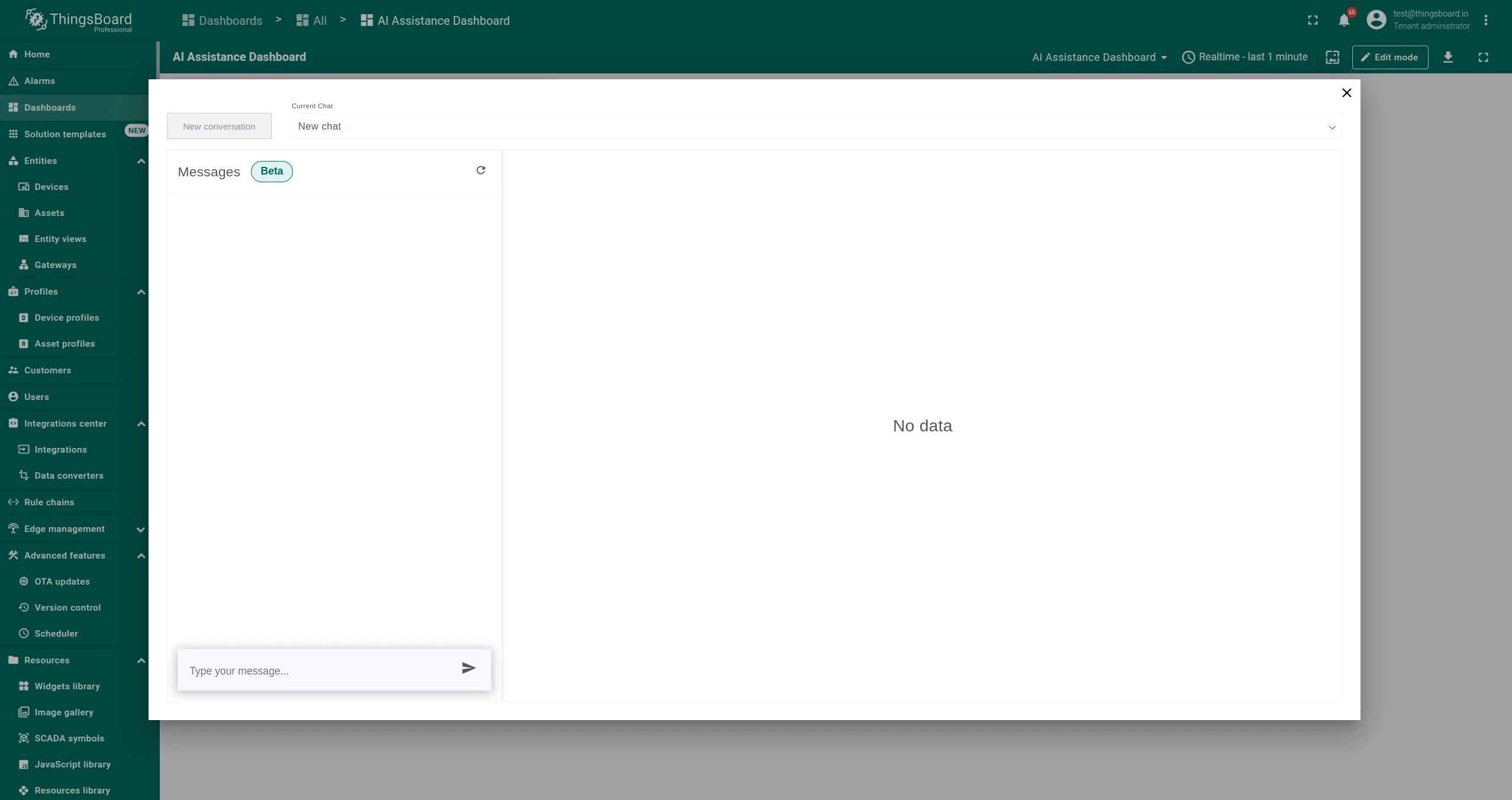
The assistant remembers the conversation context — you can ask follow-up questions without restating the original request. To start a fresh conversation, click New Conversation. To return to a previous conversation, use the dropdown under the Current Chat label.
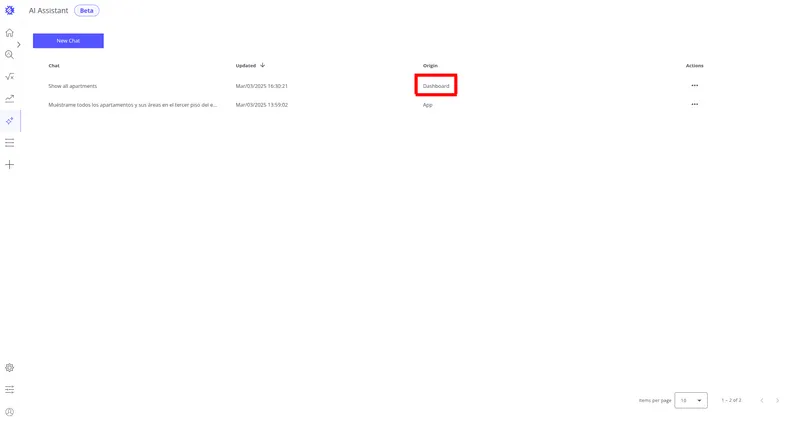
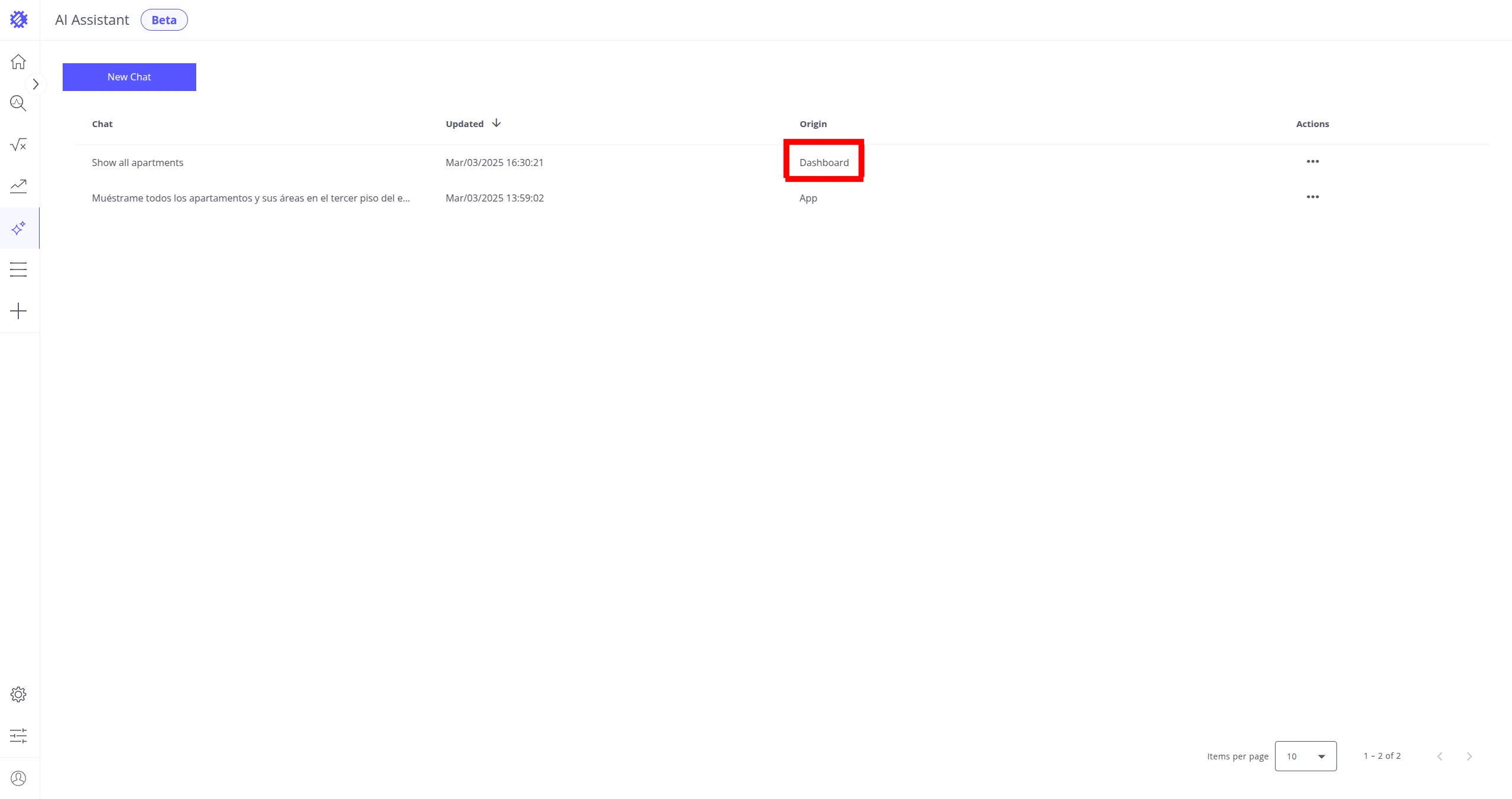
Conversations started from the dashboard widget are tagged as Dashboard Origin in the Trendz Chats tab. You can view messages or save generated views from there.
Was this helpful?