Custom Translation
Trendz supports multiple languages out of the box. The displayed language is inherited from the language configured for the user in ThingsBoard — no separate setting is needed in Trendz. If Trendz does not support a language, it falls back to English.
Supported languages (as of version 1.12):
- English
- Spanish
- French
- German
You can also add new languages or customize existing translations to match your terminology.
Customize translations
Section titled “Customize translations”-
Open the White Labeling section in Trendz Settings.
-
Navigate to the Custom Translation tab.
-
Select the language you want to modify and open the Advanced tab.
-
Add or override translation keys in the JSON editor.
Trendz uses a predefined set of translation keys. The full list is available in the trendz-localization repository. Find the JSON file for the target language, copy the keys you want to override, paste them into the Advanced tab editor, and change the values.
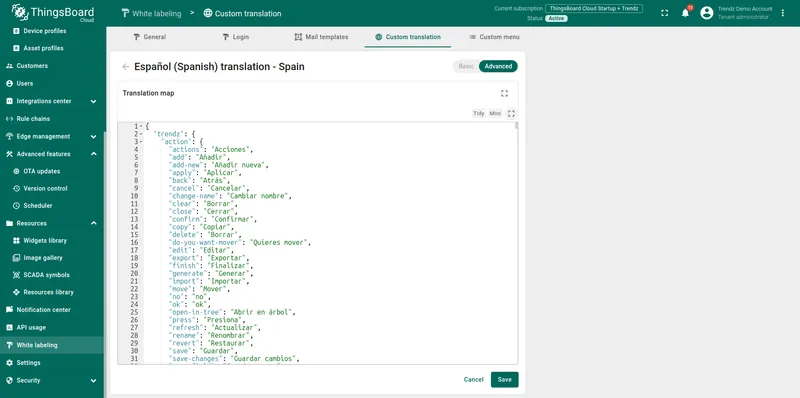
-
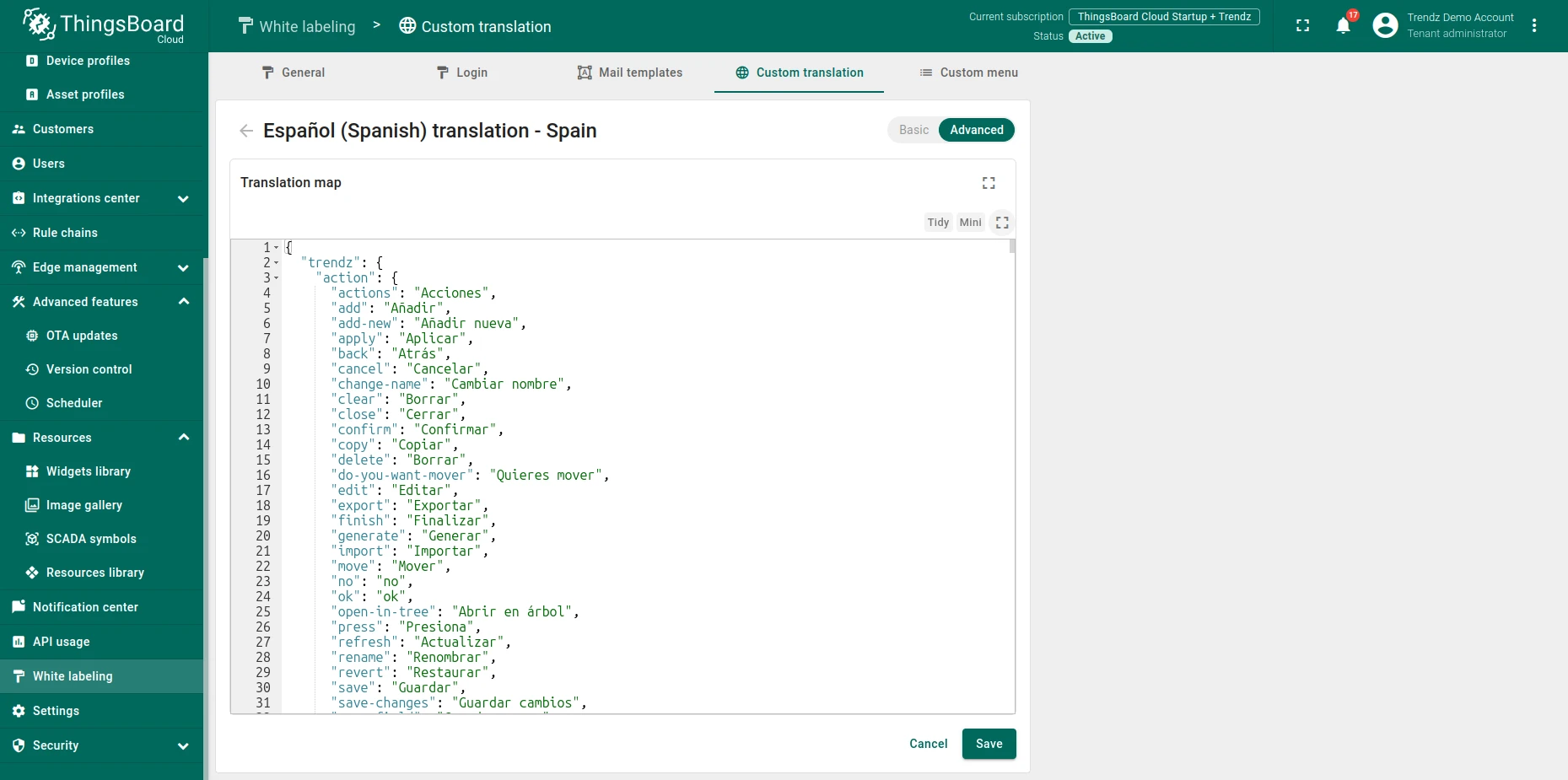
Click Save, then refresh the Trendz page to apply the changes.
To read more about managing custom translations in ThingsBoard, see White-labeling: Custom Translation.
Was this helpful?