Manage alarms
ThingsBoard Edge processes alarms locally using its own rule engine, without requiring a server connection. Alarms are synchronized bidirectionally with the server through the push to cloud and push to edge rule nodes. For details on synchronization mechanics, offline behavior, and notifications, see Alarms.
The flow you follow depends on where alarm rules are defined. If the rules are defined on the server and the alarms need to be visible on Edge, follow the first flow. If the rules are defined on Edge and the alarms need to be visible on the server, follow the second.
Push alarms from the server to Edge
Section titled “Push alarms from the server to Edge”Use this flow when alarm rules are defined on the server and the resulting alarms need to be visible on Edge — for example, to trigger local actions or display in an Edge dashboard.
-
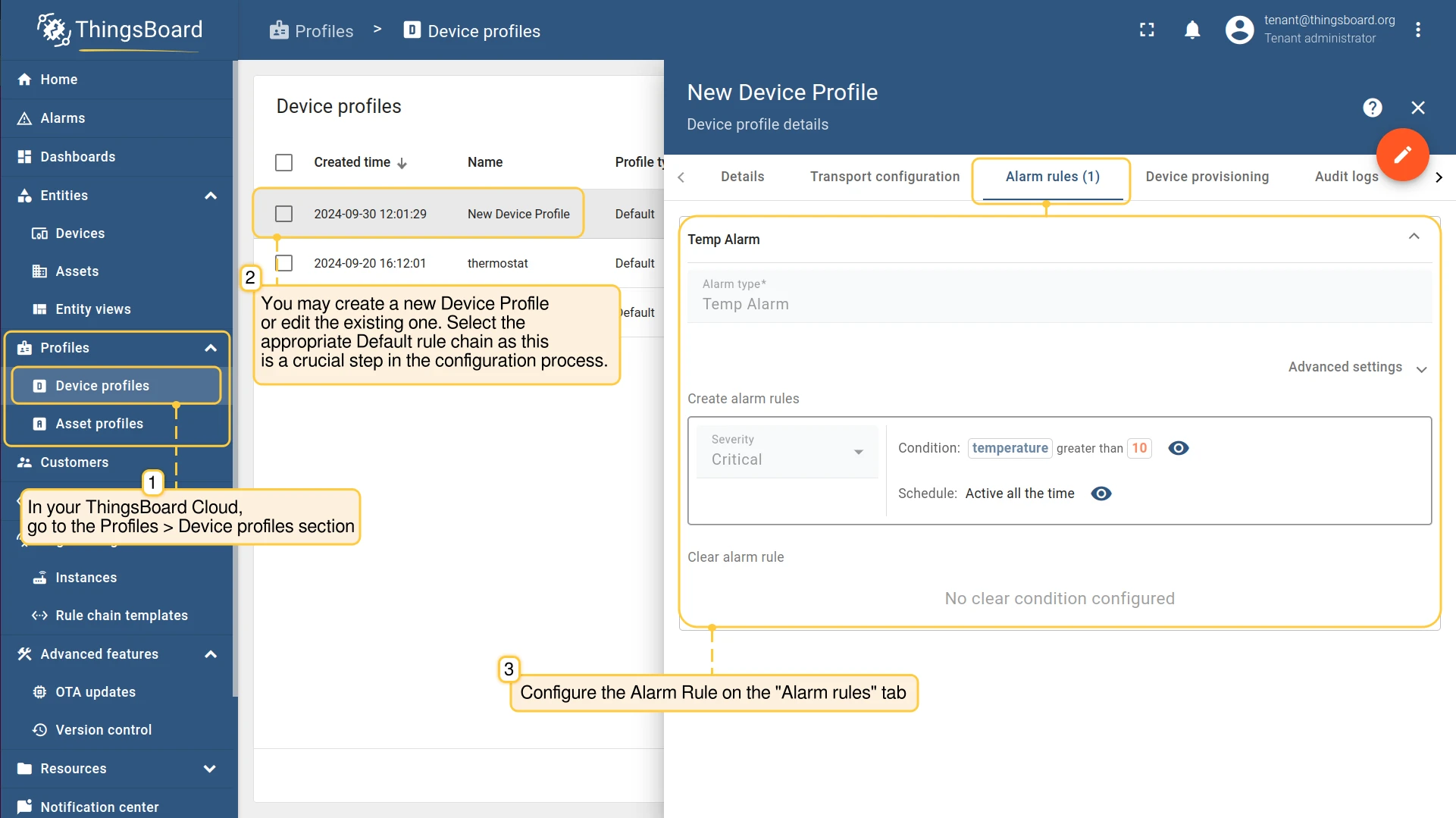
Go to Profiles → Device profiles on the server and open or create a device profile. Under Default rule chain, select the rule chain you want to use. Configure the Alarm rules tab with the threshold conditions.
-
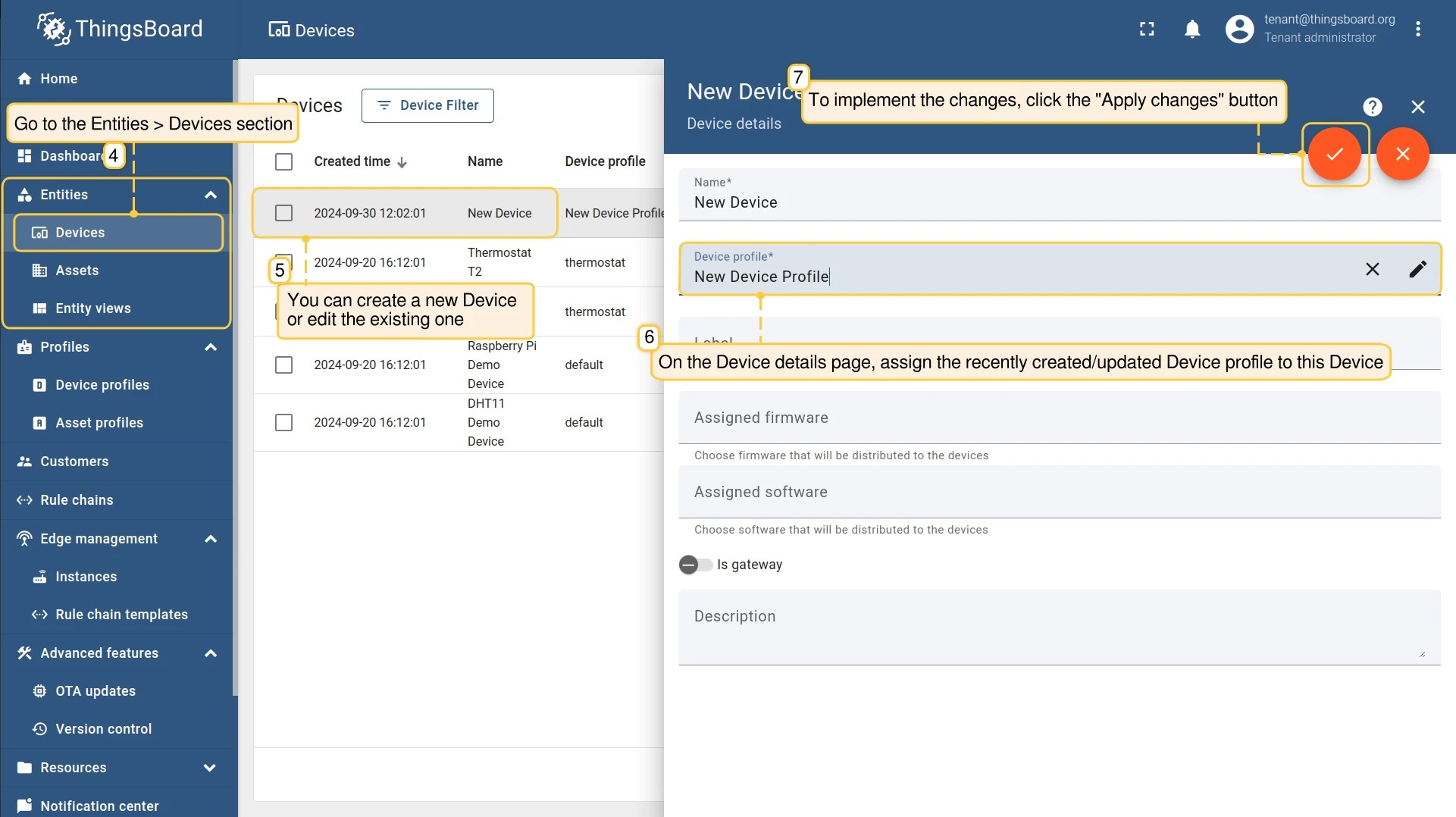
Go to Entities → Devices and assign the device profile to the target device. Click Apply changes.
-
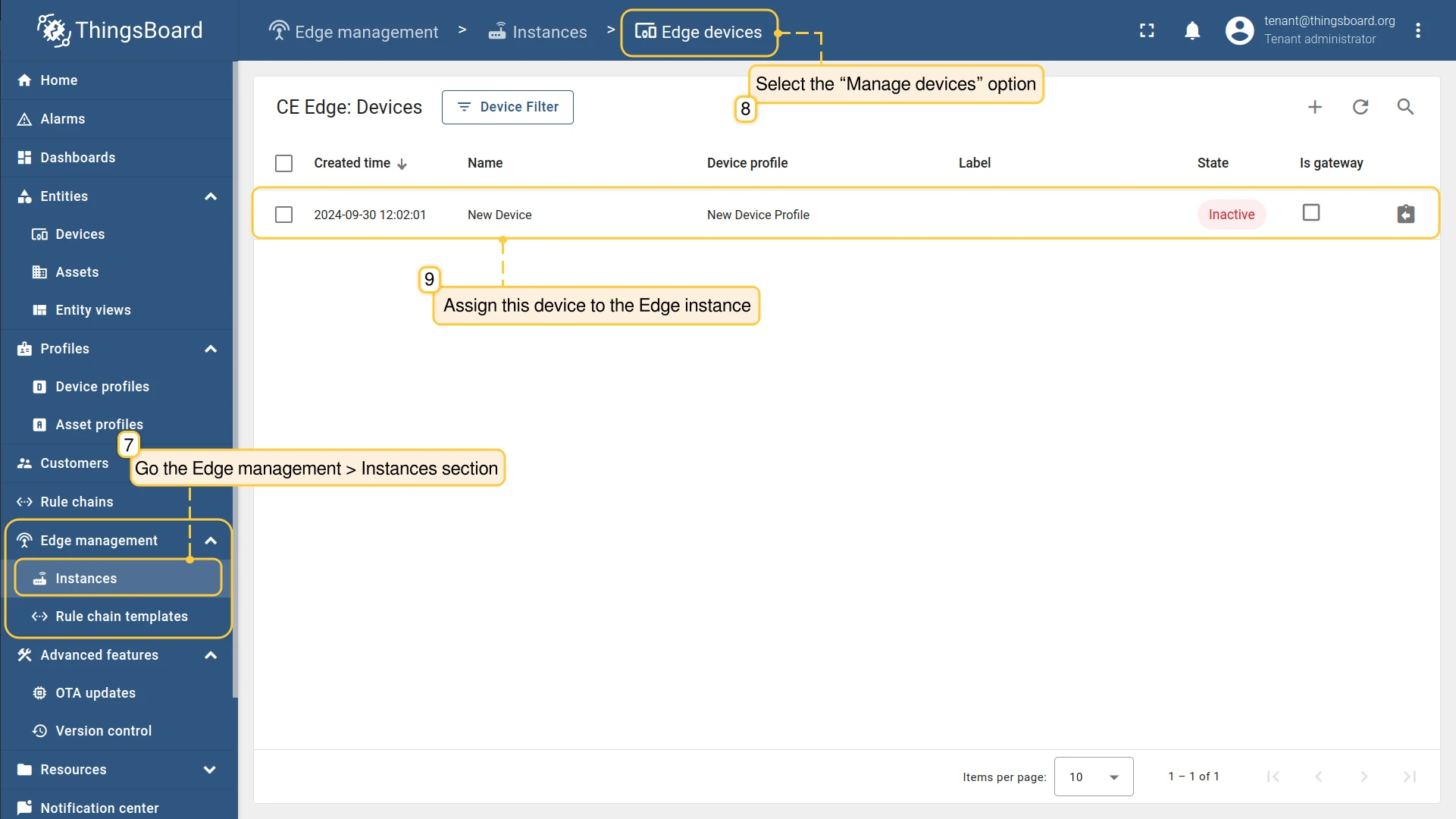
(CE only) Go to Edge management → Instances, open the target Edge instance, click Manage devices, and assign the device to it.
-
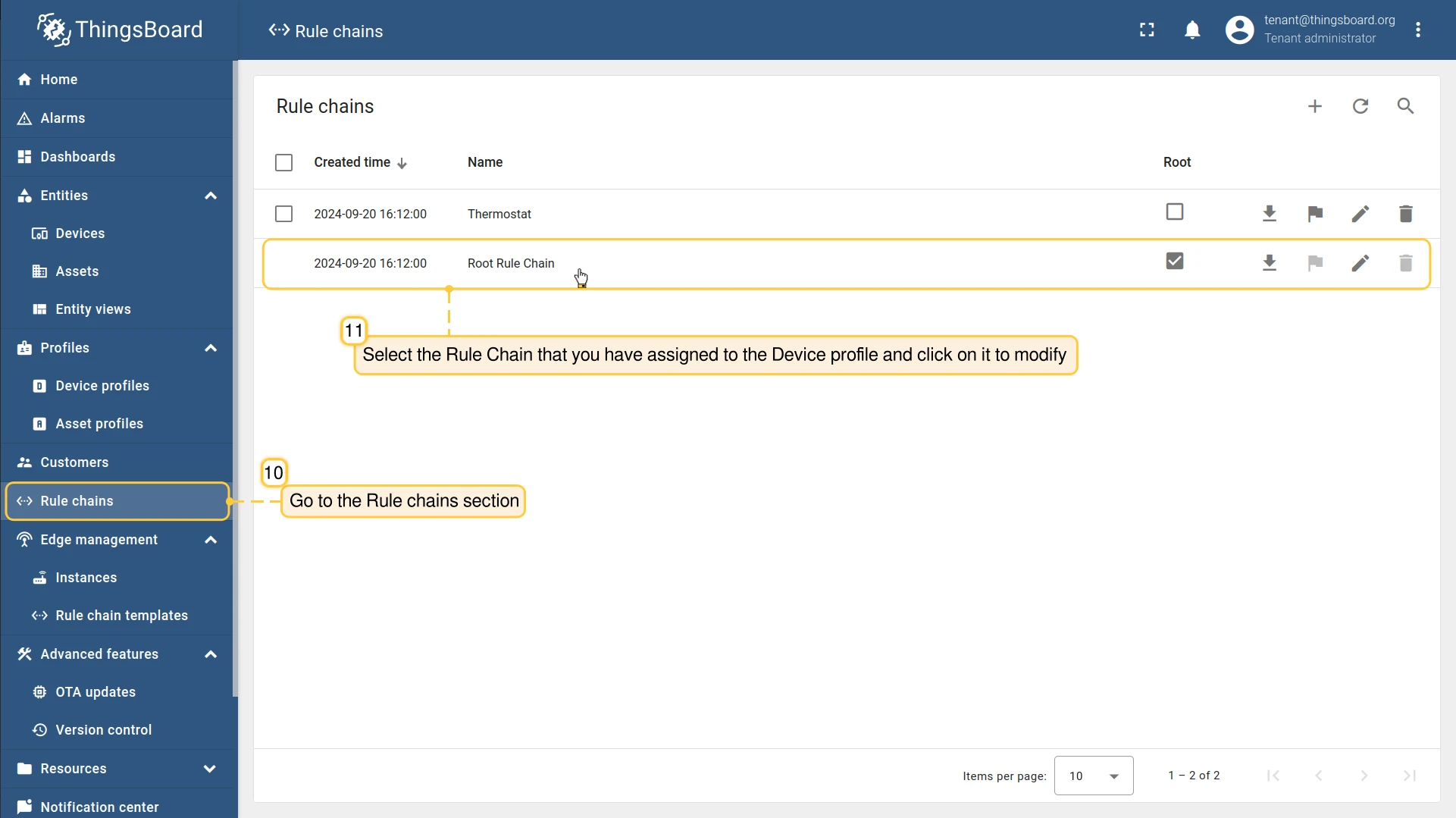
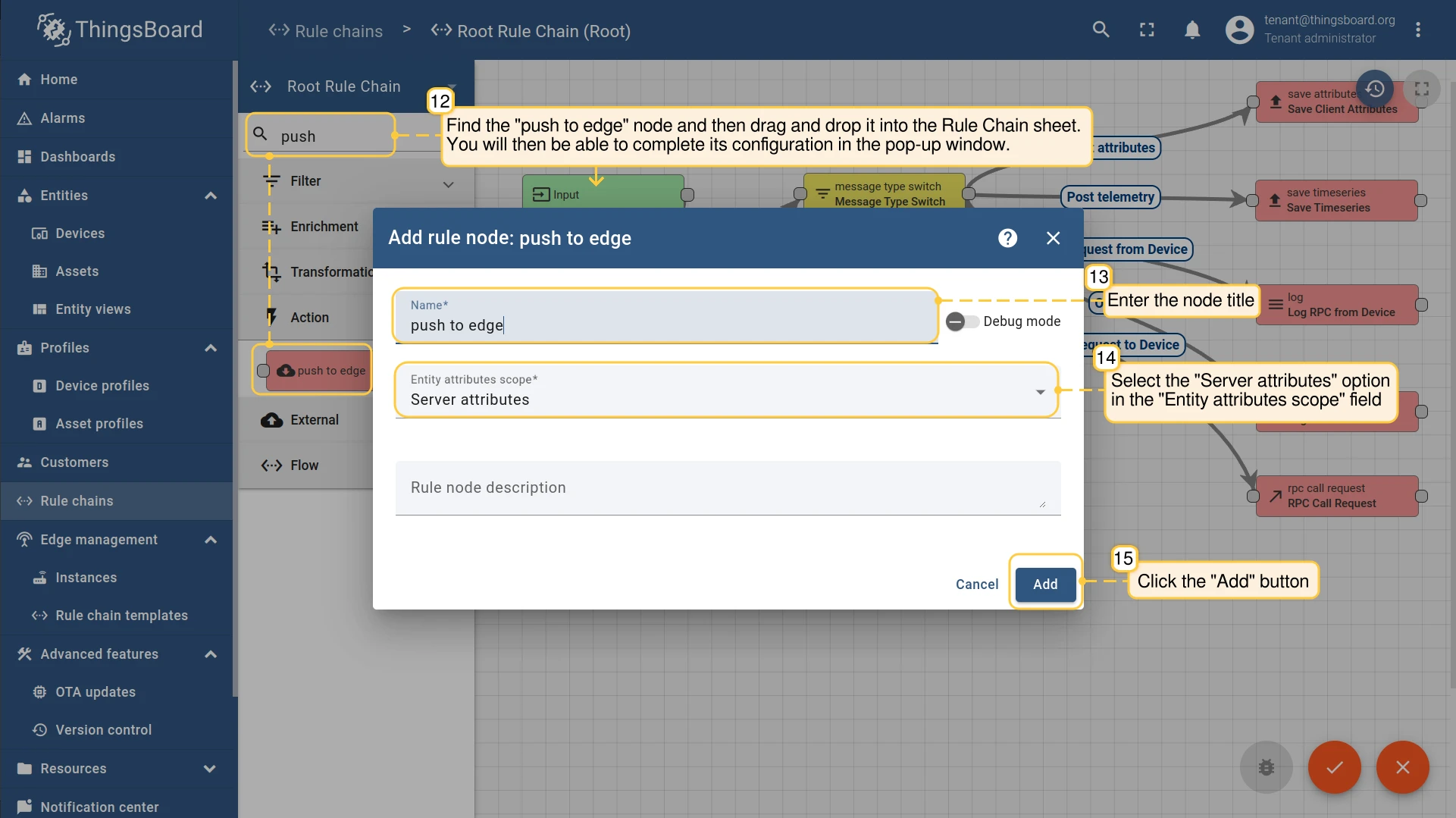
Open the rule chain assigned to the device profile. In the node search bar, find the push to edge node, drag it onto the canvas, enter a title, and set Entity attributes scope to Server attributes. Click Add.
-
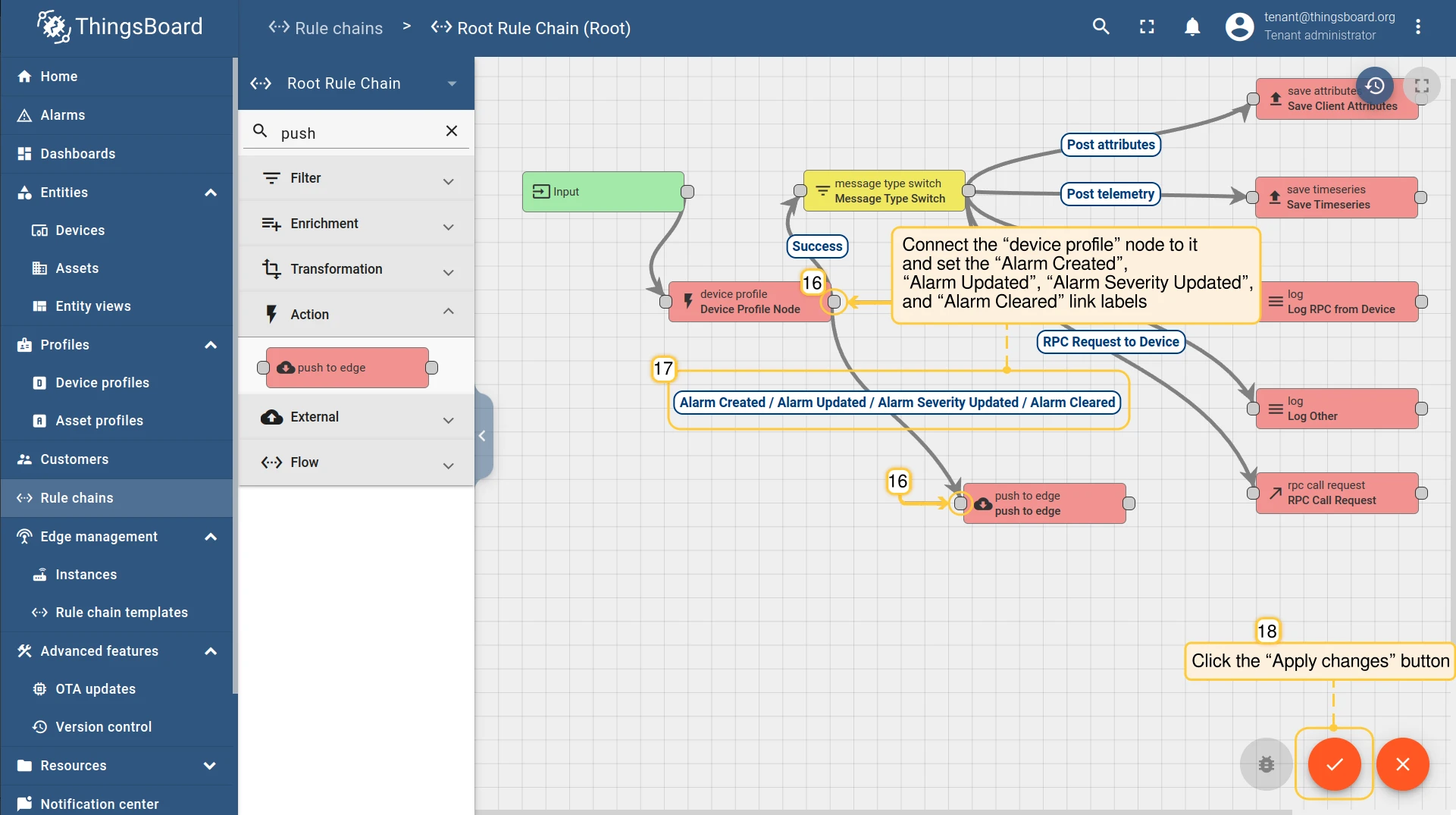
Connect the device profile node to the push to edge node. Set the link labels to Alarm Created, Alarm Updated, Alarm Severity Updated, and Alarm Cleared. Click Apply changes.
-
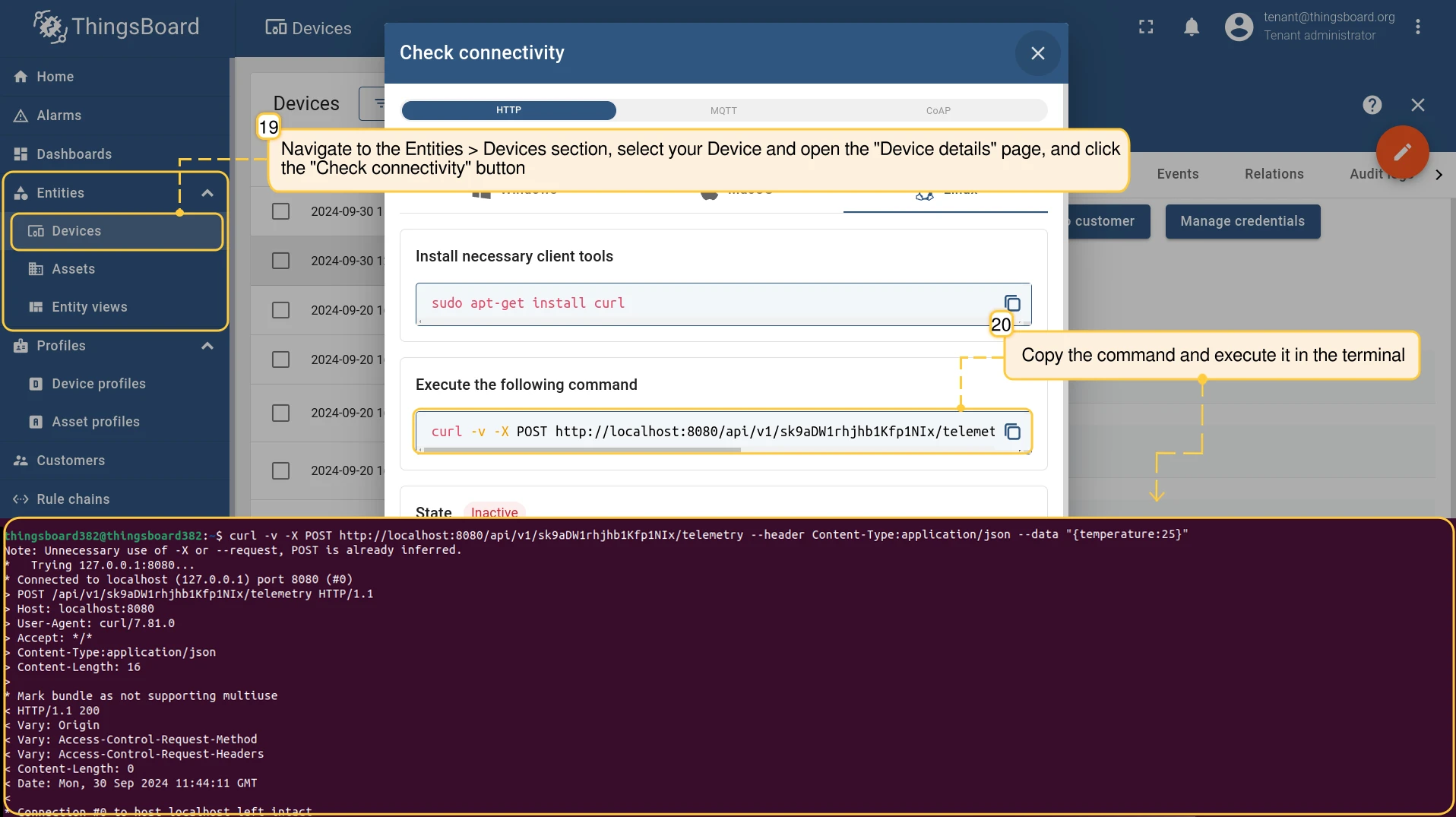
Trigger the alarm rule by sending telemetry that meets the threshold condition. Go to Entities → Devices, open the device, and click Check connectivity to get the test command.
-
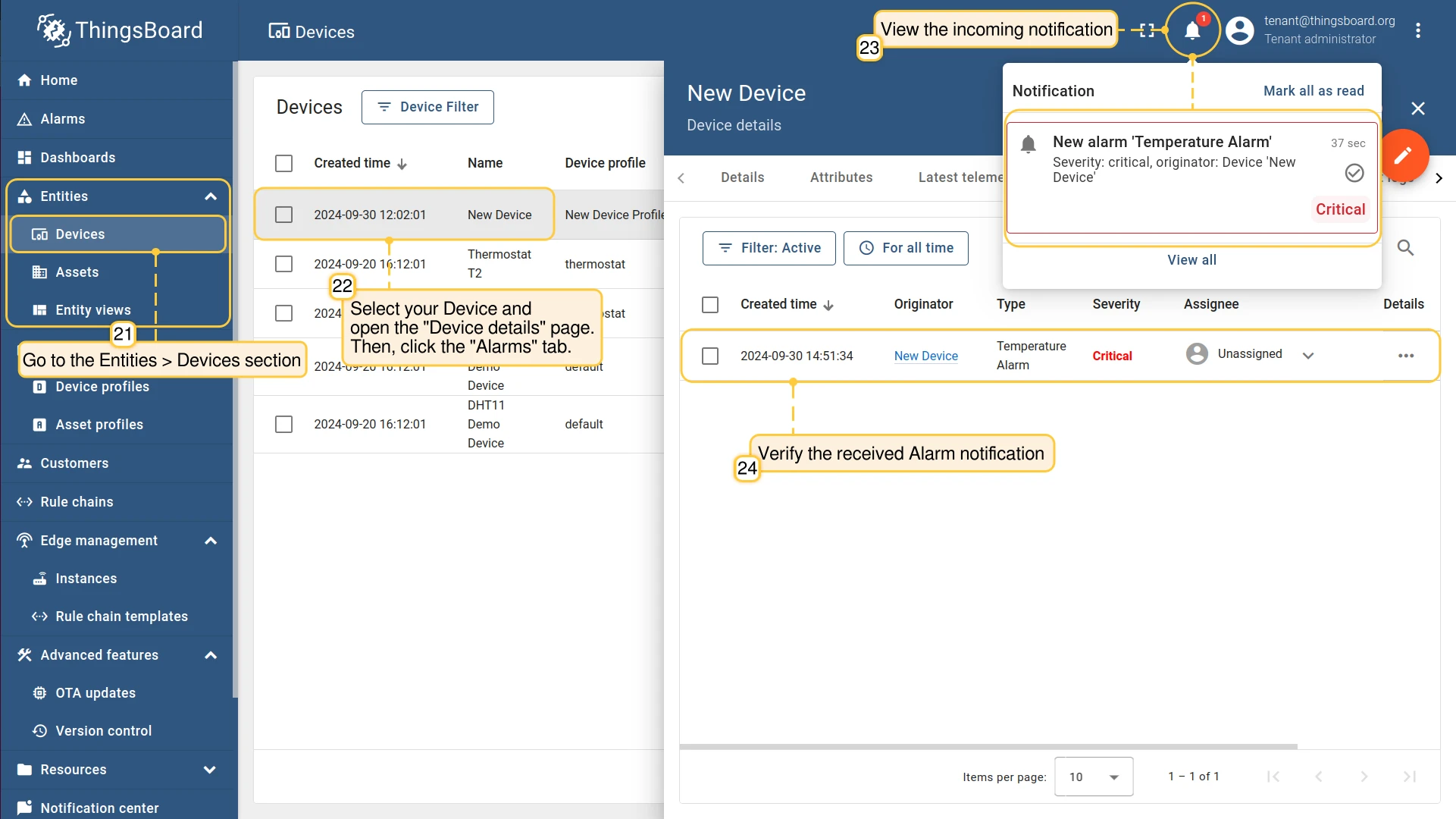
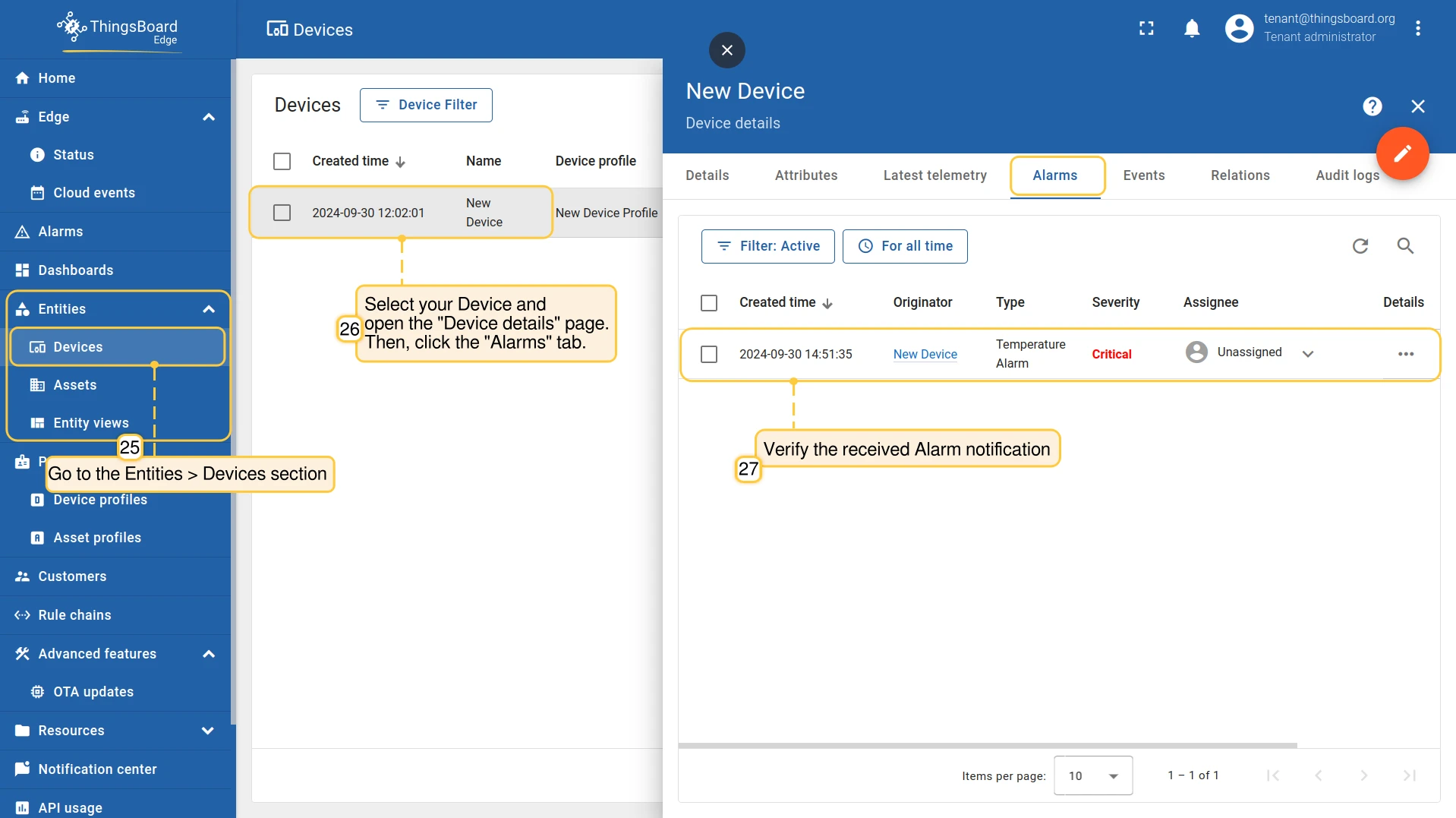
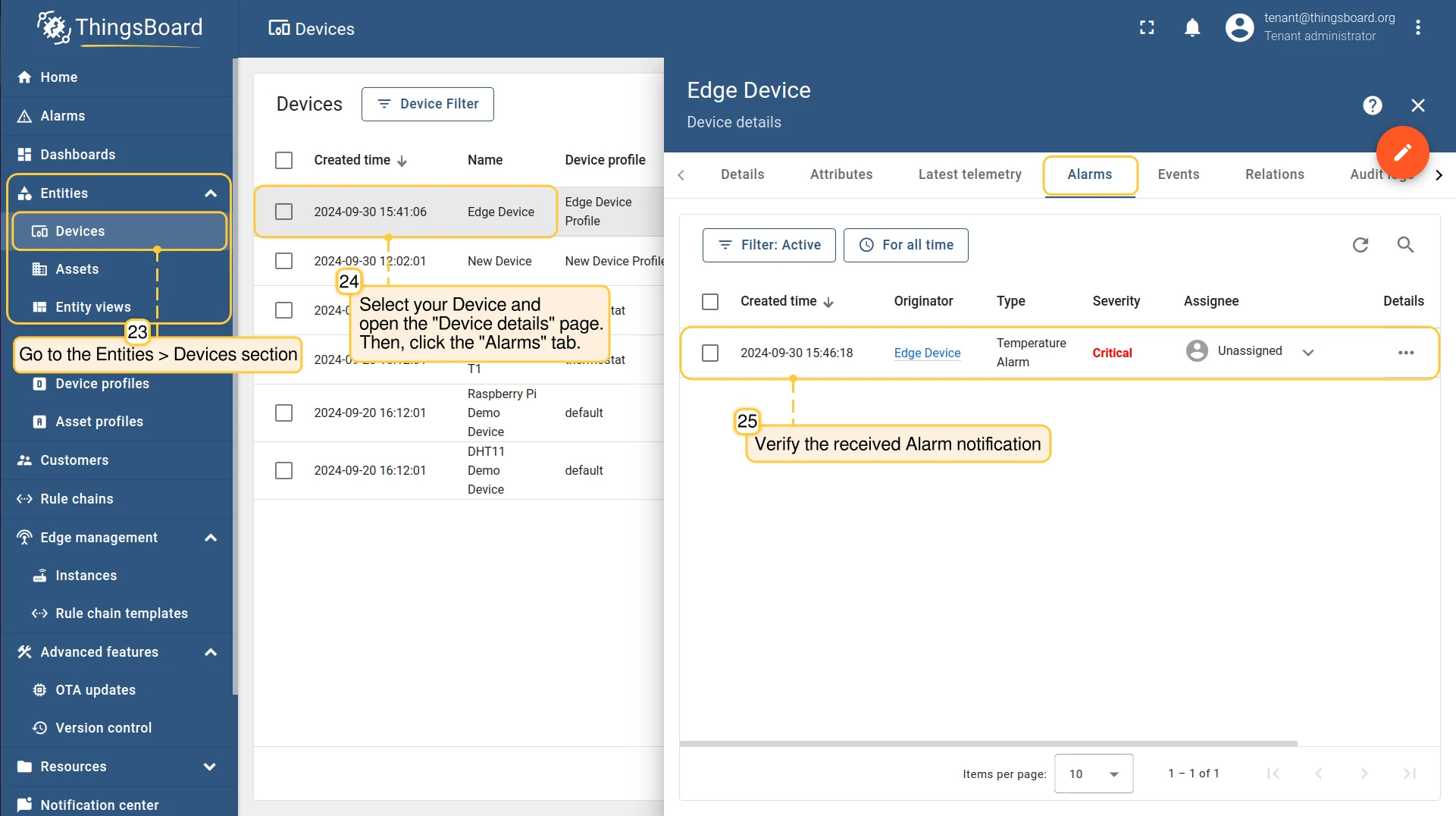
Verify the alarm on the server: go to Entities → Devices, open the device details, and select the Alarms tab.
-
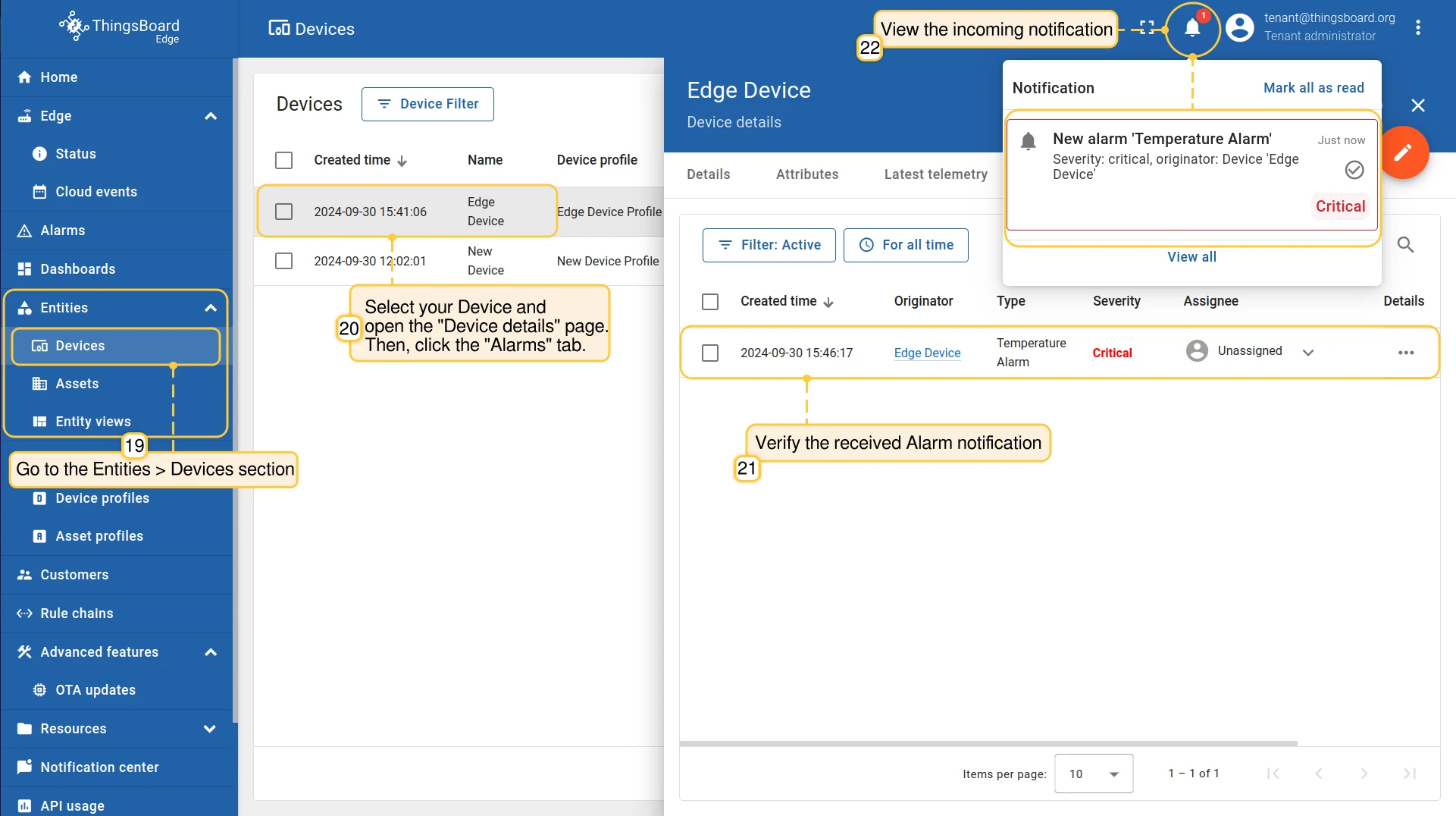
Verify the alarm on Edge: log in to the Edge instance, go to Entities → Devices, open the device details, and select the Alarms tab.
-
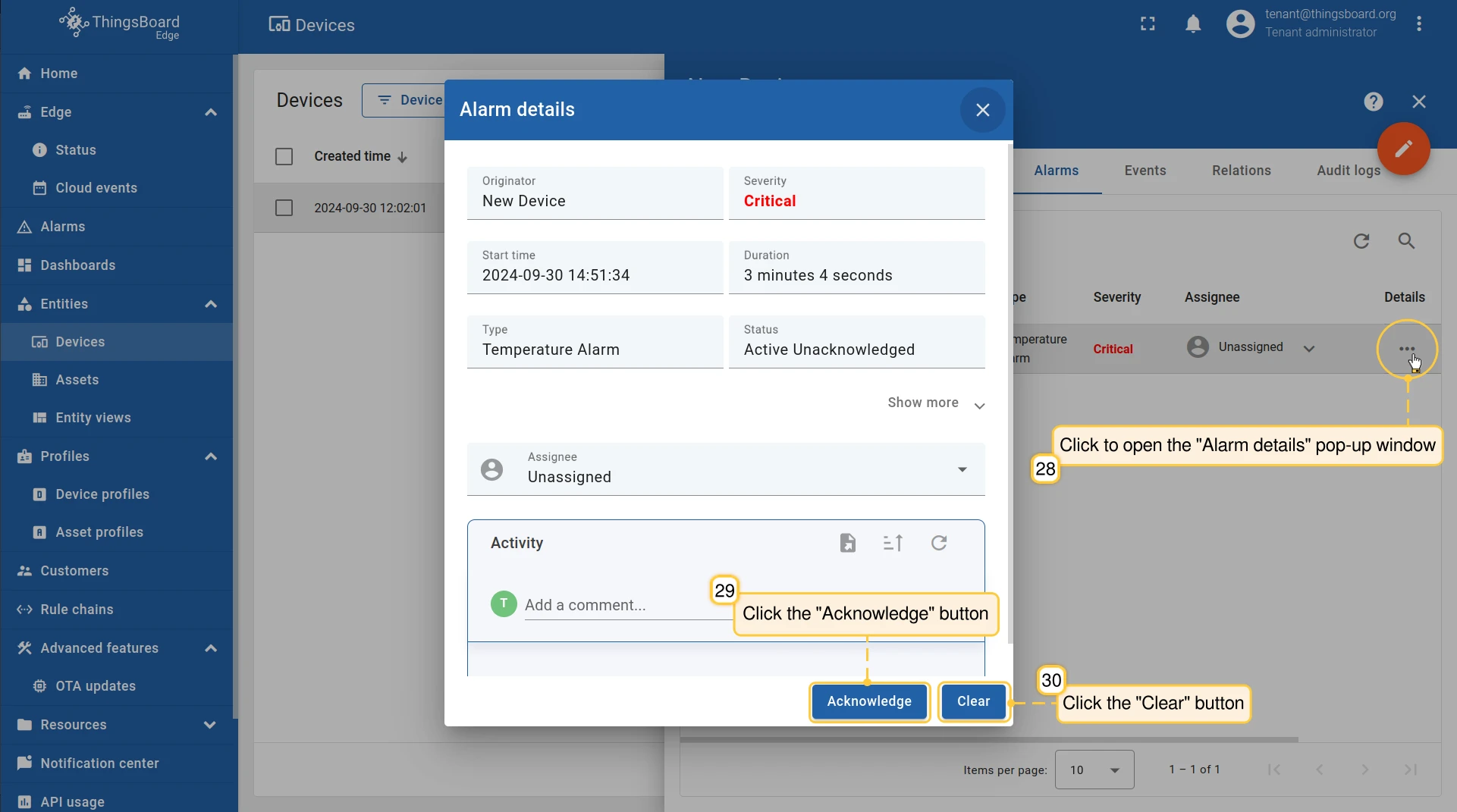
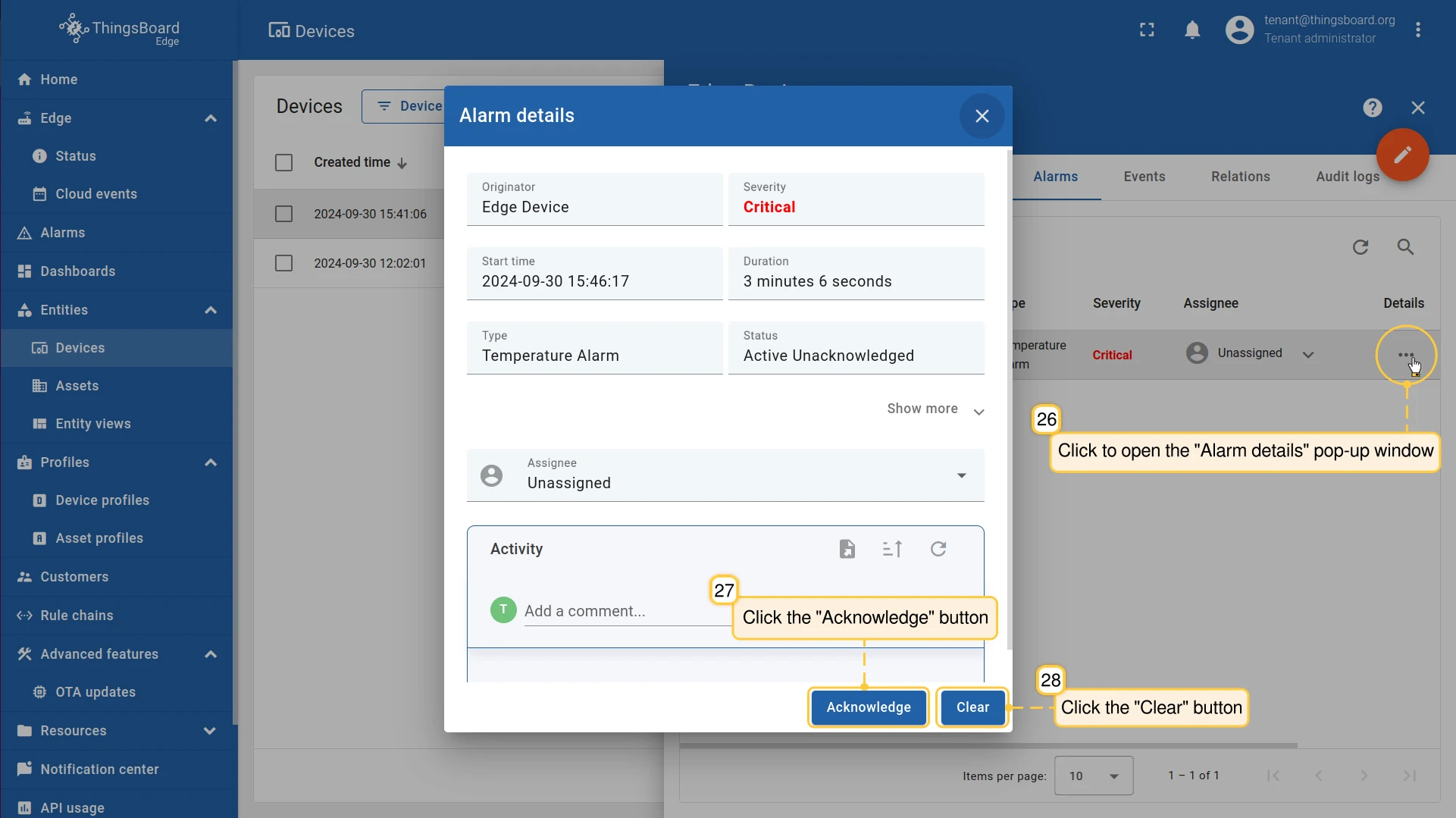
Acknowledge and clear the alarm from either the server or the Edge instance.
Push alarms from Edge to the server
Section titled “Push alarms from Edge to the server”Use this flow when alarm rules are defined on Edge and the resulting alarms need to be visible on the server — for example, for centralized monitoring across multiple Edge instances.
-
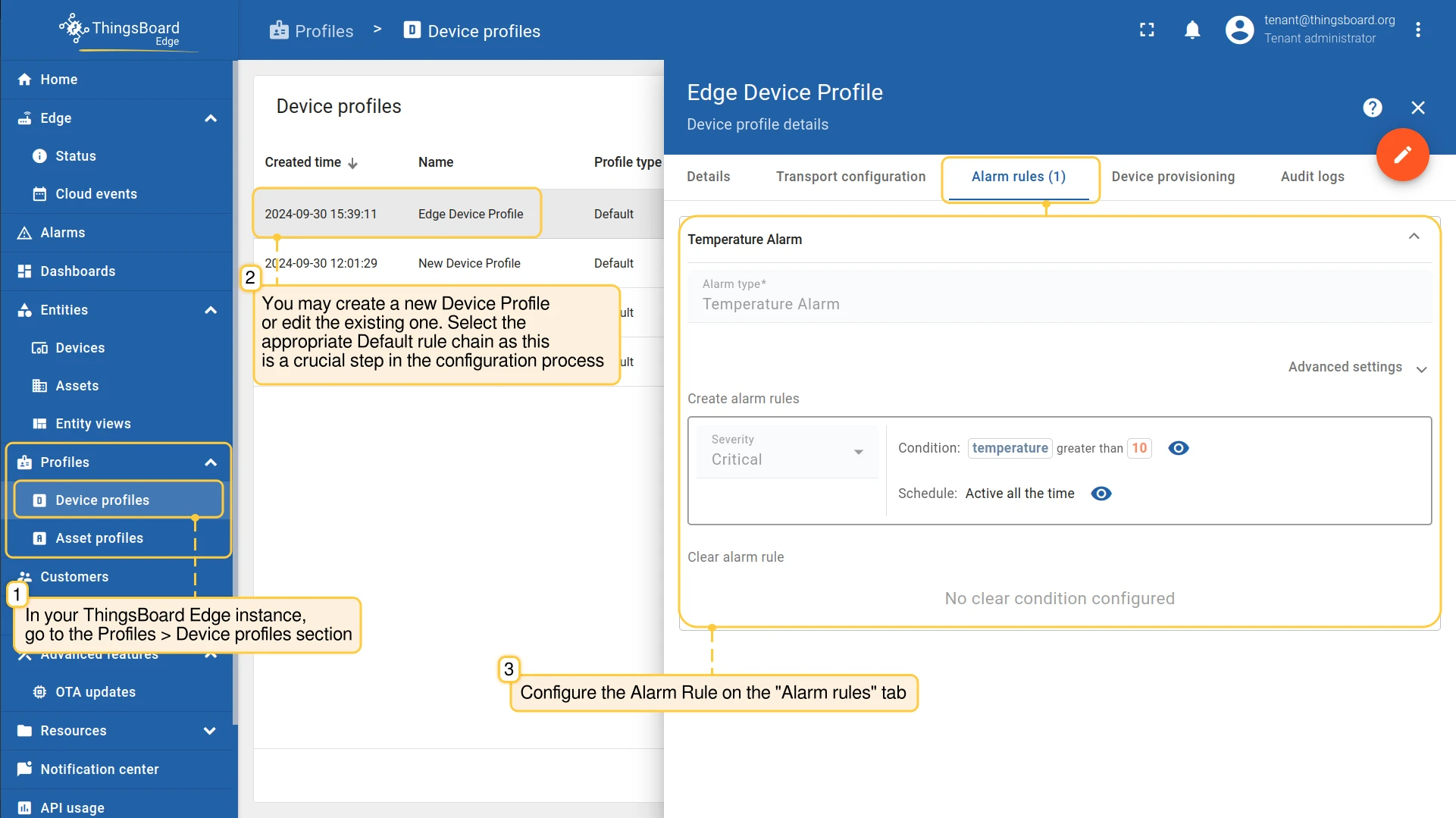
Log in to the Edge instance. Go to Profiles → Device profiles and open or create a device profile. Set the Default rule chain and configure the Alarm rules tab.
-
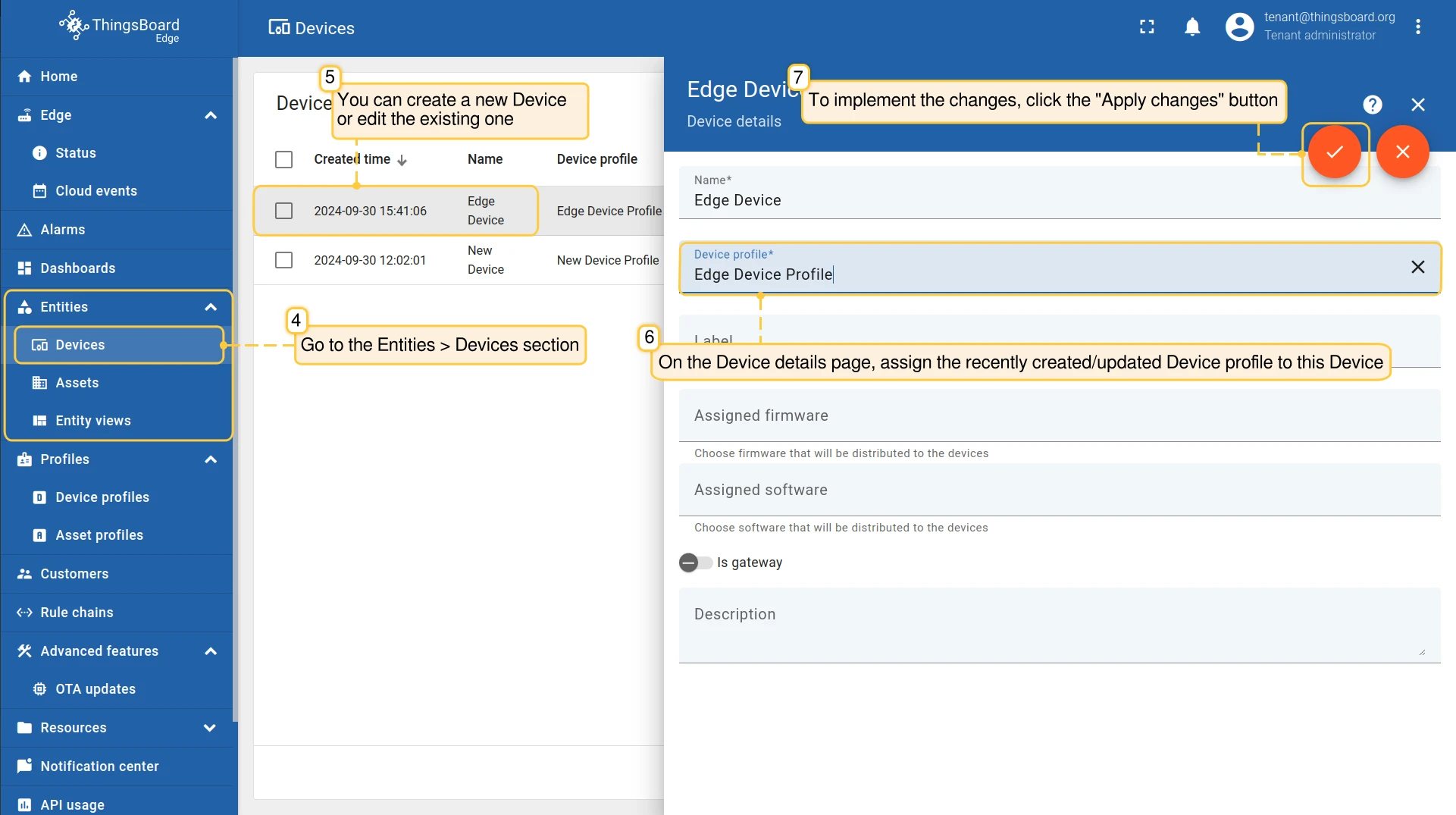
Go to Entities → Devices on Edge and assign the device profile to the target device. Click Apply changes.
-
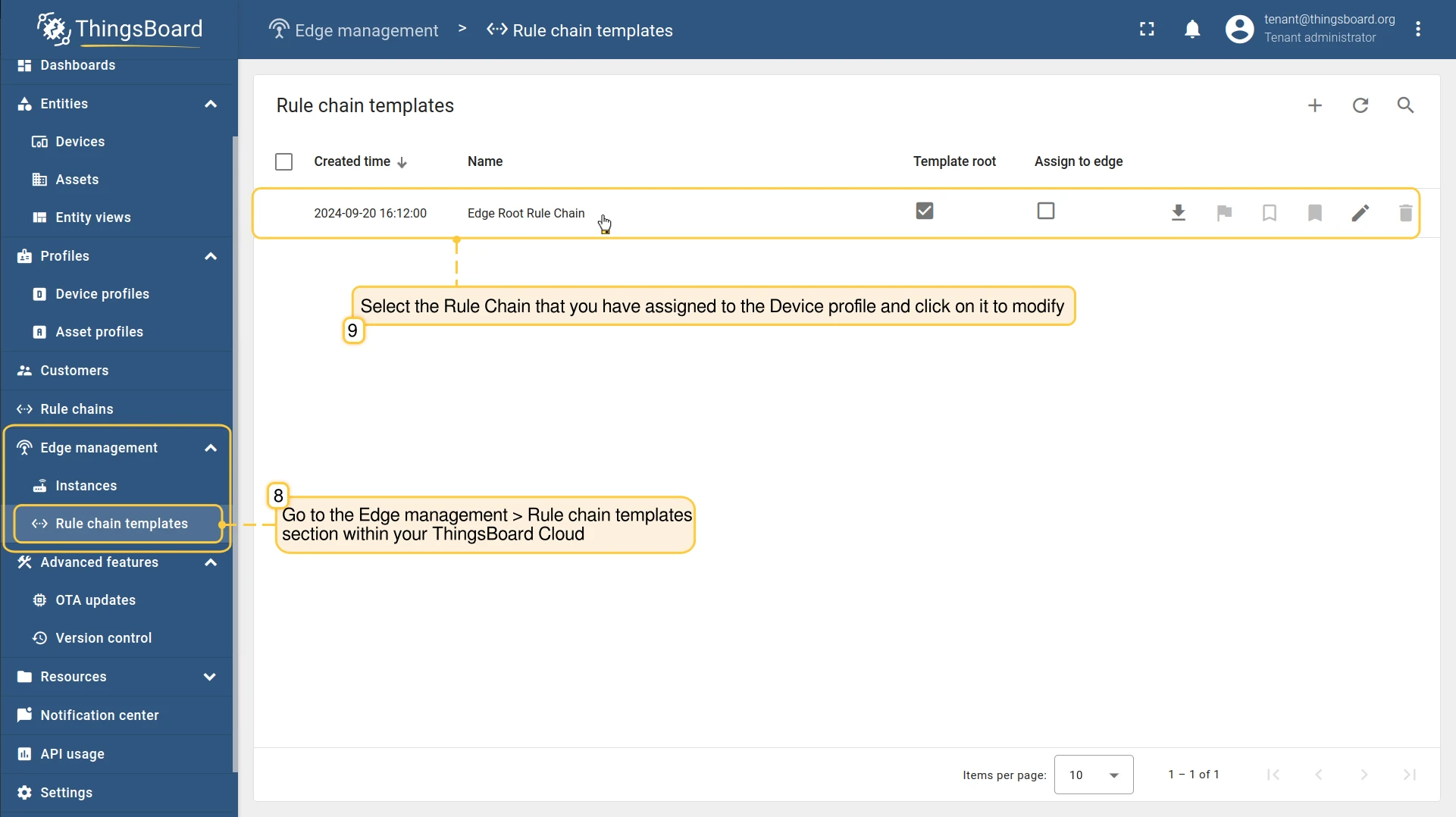
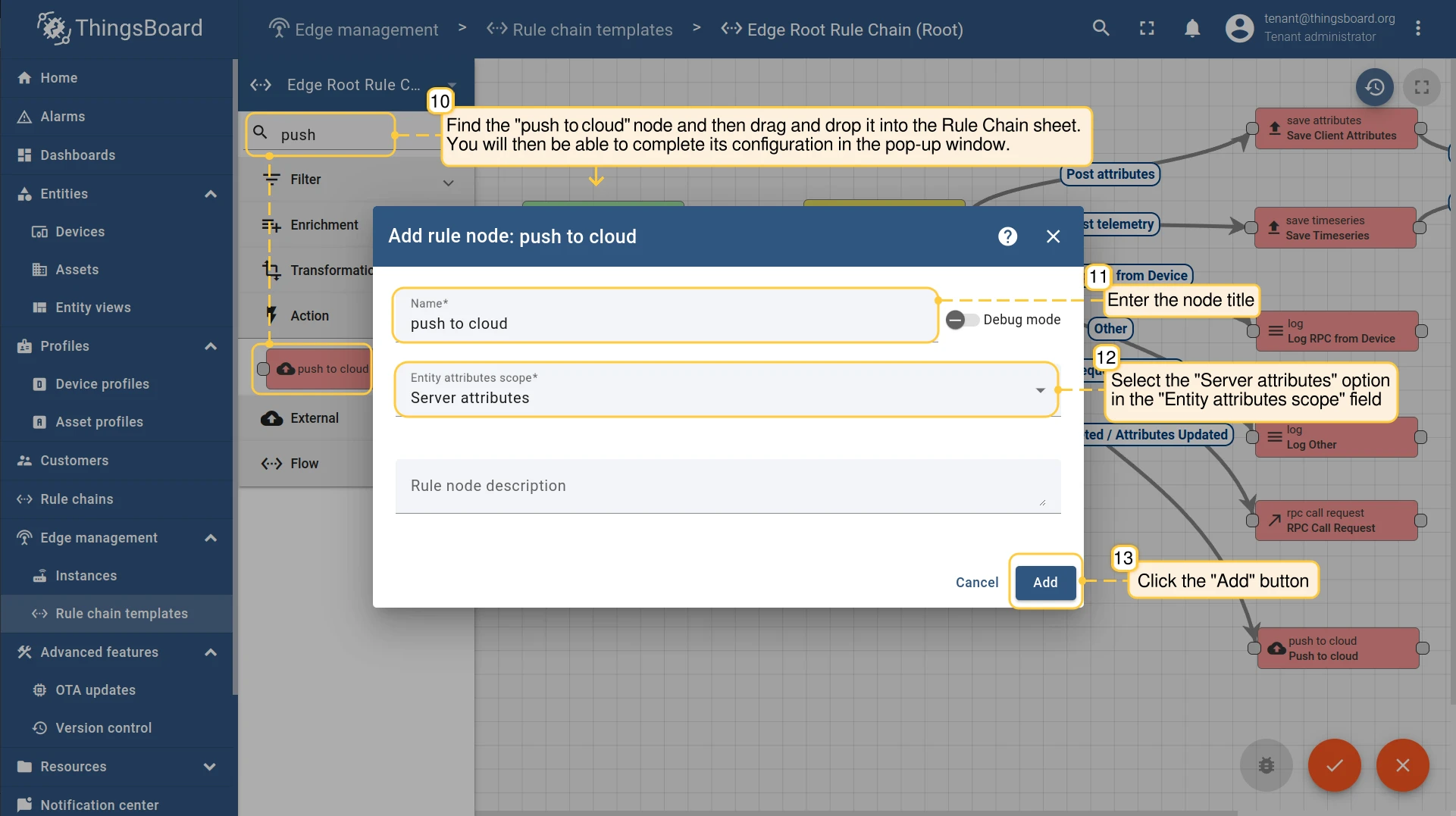
Open the rule chain assigned to the device profile. On the server, go to Edge management → Rule chain templates — or, on Edge 4.0 and later, go to Rule chains directly on the Edge instance. Find the push to cloud node in the search bar, drag it onto the canvas, enter a title, and set Entity attributes scope to Server attributes. Click Add.
-
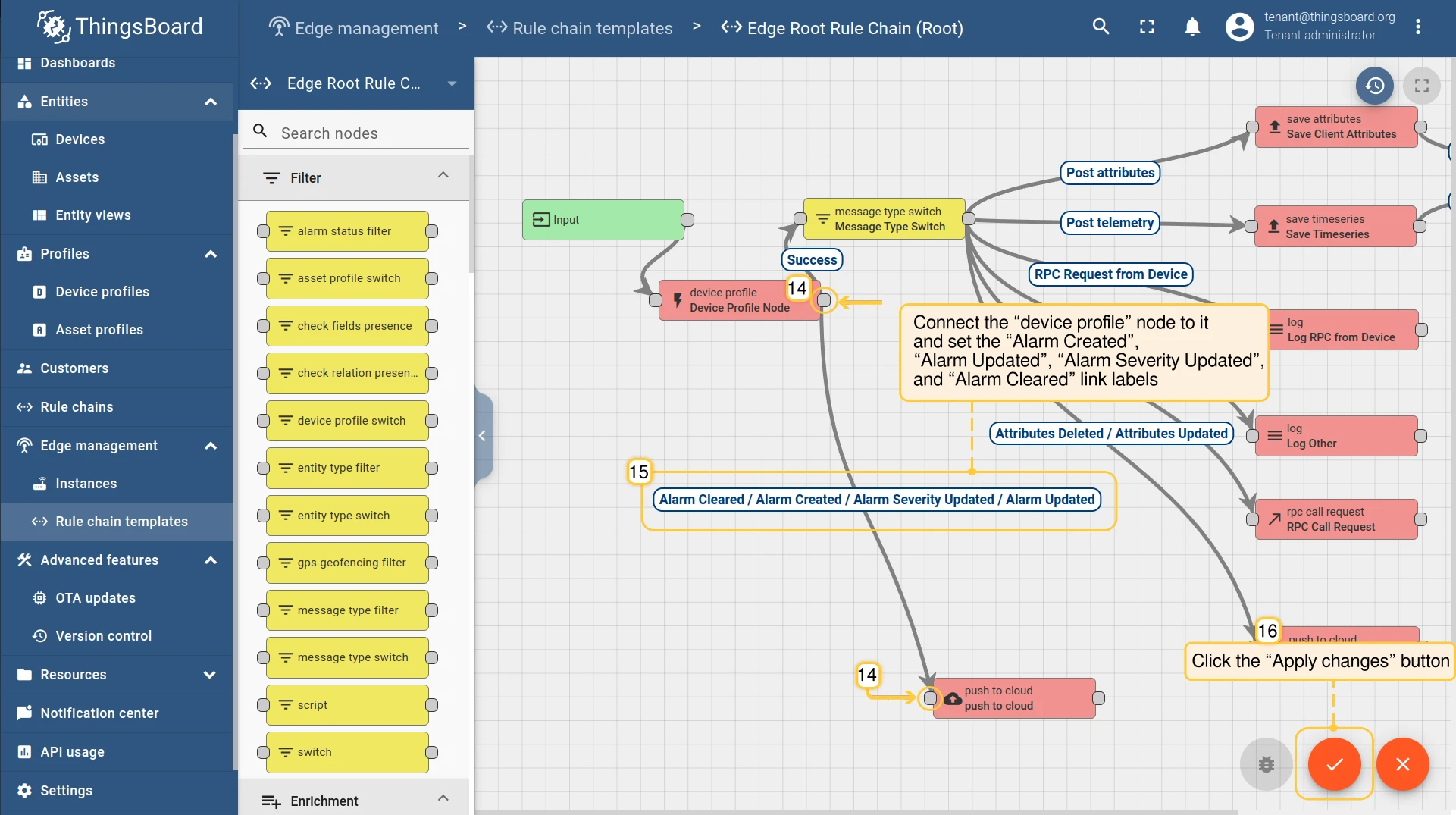
Connect the device profile node to the push to cloud node. Set the link labels to Alarm Created, Alarm Updated, Alarm Severity Updated, and Alarm Cleared. Click Apply changes.
-
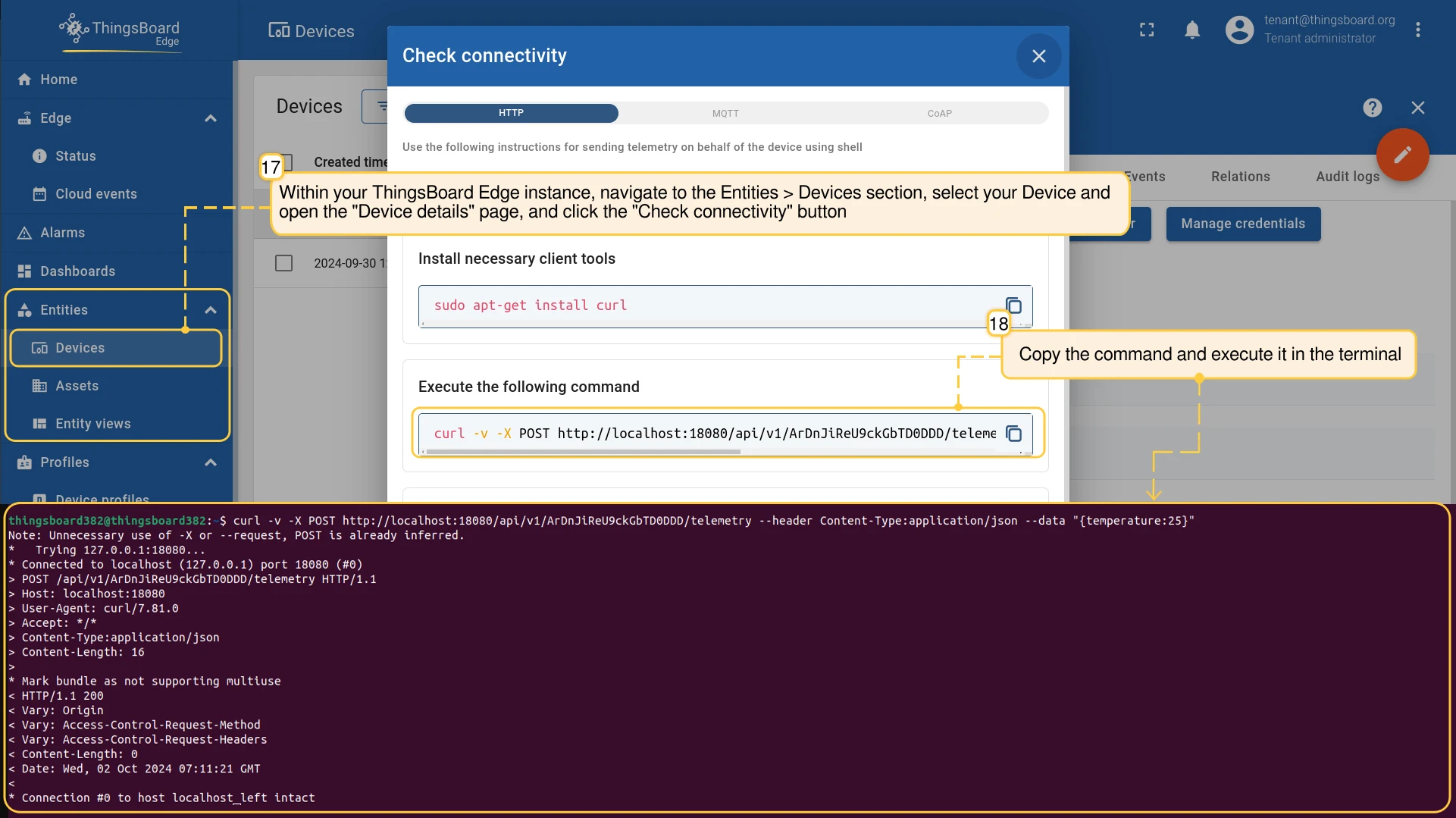
Trigger the alarm rule by sending telemetry that meets the threshold condition. Log in to the Edge instance, go to Entities → Devices, open the device, and click Check connectivity to get the test command.
-
Verify the alarm on Edge: go to Entities → Devices, open the device details, and select the Alarms tab.
-
Verify the alarm on the server: log in to the server, go to Entities → Devices, open the device details, and select the Alarms tab.
-
Acknowledge and clear the alarm from either the server or the Edge instance.
Was this helpful?