
HTTP integration
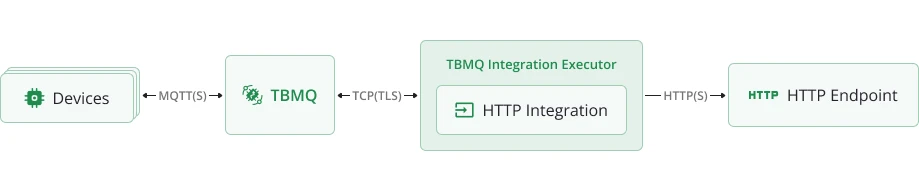
TBMQ HTTP Integration forwards MQTT messages from devices to an external system using the HTTP protocol. It acts as a bridge between TBMQ and external applications, ensuring reliable data exchange.
Data flow
Section titled “Data flow”- Device (client) publishes an MQTT message to a topic matching the integration’s topic filters.
- TBMQ broker receives the message and forwards it to the TBMQ Integration Executor.
- Integration Executor processes the message, formats it as an HTTP request, and forwards it to the external service.
- External service receives the request and processes the data.
Prerequisites
Section titled “Prerequisites”- A running TBMQ instance.
- An external service ready to receive HTTP requests (e.g., ThingsBoard Cloud).
- A client capable of publishing MQTT messages (e.g., TBMQ WebSocket Client).
Create ThingsBoard Integration
Section titled “Create ThingsBoard Integration”In this tutorial, ThingsBoard is used as the external HTTP service. Any other HTTP-compatible service can be used instead.
Follow the ThingsBoard HTTP Integration Guide to create an integration on ThingsBoard Cloud.
Once created:
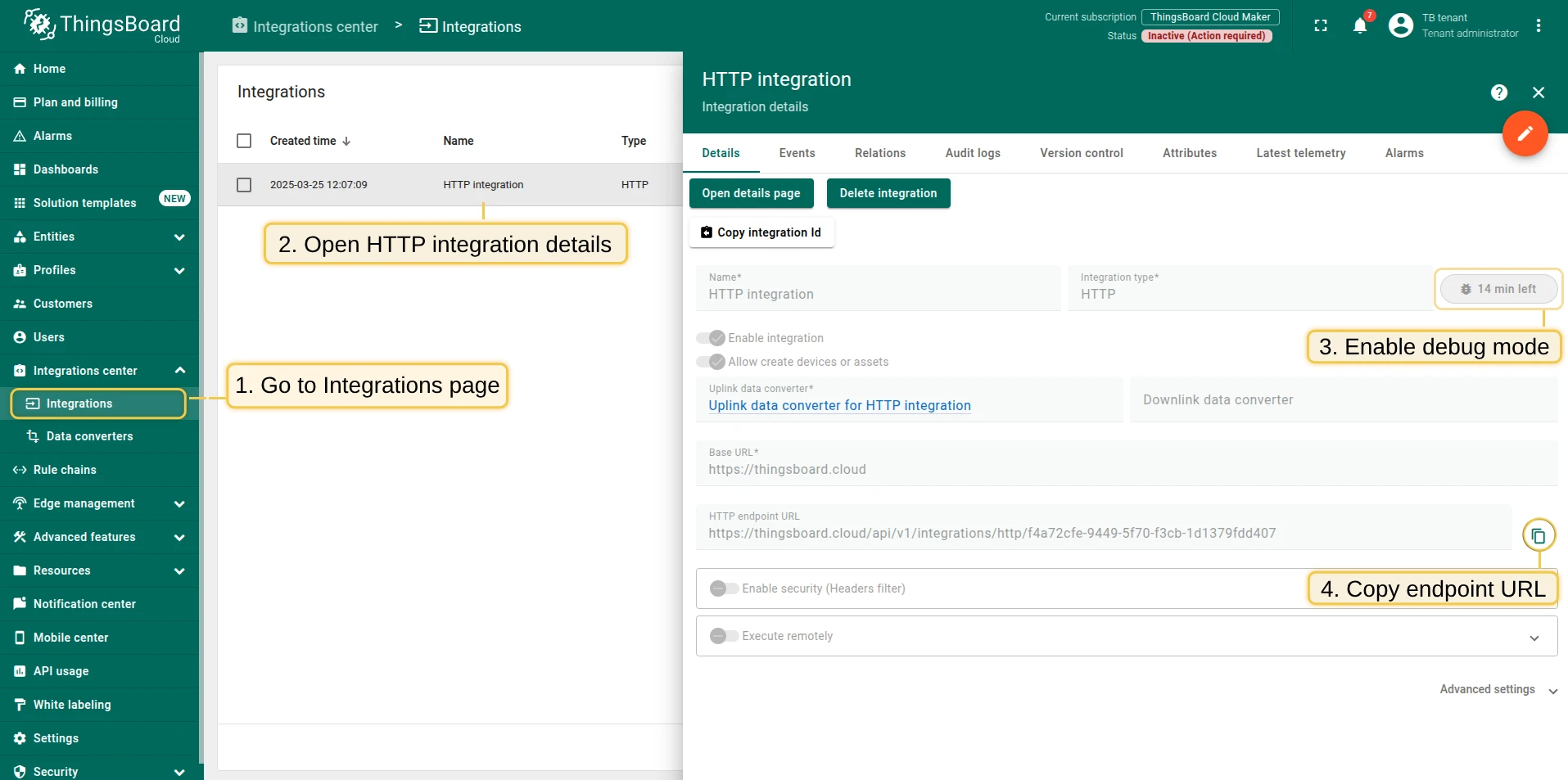
- Open the details page and enable debug mode to verify data reception.
- Copy the HTTP endpoint URL — you will need it in the next step.
Create TBMQ HTTP Integration
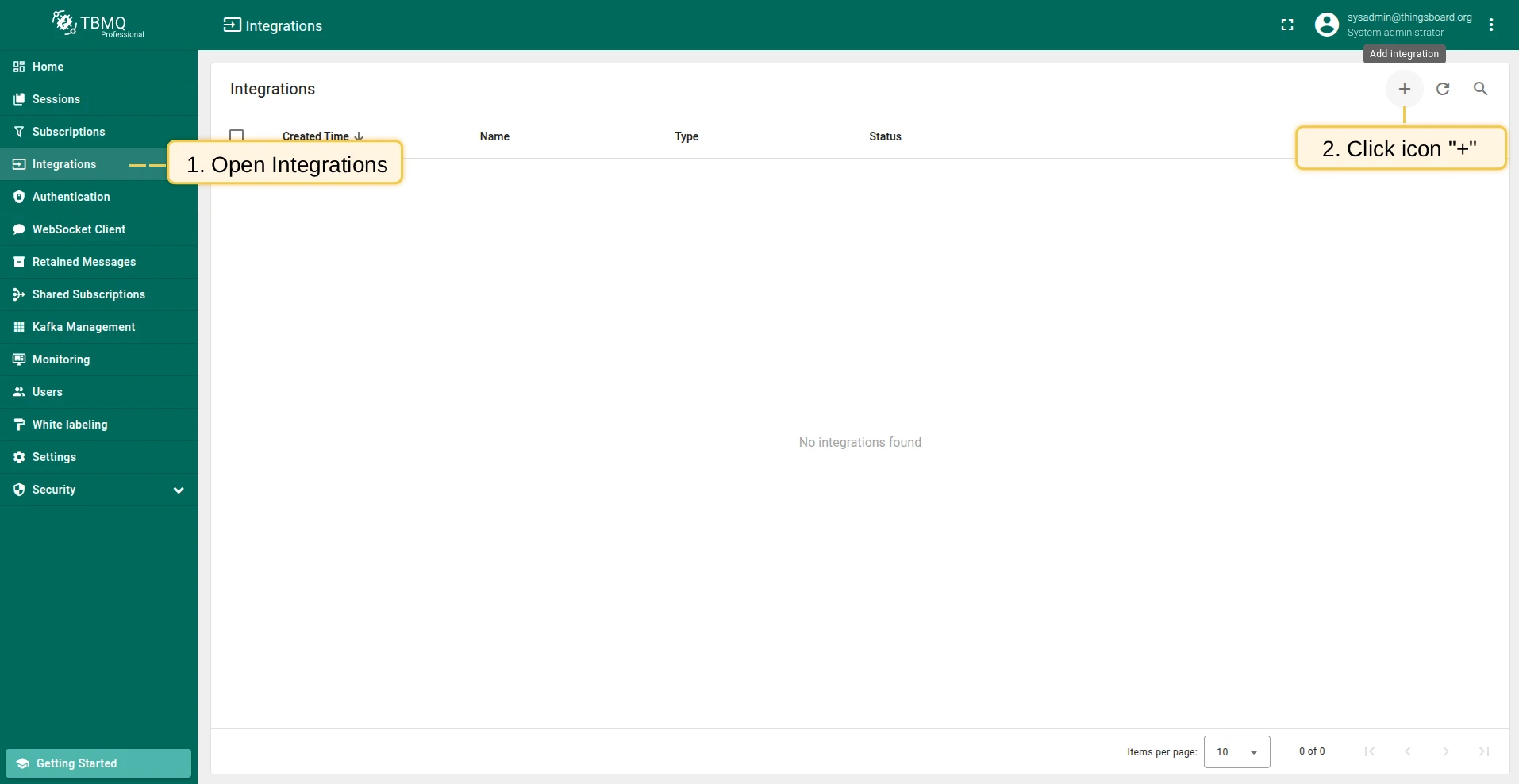
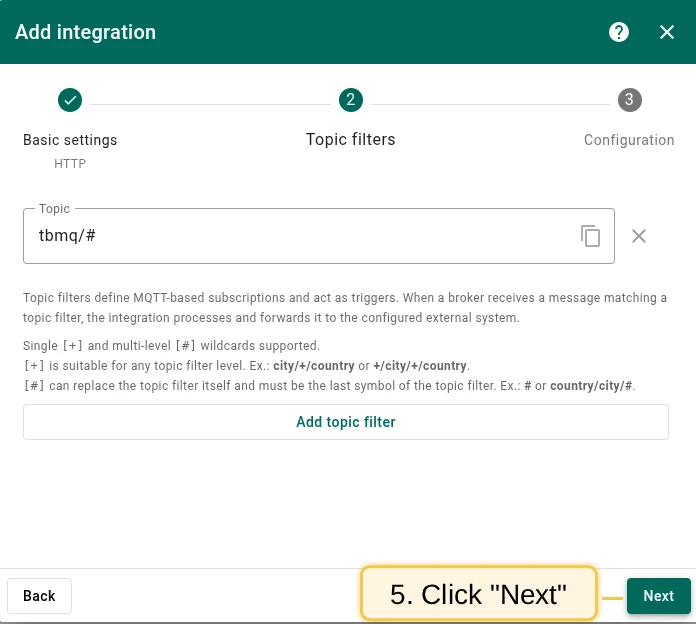
Section titled “Create TBMQ HTTP Integration”- Go to the Integrations page and click the ”+” button.
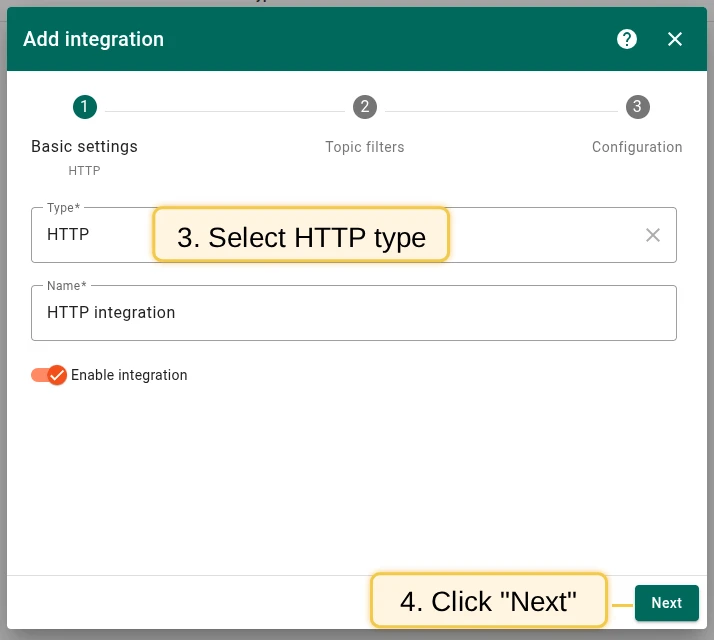
- Select HTTP as the integration type and click Next.
- On the Topic Filters step, click Next to subscribe to the default topic
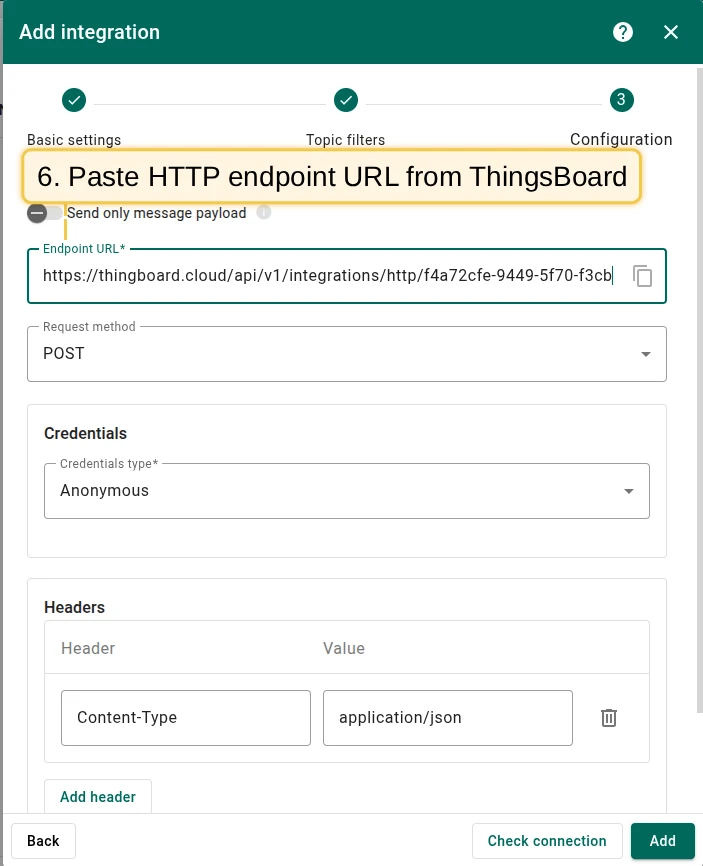
tbmq/#. - In the Configuration step, paste the Endpoint URL from the ThingsBoard Integration.
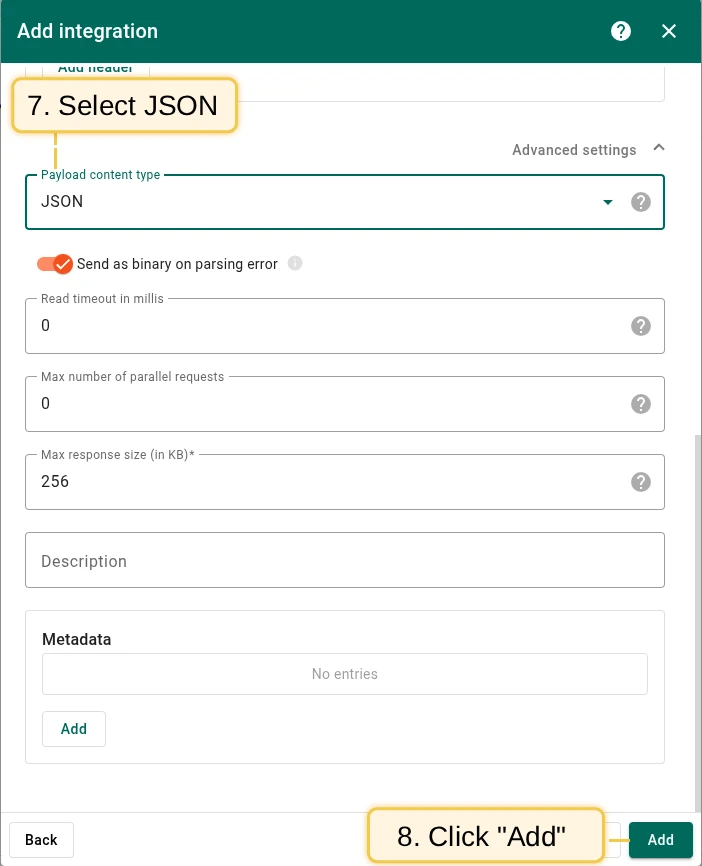
- Open Advanced settings and set Payload content type to
JSON. - Click Add to save the integration.
Topic filters
Section titled “Topic filters”Topic filters define MQTT-based subscriptions that trigger the integration. When TBMQ receives a message matching a configured topic filter, the integration processes it and forwards the data to the external system.
For example, with the topic filter tbmq/devices/+/status, any of the following messages will trigger the integration:
tbmq/devices/device-01/statustbmq/devices/gateway-01/statusConfiguration
Section titled “Configuration”| Field | Description |
|---|---|
| Send only message payload | If enabled, the incoming message’s payload is forwarded as is. If disabled, a JSON object with the payload and additional properties is sent. |
| Endpoint URL | The external service URL where HTTP requests are sent. |
| Request Method | Supported: GET, POST, PUT, DELETE. |
| Credentials | Anonymous, Basic Authentication (username + password), or PEM-based authentication. |
| Headers | Key-value pairs added to the HTTP request headers. |
| Payload Content Type | Format of the request body: JSON, Text, Binary (Base64). |
| Send as binary on parsing error | If enabled, messages failing JSON or Text parsing are sent as binary. If disabled, they are not sent. |
| Read Timeout | Maximum time to wait for a response before timing out. |
| Max Parallel Requests | Limits the number of concurrent HTTP requests. |
| Max Response Size | Maximum allowed size for incoming responses. |
| Metadata | Custom metadata attached to forwarded messages. |
Events
Section titled “Events”TBMQ logs integration-related events for debugging and troubleshooting:
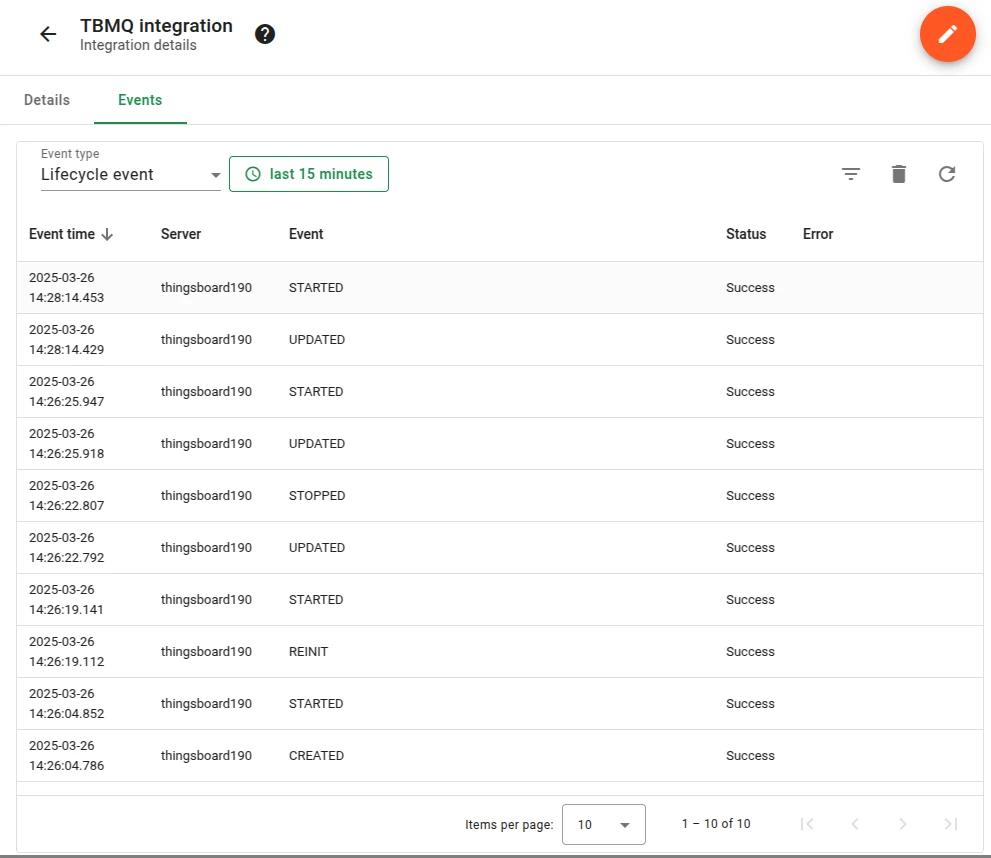
- Lifecycle Events — logs events such as
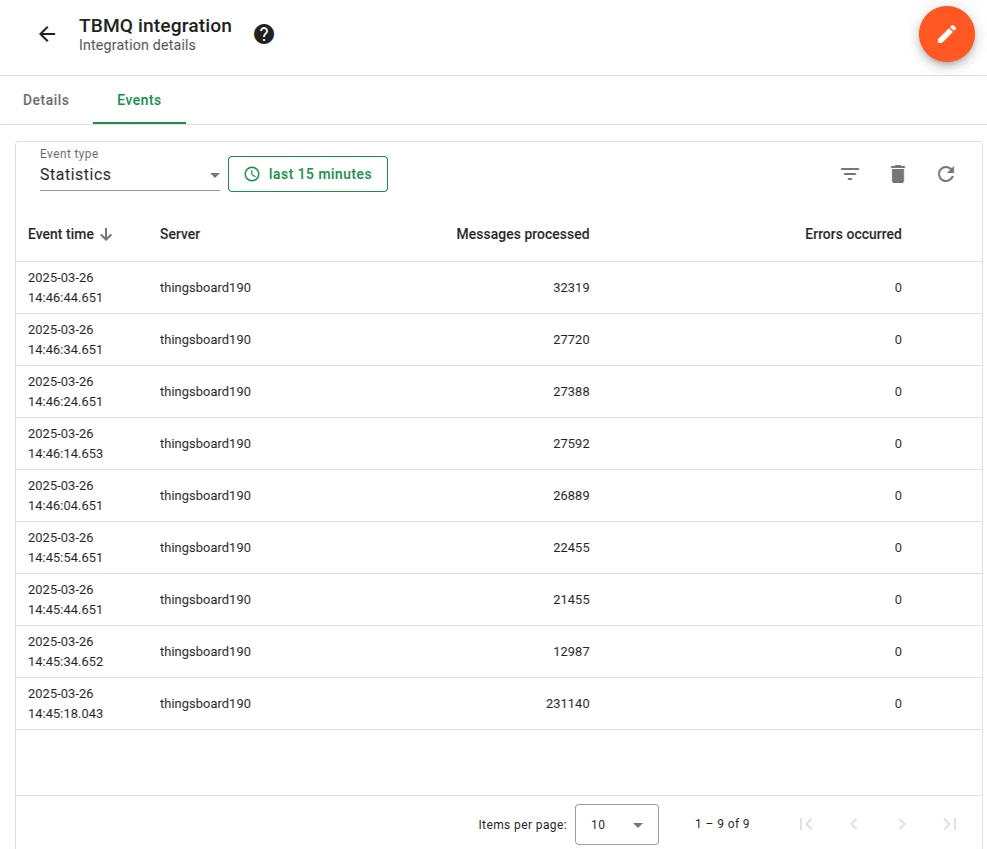
Started,Created,Updated,Stopped. - Statistics — insights into integration performance, including processed message counts and error rates.
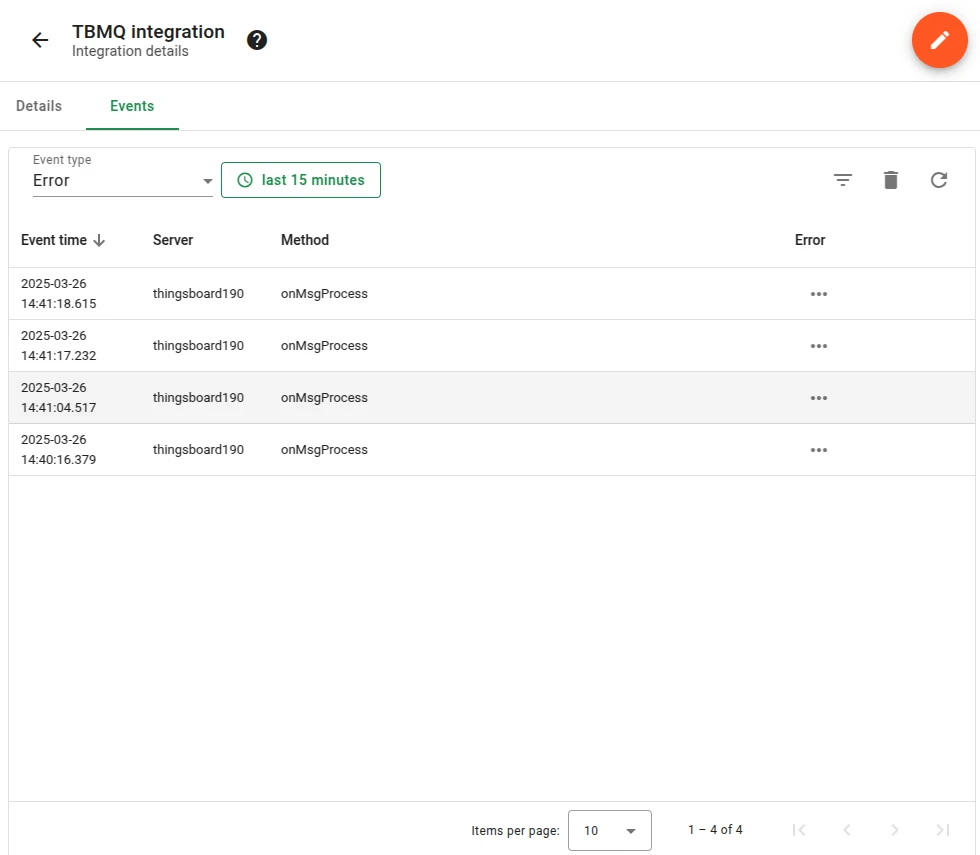
- Errors — captures failures related to authentication, timeouts, payload formatting, or connectivity issues.
Send an uplink message
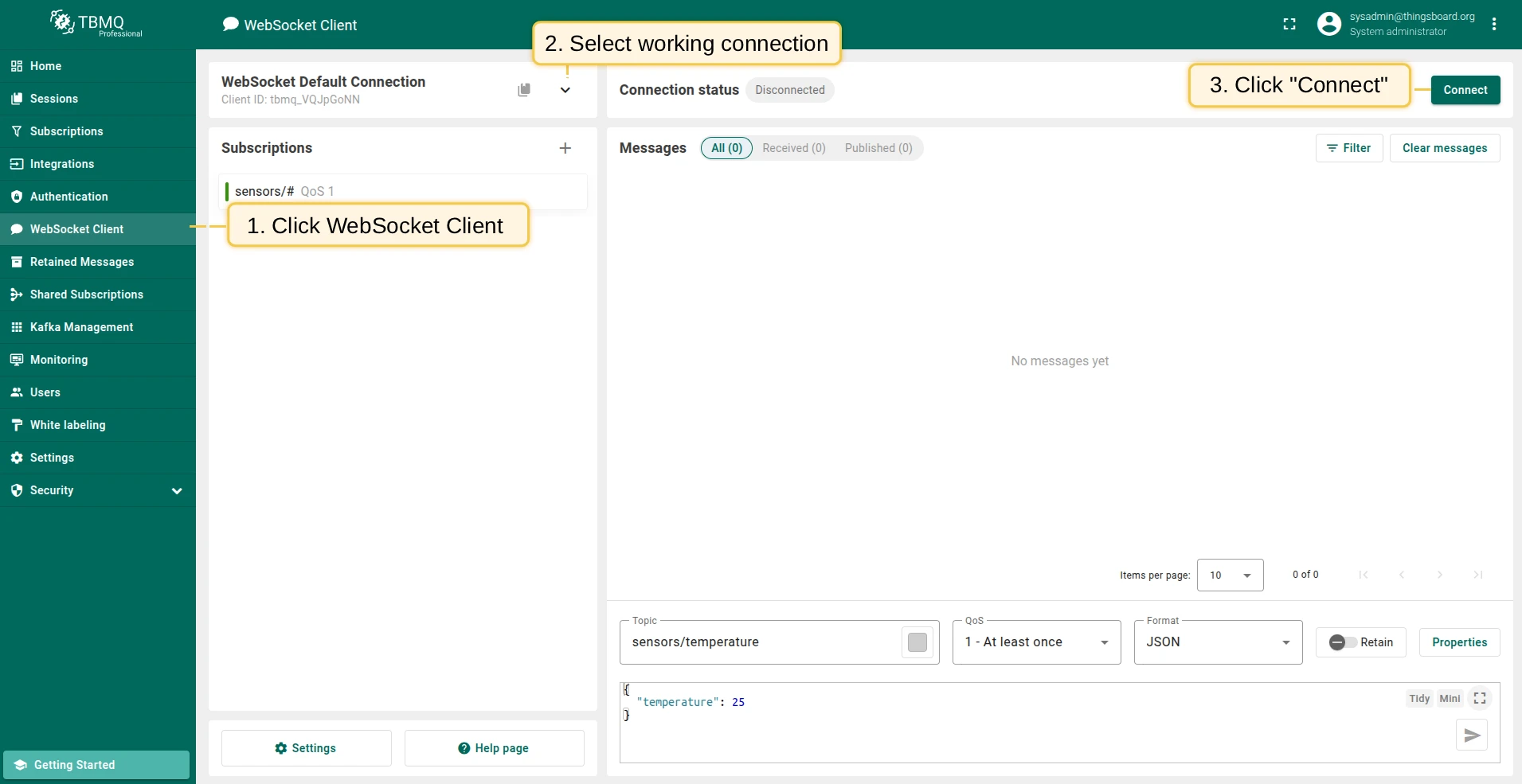
Section titled “Send an uplink message”- Navigate to the WebSocket Client page.
- Select WebSocket Default Connection (or any working connection) and click Connect. Verify the connection status shows
Connected. - Set the Topic field to
tbmq/http-integrationto match the integration’s topic filtertbmq/#. - Click the Send icon to publish the message.
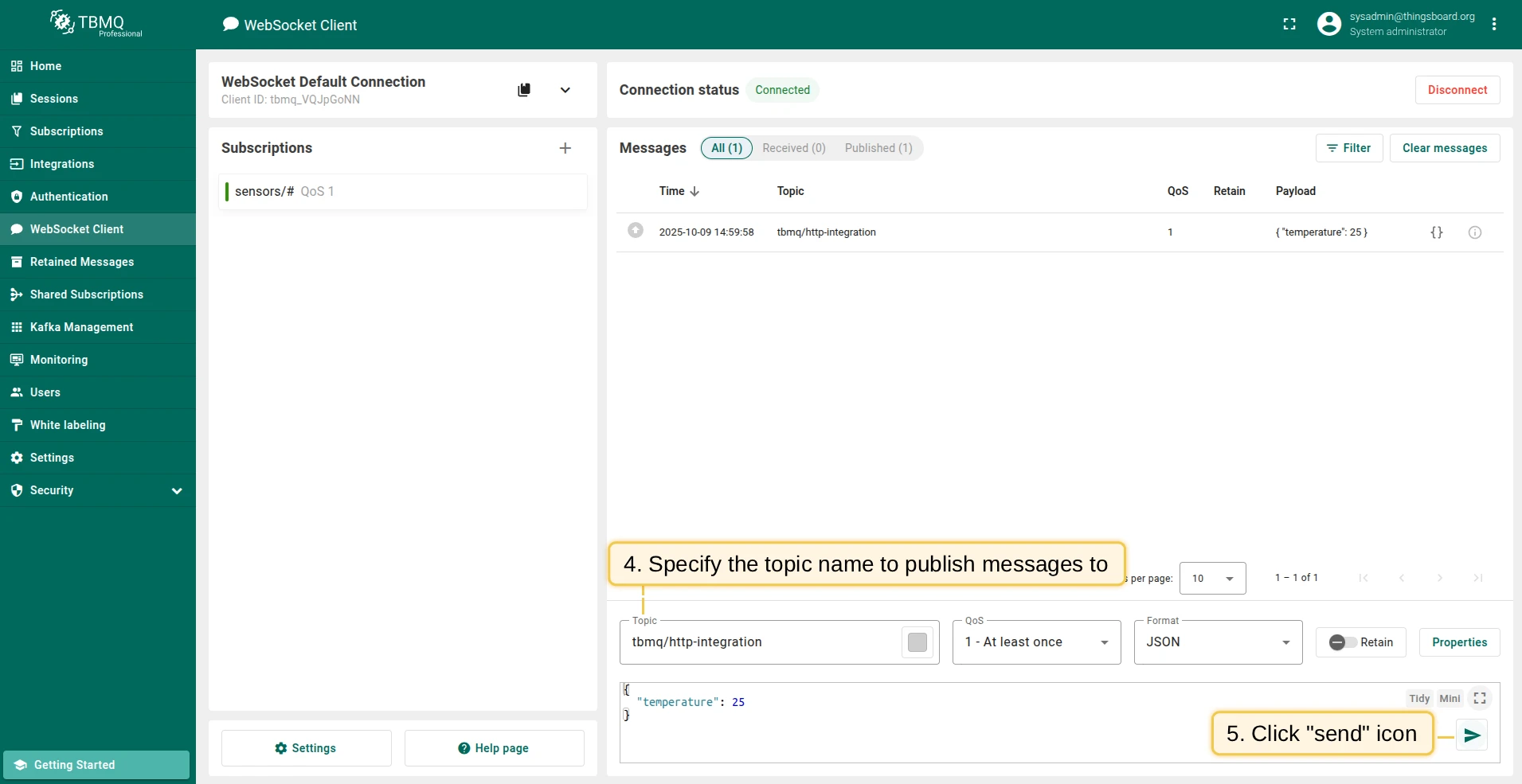
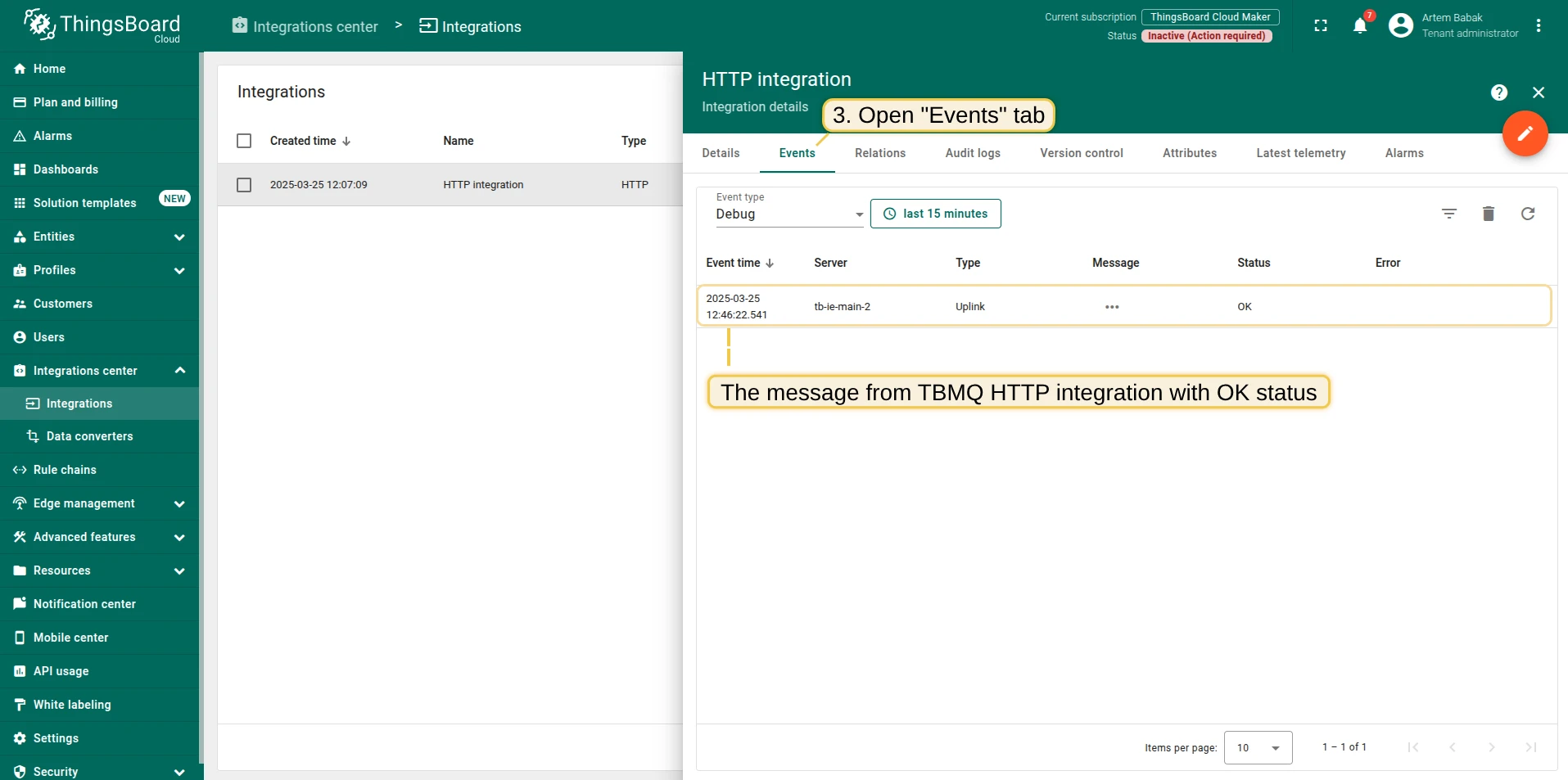
If successful, open ThingsBoard Cloud → HTTP Integration details → Events tab. You should see an event with status OK and a payload similar to:
{ "payload": { "temperature": 25 }, "topicName": "tbmq/http-integration", "clientId": "tbmq_7QUvZzow", "eventType": "PUBLISH_MSG", "qos": 1, "retain": false, "tbmqIeNode": "tbmq_ie_node", "tbmqNode": "tbmq_node", "ts": 1742553324248, "props": {}, "metadata": { "integrationName": "HTTP integration" }}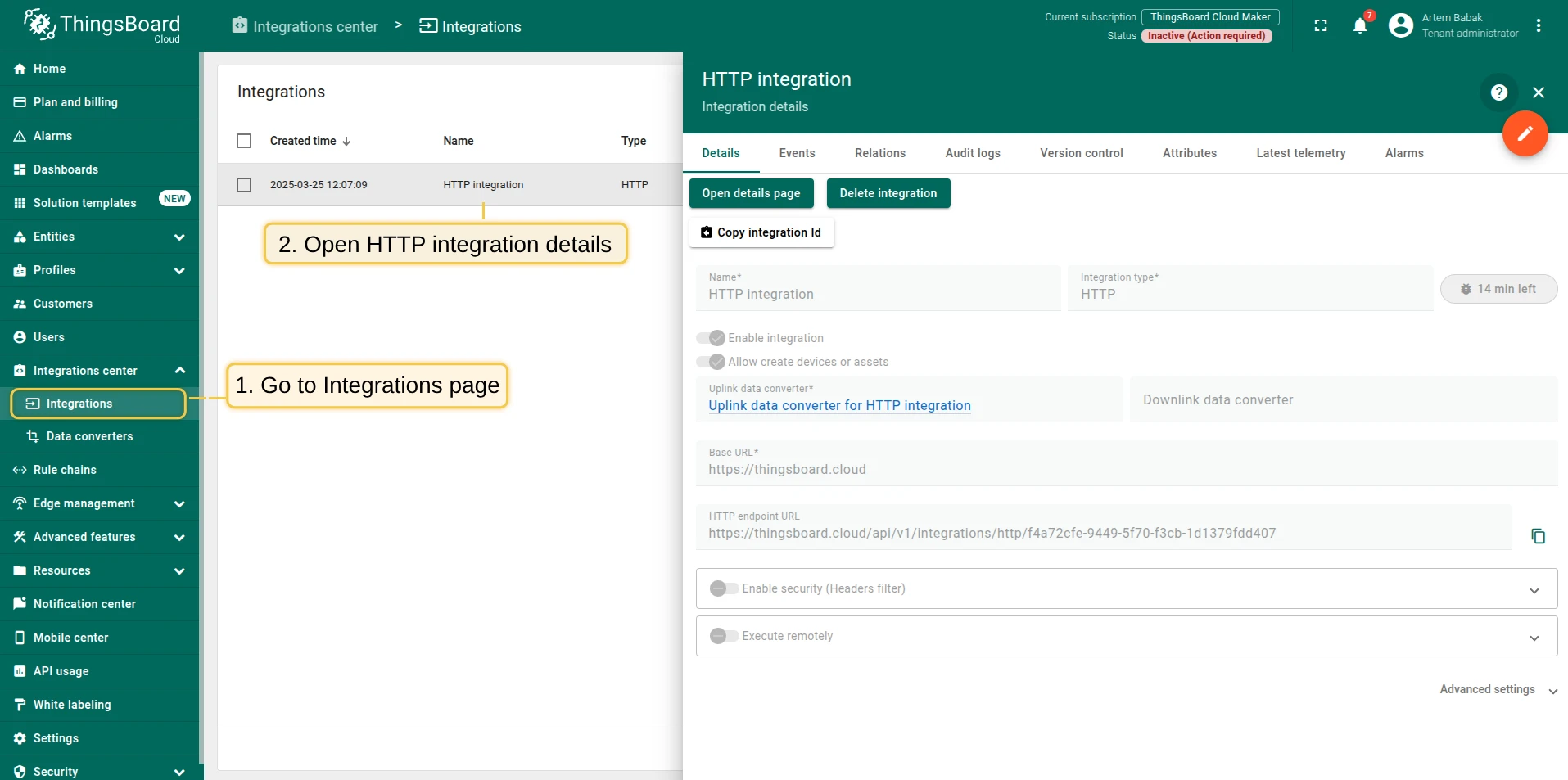
Message field descriptions:
| Field | Description |
|---|---|
payload | Content of the MQTT message. |
topicName | MQTT topic to which the message was published. |
clientId | ID of the MQTT client that published the message. |
eventType | Type of MQTT event. PUBLISH_MSG is the only supported type. |
qos | Quality of Service level of the incoming message. |
retain | Whether the message has the Retain flag set. |
tbmqIeNode | Node ID of the Integration Executor that handled the message. |
tbmqNode | Node ID of the TBMQ broker that received the message. |
ts | Timestamp (milliseconds) when the message was received. |
props | MQTT 5.0 user properties or other MQTT properties. |
metadata | Additional metadata from integration configuration (e.g., integration name). |
Was this helpful?