
MQTT integration
TBMQ MQTT Integration enables forwarding messages to external MQTT brokers, allowing real-time data delivery to third-party platforms. This is useful in scenarios such as:
- Data from TBMQ needs to be forwarded to an external MQTT broker or IoT platform.
- TBMQ is used as an intermediary to route data between internal sources and external MQTT-based systems.
Data flow
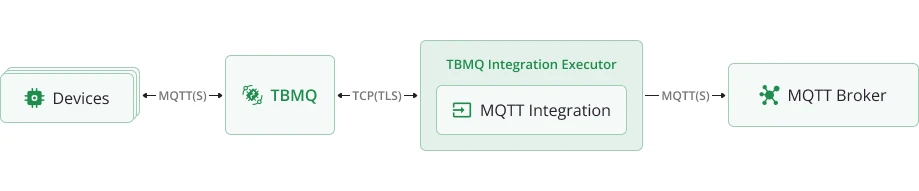
Section titled “Data flow”- Device (client) publishes an MQTT message to a topic matching the integration’s topic filters.
- TBMQ broker receives the message and forwards it to the TBMQ Integration Executor.
- Integration Executor processes the message and forwards it to the external MQTT broker or system.
- External system receives the message and processes the data.
Prerequisites
Section titled “Prerequisites”- A running TBMQ instance.
- A client capable of publishing MQTT messages (e.g., TBMQ WebSocket Client).
- A client capable of receiving MQTT messages (e.g., TBMQ WebSocket Client).
Create TBMQ MQTT Integration
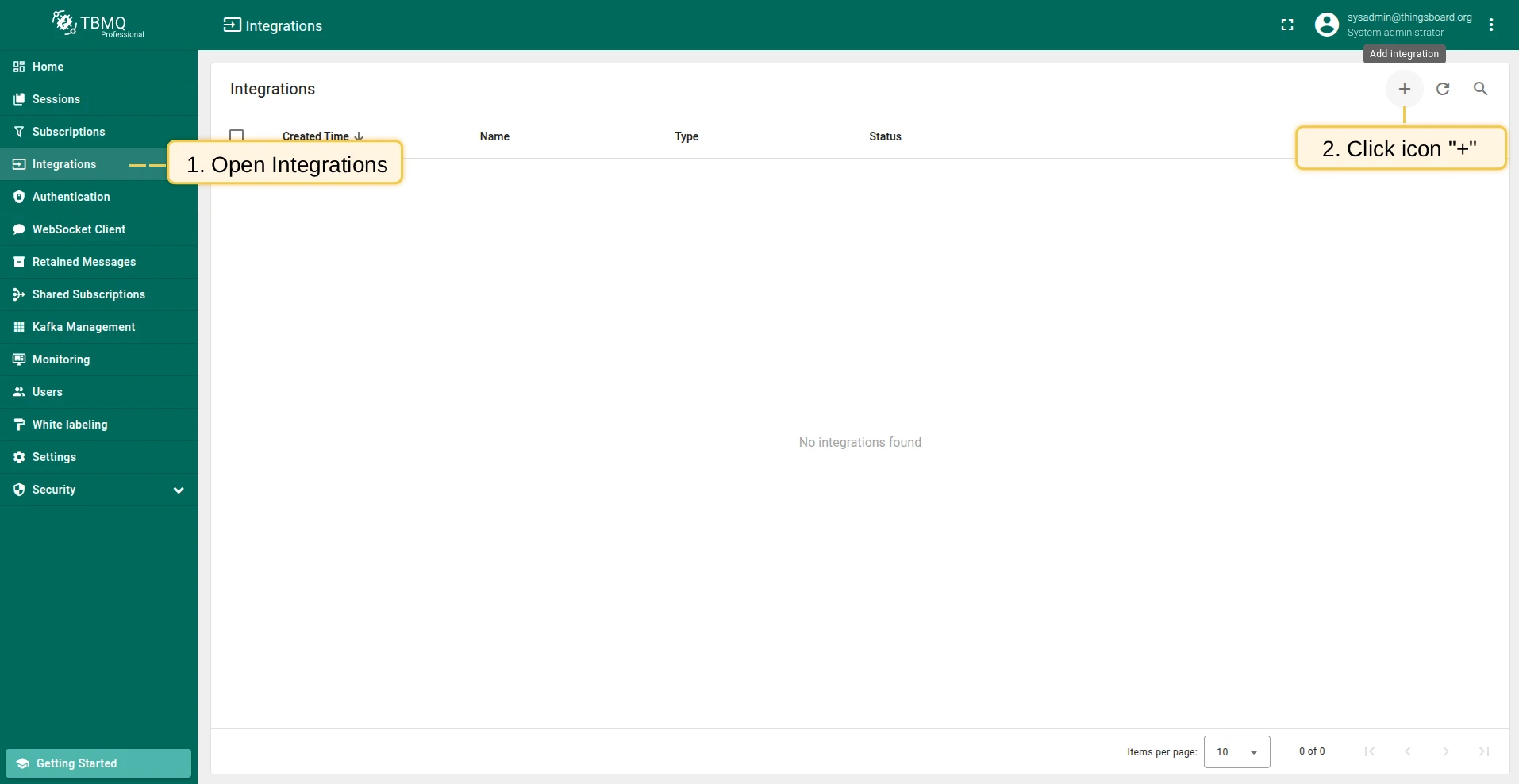
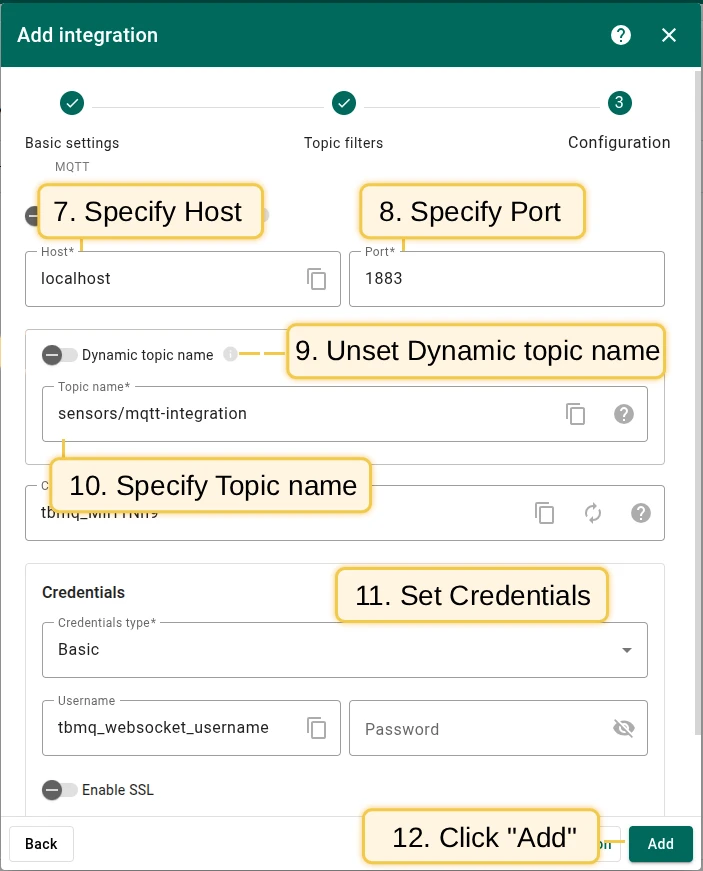
Section titled “Create TBMQ MQTT Integration”- Go to the Integrations page and click the ”+” button.
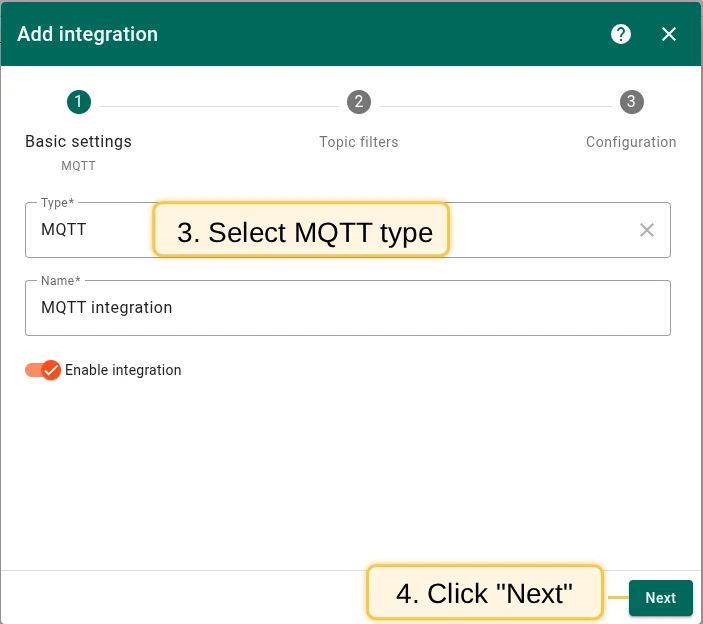
- Select MQTT as the integration type and click Next.
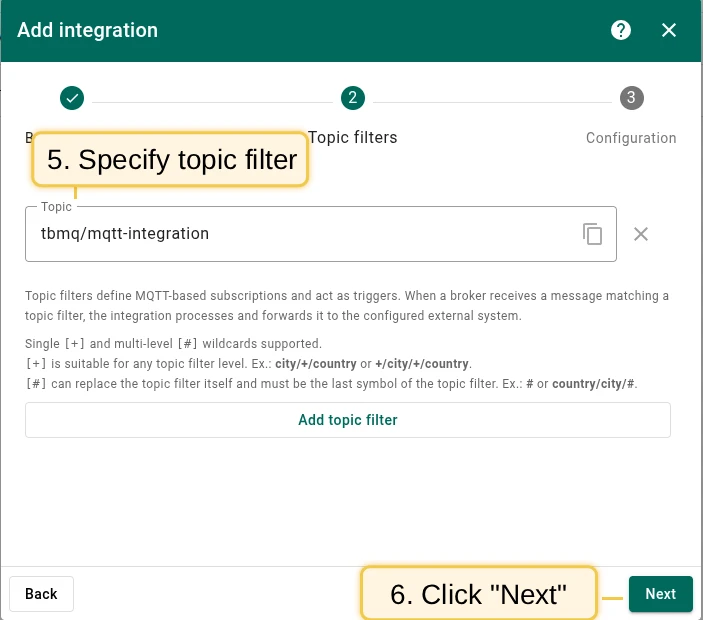
- On the Topic Filters step, subscribe to
tbmq/mqtt-integrationand click Next. - In the Configuration step:
- Enter the Host (e.g.,
localhost). - Enter the Port (e.g.,
1883). - Set Dynamic topic name to
falseand Topic name tosensors/mqtt-integration. - Set Credentials type to
Basicand Username totbmq_websockets_username.
- Enter the Host (e.g.,
- Click Add to save the integration.
Topic filters
Section titled “Topic filters”Topic filters define MQTT-based subscriptions that trigger the integration. When TBMQ receives a message matching a configured topic filter, the integration processes it and forwards the data to the external system.
For example, with the topic filter tbmq/devices/+/status, any of the following messages will trigger the integration:
tbmq/devices/device-01/statustbmq/devices/gateway-01/statusConfiguration
Section titled “Configuration”| Field | Description |
|---|---|
| Send only message payload | If enabled, the incoming message’s payload is forwarded as is. If disabled, a JSON object with the payload and additional properties is sent. |
| Host | MQTT broker host. |
| Port | MQTT broker port. |
| Client ID | Client identifier used for connecting to the external broker. |
| Dynamic topic name | If enabled, messages are forwarded with the topic name from the incoming message. |
| Topic name | Used when Dynamic topic name is disabled. |
| Credentials | Anonymous, Basic Authentication (username + password), or PEM-based authentication. |
| Enable SSL | Enables a secure connection using SSL/TLS. |
| Keep alive (seconds) | Duration without communication before the session is considered lost. |
| Connect timeout (seconds) | Time to wait for a CONNACK before timing out. |
| Reconnect period (seconds) | How often TBMQ attempts to reconnect if the connection is lost. |
| Dynamic QoS | If enabled, messages are forwarded with the QoS from the incoming message. |
| QoS | Used when Dynamic QoS is disabled. |
| Dynamic retain | If enabled, messages are forwarded with the Retain flag from the incoming message. |
| Retain | Used when Dynamic retain is disabled (true or false). |
| Metadata | Custom metadata attached to forwarded messages. |
Events
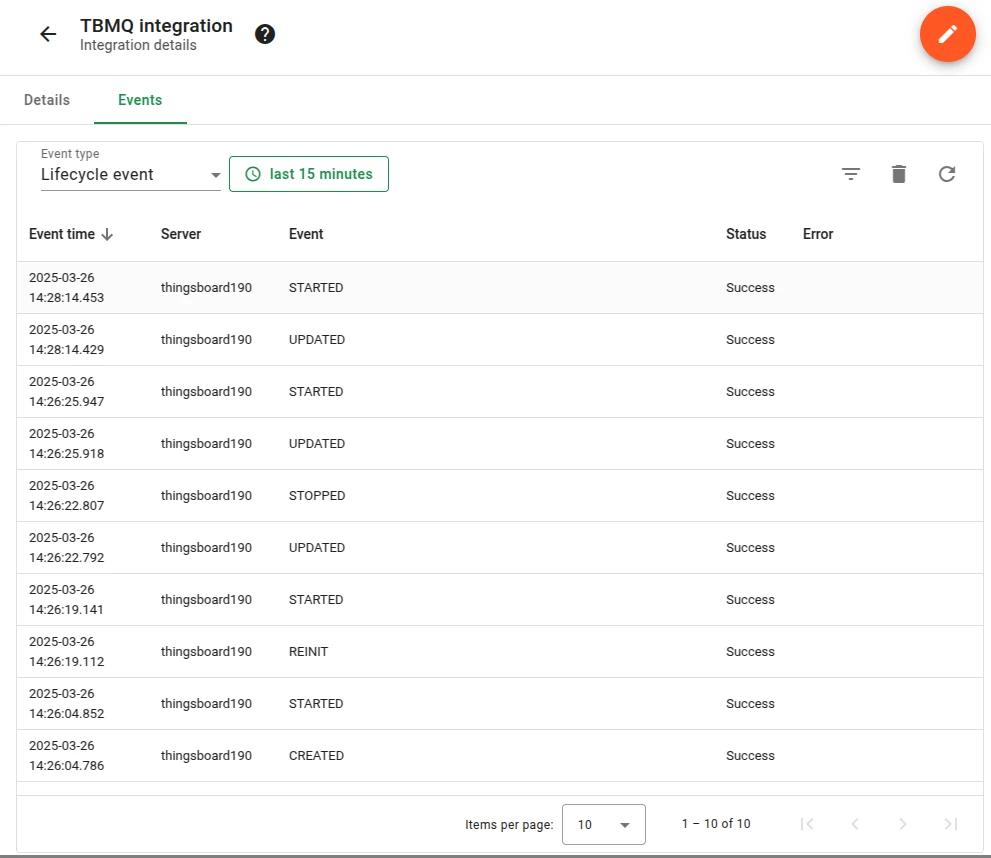
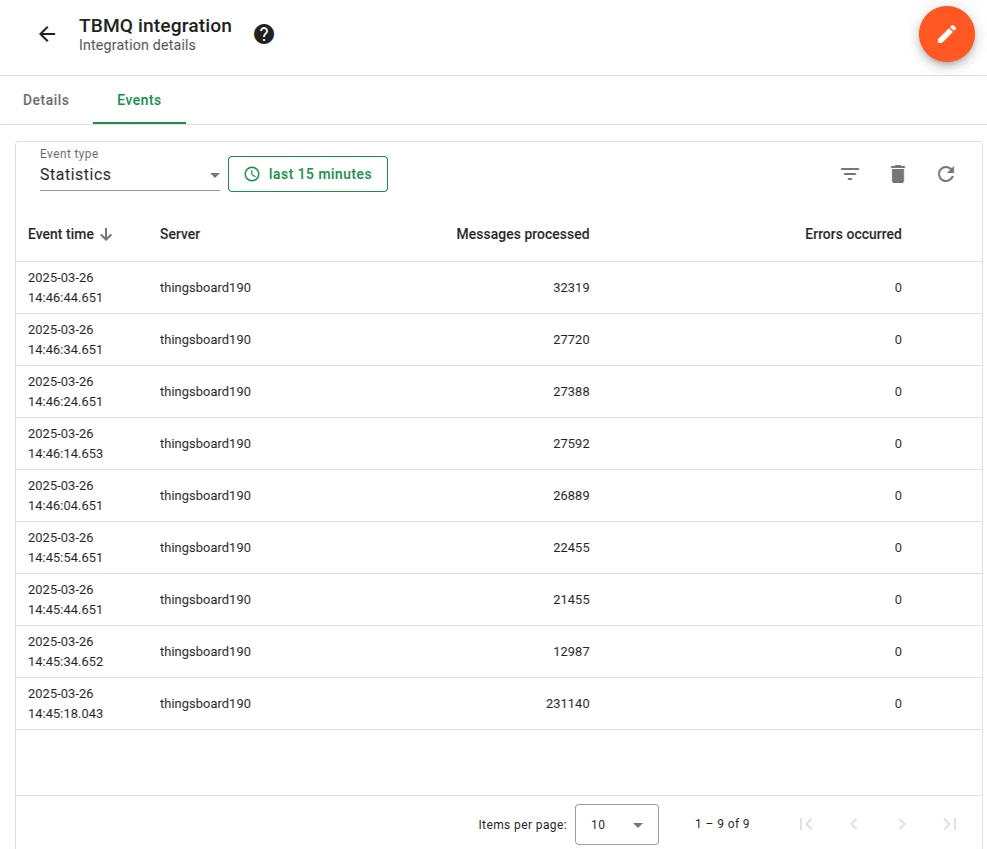
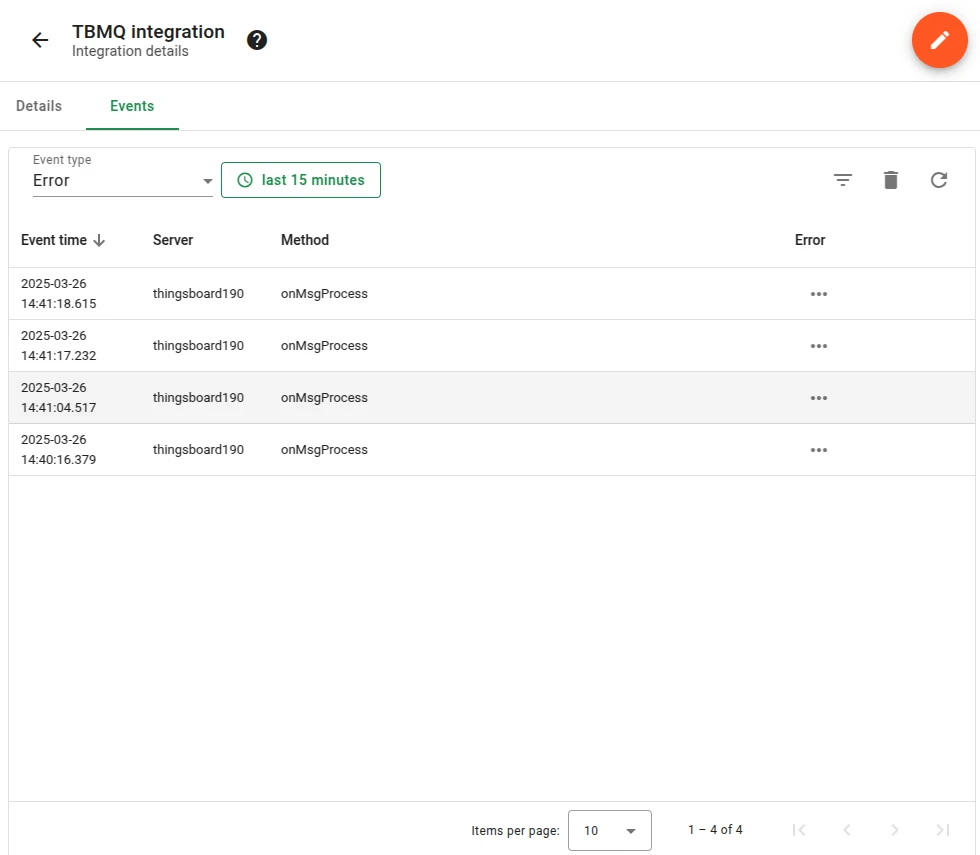
Section titled “Events”TBMQ logs integration-related events for debugging and troubleshooting:
- Lifecycle Events — logs events such as
Started,Created,Updated,Stopped. - Statistics — insights into integration performance, including processed message counts and error rates.
- Errors — captures failures related to authentication, timeouts, payload formatting, or connectivity issues.
Send an uplink message
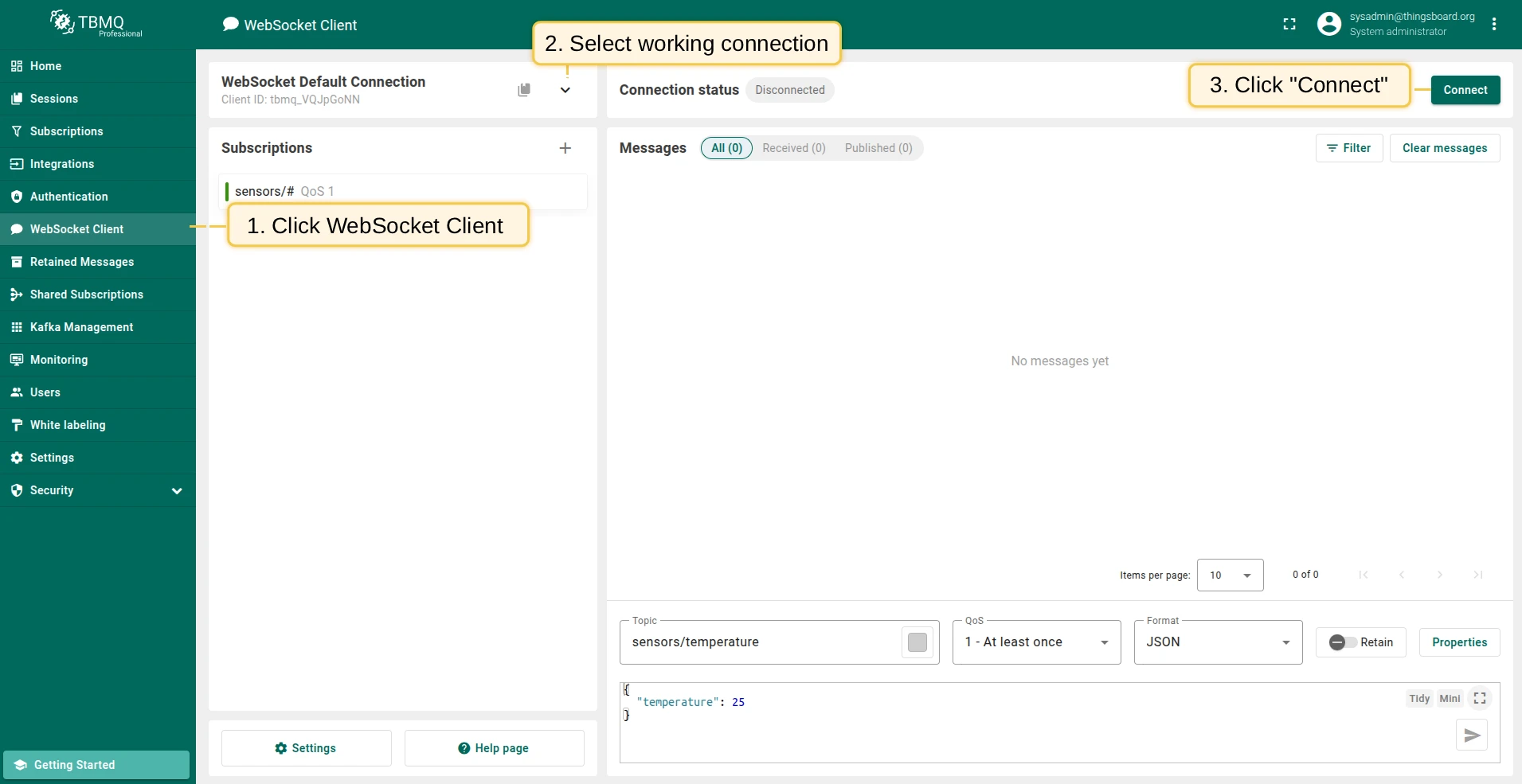
Section titled “Send an uplink message”- Navigate to the WebSocket Client page.
- Select WebSocket Default Connection (or any working connection) and click Connect. Verify the connection status shows
Connected. - Set the Topic field to
tbmq/mqtt-integrationto match the integration’s topic filter. - Click the Send icon to publish the message.
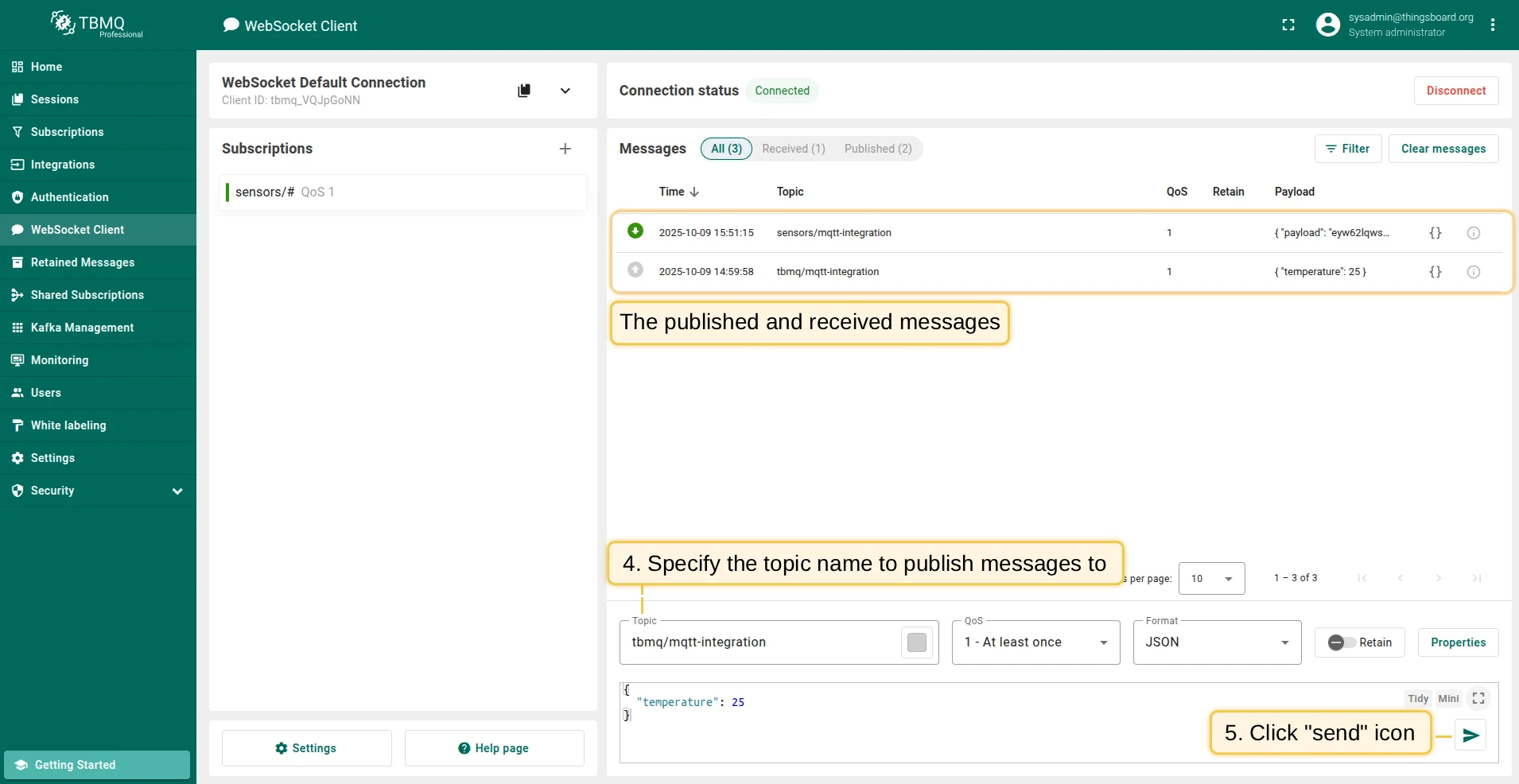
If successful, two new messages should appear in the Messages table:
- One sent by the WebSocket Client.
- One received from the MQTT Integration with a payload similar to:
{ "payload": "eyJ0ZW1wZXJhdHVyZSI6MjV9", "topicName": "tbmq/mqtt-integration", "clientId": "tbmq_7QUvZzow", "eventType": "PUBLISH_MSG", "qos": 1, "retain": false, "tbmqIeNode": "tbmq_ie_node", "tbmqNode": "tbmq_node", "ts": 1742554969254, "props": {}, "metadata": { "integrationName": "MQTT integration" }}Message field descriptions:
| Field | Description |
|---|---|
payload | Base64-encoded content of the MQTT message (e.g., "eyJ0ZW1wZXJhdHVyZSI6MjV9" decodes to {"temperature": 25}). |
topicName | MQTT topic to which the message was published. |
clientId | ID of the MQTT client that published the message. |
eventType | Type of MQTT event. PUBLISH_MSG is the only supported type. |
qos | Quality of Service level of the incoming message. |
retain | Whether the message has the Retain flag set. |
tbmqIeNode | Node ID of the Integration Executor that handled the message. |
tbmqNode | Node ID of the TBMQ broker that received the message. |
ts | Timestamp (milliseconds) when the message was received. |
props | MQTT 5.0 user properties or other MQTT properties. |
metadata | Additional metadata from integration configuration (e.g., integration name). |
Was this helpful?
Thank you for your feedback!