
Sessions
The Sessions page lets you observe and analyze all sessions stored in the broker — both active online sessions and disconnected sessions of persistent clients.
To view session details:
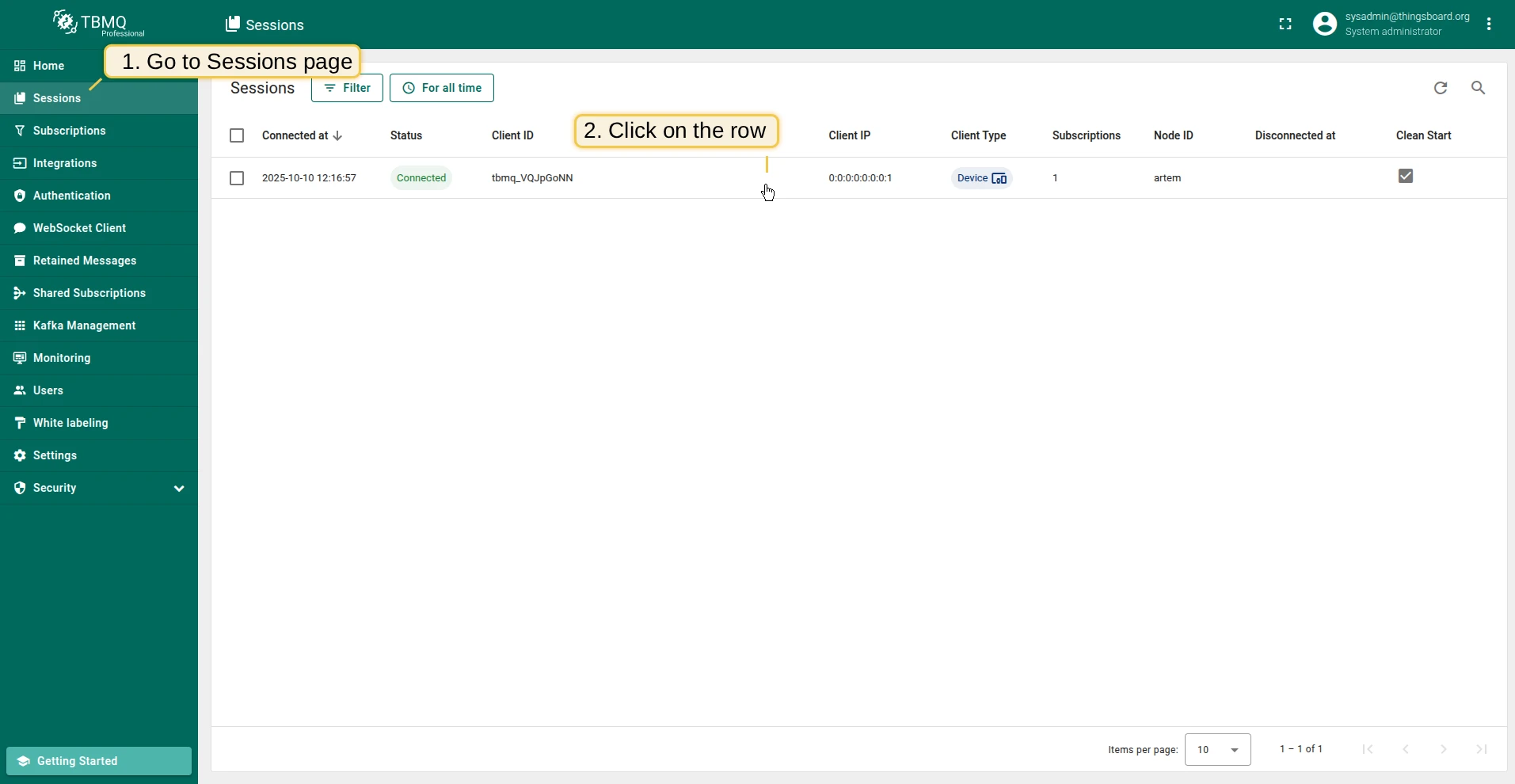
- Open the Sessions page in the left-hand menu.
- Click on a table row to open the session details window.
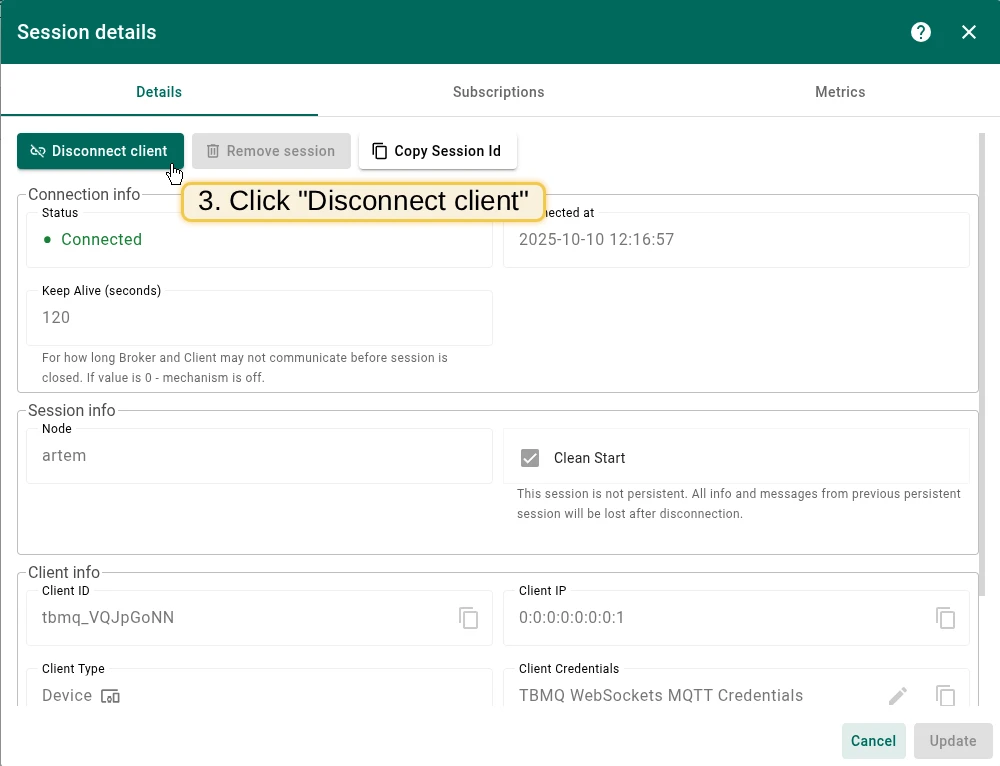
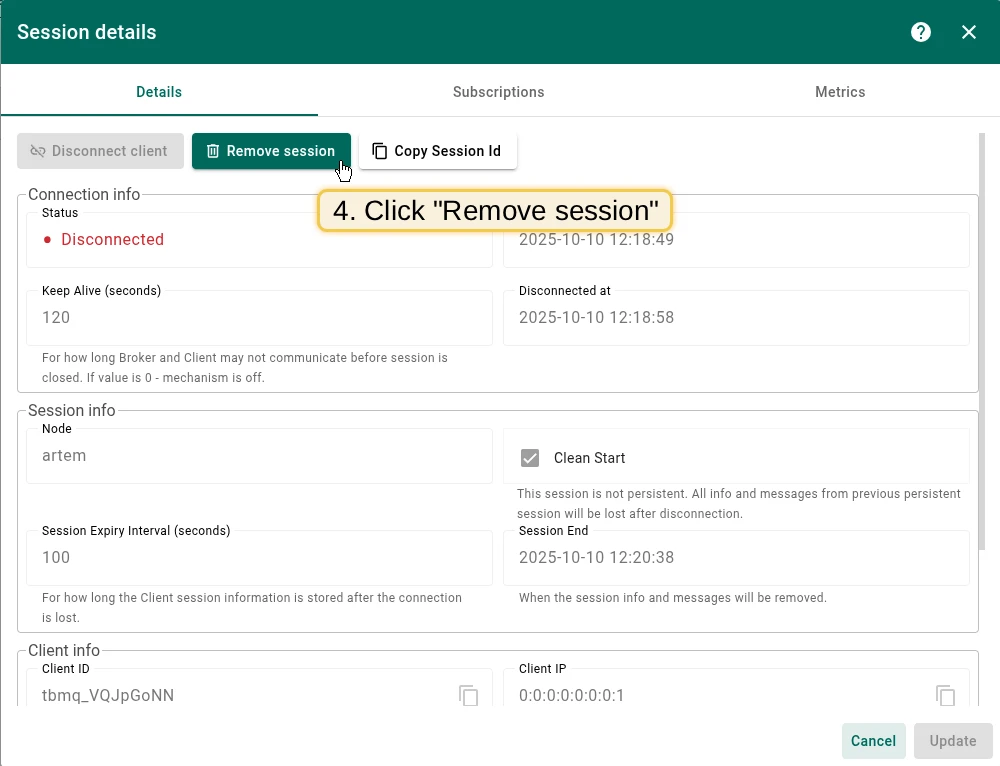
From the Session Details window you can:
- Disconnect a client — click the Disconnect client button. Only
Connectedclients can be disconnected. - Remove a session — click the Remove session button. Only
Disconnectedclients can be removed.
Session details
Section titled “Session details”The Details tab contains:
- Connected Status — Connected or Disconnected.
- Connected At — timestamp when the client connected.
- Disconnected At — for persistent disconnected clients, timestamp when the client disconnected.
- Keep Alive (seconds) — duration before the session is closed if no communication occurs.
- Node ID — broker node to which the client is or was connected.
- Clean Start — if true, the broker discards any previous session info and messages, and starts a new one.
- Session expiry interval — for persistent disconnected clients, how long session information is retained after disconnection.
- Session end — for persistent disconnected clients, when session data and messages will be removed.
- Client ID — the identifier of the client.
- Client IP — the IP address of the client.
- Client type (DEVICE or APPLICATION).
- Client Credentials — the authentication source used for this session. Dynamically labeled as Basic, X.509, or “Auth provider” (for JWT, HTTP, and SCRAM). Labeled “Unknown Client Credentials” if the source cannot be identified (e.g., credentials deleted after connection).
- MQTT version — MQTT 3.1 (3), MQTT 3.1.1 (4), or MQTT 5.0 (5).
Subscriptions
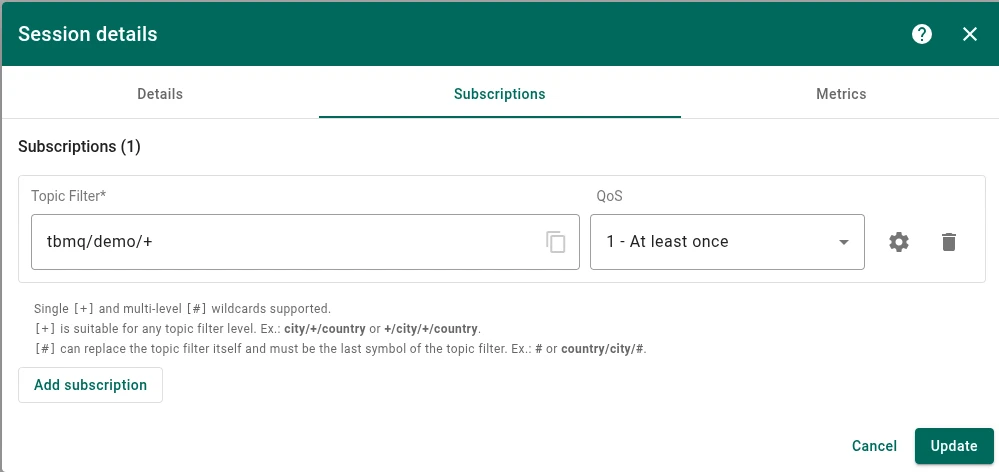
Section titled “Subscriptions”The Subscriptions tab shows all subscriptions associated with a session:
- Topic filter — the MQTT topic filter.
- QoS — Quality of Service of the subscription.
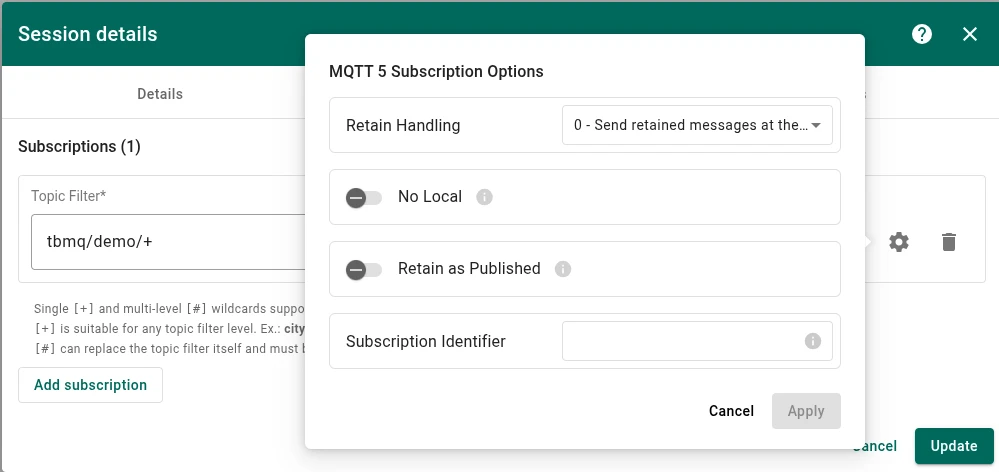
- Retain as Published — when true, messages keep the RETAIN flag they were published with.
- Retain Handling — how the broker handles retained messages when the client subscribes:
0— send retained messages at subscription time.1— send retained messages at subscription time if the subscription does not already exist.2— do not send retained messages at subscription time.
- No local — when true, the broker will not forward messages from this client back to this connection.
- Subscription Identifier — unique numerical value assigned to the subscription.
While session details are read-only, subscriptions can be managed:
- Add — click the Add Subscription button.
- Remove — click the Delete icon for a specific subscription.
- Edit — modify the topic filter or QoS and click Update.
Metrics
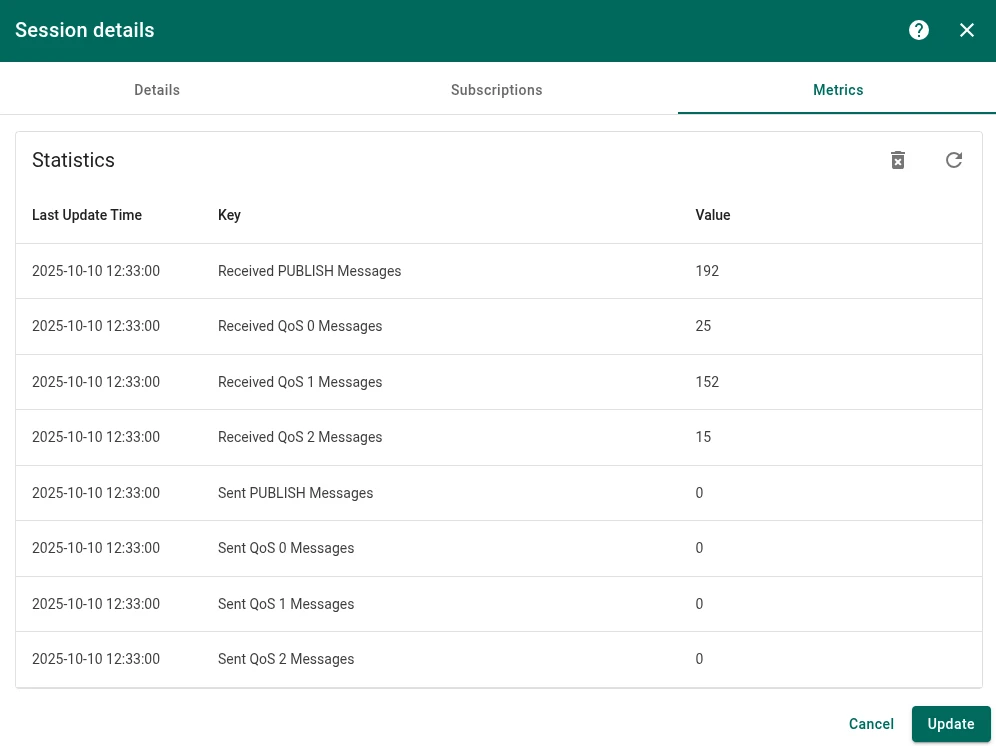
Section titled “Metrics”The Metrics tab provides detailed insights into the MQTT message flow within the session:
- Received PUBLISH Messages — total PUBLISH messages received by the client.
- Received QoS 0 Messages — messages received with QoS 0 (AT_MOST_ONCE).
- Received QoS 1 Messages — messages received with QoS 1 (AT_LEAST_ONCE).
- Received QoS 2 Messages — messages received with QoS 2 (EXACTLY_ONCE).
- Sent PUBLISH Messages — total PUBLISH messages sent by the client.
- Sent QoS 0 Messages — messages sent with QoS 0.
- Sent QoS 1 Messages — messages sent with QoS 1.
- Sent QoS 2 Messages — messages sent with QoS 2.
To clear the statistics, click the Delete icon in the top right corner of the Metrics tab.
Was this helpful?
Thank you for your feedback!