
Monitoring
TBMQ provides user-friendly tools to monitor broker activity through the Home and Monitoring pages.
Charts
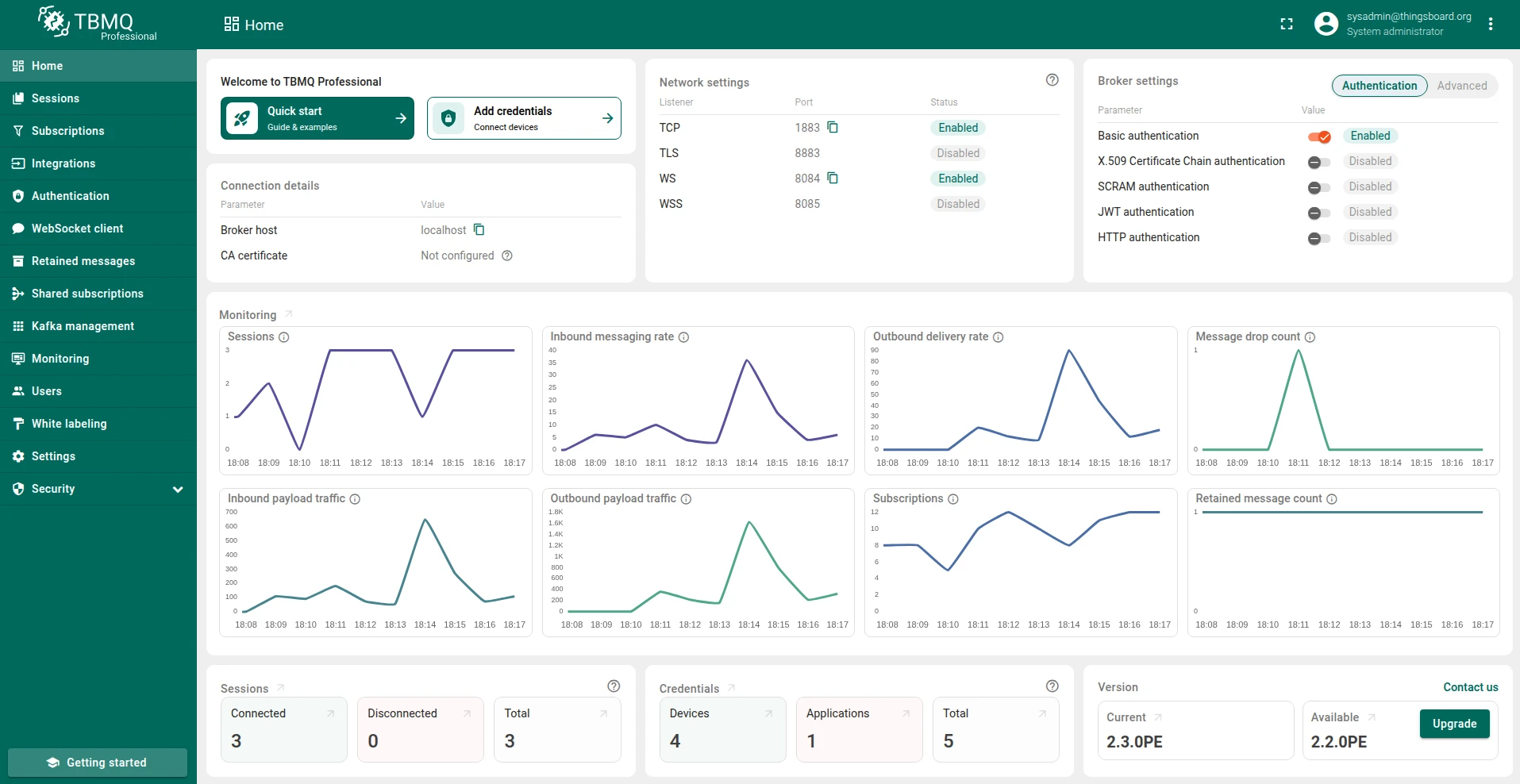
Section titled “Charts”The Home page displays eight charts showing broker activity over the last 10 minutes. On the Monitoring page, the same charts are split into two sub-pages for deeper analysis — you can zoom in, set custom date ranges, or open charts in full-screen mode.
State & Health
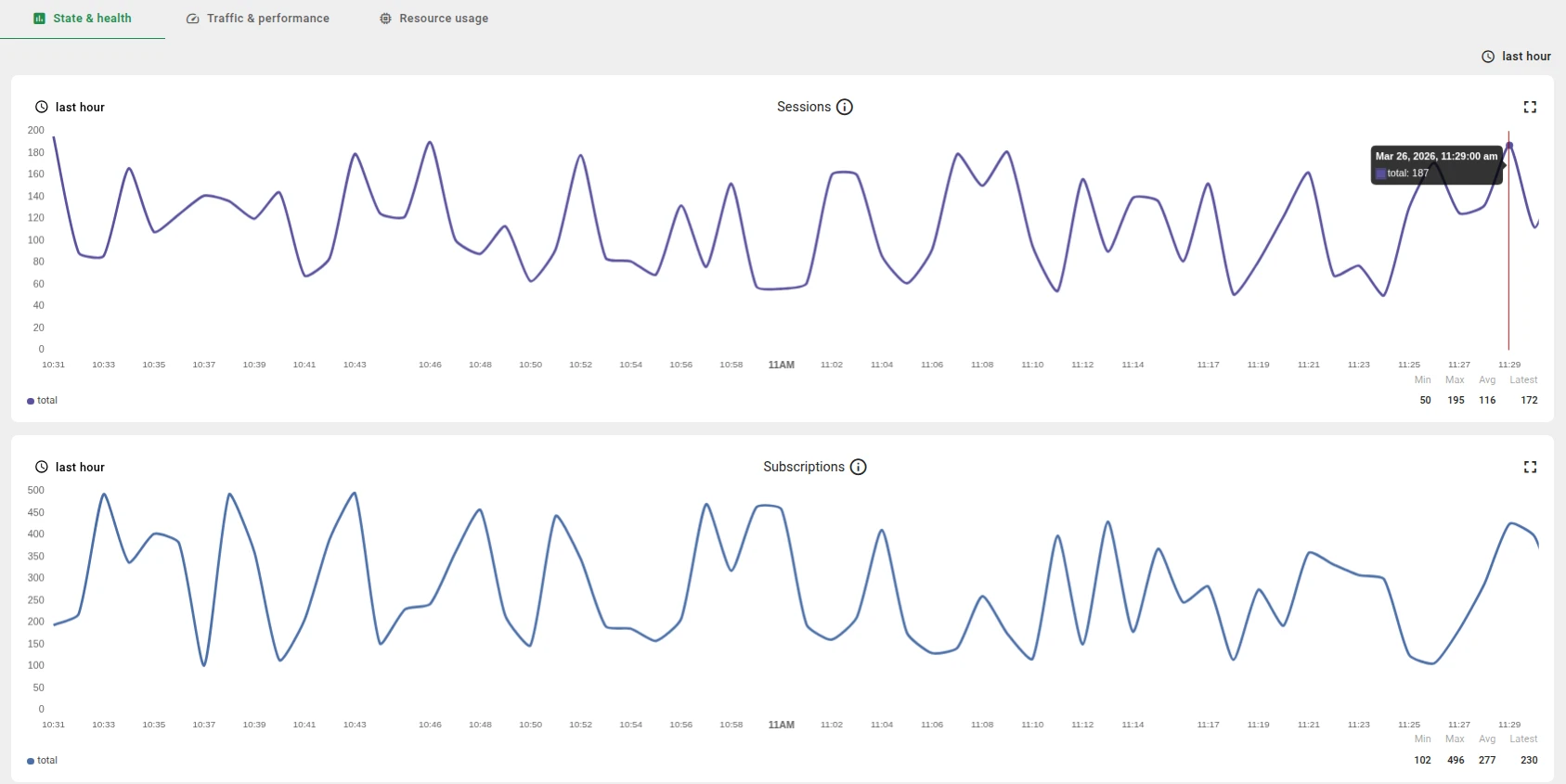
Section titled “State & Health”The Monitoring > State & Health page contains four charts focused on broker state:
- Sessions — tracks the total count of active client connections and disconnected persistent session records managed by the broker.
- Subscriptions — tracks the aggregate count of all topic filter entries maintained by the broker for both connected and disconnected persistent clients.
- Retained message count — tracks the total count of retained messages currently stored by the broker. This metric represents the number of unique topics holding a “last known state” value, which consumes persistent storage and is delivered immediately to new matching subscribers.
- Message drop count — counts the total number of messages the broker fails to process or deliver. Reasons include lack of subscriber interest (no matching subscriptions), resource limitations (full queues, storage limits), or rate limiting enforcement.
Traffic & Performance
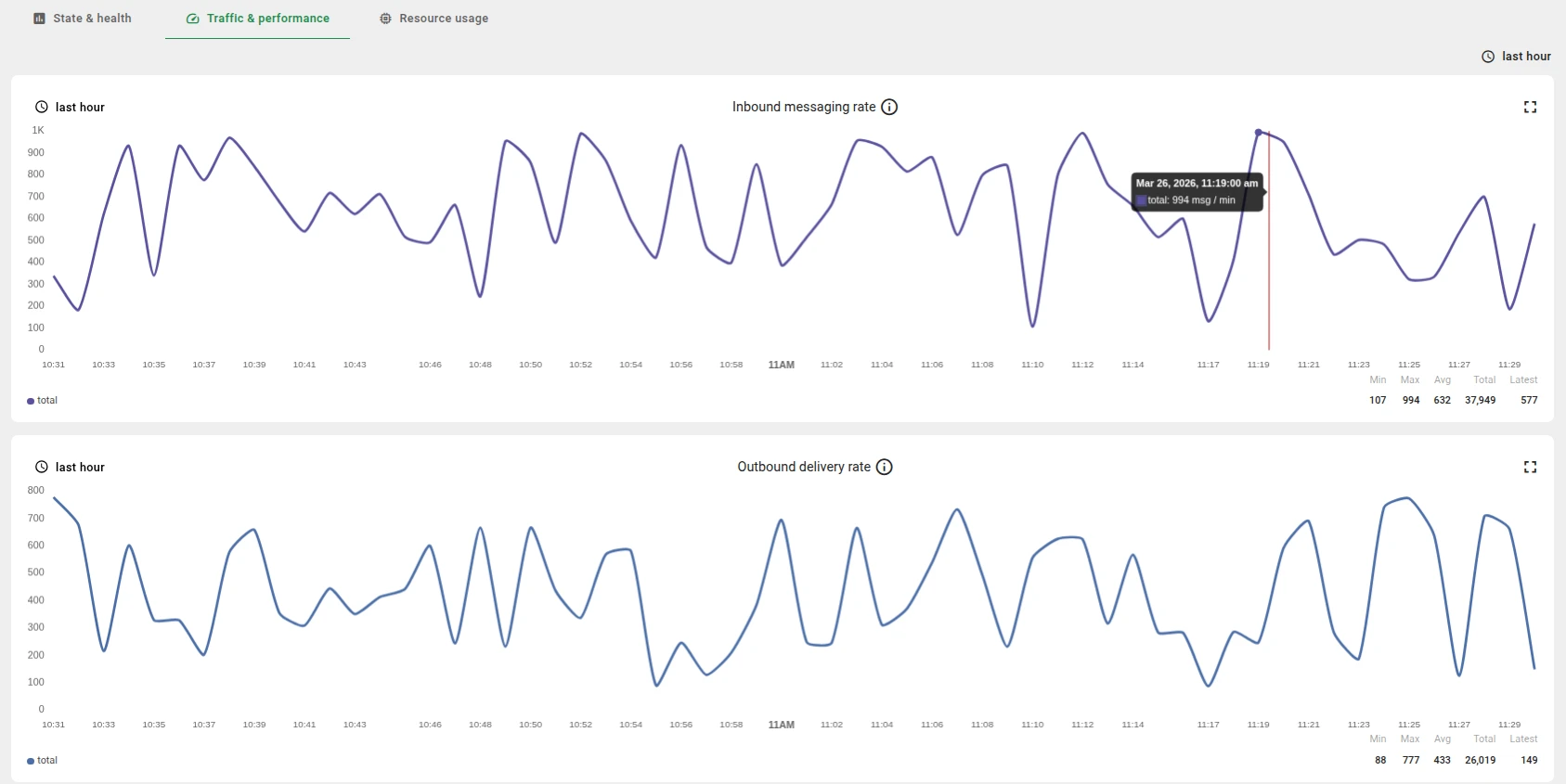
Section titled “Traffic & Performance”The Monitoring > Traffic & Performance page contains four charts focused on message throughput:
- Inbound messaging rate — measures the rate of messages published to the broker by MQTT clients.
- Outbound delivery rate — measures the rate of messages delivered from the broker to subscribers.
- Inbound payload traffic — measures the total byte size of the message content received by the broker from publishers. This metric excludes all MQTT protocol overhead (headers, acknowledgments, control packets).
- Outbound payload traffic — measures the total byte size of the message content delivered by the broker to subscribers. This metric excludes all MQTT protocol overhead (headers, acknowledgments, control packets).
Sessions and credentials
Section titled “Sessions and credentials”The Sessions card shows the count of connected and disconnected sessions. Click through to the Sessions page for full details.
The Credentials card displays the number of Client Credentials split by type: DEVICE and APPLICATION. See Client types for the distinction.

Broker settings
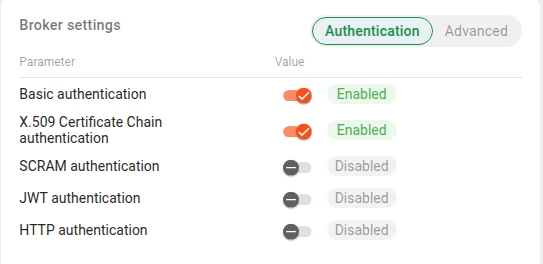
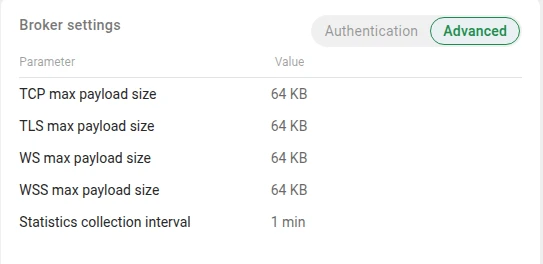
Section titled “Broker settings”The Broker settings card has two tabs: Authentication and Advanced.
The Authentication tab shows the status of each authentication provider:
- Basic authentication
- X.509 Certificate Chain authentication
- SCRAM authentication
- JWT authentication
- HTTP authentication
The Advanced tab shows broker-level parameters:
- TCP max payload size — maximum payload size for the TCP listener.
- TLS max payload size — maximum payload size for the TLS listener.
- WS max payload size — maximum payload size for the WS listener.
- WSS max payload size — maximum payload size for the WSS listener.
- Statistics collection interval — how often broker statistics are collected.
Network settings
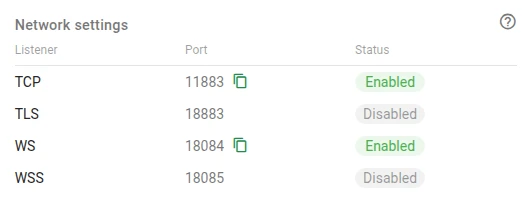
Section titled “Network settings”The Network settings card displays each listener’s port and status:
- TCP — plain MQTT listener.
- TLS — MQTT over TLS listener.
- WS — MQTT over WebSocket listener.
- WSS — MQTT over secure WebSocket listener.
Resource usage statistics
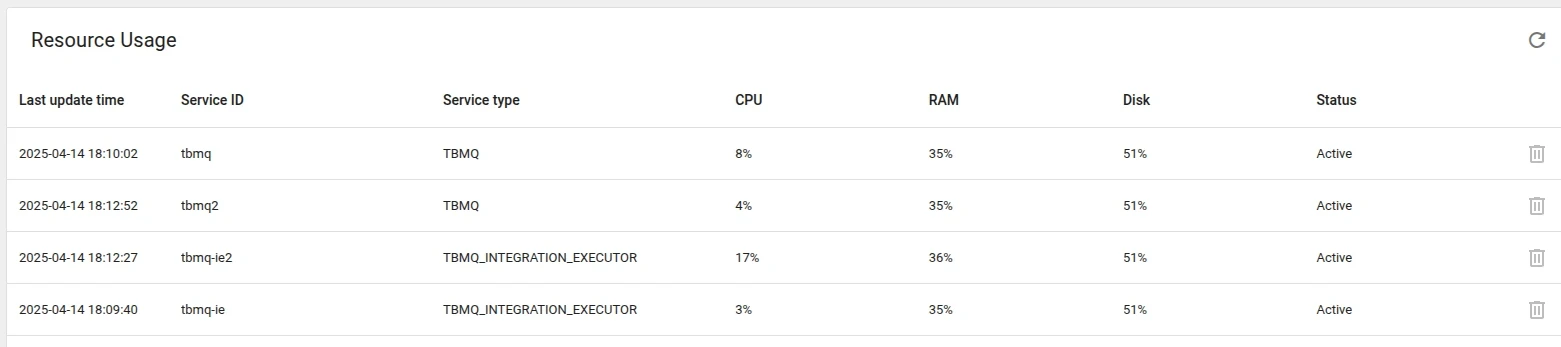
Section titled “Resource usage statistics”TBMQ provides runtime resource usage statistics for each service instance, helping monitor system behavior and support debugging or optimization.
System metrics are collected using the OSHI Java library, which retrieves hardware and OS statistics directly from the host environment. Metrics are updated every 60 seconds by default, controlled by:
# Persist frequency of system info (CPU, memory usage, etc.) in secondspersist-frequency: "${STATS_SYSTEM_INFO_PERSIST_FREQUENCY_SEC:60}"The Resource Usage table includes:
- Last update time — timestamp of the most recent metrics update.
- Service ID — identifier of the service instance.
- Service type — type of service (e.g., TBMQ, Integration Executor).
- CPU — CPU load percentage (hover to see available CPU cores).
- RAM — physical memory usage percentage (hover to see total memory in GB).
- Disk — disk space usage percentage (hover to see total disk capacity in GB).
- Status:
Active— reported less than 1 hour ago.Inactive— reported between 1 hour and 1 week ago.Outdated— reported more than 1 week ago.
TBMQ tracks all registered services in Redis under the key tbmq:service:registry. Services are added automatically on first launch and are not removed automatically — you can manually delete Outdated services using the Delete button in the UI or via REST API.
Was this helpful?