
OAuth 2.0 support
TBMQ allows you to provide Single Sign-On (SSO) functionality for your users and automatically create Administrators or Viewers using external user management platforms that support the OAuth 2.0 protocol. Examples of platforms that support OAuth 2.0 include: Google, Auth0, Keycloak, Okta, Azure, etc.
OAuth 2.0 authentication flow
Section titled “OAuth 2.0 authentication flow”TBMQ supports the Authorization Code grant type to exchange an authorization code for an access token. Once the user is redirected back to the TBMQ client, the platform retrieves the authorization code from the URL and uses it to request an access token from the external user management platform. Using the basic mapper or custom mapper, the external user info object is converted from the external platform into a TBMQ internal OAuth 2.0 user. After this, the regular TBMQ authorization flow takes place.
Setting up authentication via an external provider
Section titled “Setting up authentication via an external provider”OAuth 2.0 clients are configured separately from domains, allowing reuse of the configured client and making the settings clearer. To use authentication through an external provider, first configure an OAuth 2.0 client with the necessary credentials. Then, either add a new domain or use an existing one, and update the OAuth 2.0 client list with the new client.
Operations with domain
Section titled “Operations with domain”Adding a domain
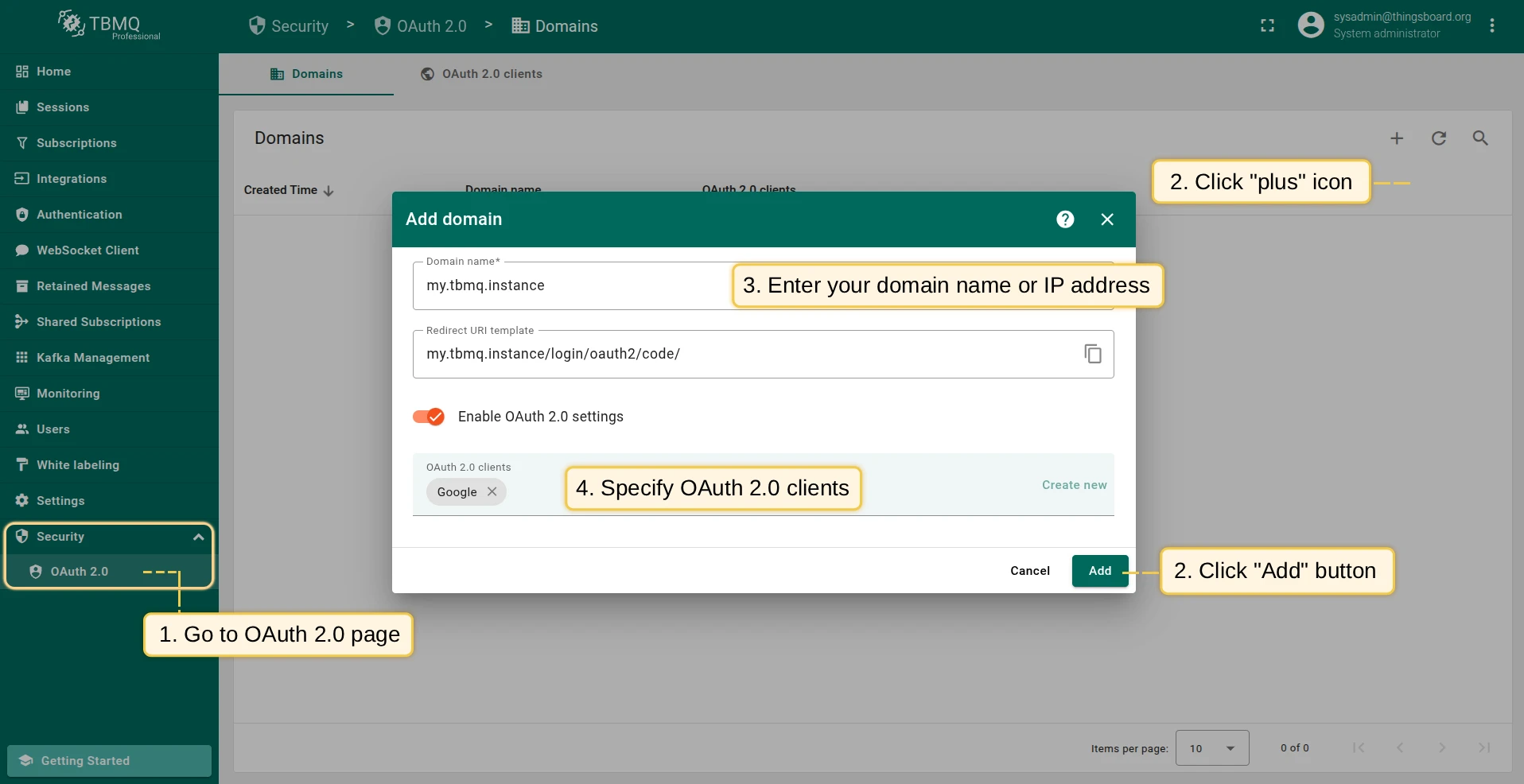
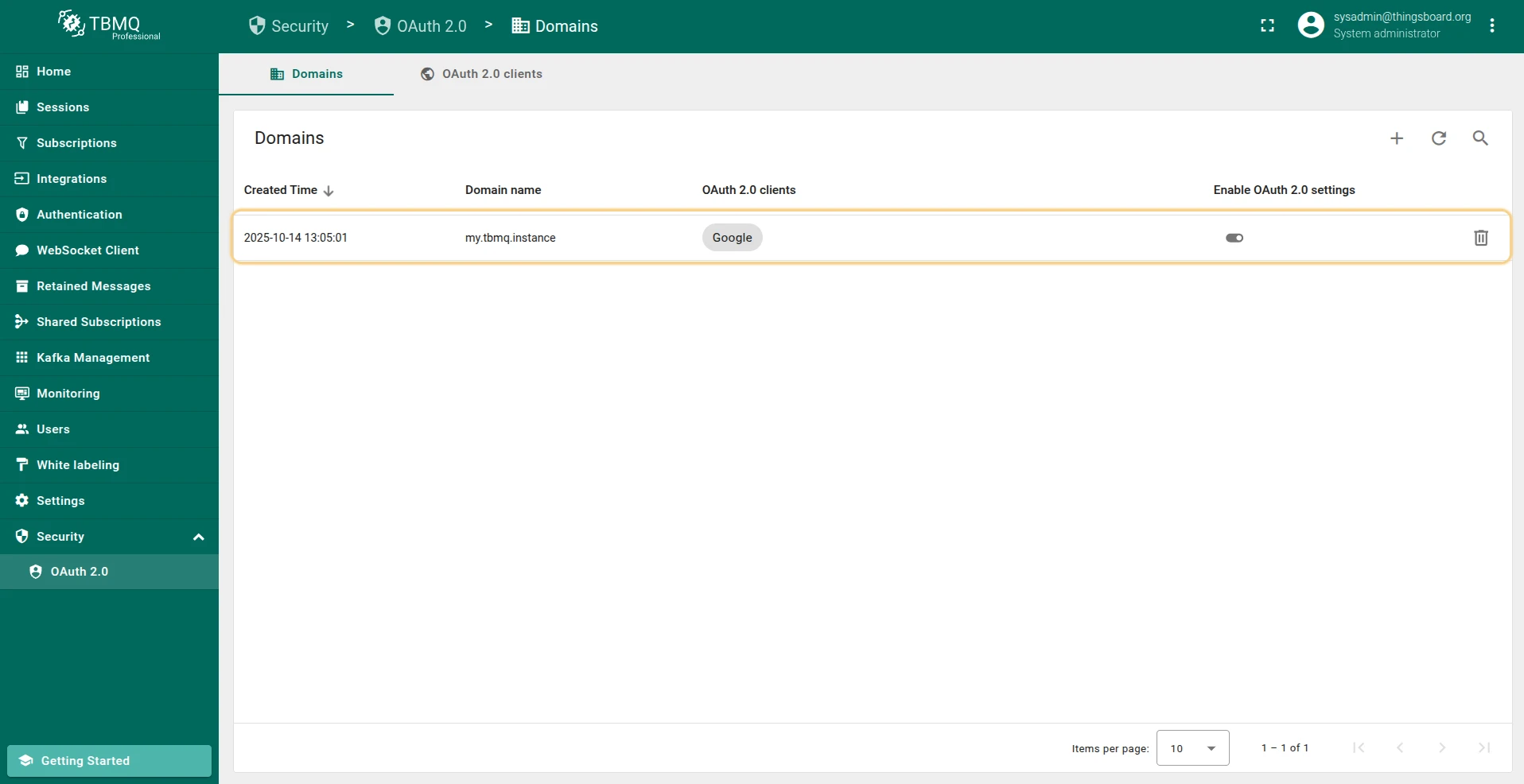
- On the Domains tab of the OAuth 2.0 page, click the plus icon.
- Provide your domain name and OAuth 2.0 client.
- Click Add to finalize.
Editing a domain
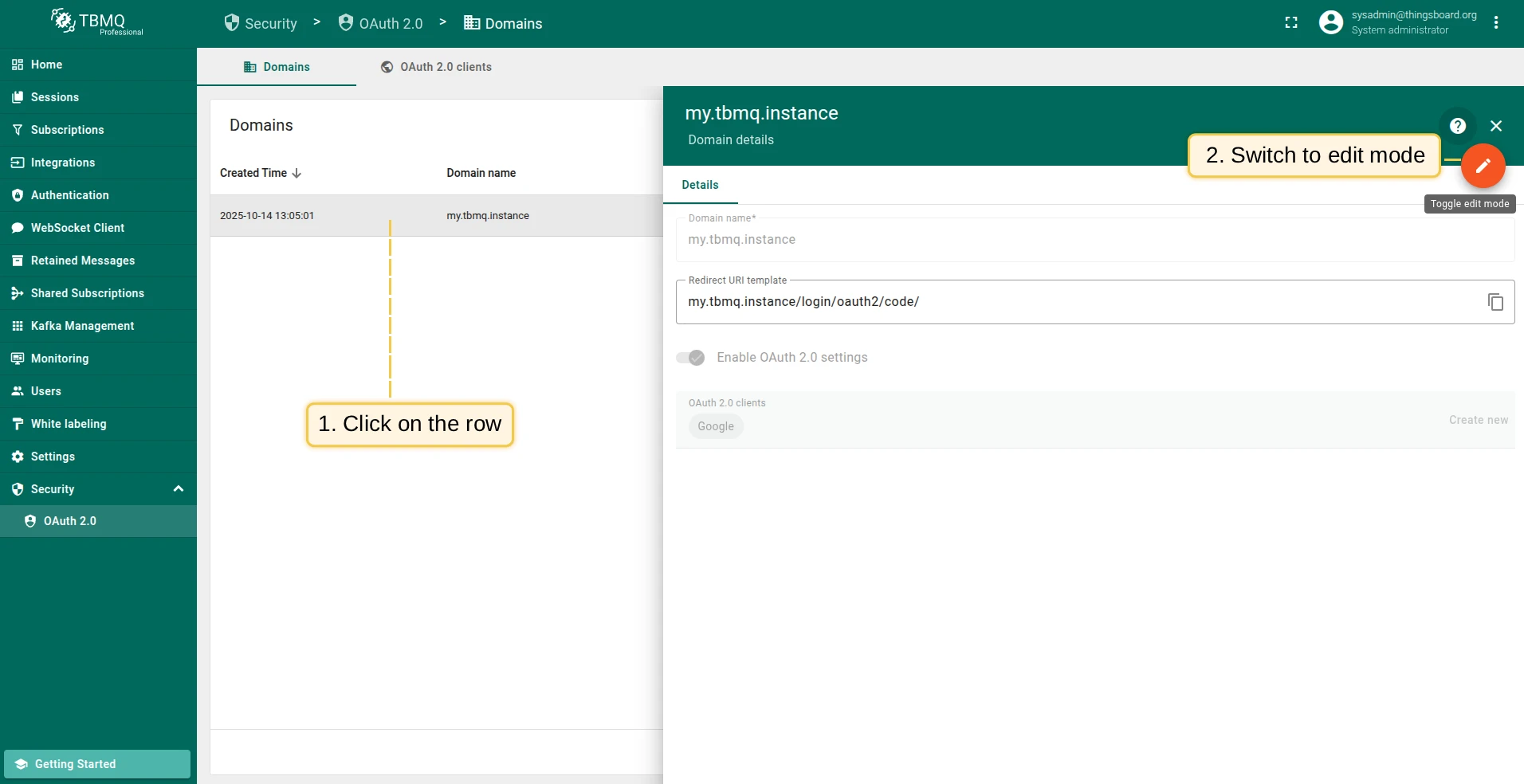
- Click on the domain to view its details.
- Switch to editing mode by clicking the large orange button.
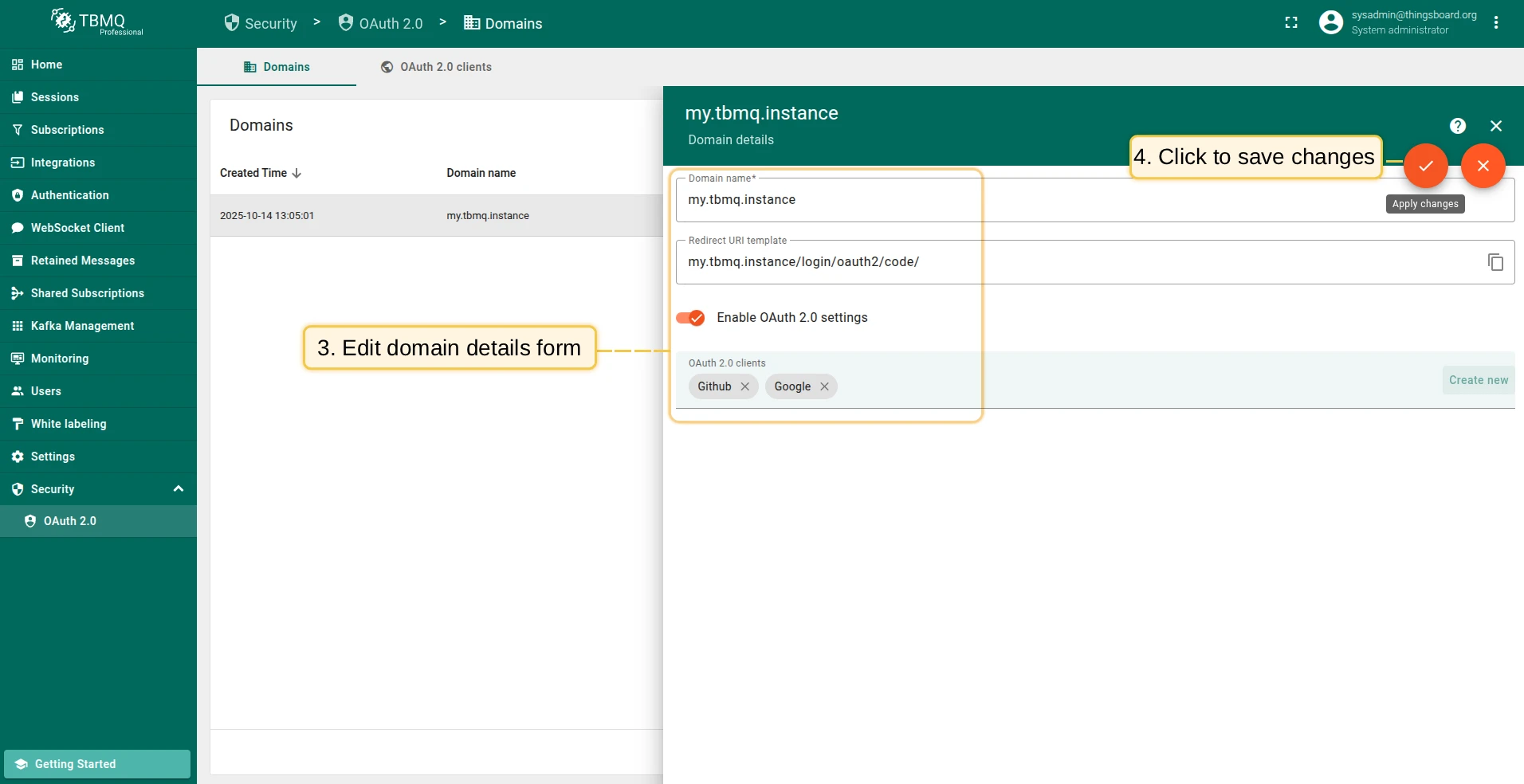
- Make the required modifications.
- Save your changes by clicking Apply changes.
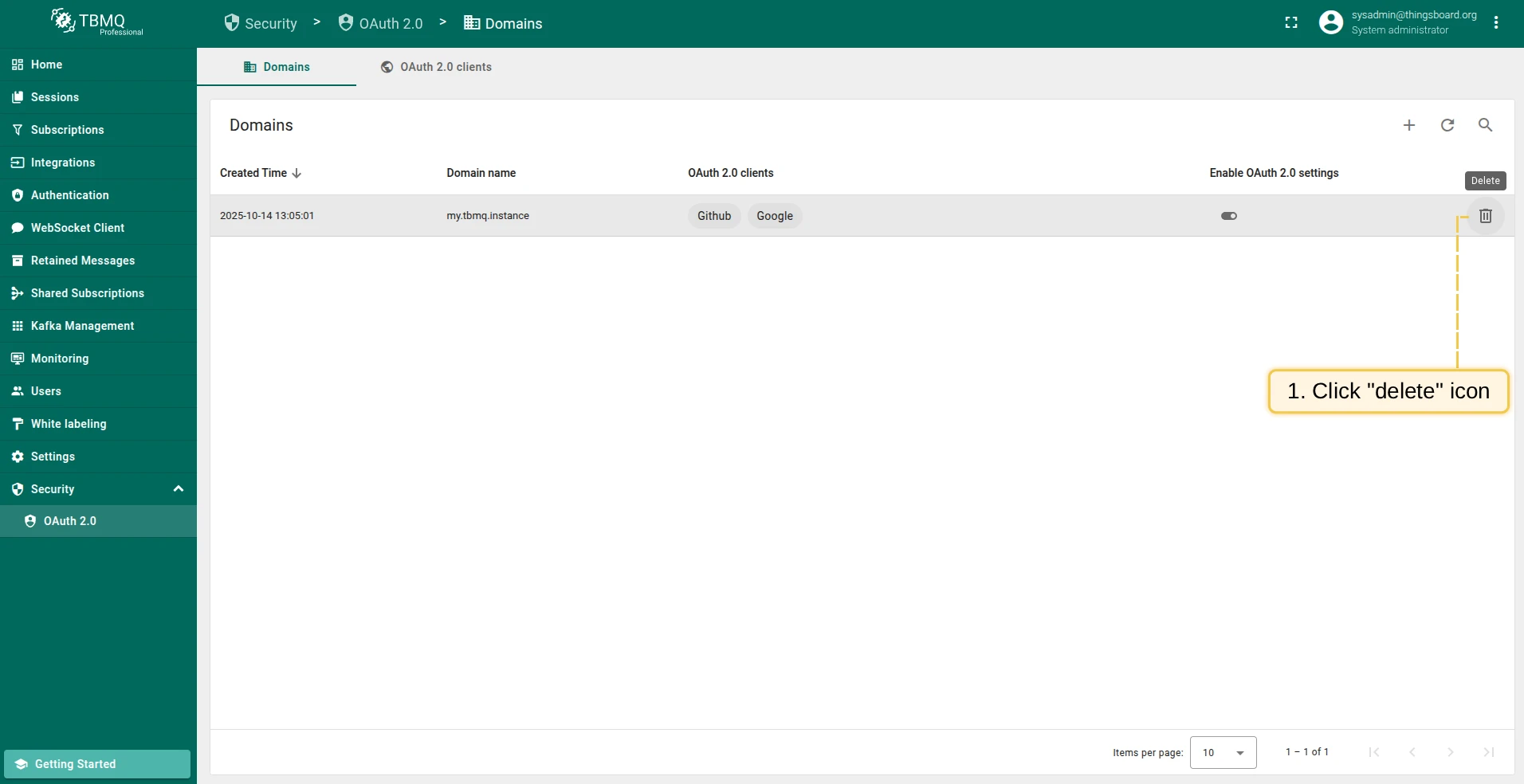
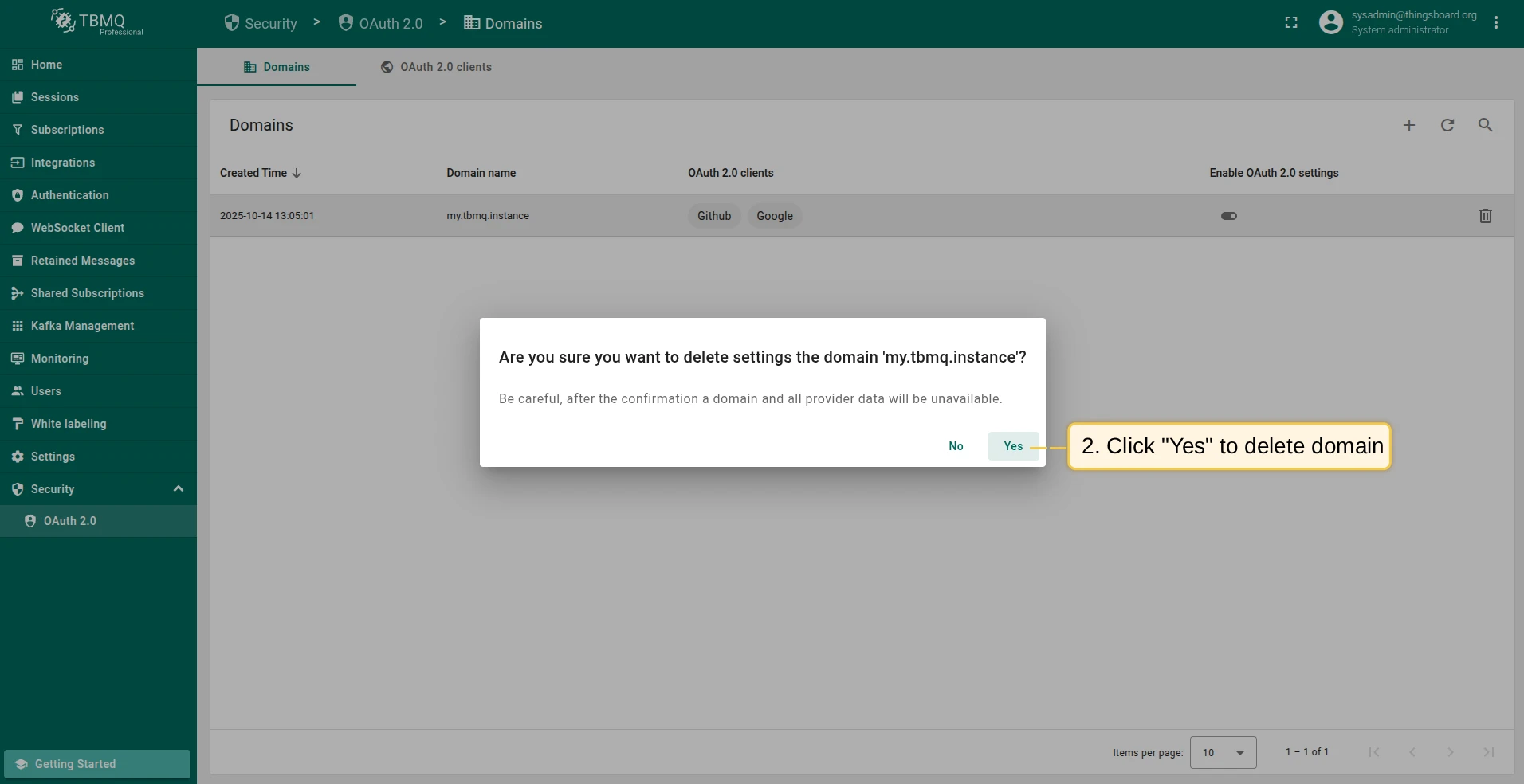
Deleting a domain
- Click the trash icon in the row of the domain you wish to remove.
- Confirm the deletion by clicking Yes.
Operations with OAuth 2.0 client
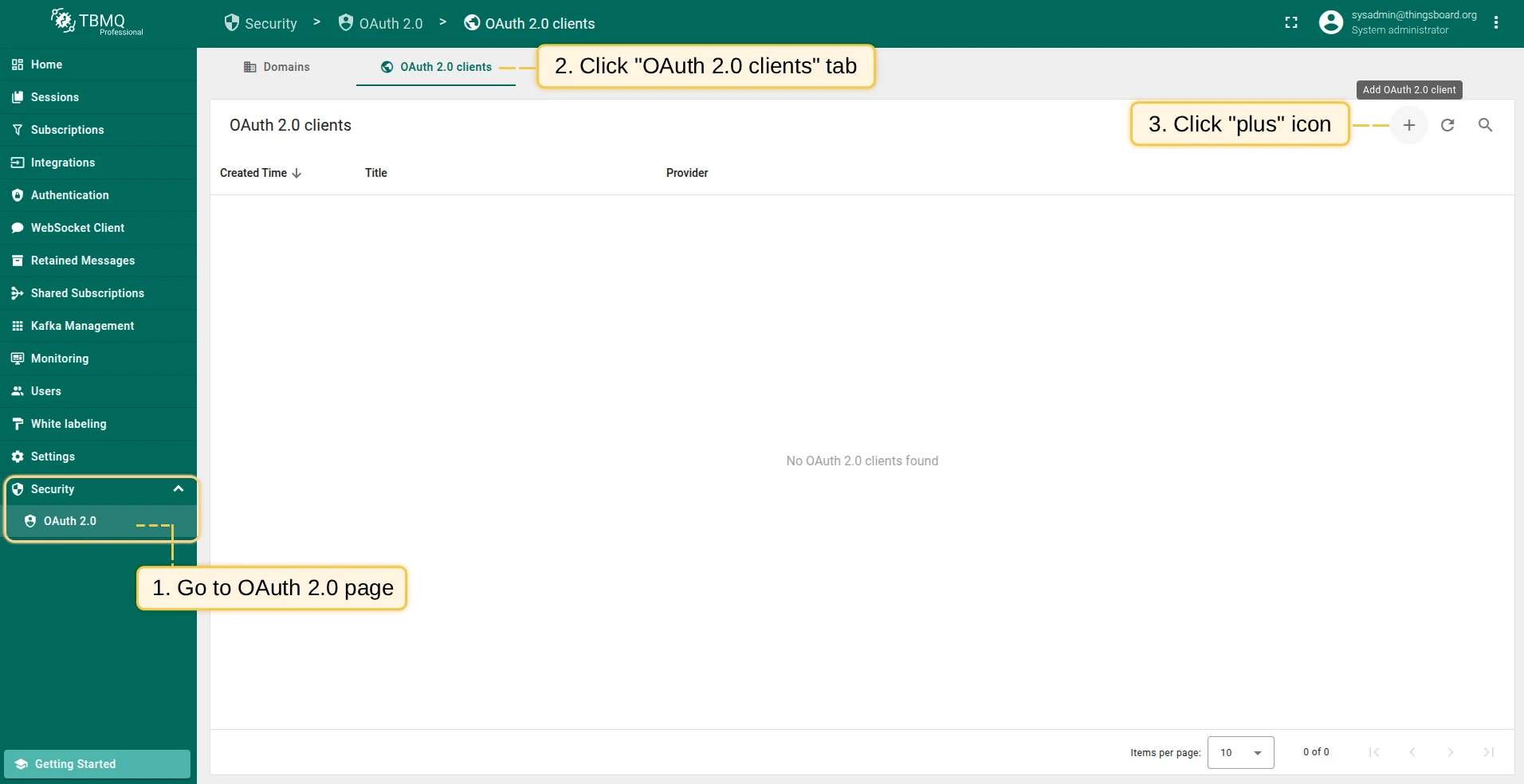
Section titled “Operations with OAuth 2.0 client”Adding an OAuth 2.0 client
- Navigate to the OAuth 2.0 clients tab on the OAuth 2.0 page, and click the plus icon.
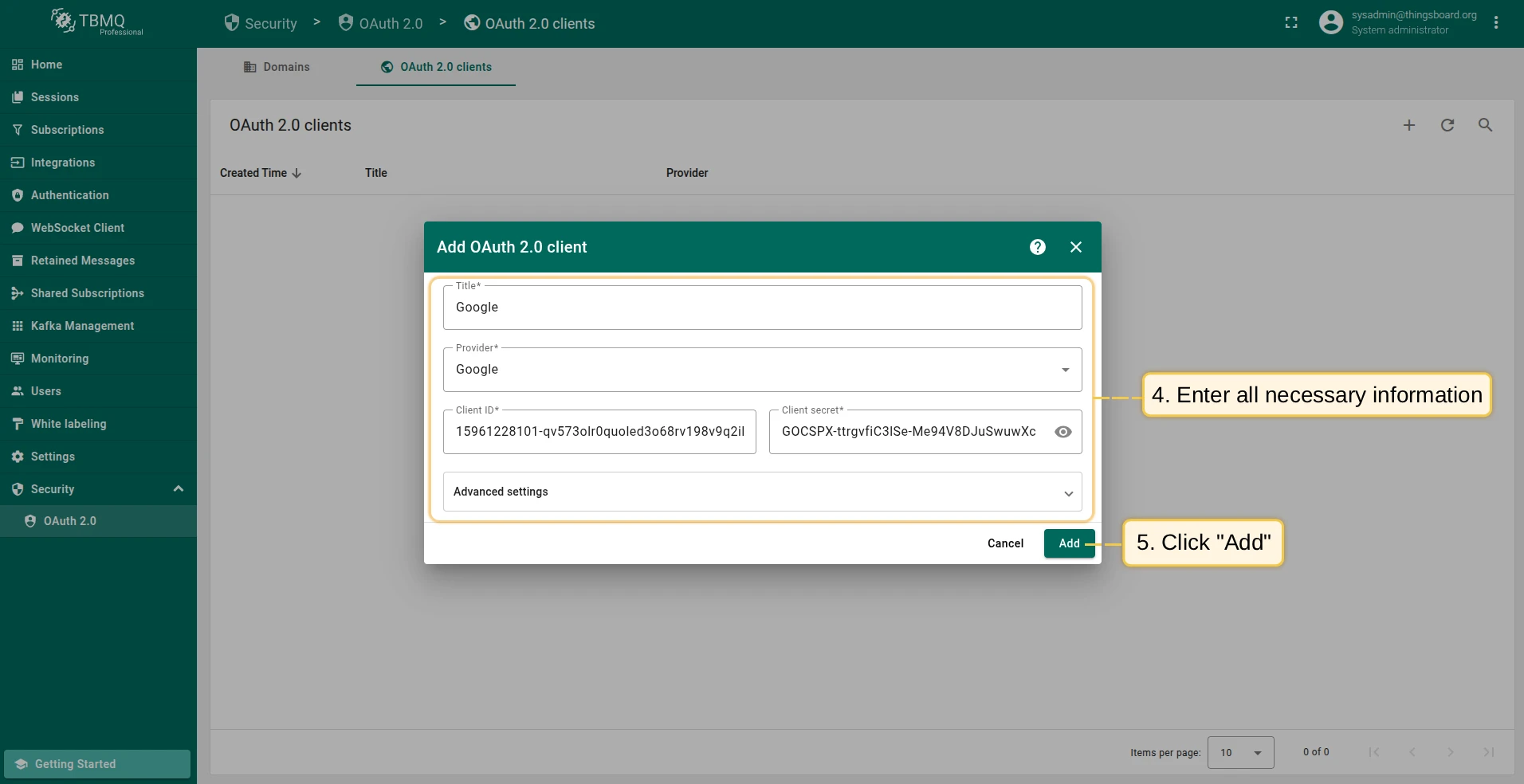
- Enter a descriptive title for the client.
- Select the authentication provider from the dropdown menu.
- Provide the Client ID and Client Secret obtained from your authentication provider.
- Configure advanced settings as necessary.
- Click Add to finalize.
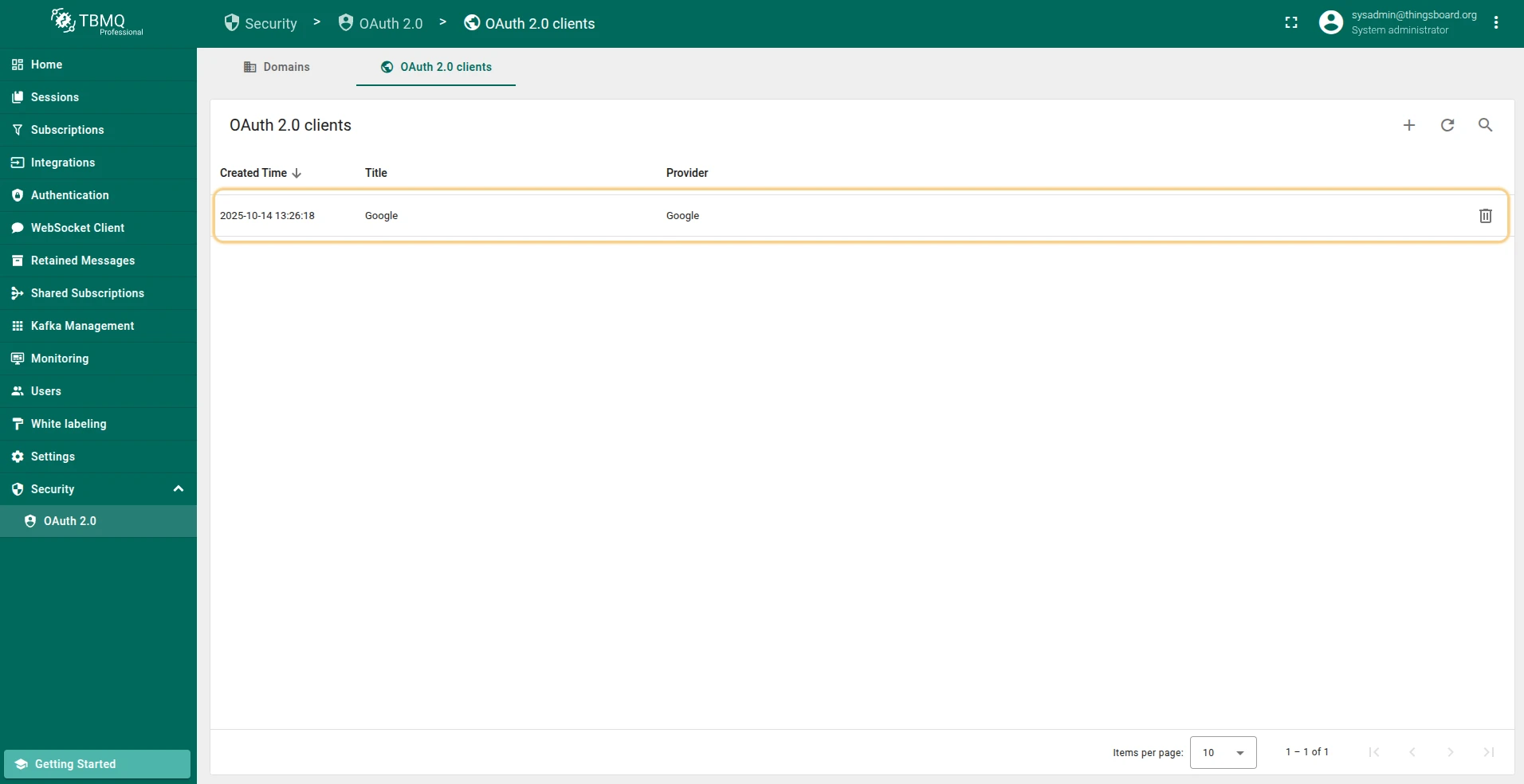
Editing an OAuth 2.0 client
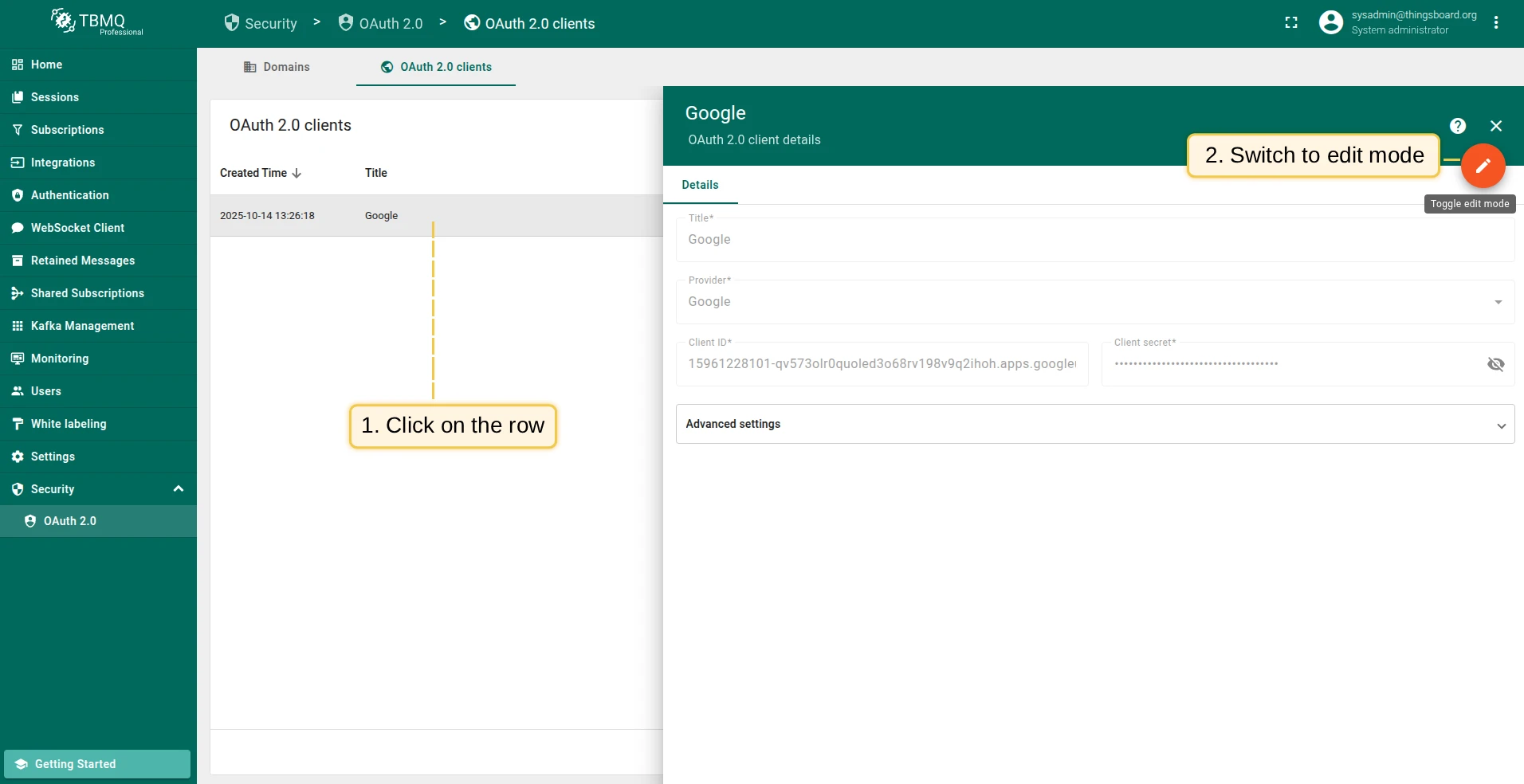
- Click on the client to view its details.
- Switch to editing mode by clicking the large orange button.
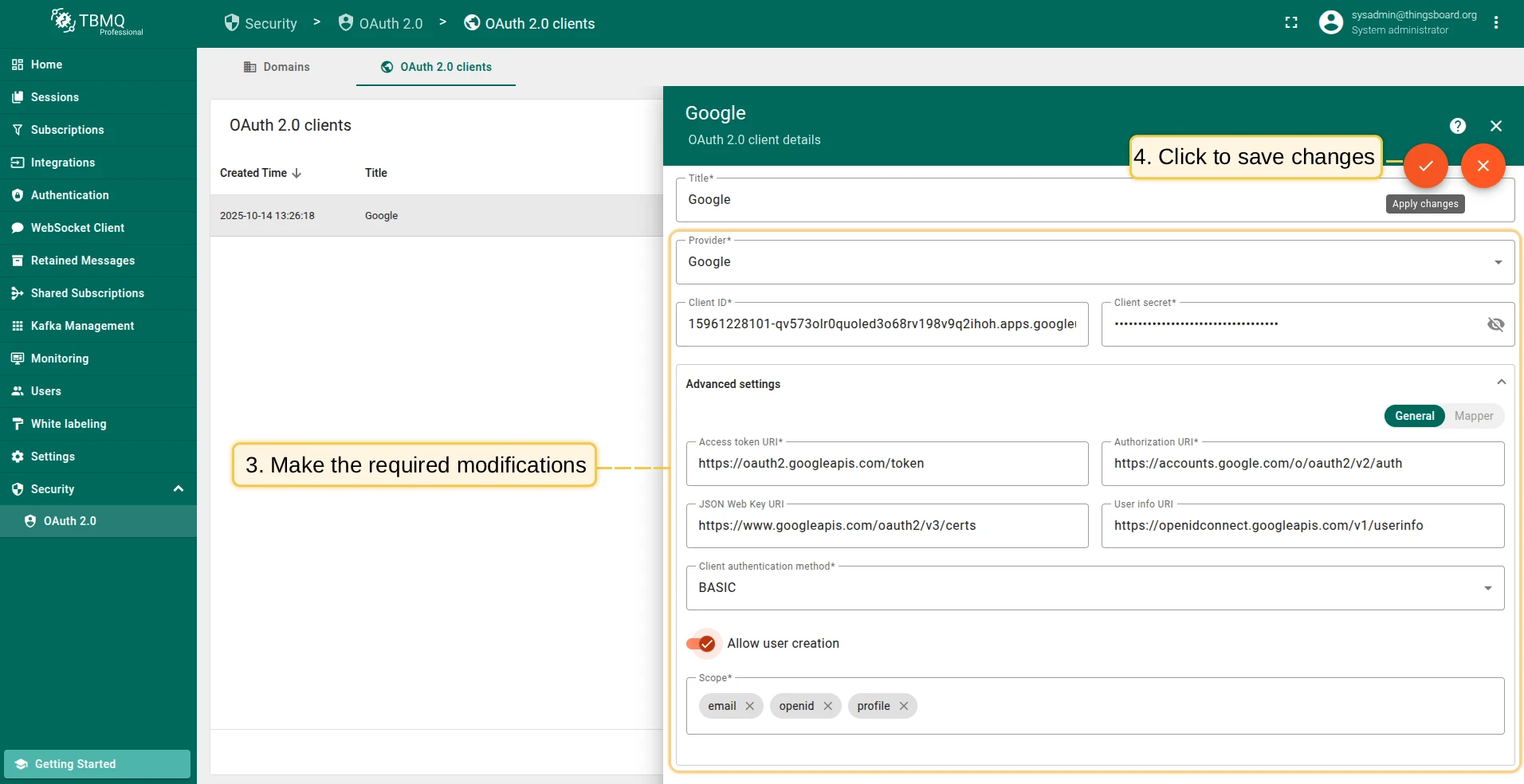
- Make the required modifications.
- Save your changes by clicking Apply changes.
Deleting an OAuth 2.0 client
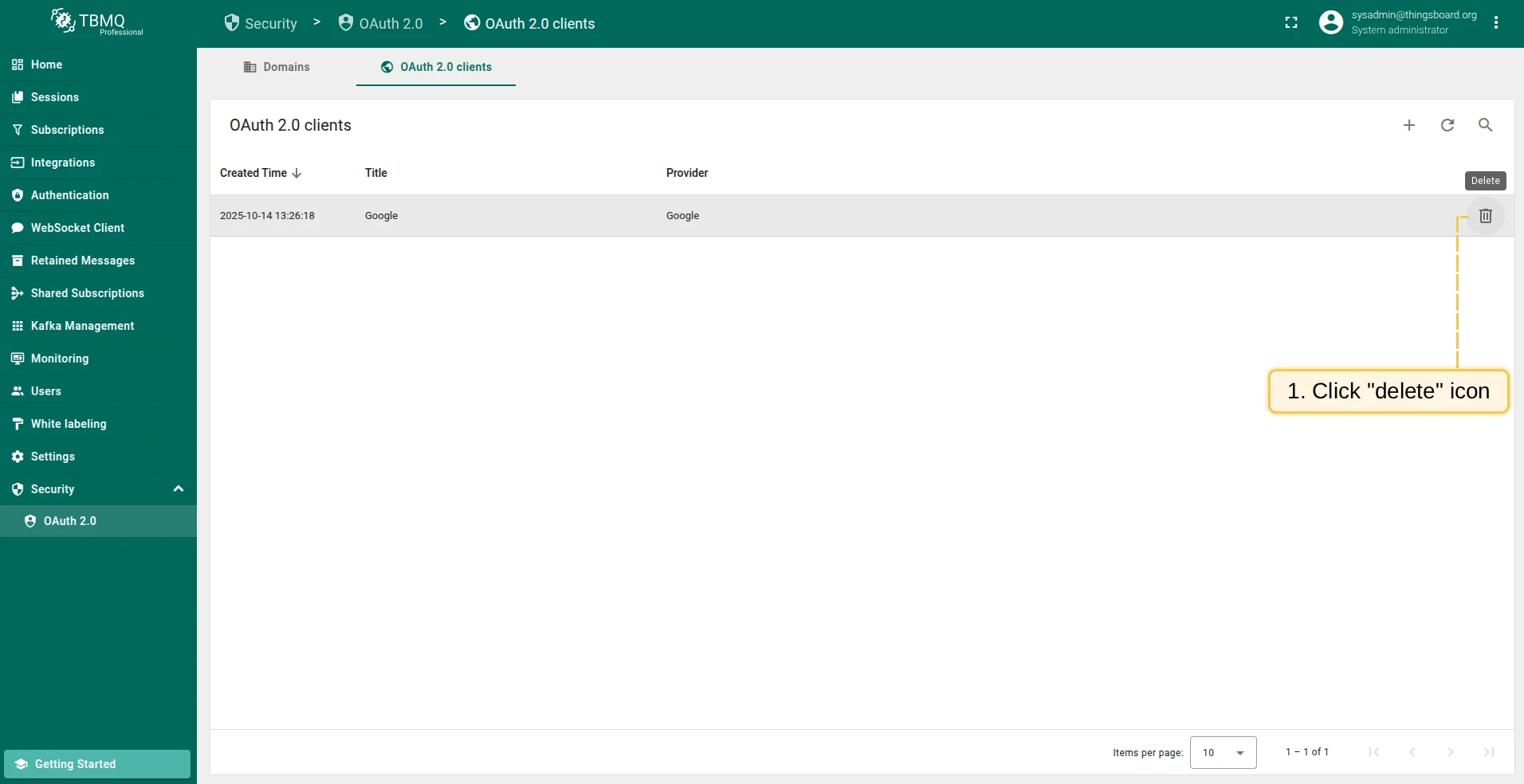
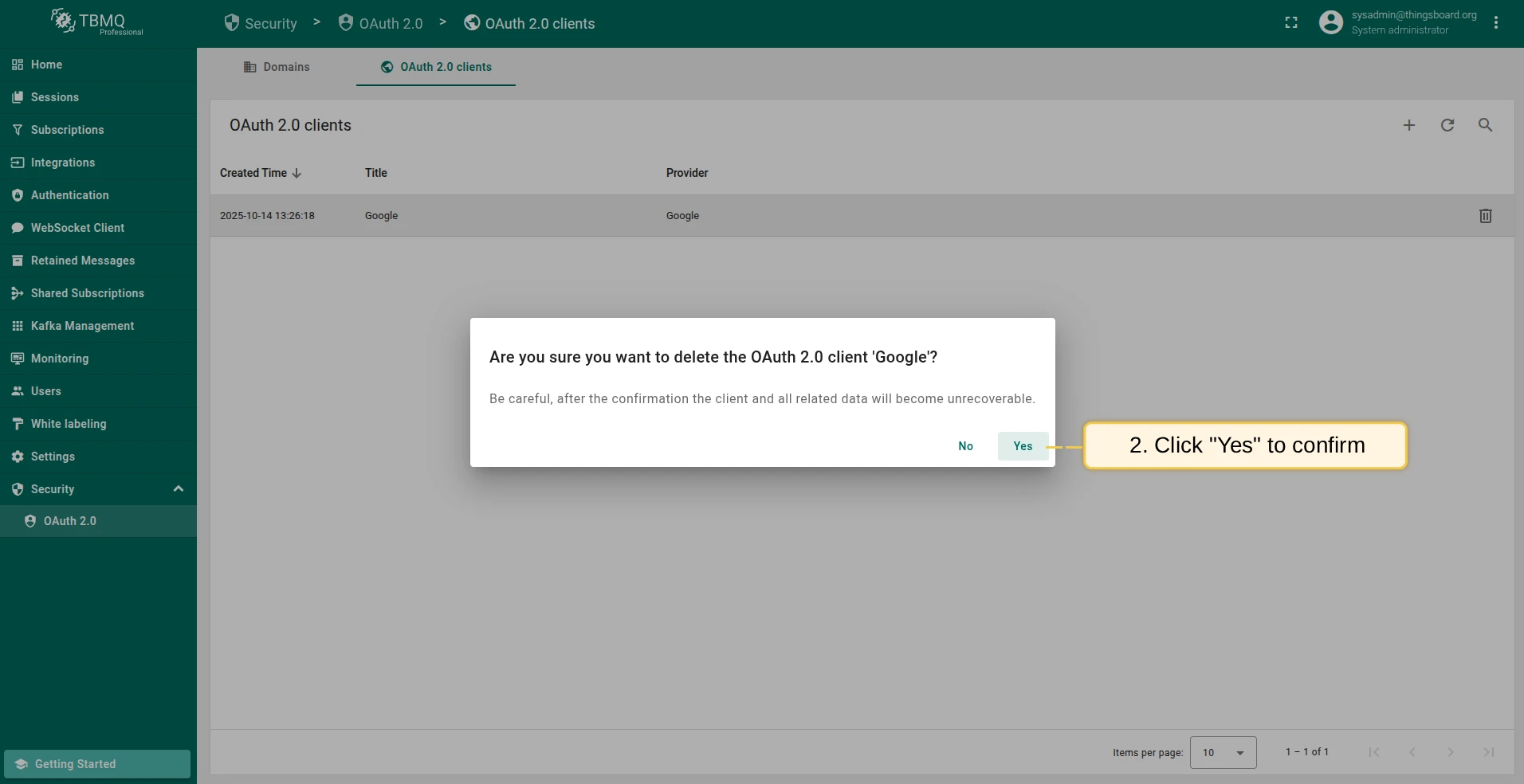
- Click the trash icon in the row of the client you wish to remove.
- Confirm the deletion by clicking Yes.
Login with Google
Section titled “Login with Google”This example uses Google for authentication.
To map external user information from Google to TBMQ, use the built-in basic mapper. If the basic mapper does not fit your business needs, you can configure a custom mapper for more flexibility.
Preparations
Section titled “Preparations”To use Google OAuth 2.0 authentication, you must set up a project in the Google API Console to obtain OAuth 2.0 credentials.
-
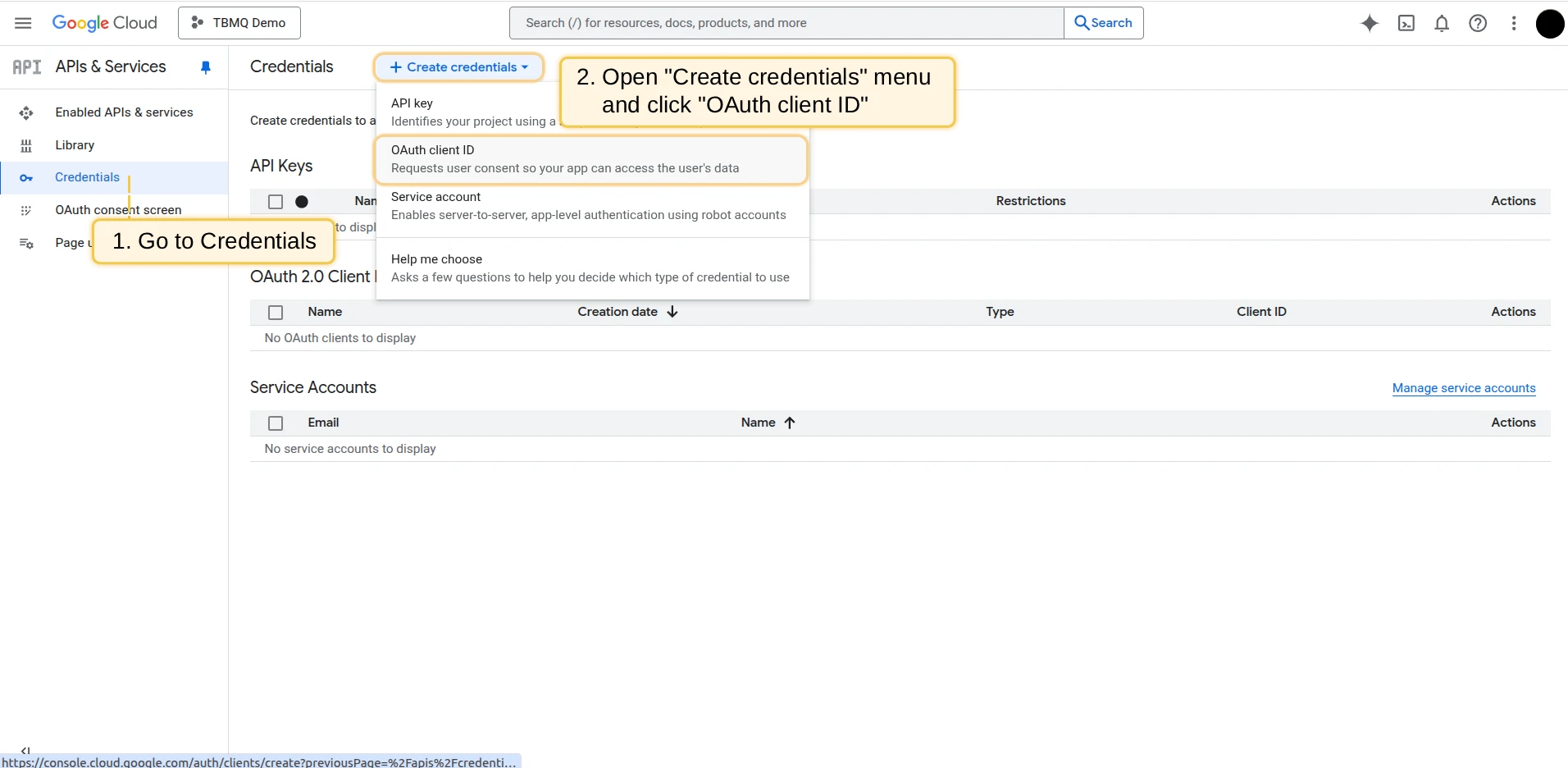
Go to the Credentials page in the left menu and select OAuth client ID from the Create credentials dropdown.
-
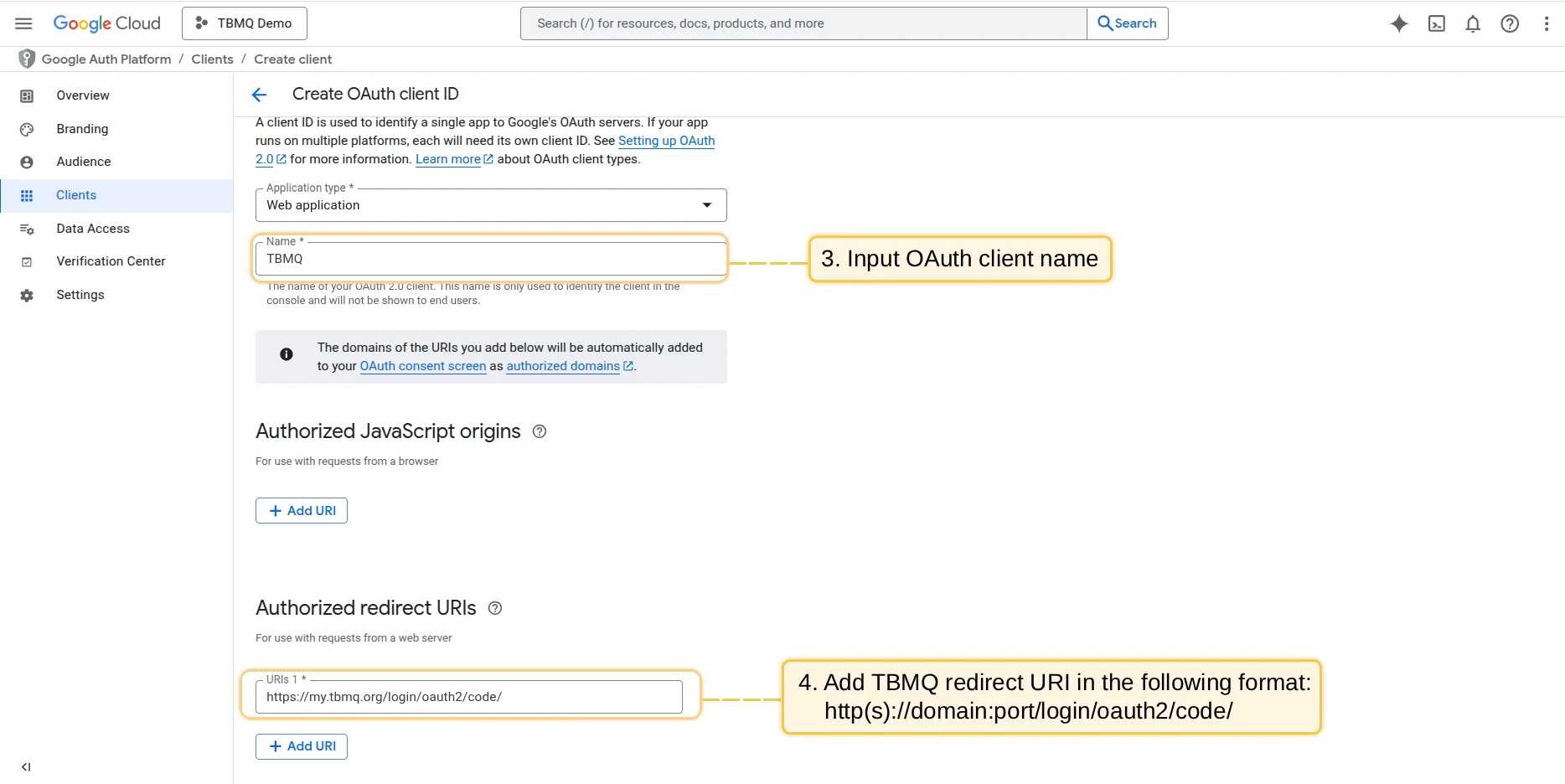
Enter an OAuth client name and add the TBMQ redirect URI in the Authorized Redirect URIs section using the format:
http(s)://domain:port/login/oauth2/code/Replace
domainwith your TBMQ domain and specify the port used for HTTP access. For example:https://my.tbmq.org/login/oauth2/code/ -
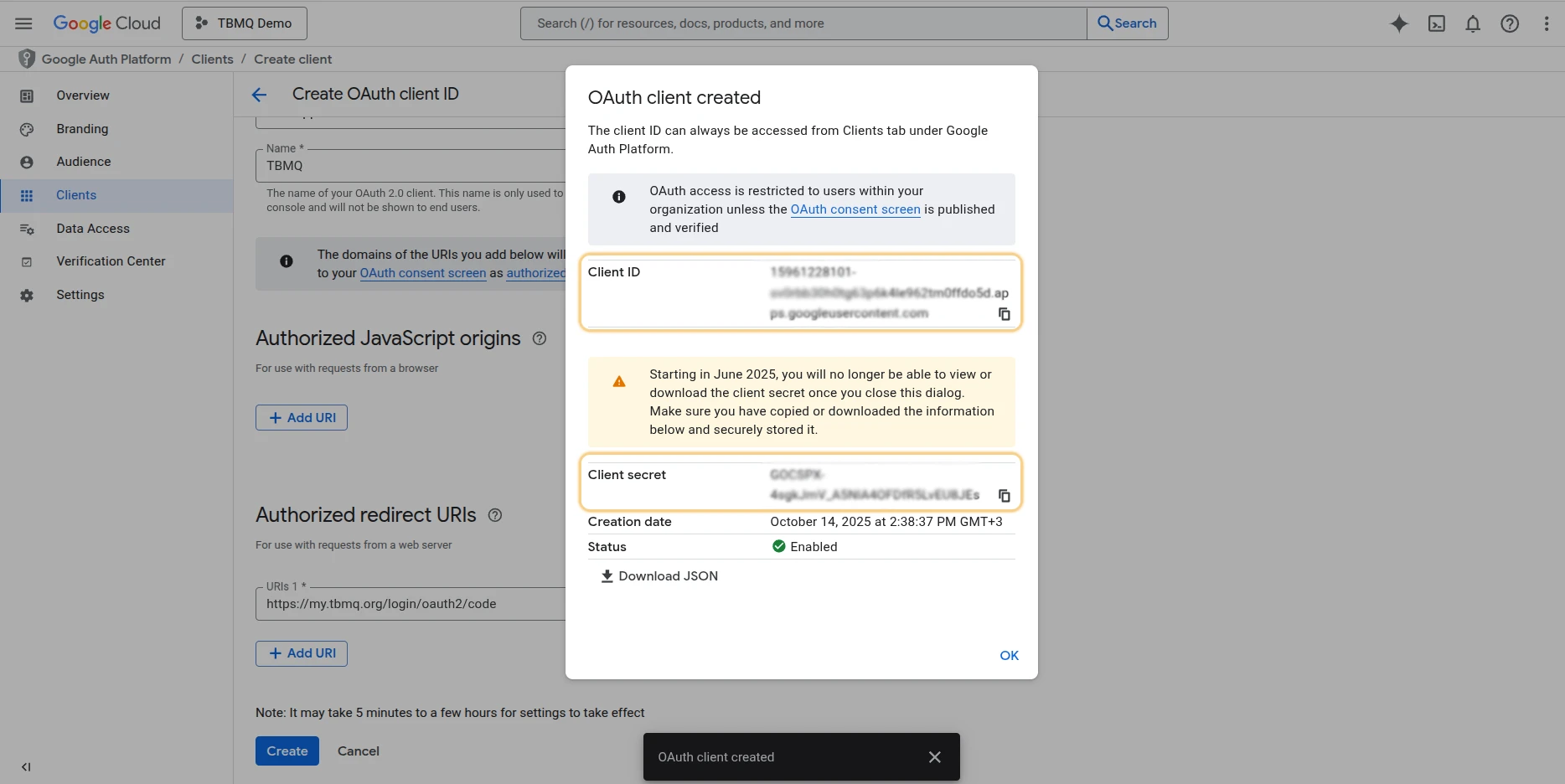
Click Create. You now have a Client ID and a Client Secret.
Configuring Google as an OAuth 2.0 provider in TBMQ
Section titled “Configuring Google as an OAuth 2.0 provider in TBMQ”-
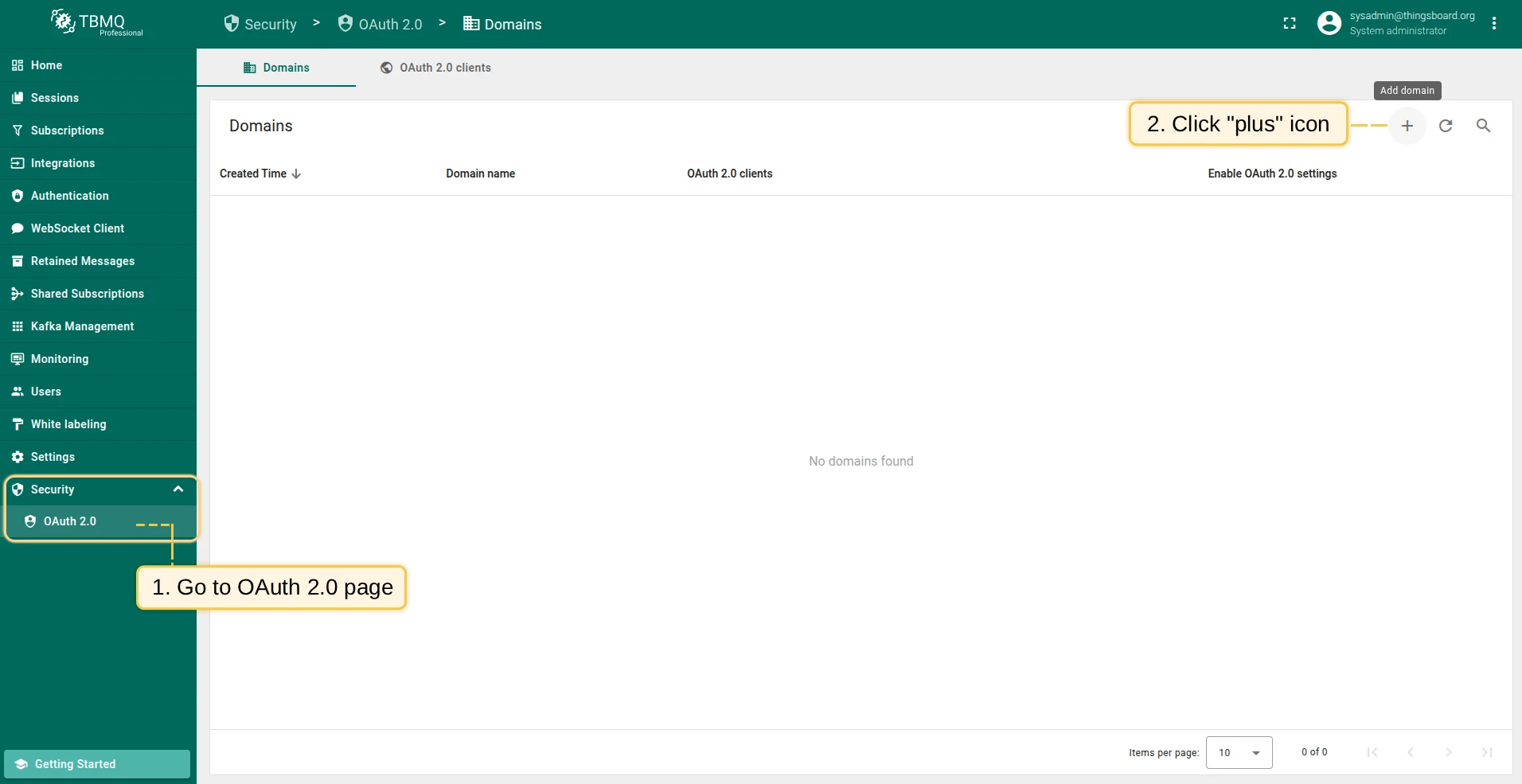
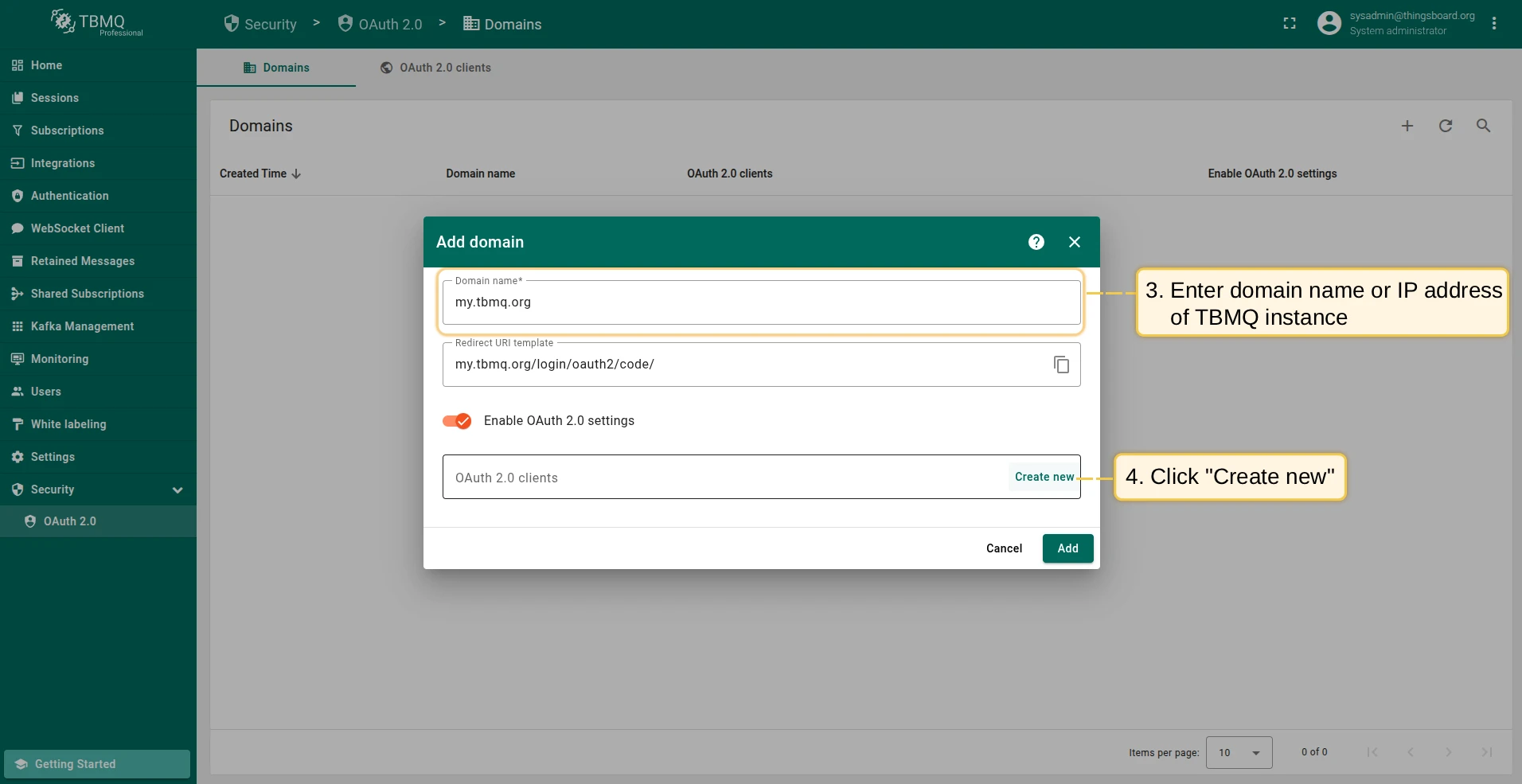
Log in to your TBMQ instance. Go to the OAuth 2.0 page in the Security section. On the Domains tab, click the plus icon. Enter your domain name or IP address and click Create new in the OAuth 2.0 clients section.
-
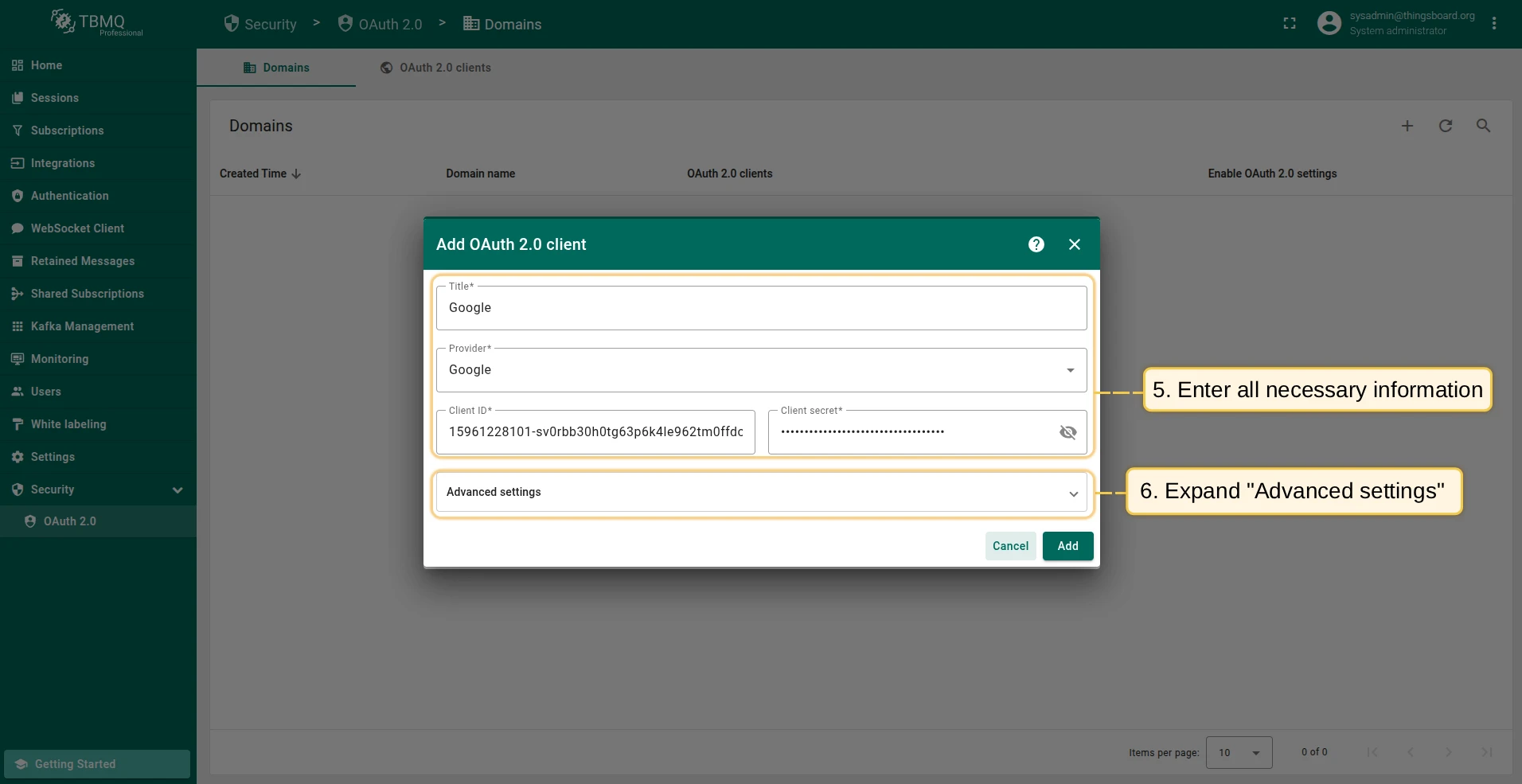
Configure the new OAuth 2.0 client: enter Google as the title, set the provider to Google, and enter the Client ID and Client Secret from the Google API Console.
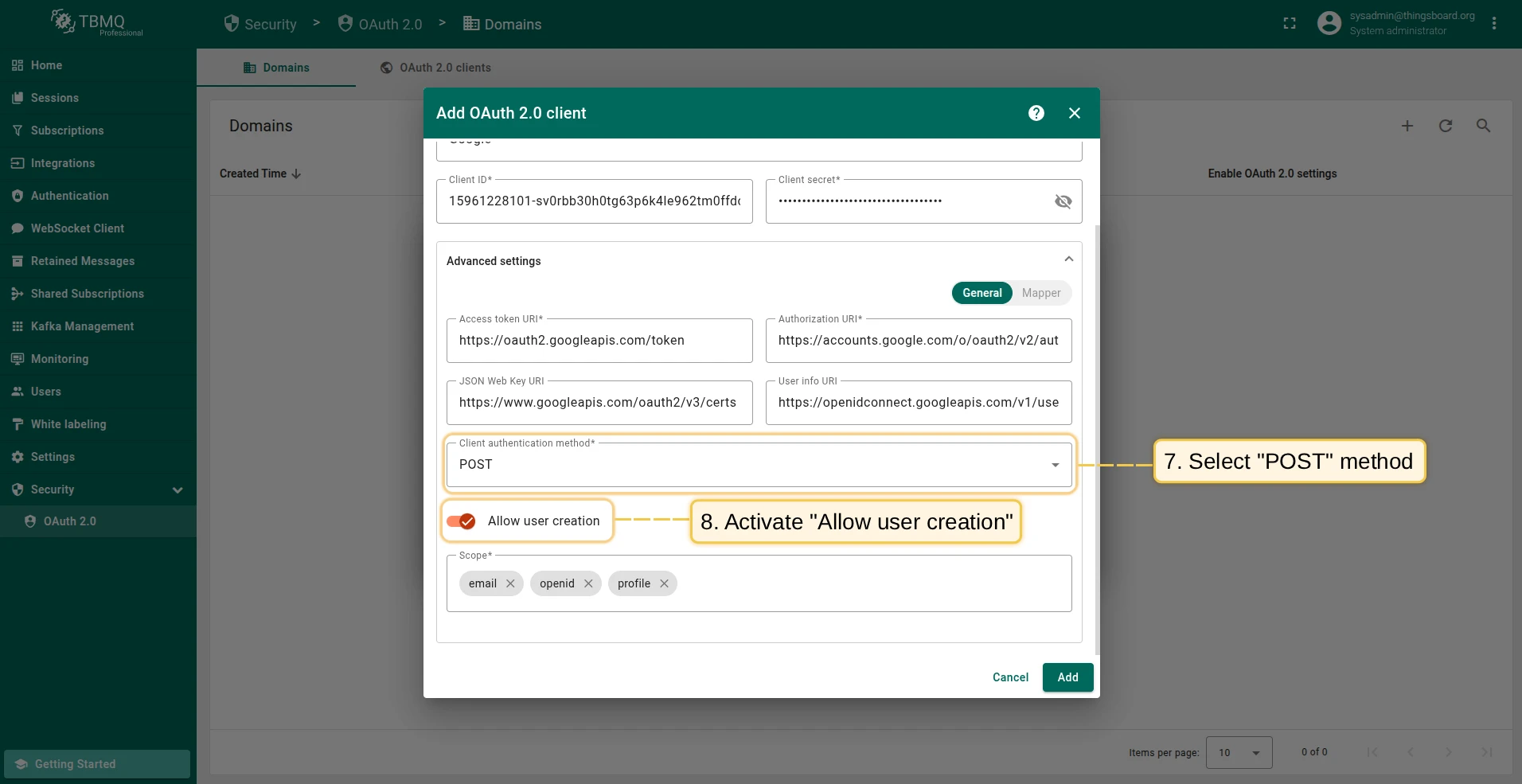
Then expand Advanced settings → General:
- Refer to Google’s OpenID Connect discovery for the latest Access Token URI and Authorization URI.
- Select POST as the client authentication method.
- Enable Allow user creation.
- Add the following scopes:
email,openid,profile.
-
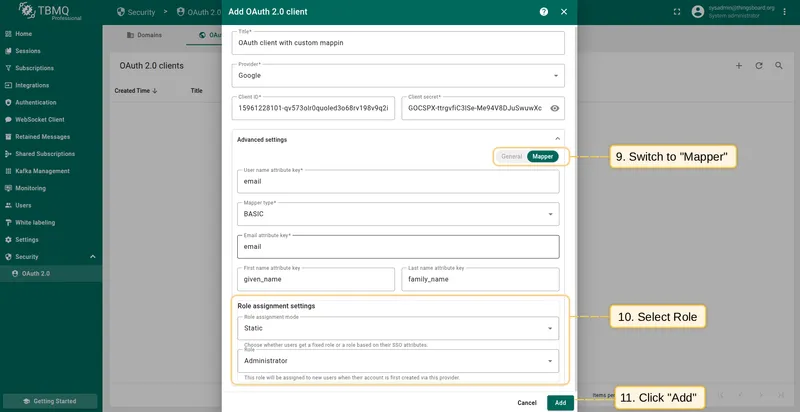
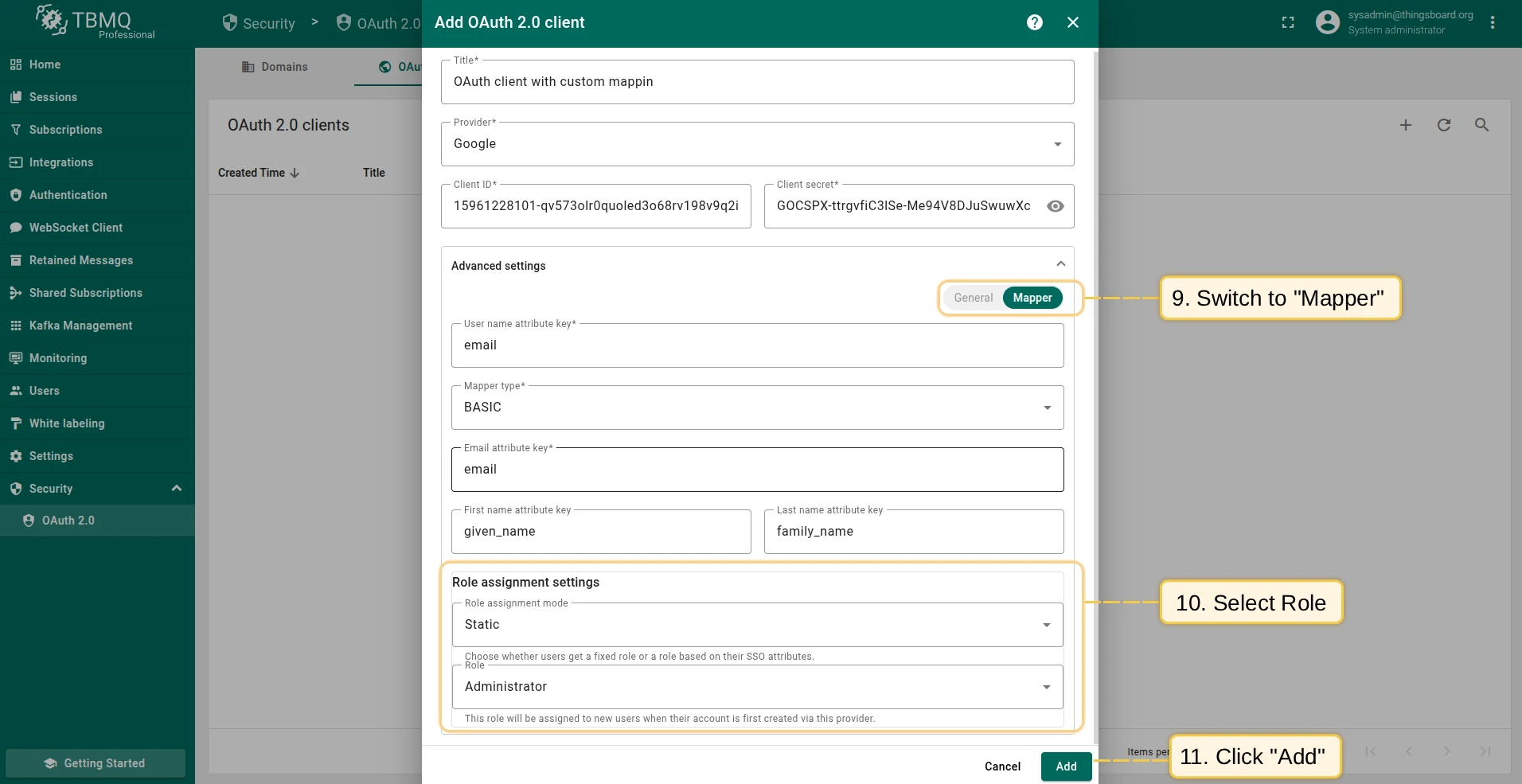
Go to the Mapper block. Keep the mapper type as BASIC. Configure the role assignment settings, then click Add.
-
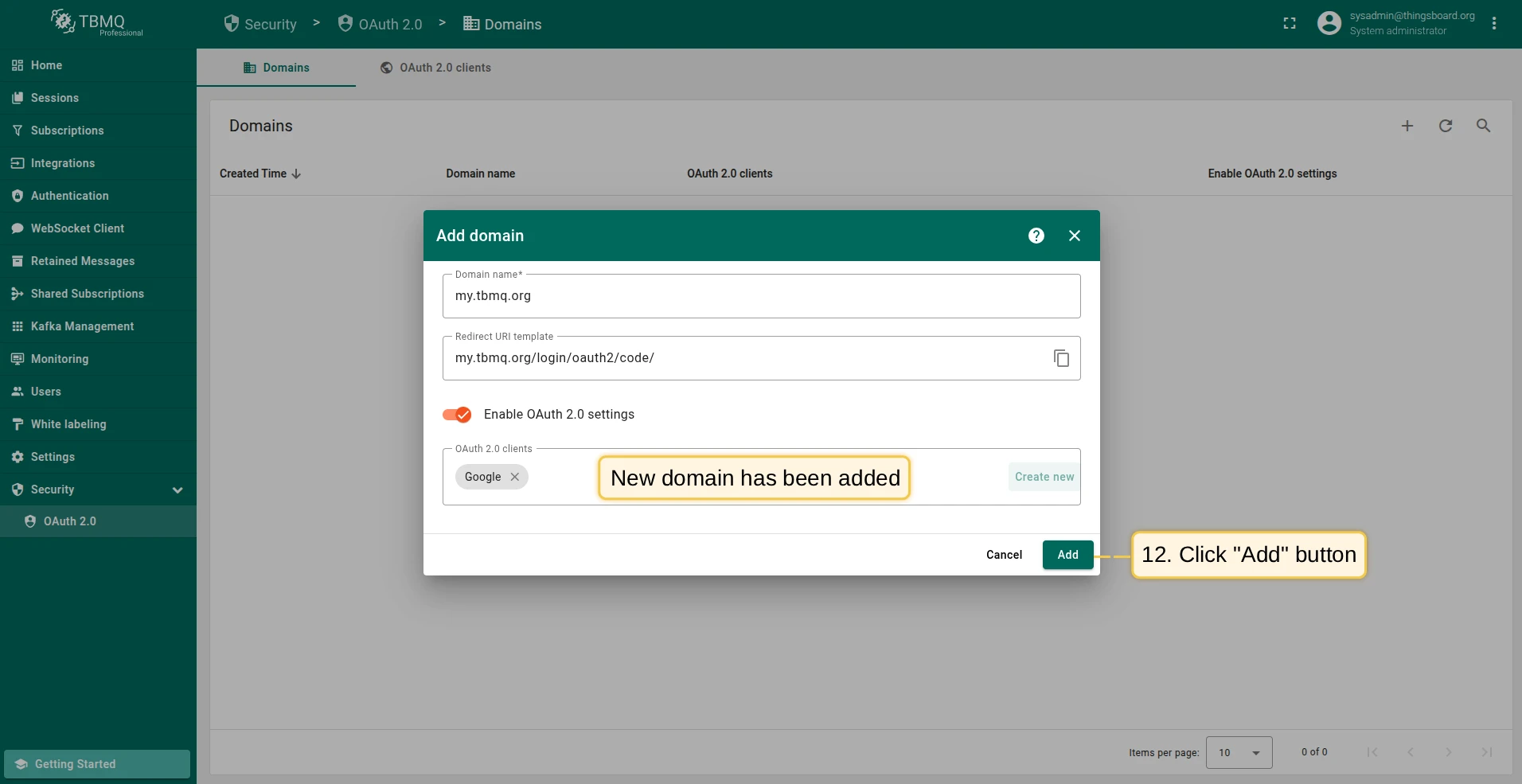
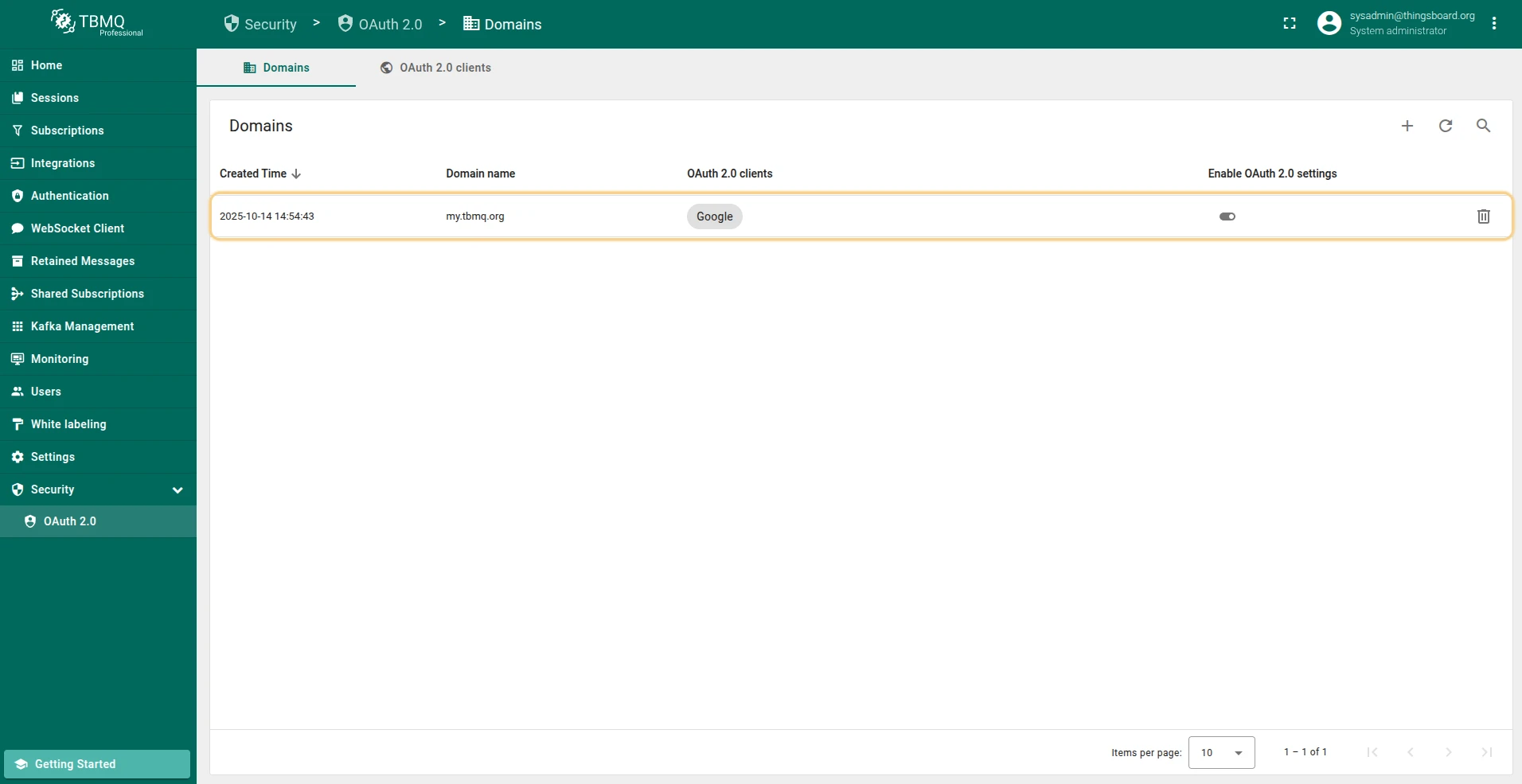
The OAuth client has been added successfully. Click Add again to confirm the domain.
Sign in
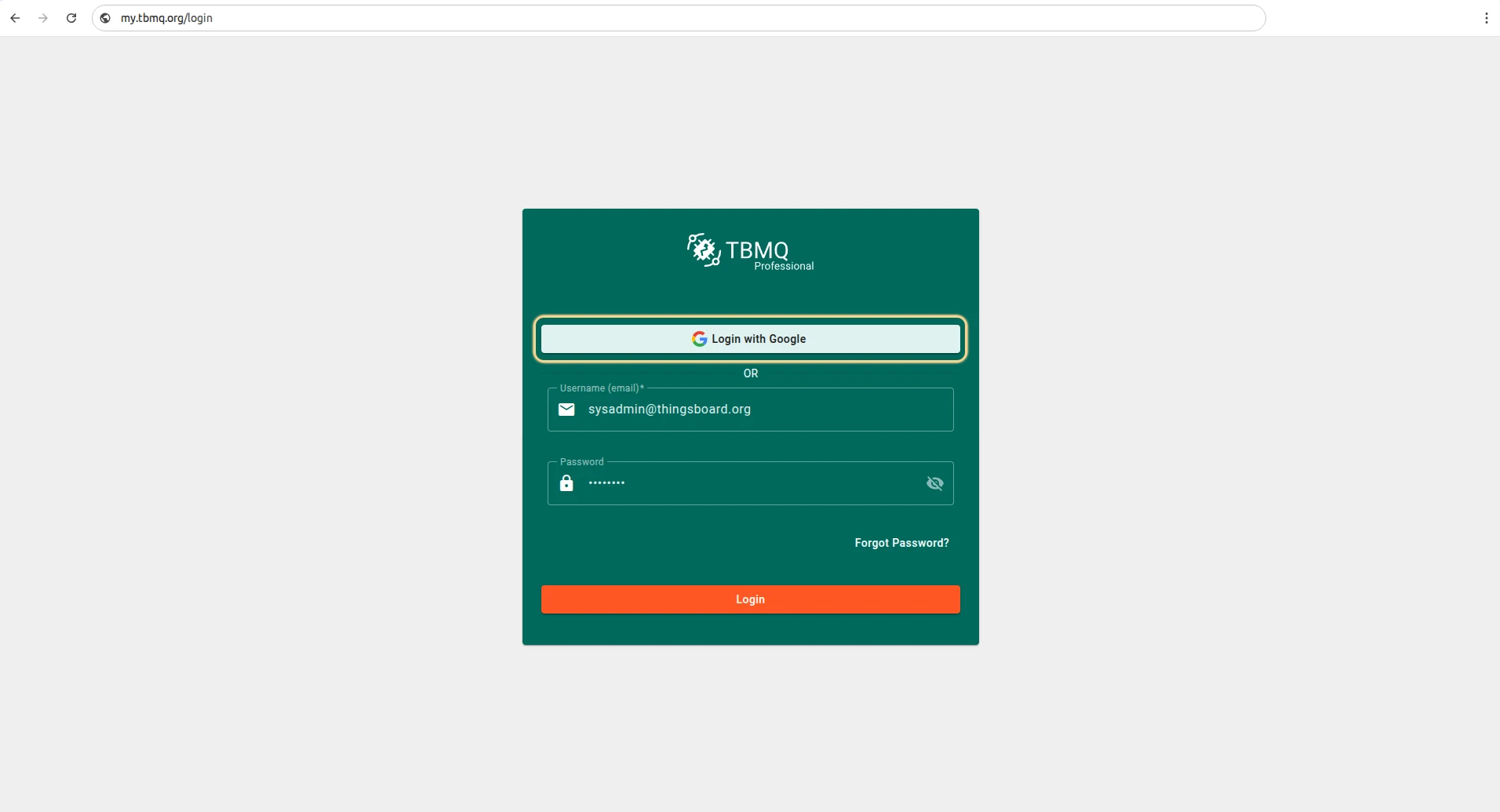
Section titled “Sign in”Go to the TBMQ login screen. You will see a new Login with Google option. Select one of your Google accounts — you will be logged into TBMQ using your Google email.
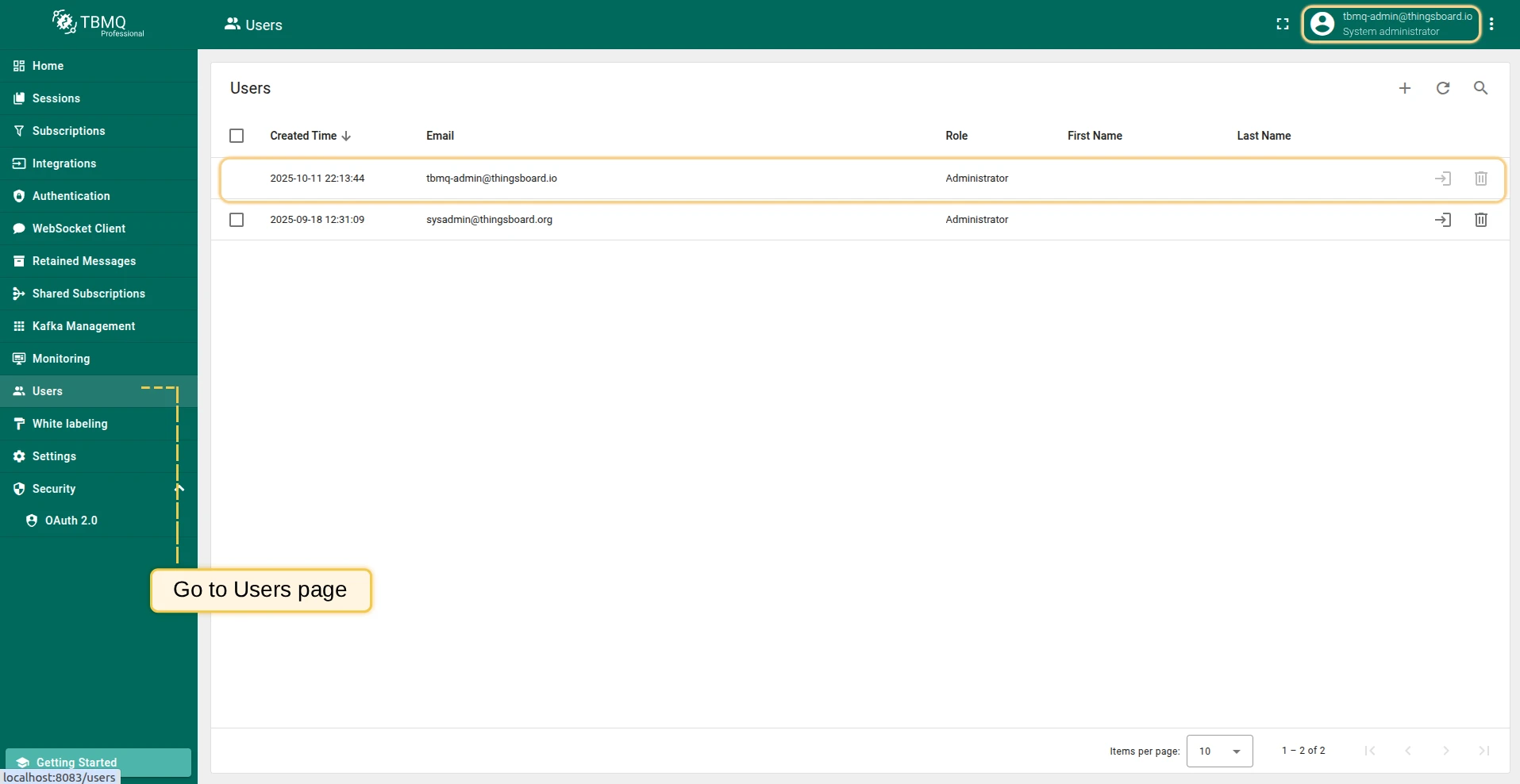
Go to the Users page to find the newly created user.
Login with Auth0
Section titled “Login with Auth0”This example configures OAuth authentication using Auth0 as an external provider.
Preparations
Section titled “Preparations”-
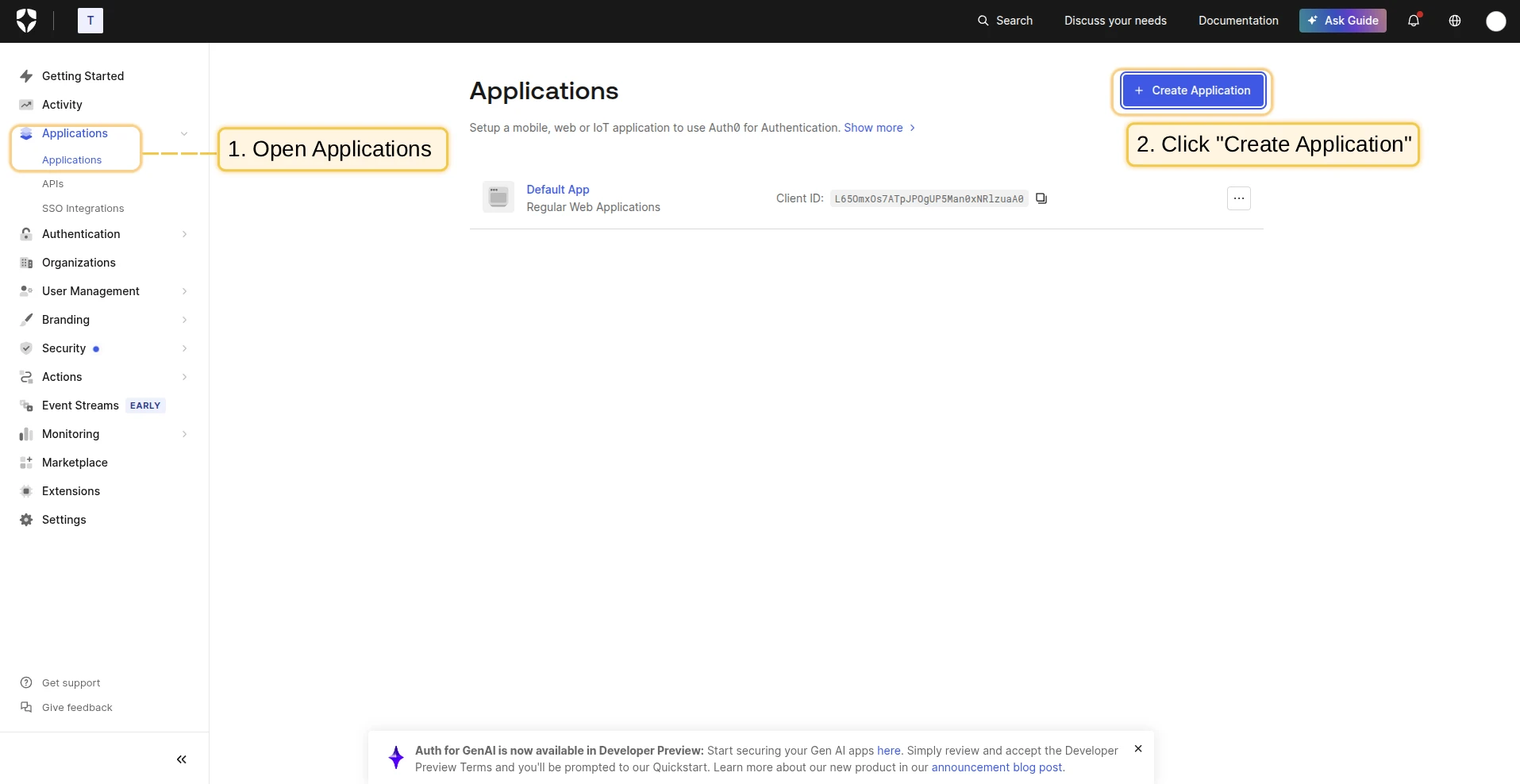
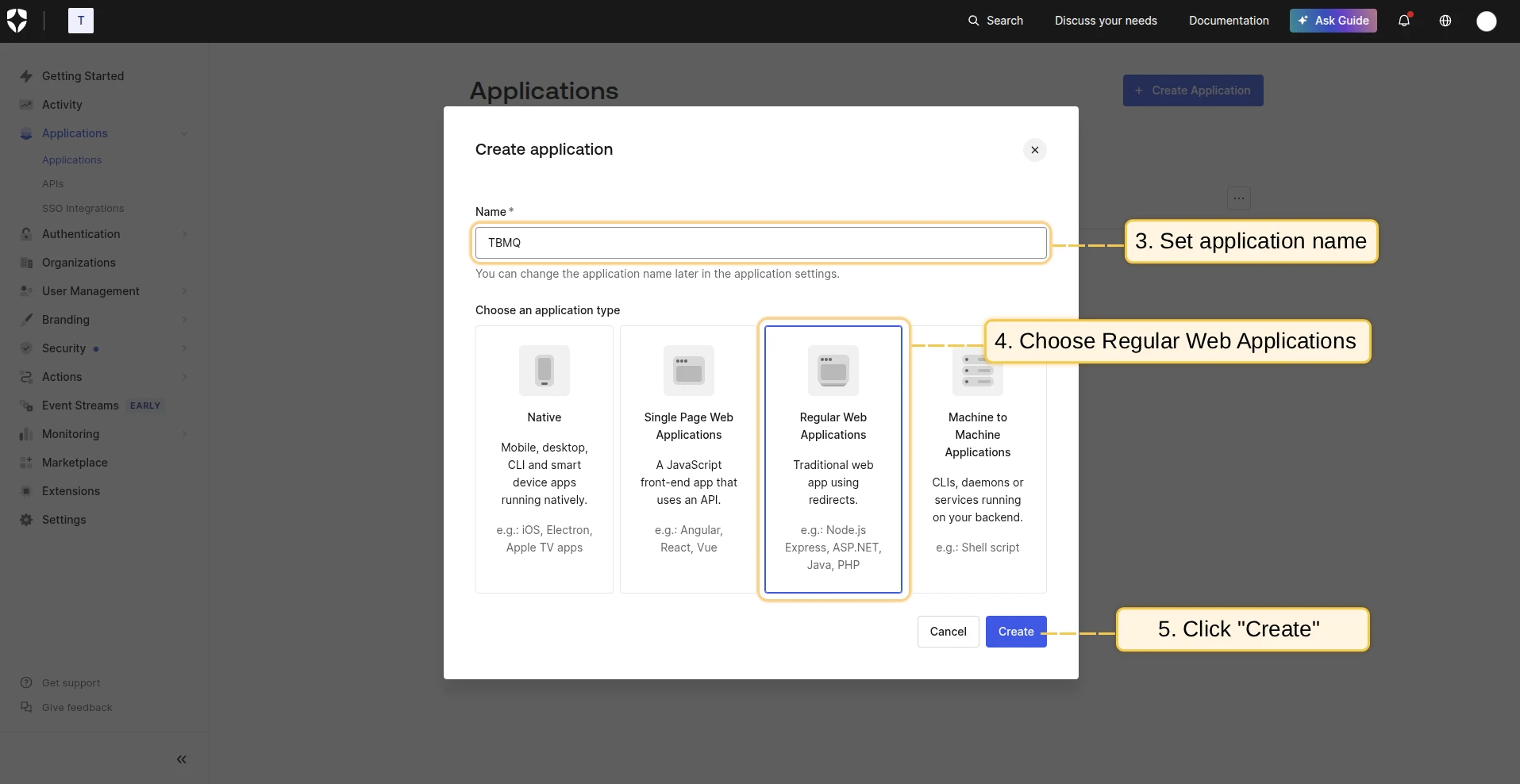
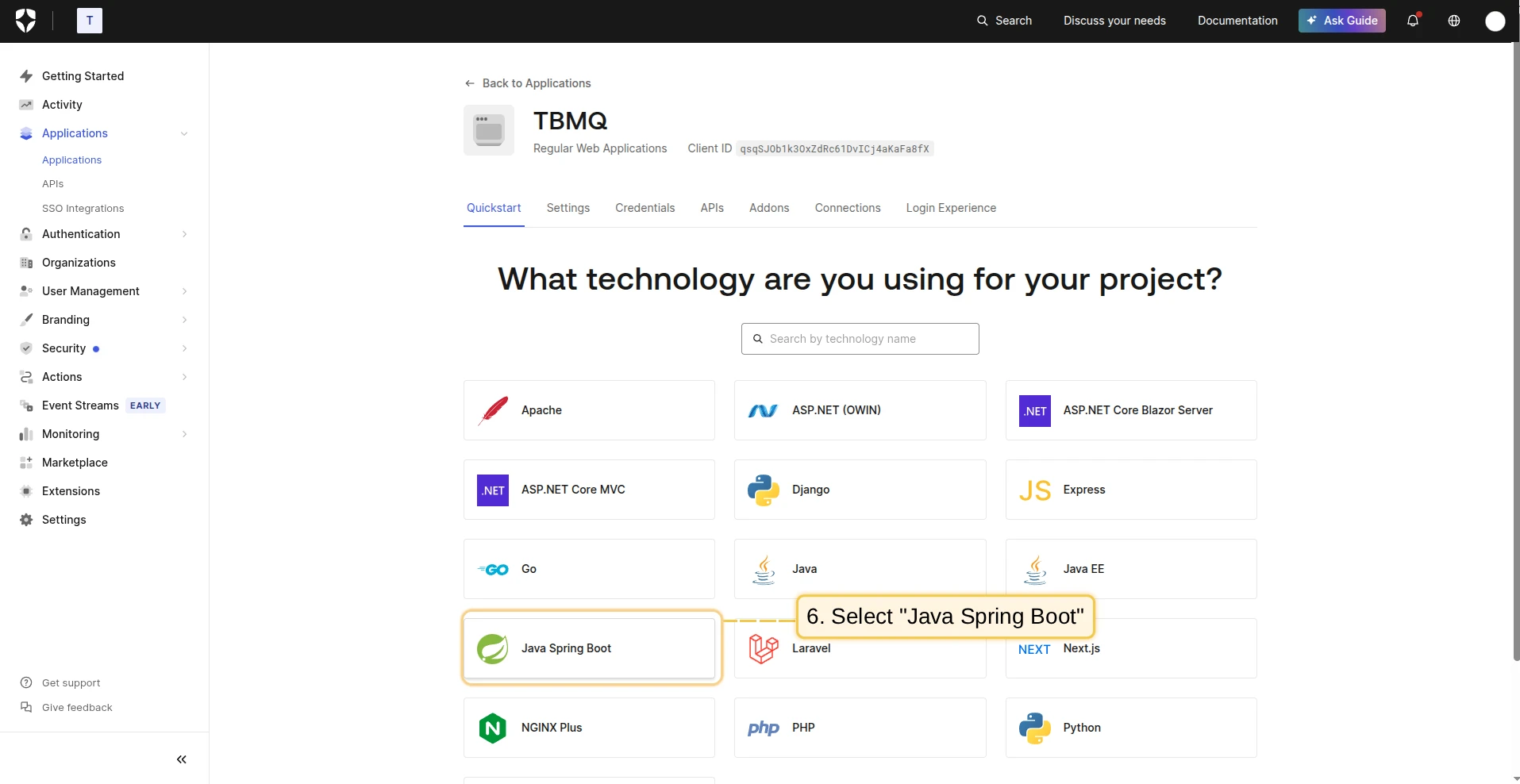
Go to the Auth0 management console. Open the Applications page, and click + Create Application. Name your application TBMQ and choose the type Regular Web Applications. Next, choose Java Spring Boot as the technology.
-
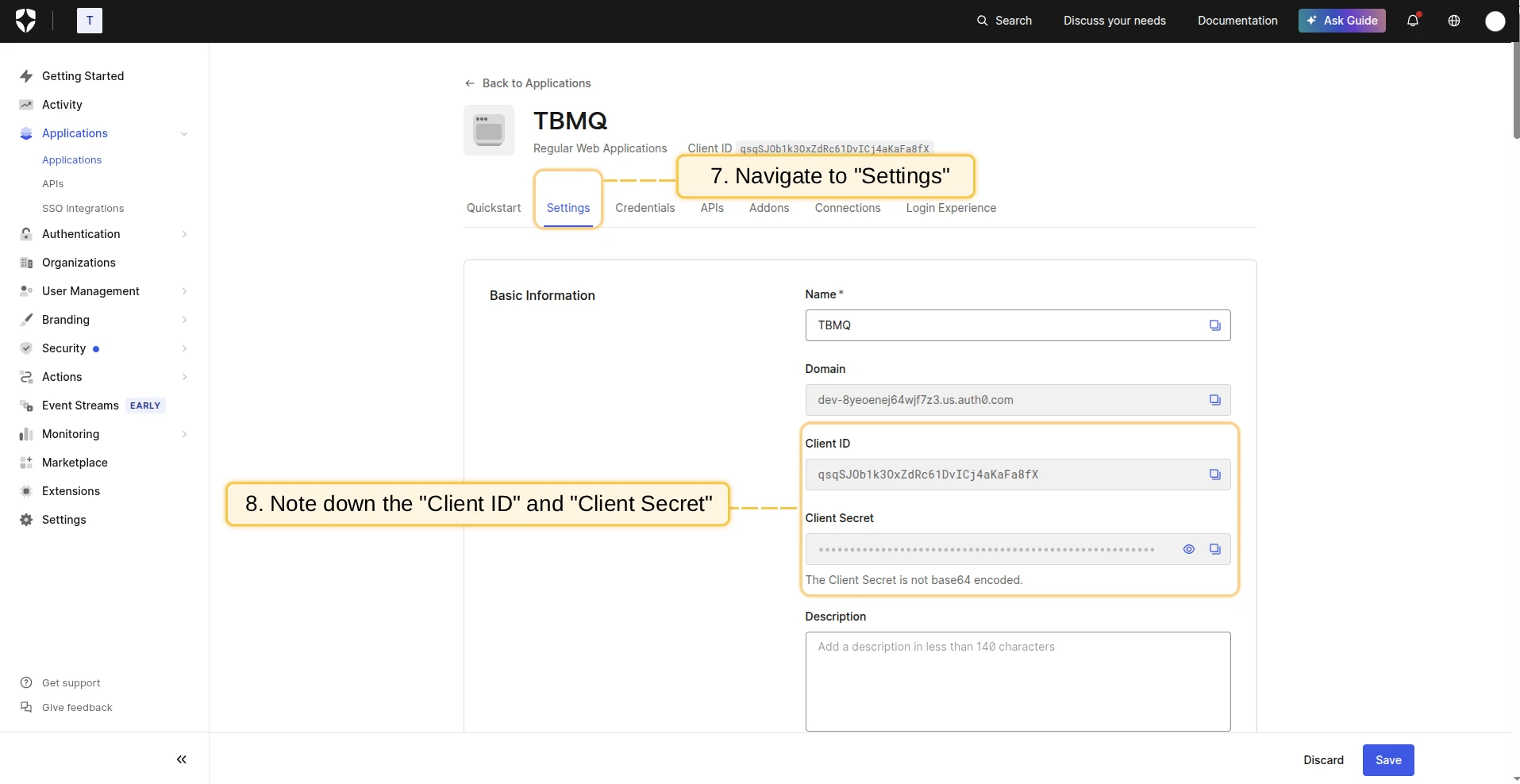
Once your application is created, navigate to the Settings tab to find the Client ID and Client Secret.
-
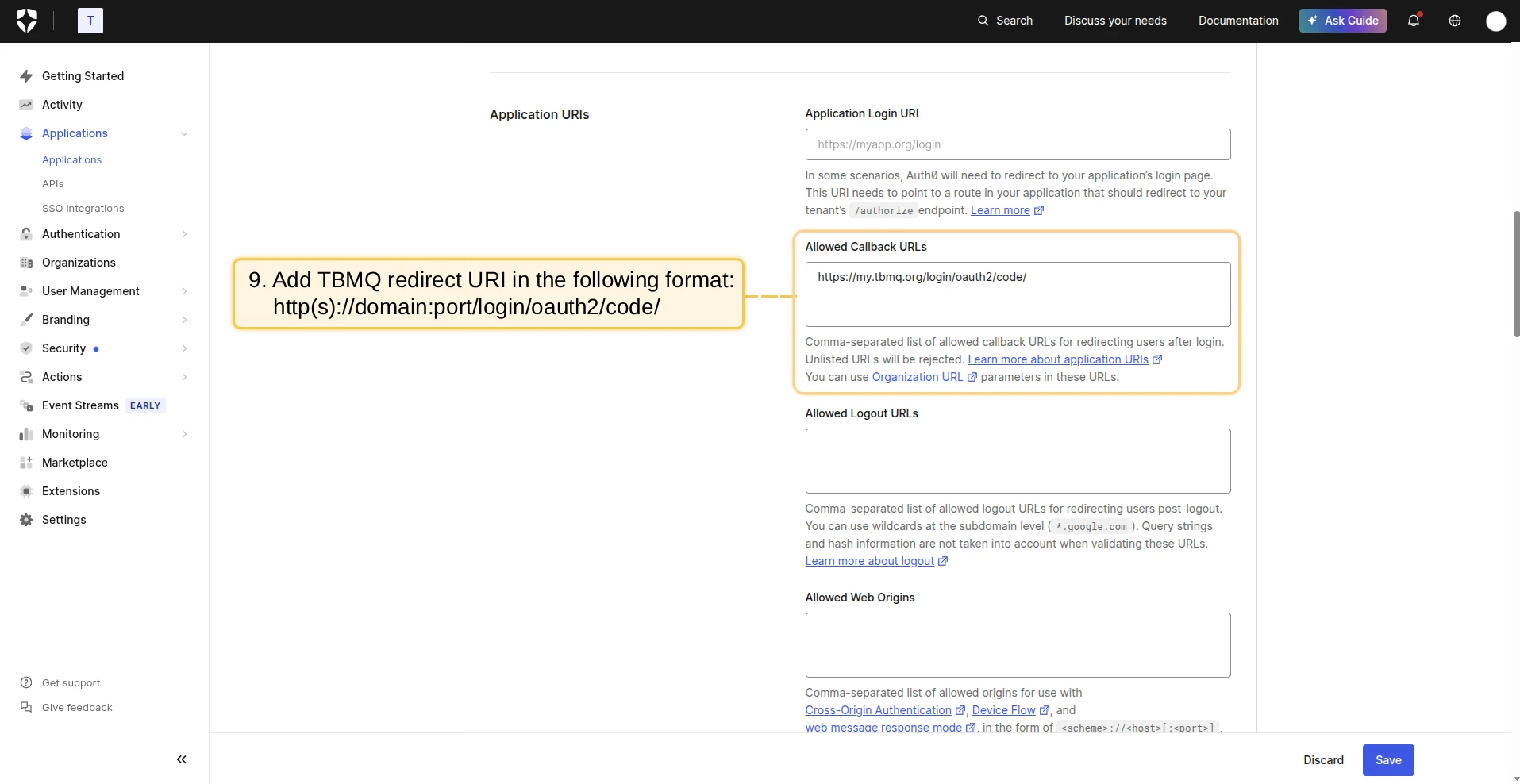
In the Allowed Callback URLs field, add the redirect URI using the format:
http(s)://domain:port/login/oauth2/code/For example, if your domain is
my.tbmq.org:https://my.tbmq.org/login/oauth2/code/ -
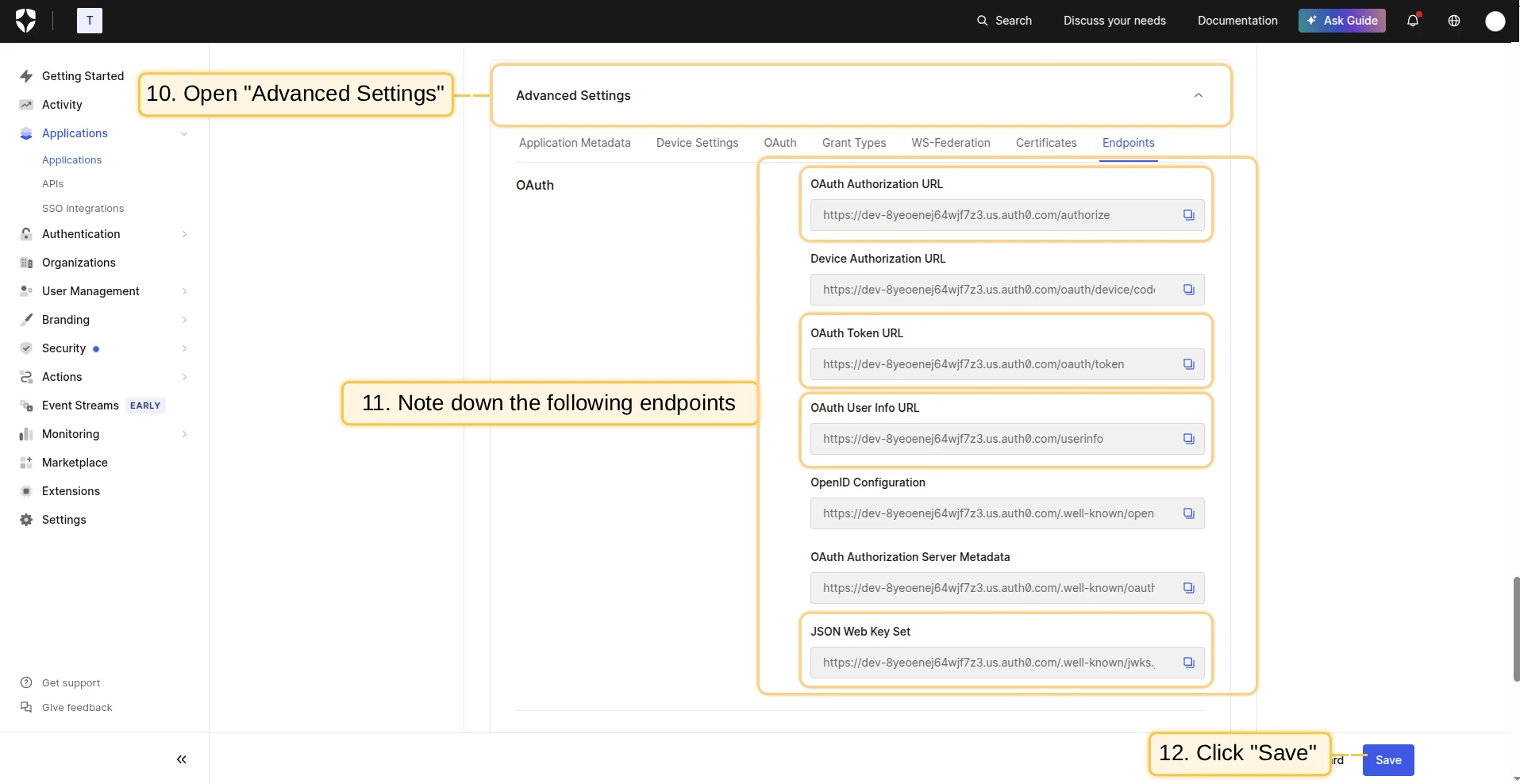
In the Advanced Settings section, find all the necessary endpoint URLs required for OAuth 2.0 configuration. Click Save Changes.
Configuring Auth0 as an OAuth 2.0 provider in TBMQ
Section titled “Configuring Auth0 as an OAuth 2.0 provider in TBMQ”-
Log in to your TBMQ instance. Go to the OAuth 2.0 page in the Security section. On the Domains tab, click the plus icon. Enter your domain name or IP address and click Create new.
-
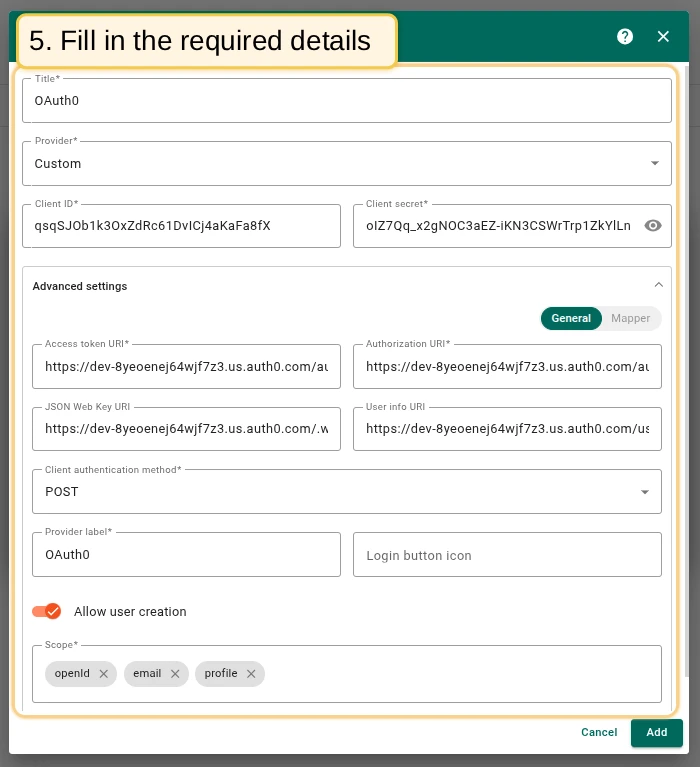
Configure the new OAuth 2.0 client: enter Auth0 as the title, select Custom as the provider, and enter the Client ID and Client Secret from Auth0.
In Advanced settings → General: fill in all required URLs from Auth0, select POST as the authentication method, enter Auth0 as the provider label, and add scopes:
openid,email,profile.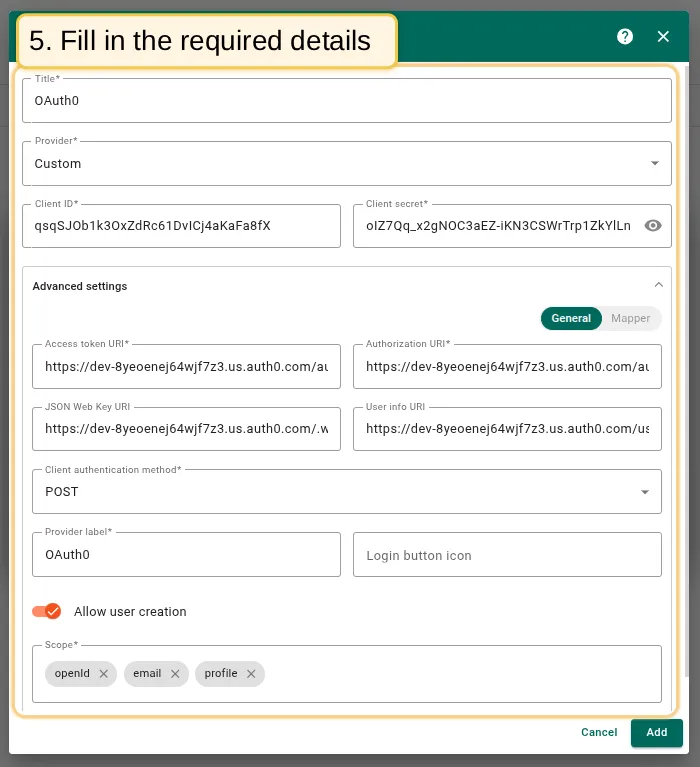
-
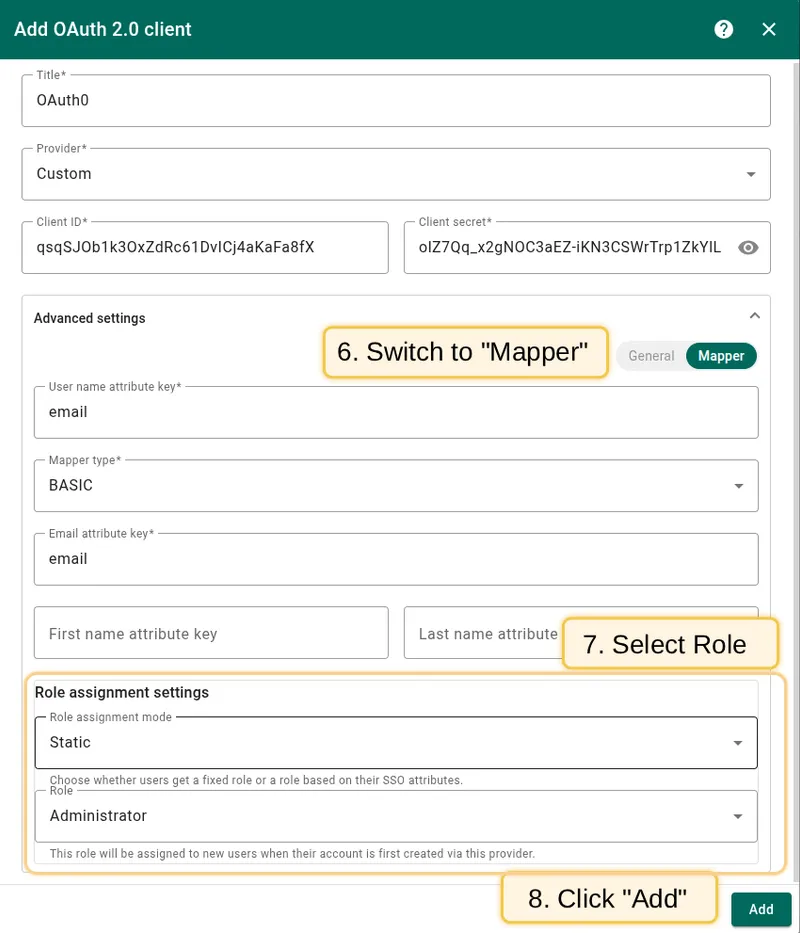
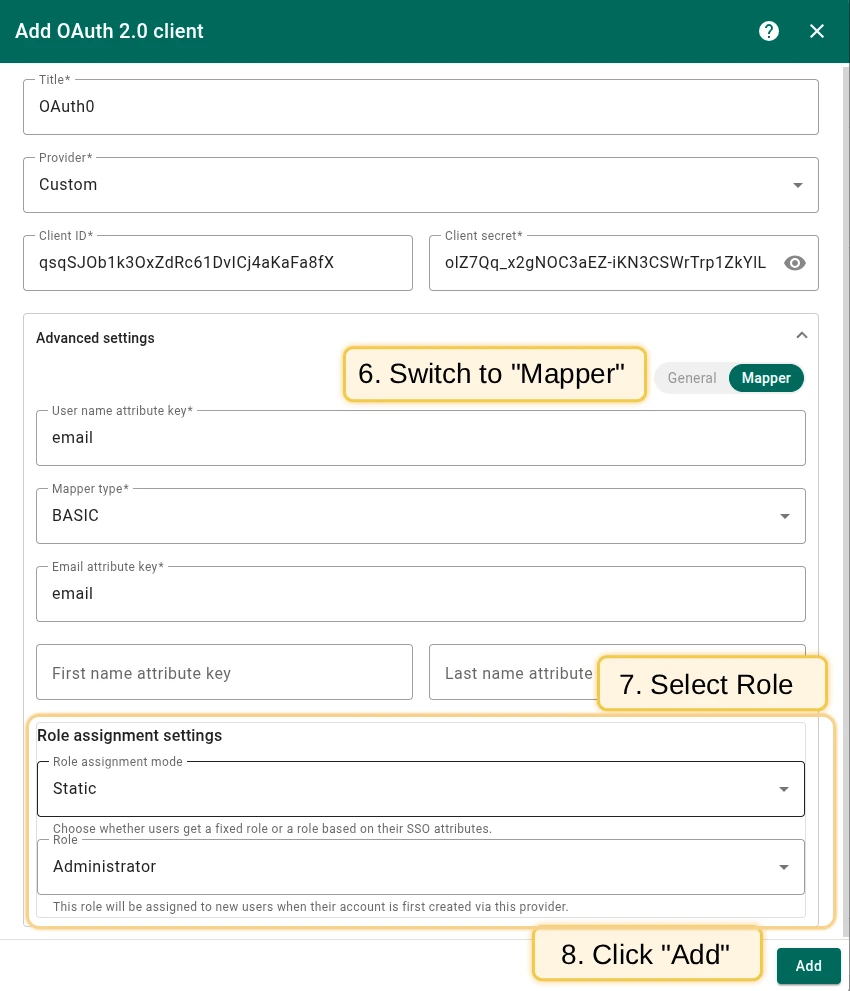
Go to the Mapper block. Leave the mapper type as BASIC. Configure the role assignment settings. Click Add.
-
The Auth0 client has been successfully added. Click Add again to confirm the domain.
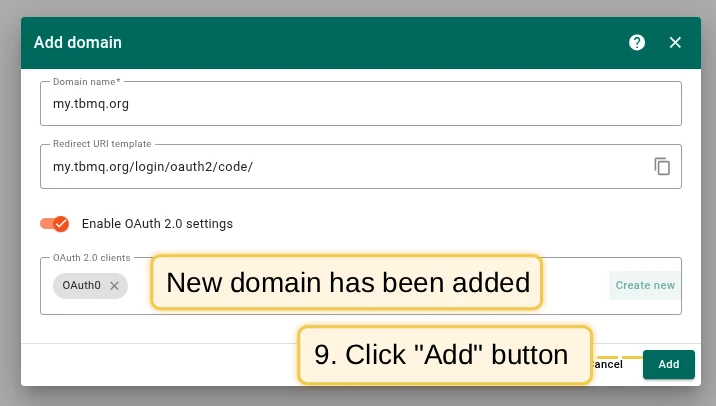
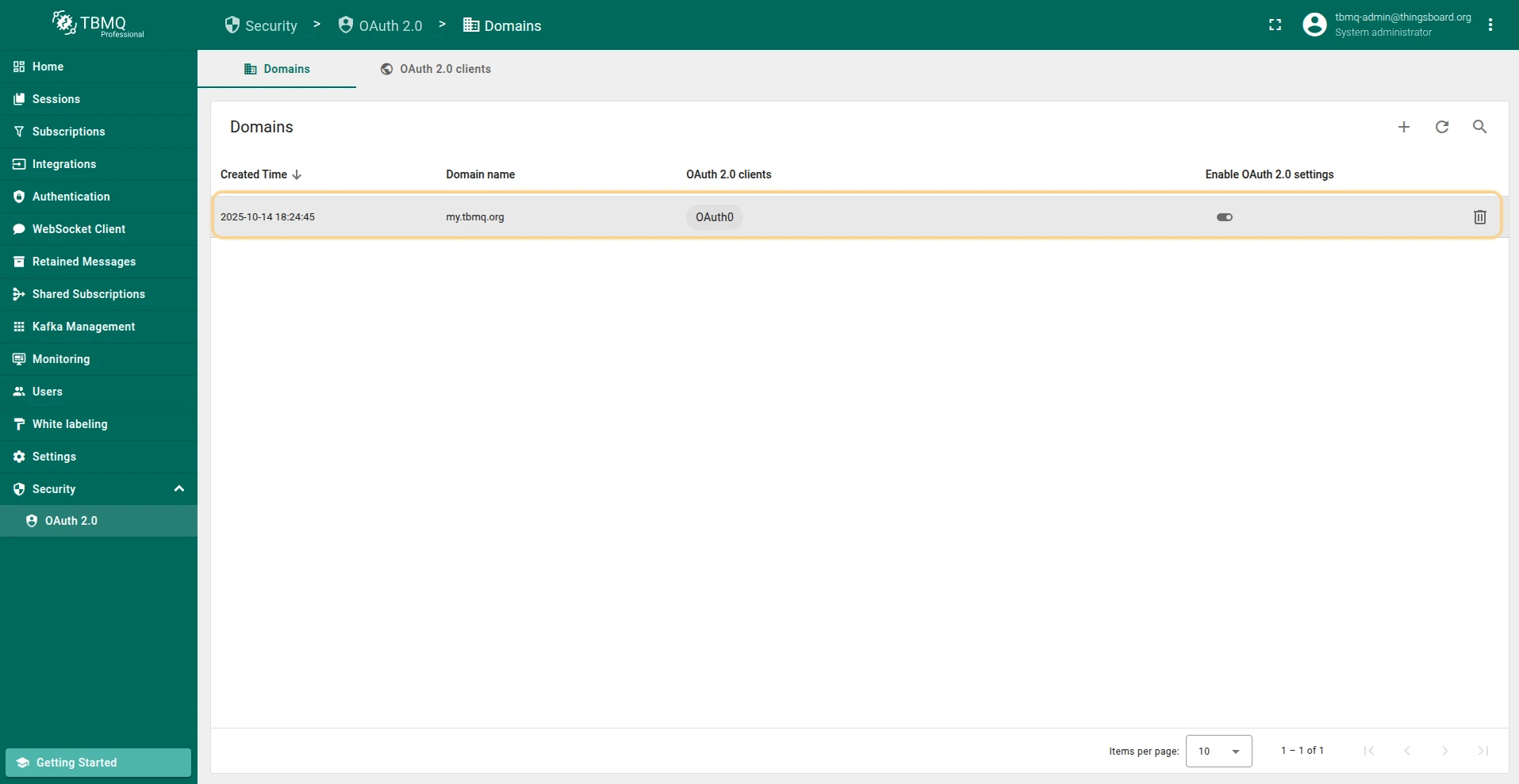
Sign in
Section titled “Sign in”Navigate to the login screen. You will find the Login with Auth0 option. Click it and use your Auth0 credentials to log in.

Login with Keycloak
Section titled “Login with Keycloak”This example uses Keycloak for authentication.
Preparations
Section titled “Preparations”Start Keycloak
Make sure you have Docker installed, then run:
docker run -p 8081:8080 -e KC_BOOTSTRAP_ADMIN_USERNAME=admin -e KC_BOOTSTRAP_ADMIN_PASSWORD=admin quay.io/keycloak/keycloak:26.0.5 start-dev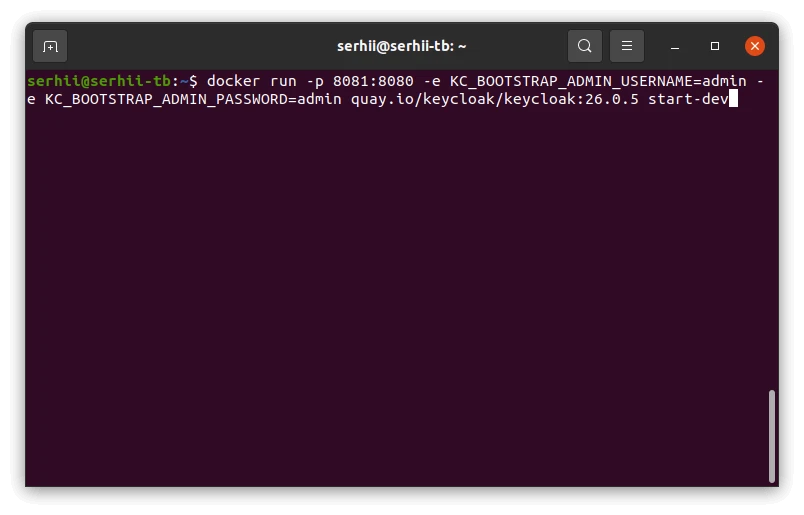
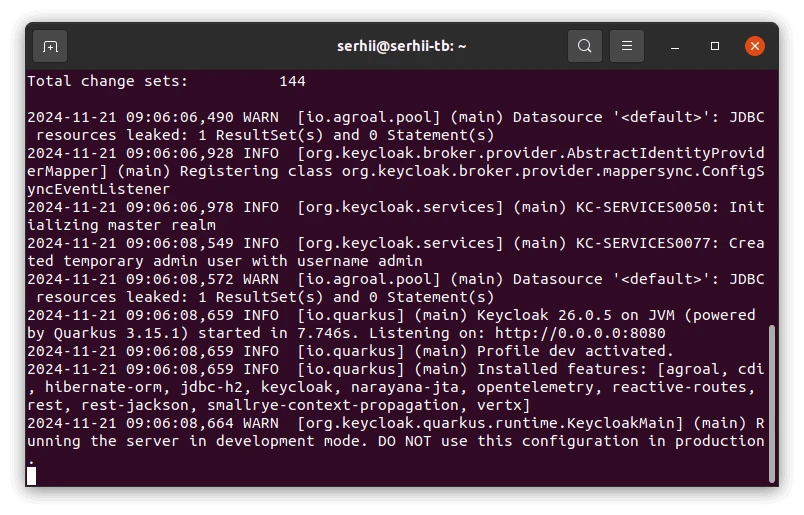
Log in to the admin console
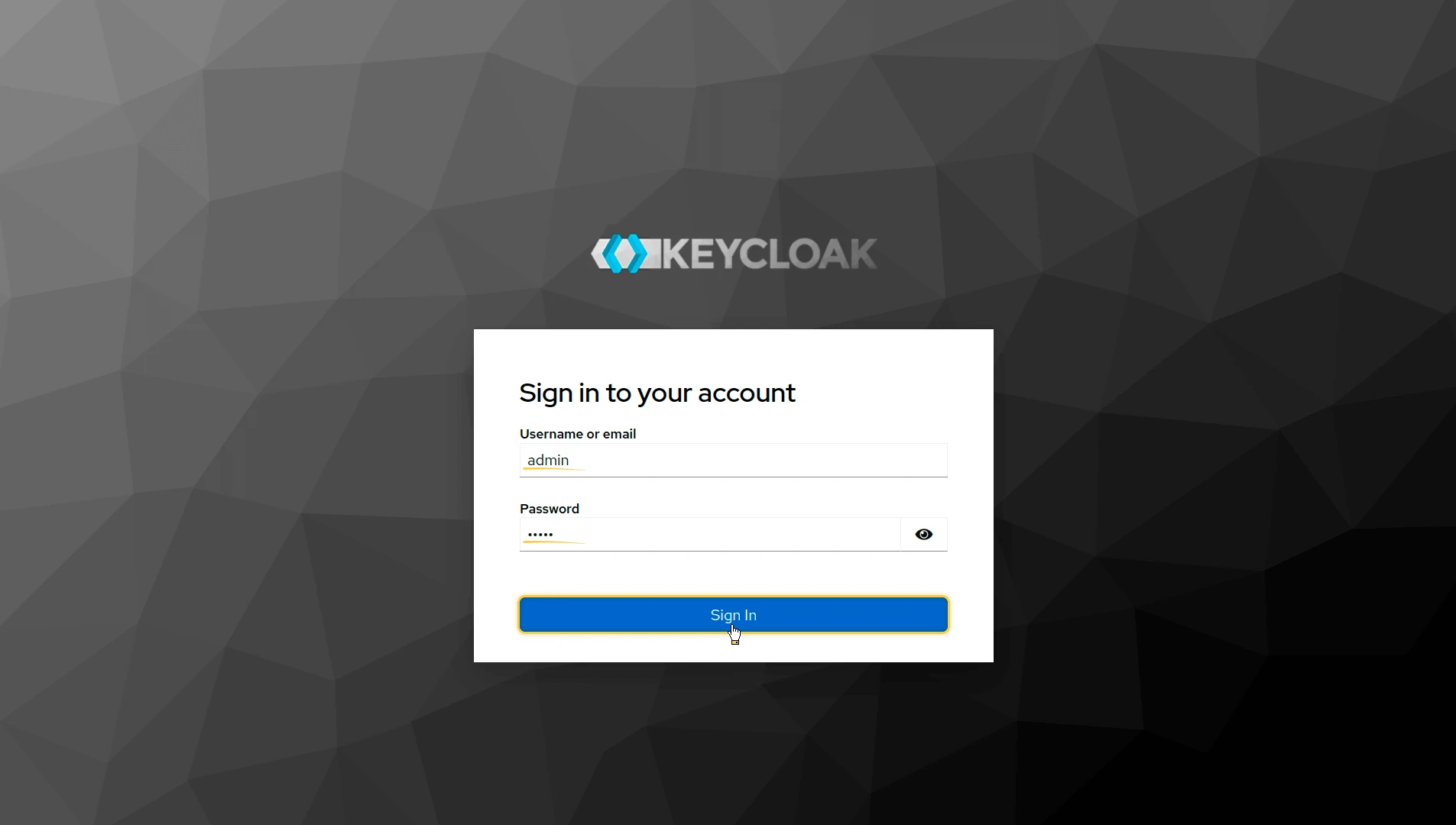
Log in to the Keycloak Admin Console using admin as both username and password.
Create a realm
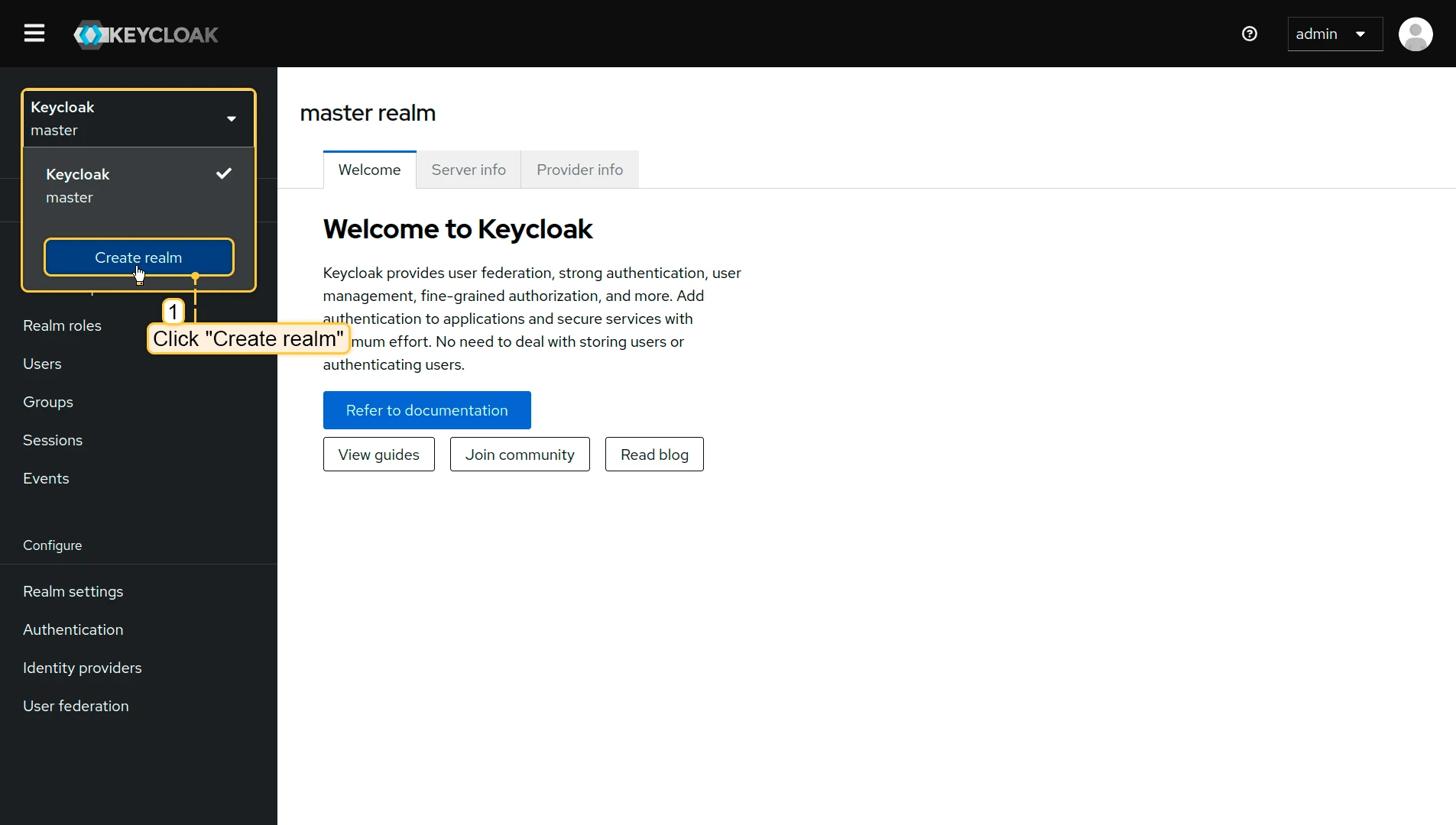
- Click Keycloak next to the master realm, then click Create realm.
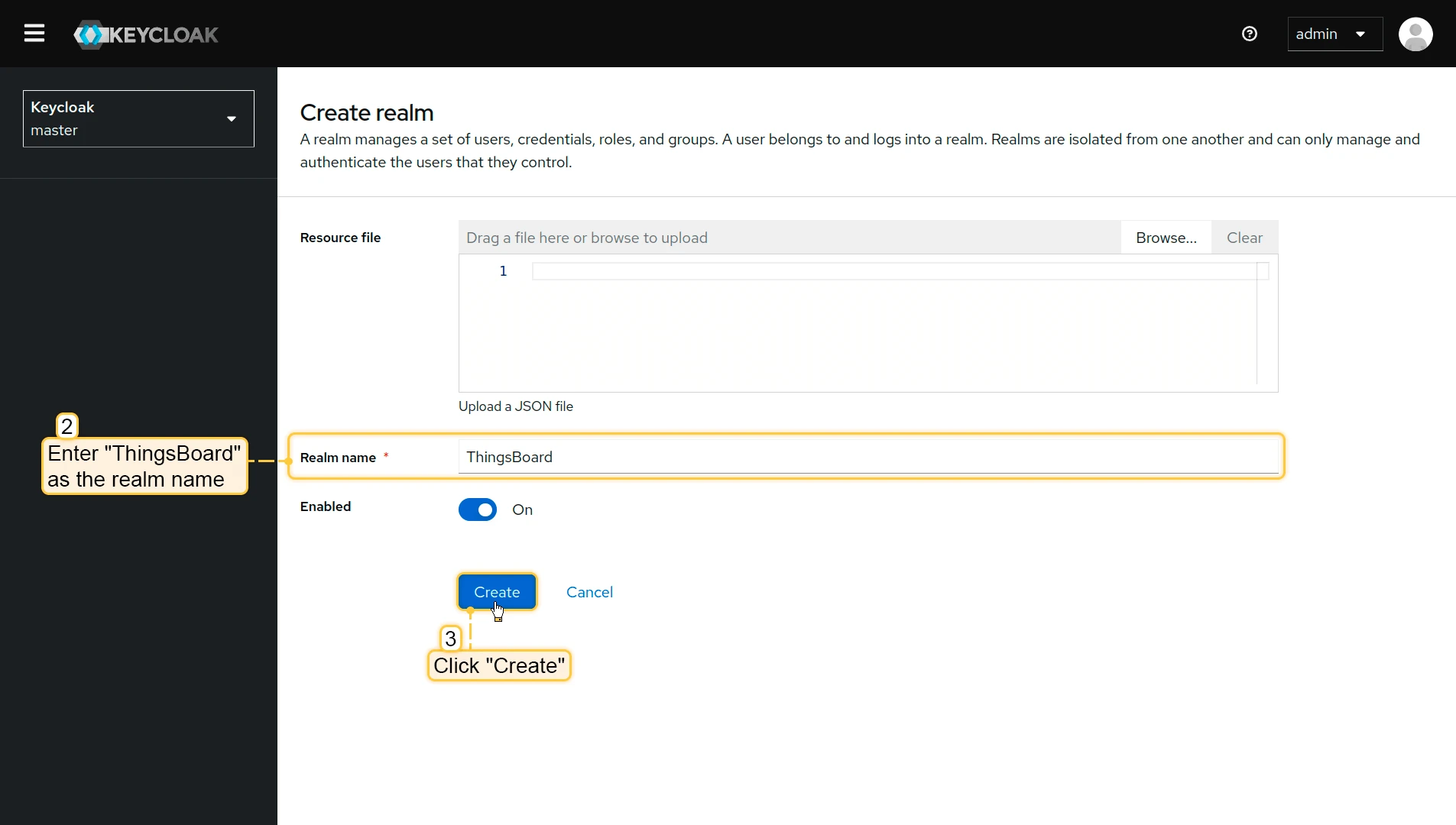
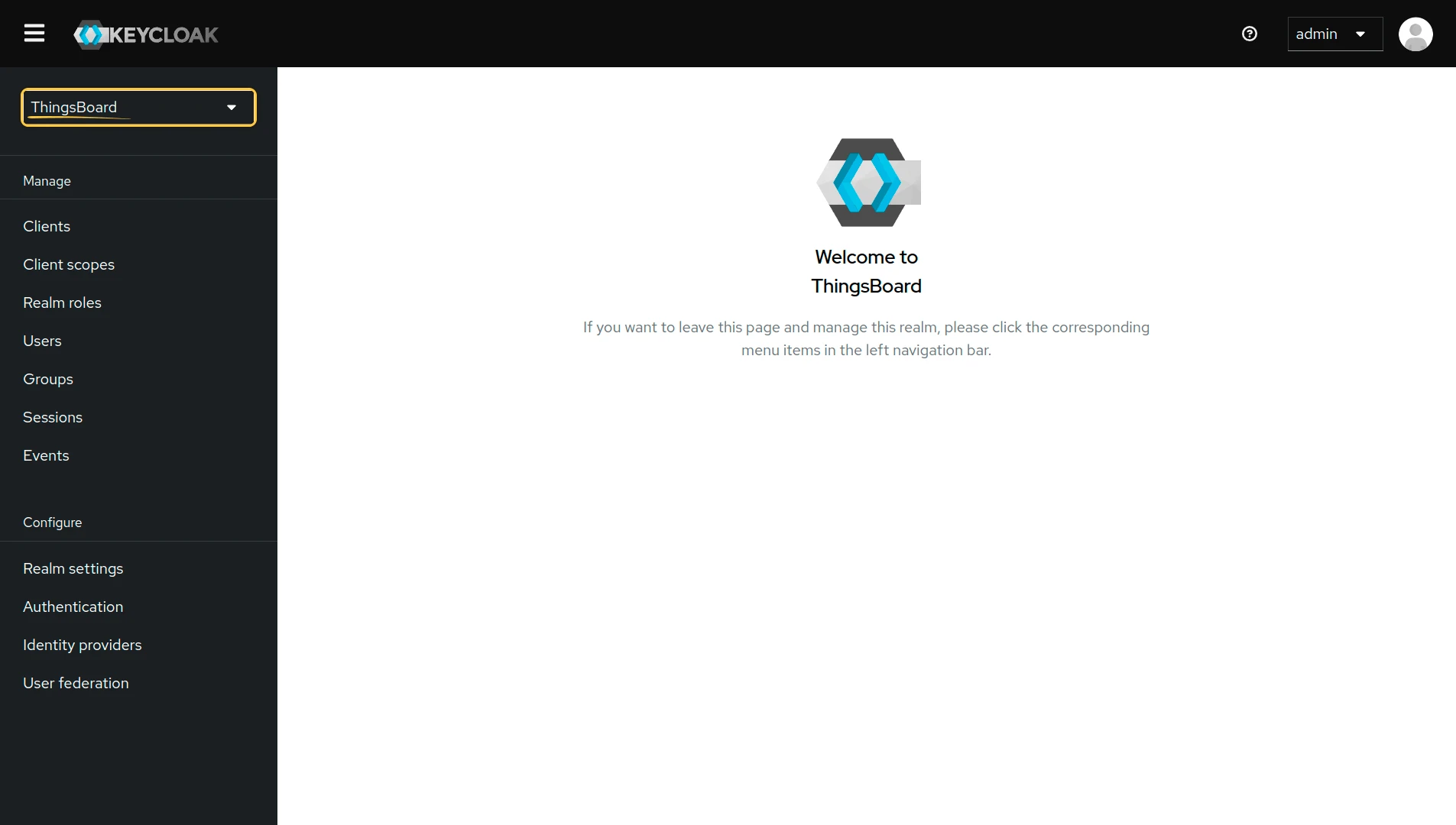
- Enter ThingsBoard in the realm name field, and click Create.
Create a new client
-
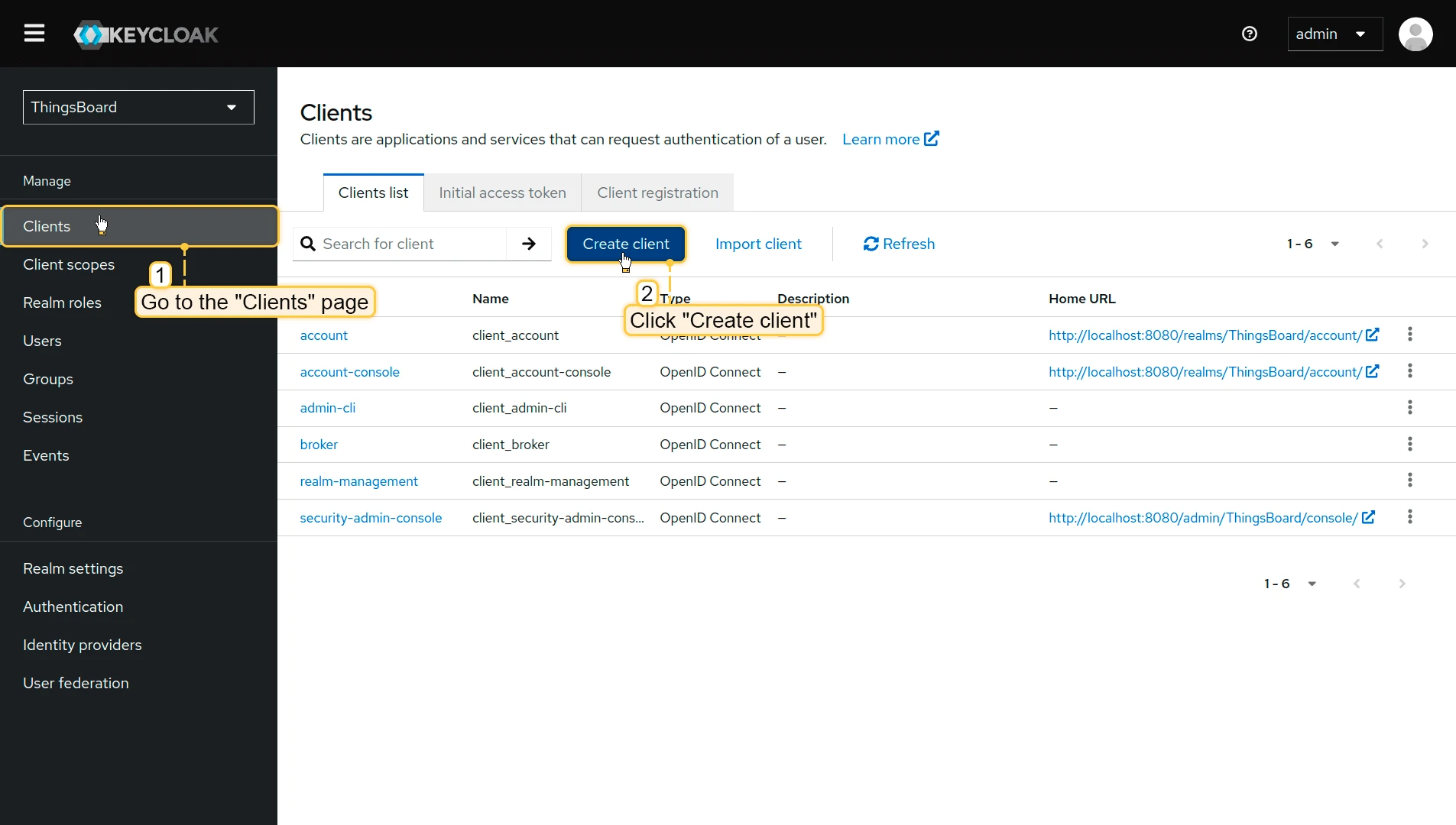
Go to the Clients page in the left-hand menu, and click Create client.
-
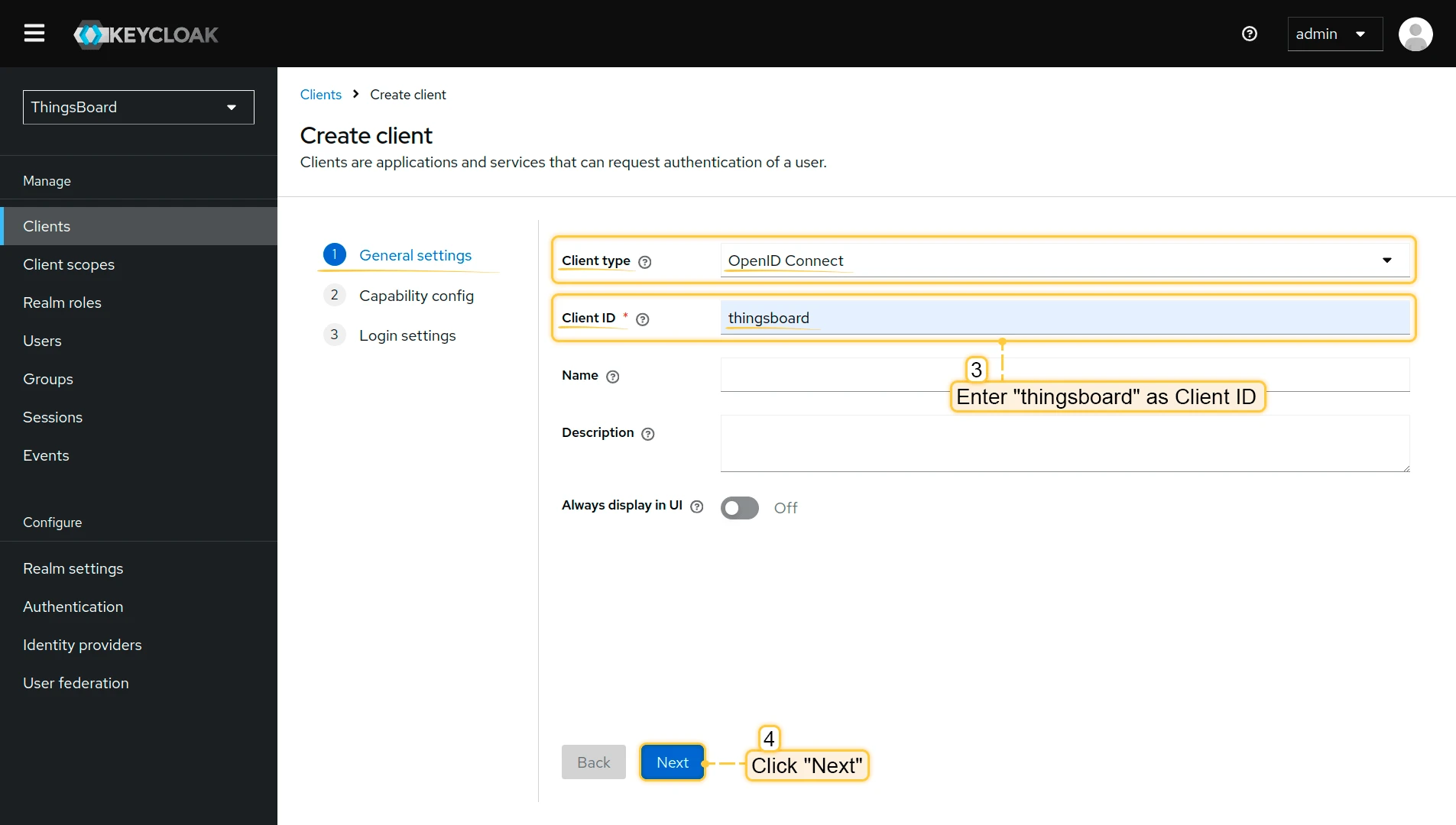
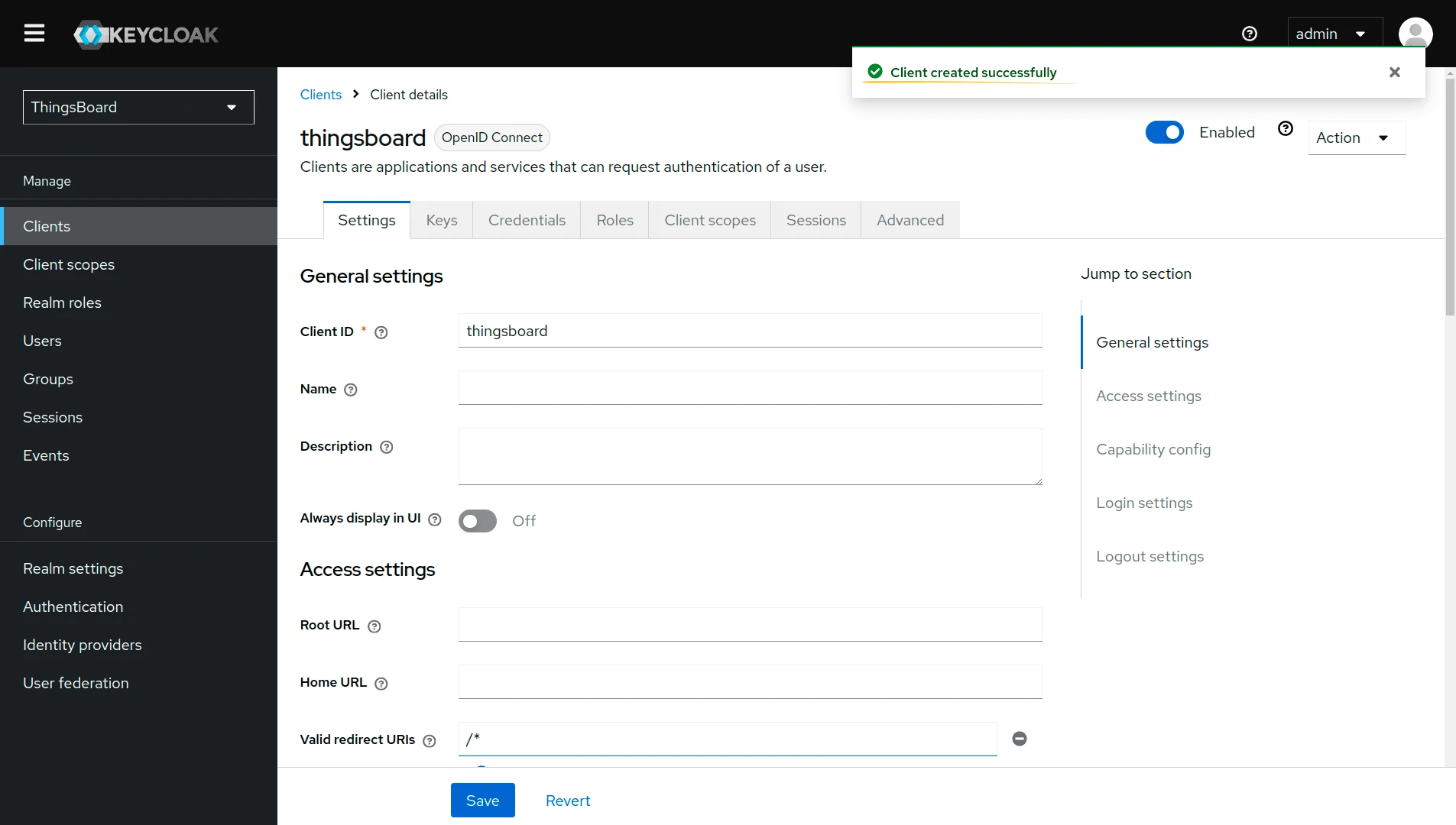
Enter thingsboard as the client ID. Leave the type as OpenID Connect. Click Next.
-
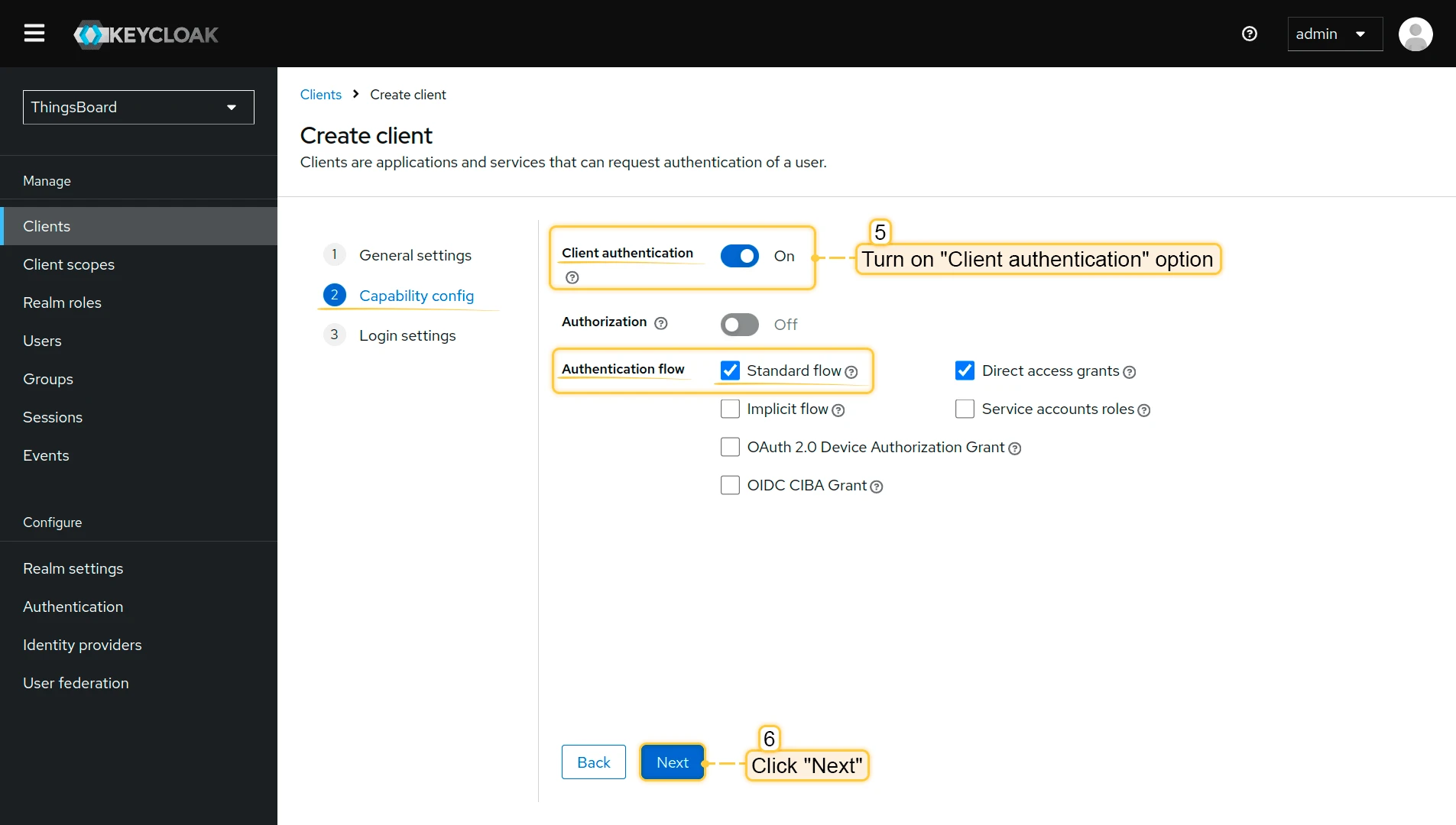
Enable Client authentication. Confirm that Standard flow is enabled. Click Next.
-
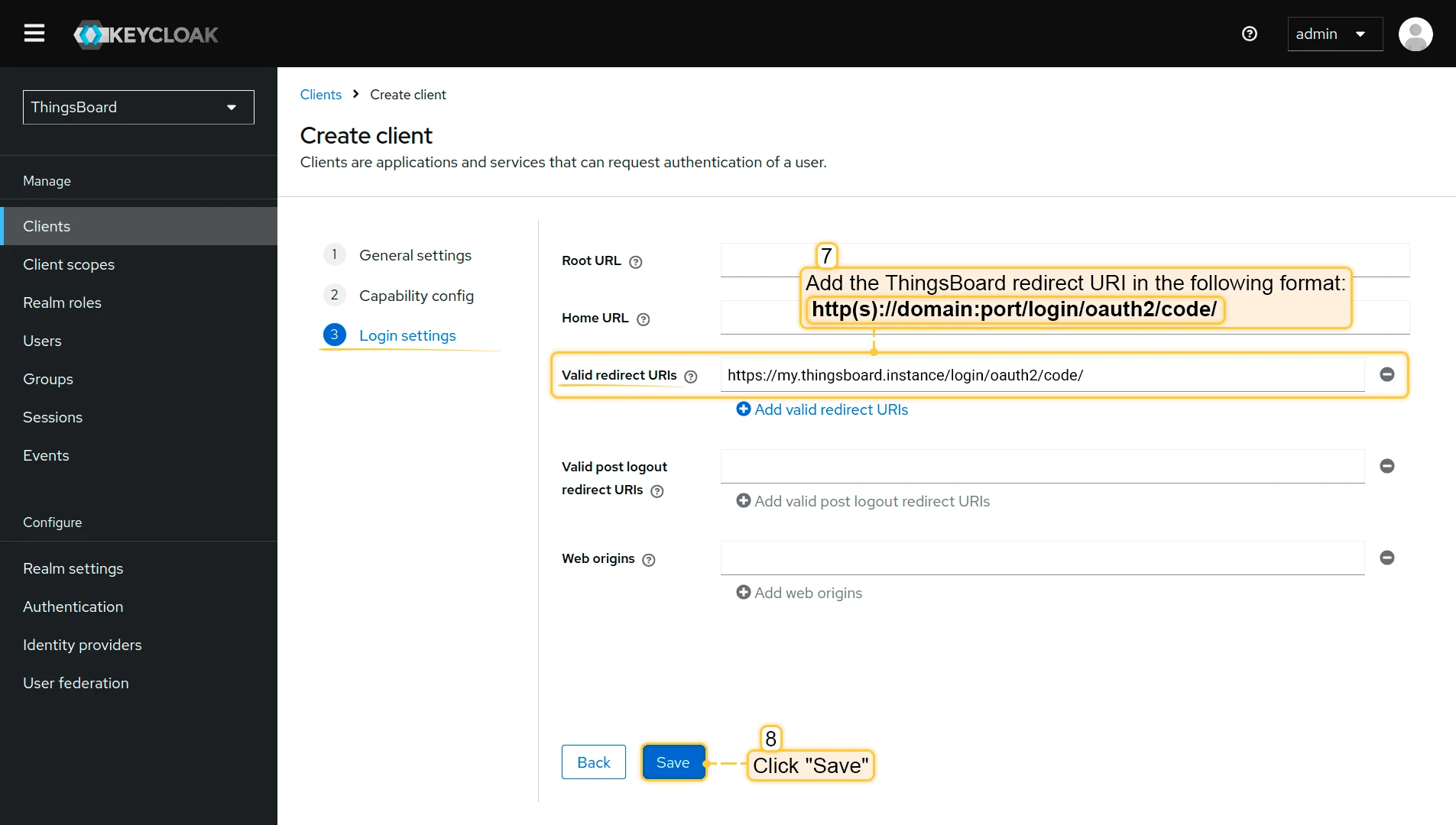
In the Login settings section, add the TBMQ redirect URI to Authorized Redirect URIs:
http(s)://domain:port/login/oauth2/code/For example:
https://my.thingsboard.instance/login/oauth2/code/ -
Click Save.
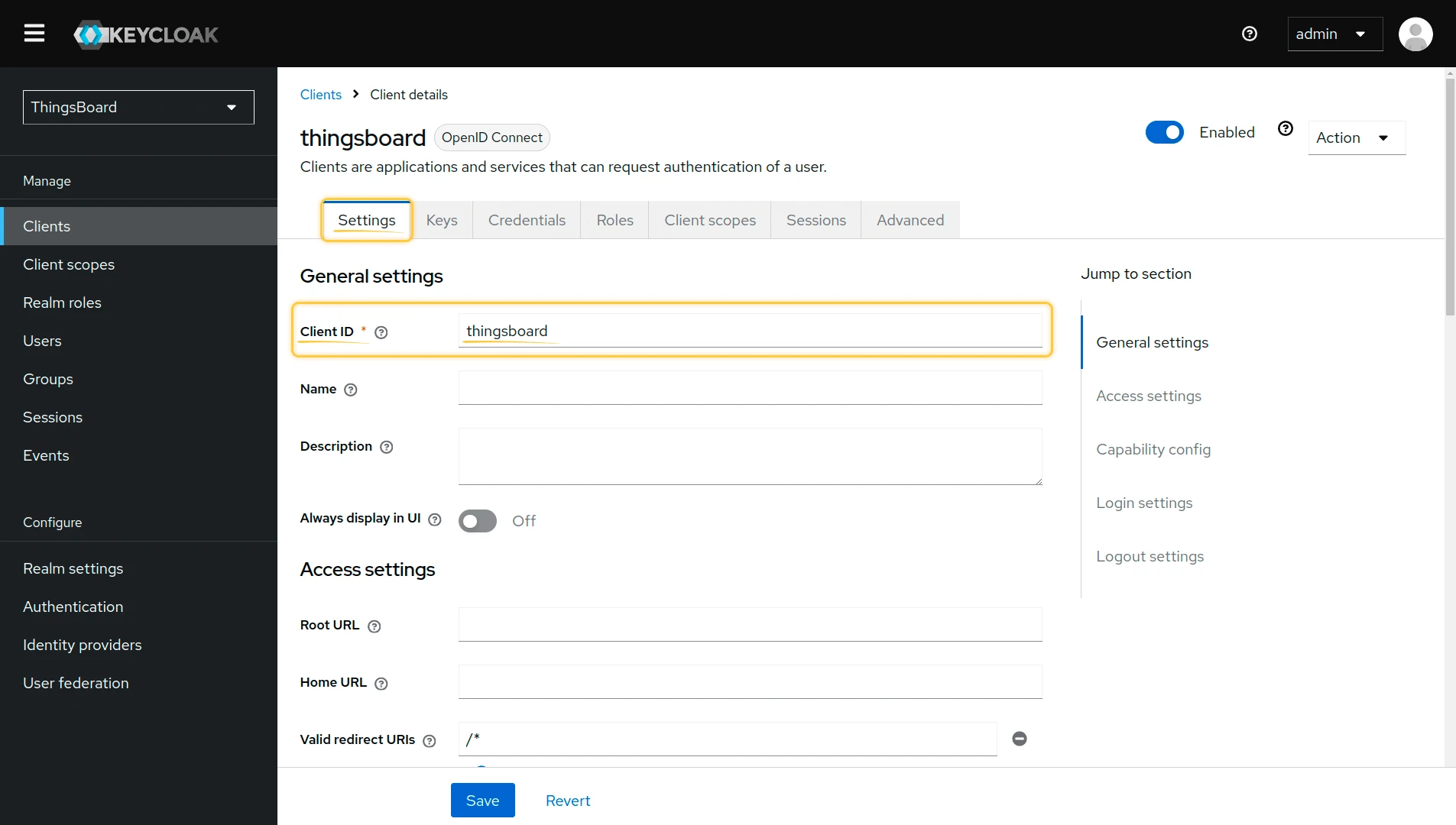
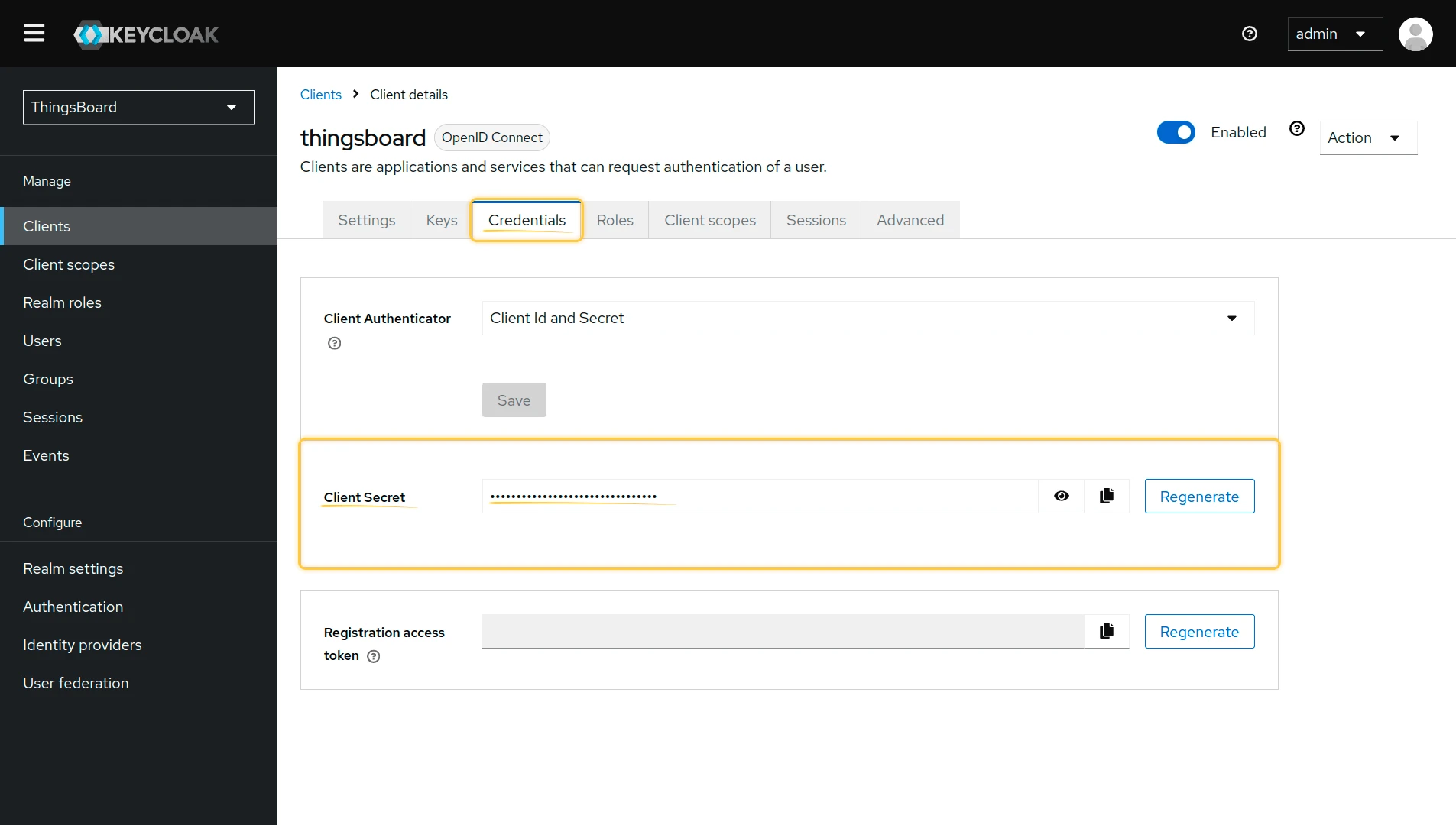
The Client ID is on the Settings tab; the Client Secret is on the Credentials tab.
Get endpoint URLs
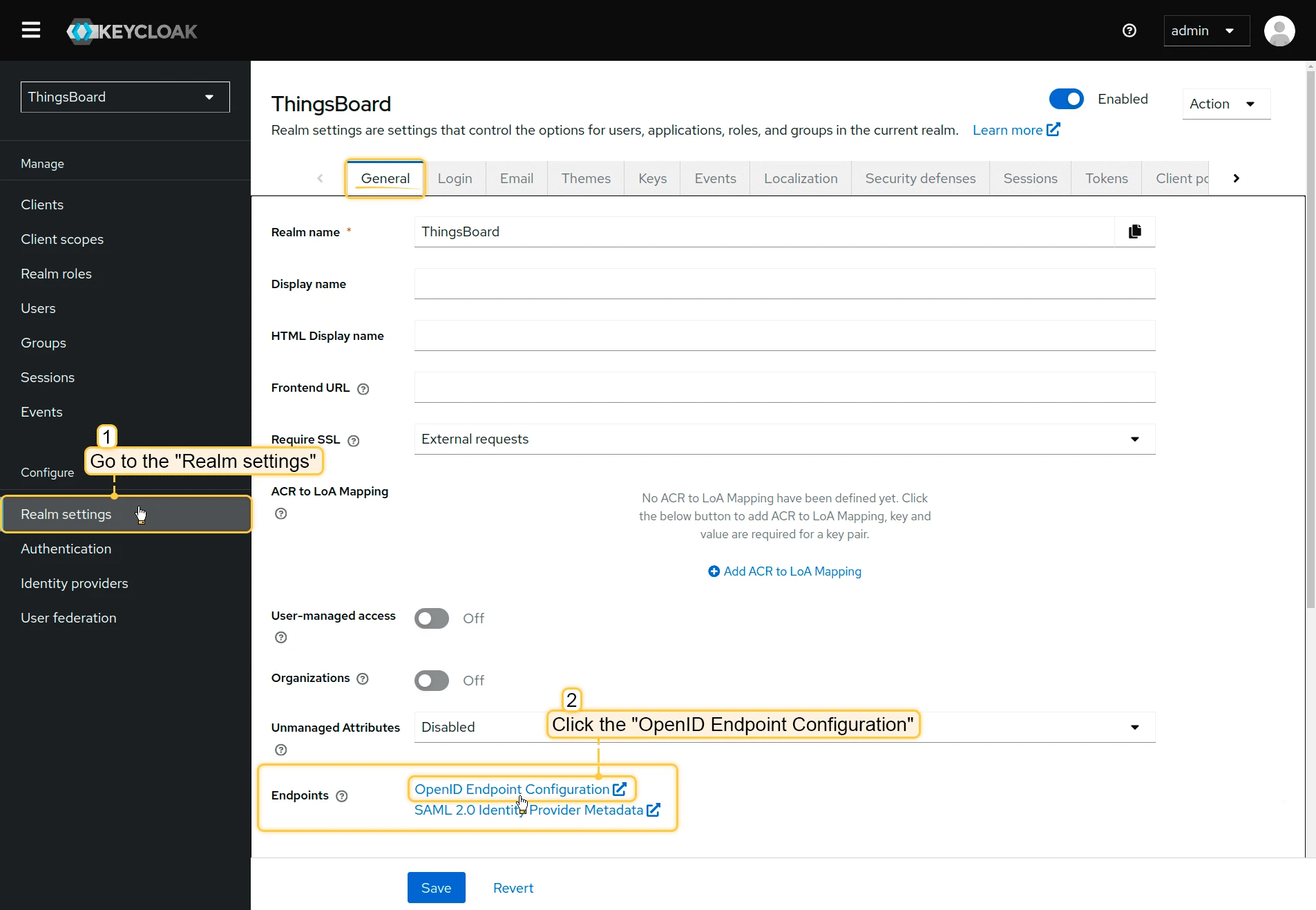
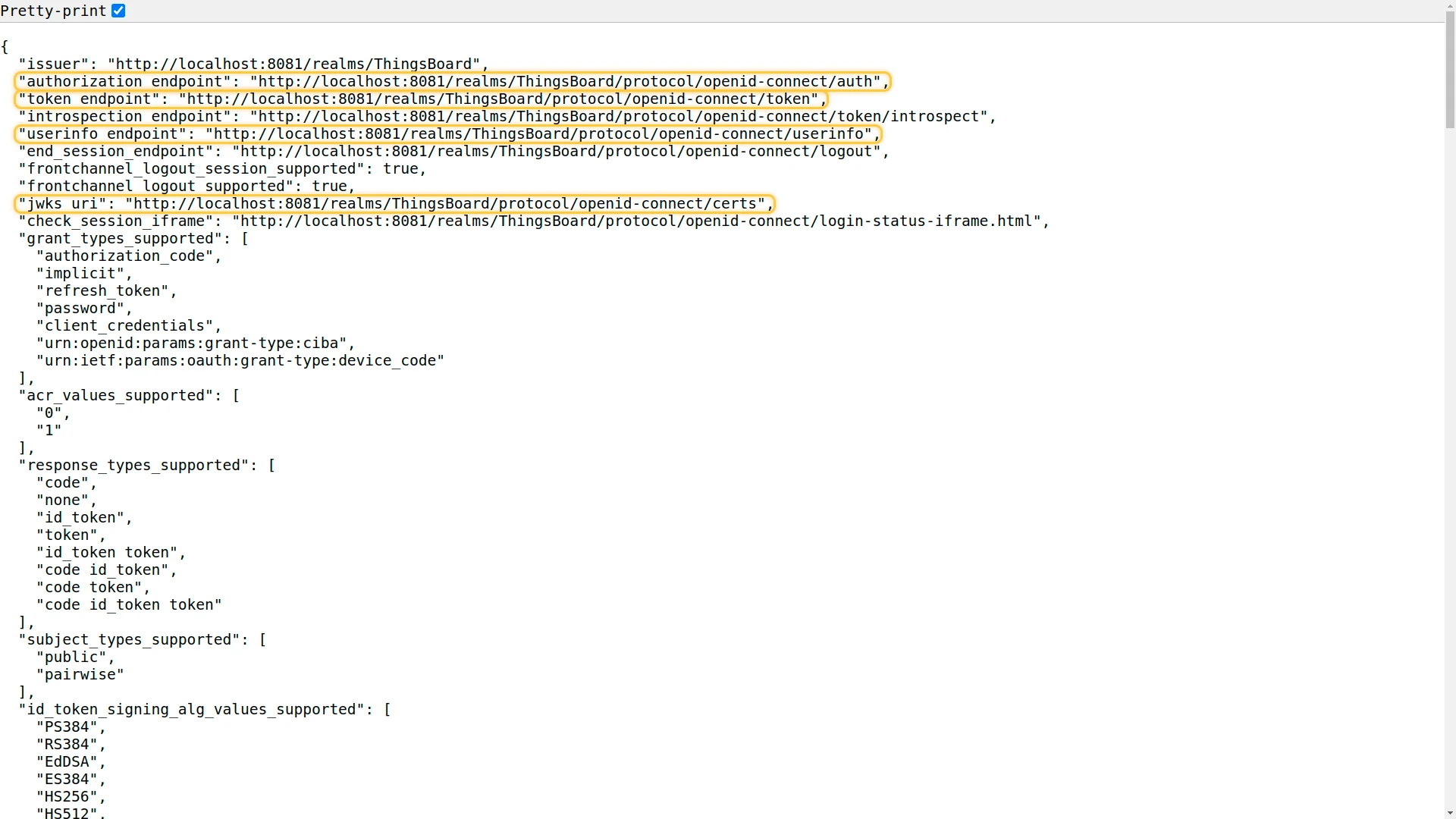
Go to the Realm settings page, scroll down to locate the OpenID Endpoint Configuration link, and click it. A new window will open with the configuration — check Pretty-print for easier reading. Here you can find the Access Token URI, Authorization URI, JSON Web Key URI, and User Info URI. A description of all available endpoints is provided in the Keycloak OIDC layers documentation.
Create a user
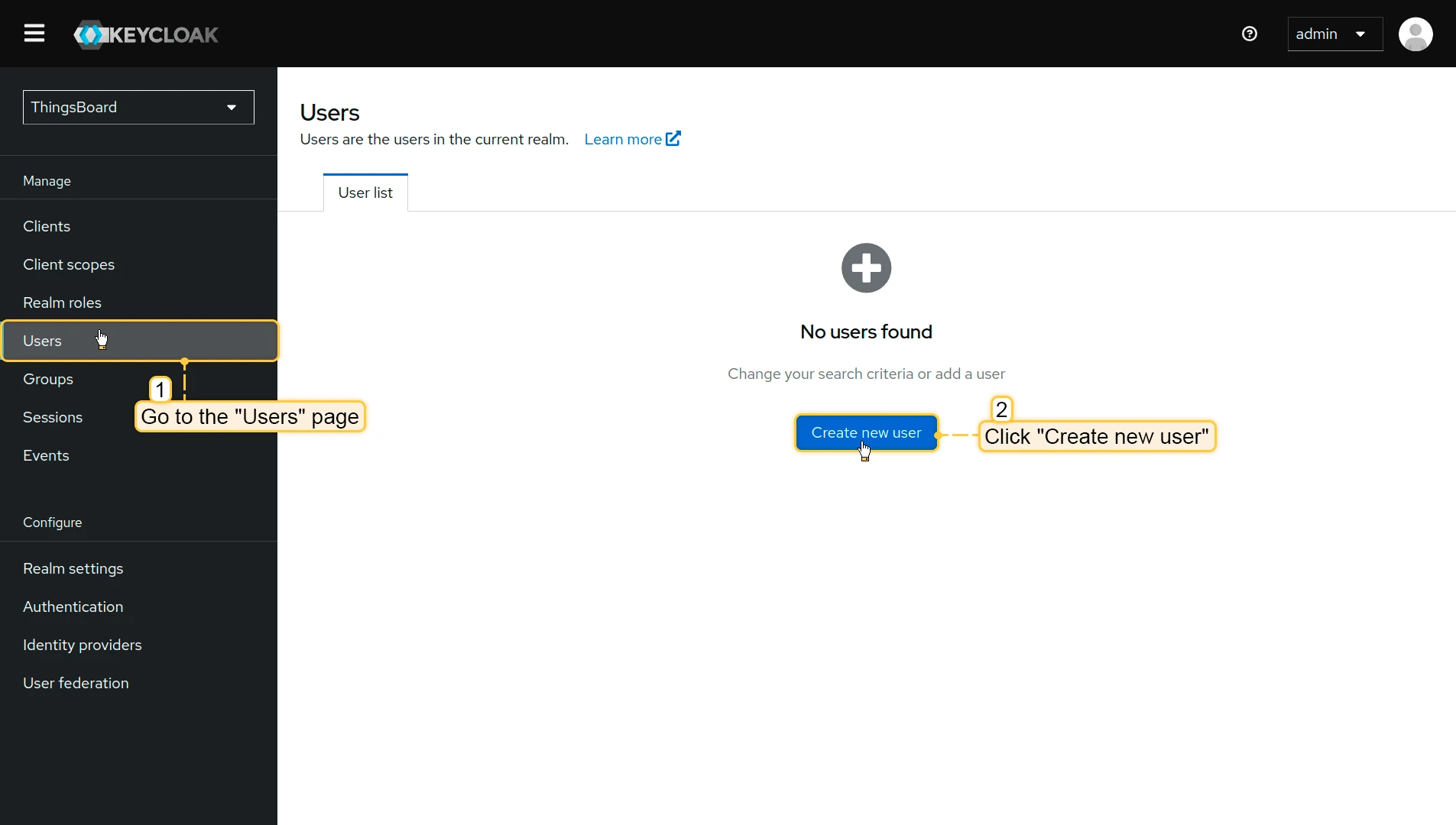
Only users added to Keycloak will be able to authenticate via Keycloak.
- Go to the Users page in the left-hand menu. Click Create new user.
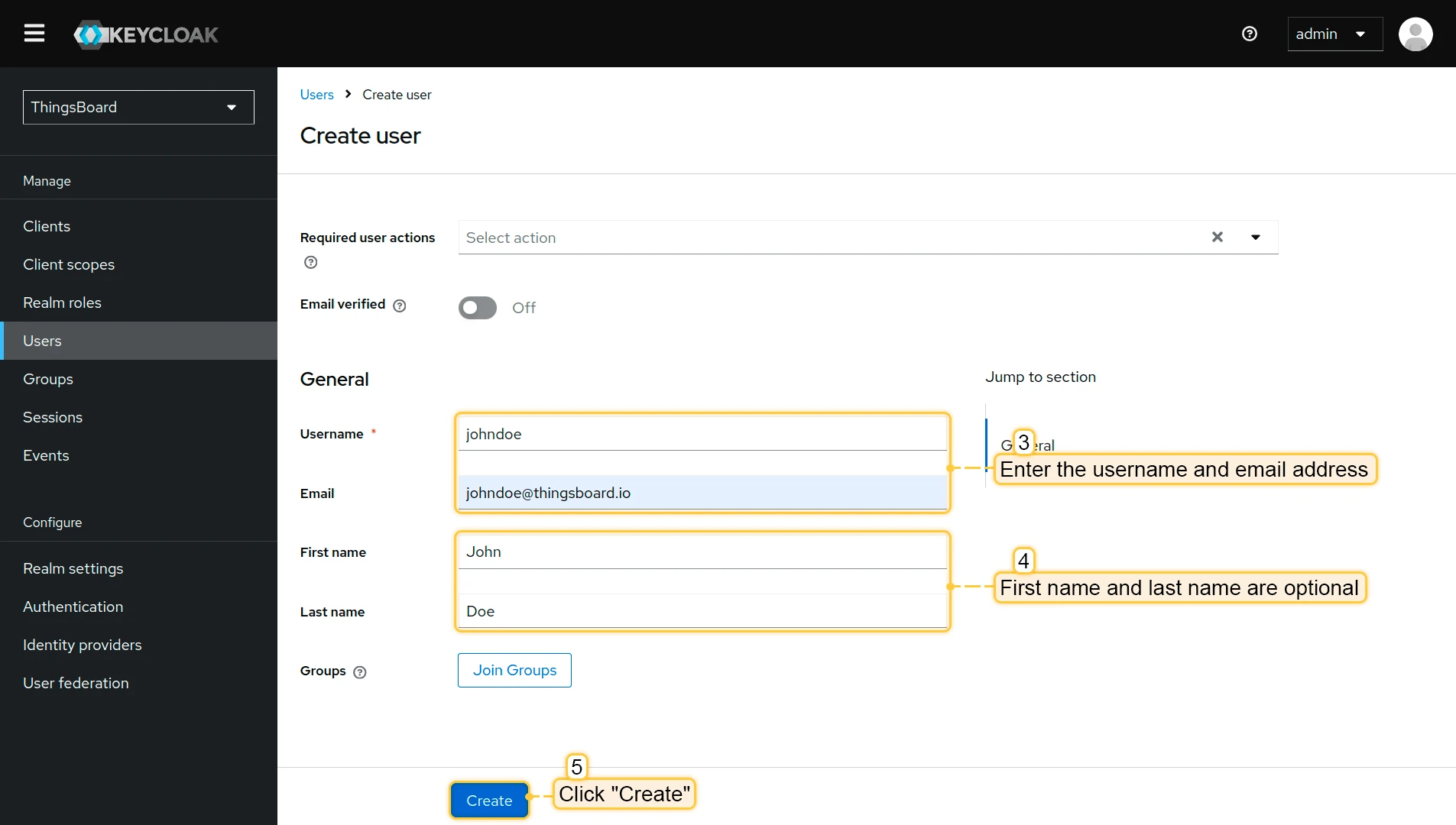
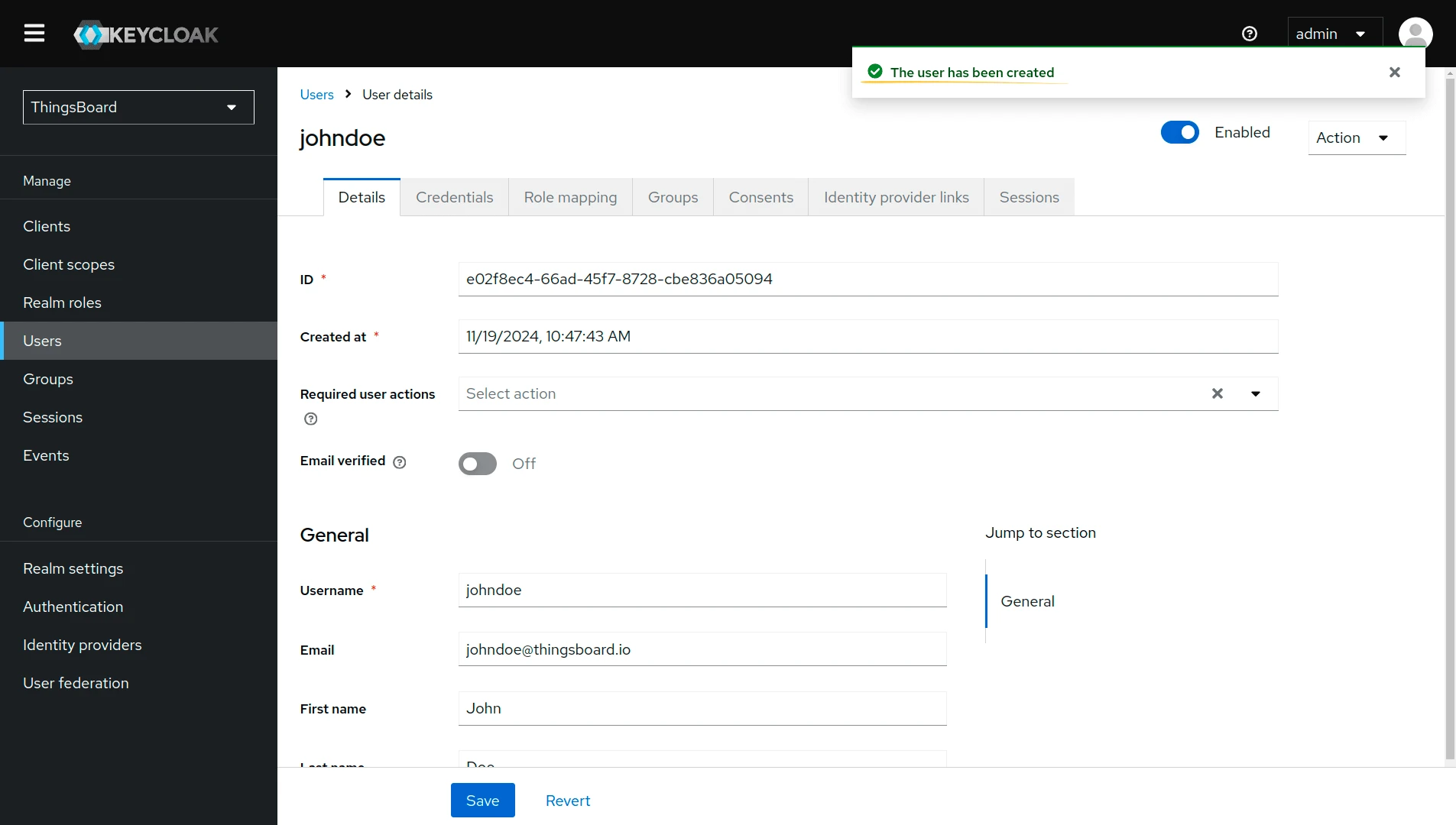
- Enter the username and email address. Click Create.
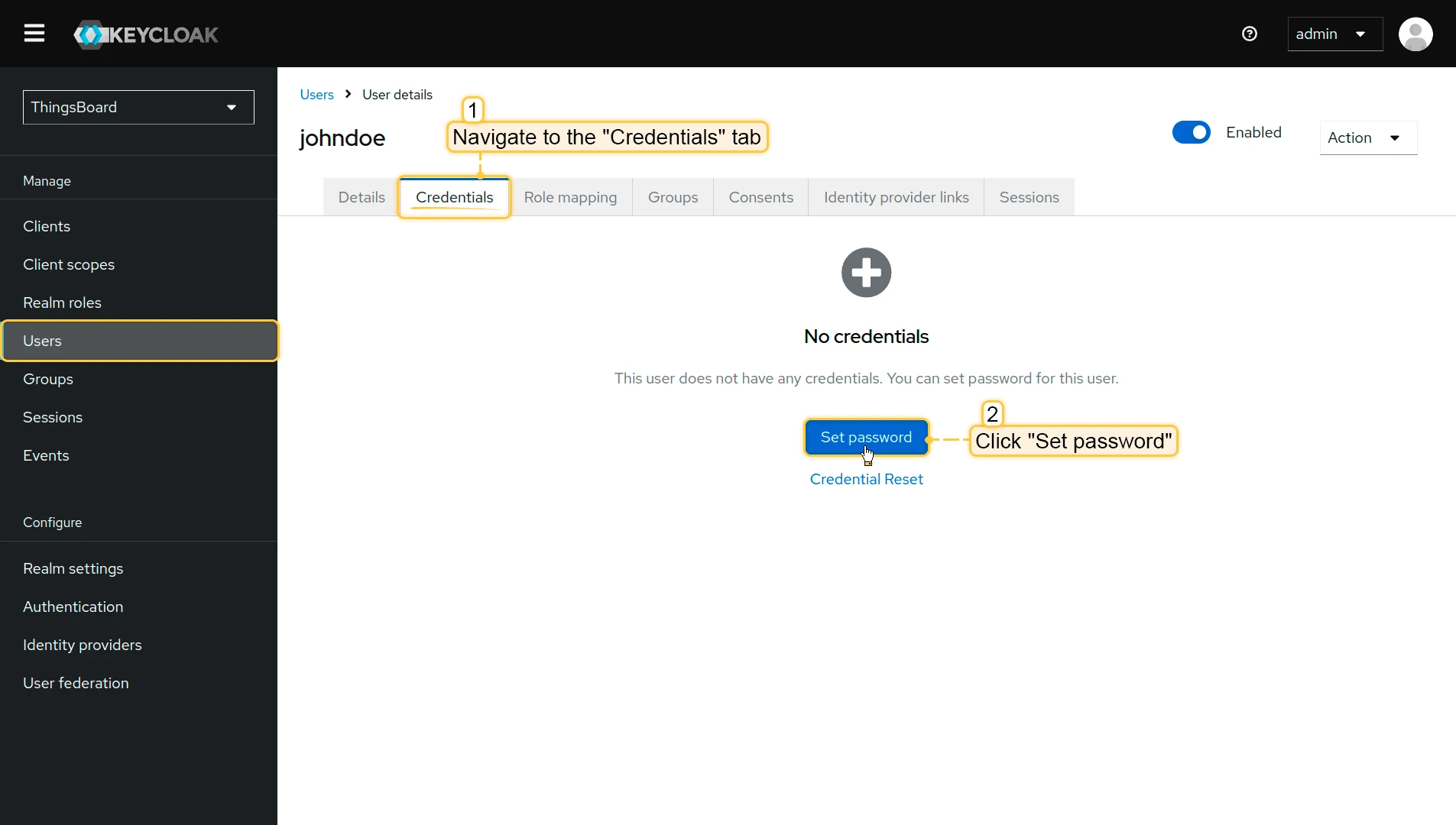
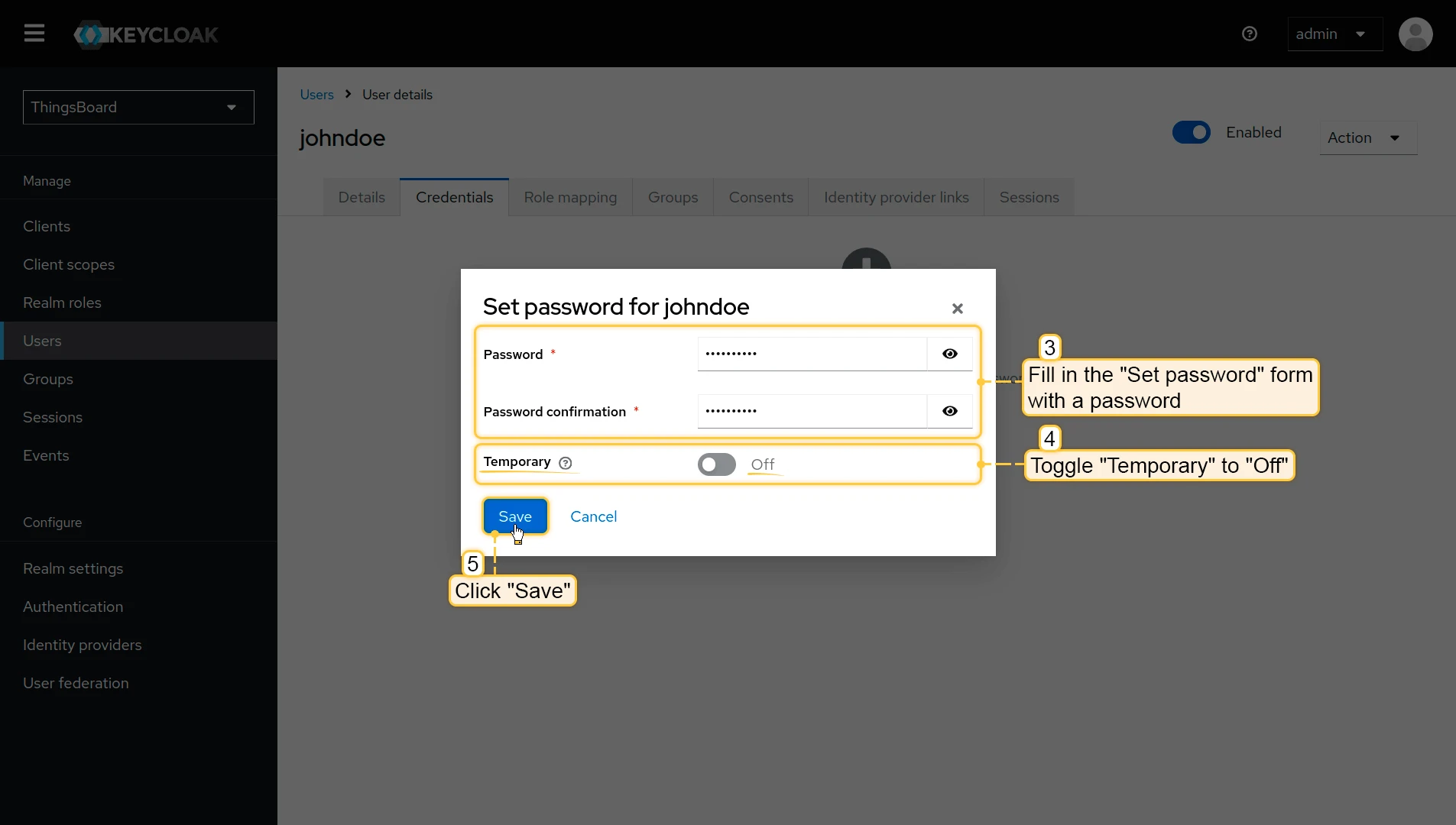
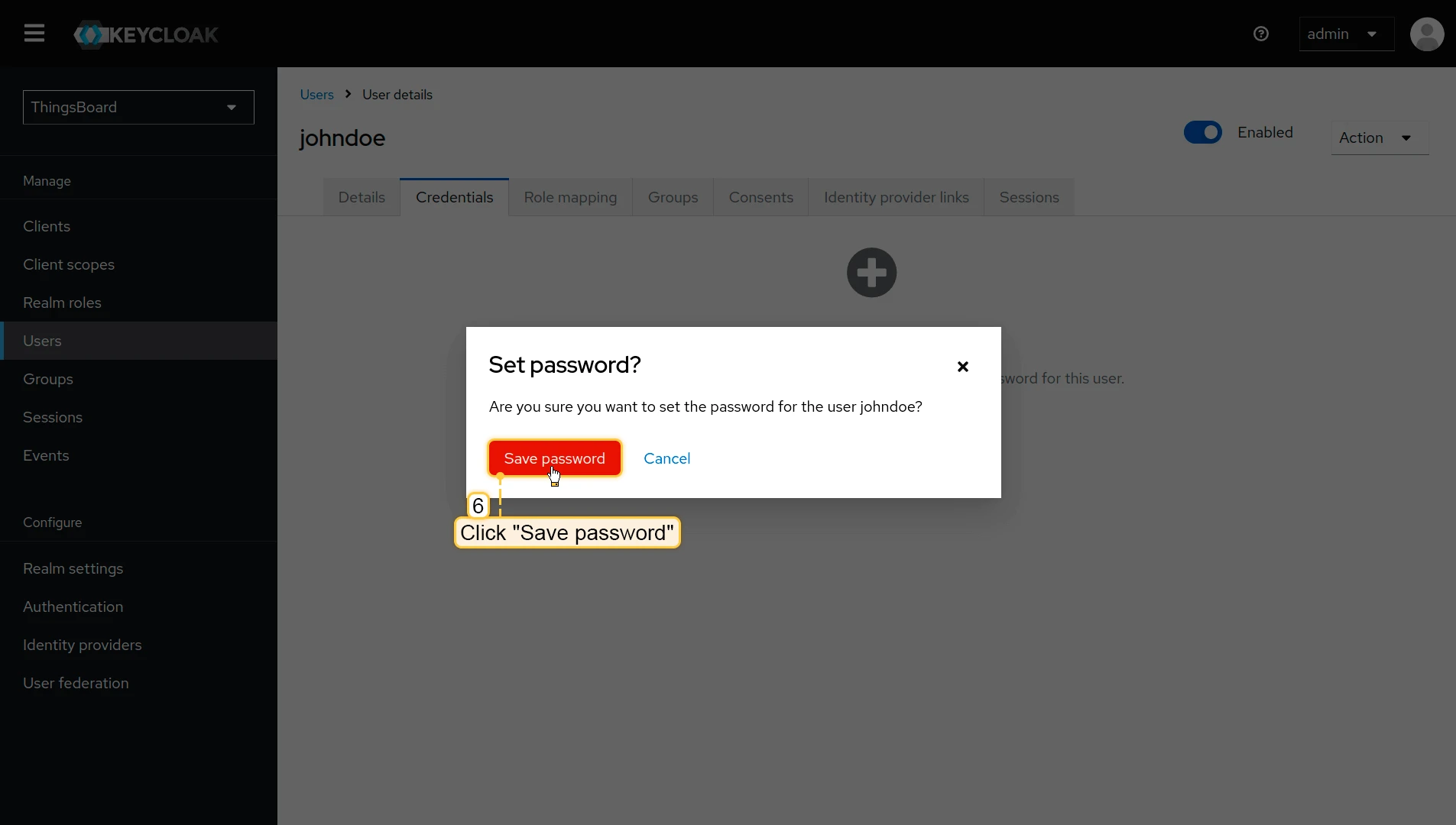
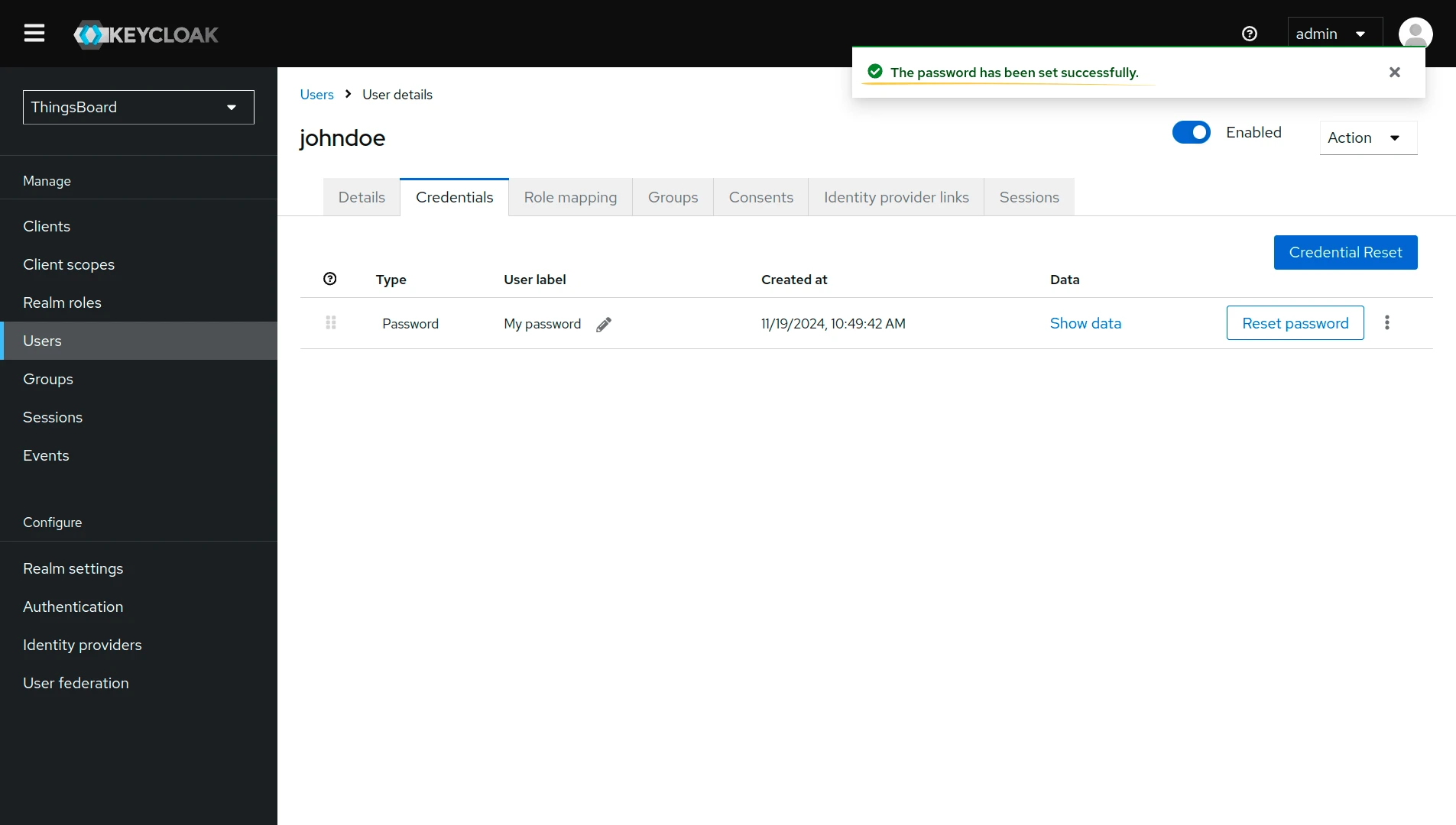
- Navigate to the Credentials tab and click Set password. Fill in the password form. Toggle Temporary to Off. Click Save password.
Configuring Keycloak as an OAuth 2.0 provider in TBMQ
Section titled “Configuring Keycloak as an OAuth 2.0 provider in TBMQ”-
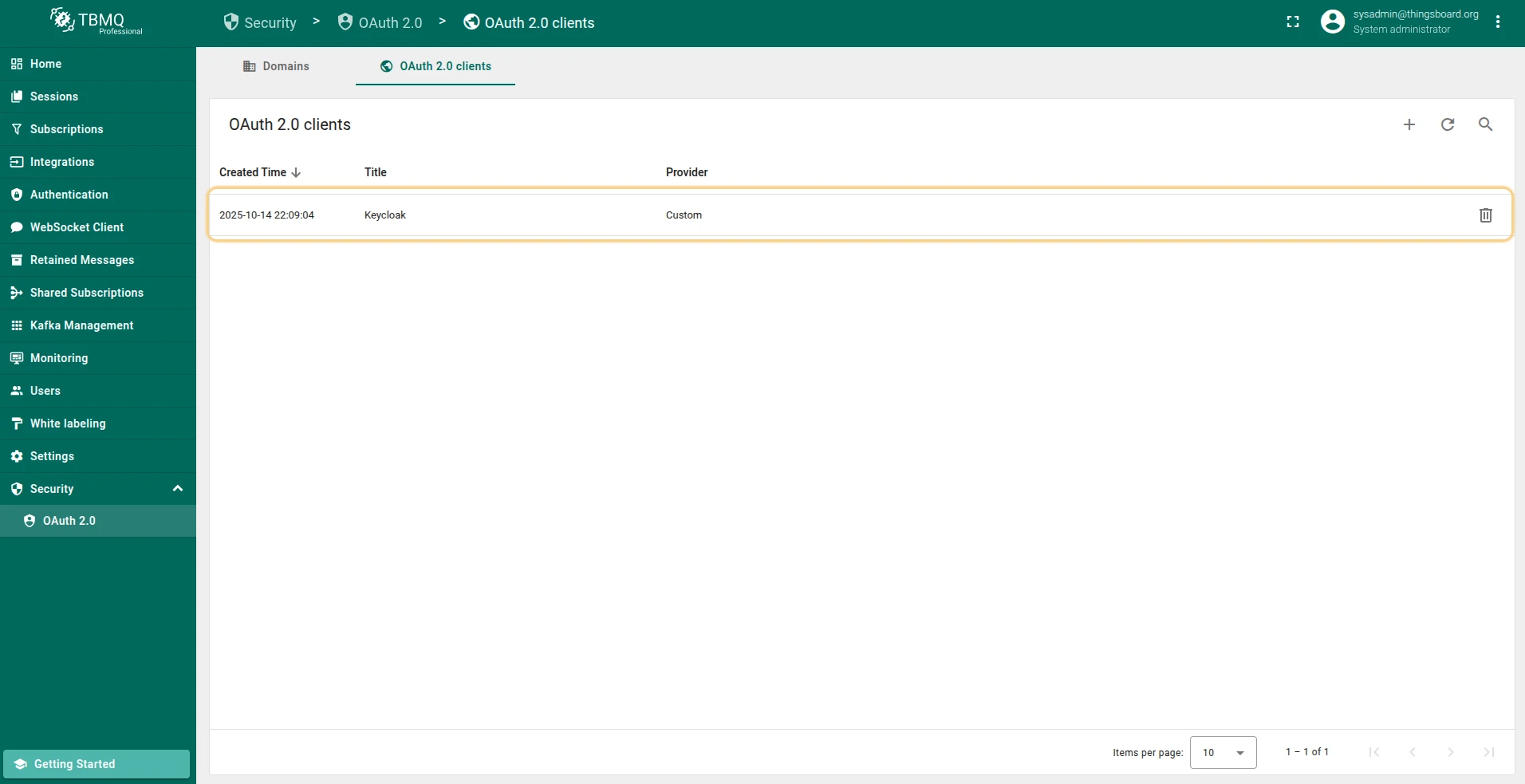
Log in to your TBMQ instance. Go to the OAuth 2.0 page in the Security section. Navigate to the OAuth 2.0 clients tab, and click the plus icon.
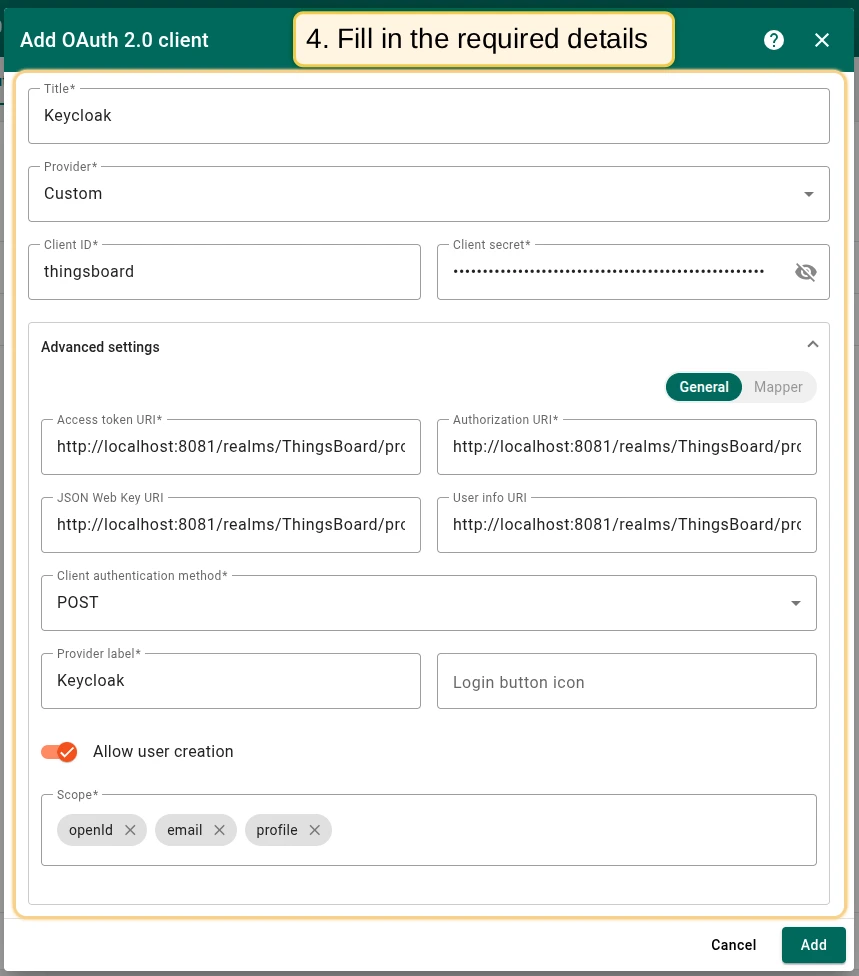
Enter Keycloak as the title. Select Custom as the provider. Enter the Client ID and Client Secret from Keycloak.
In Advanced settings → General: fill in the endpoint URLs, set authentication method to POST, enter Keycloak as the provider label, and add scopes:
email,openid,profile. -
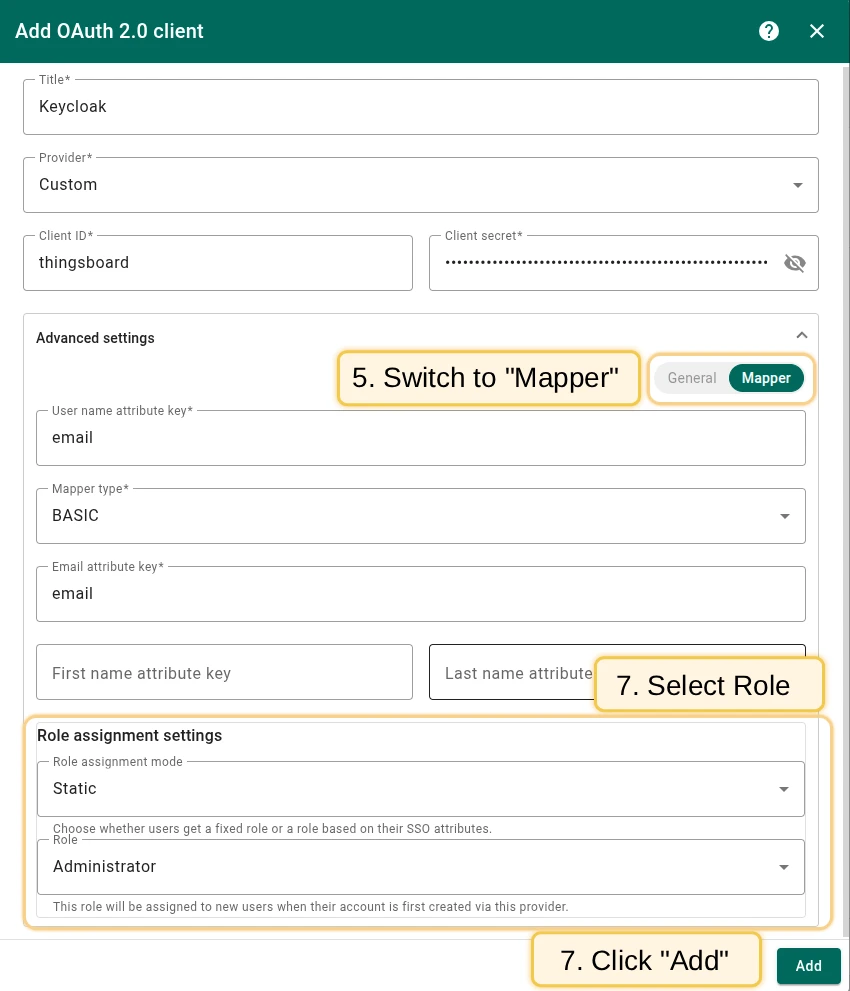
Go to the Mapper block. Leave the mapper type as BASIC. Configure the role assignment settings. Click Add to confirm.
-
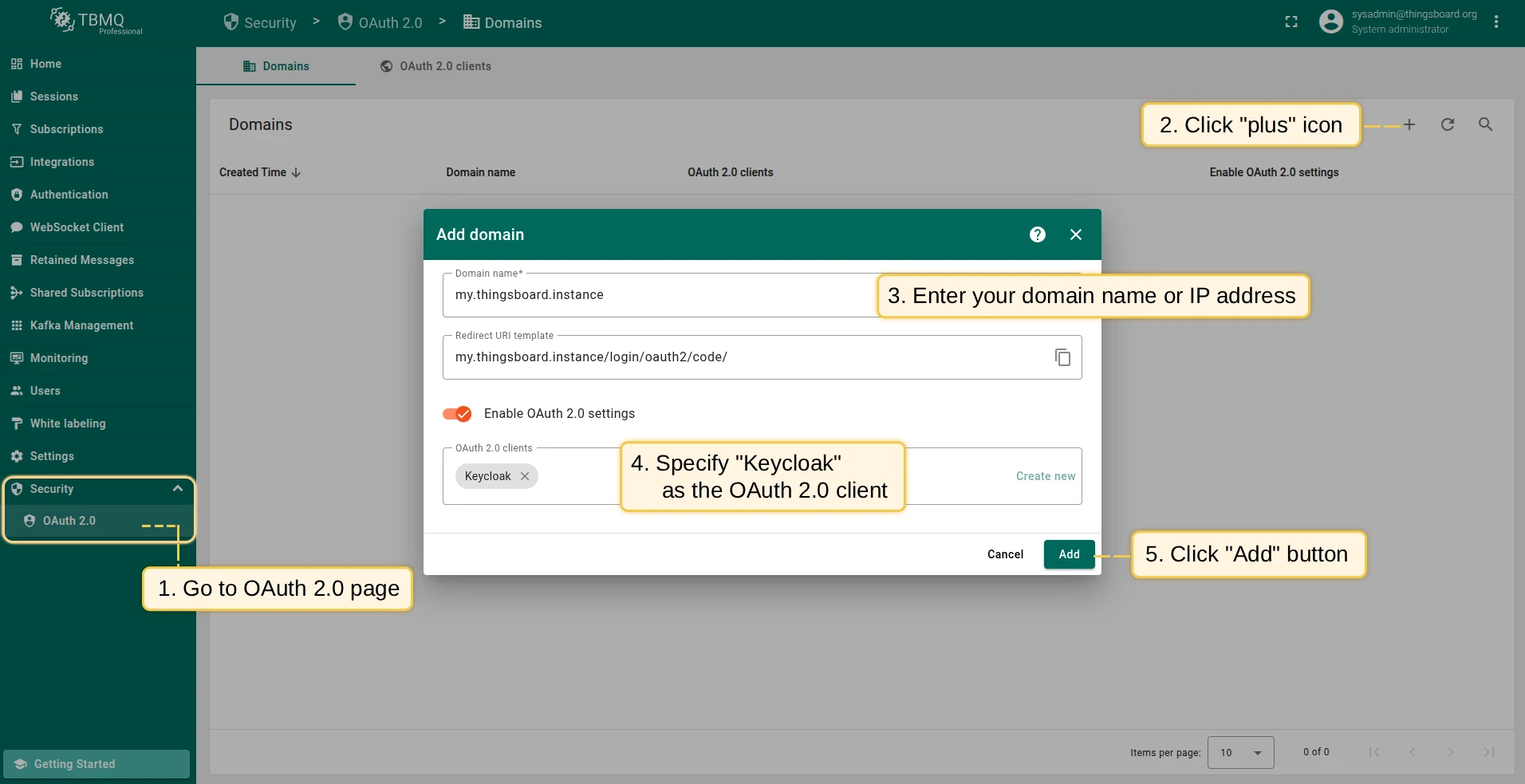
Now add a new domain: go to the Domains tab, click the plus icon, enter your domain name or IP address, specify Keycloak as the OAuth 2.0 client, and click Add.
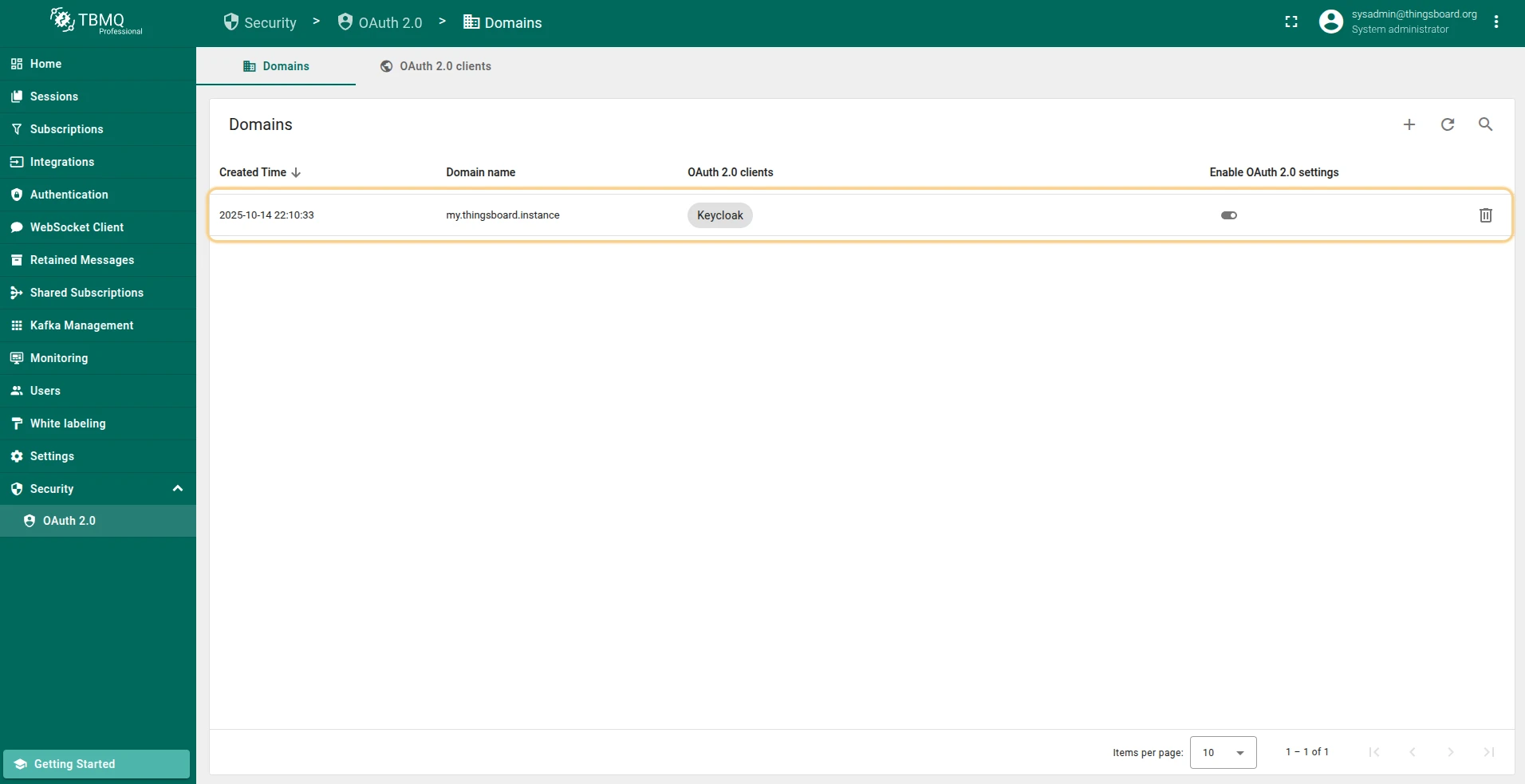
Sign in
Section titled “Sign in”Go to the TBMQ login screen. You will see the Login with Keycloak option. Click it, enter your Keycloak credentials, and click Sign In.

Mapping external user into TBMQ
Section titled “Mapping external user into TBMQ”Mapping an external user info object into a TBMQ user can be achieved using the Basic, Custom, GitHub, and Apple mappers.
Basic mapper
Section titled “Basic mapper”The basic mapper merges an external OAuth 2.0 user info object into the TBMQ OAuth 2.0 user with a predefined set of rules.
To use the basic mapper, set the mapper type to Basic.
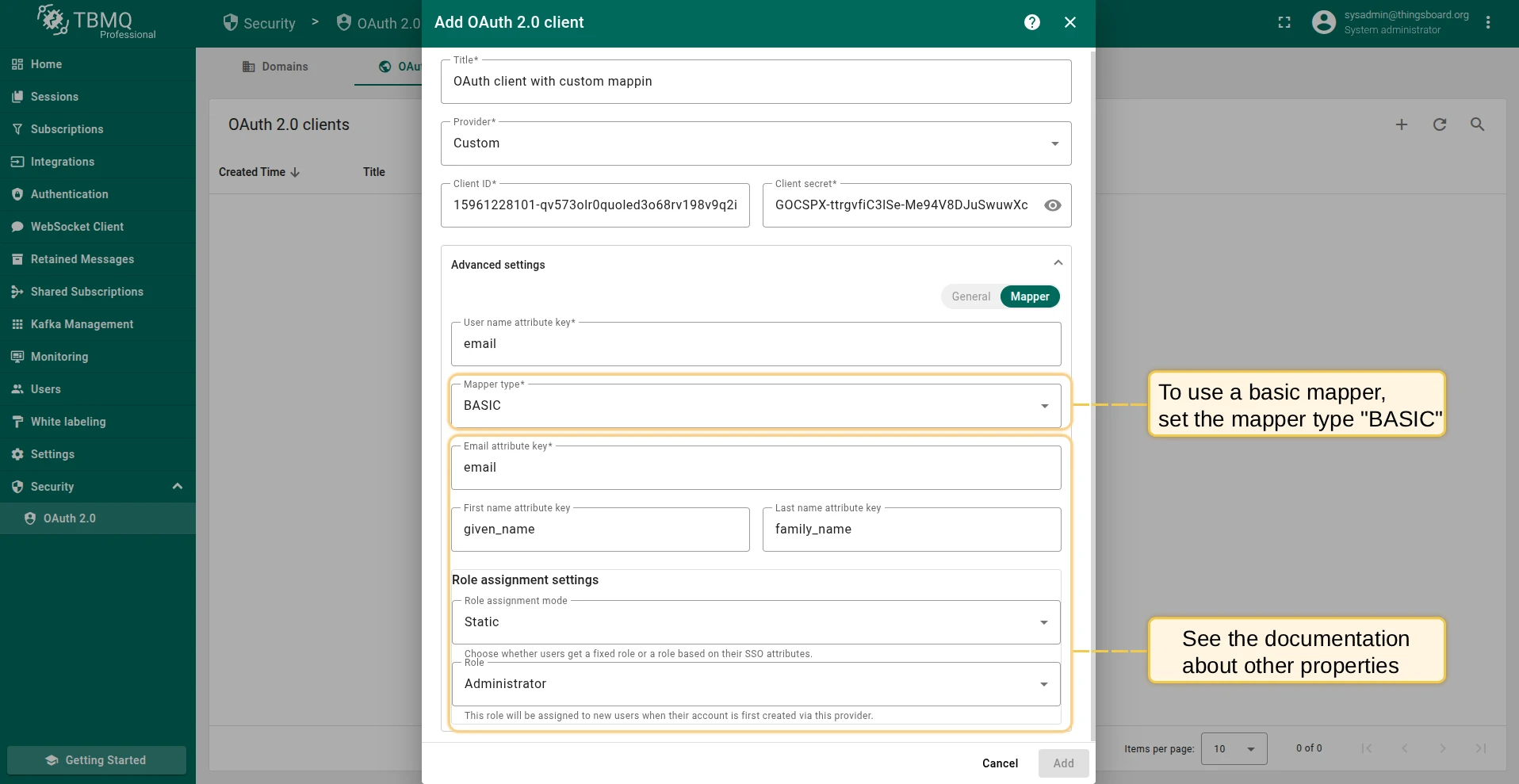
Available properties:
- Allow user creation — If enabled and the user account does not exist in TBMQ, it will be created automatically. If disabled, the user will receive an access denied error if no corresponding TBMQ user exists.
- Email attribute key — The attribute key from the external OAuth 2.0 user info used for the TBMQ user email.
- First name attribute key — The attribute key used for the TBMQ user first name.
- Last name attribute key — The attribute key used for the TBMQ user last name.
- Role assignment settings — Select a fixed role or map roles dynamically from user attributes:
- Static — This role will be assigned to all users authenticated through this provider.
- Dynamic — Roles are assigned based on the value of a specific attribute in the user info object.
- Role attribute key — User info attribute (e.g.,
rolesorgroups) for mapping. If both match, Administrator is granted over Viewer. - Administrator role values — List of attribute values that will grant the Administrator role.
- Viewer role values — List of attribute values that will grant the Viewer role.
- Role attribute key — User info attribute (e.g.,
Custom mapper
Section titled “Custom mapper”If the basic mapper does not meet your business needs, you can configure a custom mapper to implement logic that fits your specific goals.
A custom mapper is designed as a separate microservice running alongside the TBMQ microservice. TBMQ forwards all mapping requests to this microservice and expects a TBMQ OAuth 2.0 user object in response.
Refer to the base implementation as a starting point for your custom mapper.
To use the custom mapper, set the mapper type to Custom.
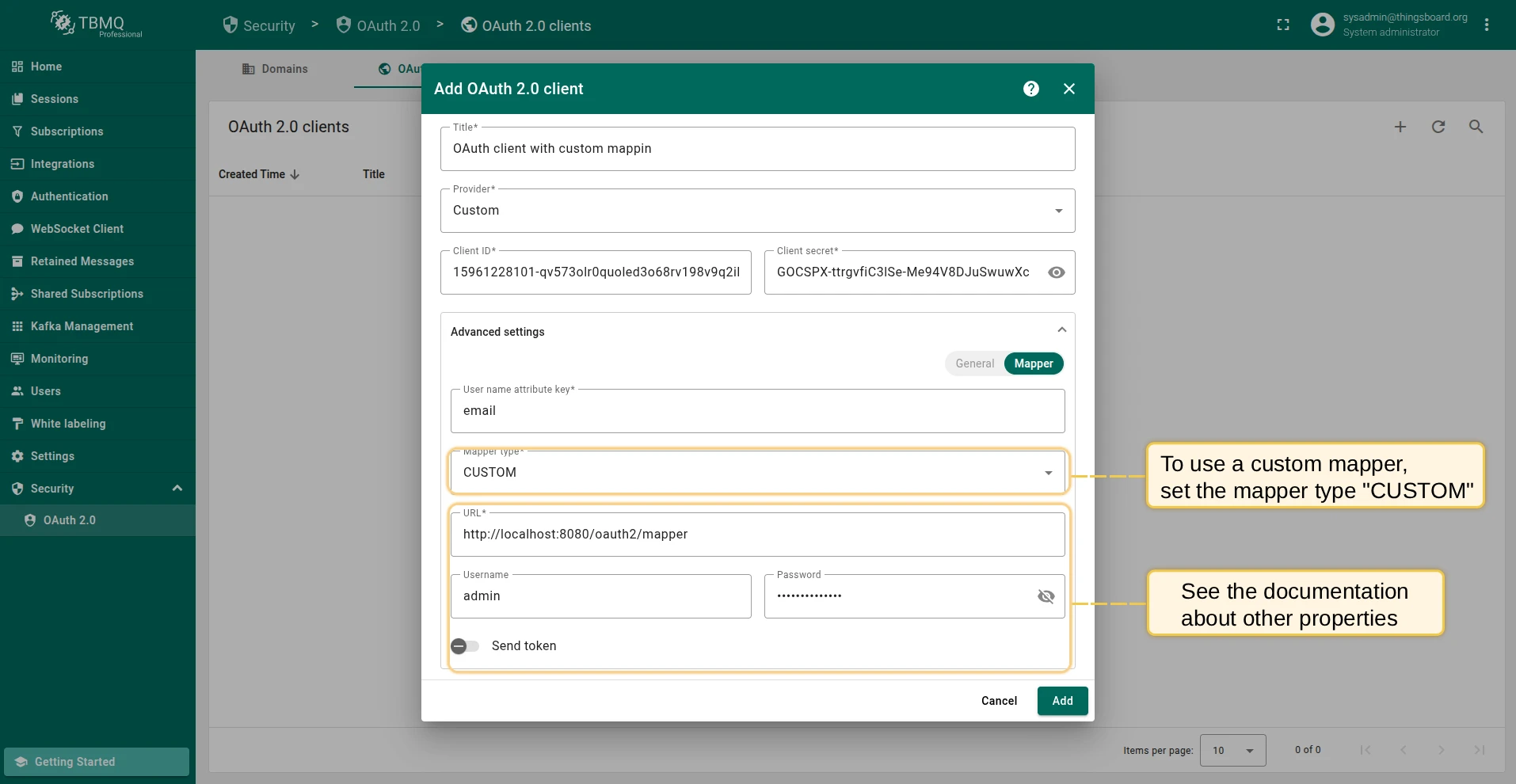
Available properties:
- URL — The URL of the custom mapper endpoint.
- username — If the custom mapper endpoint uses basic authentication, specify the username here.
- password — If the custom mapper endpoint uses basic authentication, specify the password here.
HAProxy configuration
Section titled “HAProxy configuration”If TBMQ is running behind a load balancer such as HAProxy, configure the balancing algorithm to ensure the correct session is maintained on the TBMQ instance:
backend tbmq-api-backend ... balance source # balance must be set to 'source' ...Also configure ACL mapping for HTTP and HTTPS requests to include the OAuth 2.0 paths:
frontend http-in ... acl tbmq_api_acl path_beg /api/ /swagger /webjars /v2/ /oauth2/ /login/oauth2/ # '/oauth2/ /login/oauth2/' added ...frontend https_in ... acl tbmq_api_acl path_beg /api/ /swagger /webjars /v2/ /oauth2/ /login/oauth2/ # '/oauth2/ /login/oauth2/' added ...Was this helpful?