
Kafka integration
TBMQ Kafka Integration enables communication with Apache Kafka, allowing TBMQ to publish messages to external Kafka clusters. This is useful for the following scenarios:
- Streaming IoT Data — forwarding device telemetry, logs, or events to Kafka for processing and storage.
- Event-Driven Architectures — publishing messages to Kafka topics for real-time analytics and monitoring.
- Decoupled System Communication — using Kafka as a buffer between TBMQ and downstream applications.
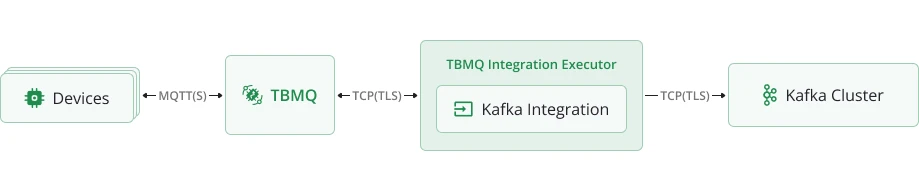
Data flow
Section titled “Data flow”- Device (client) publishes an MQTT message to a topic matching the integration’s topic filters.
- TBMQ broker receives the message and forwards it to the TBMQ Integration Executor.
- Integration Executor processes the message and sends it to a configured Kafka topic.
- Kafka consumers process the message in downstream systems.
Prerequisites
Section titled “Prerequisites”- A running TBMQ instance.
- An external Kafka cluster ready to receive messages (e.g., Confluent Cloud).
- A client capable of publishing MQTT messages (e.g., TBMQ WebSocket Client).
Create TBMQ Kafka Integration
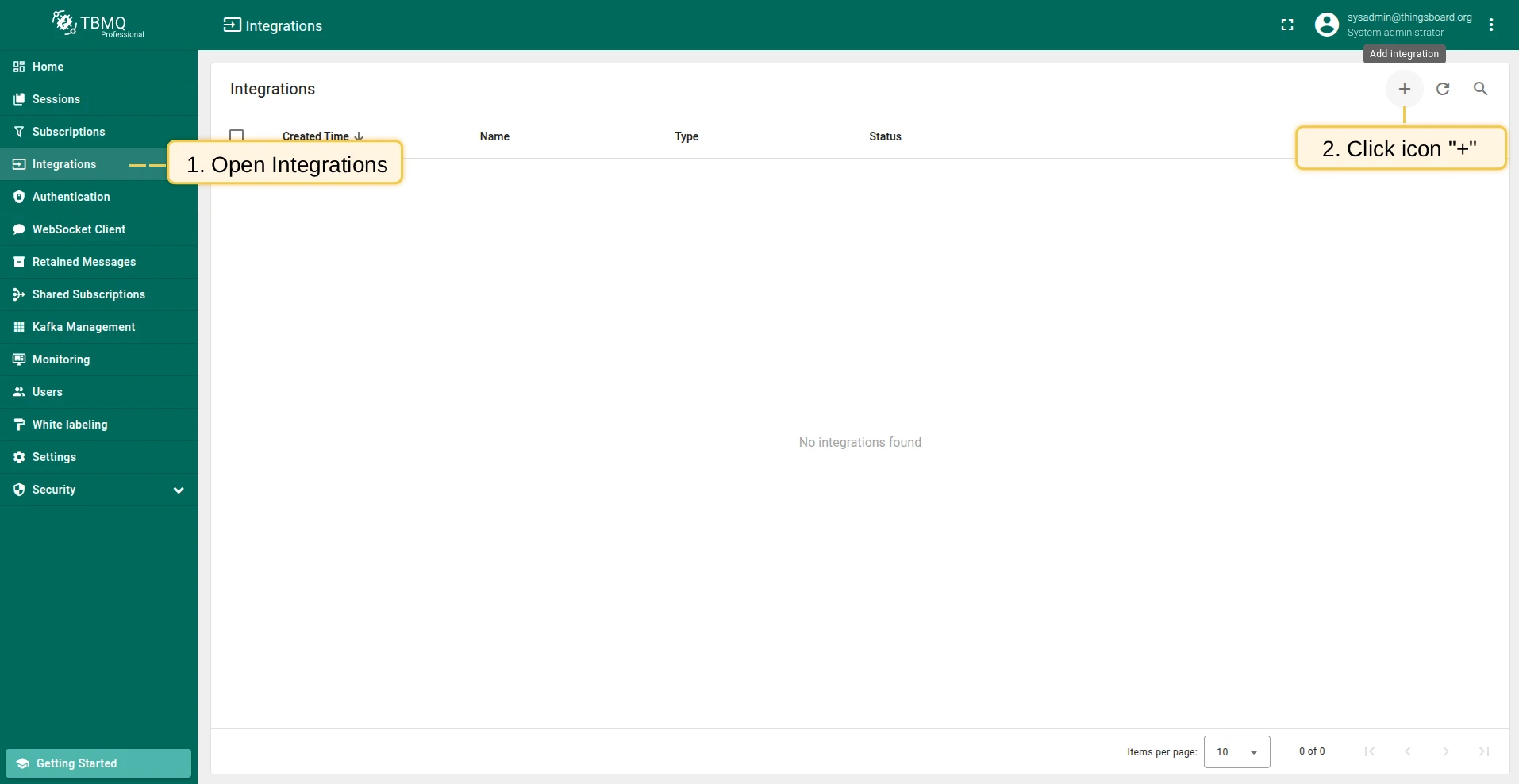
Section titled “Create TBMQ Kafka Integration”- Go to the Integrations page and click the ”+” button.
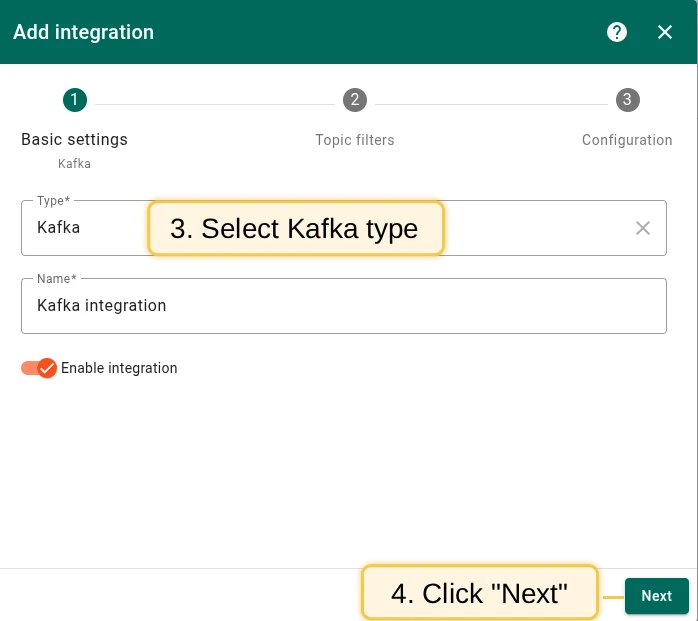
- Select Kafka as the integration type and click Next.
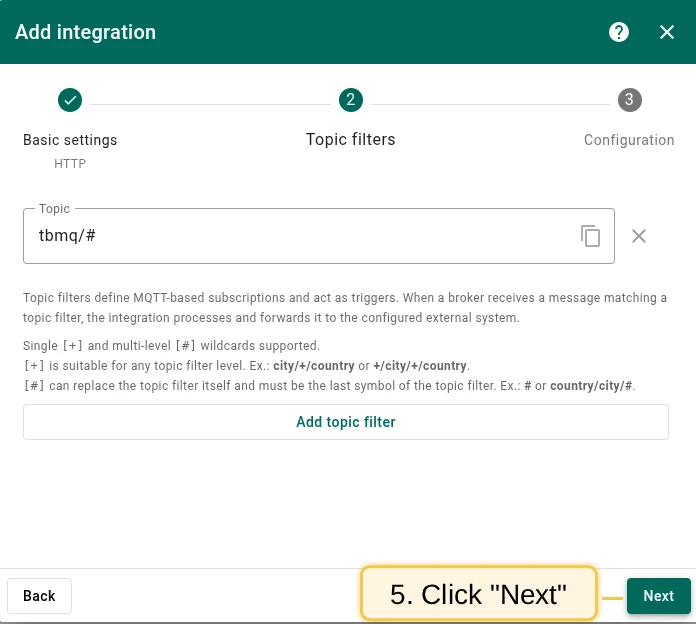
- On the Topic Filters step, click Next to subscribe to the default topic
tbmq/#. - In the Configuration step, enter the Bootstrap servers (Kafka broker addresses). See below for common and Confluent Cloud configurations.
- Click Add to save the integration.
Kafka bootstrap servers configuration
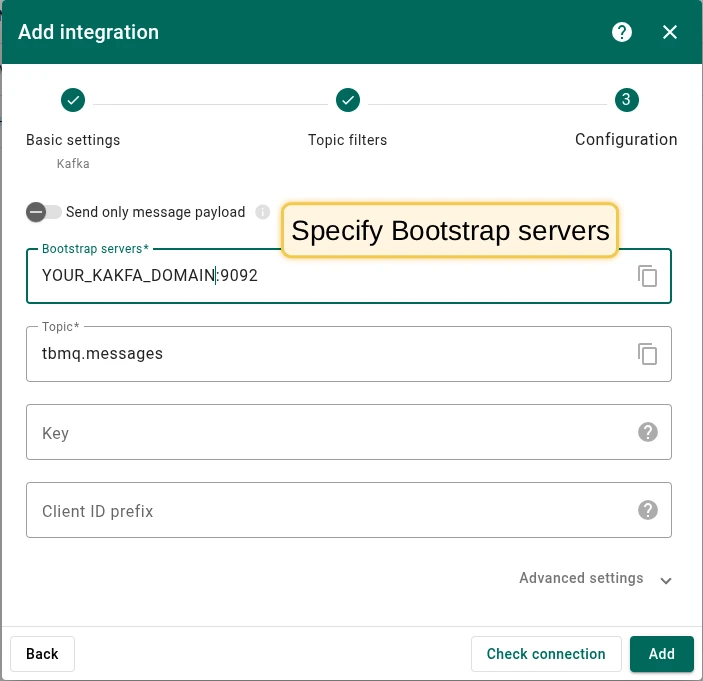
Section titled “Kafka bootstrap servers configuration”Specify the bootstrap server address (e.g., localhost:9092 for a local broker). The screenshot below shows the basic configuration for establishing a connection between TBMQ and a Kafka broker.
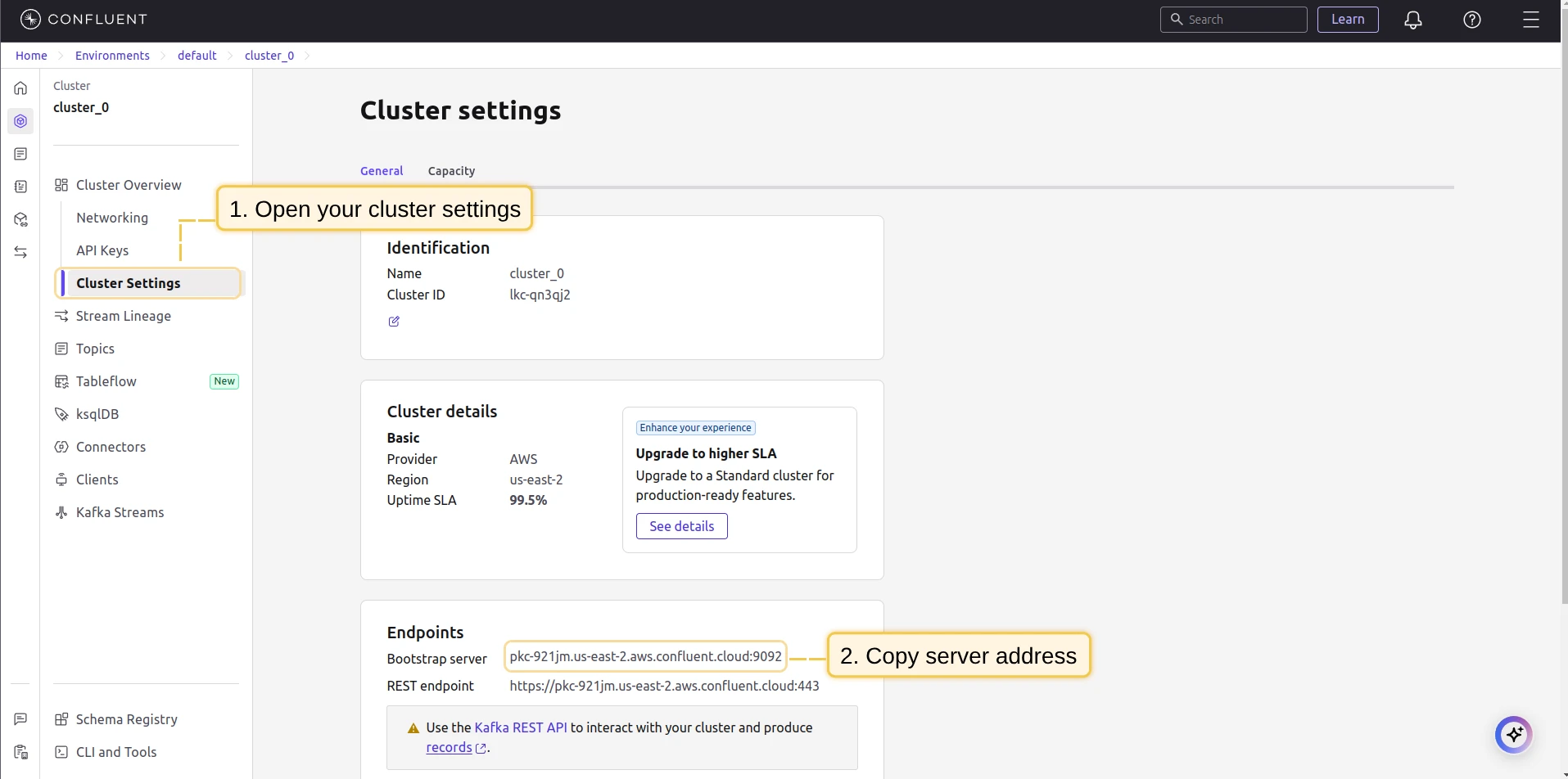
Step 1: In Confluent, open your environment → Cluster → Cluster settings. Find the Bootstrap server URL (format: URL_OF_YOUR_BOOTSTRAP_SERVER:9092) and copy it to the integration.
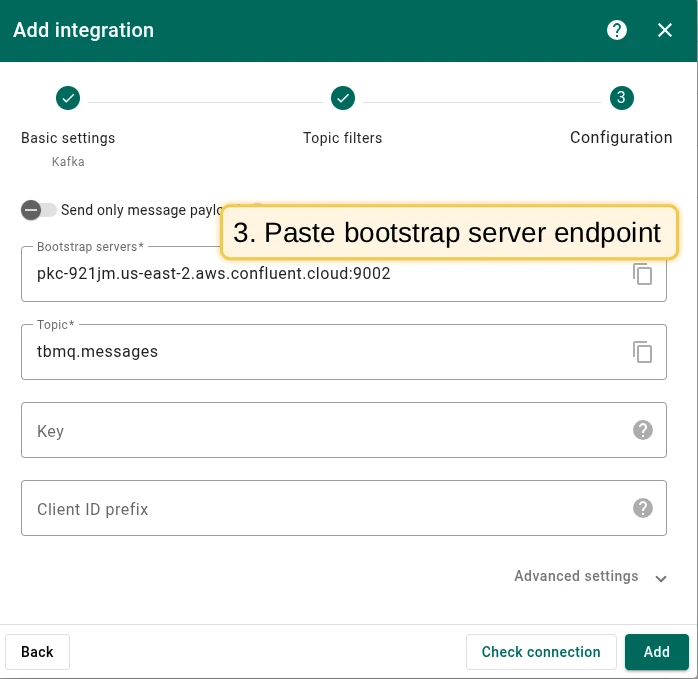
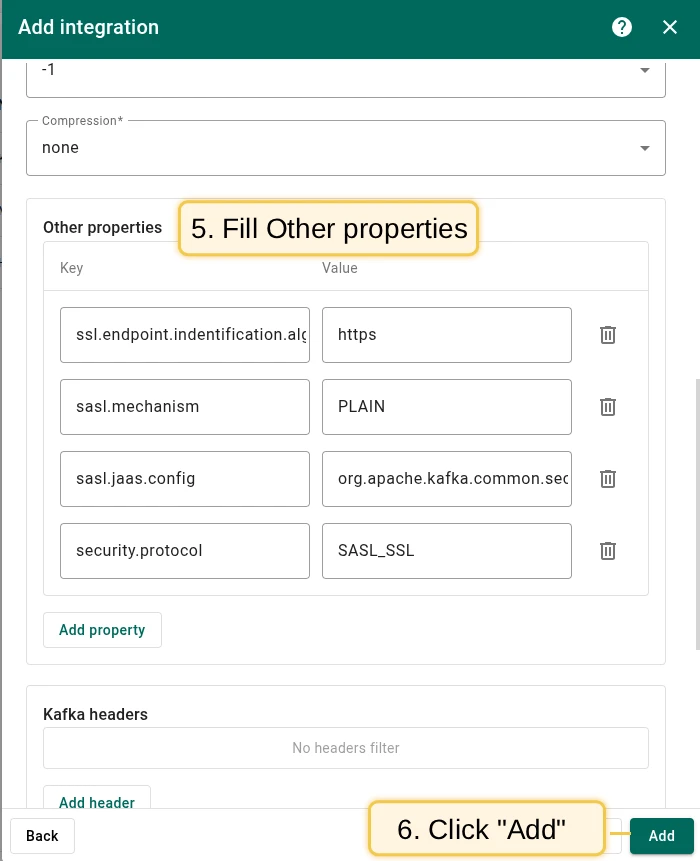
Step 2: Add the following Other properties key-value pairs for SASL/SSL authentication:
| Key | Value |
|---|---|
ssl.endpoint.identification.algorithm | https |
sasl.mechanism | PLAIN |
sasl.jaas.config | org.apache.kafka.common.security.plain.PlainLoginModule required username="CLUSTER_API_KEY" password="CLUSTER_API_SECRET"; |
security.protocol | SASL_SSL |
Replace CLUSTER_API_KEY and CLUSTER_API_SECRET with your Confluent cluster API key and secret.
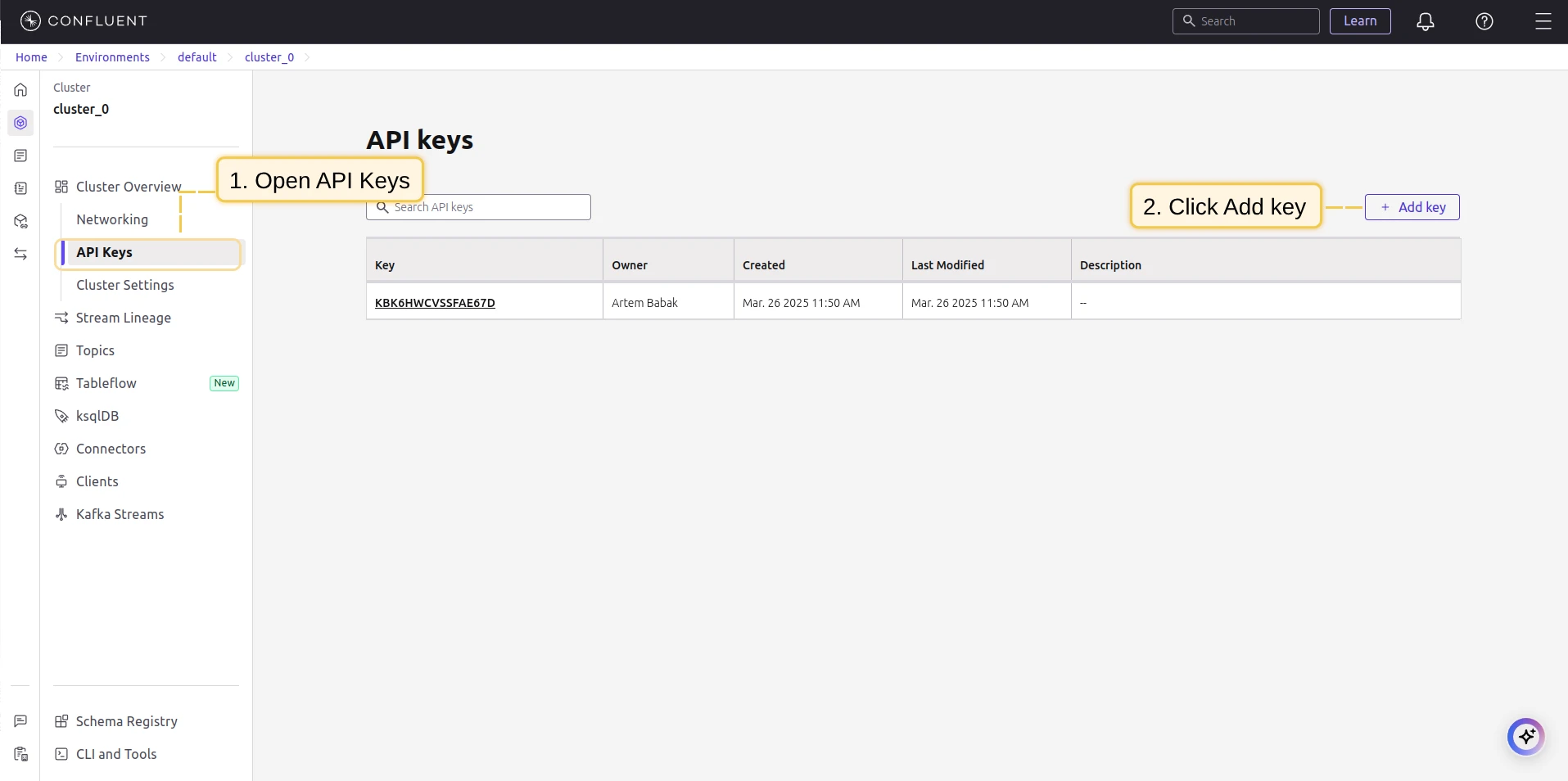
To generate an API key, go to Data Integration → API Keys → Create key in your Confluent cluster.
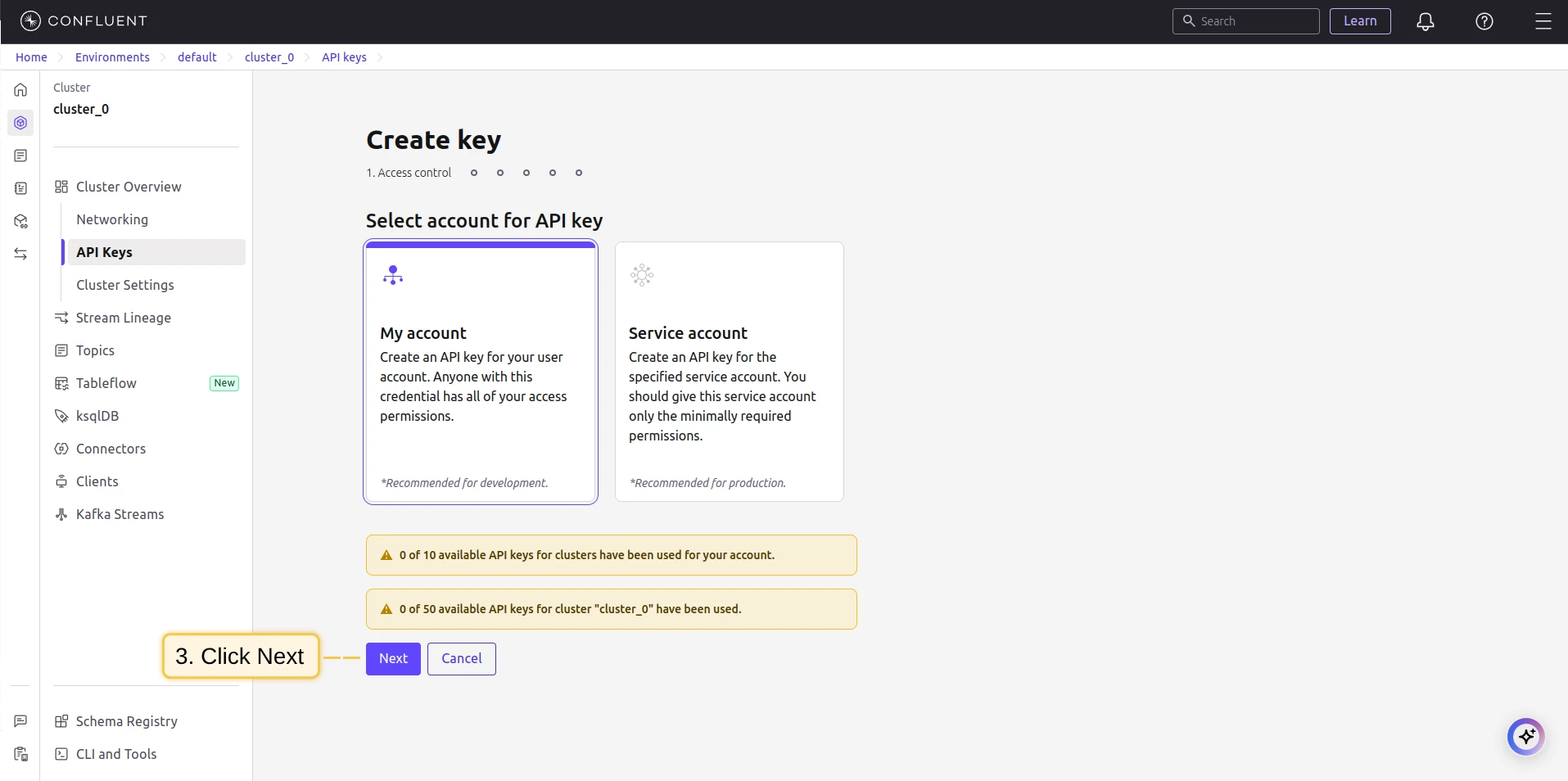
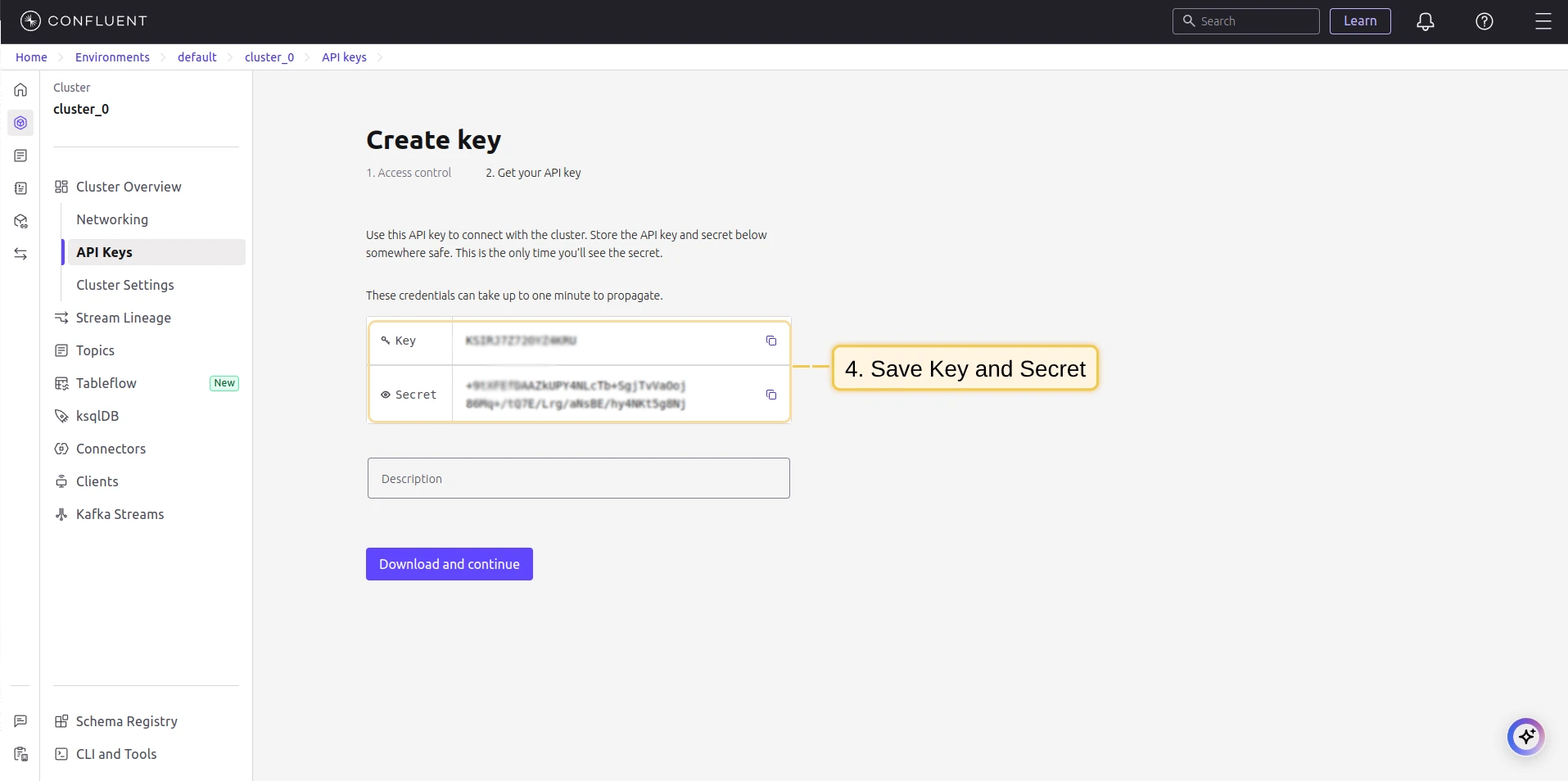
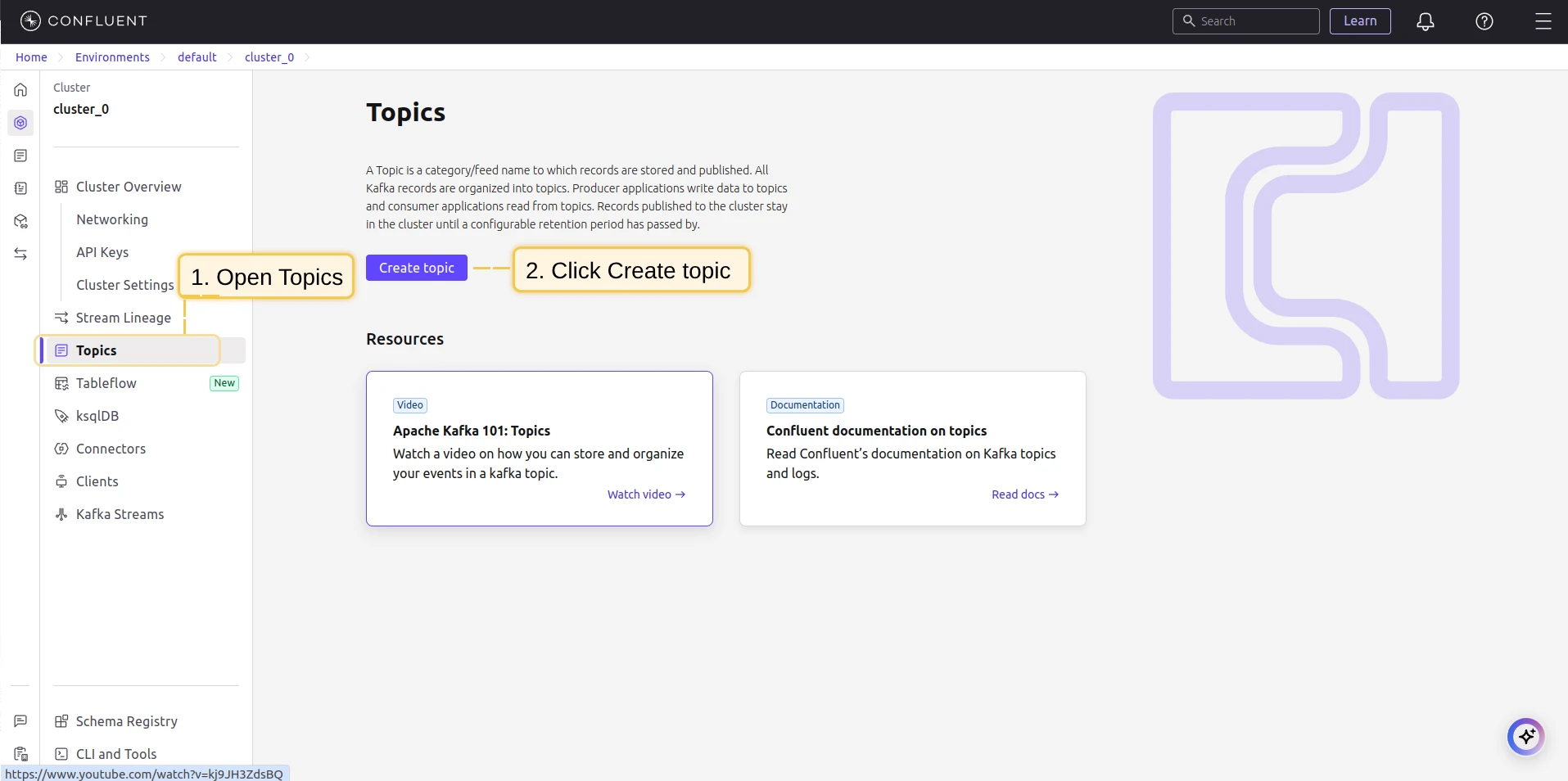
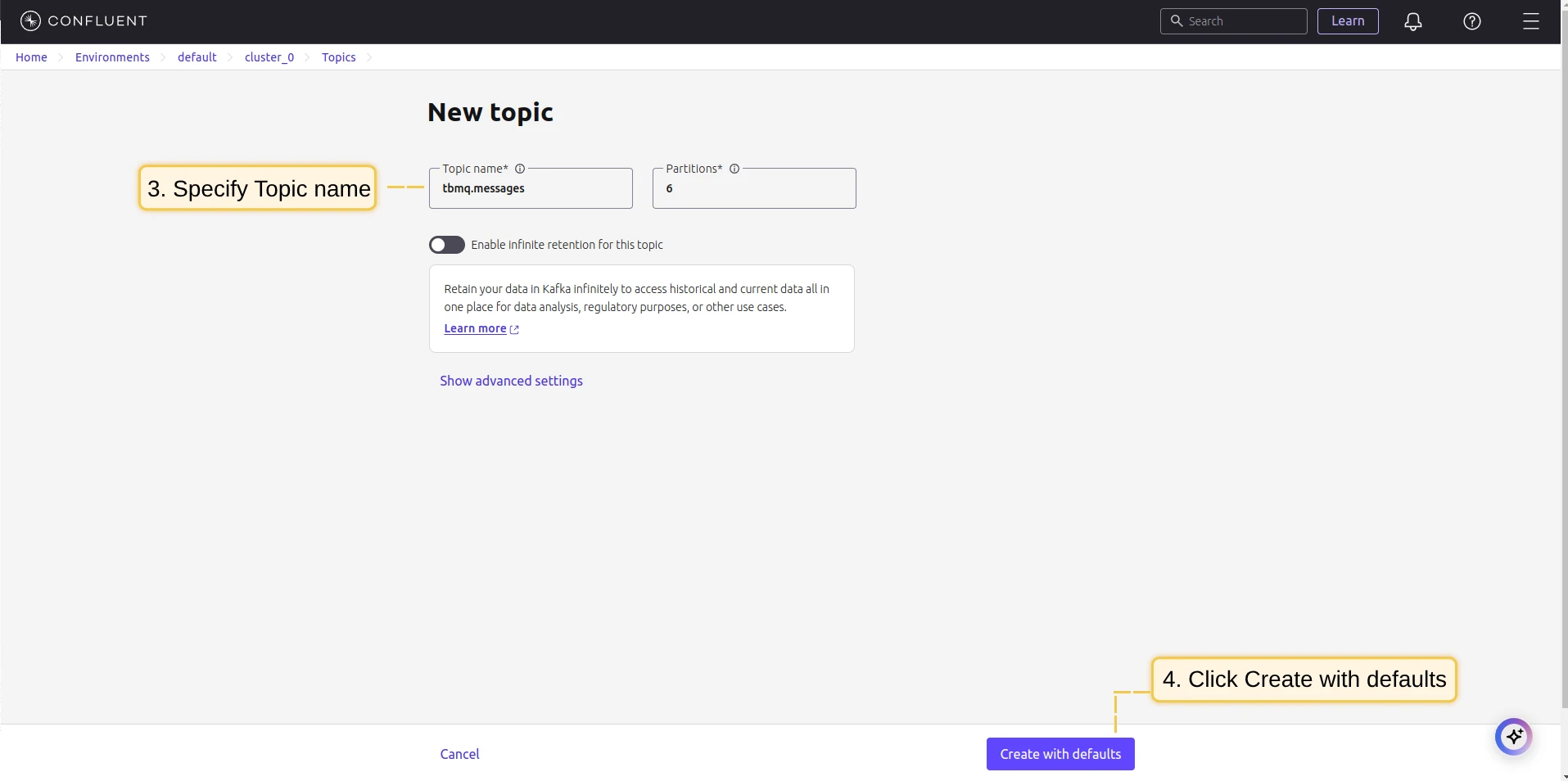
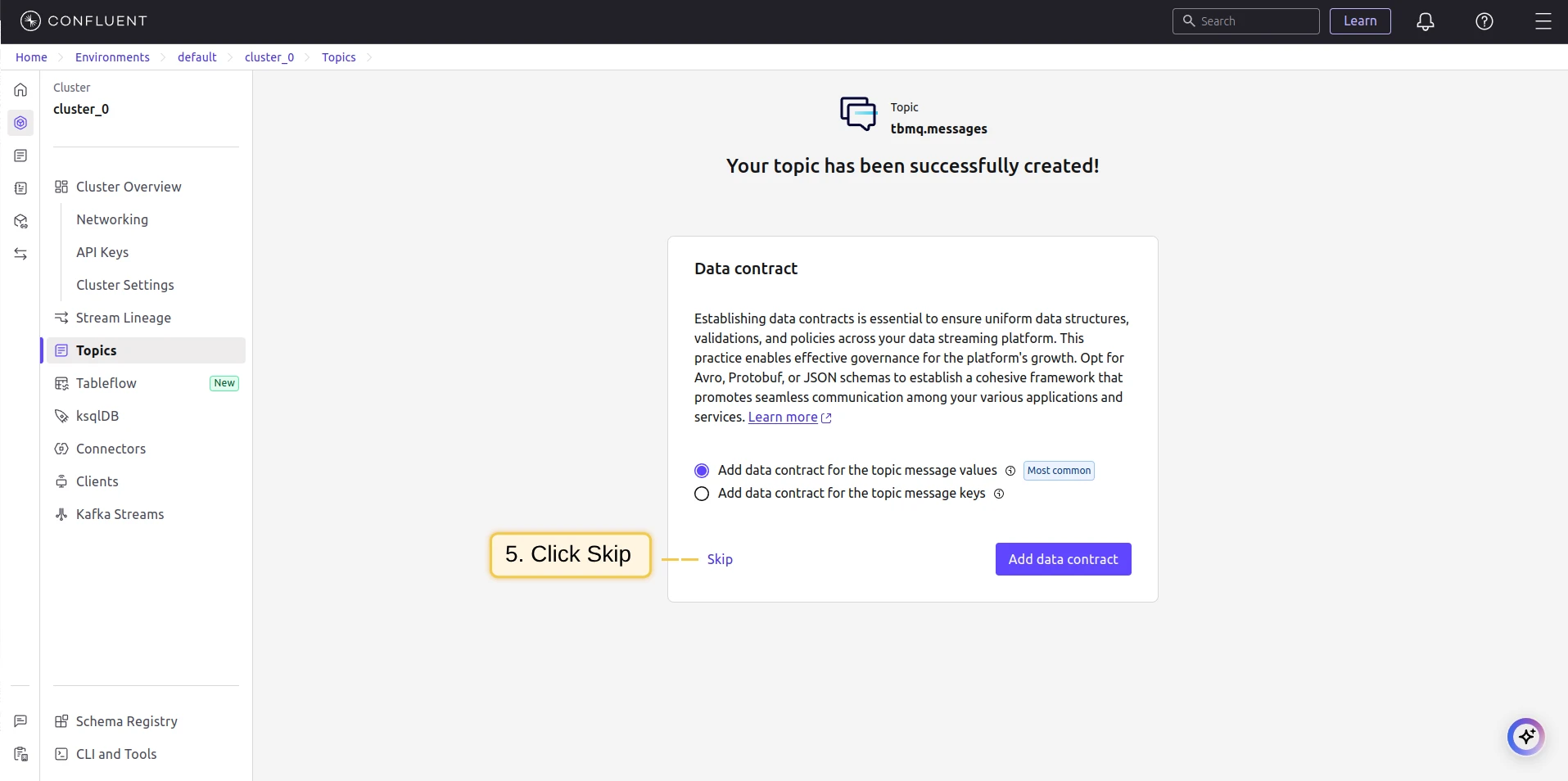
Step 3: Create a Kafka topic on Confluent. Go to Topics → Create Topics and set the name to tbmq.messages.
Topic filters
Section titled “Topic filters”Topic filters define MQTT-based subscriptions that trigger the integration. When TBMQ receives a message matching a configured topic filter, the integration processes it and forwards the data to the Kafka cluster.
For example, with the topic filter tbmq/devices/+/status, any of the following messages will trigger the integration:
tbmq/devices/device-01/statustbmq/devices/gateway-01/statusConfiguration
Section titled “Configuration”| Field | Description |
|---|---|
| Send only message payload | If enabled, only the raw message payload is forwarded. If disabled, TBMQ wraps the payload in a JSON object with additional metadata. |
| Bootstrap servers | Kafka broker addresses (comma-separated list of hostnames/IPs and ports). |
| Topic | The Kafka topic where messages will be published. |
| Key | (Optional) Used for partitioning. Kafka hashes the key to consistently assign messages to the same partition. |
| Client ID prefix | (Optional) Prefix for the Kafka client ID. Default: tbmq-ie-kafka-producer. |
| Automatically retry times if fails | Number of retries before marking a message as failed. |
| Produces batch size in bytes | Maximum batch size before sending messages to Kafka. |
| Time to buffer locally (ms) | Time to buffer messages locally before sending. |
| Client buffer max size in bytes | Maximum memory allocated for buffering messages before sending. |
| Number of acknowledgments | Kafka acknowledgment mode: all, 1, 0. |
| Compression | Compression algorithm: none, gzip, snappy, lz4, zstd. |
| Other properties | Additional Kafka producer configuration as key-value pairs. |
| Kafka headers | Custom headers added to Kafka messages. |
| Metadata | Custom metadata attached to forwarded messages. |
Events
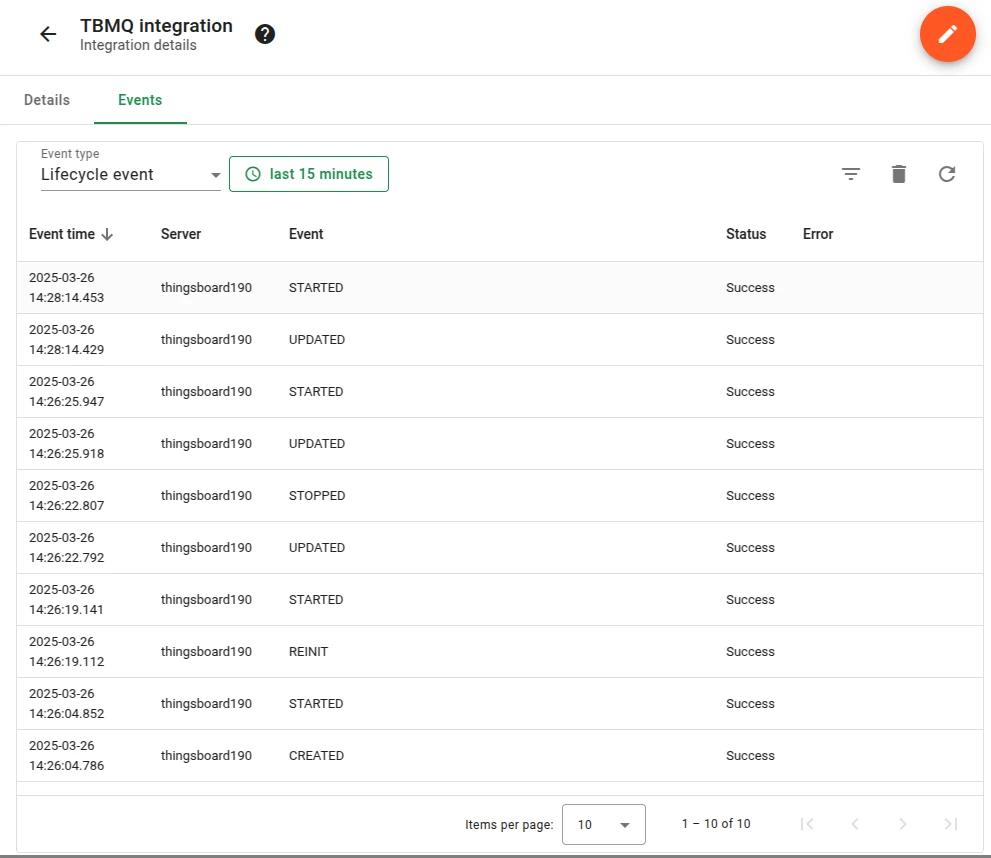
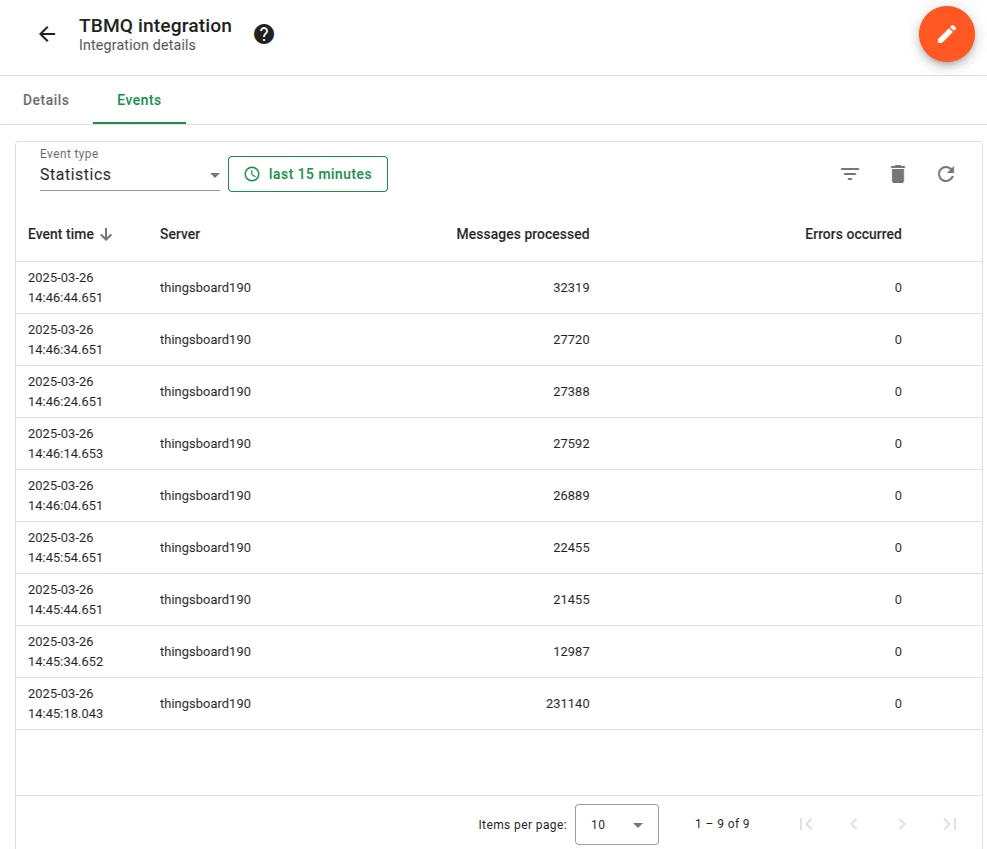
Section titled “Events”TBMQ logs integration-related events for debugging and troubleshooting:
- Lifecycle Events — logs events such as
Started,Created,Updated,Stopped. - Statistics — insights into integration performance, including processed message counts and error rates.
- Errors — captures failures related to authentication, timeouts, payload formatting, or connectivity issues.
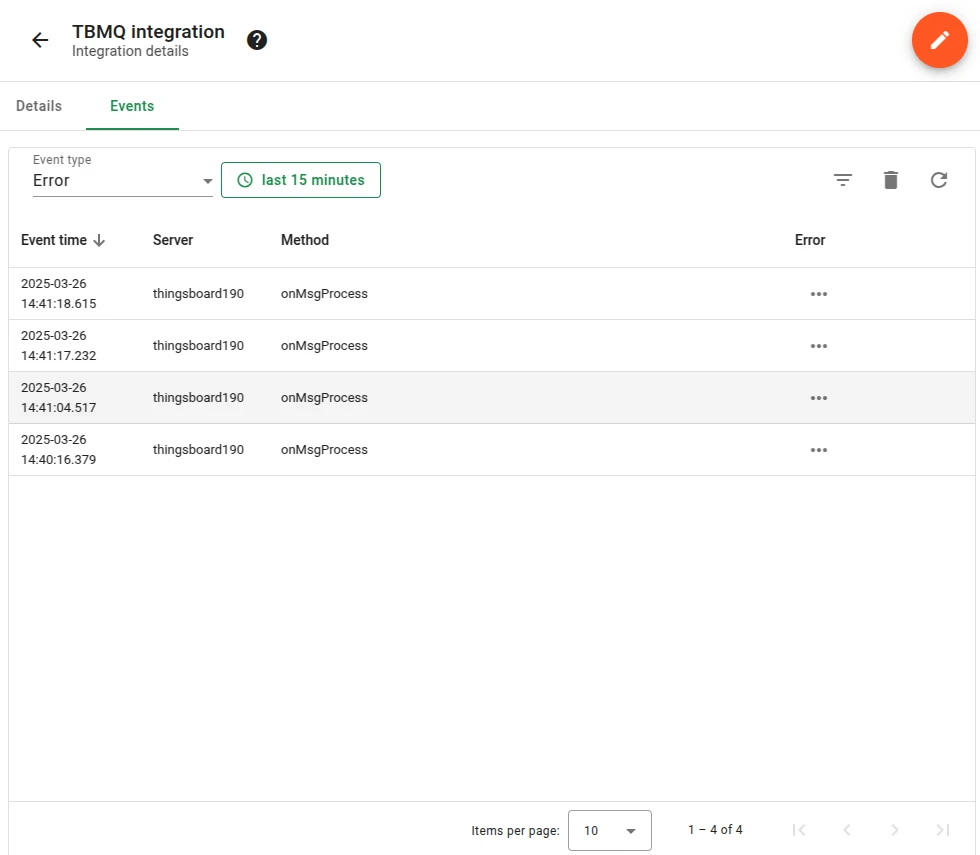
Send an uplink message
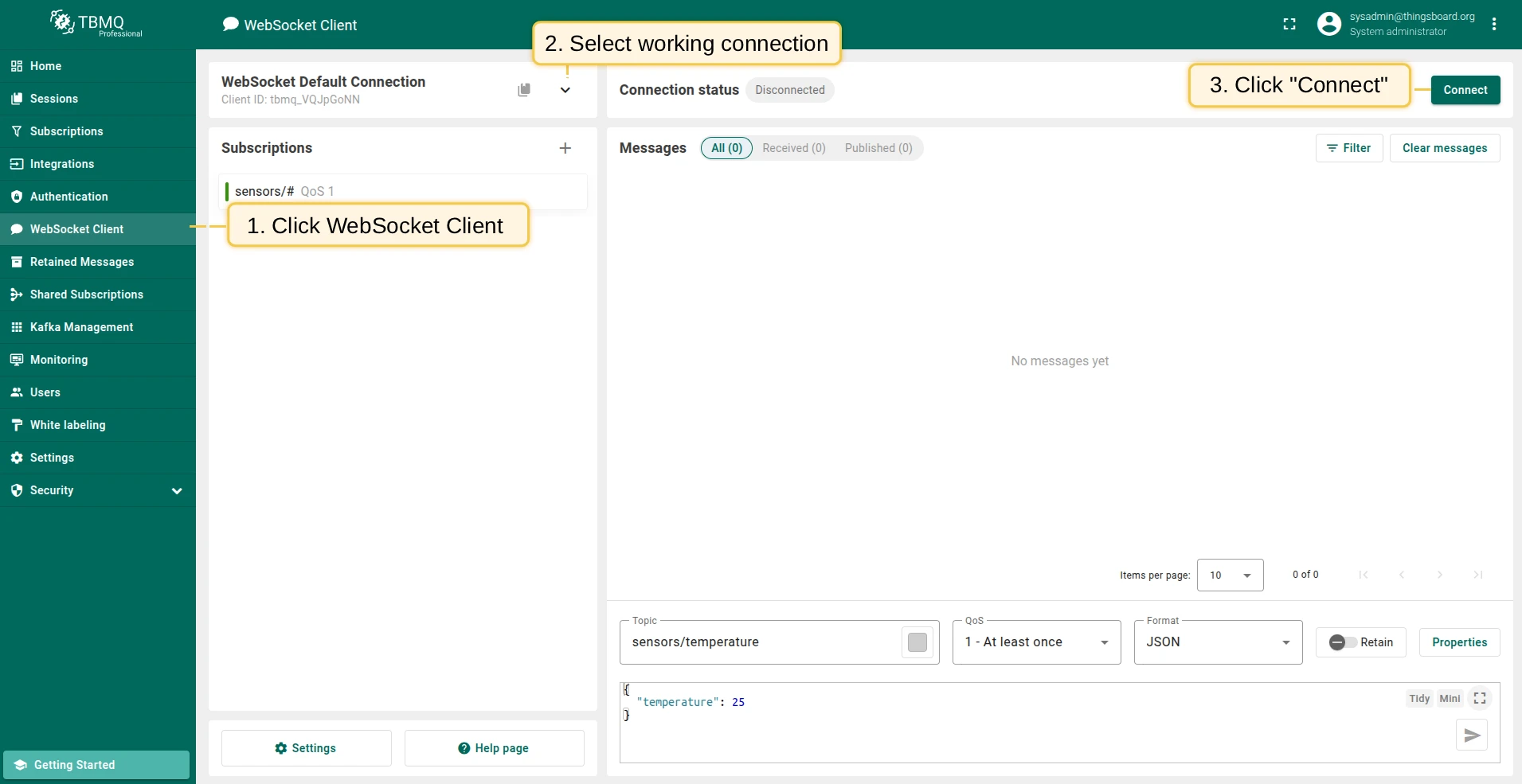
Section titled “Send an uplink message”- Navigate to the WebSocket Client page.
- Select WebSocket Default Connection (or any working connection) and click Connect. Verify the connection status shows
Connected. - Set the Topic field to
tbmq/kafka-integrationto match the integration’s topic filtertbmq/#. - Click the Send icon to publish the message.
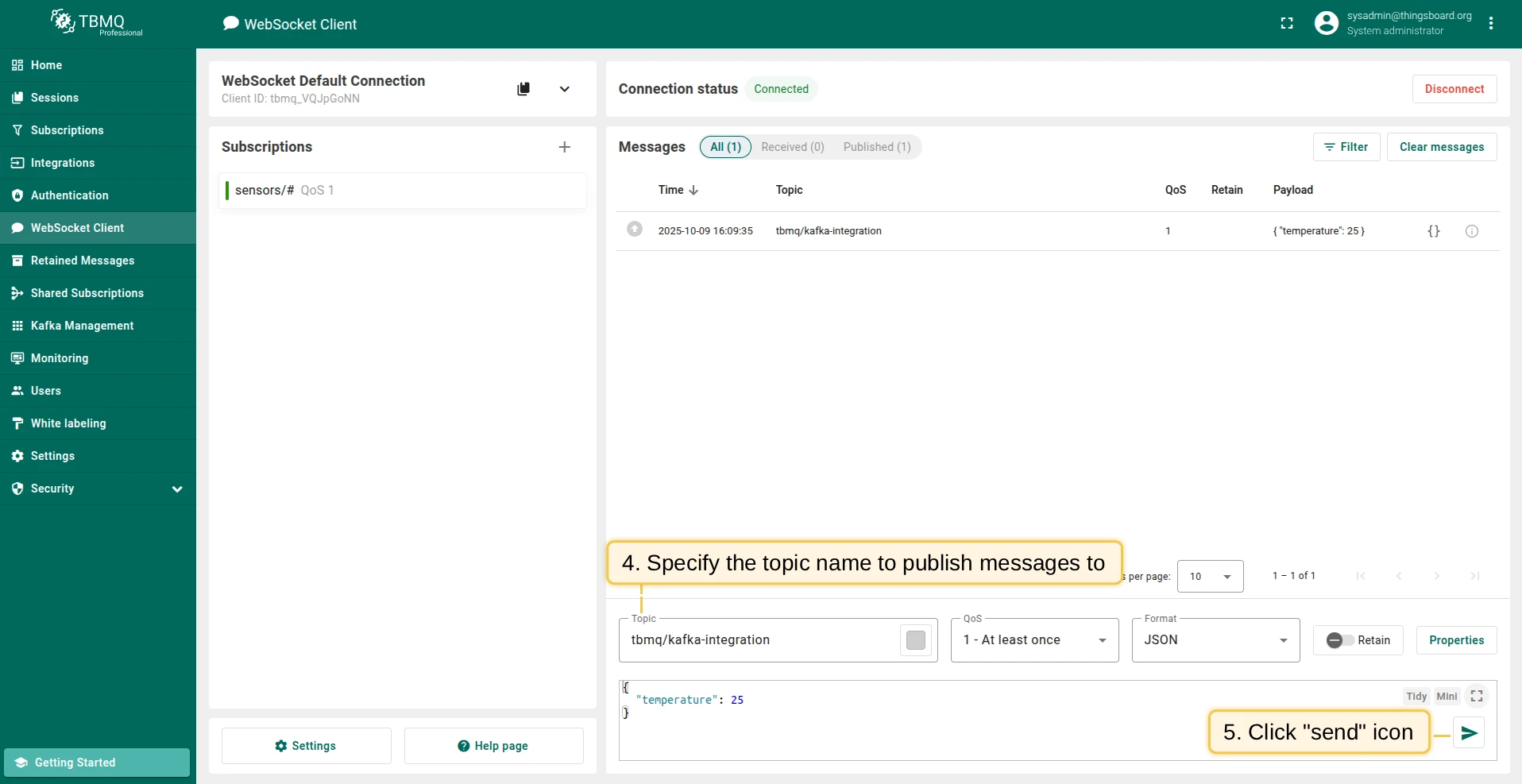
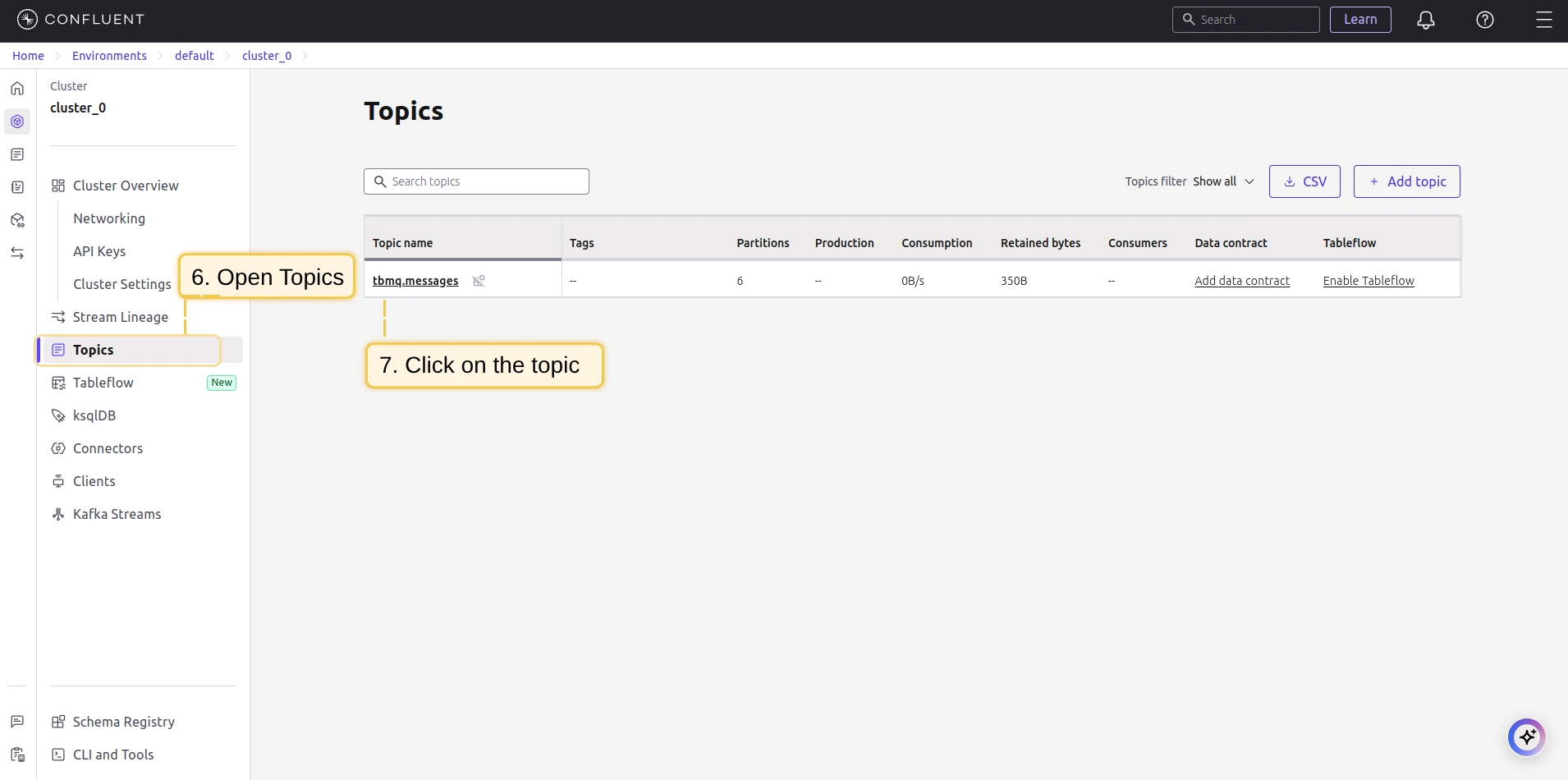
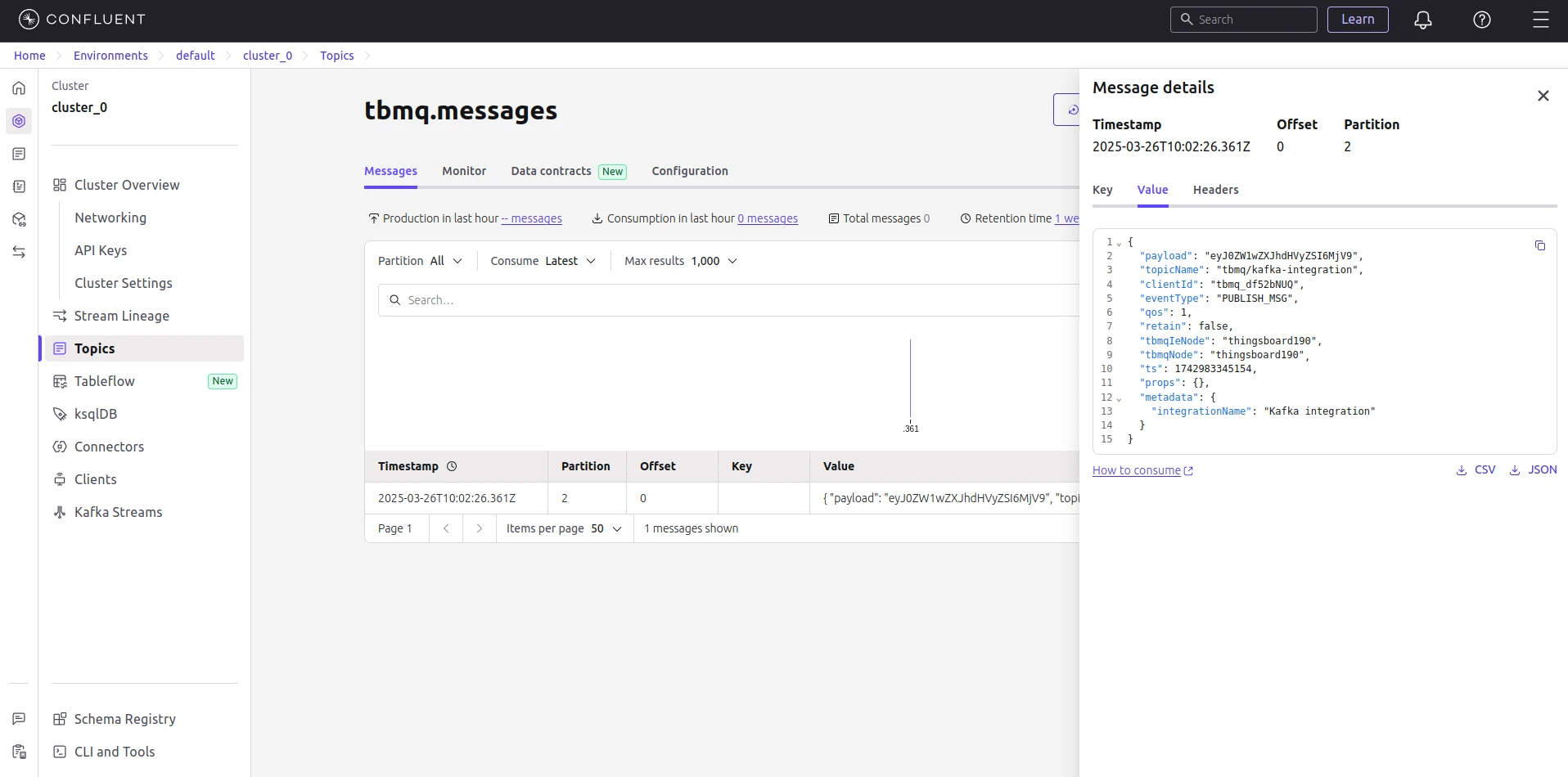
If successful, the message should be available in your Kafka service under the topic tbmq.messages:
{ "payload": "eyJ0ZW1wZXJhdHVyZSI6MjV9", "topicName": "tbmq/kafka-integration", "clientId": "tbmq_df52bNUQ", "eventType": "PUBLISH_MSG", "qos": 1, "retain": false, "tbmqIeNode": "tbmq_ie_node", "tbmqNode": "tbmq_node", "ts": 1742554969254, "props": {}, "metadata": { "integrationName": "Kafka integration" }}Message field descriptions:
| Field | Description |
|---|---|
payload | Base64-encoded content of the MQTT message (e.g., "eyJ0ZW1wZXJhdHVyZSI6MjV9" decodes to {"temperature": 25}). |
topicName | MQTT topic to which the message was published. |
clientId | ID of the MQTT client that published the message. |
eventType | Type of MQTT event. PUBLISH_MSG is the only supported type. |
qos | Quality of Service level of the incoming message. |
retain | Whether the message has the Retain flag set. |
tbmqIeNode | Node ID of the Integration Executor that handled the message. |
tbmqNode | Node ID of the TBMQ broker that received the message. |
ts | Timestamp (milliseconds) when the message was received. |
props | MQTT 5.0 user properties or other MQTT properties. |
metadata | Additional metadata from integration configuration (e.g., integration name). |
Was this helpful?