
JWT authentication
TBMQ supports JWT-based authentication for MQTT clients as one of its pluggable authentication providers. This provides secure, flexible, and scalable identity verification without relying on static credentials like usernames or passwords. Instead, clients present a signed token that contains all the necessary authentication information, allowing integration with centralized identity systems and improving overall security.
How it works
Section titled “How it works”When a client connects using a JWT token, TBMQ performs a multistep validation process to verify the token, check its claims, and determine the client’s permissions.
The client includes a signed JWT token in the password field of the MQTT CONNECT packet.
TBMQ uses the configured verifier (HMAC-based, PEM, or JWKS) to validate the token’s signature. If the signature is valid, the broker proceeds to check the token’s claims:
exp(expiration) — ensures the token is not expired.nbf(not before) — ensures the token is currently valid.
Custom claim validations can also be configured — for example, requiring that specific claims match the client’s username or clientId.
TBMQ also supports extracting role-based authorization patterns and client type from token claims.
These values determine the client’s type (DEVICE or APPLICATION) and which topics they are allowed to publish or subscribe to.
The client is granted access only if the signature is valid and all required claims pass validation.
Configure provider
Section titled “Configure provider”JWT authentication for MQTT clients is configured through the TBMQ user interface. This section explains how to configure signature verification, define optional authentication claim checks, set up dynamic client type classification, and manage authorization rules. Once the configuration is complete, you can enable the provider to start authenticating clients using JWT tokens.
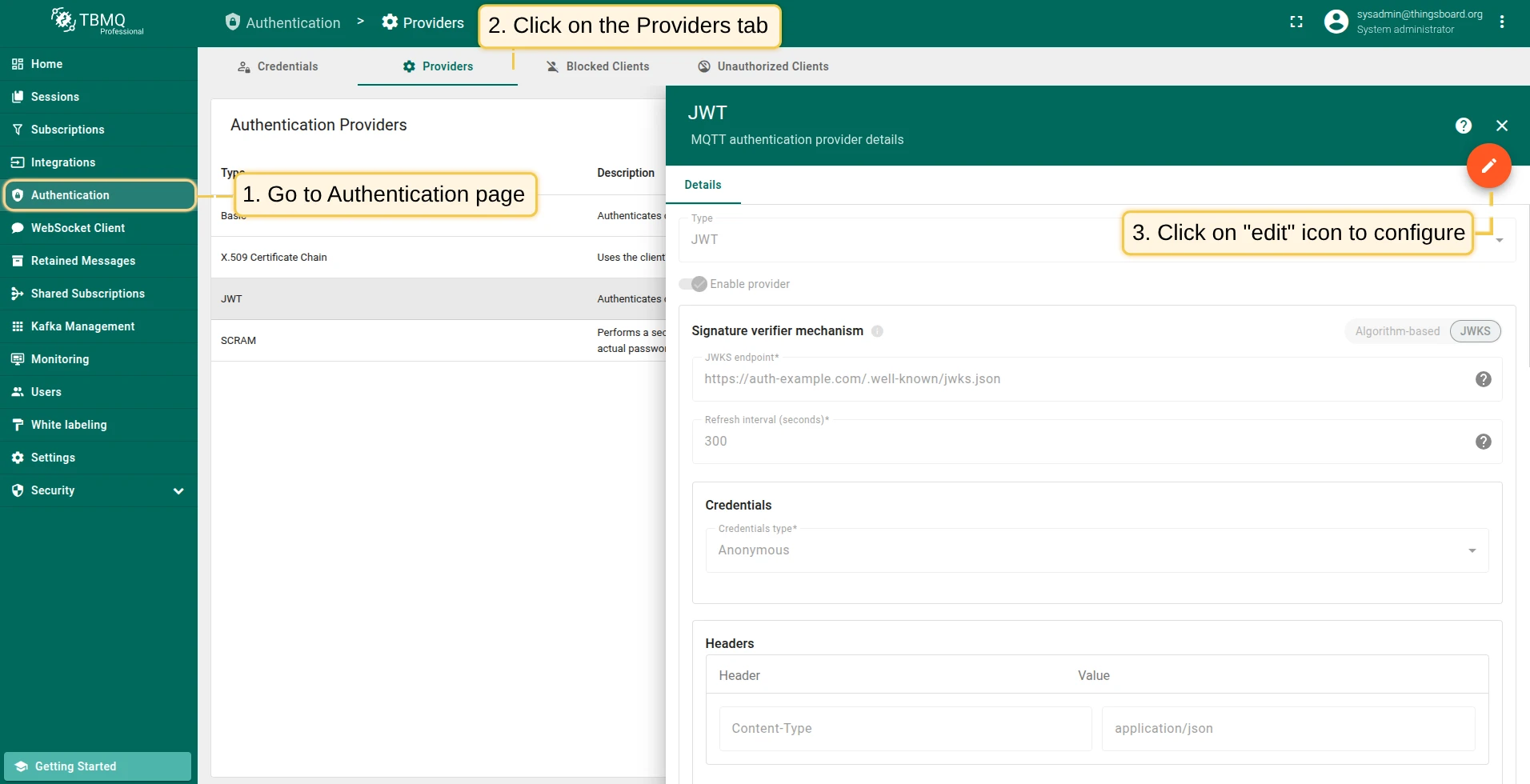
Signature verification
Section titled “Signature verification”The signature verifier mechanism determines how TBMQ validates the JWT token’s signature to ensure the token was issued by a trusted authority and hasn’t been tampered with. There are two options:
- Algorithm-based (HMAC or PEM) — uses a preconfigured secret or public key to verify incoming tokens.
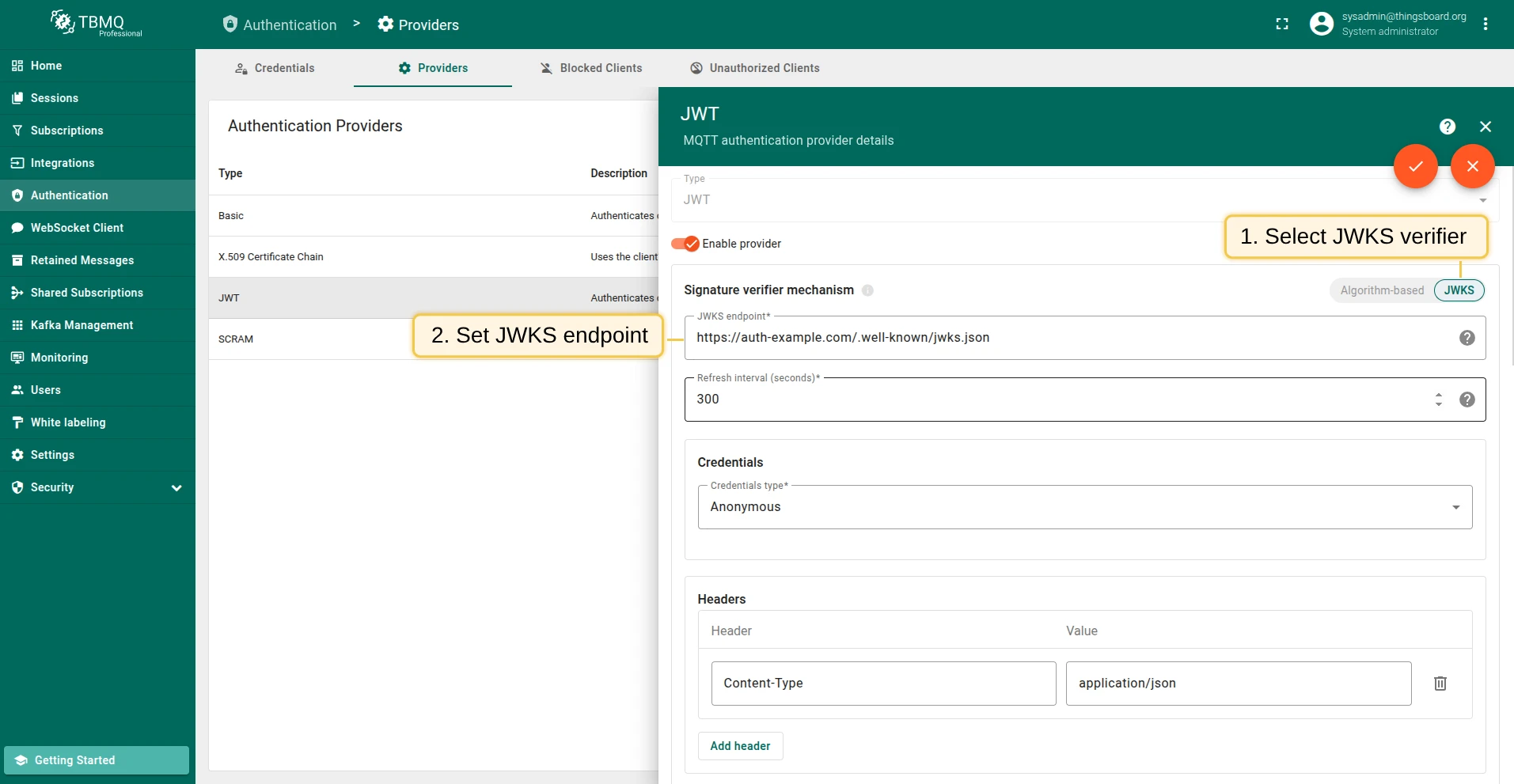
- JWKS (JSON Web Key Set) — dynamically fetches a list of public keys from a remote JWKS endpoint. This is commonly used with identity platforms that publish key sets (e.g., Auth0, AWS Cognito, Keycloak).
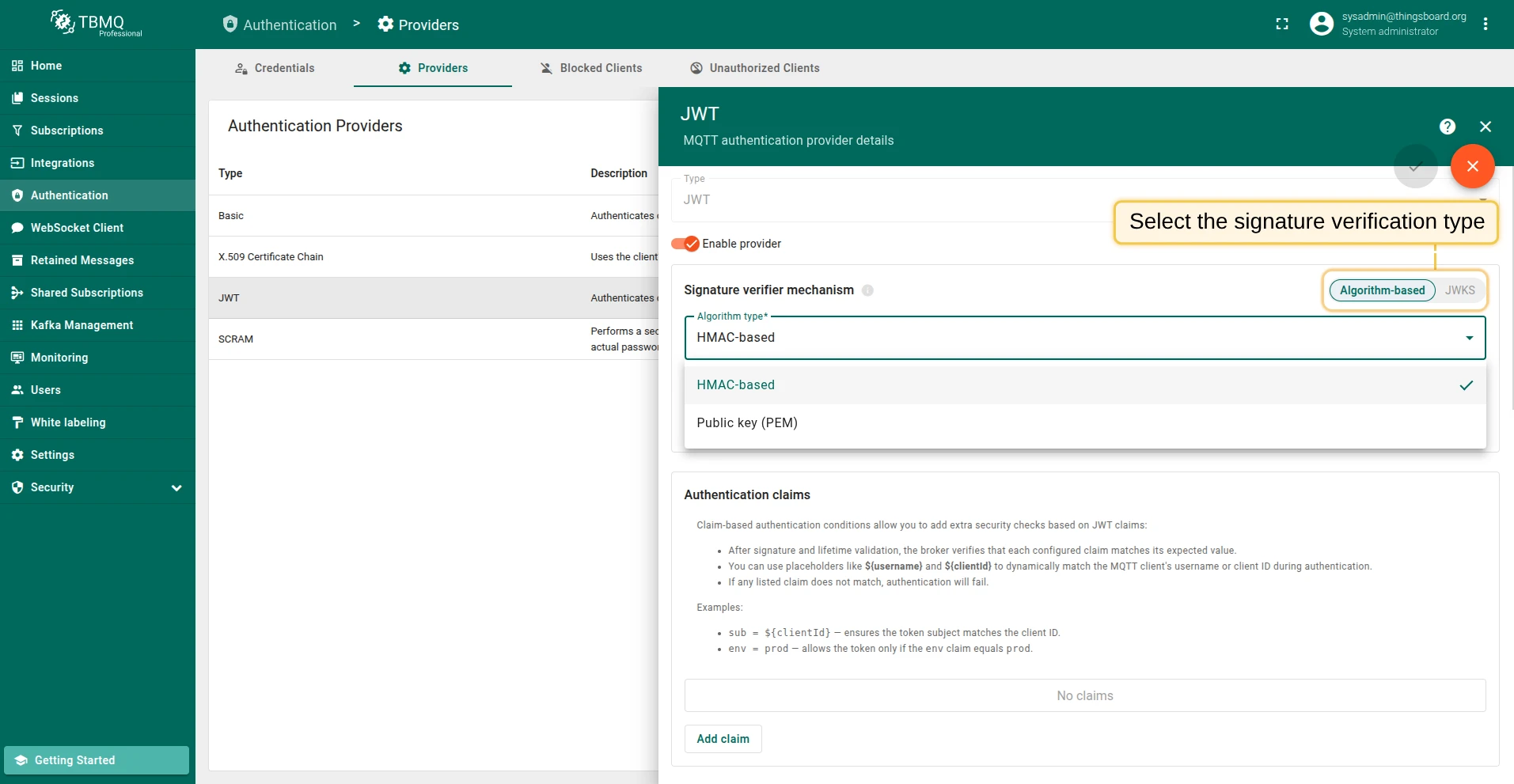
HMAC-based
Section titled “HMAC-based”HMAC is a symmetric algorithm that uses the same secret for both signing and verifying JWTs. This is often used in internal systems or when tokens are issued by a trusted service you control.

Supported JWT-standard HMAC algorithms: HS256, HS384, HS512. The secret should match the one used to sign the tokens.
Public key (PEM)
Section titled “Public key (PEM)”Use this method if your JWTs are signed with an asymmetric private key. TBMQ will use the matching public key in PEM format to verify the signature.
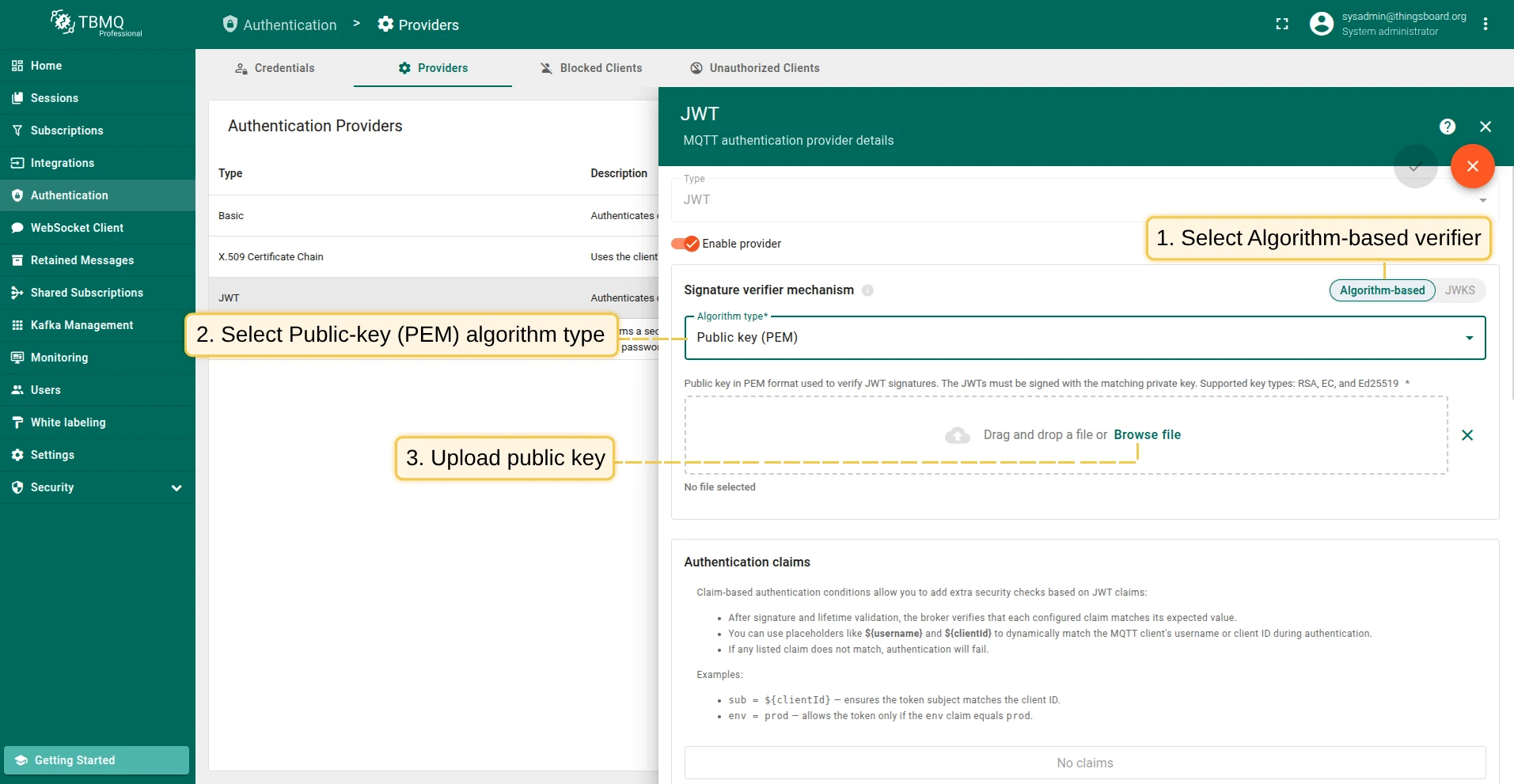
Supported key types: RSA, EC, and Ed25519. Make sure the uploaded key matches the private key used to sign the JWTs.
JWKS (JSON Web Key Set) allows TBMQ to fetch a list of public keys from a remote endpoint. This is especially useful when using identity providers that rotate signing keys automatically. TBMQ will periodically download and cache keys from the endpoint and use them to verify incoming tokens.
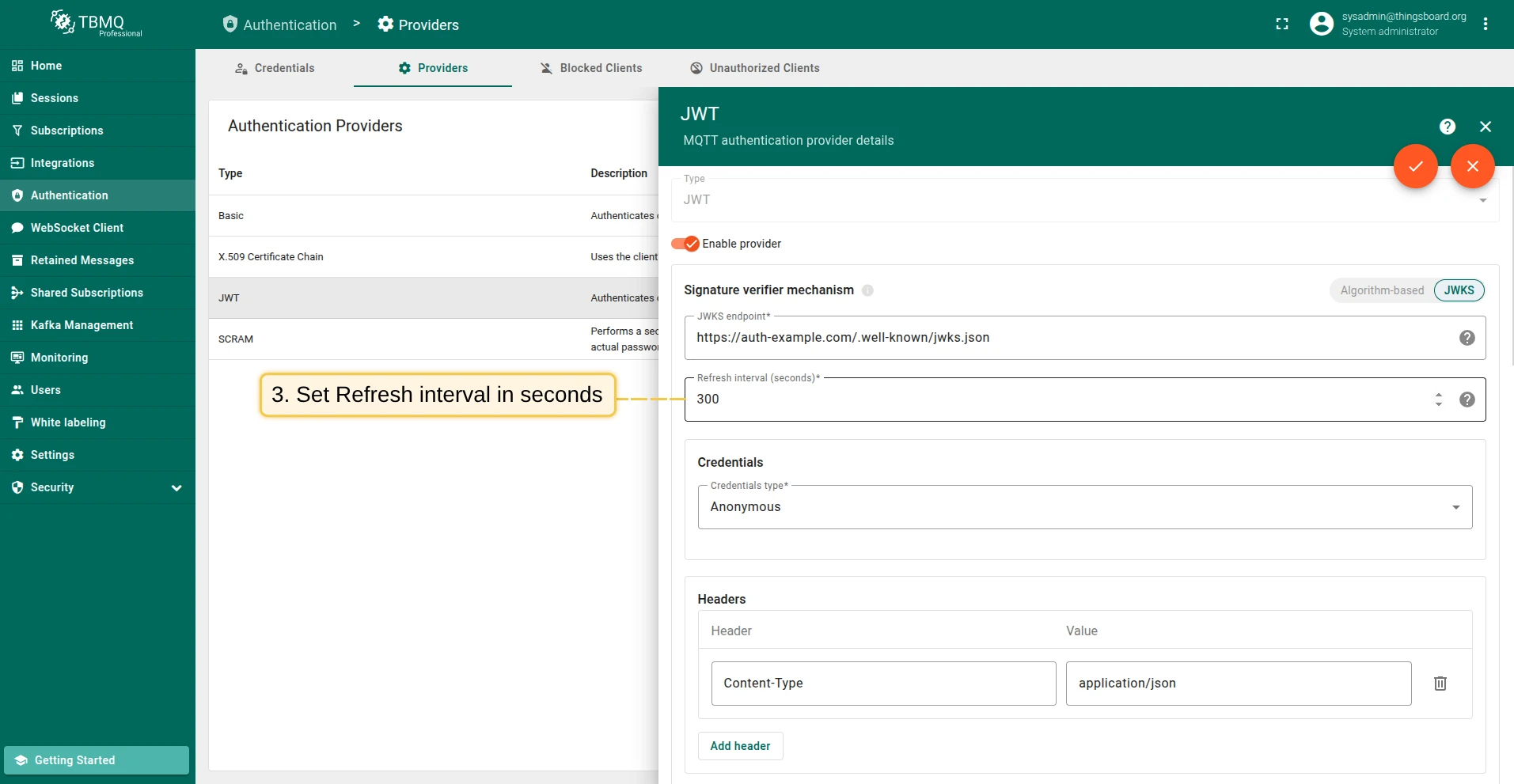
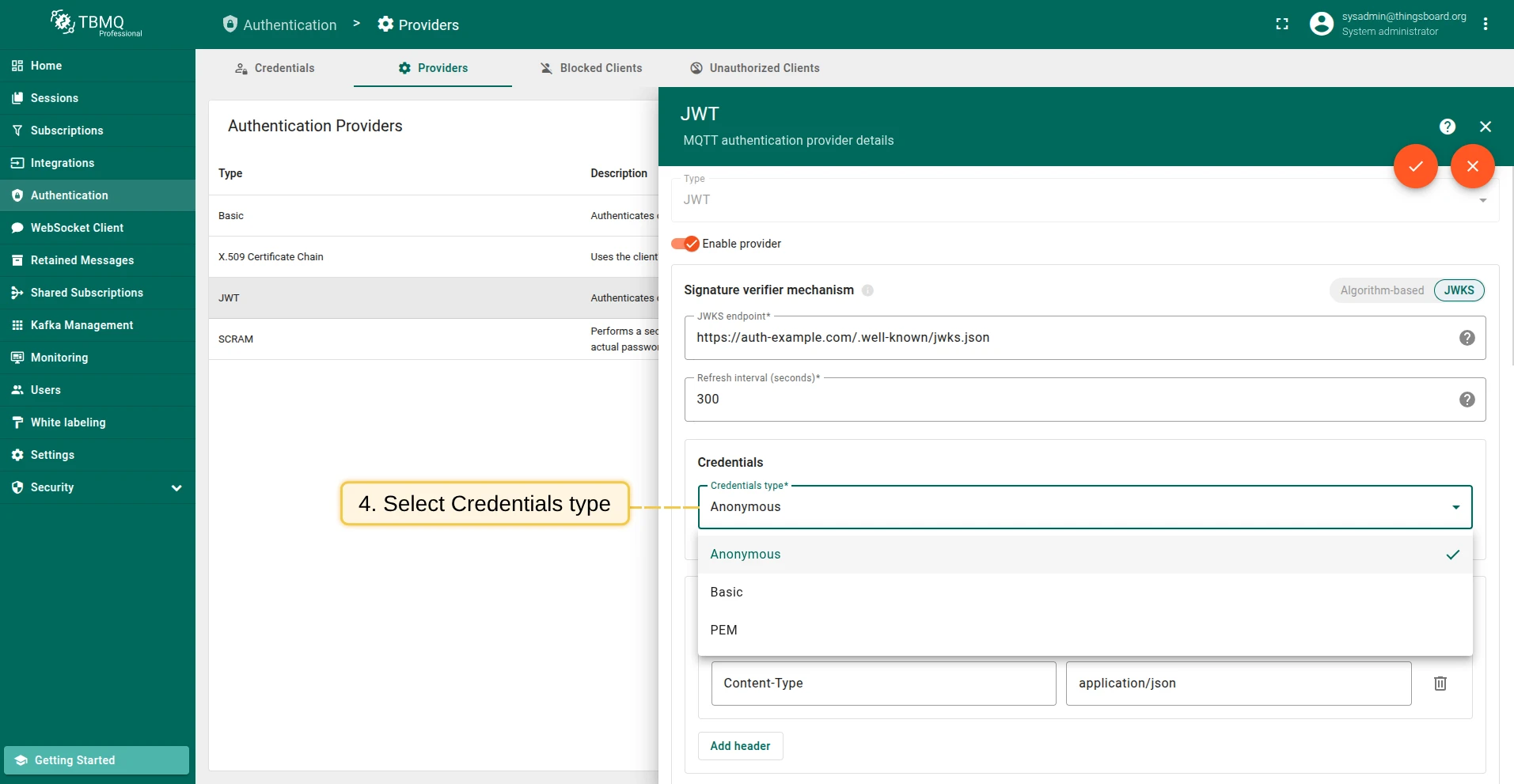
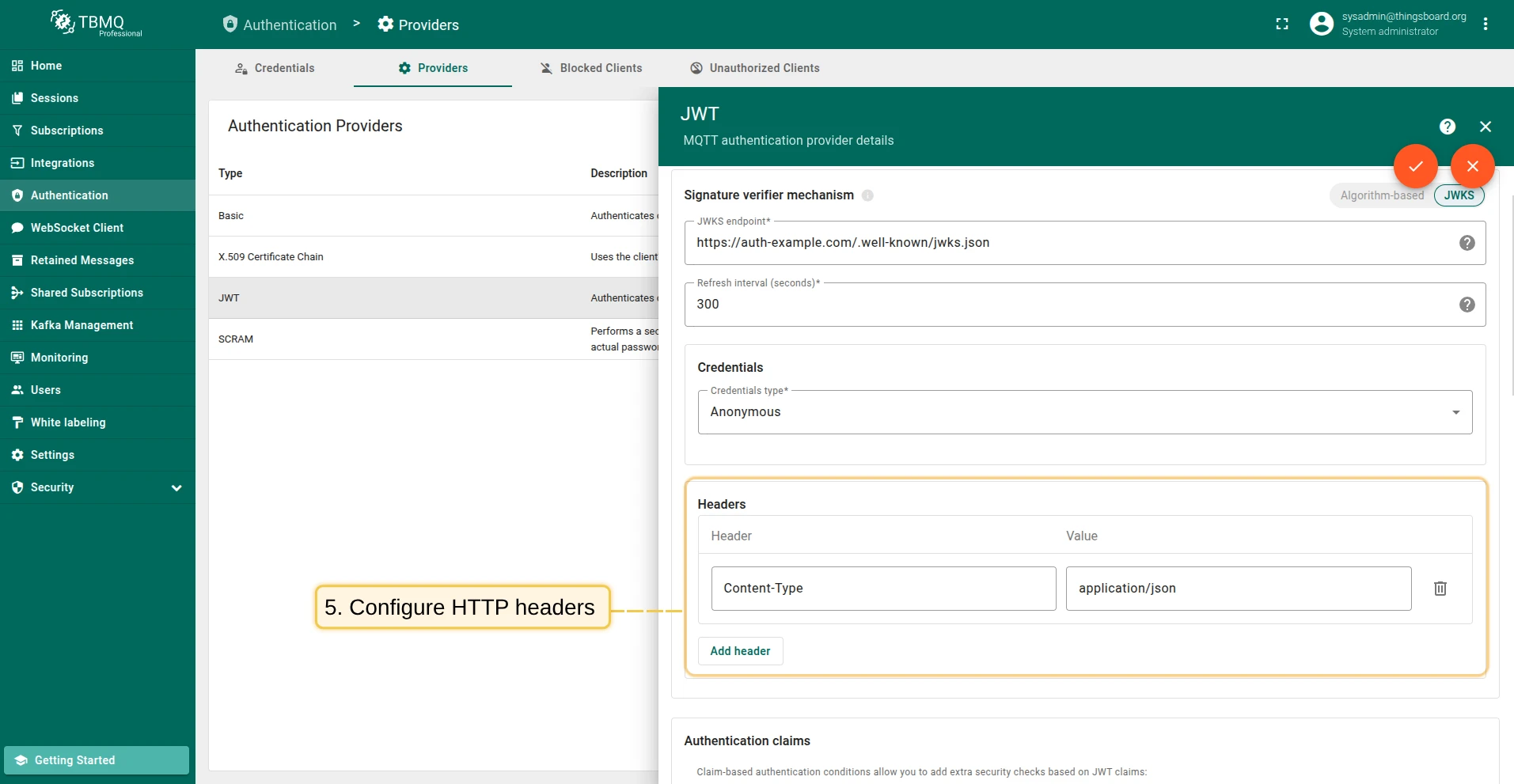
JWT claims and access control
Section titled “JWT claims and access control”After the JWT token is successfully verified, TBMQ performs a multi-stage validation and classification process to determine if the client is allowed to connect, how it should be identified, and what topics it can access.
Standard claim validation
Section titled “Standard claim validation”Before anything else, TBMQ checks a few standard claims embedded in the JWT:
exp(expiration) — ensures the token is not expired.nbf(not before) — ensures the token is currently valid.
If the token is expired or not yet valid, the client connection is rejected immediately. These checks happen automatically and do not require any configuration.
Authentication claims (optional)
Section titled “Authentication claims (optional)”You can define custom claim validation rules as key-value pairs, where each pair consists of:
- Claim — the name of the claim in the JWT.
- Value — the expected value to compare against.
If any listed claim does not match the actual value in the token, the client’s authentication will fail — even if the token’s signature is valid.
To support dynamic checks, you can use placeholders like ${username} and ${clientId}.
These will resolve to the MQTT client’s username or client ID at connection time.
This mechanism adds an extra layer of security by ensuring that the JWT is not only valid, but also intended for the specific MQTT client making the request.
To better understand how custom authentication claims work, consider the following example.
Three custom claims are configured for validation:
sub=${clientId}— ensures the token subject matches the MQTT client ID.mqtt_user=${username}— ensures the token was issued for the correct MQTT username.env=prod— enforces that the token is only valid in the production environment.
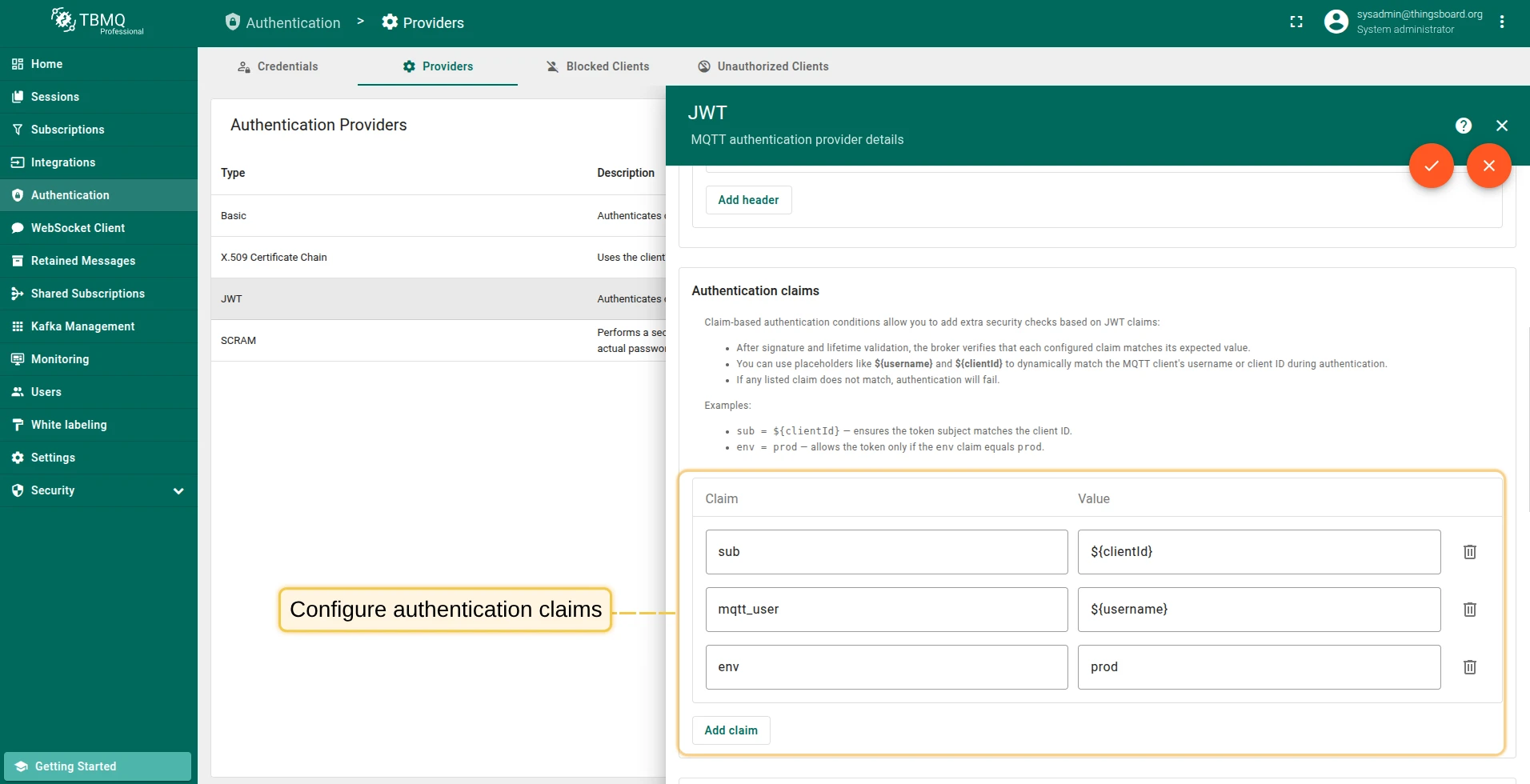
If any of these conditions fail, the authentication attempt will be rejected.
A MQTT client connects with username = thermostat-007 and client ID = client-007. The JWT from the password field includes these claims:
{ "sub": "client-007", "mqtt_user": "thermostat-007", "env": "prod"}In this case: sub must match the client ID, mqtt_user must match the username, and env must be exactly prod.
If all conditions are met, the client will be authenticated. If any condition fails, the connection will be rejected.
Client type (optional)
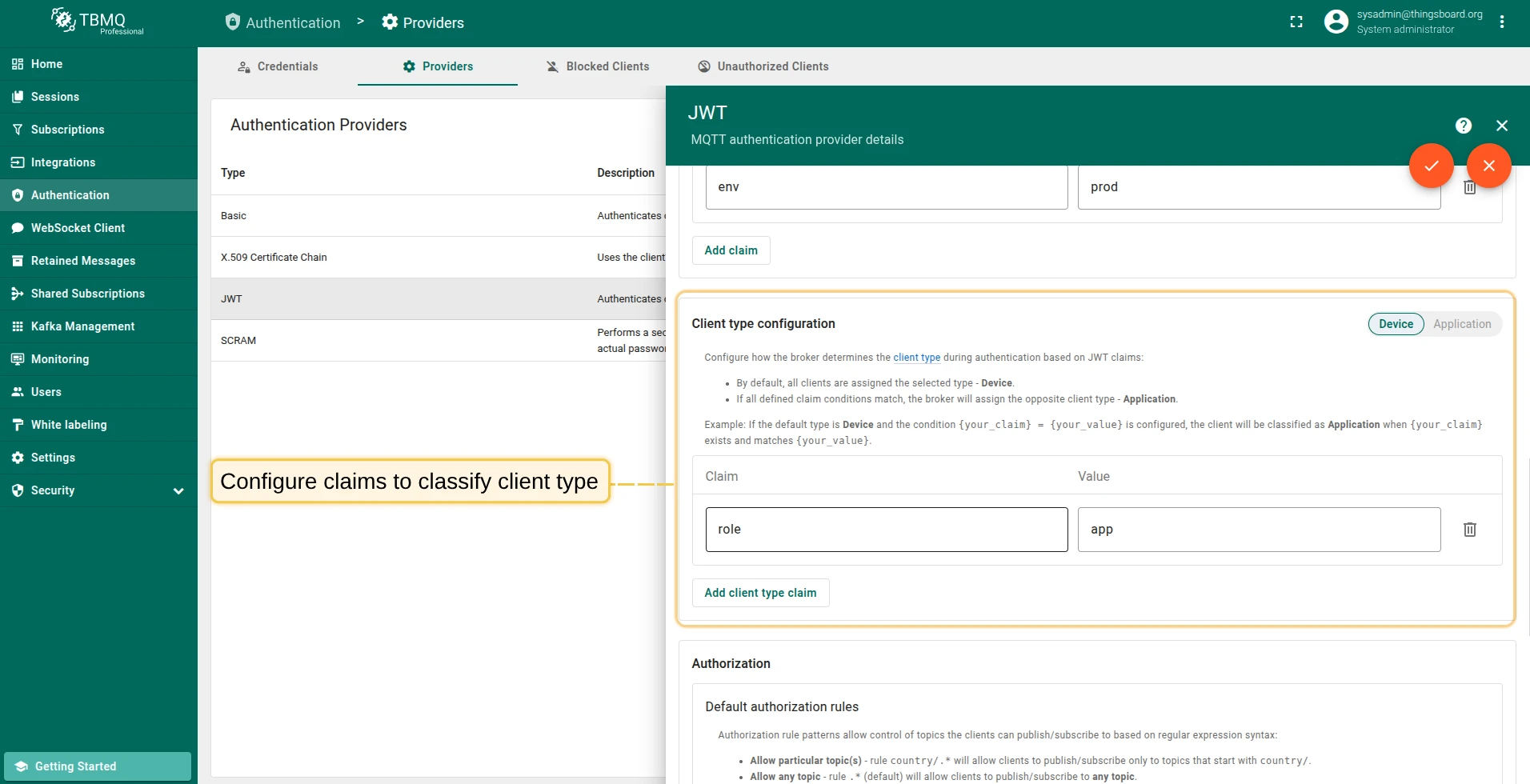
Section titled “Client type (optional)”This section configures how the broker determines the client type during authentication — either DEVICE or APPLICATION.
By default, all clients are assigned the type selected using the “Device / Application” toggle. You can optionally define one or more claim conditions. If all conditions match, TBMQ will assign the opposite client type, allowing you to classify clients dynamically during authentication.
For example: if the default client type is DEVICE and a custom claim role with expected value app is configured,
then any MQTT client whose JWT includes "role": "app" will be classified as APPLICATION.
Authorization
Section titled “Authorization”After a client has successfully passed the validation and classification steps, TBMQ applies topic-level authorization rules to determine which topics the client is allowed to publish to and subscribe to.
For JWT-based clients, TBMQ supports two layers of regex-based authorization rules:
- Default authorization rules — manually configured sets of topic patterns defined in the provider settings.
- Dynamic authorization rules — lists of topic patterns extracted from JWT claims at runtime (if configured).
Default topic patterns can be defined separately for publishing and subscribing. These patterns use regular expressions and are always required. They also serve as a fallback if dynamic patterns are not configured or cannot be applied.
Examples of regex filters:
- Allow a particular topic — rule
country/.*will allow clients to publish/subscribe only to topics that start withcountry/. - Allow any topic — rule
.*(default) will allow clients to publish/subscribe to any topic. - Forbid all topics — if the rule is empty, the client is forbidden to publish/subscribe.
To enable dynamic authorization, specify the names of JWT claims that contain the publish and/or subscribe topic patterns
(e.g., pub_rules, sub_rules).
If configured, TBMQ will attempt to extract a list of topic patterns from these claims and apply them as the client’s effective authorization rules.
If the claim is missing or malformed, TBMQ gracefully falls back to the default rule for that direction. This fallback behavior is independent for publish and subscribe — you can use a dynamic rule for one and a default for the other.
To better understand how default and dynamic authorization rules work together, consider the following example.
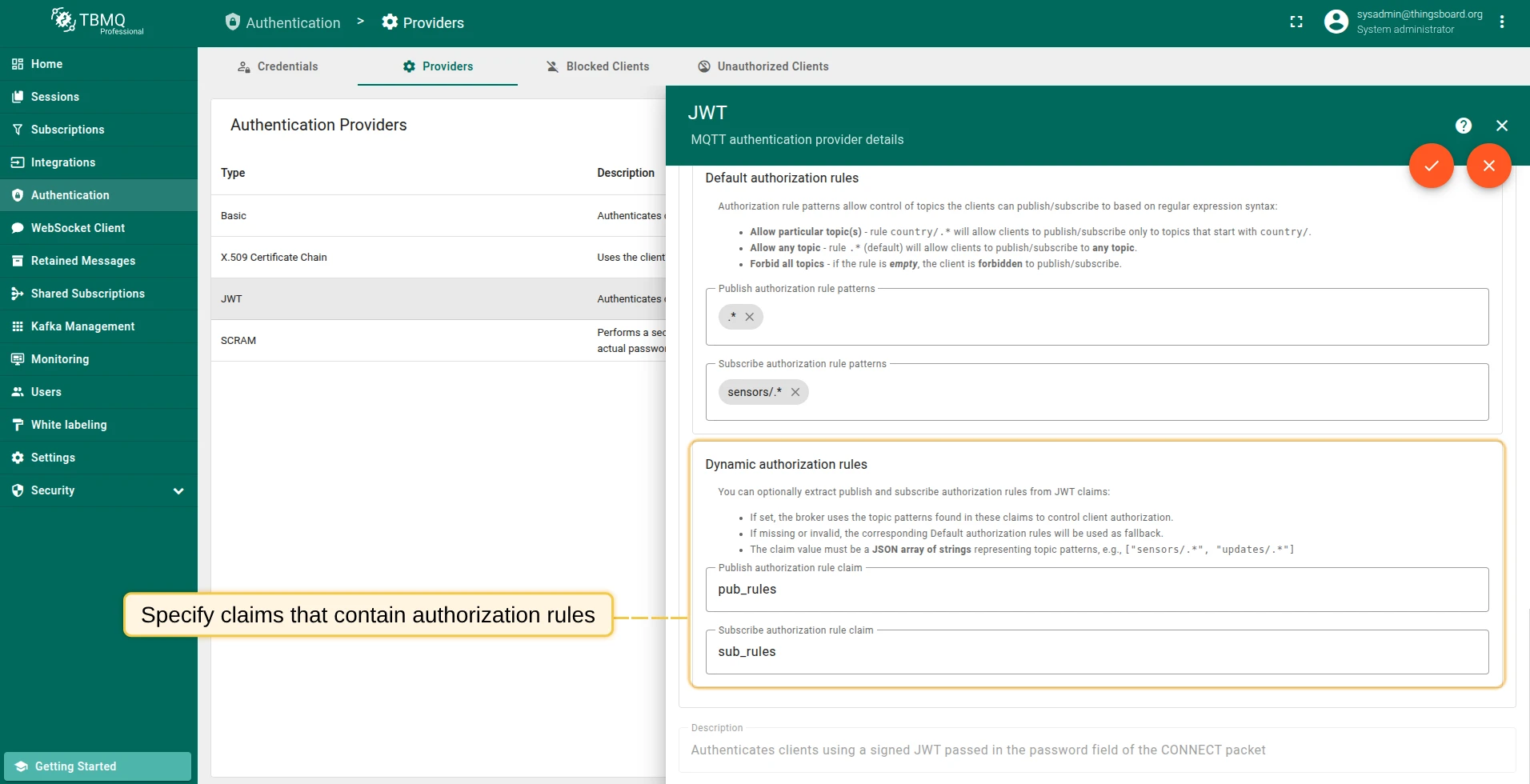
A client connects with a JWT that includes these claims:
{ "pub_rules": ["devices/.*/data"], "sub_rules": ["sensors/.*", "alerts/.*"]}In this case:
- The
pub_rulesclaim overrides the default publish rule and restricts access todevices/.*/dataonly. - The
sub_rulesclaim extends the default subscribe rule by additionally allowingalerts/.*.
This demonstrates how dynamic rules can be used to customize access per client while still providing reliable fallbacks when needed.
Enable and save provider
Section titled “Enable and save provider”Once you’ve completed the configuration, enable the JWT authentication provider by toggling the Enable provider switch at the top of the provider configuration page. Then click the Apply changes button to save your configuration.
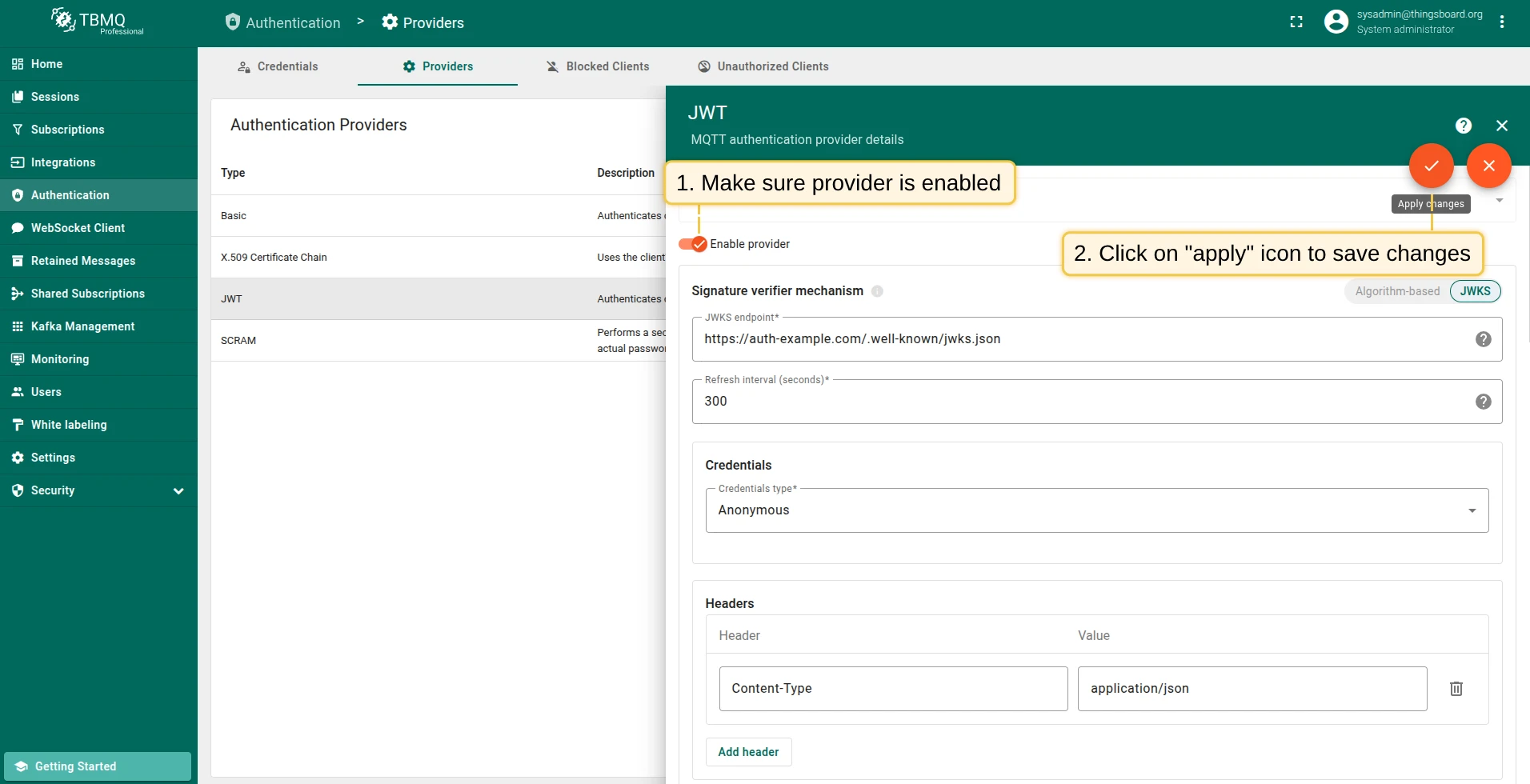
Once enabled, this provider will be used to authenticate any MQTT client that includes a JWT token in the password field during connection.
MQTT example: HMAC-based algorithm
Section titled “MQTT example: HMAC-based algorithm”You need a valid JWT token, or you can generate one with any language that supports HS256 signing. Here’s a Python example.
Save the following script as generate_jwt.py and run it on your machine.
import jwtimport time
# Replace with your TBMQ JWT secretsecret_key = "please-change-this-32-char-jwt-secret"
payload = {    "sub": "mqtt-client-id",   # subject / client ID    "iat": int(time.time()),   # issued at    "exp": int(time.time()) + 3600  # expires in 1 hour}
token = jwt.encode(payload, secret_key, algorithm="HS256")
# In PyJWT 2.x, this returns a string; in PyJWT < 2.x, you may need to decode to strif isinstance(token, bytes):    token = token.decode("utf-8")
print(token)
Run the script:
python3 generate_jwt.pyExample output:
eyJ0eXAiOiJKV1QiLCJhbGciOiJIUzI1NiJ9...You can verify the token’s claims and signature using jwt.io.
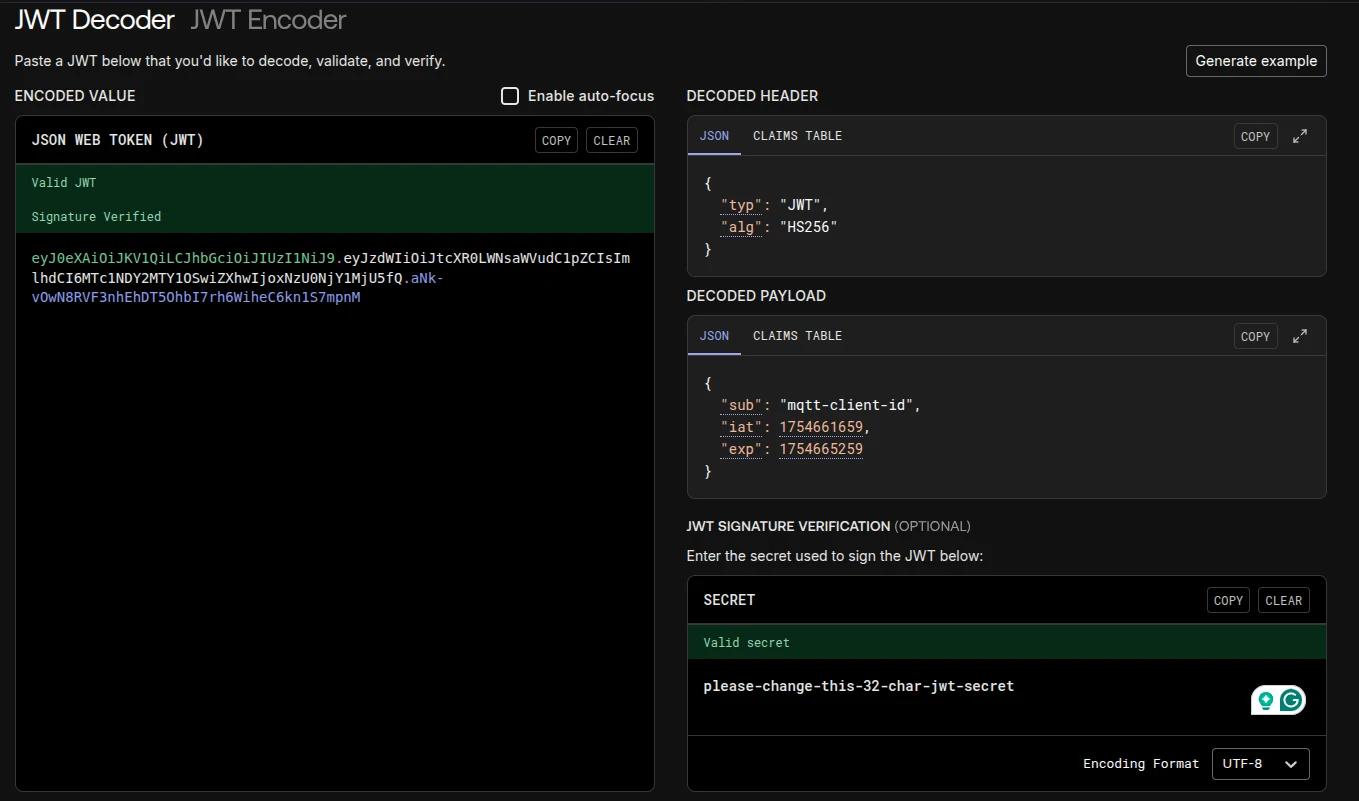
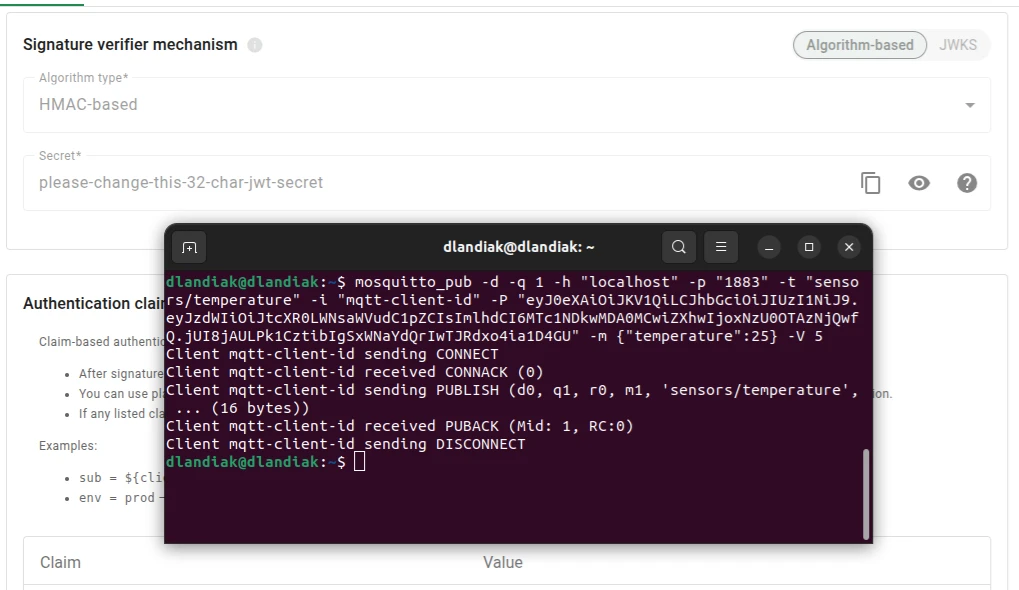
Below is an example of publishing a message using the mosquitto_pub client with JWT authentication over plain MQTT (no TLS):
mosquitto_pub -d -q 1 -h "YOUR_TBMQ_HOST" -p "1883" -t "sensors/temperature" \ -i "YOUR_CLIENT_ID" -P "YOUR_JWT_TOKEN" -m '{"temperature":25}' -V 5Notes:
YOUR_TBMQ_HOST— hostname or IP of your TBMQ instance.YOUR_CLIENT_ID— your client ID. In this example, it should equalmqtt-client-idto pass the authentication claim checksub=${clientId}in the JWT provider.YOUR_JWT_TOKEN— the token generated with the Python script above.
MQTTS example: HMAC-based algorithm
Section titled “MQTTS example: HMAC-based algorithm”One-way TLS ensures your client verifies the server’s identity using its certificate. Follow the MQTT over SSL guide to provision a server certificate for TBMQ.
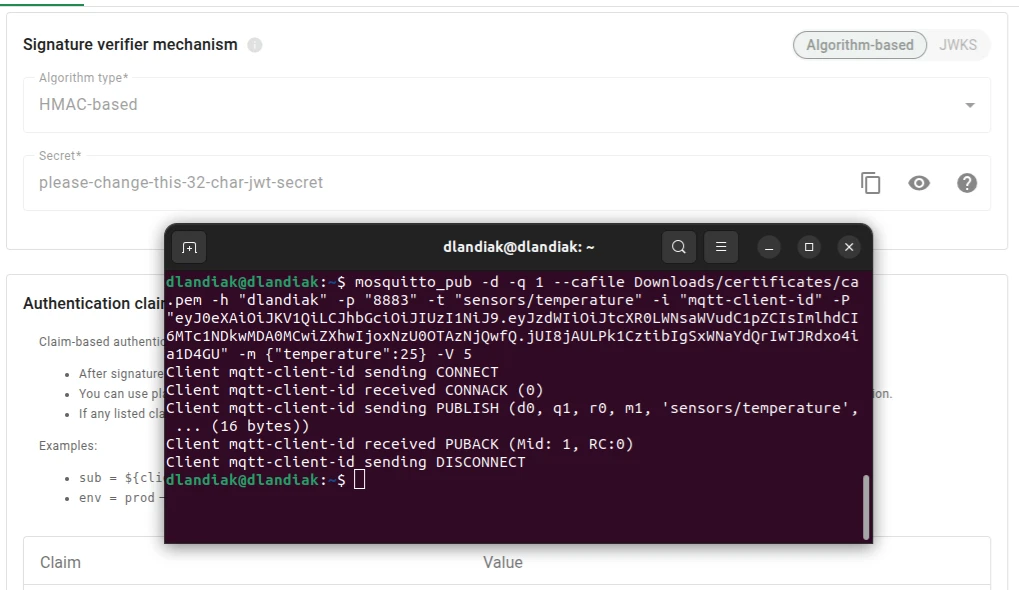
Here’s an example of connecting with JWT authentication over MQTTS (TLS):
mosquitto_pub -d -q 1 --cafile YOUR_PEM_FILE -h "YOUR_TBMQ_HOST" -p 8883 \ -t "sensors/temperature" -i "YOUR_CLIENT_ID" -P "YOUR_JWT_TOKEN" \ -m '{"temperature":25}' -V 5Notes:
YOUR_PEM_FILE— path to your CA certificate file.YOUR_TBMQ_HOST— hostname or IP of your TBMQ instance.YOUR_CLIENT_ID— must match thesubclaim in the JWT payload.YOUR_JWT_TOKEN— the token generated earlier.
Was this helpful?