
WebSocket client
The TBMQ WebSocket Client is a browser-accessible tool for debugging and testing MQTT clients. Built on MQTT over WebSocket and the MQTT.js library, it provides unified management of MQTT connections, topic subscriptions, and message publishing/receiving.
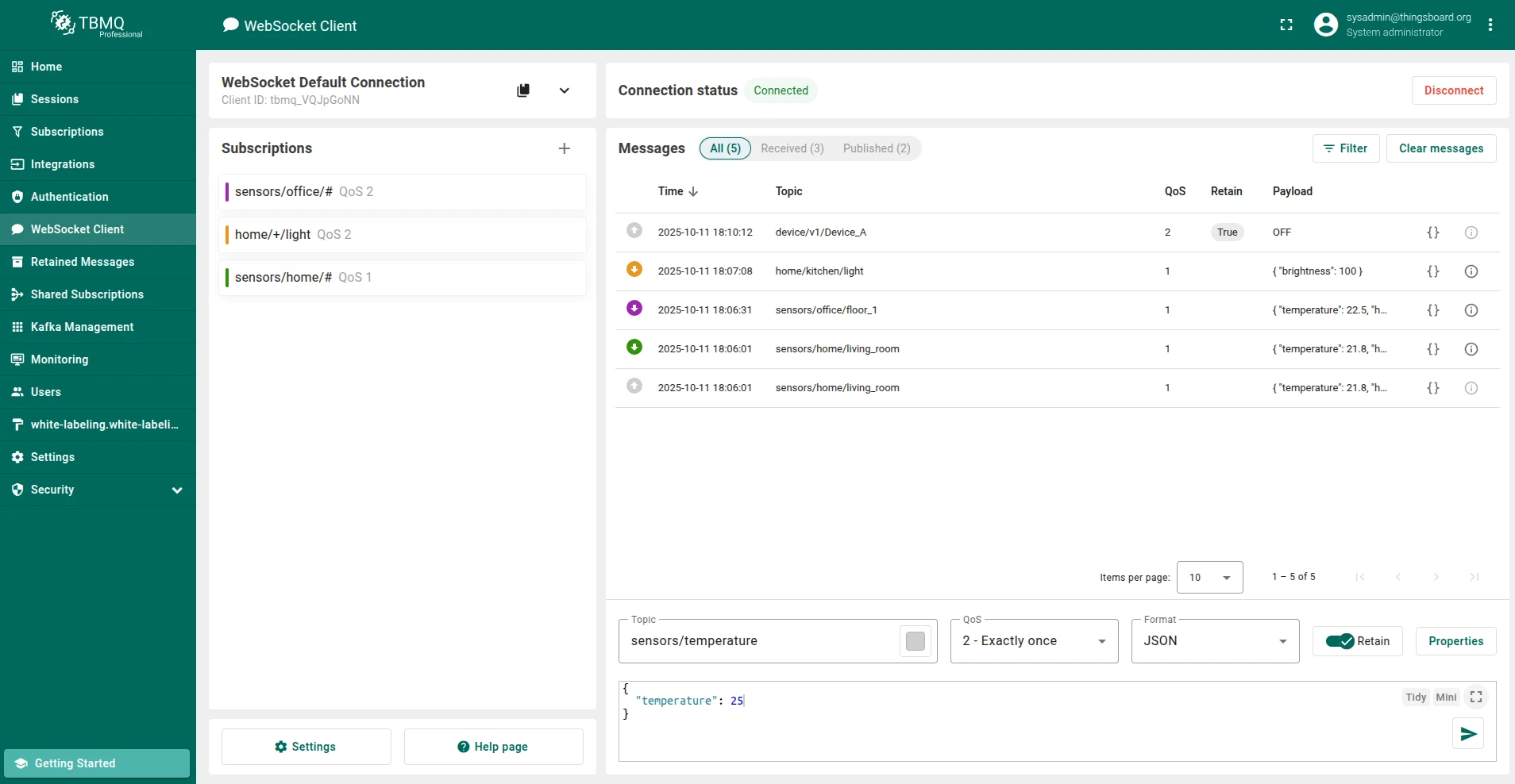
Connections
Section titled “Connections”The WebSocket Client supports multiple simultaneous MQTT connections.
Add connection
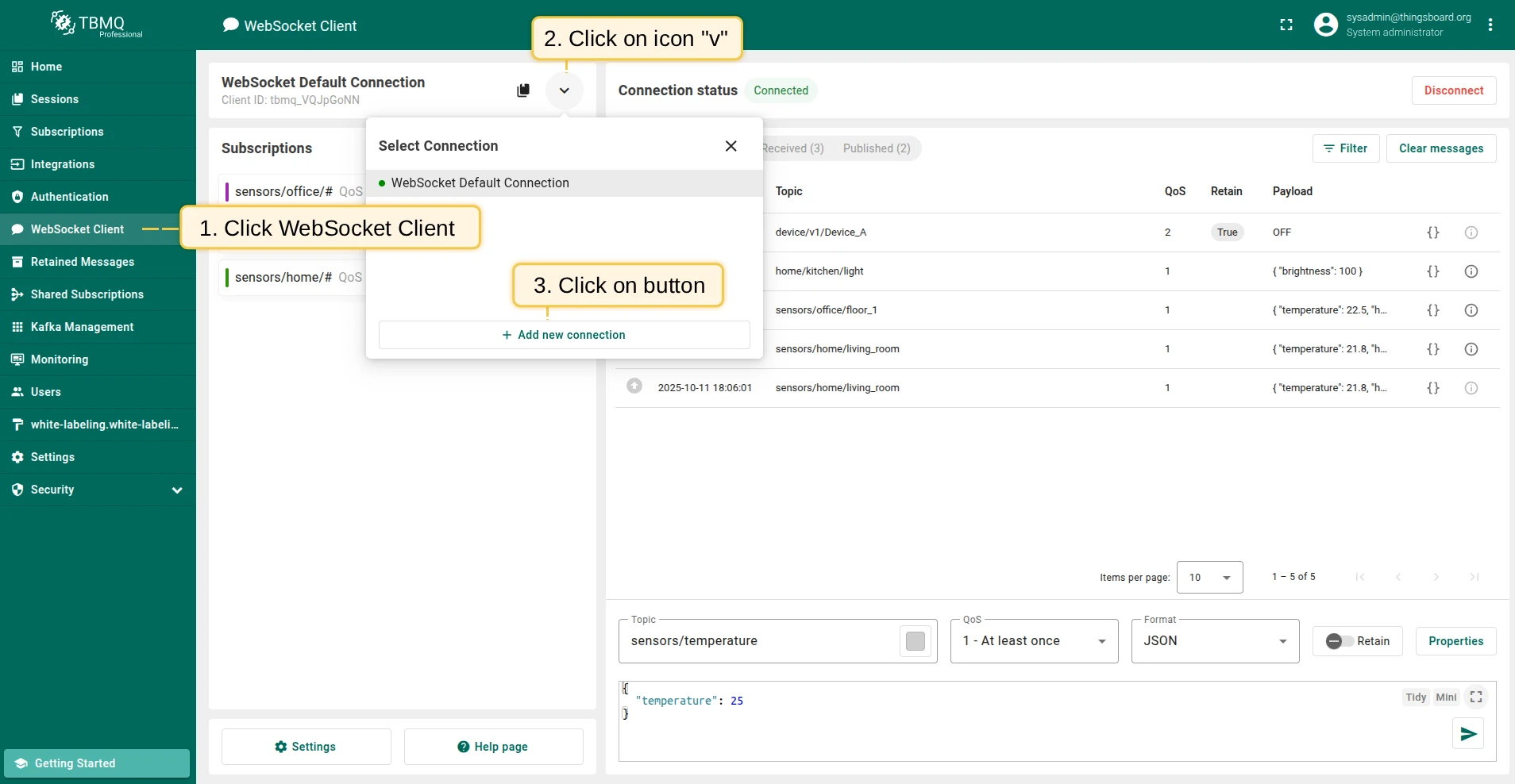
Section titled “Add connection”- Go to the WebSocket Client page and click Select Connection (expand more icon).
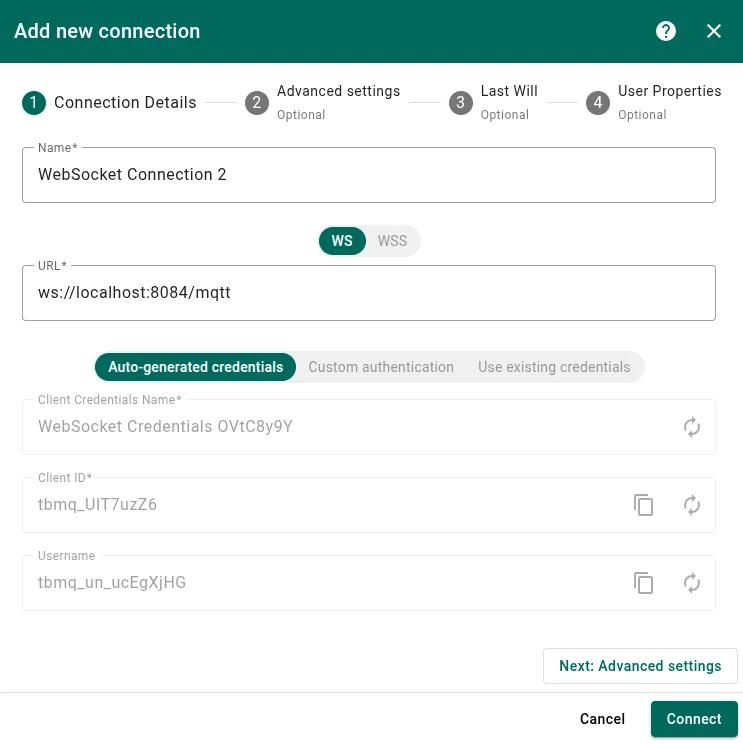
- Click Add new connection, fill in the required fields, then click Connect.
Edit connection
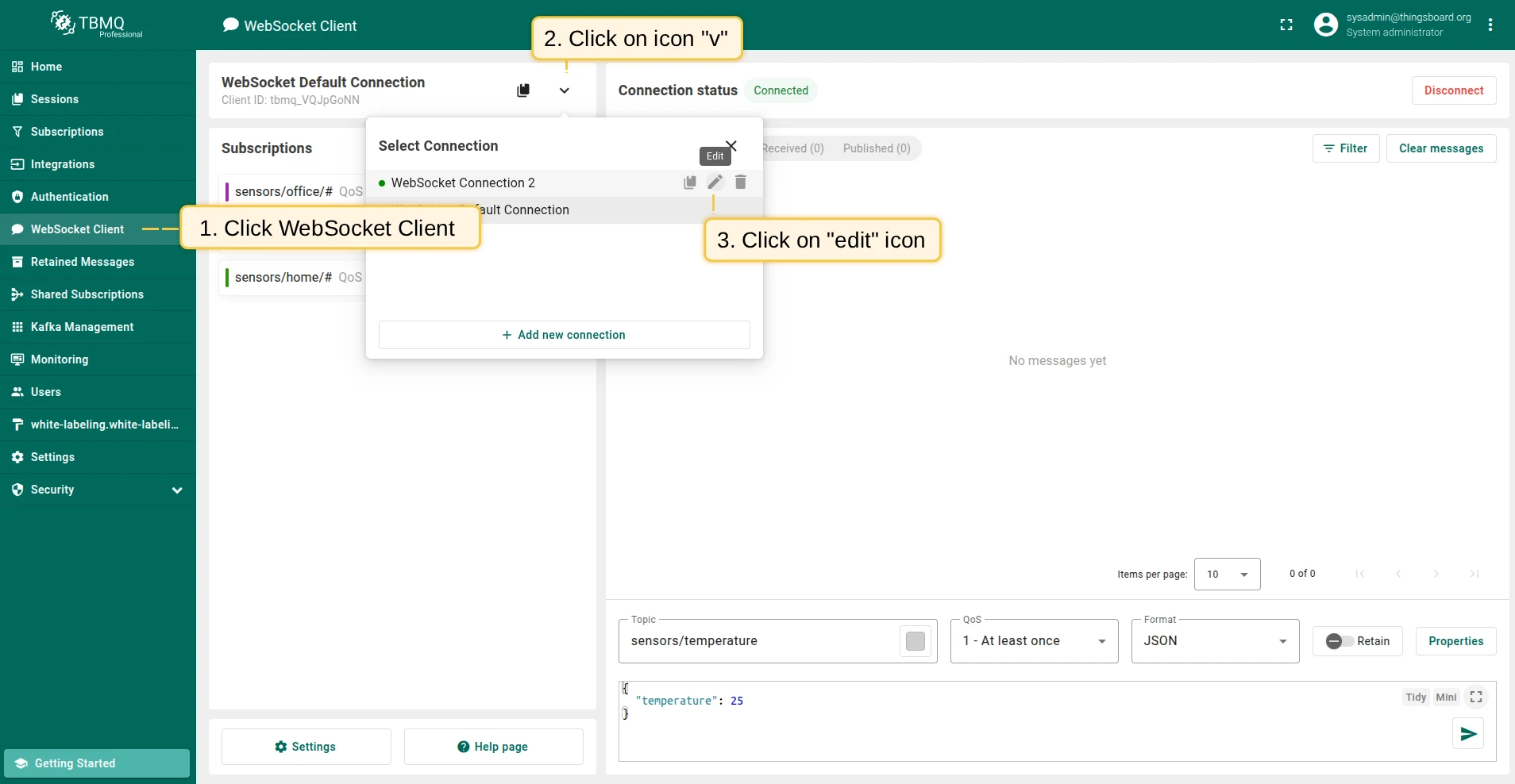
Section titled “Edit connection”Connection parameters can be changed even after a connection is established. If the client is connected when changes are saved, TBMQ first disconnects the session, then reconnects with the updated settings.
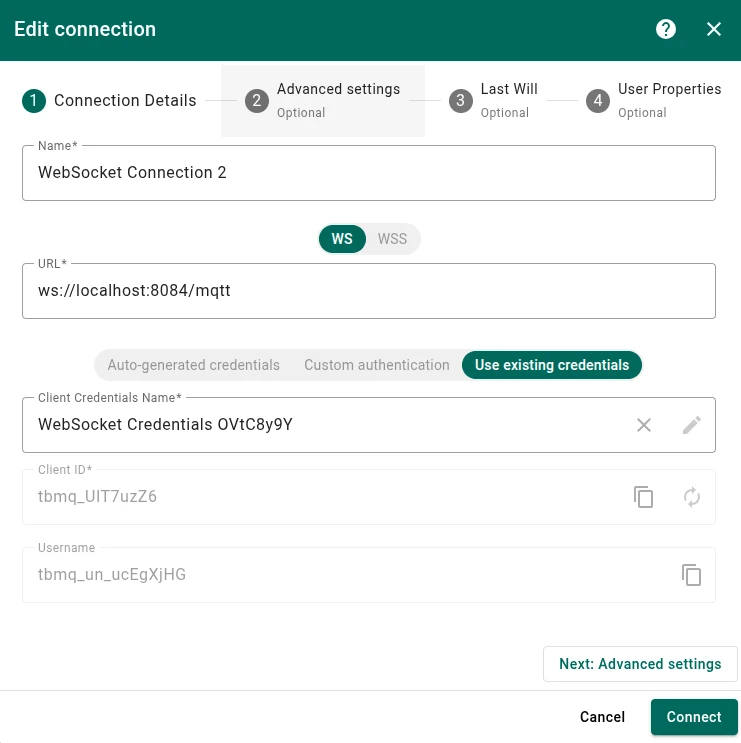
- Go to the WebSocket Client page and expand the connections list (arrow icon).
- Click the edit icon on the connection you want to change.
- Make your changes and click Connect to save.
Delete connection
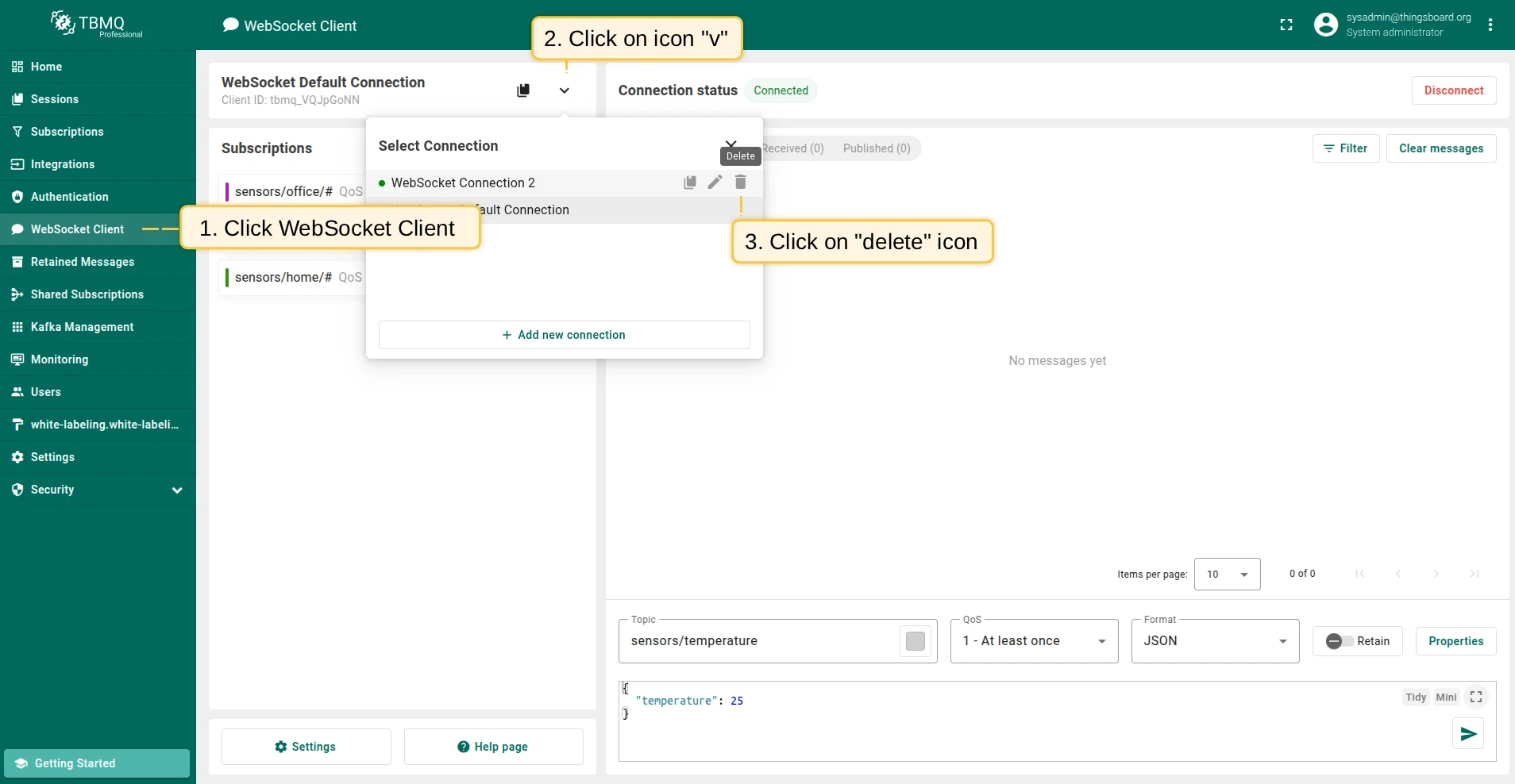
Section titled “Delete connection”- Expand the connections list (arrow icon).
- Click the trash icon on the connection you want to delete.
- Click Yes to confirm.

Connection settings
Section titled “Connection settings”Connection details
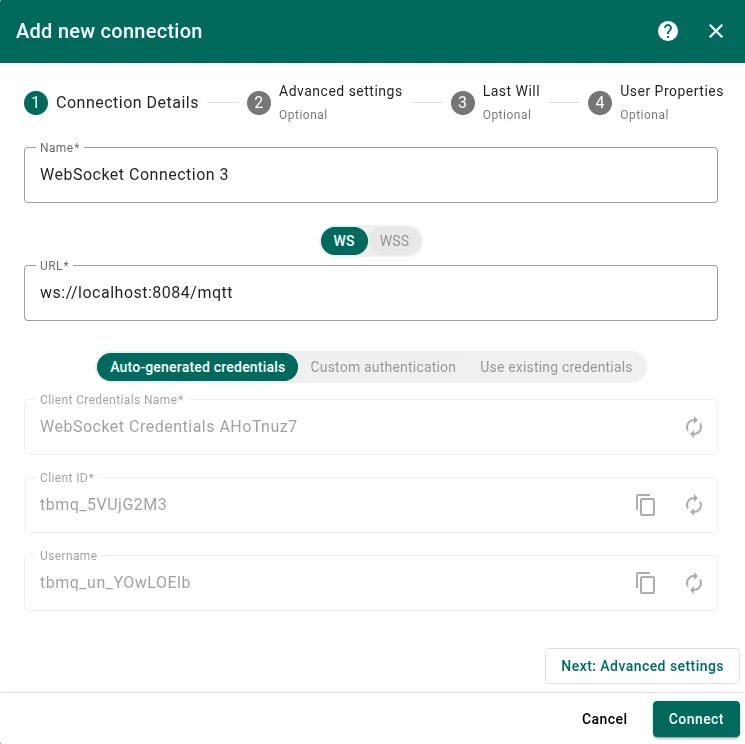
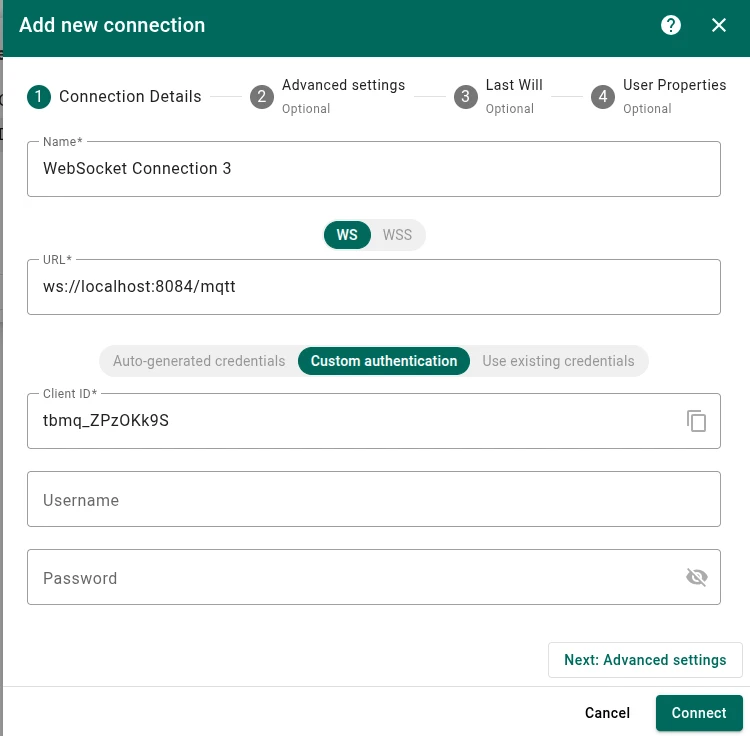
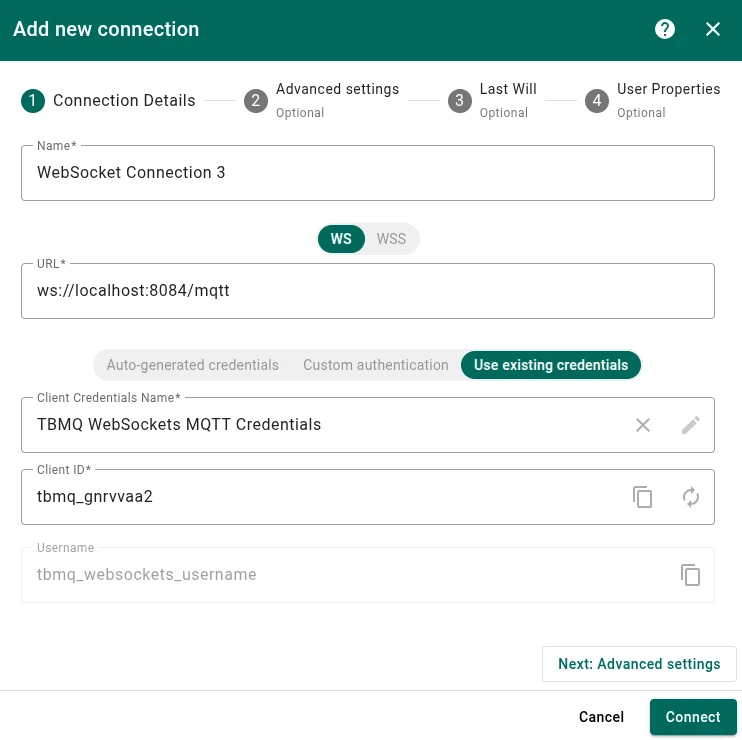
Section titled “Connection details”- Name — connection name (must be unique).
- URL — WebSocket URL of the broker, e.g.,
ws://localhost:8084/mqtt. - Authentication — three options:
- Auto-generated credentials — random Client ID and Username, empty Password. Corresponding credentials are created automatically.
- Custom authentication — specify a custom Client ID, Username, and Password.
- Use existing credentials — select existing Basic credentials. Password field appears when the selected credentials require one.
Advanced settings
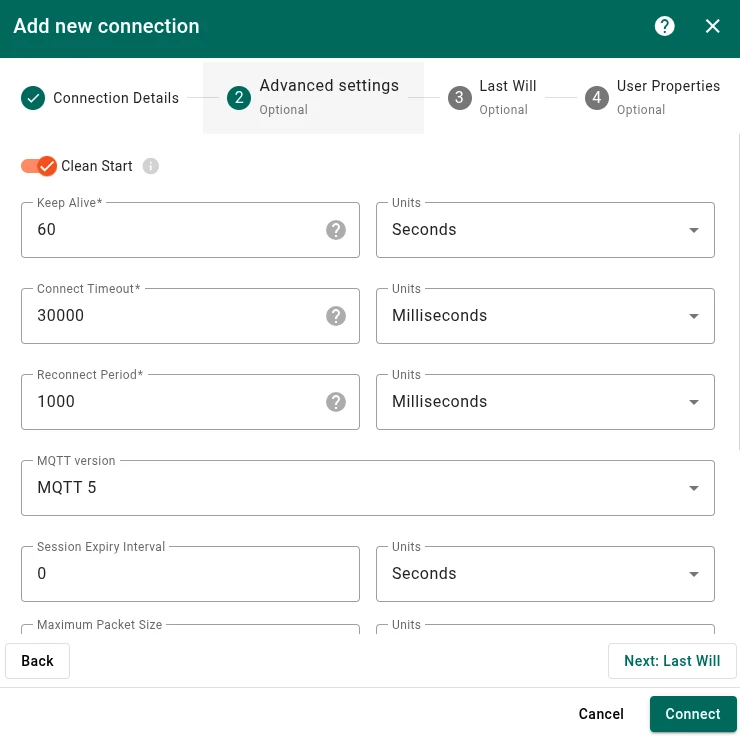
Section titled “Advanced settings”- Clean start — when true, the broker discards any previous session and starts fresh.
- Keep alive — idle time the client waits between control packets before the connection is considered lost.
- Connect timeout — maximum wait time for a CONNACK acknowledgement.
- Reconnect period — interval between reconnection attempts after a disconnection.
- MQTT version — MQTT 3.1 (3), 3.1.1 (4), or 5.0 (5).
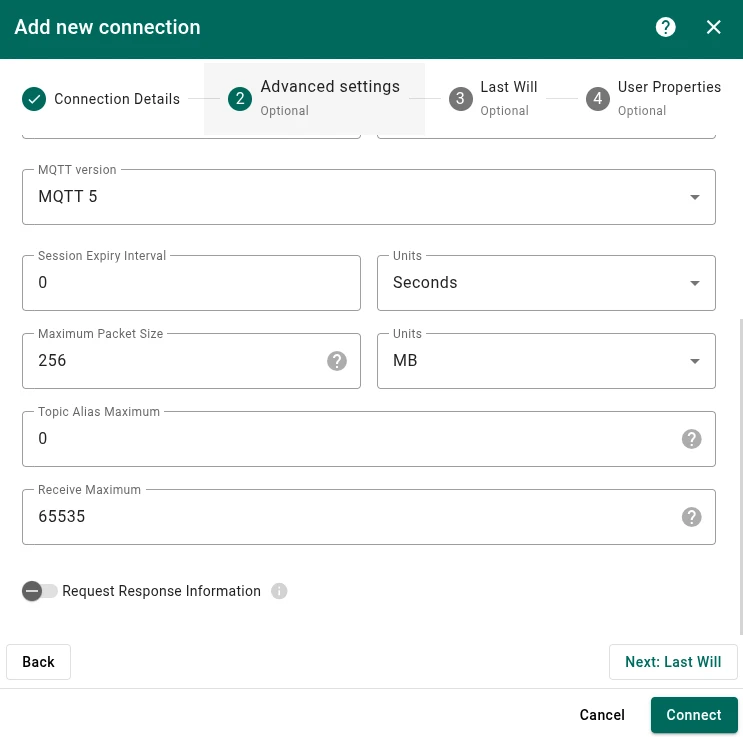
MQTT 5 adds the following settings:
- Session Expiry Interval — duration (seconds) the broker keeps the session after the client disconnects.
- Max Packet Size — maximum payload size (bytes) the client accepts from the broker.
- Topic Alias Maximum — highest Topic Alias value the client accepts.
- Receive Maximum — maximum concurrent QoS 1/2 messages.
- Request Response Information — when true, the broker returns response information for publish operations.
Last will
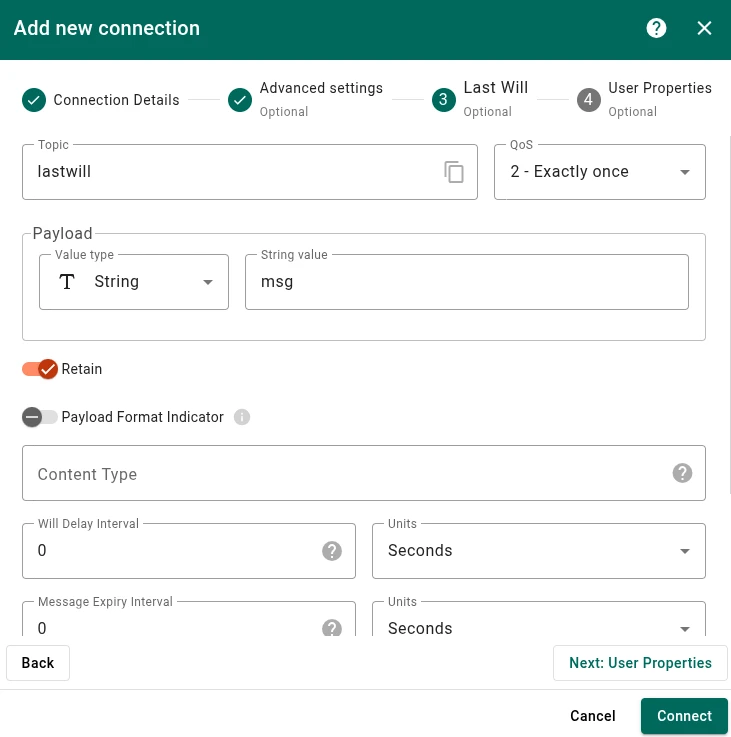
Section titled “Last will”The Last Will message is published by the broker if the client disconnects ungracefully.
- Topic — topic for the Last Will message.
- QoS — Quality of Service for the message.
- Payload — content of the Last Will message.
- Retain — when true, the broker stores the last will message and delivers it to future subscribers.
MQTT 5 adds the following properties:
- Payload Format Indicator — when true, indicates UTF-8 encoded payload; false means unspecified binary.
- Content Type — describes the form of the content carried by the Last Will message.
- Will Delay Interval — time (seconds) the broker waits after an ungraceful disconnect before publishing the Last Will message.
- Message Expiry Interval — duration (seconds) within which the Last Will message can be delivered after it is published.
- Response Topic — topic to which the broker may publish a response after broadcasting the Last Will message.
- Correlation Data — binary data used to match the response message from the broker.
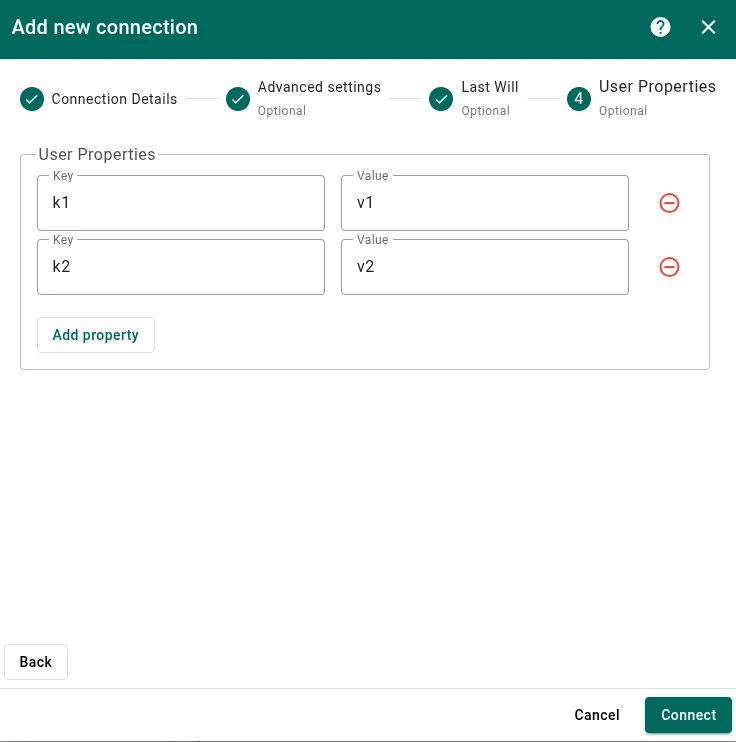
- User Properties — custom key-value metadata attached to the Last Will message.
Connection status
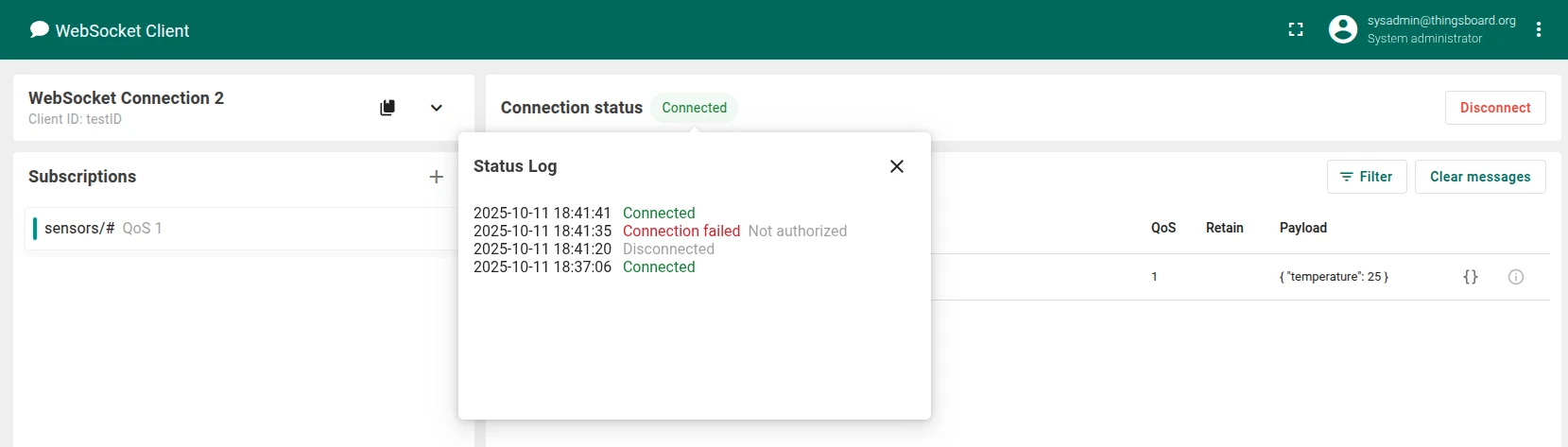
Section titled “Connection status”Hover over the connection status label to view a history of status changes.
The connection can have the following statuses:
- Connected — connection successfully established.
- Disconnected — client has closed the connection.
- Reconnecting — client is re-establishing a connection. Click Cancel to stop.
- Connection failed — connection could not be established (includes reason, e.g., authentication failure or session takeover).
Subscriptions
Section titled “Subscriptions”MQTT subscriptions allow clients to receive messages published to specific topics. You can manage subscriptions by creating new ones, modifying existing ones, or deleting them.
Add subscription
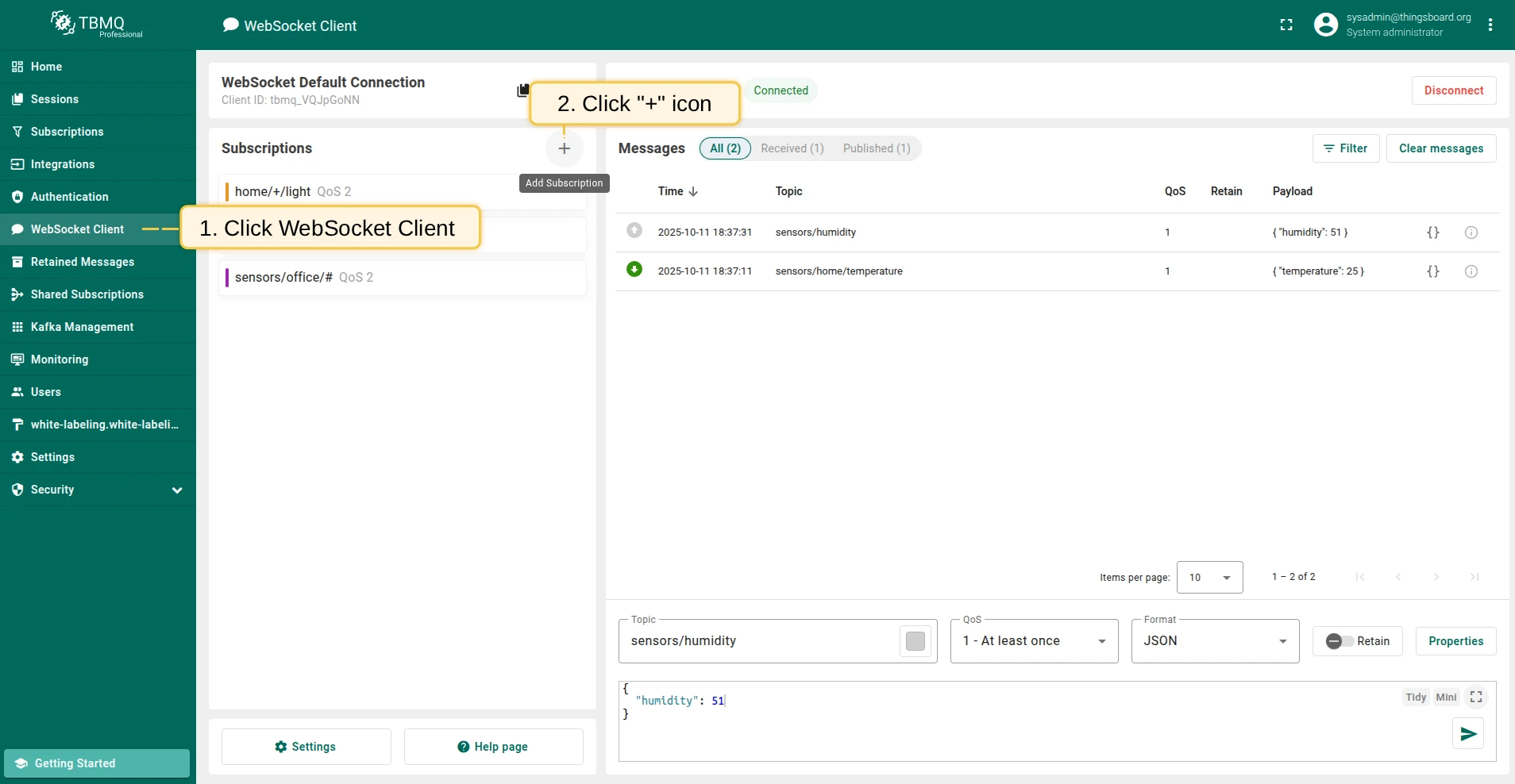
Section titled “Add subscription”- Click Add Subscription (plus icon).
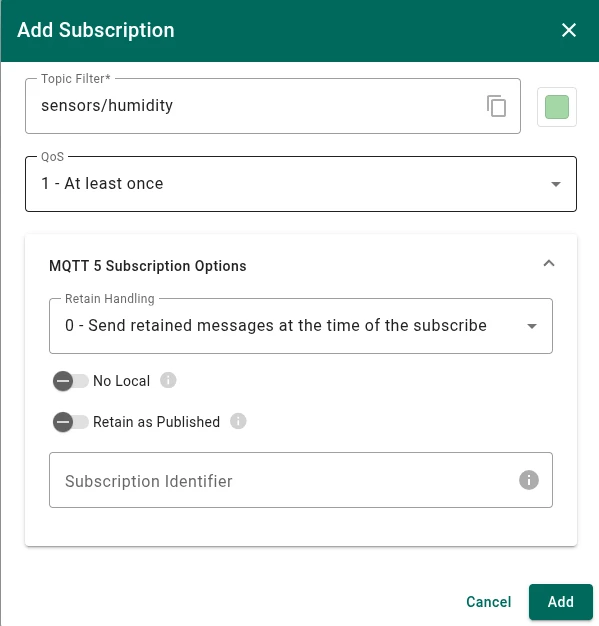
- Fill in the required fields and click Add.
Edit subscription
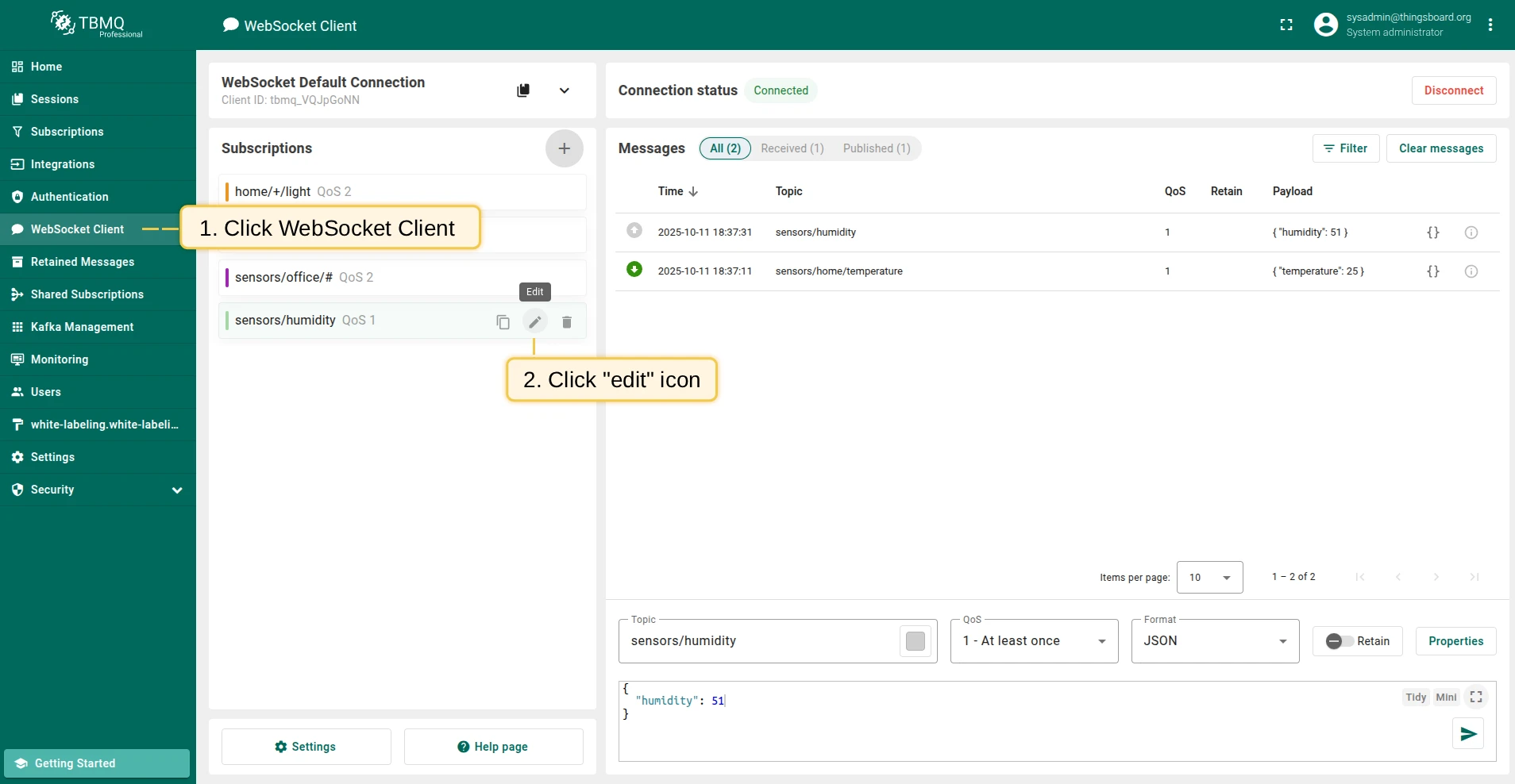
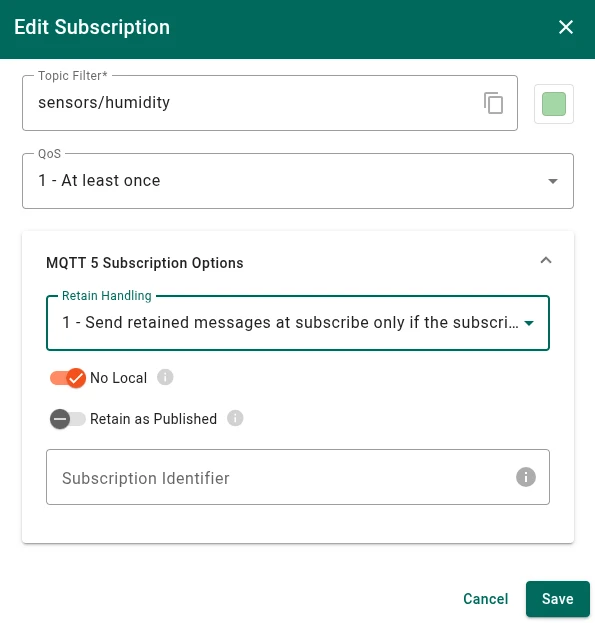
Section titled “Edit subscription”Click the edit icon on a subscription row, make changes, then click Save.
If the client is connected, TBMQ unsubscribes from the existing topic before subscribing to the updated one.
Delete subscription
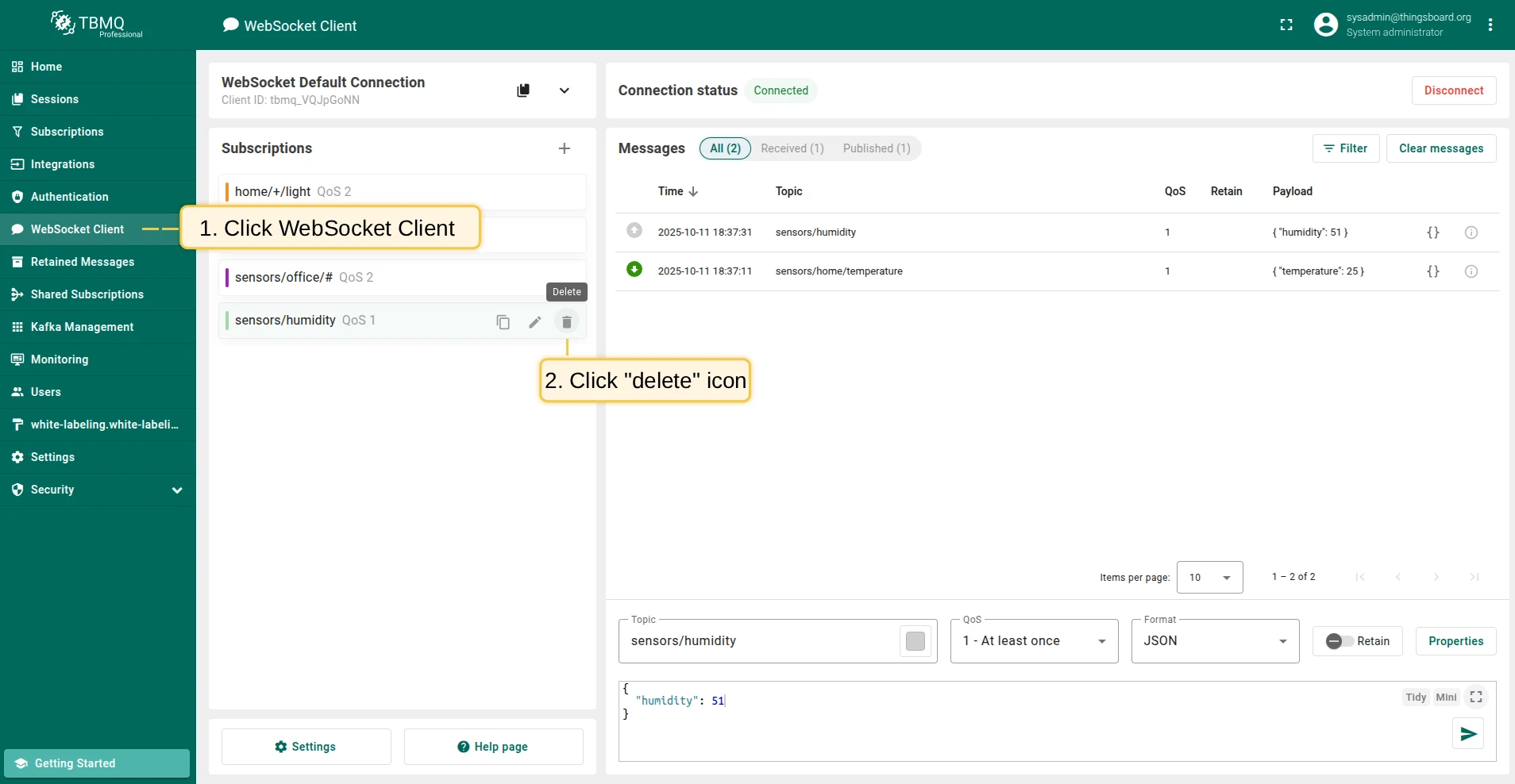
Section titled “Delete subscription”- Click the delete icon on a subscription row.
- Click Yes to confirm.

Subscription settings
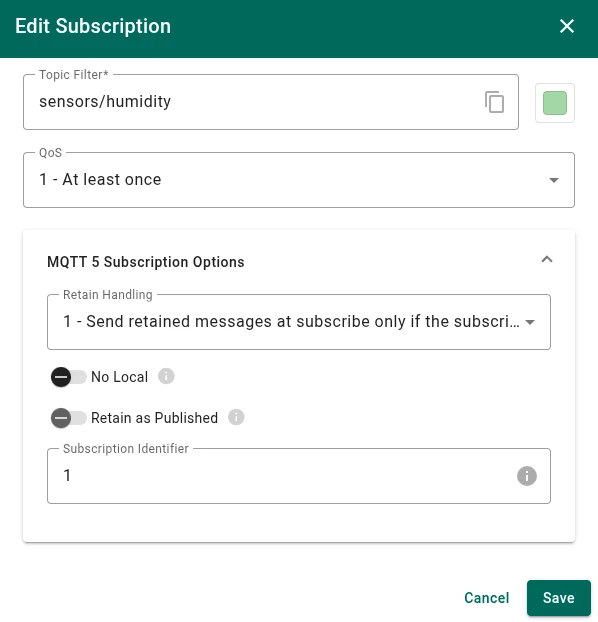
Section titled “Subscription settings”- Topic filter — MQTT topic filter. Must be unique per connection.
- QoS — Quality of Service of the subscription.
- Retain as Published — when true, forwarded messages keep the RETAIN flag they were published with.
- Retain Handling —
0send at subscription time;1send only if subscription doesn’t exist;2do not send. - No local — when true, broker won’t forward this client’s messages back to this connection.
- Color — used to differentiate messages in the messages table.
- Subscription Identifier — unique numeric identifier (greater than 0) for tracking the subscription.
Messages
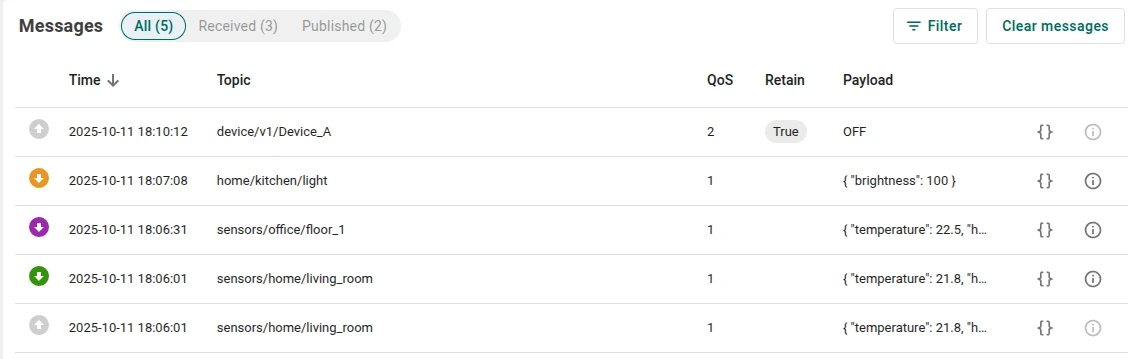
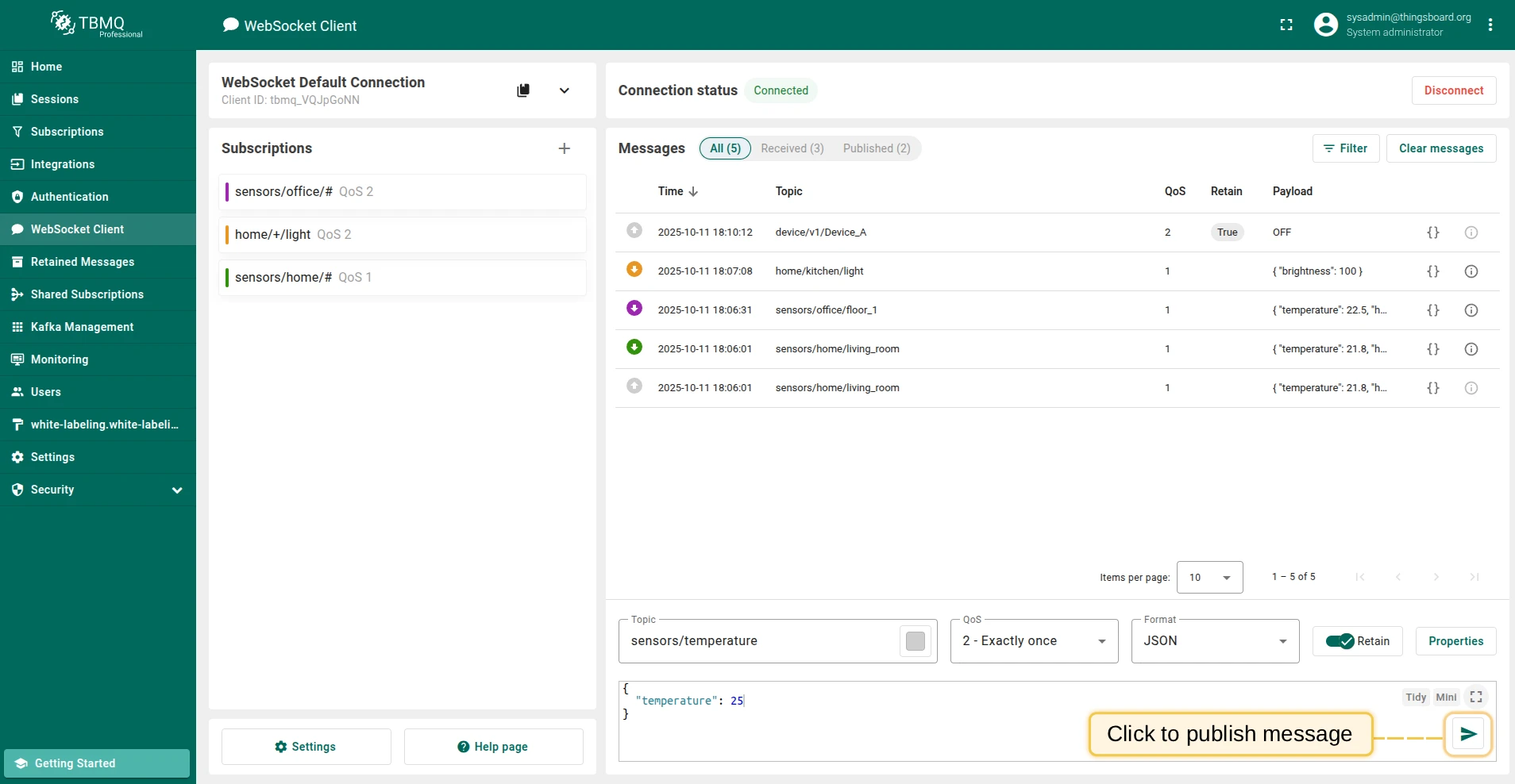
Section titled “Messages”The Messages table displays the most recent published and received messages. Each row shows:
- Type — Received or Published.
- Topic — the message topic.
- QoS — Quality of Service level.
- Retain — whether the message has the Retain flag set.
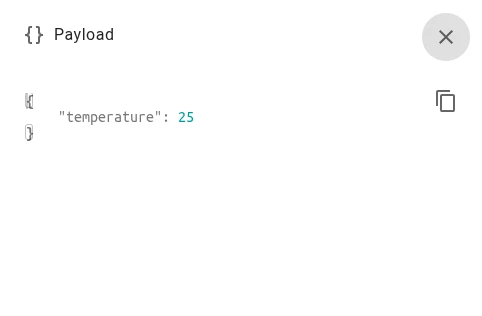
- Payload — preview of the message content. Click the Info icon to view the full payload and copy it.
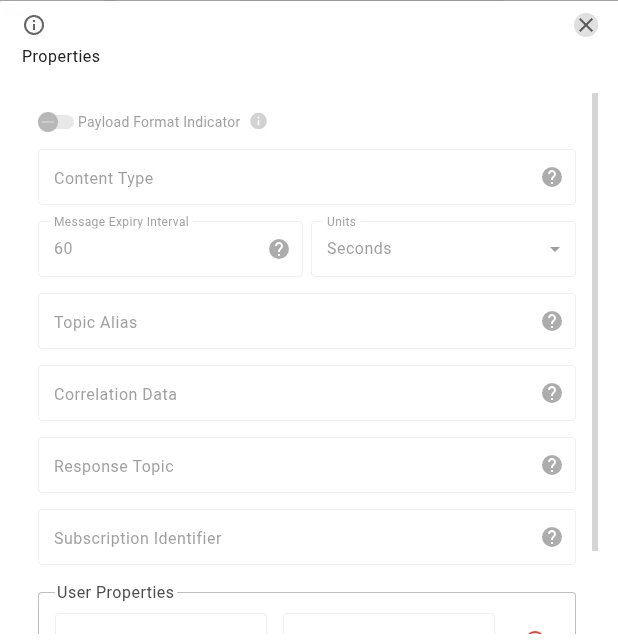
- Properties — click to view additional MQTT 5 properties: User properties, Content type, Topic Alias, etc.
Filter messages
Section titled “Filter messages”- By type (All/Received/Published) — click the type label in the Messages table header.
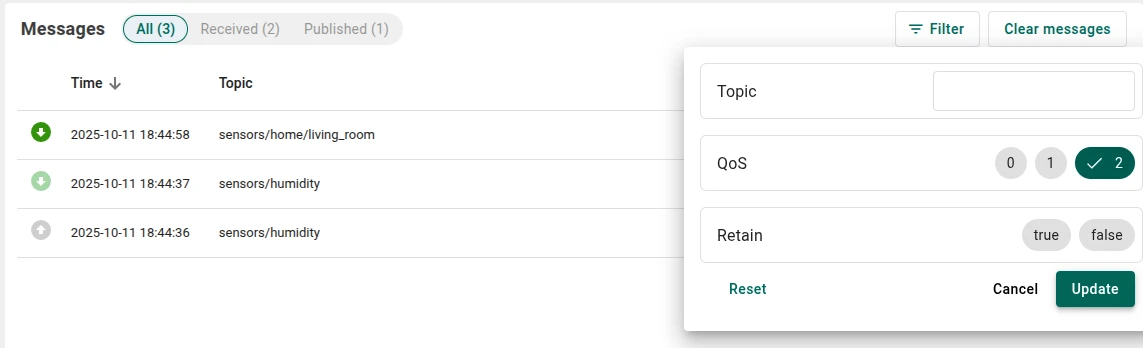
- By Topic/QoS/Retain — click the filter icon next to the Clear messages button.
Publish a message
Section titled “Publish a message”To publish a message, the client must be connected and a topic must be specified (unless using Topic Alias). If the JSON format is selected, the payload must be valid JSON.
The following publish options are available:
- Topic — MQTT topic for the published message.
- QoS —
0(at most once),1(at least once),2(exactly once). - Retain — when true, the broker stores the last message and delivers it to future subscribers.
- Color — marks published messages in the table for easier recognition.
- Format — JSON (with validation) or String (no validation).
Click the Send icon to publish.
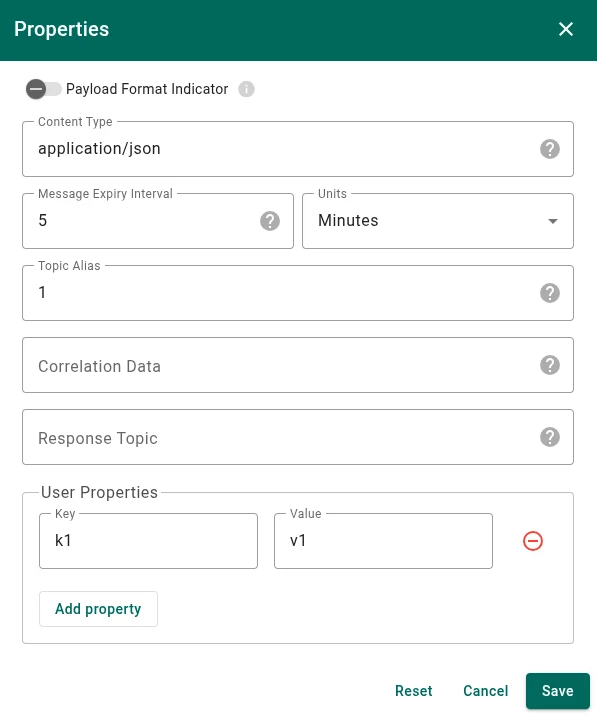
For MQTT 5 clients, click the Properties button to configure additional publish options:
- Payload Format Indicator — when true, indicates UTF-8 encoded payload; false means unspecified binary.
- Content Type — describes the format of the payload.
- Message Expiry Interval — lifetime of the message in seconds.
- Topic Alias — integer shorthand for the topic (forbidden if Topic Alias Max is 0 on the connection).
- Correlation Data — binary identifier for correlating responses.
- Response Topic — topic for a response message.
- User Properties — key-value metadata attached to the message.
Was this helpful?