
White labeling
White labeling lets you tailor your TBMQ instance to match your brand — particularly useful for companies delivering IoT solutions to their customers. Configure your company name, upload your logo, and choose color palettes.
Customize TBMQ web interface
Section titled “Customize TBMQ web interface”To configure your logo and color scheme, go to the White labeling page.
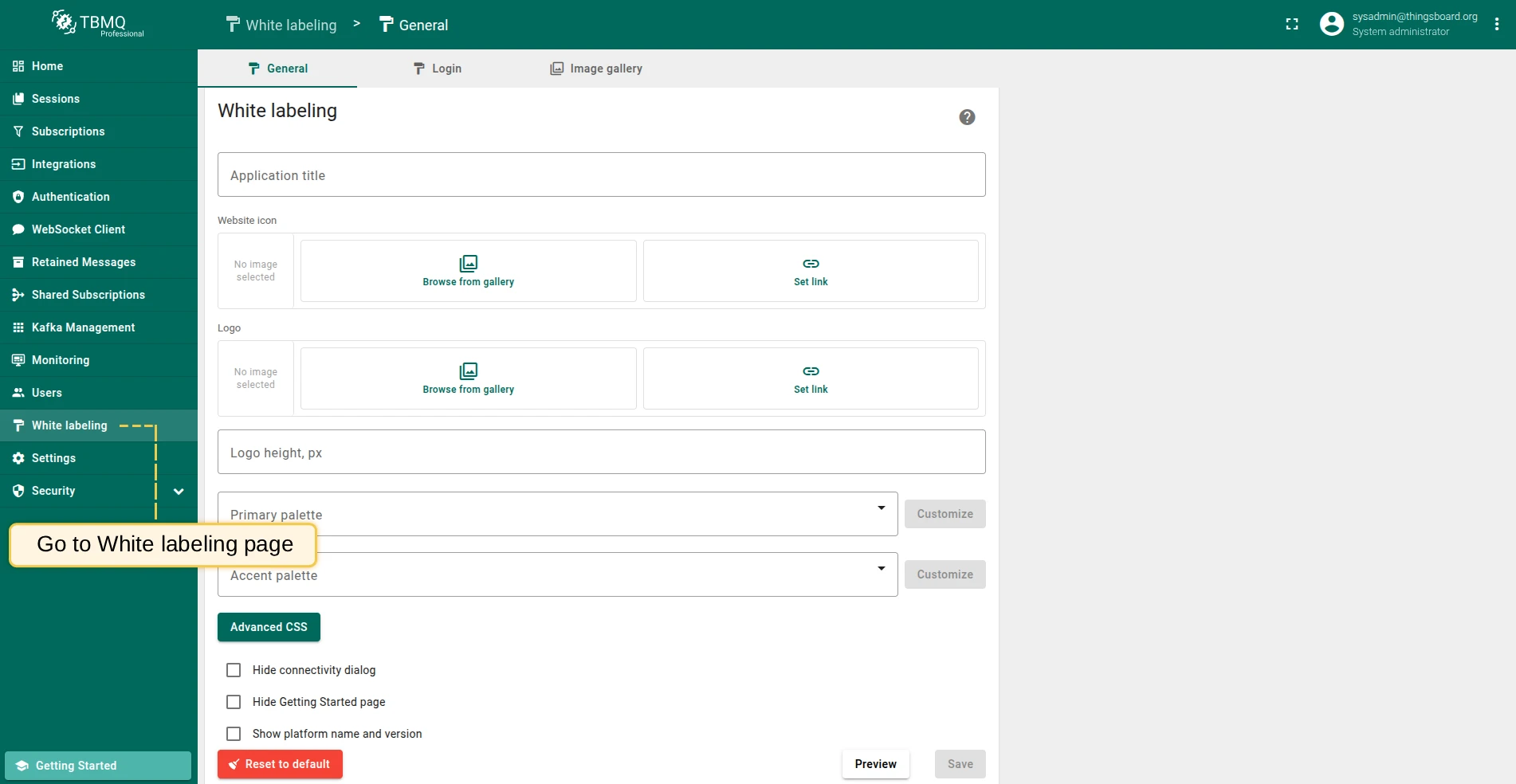
On the General tab you can configure:
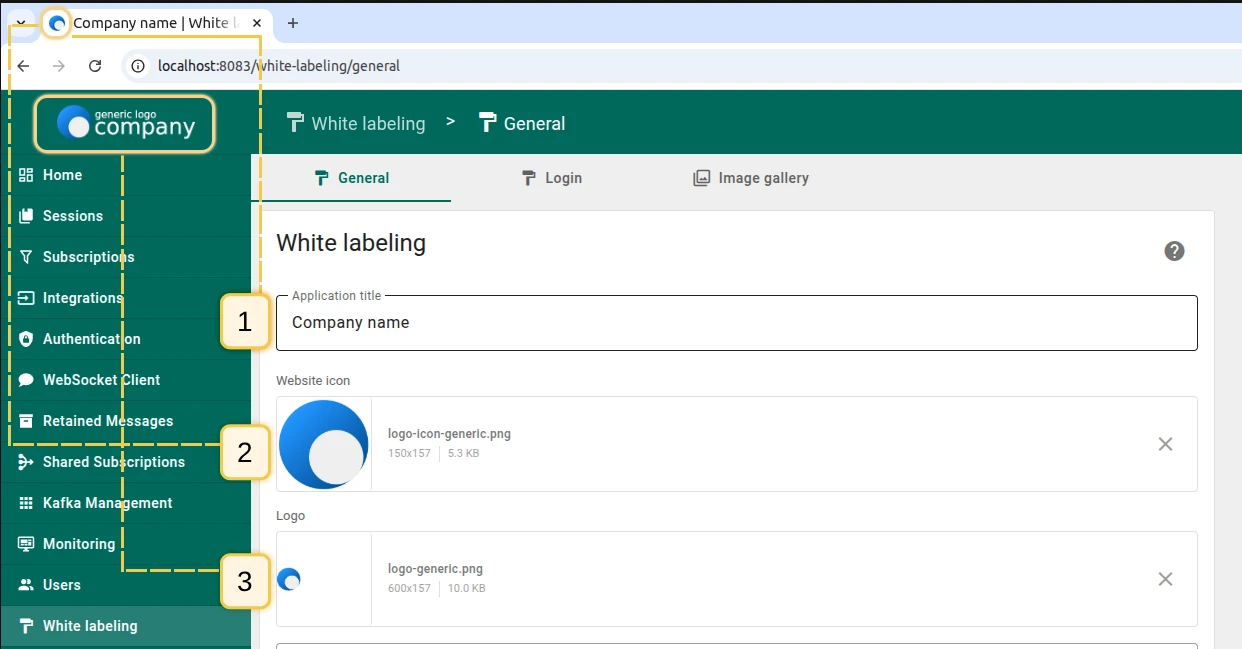
- Application title — custom page title displayed in the browser tab.
- Favicon — replace the default website icon with your own.
- Logo — replace the default logo in the upper left corner with your company logo.
- Logo height — resize the logo.
- Primary palette — customize the background and font colors by selecting a suggested UI design or modifying an existing one.
- Accent palette — customize the color for elements such as toggles.

- Advanced CSS — apply custom CSS to any element of the TBMQ interface. See Advanced CSS below.
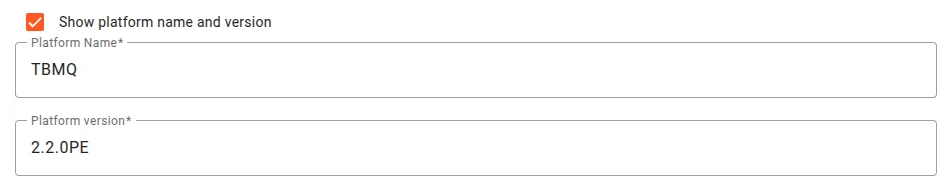
- Show/hide platform name and version — when enabled, the platform name and version appear in the lower left corner.
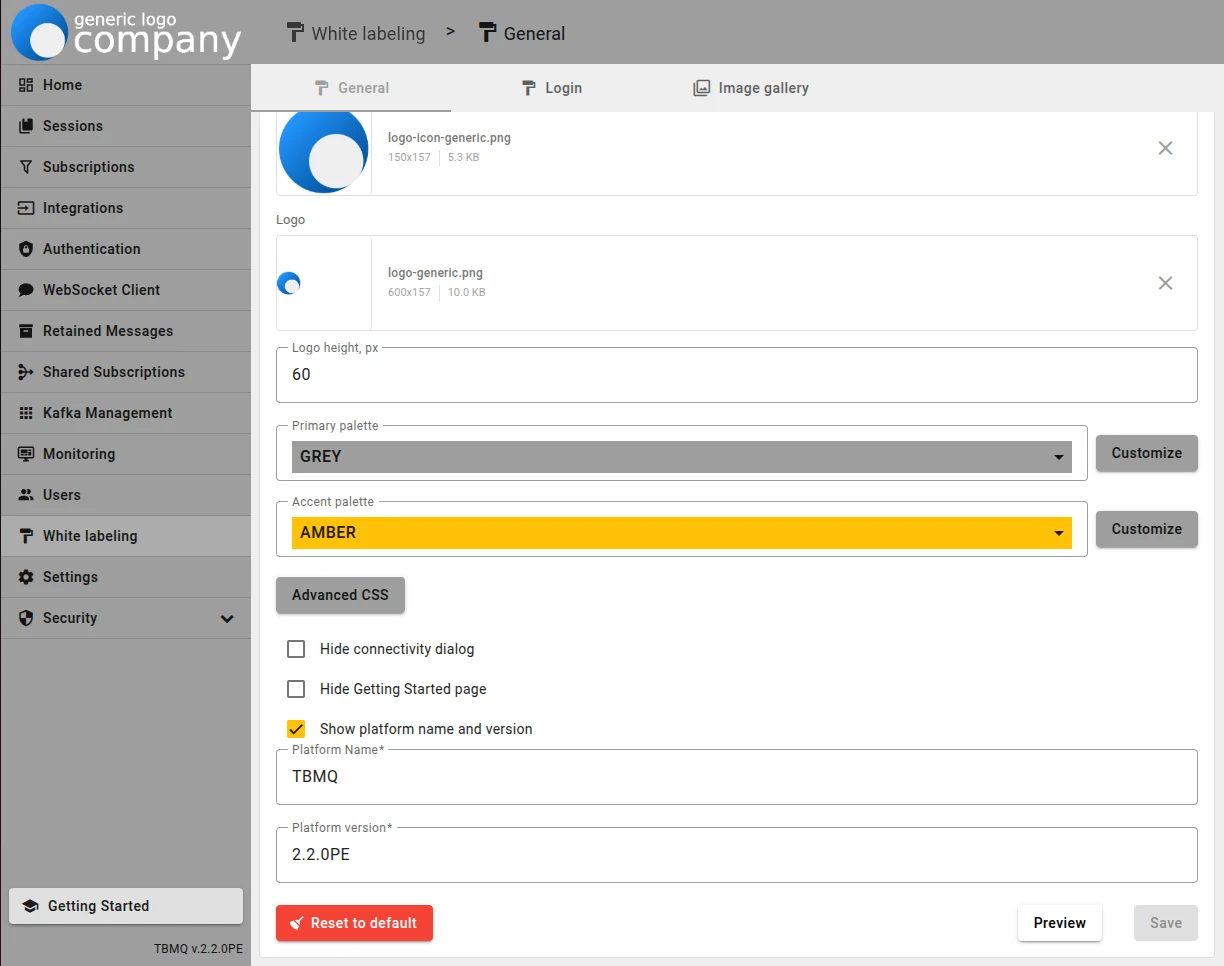
The customized interface:
Advanced CSS
Section titled “Advanced CSS”Use CSS to stylize any element of the TBMQ interface — backgrounds, icons, fonts, and more.
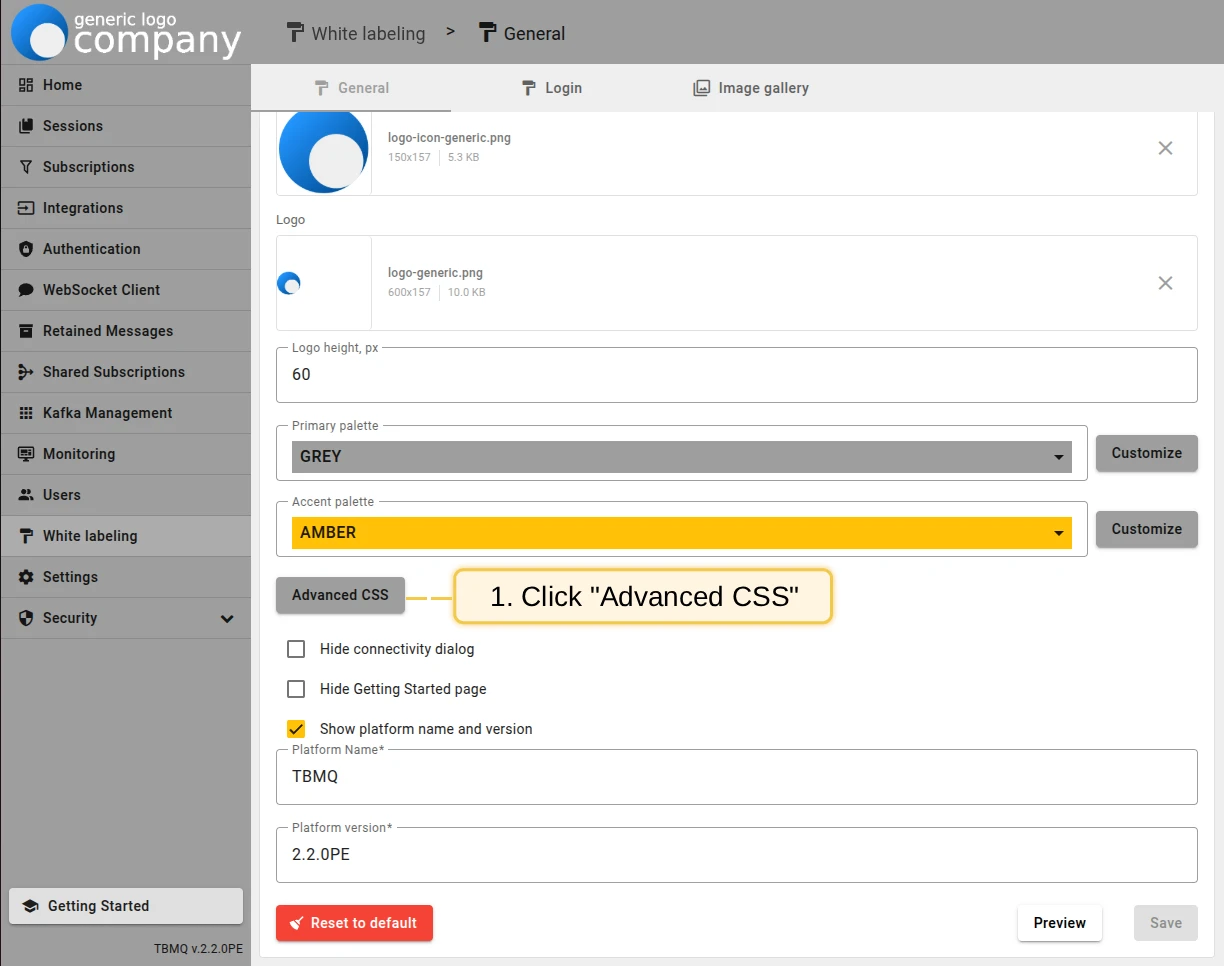
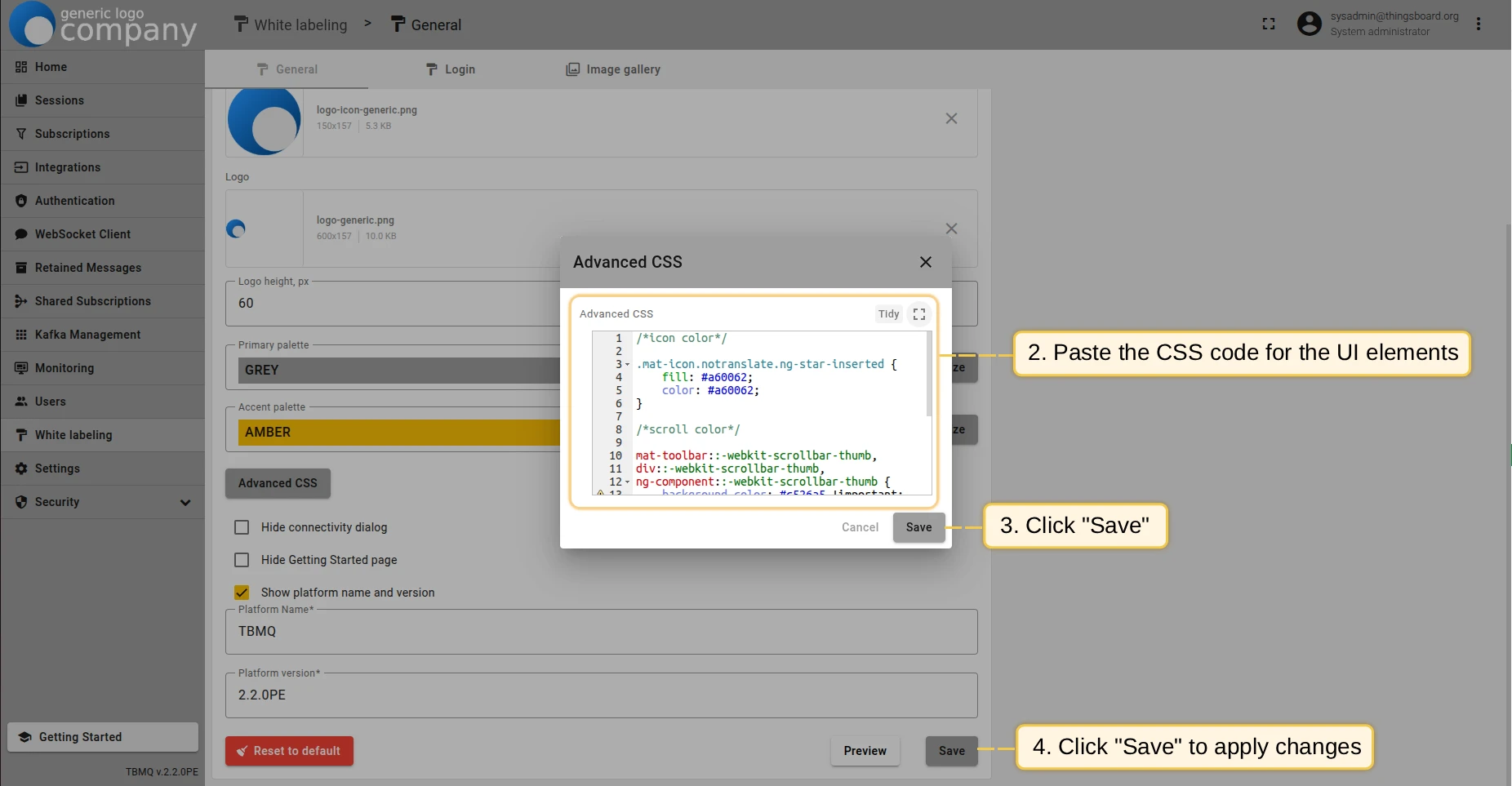
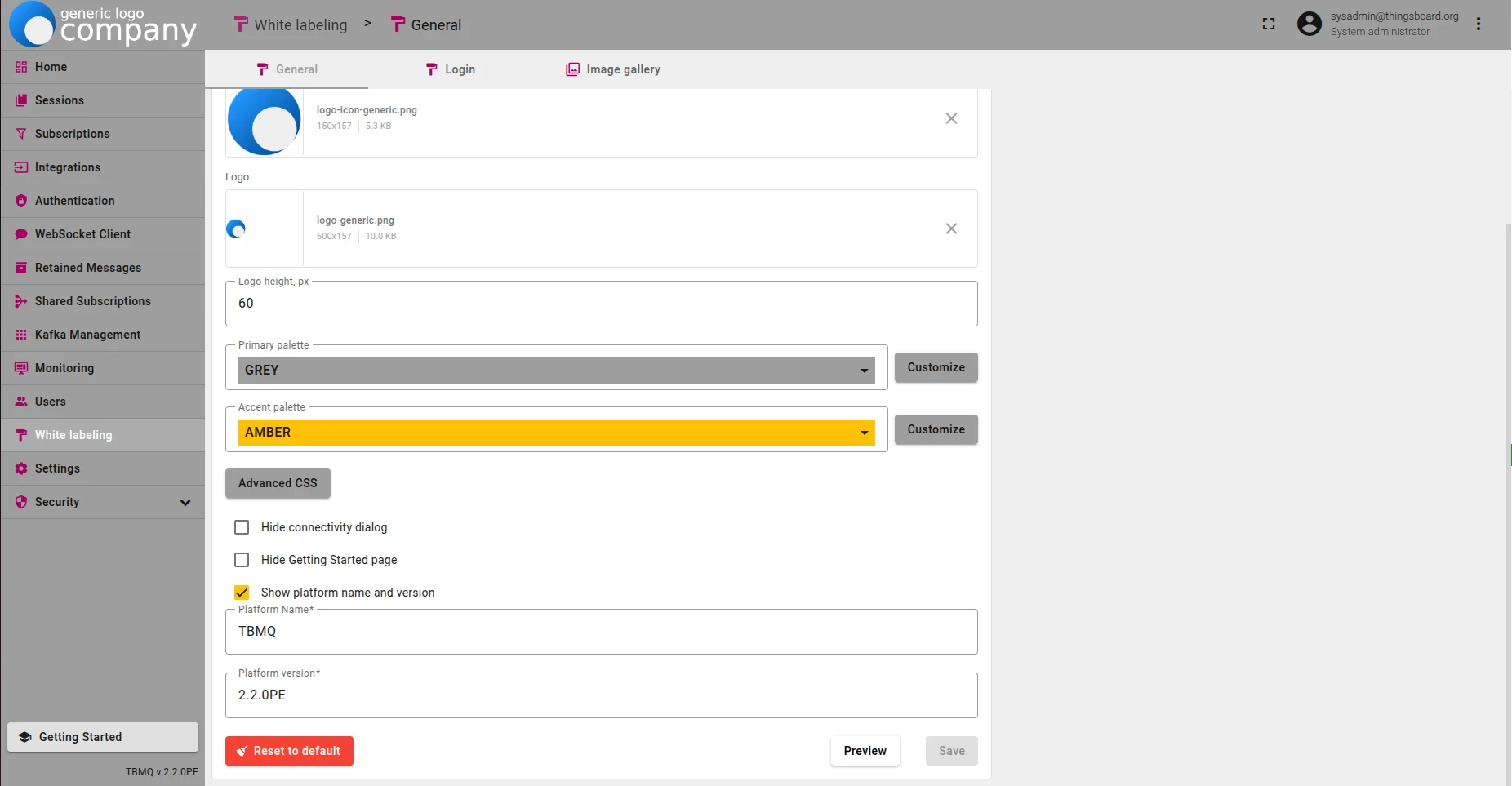
Example — customize icon color, scrollbar color, and active button color:
/* Icon color */a.mat-mdc-button.mat-mdc-button-base .mat-icon {    color: #a60062;}
/* Scrollbar color */mat-toolbar::-webkit-scrollbar-thumb,div::-webkit-scrollbar-thumb,ng-component::-webkit-scrollbar-thumb {    background-color: #c526a5 !important;    background-image: linear-gradient(#e72c83, #a742c6);    border-radius: 200px/300px !important;    border: 0.1rem linear-gradient(#e72c83, #a742c6);}
/* Active button color */.mat-mdc-button.mat-mdc-button-base.tb-active {    color: #a60062;}
Customize the login page
Section titled “Customize the login page”On the Login tab, configure the TBMQ login page:
- Enter the registered domain name. For details, see Domain registration.
- Disable hostname usage from request headers (recommended).
- Enter a custom application title.
- Replace the default website icon and logo.
- Define the primary and accent color palettes.
- Set the page background color.
Once done, save the changes.


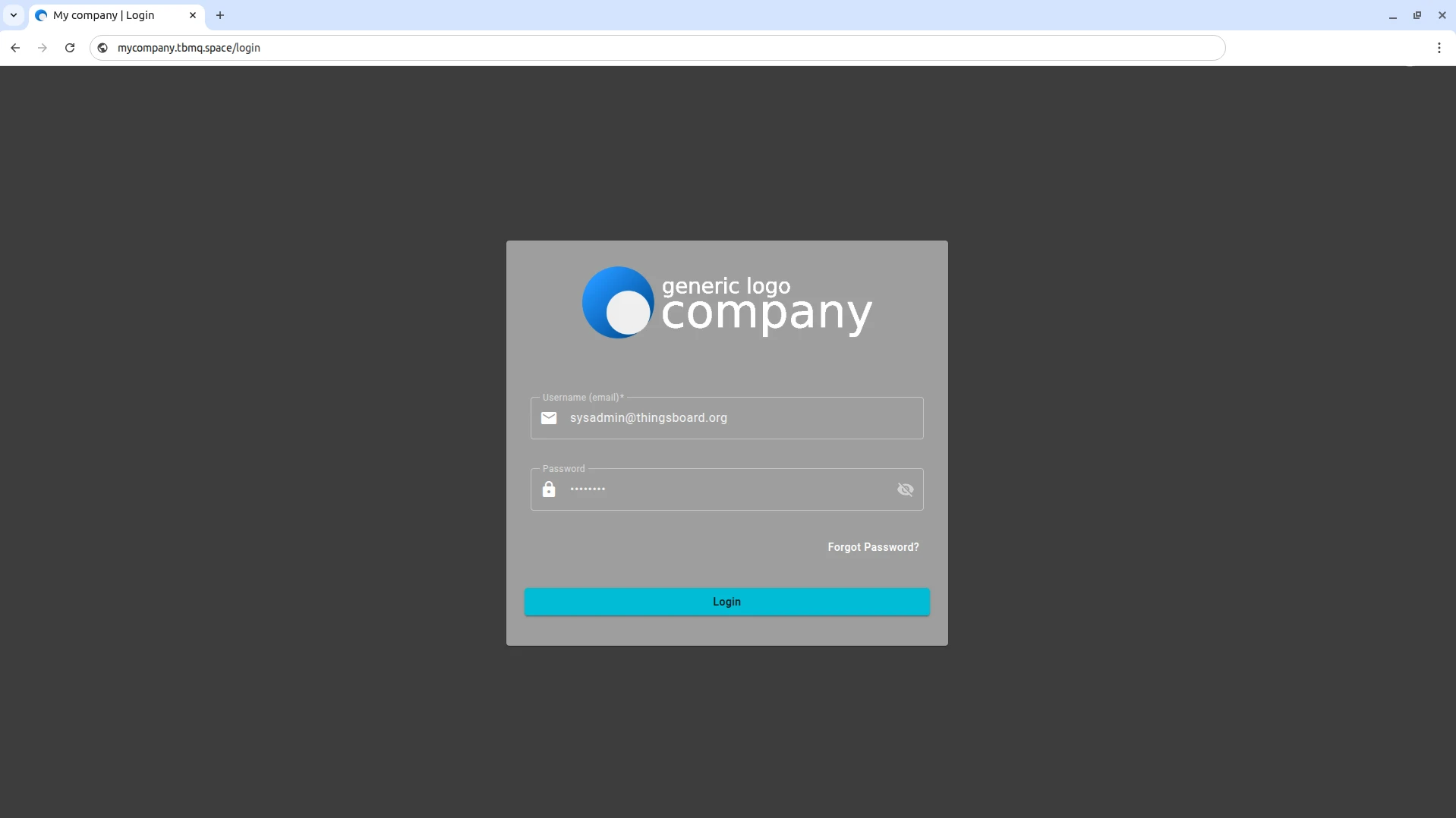
Use your custom domain to access the TBMQ login page and verify the result.
Was this helpful?
Thank you for your feedback!