Monitoring & Alarms
Once an anomaly model is built and marked READY, you can set up monitoring to keep detection running continuously. Monitoring automatically checks whether ongoing anomalies are continuing and whether new anomalies have started — without any manual intervention.
How It Works
Section titled “How It Works”A READY model supports two operations that keep anomaly detection running over time:
┌──────────────────────────────────────────────────┐ │ Anomaly Model (READY) │ └─────────────────┬────────────────────────────────┘ │ ┌─────────┴──────────┐ ▼ ▼ ┌───────────────┐ ┌──────────────────┐ │ Refresh │ │ Reprocess │ │ (scheduled) │ │ (on demand) │ │ │ │ │ │ New / ongoing │ │ Historical data │ │ telemetry │ │ Any date range │ └───────────────┘ └──────────────────┘Refresh is a recurring scheduled job. It runs automatically at a configured interval, scans new incoming telemetry, and detects ongoing anomalies. Each run looks back at least one segment length — and further if an active anomaly is in progress — to correctly determine whether it is continuing or has ended.
Reprocess is a one-time on-demand task. It applies the trained model to any historical date range you choose, backfilling or updating anomaly data without waiting for scheduled runs.
Set Up Monitoring (Refresh)
Section titled “Set Up Monitoring (Refresh)”The monitoring configuration dialog has three independent sections — Periodic Scanning, Anomaly Score Saving, and Generate Alerts — each enabled separately.
Open the dialog in one of two ways:
- From the Result tab — locate the Continuous Monitoring panel on the right and click Configure.
- From the More Actions menu in the top-right corner — select Monitoring.
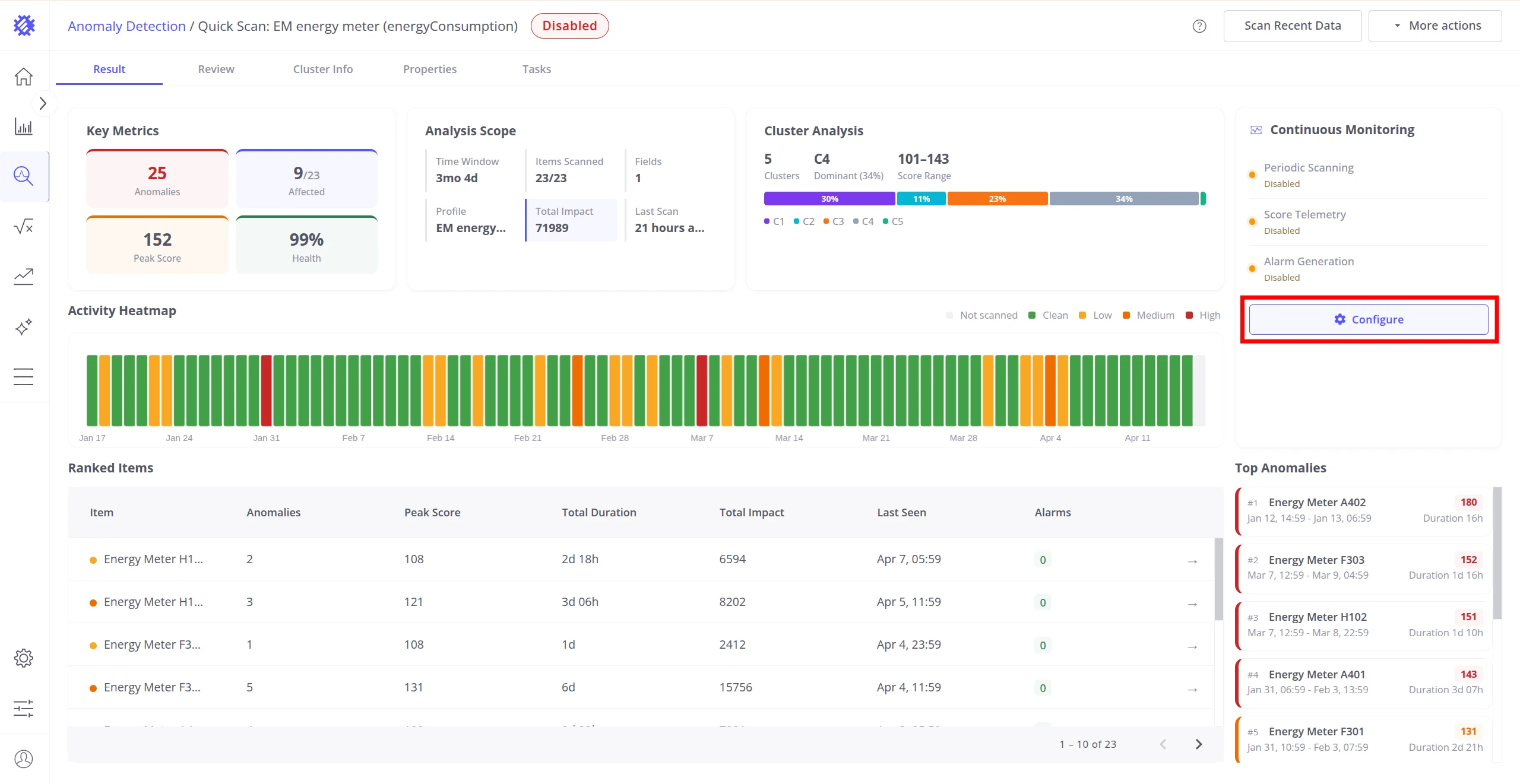
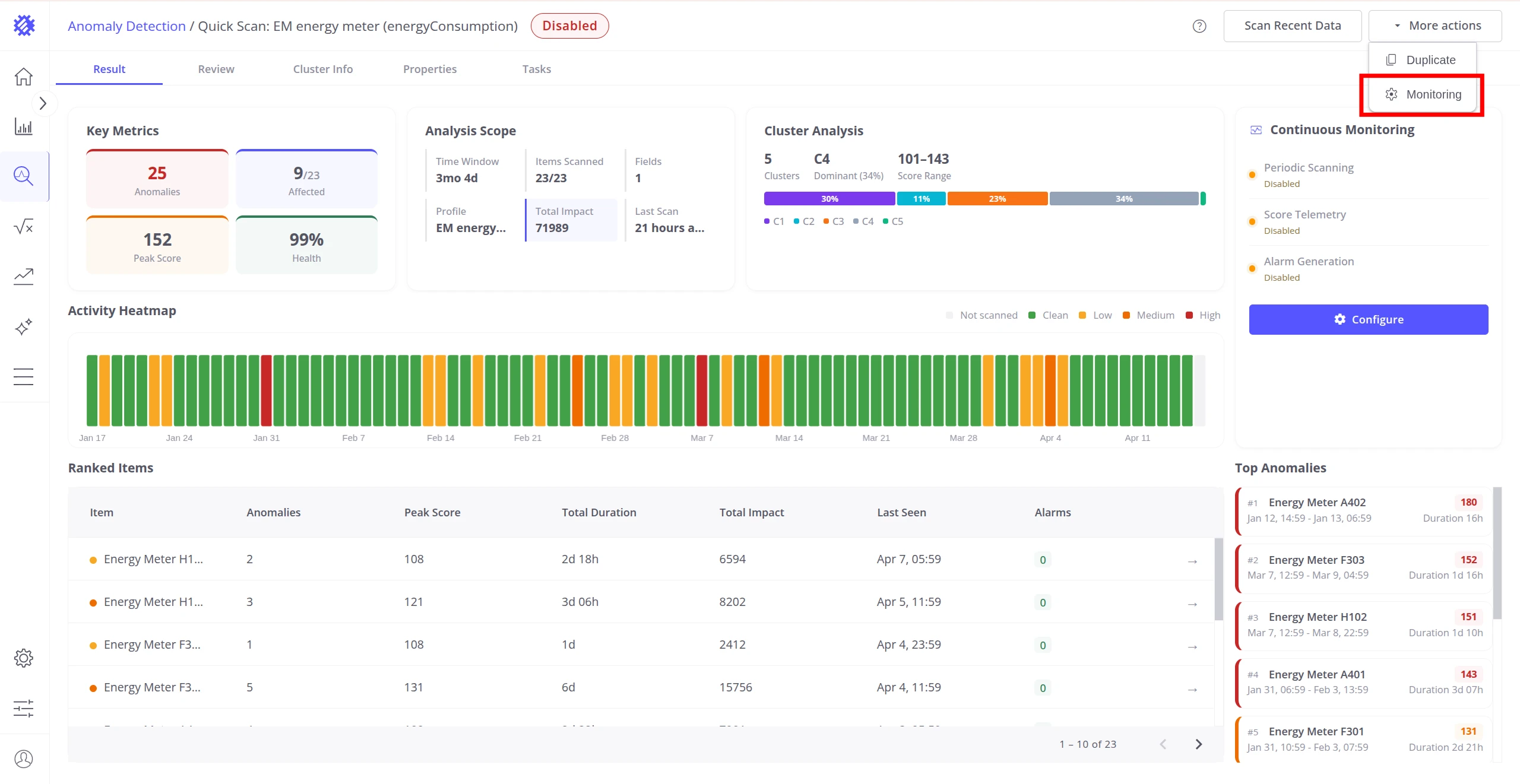
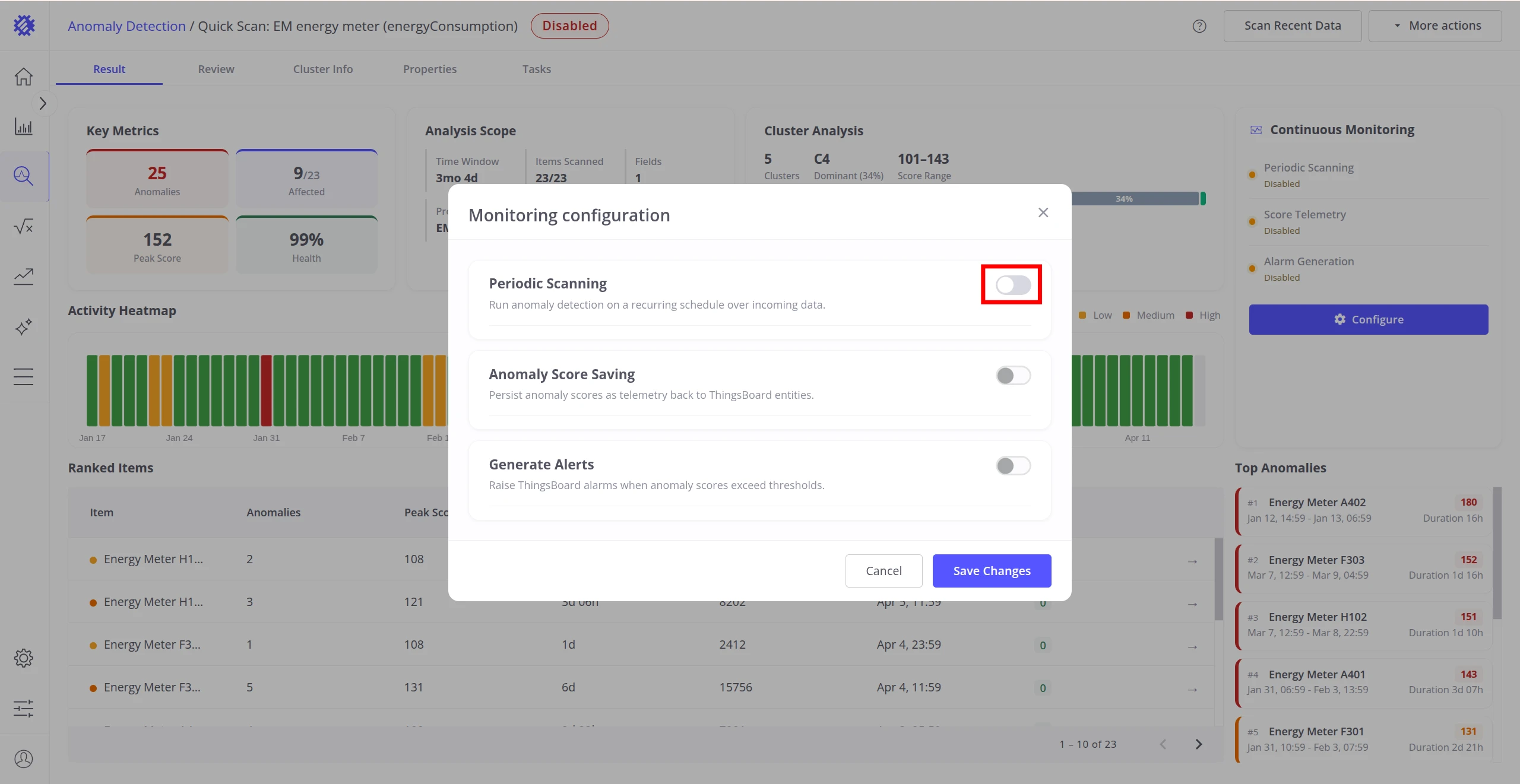
When first opened, all three sections are disabled by default.
Periodic Scanning
Section titled “Periodic Scanning”Periodic Scanning runs anomaly detection automatically on a recurring schedule over incoming telemetry. Enable the toggle and configure the following settings:
| Setting | Description |
|---|---|
| Periodic Scanning | Master toggle — turns automatic scheduled detection on or off. |
| Timerange | How often the job runs — set a number and unit (e.g. 1 Day). |
| Align to time unit start | When on, the job fires at the start of each unit — e.g. 1 hour fires at :00 minutes. |
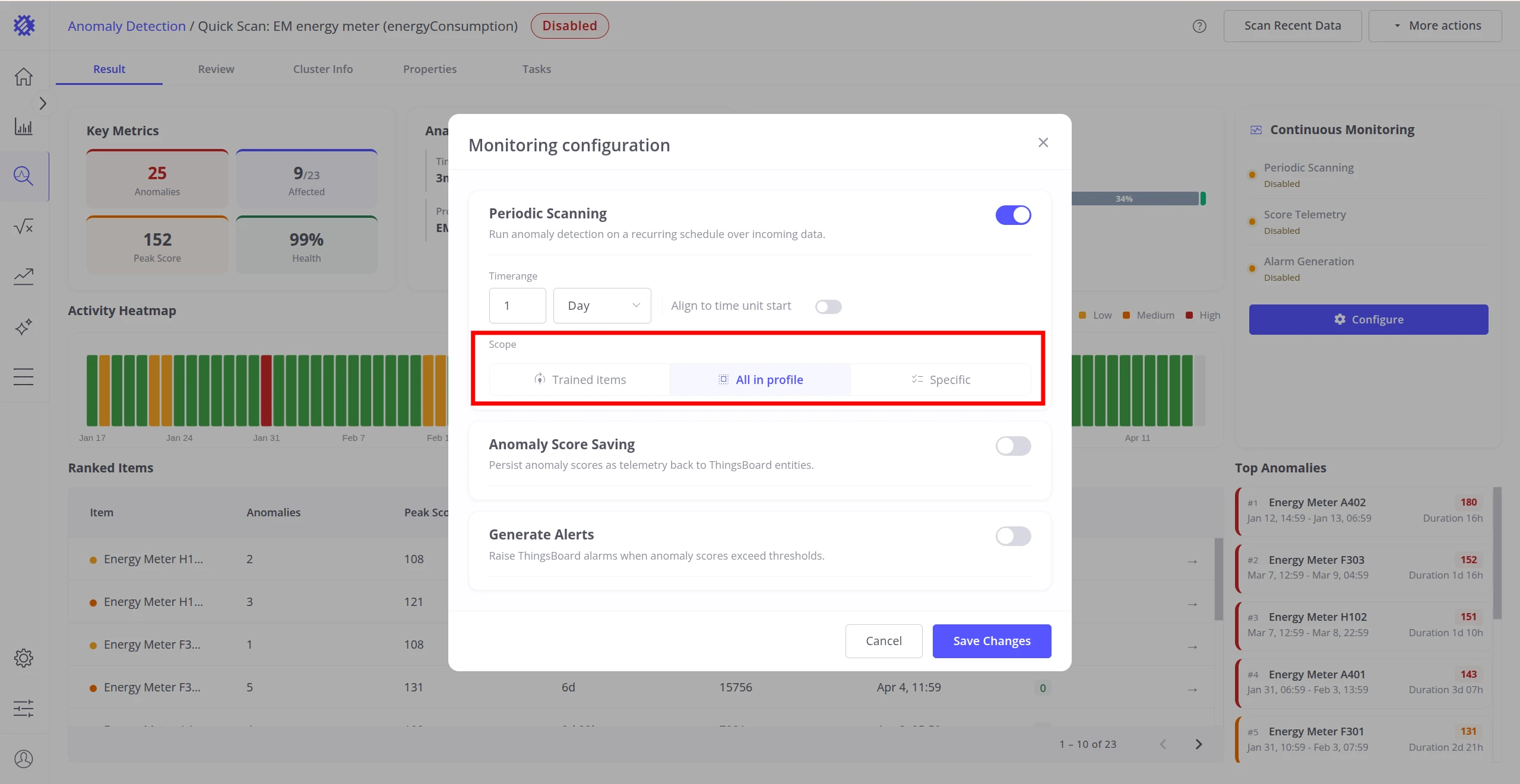
| Scope | Which devices or assets to scan — Trained items, All in profile, or a Specific selection. |
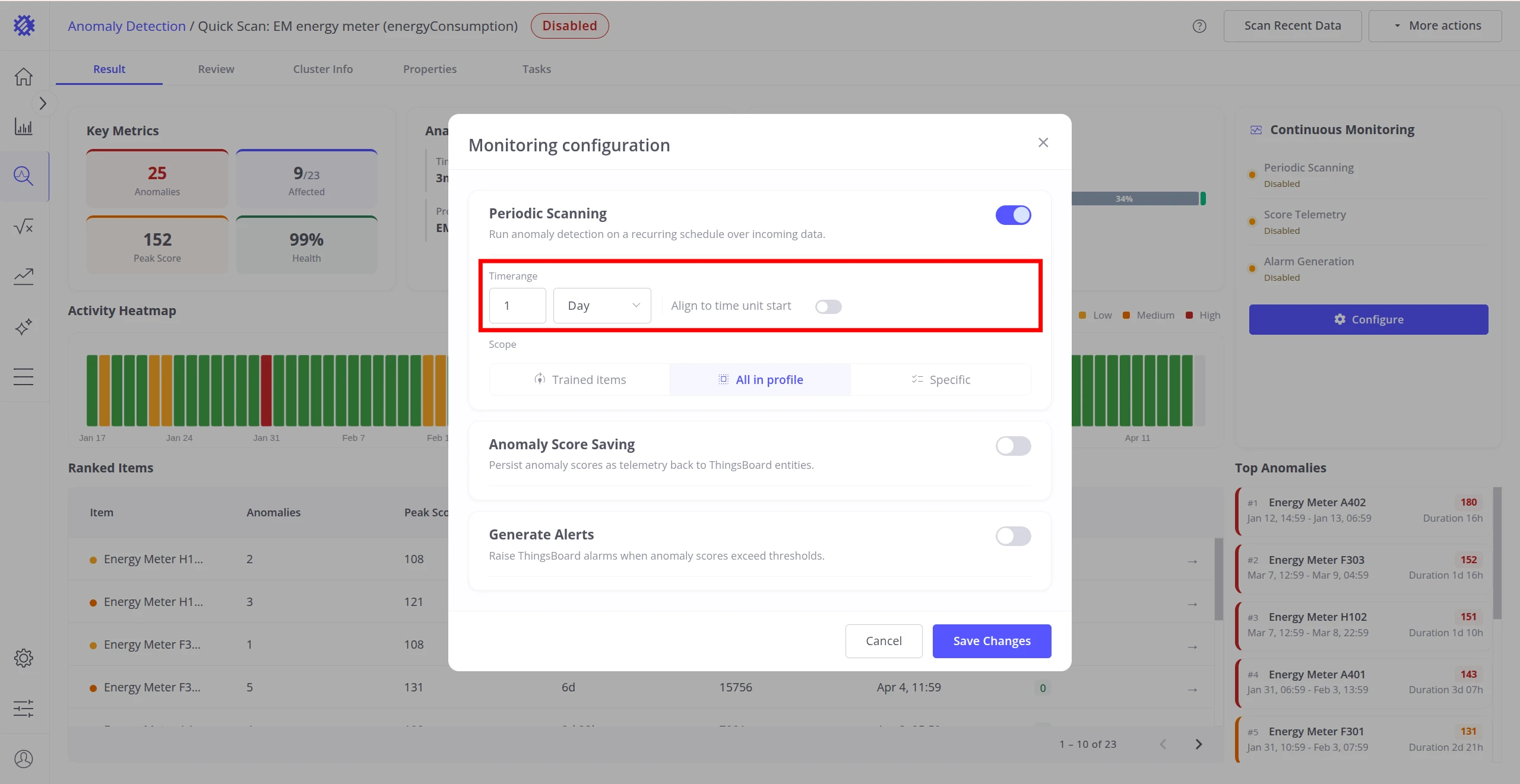
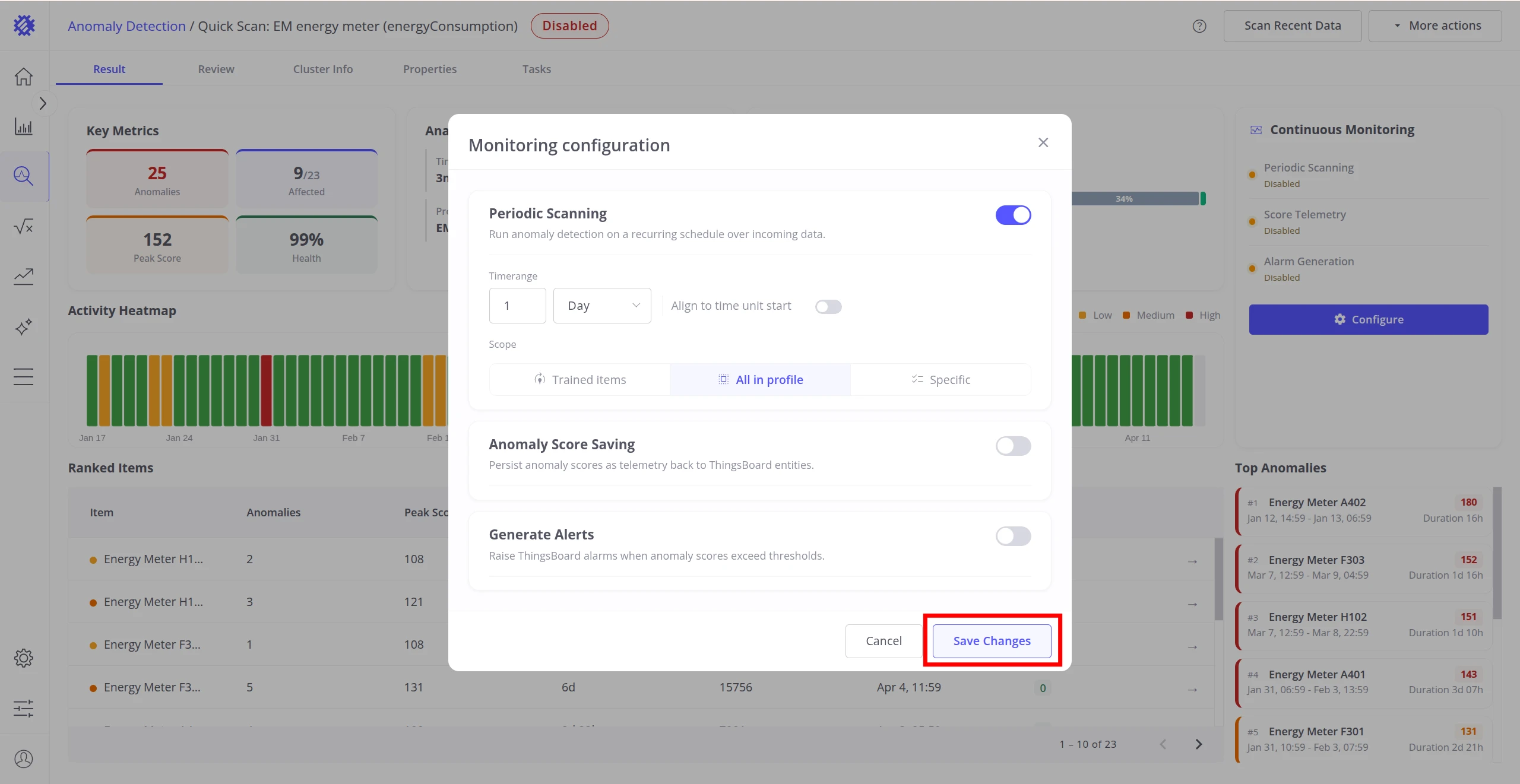
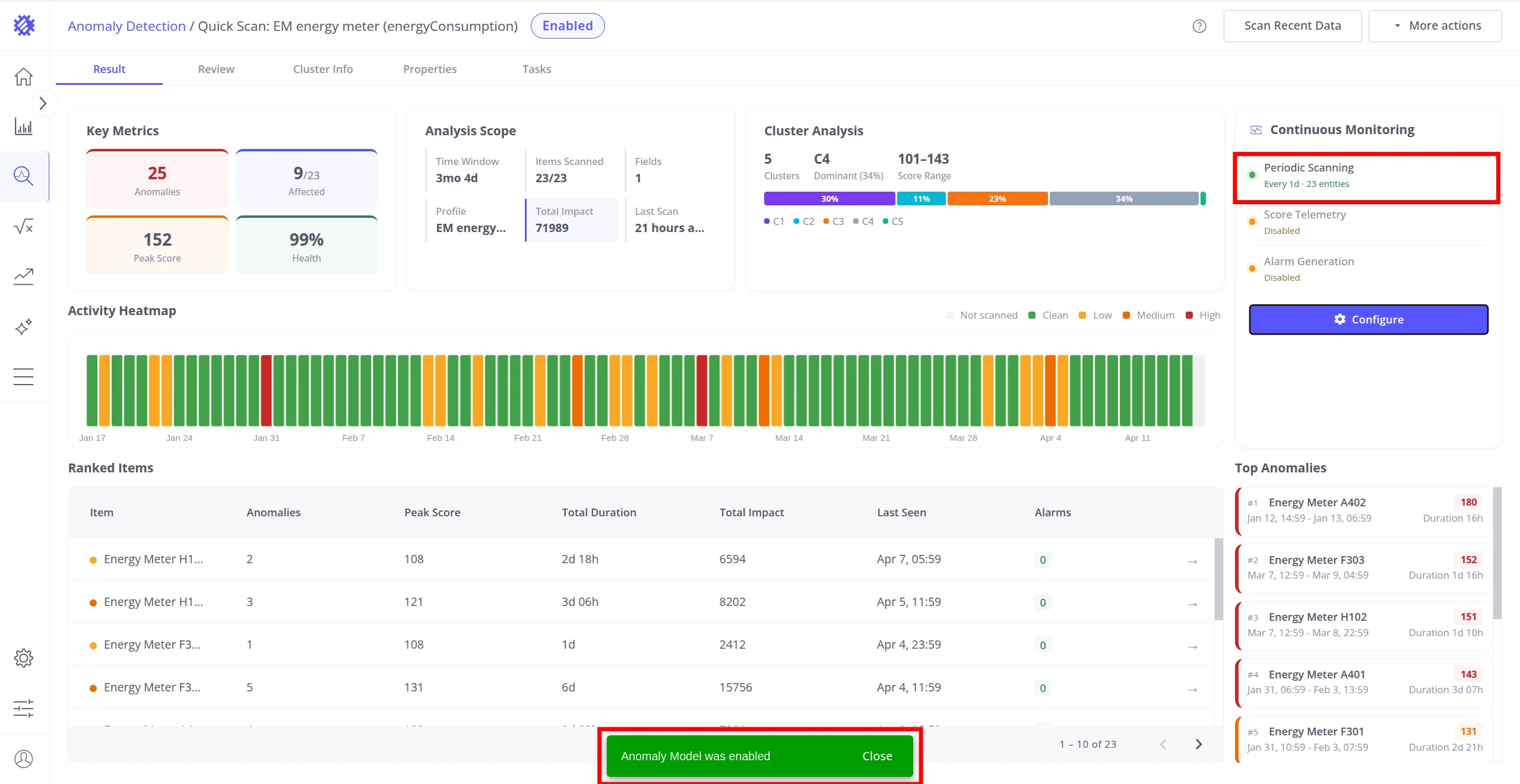
After configuring, click Save Changes. The model status changes to Enabled and the Continuous Monitoring panel updates to show the active scan configuration.
Save Scores as Telemetry
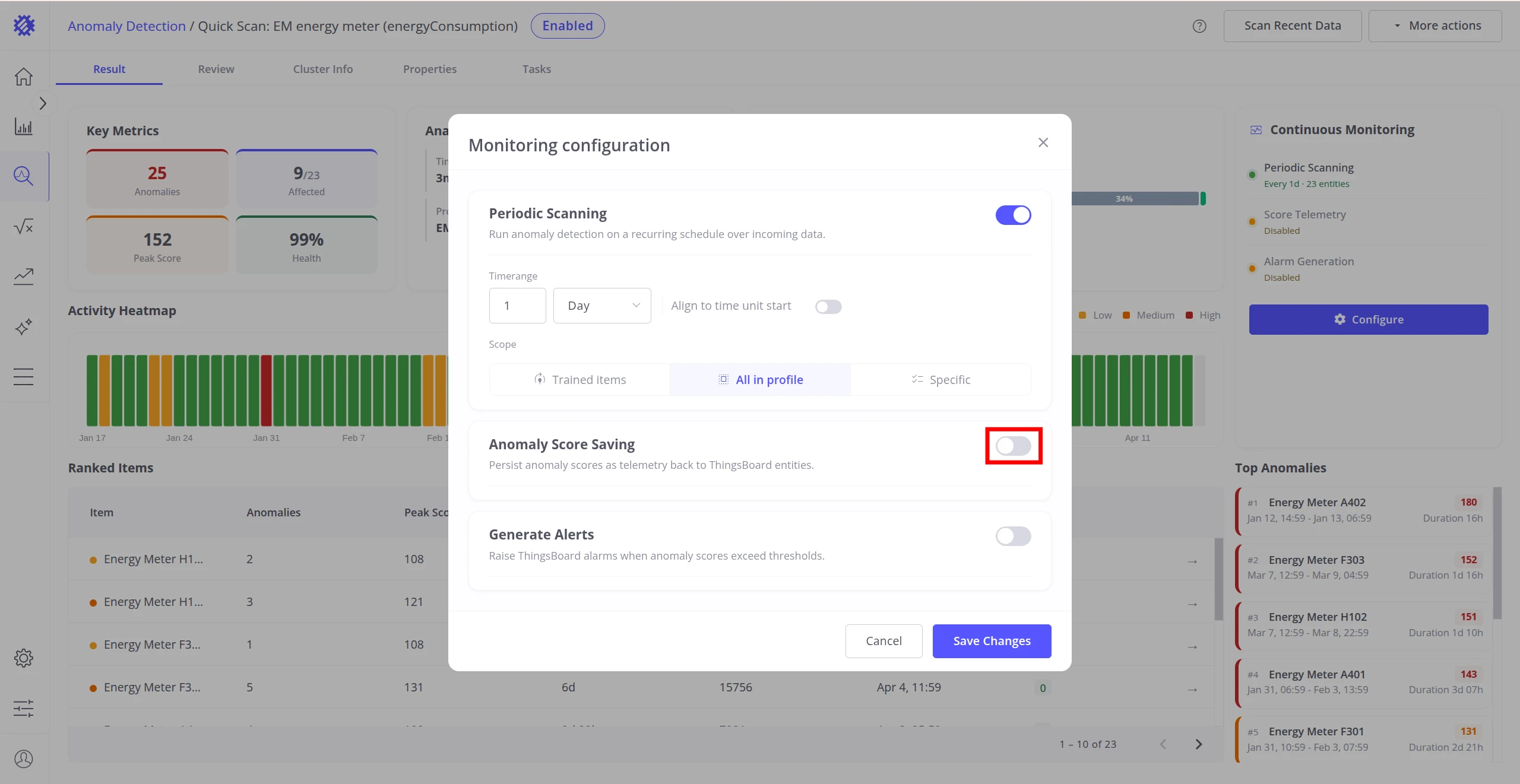
Section titled “Save Scores as Telemetry”Anomaly Score Saving writes the anomaly score and anomaly score index back to ThingsBoard as device telemetry. This makes anomaly data available for dashboards, rule chains, and custom alert logic — exactly like any other device measurement.
Enable Anomaly Score Saving in the monitoring configuration dialog and set the following parameters:
| Setting | Description |
|---|---|
| Telemetry Key | Base name for the keys written to ThingsBoard. Two keys are created automatically: _EAD_<key> for the anomaly score and _EID_<key> for the anomaly score index. |
| Write Frequency | How often scores are aggregated and saved. Must be lower than the segment time range. |
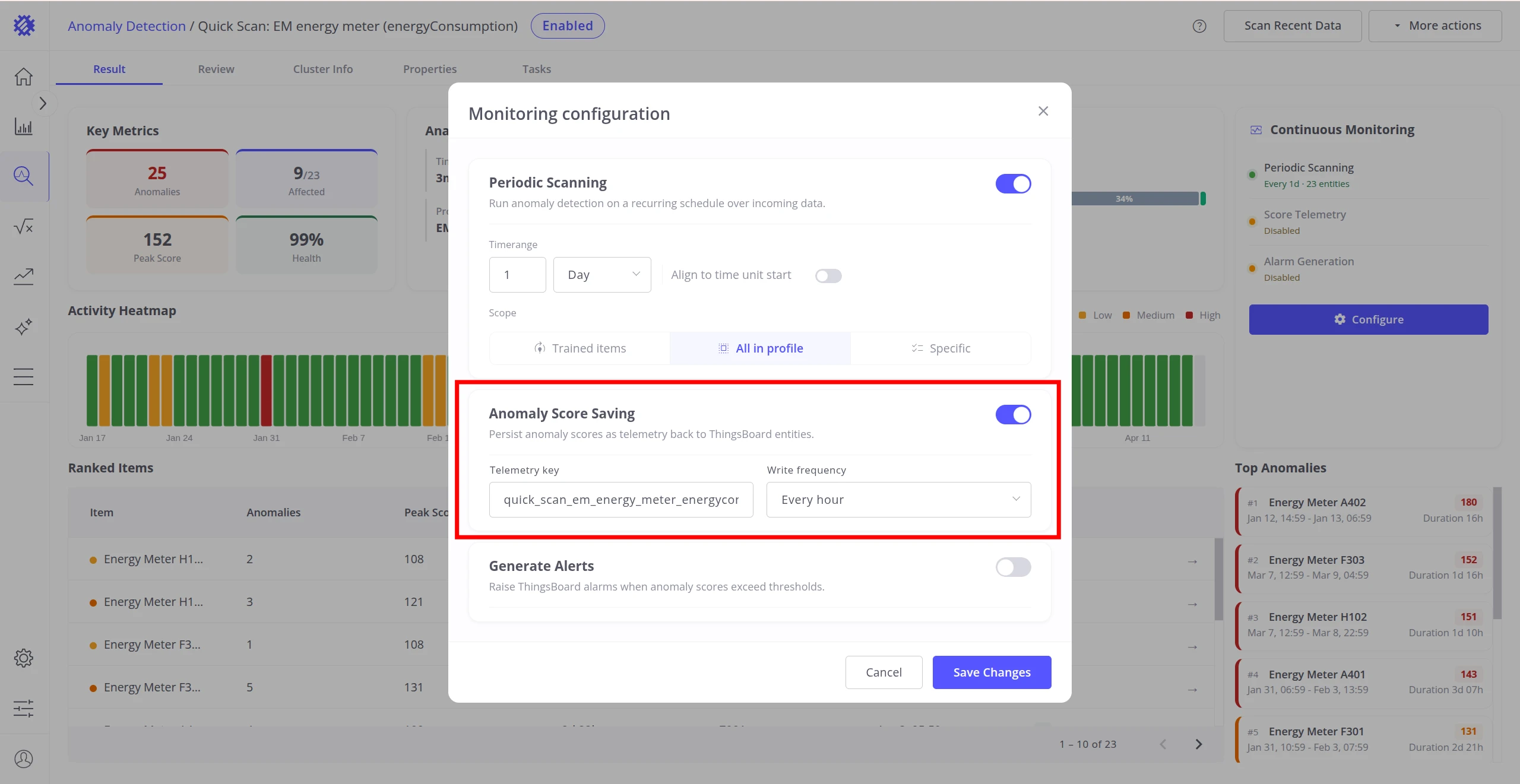
Once writing is active, the _EAD_<key> and _EID_<key> telemetry keys appear on each monitored
device in ThingsBoard. Use the saved telemetry in dashboards, rule chains, or custom alarm rules.
Generate Alarms
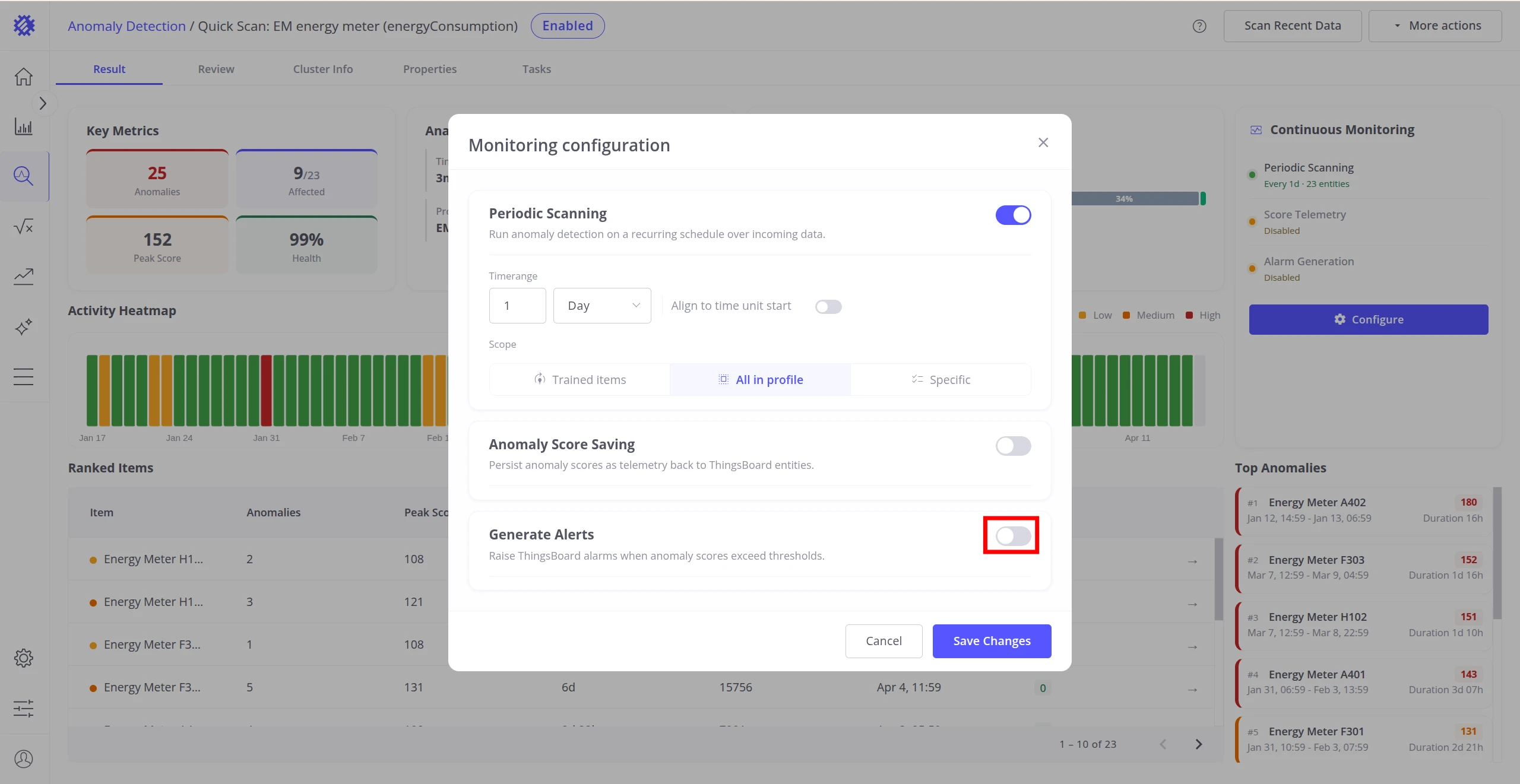
Section titled “Generate Alarms”Generate Alerts automatically creates ThingsBoard alarms when anomalies are detected and clears them when the anomaly ends.
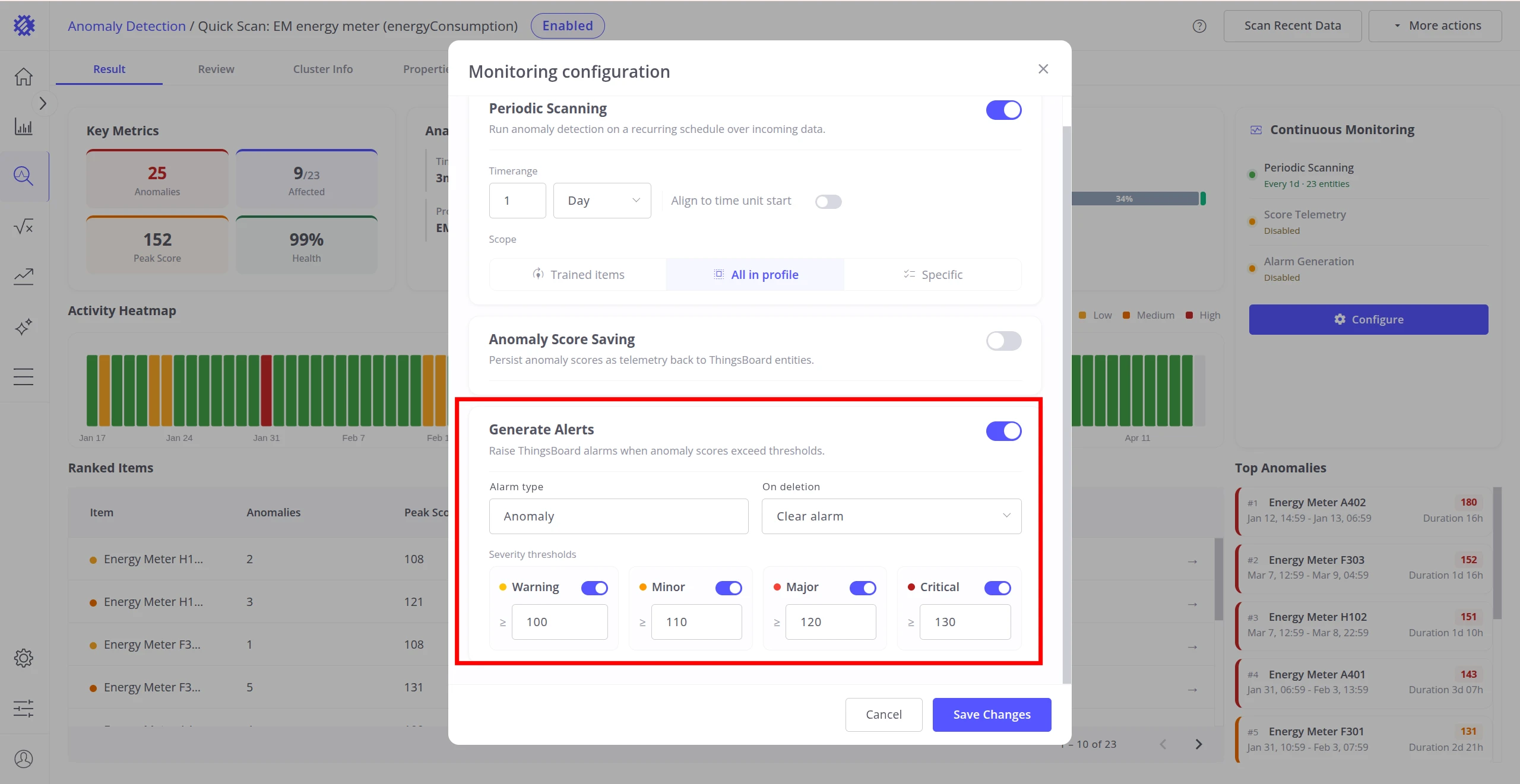
Enable Generate Alerts in the monitoring configuration dialog and configure:
| Setting | Description |
|---|---|
| Alarm Type | The alarm type created in ThingsBoard — used for filtering and routing in rule chains. |
| On deletion | What happens to the linked alarm when the anomaly is deleted (during reprocess or rebuild): Clear alarm or Delete alarm. |
| Severity thresholds | Score boundaries for Warning, Minor, Major, and Critical severities. Becomes configurable after the first model build — Trendz auto-generates default values from the score distribution. Each threshold can be disabled independently. |
Anomaly detected during Refresh or Reprocess │ ▼ Score ≥ lowest severity threshold? │ ├── No → No alarm created (anomaly recorded, not escalated) │ └── Yes → Alarm created (ACTIVE) Severity = highest matching threshold │ ┌────┴──────────────────┐ │ Anomaly ends │ Anomaly deleted ▼ ▼ (reprocess / rebuild) CLEARED Cleared or Deleted (per "On deletion" setting)Each detected anomaly maps to exactly one alarm. The alarm remains active while the anomaly persists and is cleared automatically when the anomaly ends.
Scan Historical Data (Reprocess)
Section titled “Scan Historical Data (Reprocess)”Use a manual scan to apply the model to a specific historical date range — for example, to validate results on a new period or to backfill anomaly data.
There are two ways to trigger a manual scan:
- From the Models tab — select a model row to open the detail panel, then click Run Scan.
- From the Result tab — click Scan Recent Data in the top-right corner.
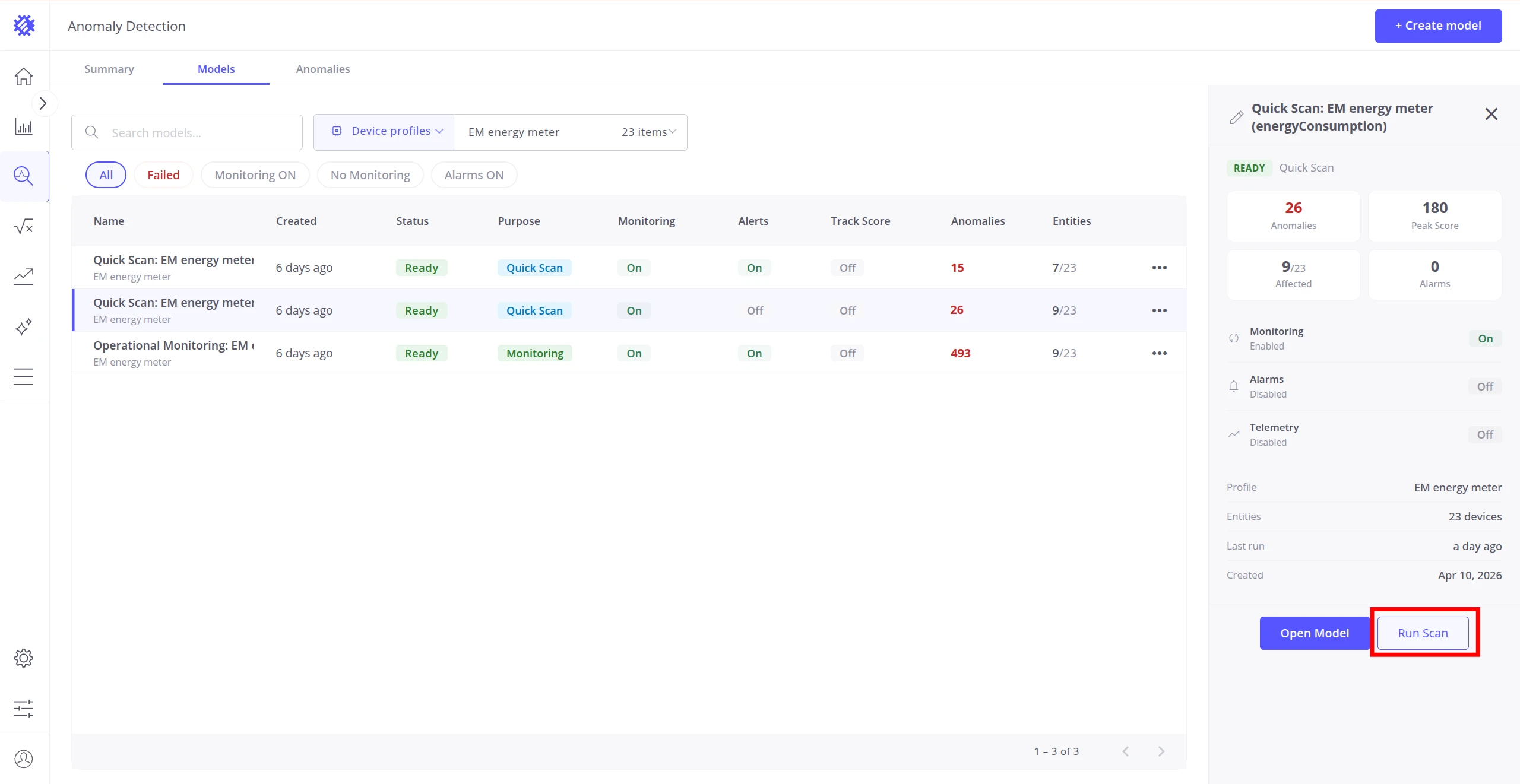
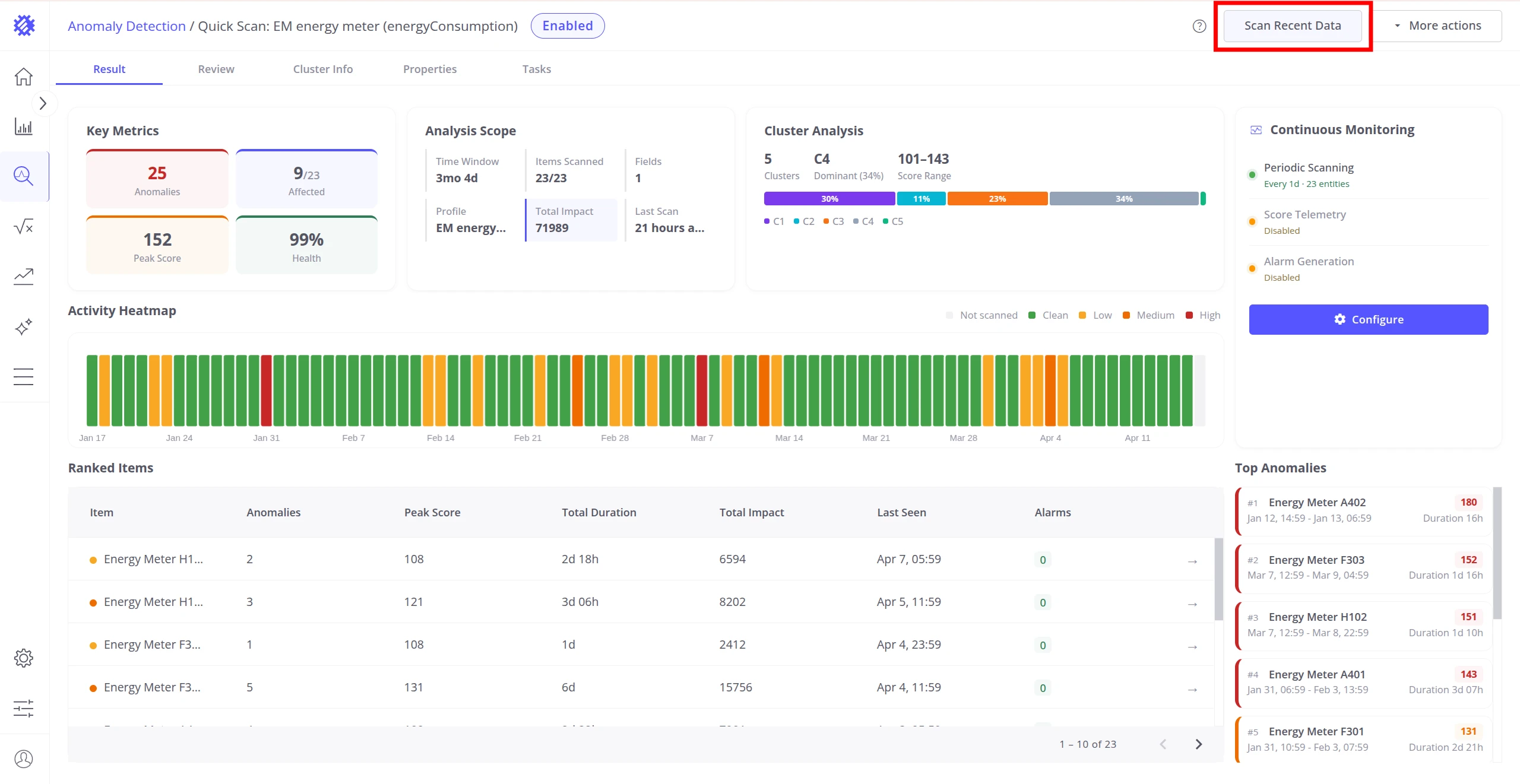
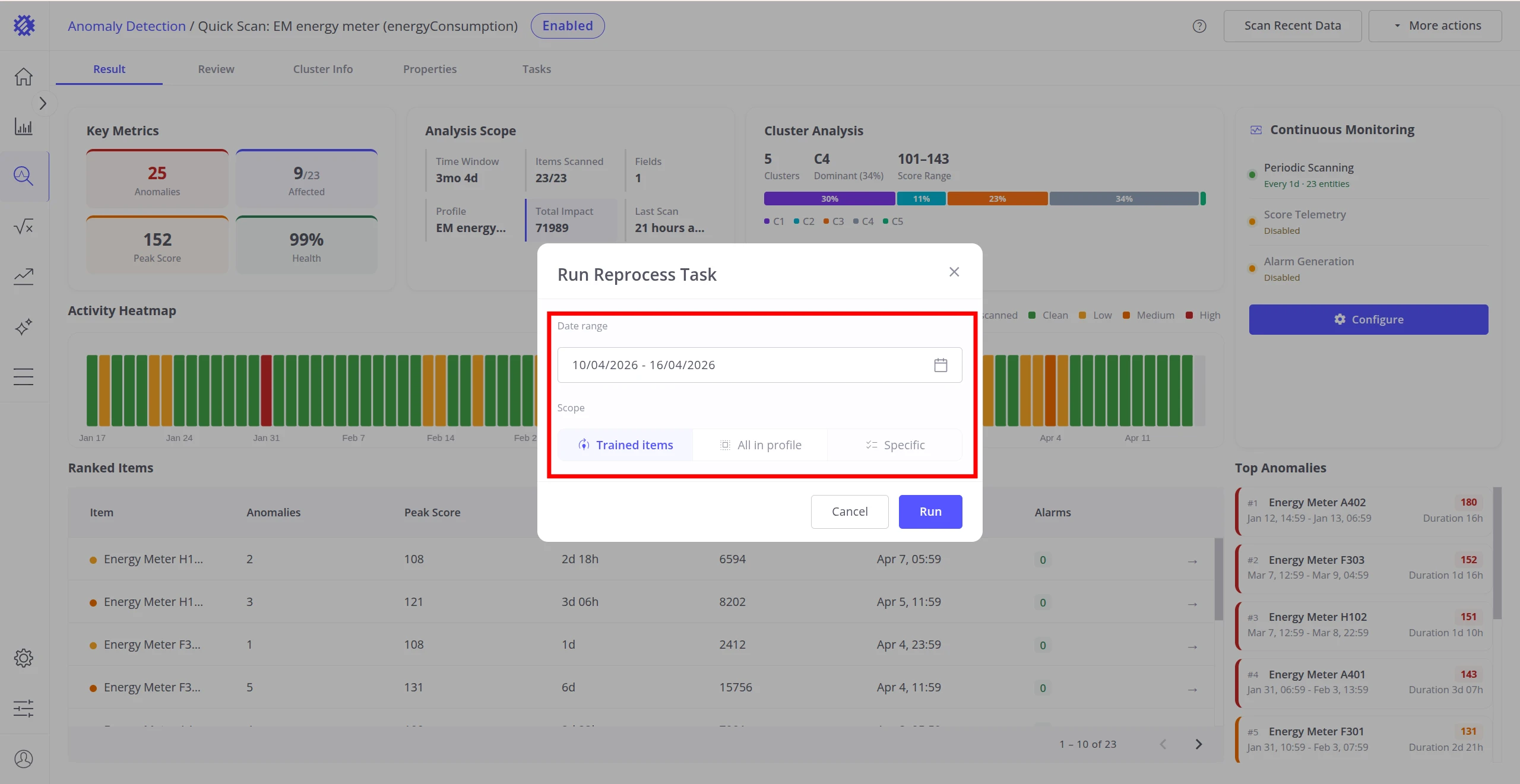
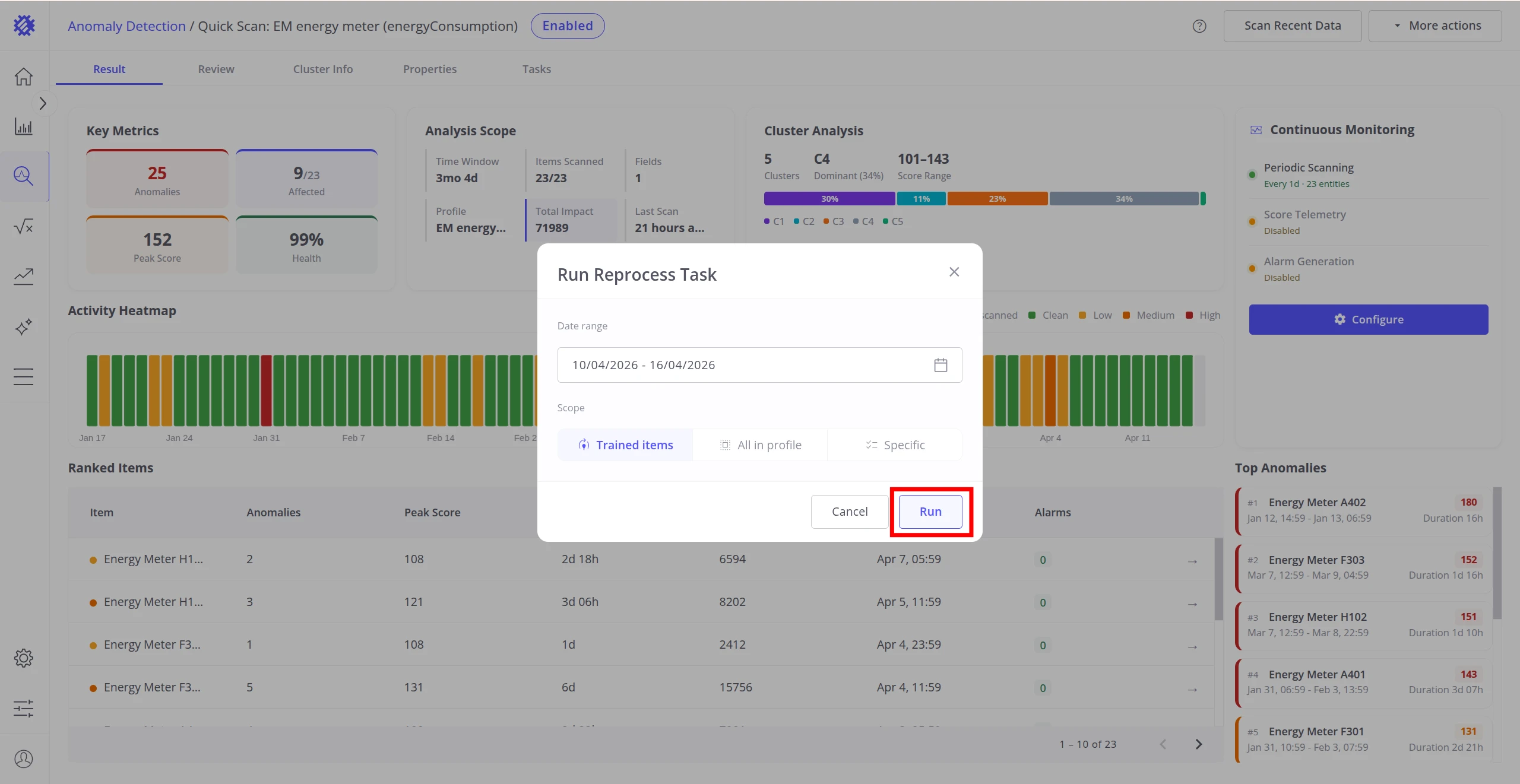
Both options open the Run Reprocess Task dialog. Set the date range and scope, then click Run.
| Setting | Description |
|---|---|
| Date Range | The historical period to process. No maximum limit — can span years. |
| Scope | Trained items, All in profile, or a Specific selection of devices or assets. |
Best Practices
Section titled “Best Practices”| Area | Recommendation |
|---|---|
| Validate before enabling alarms | Enable alarm creation only after validating the model on historical data. A poorly tuned model generates alarm storms that erode trust in alerting. |
| Reprocess before going live | Run reprocess on several historical periods first to confirm the model produces sensible results across different seasons and operating conditions. |
| Write frequency | Match write frequency to how you intend to use the telemetry. For hourly dashboards, 1 hour is sufficient. For rule chains reacting to short spikes, use a shorter interval — but be aware of increased write volume. |
| Severity tiers | Disable unused severity tiers to reduce noise. If your workflow only cares about Critical and Major, disable Warning and Minor. |
| After rebuilds | Rebuilding a model resets all monitoring settings. After any rebuild, re-enable Periodic Scanning, Score Saving, and Generate Alerts with the correct configuration. |
Was this helpful?