Installing Trendz Analytics on Kubernetes
This guide describes how to deploy Trendz Analytics on a Kubernetes cluster.
Prerequisites
Section titled “Prerequisites”Hardware: Minimum 4 GB of RAM and 2 CPU cores. In small and medium deployments, Trendz can be installed on the same server as ThingsBoard.
Software:
- ThingsBoard 4.3.0 or newer. For older versions see Connecting to ThingsBoard 4.2 and Older.
- Active Trendz Analytics add-on. See the Self-Managed Activation guide.
- A running Kubernetes cluster with
kubectlconfigured to communicate with it. If you don’t have Minikube installed, follow these instructions.
Node requirements: Designate a node for the Trendz instance and label it with a custom label. Use affinity settings to deploy Trendz on that node. The typical resource usage is 4 CPU and 8 GB RAM per instance — configure your limits to meet or exceed these recommendations.
Installation steps
Section titled “Installation steps”Trendz Analytics can be installed in two ways:
- Run alongside ThingsBoard — recommended. Trendz is deployed as part of the ThingsBoard Kubernetes cluster, sharing the same infrastructure and database.
- Standalone — Trendz runs independently on its own Kubernetes deployment. Use this if you are not running ThingsBoard on the same cluster or prefer an isolated setup.
Trendz Analytics deployment is included in every ThingsBoard cluster guide. Follow the Trendz configuration step in whichever guide matches your infrastructure:
| ThingsBoard Cluster Guide | Trendz Setup |
|---|---|
| Minikube | Trendz in Minikube |
| OpenShift | Trendz in OpenShift |
| AWS EKS Microservices | Trendz in AWS EKS Microservices |
| AWS EKS Monolith | Trendz in AWS EKS Monolith |
| AKS Microservices | Trendz in AKS Microservices |
| AKS Monolith | Trendz in AKS Monolith |
| GKE Microservices | Trendz in GKE Microservices |
| GKE Monolith | Trendz in GKE Monolith |
Step 1. Clone Trendz Kubernetes scripts
Section titled “Step 1. Clone Trendz Kubernetes scripts”git clone https://github.com/thingsboard/trendz-k8s.git --depth 1cd trendz-k8sStep 2. Configure database
Section titled “Step 2. Configure database”Set up an external PostgreSQL instance with an empty database named trendz. This can be hosted on a managed service (e.g. AWS RDS) or as a stateful deployment in your cluster.
You will need:
- URL — e.g.
jdbc:postgresql://trendz-db-service:5432/trendz - Username — e.g.
postgres - Password — e.g.
postgres
Edit trendz-secret.yml with your values:
nano trendz-secret.ymlSPRING_DATASOURCE_URL: jdbc:postgresql://trendz-db-service:5432/trendzSPRING_DATASOURCE_USERNAME: postgresSPRING_DATASOURCE_PASSWORD: postgresStep 3. Deploy to Kubernetes
Section titled “Step 3. Deploy to Kubernetes”kubectl apply -f trendz-namespace.ymlkubectl apply -f trendz-app-config.ymlkubectl apply -f trendz-app-db-config.ymlkubectl apply -f trendz-app-pvc.ymlkubectl apply -f trendz-app-deployment.ymlkubectl apply -f trendz-python-executor-config.ymlkubectl apply -f trendz-python-executor-deployment.ymlStep 4. Check the logs
Section titled “Step 4. Check the logs”Verify the instance started successfully. Get the pod name and stream its logs:
kubectl logs -f [trendz-pod-name]Look for the following line:
Started TrendzApplication in 5.654 seconds (JVM running for 6.229)Step 5. Set up a load balancer
Section titled “Step 5. Set up a load balancer”Configure a load balancer to route traffic to the Trendz instance. Use trendz-ingress.yml as a reference:
Sync Trendz with ThingsBoard
Section titled “Sync Trendz with ThingsBoard”After installation, verify that Trendz has successfully connected to ThingsBoard. This step is required regardless of how you installed Trendz.
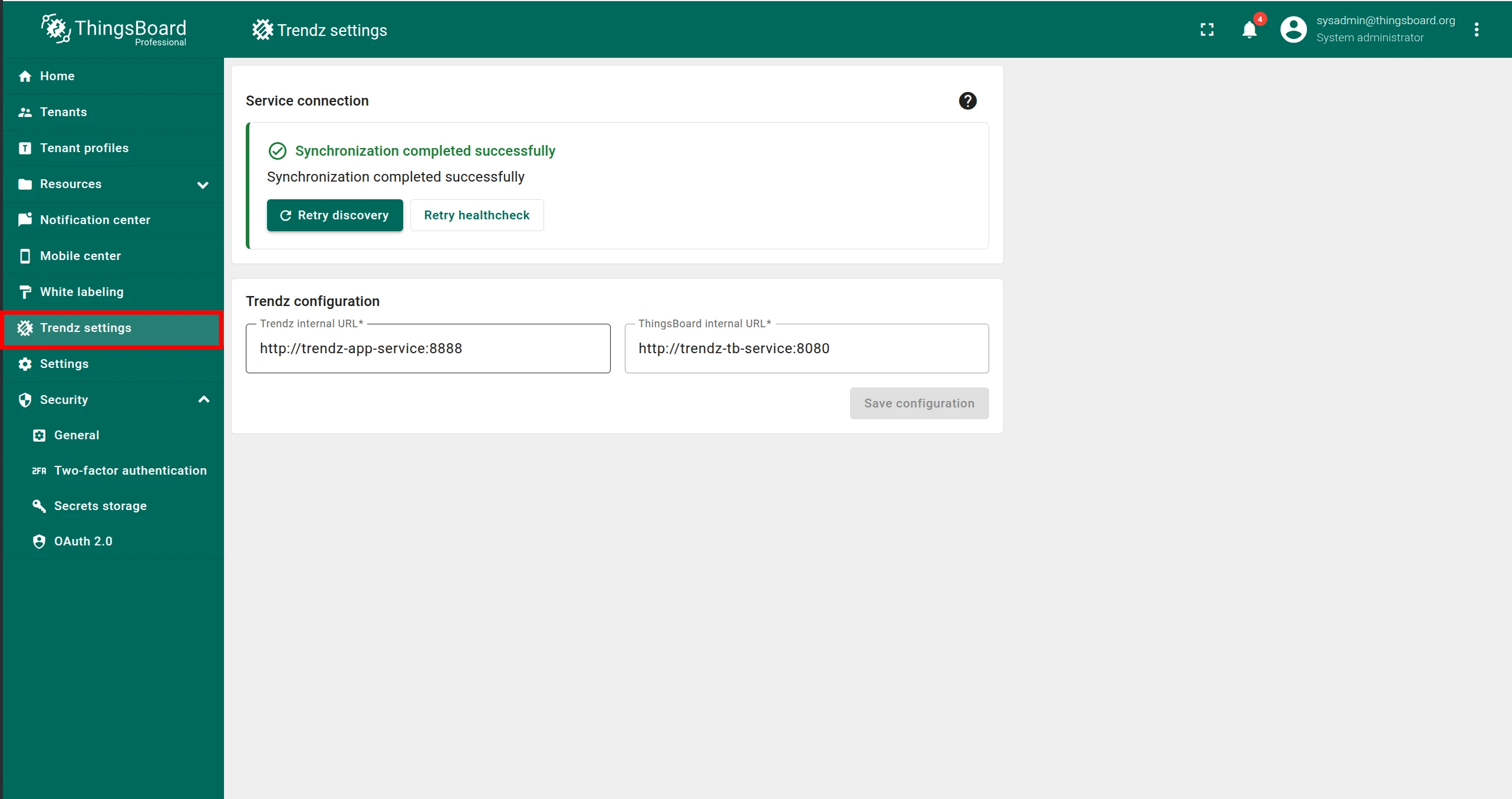
Log in to ThingsBoard as a Sysadmin and open the Trendz Settings page.
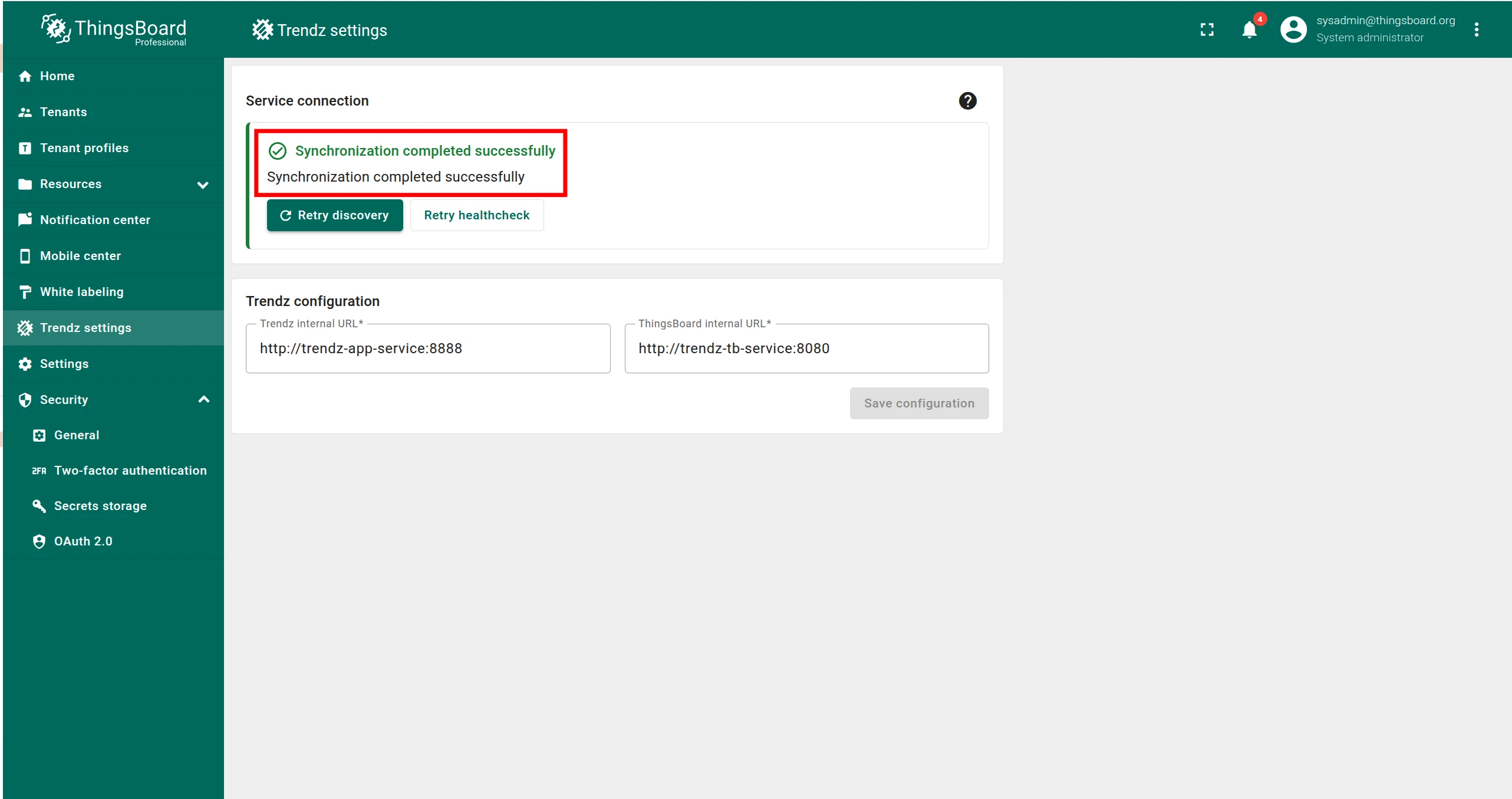
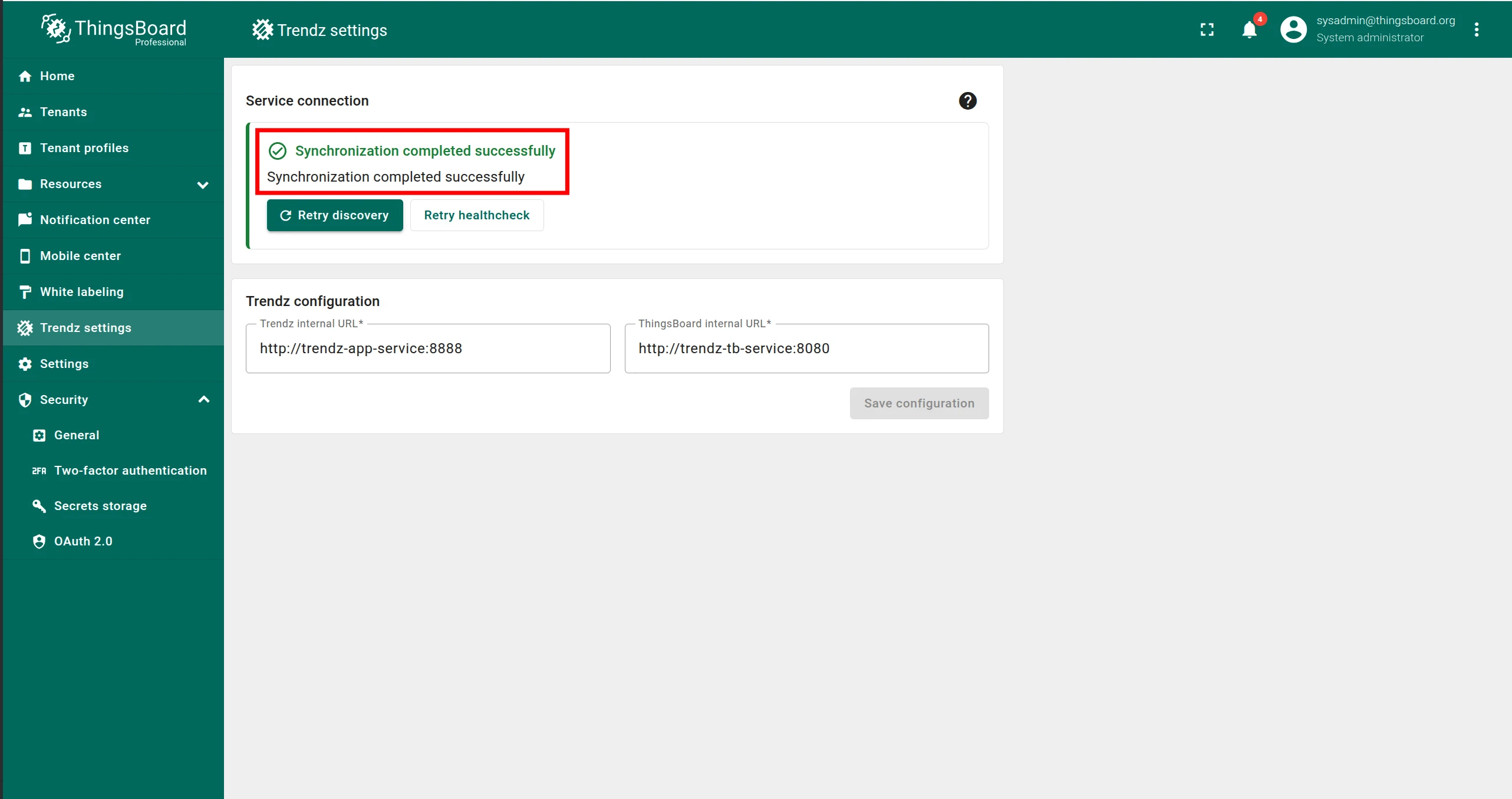
If you see “Synchronization completed successfully”, no further action is needed.
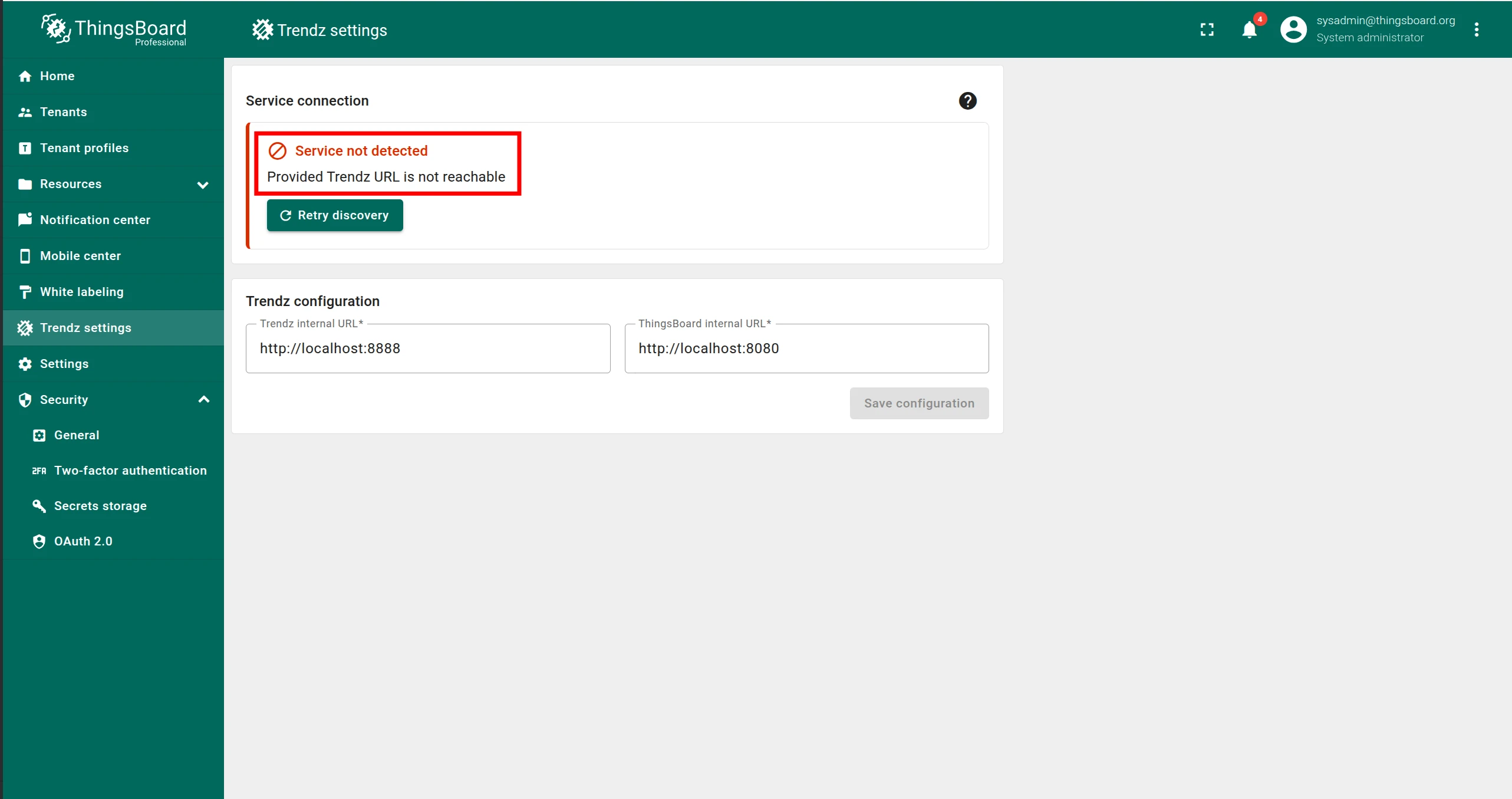
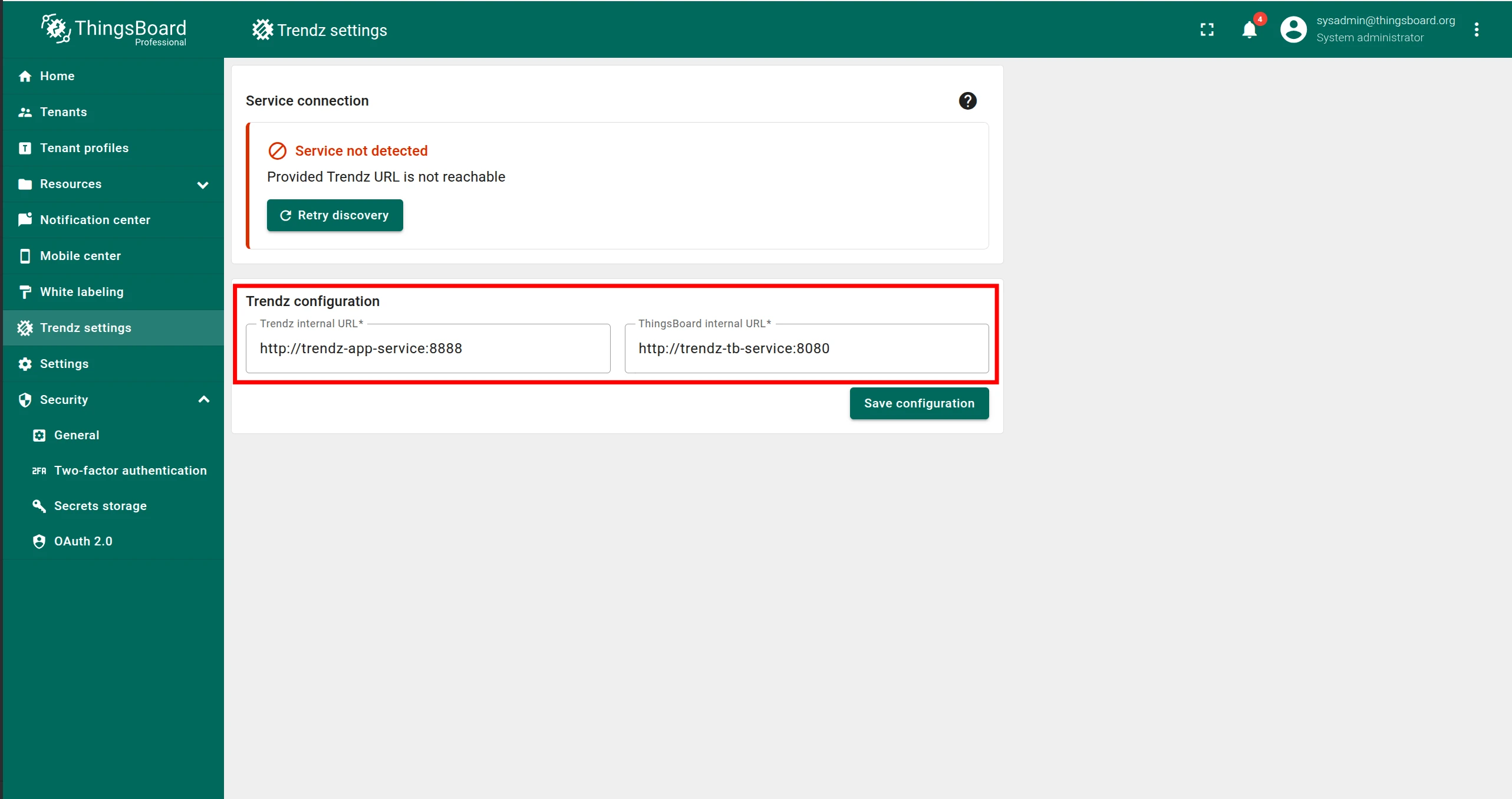
If you see an error message:
- Make sure Trendz is running.
- Enter the correct Trendz internal URL (must be reachable from ThingsBoard).
- Enter the correct ThingsBoard internal URL (must be reachable from Trendz).
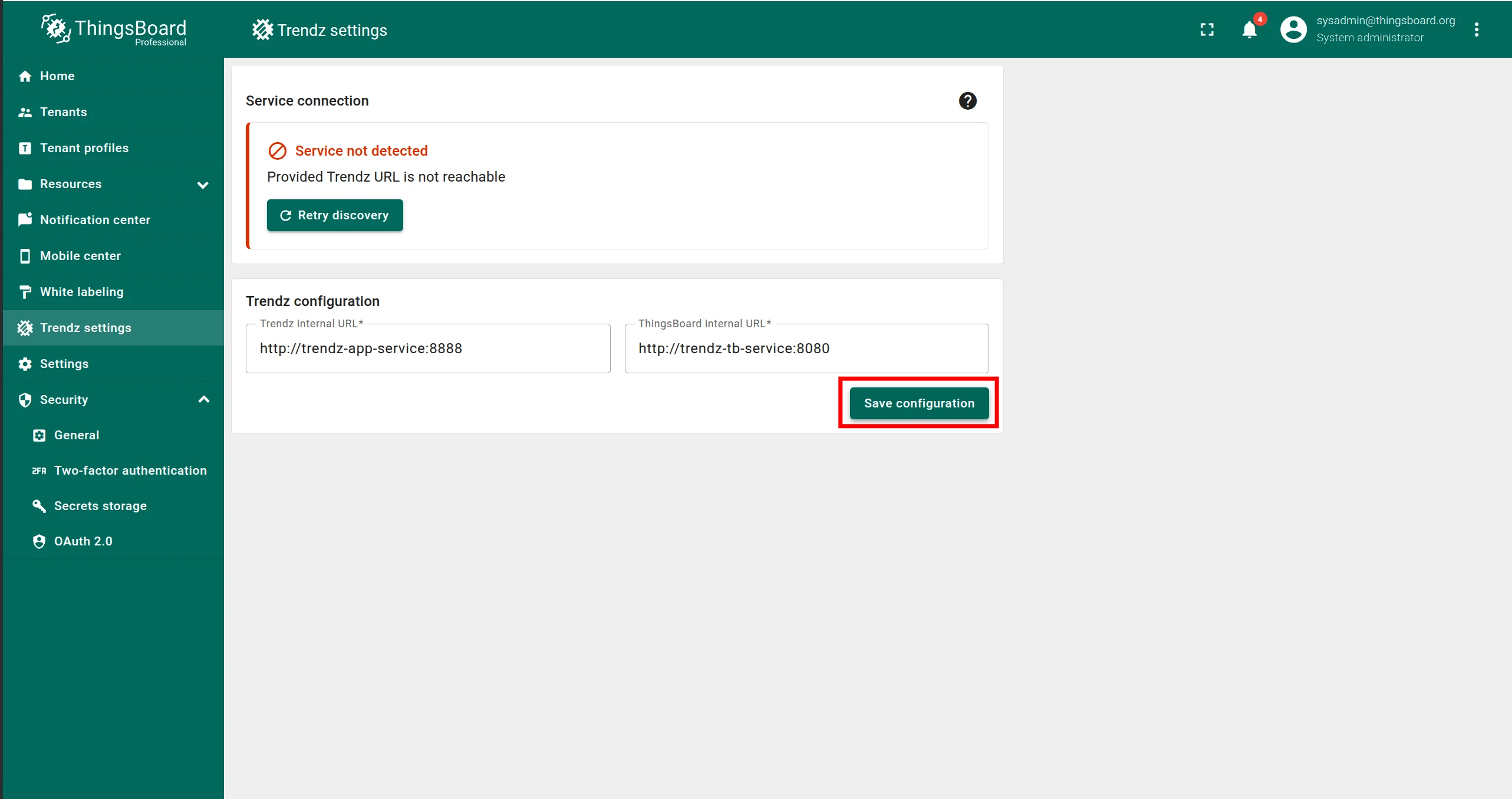
- Click Save configuration.
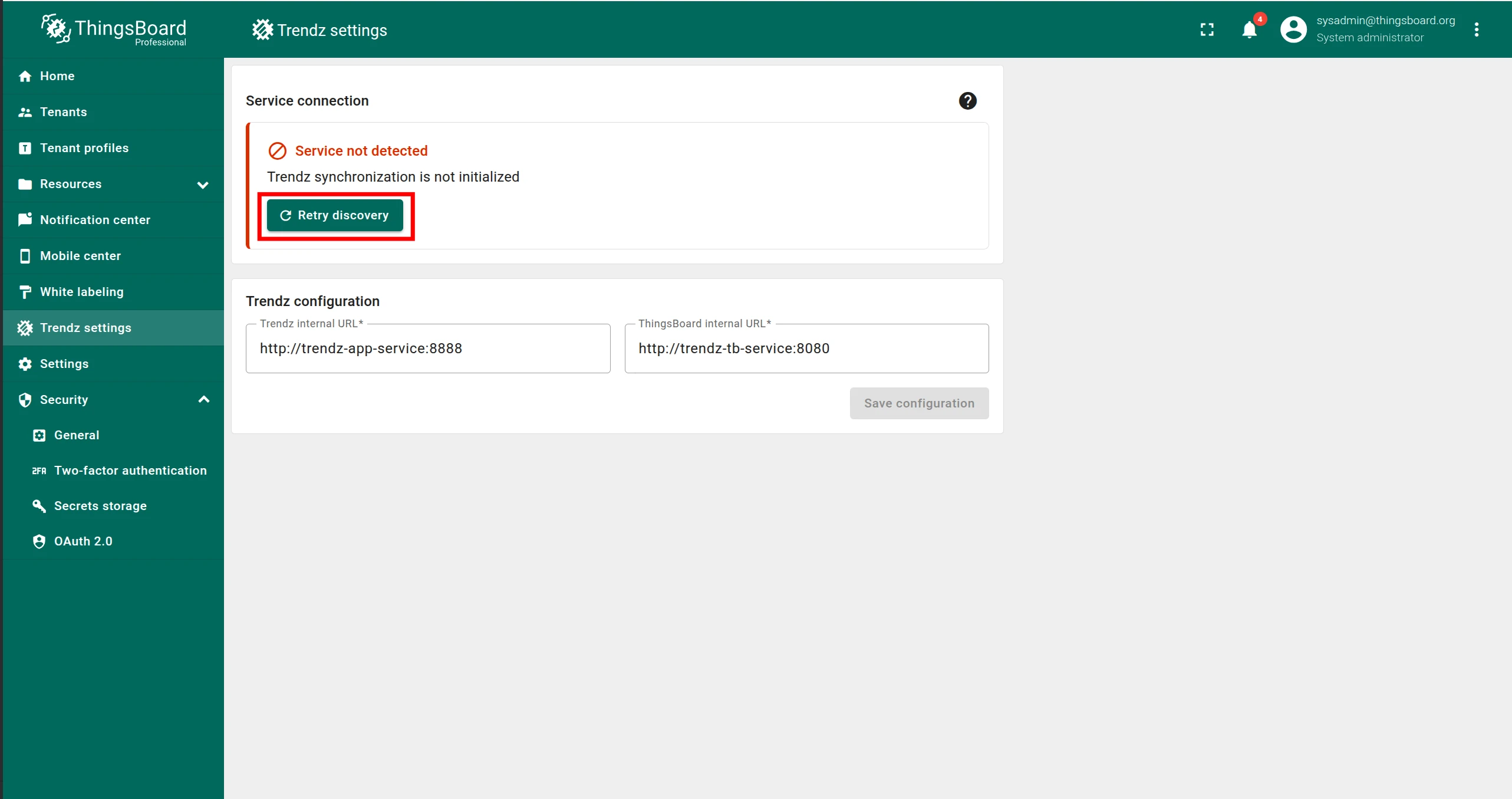
- Click Retry discovery.
Authentication
Section titled “Authentication”Access Trendz UI at http://localhost:8888.
Trendz uses ThingsBoard as its authentication provider — log in with your Tenant Administrator credentials from ThingsBoard.
Topology discovery
Section titled “Topology discovery”After the first login, discover the topology so Trendz can learn about your assets, devices, profiles, and relations:
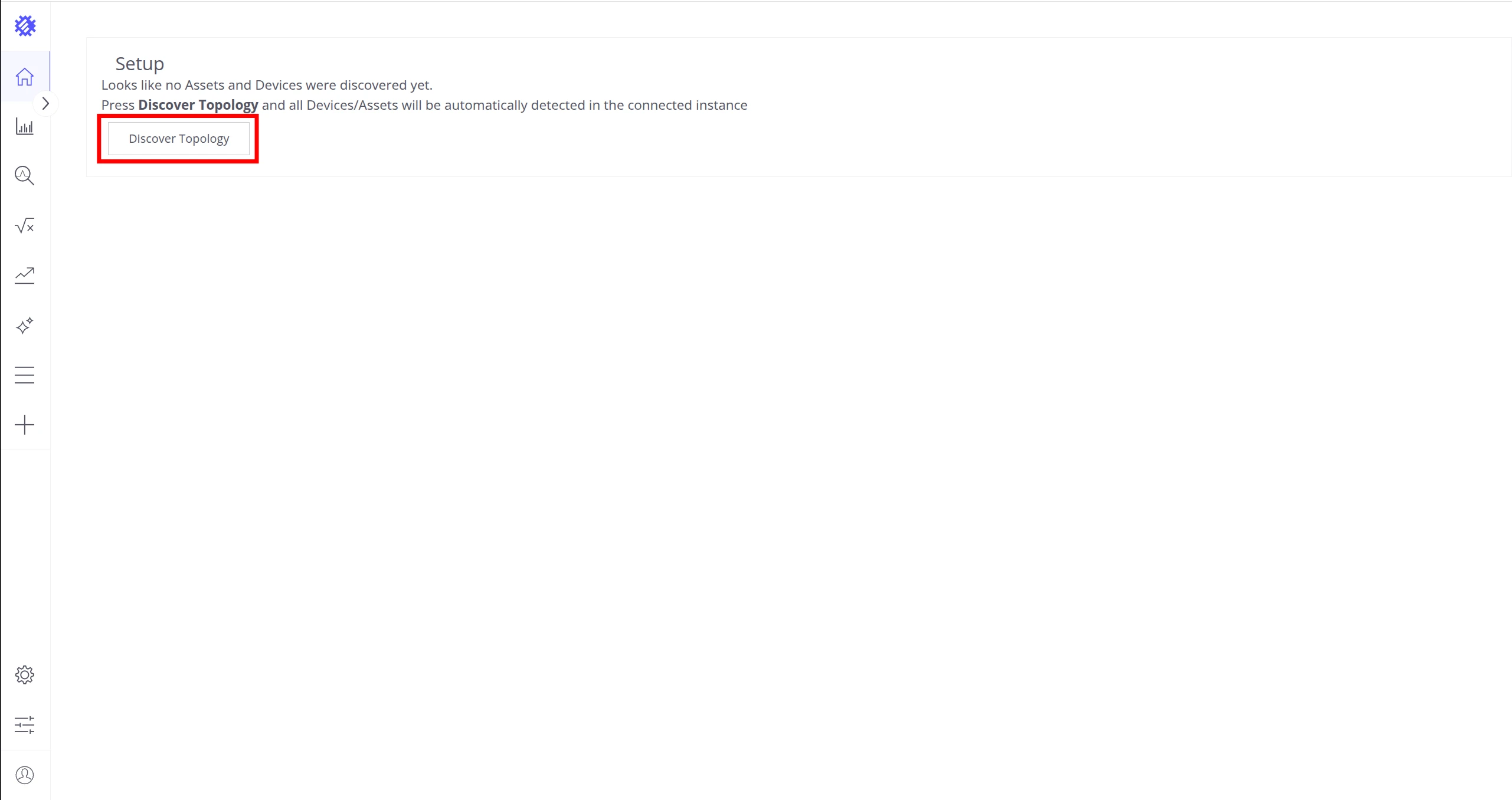
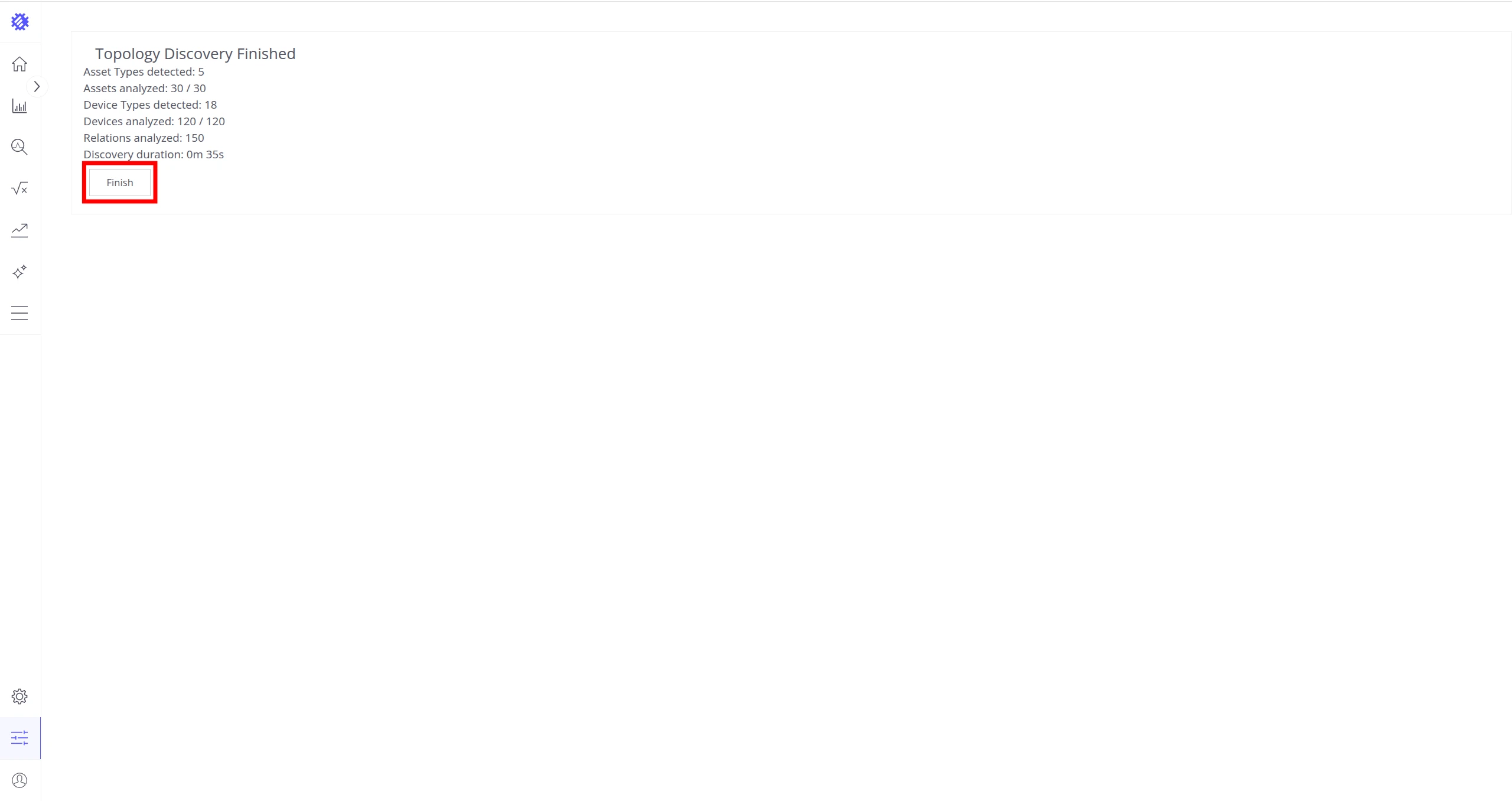
See Business Entities for more on how Trendz uses this topology.
Was this helpful?